Toyota Prius (2023 year). Manual in english - page 9
 

  Index      Toyota     Toyota Prius (2023 year). Manual in english


Search            copyright infringement  


Content      ..     7      8      9      10     ..


Toyota Prius (2023 year). Manual in english - page 9


143

2. Instrument cluster

2

In

st

rum

ent cl

ust
e

r

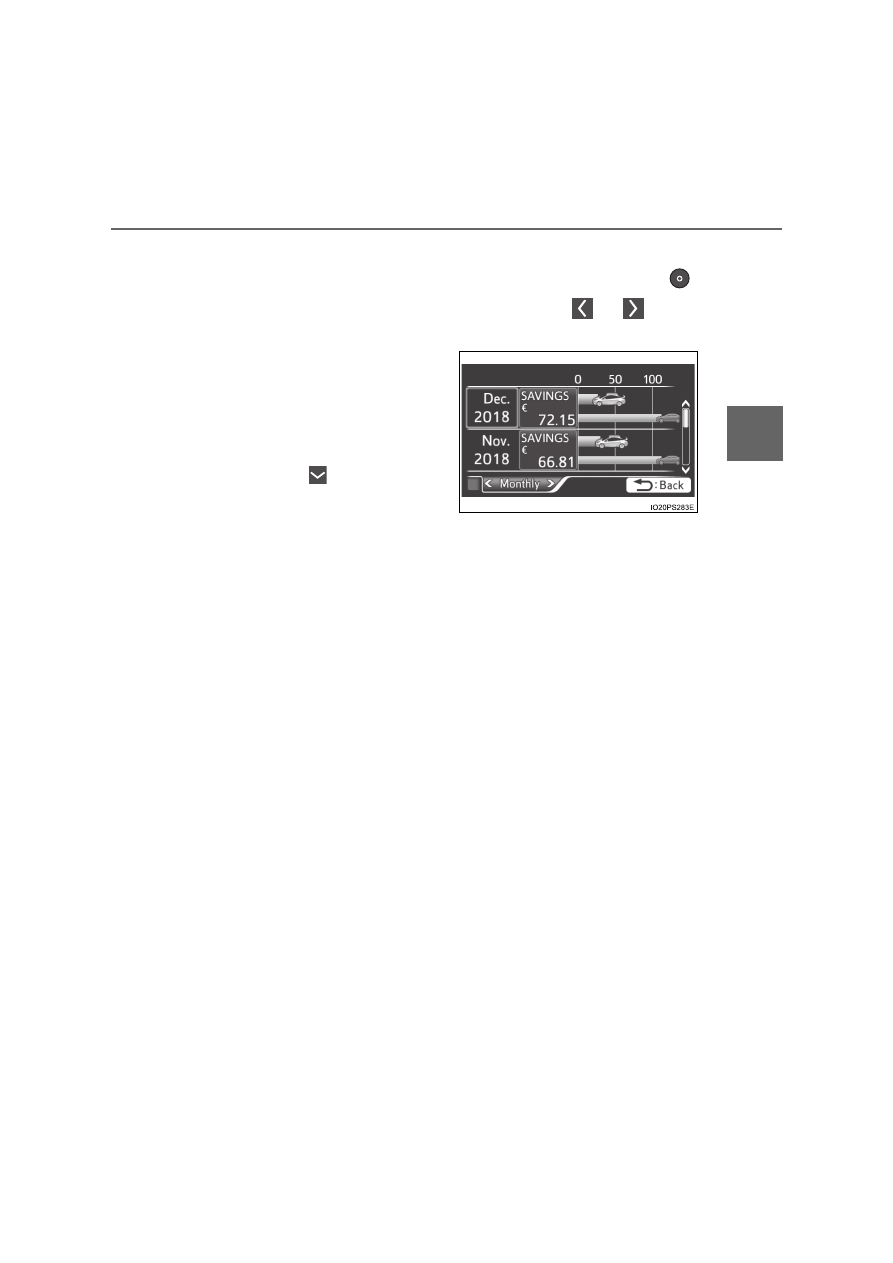
Checking monthly record

The display can be switched to “TRIP” or “Monthly” by pressing 

with the tab display selected, and then pressing 

 or 

 of the

meter control switches.

Using the “Monthly” display, the
monthly records for “SAVINGS”
and “FUEL COST” can be
checked.

The records for the past 5
months can be displayed by
operating 

 of the meter con-

trol switches with the “Monthly”
tab display selected.
To reset the “Monthly” contents, perform “History Reset” in the “Meter
Customize” settings (

P. 156).

144

2. Instrument cluster

“Eco-Diary”

The distance traveled and average fuel consumption history can be
displayed in a table according to day (“Daily”) or month (“Monthly”)
units.

How to read the display

Record of the day/month
Date/month of stored information
Total distance traveled for the day/month
Average fuel consumption of the day/month
Tab display

The display can be switched between “Daily” and “Monthly” by pressing

 to enter the select condition, and then operating 

 or 

 of the

meter control switches.

“Monthly” display

“Daily” display

1
2
3
4
5

145

2. Instrument cluster

2

In

st

rum

ent cl

ust
e

r

Checking history

When each screen is selected, past records from the following

ranges can be displayed by pressing 

 or 

 of the meter con-

trol switches.

If the above number of records is exceeded, the oldest informa-
tion is deleted.

To reset the history, perform “History Reset” in the “Meter Custo-
mize” settings (

P. 156). (“Daily” and “Monthly” information can

be reset independently.)

Calendar settings

P. 158

Displayed screen

Displayed information

Stored information

“Daily”

4 reports

Up to 32 reports 

(8 screens)

“Monthly”

Up to 12 reports 

(3 screens)

146

2. Instrument cluster

AWD display (for AWD vehicles only)

Displays the drive status of each wheel in 6 steps from 0 to 5.

How to read the display

Front-left wheel drive status
Front-right wheel drive status
Rear-left wheel drive status
Rear-right wheel drive status

How to read the drive status display:

About drive status display

Indicates the drive status of each wheel by the number of bars based on the
driving conditions and AWD system. 

When the drive power to each wheel is large, the number of bars increases,
and when the drive power is small the number of bars decreases.

When the number of bars to the rear wheels is small, the system determines
that stable driving is being performed and the AWD function is suppressed
to increase fuel economy.

1
2
3
4

Drive status

Not being driven

Maximum drive power

Indicators

147

2. Instrument cluster

2

In

st

rum

ent cl

ust
e

r

The clock settings can be
changed.

The information about the cur-
rently selected audio source is
displayed.

The illustration is only an example
and may differ from the actual
screen.
To switch the audio source, press

 to display the audio source

selection screen, press 

 or 

of the meter control switches and
select the desired audio source,
and then press 

.

To stop audio source selection, press 

 on the audio source selection

screen.

 Clock setting display

Item

Setting result

Adjusts the clock.
(

P. 106)

Sets the minutes to
“00”. (

P. 107)

 Audio system-linked display

148

2. Instrument cluster

The condition of the air conditioning system settings can be checked
on the screen and the air conditioning system settings can be
changed using the meter control switches.

On the air conditioning settings screen, press 

 or 

 of the meter con-

trol switches to switch the contents of the display.
For details regarding the air conditioning system function, refer to P. 458.

Screen display and setting items that can be changed

 Air conditioning system settings screen

149

2. Instrument cluster

2

In

st

rum

ent cl

ust
e

r

*

1

: “LO” is displayed if the temperature is adjusted to the lowest setting, and

“HI” is displayed if the temperature is adjusted to the highest setting.

*

2

: The selectable modes differ depending on whether a passenger is present.

(

P. 461)

Adjusting the settings

Press 

 to display the cursor.

Press 

 or 

 of the meter control switches to select the

desired item to set.

Press 

 or 

 of the meter control switches to select the set-

ting item or setting value.
The air conditioning system cannot be stopped by performing
operations on the air conditioning settings screen. Please use
the air conditioning switch to stop the air conditioning system.

Item

Settings

Eco score 
(A/C score)

P. 150

Temperature
setting

Changes according to operation of the meter control 

switches

*

1

Outside air and
recirculated air
modes


(Outside air mode)

(Recirculated air mode)

Fan speed

1 to 7

“CLIMATE
PREFERENCE”

“NORMAL”

“ECO”

“FAST”

Front seat con-
centrated air-
flow mode (S-
FLOW)

“On (Driver 

Priority)”

*

2

“On (Fr Seat 

Only)”

*

2

“Off (All seat)”

1

2

3

4

5

6

1

2

3

150

2. Instrument cluster

Eco score (A/C score)

The current air conditioning system usage status is evaluated in 5
levels to determine whether it is Eco-friendly.
The evaluation changes according to the air conditioning system
usage status. When the power switch is turned off, the current total
driving score

*

1

 and advice

*

2

 related to using the air conditioning

system are displayed. (

P. 105)

Low score

*

3

High score

Avoiding excessive use of the
air conditioning system and
using the air conditioning sys-
tem at the appropriate setting
according to the ambient tem-
perature and number of passen-
gers and with the front seat
concentrated airflow mode (S-
FLOW) (

) and “CLIMATE

PREFERENCE” will result in a
high evaluation.

*

1

: The Eco score (A/C score) is not evaluated for approximately 1 minute

after the power switch is turned to ON mode.

*

2

: This advice may not be displayed depending on the situation.

*

3

: For items not evaluated with an Eco score (A/C score), the display

reads 0.

1
2

151

2. Instrument cluster

2

In

st

rum

ent cl

ust
e

r

Operating switches of the air conditioning system operation panel

The pop-up display function that displays when the air conditioning settings
are changed using the air conditioning system switches can be turned off in
the “Meter Customize” settings. (

P. 156)

Eco score (A/C score)

The setting status of the following air conditioning system functions are
reflected in the score.
• Temperature setting
• Fan speed setting
• Outside air and recirculated air modes
• “A/C” button
• Front seat concentrated airflow mode (S-FLOW)
• “CLIMATE PREFERENCE”

The Eco score (A/C score) is evaluated according to the ambient tempera-
ture and cabin temperature. Accordingly, even if the same settings are
always used for the air conditioning system, the evaluation will change
according to such factors as the season and weather.

When the air conditioning system is not being used or the airflow mode is
set to 

 or 

, the Eco score (A/C score) is not evaluated. (While the

air conditioning system is not evaluated, its usage status is not reflected in
the total Eco score result.)

The Eco score (A/C score) is a function that helps select an air conditioning
system setting which reduces fuel consumption, not a function that satisfies
both comfortability and low fuel consumption.

When the air conditioning system
switches are operated to change the air
conditioning settings while a screen
other than the air conditioning system
settings screen is displayed on the multi-
information display, a pop-up display for
the air conditioning settings contents is
displayed. However, air conditioning
system settings cannot be changed on
the pop-up display.

152

2. Instrument cluster

The operation status of driving
support system such as the LTA
(Lane Tracing Assist)  (if
equipped) and dynamic radar
cruise control with full-speed
range (if equipped) and warning
information are displayed.

For details regarding the driving
support functions, refer to the page
for the corresponding function.

The warning messages that have
been displayed since the power
switch was turned to ON mode
can be checked.

When multiple warning messages
have been displayed, the display
can be switched by pressing 

 or

 of the meter control switches.

Warning messages that have been currently cleared and some warning
messages are not displayed. Also, when there are no warning messages
that can be checked, the display indicates that there are no messages.

 Driving assist system information

 Warning message display

153

2. Instrument cluster

2

In

st

rum

ent cl

ust
e

r

The operation contents of the driving support systems and settings
related to the combination meter display can be changed.

Driving support systems such as the PCS (Pre-Collision System) (if
equipped) and Blind Spot Monitor (if equipped) is turned on and off by sim-
ply pressing 

. Make sure not to cancel the systems accidentally.

Setting procedure

Press 

 or 

 of the meter control switches on the steering

wheel and select 

.

Press 

 or 

 of the meter control switches and select the

item to change, and then press 

.

If the function is turned on and
off or the sensitivity, etc. is
changed on the setting screen,
the setting is changed each time
the 

 is pressed.

For functions that allow opera-
tion contents, display contents,
etc., of a function to be selected,
the setting screen is displayed.

When the setting screen is displayed, select the setting or
desired value (time, etc.) with the meter control switches.

*

1, 2

For selectable operation con-
tents and setting values, select
the desired setting or value, and
then press 

.

To stop the selection, press 

.

When the setting check screen
is displayed, select proceed or
cancel and press 

.

*

1

: Depending on the items, a subsequent setting screen may be dis-

played after selecting an item.

*

2

: For items which set the adjustment level or time, after the item is set,

the setting screen remains displayed until 

 is pressed.

 Settings display

1

2

3

154

2. Instrument cluster

Settings table

Item

Settings

Setting result

*

1

“On”

Turns the LTA (Lane Tracing Assist) lane
centering function on and off. (

P. 307)

“Off”

*

1

“On”

Turns the LTA (Lane Tracing Assist) steer-
ing assist function on and off. (

P. 307)

“Off”

*

1

“High”

Switches the LTA (Lane Tracing Assist)
alert sensitivity. (

P. 307)

“Standard”

*

1

“On”

Turns the PCS (Pre-Collision System) on
and off. (

P. 300)

“Off”

*

1

Early

Switches the PCS (Pre-Collision System)
warning timing. (

P. 300)

Middle

Late

*

1

“On”

Turns the Toyota parking assist-sensor on
and off. (

P. 381)

“Off”

*

1

“On”

Turns the Parking Support Brake function
on and off. (

P. 396)

“Off”

*

1

“On”

Turns the Blind Spot Monitor on and off. 
(

P. 357)

“Off”

*

1

“On”

Turns the LTA (Lane Tracing Assist) vehicle
sway warning on and off. (

P. 307)

“Off”

*

1

“High”

Switches the LTA (Lane Tracing Assist)
vehicle sway warning sensitivity. (

P. 307)

“Standard”

“Low”

*

1

Height

Changes the display position and bright-
ness of the head-up display. (

P. 162)

Brightness

*

1

“On”

Turns the RSA (Road Sign Assist) on and
off. (

P. 323)

“Off”

*

1

“On”

Turns the Dynamic Radar Cruise Control
with Road Sign Assist on and off. 
(

P. 341)

“Off”

155

2. Instrument cluster

2

In

st

rum

ent cl

ust
e

r

*

1

: If equipped

*

2

: Right-hand drive vehicles only

*

1

“km/h”

Switches the speed unit used by the screen
display.

“MPH”

*

2

Meter 

brightness

Changes the brightness of instrument clus-
ter light. (

P. 102)

“Meter Customize” settings: 

P. 156

“Vehicle Settings” settings: 

P. 670

Item

Settings

Setting result

156

2. Instrument cluster

“Meter Customize” settings ( 

 )

Item

Settings

Setting result

“Simple/Split
Screen”

*

1

“Simple”

Switches the display mode of
the main display. (

P. 123)

“Split”

“Screen
OFF”

*

2

“Yes”

Turns the multi-information dis-
play off.

“No”

“HV System 
Indicator” 
(

P. 132)

“ECO Acceler-
ator Guidance”

“On”

Turns the “ECO Accelerator
Guidance” on and off.

“Off”

“EV Indicator 
Light On/Off”

“On”

Turns the EV indicator on and
off.

“Off”

“Pop-up Display
On/Off”

“Instrument 
Panel Light”

*

3

“On”

Turns the pop-up display of the
selected item on the multi-
information display on and off.

“Off”

“Gasoline
Price”

*

1

“On”

“Off”

“Climate 
settings”

“On”

“Off”

“Cruise 
Control 
Operation 
Display”

“On”

“Off”

“HUD 
Settings”

*

1

“On”

“Off”

“Driving Mode
Select”

“On”

“Off”

157

2. Instrument cluster

2

In

st

rum

ent cl

ust
e

r

*

1

: If equipped

*

2

: When the screen is turned off, pressing 

 displays the setting screen

again.

*

3

: Left-hand drive vehicles only

*

4

: The possible displayed languages differ according to the target region.

“Language”

*

4

“English” (English)

Switches the language dis-
played on the screen.

“Français” (French)

“Español” (Spanish)

“Deutsch” (German)

“Italiano” (Italian)

” (Russian)

“Türkçe” (Turkish)

“Calendar”

Day/Month/Year

Changes the date used to
record fuel consumption data.

“Eco Savings”

*

1


(

P. 141)

“Gasoline Price”

Registers data used to calcu-
late and record “Eco Savings”.

“COMP. Consumption”

“History
Reset”

“Monthly Fuel
Consumption”

“Yes”

Deletes data of “Fuel Con-
sumption Record (Monthly)”.
(

P. 136)

“No”

“Eco Savings 
(Monthly)”

*

1

“Yes”

Deletes data of “Eco Savings
(Monthly)”. (

P. 141)

“No”

“Eco-Diary 
(Daily)”

“Yes”

Deletes data of “Eco-Diary
(Daily)”. (

P. 144)

“No”

“Eco-Diary 
(Monthly)”

“Yes”

Deletes data of “Eco-Diary
(Monthly)”. (

P. 144)

“No”

“Initialization”

“Yes”

Returns the combination meter
settings to their initial settings.

“No”

Item

Settings

Setting result

158

2. Instrument cluster

Setting items

“Meter Customize” and “Vehicle Settings” setting items are not selectable
during driving and cannot be operated. 
Also, the settings screen is temporarily canceled in the following situations.
• A warning message is displayed.
• The vehicle starts off.

Settings for functions not equipped to the vehicle are not displayed.

When a function is turned off, the related settings for that function are not
selectable.

Calendar settings

Calendar settings contents are linked to the recorded information of “Fuel
Consumption Record (Monthly)” (

P. 136) and “Eco-Diary” (

P. 144).

When the calendar date is changed, each record is processed as follows:

*

: Month/date information not recorded is set to “0” or “0.0”.

When the recorded contents of “Fuel Consumption Record (Monthly)” are
changed due to changing the calendar settings, the “Monthly” information of
“Eco Savings” (

P. 141) is also changed. (if equipped)

Contents of date 

change

“Fuel Consumption 

Record (Monthly)” 

record

“Eco-Diary” record

Date changed to future
date

Not cleared

*

Not cleared

*

Date changed to before
last month

Cleared

All cleared

Date changed to earlier
date within current
month

Not cleared

Only “Daily” data 

cleared


Content      ..     7      8      9      10     ..