Toyota Prius (2022 year). Manual in english - page 8
 

  Index      Toyota     Toyota Prius (2022 year). Manual in english


Search            copyright infringement  


Content      ..     6      7      8      9     ..


Toyota Prius (2022 year). Manual in english - page 8


129

2. Instrument cluster

2

Instru

me
nt clu

ster

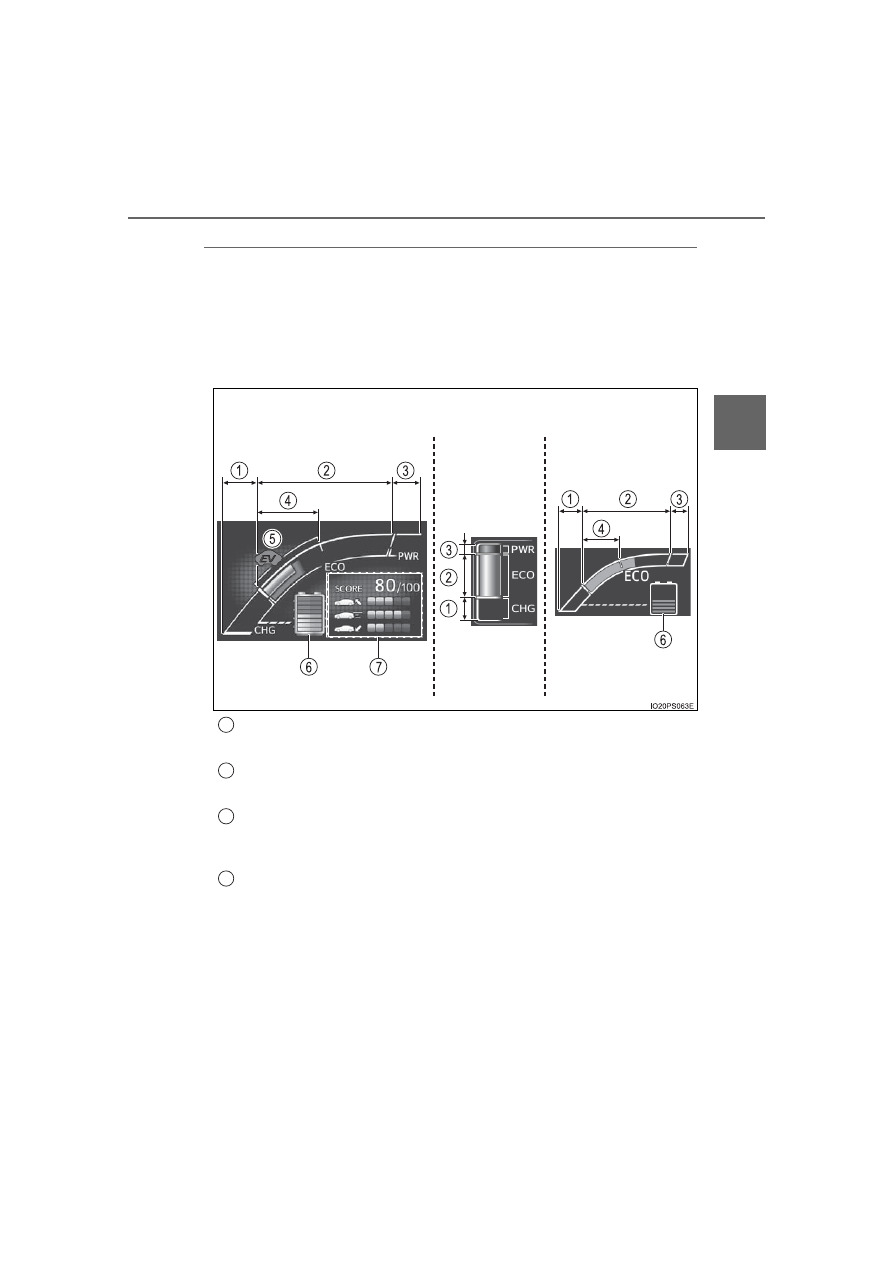
Hybrid System Indicator

The display changes according to accelerator pedal operation and
displays the current driving status and energy regeneration status.

The Hybrid System Indicator can be displayed on the sub-screen of the
main display (

P. 122) and the head-up display (if equipped) 

(

P. 158).

How to read the display

Charge area

Shows that energy is being recovered via the regenerative charging.

Eco area

Shows that the vehicle is being driven in an Eco-friendly manner.

Power area

Shows that an Eco-friendly driving range is being exceeded (during full
power driving etc.)

Hybrid Eco area

*

1

Shows that gasoline engine power is not being used very often.
The  gasoline  engine  will  automatically  stop  and  restart  under  various
conditions.

Head-up display 

(if equipped)

Sub-screen

Multi-information 

display

1

2

3

4

130

2. Instrument cluster

EV indicator

*

2, 3

The  EV  indicator  comes  on  when  the  vehicle  is  driven  using  only  the
electric motor (traction motor) or the gasoline engine is stopped.

Hybrid battery (traction battery) status

P. 128

Eco score

P. 131

By keeping the indicator within Eco area, more Eco-friendly driv-
ing can be achieved.

Charge  area  indicates  regeneration

*

4

  status.  Regenerated

energy will be used to charge the hybrid battery (traction battery).

*

1

: Not displayed on the sub-screen.

*

2

: Not displayed on the sub-screen or head-up display.

*

3

: The  EV  indicator  function  can  be  turned  off  in  the  “Meter  Customize”

settings. (

P. 153)

*

4

: When  used  in  this  manual,  “regeneration”  refers  to  the  conversion  of

energy created by the movement of the vehicle into electrical energy.

“ECO Accelerator Guidance”

A blue zone is displayed in the
Eco area which can be used as
a reference operation range for
using  the  accelerator  pedal
according  to  driving  conditions
such  as  starting  off  and  cruis-
ing.

The  “ECO  Accelerator  Guid-
ance”  display  changes  accord-
ing to the driving status, such as
when starting off or cruising.
It is easier to drive in an Eco-friendly manner by driving according to the
display showing the accelerator pedal operations and staying within the
“ECO Accelerator Guidance” range. (

P. 224)

The  “ECO  Accelerator  Guidance”  function  can  be  turned  off  in  the
“Meter Customize” settings. (

P. 153)

5

6

7

“ECO Accelerator Guidance”

131

2. Instrument cluster

2

Instru

me
nt clu

ster

Eco score

The driving status for the following 3 situations are evaluated in 5
levels:  Smooth  start-off  acceleration  (“Eco-Start”),  driving  without
sudden  acceleration  (“Eco-Cruise”)  and  smooth  stopping  (“Eco-
Stop”). Each time the vehicle is stopped, a score result is displayed
out of a perfect score of 100 points.

Score result
“Eco-Start” status
“Eco-Cruise” status
“Eco-Stop” status

How to read the bar display:

*

: For items not currently evaluated, the display reads 0.

The Eco score is reset each time the vehicle starts off to start a new
evaluation.

When  the  shift  position  is  P,  only  the  Eco  score  display  area  is
enlarged and displayed. When the shift position is shifted from P,
the display returns to normal.

When  the  hybrid  system  stops,  the  current  total  score  result  and
advice on how to increase the score are displayed. (

P. 102)

1

2

3

4

Score

Low

*

High

Bar display

132

2. Instrument cluster

When operation of each function stops

The Hybrid System Indicator stops operating in the following situations.
• The “READY” indicator is not illuminated.
• The shift position is not D or B.

The Eco score and “ECO Accelerator Guidance” stop operating in the fol-
lowing situations.
• The Hybrid System Indicator is not operating.
• Cruise  control  (if  equipped)  or  dynamic  radar  cruise  control  with  full-

speed range (if equipped) is being used.

About the Eco score

After  starting  off,  Eco  score  display  does  not  start  until  the  vehicle  speed
exceeds approximately 19 mph (30 km/h).

In addition to the vehicle driving status, the Eco score also evaluates the air
conditioning system usage condition (

P. 148). The score displayed when

the  hybrid  system  stops  is  the  total  result  of  the  driving  status  after  the
hybrid system starts and the air conditioning usage condition.

133

2. Instrument cluster

2

Instru

me
nt clu

ster

“Fuel Consumption Record”

The  transitions  of  the  average  fuel  consumption  after  the  hybrid
system starts can be checked in such a unit as every 5 minutes or
every  1  mile  (1.6  km)

*

1

  or  1  km  (0.6  mile)

*

2

  of  driving. Also,  it  is

possible  to  check  the  average  fuel  consumption  history  for  each
month by switching to the “Monthly” display.

*

1

: When the unit is set to “MPH”

*

2

: When the unit is set to “km/h”

How to read the screen

The “5 min”  display  is  shown  as an example. However, the  basic
method for how to read the screen is the same for each fuel con-
sumption history screen.

Current  average  fuel  con-
sumption  record  (yellow  dis-
play)

*

1

When  the  recorded  unit  is
exceeded  (every  5  min.,  every
1 mile  [1.6 km]

*

2

  or  1 km

[0.6 mile]

*

3

,  etc.)  the  currently

displayed 

history 

moves

towards the left side and the old-
est record is deleted.

Past average fuel consumption record (green display)
Tab display

Displays types of “Fuel Consumption Record”.

*

1

: When displayed by “Monthly”, the average fuel consumption for the cur-

rent month is displayed.

*

2

: When the unit is set to “MPH”

*

3

: When the unit is set to “km/h”

1

2

3

134

2. Instrument cluster

Types of “Fuel Consumption Record”

When the unit is set to “MPH”

*

1

: This record is reset each time the hybrid system stops.

*

2

: The maximum value of the graph can be switched in 3 levels (150 MPG,

100 MPG and 50 MPG) by operating the 

 or 

 of the meter control

switches while the “Monthly” tab display is selected.

*

3

: The  “Monthly”  record  can  be  reset  on  the  “Meter  Customize”  settings

screen. (

P. 153)

Tab display

Recorded contents

Recorded range

“5 min”

Average  fuel  consumption
of every 5 minutes

*

1

The past 30 minutes

“1 miles”

Average  fuel  consumption
of  every  1  mile  (1.6  km)
driven

*

1

The last 15 miles (24.1 km)
driven

“5 miles”

Average  fuel  consumption
of  every  5  miles  (8  km)
driven

*

1

The last 30 miles (48.3 km)
driven

“Monthly”

Average  fuel  consumption
of this month

*

2, 3

Record of last 4 months and
the same month of the pre-
vious year

135

2. Instrument cluster

2

Instru

me
nt clu

ster

When the unit is set to “km/h”

*

1

: This record is reset each time the hybrid system stops.

*

2

: The maximum value of the graph can be switched in 3 levels (10 L/100 km,

6 L/100 km and 3 L/100 km) by operating the 

 or 

 of the meter con-

trol switches while the “Monthly” tab display is selected.

*

3

: The  “Monthly”  record  can  be  reset  on  the  “Meter  Customize”  settings

screen. (

P. 153)

Tab display

Recorded contents

Recorded range

“5 min”

Average  fuel  consumption
of every 5 minutes

*

1

The past 30 minutes

“1 km”

Average  fuel  consumption
of  every  1 km  (0.6 mile)
driven

*

1

The  last  15  km  (9.3  miles)
driven

“5 km”

Average  fuel  consumption
of  every  5 km  (3.1 miles)
driven

*

1

The last 30 km (18.6 miles)
driven

“Monthly”

Average  fuel  consumption
of this month

*

2, 3

Record of last 4 months and
the same month of the pre-
vious year

136

2. Instrument cluster

Switching the fuel consumption history screen

While the “Fuel Consumption Record” screen is displayed, press

.

The tab display is selected and it is possible to switch the contents of
the display.

Press 

 or 

 of the meter control switches to switch the con-

tents of the display.

Each time 

 is pressed, the display switches in the following order:

When the unit is set to “MPH”

“5 min”,  “1 miles”,  “5 miles”  and  “Monthly”

*

.  When 

  is  pressed,  it

switches in the reverse order.

When the unit is set to “km/h”

“5 min”, “1 km”, “5 km” and “Monthly”

*

. When 

 is pressed, it switches

in the reverse order.

*

: After “Monthly”, the display returns to “5 min”.

Calendar settings

P. 156

1

2

137

2. Instrument cluster

2

Instru

me
nt clu

ster

“Drive Monitor”

Displays information such as the driving time and average vehicle
speed, which are linked with the current mileage display. (

P. 119)

Current  contents  of  the  dis-
play

Displayed  information  shows
which  driving  record  the  cur-
rently  displayed  contents  are
based on.

“Elapsed Time”
“Average Speed”
“EV Driving Ratio”

For the displayed distance of the mileage display, the percent traveled
using only electric motor power is displayed.

Each time 

 is pressed, the mileage display (

P. 119) switches

and the contents of the “Drive monitor” change as follows.

*

1

: When the average fuel consumption is reset (

P. 120), the “Drive monitor”

display is also reset.

*

2

: When the trip meter is reset (

P. 120), the “Drive monitor” display is also

reset.

*

3

: This item is reset each time the hybrid system starts.

1

2

3

4

Mileage display

Contents of the “Drive monitor”

ODO

After Reset

Information since last reset

*

1

TRIP A

TRIP A

Information  based  on  driving  record  of
TRIP A

*

2

TRIP B

TRIP B

Information  based  on  driving  record  of
TRIP B

*

2

After Start

Information  since  hybrid  system  was
started

*

3

Blank screen

1

138

2. Instrument cluster

“Eco Savings”

“Gasoline Price”

*

1

 and “COMP. Consumption” information is regis-

tered in the “Meter Customize” settings (

P. 153), making it possi-

ble  to  display  2  types  of  information  related  to  gasoline  fuel
consumption.

“SAVINGS”

If information about the vehicle used to compare fuel consumption
(“COMP. Consumption”) is entered, when the fuel consumption of
this vehicle according to the mileage of the trip meter

*

2

 is greater

than that of the comparison vehicle, an estimation

*

3

 of the amount

of the fuel cost savings is displayed.

“FUEL COST”

If information about the vehicle used to compare fuel consumption
(“COMP.  Consumption”)  is  not  entered,  an  estimation

*

3

  of  the

amount of fuel cost savings is displayed according to the mileage of
the trip meter

*

2

.

*

1

: “Gasoline  Price”  is  information  necessary  to  display  the  “SAVINGS”

and “FUEL COST” records.

*

2

: The display can be switched from the mileage history to the history by

month. (

P. 140)

*

3

: The  displayed  amount  is  only  an  estimate,  and  may  differ  from  the

actual amount.

139

2. Instrument cluster

2

Instru

me
nt clu

ster

How to read the display

Trip meter distance traveled

*

Estimate of fuel consumption saved for displayed distance trav-
eled

*

Estimate of fuel expenses necessary to drive currently displayed
distance

*

Estimate  of  fuel  expenses  to  drive  currently  displayed  distance
(your vehicle)

*

Estimate  of  fuel  expenses  to  drive  currently  displayed  distance
(comparison vehicle)

*

*

: When the trip meter is reset (

P. 120), the “Eco Savings” record is also

reset.

“FUEL COST” display

“SAVINGS” display

1

2

3

4

5

140

2. Instrument cluster

Checking monthly record

The display can be switched to “TRIP” or “Monthly” by pressing 

with the tab display selected, and then pressing 

 or 

 of the

meter control switches.
Using the “Monthly” display, the
monthly records for “SAVINGS”
and  “FUEL  COST”  can  be
checked.

The  records  for  the  past  5
months  can  be  displayed  by
operating 

  of  the  meter  con-

trol  switches  with  the  “Monthly”
tab display selected.
To reset the  “Monthly” contents, perform “History  Reset”  in the “Meter
Customize” settings (

P. 153).

141

2. Instrument cluster

2

Instru

me
nt clu

ster

“Eco-Diary”

The distance traveled and average fuel consumption history can be
displayed in a table according to day (“Daily”) or month (“Monthly”)
units.

How to read the display

Record of the day/month
Date/month of stored information
Total distance traveled for the day/month
Average fuel consumption of the day/month
Tab display

The display can be switched between “Daily” and “Monthly” by pressing

 to enter the select condition, and then operating 

 or 

 of the

meter control switches.

“Monthly” display

“Daily” display

1

2

3

4

5

142

2. Instrument cluster

Checking history

When  each  screen  is  selected,  past  records  from  the  following

ranges can be displayed by pressing 

 or 

 of the meter con-

trol switches.

If the above number of records is exceeded, the oldest informa-
tion is deleted.

To reset the history, perform “History Reset” in the “Meter Cus-
tomize”  settings  (

P.  153).  (“Daily”  and  “Monthly”  information

can be reset independently.)

Calendar settings

P. 156

Displayed screen

Displayed information

Stored information

“Daily”

4 reports

Up to 32 reports 

(8 screens)

“Monthly”

Up to 12 reports 

(3 screens)

143

2. Instrument cluster

2

Instru

me
nt clu

ster

AWD display (for AWD vehicles only)

Displays the drive status of each wheel in 6 steps from 0 to 5.

Front-left wheel drive status
Front-right wheel drive status
Rear-left wheel drive status
Rear-right wheel drive status

How to read the drive status display:

About drive status display

Indicates the drive status of each wheel by the number of bars based on the
driving conditions and AWD system.

When the drive power to each wheel is large, the number of bars increases,
and when the drive power is small the number of bars decreases.

When the number of bars to the rear wheels is small, the system determines
that stable driving is being performed and the AWD function is suppressed
to increase fuel economy.

1

2

3

4

Drive status

Not being driven

Maximum drive power

Indicators

144

2. Instrument cluster

The  clock  settings  can  be
changed.

 Clock setting display

Item

Setting result

Adjusts the clock. 
(

P. 103)

Sets  the  minutes  to
“00”. (

P. 104)


Content      ..     6      7      8      9     ..