Toyota RAV4 (2022 year). Manual in english - page 28
 

  Index      Toyota     Toyota RAV4 (2022 year). Manual in english


Search            copyright infringement  


Content      ..     26      27      28      29     ..


Toyota RAV4 (2022 year). Manual in english - page 28


449

5-11. Tips for operating the audio/visual system

5

Audio

WMA files are Ver. 7, 8 and 9.

Windows Media is either a 
registered trademark or trade-
mark of Microsoft Corpora-
tion in the United States 
and/or other countries. 
This product includes technol-
ogy owned by Microsoft Cor-
poration and cannot be used 
or distributed without a 
license from Microsoft Licens-
ing, Inc.

AAC

AAC is short for Advanced 
Audio Coding and refers to an 
audio compression technol-
ogy standard used with 
MPEG2 and MPEG4.

USB

iPod

Bluetooth

®

 audio

If the malfunction is not rectified, 

take your vehicle to your Toyota 

dealer.

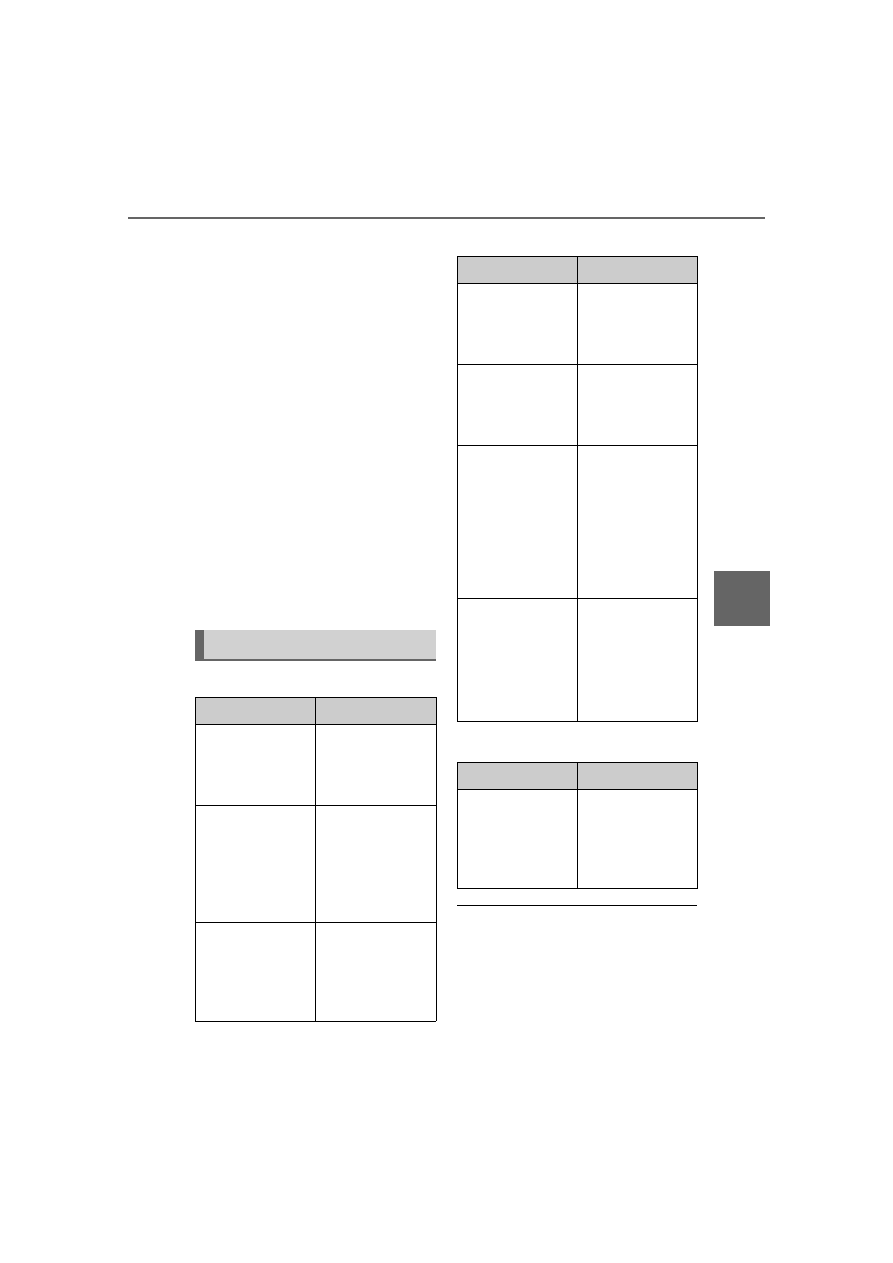
Error messages

Message

Explanation

“USB Error”

This indicates a 
problem in the 
USB memory or 
its connection.

“No music files 
found.”

This indicates 
that no 
MP3/WMA/AAC 
files are included 
in the USB mem-
ory.

“No video files 
found.”

This indicates 
that no video 
files are included 
in the USB mem-
ory.

Message

Explanation

“iPod Error”

This indicates a 
problem in the 
iPod or its con-
nection.

“No music files 
found.”

This indicates 
that there is no 
music data in the 
iPod.

“Please check 
the iPod firm-
ware version.”

This indicates 
that the software 
version is not 
compatible. Per-
form the iPod 
firmware 
updates and try 
again.

“Unable to 
authorize the 
iPod.”

This indicates 
that it failed to 
authorize the 
iPod.
Please check 
your iPod.

Message

Explanation

“Music tracks not 
supported. 
Please check 
your portable 
player.”

This indicates a 
problem in the 
Bluetooth

®


device.

454

5-12. Voice command system operation

5-12.Voice command system operation

Steering switch

Talk switch

Voice command system

Press the talk switch to start 
the voice command system. 
To cancel voice command, 
press and hold the talk switch.

When an Apple Car-
Play/Android Auto connec-
tion is established

Press and hold the talk switch 
to start Siri/Google Assistant. 
To cancel Siri/Google Assis-
tant, press the talk switch.

Press the talk switch to start 

the voice command system.

Microphone

It is unnecessary to speak 
directly into the microphone 
when giving a command.

Voice commands may not be rec-

ognized if:

• Spoken too quickly.

• Spoken at a low or high volume.

• The roof or windows are open.

• Passengers are talking while 

voice commands are spoken.

• The fan speed of the air condition-

ing system is set at high.

• The air conditioning vents are 

turned towards the microphone.

In the following conditions, the 

system may not recognize the 

command properly and using 

voice commands may not be pos-

sible:

• The command is incorrect or 

unclear. Note that certain words, 

accents or speech patterns may 

be difficult for the system to recog-

nize.

• There is excessive background 

noise, such as wind noise.

Normally, it is necessary to wait 

for a beep before saying a com-

mand. To enable the ability to talk 

over prompts and say commands 

before the beep, enable the voice 

prompt interrupt function. 

(

P.414)

This system may not operate 

immediately after the engine 

Voice command sys-

tem

The voice command sys-
tem enables the radio, 
phone dialing, etc. to be 
operated using voice com-
mands. Refer to the com-
mand list for samples of 
voice commands. (

P.457)

Using the voice command 
system

A

455

5-12. Voice command system operation

5

A

ud

io

switch is in ACC or ON.

The voice command system is 
operated by saying commands 
which correspond to a sup-
ported function. To display 
examples of commands for sup-
ported functions, select a func-
tion button on the screen after 
starting the voice command sys-
tem.

1

Press the talk switch.

Voice guidance for the voice 
command system can be 
skipped by pressing the talk 
switch.

2

If “Getting Started with Voice” 
screen is displayed, select 
“OK” or press the talk switch. 
(

P.456)

3

After hearing a beep, say a 
supported command.

To display sample commands 
of the desired function, say 
the desired function or select 
the desired function button. 
To display more commands, 
select “More Commands”.

Selecting “Help” or saying 
“Help” prompts the voice com-
mand system to offer exam-
ples of commands and 
operation methods.

Registered POIs, registered 
names in the contacts list etc., 
can be said in the place of the 
“<>” next to the commands. 
(

P.457)

For example: Say “Find a restau-
rant”, “Call John Smith” etc.

If a desired outcome is not 
shown, or if no selections are 
available, perform one of the 
following to return to the pre-
vious screen:

• Say “Go back”.

• Select 

.

To cancel voice recognition, 
select 

, say “Cancel”, or 

press and hold the talk switch.

To perform the voice com-
mand operation again, select 
“Start Over” or say “Start 
over”.

To suspend voice command 
operation, select “Pause” or 
say “Pause”. To resume the 

NOTICE

Do not touch and put a sharp 

object to the microphone. It may 

cause failure.

Voice command system 
operation

Operation from the main 
menu

456

5-12. Voice command system operation

voice command operation, 
select “Resume” or press the 
talk switch.

If the system does not respond or 

the confirmation screen does not 

disappear, press the talk switch 

and try again.

If a voice command cannot be rec-

ognized 3 consecutive times, 

voice recognition will be canceled.

Voice recognition prompts can be 

changed on the voice settings 

screen. (

P.414)

This function can be used to cancel 
voice guidance by turning the voice 
prompts off. When you press the 
talk switch while using this setting, a 
beep sounds, and then you can 
immediately say a command.

Some voice guidance can be can-

celed by setting voice prompts to 

off. Use this setting when it is 

desirable to say a command 

immediately after pressing the talk 

switch and hearing a beep.

To increase voice recognition 
performance, use the “Tutori-
als” and “Voice Training” func-
tions on the “Getting Started 
with Voice” screen. These func-
tions are only available when 
the vehicle is not moving.
The “Tutorials” and “Voice 
Training” functions can also be 
started on the voice settings 
screen. (

P.414)

1

Press the talk switch.

2

Select the desired item to be 
set.

Select to display the voice 
command tutorials.

Select to train the voice com-
mand system.

The user will be asked to say 10 
sample phrases. This will help the 
voice command system adapt to 
the user’s accent.

Select to prevent the screen 
from being displayed again.

Select to proceed to the 
voice command screen.

Increasing the voice rec-
ognition performance

A

B

C

D

457

5-12. Voice command system operation

5

Audio

Recognizable voice commands 
and their actions are shown 
below.

Frequently used commands 
are listed in the following 
tables.

For devices that are not 
installed to the vehicle, com-
mands relating to that device 
may not be displayed on the 
screen. Also, depending on 
other conditions, such as 
compatibility, some com-
mands may not be displayed 
on the screen.

The functions available may 
vary according to the system 
installed.

Voice recognition language 
can be changed. (

P.410)

When an Apple Car-
Play/Android Auto connec-
tion is established, some 
commands will become 
unavailable.

Common

Top menu

*

: Vehicle must be parked

Command list

Command list overview

Command list

Command

Action

“Help”

Displays exam-
ples of some of 
the available 
commands

“Go back”

Returns to the 
previous screen

“Cancel”

Cancels the 
voice command 
system

“Start over”

Returns to top 
menu screen

“Pause”

Temporarily 
pauses a voice 
session until it is 
resumed by 
pressing the talk 
switch again.

Command

Action

“Show com-
mand examples 
for <menu>”

Displays the 
command list of 
the selected 
menu

“More com-
mands”

Displays more 
commonly used 
commands

“Voice settings”

Displays Voice 
Setting screen

“Train my voice”

Displays Train 
Voice Recogni-
tion screen

*

458

5-12. Voice command system operation

Phone

*

: If the system does not recognize 

the name of a contact, create a 
voice tag. (

P.481) The name of 

a contact can also be recognized 
by adding a voice tag.

While in a phone call

While incoming message 
notification is displayed

*

*

: Full screen message notification 

must be turned on within the 
phone settings (

P.479)

Command

Action

“Call <contact>”

*

Places a call to 
the specified 
contact from the 
phone book

“Call <contact> 
<phone type>”

*

Places a call to 
the specified 
phone type of 
the contact from 
the phone book

“Dial <phone 
number>”

Places a call to 
the specified 
phone number

“Redial”

Places a call to 
the phone num-
ber of the latest 
outgoing call

“Call back”

Places a call to 
the phone num-
ber of latest 
incoming call

“Show recent 
calls”

Displays the call 
history screen

“Send a mes-
sage to <con-
tact>”

Sends a text 
message to 
specified con-
tact from the 
phone book

Command

Action

“Send <digits>”

Sends DTMF 
tones has speci-
fied

“Mute”

Mutes the micro-
phone (far side 
cannot hear the 
conversation)

“Unmute”

Unmutes the 
microphone

Command

Action

“Read message”

Reads the 
incoming mes-
sage over the 
vehicle speakers

“Ignore”

Ignores the 
incoming mes-
sage notification

“Reply”

Initiates sending 
a reply to the 
incoming mes-
sage

“Call”

Places a call to 
the phone num-
ber of incoming 
message

459

5-12. Voice command system operation

5

Audio

Radio

*1

:A station list must be built first 

using the radio screen (

P.421)

*2

:Requires a satellite radio sub-

scription

Audio

*

*

: The audio device must be con-

nected via a USB cable to use the 

Command

Action

“Tune to <fre-
quency> AM”

Changes the 
radio to the 
specified AM fre-
quency

“Tune to <fre-
quency> FM”

Changes the 
radio to the 
specified FM fre-
quency

“Play a <genre> 
station”

Changes the 
radio to an FM 
station of the 
specified genre

*1

“Tune to preset 
<1-36>”

Changes the 
radio to the 
specified preset 
radio station

“Tune to a 
<genre> satel-
lite station”

Changes the 
radio to a satel-
lite radio channel 
of the specified 
genre

*2

“Tune to <satel-
lite channel 
name>”

Changes the 
radio to the sat-
ellite radio chan-
nel with the 
specified name

*2

“Tune to chan-
nel <number> on 
XM”

Changes the 
radio to a satel-
lite radio channel 
of the specified 
number

*2

Command

Action

“Play Playlist 
<name>”

Plays tracks 
from the 
selected playlist

“Play Artist 
<name>”

Plays tracks 
from the 
selected artist

“Play Song 
<name>”

Plays the 
selected track

“Play Album 
<name>”

Plays tracks 
from the 
selected album

“Play Genre 
<name>”

Plays tracks 
from the 
selected genre

“Play Composer 
<name>”

Plays tracks 
from the 
selected com-
poser

“Play Podcast 
<name>”

Plays tracks 
from the 
selected podcast

“Play Audiobook 
<name>”

Plays tracks 
from the 
selected audio-
book

“Audio On”

Turns the 
audio/visual sys-
tem on

“Audio Off”

Turns the 
audio/visual sys-
tem off

“Change the 
audio source to 
<source name>”

Sets the source 
to the specified 
audio mode

460

5-12. Voice command system operation

functionality in this section

Toyota Apps

*1

*1

:This function is not made avail-

able in some countries or areas.

*2

:When an application is opened 

and is in full screen mode, press-
ing the talk switch will start the 
voice command system and 
commands for the currently dis-
played application will be avail-
able

Commands relating to operation 

of the audio/visual system can 

only be performed when the 

audio/visual system is turned on.

Command

Action

“Launch <appli-
cation name>”

*2

Activates the 
Toyota Apps

461

5-13. Mobile Assistant operation

5

Audio

5-13.Mobile Assistant operation

*

: This function is not made avail-

able in some countries or areas.

Mobile Assist supports the Siri 
Eyes Free Mode and Google 
App. The available features and 
functions may vary based on the 
iOS/Android version installed on 
the connected device.

1

Press and hold the phone 
switch on the steering wheel 
until Mobile Assistant screen 
is displayed.

2

The Mobile Assistant can be 
used only when the following 
screen is displayed.

To cancel the Mobile Assis-
tant, select “Cancel” or press 
and hold the talk switch on the 
steering wheel.

To restart the Mobile Assis-
tant for additional commands, 
press the talk switch on the 
steering wheel.

• Mobile Assistant can only be 

restarted after the system 
responds to a voice command.

• After some phone and music 

commands, the Mobile Assistant 

Mobile Assistant

*

The Mobile Assistant func-
tion is a voice input assist 
function. Mobile Assist sup-
ports the Siri Eyes Free 
Mode and Google App. 
(Google App can be used 
only with the corresponding 
device.) Instructions can be 
spoken into the vehicle 
microphone as if speaking a 
command to the phone. The 
content of the request is 
then interpreted by the 
phone and the result is out-
put from the vehicle speak-
ers. To operate the Mobile 
Assistant, a compatible 
device must be registered 
and connected to this sys-
tem via Bluetooth

®

(

P.386)

When an Apple CarPlay 
connection is established, 
this function will be unavail-
able.

Connectable devices and 
available functions

Mobile Assistant opera-
tion

462

5-13. Mobile Assistant operation

feature will automatically end to 
complete the requested action.

The volume of the Mobile 
Assistant can be adjusted 
using the “POWER VOLUME” 
knob or steering wheel vol-
ume control switches. The 
Mobile Assistant and phone 
call volumes are synchro-
nized.

While a phone call is active, the 

Mobile Assistant cannot be used.

If using the navigation feature of 

the cellular phone, ensure the 
active audio source is Bluetooth

®


audio or iPod in order to hear turn 

by turn direction prompts.

Wait for the listening beeps before 

using the Mobile Assistant.

The Mobile Assistant may not rec-

ognize commands in the following 

situations:

• Spoken too quickly.

• Spoken at a low or high volume.

• The roof or windows are open.

• Passengers are talking while the 

Mobile Assistant is being used.

• The fan speed of the air condition-

ing system is set at high.

• The air conditioning vents are 

turned toward the microphone.

463

5-14. Phone operation (Hands-free system for cellular phones)

5

Audio

5-14.Phone operation (Hands-free system for cellular phones)

The phone screen can be 
reached by the following meth-
ods:

From the “PHONE” button

1

Press the “PHONE” button.

From the “MENU” button

1

Press the “MENU” button, 
then select “Phone”.

The following functions can be 
used on phone operation:

Registering/connecting a 
Bluetooth

®

 device (

P.386)

Placing a call using the 
Bluetooth

®

 hands-free system 

(

P.468)

Receiving a call using the 
Bluetooth

®

 hands-free system 

(

P.471)

Talking on the Bluetooth

®


hands-free system (

P.472)

The following function can be 
used on message function:

Using the Bluetooth

®

 phone 

message function (

P.474)

The following functions can be 
made in the system:

Phone settings (

P.479)

Bluetooth

®

 settings (

P.390)

Quick reference

Phone screen operation

Bluetooth

®

 hands-free 

system operation

Message function

Setting up a phone

464

5-14. Phone operation (Hands-free system for cellular phones)

This system is not guaranteed to 
operate with all Bluetooth

®


devices.

If your cellular phone does not 
support Bluetooth

®

, this system 

cannot function.

In the following conditions, the 

system may not function:

• The cellular phone is turned off.

• The current position is outside the 

communication area.

• The cellular phone is not con-

nected.

• The cellular phone has a low bat-

tery.

Depending on the type of 
Bluetooth

®

 phone, some function 

is not available.

When using the hands-free sys-
tem or Bluetooth

®

 audio and 

Wi-Fi

®

 Hotspot functions at the 

same time, the following problems 

may occur:

• The Bluetooth

®

 connection may 

be cut.

• Noise may be heard on the 

Bluetooth

®

 audio playback.

• A noise may be heard during 

phone calls.

Bluetooth

®

 uses the 2.4 GHz fre-

quency band. If both a Wi-Fi

®

 con-

nection and Bluetooth

®


connection are being used simul-

taneously, each connection may 

be affected.

If a Bluetooth

®

 device is attempt-

ing to connect to the vehicle while 

another device is connected as a 
Bluetooth

®

 audio device or con-

nected using the hands-free sys-
tem or Wi-Fi

®

 Hotspot function, 

the communication speed may 

decrease or malfunctions may 

occur, such as image distortion or 
audio skipping. If a Bluetooth

®


device is connected to the system, 

the interference it may cause will 

be reduced. When carrying a 
device with its Bluetooth

®

 connec-

tion enabled, make sure to regis-

ter it to the system and connect it 
or disable its Bluetooth

®

 function.

When a device is connected via 
Bluetooth

®

, the Bluetooth

®

 icon 

on the status bar will be displayed 

in blue. (

P.374)

Some basics

The hands-free system 
enables calls to be made 
and received without having 
to take your hands off the 
steering wheel.
This system supports 
Bluetooth

®

. Bluetooth

®

 is a 

wireless data system that 
enables cellular phones to 
be used without being con-
nected by a cable or placed 
in a cradle.
The operating procedure of 
the phone is explained here.
When an Apple CarPlay 
connection is established, 
phone functions will be per-
formed by Apple CarPlay 
instead of the hands-free 
system.

WARNING

While driving, do not operate a 

cellular phone.

465

5-14. Phone operation (Hands-free system for cellular phones)

5

A

ud

io

To use the hands-free system 
for cellular phones, it is neces-
sary to register a cellular phone 
with the system. (

P.386)

Connecting a Bluetooth

®


device

Registering an additional 
device

1

Display the phone top 
screen. (

P.463)

2

Select “Select Device”.

3

Select “Add Device”.

When another Bluetooth

®

device is connected, a confir-
mation screen will be dis-
played. To disconnect the 
Bluetooth

®

 device, select 

“Yes”.

4

Follow the steps in “Register-
ing a Bluetooth

®

 phone for 

the first time” from step 

5

(

P.386)

Selecting a registered device

1

Display the phone top 
screen. (

P.463)

2

Select “Select Device”.

3

Select the desired device to 
be connected.

4

Check that a confirmation 
screen is displayed when the 
connection is complete.

If an error message is dis-
played, follow the guidance 
on the screen to try again.

Bluetooth

®

 phone condition 

display

The condition of the Bluetooth

®


phone appears on the upper 
right side of the screen. 

WARNING

Your audio unit is fitted with 
Bluetooth

®

 antennas. People 

with implantable cardiac pace-

makers, cardiac resynchroniza-

tion therapy-pacemakers or 

implantable cardioverter defibril-

lators should maintain a reason-

able distance between 
themselves and the Bluetooth

®


antennas. The radio waves may 

affect the operation of such 

devices.

Before using Bluetooth

®


devices, users of any electrical 

medical device other than 

implantable cardiac pacemak-

ers, cardiac resynchronization 

therapy-pacemakers or implant-

able cardioverter defibrillators 

should consult the manufacturer 

of the device for information 

about its operation under the 

influence of radio waves. Radio 

waves could have unexpected 

effects on the operation of such 

medical devices.

NOTICE

Do not leave your cellular phone 

in the vehicle. The temperature 

inside may rise to a level that 

could damage the phone.

Registering/Connecting a 
Bluetooth

®

 phone

466

5-14. Phone operation (Hands-free system for cellular phones)

(

P.374)

Steering switch

By pressing the phone switch, a 
call can be received or ended 
without taking your hands off the 
steering wheel.

Phone switch

• If the switch is pressed during a 

call, the call will end.

• If the switch is pressed when an 

incoming call is received, the call 
will be answered.

• If the switch is pressed during a 

call when a separate incoming 
call is waiting, the waiting call will 
be answered.

• If the switch is pressed when an 

Apple CarPlay/Android Auto con-
nection is established, the Apple 
CarPlay/Android Auto phone 
application will be displayed on 
the system screen.

Volume control switch

• Press the “+” side to increase the 

volume.

• Press the “-” side to decrease the 

volume.

Microphone

The microphone is used when 
talking on the phone.

The other party’s voice will be 

heard from the front speakers. 

The audio/visual system will be 

muted during phone calls or when 

hands-free voice commands are 

used.

Talk alternately with the other 

party on the phone. If both parties 

speak at the same time, the other 

party may not hear what has been 

said. (This is not a malfunction.)

Keep call volume down. Other-

wise, the other party’s voice may 

be audible outside the vehicle and 

voice echo may increase. When 

talking on the phone, speak 

clearly towards the microphone.

The other party may not hear you 

clearly when:

• Driving on an unpaved road. 

(Making excessive traffic noise.)

• Driving at high speeds.

• The roof or windows are open.

• The air conditioning vents are 

pointed towards the microphone.

• The sound of the air conditioning 

fan is loud.

• There is a negative effect on 

sound quality due to the phone 

and/or network being used.

Using the phone 
switch/microphone

A

B

467

5-14. Phone operation (Hands-free system for cellular phones)

5

A

ud

io

Press this switch to operate the 
voice command system.

The voice command system 
and its list of commands can 
be operated. (

P.454)

The following data is stored 
for every registered phone. 
When another phone is con-
nected, the following regis-
tered data cannot be read:

• Contact data
• Call history data
• Favorites data
• Image data
• All phone settings
• Message settings

When a phone’s registration is 

deleted, the above-mentioned 

data is also deleted.

A lot of personal data is regis-
tered when the hands-free sys-
tem is used. When selling or 
disposing of the vehicle, initial-
ize the data. (

P.413)

The following data in the sys-
tem can be initialized:

• Contact data
• Call history data
• Favorites data
• Image data
• All phone settings
• Message settings

Once initialized, the data and set-

tings will be erased. Pay addi-

tional attention when initializing 

the data.

NOTICE

Do not touch and put a sharp 

object to the microphone. It may 

cause failure.

Voice command system

About the contacts in the 
contact list

When selling or disposing 
of the vehicle

468

5-14. Phone operation (Hands-free system for cellular phones)

1

Display the phone top 
screen. (

P.463)

2

Select the desired method to 
call from.

Calling methods from 
phone screen

By call history (

P.468)

By favorites (

P.469)

By contacts (

P.469)

By keypad (

P.470)

By message (

P.477)

Also the following lists are 
available from each func-
tion’s screen

By voice command system 
(

P.455)

By home screen (

P.471)

Up to 30 of the latest call history 
items (missed, incoming and 
outgoing) can be selected.

1

Display the phone top 
screen. (

P.463)

2

Select “History” and select 
the desired contact.

If the contact which is not reg-
istered on the contact list is 
selected, the name is dis-
played as “Unknown Con-
tact”. In this case, select the 
number to make a call.

3

Check that the dialing screen 
is displayed.

The icons of call type are dis-

played.

: Missed call

: Incoming call

: Outgoing call

When making a call to the same 

number continuously, only the 

most recent call is listed in call his-

tory.

When a phone number registered 

in the contact list is received, the 

name is displayed.

Number-withheld calls are also 

memorized in the system.

Placing a call using 

the Bluetooth

®

 hands-

free system

After a Bluetooth

®

 phone 

has been registered, a call 
can be made using the 
hands-free system. There 
are several methods by 
which a call can be made, as 
described below.

Calling methods on the 
Bluetooth

®

 phone

By call history


Content      ..     26      27      28      29     ..