Toyota Corolla Hatchback (2022 year). Manual in english - page 19
304
5-5. Using the audio/visual system
Select “+” or “-” to adjust
mid-pitched tones.
Select “+” or “-” to adjust
low-pitched tones.
■
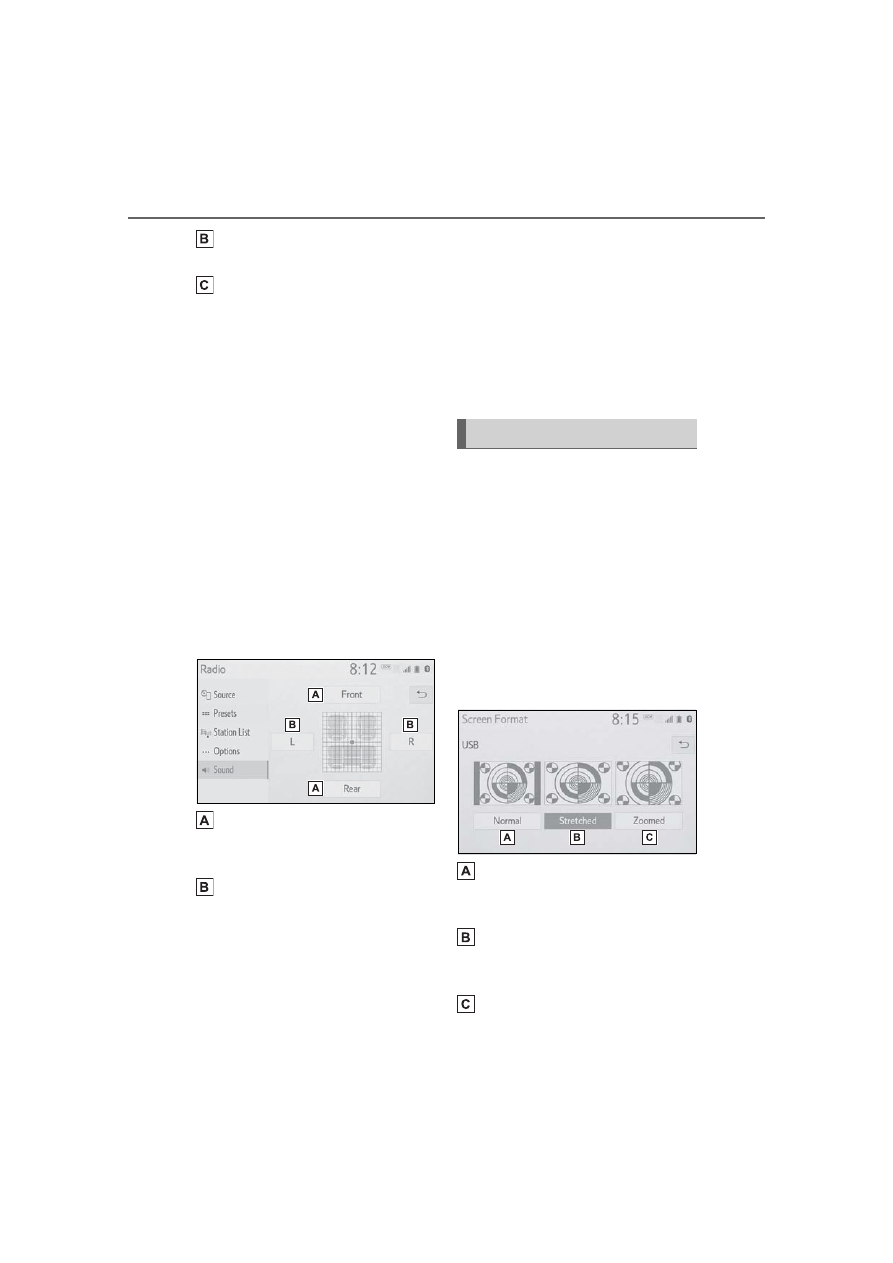
Fader/Balance
A good balance of the left and
right stereo channels and of the
front and rear sound levels is
also important.
Keep in mind that when listening
to a stereo recording or broad-
cast, changing the right/left bal-
ance will increase the volume of
1 group of sounds while
decreasing the volume of
another.
1
Select “Fader/Balance”.
2
Select the desired screen
button.
Select to adjust the sound
balance between the front
and rear speakers.
Select to adjust the sound
balance between the left and
right speakers.
■
Automatic sound levelizer
(ASL)
The system adjusts to the opti-
mum volume and tone quality
according to vehicle speed to
compensate for increased road
noise, wind noise, or other
noises while driving.
1
Select “Automatic Sound
Levelizer”.
2
Select “High”, “Mid”, “Low” or
“Off”.
■
Screen format settings
The screen format can be
selected for USB video.
1
Press the “MENU” button.
2
Select “Setup”.
3
Select “Audio”.
4
Select “Common”.
5
Select “Screen Format”.
6
Select the desired item to be
adjusted.
Select to display a 4 : 3
screen, with either side in
black.
Select to enlarge the image
horizontally and vertically to
full screen.
Select to enlarge the image
by the same ratio horizontally
Audio screen adjustment