Subaru Solterra (2023 year). Manual in english - page 23
 

  Index      Manuals     Subaru Solterra (2023 year). Manual in english


Search            copyright infringement  


Content      ..     21      22      23      24     ..


Subaru Solterra (2023 year). Manual in english - page 23


369

5-4. Using the driving support systems

5

Dri
vin

g

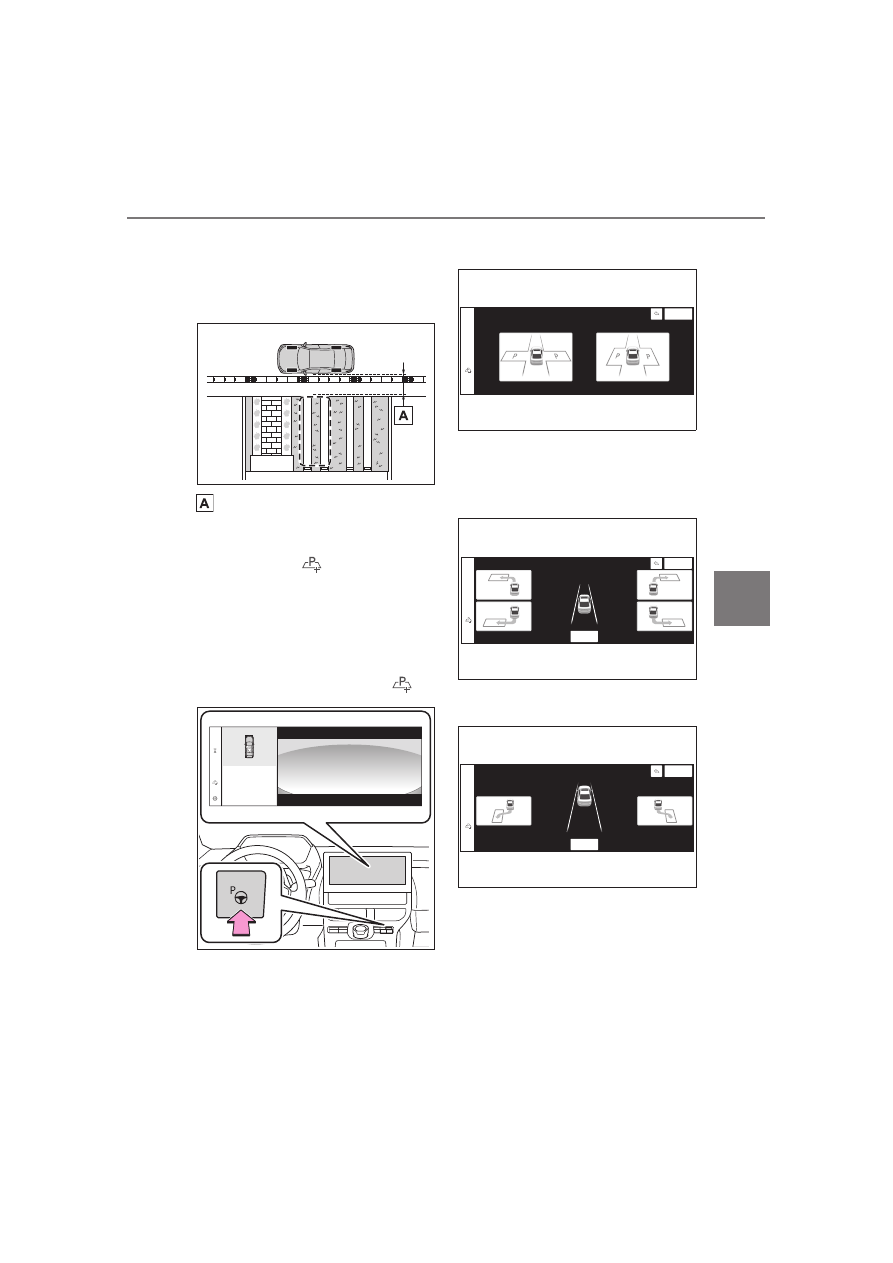
Registering a parking space

1

Stop the vehicle with it 
aligned near the center of the 
target parking space.

Approximately 3.3 ft. (1 m)

2

Press the main switch and 

then select 

If the Advanced Park main switch is 
pressed at a parking space without 
parking lines or any adjacent 
parked vehicles, “No available 
parking space” may be displayed. 
Continuously select and hold 

.

3

Select perpendicular parking 
(forward/reverse) function or 
parallel parking function.

Only parking spaces for which 

assist can be performed are dis-

played.

4

Select the parking direction.

When perpendicular parking (for-

ward/reverse) was selected in step 

3

When parallel parking was selected 

in step 

3

5

Using the arrow buttons, 
adjust the position of the 
parking space to be regis-

370

5-4. Using the driving support systems

tered, and then select “OK” 
button.

6

Select “Start” button.

A buzzer will sound, an operation 

message will be displayed on the 

multi-information display, and assis-

tance will begin operating.
When the brake pedal is released, 

“Moving Forward...” will be dis-

played and the vehicle will begin 

moving forward.
If you feel that the vehicle is 

approaching close to a surround-

ing vehicle, object, person, or gut-

ter: 

P.371

7

Perform operations as indi-
cated by the advice displays 

until the vehicle stops in the 
target parking space.

8

Check the position that the 
vehicle has stopped. If nec-
essary, adjust the position of 
the parking spot to be regis-
tered using the arrow but-
tons, and then select 
“Registration” button.

“Registration Completed” will be 

displayed on the multimedia dis-

play.

Register the parking space 
only if there are no obstruc-
tions within the area shown by 
the thick lines.

The amount that the position 
of the parking spot to be reg-
istered can be adjusted is lim-
ited.

371

5-4. Using the driving support systems

5

Dri
vin

g

When parking in a parking 
space registered to the 
memory function

1

Stop the vehicle with it 
aligned near the center of the 
target parking space.

Approximately 3.3 ft. (1 m)

2

Press the Advanced Park 
main switch and check that a 
possible parking space is dis-
played on the multimedia dis-
play.

If the “MODE” button is displayed, 

the button can be touched to 

change between the memory func-

tion, perpendicular parking (for-

ward/reverse) function and parallel 

parking function.

3

Select the desired parking 
space, and then select “Start” 
button.

Perform the procedure for the per-

pendicular parking (for-

ward/reverse) function from step 

3

(

P.358)

If you feel that the vehicle is 

approaching close to a sur-

rounding vehicle, object, per-

son, or gutter

Depress the brake pedal to stop the 

vehicle and then change the shift 

position to change the direction of 

travel of the vehicle.

At this time, assist will be sus-

pended. However, if the “Start” but-

ton is selected, assist will resume 

and the vehicle will move in the 

direction corresponding to the 

selected shift position.

When overwriting a registered 

parking space

If the maximum number of parking 
spaces have been registered and 

 is selected, a registered parking 

space can be selected and then 
overwritten with a new parking 
space.

When multiple parking spaces 

are registered

Select the desired parking space, 

and then select “Start” button.

372

5-4. Using the driving support systems

NOTICE

When using the memory 

function

The memory function is a func-

tion which provides assistance 

in parking in a previously regis-

tered parking space.

If the condition of the road sur-

face, vehicle, or surrounding 

area differs from when registra-

tion was performed, the parking 

space may not be able to be 

detected correctly or assis-

tance may not be provided to 

the point that the vehicle is fully 

parked.

Do not register a parking space 

in situations such as the follow-

ing, as the set parking space 

may not be able to be registered 

or assistance may not be possi-

ble later.

• When a camera lens is dirty or 

covered with water droplets

• When it is raining or snowing

• When the surrounding area is 

dark (at night, etc.)

In situations such as the follow-

ing, it may not be possible to 

register a parking space.

• When there is insufficient space 

between the road and parking 

space

• When the road surface around 

the parking space does not 

have any differences the sys-

tem can recognize

If a parking space has been reg-

istered in situations such as the 

following, assistance may not 

be able to be started later or 

assistance to the registered 

position may not be possible.

• When shadows are cast on the 

parking space (there is a carport 

over the parking space, etc.)

• When there are leaves, gar-

bage, or other objects which will 

likely move, in the parking 

space

• When the road surface around 

the parking space has the same 

repeating pattern (brick, etc.)

In situations such as the follow-

ing, it may not be possible for 

the system to provide assis-

tance to a registered parking 

spot:

• When the appearance of the 

parking space is affected by the 

shadow of the vehicle or trees

• When an object is detected in 

the registered parking space

• When a pedestrian or passing 

vehicle is detected during assis-

tance

373

5-4. Using the driving support systems

5

Dri
vin

g

*

: If equipped

Function description

A smartphone can be used to 
remotely operate the parking 
functions and exit functions. 
Also, assistance can be pro-
vided to remotely move the vehi-
cle forward or backward into a 
garage, etc.

NOTICE

• When the position the vehicle is 

stopped when assistance is 

started differs from the position 

when registration was per-

formed

• When the registered parking 

space cannot be reached due to 

the existence of parking blocks, 

etc.

• When the road surface around 

the parking space has changed 

(road surface has degraded or 

been resurfaced)

• When the sunlight conditions 

differ from when registration 

was performed (due to weather 

or time of day)

• When the sun is shining directly 

into a camera, such as in the 

early morning or evening

• When the color or brightness of 

the road surface is uneven

• When a light is temporarily 

shined on the parking space 

(lights of another vehicle, secu-

rity light, etc.)

• When the road surface around 

the parking space has the same 

repeating pattern

• When there is a low protrusion 

on the road surface near the 

parking space

• When the parking space is on a 

slope

• When a camera has been 

splashed by hot or cold water 

and the lens has fogged up

• When a camera lens is dirty or 

covered with water droplets

• When accessories which 

obstruct the view of the camera 

are installed

If assistance is ended during reg-

istration, perform registration 

again.

When registering a parking 

space to the memory function, if 

the road surface cannot be 

detected “No available parking 

space to register” will be dis-

played.

When using the memory func-

tion, make sure to stop immedi-

ately in front of the stop 

position. Otherwise the parking 

space may not be able to be 

detected correctly or assis-

tance may not be provided to 

the point that the vehicle is fully 

parked.

Do not use the memory function 

if a camera has been subjected 

to a strong impact or images of 

the panoramic view monitor are 

misaligned.

If a camera has been replaced, 

as the installation angle of the 

camera will have changed, it will 

be necessary to reregister park-

ing spaces of the memory func-

tion.

Remote control function

*

374

5-4. Using the driving support systems

Parking using Remote con-
trol function

A smartphone can be used to 
remotely operate the parking 
function if the target parking 
space can be detected when the 
vehicle is stopped close and 
perpendicular to the center of 
the parking space. Also, 
depending on the condition of 
the parking space, etc., if it is 
necessary to change the direc-
tion of travel of the vehicle, the 
shift position can be changed by 
assistance control.

1

Stop the vehicle with it 
aligned near the center of the 
target parking space. 
(

P.358)

2

Press the Advanced Park 
main switch and check that a 
possible parking space is dis-
played on the Multimedia dis-
play. (

P.358)

3

Select the 

 button and 

then select [Perpendicu-
lar/parallel].

4

Select [OK] button.

5

Exit the vehicle while carrying 
the electronic key and smart-
phone, and then start the 
SUBARU Solterra Connect 
Mobile App on the smart-
phone.

The detection area of the electronic 

key is within approximately 9.8 ft. (3 

m) around the vehicle.

If there is an obstruction in the path 

of the vehicle, move it before park-

ing the vehicle. A traffic cone can 

also be moved after exit the vehi-

cle.

6

From outside of the vehicle, 
confirm the parking space on 
the screen of the smartphone 
and then select the start but-
ton.

Start operation of Remote control 

function while standing approxi-

mately 1.6 ft. (50 cm) or more from 

the vehicle and out of the path of 

the vehicle.

7

Checking the safety of the 
area around the vehicle, 
trace the operation area on 
the screen of the smartphone 
continuously, the vehicle will 
move and parking assis-
tance will be performed.

If operation of the screen of the 

smartphone is stopped, assistance 

can be suspended and the vehicle 

can be stopped. The doors are 

automatically locked before the 

vehicle starts moving.

8

When the parking space is 
reached, after the vehicle is 
stopped by the parking 
brake, the shift position will 
be changed to P, the power 
switch will be turned off, and 
the doors will be locked.

A completion screen will be dis-

played on the smartphone

The parking function can be 

used even if obstructions exist 

if

When using the parking functions 

at a parking space made of white 

lines, even if an obstruction exists 

375

5-4. Using the driving support systems

5

Dri
vin

g

in the parking space, the space 

can be set as the target parking 

space. This allows for assistance 

to continue after setting a parking 

space from inside the vehicle and 

then exiting the vehicle to move 

an obstruction, such as a traffic 

cone placed in a handicapped 

parking space.

When perpendicular parking using 

Advanced Park, 3 parking spaces 

on each side of the vehicle (up to 

6 total) can be detected. However, 

when using Remote control func-

tion, only 1 parking space on each 

side of the vehicle can be 

detected

After the vehicle is stopped, 
assistance can be provided to 
move the vehicle into a garage, 
etc., by using the forward and 
backward movement function.

1

Stop the vehicle at the loca-
tion you would like to start 
assistance.

2

Press the Advanced Park 
main switch. (

P.356)

3

Select 

 and then select 

[Forward/reverse].

4

Select [OK].

5

Exit the vehicle while carrying 
the electronic key and smart-
phone, and then start the 
SUBARU Solterra Connect 
Mobile App on the smart-
phone.

The detection area of the electronic 

key is within approximately 9.8 ft. (3 

m) around the vehicle.

6

From outside of the vehicle, 
confirm the direction of travel 
on the screen of the smart-
phone and then select the 
start button.

Start operation of Remote control 

function while standing approxi-

mately 1.6 ft. (50 cm) or more from 

the vehicle and out of the path of 

the vehicle. The detection area of 

the electronic key is within approxi-

mately 9.8 ft. (3 m) around the vehi-

cle.

7

Checking the safety of the 
area around the vehicle, 
trace the operation area on 
the screen of the smartphone 
continuously, the vehicle will 
move and parking assis-
tance will be performed.

If operation of the screen of the 

smartphone is stopped, assistance 

can be suspended and the vehicle 

can be stopped. After assistance 

has been started, it can be stopped 

part way or the direction of travel of 

the vehicle can be changed.

8

Select the power button on 
the screen of the smart-
phone. The power switch will 
then turn OFF and the doors 
will lock automatically.

Moving the vehicle for-
ward and backward using 
Remote control function

376

5-4. Using the driving support systems

Changing the direction of travel

While assistance is being per-

formed, the direction of travel of the 

vehicle can be changed by the for-

ward and reverse movement func-

tion. When there is a wall behind the 

vehicle, etc., by operating the direc-

tion of travel changing button on the 

screen of the smartphone, the vehi-

cle can be slightly moved forward to 

allow loading of items and then 

moved back to its original position.

Assistance can be provided to 
exit from a perpendicular or par-
allel parking space when the 
power switch OFF. When for-
ward and backward movement 
is selected, the maximum dis-
tance the vehicle can move is 
23.0 ft. (7 m) from the starting 
point and possible to change the 
direction of travel.

1

While near the parked vehi-
cle, unlock the doors using 
the electronic key, and then 
start the SUBARU Solterra 
Connect Mobile App on the 
smartphone.

If the smartphone cannot connect 

to the vehicle, using the electronic 

key, unlock the doors again.

2

Select the start button on the 
screen of the smartphone.

The power switch will change to 

ON.

3

Check that a possible exit 
direction is displayed, select 
the exit direction.

4

Checking the safety of the 
area around the vehicle, 
trace the operation area on 
the screen of the smartphone 
continuously, the vehicle will 
move and parking assis-
tance will be performed.

If operation of the screen of the 

smartphone is stopped, assistance 

can be suspended and the vehicle 

can be stopped. After assistance 

has been started, it can be stopped 

part way or the direction of travel of 

the vehicle can be changed.

5

Move the vehicle to the posi-
tion where assistance ends 
and enter the vehicle while 
carrying the electronic key.

To stop assistance part way, stop 

operating the smartphone or enter 

the vehicle.

While using the remote air con-

ditioner

Exit assist can be done even 

Exiting using Remote con-
trol function

377

5-4. Using the driving support systems

5

Dri
vin

g

when using remote air condition-

ing.

When Remote control function is 

started while the remote air condi-

tioning is operating, if tracing 

operations are not performed on a 

smartphone, assistance can be 

canceled by entering the vehicle 

and depressing the brake pedal.

A smartphone can be used to 
remotely operate the memory 
function if the target parking 
space can be detected when the 
vehicle is stopped close to a 
parking space which was previ-
ously registered to the memory 
function. Also, depending on the 
condition of the parking space, 
etc., if it is necessary to change 
the direction of travel of the 
vehicle, the shift position can be 
changed by assistance control.

1

Stop the vehicle with it 
aligned near the center of the 
target parking space. 
(

P.368)

2

Press the Advanced Park 
main switch, check that a 
possible parking space is dis-
played on the Multimedia dis-
play. (

P.368)

3

Select the 

 button and 

then select [Perpendicu-
lar/parallel].

4

[OK].

If the [MODE] button is displayed, 

the button can be selected to 

change between the memory func-

tion, perpendicular parking (for-

ward/reverse) function and parallel 

parking function.

5

Exit the vehicle while carrying 
the electronic key and smart-
phone, and then start the 
SUBARU Solterra Connect 
Mobile App on the smart-
phone.

The detection area of the electronic 

key is within approximately 9.8 ft. (3 

m) around the vehicle. If there is a 

cone or other obstruction in the 

path of the vehicle, move it after 

exiting the vehicle.

6

From outside of the vehicle, 
confirm the parking space on 
the screen of the smartphone 
and then select the start but-
ton.

Start operation of Remote control 

function while standing approxi-

mately 1.6 ft. (50 cm) or more from 

the vehicle and out of the path of 

the vehicle.

7

Checking the safety of the 
area around the vehicle, 
trace the operation area on 
the screen of the smartphone 
continuously, the vehicle will 
move and parking assis-
tance will be performed.

If operation of the screen of the 

smartphone is stopped, assistance 

can be suspended and the vehicle 

can be stopped. The doors are 

automatically locked before the 

vehicle starts moving.

8

When the parking space is 
reached, after the vehicle is 
stopped by the parking 

Parking using the Remote 
control function and mem-
ory function

378

5-4. Using the driving support systems

brake, the shift position will 
be changed to P, the power 
switch will be turned off, the 
doors will be locked and the 
mirrors will be closed.

A completion screen will then be 

displayed on the smartphone.

Make sure to perform the follow-
ing before using Remote control 
function:

1

Download the SUBARU Sol-
terra Connect Mobile App 
from the app store.

2

Turn the power switch to ON 
and register the smartphone 
as a Bluetooth device to the 
multimedia system. For 
details on registering a Blue-
tooth device, refer to the 
“MULTIMEDIA OWNER’S 
MANUAL”.

3

Setup the SUBARU Solterra 
Connect Mobile App and reg-
ister the vehicle.

4

The registered vehicle will be 
displayed on the screen of 
the smartphone.

Select the vehicle.
The name and image of the vehicle 

can be changed on the new vehicle 

registration screen.
Vehicles can be added through the 

menu screen.

1

Select 

 and then select 

“Advanced Park” on the Mul-
timedia display.

2

Select “Remote Park” to turn 
it on/off. (The default setting 
is on.)

3

Press the Advanced Park 
main switch.

If the switch is pressed while assis-

tance is being performed, the assis-

tance will be canceled.

4

Select the 

 button dis-

played on the multimedia dis-
play.

Preparation before using 
Remote control function

Preparation before using

Remote control function 
on/off

NOTICE

When using Remote control 

function, make sure carry an 

electronic key in your pocket, 

etc.

If an electronic key is held 

together with a smartphone, 

etc., the electronic key may not 

be able to be detected.

Remote control function cannot 

be used when carrying only a 

digital key. The driver should 

always carry the electronic key.

379

5-4. Using the driving support systems

5

Dri
vin

g

Assistance will be can-
celed when

In situations such as the follow-
ing, Advanced Park operation 
will be canceled.

As system operation has been can-
celed, begin the operation again or 
continue parking manually, using 
the steering wheel.

The Advanced Park main 

NOTICE

When entering the vehicle after 

using Remote control function, 

make sure that the electronic 

key is brought into the vehicle 

and all of the doors are closed.

Vehicles with the Power Easy 

Access System: After getting in 

the vehicle and deactivating the 

remote function, the seat return 

is done by wearing the seat belt 

or stepping on the brake.

Be sure to be carrying the elec-

tronic key.

If the power switch is turned off 

when Remote control function 

operation has finished or been 

canceled, the doors will be 

locked automatically. However, 

if a door is open, it may not be 

locked. Check the vehicle con-

dition after Remote control func-

tion operation has finished.

When the doors are locked after 

Remote control function opera-

tion has finished or been can-

celed, an alarm may sound if 

someone is detected inside the 

vehicle.

Situations in which the func-

tion may not operate cor-

rectly

When the functions of the Smart 

Key System may not operate 

correctly: 

P.185

When the vehicle is near fluo-

rescent lights

Radio wave interference

P.185

Electronic key battery con-

sumption

When Remote control function 

is being used, the electronic key 

battery will be used as the elec-

tronic key will continuously send 

and receive radio waves.

If the electronic key battery is 

depleted: 

P.500

Situations in which the sen-

sors may not operate prop-

erly

P.316

When using Remote control 

function, visibility of the area 

around the vehicle may be lim-

ited. Make sure to check the fol-

lowing when using Remote 

control function:

• The vehicle and area around 

the vehicle are clearly visible

• There are no people, animals, 

or objects in the path of the 

vehicle

• An appropriate distance from 

the vehicle can be maintained 

and the safety of yourself and 

others can be ensured

• Caution for the area around the 

vehicle is always maintained 

and there is no potential for 

danger

• You can cancel Remote control 

function immediately if neces-

sary

Advanced Park cancel-
ation/suspension

380

5-4. Using the driving support systems

switch is pushed

The shift position has been 
changed to P

The parking brake is engaged

A door or back door is opened

The driver’s seat belt is unfas-
tened

The outside rear view mirrors 
are folded

The TRAC or VSC is turned 
off

The TRAC, VSC or ABS oper-
ates

The power switch is pushed

The system determines assis-
tance cannot be continued in 
the current parking environ-
ment

The system malfunctions

While the vehicle was 
stopped, “Cancel” was 
selected on the multimedia 
display

Assistance will be sus-
pended when

In situations such as the follow-
ing, Advanced Park operation 
will be suspended.

Assistance can be started again by 
following the directions displayed 
on the multimedia display.
Also, when assistance is sus-
pended, if the shift position is 
changed twice with the brake pedal 
depressed, assistance will be can-
celed in that shift position. How-
ever, if assistance is suspended by 

changing the shift position, assis-
tance will be canceled if the shift 
position is changed once.

The steering wheel is oper-
ated

The accelerator pedal is 
depressed

The shift position has been 
changed

Brake control operates

Camera switch is pressed

The PKSB (Parking Support 
Brake) PCS (Pre-Collision 
System) has operates

Remote control function 
assistance will be canceled 
when

In situations such as the follow-
ing, Remote control function 
operation will be canceled.
As system operation has been 
canceled, while carrying an 
electronic key, enter the vehicle 
and park the vehicle manually, 
using the steering wheel.

When a condition for stopping 
Advanced Park assistance is 
met, with the exception sus-
pension due to a door being 
opened or the driver’s seat 
belt being released

When Remote control func-
tion is operated while the 
remote air conditioning is 
operating and the power 
switch is changed to ON 
before remote air conditioning 

381

5-4. Using the driving support systems

5

Dri
vin

g

has ended

When 5 minutes have 
elapsed since Remote con-
trol function operation was 
started

When 3 minutes have 
elapsed since any operation 
was performed

When 30 seconds have 
elapsed with the vehicle not 
being able to be driven, even 
though the screen of the 
smartphone is being operated 
to drive the vehicle

When the power button on the 
screen of the smartphone is 
selected

When the SUBARU Solterra 
Connect Mobile App is force 
closed

When the vehicle is on a 
steep slope

When an electronic key is 
detected inside the vehicle 
while Remote control function 
operation is suspended

When the ambient tempera-
ture is 14°F (-10°C) or less

Remote control function 
assistance will be sus-
pended when

In situations such as the follow-
ing, assistance will be sus-
pended.

When the Bluetooth commu-
nication between the smart-
phone and multimedia system 

get lost

When smartphone continuous 
operation is suspended

When the SUBARU Solterra 
Connect Mobile App is 
pushed to the background (a 
call is received, the home but-
ton is pressed, etc.)

When electronic key does not 
detected

When there is an obstruction 
in the movement direction of 
the vehicle

When the vehicle is operated 
while it is being driven by 
assistance

When the smart key is oper-
ated while it is being driven by 
assistance

When the door is unlocked 
while it is being driven by 
assistance

When a door is opened while 
the vehicle is being driven

Select 

 on the multimedia 

display, and then select 
“Advanced Park”.

Remote Park

*

Remote control function can be 
turned on/off.

*

: If equipped

Changing the Advanced 
Park settings

382

5-4. Using the driving support systems

Speed Profile

The vehicle speed for when 
assistance is performed can be 
set.

This setting cannot be changed 
when registering a parking space to 
the memory function.

Detect. range

The distance from which obsta-
cles will be avoided while assis-
tance is being performed can be 
set.

Prk. Method

The preferred parking direction 
displayed when at a parking 
space which perpendicular (for-
ward/reverse) or parallel parking 
is possible can be set.

Prk. direction

The preferred parking direction 
displayed when it is possible to 
pull perpendicular forward or 
reverse into a parking space can 
be selected.

Exit dir.: Per.

The preferred exit direction dis-
played when it is possible to pull 
forward or reverse to the left or 
right out of a parking space can 
be selected.

Exit dir.: Par.

The preferred exit direction dis-
played when it is possible to exit 
to the left or right from a parallel 
parking space can be selected.

Parking view

The display angle of the camera 
image when using the perpen-
dicular parking (for-
ward/reverse) function or 
parallel parking function can be 
set.

Exit view

The display angle of the camera 
image when using the perpen-
dicular exiting (forward/reverse) 
function or parallel parking exit 
function can be set.

Parking Path Adjustment

The course for when parking 
assistance is operating can be 
adjusted inward or outward.

If the tires are worn, the path of 
vehicle may be offset from the cen-
ter of the parking space. In this 
case, use this setting to adjust the 
parking course.

Road Width Adjustment

When parking assistance is 
started, the amount of lateral 
movement while the vehicle is 
moving forward can be 
adjusted.

Park Position Adjustment 
(fwd.)

The position at which perpendic-
ular parking (forward/reverse) is 
completed can be adjusted. 
(Except when using the memory 
function.)

383

5-4. Using the driving support systems

5

Dri
vin

g

Park Position Adjustment 
(rev.)

The position at which perpendic-
ular parking (forward/reverse) is 
completed can be adjusted. 
(Except when using the memory 
function.)

Rear Accessory Setting

If an accessory, such as a trailer 
hitch, has been installed to the 
rear of the vehicle, the length of 
the rear of the vehicle can be 
adjusted to help avoid colliding 
with objects to the rear of the 
vehicle.

Clear Registered Parking 
Space

The parking spaces registered 
to the memory function can be 
deleted. Parking space informa-
tion cannot be deleted when 
assistance is being performed 
or when registering parking 
space information to the mem-
ory function.

*

: If equipped

SUBARU Parking Assist 
sensor warning sound 
ON/OFF (Smartphone set-
ting)

The warning sounds of the SUB-
ARU Parking Assist sensor from 
smartphone application can be 

turned on/off using the SUBARU 
Solterra Connect Mobile App.

SUBARU Parking Assist 
sensor warning sound vol-
ume adjustment (Smart-
phone setting)

The volume of the warning 
sounds of the SUBARU Parking 
Assist sensor from smartphone 
application can be adjusted 
using the SUBARU Solterra 
Connect Mobile App.

The operating state, assistance 
operation, etc. of the Advanced 
Park is displayed on the multi-
media display. If a message is 
displayed, respond according to 
the content displayed.

If “No available parking space” 

is displayed

Move the vehicle to a location where 

a parking space or parking lines can 

be detected.

If “Unavailable in current condi-

tion” is displayed

Move the vehicle to another location 

and use the system.

If “Not enough space to exit” is 

displayed

The parallel parking exit function 

cannot be used due to a situation 

such as the distance between your 

vehicle and vehicles parked in front 

of and behind your vehicle being 

short, the existence of an object in 

the exit direction, etc.
Check the conditions of the area 

around your vehicle and exit from 

Changing the SUBARU 
Solterra Connect Mobile 
App settings

*

Advanced Park Displayed 
messages

384

5-4. Using the driving support systems

the parking space manually.

If “Cannot control speed” is 

displayed

The system judged that it cannot 

adjust the speed of the vehicle when 

using the system in an area with a 

slope or step and assistance was 

canceled.
Use the system in a level location.

If “Obstacle detected” is dis-

played

The emergency support brake oper-

ated, and assistance was sus-

pended.
Check the condition of the surround-

ing area. To resume assistance, 

select the “Start” button on the multi-

media display.

If “No available parking space 

to register” is displayed

This message is displayed when 


is selected at a parking space that 
cannot be detected.
Operate the system at a parking 

space where differences in the road 

surface can be recognized. 

(

P.368)

Each time the switch is pressed, 
the system changes between 
power mode, normal mode, and 
Eco drive mode.

1

Normal mode

It has a good balance electrical 
consumption performance, quiet-
ness, and drive performance, and 
is suitable for normal driving.

2

Power mode

By controlling the EV system, it is 
possible to speed up the reaction to 
the accelerator operation and 
accelerate powerfully.

3

Eco drive mode

It moderates the driving force for 
accelerator operations. It is suited 
for driving with an awareness of 

Drive mode select 

switch

The drive modes can be 
selected to suit driving con-
dition.

Selecting a drive mode


Content      ..     21      22      23      24     ..