Hyundai Tucson Plug-in Hybrid (2024 year). Manual in english - page 8
 

  Index      Manuals     Hyundai Tucson Plug-in Hybrid (2024 year). Manual in english


Search            copyright infringement  


Content      ..     6      7      8      9     ..


Hyundai Tucson Plug-in Hybrid (2024 year). Manual in english - page 8


Instrument Cluster

4-56

OAEPH049534R

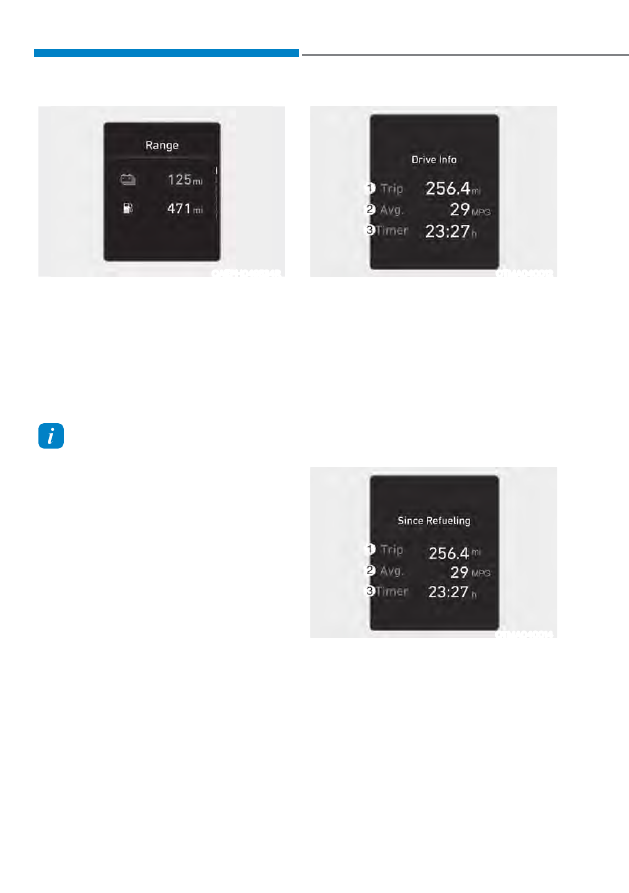
Range

The range is the estimated distance the 

vehicle can be driven with the remaining 

fuel in the fuel tank (Gasoline/Petrol) and 

high-voltage (hybrid) battery (Electric).
If the estimated distance is below 1km 

(1 mile), the trip computer will display “--

-” as the range.

 Information

ś

If the vehicle is not on level ground or 
the battery power has been interrupted, 
the range function may not  operate 
correctly.

ś

The range may differ from the actual 
driving distance as it is an estimate of 
the available driving distance.

ś

The trip computer may not register 
additional fuel if less than 6 liters (2 
gallon) of fuel are added to the vehicle.

ś

The range may vary significantly based 
on driving conditions, driving habits, 
and condition of the vehicle.

OTMA040012

Drive info

Trip distance (1), average fuel economy 

(2), and total driving time (3) are 

displayed.
The information is combined for each 

ignition cycle. However, when the engine 

has been OFF for 3 minutes or longer the 

Drive Info screen will reset.
To reset manually, press the OK switch 

on the steering wheel for more than 1 

second when ‘Drive Info’ is displayed. 

OTMA040014

Since refuel(l)ing

Trip distance (1), average fuel economy 

(2), and total driving time (3) after the 

vehicle has been refueled are displayed.
To reset manually, press the OK switch 

on the steering wheel for more than 

1 second when ‘Since Refueling’ is 

displayed.

04

4-57

OTMA040016

Accumulated info

Accumulated trip distance (1), average 

fuel economy (2), and total driving time 

(3) are displayed.
The information is accumulated starting 

from the last reset.
To reset manually, press the OK switch 

on the steering wheel for more than 

1 second when ‘Accumulated Info’ is 

displayed. 

ONX4EHQ010006

Energy flow

The hybrid system informs the drivers its 

energy flow in various operating modes. 

While driving, the current energy flow is 

specified in 11 modes.

For more details, refer to the "Hybrid 

system'' in chapter 1. 

OIK047151N

Digital speedometer

Digital speedometer display shows the 

speed of the vehicle.

Instrument Cluster

4-58

ONX4E040028

Vehicle Settings in the infotainment 

system provides user options for a 

variety of settings including door lock/ 

unlock features, convenience features, 

driver assistance settings, etc. 

Vehicle Settings menu 


- Driver Assistance


- ECO


- Cluster


- Climate 


- Seat 


- Lights 


- Door 


- Convenience 
The information provided may differ 

depending on which functions are 

applicable to your vehicle. 

 WARNING

Do not operate the Vehicle Settings 

while driving. This may cause 

distraction resulting in an accident. 

Setting Your Vehicle 

ONX4050067

1.  Press the SETUP button on the main 

keyboard. 

ONX4E040027

2.  Select ‘Vehicle’ to change the Vehicle 

Settings.

 Information

The infotainment system may change after 
software updates. For more information, 
refer to the user's manual provided in 
the infotainment system and the quick 
reference guide.

9(+,&/(6(77,1*6ǣ,1)27$,10(176<67(0Ǥǣ,)(48,33('Ǥ

5

Accessing Your Vehicle ..................................................................................... 5-4

Smart Key ......................................................................................................................5-4

Immobilizer System .................................................................................................... 5-11

Hyundai Digital Key .....................................................................................................5-12

Door Locks ....................................................................................................... 5-29

Operating Door Locks from Outside the Vehicle .....................................................5-29

Operating Door Unlocks from Inside the Vehicle .....................................................5-31

Auto Door Lock/Unlock Features ..............................................................................5-33

Child-protector Rear Door Locks ..............................................................................5-33

Theft-Alarm System ........................................................................................ 5-34
Rear Occupant Alert (ROA) ............................................................................ 5-35

System Setting............................................................................................................5-35

System Operation .......................................................................................................5-35

System Precautions ....................................................................................................5-35

Integrated Memory System.............................................................................5-37

Storing Memory Positions ......................................................................................... 5-37

Recalling Memory Positions ......................................................................................5-38

Resetting the System .................................................................................................5-38

Seat Easy Access Operation ......................................................................................5-39

Steering Wheel ................................................................................................5-40

Motor Driven Power Steering (MDPS) ..................................................................... 5-40

Tilt / Telescopic Steering ........................................................................................... 5-41

Heated Steering Wheel .............................................................................................. 5-41

Horn.............................................................................................................................5-42

Mirrors ............................................................................................................. 5-43

Inside Rearview Mirror ...............................................................................................5-43

Side View Mirrors .......................................................................................................5-54

Windows .......................................................................................................... 5-56

Power Windows ..........................................................................................................5-57

Panoramic Sunroof ..........................................................................................5-61

Power Sunshade ......................................................................................................... 5-61

Tilt Open/Close...........................................................................................................5-62

Slide Open/Close .......................................................................................................5-62

Automatic Reversal ....................................................................................................5-63

Resetting the Sunroof ............................................................................................... 5-64

Sunroof Open Warning ..............................................................................................5-65

5. Convenience Features

5

Exterior Features .............................................................................................5-66

Hood ........................................................................................................................... 5-66

Liftgate ........................................................................................................................5-67

Power Liftgate ........................................................................................................... 5-69

Smart Liftgate ............................................................................................................. 5-75

Fuel Filler Door (Hybrid vehicle) ................................................................................ 5-77

Fuel Filler Door (Plug-in hybrid vehicle) ...................................................................5-79

Lighting ............................................................................................................5-84

Exterior Lights ........................................................................................................... 5-84

High Beam Assist (HBA) .................................................................................5-88

High Beam Assist Settings ........................................................................................ 5-88

High Beam Assist Operation ..................................................................................... 5-89

High Beam Assist Malfunction and Limitations ...................................................... 5-90

Interior Lights ...................................................................................................5-91

Interior Lamp AUTO OFF ............................................................................................ 5-91

Front lamps ................................................................................................................. 5-91

Rear Lamps .................................................................................................................5-92

Vanity Mirror Lamp .....................................................................................................5-92

Glove Box Lamp .........................................................................................................5-93

Luggage Compartment Lamp ...................................................................................5-93

Welcome System ....................................................................................................... 5-94

Wipers and Washers ....................................................................................... 5-95

Windshield Wipers .....................................................................................................5-95

Front Windshield Washers .........................................................................................5-97

Rear Window Wiper and Washer ............................................................................. 5-98

Automatic Climate Control System ...............................................................5-99

Automatic Heating and Air Conditioning ...............................................................5-100

Manual Heating and Air Conditioning .....................................................................5-101

Multi Air Mode ..........................................................................................................5-108

System Operation ..................................................................................................... 5-109

System Maintenance .................................................................................................5-111

Windshield Defrosting and Defogging ..........................................................5-113

Automatic Climate Control System.......................................................................... 5-113

Auto Defogging System on Models with Automatic Temperature Control ........... 5-114

Rear Window Defroster............................................................................................. 5-115

5

Climate Control Additional Features .............................................................5-116

A/C Automatic Drying ...............................................................................................5-116

Auto Defogging System on Models with Automatic Temperature Control ...........5-116

Auto Dehumidify ....................................................................................................... 5-117

Recirculating Air when Washer Fluid is Used ..........................................................5-118

Sunroof Inside Air Recirculation ...............................................................................5-118

Automatic Controls for the Driver Based on Climate Control System Settings ....5-118

Storage Compartment ....................................................................................5-119

Center Console Storage ............................................................................................5-119

Glove Box ...................................................................................................................5-119

Luggage Tray .............................................................................................................5-119

Interior Features .............................................................................................5-120

Cup Holder ................................................................................................................ 5-120

Sunvisor ..................................................................................................................... 5-121

Power Outlet .............................................................................................................. 5-121

USB Charger ..............................................................................................................5-122

Wireless Smart Phone Charging System .................................................................5-123

Clock ......................................................................................................................... 5-126

Coat Hook ................................................................................................................. 5-126

Floor Mat Anchor(s) ...................................................................................................5-127

Luggage Net Holder ..................................................................................................5-127

Cargo Security Screen ............................................................................................. 5-128

Exterior Features ............................................................................................5-130

Roof Side Rails .......................................................................................................... 5-130

Infotainment System ......................................................................................5-131

USB Port ..................................................................................................................... 5-131

Antenna ......................................................................................................................5-132

Steering Wheel Remote Controls .............................................................................5-132

Infotainment System ................................................................................................ 5-133

Voice Recognition .................................................................................................... 5-133

Bluetooth® Wireless Technology ............................................................................. 5-134

5. Convenience Features

Convenience Features

5-4

Smart Key

„

Type A

OTM050003

„

Type B

OTM050004

Your HYUNDAI maybe equipped with a 

smart key, which you can use to lock or 

unlock the doors and liftgate, and start 

the engine while just having the key in 

your possession.
1. Door lock
2. Door unlock
3.  Liftgate Unlock (Manual Liftgate) 

Liftgate Open / Close (Power liftgate)

4. Panic
5.  Remote Smart Parking Assist 

(Forward)

6.  Remote Smart Parking Assist 

(Backward)

7. Remote start

Locking your vehicle (Button type)

ODN8059001

To lock :
1.  Make sure that all doors are closed.
2.  Carry the smart key.
3.  Either press the door handle button 

or press the Door Lock button on the 

smart key.

4.  The hazard warning lights will blink. 
5.  Make sure the doors are locked by 

pulling on the door handle.

ACCESSING YOUR VEHICLE

05

5-5

Locking your vehicle (Touch sensor 

type) (if equipped)

ODN8059236

1.  Make sure that all doors are closed.
2.  While having the Smart Key in your 

possession, touch the outer part of 

the door handle on or near the handle 

detent for about 1 second or until you 

hear the door locks actuate.

3.  The doors will be locked. If the liftgate 

was open, then when the liftgate is 

closed it will be locked also.

The chime will sound once and the 

hazard warning lights will blink.

ś

The door handle touch sensor will only 

operate when the smart key is within 

28~40 inches (0.7~1 m) from the 

outside door handle.

ś

Make sure the doors are locked by 

pulling the door handle. If you locked 

the door with the touch sensor on 

the door handle, the doors cannot 

be unlocked with the sensor within 3 

seconds.

Note that if you press the outside door 

handle to lock the doors using the touch 

sensor, the doors will not lock under the 

following circumstances:

ś

The Smart Key is in the vehicle

ś

The Engine Start/Stop button is in the 

ACC or ON position

ś

Any of the doors are open (except for 

the liftgate)

If this occurs, then a chime will sound 

for about 3 seconds.  Check the vehicle 

before attempting to lock the car again.

 CAUTION

Before you leave your vehicle with the 

Smart Key, verify that your vehicle is 

locked.  When using the touch sensor 

on the front door handle, listen to hear 

that the lock has actuated, and then 

pull the handle within 3 seconds to 

confirm the doors are locked.
(if it has been longer than 3 seconds, 

verify the doors are locked by pressing 

the lock button on the Smart Key.  You 

will hear a single beep.)

 WARNING

Do not leave the Smart Key in 

your vehicle with children that are 

unattended or unsupervised.
Children could inadvertently press 

the Engine Start/Stop button or could 

operate the power windows or other 

vehicle controls or even cause the 

vehicle to move.  This could result in 

serious injury or death.

Convenience Features

5-6

Unlocking your vehicle (Button type 

door handle)

ODN8059001

1.  Make sure you have the smart key in 

your possession.

2.  Press the Door Unlock button (2) on 

your Smart Key, or with the Smart Key 

in your possession, press the button 

on the outside door handle of the 

vehicle.

3.  If you unlock the doors using the 

passenger side door handle, all the 

doors will unlock. If you unlock the 

doors using the driver side door 

handle, either the driver side door 

will unlock or all the doors will unlock 

depending on the setting for the Two 

Press Unlock feature. Refer to User 

Settings to change the Driver Door 

unlock mode.

ś

The door handle button will only 

operate when the Smart Key is within 

proper range of the door handle (28-

40 inches or approximately 0.7-1m), so 

be sure to have the Smart Key in your 

possession and within range.

ś

Note that if you do not open any of 

the doors within 30 seconds after 

unlocking the vehicle, all the doors 

will relock.

05

5-7

Unlocking your vehicle 

(Touch sensor type door handle)

1.  Make sure you have the smart key in 

your possession.

2.  Press the Door Unlock button (2) on 

the Smart Key, or simply grab the door 

handle inside portion to activate the 

unlock door touch sensor to unlock 

the door.

3.  If you unlock the doors using the 

passenger side door handle, all 

the doors will unlock. If you unlock 

the doors using the driver side 

doorhandle, either the driver side door 

will unlock or all the doors will unlock 

depending on the setting for the Two 

Press Unlock feature. Refer to User 

Settings to change the Driver Door 

unlock mode.

4.  When the doors unlock, the hazard 

warning lights will blink two times and 

the chime will sound.

ś

The door handle button will only 

operate when the Smart Key is within 

proper range of the door handle (28-

40 inches or approximately 0.7-1m), so 

be sure to have the Smart Key in your 

possession and within range.

ś

Note that if you do not open any of 

the doors within 30 seconds after 

unlocking the vehicle, all the doors 

will relock.

ś

If you unlocked the door with the 

touch sensor door handle, note that 

the doors cannot be relocked with the 

touch sensor on the outside handle 

for about 2 seconds.

Two Press Unlock Feature

The option for unlocking the driver door 

only, or unlocking all the doors with 

one press may be adjusted in the User 

Settings mode in the cluster LCD display.
The Two Press Unlock feature, when 

enabled, will require the user to press 

the door unlock button once for driver 

door only and twice for unlocking all the 

doors.
Select or Deselect the Two Press Unlock 

feature in the User Settings mode in the 

cluster LCD display.  The option can be 

found under the following menu:

8VHU6HWWLQJVƟ'RRUƟ7ZR3UHVV8QORFN

The Two Press Unlock feature can also be 

enabled or disabled by pressing the door 

lock and unlock buttons simultaneously 

on the Key FOB:
Press and hold both the Door Lock 

button and the Door Unlock button 

simultaneously until the hazard warning 

lights blink.
This will enable or disable the Two Press 

Unlock feature. Repeat this procedure to 

enable/disable the mode again.

 Information

If you press the front passenger outside 
door handle with the smart key in your 
possession, all the doors will unlock.

Convenience Features

5-8

Opening or Unlocking the Liftgate

To open the liftgate:
1.  If your vehicle has a Smart Key, make 

sure you have the Smart Key in your 

possession.

2.  Press either the liftgate open/close 

button on the vehicle or press and 

hold the liftgate open button on the 

smart key for more than one second. 

The hazard warning lights will blink 

twice and the liftgate will be unlocked. 

If your vehicle is equipped with a 

manual liftgate, pull up on the liftgate 

to open. If your vehicle is equipped 

with a power liftgate then the liftgate 

will automatically open.

Closing the Power Liftgate

If your vehicle is equipped with Power 

Liftgate, press and hold continuously 

either the open/close button on the 

vehicle or the liftgate button on the 

Smart Key.  The hazard warning lights 

will blink twice and the liftgate will close.  

Continue to hold the button until the 

liftgate is completely closed.

Remote Start Using Your Smart Key 

(if equipped)

You can start the vehicle using the 

Remote Start button on the smart key.
To start the vehicle remotely:
1.  All the doors must be closed and 

locked in order to use the remote start 

feature. Press the door lock button on 

the Smart Key.  You must be within 

about 32 feet (10m) from your vehicle.

2.  Press and hold the remote start 

button on your Smart Key.  You must 

press the button within 4 seconds 

from when you pressed the door lock 

button to activate the remote start.

3.  The hazard warning lights will blink 

and the engine will start.

4.  To turn off the remote start function, 

press the Remote Start button once.

 Information

Note the following:

ś

The vehicle must be in P (Park) to 
enable the remote start feature

ś

All the doors must be closed and locked 
to enable the remote start feature.  The 
vehicle will not start if the engine hood 
or liftgate are open.

ś

Before pressing the Remote Start 
button on the Smart Key make sure 
you are within 32 feet (10m) of your 
vehicle

ś

After the engine has started, the engine 
will turn off if you enter the vehicle 
without having the Smart Key in your 
possession

ś

The engine will turn off after 10 
minutes if you do not enter the vehicle 

ś

Do not idle the engine in an enclosed 
area like a garage and do not let the 
engine idle for a long period of time

05

5-9

Remote Smart Parking Assist 

Feature (if equipped)

Some models are equipped with Remote 

Smart Parking Assist Feature.  With the 

Smart Key, the vehicle can be moved 

forward or backward remotely to enter or 

exit a tight parking space.

For more details, refer to “Remote 

Smart Parking Assist (RSPA)” section in 

chapter 7.

Panic alarm

A panic alarm feature is available on the 

remote key.  When this button is pressed 

for about 1 second, the horn will sound 

and the hazard lights will blink for about 

30 seconds.  To stop the horn and lights, 

press any button on the remote key.

Push Button Start/Stop (if equipped)

Some models are equipped with a push 

button start instead of a key cylinder.  

You can leave your Smart Key in your 

pocket or purse when you start your 

vehicle.

For more details, refer to the “Engine 

Start/Stop Button” section in chapter 6.

 Information

If the smart key is not moved for some 
time, the detection function for smart key 
operation will pause. Lift the smart key to 
activate the detection again.

NOTICE

To prevent damaging the smart key:

ś

Keep the smart key in a cool, 

dry place to avoid damage or 

malfunction. Exposure to moisture 

or high temperature may cause 

the internal circuit of the smart key 

to malfunction which may not be 

covered under warranty.

ś

Avoid dropping or throwing the 

smart key.

ś

Protect the smart key from extreme 

temperatures.

Mechanical key

If the Smart Key does not operate 

normally, you can lock or unlock the 

driver’s door by using the mechanical 

key.
To remove the mechanical key from the 

smart key:

OFE048007

Press and hold the release button (1) and 

remove the mechanical key (2). Insert the 

mechanical key into the key hole on the 

door. 

Key Cylinder (Driver Door)

A key cylinder is located on the driver 

side door handle hidden behind a plastic 

cover.  Using the mechanical key, push 

and hold the key cylinder cover release 

button located on the underside of the 

door handle.
Use the mechanical key inserted into 

the release button slot to pry the cover 

outward.  Once the cover is off, the 

mechanical key can be inserted into the 

key cylinder to lock or unlock the vehicle.
To reinstall the mechanical key into the 

key FOB, put the key into the key FOB 

hole and push inward until a click sound 

is heard.

Convenience Features

5-10

Loss of a smart key

A maximum of two smart keys can be 

registered to a single vehicle. If you 

happen to lose your smart key, it is 

recommended that you immediately take 

the vehicle and remaining key to your 

authorized HYUNDAI dealer or tow the 

vehicle, if necessary.

Smart key precautions

The smart key may not work if any of the 

following occur:

ś

The smart key is close to a radio 

transmitter such as a radio station or 

an airport which can interfere with 

normal operation of the transmitter.

ś

The smart key is near a mobile two 

way radio system or a mobile phone.

ś

Another vehicle’s smart key is being 

operated close to your vehicle.

ś

The vehicle battery is discharged.

ś

If your windows are tinted, especially 

with metallic window tint, it may 

cause frequency interference, 

reducing the smart key operating 

range.

If the smart key does not work correctly, 

open and close the door with the 

mechanical key. If you have a problem 

with the smart key, it is recommended to 

contact an authorized HYUNDAI dealer.
If the smart key is in close proximity to 

your mobile phone, the signal could be 

blocked by your mobile phone’s normal 

operational signals. This is specifically 

relevant when the phone is active such 

as making and receiving calls, text 

messaging, and/or sending/receiving 

emails. When possible, avoid keeping 

the smart key and your mobile phone in 

the same location such as pants or jacket 

pocket in order to avoid interference 

between the two devices.

 Information

This device complies with Part 15 of the 
FCC rules.

Operation is subject to the following three 
conditions:

1. 

This device may not cause harmful 
interference.

2. 

This device must accept any 
interference received, including 
interference that may cause undesired 
operation.

3. 

Changes or modifications not expressly 
approved by the party responsible 
for compliance could void the user’s 
authority to operate the device.

NOTICE

ś

Keep the smart key away from 

electromagnetic materials that 

blocks electromagnetic waves to the 

key surface.

ś

Always keep the smart key with you 

when you leave your vehicle.  If the 

smart key is left near or inside the 

vehicle, the vehicle’s 12V battery may 

be discharged.  

ś

For example, if you park your vehicle 

in a garage and leave it unlocked, 

take the smart key out of the vehicle 

to prevent the vehicle’s battery from 

being discharged

05

5-11

Battery replacement

If the Smart Key is not working properly, 

try replacing the battery with a new one.
Battery Type: CR2032
To replace the battery:

ODN8059266

Battery Type: CR2032
To replace the battery:
1.  Remove the mechanical key.
2.  Use a slim tool or utility blade to pry 

open the cover of the smart key.  Use 

caution not to damage the smart key.

3.  Remove the old battery and insert the 

new battery. Make sure the battery 

position is correct.

4.  Reinstall the rear cover of the smart 

key.

If you suspect your smart key might have 

sustained some damage, or you feel 

your smart key is not working correctly, 

it is recommended that you contact an 

authorized HYUNDAI dealer.

 WARNING

THIS PRODUCT CONTAINS A BUTTON 

BATTERY. 
If swallowed, a lithium button battery 

can cause severe or fatal injuries within 

2 hours. Keep batteries out of reach of 

children. 
If you think batteries may have been 

swallowed or placed inside any part 

of the body, seek immediate medical 

attention. 

 Information

An inappropriately disposed 
battery can be harmful to 
the environment and human 
health. Dispose of the battery 
according to your local law(s) or 
regulations.

Immobilizer System (if 

equipped)

The immobilizer system helps protect 

your vehicle from theft. If an improperly 

coded key (or other device) is used, the 

engine’s fuel system is disabled.
When the Engine Start/Stop button 

is pressed to the ON position, the 

immobilizer system indicator should 

come on briefly, then go off. If the 

indicator starts to blink, the system does 

not recognize the coding of the key.
Place the ignition switch to the LOCK/ 

OFF position, then place the ignition 

switch to the ON position again.
The system may not recognize your 

key’s coding if another immobilizer 

key or other metal object (for example, 

key chain) is near the key. The engine 

may not start because the metal may 

interrupt the transponder signal from 

transmitting normally.
If the system repeatedly does not 

recognize the coding of the key, it is 

recommended that you contact your 

HYUNDAI dealer.

Do not attempt to alter this system 

or add other devices to it. Electrical 

problems could result that may make 

your vehicle inoperable.

Convenience Features

5-12

 WARNING

In order to prevent theft of your 

vehicle, do not leave spare keys 

anywhere in your vehicle. Your 

immobilizer password is a customer 

unique password and should be kept 

confidential.

NOTICE

The transponder in your key is an 

important part of the immobilizer 

system. It is designed to give years 

of trouble-free service, however you 

should avoid exposure to moisture, 

static electricity and rough handling. 

Immobilizer system malfunction could 

occur.

 Information

This device complies with Part 15 of the 
FCC rules.

Operation is subject to the following three 
conditions:

1. 

This device may not cause harmful 
interference.

2. 

This device must accept any 
interference received, including 
interference that may cause undesired 
operation.

3. 

Changes or modifications not expressly 
approved by the party responsible 
for compliance could void the user’s 
authority to operate the device.

Hyundai Digital Key  

(if equipped)

Digital Key Application

To use Hyundai Digital Key mobile app, 

you should install the Hyundai Digital 

Key app on your Android phone. Search 

‘Hyundai digital key’ in the Google Play 

Store and download the app. Please refer 

to the detailed manual of the digital key 

app. The option can be found under the 

following app menu:

0HQXƟ$SSOLFDWLRQ,QIRƟ7XWRULDO

Please review the contents of the manual 

before using the app.


Ã

This service is only available for 

Android smartphones. Please confirm 

supported/compatible devices on our 

website. 

 WARNING

Delete Digital Key Settings When 

Purchasing a Used Vehicle
If any of the digital key (smartphone key 

or card key) is already registered when 

you press ON button after unlocking 

the doors, the message ‘Digital key(s) 

active’ appears on the instrument 

cluster once. If you sell your vehicle 

or purchase a used Hyundai vehicle 

equipped with the Digital Key feature, 

you should confirm the message and 

delete the registered smartphone key 

and card key. For more information, 

please contact the Hyundai Customer 

Care Center.
If the card key does not work properly, 

please delete the card key and register 

the smartphone key and re-register the 

card key. 

05

5-13

For vehicle maintenance

If you need to have your Digital Key 

System repaired or replaced, please 

ensure your Smartphone Key is still 

active. You may have to pair your phone 

again.
In some instances you may have to 

re-initialize your Digital Keys using the 

Hyundai Digital Key mobile app.

Digital key (smartphone) NFC 

function

In order to use the Digital Key feature 

on your Android smartphone, you 

must first enable the NFC (Near Field 

Communication) setting on your phone.
To enable NFC, go to Settings on your 

smart phone.
In addition, your smart phone screen 

should be unlocked when using the 

Digital Key feature.


Ã

To enable the user settings for NFC on 

your smart phone, go to the Settings 

app on your phone.  For further 

assistance, refer to your smart phone 

manual.

Digital key (smartphone)

ODN8A059129

ODN8A059240

Hyundai Digital Key (Smartphone) 
Pairing

1.  Turn the vehicle on with the Smart 

keyand make sure to keep the smart 

keyinside the vehicle during digital 

keyregistration.

2.  Select the vehicle to save on 

yourDigital key application and 

activatethe save mode.


Ã

Save mode is available only onthe 

vehicle owner’s Digital keyapplication.

3.  Place the backside of smartphoneonto 

the wireless charging pad(in-vehicle 

authentication pad).The saving 

process will beginautomatically 

Convenience Features

5-14

 Information

The [Save] button will be disabled if the 
digital key (Smartphone key) is already 
saved.

Please refer to “Digital Key Delete” in this 
manual and follow the digital key delete 
procedure in your car before Digital key 
save.

Please refer to the ‘Tutorial’ on your 
Digital key app and delete the previous 
saved key in your smartphone before save.

4.  Register your Digital key from 

thevehicle user setting menu as 

follows.


Ã

With Navigation screen :From the 

infotainment screen menu,go to 

[Setup] - [Vehicle] - [Digital Key]- 

[Smart Phone Key] then select 

the[Save] from submenu.


Ã

Without navigation screen :From 

cluster menu, go to [Digital Key]- 

[Smart Phone Key] and select [Save].

5.  Once the digital key save is 

complete,a message will be shown on 

theinfotainment screen or cluster.

6.  Remove the smartphone from the 

padand complete the saving process. 

ONX4050015

[A] :  Wireless Charging Pad (In-vehicle Authentication 

Pad)

ODN8A059129

ODN8A059130

Hyundai Digital Key (Smartphone Key) 
Deletion

1.  Turn the vehicle on with the Smart 

key and make sure to keep the smart 

key inside the vehicle during delete 

process.

2.  Delete your Digital key from the 

vehicle user setting menu as follows.


Ã

With Navigation screen :  

From the infotainment screen menu, 

go to [Setup] - [Vehicle] - [Digital Key] 

- [Smart Phone Key] then select the 

[Delete] from submenu.


Ã

Without navigation screen :  

From cluster menu, go to [Digital 

Key] - [Smart Phone Key] and select 

[Delete].

 Information

The [Delete] button will be disabled if there 
is no digital key (Smartphone key) saved.

05

5-15

3.  Once the digital key delete is 

complete, a message will be shown 

on the infotainment screen or cluster.

4.  Go to [Initialize Digital Key] menu on 

the digital key application and select 

the vehicle to delete the digital key 

information.

ś 2SHQWKH+\XQGDL'LJLWDO.H\DSSƟ

0HQXƟ,QLWLDOL]H'LJLWDO.H\


Ã

If the saved digital key information 

in your car is deleted due to vehicle 

maintenance, the digital key in your 

smartphone should be deleted as well.


Ã

For more information, please refer to 

the ‘Tutorial’ on your Digital key app.

 CAUTION

ś

If the smartphone is removed 

from the interior authentication 

pad during enrollment, the saving 

process will be cancelled.

ś

If the infotainment or instrument 

cluster screen is changed during 

enrollment, the saving process will 

be cancelled.

ś

If the vehicle is turned off during 

enrollment, the saving process will 

be cancelled.

ś

If the gear is shifted, the saving 

process will be cancelled.

ś

If you try to save the smartphone 

which is not logged in with the 

vehicle owner’s ID or if you try to 

save the Card key, the saving process 

will not begin.

ś

If the NFC setting on your 

smartphone is off, the saving process 

will not begin.

ś

If the smartphone screen is changed 

to off or locked status, the saving 

process will be cancelled.

ś

If there is no Smart key during the 

save process, the saving process will 

not begin.

Set up main vehicle

You can manage multiple digital keys 

from the Digital key app. From the list of 

digital keys you own, select the vehicle 

you want to make your priority vehicle.

For more information, please refer to 

the ‘Tutorial’ on your Digital key app.

ONX4050001

[1] : Door handle authentication pad

NFC door lock/unlock

To unlock your vehicle using the 

smartphone Digital Key, position your 

phone near the door handle NFC touch 

sensor of either the driver side or 

passenger side door.  Hold your phone 

near the touch sensor area for about 2 

seconds.  You will hear the doors lock or 

unlock.
If you unlock your vehicle from the 

passenger side door handle, then all the 

doors will unlock.  If you unlock your 

vehicle from the driver side door handle, 

then either the driver door only or all 

the doors will unlock depending on the 

setting of the Two Press Unlock feature.  

Refer to User Settings to change the 

Driver Door unlock mode.
To lock your vehicle using the 

smartphone Digital Key, position your 

phone near the door handle NFC touch 

sensor of either the driver side or 

passenger side door.  

Convenience Features

5-16

Before you leave your vehicle, verify that 

your vehicle is locked.  When using your 

smartphone Digital Key on the front door 

handle, listen to hear that the door lock 

has actuated, and then pull the handle 

within 3 seconds to confirm the doors 

are locked.
Note that you will not be able to lock 

your vehicle using your smartphone 

Digital Key under the following 

circumstances:

ś

The Proximity / Smart Key is in the 

vehicle.

ś

The POWER button is in ACC or ON 

position.

ś

Any of the doors, hood and trunk is 

opened.

ś

The vehicle battery is discharged

If the smartphone Digital Key does not 

work properly, try again by removing the 

smartphone away from the door handle 

(more than 4 inches) and try it again.
Note that when the doors have been 

unlocked using the smartphone Digital 

Key, the Lock/Unlock switch on the driver 

door may not be immediately available.
(If you attempt to lock the doors using 

the driver door lock switch, the doors will 

lock and then immediately unlock when 

you close the door.)

Start-up with Digital Key

1.  After placing your registered 

smartphone onto the authentication 

pad (same location as the wireless 

charging pad), step on the brake and 

press the Engine Start/Stop button.

2.  After the engine has started, you can 

remove your smartphone from the 

authentication pad.  If you would 

like to charge your phone using the 

wireless charger, leave your phone 

on the pad.  Wireless charging should 

begin automatically after about 5 to 

20 seconds.  Note that all the doors 

must be closed before to enable the 

wireless charging feature.

ONX4050015

[A] :  Wireless Charging Pad (In-vehicle Authentication 

Pad)

05

5-17

 Information

After reconnecting the vehicle battery 
power supply or charging the battery, it 
may take time to operate due to remote 
renewal of security information. In this 
case, when you lock or unlock the doors 
using your smartphone Digital Key, it 
may take a little longer for the vehicle to 
authenticate.  Hold your smartphone near 
the NFC door handle sensor for a few 
seconds or until you hear the door locks 
actuate. 

Note that if your vehicle is parked in an 
area where cell coverage is weak, the 
smartphone Digital Key can still be used on 
for a limited number of times to unlock and 
start your vehicle.

After starting your vehicle, it is 
recommended to leave your smartphone 
on the wireless charging pad until cell 
phone service is stronger and digital key 
authentication can occur.

Once authentication is complete, the 
wireless charger will turn on (wireless 
charging LED will illuminate).

 CAUTION

The engine can be turned on if the 

registered smartphone or card key is 

placed on the interior authentication 

pad (wireless charger). Do not leave 

children unattended in the vehicle 

when using the smartphone Digital Key.  

Serious injury or death can occur.
Do not leave anyone in the vehicle 

without knowledge of the Digital Key 

system when using the smartphone 

Digital Key. Always have the registered 

digital key (smartphone) or card key 

with you to prevent vehicle theft when 

leaving the vehicle.
For more information, refer to the 

Engine Start/Stop button in chapter 6.


Remote Features from Your Smartphone 
with the Digital Key App

To use the remote features from your 

smartphone with the Digital Key app, 

make sure Bluetooth is enabled.

Connecting Your Vehicle with Digital Key

1.  Open the Hyundai Digital Key app 

on your smartphone and select your 

vehicle within the app.

2.  Approach your vehicle with your 

smartphone in hand.  Be sure that 

your phone is unlocked and the 

app is running.  If your vehicle does 

not automatically connect, you can 

press the connect button on the app.  

Remote features on the Digital Key 

app will be available as soon as your 

vehicle is connected.

Remote Features Using Digital Key

You can perform several vehicle 

functions using the Digital Key app, 

including door lock/unlock, panic ON/

OFF, remote engine start/stop and 

opening the liftgate.  The icon for each 

function is shown in the Digital Key 

app, and will be highlighted when the 

operation is performed.  Haptic feedback 

from your phone will occur when the 

icon is selected.
Note that you cannot lock your vehicle 

using the Hyundai digital key app if any 

of the following occurs:

ś

The POWER button is in ACC or ON 

position.

ś

Any doors are open.

When the smartphone and the vehicle 

are connected by the Bluetooth function 

but the remote control command 

cannot be received over 5 minutes, the 

remote control connection is cancelled 

automatically.

Convenience Features

5-18

 CAUTION

ś

If metallic window tint was applied 

to your vehicle, it may cause 

bad Bluetooth connection or 

performance degradation of the 

digital key.

ś

If multiple users operate the remote 

control function simultaneously, the 

connection between the digital key 

and the vehicle might result in failed 

commands. Please connect and 

operate the remote control function 

only the necessary user.

ś

When using the remote control 

operation, the driver (the remote 

control user) should leave the vehicle 

after confirming the door lock (the 

chime sounds once and the hazard 

warning lights blink).

ś

The remote functions of the Digital 

Key app enables the vehicle to be 

controlled from a set distance. If 

the digital key or the vehicle goes 

beyond the operable distance, the 

remote control function might be 

disconnected or cancelled.

ś

If the digital key (smartphone) is 

connected with the vehicle for the 

remote control, the driver with the 

key goes far away from the vehicle, 

the function might not work. 

ś

If the remote control operation 

is executed where the mobile 

connection is weak, Bluetooth 

connection is poor due to several 

Bluetooth devices or there is an 

object such as metal or concrete, it 

might be delayed or the operable 

distance might decrease. You should 

not cover the smartphone with your 

hand or place other devices which 

can cause frequency interference. It 

may result in poor performance.

ś

If the remote control function is not 

available, please use NFC function to 

lock or unlock the doors.

Remote Start with Digital Key

ś

Using the Hyundai Digital Key app 

on your phone, press the Door Lock 

button and then press the Remote 

Start button (buttons must be pressed 

within about 4 seconds). If all the 

doors of your vehicle are closed 

(including the hood and the liftgate), 

the engine will be automatically 

started. 

Note that when the remote start 

feature is activated, the hazard 

warning lights will blink two times 

and a chime will sound before engine 

startup.  Also note the following:

ś

The climate control system will come 

on using the same settings from when 

you last used the vehicle

ś

To turn off the engine, press the 

Remote Engine Stop button within the 

Hyundai Digital Key app.

ś

The engine will remain running for 

approximately 10 minutes,  and then 

engine will automatically shut OFF.

ś

To keep the engine running, access 

the vehicle and place the smartphone 

on the wireless charging pad 

(authentication pad) while the engine 

is still in remote engine-ON mode.

For more information, refer to the Engine 

Start/Stop button in chapter 6.

05

5-19

Vehicle information Display

The digital key application displays 

the vehicle information such as 

driving or door conditions through the 

communication with the vehicle.

ś

How to check : Select the vehicle 

what you want to check and touch 

the vehicle image, then vehicle 

information display page will be 

shown.

ś

Contents : accumulated odometer, 

latest fuel economy, driving range, 

fuel remaining, tire pressure, doors 

lock/unlock status and last data 

updated time.


Ã

Note that displayed vehicle data may 

be slightly different from the current 

vehicle condition


Ã

For more information, please refer to 

the ‘Tutorial’ on your Digital key app.

Getting a New Smartphone / Changing 
Your Smartphone / App Deletion

If you change your smartphone or delete 

the Hyundai Digital Key App, please refer 

to the following to set up your Digital 

Key:

Using Digital Key on a New Smartphone

If you change to a new smartphone, 

the registered digital key app on your 

previous smartphone may not be used.  

Refer to the following procedure to set 

up digital key on your new phone.
1.  Install the digital key application and 

log in.

2.  If you are the owner, retry the Digital 

key save process.

3.  If you are using a shared digital key, 

you will need to obtain a new shared 

digital key from the owner.

App delete & reinstall/ Delete App data

You can re-download the digital key 

from server in these cases as follow 

procedure.
1.  Reinstall the application and log in.
2.  Input the PIN number for user 

verification.

3.  If PIN is correct, digital key data 

will be re-downloaded to your 

smartphone and you can use it 

without any further registration or 

sharing.

Smartphone operability with Digital Key

The digital key application may not 

be available to old type smartphones. 

Please check the available smartphone 

models with your dealer. NFC antenna 

position on the smartphone can be 

confirmed on each smartphone’s manual 

or contact to customer service center of 

the smartphone manufacture.

Convenience Features

5-20

 CAUTION

ś

Do not leave the registered digital 

key (smartphone) and card key in 

your vehicle. Please carry around 

your keys all the times.

ś

If you happen to lose your digital 

key (smartphone) or card key 

registered as a main user’s key, you 

should immediately delete the key 

on the vehicle’s key menu. For more 

information, refer to the Digital Key 

Deletion in this chapter.

ś

If you registered your digital key 

(smartphone) or card key in the 

vehicle, a message appears on the 

instrument cluster and let you know 

the key is registered.  

(Message: Digital key(s) active.)

ś

If you buy a used vehicle, you should 

confirm the message and delete the 

registered smartphone key and card 

key. In this case, you should carry 

your smart key.

ś

If you keep place the NFC card 

of the digital key on the interior 

authentication pad (wireless 

charger) while driving, it may cause a 

malfunction of the NFC card.

ś

You should remove your NFC card 

of the digital key on the interior 

authentication pad after turning on 

the engine.

ś

Hyundai digital key app may not 

work properly when the NFC or 

Bluetooth communication between 

smartphone and car is not good.

ś

If the remote control operation 

is executed where the mobile 

connection is weak, Bluetooth 

connection is poor due to lots of 

Bluetooth devices or there is an 

object such as metal or concrete, it 

might be delayed or the operable 

distance might decrease. Especially, 

you should not cover the smartphone 

with your hand or place other 

devices which can cause frequency 

interference. It may result in poor 

performance.

ś

If the remote control function is not 

activated, please use NFC function to 

lock or unlock the doors

ś

You should be careful not to 

press the remote control button 

on the digital key (smartphone) 

accidentally.

ś

If the digital key (smartphone) is 

discharged or defective or you 

cannot use the digital key since the 

vehicle battery is discharged, use the 

inside door lock button to lock all of 

the doors.

05

5-21

 CAUTION

ś

Hyundai digital key app on the 

smartphone and card key may not 

work if any of the following occurs:


-

Hyundai digital key app on the 

smartphone is deleted. (Required 

to reinstall the app)


-

Account log in information of 

Hyundai digital key app is expired. 

(Required to re-log in)


-

When you try to log in to another 

smartphone instead of the 

registered smartphone with same 

user account.


-

Smartphone rooting or app 

hacking is detected.


-

Smartphone battery or the vehicle 

battery is discharged.


-

Smartphone’s screen is off or 

locked.


-

NFC or Bluetooth is turned off on 

the smartphone settings.


-

Smartphone’s mobile network 

setting is off or airplane mode is 

activated.


-

A credit card is overlapped in the 

back of your smartphone or metal 

or thick case is used.


-

Use the card key with insert it 

into the wallet or card holder or 

overlapping with other cards.


-

If you use a smart phone cover that 

uses wireless communication or is 

made of metal, the digital key NFC 

function may not work properly. 

Remove the smart phone cover 

before using the digital key NFC 

function. 

ś

The vehicle may not be controlled by 

the smartphone if any of the following 

occurs: 


-

Basic and necessary functions of 

the smartphone manufacturer are 

operating. (General call, urgent 

call, audio or NFC payment)


-

Wireless earphone is operating. 

(General call, urgent call or audio)


-

The digital key app function such 

as basic setting or app launching 

is limited by prior policy according 

to the manufacturer while using a 

smartphone produced by domestic 

and foreign manufactures.


Ã

If you change the smartphone 

number, you should modify the user 

account information on the HYUNDAI 

customer web site to use the digital 

key app.


Ã

If the vehicle owner changes 

the smartphone device, the new 

smartphone should be registered in 

the car after deleting the registered 

digital key(smartphone).


Ã

If a sharer changes or reset the 

smartphone, the key should be re-

shared from owner.


Ã

Some of the old smartphone may 

not work properly. Please check the 

available smartphone models with 

your dealer. 


Ã

NFC antenna position on the 

smartphone can be confirmed 

on each smartphone’s manual or 

contact to customer service center 

of the smartphone manufacture. 

Convenience Features

5-22

Digital Key Card Key (Optional 

feature)

ODN8A059243

ODN8A059131

Digital key (Card key) save

1.  Install Hyundai digital key app inmain 

user’s smartphone and registerthe 

digital key (smartphone). Pleaserefer 

to the registration method of 

thedigital key (smartphone).

2.  Using the [Pair Card Key] menu 

onthe digital key application, 

you canactivate the Card Key 

registrationmode. 


Ã

NFC authentication : enter the NFC 

authentication menu and contact 

the smartphone on the outside door 

handle.


Ã

Bluetooth authentication : enter the 

Bluetooth authentication menu and 

press the [OK] button for activation.
If you activate the registration mode, 

you should complete the Card saving 

process within 5 minutes. 


Ã

If you have not registered the digital 

key (smartphone), please register the 

digital key (card key) with two smart 

keys.

3.  Place the NFC card key onto 

theinterior authentication pad 

(wirelesscharger). The saving process 

willbegin automatically.

4.  Register the NFC card key on 

theUser’s Settings menu after turning 

onthe vehicle.


Ã

With Navigation screen : From 

theinfotainment screen menu, go 

to[Setup] - [Vehicle] - [Digital Key] 

-[Card Key] then select the [Save] 

fromsubmenu.


Ã

Without navigation screen : 

Fromcluster menu, go to [Digital Key] 

-[Card Key] and select [Save].The 

[Save] button will be disabled ifthe 

digital key (Card key) is alreadysaved.

Please refer to “Digital Key Delete” 

inthis manual and follow the digital 

keydelete procedure in your car 

beforeDigital key save.

5.  If the key is enrolled, the 

messagewill be displayed on the 

infotainmentscreen or instrument 

cluster. 

ś

Once the card key registration mode 

is activated, the process should be 

completed within 5 minutes. After 

then, you should reactivate once 

again for registration.

ś

For the digital key(card key) saving, 

the smart key(fob) must be exist inside 

of vehicle.

ś

Once a Card key is registered, it 

cannot be reuse onto another vehicle.

05

5-23

ODN8A059243

ODN8A059132

Digital key (Card key) deletion

Note that the remote Smart Key must be 

in your possession and inside the vehicle 

in order to delete the Digital Key Card.
1.  Access the vehicle using the Smart 

Key.

2.  Start the vehicle and then access 

the Digital Key Card Key functions in 

the User Settings menu in either the 

LCD display or from the Navigation 

infotainment screen (on some 

models.)


Ã

With Navigation screen : From the 

infotainment screen menu, go to 

[Setup] - [Vehicle] - [Digital Key] - 

[Card Key] then select the [Delete] 

from submenu.


Ã

Without navigation screen : From 

cluster menu, go to [Digital Key] - 

[Card Key] and select [Delete].

If there is no saved digital key(card key), 

[Delete] menu will not be activated.

ś

To delete the saved digital key card, 

you must have the Smart Key in your 

possession and be inside the vehicle

ś

Note that if the digital key card is 

deleted, it can be re-registered to the 

same vehicle as long as a new card 

has not already been registered

ś

If you try to register a new digital key 

card, the previously registered card 

will no longer be active and cannote 

be re-registered

Convenience Features

5-24

ODN8059237

[1] : Door handle authentication pad

NFC door lock/unlock

To unlock your vehicle using the NFC 

card key, touch the card key near the 

door handle NFC touch sensor of either 

the driver side or passenger side door.  

Hold the card key near the touch sensor 

area for about 2 seconds.  You will hear 

the doors lock or unlock.
If you unlock your vehicle from the 

passenger side door handle, then all the 

doors will unlock.  If you unlock your 

vehicle from the driver side door handle, 

then either the driver door only or all 

the doors will unlock depending on the 

setting of the Two Press Unlock feature.  

Refer to User Settings to change the 

Driver Door unlock mode.
To lock your vehicle using the NFC card 

key, touch the card key near the door 

handle NFC touch sensor of either the 

driver side or passenger side door.  
Before you leave your vehicle, verify 

that your vehicle is locked.  When using 

your NFC card key on the front door 

handle, listen to hear that the door lock 

has actuated, and then pull the handle 

within 3 seconds to confirm the doors 

are locked.

Inoperable condition

When using the NFC card key to lock or 

unlock your vehicle, be sure to touch 

the card key near the center of the door 

handle to enable the sensor to activate.
Note that you must take the card out of 

your wallet or purse to use the card key 

correctly.  If the card key is not touching 

the door handle sensor or is in close 

proximity to other NFC-enabled cards, it 

may not work.
Note that if you attempt to use the 

NFC card key to lock the doors, the 

doors will not lock under the following 

circumstances:

ś

The Smart Key is in the vehicle

ś

The Engine Start/Stop button is in the 

ACC or ON position

ś

Any of the doors are open (except for 

the liftgate)

If this occurs, then a chime will sound 

for about 3 seconds.  Check the vehicle 

before attempting to lock the car again.
If you have difficulty locking or unlocking 

the vehicle using the NFC card key, 

remove the card key away from the door 

handle sensor for a few seconds (card 

key must be more than 4 inches away) 

and then retry.
If the card key is damaged or bent, the 

sensor on the door handle may not 

properly detect the card key.  If this 

occurs contact your authorized Hyundai 

dealer for a card key replacement.
Be careful not to damage the card 

key or expose the card key to extreme 

temperatures or direct sunlight for long 

periods of time.
Note that when the doors have been 

unlocked using the NFC digital card key, 

the Lock/Unlock switch on the driver 

door may not be immediately available.
(If you attempt to lock the doors using 

the driver door lock switch, the doors will 

lock and then immediately unlock when 

you close the door.)

05

5-25

Start-up with Card key

After placing your registered card key 

onto the interior authentication pad 

(wireless charger), step on the brake and 

press the Engine Start/Stop button.

 WARNING

ś

If you do not place the digital key 

(card key) onto the center of the 

interior authentication pad (wireless 

charger) exactly, the card key may 

not be recognized. If the engine is 

not turned on, adjust and place the 

key again.

ś

If you overlap and use the key 

with NFC-enabled cards such as 

transportation card or credit card, 

the card key may not be recognized.

ś

If the digital key (card key) does not 

work, please detach the key around 

4 inches (0.1 m) from the handle 

authentication pad and retry to 

contact.

ś

The card key may be damaged due to 

impact. It would not work properly if 

the key is damaged. You should buy a 

new card and register again. 

For more information, refer to the 

Engine Start/Stop button in chapter 6.

„

Type A

ODN8A059133

„

Type B

ODN8A059247

Enabling or Disabling the Digital Key 
Feature

Enabling or Disabling the Digital Key 

Feature If you want to temporarily 

disable the digital key feature 

(smarphone app and NFC card key), you 

can do so in the user settings menu.


Ã

With Navigation screen :  

From the infotainment screen menu, 

go to [Setup] - [Vehicle] - [Digital Key] 

- [Enable Digital Keys] (deselect)


Ã

Without navigation screen :  

From cluster menu, go to [Digital Key] 

- [Enable Digital Keys] (deselect)

 Information

In order to disable the digital key feature 
in the user settings menu, you must have 
the smart key in your possession inside the 
car. 

Convenience Features

5-26

 CAUTION

If you uncheck Enable digital keys, it is 

impossible to lock or unlock the doors 

or start up the vehicle with digital keys 

such as smartphone and card key. If 

you check Enable digital keys again, the 

registered digital keys(smartphone and 

card key) are available. Even though 

you stop the digital key function, the 

registered keys (smartphone and card 

key) are not deleted. 

Personalized profile and vehicle 

settings

You have the ability to set the registered 

digital key with one of two personalized 

profiles.  Then, when you use the digital 

card key or the Digital Key App, the 

vehicle will be set to the user-defined 

personalized profile (which includes 

such items as driver settings, audio 

preferences, etc.).
There are two profile connections and 

personalization settings available for 

Driver 1 and Driver 2.

Connecting a Profile to Your Digital Key 
App

Linking a Profile

1. 

6HOHFW6HWXSƟ8VHU3URILOHƟ3URILOH
6HWWLQJVƟ/LQN'LJLWDO.H\RQWKH

infotainment screen menu.

2.  Make sure your smartphone is 

unlocked.  Place your smartphone on 

the wireless charger authentication 

pad.  Once your smartphone is 

detected the profile link process will 

be enabled.

3.  A pop-up message will be displayed 

on the screen requesting if you would 

like to link the user profile to your 

Digital Key smartphone.

4.  If you select Link, the digital key 

smartphone and the user profile will 

be linked.

5.  A message will be displayed 

confirming the link process.

Unlinking Your Profile

1.  Select Digital Key Information from 

the Vehicle Settings menu on the 

infotainment screen.  If a profile is 

linked, you’ll see an option to unlink 

your profile.

 Information

If you connect both Driver 1 and Driver 2 
with a single smartphone, the smartphone 
digital key always works as Driver 1.

If you unlink the Driver 1, personalization 
function will operate as Driver 2.

05

5-27

Linking Profiles - Some Tips

When you link or unlink a profile to your 

digital key, note the following:

ś

Linking a profile with your digital key 

must be enabled in the user settings 

menu

ś

The profile link information remains 

even if you disable the digital key 

feature in the user settings menu

ś

The profile link feature works only 

when the smartphone and the digital 

key app are already registered to the 

vehicle

ś

While performing the user profile link 

process to your smartphone digital 

key, if you remove the smartphone 

from the authentication pad before 

the process is complete, the profile 

link will be cancelled

ś

To unlink the profile, the smart phone 

does not need to be on the wireless 

charger.

Vehicle personalization operation

The personalization function linked with 

digital key works as following conditions:

ś

Contact the driver’s door handle with 

the profile linked smart phone to lock 

or unlock the doors (Personalization 

does not operate when locking or 

unlocking the front passenger door.)

ś

Remote door unlock with the profile 

linked smartphone digital key app.

The profile linked with digital key can be 

changed manually in the infotainment 

system setup screen.

Precaution for digital key profile link and 
unlink

Profile operation according to door lock/

unlock system is as follows.

Item

Personalization 

Operation

Initial value

Guest

Profile linked 

smart phone 

key

Linked profile

Profile unlinked 

smart phone 

key

Recently activated 

profile

NFC card key

Smart key

ś

The personalization function using 

the digital key can be operated 

after linking the digital key on the 

infotainment system profile menu.

ś

You should use the personalization 

function during stopping your vehicle 

safely.

Convenience Features

5-28

Vehicle personalization with digital key

The available personalization function in the vehicle is as follows.

System

Personalization Item

USM

Lamp

Blink number of one-touch signal lamps

Cluster

Information display on the cluster, Voice volume, 

Welcome sound

Seat/Mirror

Seat position, O/S mirror position, Easy Access

Intelligent driving posture assist (Smart IMS)

Door

Automatic door lock/unlock, Two Press Unlock

Infotainment 

system

Navigation

Preferred volume of the navigation system, Recent 

destination

User preset

My menu list settings, Radio preset

Phone 

connectivity

Bluetooth preferential connect

CarPlay/Android Auto On/Off

Air conditioning

Operating 

condition

Latest operation setup of the following functions:

Temperature, AUTO, air flow direction, air volume, 

air conditioner, air intake control, SYNC, Front 

windshield defroster, OFF

For more information of personalization, refer to the infotainment system manual.

 CAUTION

If you leave the digital key after locking or unlocking the doors or starting up the 

vehicle with the smart key, the doors can be locked by the central door lock. Please 

carry around the digital key all the time.

05

5-29

DOOR LOCKS

Operating Door Locks from 

Outside the Vehicle

Mechanical key

ONX4050066

1.  Pull out the door handle.
2.  Press the release button (1) located 

inside the bottom part of the cover 

with a mechanical key or flat-head 

screwdriver.

3.  Carefully pull outward on the cover (2) 

while continuing to press the release 

button to remove the cover and 

expose the key cylinder.

4.  Insert the mechanical key into 

the key cylinder and rotate 

clockwise to unlock the vehicle and 

counterclockwise to lock the vehicle 

(3).

Once the doors are unlocked, they may 

be opened by pulling the door handle.
When closing the door, push the door by 

hand. Make sure that doors are closed 

securely.

 Information

Be careful when locking the door by 
mechanical key operation, only the 
driver’s door can be locked/unlocked.

 Information

ś

When removing the key cylinder 
cover, use care to avoid scratching or 
breaking the plastic material.  Do not 
lose the key cylinder cover.

ś

In the case of trying to remove the 
key cylinder cover in cold climate 
or freezing temperatures, use extra 
caution.

ś

If the key cylinder cover freezes and 
cannot be removed easily, lightly tap 
on the cover or try to warm the cover 
by placing your hands around it and 
blowing warm air, etc.

ś

Do not apply excessive force to the door 
and door handle. It may be damaged.


Content      ..     6      7      8      9     ..