Hyundai Ioniq 6 (2024 year). Manual in english - page 5
Driver Assistance System
Warning Methods
• There may be no Settings menu
depending on the feature applied to
your vehicle.
Safe Exit Warning Operation
Safe Exit Warning
Safe Exit Warning will warn and control
the vehicle with Collision warning when
exiting vehicle.
B7001902
Collision warning when exiting vehicle
B7001902_1
B7002001
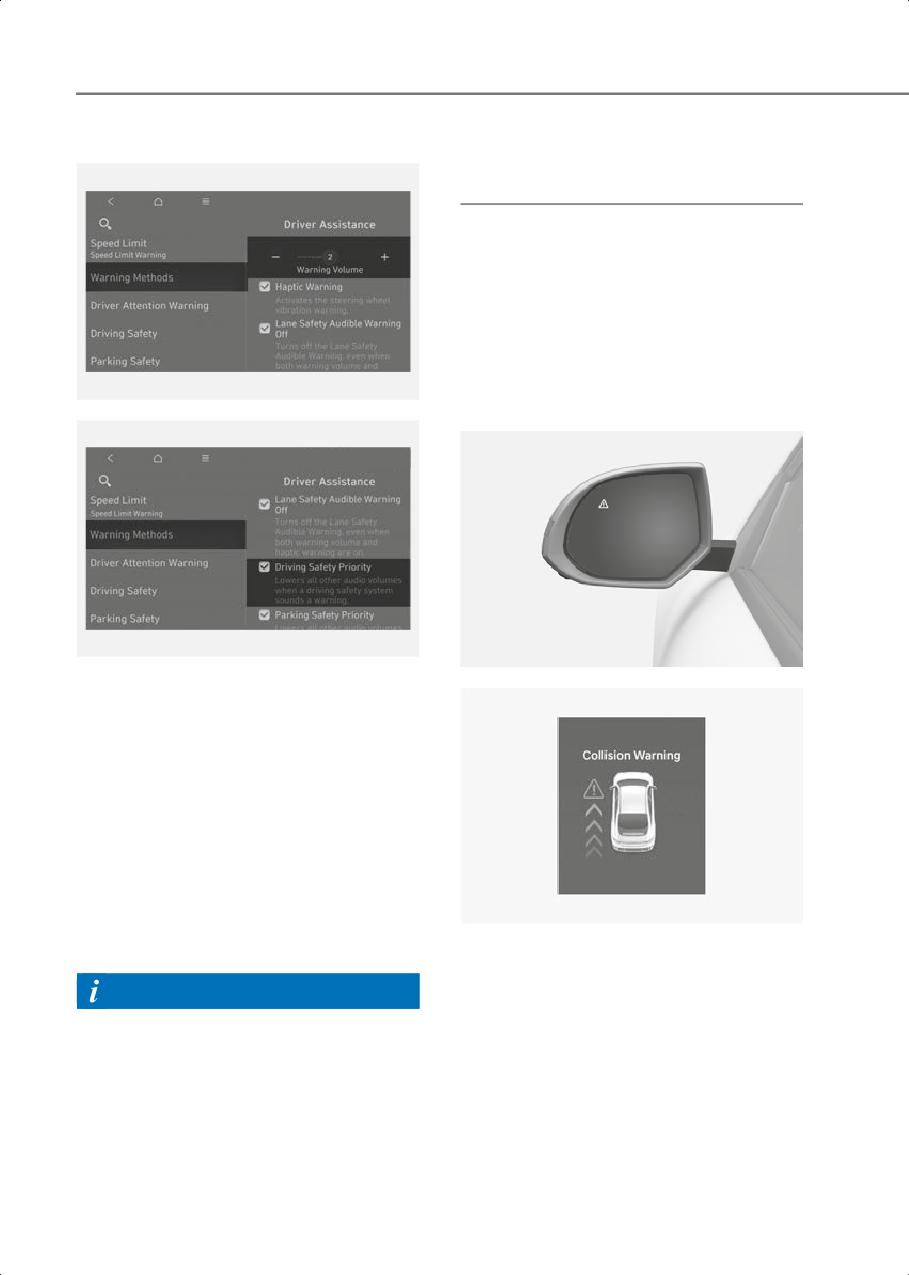
With the vehicle on, go to Setup > Vehicle
> Driver Assistance > Warning Methods
from the Settings in the infotainment
system to select the following:
• Warning Volume: The Warning Volume
can be adjusted.
If you turn off the Warning Volume, for
your safety, the function may warn you
with a low volume.
• Driving Safety Priority: Your vehicle
lowers all other audio volumes when
the Driver Assistance system warning
B7002003
sounds.
• When an approaching vehicle from the
rear is detected at the moment a door is
Information
opened, the 'Collision Warning'
warning message will appear on the
• If you change the Warning Methods,
instrument cluster, and an audible
Warning Methods of other Driver
warning will sound.
Assistance systems may change.
• Safe Exit Warning will warn the driver
• If the vehicle is restarted, Warning
when your vehicle speed is below 2
Methods will maintain the last setting.
mph (3 km/h), and the speed of the
approaching vehicle from the rear is
above 4 mph (6 km/h).
7-48
7
Safe Exit Warning Malfunction
WARNING
and Limitations
Take the following precautions when
using Safe Exit Warning:
Safe Exit Warning malfunction
• For your safety, only change the
Settings after parking the vehicle at a
safe location.
• If any other system’s warning message
is displayed or audible warning is
generated, Safe Exit Warning's warning
message may not be displayed and
audible warning may not be generated.
• You may not hear the warning sound of
Safe Exit Warning if the surroundings
are noisy.
• Safe Exit Warning does not operate in
B7002101
all situations and cannot prevent all
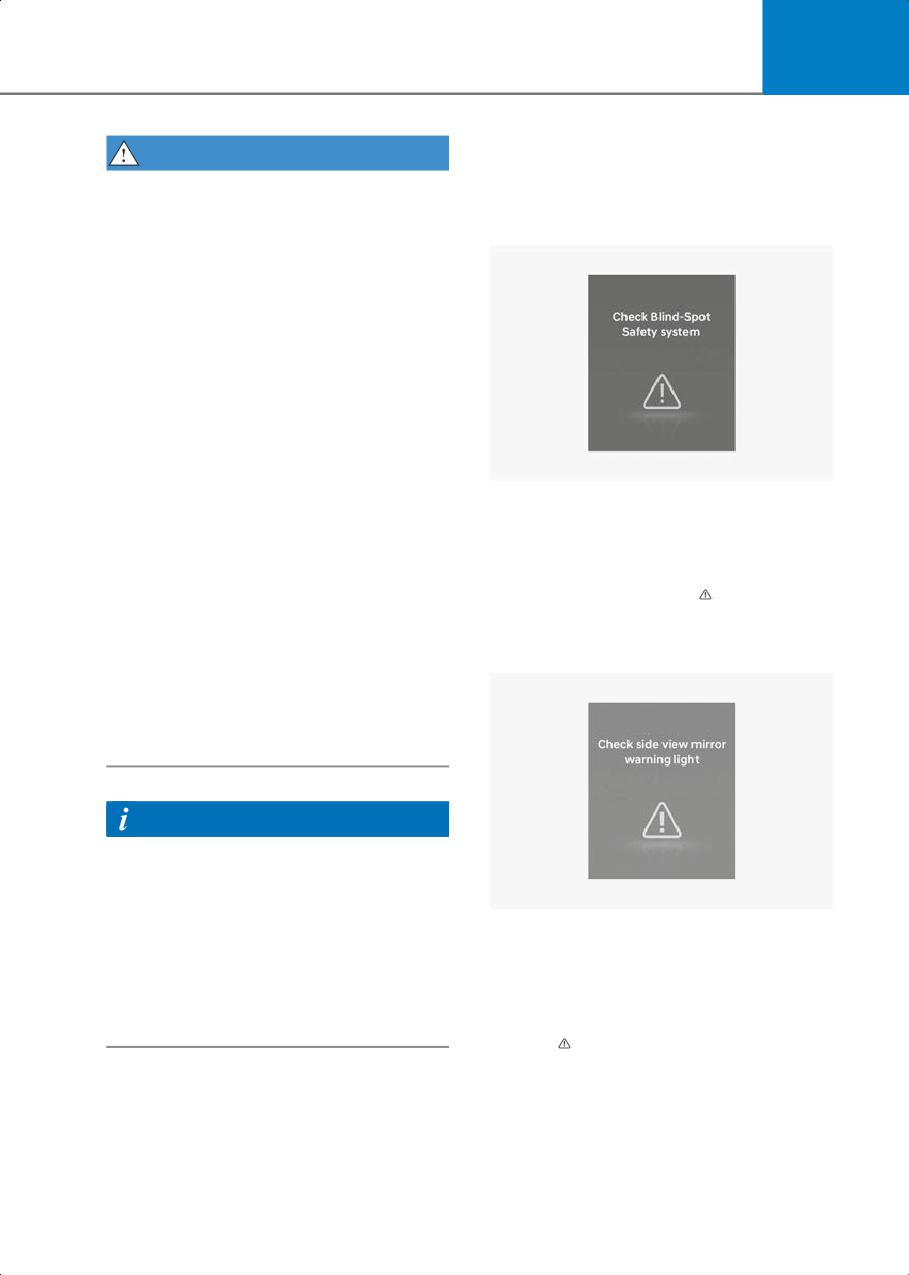
When Safe Exit Warning is not working
collisions.
properly, the 'Check Blind-Spot Safety
• Safe Exit Warning may warn the driver
system' warning message will appear on
late or may not warn the driver
the instrument cluster for several
depending on the road and driving
seconds, and the master (
) warning light
conditions. Always check vehicle
will illuminate on the instrument cluster.
surroundings.
If this occurs, have the vehicle inspected
by an authorized HYUNDAI dealer.
• The driver and passengers are
responsible for accidents that occur
while exiting the vehicle. Always check
the surroundings before you exit the
vehicle.
Information
• After the vehicle is turned off, Safe Exit
Warning operates about for 3 minutes,
but turns off immediately if the doors
are locked.
B7001602
When the side view mirror warning light is
• The images and colors in the
not working properly, the 'Check side
instrument cluster may differ
view mirror warning light' warning
depending on the instrument cluster
message will appear on the instrument
type or theme selected from the
cluster for several seconds, and the
settings menu.
master (
) warning light will illuminate on
the instrument cluster. If this occurs, have
the vehicle inspected by an authorized
HYUNDAI dealer.
7-49
Driver Assistance System
Safe Exit Warning disabled
CAUTION
Turn off Safe Exit Warning to install or
remove a trailer, carrier, or another
attachment. Turn on Safe Exit Warning
when finished.
Limitations of Safe Exit Warning
Safe Exit Warning may not operate
properly, or it may operate unexpectedly
under the following circumstances:
B7002103
• Getting out of the vehicle where trees
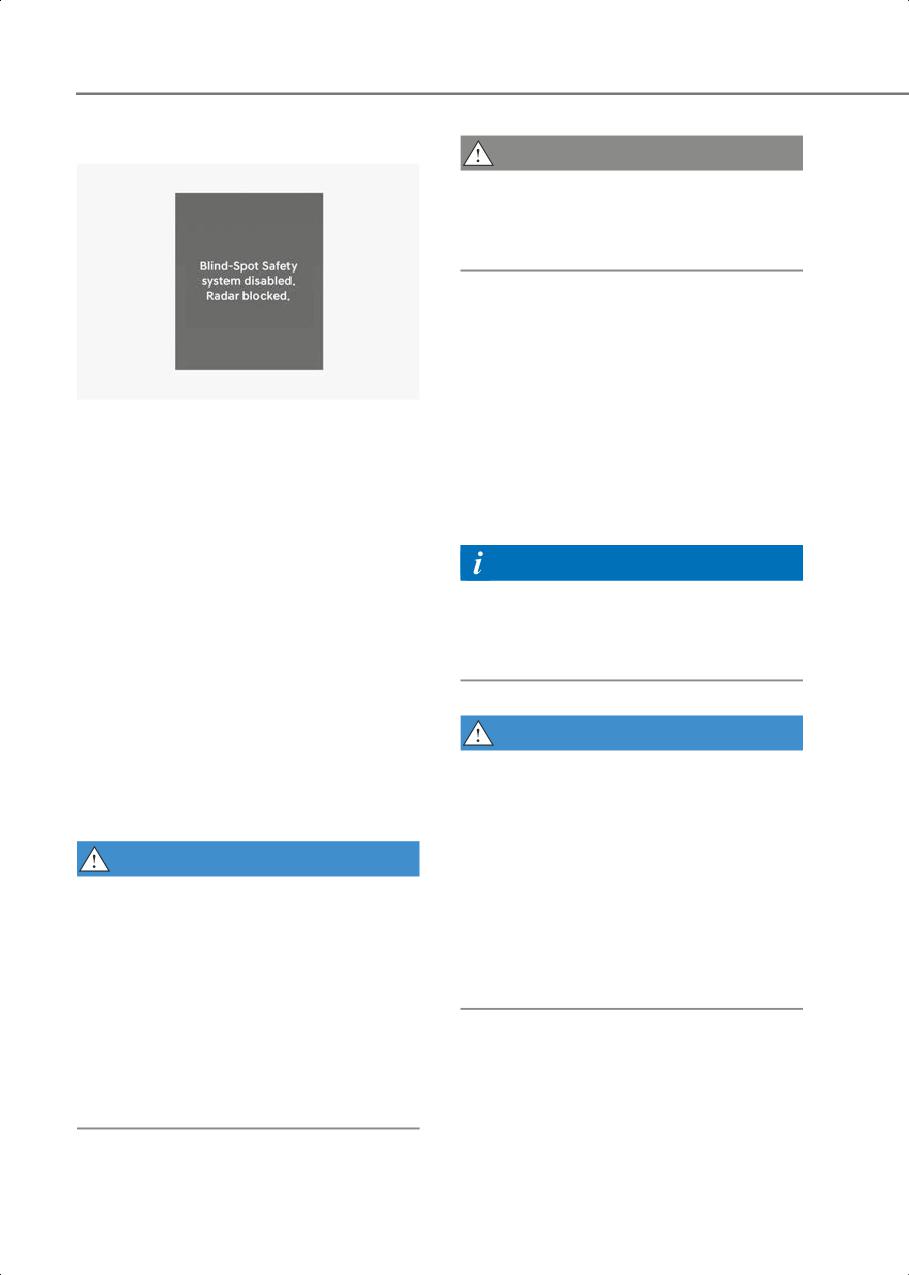
When the rear bumper around the rear
or grass are overgrown
corner radar or sensor is covered with
• Getting out of the vehicle where the
foreign material, such as snow or rain, or
road is wet
installing a trailer or carrier, it can reduce
• The approaching vehicle is very fast or
the detecting performance and
very slow
temporarily limit or disable Safe Exit
Warning.
Information
If this occurs, the 'Blind-Spot Safety
system disabled. Radar blocked'
For more information on the limitations of
warning message will appear on the
the rear corner radar, refer to the
instrument cluster.
“Blind-Spot Collision-Avoidance Assist
(BCA)” section in this chapter.
Safe Exit Warning will operate properly
when such foreign material or trailer, etc.,
is removed, and then the vehicle is
restarted.
WARNING
If Safe Exit Warning does not operate
• Safe Exit Warning may not operate
properly after it is removed, have the
properly if interfered by strong
vehicle inspected by an authorized
electromagnetic waves.
HYUNDAI dealer.
• Safe Exit Warning may not operate for 3
WARNING
seconds after the vehicle is started, or
the rear corner radars are initialized.
• Even though the warning message
• If the vehicle is turned off and restarted
does not appear on the instrument
while the rear corner radar is blocked or
cluster, Safe Exit Warning may not
malfunctioned, the condition is
properly operate.
maintained. Therefore, Safe Exit
• Safe Exit Warning may not properly
Warning may not operate properly.
operate in an area (for example, open
terrain) where any objects are not
detected right after the vehicle is
turned on, or when the detecting
sensor is blocked with foreign material
right after the vehicle is turned on.
7-50
7
Manual Speed Limit
Assist (MSLA)
1
2
50 MPH
B7002302
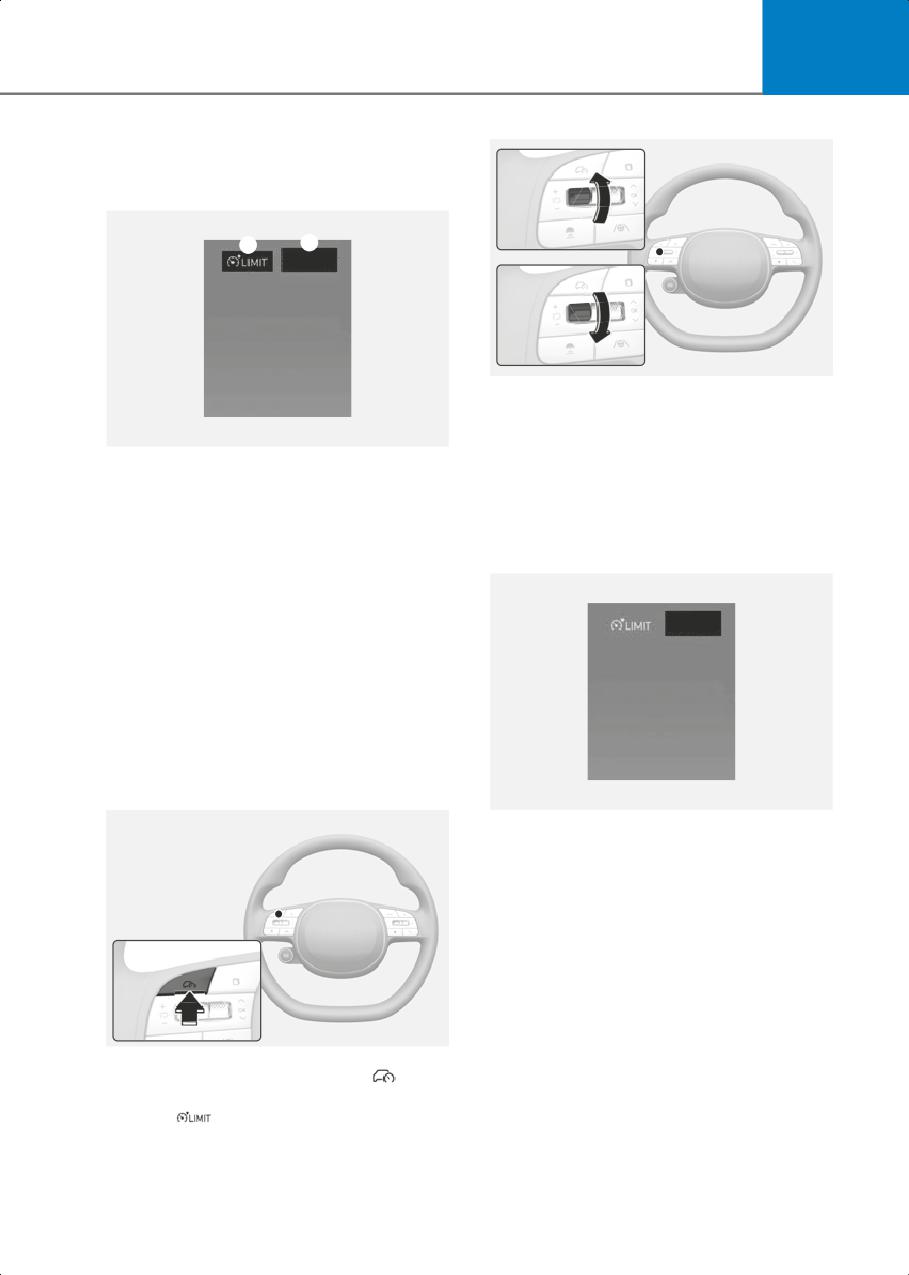
2. Push the + switch up or - switch down,
and release it at the desired speed.
B7002201
Push the + switch up or - switch down
(1) Speed Limit indicator
and hold it. The speed will increase or
(2) Set speed
decrease to the nearest multiple of five
(multiple of ten in km/h) at first, and
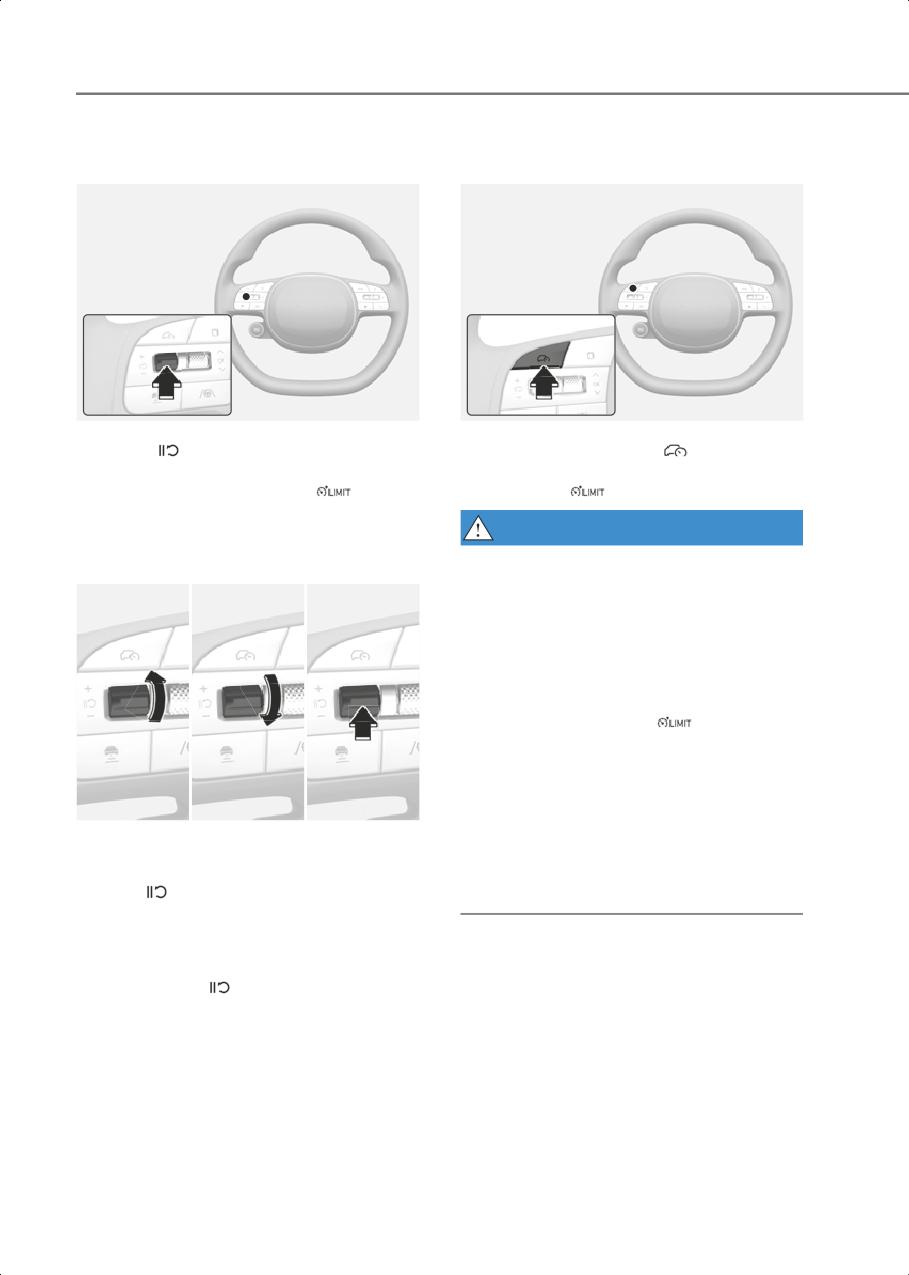
You can set the speed limit when you do
then increase or decrease by 5 mph (10
not want to drive over a specific speed.
km/h).
If you drive over the preset speed limit,
Manual Speed Limit Assist will operate
(set speed limit will blink and chime will
50 MPH
sound) until the vehicle speed returns
within the speed limit.
Manual Speed Limit Assist
Operation
Setting speed limit
B7002303
3. The set speed limit will be displayed on
the instrument cluster.
If you would like to drive over the preset
speed limit, depress the accelerator
pedal beyond the pressure point to
activate the kickdown function.
The set speed limit will blink and chime
will sound until you return the vehicle
speed within the speed limit.
B7002301
1. Press and hold Driving Assist (
)
button at the desired speed. The Speed
Limit (
) indicator will illuminate on
the instrument cluster.
7-51
Driver Assistance System
Temporarily pausing Manual Speed
Turning off Manual Speed Limit
Limit Assist
Assist
B7002304
B7002301_1
Press the
switch to temporarily pause
Press the Driving Assist (
) button to
the set speed limit. The set speed limit will
turn Manual Speed Limit Assist off. The
turn off but the Speed Limit (
)
Speed Limit (
) indicator will go off.
indicator will stay on.
WARNING
Resuming Manual Speed Limit Assist
Take the following precautions when
using Manual Speed Limit Assist:
• Always set the vehicle speed to the
speed limit in your state.
• Keep Manual Speed Limit Assist off
when the function is not in use, to avoid
inadvertently setting a speed. Check
that the Speed Limit (
) indicator is
off.
• Manual Speed Limit Assist does not
substitute for proper and safe driving. It
is the responsibility of the driver to
B7002305
always drive safely and be aware of
To resume Manual Speed Limit Assist
unexpected and sudden situations. Pay
after the function was paused, operate
attention to the road conditions at all
the +, -,
switch.
times.
If you push the + switch up or - switch
down, vehicle speed will be set to the
current speed on the instrument cluster.
If you press the
switch, vehicle speed
will resume to the preset speed.
7-52
7
Detecting sensor
Intelligent Speed Limit
Assist (ISLA)
if equipped
1
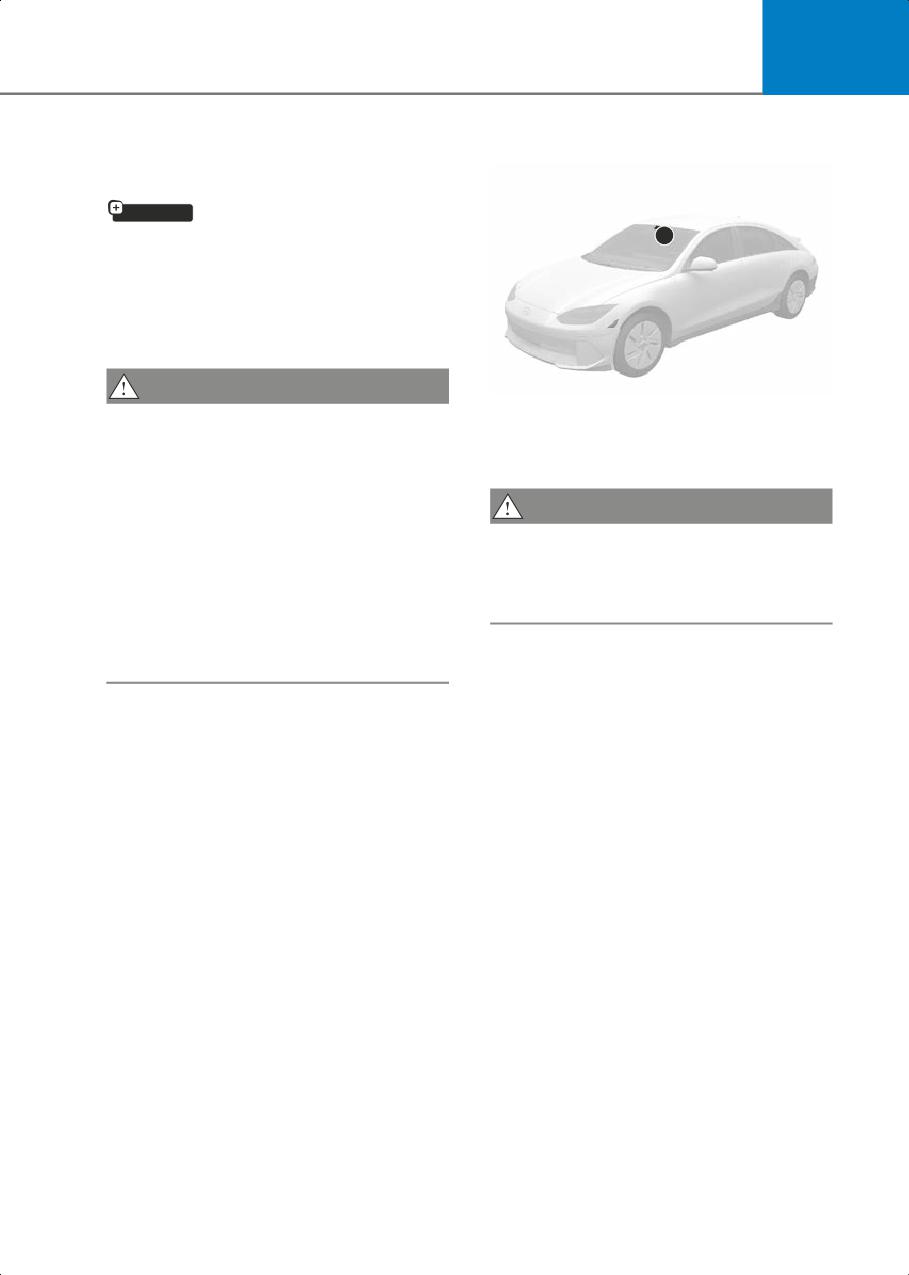
Intelligent Speed Limit Assist uses
information from the detected road signs
and uses the navigation system data to
inform you of the speed limit and to help
maintain within the speed limit on the
road.
CAUTION
B7002501
• Intelligent Speed Limit Assist may not
(1) Front view camera
operate properly if the function is used
Refer to the picture above for the detailed
in other countries.
location of the detecting sensor.
• If a navigation system is equipped to
your vehicle, the navigation needs to be
CAUTION
regularly updated for Intelligent Speed
For more information on the precautions
Limit Assist to operate properly.
of the front view camera, refer to the
• The infotainment system may change
Forward Collision-Avoidance Assist (FCA)
after software updates. For more
section in this chapter.
information, refer to the user's manual
provided in the infotainment system
and the quick reference guide.
7-53
Driver Assistance System
Intelligent Speed Limit Assist
WARNING
Settings
For your safety, only change the Settings
after parking the vehicle at a safe
Speed Limit
location.
Information
• Speed Limit Assist function operates
based on the Offset setting added to
the speed limit. If you want to change
the set speed according to the speed
limit, adjust the offset to ‘0’.
B7002601
• The setting of 'Speed Offset' is not
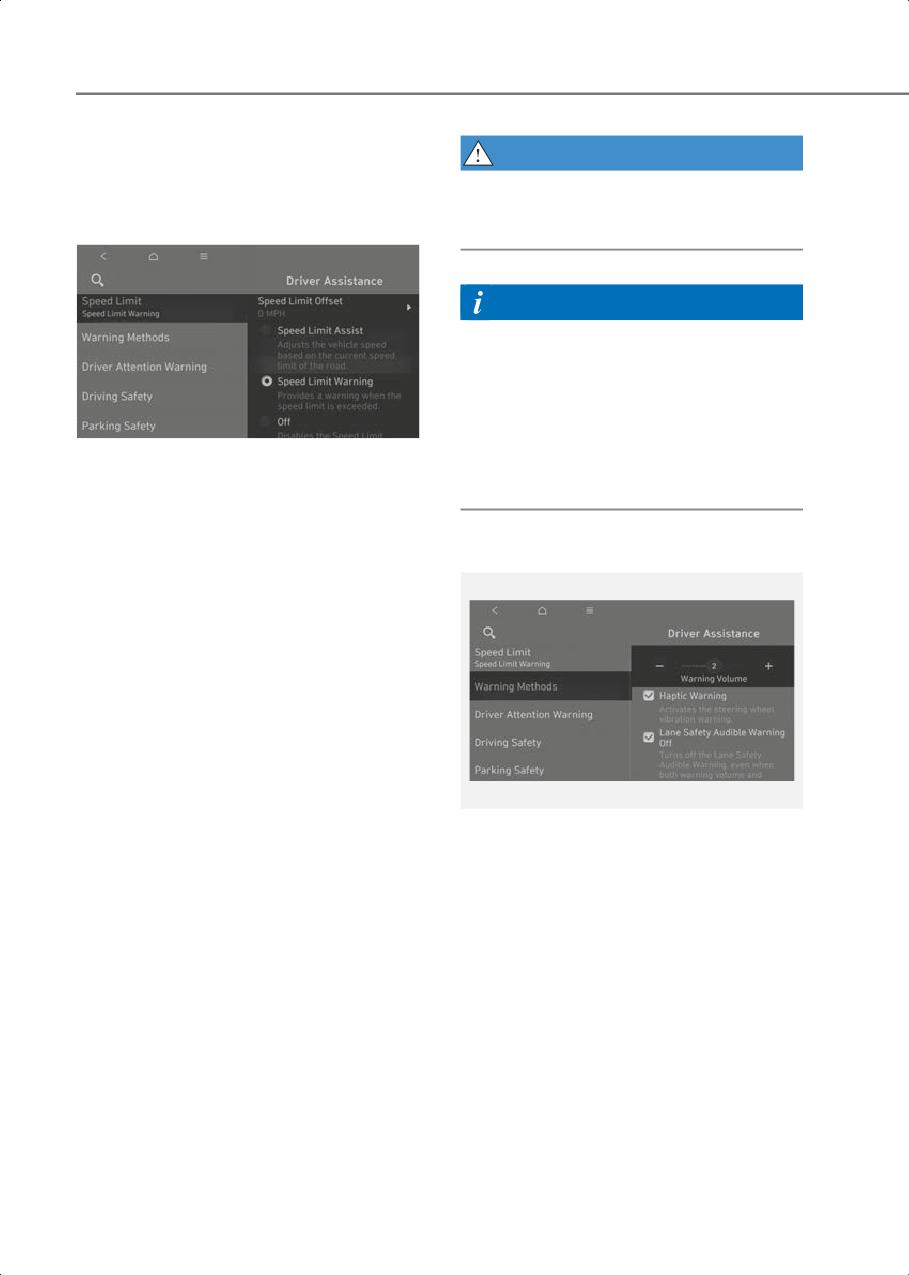
With the vehicle on, select or deselect
reflected in Navigation-based Smart
Setup > Vehicle > Driver Assistance >
Cruise Control (NSCC).
Speed Limit from the Settings menu to
set whether to use each function.
• If Speed Limit Offset is selected, the
Warning Methods
Speed Limit Offset can be adjusted.
Speed Limit Warning and Speed Limit
Assist will warn the driver and adjust
the driving speed when vehicle speed
exceeds the speed at which the set
Offset is added to speed limit.
• If Speed Limit Assist is selected,
Intelligent Speed Limit Assist will
inform the driver of speed limit and
additional road signs. In addition,
Intelligent Speed Limit Assist will
inform the driver to change set speed of
B7001902
Manual Speed Limit Assist and/or
With the vehicle on, go to Setup > Vehicle
Smart Cruise Control to help the driver
> Driver Assistance > Warning Methods
stay within the speed limit.
from the Settings in the infotainment
system to select the following:
• If Speed Limit Warning is selected,
Intelligent Speed Limit Assist will
• Warning Volume: The Warning Volume
inform the driver of speed limit. In
can be adjusted.
addition, Intelligent Speed Limit Assist
If you turn off the Warning Volume, for
will warn the driver when the vehicle is
your safety, the function may warn you
driven faster than the speed limit.
with a low volume.
• If Off is selected, Intelligent Speed
Limit Assist will turn off.
7-54
7
Information
Information
• If you change the Warning Methods,
• If speed limit information of the road
Warning Methods of other Driver
cannot be recognized, '---' sign will be
Assistance systems may change.
displayed. Please refer to "Limitations
of Intelligent Speed Limit Assist" if the
• If the vehicle is restarted, Warning
road signs are difficult to recognize.
Methods will maintain the last setting.
• Intelligent Speed Limit Assist provides
• There may be no Settings menu
additional road sign information in
depending on the feature applied to
addition to speed limit. The additional
your vehicle.
road sign information provided may
vary according to your state.
Intelligent Speed Limit Assist
• The images and colors in the
instrument cluster may differ
Operation
depending on the instrument cluster
type or theme selected from the
Warning and control
instrument cluster.
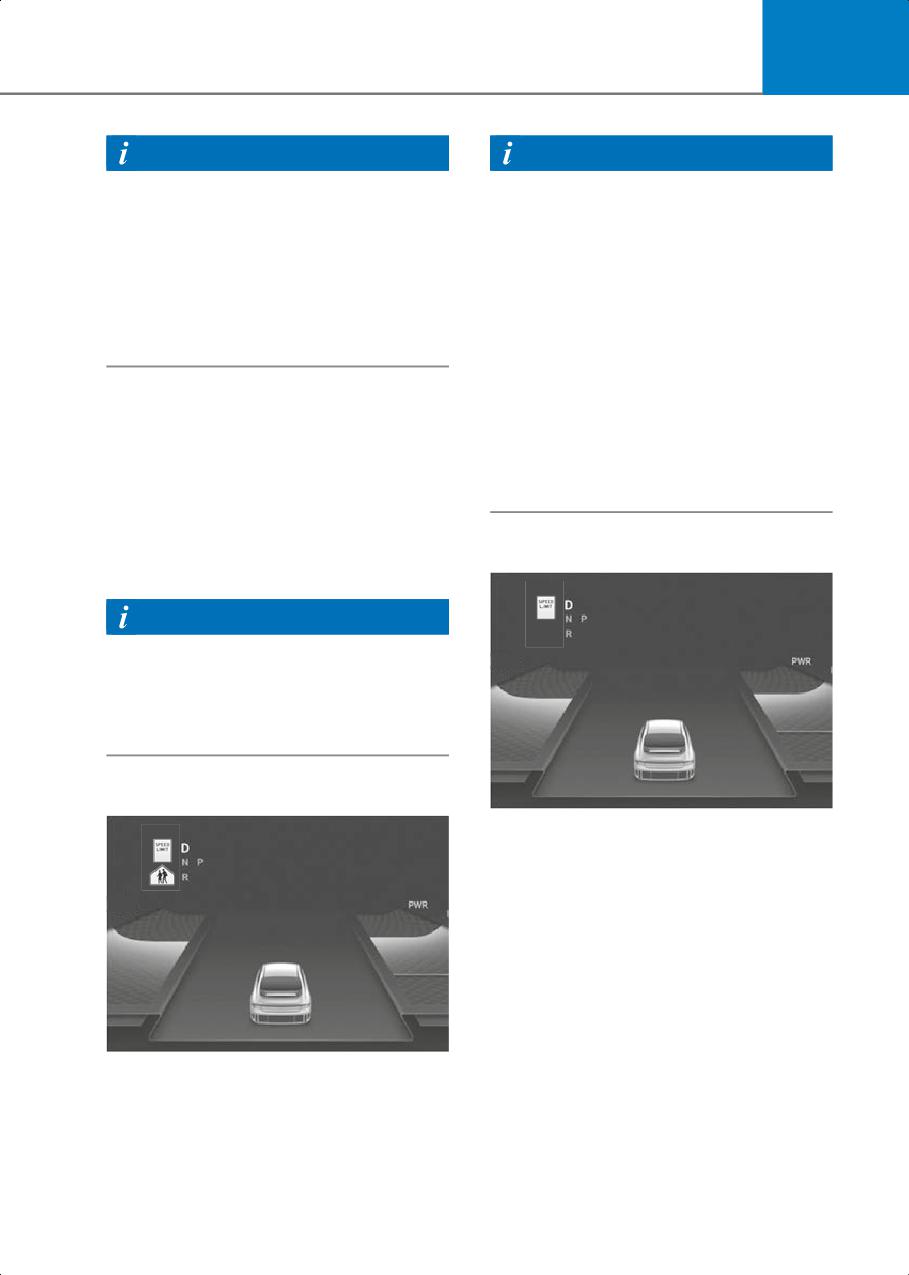
Intelligent Speed Limit Assist will warn
and control the vehicle speed by
“Displaying speed limit”, “Warning
Warning overspeed
overspeed” and “Changing set speed”.
Information
• Intelligent Speed Limit Assist warning
.1)
and control are described based on the
Offset adjust to "0". For details on
Offset setting, refer to the “Intelligent
Speed Limit Assist Settings”.
Displaying speed limit
B7002702
When driving at a speed higher than the
displayed speed limit, the speed limit is
displayed in red.
.1)
B7002701
Speed limit information is displayed on
the instrument cluster.
7-55
Driver Assistance System
Changing set speed
WARNING
•
If you want to drive below the speed
60MPH
45MPH
limit, adjust the Offset under 0 or use
the - switch on the steering wheel to
lower the set speed.
•
Even after changing the set speed
according to the speed limit of the road,
the vehicle can still be driven over the
speed limit. If necessary, depress the
brake pedal to reduce your driving
speed.
B7002703
•
If the speed limit of the road is under 20
If the speed limit of the road changes
mph (30 km/h), the set speed change
during the operation of Manual Speed
function will not work.
Limit Assist or Smart Cruise Control, an
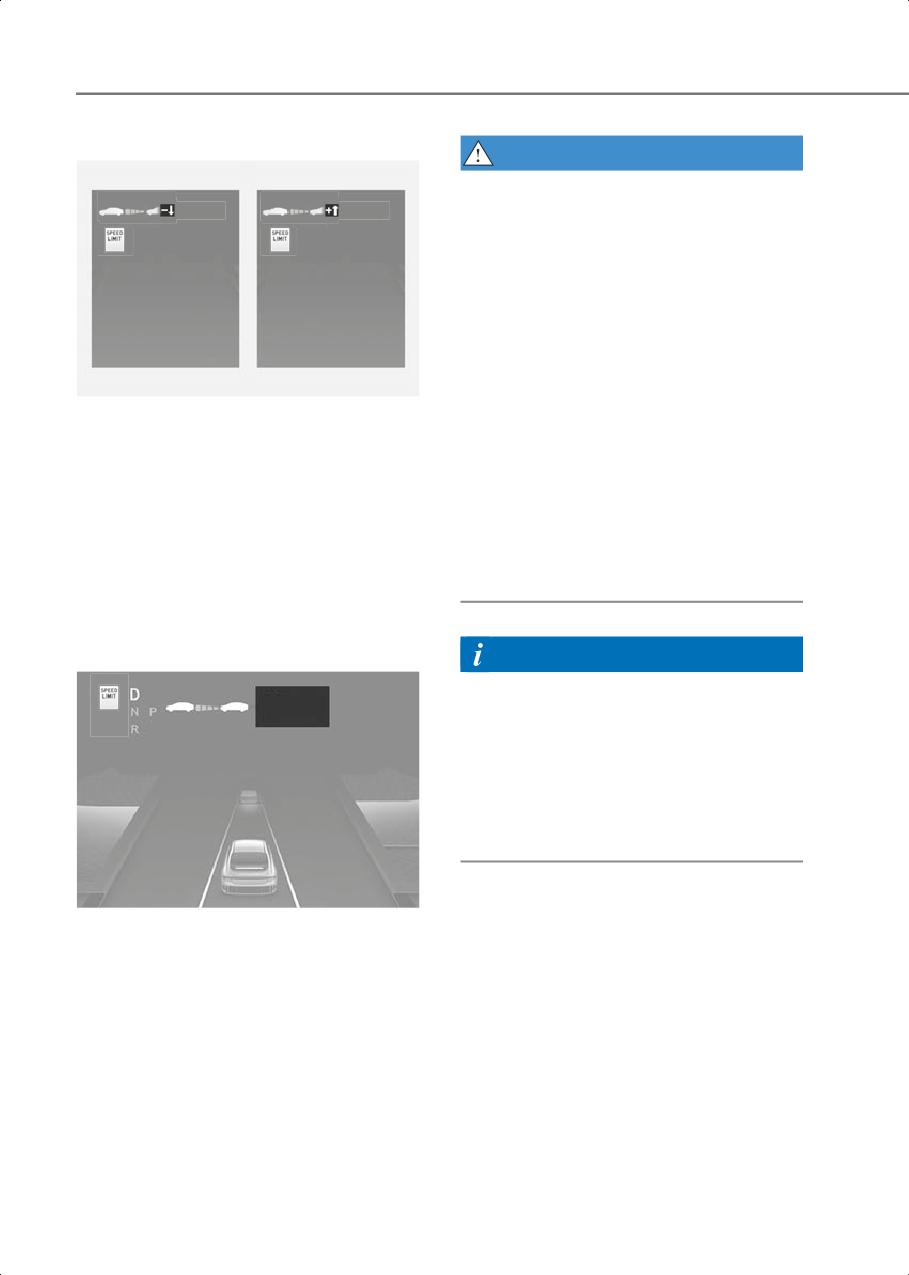
•
Intelligent Speed Limit Assist operates
arrow in the direction of up or down is
using the speed units in the instrument
displayed to inform the driver that the set
cluster set by the driver. If the speed
speed needs to be changed. At this time,
unit is not set to the speed unit used in
the driver can change the set speed
your state, Intelligent Speed Limit
according to the speed limit by using the
Assist may not operate properly.
+ or - switch on the steering wheel.
Set Speed Auto Change (Navigation
equipped)
Information
•
For more information on Manual Speed
50 MPH
Limit Assist operation, refer to the
“Manual Speed Limit Assist (MSLA)”
section in this chapter.
•
For more information on Smart Cruise
Control operation, refer to the “Smart
Cruise Control (SCC)” section in this
chapter.
B7002704
Manual Speed Limit Assist or Smart
Cruise Control assists the vehicle to
adjust its speed according to the speed
limit. When the cruising speed is set as
same as the speed limit, the vehicle
automatically adjusts its speed if the
speed limit changes. The function
operates on the road which has a speed
limit of 44 mph (70 km/h) or higher. When
the function is active, the cruising speed
on the instrument cluster appears in
green.
7-56
7
Intelligent Speed Limit Assist
Intelligent Speed Limit Assist
disabled
Malfunction and Limitations
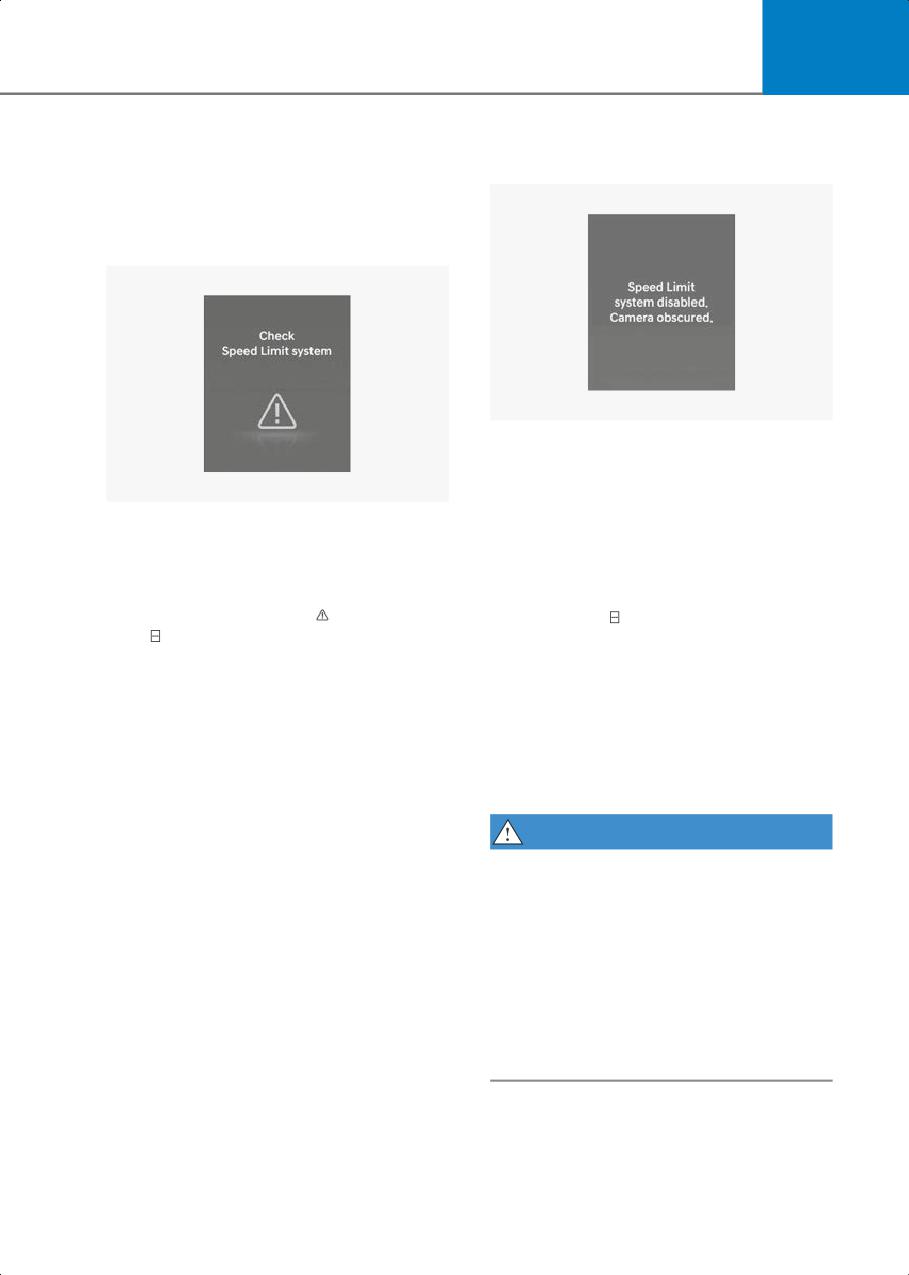
Intelligent Speed Limit Assist
malfunction
B7002802
When the front windshield where the
front view camera is located is covered
with foreign material, such as snow or
B7002801
rain, it can reduce the detecting
When Intelligent Speed Limit Assist is not
performance and temporarily limit or
working properly, the 'Check Speed Limit
disable Intelligent Speed Limit Assist. If
system' warning message will appear on
this occurs, the 'Speed Limit system
the instrument cluster for several
disabled. Camera obscured' warning
seconds, and the master (
) warning light
message and (
) warning light will appear
and (
) warning light will illuminate on
on the instrument cluster.
the instrument cluster. If this occurs, have
Intelligent Speed Limit Assist will operate
the vehicle inspected by an authorized
properly when snow, rain or foreign
HYUNDAI dealer.
material is removed.
If Intelligent Speed Limit Assist does not
operate properly after it is removed, have
the vehicle inspected by an authorized
HYUNDAI dealer.
WARNING
• Even though the warning message or
warning light does not appear on the
instrument cluster, Intelligent Speed
Limit Assist may not properly operate.
• If the vehicle is turned off and restarted
while the camera is blocked or
malfunctioned, the condition is
maintained. Therefore, Intelligent
Speed Limit Assist may not operate
properly.
7-57
Driver Assistance System
Limitations of Intelligent Speed
•
The brightness changes suddenly, for
Limit Assist
example when entering or exiting a
tunnel or passing under a bridge
Intelligent Speed Limit Assist may not
operate properly, or it may operate
•
Headlights are not used or the
unexpectedly under the following
brightness of the headlights are weak at
circumstances:
night or in the tunnel
•
The road sign is contaminated or
•
Road signs are difficult to recognize
indistinguishable
due to the reflection of sunlight, street
lights, or oncoming vehicles
- The road sign is difficult to see due to
bad weather, such as rain, snow, fog,
•
The navigation information or GPS
etc.
information contain errors.
- The road sign is not clear or damaged
•
The driver does not follow the guide of
the navigation.
- The road sign is partially obscured by
surrounding objects or shadow
•
The driver is driving on a new road that
is not in the navigation system yet.
•
The road signs do not conform to the
standard
•
The field of view of the front view
camera is obstructed by sun glare
- The text or picture on the road sign is
different from the standard
•
Driving on a road that is sharply curved
or continuously curved
- The road sign is installed between the
main line and the exit road or
•
Driving through speed bumps, or
between diverging roads
driving up and down or left to right on
steep inclines
- There is no conditional road signs on
the road sign located on the exit road
•
The vehicle is shaking heavily
- A sign is attached to another vehicle
•
The navigation software is being
updated while driving
•
The distance between the vehicle and
the road signs is too far
•
The navigation is restarted while driving
•
The vehicle encounters illuminant road
signs
•
Intelligent Speed Limit Assist
incorrectly recognizes numbers or
pictures in the street signs or other
signs as the speed limit
•
A road sign near the road you are
driving is detected
•
The other traffic sign or signboards are
alongside the road sign
•
Multiple signs are installed close
together
•
The minimum speed limit sign is
misrecognized
•
The minimum speed limit sign is on the
road
7-58
7
Driver Attention Warning
WARNING
• Intelligent Speed Limit Assist is a
(DAW)
supplemental function that helps the
driver comply with the speed limit on
Basic function
the road, and may not display the
correct speed limit or control the
Driver Attention Warning monitors your
driving speed properly.
driving pattern while driving. When the
driver's attention level is below a certain
• Always set the vehicle speed to the
level, Driver Attention Warning
speed limit in your area.
recommends a break to help with safe
• Intelligent Speed Limit Assist may not
driving.
operate for 15 seconds after the vehicle
is started, or the front camera is
initialized.
Leading vehicle departure alert
function
Leading Vehicle Departure Alert function
will inform the driver when a detected
Information
vehicle in front departs.
For more information on the limitations of
the front view camera, refer to the
"Forward Collision-Avoidance Assist
(FCA)" section in this chapter.
7-59
Driver Assistance System
Detecting sensor
Driver Attention Warning
Settings
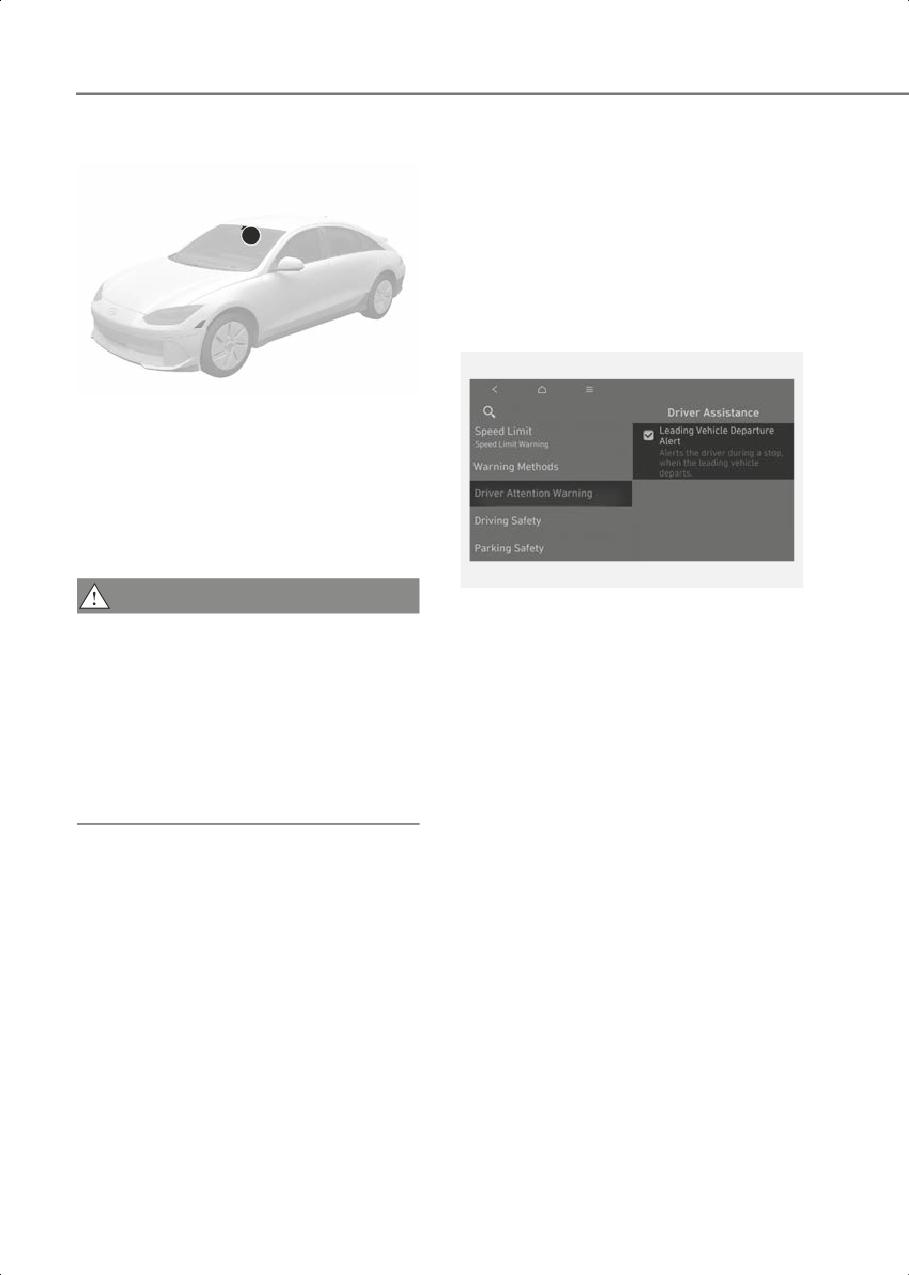
Leading Vehicle Departure Alert
1
With the vehicle on, select or deselect
Setup > Vehicle > Driver Assistance >
Driver Attention Warning from the
Settings menu to set whether to use the
function.
B7002901
(1) Front view camera
The front view camera is used as a
detecting sensor to help detect driving
patterns and front vehicle departure
while vehicle is being driven.
Refer to the picture above for the detailed
location of the detecting sensor.
B7003001
CAUTION
• If Leading Vehicle Departure Alert is
• Always keep the front view camera in
selected, the function will inform the
good condition to maintain optimal
driver when a detected vehicle in front
performance of Driver Attention
departs from a stop.
Warning.
• For more information on the
precautions of the front view camera,
refer to the Forward
Collision-Avoidance Assist (FCA)
section in this chapter.
7-60
7
Driver Attention Warning
CAUTION
Operation
• Driver Attention Warning may suggest
a break depending on the driver’s
Basic function
driving pattern or habits, even if the
The basic function of Driver Attention
driver doesn’t feel fatigue.
Warning is to warn the driver 'Consider
• Driver Attention Warning is a
taking a break'.
supplemental function and may not be
able to determine whether the driver is
Taking a break
inattentive.
• A driver who feels fatigued should take
a break at a safe location, even though
there is no break suggestion by Driver
Attention Warning.
Information
For more information on instrument
cluster settings, refer to the “Cluster
Display” section in chapter 4.
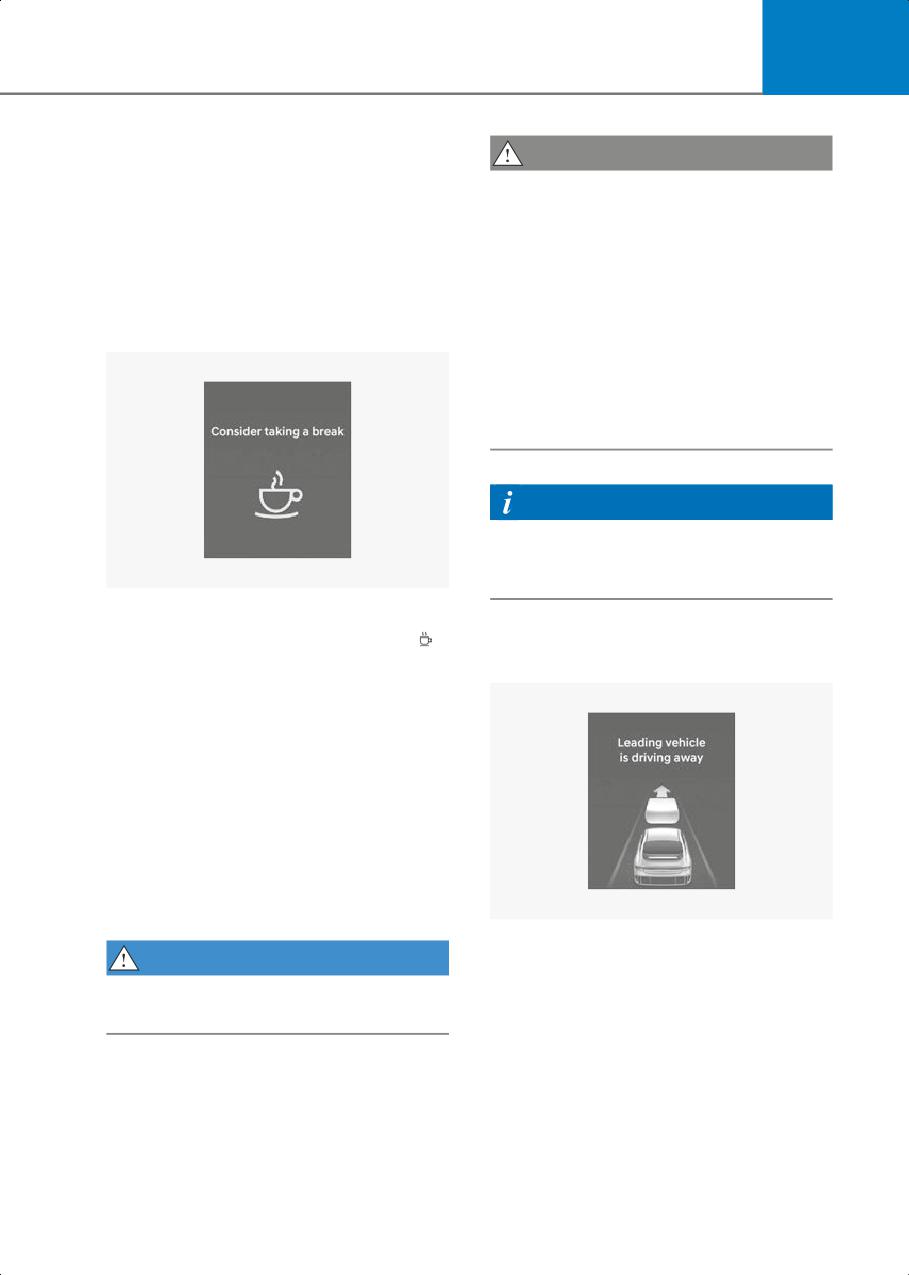
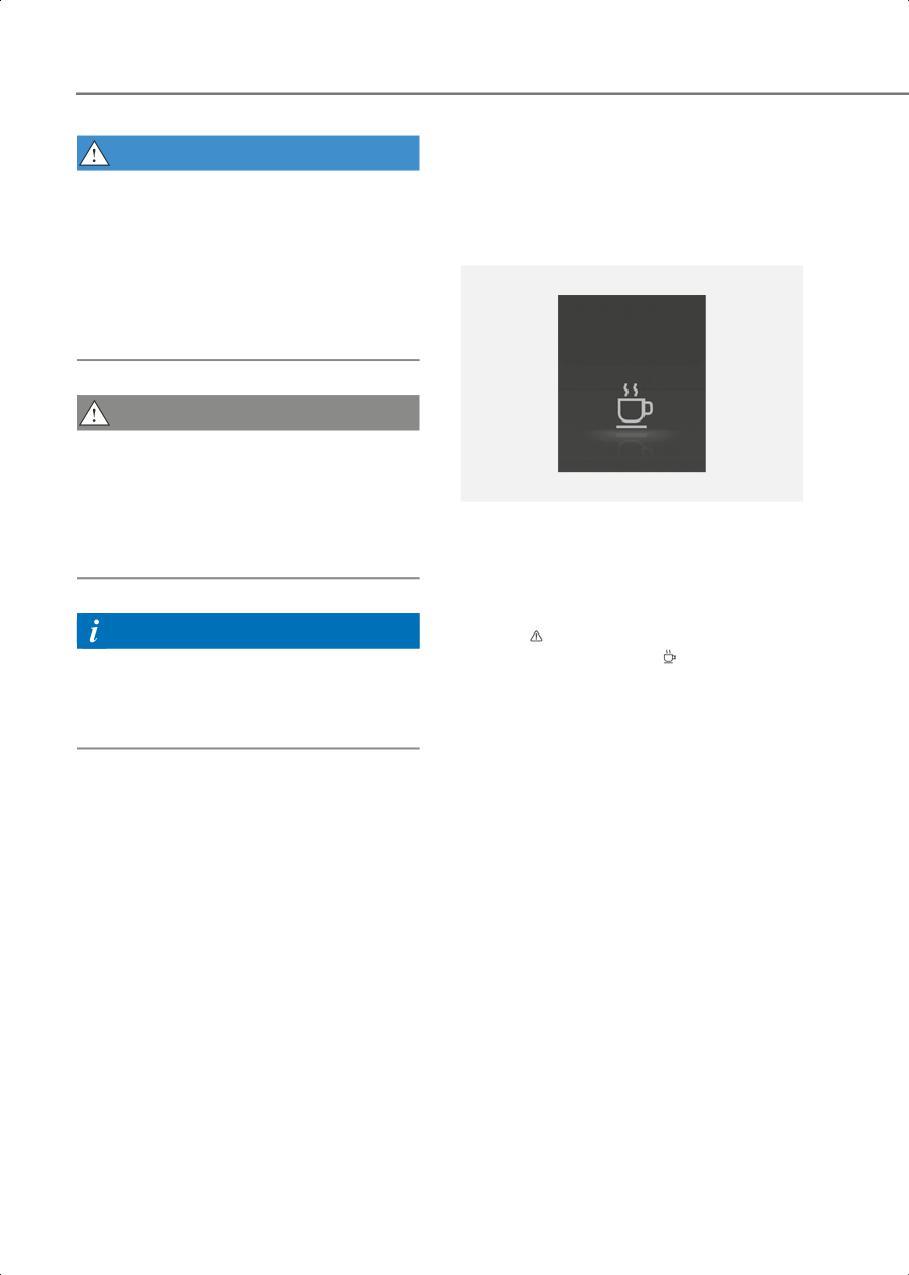
B7003101
• The 'Consider taking a break' message
and Driver Attention Warning light (
)
Leading Vehicle Departure Alert
will appear on the instrument cluster
function
and an audible warning will sound to
suggest that the driver take a break,
when the driver’s attention level is
below a certain level.
• Driver Attention Warning will not
suggest a break when the total driving
time is shorter than 4 minutes or 4
minutes has not passed after the last
break was suggested.
• A break is suggested when your vehicle
speed is between about 0-120 mph
(0-200 km/h).
B7003102
When a detected vehicle in front departs
WARNING
from a stop, Leading Vehicle Departure
Only change the Settings after parking
Alert will inform the driver by displaying
the vehicle at a safe location.
the 'Leading vehicle is driving away'
message on the instrument cluster and an
audible warning will sound.
7-61
Driver Assistance System
Driver Attention Warning
WARNING
Malfunction and Limitations
• If any other system’s warning message
is displayed or audible warning is
Driver Attention Warning
generated, Leading Vehicle Departure
malfunction
Alert's warning message may not be
displayed and audible warning may not
be generated.
• The driver has the responsibility to
safely drive and control the vehicle.
$IFDL *OBUUFOUJWF
%SJWJOH 8BSOJOH TZTUFN
CAUTION
• Leading Vehicle Departure Alert is a
supplemental function and may not
alert the driver whenever the front
vehicle departs from a stop.
B7003201
When Driver Attention Warning is not
• Always check the front of the vehicle
working properly, the 'Check Inattentive
and road conditions before departure.
Driving Warning system' warning
message will appear on the instrument
cluster for several seconds, and the
Information
master (
) warning light and Driver
Attention Warning light (
) will illuminate
The images and colors in the instrument
on the instrument cluster. If this occurs,
cluster may differ depending on the
have the vehicle inspected by an
instrument cluster type or theme selected
authorized HYUNDAI dealer.
from the settings menu.
7-62
7
Driver Attention Warning disabled
Limitations of Driver Attention
Warning
Driver Attention Warning may not work
properly in the following situations:
• The vehicle is driven violently
• The vehicle intentionally crosses over
lanes frequently
• The vehicle is controlled by Driver
Assistance system, such as Lane
Keeping Assist
Leading Vehicle Departure Alert function
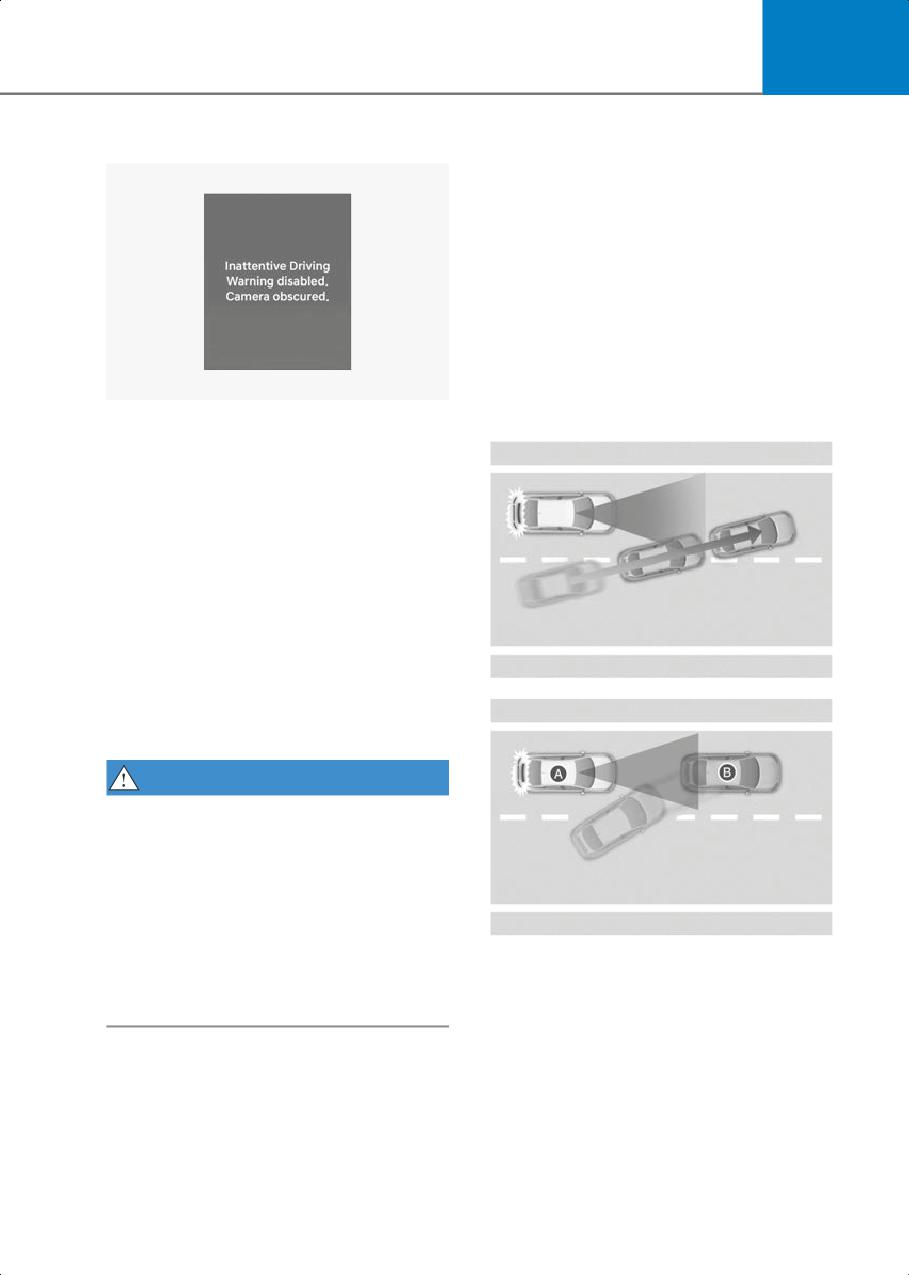
B7003202
When the front windshield where the
• When the vehicle cuts in
front view camera is located is covered
with foreign material, such as snow or
rain, it can reduce the detecting
performance and temporarily limit or
disable Driver Attention Warning. If this
occurs, the 'Inattentive Driving Warning
disabled. Camera obscured' warning
message will appear on the instrument
cluster. Driver Attention Warning will
operate properly when snow, rain or
foreign material is removed. If Driver
Attention Warning does not operate
B7003203
properly after it is removed, have the
vehicle inspected by an authorized
HYUNDAI dealer.
WARNING
• Driver Attention Warning may not
properly operate in an area (for
example, open terrain) where any
objects are not detected right after
turning ON the vehicle.
• If the vehicle is turned off and restarted
while the camera is blocked or
B7003204
[A] Your vehicle
malfunctioned, the condition is
[B] Front vehicle
maintained. Therefore, Driver Attention
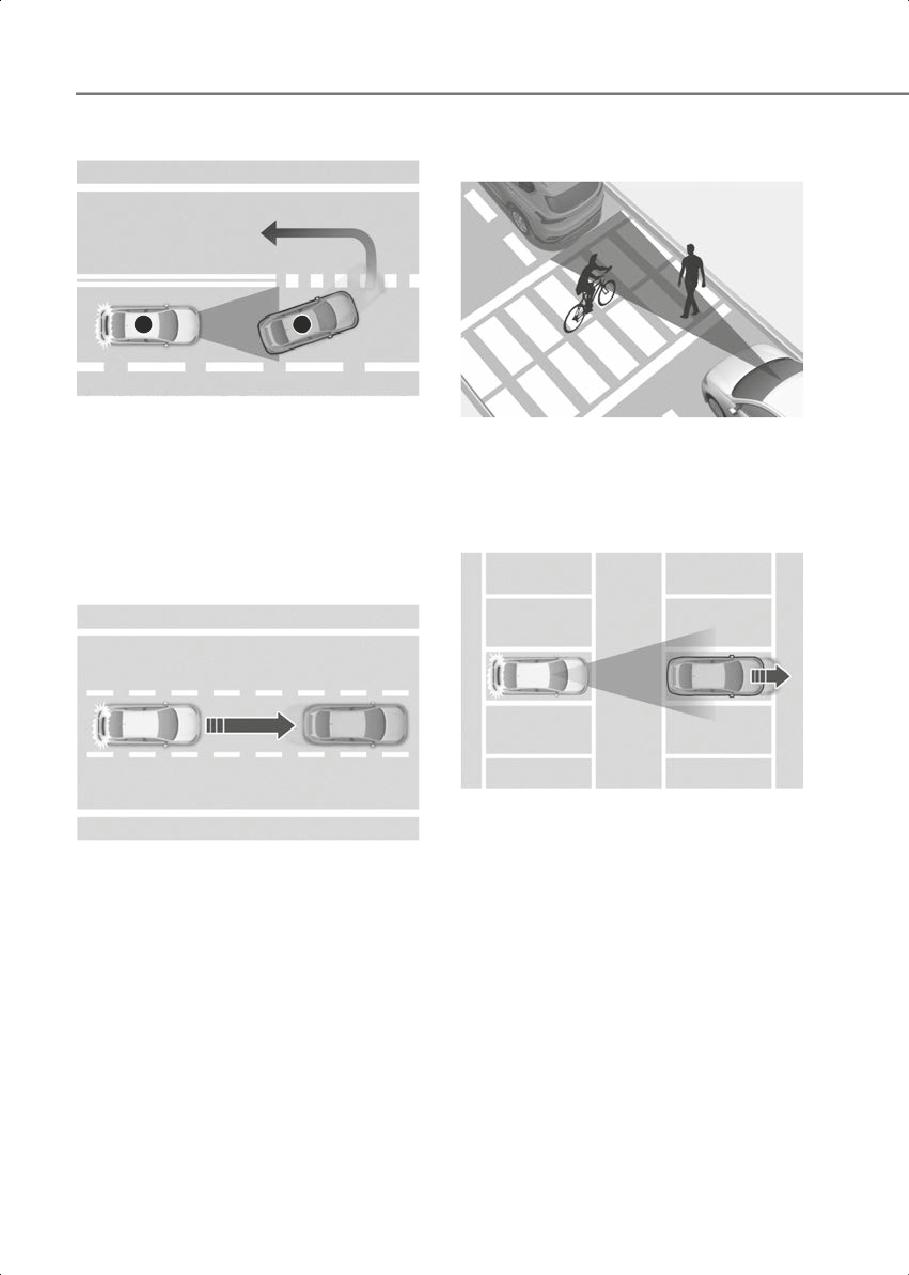
If a vehicle cuts in front of your vehicle,
Warning may not operate properly.
Leading Departure Alert may not
operate properly.
7-63
Driver Assistance System
• When the vehicle ahead sharply steers
• When a pedestrian or bicycle is
between you and the vehicle ahead
A
B
B7003205
[A] Your vehicle
B7003207
[B] Front vehicle
If there is a pedestrian(s) or bicycle(s) in
If the vehicle in front makes a sharp
between you and the vehicle in front,
turn, such as to turn left or right or make
Leading Vehicle Departure Alert may
a U- turn, etc., Leading Vehicle
not operate properly.
Departure Alert may not operate
properly.
• When in a parking lot
• When the vehicle ahead abruptly
departures
B7003208
If a vehicle parked in front drives away
from you, Leading Vehicle Departure
B7003206
Alert may alert you that the parked
If the vehicle in front abruptly
vehicle is driving away.
departures, Leading Vehicle Departure
Alert may not operate properly.
7-64
7
• When driving at a tollbooth or
Blind-Spot View Monitor
intersection, etc.
(BVM)
if equipped
B7003209
If you pass a tollbooth or intersection
with lots of vehicles or you drive where
B7003701
lanes are merged or divided frequently,
Leading Vehicle Departure Alert may
not operate properly.
WARNING
Driver Attention Warning may not operate
for 15 seconds after the vehicle is started,
or the front view camera is initialized.
Information
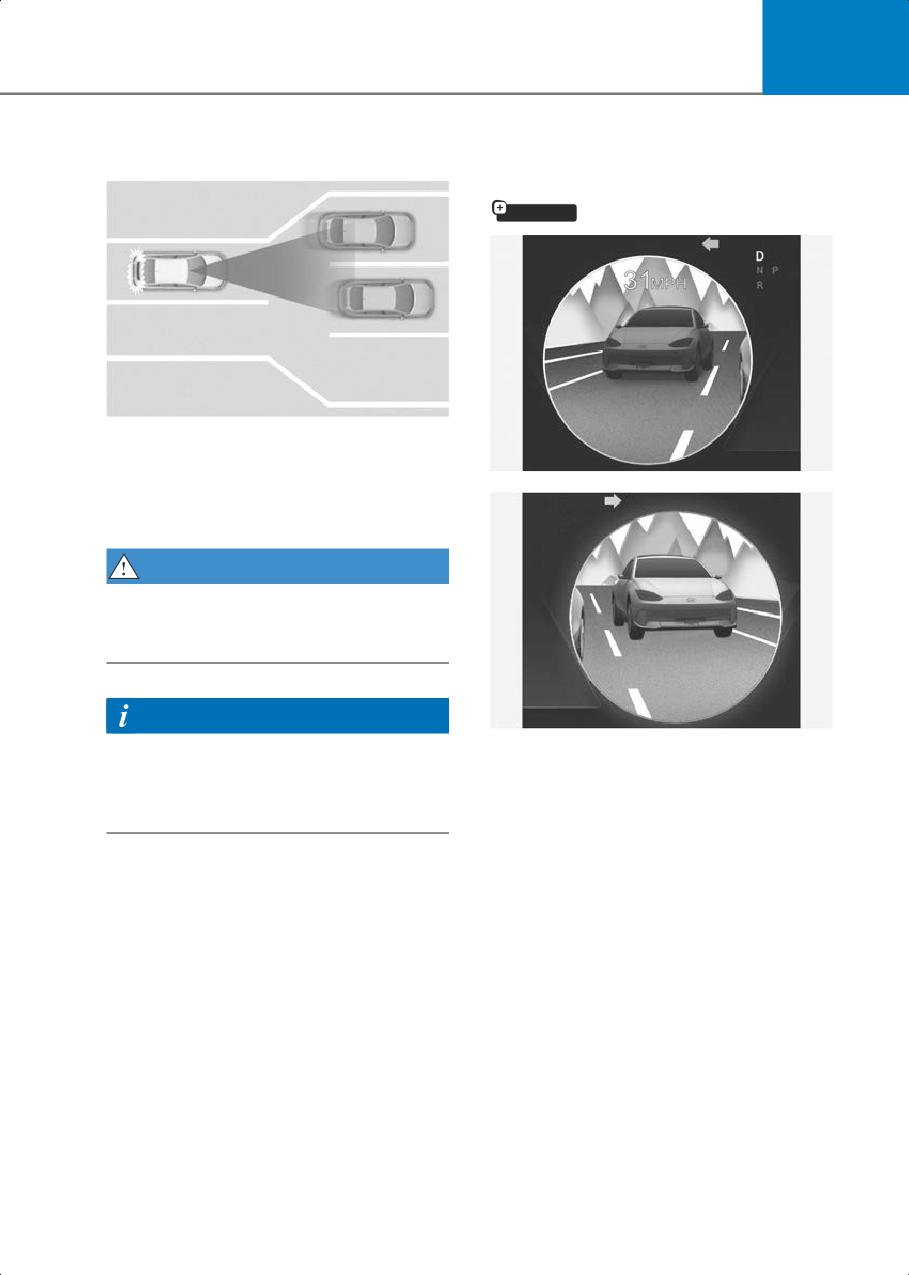
B7003702
For more information on the precautions
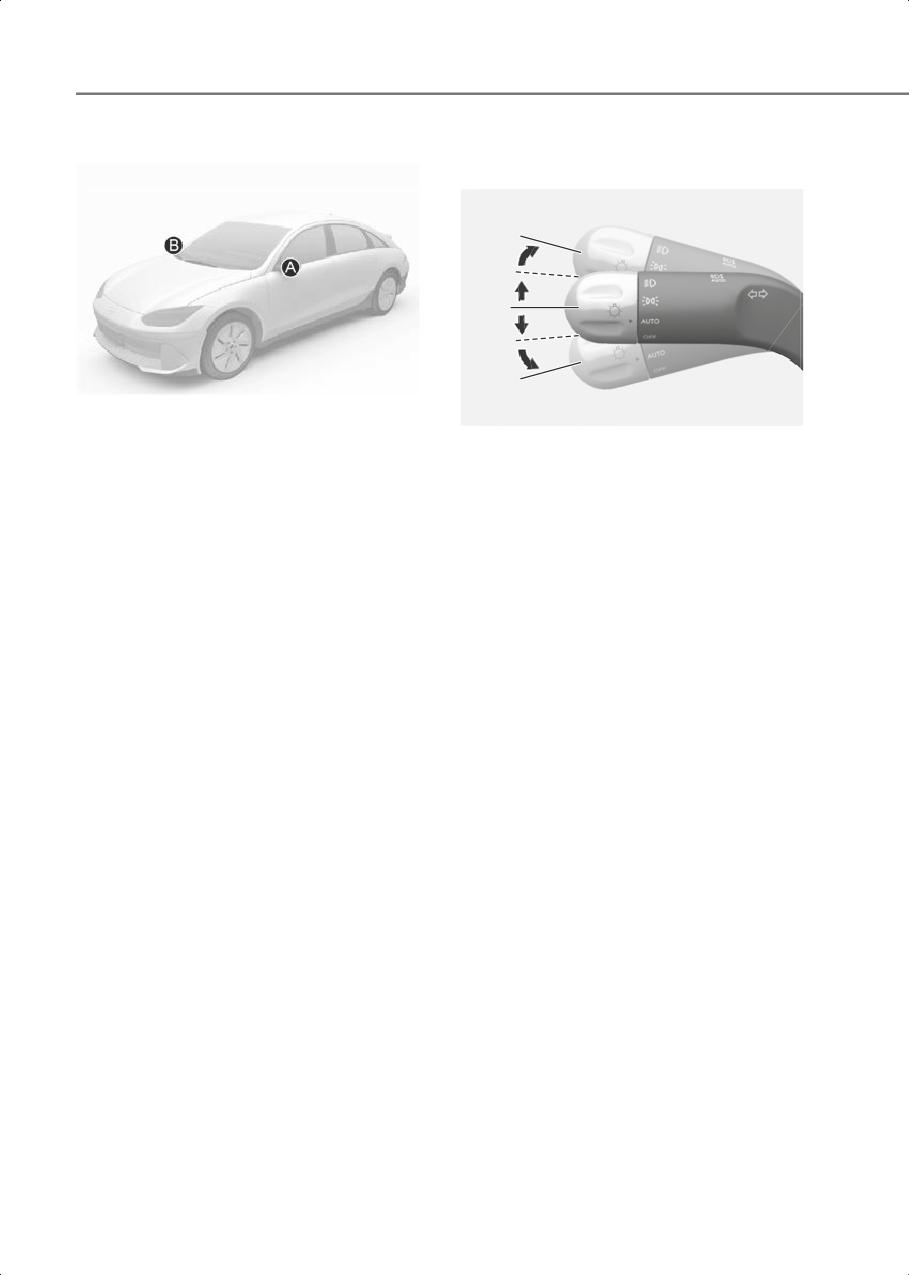
Blind-Spot View Monitor uses the
of the front view camera, refer to the
wide-side view cameras to display the
“Forward Collision-Avoidance Assist
rear blind spot areas of your vehicle on
(FCA)” section in this chapter.
the instrument cluster when the turn
signal is turned on to help with safe lane
changes.
7-65
Driver Assistance System
Detecting sensor
Blind-Spot View Monitor
Operation
B7003703
[A] Wide-side view camera (camera located at
bottom of the mirror)
B7003901
[B] Wide-side view camera (camera located at
Blind-Spot View Monitor will turn on and
bottom of the mirror)
off when the turn signal is turned on and
Refer to the picture above for the detailed
off.
location of the detecting sensors.
Operating conditions
Blind-Spot View Monitor
When the left or right side turn signal
Settings
turns on, the image in that direction is
displayed on the instrument cluster.
Setting features
Off conditions
Blind-Spot View
• When the turn signal turns off, the
With the vehicle on, select Setup >
image on the instrument cluster will
Vehicle > Driver Assistance > Driving
turn off.
Safety > Blind-Spot View Monitor from
• When the hazard warning flasher is on,
the Settings menu to turn on Blind-Spot
Blind-Spot View Monitor will turn off,
View Monitor and deselect to turn off the
regardless of the turn signal status.
function.
• When other important warning is
displayed on the instrument cluster,
Blind-Spot View Monitor may turn off.
7-66
7
Blind-Spot View Monitor
Smart Cruise Control
Malfunction
(SCC)
When Blind-Spot View Monitor is not
working properly, or the cluster display
Smart Cruise Control detects a vehicle
flickers, or the camera image does not
ahead and helps maintain the distance
display properly, have the vehicle
from the vehicle ahead and the set speed.
inspected by an authorized HYUNDAI
dealer.
Overtaking Acceleration Assist
WARNING
When Smart Cruise Control judges you
are attempting to overtake a vehicle in
• The image shown on the instrument
front, Smart Cruise Control help with
cluster may differ from the actual
accelerating.
distance of the object. Make sure to
directly check the vehicle's
surroundings for safety.
Based on Driving Style
if equipped
• Always keep the camera lens clean. If
the lens is covered with foreign
Smart Cruise Control operates based on
material, it may adversely affect
your driving style, such as vehicle
camera performance and Blind-Spot
distance, acceleration, and reaction
View Monitor may not operate
speed.
properly.
7-67
Driver Assistance System
Detecting sensor
Smart Cruise Control Settings
Smart Cruise Control
1
B7004101
B7004201
With the vehicle on, select Setup >
3
Vehicle > Driver Assistance > Driving
Convenience > Smart Cruise Control
from the settings menu to change
3
2
Distance, Acceleration and Reaction
Speed manually.
Based on Driving Style
B7004102
if equipped
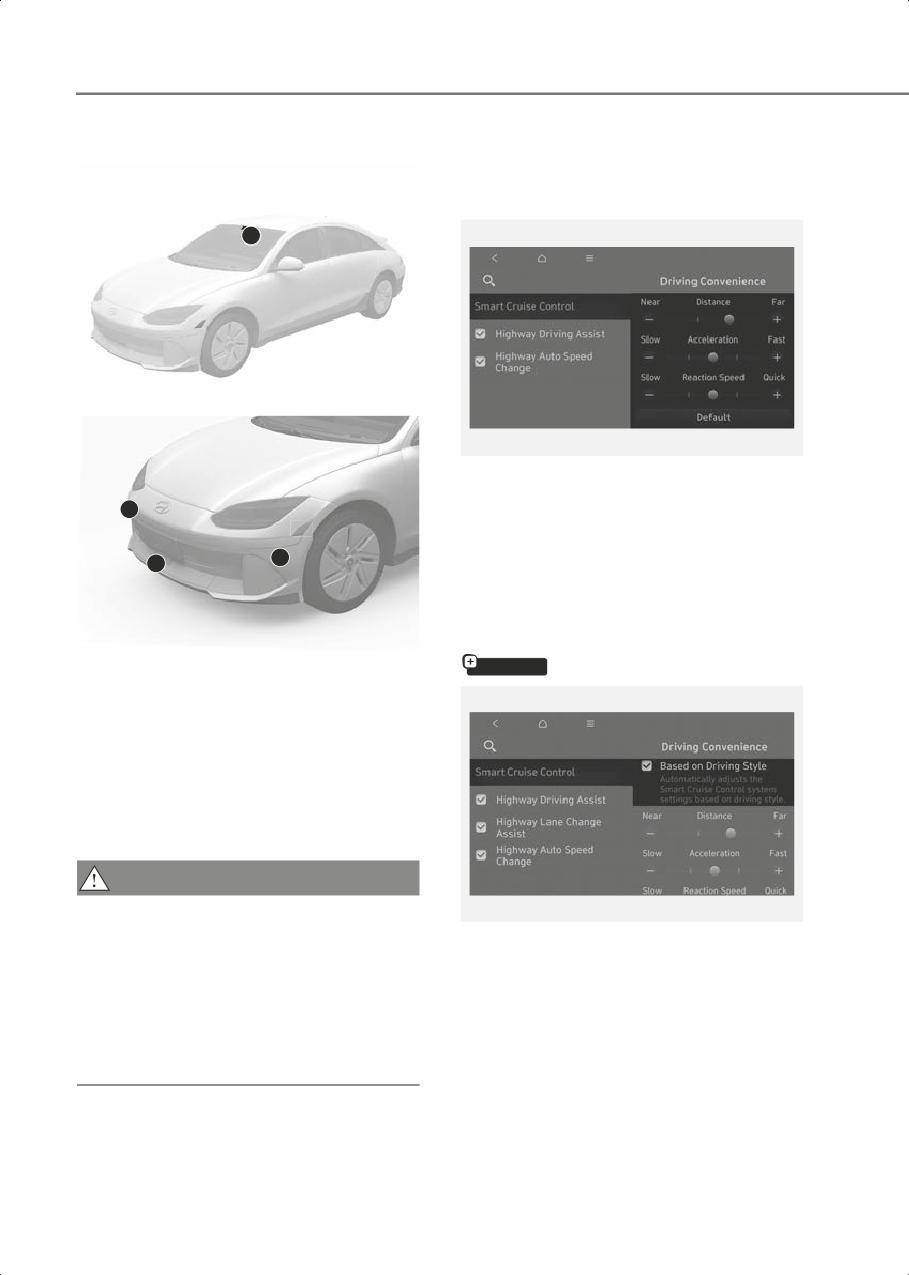
(1) Front view camera,
(2) Front radar,
(3) Front corner radar (if equipped)
The front view camera and front radar are
used as a detecting sensor to detect front
vehicles.
Refer to the picture above for the detailed
location of the detecting sensor.
CAUTION
Always keep the front view camera and
ORS071259L
front radar in good condition to maintain
With the vehicle on, if Setup > Vehicle >
optimal performance of Smart Cruise
Driver Assistance > Driving Convenience
Control.
> Smart Cruise Control > Based on
For more information on the precautions
Driving Style is selected from the
of the front view camera and front radar,
Settings menu, Smart Cruise Control will
refer to the "Forward Collision-Avoidance
operate based on the driver’s driving
Assist (FCA)" section in this chapter.
style, such as vehicle distance,
acceleration, reaction speed.
7-68
7
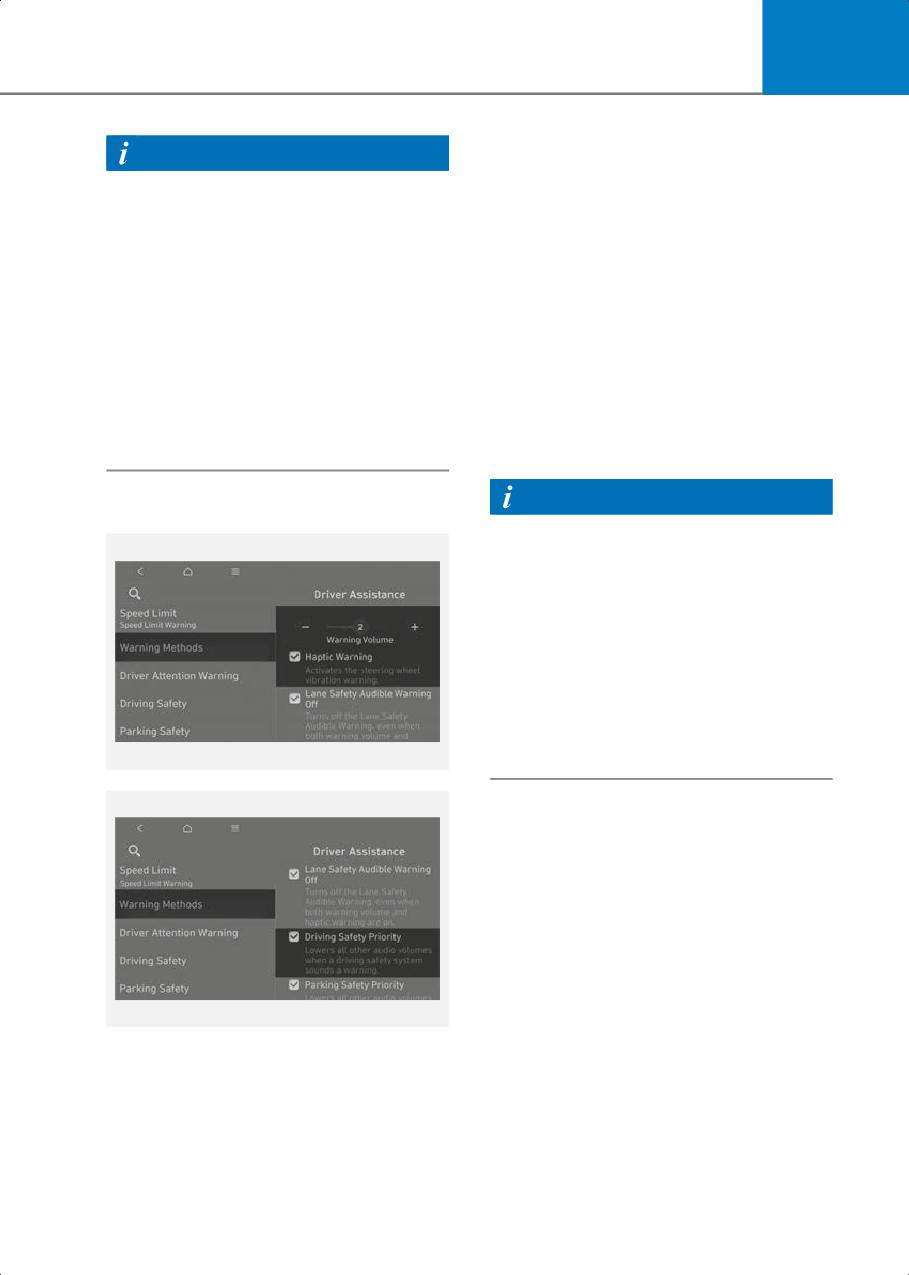
With the vehicle on, go to Setup > Vehicle
Information
> Driver Assistance > Warning Methods
• If the Based on Driving Style is
from the Settings in the infotainment
supported, you can select it from the
system to select the following:
Setup > Vehicle > Driver Assistance >
• Warning Volume: The Warning Volume
Driving Convenience > Smart Cruise
can be adjusted.
Control.
If you turn off the Warning Volume, for
• Based on driving style setting
your safety, the function may warn you
continuously learns when the driver
with a low volume.
drives the vehicle.
• Haptic Warning: The steering wheel
• When Based on driving style is
vibration can be set.
deactivated, the driver’s driving style
• Driving Safety Priority: Your vehicle
such as vehicle distance, acceleration,
lowers all other audio volumes when
reaction speed will maintain in the
the Driver Assistance system warning
same stage.
sounds.
Information
Warning Methods
• If the vehicle is restarted, Warning
Volume will maintain the last setting.
• If the vehicle is restarted, Warning
Methods will maintain the last setting.
• There may be no Settings menu
depending on the feature applied to
your vehicle.
• The Warning Volume and Haptic
Warning cannot be turned off at the
same time. When one of the warnings is
turned off, the other is activated.
B7000205
B7000205_1
7-69
Driver Assistance System
Smart Cruise Control
Operating conditions for Acceleration
Assist
Operation
Overtaking Acceleration Assist operates
when the turn signal indicator is turned on
Operating conditions
to the left while Smart Cruise Control is
operating, and the following conditions
Basic function
are satisfied:
Smart Cruise Control operates when the
• Your vehicle speed is above 40 mph (60
following conditions are satisfied.
km/h)
• The gear is in D (Drive)
• A vehicle is detected in front of your
• The driver’s door is closed
vehicle
• EPB (Electronic Parking Brake) is not
Overtaking Acceleration Assist does not
applied
operate in the following conditions.
• Your vehicle speed is within the
•
The hazard warning flasher is on
operating speed range
•
Vehicle speed is reduced to maintain
-
5-120 mph (10-200 km/h): when
distance with the vehicle in front
there is no vehicle in front
WARNING
-
0-120 mph (0-200 km/h): when there
is a vehicle in front
•
When the turn signal indicator is turned
• ESC (Electronic Stability Control) or
on to the left while there is a vehicle
ABS (Anti-Lock Braking System) is on
ahead, the vehicle may accelerate
temporarily. Pay attention to the road
Smart Cruise Control does not operate in
conditions at all times.
the following conditions.
• The driver's door is opened
• Your vehicle is in power down mode (
)
• EPB (Electronic Parking Brake) is
applied
• ESC (Electronic Stability Control) or
ABS (Anti-Lock Braking System) is
controlling the vehicle
• Forward Collision-Avoidance Assist
brake control is operating
• Remote Smart Parking Assist brake
control is operating (if equipped)
Information
When stopped behind another vehicle,
the driver can turn on Smart Cruise
Control while the brake pedal is
depressed.
7-70
7
Turning on Smart Cruise Control
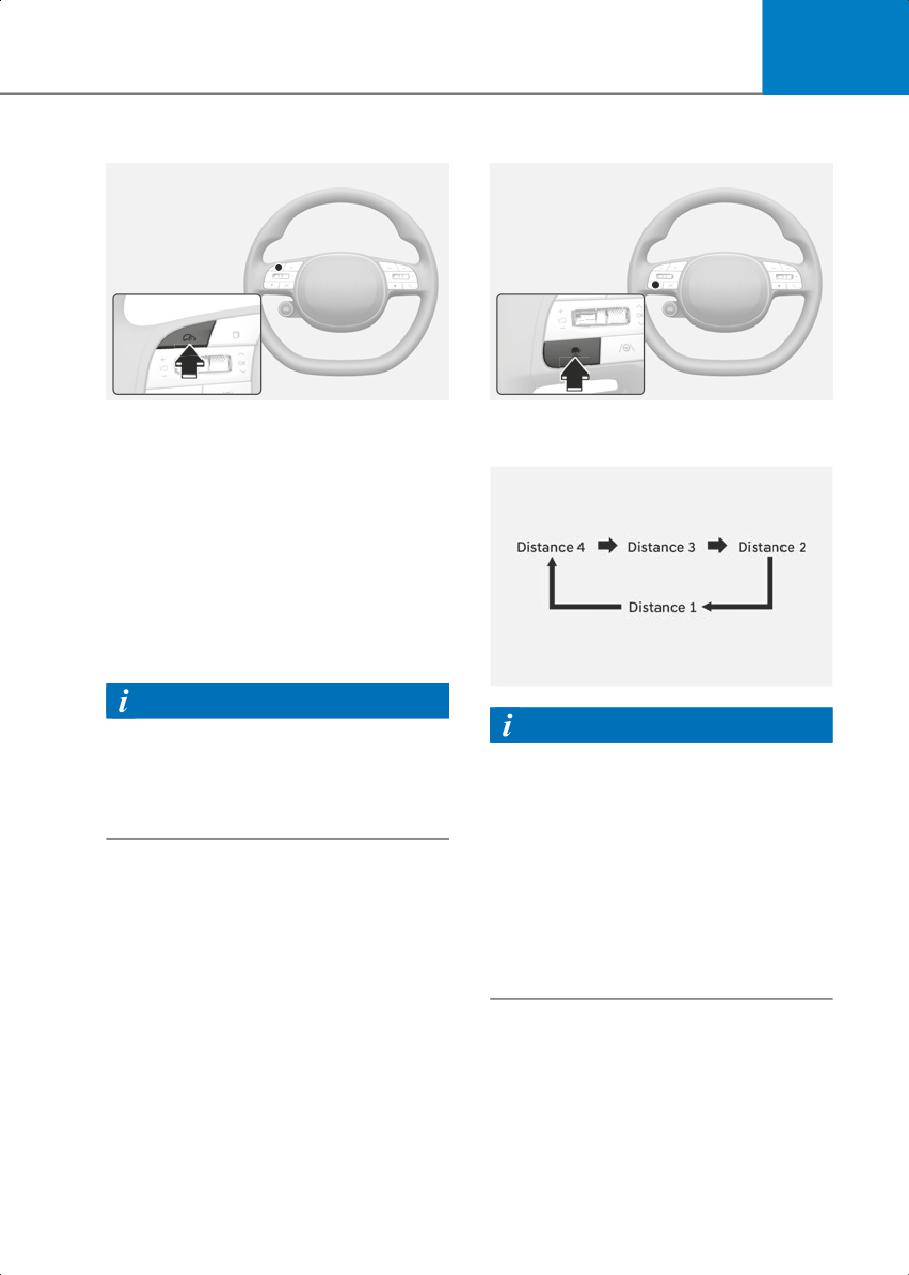
Setting vehicle distance
B7002301
B7004302
• Press the Driving Assist button to turn
Each time the button is pressed, the
on Smart Cruise Control. The speed will
headway changes as follows:
be set to the current speed on the
instrument cluster.
• If there is no vehicle in front of you, the
set speed will be maintained, but if
there is a vehicle in front of you, the
speed may decrease to maintain the
distance to the vehicle ahead. If the
vehicle ahead accelerates, your vehicle
will travel at a steady cruising speed
after accelerating to the set speed.
B7004303
Information
If your vehicle speed is between 0-20
Information
mph (0-30 km/h) when you press the
• If you drive at 56 mph (90 km/h), the
Driving Assist button, Smart Cruise
distance is maintained as follows:
Control speed will be set to 20 mph (30
Distance 4 - about 172 ft. (53 m)
km/h).
Distance 3 - about 130 ft. (40 m)
Distance 2 - about 106 ft. (30 m)
Distance 1 - about 82 ft. (25 m)
• The distance is set to the last set
distance when the vehicle is restarted,
or when Smart Cruise Control was
temporarily canceled.
7-71
Driver Assistance System
Increasing set speed
Decreasing set speed
B7002304_1
B7002304_2
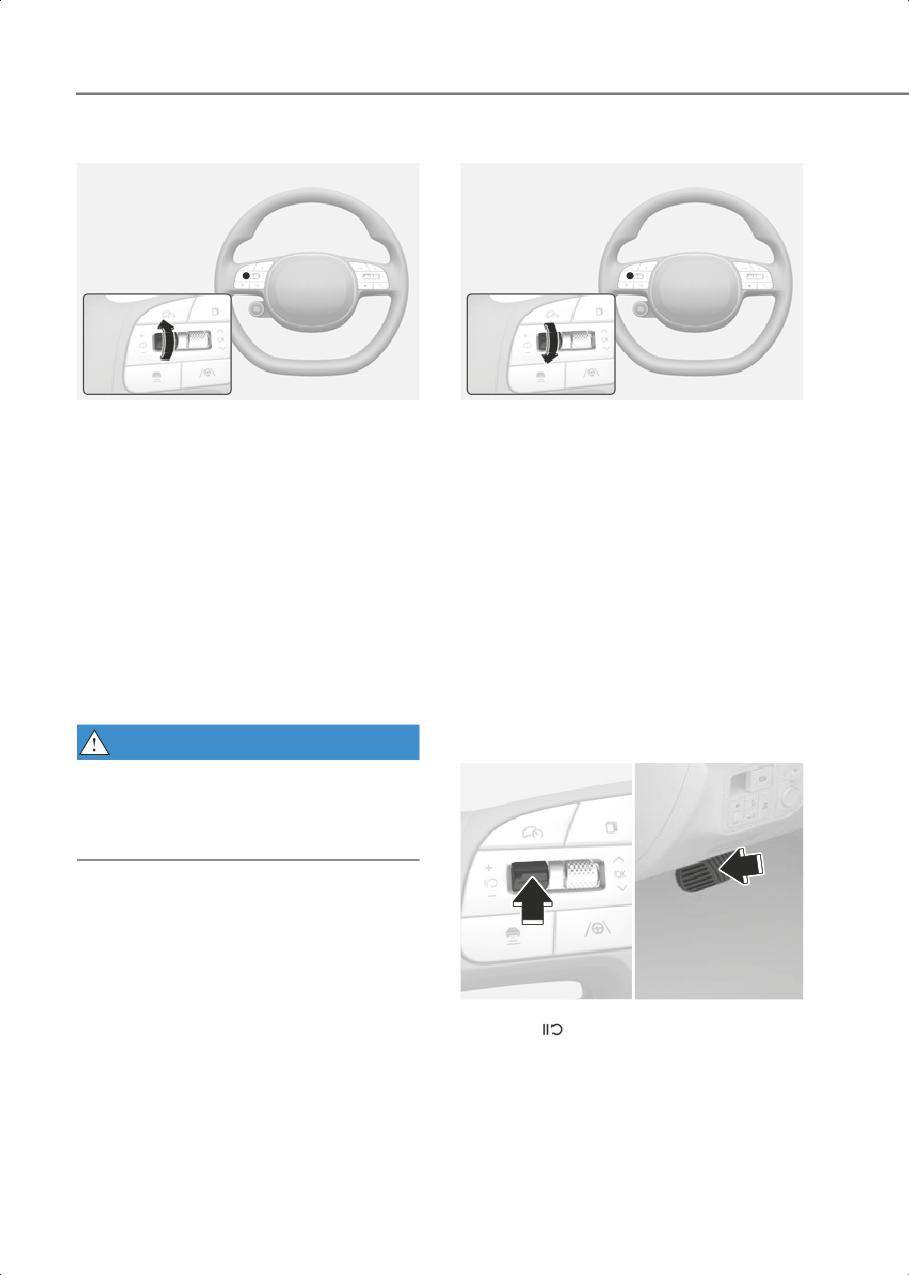
• Push the + switch up and release it
• Push the - switch down and release it
immediately. The set speed will
immediately. The set speed will
increase by 1 mph (1 km/h) each time
decrease by 1 mph (1 km/h) each time
the switch is operated in this manner.
the switch is operated in this manner.
• Push the + switch up and hold it while
• Push the - switch down and hold it
monitoring the set speed on the
while monitoring the set speed on the
instrument cluster. The set speed will
instrument cluster. The set speed will
increase by 5 mph (10 km/h) each time
decrease by 5 mph (10 km/h) each time
the switch is operated in this manner.
the switch is operated in this manner.
Release the switch when the desired
Release the switch at the speed you
speed is shown, and the vehicle will
want to maintain. You can decrease the
accelerate to that speed. You can
set speed to 20 mph (30 km/h).
increase the set speed to 120 mph (200
km/h).
Temporarily canceling Smart Cruise
WARNING
Control
Check the driving condition before using
the + switch. Driving speed may sharply
increase when you push up and hold the +
switch.
B7004306
Press the
switch or depress the brake
pedal to temporarily cancel Smart Cruise
Control.
7-72
7
Resuming Smart Cruise Control
Turning off Smart Cruise Control
B7002305
B7002301
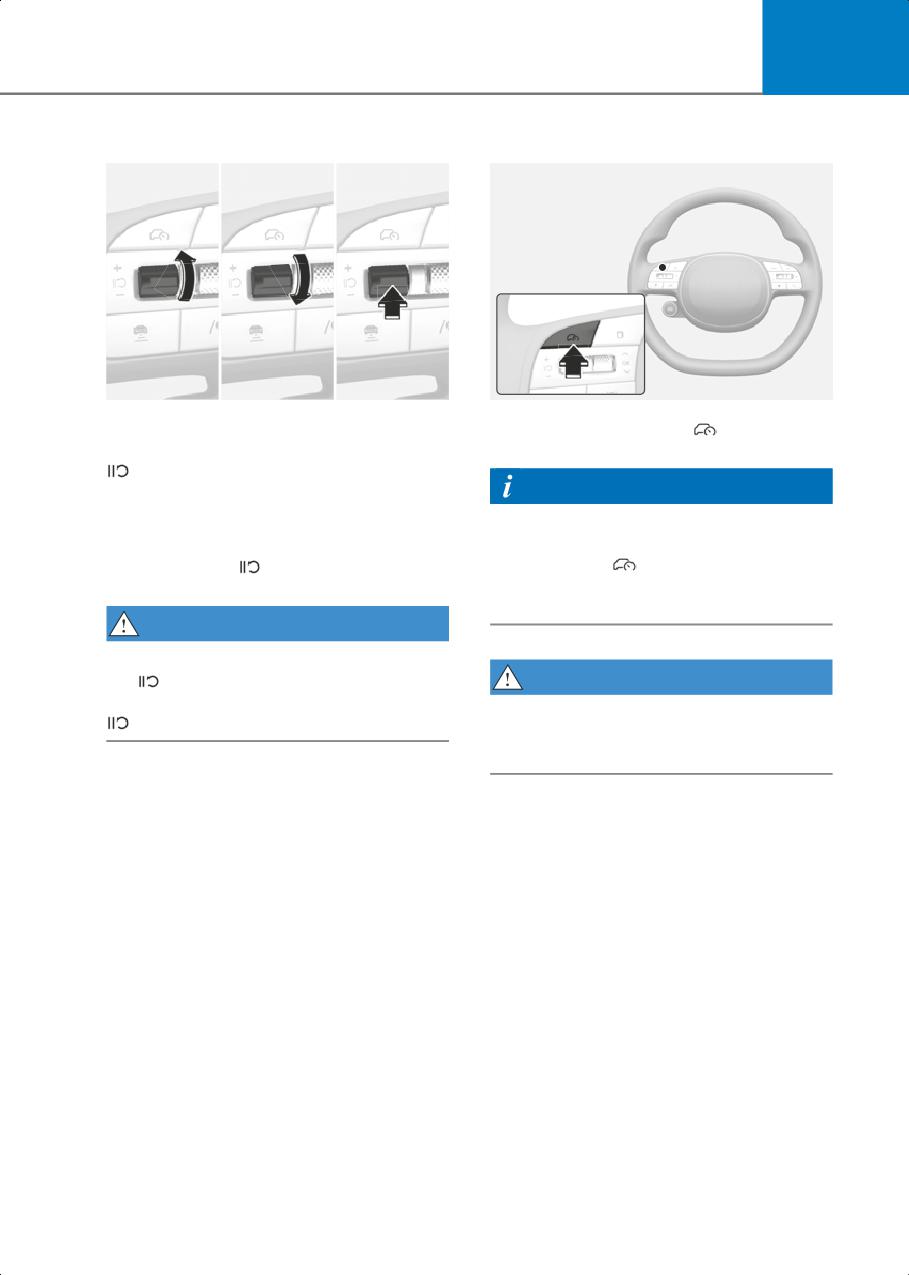
To resume Smart Cruise Control after the
Press the Driving Assist (
) button to
function was canceled, operate the +, - or
turn Smart Cruise Control off.
switch.
Information
If you push the + switch up or - switch
down, vehicle speed will be set to the
If your vehicle is equipped with Manual
current speed on the instrument cluster.
Speed Limit Assist, press and hold the
If you press the
switch, vehicle speed
Driving Assist (
) button to turn off
will resume to the preset speed.
Smart Cruise Control. However Manual
Speed Limit Assist will turn on.
WARNING
Check the driving condition before using
the switch. Driving speed may sharply
WARNING
increase or decrease when you press the
Do not use the switches and buttons at
switch.
the same time. Smart Cruise Control may
not operate properly.
7-73
Driver Assistance System
Display and Control
•
When temporarily canceled
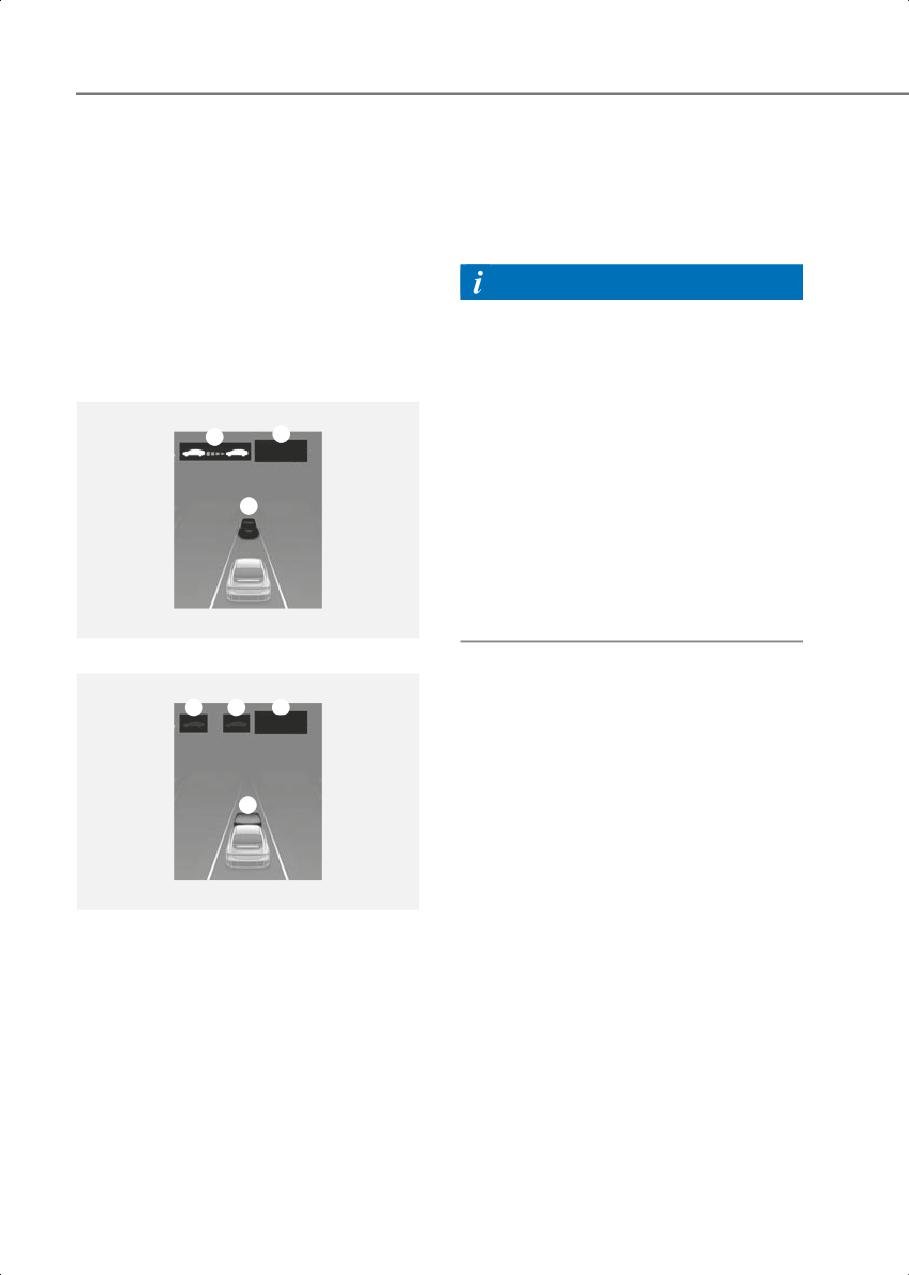
1. Your vehicle (grey)
Basic function
2. Previous set speed (grey)
You can see the status of the Smart Cruise
3. Vehicle ahead and distance level
Control operation in the Driving Assist
(grey) (if equipped)
view on the instrument cluster. For more
information, refer to the "View Modes"
Information
section in chapter 4.
Smart Cruise Control will be displayed as
•
The distance of the front vehicle on the
below depending on the status of the
instrument cluster is displayed based
function.
on the actual distance between your
vehicle and the vehicle ahead.
Operating
•
The target distance may vary according
to the vehicle speed and the set
1
2
50MPH
distance level. If the vehicle speed is
low, even though the vehicle distance
have changed, the change of the target
3
vehicle distance may be small.
•
The images and colors in the
instrument cluster may differ
depending on the instrument cluster
type or theme selected from the
settings menu.
B7004309
Temporarily canceled
3
1
2
50MPH
3
B7004310
• When operating
1. Whether there is a vehicle ahead and
the selected distance level
2. Set speed
3. Whether there is a vehicle ahead and
the target vehicle distance
7-74
7
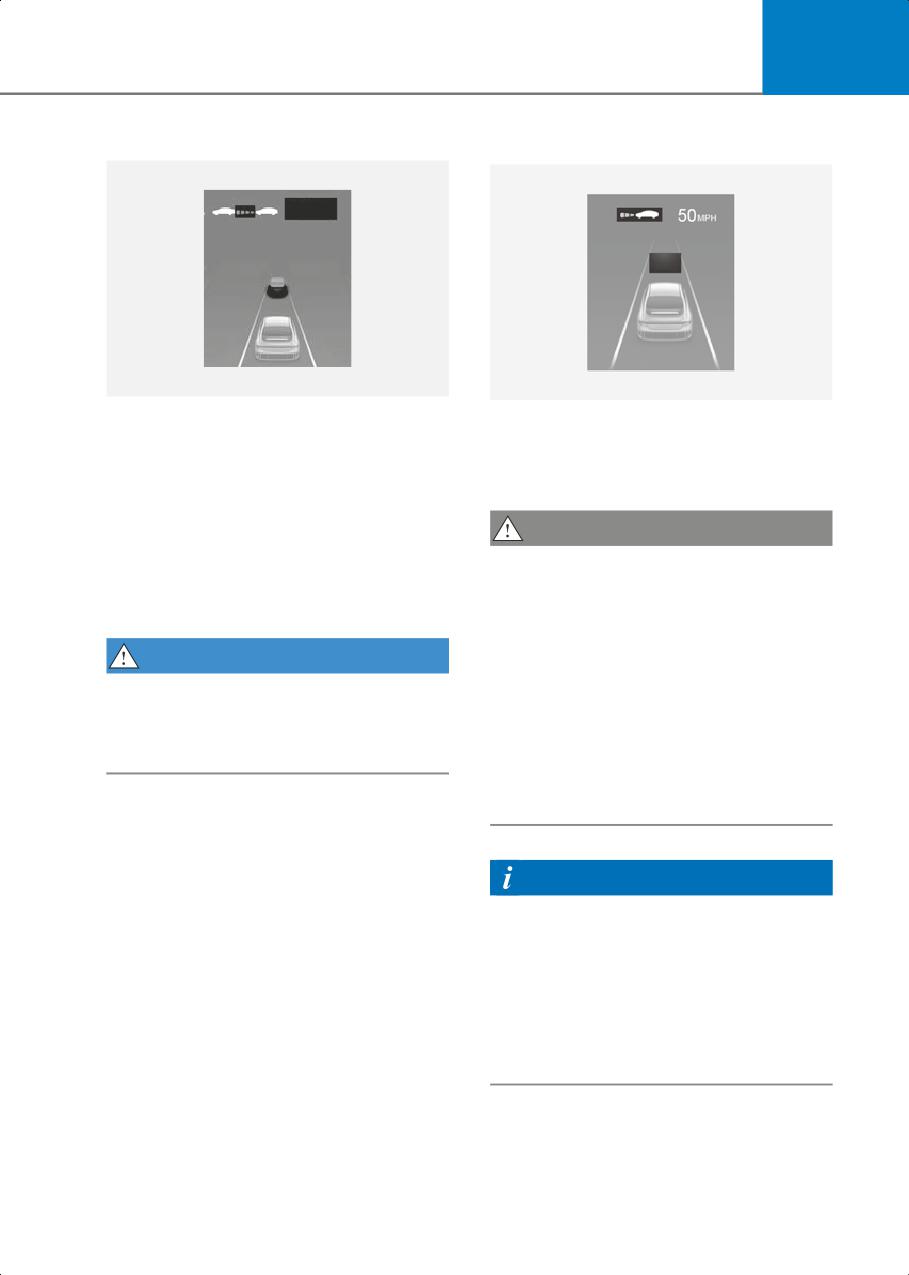
Accelerating temporarily
Based on Driving Style operation
50MPH
B7004311
B7004312
If you want to speed up temporarily
When Based on driving style is operating,
without altering the set speed while
the vehicle distance level and target
Smart Cruise Control is operating,
distance will be displayed white based on
depress the accelerator pedal. While the
the driving style.
accelerator pedal is depressed, the set
speed, distance level and target distance
CAUTION
will blink on the instrument cluster.
• The vehicle must be driven sufficiently
However, if the accelerator pedal is
to reflect the actual driver's driving
depressed insufficiently, the vehicle may
style to the Based on Driving Style’s
decelerate.
vehicle distance, acceleration, and
reaction speed.
WARNING
• Based on Driving Style may not reflect
Be careful when accelerating temporarily,
driving styles or driving conditions that
because the speed and distance is not
affect safe driving.
controlled automatically even if there is a
• If you are driving in special conditions,
vehicle in front of you.
such as snow, rain, fog, or steep slopes,
the vehicle may not be driven
according to the driver’s driving style.
Information
• Driving styles that are far from safe
driving such as sudden acceleration
may not be reflected to Based on
Driving Style.
• Based on Driving Style does not reflect
any other driving style other than
vehicle distance, acceleration and
reaction speed.
7-75
Driver Assistance System
Temporarily canceling Smart Cruise
Smart Cruise Control conditions not
Control
satisfied
B7004313
B7004314
• The vehicle speed is above 130 mph
If the Driving Assist button, + switch, -
(210 km/h)
switch or
switch is operated when
Smart Cruise Control operating
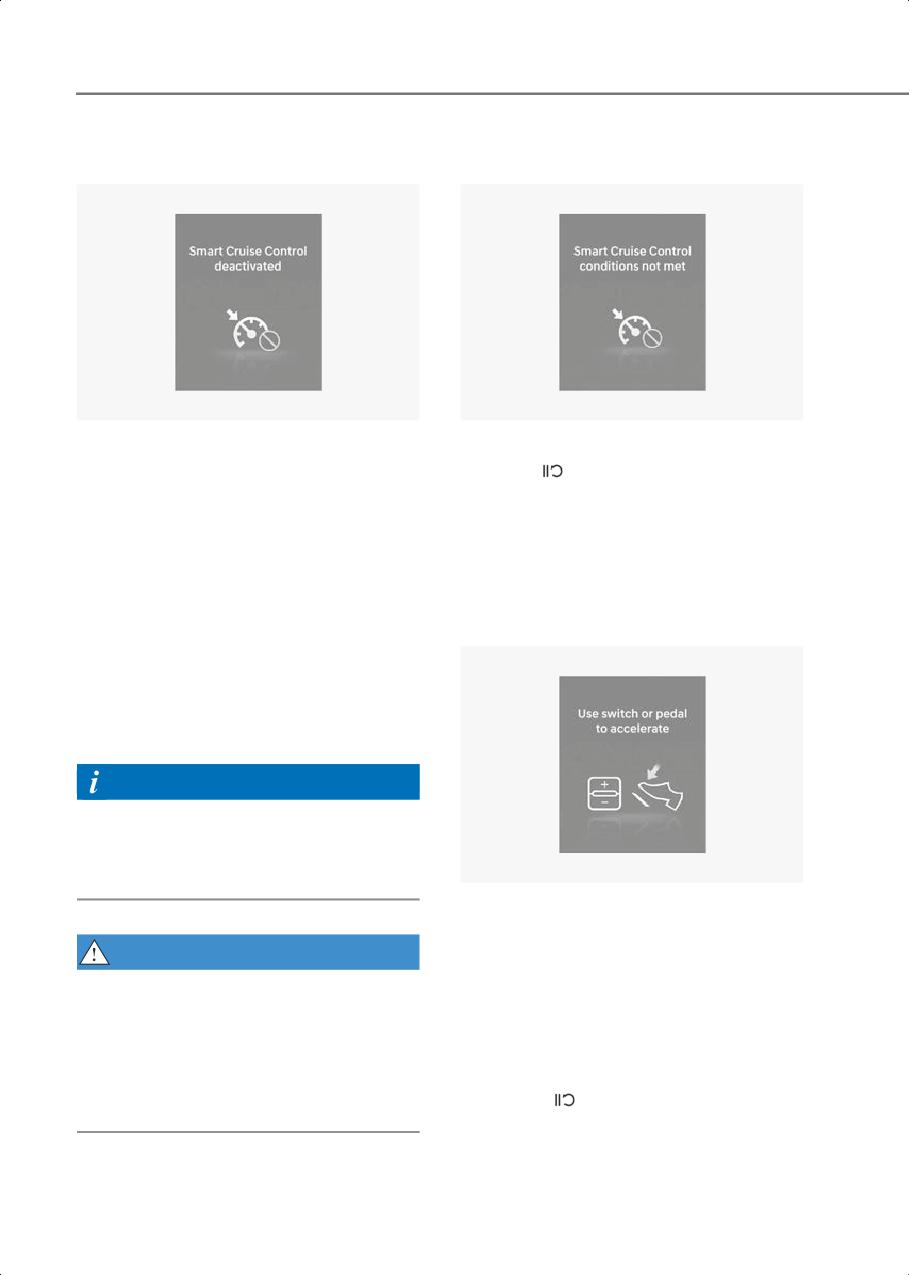
• The vehicle is stopped for a certain
conditions are not satisfied, the 'Smart
period of time
Cruise Control conditions not met’ will
• The accelerator pedal is continuously
appear on the instrument cluster, and an
depressed for a certain period of time
audible warning will sound.
• The conditions for the Smart Cruise
Control to operate is not satisfied
In traffic situation
If Smart Cruise Control is temporarily
canceled automatically, the ‘Smart
Cruise Control deactivated’ warning
message will appear on the instrument
cluster, and an audible warning will sound
to warn the driver.
Information
If Smart Cruise Control is temporarily
canceled while the vehicle is at a
standstill with the function activated, EPB
(Electronic Parking Brake) maybe applied.
B7004315
In traffic, your vehicle will stop if the
vehicle ahead of you stops. Also, if the
WARNING
vehicle ahead of you starts moving, your
vehicle will start as well. In addition, after
When Smart Cruise Control is temporarily
the vehicle has stopped and a certain
canceled, distance with the front vehicle
time have passed, the 'Use switch or
will not be maintained. Always have your
pedal to accelerate' message will appear
eyes on the road while driving, and if
on the instrument cluster. Depress the
necessary, depress the brake pedal to
accelerator pedal or operate the + switch,
reduce your driving speed in order to
- switch or
switch to start driving.
maintain a safe distance.
7-76
7
Warning road conditions ahead
Collision Warning
B7004316
B7000301
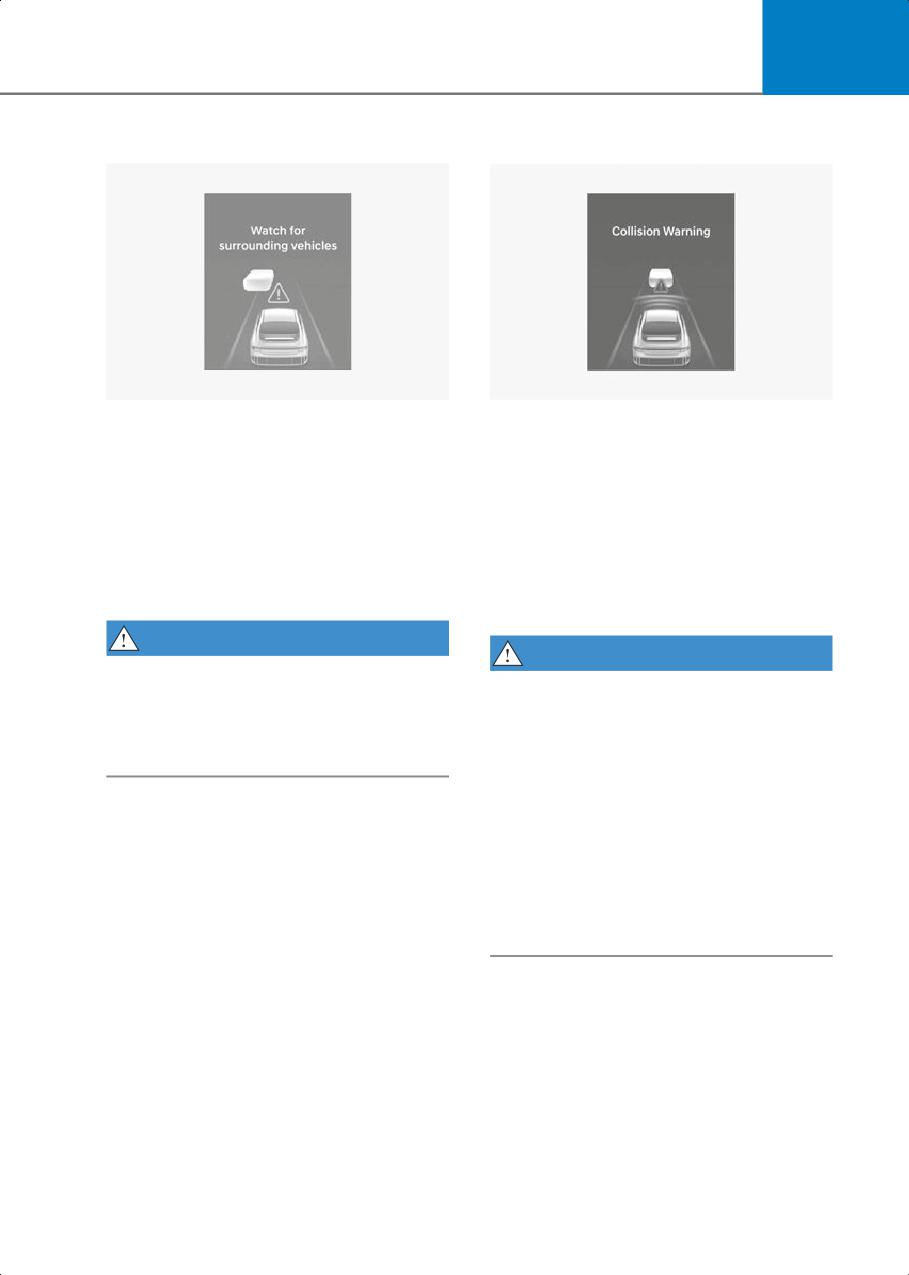
In the following situation, the ‘Watch for
While Smart Cruise Control is operating,
surrounding vehicles’ warning message
when the collision risk with the vehicle
will appear on the instrument cluster, and
ahead is high, the 'Collision Warning'
an audible warning will sound to warn the
warning message will appear on the
driver of road conditions ahead.
instrument cluster, and an audible
warning will sound to warn the driver.
• The vehicle in front disappears when
Always have your eyes on the road while
Smart Cruise Control is maintaining the
driving, and if necessary, depress the
distance with the vehicle ahead while
brake pedal to reduce your driving speed
driving below a certain speed.
in order to maintain a safe distance.
WARNING
WARNING
Always pay attention to vehicles or
objects that may suddenly appear in front
In the following situations, Smart Cruise
of you, and if necessary, depress the
Control may not warn the driver of a
brake pedal to reduce your driving speed
collision.
in order to maintain a safe distance.
• The distance from the front vehicle is
near, or the vehicle speed of the front
vehicle is faster or similar with your
vehicle
• The speed of the front vehicle is very
slow or is at a standstill
• The accelerator pedal is depressed
right after Smart Cruise Control is
turned on
7-77
Driver Assistance System
•
Smart Cruise Control may not operate
WARNING
properly if interfered by strong
Take the following precautions when
electromagnetic waves.
using Smart Cruise Control:
•
Smart Cruise Control may not detect an
•
Smart Cruise Control does not
obstacle in front and lead to a collision.
substitute for proper and safe driving. It
Always look ahead cautiously to
is the responsibility of the driver to
prevent unexpected and sudden
always check the speed and distance to
situations from occurring.
the vehicle ahead.
•
Vehicles moving in front of you with a
•
Smart Cruise Control may not
frequent lane change may cause a
recognize unexpected and sudden
delay in Smart Cruise Control reaction
situations or complex driving
or may cause Smart Cruise Control to
situations, so always pay attention to
react to a vehicle actually in an adjacent
driving conditions and control your
lane. Always drive cautiously to prevent
vehicle speed.
unexpected and sudden situations
from occurring.
•
Keep Smart Cruise Control off when the
function is not in use to avoid
•
Always be aware of the surroundings
inadvertently setting a speed.
and drive safely, even though a warning
message does not appear or an audible
•
Do not open the door or leave the
warning does not sound.
vehicle when Smart Cruise Control is
operating, even if the vehicle is
•
If any other system’s warning message
stopped.
is displayed or warning sound is
generated, Smart Cruise Control
•
Always be aware of the selected speed
warning message may not be displayed
and headway distance.
and warning sound may not be
•
Keep a safe distance according to road
generated.
conditions and vehicle speed. If the
•
You may not hear the warning sound of
headway distance is too close during
Forward Collision-Avoidance Assist if
high-speed driving, a serious collision
the surrounding is noisy.
may result.
•
The vehicle manufacturer is not
•
When maintaining distance with the
responsible for any traffic violation or
vehicle ahead, if the front vehicle
accidents caused by the driver.
disappears, Smart Cruise Control may
suddenly accelerate to the set speed.
•
Always set the vehicle speed under the
Always be aware of unexpected and
speed limit in your area.
sudden situations from occurring.
•
Vehicle distance, acceleration and
•
Vehicle speed may decrease on an
reaction speed may change if the
upward slope and increase on a
driver’s driving style changes.
downward slope.
•
Always be aware of situations such as
when a vehicle cuts in suddenly.
Information
•
When you are towing a trailer or
•
Smart Cruise Control may not operate
another vehicle, turn off Smart Cruise
for 15 seconds after the vehicle is
Control for safety reasons.
started or the front view camera or
•
Turn off Smart Cruise Control when
front radar is initialized.
your vehicle is being towed.
•
You may hear a sound when the brake is
controlled by Smart Cruise Control.
7-78
7
Smart Cruise Control
Smart Cruise Control will operate
properly when snow, rain or foreign
Malfunction and Limitations
material is removed.
Smart Cruise Control malfunction
WARNING
Even though the warning message does
not appear on the instrument cluster,
Smart Cruise Control may not properly
operate.
CAUTION
Smart Cruise Control may not properly
operate in an area (for example, open
terrain), where there is nothing to detect
B7004401
after turning ON the vehicle.
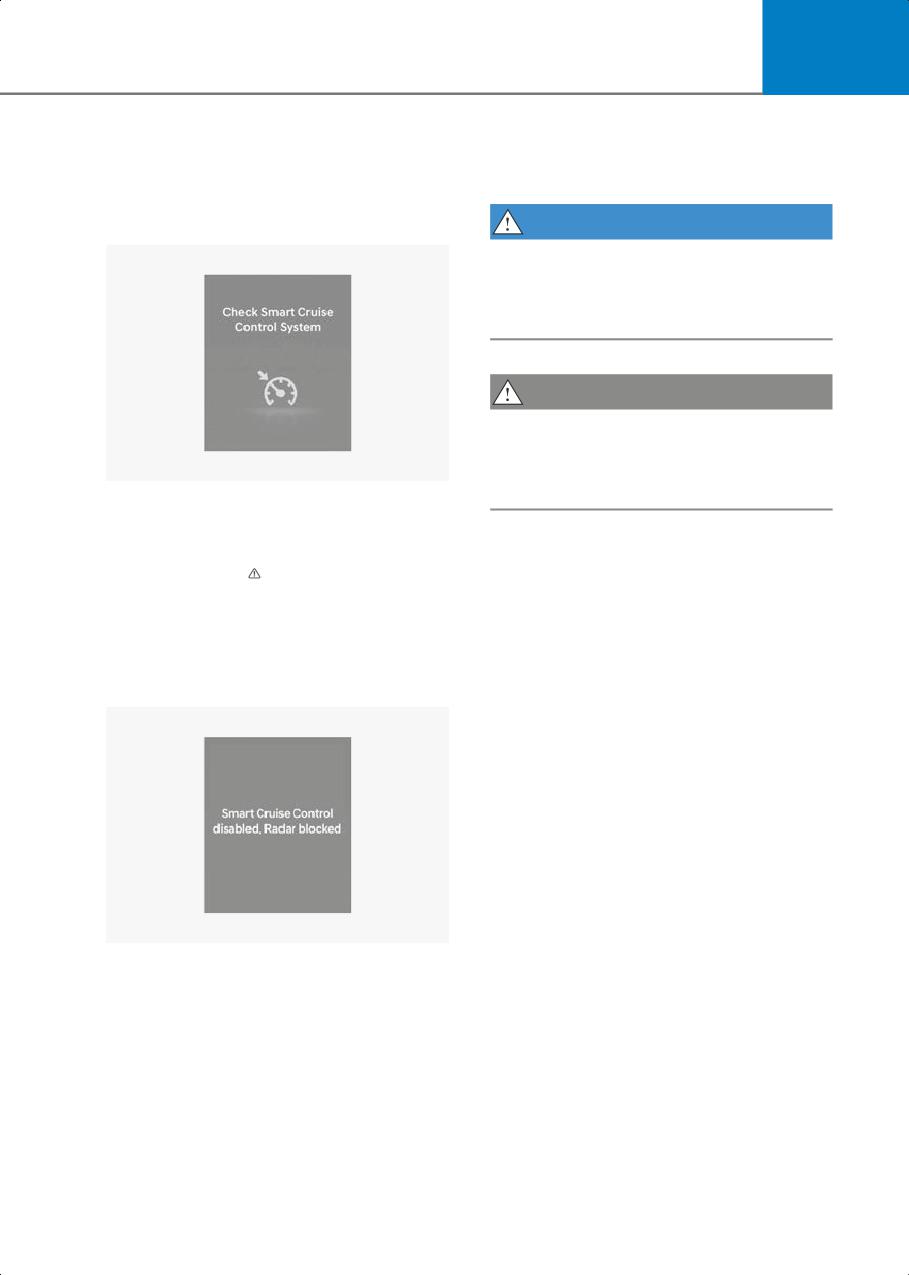
When Smart Cruise Control is not working
properly, the ‘Check Smart Cruise
Control System’ warning message will
Limitations of Smart Cruise Control
appear, and the (
) warning light will
Smart Cruise Control may not operate
illuminate on the instrument cluster. Have
properly, or it may operate unexpectedly
the vehicle inspected by an authorized
under the following circumstances:
HYUNDAI dealer.
• The detecting sensor or the
surroundings are contaminated or
Smart Cruise Control disabled
damaged
• Washer fluid is continuously sprayed, or
the wiper is on
• The camera lens is contaminated due to
tinted, filmed or coated windshield,
damaged glass, or sticky foreign
material (sticker, bug, etc.) on the glass
• Moisture is not removed or frozen on
the windshield
• The field of view of the front view
camera is obstructed by sun glare
B0349EE02
• Street light or light from an oncoming
When the front radar cover or sensor is
vehicle is reflected on the wet road
covered with snow, rain, or foreign
surface, such as a puddle on the road
material, it can reduce the detecting
• The temperature around the front view
performance and temporarily limit or
camera is high or low
disable Smart Cruise Control.
• An object is placed on the dashboard
If this occurs the 'Smart Cruise Control
• The surrounding is very bright
disabled. Radar blocked' warning
message will appear for a certain period
• The surrounding is very dark, such as in
of time on the instrument cluster.
a tunnel, etc.
7-79
Driver Assistance System
•
The brightness changes suddenly, for
•
The vehicle in front is suddenly blocked
example when entering or exiting a
by a obstacle
tunnel
•
The vehicle in front suddenly changes
•
The brightness outside is low, and the
lane or suddenly reduces speed
headlights are not on or are not bright
•
The vehicle in front is bent out of shape
•
Driving in heavy rain or snow, or thick
•
The front vehicle’s speed is fast or slow
fog
•
With a vehicle in front, your vehicle
•
Driving through steam, smoke or
changes lane at low speed
shadow
•
The vehicle in front is covered with
•
Only part of the vehicle is detected
snow
•
The vehicle in front has no tail lights, tail
•
Unstable driving
lights are located unusually, etc.
•
You are on a roundabout and the
•
The brightness outside is low, and the
vehicle in front is not detected
tail lights are not on or are not bright
•
You are continuously driving in a circle
•
The rear of the front vehicle is small or
•
Driving in a parking lot
does not look normal (for example,
tilted, overturned, etc.)
•
Driving through a construction area,
unpaved road, partial paved road,
•
The front vehicle’s ground clearance is
uneven road, speed bumps, etc.
low or high
•
Driving on an incline road, curved road,
•
A vehicle suddenly cuts in front
etc.
•
Your vehicle is being towed
•
Driving through a roadside with trees or
•
Driving through a tunnel or iron bridge
streetlights
•
Driving near areas containing metal
•
The adverse road conditions cause
substances, such as a construction
excessive vehicle vibrations while
zone, railroad, etc.
driving
•
An object reflecting off the front radar
•
Your vehicle height is low or high due to
such as a guardrail, nearby vehicle, etc.
heavy loads, abnormal tire pressure,
•
The bumper around the front radar is
etc.
impacted, damaged or the front radar is
•
Driving through a narrow road where
out of position
trees or grass are overgrown
•
The temperature around the front radar
•
There is interference by
is high or low
electromagnetic waves, such as driving
•
Driving in vast areas where there are
in an area with strong radio waves or
few vehicles or structures (for example,
electrical noise
desert, meadow, suburb, etc.)
•
The vehicle in front is made of material
that does not reflect on the front radar
•
Driving near a highway interchange or
tollbooth
•
Driving on a slippery surface due to
snow, water puddle, ice, etc.
•
Driving on a curved road
•
The vehicle in front is detected late
7-80
7
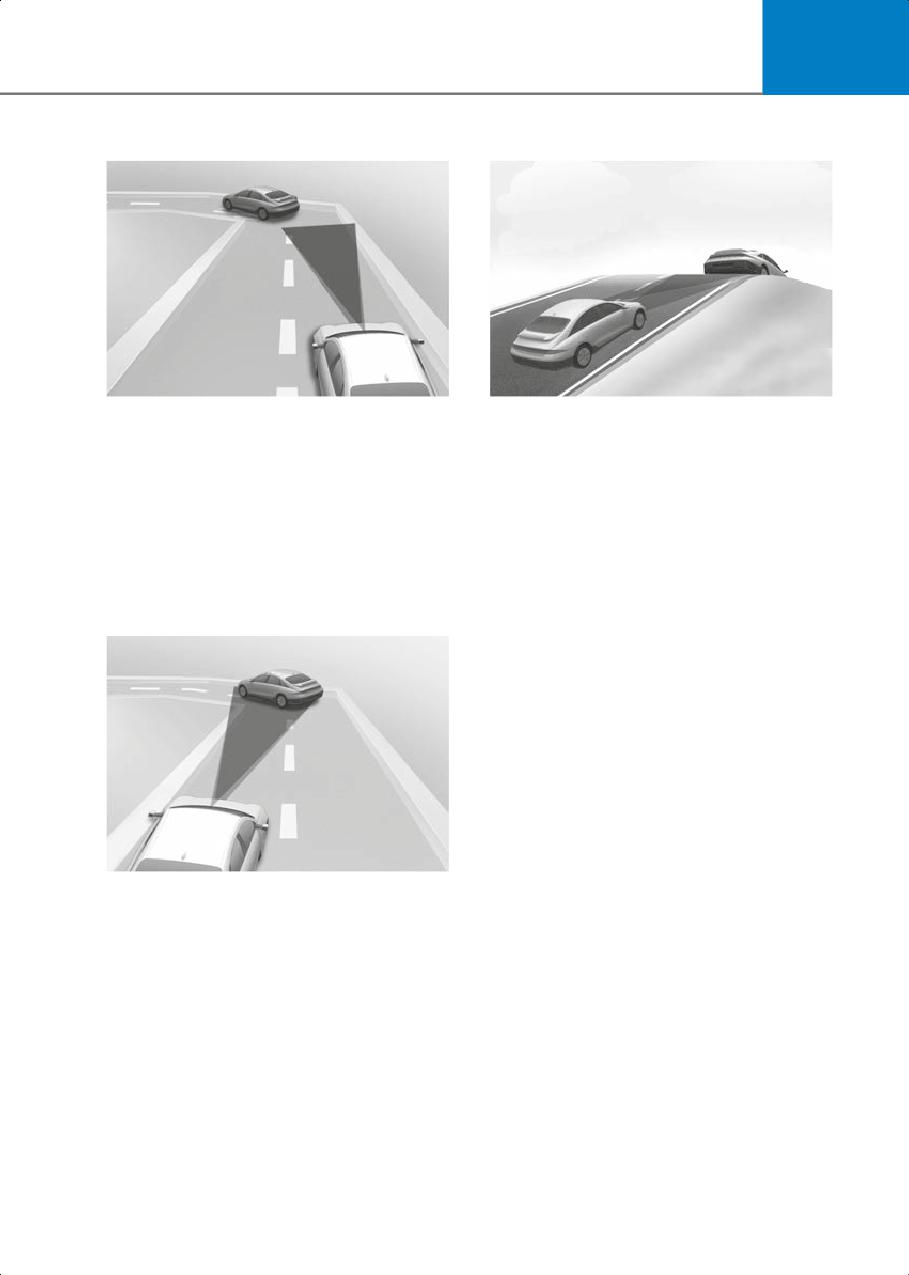
• Driving on a curved road
• Driving on an inclined road
B7004403
B7004405
On curves, Smart Cruise Control may
During uphill or downhill driving, the
not detect a vehicle in the same lane,
Smart Cruise Control may not detect a
and may accelerate to the set speed.
moving vehicle in your lane, and cause
Also, vehicle speed may rapidly
your vehicle to accelerate to the set
decrease when the vehicle ahead is
speed. Also, vehicle speed will rapidly
detected suddenly.
decrease when the vehicle ahead is
detected suddenly.
Select the appropriate set speed on
curves and apply the brake pedal or
Select the appropriate set speed on
accelerator pedal according to the road
inclines and apply the brake pedal or
and driving conditions ahead.
accelerator pedal according to the road
and driving conditions ahead.
B7004404
Your vehicle speed can be reduced due
to a vehicle in the adjacent lane.
Apply the accelerator pedal and select
the appropriate set speed. Check to be
sure that the road conditions permit
safe operation of the Smart Cruise
Control.
7-81
Driver Assistance System
• Changing lanes
• Situations when detecting are limited
B7004407
B7004406
[A] Your vehicle
B7004408
[B] Lane changing vehicle
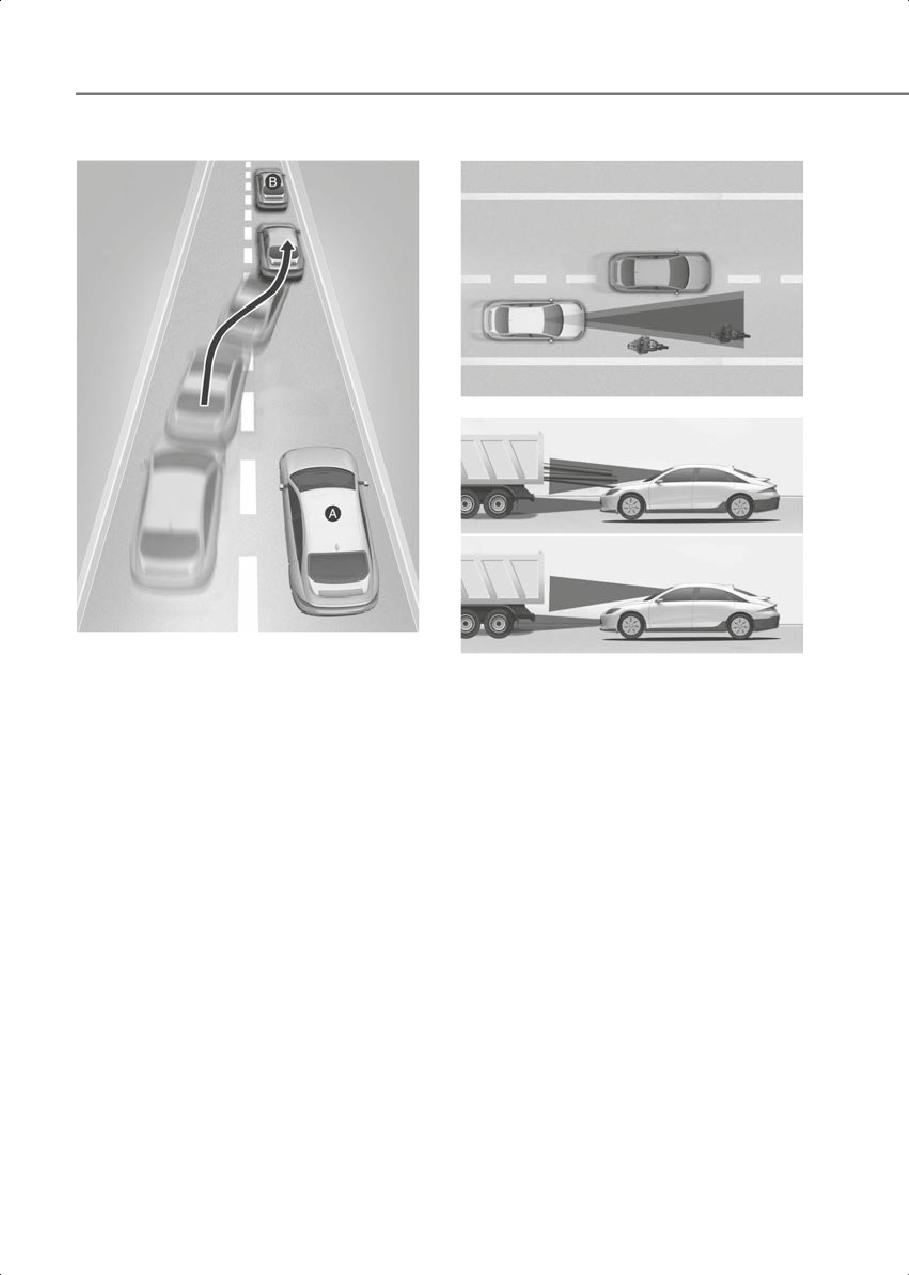
In the following cases, some vehicles,
When a vehicle moves into your lane
pedestrians or animals in your lane
from an adjacent lane, it cannot be
cannot be detected by the sensor:
detected by the sensor until it is in the
sensor's detection range. Smart Cruise
• Vehicles offset to one side
Control may not immediately detect
• Slow-moving vehicles or sudden
the vehicle when the vehicle changes
decelerating vehicles
lanes abruptly. In this case, you must
• Vehicles with higher ground clearance
maintain a safe braking distance, and if
or vehicles carrying loads that stick out
necessary, depress the brake pedal to
of the back of the vehicle
reduce your driving speed in order to
• Vehicles that has the front lifted due to
maintain a safe distance.
heavy loads
• Vehicles within about 6 ft. (2 m) from
your vehicle
• Oncoming vehicles
• Stopped vehicles
• Vehicles with small rear profile, such as
trailers
7-82
7
• Narrow vehicles, such as motorcycles
• When a vehicle ahead disappears at an
or bicycles
intersection, your vehicle may
accelerate.
- Special vehicles
Always pay attention to road and
- Animals and pedestrians
driving conditions while driving.
Adjust your vehicle speed by
depressing the brake pedal
according to the road and driving
conditions ahead.
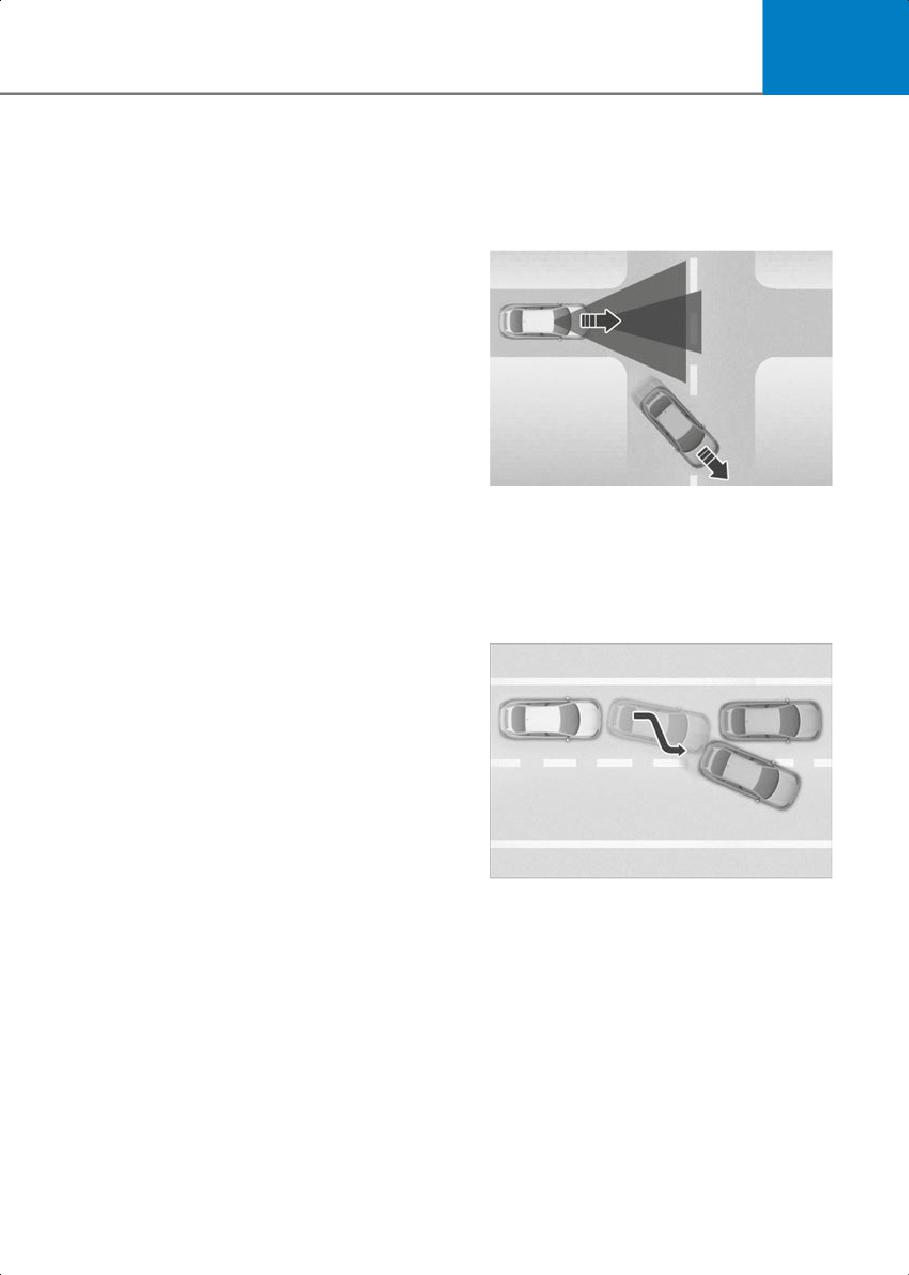
In the following cases, the vehicle in
front cannot be detected by the
sensor:
• You are steering your vehicle
• Driving on narrow or sharply
curved roads
Adjust your vehicle speed by
B7004409
depressing the brake pedal
• When a vehicle in front of you merges
according to the road and driving
out of the lane, Smart Cruise Control
conditions ahead.
may not immediately detect the new
vehicle that is now in front of you.
Always pay attention to road and
driving conditions while driving.
B7004410
7-83
Driver Assistance System
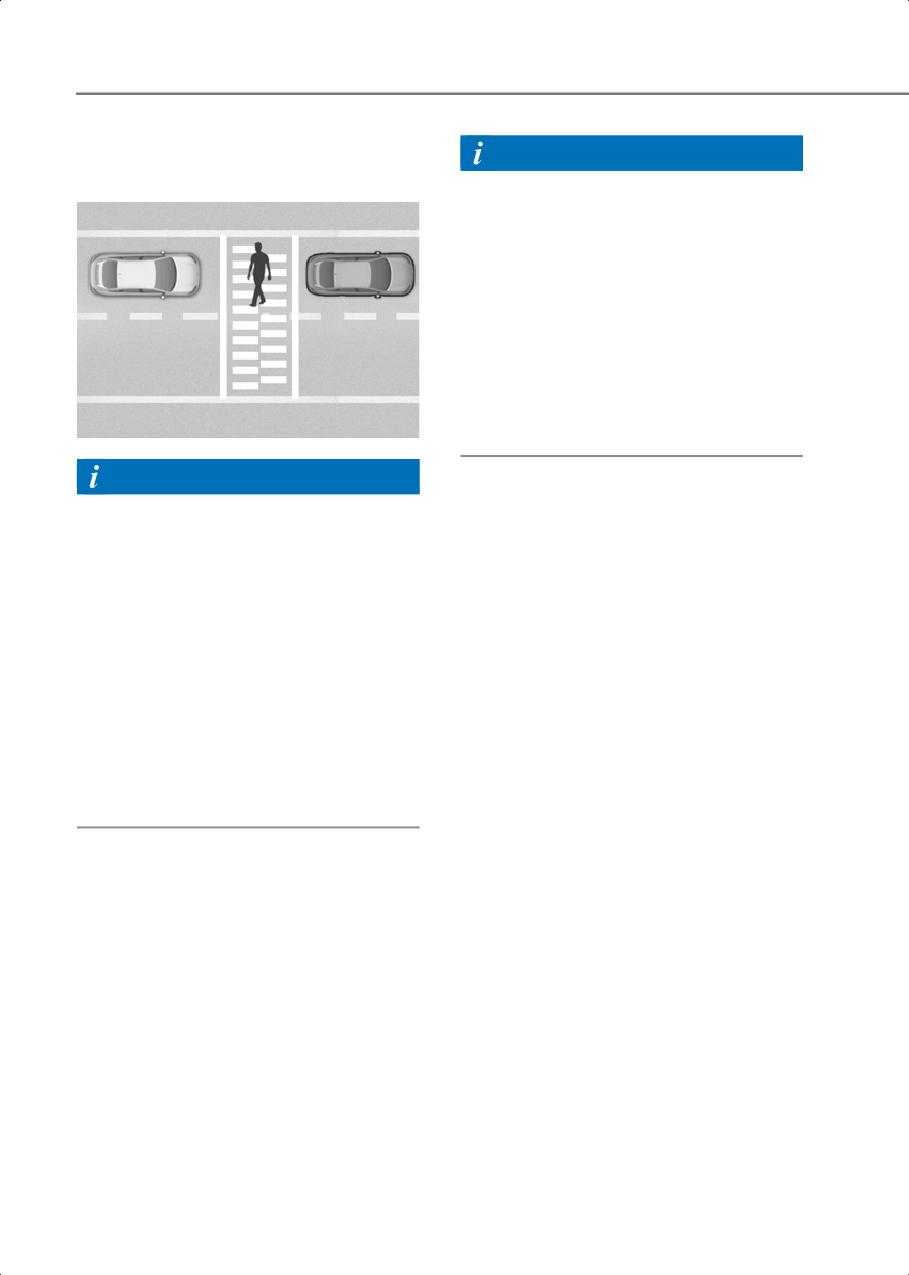
• Always look out for pedestrians when
Information
your vehicle is maintaining a distance
with the vehicle ahead.
Radio frequency radiation exposure
information:
This equipment complies with FCC
radiation exposure limits set forth for an
uncontrolled environment.
This equipment should be installed and
operated with minimum distance of 8 in.
(20 cm) between the radiator (antenna)
and your body.
This transmitter must not be co-located
or operating in conjunction with any other
antenna or transmitter.
B7004411
Information
This device complies with Part 15 of the
FCC rules.
Operation is subject to the following three
conditions:
1. This device may not cause harmful
interference, and
2. This device must accept any
interference received, including
interference that may cause undesired
operation.
3. Changes or modifications not expressly
approved by the party responsible for
compliance could void the user’s
authority to operate the device.
7-84
7
Highway Curve Zone Auto Slowdown
Navigation-based Smart
If vehicle speed is high, Highway Curve
Cruise Control (NSCC)
Zone Auto Slowdown function will
if equipped
temporarily decelerate your vehicle or
limit acceleration to help you drive safely
Navigation-based Smart Cruise Control
on a curve based on the curve
helps maintain safe speed depending on
information from the navigation.
the road conditions by using information
from the navigation system when driving
on highways while Smart Cruise Control is
Navigation-based Smart
operating.
Cruise Control Settings
Information
• Navigation-based Smart Cruise Control
is available only on controlled access
road of certain highways.
- Controlled access road indicates
roads with limited entrances and
exits that allow uninterrupted high
speed traffic flow. Only passenger
cars and motorcycles are allowed on
controlled access roads.
• Additional highways may be expanded
B7004601
by future navigation updates.
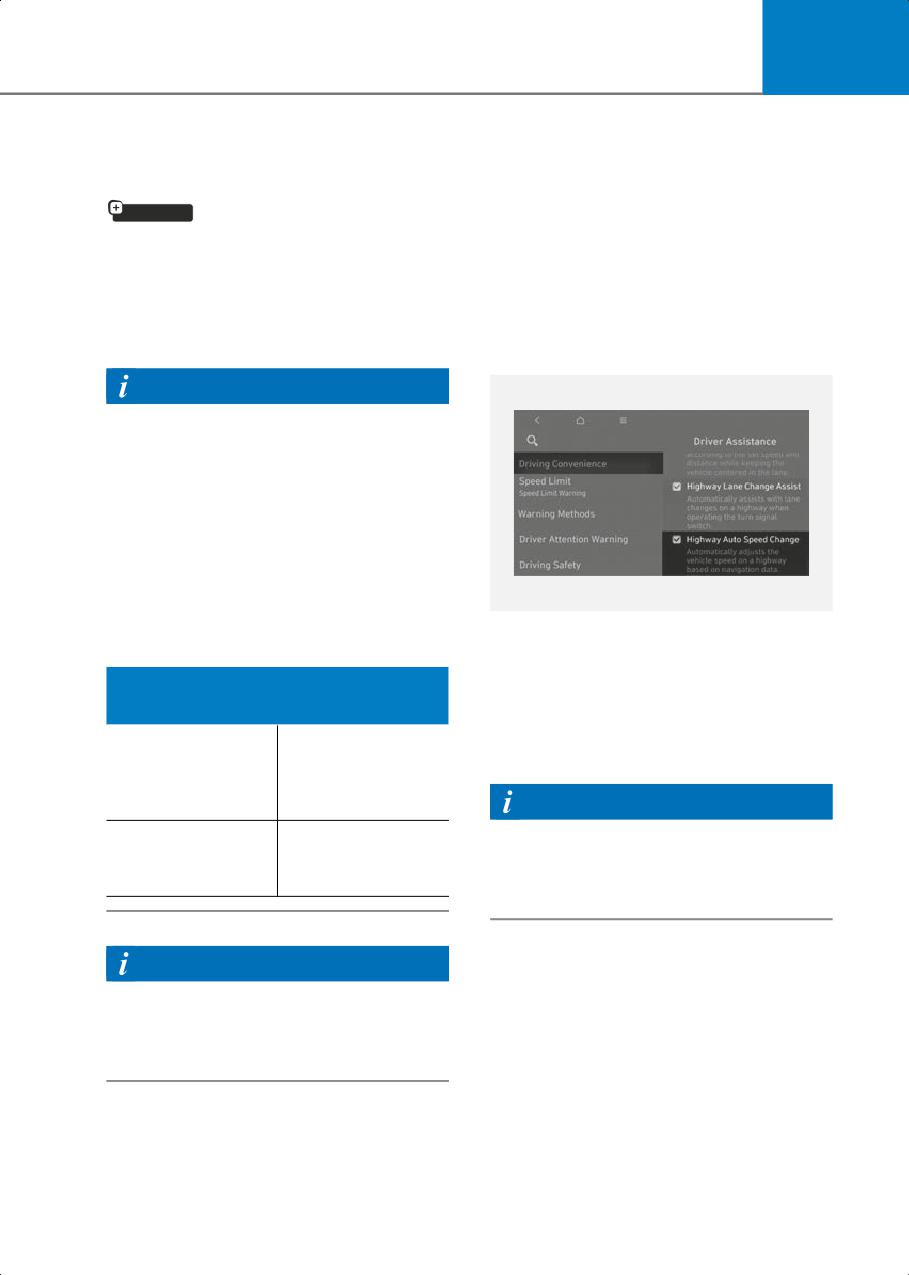
With the vehicle on, select Setup >
Vehicle > Driver Assistance > Driving
Available Highway (Controlled access
Convenience > Highway Auto Speed
road)
Change from the Settings menu to turn
on Navigation-based Smart Cruise
Select Interstate
Control and deselect to turn off the
Highway and U.S.
function.
USA
(Federal) and State
Highways
Information
Select Provincial
When there is a problem with
Canada
and Territorial
Navigation-based Smart Cruise Control,
Highways
the function cannot be set from the
Settings menu.
Information
Navigation-based Smart Cruise Control
operates on main roads of highways, and
does not operate on interchanges or
junctions.
7-85
Driver Assistance System
Navigation-based Smart
Temporarily canceled or interrupted by
the driver
Cruise Control Operation
If Navigation-based Smart Cruise Control
cannot control the vehicle, such as when
Operating conditions
Smart Cruise Control is temporarily
Navigation-based Smart Cruise Control is
canceled or the navigation system is
ready to operate if all of the following
searching for a route, the gray
conditions are satisfied:
indicator light illuminates.
• Smart Cruise Control is operating
When the driver depresses the
• Driving on main roads of highways
accelerator pedal, the white
indicator
light blinks.
Information
WARNING
For more information on how to operate
Smart Cruise Control, refer to the “Smart
Cruise Control (SCC)” section in this
chapter.
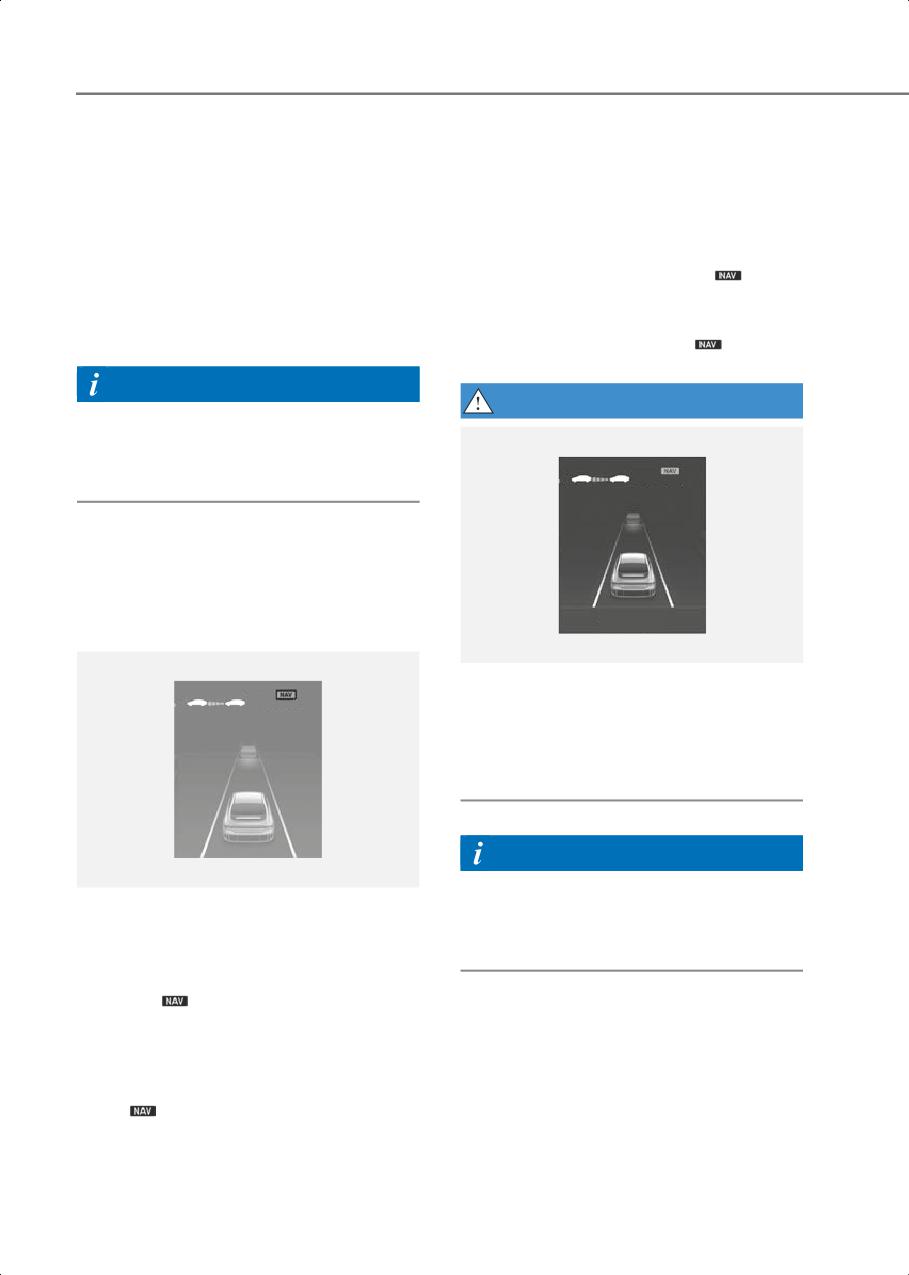
55 MPH
Navigation-based Smart Cruise
Control display and control
When Navigation-based Smart Cruise
Control operates, it will be displayed on
%SJWF DBSFGVMMZ
the instrument cluster as follows:
B7004703
'Drive carefully' warning message will
55
MPH
appear in the following circumstances:
• Navigation-based Smart Cruise Control
is not able to slow down your vehicle to
a safe speed
Information
B7004702
The images and colors in the instrument
cluster may differ depending on the
Navigation-based Smart Cruise Control
instrument cluster type or theme selected
standby
from the settings menu.
If the operating conditions are satisfied,
the green
indicator light illuminates.
Navigation-based Smart Cruise Control
operating
While the speed is being controlled, the
green
indicator light blinks.
7-86
7
Highway Curve Zone Auto Slowdown
adjacent to general roads or nearby
roads exist in a parallel way)
• Depending on the curve ahead on the
highway, the vehicle will decelerate,
• The navigation is being updated while
and after passing the curve, the vehicle
driving
will accelerate to Smart Cruise Control
• The navigation is being restarted while
set speed.
driving
• Vehicle deceleration time may differ
• The speed limit of some sections
depending on the vehicle speed and
changes according to the road
the degree of the curve on the road. The
situations
higher the driving speed, deceleration
• Driving on a road under construction
will start faster.
• Driving in lane-restricted driving
situations
Limitations of
• There is bad weather, such as heavy
Navigation-based Smart
rain, heavy snow, etc.
Cruise Control
• Driving on a road that is sharply curved
Navigation-based Smart Cruise Control
may not operate properly under the
following circumstances:
•
The navigation is not working properly
•
Map information is not transmitted due
to infotainment system's abnormal
operation
•
Speed limit and road information in the
navigation is not updated
•
The map information and the actual
road is different because of real-time
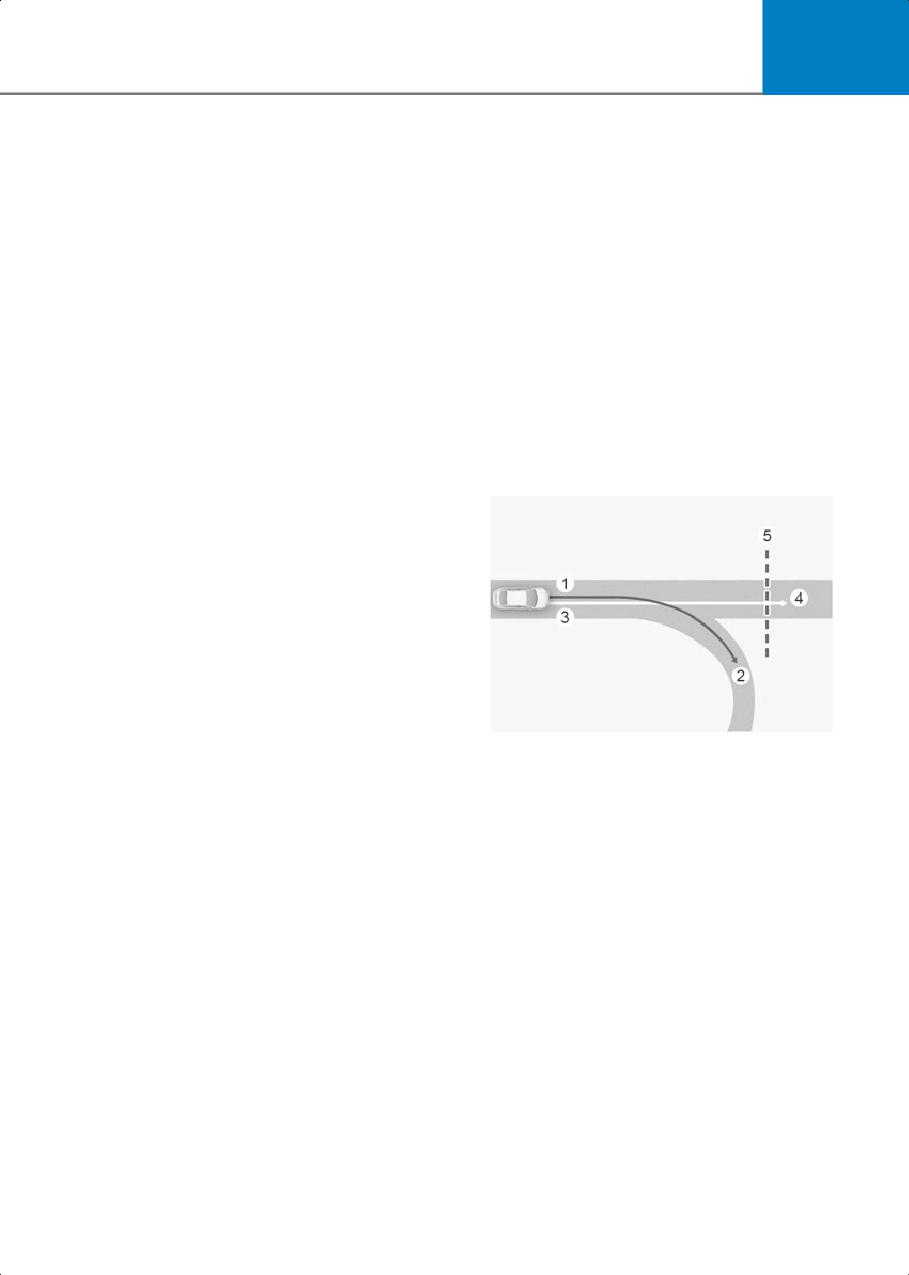
B7004801
GPS data or map information error
(1) Set route,
•
The navigation searches for a route
(2) Branch line,
while driving
(3) Driving route,
•
GPS signals are blocked in areas such as
(4) Main road,
a tunnel
(5) Curved road section
•
A road that divides into two or more
• When there is a difference between the
roads and joins again
navigation set route (branch line) and
the driving route (main road), Highway
•
The driver goes off course from the
Curve Zone Auto Slowdown function
route set in the navigation
may not operate until the driving route
•
The route to the destination is changed
is recognized as the main road.
or cancelled by resetting the navigation
• When the vehicle's driving route is
•
The vehicle enters a service station or
recognized as the main road by
rest area
maintaining the main road instead of
•
Android Auto or Car Play is operating
the navigation set route, Highway
•
The navigation cannot detect the
Curve Zone Auto Slowdown function
current vehicle position (for example,
will operate. Depending on the distance
elevated roads including overpass
to the curve and the current vehicle
speed, vehicle deceleration may not be
sufficient or may decelerate rapidly.
7-87
Driver Assistance System
3
1
4
2
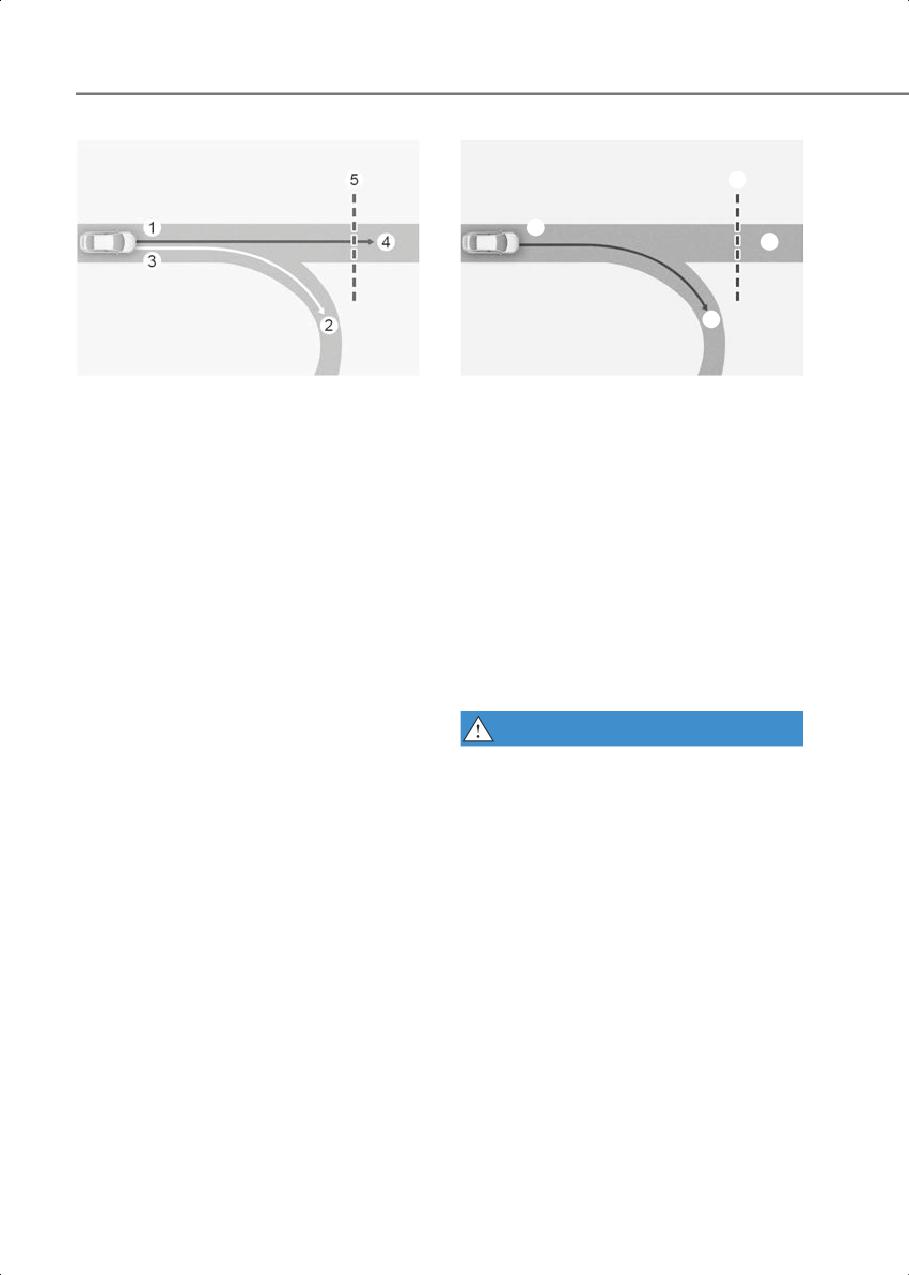
B7004802
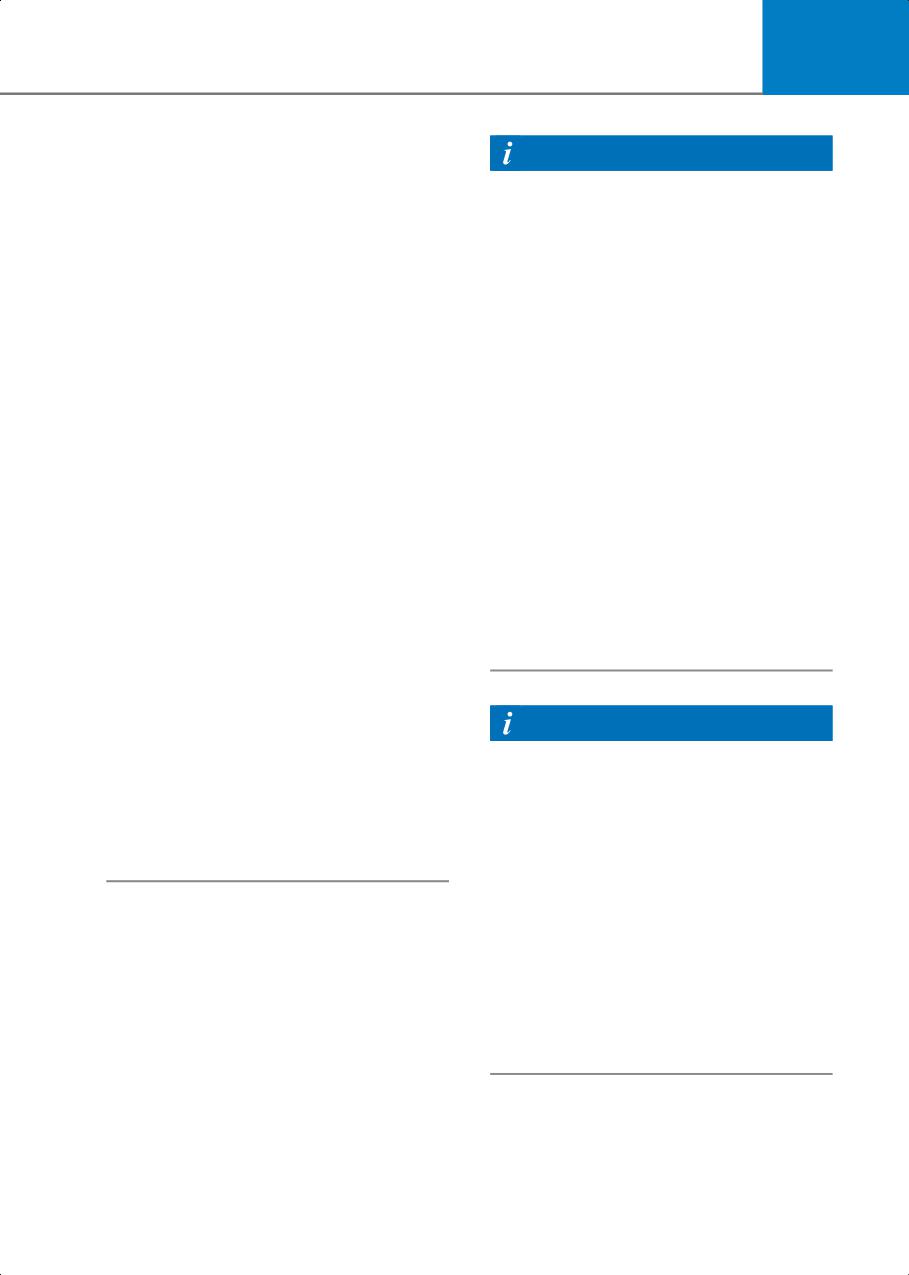
B7004803
(1) Set route,
(1) Driving route,
(2) Branch line,
(2) Branch line,
(3) Driving route,
(3) Curved road section,
(4) Main road,
(4) Main road,
(5) Curved road section
•
If there is no destination set on the
• When there is a difference between the
navigation, Highway Curve Zone Auto
navigation route (main road) and the
Slowdown function will operate based
driving route (branch line), Highway
on the curve information on the main
Curve Zone Auto Slowdown function
road.
will operate based on the curve
•
Even if you depart from the main road,
information on the main road.
Highway Curve Zone Auto Slowdown
• When it is judged that you are driving
function may temporarily operate due
out of the route by entering the
to navigation information of the
highway interchange or junction,
highway curve section.
Highway Curve Zone Auto Slowdown
function will not operate.
WARNING
•
Navigation-based Smart Cruise Control
is not a substitute for safe driving
practices, but a convenience function.
Always have your eyes on the road, and
it is the responsibility of the driver to
avoid violating traffic laws.
•
The navigation’s speed limit
information may differ from the actual
speed limit information on the road. It is
the driver's responsibility to check the
speed limit on the actual driving road or
lane.
•
Navigation-based Smart Cruise Control
will automatically be canceled when
you leave the highway main road.
Always pay attention to road and
driving conditions while driving.
7-88
7
•
Navigation-based Smart Cruise Control
Information
may not operate due to the existence of
leading vehicles and the driving
• A time gap could occur between the
conditions of the vehicle. Always pay
navigation’s guidance and when
attention to road and driving conditions
Navigation-based Smart Cruise Control
while driving.
operation starts and ends.
•
When you are towing a trailer or
• The speed information on the
another vehicle, turn off
instrument cluster and navigation may
Navigation-based Smart Cruise Control
differ.
for safety reasons.
• Even if you are driving at a speed lower
•
After you pass through a tollbooth on a
than Smart Cruise Control set speed,
highway, Navigation-based Smart
acceleration may be limited by the
Cruise Control will operate based on
curve sections ahead.
the first lane. If you enter one of the
• If Navigation-based Smart Cruise
other lanes, Navigation-based Smart
Control is operating while leaving the
Cruise Control might not operate
main road to enter an interchange,
properly.
junction, rest area, etc., the function
•
The vehicle will accelerate if the driver
may operate for a certain period of
depresses the accelerator pedal while
time.
Navigation-based Smart Cruise Control
• Deceleration by Navigation-based
is operating, and the function will not
Smart Cruise Control may feel it is not
decelerate the vehicle. However, if the
sufficient due to road conditions such
accelerator pedal is depressed
as uneven road surfaces, narrow lanes,
insufficiently, the vehicle may
etc.
decelerate.
•
If the driver accelerates and releases
the accelerator pedal while
Navigation-based Smart Cruise Control
Information
is operating, the vehicle may not
This device complies with Part 15 of the
decelerate sufficiently or may rapidly
FCC rules.
decelerate to a safe speed.
Operation is subject to the following three
•
If the curve is too large or too small,
conditions:
Navigation-based Smart Cruise Control
1. This device may not cause harmful
may not operate.
interference, and
2. This device must accept any
interference received, including
interference that may cause undesired
operation.
3. Changes or modifications not expressly
approved by the party responsible for
compliance could void the user’s
authority to operate the device.
7-89
Driver Assistance System
Lane Following Assist
Information
Radio frequency radiation exposure
(LFA)
information:
Lane Following Assist detects lane
This equipment complies with FCC
markings and/or a vehicle ahead on the
radiation exposure limits set forth for an
road, and center your vehicle in the lane.
uncontrolled environment.
This equipment should be installed and
Detecting sensor
operated with minimum distance of 8 in.
(20 cm) between the radiator (antenna)
and your body.
This transmitter must not be co-located
1
or operating in conjunction with any other
antenna or transmitter.
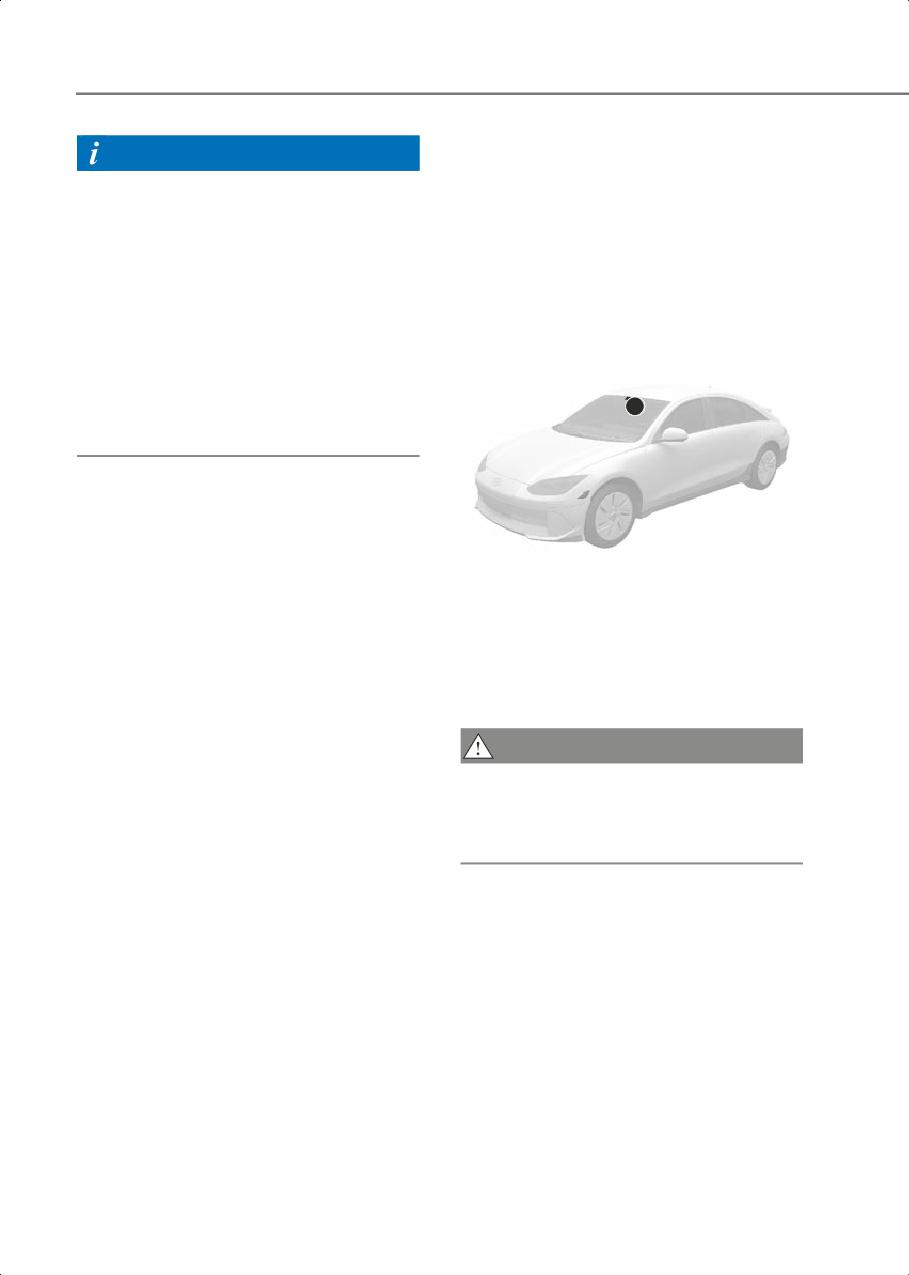
B7004901
(1) Front view camera
The front view camera is used as a
detecting sensor to detect lane markings
and front vehicles.
Refer to the picture above for the detailed
location of the detecting sensor.
CAUTION
For more information on the precautions
of the front view camera, refer to the
"Forward Collision-Avoidance Assist
(FCA)" section in this chapter.
7-90
7
Lane Following Assist Settings
Information
• If you change the Warning Methods,
Warning Methods
Warning Methods of other Driver
Assistance systems may change.
• If the vehicle is restarted, Warning
Methods will maintain the last setting.
• There may be no Settings menu
depending on the feature applied to
your vehicle.
Lane Following Assist
Operation
B7001902
Turning Lane Following Assist
On/Off
B7001902_1
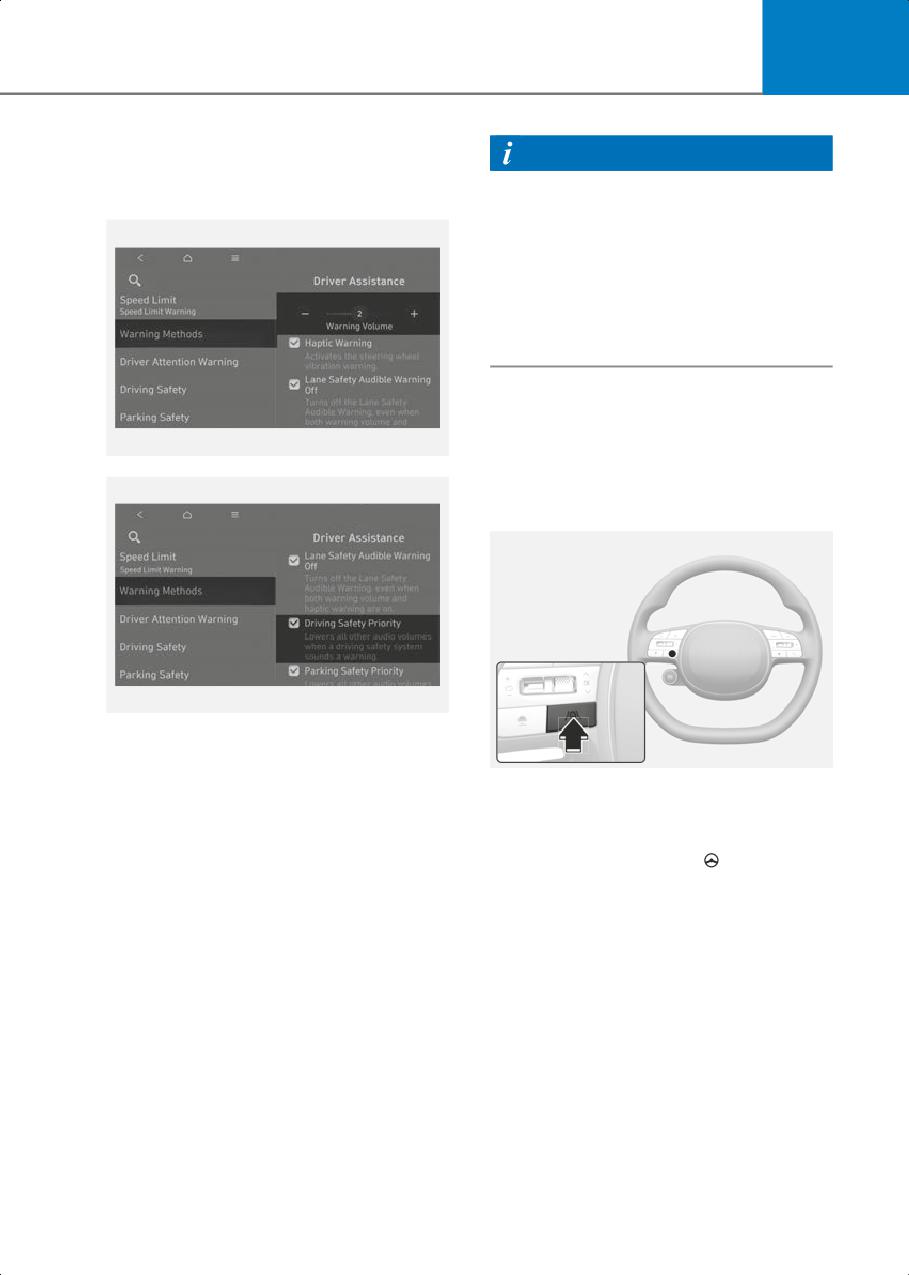
With the vehicle on, go to Setup > Vehicle
> Driver Assistance > Warning Methods
B7001101
from the Settings in the infotainment
With the vehicle on, short press the Lane
system to select the following:
Driving Assist button located on the
• Warning Volume: The Warning Volume
steering wheel to turn on Lane Following
can be adjusted.
Assist. The grey or green (
) indicator
If you turn off the Warning Volume, for
light will illuminate on the instrument
your safety, the Hands-off warning
cluster.
volume may warn you with a low
Press the button again to turn off the
volume.
function.
• Driving Safety Priority: Your vehicle
lowers all other audio volumes when
the Driver Assistance system warning
sounds.
7-91
Driver Assistance System
Lane Following Assist
Hands-off warning
B7005102
B7005103
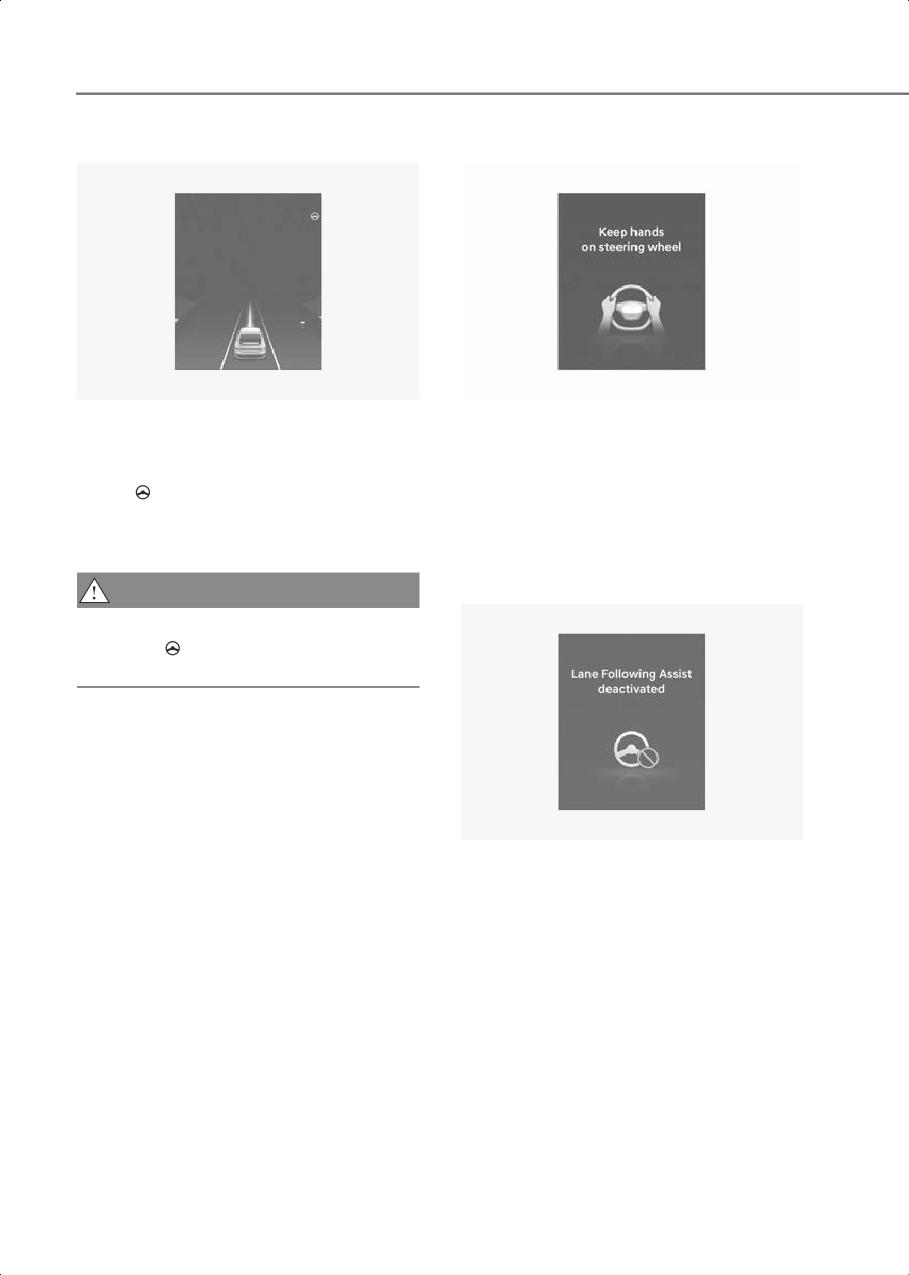
If the vehicle ahead and/or both lane
If the driver takes their hands off the
markings are detected and your vehicle
steering wheel for several seconds, the
speed is below 112 mph (180 km/h), the
'Keep hands on steering wheel' warning
green (
) indicator light illuminates on
message will appear and an audible
the instrument cluster, and Lane
warning will sound in stages.
Following Assist helps center the vehicle
First stage: Warning message
in the lane by assisting the steering wheel.
Second stage: Warning message (red
steering wheel) and audible warning
CAUTION
When the steering wheel is not assisted,
the white (
) indicator light blinks and
changes to grey.
B7005103_1
If the driver still does not have their hands
on the steering wheel after the hands-off
warning, the ‘Lane Following Assist
deactivated’ warning message will
appear and Lane Following Assist will be
automatically canceled.
7-92
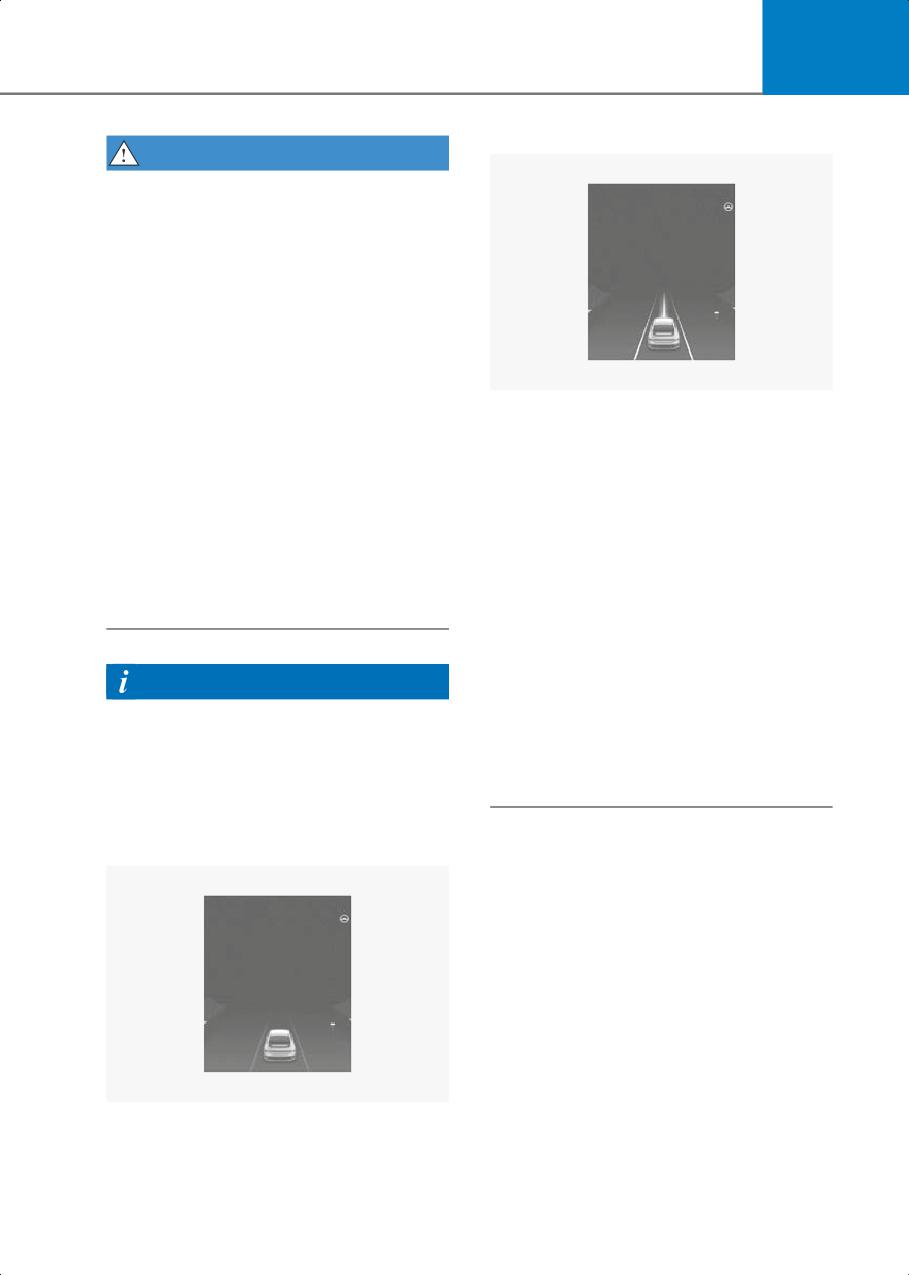
7
Lane detected
WARNING
•
The steering wheel may not be assisted
if the steering wheel is held very tight or
the steering wheel is steered over a
certain degree.
•
Lane Following Assist does not operate
at all times. It is the responsibility of the
driver to safely steer the vehicle and to
maintain the vehicle in its lane.
•
The hands-off warning message may
appear late depending on road
B7005106
conditions. Always have your hands on
• The images and colors in the
the steering wheel while driving.
instrument cluster may differ
•
If the steering wheel is held very lightly
depending on the instrument cluster
the hands-off warning message may
type or theme selected from the
appear because Lane Following Assist
settings menu.
may not recognize that the driver has
• If lane markings are not detected,
their hands on the steering wheel.
steering wheel control by Lane
•
If you attach objects to the steering
Following Assist can be limited
wheel, the hands-off warning may not
depending on whether a vehicle is in
work properly.
front or the driving conditions of the
vehicle.
• Even though the steering is assisted by
Lane Following Assist, the driver may
Information
control the steering wheel.
•
For more information on instrument
• The steering wheel may feel heavier or
cluster settings, refer to the "Cluster
lighter when the steering wheel is
Display Control" section in chapter 4.
assisted by Lane Following Assist than
•
When both lane markings are detected,
when it is not.
the lane lines on the instrument cluster
will change from grey to white.
Lane undetected
B7005105
7-93
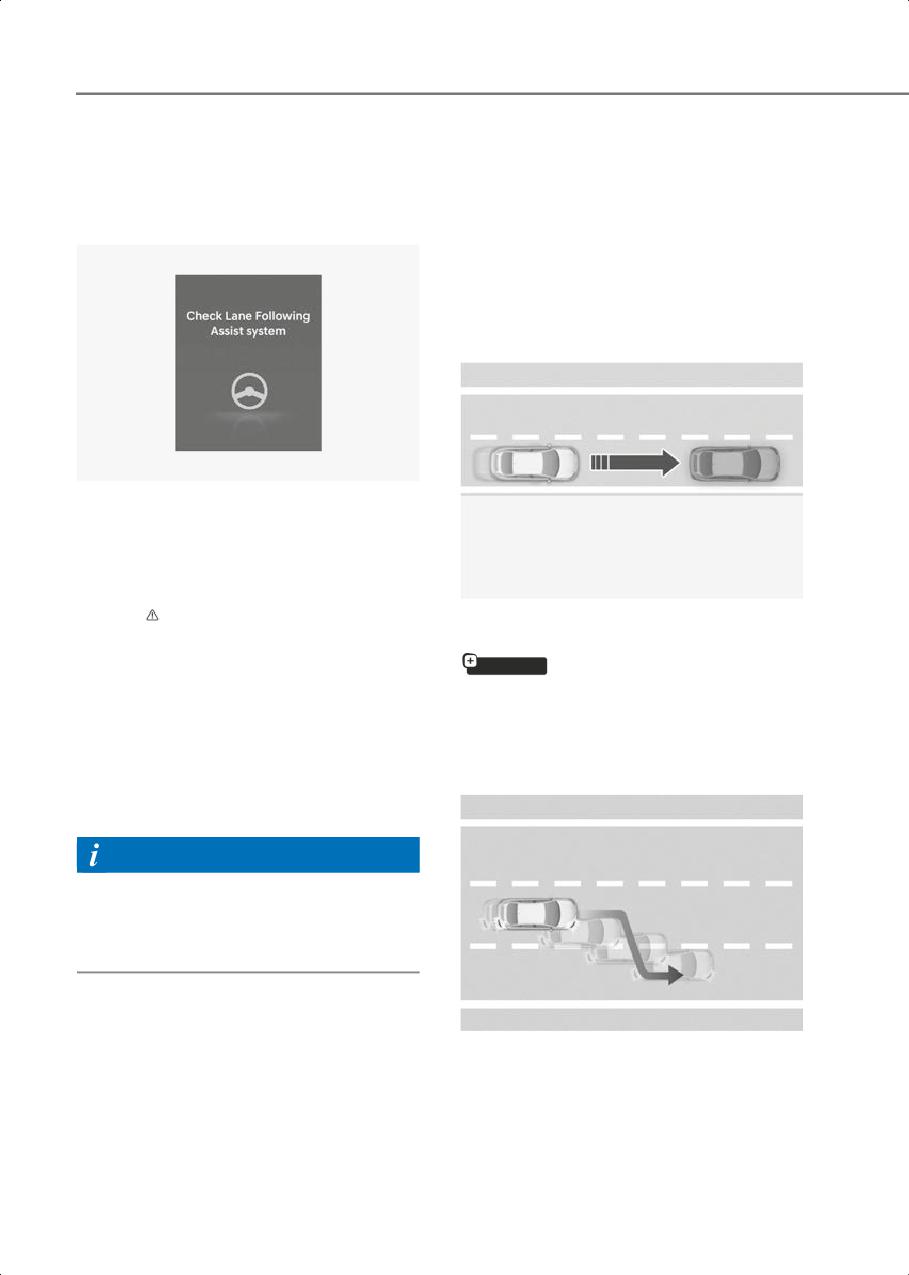
Driver Assistance System
Lane Following Assist
Highway Driving Assist
Malfunction and Limitations
(HDA)
Lane Following Assist malfunction
Basic function
Highway Driving Assist detect lanes and
vehicles ahead, and help maintain the
distance from the vehicle ahead and the
set speed, and center your vehicle in the
lane while driving on the highway.
B7005201
When Lane Following Assist is not
working properly, the ‘Check Lane
Following Assist system’ warning
message will appear on the instrument
cluster for several seconds, and the
B7005301
master (
) warning light illuminates on
the instrument cluster. If this occur, have
Highway Lane Change Assist
the vehicle inspected by an authorized
if equipped
HYUNDAI dealer.
Highway Lane Change Assist function
helps change lanes to the direction you
Limitations of Lane Following Assist
operate the turn signal switch if the
For more information on Lane Following
function judges that lane change is
Assist's limitations, refer to the "Lane
possible.
Keeping Assist (LKA)" section in this
chapter.
Information
For more information on "Warnings"
when using Lane Following Assist, refer to
the "Lane Keeping Assist (LKA)" section in
this chapter.
B7005302
7-94
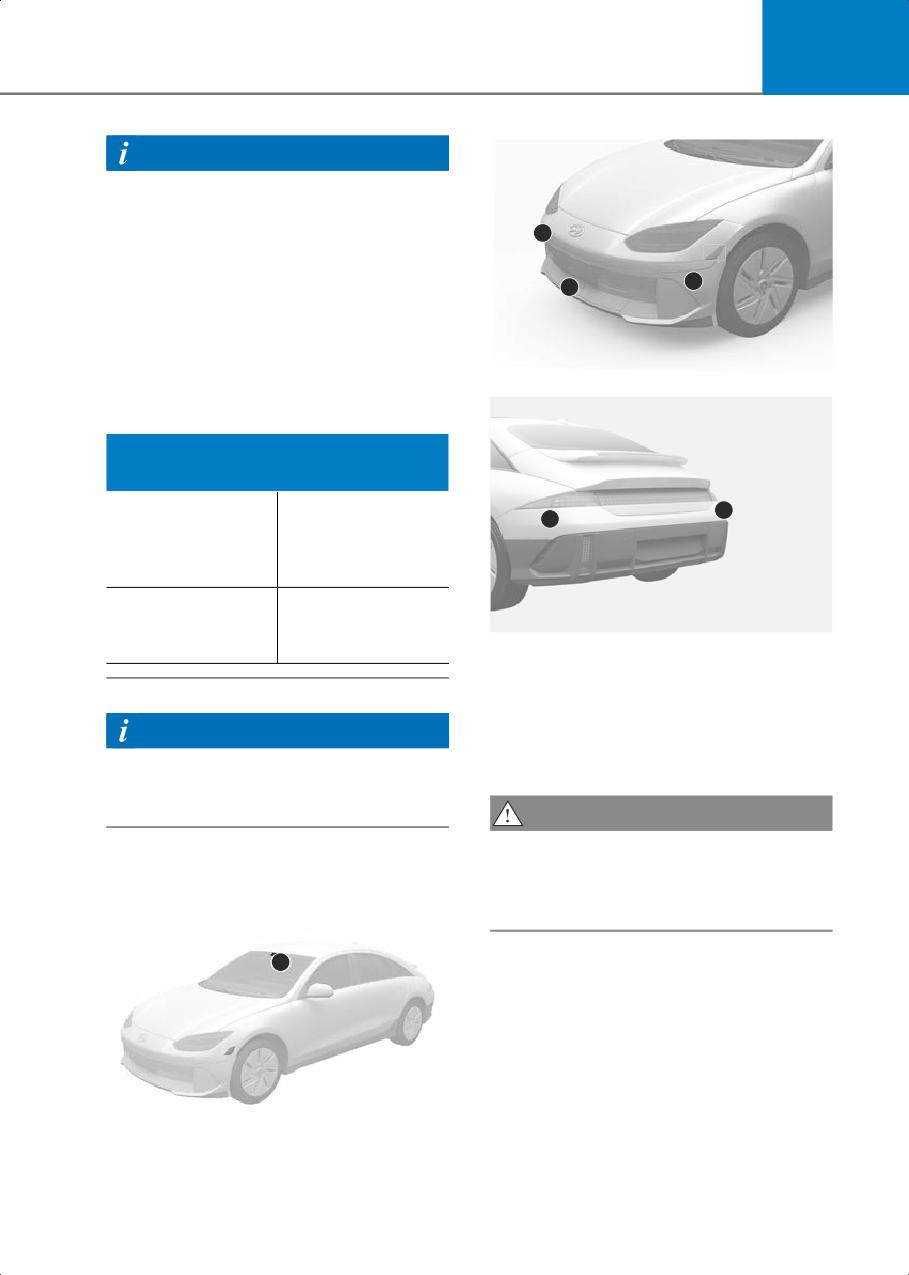
7
Information
• Highway Driving Assist is available only
on controlled access road of certain
highways.
3
- Controlled access road indicates
roads with limited entrances and
3
2
exits that allow uninterrupted high
speed traffic flow. Only passenger
cars and motorcycles are allowed on
controlled access roads.
B7005304
• Additional highways may be expanded
by future navigation updates.
Available Highway (Controlled access
road)
4
Select Interstate
4
Highway and U.S.
USA
(Federal) and State
Highways
Select Provincial
Canada
and Territorial
Highways
B7005305
(1) Front view camera,
(2) Front radar,
(3) Front corner radar (if equipped),
(4) Rear corner radar (if equipped)
Information
Refer to the picture above for the detailed
Highway Driving Assist operates on main
location of the detecting sensors.
roads of highways, and does not operate
on interchanges or junctions.
CAUTION
For more information on the precautions
Detecting sensor
of the detecting sensors, refer to the
"Forward Collision-Avoidance Assist
(FCA)" section in this chapter.
1
B7005303
7-95
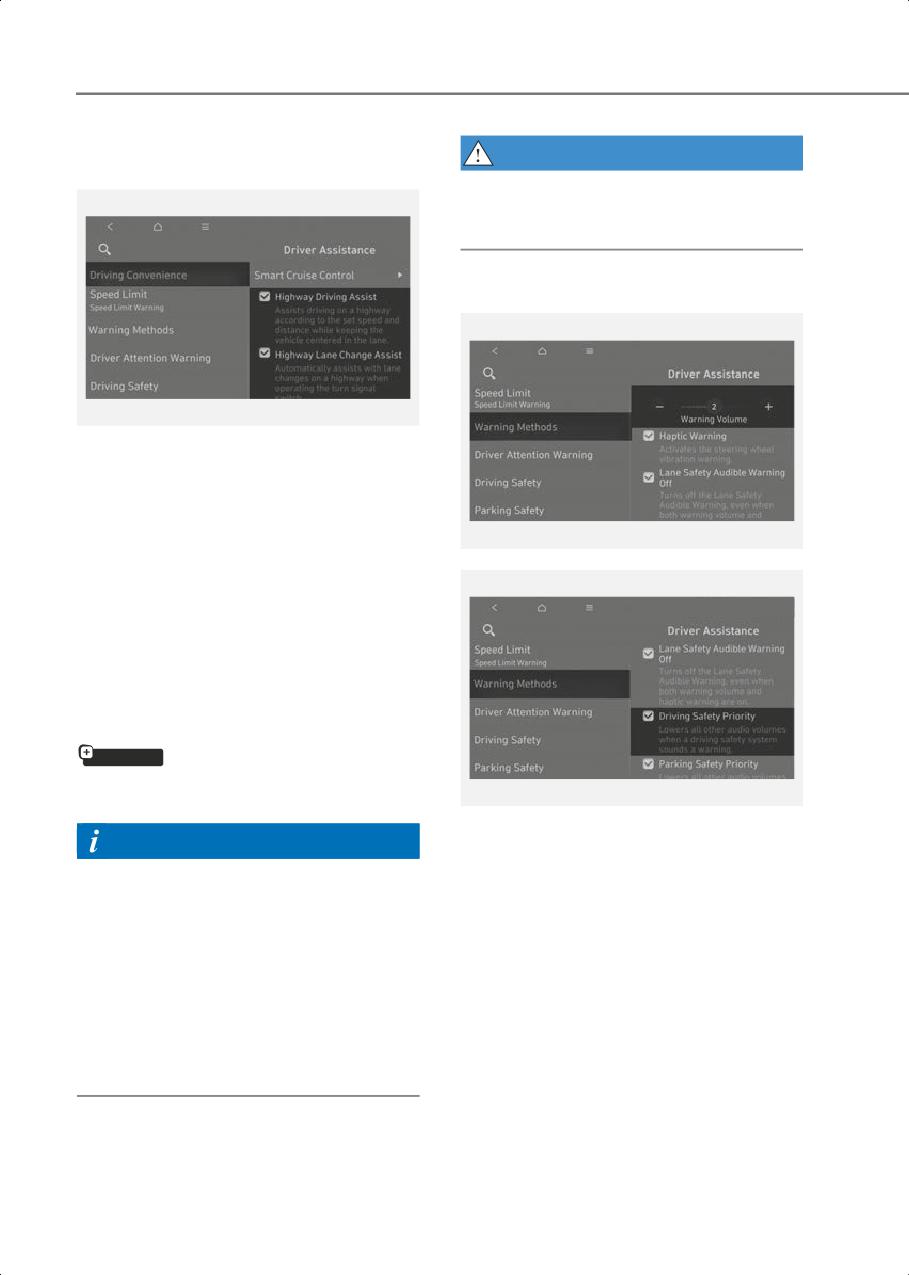
Driver Assistance System
Highway Driving Assist
WARNING
Settings
For your safety, only change the settings
after parking the vehicle at a safe
location.
Warning Methods
B7005401
With the vehicle on, select or deselect
Setup > Vehicle > Driver Assistance >
Driving Convenience from the Settings
menu to set whether to use each
function.
B7001902
Basic function
If Highway Driving Assist is selected, it
helps maintain distance from the vehicle
ahead, maintain the set speed, and helps
center the vehicle in the lane.
Highway Lane Change Assist
if equipped
If Highway Lane Change Assist is
selected, it helps the driver change lanes.
B7001902_1
With the vehicle on, go to Setup > Vehicle
Information
> Driver Assistance > Warning Methods
• When Highway Driving Assist is
from the Settings in the infotainment
deselected, the setting for Highway
system to select the following:
Lane Change Assist cannot be
• Warning Volume: The Warning Volume
changed.
can be adjusted.
• If there is a problem with the functions,
If you turn off the Warning Volume, for
the settings cannot be changed. Have
your safety, the Hands-off warning
the vehicle inspected by an authorized
volume may warn you with a low
HYUNDAI dealer.
volume.
• If the vehicle is restarted, the functions
• Driving Safety Priority: Your vehicle
will maintain the last setting.
lowers all other audio volumes when
the Driver Assistance system warning
sounds.
7-96
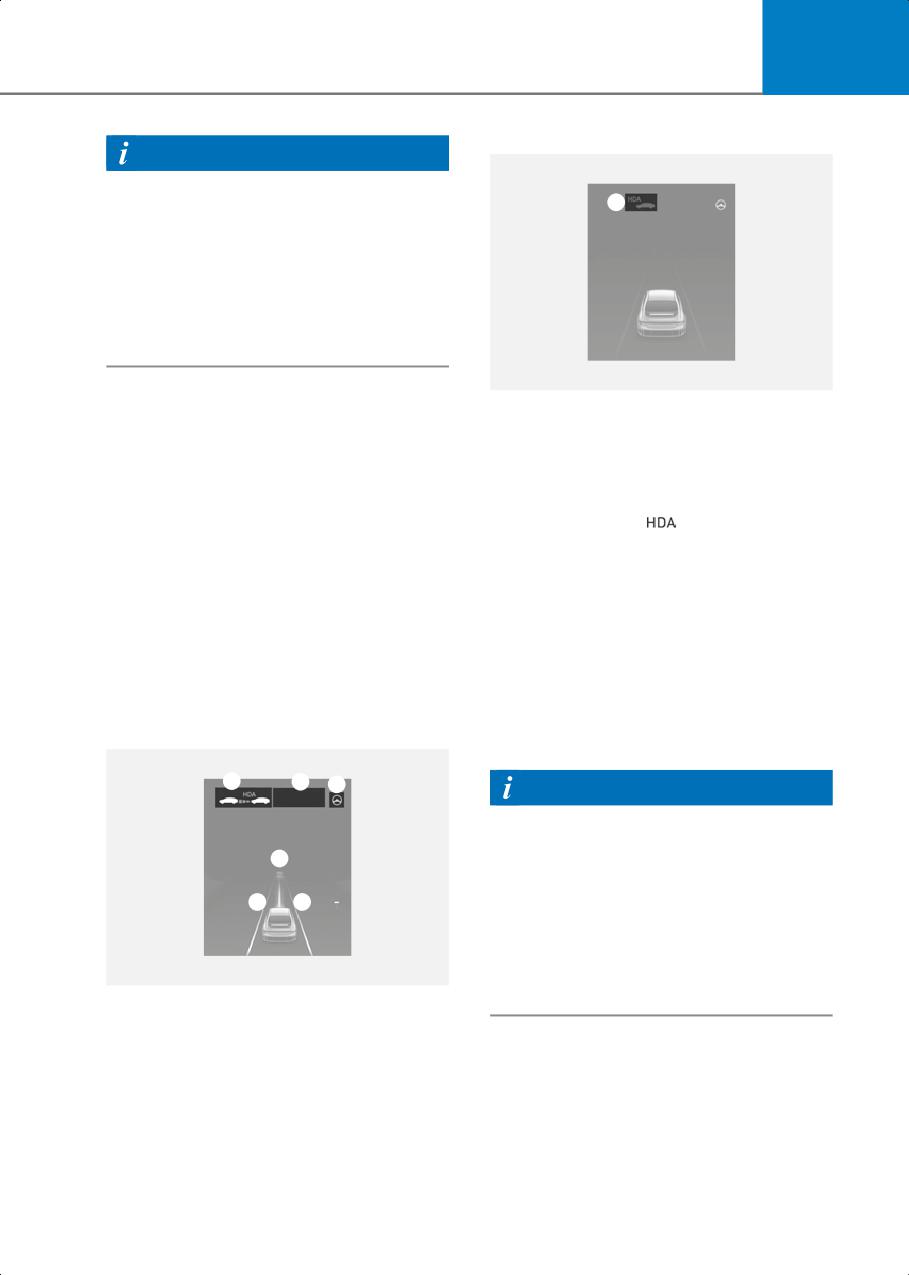
7
Standby state
Information
• If you change the Warning Methods,
1
55 MPH
Warning Methods of other Driver
Assistance systems may change.
• If the vehicle is restarted, Warning
Methods will maintain the last setting.
• There may be no Settings menu
depending on the feature applied to
your vehicle.
B7005502
Highway Driving Assist
1. Highway Driving Assist indicator,
Operation
whether there is a vehicle ahead and
the selected distance level are
displayed.
Basic function
• Highway Driving Assist indicator ()
Displaying operating status
- Green HDA: Operating state
You can see the status of the Highway
- Grey HDA: Standby state
Driving Assist operation in the Driving
Assist view on the instrument cluster. For
- White HDA blink: Accelerator
more information, refer to the "View
depressed state
Modes" section in chapter 4.
2. Set speed
Highway Driving Assist will be displayed
3. Lane Following Assist indicator
as below depending on the status of the
4. Whether there is a vehicle ahead and
function.
the selected headway
Operating state
5. Whether the lane is detected or not
1
2
3
55
MPH
Information
• For more information on the display
refer to the "Smart Cruise Control
4
(SCC)" and "Lane Following Assist
(LFA)" sections in this chapter.
5
5
• The images and colors in the
instrument cluster may differ
depending on the instrument cluster
type or theme selected from the
B7005501
settings menu.
7-97
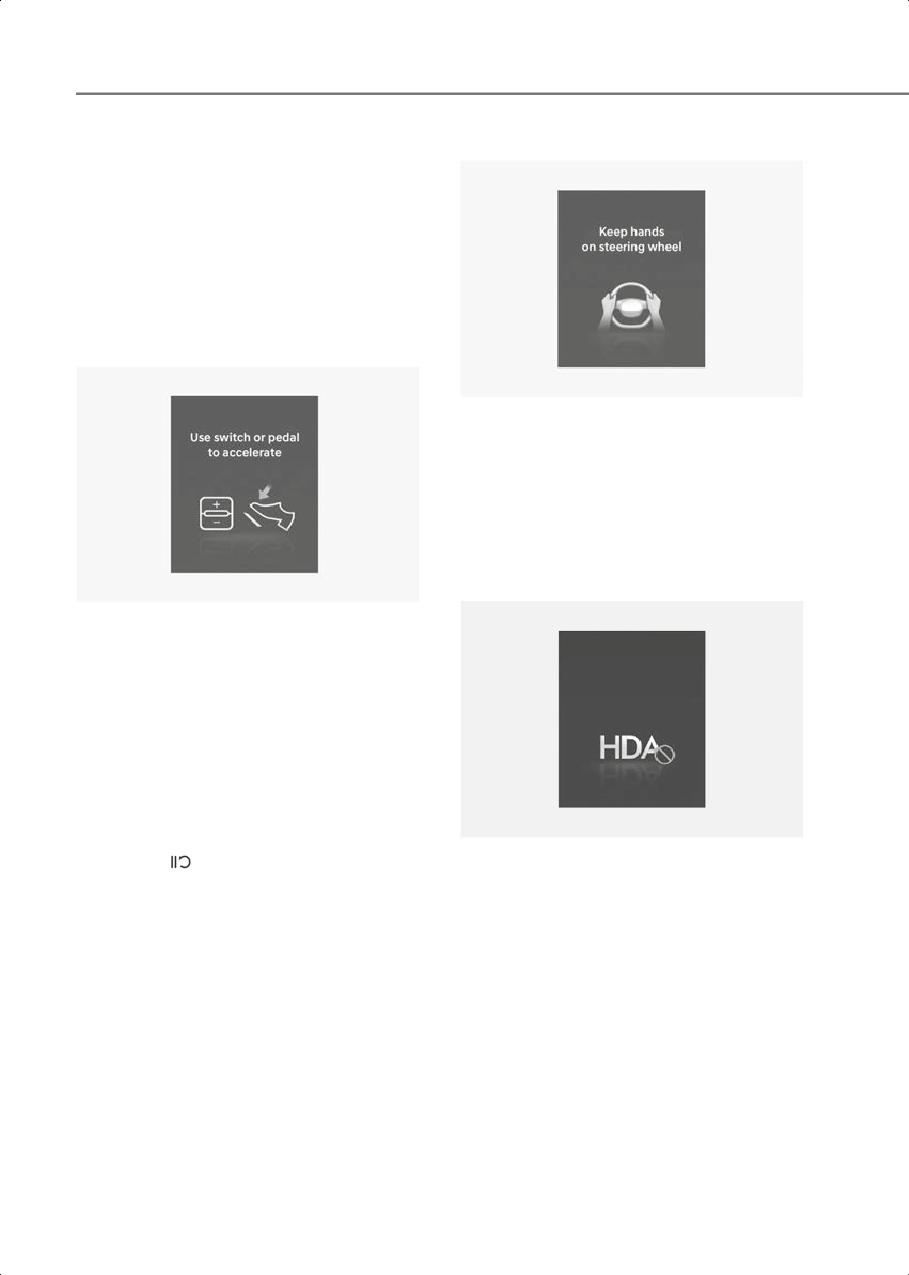
Driver Assistance System
Highway Driving Assist operation
Hands-off warning
Highway Driving Assist operates when:
• Driving on the main road of highways,
and turning on Highway Driving Assist
by pressing the Driving Assist button
• Entering the main road of highways
while Lane Following assist and Smart
Cruise Control are operating
Restarting after stopping
B7005504
If the driver takes their hands off the
steering wheel for several seconds, the
'Keep hands on steering wheel' warning
message will appear and an audible
warning will sound in stages.
First stage: Warning message
Second stage: Warning message (red
steering wheel) and audible warning
B7005503
When Highway Driving Assist is
operating, your vehicle will stop if the
vehicle ahead of you stops. Also, if the
)JHIXBZ %SJWJOH "TTJTU
EFBDUJWBUFE
vehicle ahead of you starts moving within
30 seconds after the stop, your vehicle
will start as well. In addition, after the
vehicle has stopped and 30 seconds have
passed, the 'Use switch or pedal to
accelerate' message will appear on the
instrument cluster. Depress the
accelerator pedal or operate the + switch,
B7005505
- switch or
switch to start driving.
If the driver still does not have their hands
on the steering wheel after the hands-off
warning, ‘Highway Driving Assist
deactivated’ warning message will
appear and Highway Driving Assist and
Lane Change Assist will be automatically
canceled.
7-98
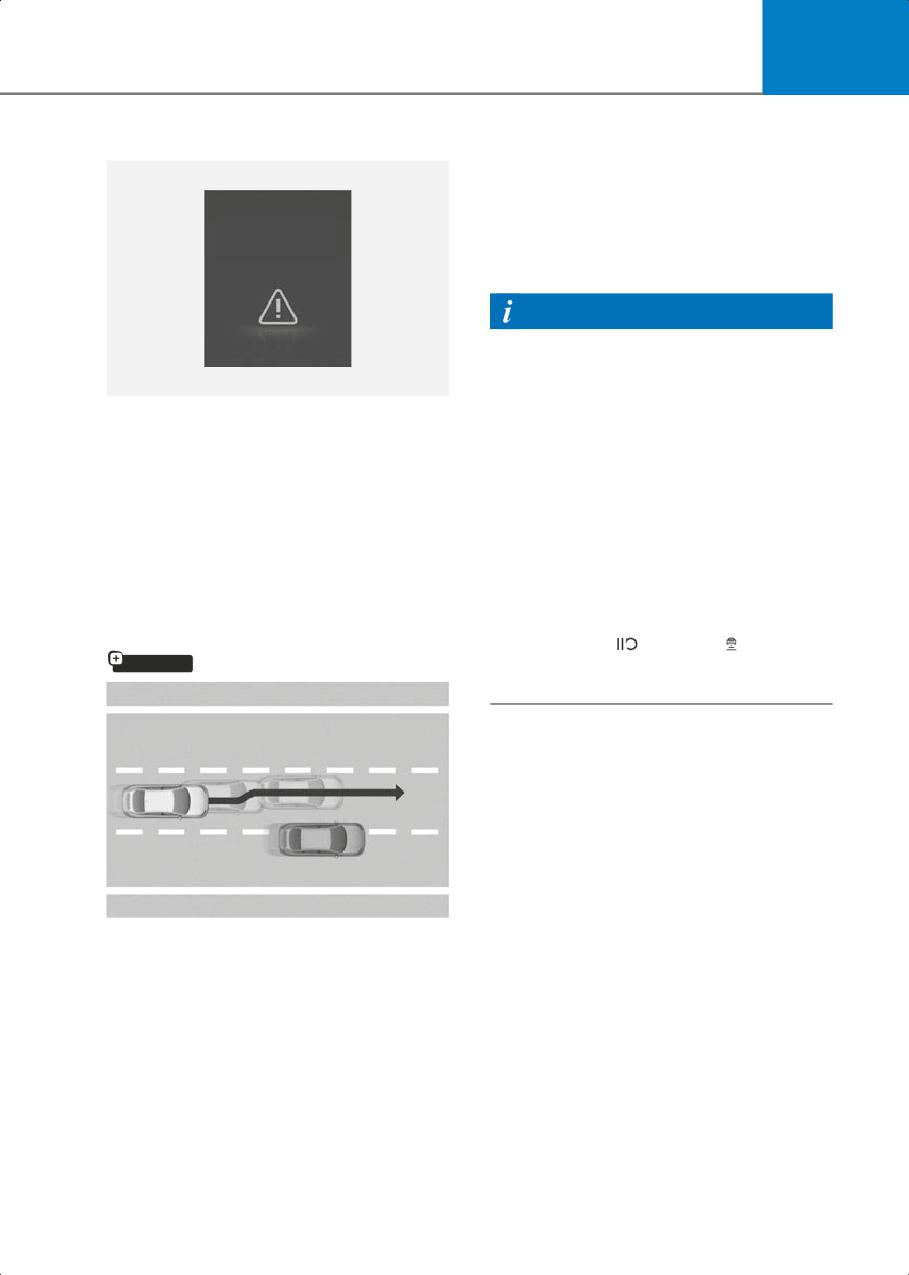
7
Driving speed limit
Highway Driving Assist standby
When the Smart Cruise Control is
temporarily canceled while Highway
Driving Assist is operating, Highway
%SJWFSAT HSBTQ
OPU EFUFDUFE
Driving Assist will be in the standby state.
%SJWJOH TQFFE
At this time, Lane Following Assist will
XJMM CF MJNJUFE
operate properly.
Information
• Driving Speed Limit helps you drive
below 40 mph (60 km/h). At this time,
the vehicle decelerates due to the
B7005506
vehicle ahead. After the vehicle has
When Highway Driving Assist is canceled
decelerated, it cannot automatically
by the hands-off warning, The driving
accelerate.
speed will be limited.
• Driving Speed Limit will cancel in the
While Driving Speed Limit function is
following circumstances:
operating, the ‘Driver’s grasp not
- When the driver grabs the steering
detected. Driving speed will be limited’
wheel again
warning message will appear on the
instrument cluster, and an audible
- When the driver turns on Lane
warning will sound continuously.
Following Assist by pressing the Lane
Driving Assist button
Driving to one side within lane
- When +, -,
switch or button is
if equipped
operated, or the accelerator pedal or
the brake pedal is depressed
B7005507
When vehicle speed is above 40 mph (60
km/h), if a vehicle around you is driving at
a close distance, your vehicle will control
steering in the opposite direction of the
vehicle to assist in safe driving.
If there are detected vehicles on both
sides of the lane that are driving close to
you, your vehicle does not control
steering in either direction.
7-99
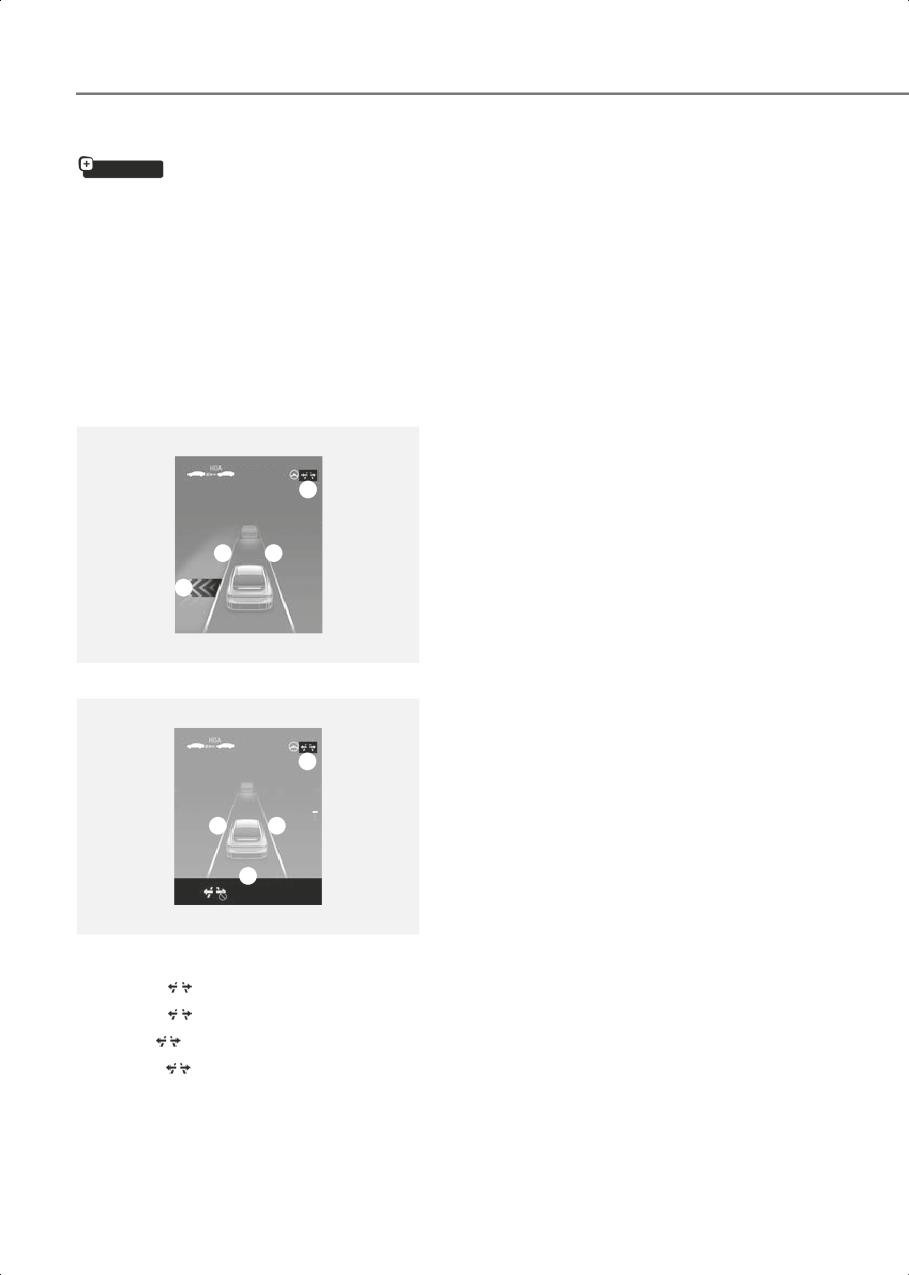
Driver Assistance System
Highway Lane Change Assist
2. Lane line
if equipped
The lane line is displayed same as the
Highway Lane Change Assist indicator
Displaying operating status
(1). However, if the function is on
You can see the status of the Highway
standby, it displays whether the lane
Lane Change Assist function operation in
line is detected.
the Driving Assist view on the instrument
3. Green arrow and shade
cluster. For more information, refer to the
The green arrow is displayed when a
"View Modes" section in chapter 4.
certain amount of time has passed after
Highway Lane Change Assist function will
the function has started operating, and
be displayed as below depending on the
until the lane change has completed.
status of the function.
4. Message
Ready/Operating
• Message is displayed when the
function does not operate even
though the turn signal is used.
55
MPH
1
• Message is displayed when the
function is canceled while operating.
2
2
To turn on Highway Lane Change Assist
3
Highway Lane Change Assist function will
turn on when the following conditions are
satisfied.
• The Driving Assist button or Lane
B7005508
Driving Assist button is used to turn on
Standby/Canceled
Highway Driving Assist.
Highway Lane Change Assist ready to
MPH
55
operate
1
While Highway Lane Change Assist
function is on, the function will be ready
2
2
to operate when all the following
conditions are satisfied:
4
• Highway Driving Assist is operating
$POEJUJPOT OPU NFU
• Lane Following Assist is operating
• A vehicle in the rear area of your vehicle
B7005509
is detected more than once after the
1. Highway Lane Change Assist indicator
vehicle is turned on
• Green
on : Ready state
• Your vehicle speed is above 40 mph (60
• Green
blink : Operating state
km/h)
• Grey
on : Standby state
• Hands-off warning is not displayed on
• White
blink : Canceled state
the instrument cluster
(display only a certain time)
• Hazard warning flasher is off
7-100
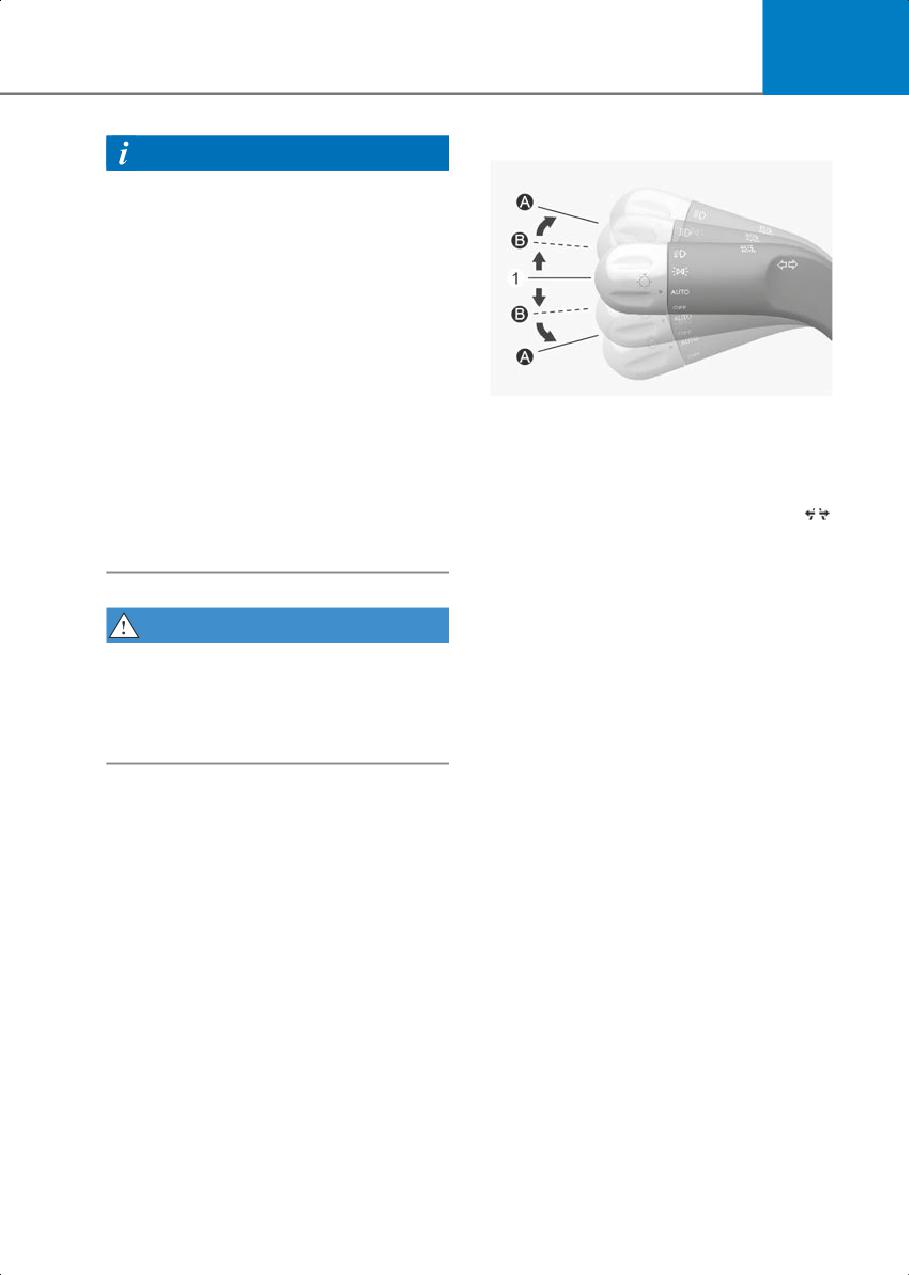
7
Highway Lane Change Assist operation
Information
• While Lane Change Assist function is
turned on (indicator on), Lane
Following Assist will not cancel even if
the turn signal indicator or hazard
warning flasher is operating.
• Lane Change Assist function turns off
automatically when driven in the
following road conditions:
- One driving lane
- A road with no structure, such as a
B7005511
medium strip, guardrails, etc.
(1) Center
- There is a pedestrian or cyclist on the
Highway Lane Change Assist function will
road ahead
operate, when you push the turn signal
• When the function is in the ready state,
lever up or down to the A or B position
and vehicle speed is below 35 mph (55
while the function is in the ready state (
km/h), the function will change to the
indicator is green), and all of the following
standby state.
conditions are satisfied:
• The driver has his/her hand on the
steering wheel
WARNING
• There is no collision risk in the direction
of lane change
When Highway Lane Change Assist
function turns off while operating,
• There is a single dotted lane line in the
steering assist will be temporarily
direction of lane change
canceled. Always be cautious while
• There are no Forward
driving.
Collision-Avoidance Assist and Blind
Spot Collision-Avoidance Assist
warnings
• The vehicle is driven in the middle of
the lane (should not be driving close to
one side of the lane)
• The road you are driving on, or the road
you are about to change lane is a road
that the function can operate
7-101
Driver Assistance System
Highway Lane Change Assist cancel
Information
The function will be canceled when:
• Highway Lane Change Assist operates
•
The turn signal lever is moved to the "A"
when the turn signal lever is positioned
position while the Highway Lane
at A. If the turn signal lever is released
Change Assist function is operating and
to the center (1) before stepping on the
placed in the center (1) before stepping
lane, Highway Lane Change Assist
on the lane line
cancels. If the turn signal lever is
•
The turn signal lever is turned on in the
released to the center (1) after stepping
opposite direction of lane change
on the lane, Highway Lane Change
Assist changes the lane and turns off
•
The steering wheel is steered sharply
the turn signal after lane change is
complete.
WARNING
• When the turn signal lever is placed at B
•
While Highway Driving Assist is
position for a certain period of time, the
operating, the function will cancel if
green arrow will appear. At this time,
one of the following occurs:
even when the lever is released and
- Highway Driving Assist is turned off
returns to it’s original position (1), lane
change will still be assisted.
- Lane Following Assist or Smart Cruise
Control is turned off or temporarily
• While lane change is being made by the
canceled
function, the turn signal indicator will
blink even when the turn signal lever is
- Hands-off warning message is
not held, and the turn signal indicator
displayed on the instrument cluster
will turn off when lane change is
- The hazard warning flasher is turned
complete.
on
- Forward Collision-Avoidance Assist
or Blind-Spot Collision-Avoidance
Highway Lane Change Assist standby
Assist warning message is displayed
Highway Lane Change Assist function will
- Possible collision is detected in the
be in the standby state when one of the
next lane, even though there are no
ready state condition is not satisfied, or
Forward Collision-Avoidance Assist
when entering or driving on one of the
and Blind-Spot Collision-Avoidance
following roads:
Assist warning
• Road within a certain distance from the
- The target lane to make a lane
tollbooth on the main road of the
change disappears
highway
- The target lane to make a lane
• The road ahead ends without an
change is not detected
interchange or junction
- There is a problem with turn signal
• Road with sharp curves
lights
• Road with narrow lanes
7-102
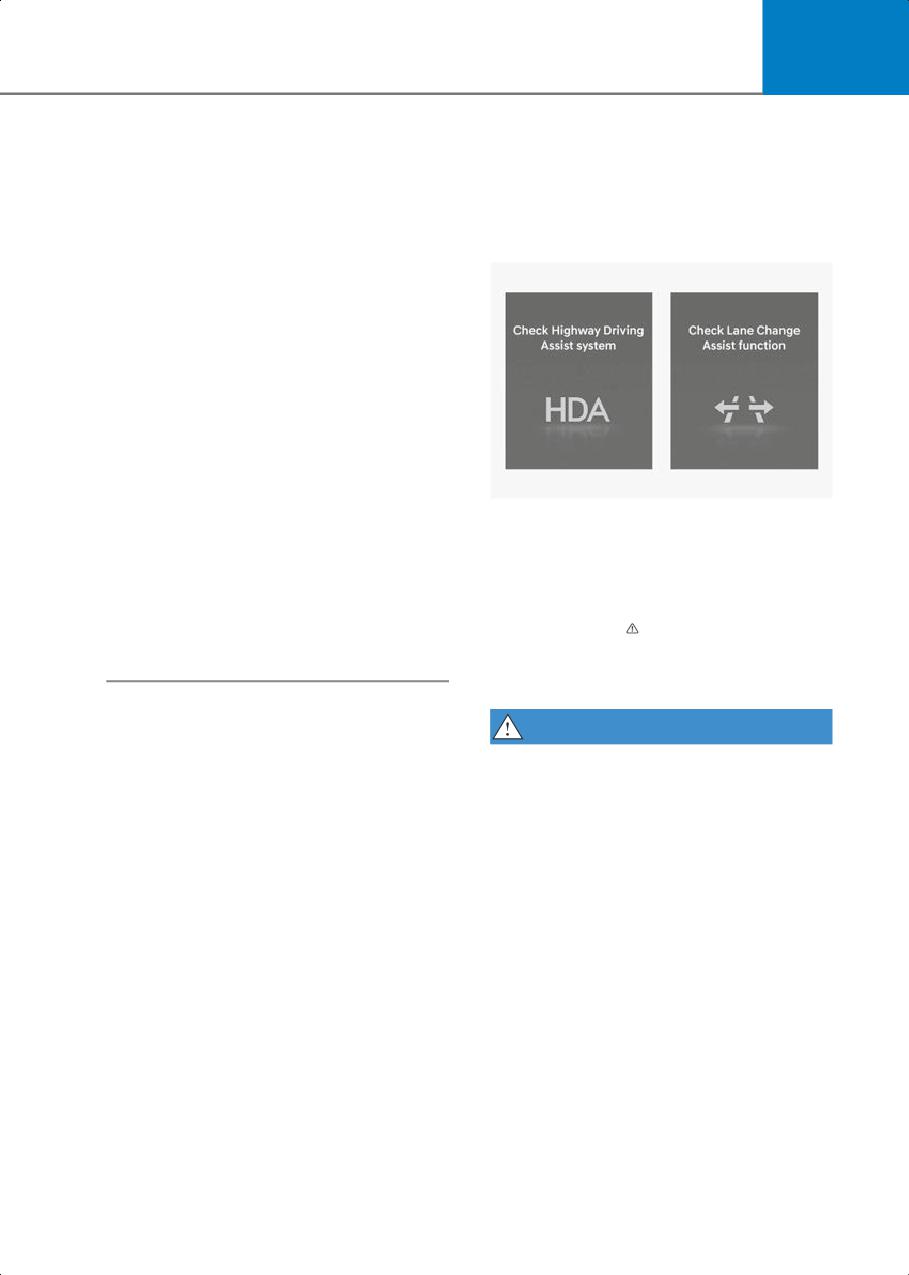
7
- Highway Lane Change Assist
Highway Driving Assist
function is off (The function turns off
Malfunction and Limitations
when the function is turned off from
the settings menu, when the road
changes to a one-way road, when
Highway Driving Assist malfunction
there is a intersection or crosswalk
Type A/Type B
ahead, when you enter a road with no
structure, such as a medium strip,
guardrail, etc., or when there is a
pedestrian or cyclist on the driving
lane.)
- Your vehicle speed is below 35 mph
(55 km/h)
• While the function is operating, when
the function is canceled, depending on
the driving conditions, the vehicle may
drive to the middle of the driving lane or
B7005701
steering assist may stop. Always pay
When Highway Driving Assist or Highway
attention to road and driving conditions
Lane Change function is not working
while driving.
properly, the 'Check Highway Driving
• The function may not operate properly
Assist system' or 'Check Lane Change
on roads with pedestrians or cyclists,
Assist function' warning message will
such as an intersection or crosswalk.
appear, and the warning light will
Always pay attention to road and
illuminate on the instrument cluster. Have
driving conditions while driving.
the vehicle inspected by an authorized
HYUNDAI dealer.
WARNING
• The driver is responsible for controlling
the vehicle and safe driving.
• Always have your hands on the steering
wheel while driving.
• Highway Driving Assist is a
supplemental function that assists the
driver in driving the vehicle and is not a
complete autonomous driving system.
Always check road conditions, and if
necessary, take appropriate actions to
drive safely.
• Always have your eyes on the road, and
it is the responsibility of the driver to
avoid violating traffic laws. The vehicle
manufacturer is not responsible for any
traffic violation or accidents caused by
the driver.
7-103
Driver Assistance System
•
Highway Driving Assist may not be able
• For your safety, please read the owner's
to recognize all traffic situations.
manual before using the Highway
Highway Driving Assist may not detect
Driving Assist.
possible collisions due to limitations of
• Highway Driving Assist will not operate
the function. Always be aware of the
when the vehicle is started, or when the
limitations of the function. Obstacles
detecting sensors or navigation is being
such as vehicles, motorcycles, bicycles,
initialized.
pedestrians, or unspecified objects or
structures such as guardrails, tollbooth,
etc., that may collide with the vehicle
Limitation of Highway Driving Assist
may not be detected.
Highway Driving Assist and Highway Lane
•
Highway Driving Assist will turn off
Change function may not operate
automatically under the following
properly, or may not operate under the
situations:
following circumstances:
- Driving on roads that Highway
•
The map information and the actual
Driving Assist does not operate, such
road is different because the navigation
as a rest area, intersection, junction,
is not updated
etc.
•
The map information and the actual
- The navigation does not operate
road is different because of real-time
properly such as when the navigation
GPS data or map information error
is being updated or restarted
•
The infotainment system is overloaded
•
Highway Driving Assist may
by simultaneously performing
inadvertently operate or turn off
functions such as route search, video
depending on road conditions
playback, voice recognition, etc.
(navigation information) and
•
GPS signals are blocked in areas such as
surroundings.
a tunnel
•
Lane Following Assist function may be
•
The driver goes off course or the route
temporarily disabled when the front
to the destination is changed or
view camera cannot detect lanes
canceled by resetting the navigation
properly or the hands-off warning is on.
•
The vehicle enters a service station or
•
You may not hear the warning sound of
rest area
Highway Driving Assist if the
surrounding is noisy.
•
Android Auto or Car Play is operating
•
If the vehicle is driven at high speed
•
The navigation cannot detect the
above a certain speed at a curve, your
current vehicle position (for example,
vehicle may drive to one side or may
elevated roads including overpass
depart from the driving lane.
adjacent to general roads or nearby
roads exist in a parallel way)
•
When you are towing a trailer or
another vehicle, turn off Highway
•
White single dotted lane line or road
Driving Assist for safety reasons.
edge cannot be detected
•
The hands-off warning message may
•
The road is temporarily controlled due
appear early or late depending on how
to construction, etc.
the steering wheel is held or road
•
There is no structure, such as a medium
conditions. Always have your hands on
strip, guardrails, etc., on the road
the steering wheel while driving.
•
There is a changeable lane in the
direction of lane change
•
If a trailer, carrier, etc., is installed
7-104
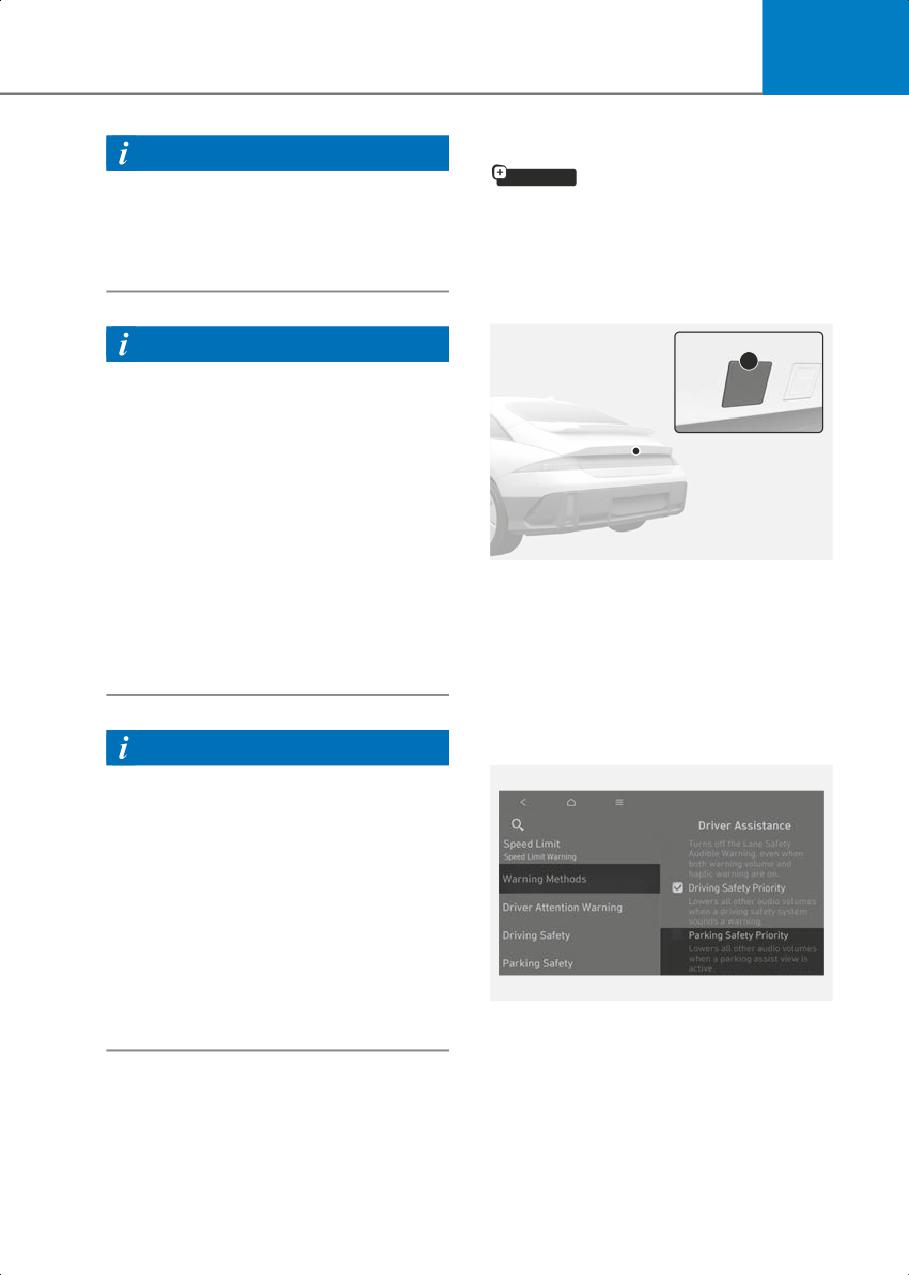
7
Rear View Monitor (RVM)
Information
if equipped
For more information on the limitations of
the front view camera, front radar, front
Rear View Monitor displays the area
corner radar and rear corner radar, refer
behind your vehicle to help with safe
to the "Forward Collision-Avoidance
parking or driving.
Assist (FCA)" section in this chapter.
Detecting sensor
Information
1
This device complies with Part 15 of the
FCC rules.
Operation is subject to the following three
conditions:
1. This device may not cause harmful
interference, and
2. This device must accept any
interference received, including
interference that may cause undesired
B7005801
operation.
(1) Wide-rear view camera
3. Changes or modifications not expressly
Refer to the picture above for the detailed
approved by the party responsible for
location of the detecting sensor.
compliance could void the user’s
authority to operate the device.
Rear View Monitor Settings
Warning Methods
Information
Radio frequency radiation exposure
information:
This equipment complies with FCC
radiation exposure limits set forth for an
uncontrolled environment.
This equipment should be installed and
operated with minimum distance of 8 in.
(20 cm) between the radiator (antenna)
and your body.
This transmitter must not be co-located
or operating in conjunction with any other
B7005901
antenna or transmitter.
With the vehicle on, go to Setup > Vehicle
> Driver Assistance > Warning Methods
from the Settings in the infotainment
system to select the following:
• Parking Safety Priority: Your vehicle
lowers all other audio volumes when
Rear View Monitor is operating.
7-105
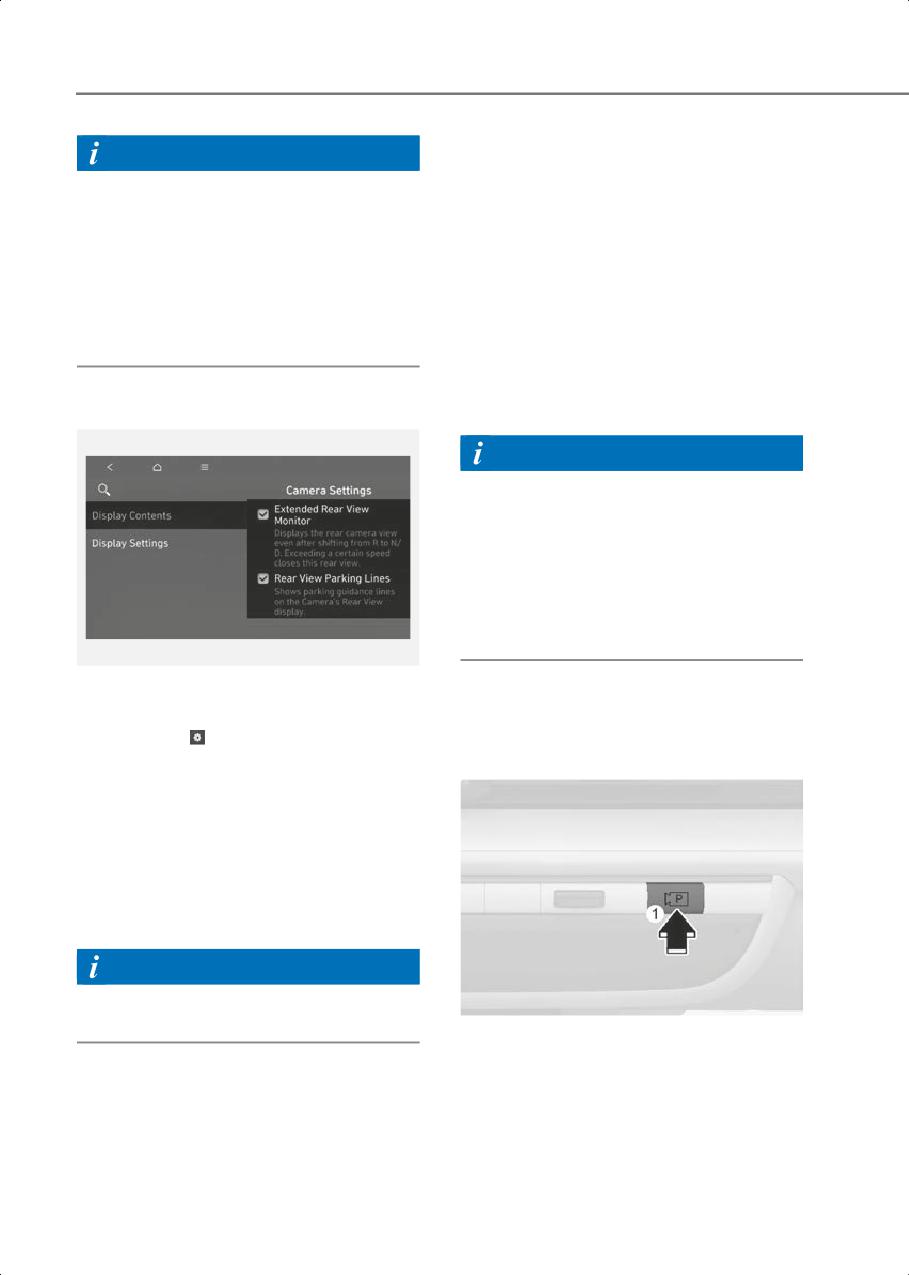
Driver Assistance System
Extended Rear View Monitor
Information
With the vehicle on, select Camera
• If you change the Warning Methods,
Settings > Display Contents > Extended
Warning Methods of other Driver
Rear View Monitor from the Settings
Assistance systems may change.
menu to turn on Extended Rear View
• If the vehicle is restarted, Warning
Monitor function and deselect to turn off
Methods will maintain the last setting.
the function
• There may be no Settings menu
depending on the feature applied to
Rear View Parking Lines
your vehicle.
If Rear View Parking Lines is selected, the
rear view parking guide lines and rear top
view guide lines will be displayed at the
Camera settings
left side of the infotainment system.
Information
• The horizontal guideline of the Rear
View Parking Guidance shows the
distance of 1.6 ft. (0.5 m), 3.3 ft. (1 m)
and 7.6 ft. (2.3 m) from the vehicle.
• The horizontal guideline of the Rear Top
View Parking Guidance shows the
distance 1.6 ft. (0.5 m), 4.9 ft. (1.5 m)
from the vehicle.
B7005903
• You can change Rear View Monitor
Rear View Monitor Operation
Display Contents by touching the
setup icon (
) on the screen while Rear
View Monitor is operating, or selecting
Parking/View button
Setup > Vehicle > Driver Assistance >
Parking Safety > Camera Settings from
the Settings menu while the vehicle is
on.
• In the Display Contents, you can
change settings for Extended Rear
View Monitor and Rear View Parking
Lines.
Information
There may be no Setting menu depending
on the feature applied to your vehicle.
B7006001
Press the Parking/View button (1) while
the gear is in P (Park) to turn on Rear View
Monitor.
Press the Parking/View button (1) while
the gear is in D (Drive) or N (Neutral) to
turn on Rear View Monitor while driving.
7-106
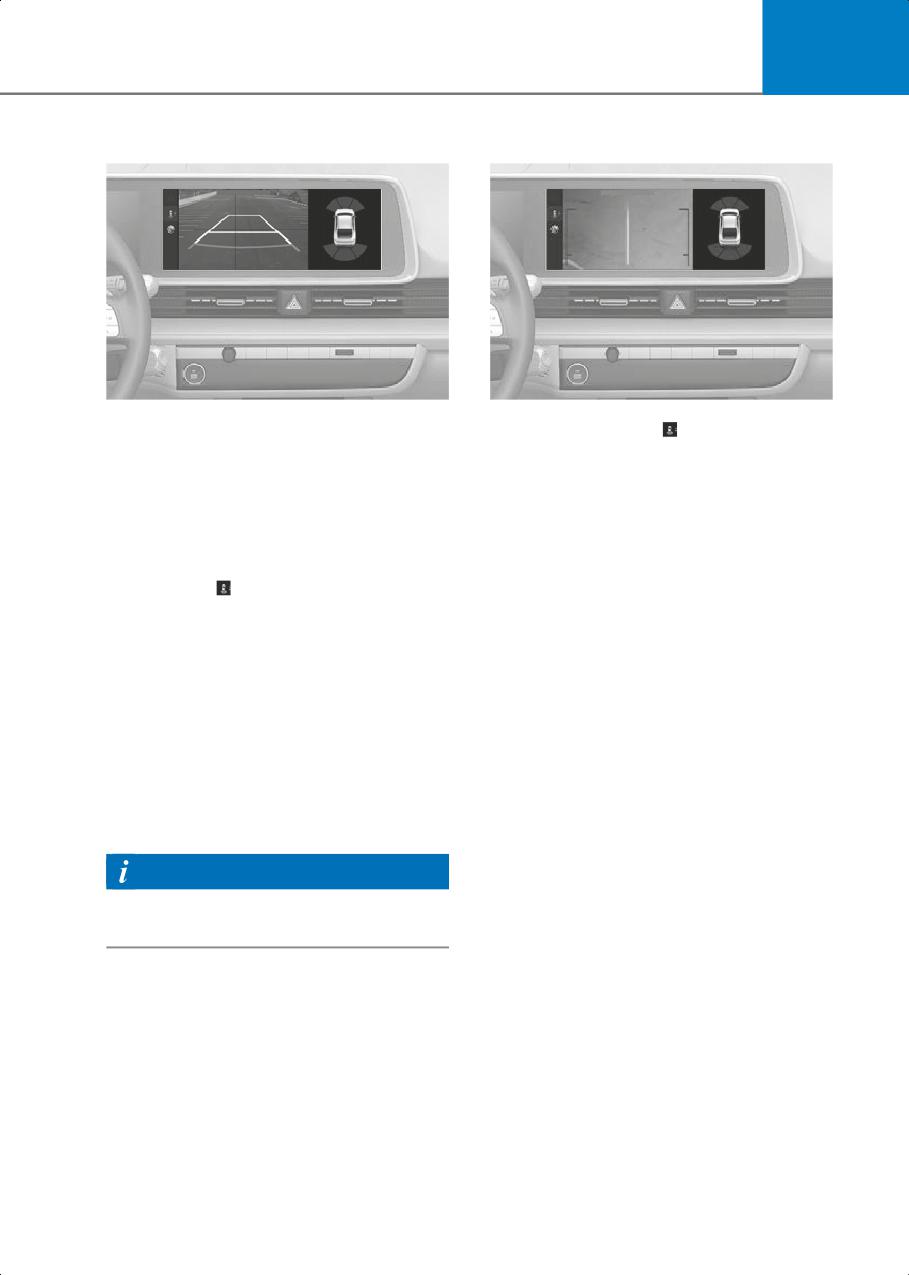
7
Rear view
Rear top view
$IFDL 4VSSPVOEJOHT GPS ZPVS TBGFUZ
$IFDL 4VSSPVOEJOHT GPS ZPVS TBGFUZ
B7006002
B7006003
When you touch the (
) icon, the top view
Operating conditions
is displayed on the screen and shows the
• Shift the gear to R (Reverse), the rear
distance from the vehicle in the back of
view will appear on the screen.
your vehicle while parking.
• Press the Parking/View button (1) while
the gear is in P (Park), the rear view will
Extended Rear View Monitor
appear on the screen.
Extended Rear View Monitor function
• Touch the (
), the rear view will appear
maintains showing the rear view when
on the screen.
the gear is R (Reverse), N (Neutral) or D
(Drive).
Off conditions
• The rear view cannot be turned off
Operating conditions
when the gear is in R (Reverse).
The gear is in P (Park), N (Neutral) or D
• Press the Parking/View button (1) again
(Drive), and vehicle speed is 6 mph (10
while the gear is in P (Park) with the rear
km/h) or less.
view on the screen, the rear view will
turn off.
Off conditions
• Shift the gear from R (Reverse) to P
• When vehicle speed is above 6 mph (10
(Park), the rear view will turn off.
km/h), the rear view will turn off.
• Shift the gear to P (Park), the rear view
Information
will turn off.
When the gear is in R (Reverse), the rear
• Press the Parking/View button (1), the
view does not turn off.
rear view will turn off.
7-107
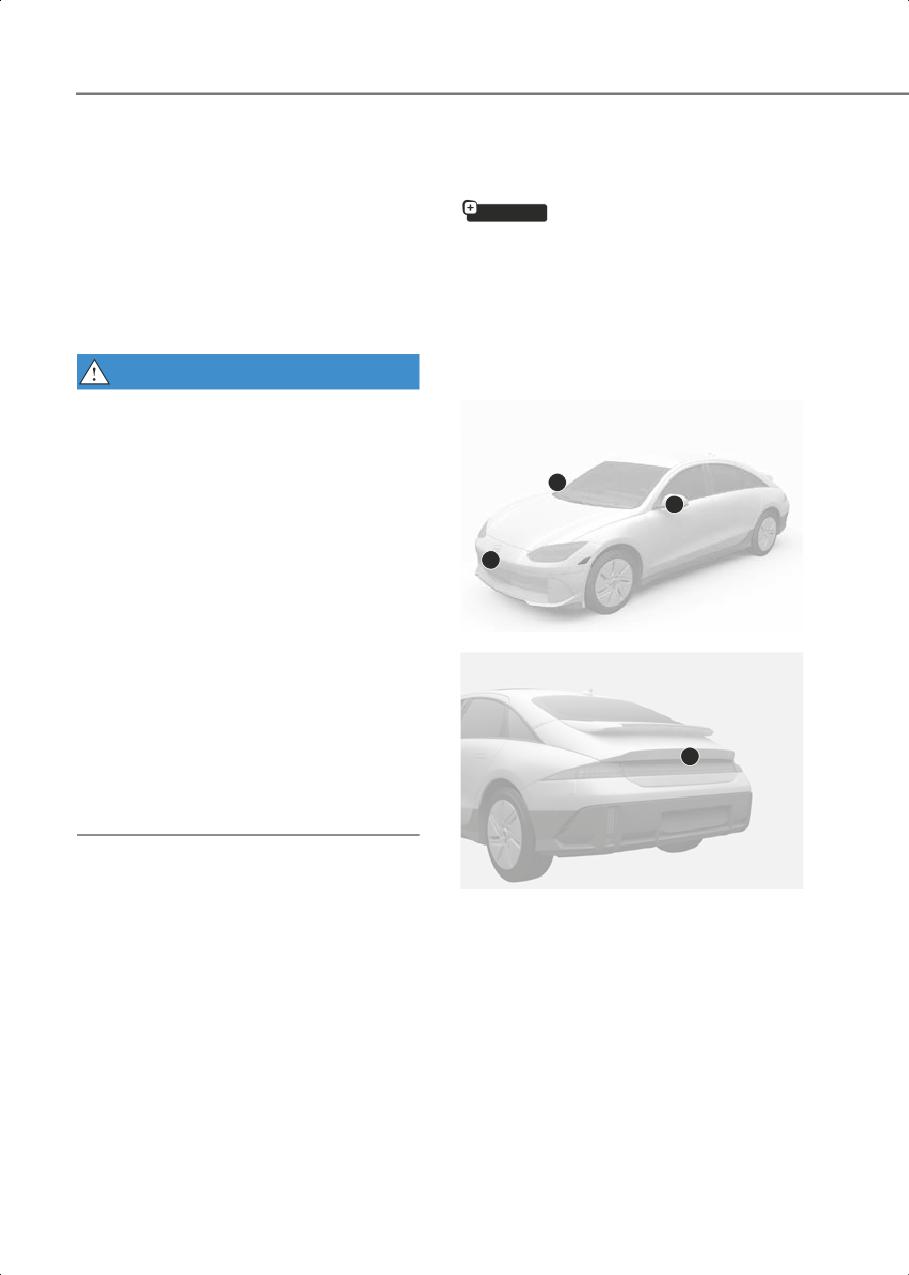
Driver Assistance System
Rear View Monitor
Surround View Monitor
Malfunction and Limitations
(SVM)
if equipped
Rear View Monitor malfunction
Surround View Monitor uses the wide
When Rear View Monitor is not working
view cameras and displays images
properly, or the screen flickers, or the
around your vehicle through the
camera image does not display properly,
infotainment system screen to help with
have the vehicle inspected by an
safe parking or driving.
authorized HYUNDAI dealer.
WARNING
Detecting sensor
• The rear view camera does not cover
the complete area behind the vehicle.
The driver should always check the rear
area directly through the inside
3
rearview mirror and outer side view
2
mirror before parking or backing up.
• The image shown on the screen may
differ from the actual distance of the
1
object. Make sure to directly check the
vehicle's surroundings for safety.
• Always keep the rear view camera lens
B7006201
clean. If the lens is covered with foreign
material, it may adversely affect
camera performance and Rear View
Monitor may not operate properly.
However, do not use chemical solvents
such as strong detergents containing
4
high alkaline or volatile organic
solvents (gasoline, acetone, etc.). This
may damage the camera lens.
B7006202
(1) Wide-front view camera
(2) Wide-side view camera (Below the
side view mirror)
(3) Wide-side view camera (Below the
side view mirror)
(4) Wide-rear view camera
Refer to the picture above for the detailed
location of the detecting sensors.
7-108
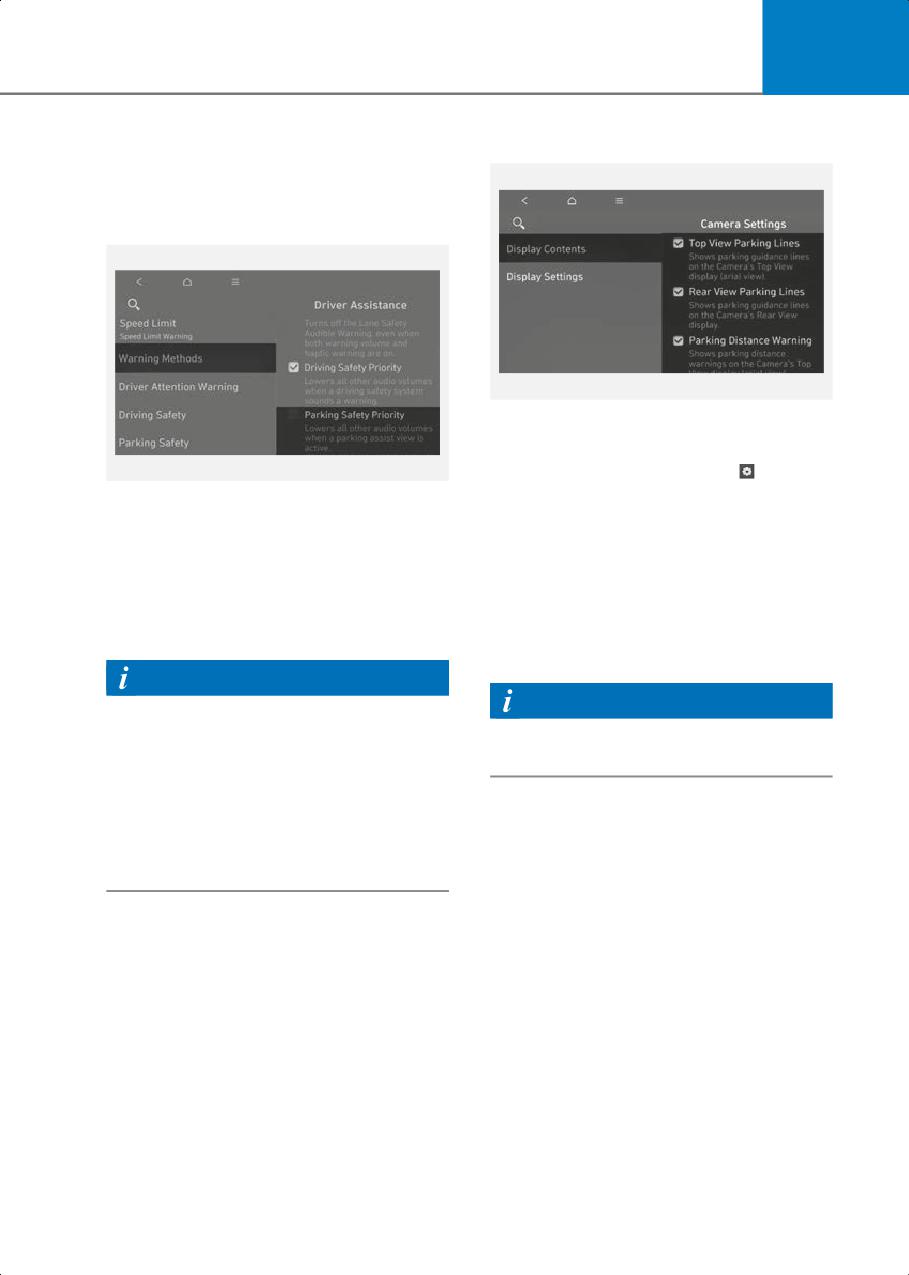
7
Surround View Monitor
Camera settings
Settings
Warning Methods
B7006303
• You can change Surround View Monitor
Display Contents or Display Settings
by touching the setup icon (
) on the
B7005901
screen while Surround View Monitor is
With the vehicle on, go to Setup > Vehicle
operating, or selecting Setup > Vehicle
> Driver Assistance > Warning Methods
> Parking Safety > Camera Settings
from the Settings in the infotainment
from the Settings menu while the
system to select the following:
vehicle is on.
• Parking Safety Priority: Your vehicle
• In the Display Contents, you can
lowers all other audio volumes when
change settings for Top View Parking
Surround View Monitor is operating.
Lines, Rear View Parking Lines and
Parking Distance Warning.
Information
Information
• If you change the Warning Methods,
Warning Methods of other Driver
There may be no Setting menu depending
Assistance systems may change.
on the feature applied to your vehicle.
• If the vehicle is restarted, Warning
Methods will maintain the last setting.
Parking Distance Warning
• There may be no Settings menu
depending on the feature applied to
When the Parking Distance Warning is
your vehicle.
selected, parking distance warning is
displayed on the right side of the
Surround View Monitor screen.
7-109
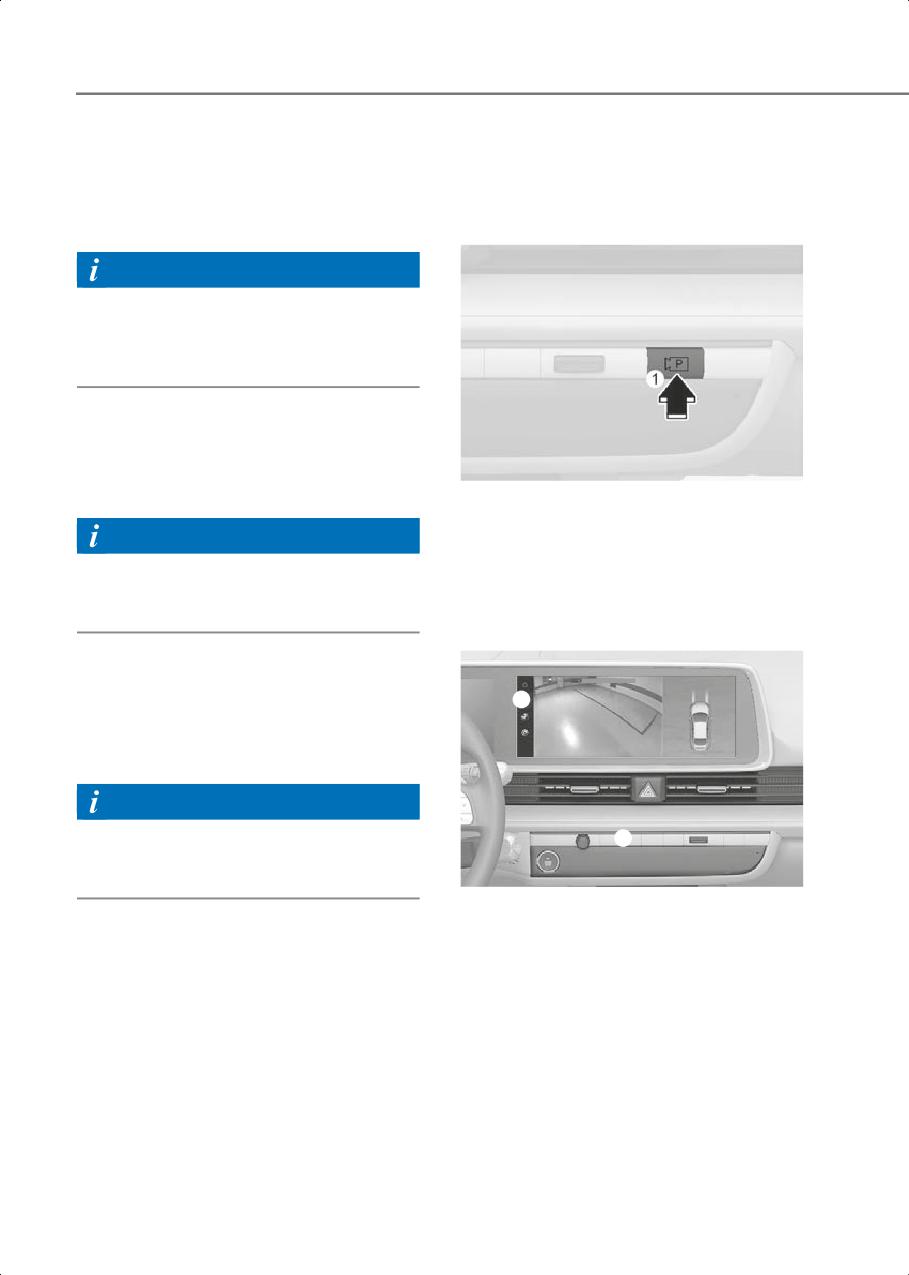
Driver Assistance System
Top View Parking Guidance
Surround View Monitor
When the Top View Parking Lines is
Operation
selected, parking guidance is displayed
on the right side of the Surround View
Parking/View button
Monitor screen.
Information
The horizontal guideline of the Rear Top
View Parking Guidance shows the trunk
opening distance and the distance of 1.6
ft. (0.5 m), 6.6 ft. (2 m) from the vehicle.
Rear View Parking Guidance
When the Rear View Parking Lines is
selected, parking guidance is displayed in
B7006401
the rear view.
Press the Parking/View button (1) to turn
on Surround View Monitor.
Information
Press the button again to turn off the
The horizontal guideline shows the
function.
distance of 1.6 ft. (0.5 m), 3.3 ft. (1 m) and
7.6 ft. (2.3 m).
Front view
Surround View Monitor Auto On
$IFDL TVSSPVOEJOH GPS ZPVS TBGFUZ
With the vehicle on, select Driver
2
Assistance > Parking Safety > Surround
View Monitor Auto On from the Settings
menu to use the function.
Information
For more information on Surround View
3
Monitor Auto On, refer to the “Surround
View Monitor Operation” in this chapter.
B7006402
The front image is displayed on the screen
when the gear is in N (Neutral) or D (Drive)
to assist in parking. Using the view button
(2) you may select top view, front view
and side view.
7-110

7
Operating conditions
Off conditions
• The gear is in N (Neutral) or D (Drive),
• The gear is shifted from R (Reverse) to P
and vehicle speed is 6 mph (10 km/h) or
(Park).
less.
• The Parking/View button (1) is pressed,
• The Parking/View button (1) is pressed,
while the gear is in P (Park).
while the gear is in N (Neutral) or D
(Drive), and vehicle speed is 6 mph (10
Information
km/h) or less.
When the gear is in R (Reverse), the rear
• Surround View Monitor Auto On
view does not turn off even if the
function will operate when the
infotainment system button (3) is
following conditions are satisfied:
pressed.
- With Setup > Vehicle > Driver
Assistance > Parking Safety >
Surround View Monitor Auto On
3D view
selected from the Settings menu, the
The 3D view shows the image around the
front view while parking is displayed.
vehicle from various angles.
You can change angles by tapping the
Off conditions
screen. Press the 3D View button again to
• The Parking/View button (1) or the
return to the initial angle.
Infotainment system button (3) is
3D view will turn on when the 3D view is
Pressed.
selected among the view buttons (2)
• Vehicle speed is above 6 mph (10
under the following conditions:
km/h).
• The gear is in P (Park), N (Neutral) or D
• The gear is shifted to P (Park).
(Drive) when vehicle speed is below 6
mph (10 km/h).
Information
• The Surround View Monitor is turned on
Surround View Monitor will turn off when
when the gear is in R (Reverse).
vehicle speed is above 6 mph (10 km/h).
When the gear is in P (Park), N (Neutral) or
However, Surround View Monitor will not
D (Drive), 3D view will turn off under the
turn on again although vehicle speed
following conditions:
drops below 6 mph (10 km/h).
• The gear is shifted to P (Park).
• The Parking/View button (1) is pressed.
Rear view
• The infotainment system button (3) is
The rear image is displayed on the screen
pressed.
when the gear is in R (Reverse) or P (Park)
• The Home button (2) is pressed.
to assist in parking. Using the view button
• Vehicle speed is above 6 mph (10
(2) you may select top view, rear view and
km/h).
side view.
When the gear is in R (reverse), 3D view
Operating conditions
will turn off under the following
conditions.
• The gear is shifted to R (Reverse).
• The gear is shifted to P (Park).
• The Parking/View button (1) is pressed,
while the gear is in P (Park).
Information
3D view does not display guidelines.
7-111
Driver Assistance System
Surround View Monitor
• Always keep the camera lens clean.
Malfunction and Limitations
If the lens is covered with foreign
material, it may adversely affect
camera performance and Surround
Surround View Monitor malfunction
View Monitor may not operate
When Surround View Monitor is not
properly. However, do not use
working properly, or the screen flickers,
chemical solvents such as strong
or the camera image does not display
detergents containing high alkaline or
properly, have the vehicle inspected by
volatile organic solvents (gasoline,
an authorized HYUNDAI dealer.
acetone, etc.). This may damage the
camera lens.
Limitations of Surround View
Monitor
• The screen may be displayed
Information
abnormally, and an icon will appear at
Surround View Monitor uses the cameras
the top left side of the screen under the
installed on the vehicle to show images
following circumstances:
around the vehicle through the
- The trunk is opened
infotainment system. The image shown
- The driver or front passenger door is
on the screen may look unnatural
opened
depending on the surroundings.
- The side view mirror is folded
WARNING
• Always look around your vehicle to
make sure there are no objects or
obstacles before moving the vehicle.
What you see on the screen may differ
from the actual vehicle’s location.
• The image shown on the screen may
differ from the actual distance of the
object. Make sure to directly check the
vehicle's surroundings for safety.
• Surround View Monitor is designed to
be used on a flat surface.
Therefore, if used on roads with
different heights such as curbs and
speed bumps, the image in the screen
may not look correct.
7-112
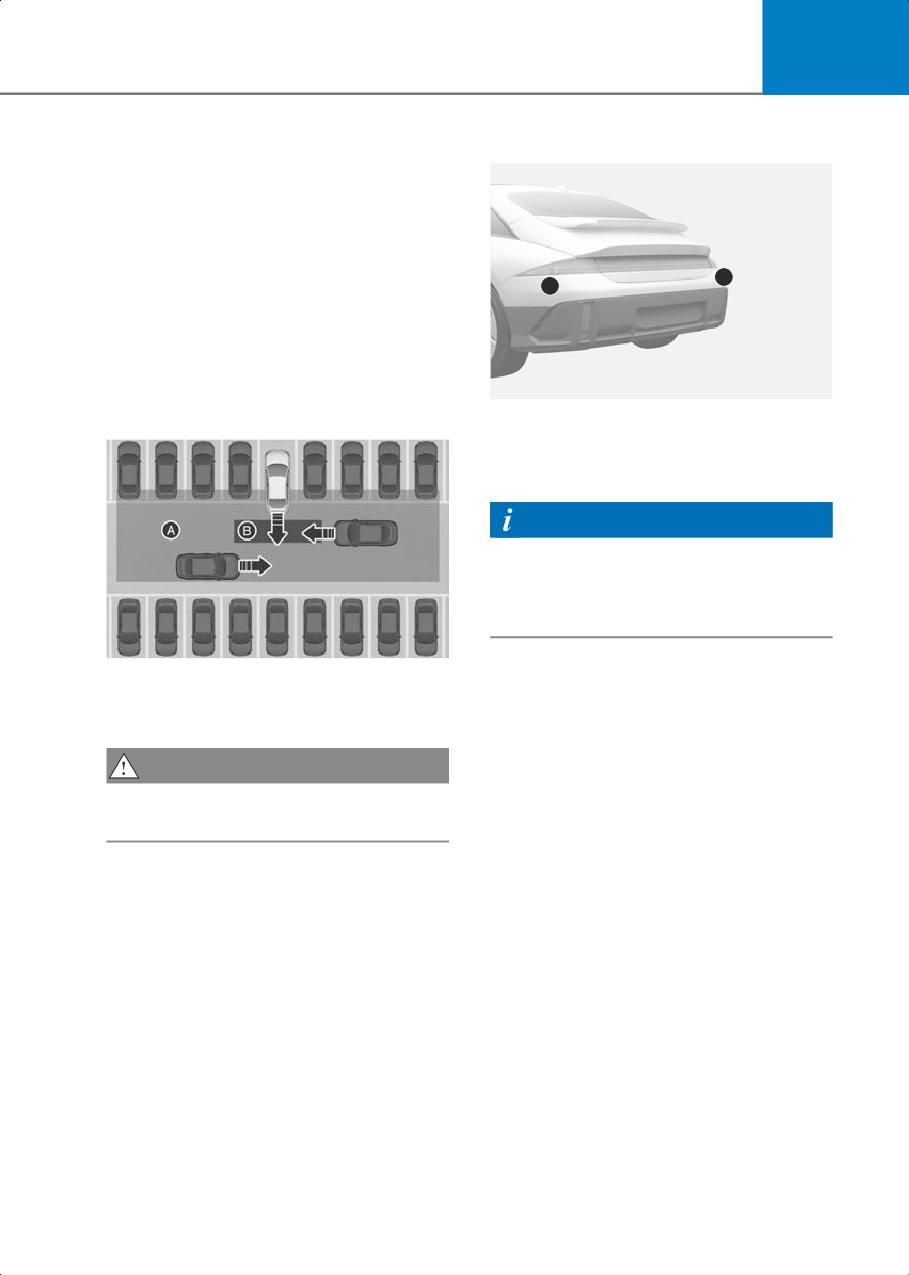
7
Detecting sensor
Rear Cross-Traffic
Collision-Avoidance
Assist (RCCA)
Rear Cross-Traffic Collision-Avoidance
Assist detects vehicles approaching from
1
1
the rear left or right while your vehicle is
reversing and warns you of a possible
collision with a warning message and a
warning sound. Also, Rear Cross-Traffic
Collision-Avoidance Assist may assist
with braking your vehicle to help avoid a
B7006602
collision.
(1) Rear corner radar
Refer to the picture above for the detailed
location of the detecting sensors.
Information
For more information on the precautions
of the rear corner radar, refer to the
“Blind-Spot Collision-Avoidance Assist
(BCA)” section in this chapter.
B7006601
[A] Rear Cross-Traffic Collision Warning operating
range,
[B] Rear Cross-Traffic Collision-Avoidance Assist
operating range
CAUTION
Warning timing may vary depending on
the speed of the approaching vehicle.
7-113
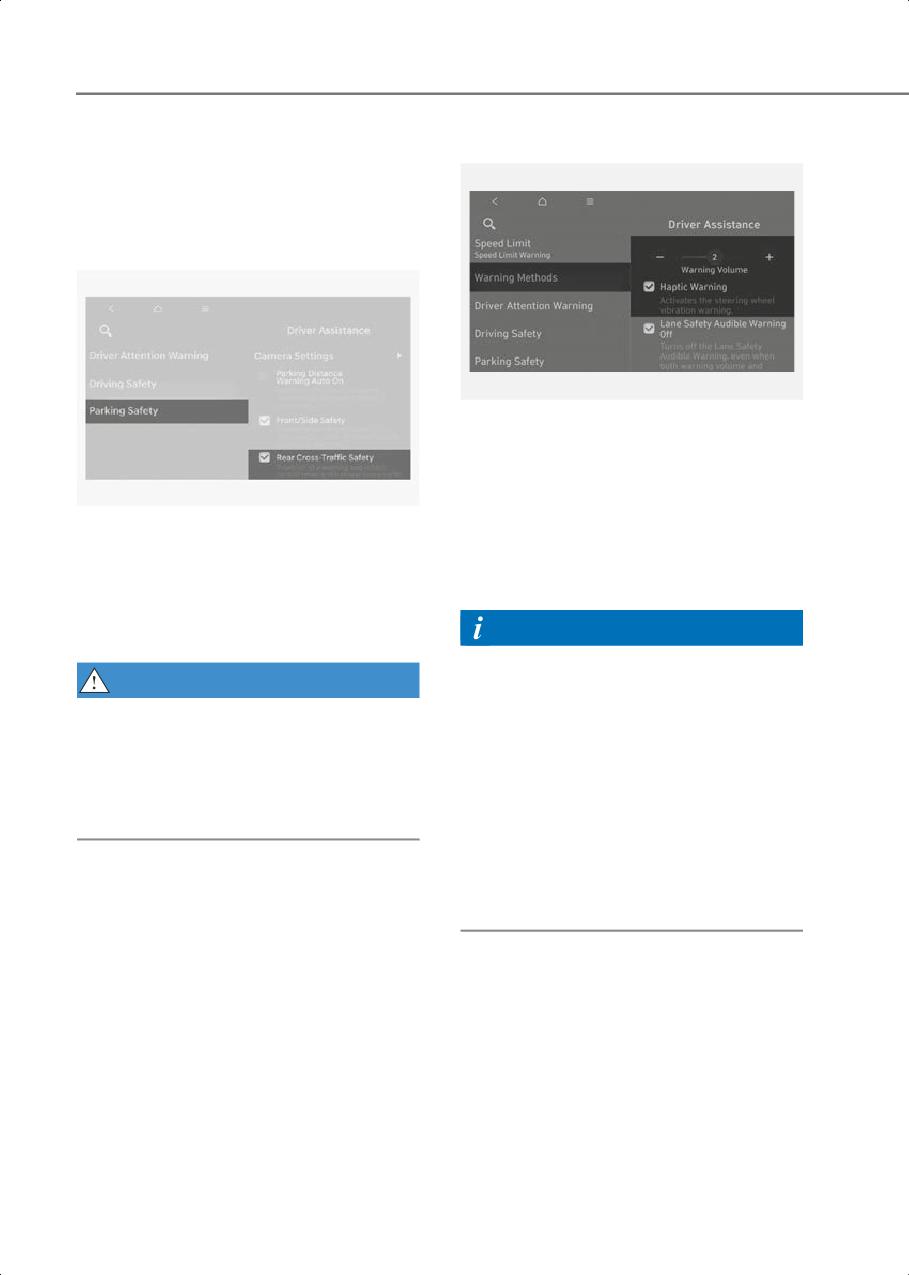
Driver Assistance System
Rear Cross-Traffic
Warning Methods
Collision-Avoidance Assist
Settings
Rear Cross-Traffic Safety
B7000205
With the vehicle on, go to Setup > Vehicle
> Driver Assistance > Warning Methods
from the Settings in the infotainment
system to select the following:
B7006701
• Warning Volume: The Warning Volume
With the vehicle on, select Setup >
can be adjusted.
Vehicle > Parking Safety > Rear-Cross
• Haptic Warning: The steering wheel
Traffic Safety from the settings menu to
vibration can be set.
turn on Rear Cross-Traffic
Collision-Avoidance Assist and deselect
Information
to turn off the function.
• If you change the Warning Methods,
WARNING
Warning Methods of other Driver
Assistance systems may change.
When the vehicle is restarted, Rear
• If the vehicle is restarted, Warning
Cross-Traffic Collision-Avoidance Assist
Methods will maintain the last setting.
will always turn on. However, the driver
should always be aware of the
• There may be no Settings menu
surroundings and drive safely especially if
depending on the feature applied to
Rear Cross-Traffic Safety is deselected.
your vehicle.
• The Warning Volume and Haptic
Warning cannot be turned off at the
same time. When one of the warnings is
turned off, the other is activated.
Rear Cross-Traffic
Collision-Avoidance Assist
Operation
Rear Cross-Traffic Collision-Avoidance
Assist will warn and help control the
vehicle depending on collision risk level:
‘Collision Warning’, ‘Emergency Braking’
and ‘Stopping vehicle and ending brake
control’.
7-114
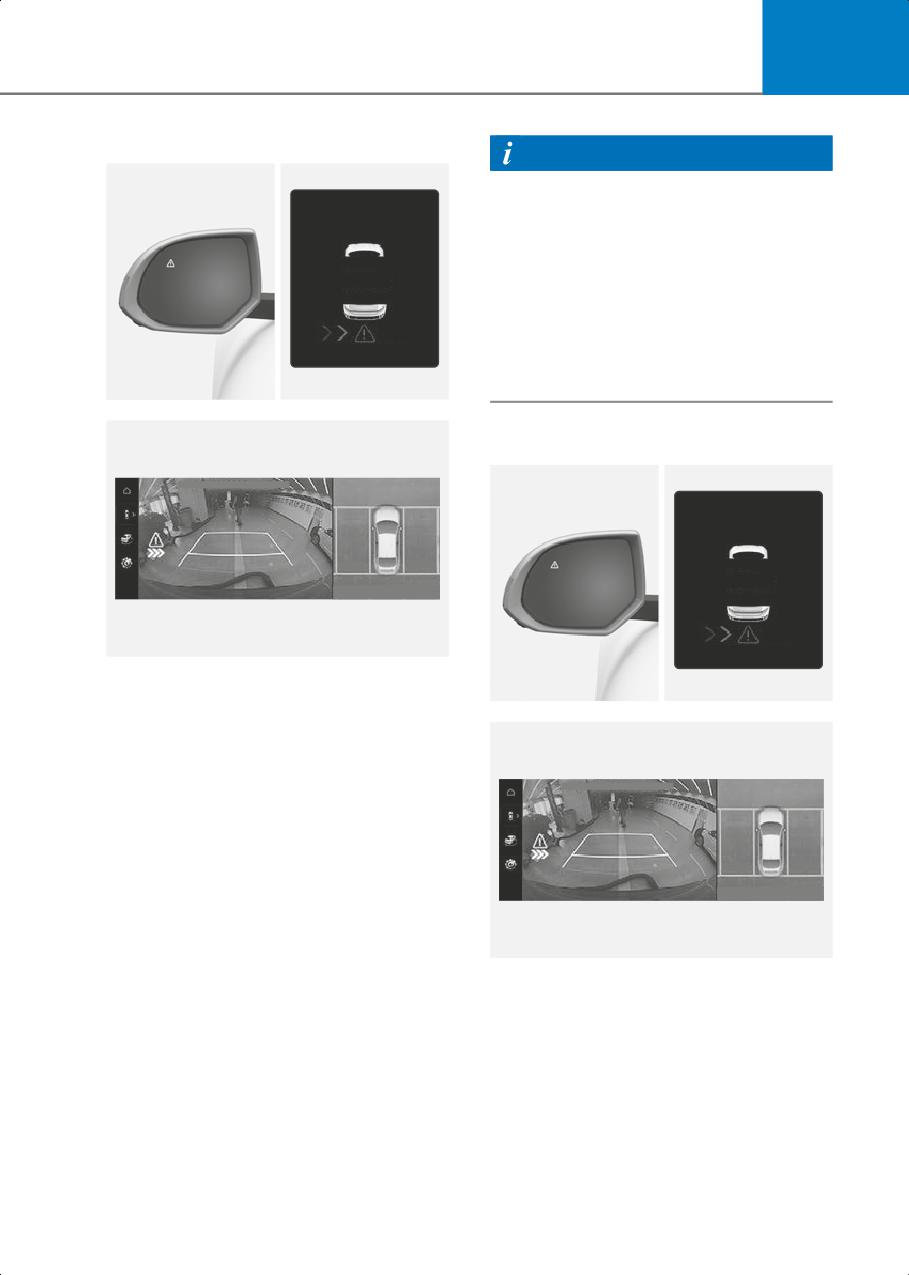
7
Collision Warning
Information
• If the operating conditions are satisfied,
there will be a warning whenever the
vehicle approaches from the left or
right side even though your vehicle
speed is 0 mph (0 km/h).
$PMMJTJPO 8BSOJOH
• The images and colors in the
instrument cluster may differ
depending on the instrument cluster
type or theme selected from the
instrument cluster.
B7006801
Emergency Braking
$IFDL TVSSPVOEJOH GPS ZPVS TBGFUZ
&NFSHFODZ #SBLJOH
B7006803
• To warn the driver of an approaching
vehicle from the rear left/right side of
B7006804
your vehicle, the warning light on the
side view mirror will blink and a warning
will appear on the instrument cluster. At
$IFDL TVSSPVOEJOH GPS ZPVS TBGFUZ
the same time, an audible warning will
sound. If Rear View Monitor is
operating, a warning will also appear on
the infotainment system.
• Rear Cross-Traffic Collision-Avoidance
Assist will operate when all the
following conditions are satisfied:
• The gear is shifted to R (Reverse)
B7006803
• Vehicle speed is below 5 mph (8 km/h)
• To warn the driver of an approaching
• The approaching vehicle is within about
vehicle from the rear left/right side of
82 ft. (25 m) from the left and right side
your vehicle, the warning light on the
of your vehicle
side view mirror will blink and a warning
• The speed of the vehicle approaching
message will appear on the instrument
from the left and right is above 3 mph (5
cluster. At the same time, an audible
km/h)
warning will sound. A warning will also
appear on the infotainment system.
7-115
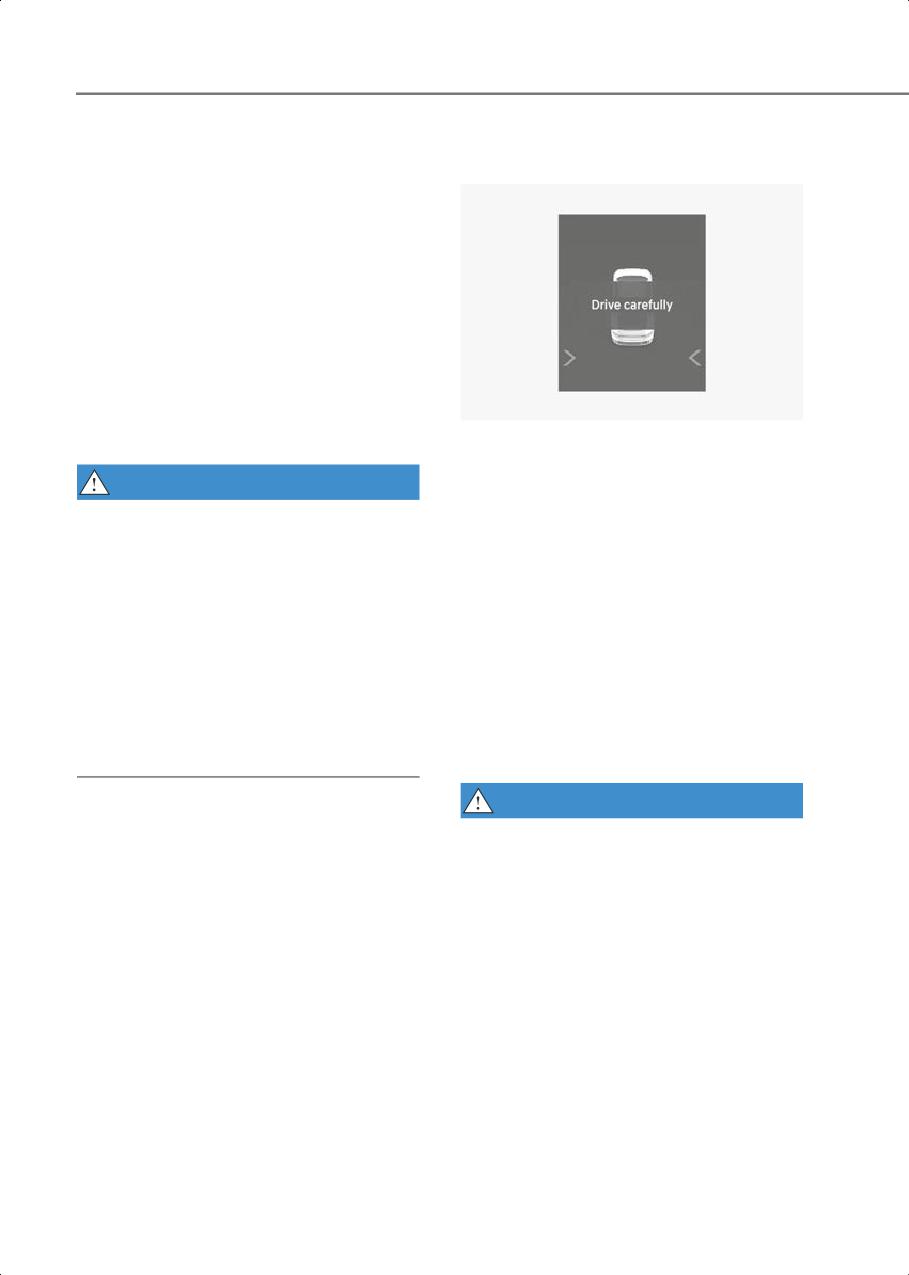
Driver Assistance System
• Rear Cross-Traffic Collision-Avoidance
Stopping vehicle and ending brake
Assist will operate when all the
control
following conditions are satisfied:
• The gear is shifted to R (Reverse)
• Vehicle speed is below 5 mph (8 km/h)
• The approaching vehicle is within about
5 ft. (1.5 m) from the left and right side
of your vehicle
• The speed of the vehicle approaching
from the left and right is above 3 mph (5
km/h)
• Emergency braking will be assisted to
help prevent collision with approaching
B7006807
vehicles from the left and right.
• When the vehicle is stopped due to
emergency braking, the ‘Drive
WARNING
carefully’ warning message will appear
Brake control will end when:
on the instrument cluster.
• The approaching vehicle is out of the
• For your safety, the driver should
detecting range
depress the brake pedal immediately
and check the surroundings.
• The approaching vehicle passes behind
your vehicle
• Brake control will end after the vehicle
is stopped by emergency braking for
• The approaching vehicle does not drive
about 2 seconds.
toward your vehicle
• During emergency braking, braking
• The approaching vehicle speed slows
control by Rear Cross-Traffic
down
Collision-Avoidance Assist will
• The driver depresses the brake pedal
automatically cancel when the driver
with sufficient power
excessively depresses the brake pedal.
WARNING
Take the following precautions when
using Rear Cross-Traffic
Collision-Avoidance Assist:
• For your safety, only change the
Settings after parking the vehicle at a
safe location.
• If any other system’s warning message
is displayed or audible warning is
generated, Rear Cross-Traffic
Collision-Avoidance Assist warning
message may not be displayed and
audible warning may not be generated.
• You may not hear the warning sound of
Rear Cross-Traffic Collision-Avoidance
Assist if the surrounding is noisy.
7-116

7
•
Rear Cross-Traffic Collision-Avoidance
CAUTION
Assist may not operate if the driver
applies the brake pedal to avoid
The brake control may not operate
collision.
properly depending on the status of ESC
•
During Rear Cross-Traffic
(Electronic Stability Control).
Collision-Avoidance Assist operation,
There will only be a warning when:
the vehicle may stop suddenly injuring
• The ESC (Electronic Stability Control)
passengers and shifting loose objects.
warning light is on
Always have the seat belt on and keep
loose objects secured.
• ESC (Electronic Stability Control) is
engaged in a different function
•
Even if there is a problem with Rear
Cross-Traffic Collision-Avoidance
Assist, the vehicle’s basic braking will
function normally.
Information
•
When Rear Cross-Traffic
If braking is assisted by Rear Cross-Traffic
Collision-Avoidance Assist is operating,
Collision-Avoidance Assist, the driver
braking control by the function will
must immediately depress the brake
automatically cancel when the driver
pedal and check vehicle surroundings.
excessively depresses the accelerator
• Brake control will end when the driver
pedal.
depresses the brake pedal with
•
Rear Cross-Traffic Collision-Avoidance
sufficient power.
Assist does not operate in all situations
• After shifting the gear to R (Reverse),
and cannot avoid all collisions.
braking control will operate once for
•
Rear Cross-Traffic Collision-Avoidance
left and right vehicle approach.
Assist may warn the driver late or may
not warn the driver depending on the
road and driving conditions.
•
The driver has the responsibility to
control the vehicle. Do not solely
depend on Rear Cross-Traffic
Collision-Avoidance Assist. Rather,
maintain a safe braking distance, and if
necessary, depress the brake pedal to
reduce driving speed or to stop the
vehicle.
•
Never deliberately operate Rear
Cross-Traffic Collision-Avoidance
Assist on people, animal, objects, etc. It
may cause serious injury or death.
7-117
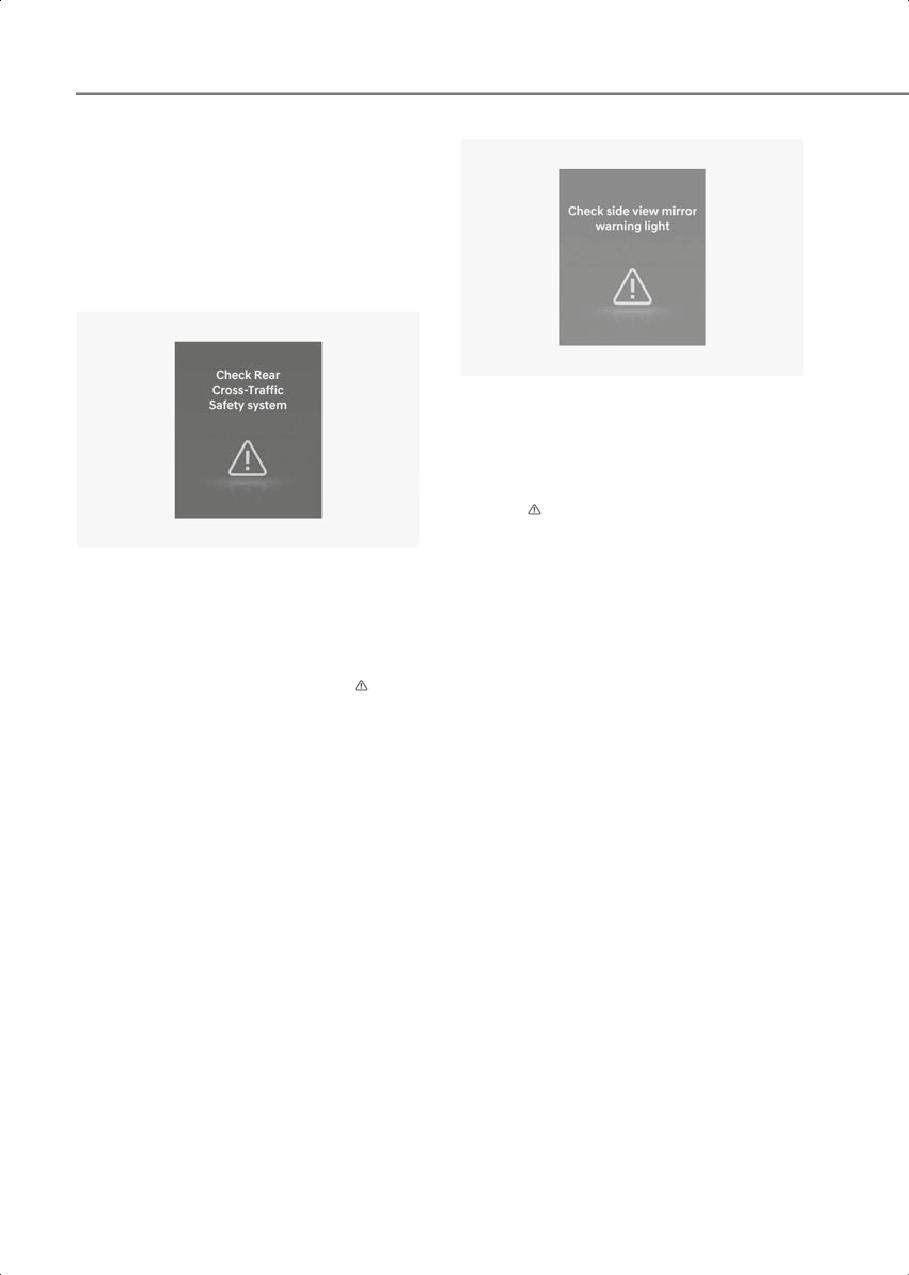
Driver Assistance System
Rear Cross-Traffic
Collision-Avoidance Assist
Malfunction and Limitations
Rear Cross-Traffic
Collision-Avoidance Assist
malfunction
B7001602
When the side view mirror warning light is
not working properly, the ‘Check side
view mirror warning light’ warning
message will appear on the instrument
cluster for several seconds, and the
master (
) warning light will illuminate on
the instrument cluster. If this occur, have
B7006901
the vehicle inspected by an authorized
HYUNDAI dealer.
When Rear Cross-Traffic
Collision-Avoidance Assist is not working
properly, the ‘Check Rear Cross-Traffic
Safety system’ warning message will
appear on the instrument cluster for
several seconds, and the master (
)
warning light will illuminate on the
instrument cluster. If this occur, have
vehicle inspected by an authorized
HYUNDAI dealer.
7-118
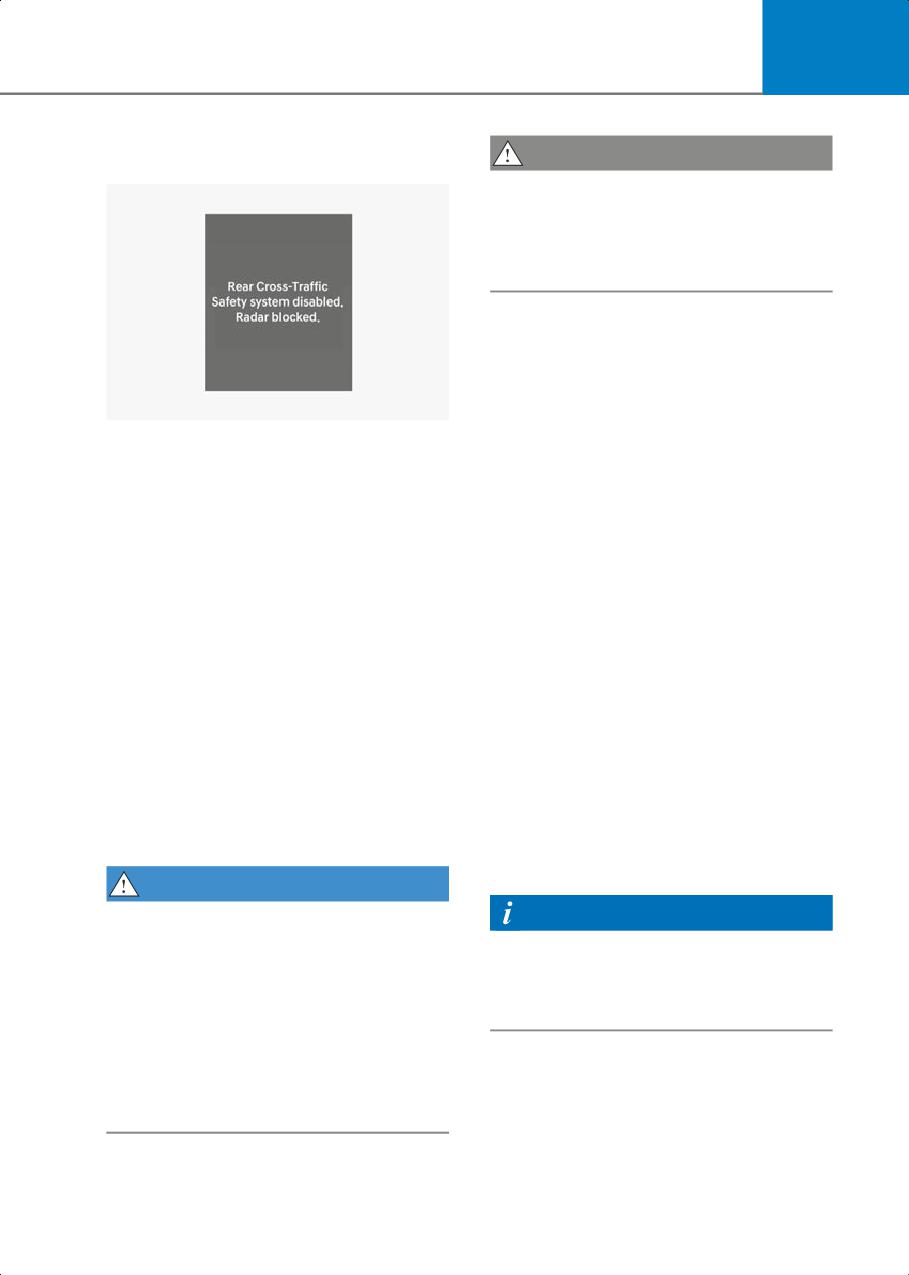
7
Rear Cross-Traffic
CAUTION
Collision-Avoidance Assist disabled
Turn off Rear Cross-Traffic
Collision-Avoidance Assist to install or
remove a trailer, carrier, or another
attachment. Turn on Rear Cross-Traffic
Collision-Avoidance Assist when finished.
Limitations of Rear Cross-Traffic
Collision-Avoidance Assist
Rear Cross-Traffic Collision-Avoidance
Assist may not operate properly, or it may
B7006903
operate unexpectedly under the
following circumstances:
When the rear bumper around the
rear-side radar or sensor is covered with
• Departing from where trees or grass are
foreign material, such as snow or rain, or
overgrown
installing a trailer or carrier, it can reduce
• Departing from where roads are wet
the detecting performance and
• Speed of the approaching vehicle is fast
temporarily limit or disable Rear
or slow
Cross-Traffic Collision-Avoidance Assist.
Braking control may not work, driver’s
If this occurs, the ‘Rear Cross-Traffic
attention is required in the following
Safety system disabled. Radar blocked’
circumstances:
warning message will appear on the
• The vehicle severely vibrates while
instrument cluster.
driving over a bumpy road, uneven road
Rear Cross-Traffic Collision-Avoidance
or concrete patch
Assist will operate properly when such
• Driving on a slippery surface due to
foreign material or trailer, etc., is
snow, water puddle, ice, etc.
removed.
If Rear Cross-Traffic Collision-Avoidance
• The tire pressure is low or a tire is
Assist does not operate properly after it is
damaged
removed, have the vehicle inspected by
• The braking system has been modified
an authorized HYUNDAI dealer.
• Remote Smart Parking Assist is
operating (if equipped)
WARNING
• Even though the warning message
Information
does not appear on the instrument
For more information on the limitations of
cluster, Rear Cross-Traffic
the rear corner radar, refer to the
Collision-Avoidance Assist may not
“Blind-Spot Collision-Avoidance Assist
operate properly.
(BCA)” section in this chapter.
• Rear Cross-Traffic Collision-Avoidance
Assist may not operate properly in an
area (for example, open terrain), where
any objects are not detected after
turning ON the vehicle.
7-119
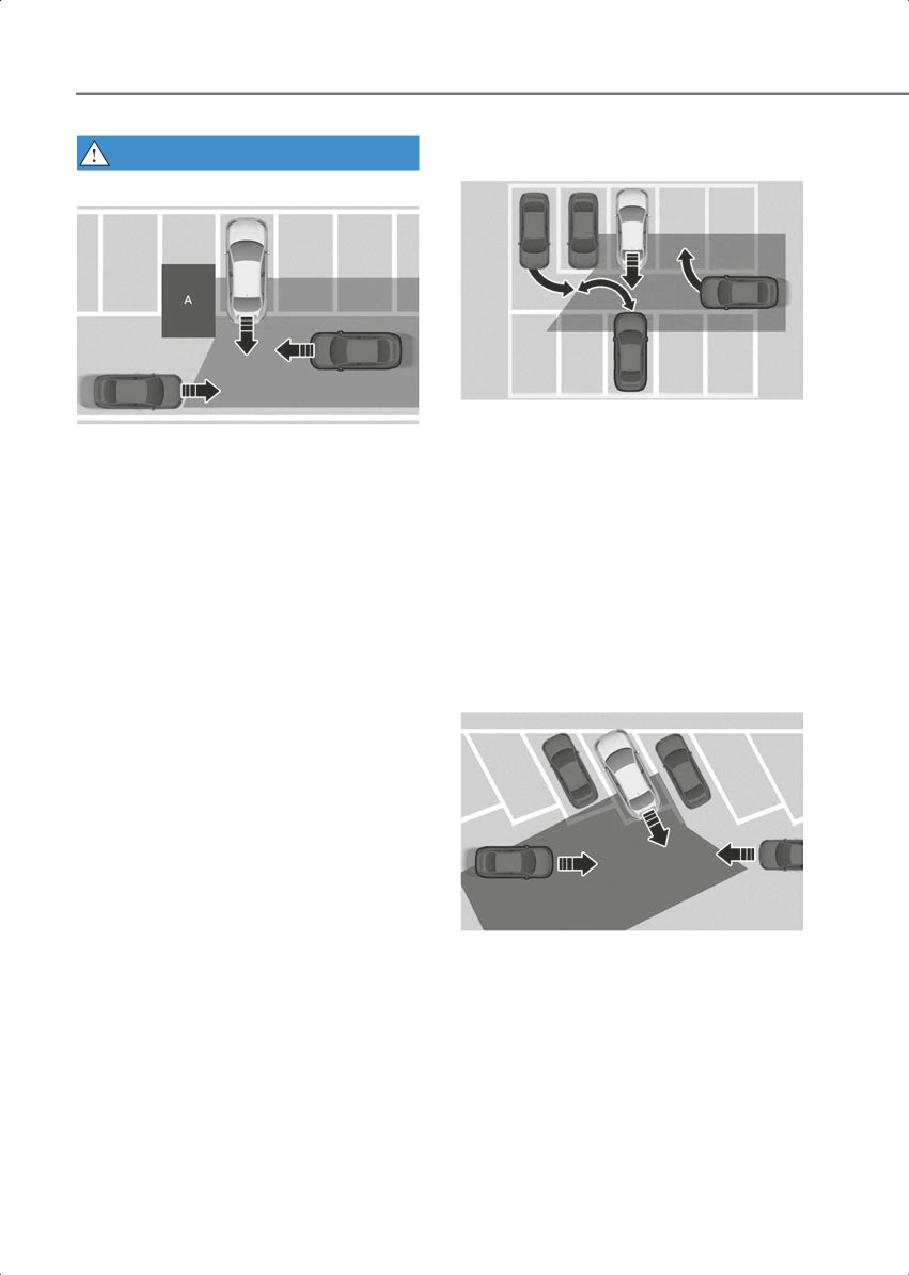
Driver Assistance System
• When the vehicle is in a complex
WARNING
parking environment
• Driving near a vehicle or structure
B7006905
B7006904
Rear Cross-Traffic Collision-Avoidance
[A] Structure
Assist may detect vehicles which are
Rear Cross-Traffic Collision-Avoidance
parking or pulling out near your vehicle
Assist may be limited when driving near
(for example, a vehicle leaving beside
a vehicle or structure, and may not
your vehicle, a vehicle parking or
detect the vehicle approaching from
pulling out in the rear area, a vehicle
the left or right. If this occurs, the
approaching your vehicle making a
function may not warn the driver or
turn, etc.). If this occurs, the function
control the brakes when necessary.
may unnecessarily warn the driver and
control the brake.
Always check your surroundings while
backing up.
Always check your surroundings while
backing up.
• When the vehicle is parked diagonally
B7006906
Rear Cross-Traffic Collision-Avoidance
Assist may be limited when backing up
diagonally, and may not detect the
vehicle approaching from the left or
right. If this occurs, the function may
not warn the driver or control the
brakes when necessary.
Always check your surroundings while
backing up.
7-120
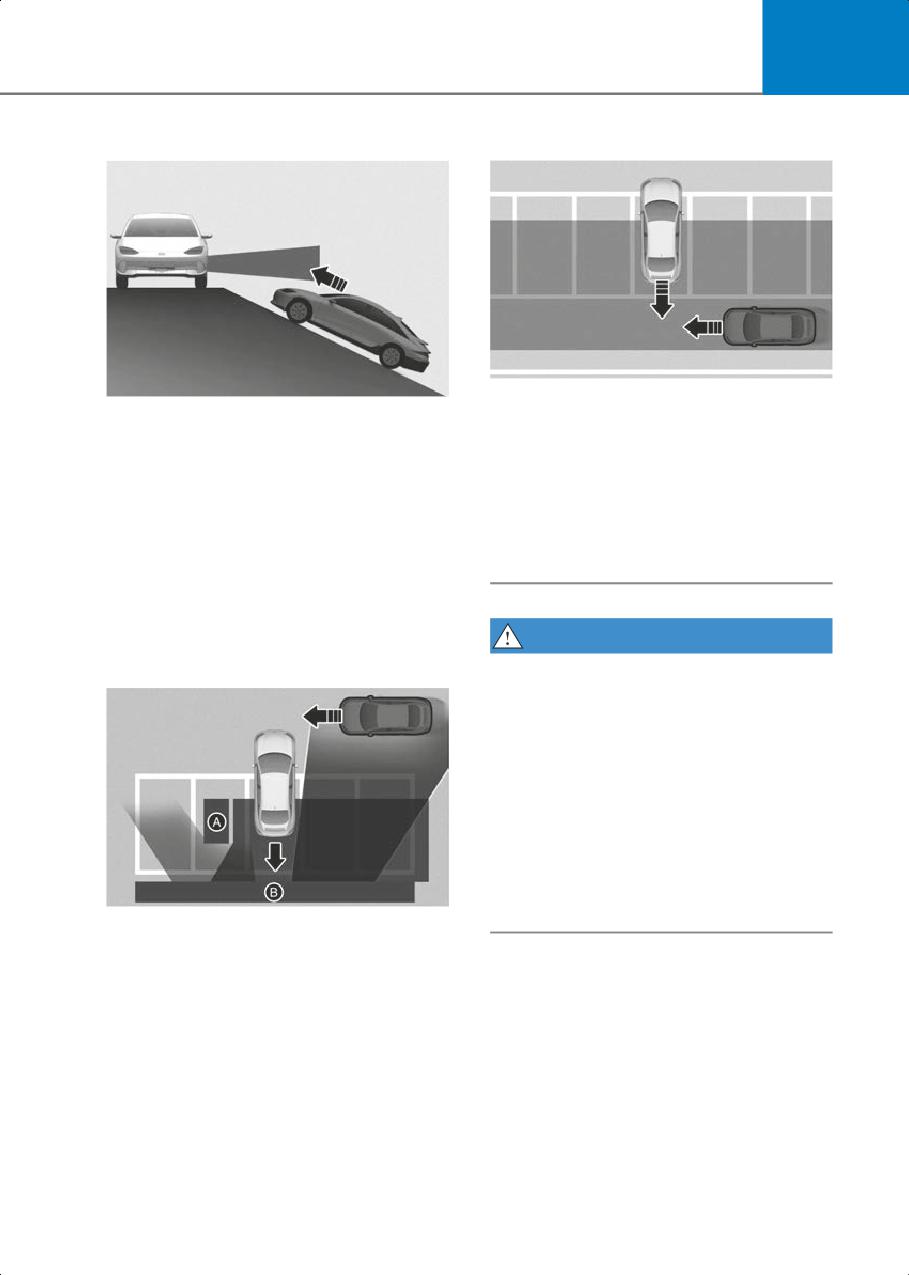
7
• When the vehicle is on or near a slope
• When the vehicle is parked rearward
B7006909
B7006907
Rear Cross-Traffic Collision-Avoidance
Rear Cross-Traffic Collision-Avoidance
Assist may detect vehicles passing by
Assist may be limited when the vehicle
behind you when parking in reverse
is on a uphill or downhill slope, or near
into a parking space. If this occurs, the
it, and may not detect the vehicle
function may unnecessarily warn the
approaching from the left or right. If
driver and control the brake.
this occurs, the function may not warn
Always check your surroundings while
the driver or control the brakes when
backing up.
necessary.
Always check your surroundings while
backing up.
WARNING
• Pulling into the parking space where
there is a structure
•
When you are towing a trailer or
another vehicle, turn off Rear
Cross-Traffic Collision-Avoidance
Assist for safety reasons.
•
Rear Cross-Traffic Collision-Avoidance
Assist may not operate properly if
interfered by strong electromagnetic
waves.
•
Rear Cross-Traffic Collision-Avoidance
Assist may not operate for 3 seconds
after the vehicle is started, or the rear
B7006908
corner radars are initialized.
[A] Structure
[B] Wall
Rear Cross-Traffic Collision-Avoidance
Assist may detect vehicles passing by in
front of you when parking in reverse
into a parking space with a wall or
structure in the rear or side area. If this
occurs, the function may unnecessarily
warn the driver and control the brake.
Always check your surroundings while
backing up.
7-121
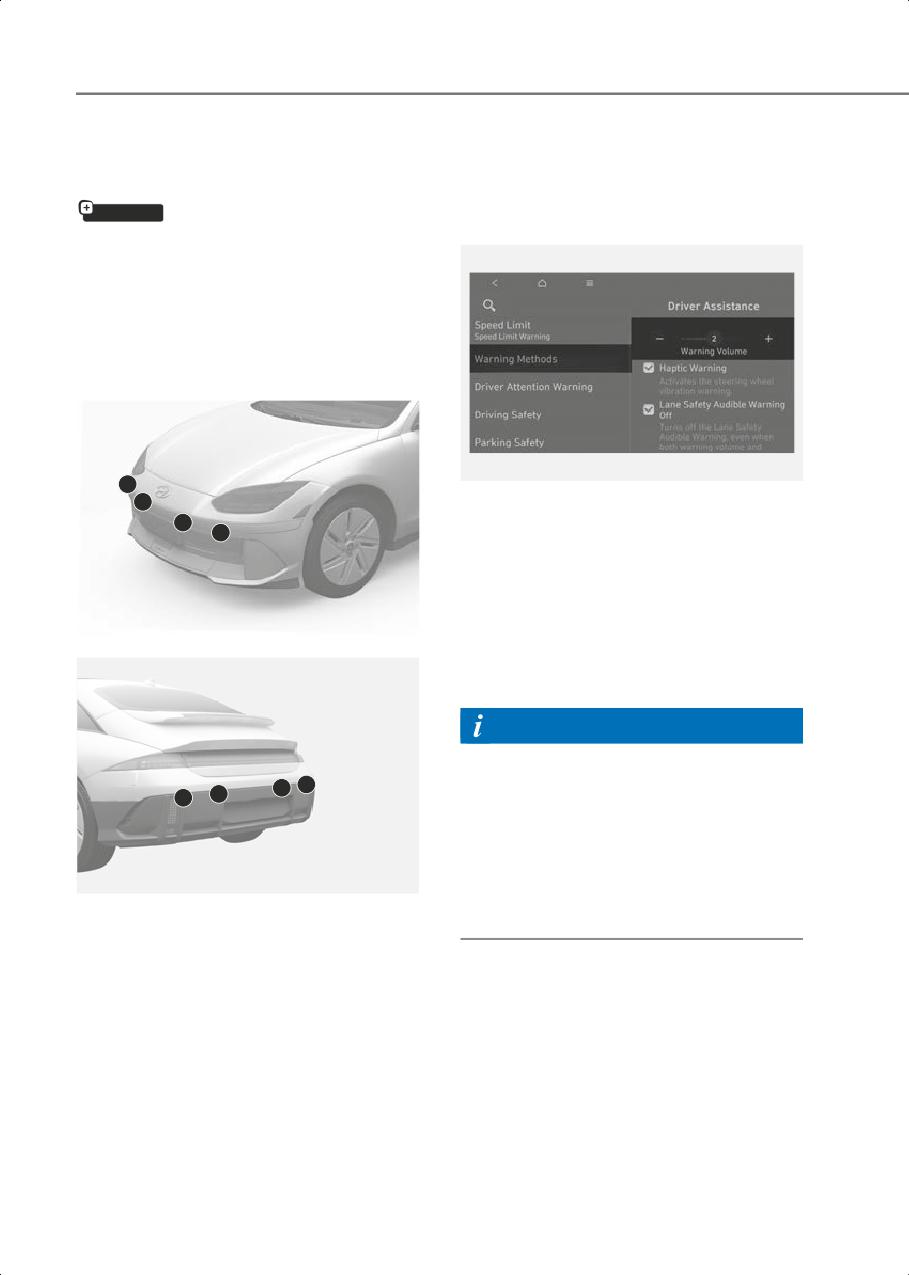
Driver Assistance System
Forward/Reverse Parking
Forward/Reverse Parking
Distance Warning Settings
Distance Warning (PDW)
if equipped
Warning Methods
Forward/Reverse Parking Distance
Warning can help warn the driver if an
obstacle is detected within a certain
distance when the vehicle is moving
forward or in reverse at low speeds.
Detecting sensor
1
B7001902_2
1
With the vehicle on, go to Setup > Vehicle
1
1
> Driver Assistance > Warning Methods
from the Settings in the infotainment
system to select the following:
• Warning Volume: The Warning Volume
can be adjusted.
B7007001
If you turn off the Warning Volume, for
your safety, the function may warn you
with a low volume.
Information
• If you change the Warning Methods,
2
2
Warning Methods of other Driver
2
2
Assistance systems may change.
• If the vehicle is restarted, Warning
Methods will maintain the last setting.
• There may be no Settings menu
B7007002
depending on the feature applied to
(1) Front ultrasonic sensors,
your vehicle.
(2) Rear ultrasonic sensors
Refer to the picture above for the detailed
Parking Distance Warning Auto On
location of the detecting sensors.
To use Parking Distance Warning Auto On
function, select Setup > Vehicle > Driver
Assistance > Parking Safety > Parking
Distance Warning Auto On from the
infotainment system settings menu.
7-122
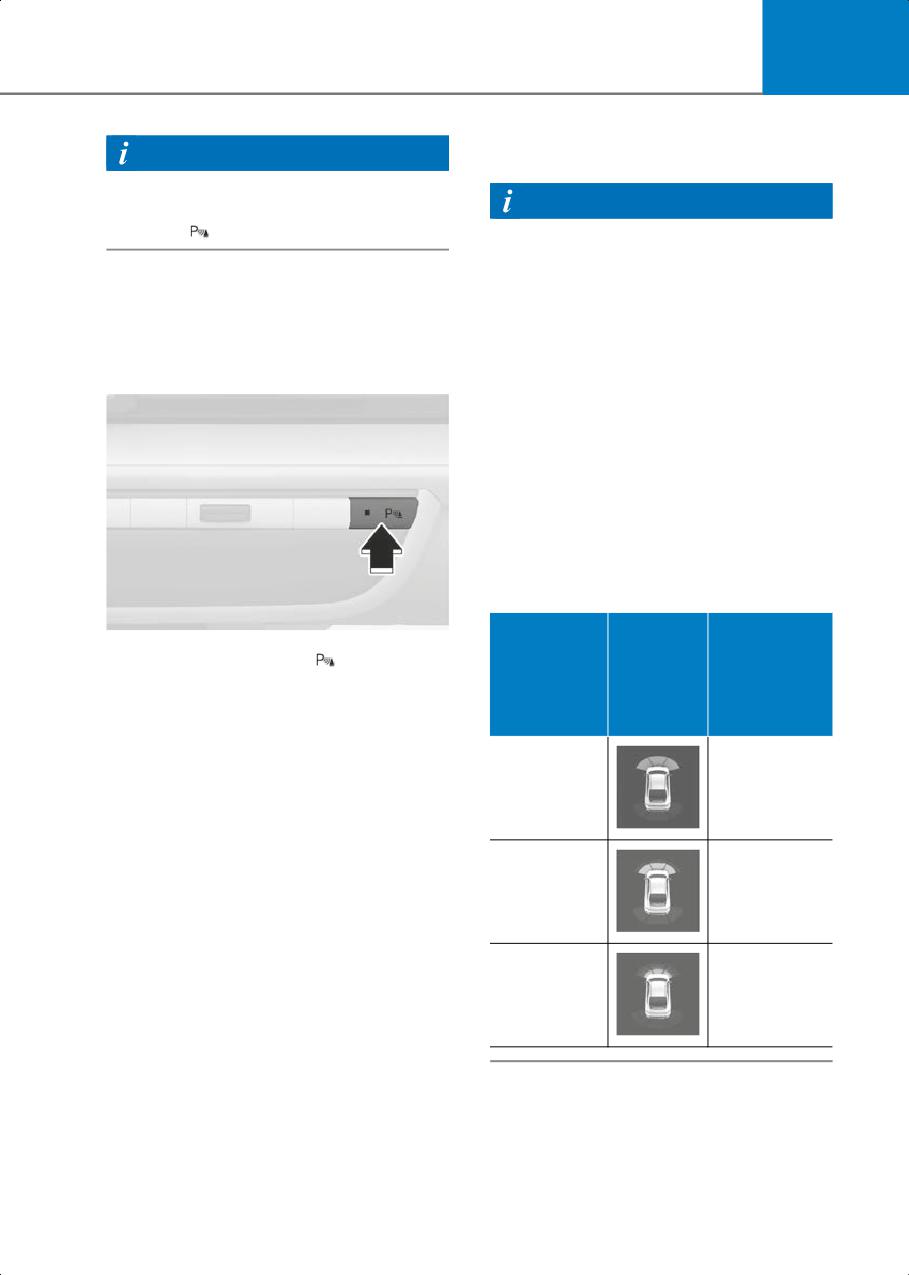
7
• The gear is shifted to R (only front
Information
corner warning is on)
When Parking Distance Warning Auto On
is selected, the Parking Safety button
Information
indicator (
) stays on.
• Forward Parking Distance Warning will
operate only when the vehicle’s
forward speed is below 6 mph (10
Forward/Reverse Parking
km/h).
Distance Warning Operation
• Forward Parking Distance Warning is
deactivated if the vehicle speed
reaches above 18 mph (30 km/h). It will
Parking Safety button
not reactivate although the vehicle
speed drops below 6 mph (10 km/h).
• Only the front outer ultrasonic sensor
will operate when the gear is in R
(Reverse).
(Only when Setup > Vehicle > Driver
Assistance > Parking Safety > Parking
Distance Warning Auto On is not
selected from the infotainment system
settings menu.)
Warning
B7007201
Indicator
Press the Parking Safety (
) button to
Distance
Warning
when
turn on Forward/Reverse Parking
from Object
Sound
Driving
Distance Warning. Press the button again
to turn off the function.
Forward
• When the gear is shift to R (Reverse),
Parking Distance Warning will
24-40 in.
Buzzer beeps
automatically turn on (Parking Safety
(60-100 cm)
intermittently
button indicator on).
Forward Parking Distance Warning
24-40 in.
Beeps more
Forward Parking Distance Warning will
(30-60 cm)
frequently
operate when one of the conditions is
satisfied.
• The gear is shifted from R (Reverse) to
D (Drive) with Reverse Parking Distance
within 12 in.
Beeps
Warning on
(30 cm)
continuously
• The gear is in D (Drive) and the Parking
Safety button indicator light is on
• Shift to D (Drive) when the function is
off (Only when Setup > Vehicle > Driver
Assistance > Parking Safety > Parking
Distance Warning Auto On is selected
from the infotainment system settings
menu.)
7-123
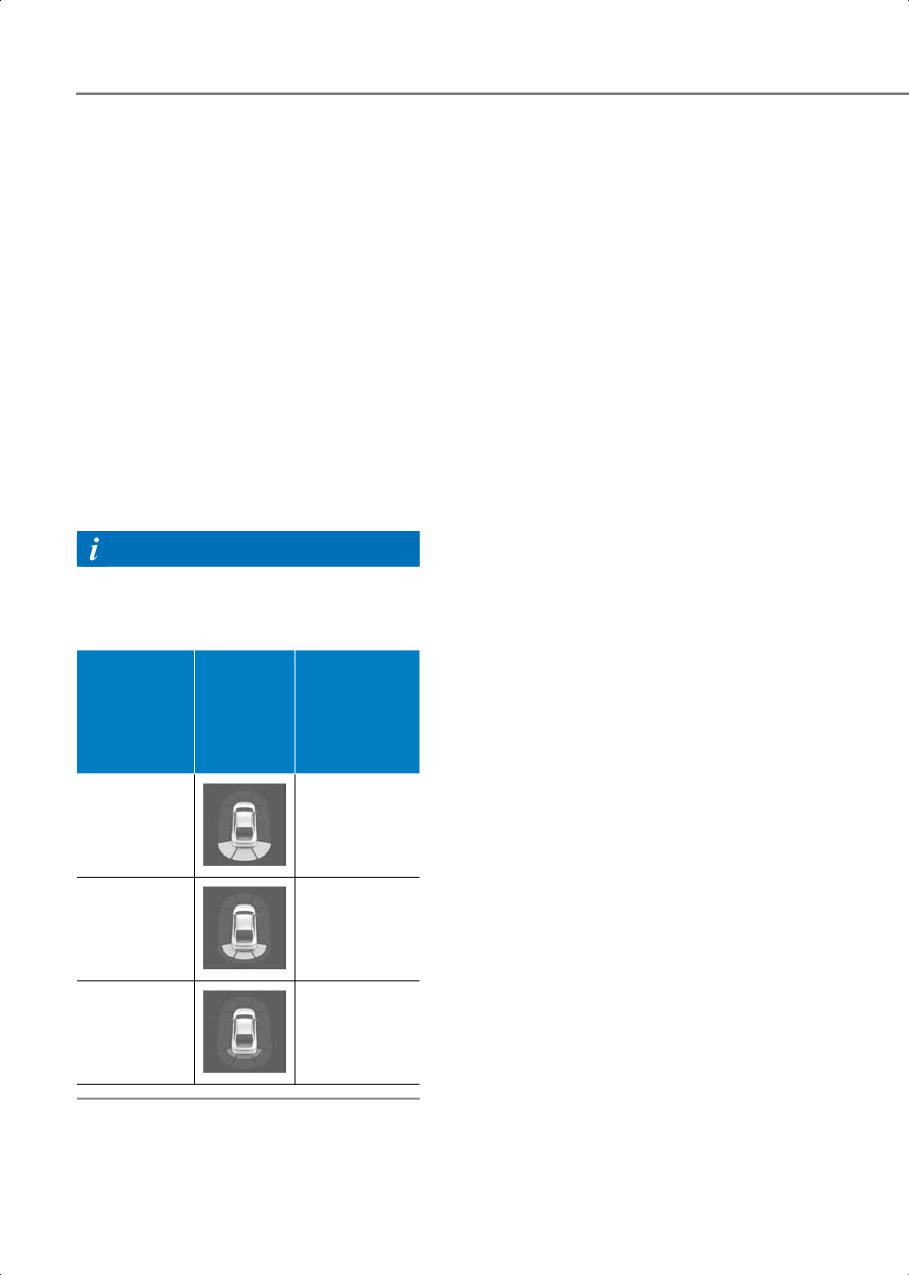
Driver Assistance System
• The corresponding indicator will
•
The corresponding indicator will
illuminate whenever each ultrasonic
illuminate whenever each ultrasonic
sensor detects a person, animal or
sensor detects a person, animal or
object in its sensing range. Also an
object in its sensing range. Also an
audible warning will sound.
audible warning will sound.
• When more than two objects are
•
When more than two objects are
detected at the same time, the closest
detected at the same time, the closest
one will be warned with an audible
one will be warned with an audible
warning.
warning.
• The shape of the indicator in the
•
The shape of the indicator in the
illustration may differ from the actual
illustration may differ from the actual
vehicle.
vehicle.
Reverse Parking Distance Warning
Reverse Parking Distance Warning will
operate under the following conditions.
• The gear is shifted to R (Reverse).
Information
Reverse Parking Distance Warning will
operate when the vehicle’s reverse speed
is below 6 mph (10 km/h).
Warning
Indicator
Distance
Warning
when
from Object
Sound
Driving
Backward
24-48 in.
Buzzer beeps
(60-120 cm)
intermittently
12-24 in.
Beeps more
(30-60 cm)
frequently
within 12 in.
Beeps
(30 cm)
continuously
7-124
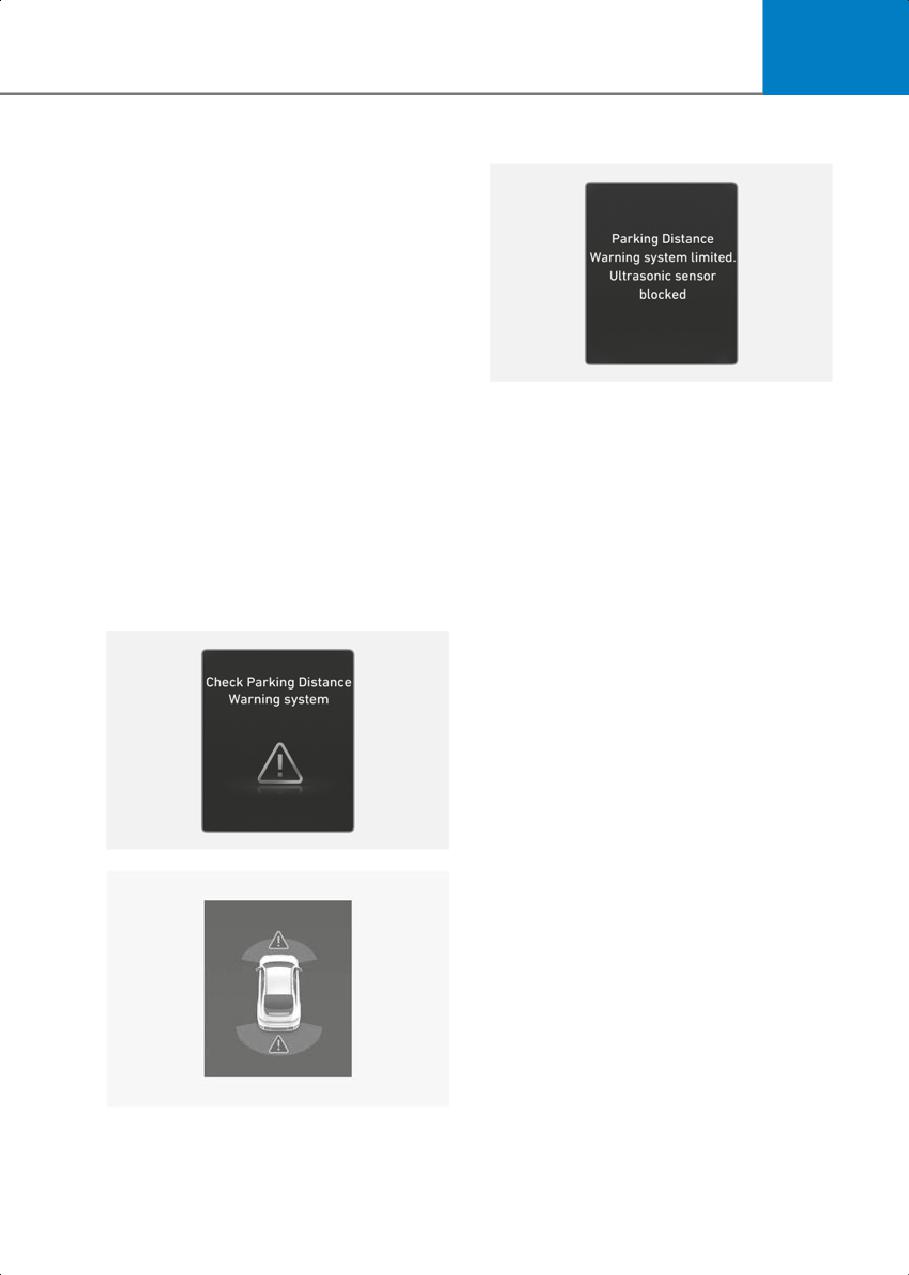
7
Forward/Reverse Parking
Parking Distance Warning disabled
Distance Warning
Malfunction and Limitations
Parking Distance Warning
malfunction
After starting the vehicle, a beep will
sound when the gear is shifted to R
(Reverse) to indicate Parking Distance
Warning is operating properly.
However, if one or more of the following
B0377EU03
occurs, first check whether the ultrasonic
If this occurs the ‘Parking Distance
sensor is damaged or blocked with
Warning system limited. Ultrasonic
foreign material. If it still does not work
sensor blocked’ warning message
properly, have the vehicle inspected by
appears on the instrument cluster.
an authorized HYUNDAI dealer.
Parking Distance Warning will operate
• The audible warning does not sound.
properly when snow, rain or foreign
material is removed.
• The buzzer sounds intermittently.
If Parking Distance Warning does not
• The ‘Check Parking Distance Warning
operate properly after obstruction (snow,
system’ warning message appears on
rain, or foreign material) is removed
the instrument cluster.
(including trailer, carrier, etc., from the
rear bumper), have the vehicle inspected
by an authorized HYUNDAI dealer.
Limitations of Forward/Reverse
Parking Distance Warning
• Parking Distance Warning may not
operate properly when:
- Moisture is frozen to the sensor
- Sensor is covered with substance,
B0377EU01
such as snow or water
(Forward/Reverse Parking Distance
Warning will operate properly when
such substance is removed.)
- The weather is extremely hot or cold
- The sensor or sensor assembly is
disassembled
- The surface of the sensor is pressed
hard or hit with a hard object
- The surface of the sensor is scratched
with a sharp object
B7007302
- The sensors or its surrounding area is
directly sprayed with high pressure
washer
7-125
Driver Assistance System
•
Parking Distance Warning may
WARNING
malfunction when:
- Heavy rain or water spray is present
•
Parking Distance Warning is a
supplemental function. The operation
- Water flows on the surface of the
of Parking Distance Warning can be
sensor
affected by several factors (including
- Affected by another vehicle’s sensors
environmental conditions). It is the
- The sensor is covered with snow or
responsibility of the driver to always
ice
check the front and rear views before
and while parking.
- Driving on uneven road, gravel roads
or bushes
•
Your new vehicle warranty does not
cover any accidents or damage to the
- Objects that generate ultrasonic
vehicle due to the malfunction of
waves are near the sensor
Parking Distance Warning.
- License plate is installed in a different
•
Pay close attention when driving near
spot from the original location
objects, pedestrians, and especially
- The vehicle bumper height or
children. Some objects may not be
ultrasonic sensor installation has
detected by the ultrasonic sensors, due
been modified
to the objects distance, size or material,
- Attaching equipment or accessories
all of which can limit the effectiveness
next to the ultrasonic sensors
of the sensor.
•
The following objects may not be
•
Parking Distance Warning does not
detected:
warn you in the order of detection. It
varies depending on the speed of the
- Sharp or slim objects, such as ropes,
vehicle or the shape of a person,
chains or small poles.
animal, or object.
- Narrow objects, such as corners of a
•
If the Parking Distance Warning does
square column
not operate properly, you have the
- Objects, which tend to absorb sensor
vehicle inspected by an authorized
frequency, such as clothes, spongy
HYUNDAI dealer.
material or snow.
- Objects smaller than 100 cm (40 in.)
in length and narrower than 6 in. (14
cm) in diameter.
- Pedestrians, animals or objects that
are very close to the ultrasonic
sensors
7-126
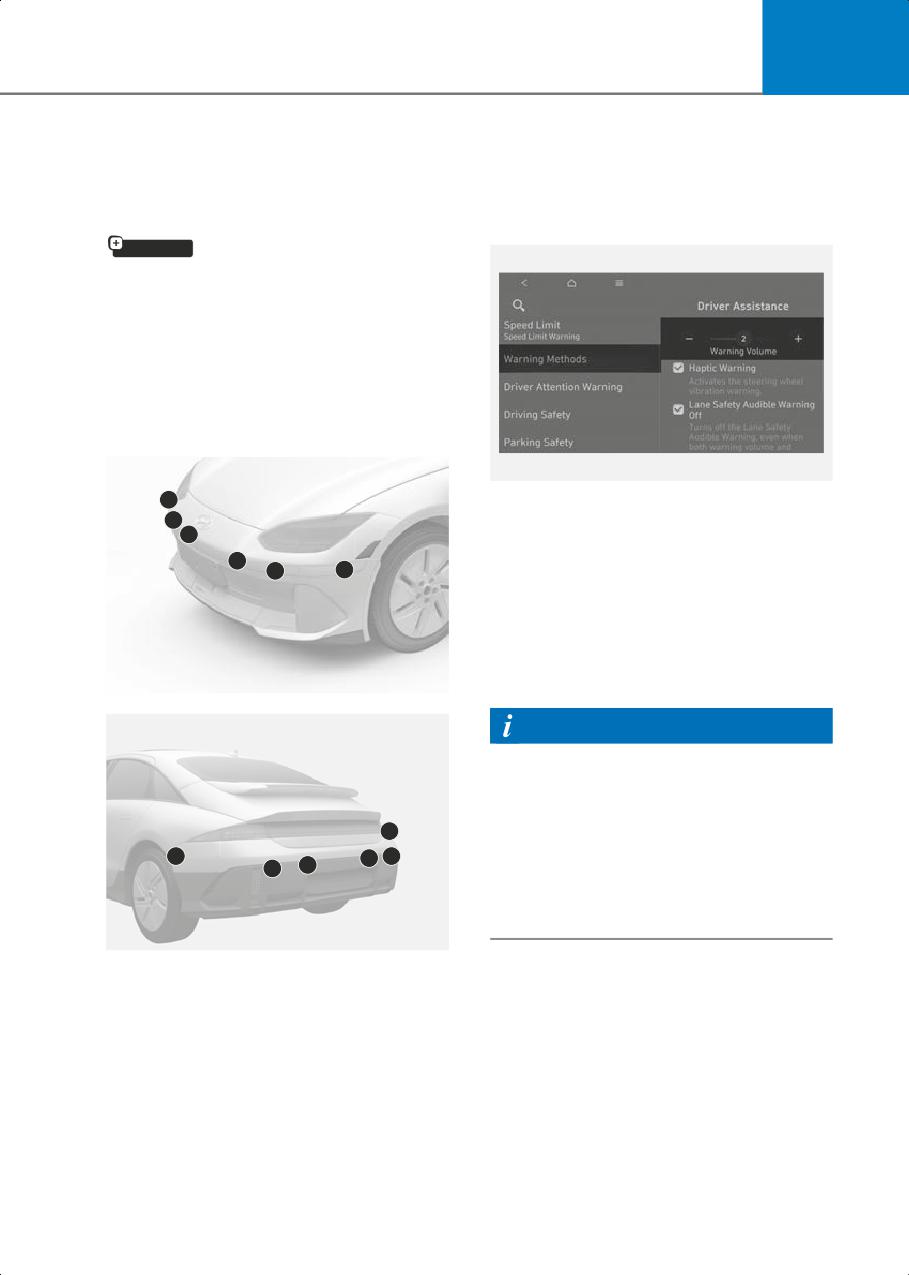
7
Forward/Side/Reverse
Parking Distance Warning
Settings
Parking Distance Warning
(PDW)
Warning Methods
if equipped
Forward/Side/Reverse Parking Distance
Warning uses the front, side, and rear
ultrasonic sensors to detect and warns
you if a person, animal, or object is within
a certain distance when your vehicle is
stopped or driving at low speed.
Detecting sensor
B7001902_2
2
With the vehicle on, go to Setup > Vehicle
1
1
> Driver Assistance > Warning Methods
from the Settings in the infotainment
1
1
2
system to select the following:
• Warning Volume: The Warning Volume
can be adjusted.
If you turn off the Warning Volume, for
your safety, the function may warn you
with a low volume.
B7007401
Information
• If you change the Warning Methods,
Warning Methods of other Driver
Assistance systems may change.
3
• If the vehicle is restarted, Warning
Methods will maintain the last setting.
3
4
4
4
4
• There may be no Settings menu
depending on the feature applied to
your vehicle.
B7007402
(1) Front ultrasonic sensors
Parking Distance Warning Auto On
(2) Front side ultrasonic sensors
To use Parking Distance Warning Auto On
(3) Rear side ultrasonic sensors
function, select Setup > Vehicle > Driver
(4) Rear ultrasonic sensors
Assistance > Parking Safety > Parking
Refer to the picture above for the detailed
Distance Warning Auto On from the
location of the detecting sensors.
infotainment system settings menu.
7-127
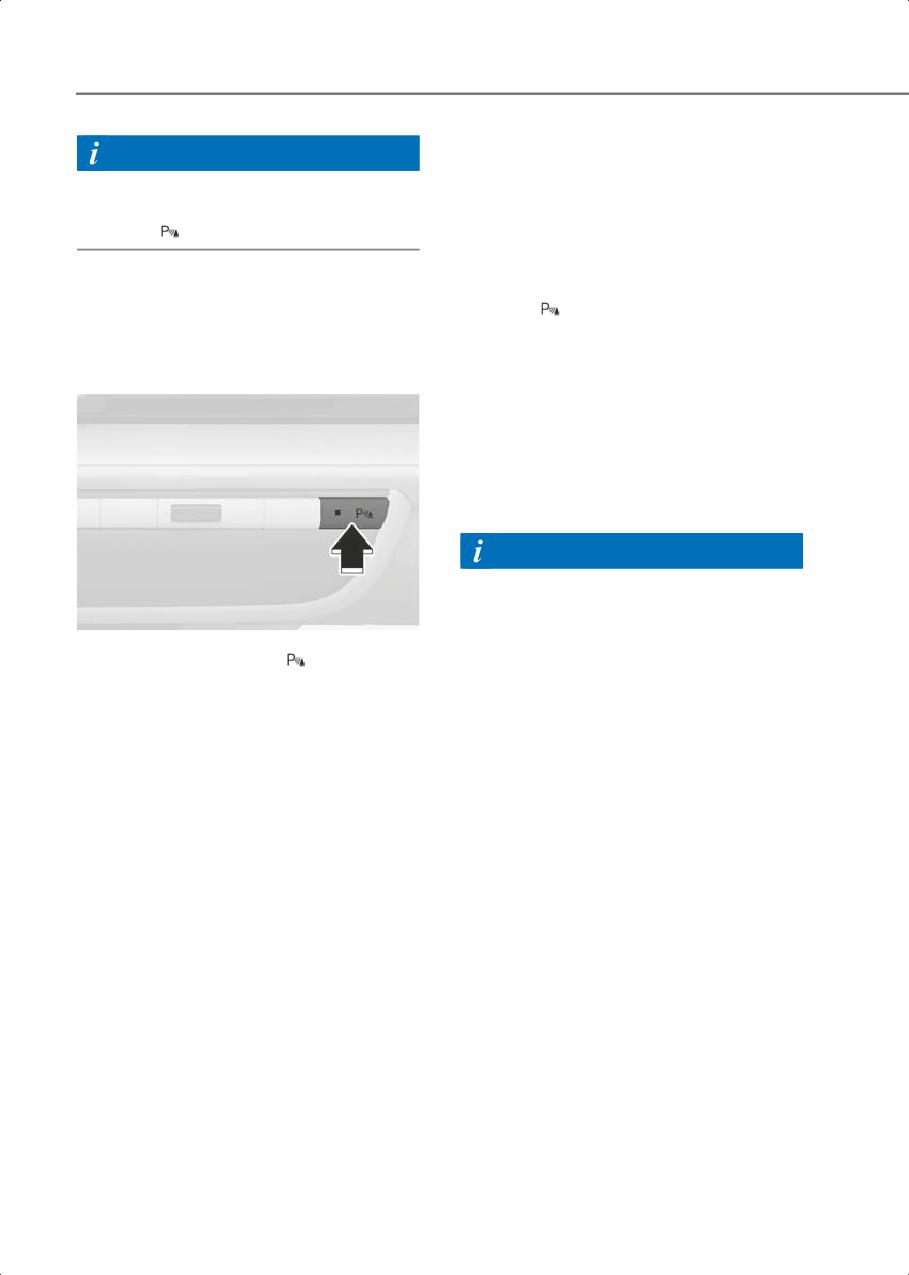
Driver Assistance System
Forward Parking Distance Warning
Information
Forward Parking Distance Warning will
When Parking Distance Warning Auto On
operate under the following conditions.
is selected, the Parking Safety button
•
The gear is shifted from R (Reverse) to
indicator (
) stays on.
D (Drive) with Reverse Parking Distance
Warning on
•
The gear is in D (Drive) and the Parking
Parking Distance Warning
Safety (
) button indicator light is on
Operation
•
Shift to D (Drive) when the function is
off
Parking Safety button
(Only when Setup > Vehicle > Driver
Assistance > Parking Safety > Parking
Distance Warning Auto On is selected
from the infotainment system settings
menu.)
•
Shift to R (Reverse) (only front corner
warning is on)
Information
•
Forward Parking Distance Warning will
operate only when the vehicle’s
forward speed is below 6 mph (10
B7007601
km/h).
Press the Parking Safety (
) button to
turn on Forward/Reverse Parking
•
Forward Parking Distance Warning is
Distance Warning. Press the button again
deactivated if the vehicle speed
to turn off the function.
reaches above 18 mph (30 km/h). It will
not reactivate although the vehicle
• When the gear is shift to R (Reverse),
speed drops below 6 mph (10 km/h).
Parking Distance Warning will
automatically turn on (Parking Safety
(Only when Setup > Vehicle > Driver
button indicator on).
Assistance > Parking Safety > Parking
Distance Warning Auto On is not
selected from the infotainment system
settings menu.)
•
Only the front outer ultrasonic sensor
will operate when the gear is in R
(Reverse).
7-128
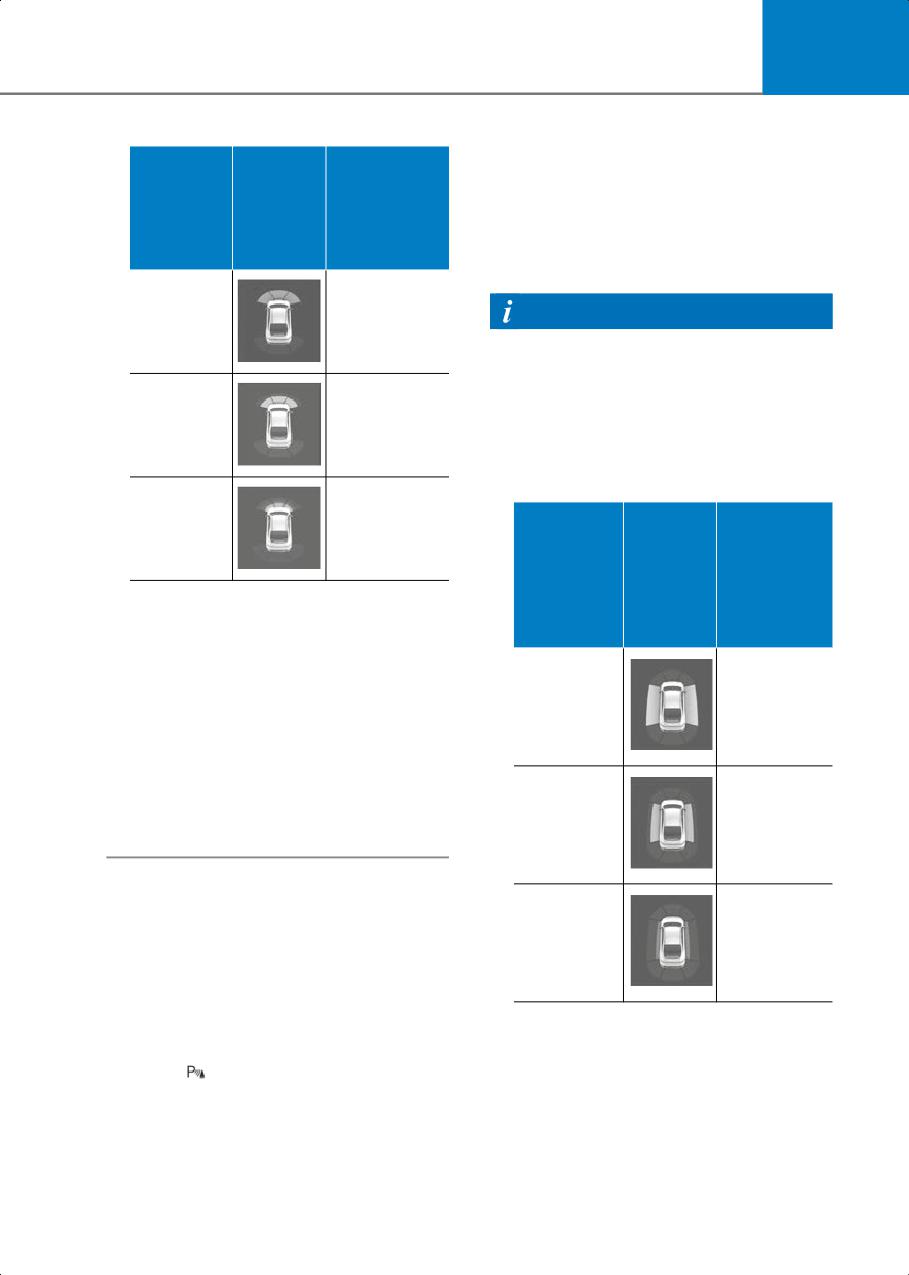
7
•
Shift to D (Drive) when the function is
Warning
off
Distance
Indicator
Warning
(Only when Setup > Vehicle > Driver
from
when
Sound
Assistance > Parking Safety > Parking
Object
Driving
Distance Warning Auto On is selected
Forward
from the infotainment system settings
menu.)
60-100 cm
Buzzer beeps
Information
(24-40 in.)
intermittently
•
Side Parking Distance Warning will
operate when the vehicle’s forward
speed is below 6 mph (10 km/h).
12-24 in.
Beeps more
•
Side Parking Distance Warning
(30-60
frequently
operated only when Forward or
cm)
Rearward Parking Distance Warning is
on.
30 cm
Beeps
Warning
(within 12
continuously
Indicator
in.)
Distance
when
Warning
from Object
Driving
Sound
•
The corresponding indicator will
Forward/
illuminate whenever each ultrasonic
Backward
sensor detects a person, animal or
object in its sensing range. Also an
audible warning will sound.
24-40 in.
•
When more than two objects are
(60-100
-
detected at the same time, the closest
cm)
one will be warned with an audible
warning.
•
The shape of the indicator in the
illustration may differ from the actual
12-24 in.
-
vehicle.
(30-60 cm)
Side Parking Distance Warning
12 in.
Side Parking Distance Warning will
Beeps
(within 30
operate under the following conditions.
continuously
cm)
• The gear is shifted to R (Reverse).
• The gear is shifted from R (Reverse) to
•
The corresponding indicator will
D (Drive).
illuminate whenever each ultrasonic
• The gear is in D (Drive) and the Parking
sensor detects a person, animal or
Safety (
) button indicator light is on
object in its sensing range.
•
If an object located within 12 in. (30 cm)
from the side of the vehicle's path is
detected, an audible warning will
sound.
7-129
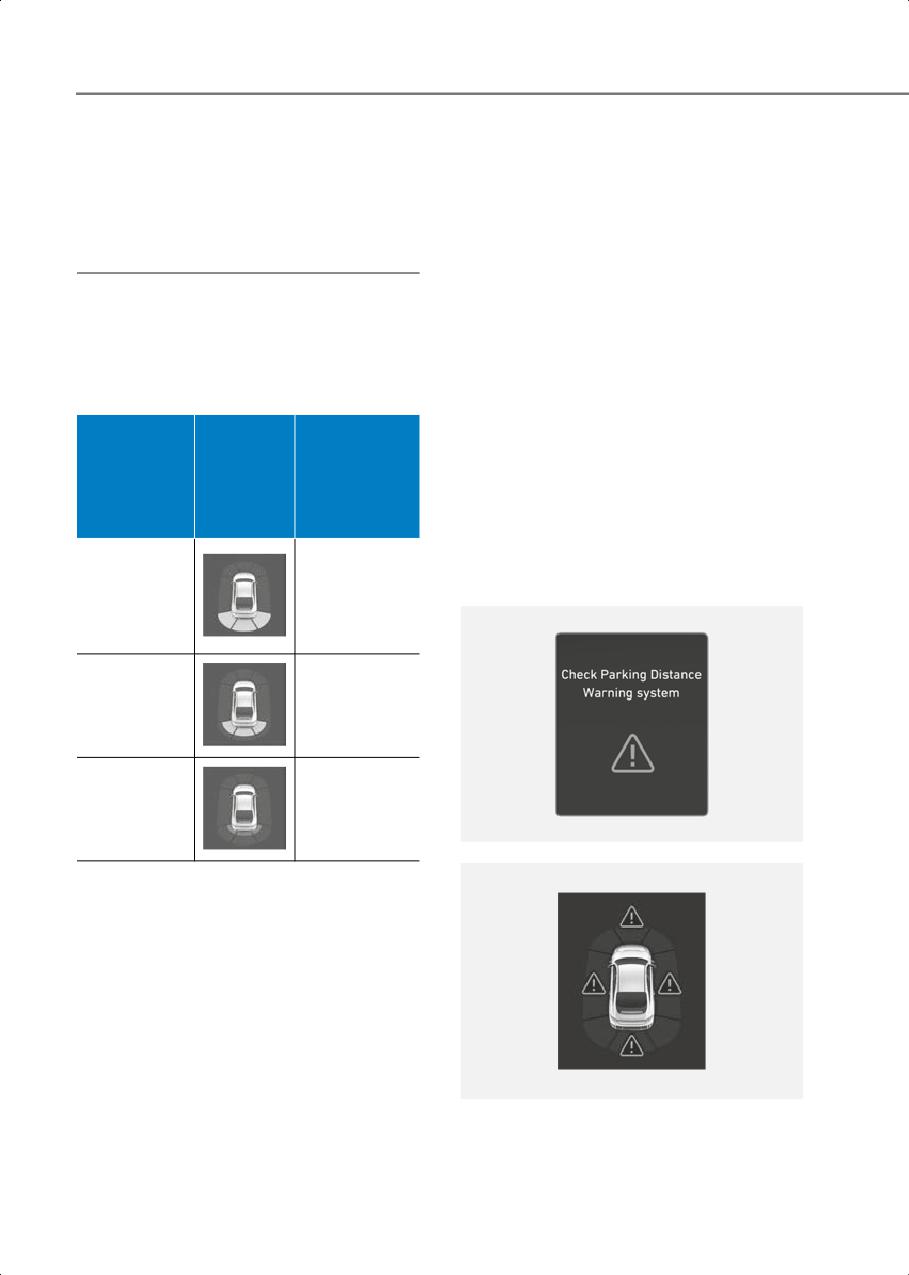
Driver Assistance System
• If an object outside the side of the
Parking Distance Warning
vehicle's path is detected, the warning
Malfunction and Limitations
indicator will be displayed.
• The shape of the indicator in the
Parking Distance Warning
illustration may differ from the actual
malfunction
vehicle.
After starting the vehicle, a beep will
sound when the gear is shifted to R
Reverse Parking Distance Warning
(Reverse) to indicate Parking Distance
Warning is operating properly.
Reverse Parking Distance Warning will
operate under the following conditions.
However, if one or more of the following
occurs, first check whether the ultrasonic
• The gear is shifted to R (Reverse).
sensor is damaged or blocked with
foreign material. If it still does not work
Warning
properly, have the vehicle inspected by
Indicator
Distance
Warning
an authorized HYUNDAI dealer.
when
from Object
Sound
Driving
• The audible warning does not sound.
Backward
• The buzzer sounds intermittently.
• The 'Check Parking Distance Warning
24-48 in.
system' warning message appears on
(60-120 cm)
Buzzer beeps
(Corner:
the instrument cluster.
intermittently
24-40 in.
(60-100 cm))
12-24 in.
Beeps more
(30-60 cm)
frequently
12 in.
Beeps
(within
continuously
30 cm)
OJWEV071232L
• The corresponding indicator will
illuminate whenever each ultrasonic
sensor detects a person, animal or
object in its sensing range. Also an
audible warning will sound.
• When more than two objects are
detected at the same time, the closest
one will be warned with an audible
warning.
• The shape of the indicator in the
illustration may differ from the actual
B7007702
vehicle.
7-130
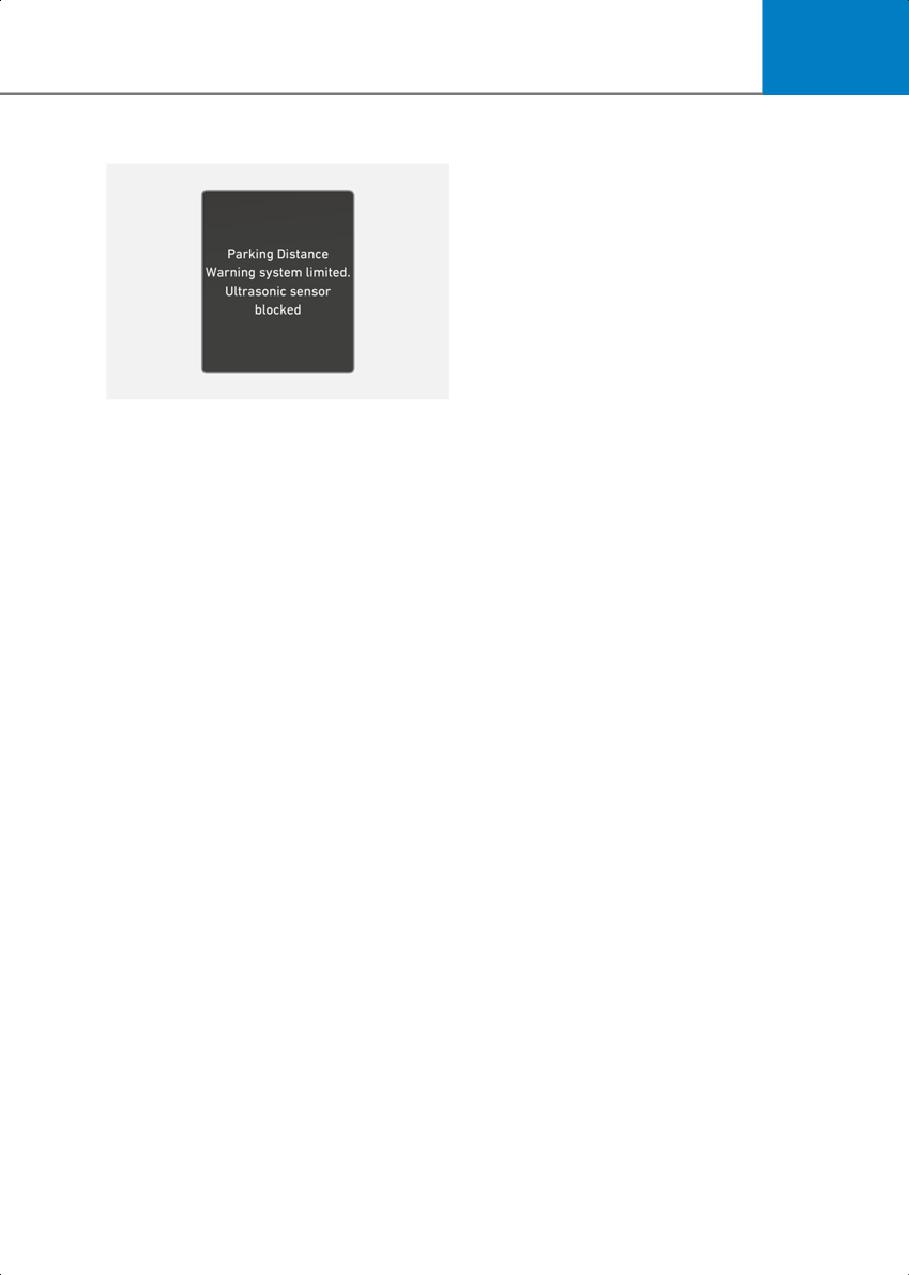
7
Parking Distance Warning disabled
- The sensors or its surrounding area is
directly sprayed with high pressure
washer
• Parking Distance Warning may
malfunction when:
- Heavy rain or water spray is present
- Water flows on the surface of the
sensor
- Affected by another vehicle’s sensors
- The sensor is covered with snow or
ice
OJWEV071233L
- Driving on uneven road, gravel roads
If this occurs the 'Parking Distance
or bushes
Warning system limited. Ultrasonic
- Objects that generate ultrasonic
sensor blocked' warning message
waves are near the sensor
appears on the instrument cluster.
Parking Distance Warning will operate
- License plate is installed in a different
properly when snow, rain or foreign
spot from the original location
material is removed. If Parking Distance
- The vehicle bumper height or
Warning does not operate properly after
ultrasonic sensor installation has
obstruction (snow, rain, or foreign
been modified
material) is removed (including trailer,
- Attaching equipment or accessories
carrier, etc., from the rear bumper), have
next to the ultrasonic sensors
the vehicle inspected by an authorized
• The following objects may not be
HYUNDAI dealer.
detected:
- Sharp or slim objects, such as ropes,
Limitations of Parking Distance
chains or small poles.
Warning
- Narrow objects, such as corners of a
• Parking Distance Warning may not
square column
operate properly when:
- Objects, which tend to absorb sensor
- There is excessive moisture or frost
frequency, such as clothes, spongy
on the sensor
material or snow.
- Sensor is covered with foreign
- Objects smaller than 40 in. (100 cm)
substance, such as snow or water
in length and narrower than 6 in. (14
(Parking Distance Warning will
cm) in diameter.
operate properly when such
substance is removed.)
- Pedestrians, animals or objects that
are very close to the ultrasonic
- The weather is extremely hot or cold
sensors
- The sensor or sensor assembly is
- An object in the side space between
disassembled
the front corner ultrasonic sensor and
- The surface of the sensor is pressed
the rear corner ultrasonic sensor or
hard or hit with a hard object
an object approaching the side space
- The surface of the sensor is scratched
with a sharp object
7-131
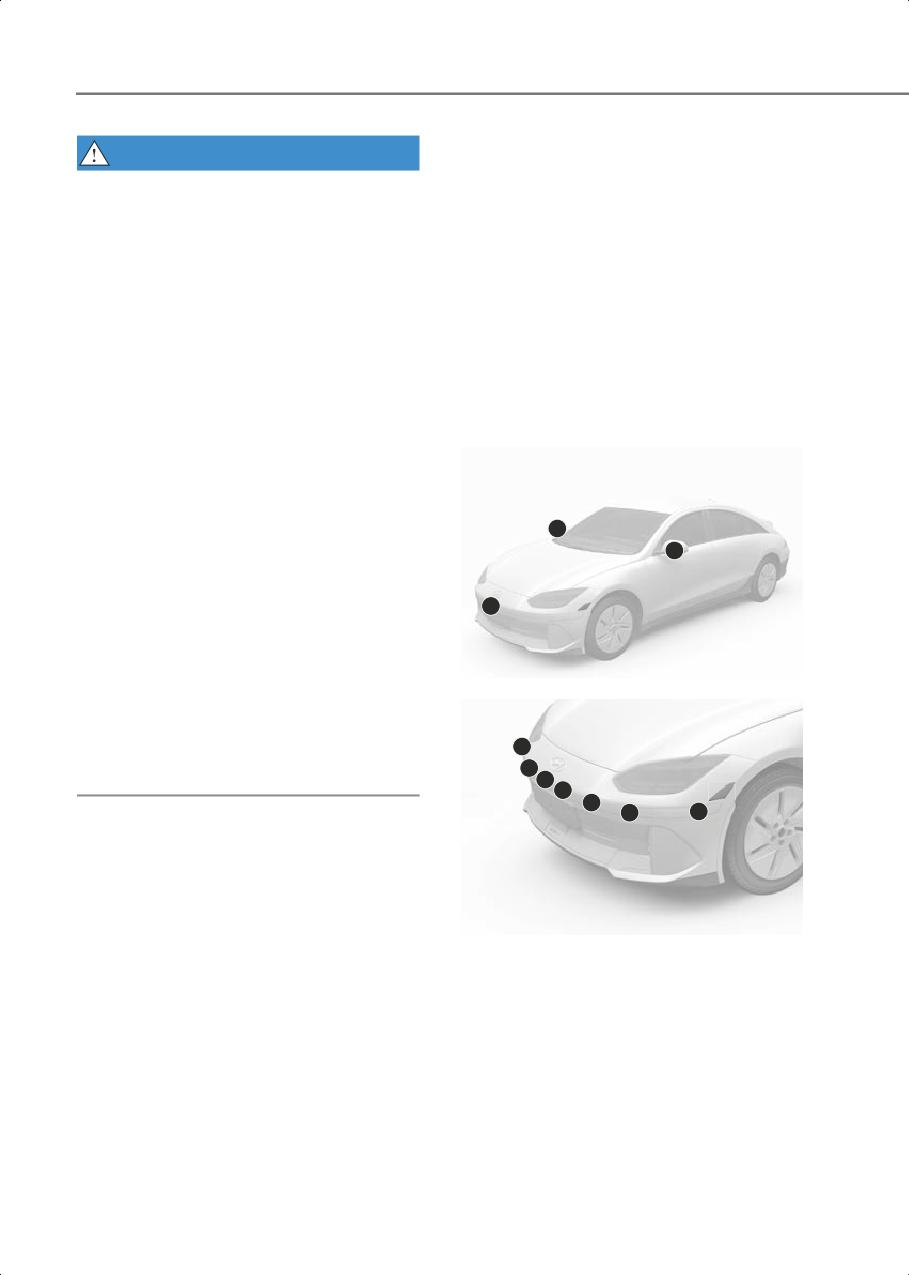
Driver Assistance System
Forward/Side/Reverse
WARNING
•
Parking Distance Warning is a
Parking
supplemental function. The operation
Collision-Avoidance
of Parking Distance Warning can be
affected by several factors (including
Assist (PCA)
environmental conditions). It is the
responsibility of the driver to always
Forward/Side/Reverse Parking
check the front and rear views before
Collision-Avoidance Assist helps detect
and while parking.
pedestrians or objects and may warn you
or assist you with braking to help avoid a
•
Your new vehicle warranty does not
collision while driving at low speed.
cover any accidents or damage to the
vehicle due to the malfunction of
Parking Distance Warning.
Detecting sensor
•
Pay close attention when driving near
objects, pedestrians, and especially
children. Some objects may not be
detected by the ultrasonic sensors, due
to the objects distance, size or material,
2
all of which can limit the effectiveness
2
of the sensor.
•
Parking Distance Warning does not
1
warn you in the order of detection. It
varies depending on the speed of the
vehicle or the shape of a person,
animal, or object.
B7007801
•
If the Parking Distance Warning does
not operate properly, have the vehicle
5
inspected by an authorized HYUNDAI
4
dealer.
4
1
4
4
5
B7007802
7-132
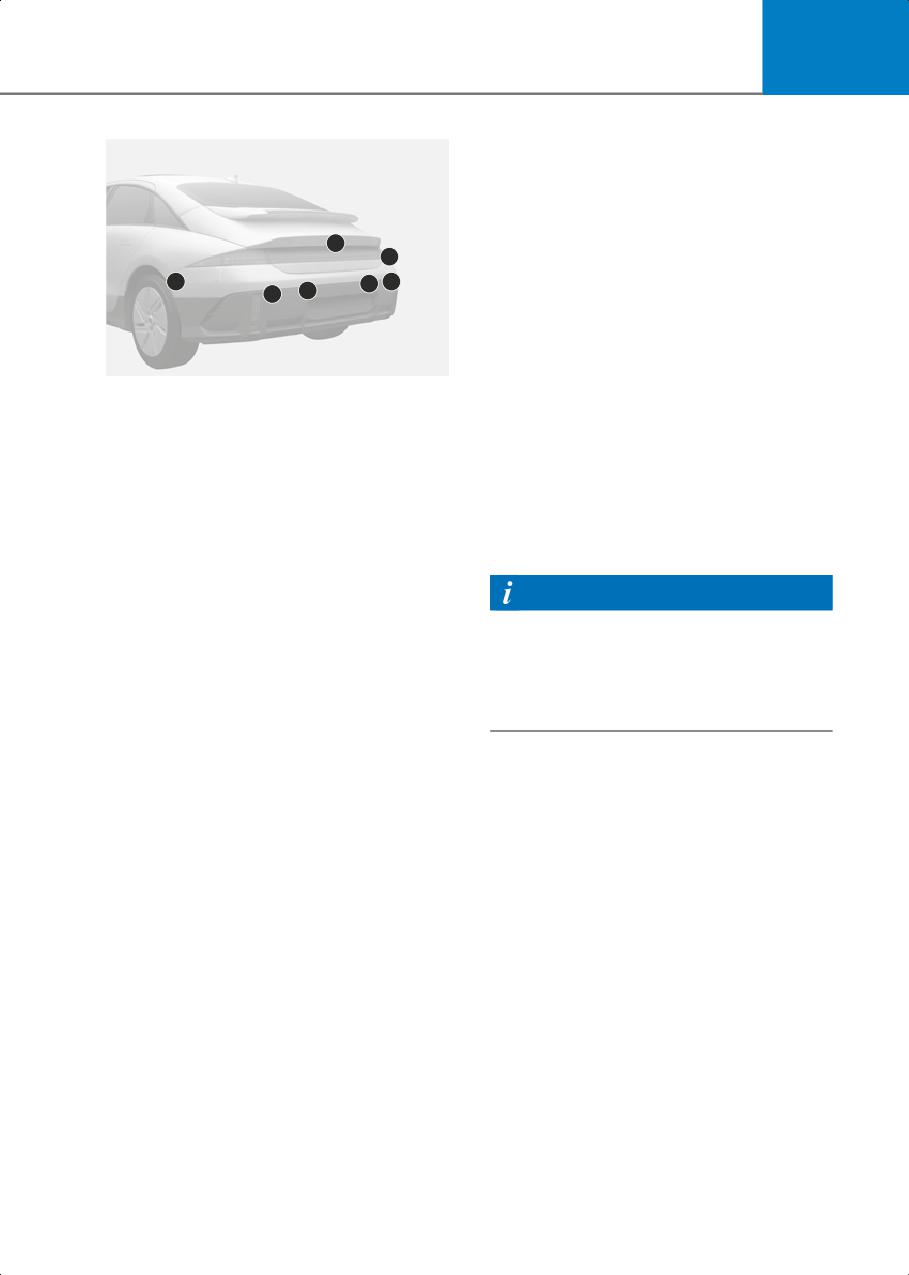
7
Parking Collision-Avoidance
Assist Settings
Parking Safety
3
6
With the vehicle on, select or deselect
Setup > Vehicle > Driver Assistance >
6
7
7
7
7
Parking Safety from the Settings menu to
set whether to use each function.
• If Forward/Side Safety is selected,
Parking Collision-Avoidance Assist will
B7007803_1
warn the driver and assist with braking
(1) Wide-front view camera,
when a collision with a detected
(2) Wide-side view camera (below the
pedestrian or an object is imminent
side view mirror)
from the front or the side.
(3) Wide-rear view camera,
• If Rear Safety is selected, Parking
(4) Front ultrasonic sensors,
Collision-Avoidance Assist will warn the
(5) Front side ultrasonic sensors,
driver and assist with braking when a
(6) Rear side ultrasonic sensors,
collision with a detected pedestrian or
(7) Rear ultrasonic sensors
an object is imminent from behind.
Refer to the picture above for the detailed
Information
location of the detecting sensors.
Forward/Side Safety can be selected
only when Rear Safety is selected. If the
vehicle is restarted, Rear Safety is
selected and Forward/Side Safety
maintains the last setting.
7-133
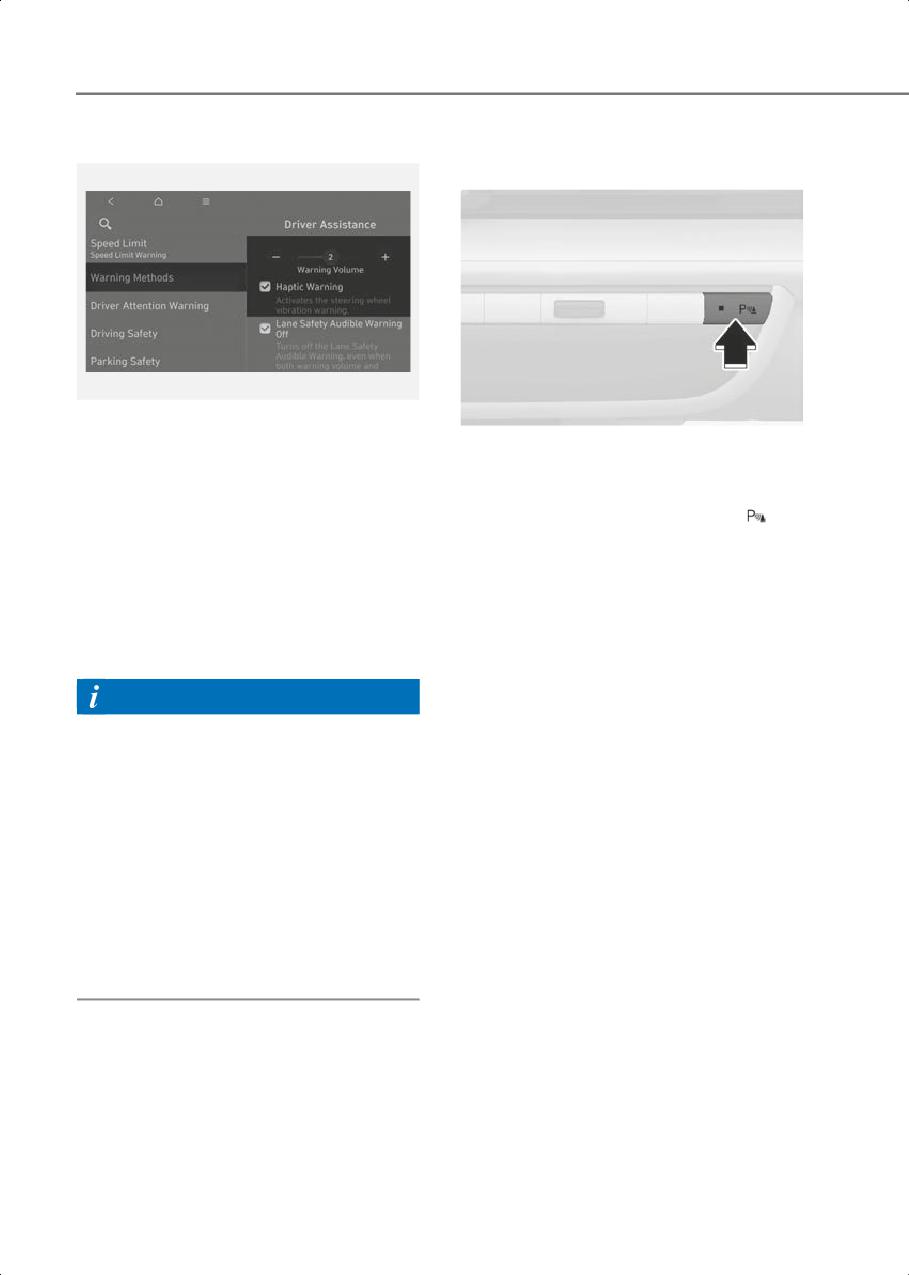
Driver Assistance System
Warning Methods
Parking Collision-Avoidance
Assist Operation
B7000205
With the vehicle on, go to Setup > Vehicle
B7008001
> Driver Assistance > Warning Methods
Turning Parking Collision Avoidance
from the Settings in the infotainment
Assist On/Off
system to select the following:
Press and hold the Parking Safety (
)
• Warning Volume: The Warning Volume
button more than 2 seconds, to turn the
can be adjusted.
Parking Collision-Avoidance Assist on or
If you turn off the Warning Volume, for
off.
your safety, the function may warn you
with a low volume.
Operating conditions
• Haptic Warning: The steering wheel
vibration can be set.
If Parking Collision-Avoidance Assist
detects a risk of collision behind the
Information
vehicle with a pedestrian or an object,
Parking Collision-Avoidance Assist will
• If you change the Warning Methods,
warn the driver with an audible warning
Warning Methods of other Driver
and warning message on the instrument
Assistance systems may change.
cluster. If Surround View Monitor is
• If the vehicle is restarted, Warning
operating, a warning will appear on the
Methods will maintain the last setting.
infotainment screen.
• There may be no Settings menu
If collision is imminent, Parking
depending on the feature applied to
Collision-Avoidance Assist will assist you
your vehicle.
with braking.
• The Warning Volume and Haptic
Select Parking Safety > Rear Safety from
Warning cannot be turned off at the
the settings menu.
same time. When one of the warnings is
Parking Collision-Avoidance Assist is
turned off, the other is activated.
enabled when the following conditions
are satisfied:
7-134
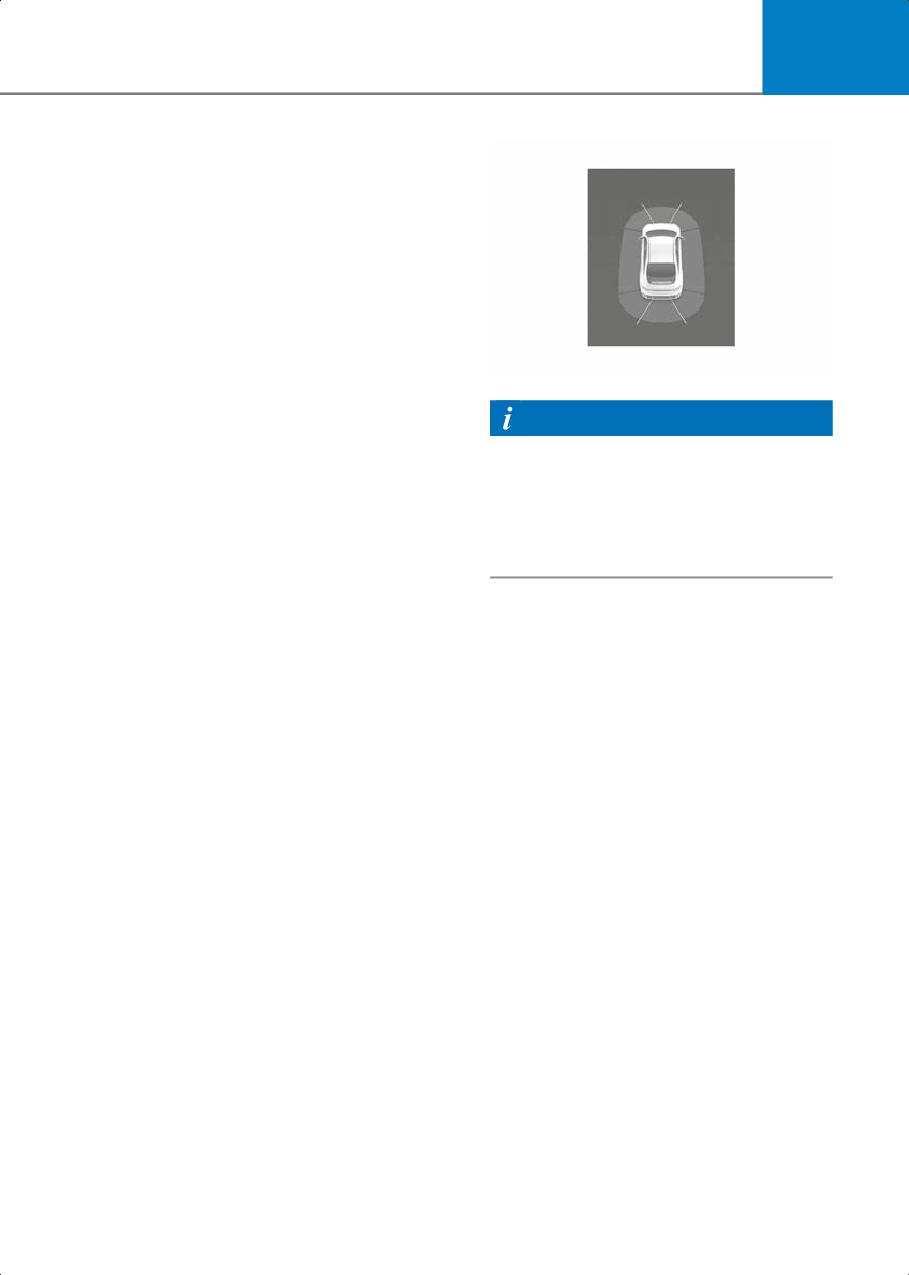
7
Rear Safety
• The trunk and door are closed
• The Electronic Parking Brake (EPB) is
released
• A trailer is not connected
• The gear is shifted to R (Reverse)
• Vehicle speed is below 6 mph (10 km/h)
(detecting pedestrians)
• Vehicle speed is below 2.4 mph (4
km/h) (detecting objects)
B7008002
• Parking Collision-Avoidance Assist
components such as the rear view
Information
camera and the rear ultrasonic sensors
are in normal conditions
Parking Collision-Avoidance Assist
operates only once after shifting the gear
Front/Side Safety
to R (Reverse) or D (Drive). To reactivate
Parking Collision-Avoidance Assist, shift
• Forward/Side Safety is selected from
the gear from another gear to R (Reverse)
the Parking Safety settings menu in the
or D (Drive).
infotainment system.
• The trunk and door are closed
• The Electronic Parking Brake (EPB) is
Off conditions
released
Front/Side Safety
• A trailer is not connected
Braking assist is released 2 seconds after
• The gear is shifted to R (Reverse) or D
shifting to D (Drive) and 5 minutes after
(Drive)
shifting to R (Reverse). Immediately
• Vehicle speed is below 2.4 mph (4
depress the brake pedal and check
km/h) (for pedestrians, objects)
vehicle surroundings.
• Parking Collision-Avoidance Assist
Braking assist is also released in the
components such as the rear view
following conditions when:
camera and the rear ultrasonic sensors
• The gear is shifted to P (Park) or R
are in normal conditions
(Reverse)
When Parking Collision-Avoidance Assist
• The brake pedal is depressed with
activates, a line appears behind the
sufficient power
vehicle image in the instrument cluster.
• Rear Safety: Behind the vehicle image
• Front/Side Safety: In front of vehicle
image
7-135
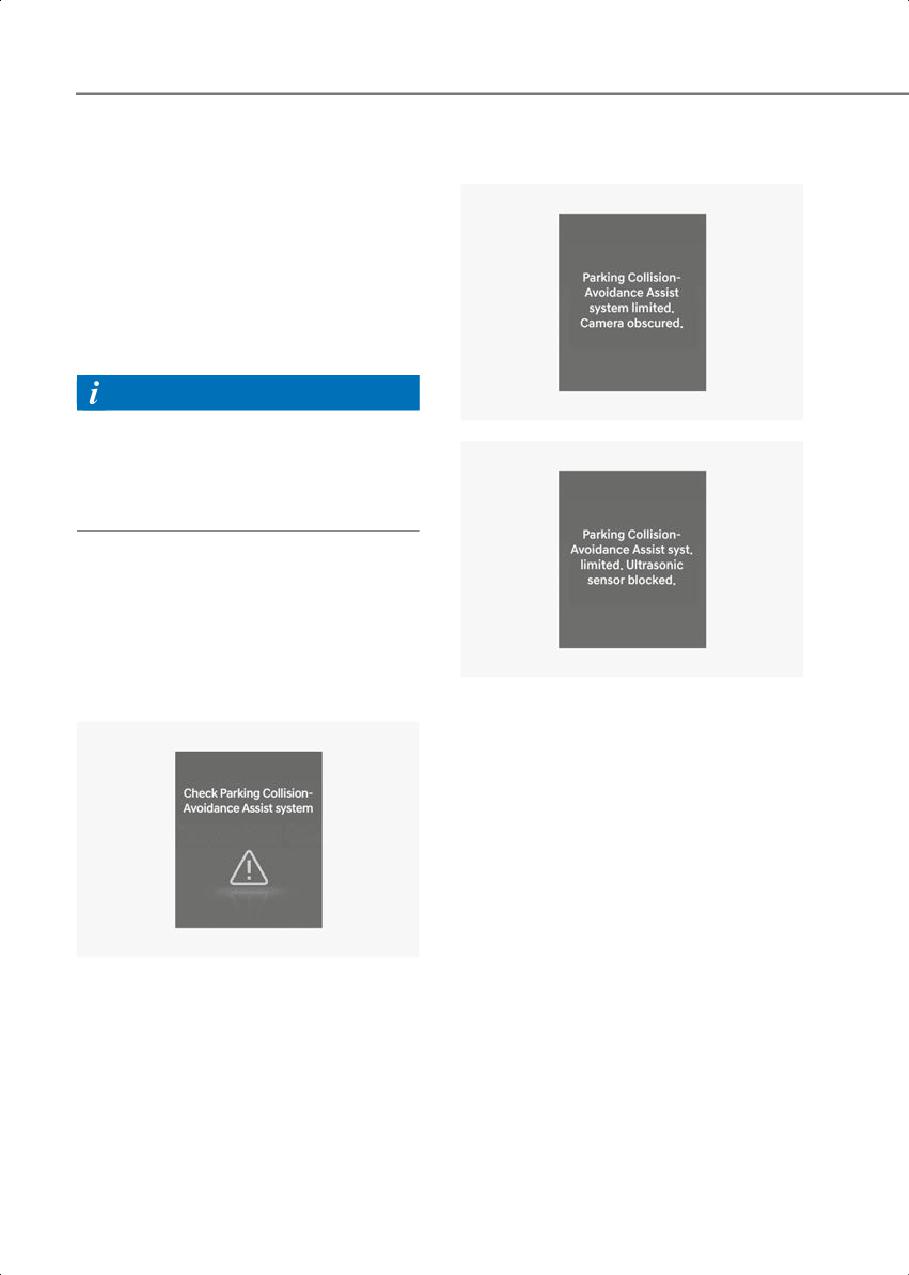
Driver Assistance System
Rear Safety
Parking Collision-Avoidance Assist
disabled
Braking assist is released after 5 minutes.
Immediately depress the brake pedal and
check vehicle surroundings.
Braking assist is also released in the
following conditions when:
• The gear is shifted to P (Park) or D
(Drive)
• The brake pedal is depressed with
sufficient power
Information
When Parking Collision-Avoidance Assist
B7008102
is activated while reversing, braking
control will be released after 5 minutes
and the Electronic Parking Brake (EPB)
will be engaged.
Parking Collision-Avoidance
Assist Malfunction and
Limitations
Parking Collision-Avoidance Assist
B7008103
malfunction
The ‘Parking Collision-Avoidance Assist
system limited. Camera obscured’ or
‘Parking Collision-Avoidance Assist syst.
limited. Ultrasonic sensor blocked’
warning message will appear on the
instrument cluster if the following
situations occur:
• The camera(s) or ultrasonic sensor(s) is
covered with foreign material, such as
snow or rain, etc.
• There is inclement weather, such as
heavy snow, heavy rain, etc.
B7008101
If this occurs, Parking
When Parking Collision-Avoidance Assist
Collision-Avoidance Assist may turn off or
or other related functions are not working
may not operate properly. Check whether
properly, the ‘Check Parking
the cameras and ultrasonic sensors are
Collision-Avoidance Assist system’
clean.
warning message will appear on the
instrument cluster, and Parking
Collision-Avoidance Assist will turn off
automatically. Have the vehicle inspected
by an authorized HYUNDAI dealer.
7-136
7
Limitations of Parking
•
Problems with pedestrian or object
Collision-Avoidance Assist
-
The pedestrians are difficult to detect
Parking Collision-Avoidance Assist may
-
There is ground height difference
not assist braking or warn the driver even
between the vehicle and the
if there are pedestrians or objects under
pedestrian
the following circumstances:
-
The pedestrian is near the rear edge
• Problems with vehicle
of the vehicle
- Any non-factory equipment or
-
The pedestrian is not standing
accessory is installed
upright
- Your vehicle is unstable due to an
-
The pedestrian is either very short or
accident or other causes
very tall to detect
- Bumper height or rear ultrasonic
-
The pedestrian or cyclist is wearing
sensor installation has been modified
clothing that easily blends into the
- Wide view camera(s) or ultrasonic
background, making it difficult to
sensor(s) is damaged
detect
- Wide view camera(s) or the
-
The pedestrian is wearing clothing
ultrasonic sensor(s) is stained with
that does not reflect ultrasonic waves
foreign material, such as snow, dirt,
well
etc.
-
Size, thickness, height, or shape of
- Wide view camera(s) is obscured by a
the object does not reflect ultrasonic
light source or by inclement weather,
waves well (for example, low object,
such as heavy rain, fog, snow, etc.
narrow object, circular pillar, small
pillar, corners of a square pillar, bush,
- Your vehicle height is low or high due
curbs, carts, edge of a wall, etc.)
to heavy loads, abnormal tire
pressure, etc.
-
The pedestrian or the object is
moving
• Problems with the surroundings
-
The pedestrian or the object is very
- The surrounding is very bright or very
close to the rear of the vehicle
dark
-
There is a large object such as a wall
- Outside temperature is very high or
is behind the pedestrian or the object
very low
-
The object is not located at the front
- The wind is either strong (above 12
or rear center of your vehicle
mph (20 km/h)) or blowing
perpendicular to the rear bumper
-
The object is not parallel to the rear
bumper
- Objects generating excessive noise,
such as vehicle horns, loud
-
The sensors cannot detect the
motorcycle vehicles or truck air
pedestrians and objects
brakes, are near your vehicle
•
Problems with driving condition
- An ultrasonic sensor with similar
- The driver drives the vehicle
frequency is near your vehicle
immediately after shifting to R
- The road is slippery or inclined
(Reverse) or D (Drive)
- The image of the pedestrian in the
- The driver accelerates or circles the
front view camera is
vehicle
indistinguishable from the
background
7-137
Driver Assistance System
WARNING
CAUTION
Take the following precautions when
•
Noise may be heard when sudden
using Parking Collision-Avoidance Assist:
braking occurs to avoid a collision.
•
Always exercise extreme caution while
•
If any other warning sound such as the
driving. The driver is responsible for
seat belt warning chime is already
braking and safe driving.
generated, Parking
Collision-Avoidance Assist warning
•
Always pay attention to road and traffic
may not sound.
conditions while driving, whether or not
there is a warning.
•
Parking Collision-Avoidance Assist may
not work properly if the bumper has
•
Always look around your vehicle to
been damaged, replaced or repaired.
make sure there are no pedestrians or
objects before moving the vehicle.
•
Parking Collision-Avoidance Assist may
•
The performance of Parking
not operate properly if interfered by
strong electromagnetic waves.
Collision-Avoidance Assist may vary
under certain conditions. If vehicle
•
Playing the vehicle audio system at
speed is above 2 mph (4 km/h), Parking
high volume may prevent passengers
Collision-Avoidance Assist will provide
from hearing Parking
collision avoidance assist only when
Collision-Avoidance Assist warning
pedestrians are detected. Always look
sounds.
around and pay attention when driving
•
Turn off Parking Collision-Avoidance
your vehicle.
Assist when towing a trailer. If towing
•
Parking Collision-Avoidance Assist may
and moving in reverse, Parking
operate differently under certain
Collision-Avoidance Assist will activate
conditions. If the vehicle moves
as it detects the trailer.
forward and backward repeatedly,
•
The brake control may not operate
Parking Collision-Avoidance Assist may
properly depending on the status of
fail to assist braking or to warn the
ESC (Electronic Stability Control).
driver. Always pay attention when
There will only be a warning when:
driving your vehicle.
- The ESC (Electronic Stability Control)
•
Some objects may not be detected by
warning light is on
the rear ultrasonic sensors due to the
objects distance, size or material, all of
- ESC (Electronic Stability Control) is
which can limit the effectiveness of the
engaged in a different function
sensor.
•
Parking Collision-Avoidance Assist may
not operate properly or may operate
unnecessarily depending on the road
conditions and the surroundings.
•
Do not solely rely on Parking
Collision-Avoidance Assist. Doing so
may lead to vehicle damage or injuries.
7-138
7
CAUTION
Information
Take the following precautions to
Parking Collision-Avoidance Assist can
maintain optimal performance of the
detect a pedestrian or an object when:
detecting sensors:
•
A pedestrian is standing behind the
•
Always keep the wide view cameras
vehicle
and ultrasonic sensors clean.
•
A large obstacle, such as a vehicle is
•
Do not use any cleanser containing acid
parked in the rear center of your vehicle
or alkaline detergents when cleaning
the camera lens. Use only a mild soap or
neutral detergent, and rinse thoroughly
with water.
•
Do not spray the wide view cameras or
the rear ultrasonic sensors or their
surrounding area directly with a high
pressure washer. It may cause the wide
angle cameras or the ultrasonic sensors
to malfunction.
•
Do not apply objects, such as a bumper
sticker or a bumper guard, near the
wide angle cameras or ultrasonic
sensors or apply paint to the bumper.
Doing so may adversely affect the
performance of Parking
Collision-Avoidance Assist.
•
Never disassemble or apply impact on
the wide angle cameras or the
ultrasonic sensors components.
•
Do not apply unnecessary force on the
wide view cameras or the ultrasonic
sensors. Parking Collision-Avoidance
Assist may not operate properly if the
wide angle cameras or the ultrasonic
sensor(s) is forcibly moved out of
proper alignment. Have the vehicle
inspected by an authorized HYUNDAI
dealer.
7-139
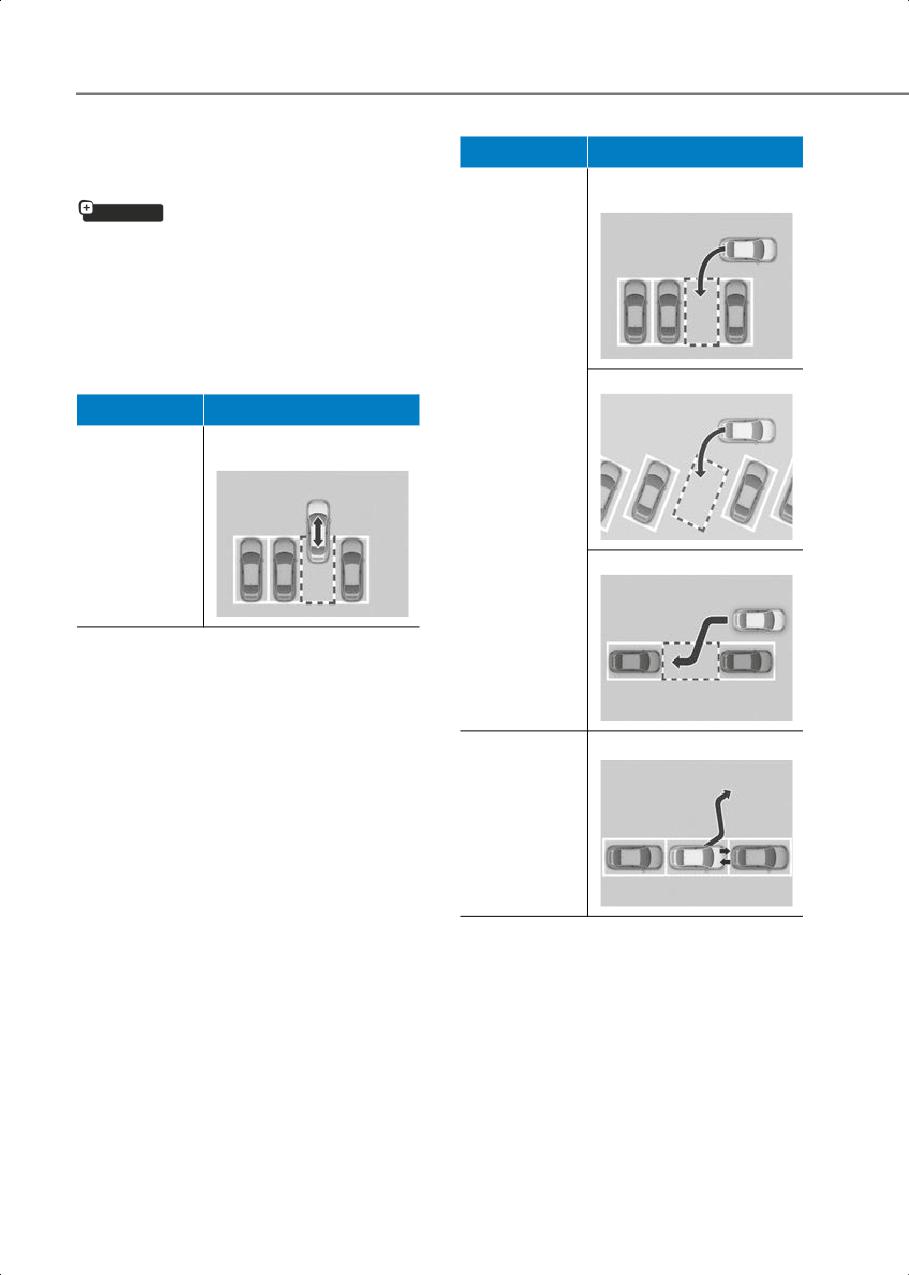
Driver Assistance System
Remote Smart Parking
Function
Description
Perpendicular reverse
Assist 2 (RSPA 2)
parking
if equipped
Remote Smart Parking Assist uses the
front, front side, rear side, and rear
ultrasonic sensors to detect parking
spaces and control vehicle steering,
speed, gear shifts, and help enter and exit
parking spaces remotely from outside
your vehicle.
Diagonal reverse parking
Function
Description
Smart Parking
Remotely moving
or Remote
forward or backward
Smart Parking
Remote
Operation
Parallel reverse parking
Parallel forward exit
Smart Exit
• Remote Smart Parking and Remote
Operation function may be operated
from outside the vehicle using the
smart key.
• Smart Parking and Smart Exit function
may be operated from inside the
vehicle.
• Smart Parking and Remote Smart
Parking function helps the driver with
perpendicular reverse parking,
diagonal reverse parking and parallel
reverse parking.
7-140
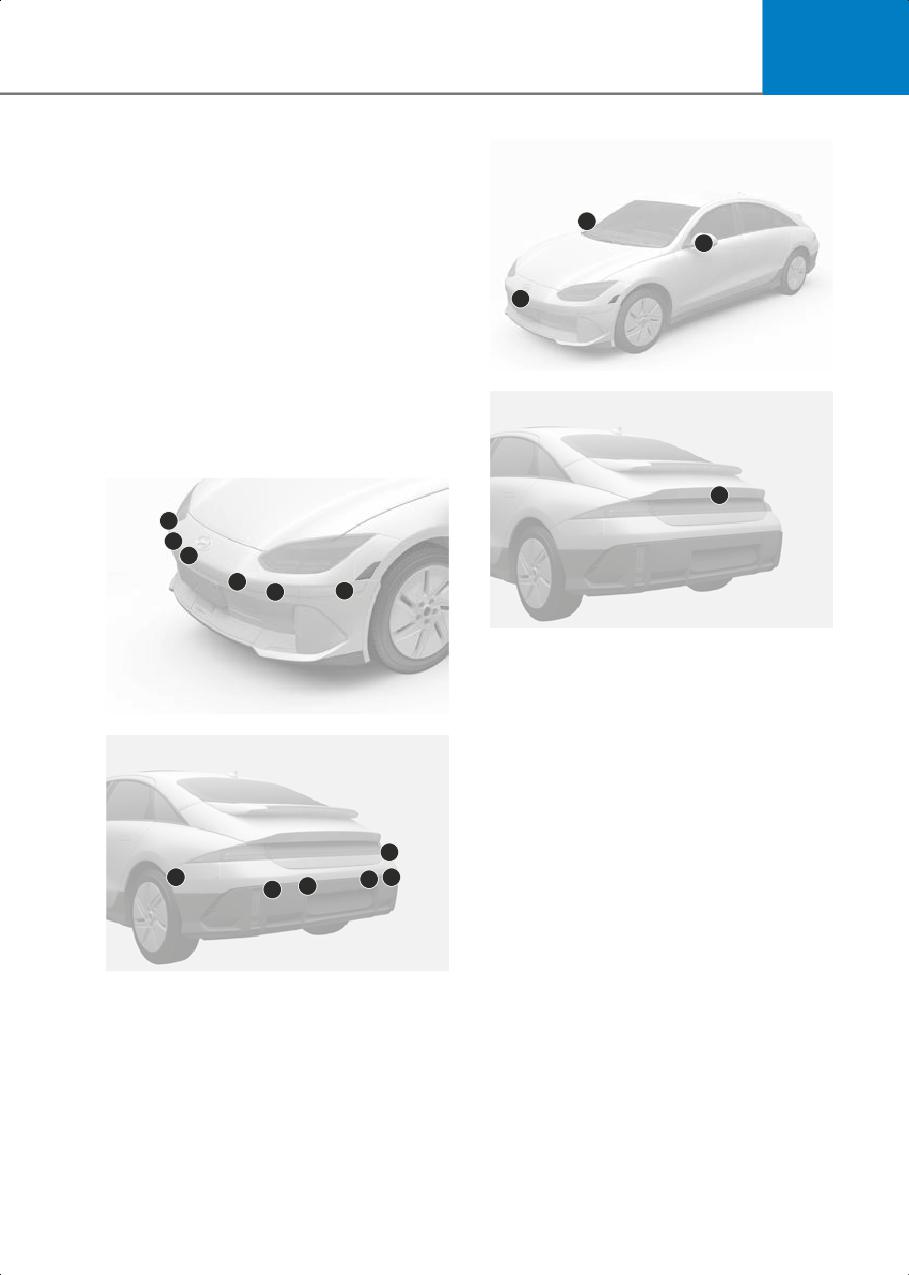
7
• Smart Exit function helps the driver
with parallel forward exit.
• When Remote Smart Parking Assist
operates, Parking Distance Warning
3
and Surround View Monitor will also
2
operate. For more information, refer to
the "Forward/Side/Reverse Parking
Distance Warning (PDW)" and
1
"Surround View Monitor (SVM)"
sections in this chapter.
• Remote Smart Parking Assist helps
B7008608
parking by recognizing the parking lines
with the wide angle camera.
Detecting sensors
4
2
1
1
1
1
2
B7008609
(1) Wide-front view camera
(2) Wide-side view camera
(3) Wide-side view camera
B7008606
(4) Wide-rear view camera
Refer to the picture above for the detailed
location of the detecting sensors.
3
3
4
4
4
4
B7008607
(1) Front ultrasonic sensors
(2) Front corner ultrasonic sensors
(3) Rear corner ultrasonic sensors
(4) Rear ultrasonic sensors
Refer to the picture above for the detailed
location of the detecting sensors.
7-141
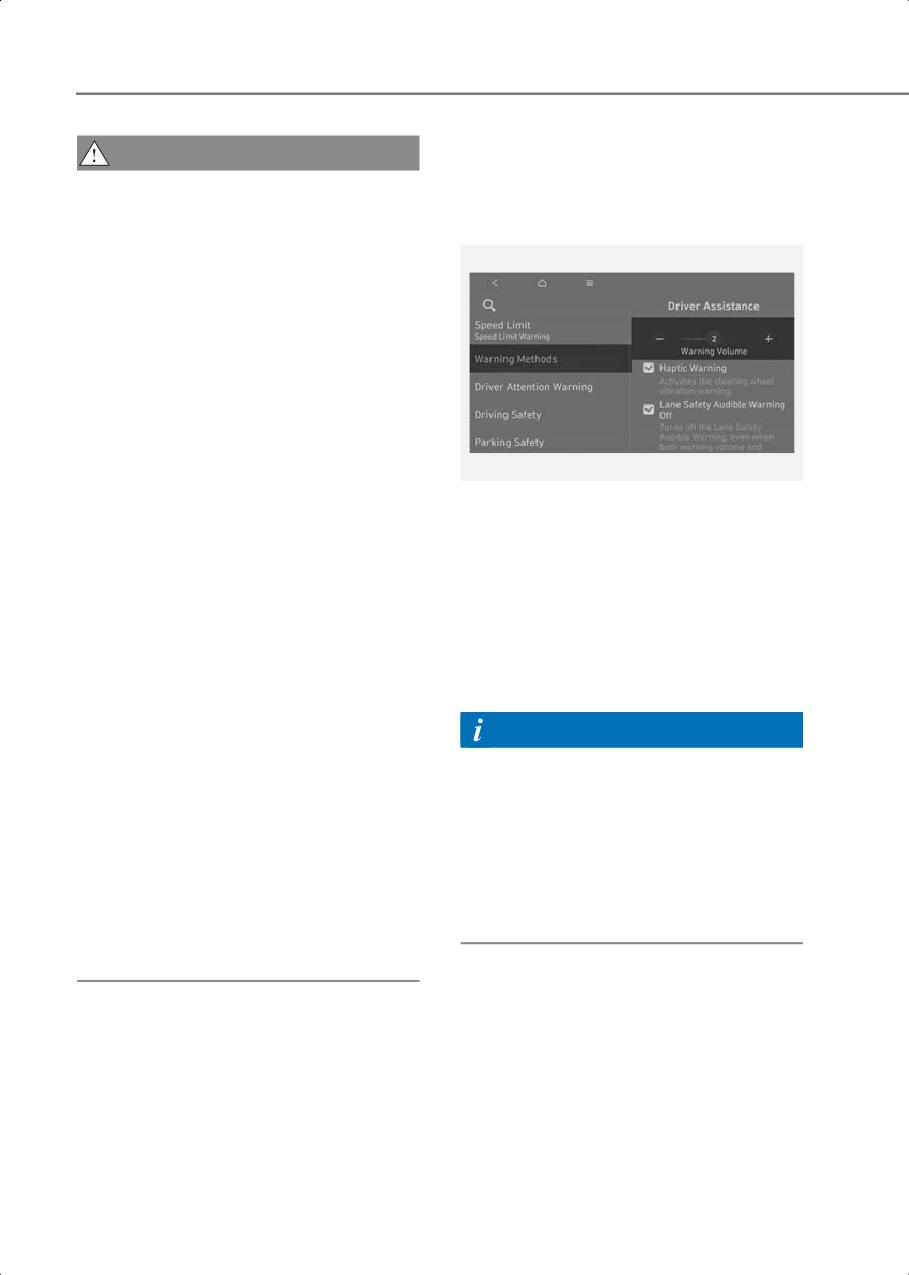
Driver Assistance System
Remote Smart Parking Assist
CAUTION
Settings
Take the following precautions to
maintain optimal performance of the
Warning Methods
detecting sensors:
•
Never disassemble the ultrasonic
sensor or sensor assembly, or cause
any damage to it.
•
Remote Smart Parking Assist may
malfunction if the vehicle bumper
height or ultrasonic sensor installation
has been modified or damaged. Any
non-factory installed equipment or
accessories may also interfere with the
sensor performance.
•
When the ultrasonic sensor is frozen or
B7002602
stained with snow, dirt, or water, the
sensor may not operate until the stains
With the vehicle on, go to Setup > Vehicle
are removed using a soft cloth.
> Driver Assistance > Warning Methods
from the Settings in the infotainment
•
Do not push, scratch, or strike the
system to select the following:
ultrasonic sensor. Sensor damage
could occur.
• Warning Volume: The Warning Volume
can be adjusted.
•
Do not spray the ultrasonic sensors or
its surrounding area directly with a high
If you turn off the Warning Volume, for
pressure washer.
your safety, the function may warn you
with a low volume.
•
Always keep the camera lens clean. If
the lens is covered with foreign
Information
material, it may adversely affect
camera performance and Remote
• If you change the Warning Methods,
Smart Parking Assist may not operate
Warning Methods of other Driver
properly.
Assistance systems may change.
•
Do not manually adjust the side view
• If the vehicle is restarted, Warning
mirror or use Remote Smart Parking
Methods will maintain the last setting.
Assist after a hard impact on the side
• There may be no Settings menu
view mirror. When a collision occurs or
depending on the feature applied to
the side view mirror is manually
your vehicle.
operated, Remote Smart Parking Assist
may not operate properly.
7-142
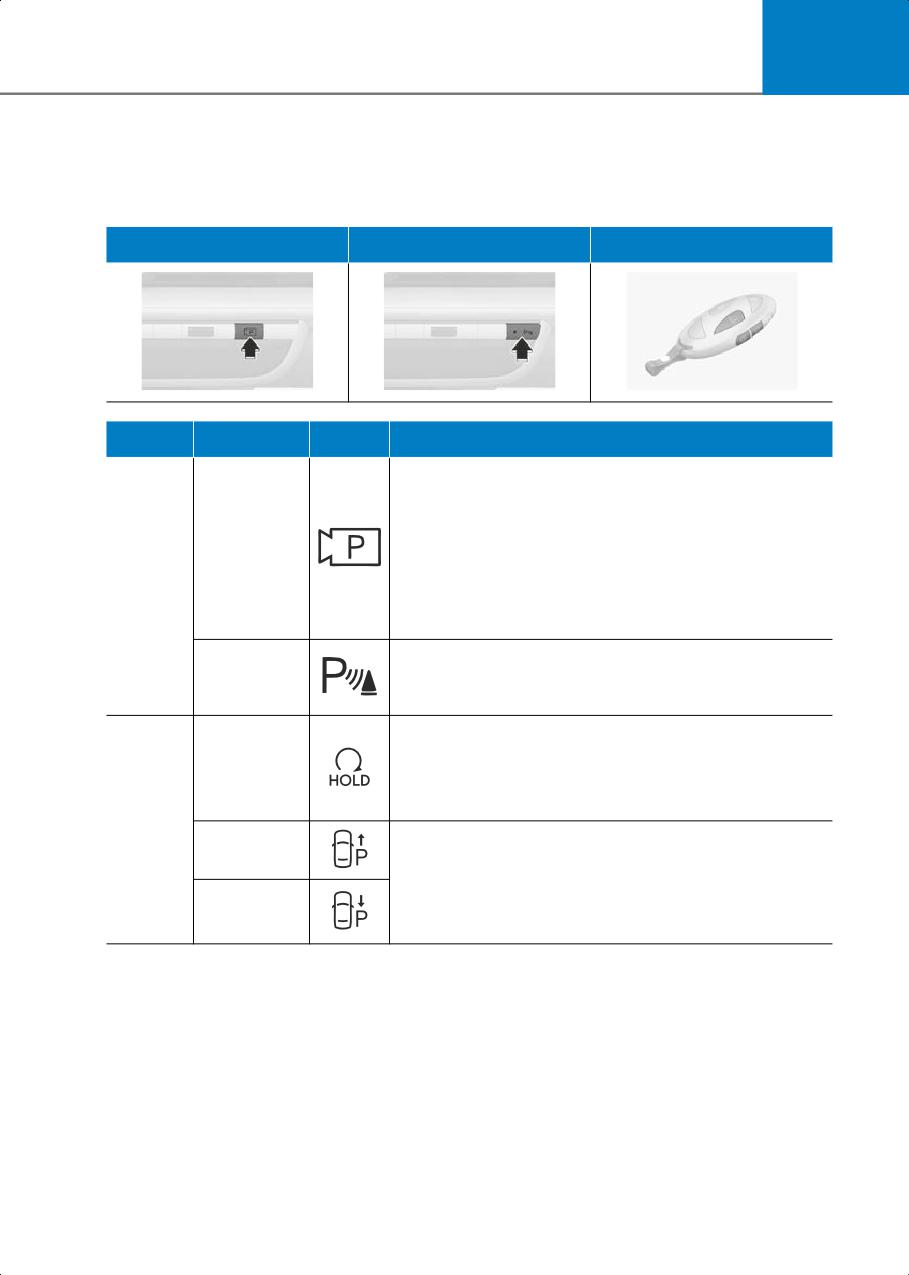
7
Remote Smart Parking Assist Operation
Remote Smart Parking Assist button
Parking/View Button
Parking Safety Button
Smart Key
Location
Name
Symbol
Description
• Press and hold the Parking/View button to turn on
Remote Smart Parking Assist. Also, Forward/Reverse
Parking Distance warning will automatically turn on.
However, functions may differ depending on the
Parking/Vie
situations. Refer to the each function's description for
w button
more information in the following pages.
Inside
• Press and hold the Parking/View button while Smart
vehicle
Parking or Smart Exit function is on to operate the
function.
Parking
• Press the Parking Safety button while Remote Smart
Safety
Parking Assist is operating to end Remote Smart
button
Parking Assist operation.
• Press the Remote Start button after the door is locked
with the vehicle off to start the vehicle remotely.
Remote
• Press the Remote Start button while Remote Smart
Start button
Parking or Remote Operation function is operating to
end function operation.
Smart
key
Forward
• When using Remote Smart Parking function,
regardless of which direction button is pressed,
button
parking is supported while the button is pressed.
• When using the Remote Operation function, the
Backward
vehicle moves in the direction of the button while the
button
button is pressed.
7-143
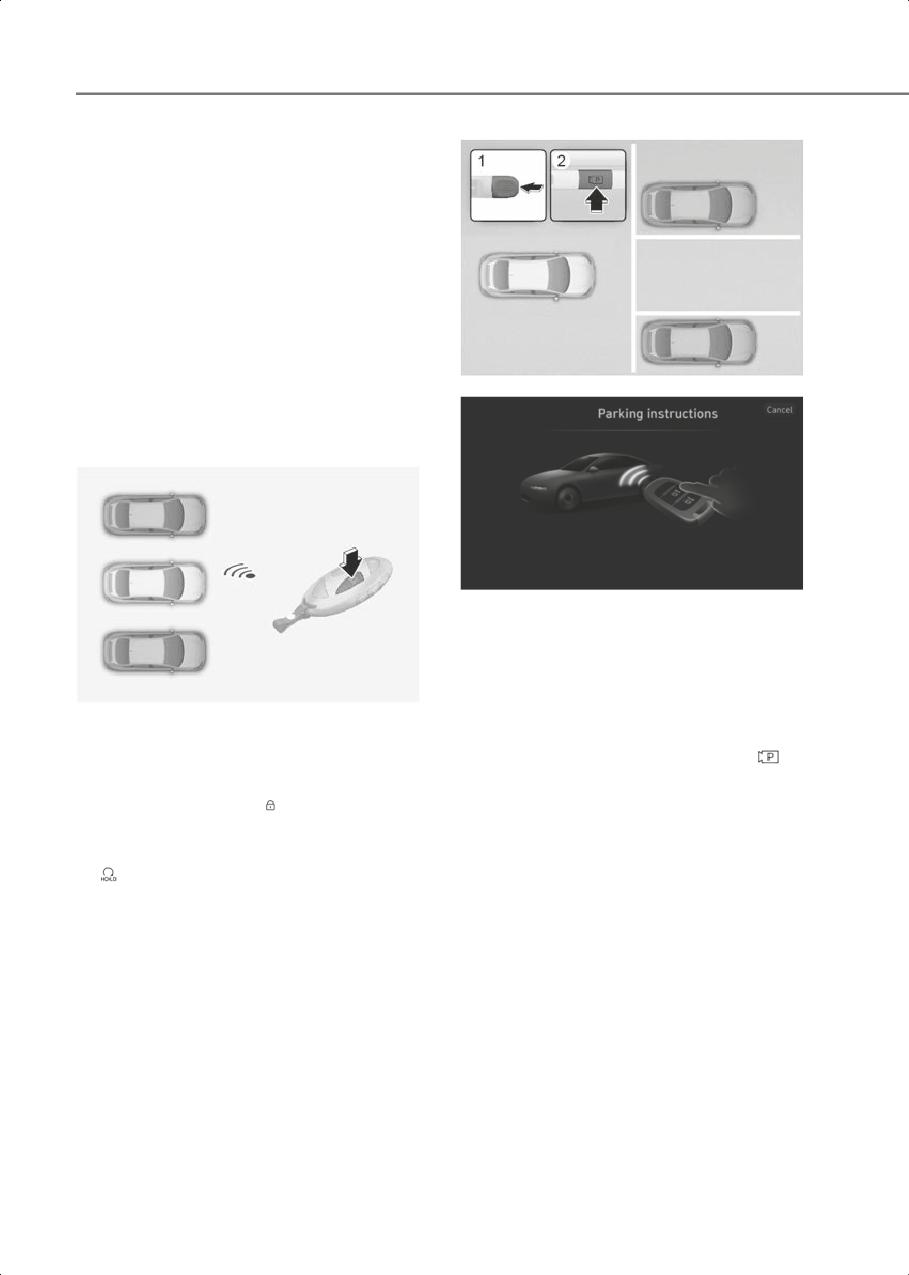
Driver Assistance System
Remote Operation
Operating order
Remote Operation operates in the
following order:
1. Getting ready to remotely move
forward and backward
2. Remotely moving forward and
backward
1. Getting ready to remotely move
B7008810
forward and backward
6IQSXI
There are two ways to operate Remote
Operation function.
0IEZI ZILMGPI OIIT XLI WQEVX OI] 'PSWI EPP HSSVW
4VIWW ERH LSPH XLI *SV[EVH SV &EGO[EVH FYXXSR SR XLI WQEVX OI]
B7008811
Method 2. Using the function with vehicle
on
1. Park the vehicle in front of the space
where you want to use Remote
B7008809
Operation function, and shift the gear
to P (Park).
Method 1. Using the function with vehicle
off
2. Press and hold the Parking/View (
)
button to turn on Smart Parking Assist.
• Within a certain range from the vehicle
press the door lock (
) button on the
• A message Remote Parking
smart key and lock all doors.
instructions will appear on the
infotainment system.
• Press and hold the Remote Start button
(
) within 4 seconds until the vehicle
3. Get out of the vehicle with the smart
starts.
key and close all doors.
For more information on remotely
starting the vehicle, refer to the "Remote
Start" section in chapter 6.
7-144
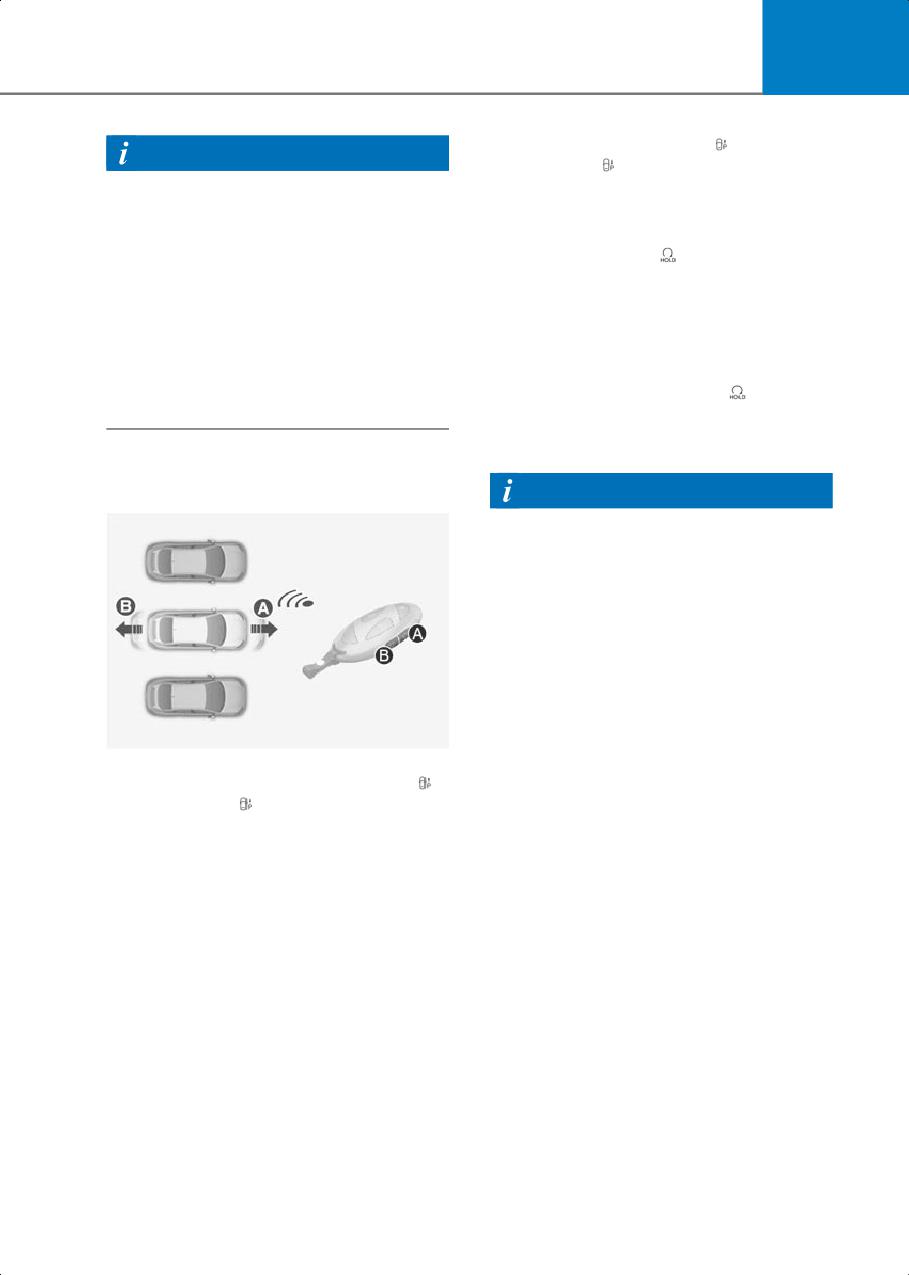
7
2. Hold down the Forward (
) or
Information
Backward (
) button until the vehicle
• Agree must be selected on the
reaches the target location.
infotainment system and the
3. When Remote Operation is done, get in
infotainment system has to operate
the vehicle with the smart key or press
properly to use Remote Operation
the Remote Start (
) button on the
function.
smart key from outside the vehicle.
• Method 2 can be used after the vehicle
• The message will appear on the
has been driven above 3 mph (5 km/h).
infotainment system. The vehicle will
• If the function is turned on again after
automatically shift to P (Park) and
parking is completed by Remote Smart
engage the parking brake.
Parking Assist, Remote Operation
• When the Remote Start (
) button is
function can be used with Method 2.
pressed, the vehicle will turn off. If
the driver is in the vehicle, the vehicle
will retain ON position.
2. Remotely moving forward and
backward
Information
•
Remote Operation can control the
vehicle remotely using the smart key
outside the vehicle.
•
Check that all smart keys are outside
the vehicle when using Remote
Operation function.
•
Remote Operation function will operate
only when the smart key is within 13 ft.
(4 m) from the vehicle. If there is no
vehicle movement even when the
B7008812
Forward or Backward button is pressed
on the smart key, check the distance to
1. Press and hold one of the Forward (
)
the vehicle and press the button again.
or Backward (
) button on the smart
•
The detecting range of the smart key
key.
may vary depending on the
• Remote Smart Parking Assist will
surroundings that are affected by radio
automatically control the steering
waves such as transmission tower,
wheel, vehicle speed and gearshift.
broadcast station, etc.
The vehicle will move in the direction
•
When remotely moving forward using
of the button pressed.
Method 1, it is recognized as an exit
• While Remote Operation function is
situation, and the vehicle moves 13 ft. (4
operating, if the you let the button,
m) to check for parking lines,
the vehicle will stop and function
pedestrians, animals or objects around
control will pause. The function will
the vehicle. After confirmation, the
start operating again when the
steering wheel is controlled according
button is pressed and held again.
to the condition ahead.
7-145
Driver Assistance System
•
When remotely moving forward using
Remote Operation function operation
Method 2, it is recognized as a parking
status
situation, and will immediately control
the steering wheel according to the
Hazard
Operation
condition ahead to assist with entering
Smart Key LED
Warning
Status
the parking space and aligning the
Light
vehicle. However, performance may
Green LED
reduce depending on the parking lines,
Under
continuously
-
pedestrians, animals, shape of objects,
control
blinks
location, etc., around the vehicle.
•
For moving remotely backward, both
Red LED
Method 1 and 2 aligns the steering
Pause
continuously
Blinks
wheel first, and then will only move the
blinks
vehicle straight.
Red LED
Blinks 3
illuminates for
Off
times and
4 seconds and
turns off
WARNING
then turns off
•
When using Remote Operation
Green LED
Blinks 1
function, make sure that all passengers
illuminates for
Complete
time and
have gotten out of the vehicle.
4 seconds and
turns off
•
If the vehicle’s battery is discharged or
then turns off
Remote Smart Parking Assist
malfunctions when parked in a narrow
parking space, Remote Operation
Information
function will not operate. Always park
your vehicle in a space wide enough for
• Operation status by the hazard warning
you to get in or out of your vehicle.
light may not be applicable based on
the regulation of your state.
•
Please note that depending on the
parking space, you may not be able to
• If the smart key is not within the
exit from the space you have entered
operating range from the vehicle
by using Remote Operation function.
(about 13 ft. (4 m)), the smart key LED
will not illuminate or blink. Use the
•
After parking, the surrounding may
smart key within the operating range.
change due to the movement of
surrounding vehicles. If this occurs,
Remote Operation function may not
How to turn off Remote Operation function
operate.
while operating
•
Before leaving the vehicle, close
• Press the Parking/View (
) button
windows and sunroofs, and make sure
while the infotainment system guides
the vehicle is off before locking the
the driver using method 2.
doors.
• Shift the gear from P (Park) to any other
position while the infotainment system
guides the driver using method 2.
• Press the Parking Safety (
) button or
select Cancel on the infotainment
system.
7-146
7
• Press the Remote Start (
) button on
The function will cancel in the following
the smart key while the vehicle is being
conditions when:
controlled by Remote Operation
When Remote Operation function is
function. Remote Operation function
canceled, the vehicle will automatically
will turn off. At this time, the vehicle will
stop, shift the gear to P (Park) and engage
turn off.
EPB (Electronic Parking Brake).
• Get on the vehicle with the smart key.
•
The steering wheel is steered
Remote Operation function will turn
•
The gear is shifted while the vehicle is
off. At this time, the vehicle will remain
moving
on.
•
Operating EPB while the vehicle is
The function will pause in the following
moving
conditions when:
•
The hood is open
•
There is a pedestrian, animal or object
•
The brake pedal or accelerator pedal is
in the direction the vehicle is moving
depressed when all the doors are
•
The door or trunk is open
closed
•
The Forward (
) or Backward (
)
•
The smart key is outside the vehicle
button is not continuously pressed
when the brake pedal is depressed
while the driver's door is open
•
Simultaneously pressing multiple
buttons on a smart key
•
Rapid acceleration occurs
•
The smart key is not operated within 13
•
Vehicle skid occurs
ft. (4 m) from the vehicle
•
The wheel is stuck by an obstacle and
•
Button of another smart key is pressed
cannot move
in addition to the operating smart key
•
About 3 minutes and 50 seconds has
(except Remote Start button)
passed after Remote Operation
•
Blind-Spot Collision Warning or Rear
function has started to operate
Cross-Traffic Collision-Avoidance
•
The slope of the road exceeds the
Assist operates while the vehicle is
operational range
being controlled in the reverse
•
The function is paused for more than 1
direction.
minute
•
The vehicle moves 22 ft. (7 m) while the
•
The total travel distance of the vehicle
smart key is pressed with Remote
has exceeded 45 ft. (14 m) after Remote
Operation function (maximum travel
Operation function operation
distance per button press)
•
The steering wheel, gearshift, braking,
and drive controls are not working
properly
•
There is a problem with the smart key or
the smart key battery is low
•
ABS, TCS or ESC system operates due
to slippery road conditions
•
The alarm of the Theft Alarm System
sounds
•
The charging door is open
7-147