Hyundai Palisade (2024 year). Manual in english - page 6
 

  Index      Manuals     Hyundai Palisade (2024 year). Manual in english


Search            copyright infringement  


Content      ..     4      5      6      7     ..


Hyundai Palisade (2024 year). Manual in english - page 6


5

5-15

NOTICE


To prevent damaging the smart key:
• Keep the smart key in a cool, dry place 

to avoid damage or malfunction. 

Exposure to moisture or high 

temperature may cause the internal 

circuit of the smart key to malfunction 

which may not be covered under 

warranty.

• Avoid dropping or throwing the smart 

key.

• Protect the smart key from extreme 

temperatures.


NOTICE


• Keep the smart key away from 

electromagnetic materials that blocks 

electromagnetic waves to the key 

surface.

• Always have the smart key with you 

when leaving the vehicle. If the smart 

key is left near the vehicle, the vehicle 

battery may be discharged.


 Information


This device complies with Part 15 of the 

FCC rules.
Operation is subject to the following three 

conditions:
1. This device may not cause harmful 

interference.

2. This device must accept any 

interference received, including 

interference that may cause undesired 

operation.

3. Changes or modifications not expressly 

approved by the party responsible for 

compliance could void the user’s 

authority to operate the device.


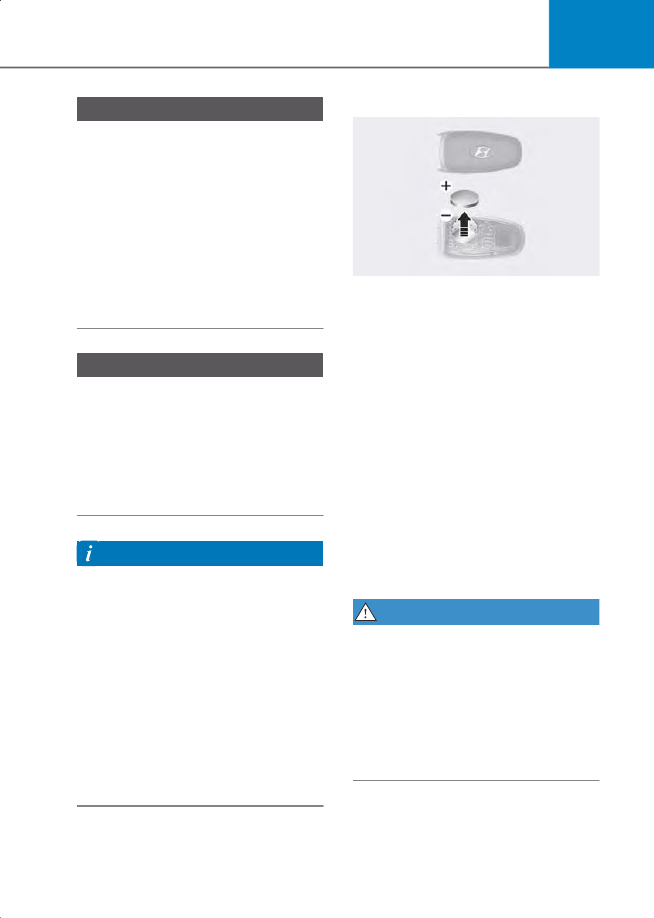
Battery replacement

B0099KO02

If the Smart Key is not working properly, 

try replacing the battery with a new one.
Battery Type: CR2032
To replace the battery:
1. Remove the mechanical key.
2. Use a slim tool or utility blade to pry 

open the cover of the smart key. Use 

caution not to damage the smart key.

3. Remove the old battery and insert the 

new battery. Make sure the battery 

position is correct.

4. Reinstall the rear cover of the smart 

key.

If you suspect your smart key might have 

sustained some damage, or you feel your 

smart key is not working correctly, it is 

recommended that you contact an 

authorized HYUNDAI dealer.


WARNING


THIS PRODUCT CONTAINS A BUTTON 

BATTERY.
If swallowed, a lithium button battery can 

cause severe or fatal injuries within 2 

hours. Keep batteries out of reach of 

children.
If you think batteries may have been 

swallowed or placed inside any part of the 

body, seek immediate medical attention.


CarManuals2.com

Convenience Features

5-16

 Information


An inappropriately disposed battery can 

be harmful to the environment and 

human health. Dispose of the battery 

according to your local law(s) or 

regulations.


Immobilizer System

The immobilizer system helps protect 

your vehicle from theft. If an improperly 

coded key (or other device) is used, the 

engine’s fuel system is disabled.
When the ignition switch is turned to ON 

position (or the Engine Start/Stop button 

is pressed to the ON position), the 

immobilizer system indicator should 

come on briefly, then go off. If the 

indicator starts to blink, the system does 

not recognize the coding of the key.
Turn the ignition switch to the Lock 

position, then turn the ignition switch to 

the ON position again. (For remote key)
Press the Engine Start/Stop button to the 

OFF position, then press the Engine 

Start/Stop button to the ON position 

again. (For smart key)
The system may not recognize your key’s 

coding if another immobilizer key or other 

metal object (for example, key chain) is 

near the key. The engine may not start 

because the metal may interrupt the 

transponder signal from transmitting 

normally.
If the system repeatedly does not 

recognize the coding of the key, it is 

recommended that you contact your 

HYUNDAI dealer.
Do not attempt to alter this system or add 

other devices to it. Electrical problems 

could result that may make your vehicle 

inoperable.


WARNING


In order to prevent theft of your vehicle, 

do not leave spare keys anywhere in your 

vehicle. Your immobilizer password is a 

customer unique password and should be 

kept confidential.


NOTICE


The transponder in your key is an 

important part of the immobilizer system. 

It is designed to give years of trouble-free 

service, however you should avoid 

exposure to moisture, static electricity 

and rough handling. Immobilizer system 

malfunction could occur.


 Information


This device complies with Part 15 of the 

FCC rules. Operation is subject to the 

following three conditions:
1. This device may not cause harmful 

interference, and

2. This device must accept any 

interference received, including 

interference that may cause undesired 

operation.

3. Changes or modifications not expressly 

approved by the party responsible for 

compliance could void the user’s 

authority to operate the device.


CarManuals2.com

5

5-17

if equipped

Hyundai Digital Key

Hyundai digital key provides convenience 

to the driver, which the driver can use to 

lock or unlock the driver and passenger 

doors or the liftgate and turn of the 

vehicle.

Digital key (smartphone)

 Information


• Hyundai digital keys are only available 

on smartphone that support digital key 

functions, and digital key functions of 

smartphones are provide by 

smartphone manufacturers.

• Available smartphone models can be 

found on our website 

(https://owners.Hyundai.com/us/en/re

sources/in-vehicle-navigation/introdu

cing-all-new-digital-key.html).

• Depending on the availability of service 

on the vehicle, some functions may not 

operated.


Setting your smart phone

To use the digital key (Smart phone), 

download the Blue Link App and sign up 

Hyundai account and service.
For more information about Blue Link, 

refer to the infotainment system guide.

Registering your digital key (smart 

phone)

1. Turn on the vehicle with a smart key. 

Have your smart key with you in the 

vehicle.

B0901EU04

2. From the infotainment system Settings 

menu, select ‘

Setup

 > 

Vehicle

 > 

Digital 

Key

 > 

Smartphone Key

 > 

My 

Smartphone Key

’.

3. After selecting ‘

Digital Key

 > 

Set Up 

Digital Key

’ from the My Hyundai App 

in the smart phone, register the digital 

key according to the guidance in the 

smart phone screen.
• The NFC Antenna position on 

Samsung device can be found in the 

following path: 

Settings

 > 

Connections

 > 

NFC and contactless 

payments

.

CarManuals2.com

Convenience Features

5-18

B0901KO07

• The NFC Antenna position on Apple 

iPhone is located at the top of the 

rear (A) and Apple WATCH is located 

at the center of the screen (B).

• Place your smart phone on the 

vehicle authentication pad (wireless 

charging pad) with the screen facing 

up. (In case of Apple WATCH, need to 

touch the pad with WATCH screen 

face).

• Ensure that the NFC Antenna position 

on the smart phone is in contact with 

the vehicle authentication pad 

(wireless charging pad).

• The location of the NFC Antenna on 

the smart phone may vary by phone 

model, so please contact the 

smartphone manufacturer for 

details.

• NFC communication may not work 

for some smart phones depending on 

the internal structure of the smart 

phone. Move the smart phone to the 

left or right of the indoor 

authentication pad (wireless 

charging pad) to operate.

4. Press the ‘Save’ button from the 

infotainment system screen. The saving 

process begins automatically.
• When the digital key (smart phone) is 

saved, a message appears on the 

infotainment system screen.

 Information


• If you want to register a digital key 

(smart phone) again, refer to ‘How to 

Delete Digital Key (Smart Phone)’ and 

delete the digital key (smart phone) 

before re-registering.

• During the digital key saving process, 

the process will cancel when:
- The smart phone is removed from the 

vehicle authentication pad (wireless 

charging pad)

- The infotainment system screen is 

changed

- The vehicle is turned off
- The gear is shifted

• The registering process does not start if 

a smart key is not in the vehicle.

• Some smart phones may not start the 

registering process depending on the 

internal structure. Move the smart 

phone to the left or right on the vehicle 

authentication pad (wireless charger 

pad) and try registering the smart 

phone.


CarManuals2.com

5

5-19

Using the digital key (smart phone)

The driver can lock or unlock the door by 

placing the smart phone on the outside 

door handle, and the vehicle can be 

started by placing the smart phone on the 

vehicle authentication pad (wireless 

charging pad).

B0901KO03

[A] : Door handle authentication pad

[B] : NFC Antenna

• The NFC Antenna position on Samsung 

device can be found in the following 

path: 

Settings

 > 

Connections

 > 

NFC 

and contactless payments

.

B0901KO07

• The NFC Antenna position on Apple 

iPhone is located at the top of the rear 

(A) and Apple WATCH is located at the 

center of the screen (B).

• Touch the Door handle NFC Antenna 

position with the back of your smart 

phone. (In case of Apple WATCH, need 

to touch the pad with WATCH screen 

face).

• The location of the NFC Antenna on the 

smart phone may vary by phone model, 

so please contact the smartphone 

manufacturer for details.

Locking/Unlocking the doors

• If the driver places the digital key 

(smart phone) NFC antenna to the 

driver’s or passenger’s door handle 

authentication pad (A) for more than 2 

seconds, the door will lock or unlock.

• If the Two Press Unlock feature is set, 

only the driver’s door unlock when the 

digital key (smart phone) is placed on 

the driver’s door handle authentication 

pad. Hold the digital key (smart phone) 

near the driver’s door handle 

authentication pad once more within 4 

seconds to unlock all doors.

• After unlocking the doors, the doors will 

automatically re-lock after 30 seconds 

unless a door is opened.

• If the smart phone digital key does not 

operate, try again after moving the 

smart phone away from the door 

handle authentication pad (more than 4 

in. (0.1 m)).

 Information


You cannot lock your vehicle using the 

digital key (smart phone) if any of the 

following occurs:
• The smart key is in the vehicle.
• The Start/Stop button is in the ACC or 

ON position.

• Any of the doors, hood, or liftegate are 

open.


Starting the vehicle

After placing your registered digital key 

(smart phone) on the vehicle 

authentication pad (wireless charging 

pad), depress the brake pedal and press 

the Start/ Stop button.
After starting the vehicle, the digital key 

(smart phone) may be removed from the 

vehicle authentication pad (wireless 

charging pad).
For more details on the basic way to start 

the vehicle, refer to the “Engine 

Start/Stop Button” section in chapter 6.

CarManuals2.com

Convenience Features

5-20

 Information


If a shared digital key (smart phone) is 

used for the first time, the activating time 

may take longer.
• Place the shared digital key (smart 

phone) on the door handle 

authentication pad until the vehicle 

door lock/unlock activates.

• If a shared digital key (smart phone) is 

first used on the vehicle authentication 

pad (wireless charger pad), the initial 

start of the vehicle may fail.

• If the door lock/unlock is activated 

once with the shared digital key (smart 

phone) or the vehicle is started with the 

digital key (smart phone) on the vehicle 

authentication pad, the digital key 

(smart phone) will be registered in the 

vehicle.


WARNING


The vehicle can be started when the 

registered smart phone is placed on the 

vehicle authentication pad (wireless 

charging pad). Therefore, do not leave 

unsupervised children or people who are 

not aware of the system since it can result 

in serious injury or death. In addition, 

always have the registered smart phone 

with you to prevent vehicle theft when 

leaving the vehicle.


Deleting your digital key (smart 

phone)

Turn on the vehicle with a smart key. Have 

your smart key with you in the vehicle.

B0901EU05

Deleting all registered digital key (smart 

phone)

To delete all the registered digital key 

(smart phone), from the Settings menu 

select ‘

Setup

 > 

Vehicle

 > 

Digital Key

 > 

Smartphone Key

 > 

Delete All’ in the 

infotainment system

.

• The ‘Delete All’ button is disabled if 

there is no registered digital key (smart 

key).

CarManuals2.com

5

5-21

B0901EU05

Deleting my registered digital key (smart 

phone)

To delete only my registered digital key 

(smart phone), from the Settings menu 

select ‘

Setup

 > 

Vehicle

 > 

Digital Key

 > 

Smartphone Key

 > 

My Smartphone Key


Delete’ in the infotainment system

.

• If a shared digital key (smart phone) is 

registered, it cannot be deleted.

• A new smart phone can be registered 

after deleting the existing digital key 

(smart phone) from ‘My Smartphone 

Key’ menu.

 Information


• If the registered digital key (smart key) 

is deleted, the digital key saved in the 

smart phone will also be deleted.

• If the digital key is deleted from the 

smart phone, the digital key (smart 

phone) registered in the vehicle will 

also be deleted.

• The shared digital key registered in the 

vehicle cannot be deleted individually.

• Even though the Blue Link® App is 

deleted from the smart phone, the 

digital key saved in the smart phone will 

not be deleted.

• Management of the digital key saved in 

the smart phone is available from the 

Digital Key App provided by the smart 

phone manufacturer.


Digital key (Card key)

How to register Digital Key (Card 

Key)

To use the card key as a digital key, follow 

the following procedure.
1. Have both of your smart keys with you 

in the vehicle.

B0902EU01

2. Select ‘

Setup

 > 

Vehicle

 > 

Digital Key

 > 

Card Key

’ from the Settings menu, and 

check whether ‘Enabled Car Key’ is 

selected in the infotainment system.

B0901KO02

[A] : Vehicle authentication pad (Wireless charging 

pad)

3. Place your card key on the vehicle 

authentication pad (wireless charging 

pad) while the vehicle is on.

4. Register your card key by selecting 

Setup

 > 

Vehicle

 > 

Digital Key

 > 

Card 

Key

 > 

Save

’ from the Settings menu in 

the infotainment system.

CarManuals2.com

Convenience Features

5-22

 Information


• When there is a digital key (card key) 

already registered in the vehicle, a new 

digital key (card key) cannot be 

registered. Re-register a new digital key 

(card key) after deleting the exiting 

digital key (card key).

• To register a digital key (card key), both 

of your smart keys must be in the 

vehicle.

• A registered digital key (card key) 

cannot be registered in other vehicles.


Using the digital key (card key)

The driver can lock or unlock the door by 

placing the card key on the outside door 

handle, and the vehicle can be started by 

placing the card key on the vehicle 

authentication pad (wireless charging 

pad).

B0902KO02

[A] : Door handle authentication pad

[B] : Card key NFC Antenna

Locking/Unlocking the doors

- If the driver places the digital key 

(Card key) to the driver’s or 

passenger’s door handle 

authentication pad (A) for more than 

2 seconds, the door will lock or 

unlock.

- If the Two Press Unlock feature is set, 

only the driver’s door unlock when 

the digital key (Card key) is placed on 

the driver’s door handle 

authentication pad. Hold the digital 

key (Card key) near the driver’s door 

handle authentication pad once 

more within 4 seconds to unlock all 

doors.

- After unlocking the doors, the doors 

will automatically re-lock after 30 

seconds unless a door is opened.

 Information


You cannot lock your vehicle using the 

digital key (Card key) if any of the 

following occurs:
• The smart key is in the vehicle.
• The Start/Stop button is in the ACC or 

ON position.

• Any of the doors, hood, or liftgate are 

open.


Starting the vehicle

After placing your registered digital key 

(card key) on the vehicle authentication 

pad (wireless charging pad), depress 

the brake pedal and press the Engine 

Start/ Stop button.
For more details on the basic way to 

start the vehicle, refer to “Ignition 

Switch” or “Engine Start/Stop Button” 

section in chapter 6.


WARNING


The vehicle can be started when the 

registered card key is placed on the 

vehicle authentication pad (wireless 

charging pad). Therefore, do not leave 

unsupervised children or people who are 

not aware of the system since it can result 

in serious injury or death. In addition, 

always have the registered card key with 

you to prevent vehicle theft when leaving 

the vehicle.


CarManuals2.com

5

5-23

NOTICE


• The digital key (card key) may not work 

under the following conditions:
- The digital key (card key) is not 

placed on the door handle 

authentication pad or vehicle 

authentication pad (wireless 

charging pad) correctly.

- The digital key (card key) is near 

NFC-enabled cards such as credit 

cards or smart phones.
If the digital key (card key) does not 

work, try again after moving the 

digital key (card key) away from the 

door handle authentication pad 

(more than 4 in. (0.1 m)).

• The digital key (card key) can be 

damaged by impacts. If the digital key 

(card key) is damaged, replace the 

digital key (card key) with a new one 

and register it again.

• Long-time exposure to high 

temperature may cause the digital key 

(card key) to malfunction. Be careful 

not to expose the digital key (card key) 

to direct sunlight or high temperature.

• Leaving the digital key (card key) on the 

in-vehicle authentication pad (wireless 

charging pad) while driving may cause 

the digital key (card key) to 

malfunction. Remove the digital key 

(card key) from the in-vehicle 

authentication pad (wireless charging 

pad) after starting the vehicle.

• Remove the digital key (card key) from 

the smartphone before charging the 

smartphone. If the digital key (card key) 

is placed between the smartphone and 

the in-vehicle authentication pad 

(wireless charging pad) while the 

smartphone is being charged, the 

digital key (card key) may malfunction. 

For example, when charging 

smartphone while the digital key (card 

key) is attached to the back of the 

smartphone case.


Deleting your digital key (card key)

1. Turn on the vehicle with a smart key. 

Have your smart key with you in the 

vehicle.

B0902EU03

2. From the infotainment system settings 

menu, select ‘

Setup

 > 

Vehicle

 > 

Digital 

Key

 > 

Card Key

 > 

Delete

’.

• The ‘Delete’ button is disabled if 

there is no digital key (card key) 

registered.

Personalized profile and vehicle 

settings

You can set the registered digital key 

(smart phone) profiles for Driver 1 and 

Driver 2. When you use the digital key 

(smart phone), the vehicle can be set to 

the user-defined personalized profile 

(includes items such as vehicle settings 

and audio preferences).

CarManuals2.com

Convenience Features

5-24

Linking/Unlinking profile

How to link user profile

1. Select ‘

Setup

 > 

User Profile

 > 

Profile 

Settings

 > 

Link Digital Key 

(Smartphone)

’ from the Settings menu 

in the infotainment system.

2. Select ‘Link’ to connect the registered 

smart phone’s digital key and the user’s 

profile.

3. Follow the instructions according to the 

message on the infotainment system 

screen.

How to unlink user profile

Select ‘

Setup

 > 

User Profile

 > 

Profile 

Settings

’, and then deselect ‘Link Digital 

Key (Smartphone)’ from Settings menu in 

the infotainment system.
• Unlinking is possible only when user 

profile is linked.

 Information


• User profile cannot be linked to both 

Driver 1 and Driver 2 that are connected 

to single smart phone. Personalization 

will operate with the recently linked 

user profile, and the previously linked 

user profile will be automatically 

canceled.

• User profile link works only when the 

digital key is registered to the vehicle.

• Digital key (Card key) cannot be linked 

with a user profile.

• If the user profile linked digital key in 

the smart phone is deleted, the digital 

key should be re-registered and 

personalized by linking the user profile 

again.


Vehicle personalization operation

• The personalization function linked 

with digital key works when the profile 

linked smart phone is placed on the 

outside door handle authentication pad 

to lock or unlock the doors.

• The profile set by the digital key can be 

changed manually from the 

infotainment system.

• The personalization function using the 

digital key can be operated after linking 

the digital key in the infotainment 

system profile menu.

• The personalization function works only 

when the vehicle is OFF or when the 

vehicle is started remotely. If the 

vehicle is not started remotely, the 

personalization function does not work 

with the digital key.

 Information


User profile operation according to door 

lock/unlock system is as follows:


Item

Personalization 

Operation

Initial value

Guest

Profile linked 

smart phone 

key

Linked profile

Profile 

unlinked smart 

phone key

Recently activated 

profile

NFC card key

Smart key

CarManuals2.com

5

5-25

Vehicle personalization with digital key

The available personalization function in the vehicle is as follows:


CAUTION


If you leave the digital key after locking or unlocking the doors or starting up the vehicle 

with the smart key, the doors can be locked by the central door lock. Please carry around 

the digital key all the time.


 Information


The infotainment system may change after software updates. For more information, 

refer to the user's manual provided in the infotainment system and the quick reference 

guide.


System

Personalization Item

Infotainment 

system vehicle 

settings

Lamp

Blink number of one-touch signal lamps

Cluster

Information display on the cluster, Voice volume, 

Welcome sound

Seat/Mirror

Seat position, Side view mirror position, Easy Access

Intelligent driving posture assist (Smart IMS)

Door

Automatic door lock/unlock, Two Press Unlock

Head Up 

Display (HUD)

Position adjustment of image, Information display 

selection

Infotainment 

system

Navigation

Preferred volume of the navigation system, Recent 

destination

User preset

My menu list settings, Radio preset

Phone 

connectivity

Bluetooth preferential connect
CarPlay/Android Auto On/Off

Air conditioning

Operating 

condition

Latest operation setup of the following functions:
Temperature, AUTO, air flow direction, air volume, air 

conditioner, air intake control, SYNC, Front 

windshield defroster, OFF

CarManuals2.com

Convenience Features

5-26

Used Vehicle/Digital Key 

Maintenance

Purchasing used vehicle

If any of the digital key devices (smart 

phone key, card key) are registered in the 

vehicle, the ‘Digital key registered’ 

message appears once on the instrument 

cluster when the ignition switch is in the 

ON position after unlocking the doors. 

When purchasing a used vehicle, be sure 

to check the message and delete the 

smart phone key and card key registered 

by the previous user and inform the 

purchase of a used vehicle through 

Hyundai Customer Care Center.
If the card key comes with the vehicle, 

check whether it operates properly.

Digital Key Maintenance

If you need to have your Digital Key 

System repaired or replaced, the 

registered smartphone key or card key.

Limitations of the System

• Hyundai digital key may not operate if 

any of the following occurs:
- The smart phone battery or the 

vehicle battery is discharged

- NFC is turned off in the smart phone 

settings

- A credit card is near your smart 

phone, or a metal or thick smart 

phone case is used

- The card key is near other cards, or 

used in a wallet or card holder

- There is electronic interference by 

other vehicles, objects, etc.

• The vehicle may not be controlled by 

the smart phone if any of the following 

occurs:
- The basic necessary functions of the 

smart phone are operating (general 

call, urgent call, audio, etc.)

- Using a wireless earphone (general 

call, urgent call, audio, etc.)

CarManuals2.com

5

5-27

Door Locks

Operating Door Locks From 

Outside the Vehicle

Mechanical key

B0109KO01

B0109KO02

[A] : Lock

[B] : Unlock

First, pull the outside door handle (1) and 

push the hook (2) located inside of 

outside door handle by using the 

mechanical key. And remove the cover (3) 

and lower the cover downward not to be 

damaged.

NOTICE


Be careful not to damage the cover while 

removing it or misplace it after removing 

it.


After removing the cover, turn the key 

toward the front of the vehicle to unlock 

and toward the rear of the vehicle to lock.
If you lock the driver’s door with a 

mechanical key, the driver’s door will 

lock. If you unlock the driver’s door with a 

mechanical key, you can open and close 

the driver’s door only.
Once the doors are unlocked, they may 

be opened by pulling the door handle. 

When closing the door, push the door by 

hand. Make sure that doors are closed 

securely.

NOTICE


Do not apply excessive force on the door 

and door handle. It may damage the door 

and door handle.


 Information


• Be careful when locking the door by 

mechanical key operation, only the 

driver’s door can be locked/unlocked.

• When removing the cover, be careful 

not to lose cover and any scratches.

• When the key cover freezes and does 

not open, lightlay tap or indirectly warm 

(hand temperature, etc.) it.

• Do not apply excessive force to the 

door and door handle. It may be 

damaged.

• When the keyhole freezes and does not 

open, lightly tap or indirectly warm (for 

example, hand temperature) the 

keyhole.


CarManuals2.com

Convenience Features

5-28

Remote key

B0115EU06

To lock the doors, press the Door Lock 

button (1) on the remote key.
Press the Door Unlock button (2) on the 

remote key, the driver's door will unlock. 

If you press the Door Unlock button on 

the remote key again within four seconds, 

then all the doors will unlock.
When closing the door, push the door by 

hand. Make sure that doors are closed 

securely.

Smart key

Button type

B0097KO01

To lock the doors, press the button on the 

outside door handle while carrying the 

smart key with you or press the door lock 

button on the smart key.
To unlock the doors, press the button on 

the outside door handle while carrying 

the smart key with you or press the door 

unlock button on the smart key.
Once the doors are unlocked, they may 

be opened by pulling the door handle. 

When closing the door, push the door by 

hand. Make sure that doors are closed 

securely.

CarManuals2.com

5

5-29

Touch type

B0097EU04

Lock

Touch the touch sensor on the front 

outside door handle (the engraved part) 

while carrying the Smart Key with you or 

press the Door Lock button on the Smart 

Key, all doors will lock.

B0097EU03

Unlock

Put your hand in the front outside door 

handle while carrying the Smart Key with 

you or press the Door Unlock button on 

the Smart Key, all doors will unlock.
Once the doors are unlocked, they may 

be opened by pulling the door handle.
When closing the door, push the door by 

hand. Make sure that doors are closed 

securely.
For more details, refer to “Smart key” in 

the previous pages.

 Information


• During a car wash or rain, in order to 

minimize unintentional operation of the 

touch sensor, the touch sensor may 

become insensitive. This is not a 

malfunction.

• In cold and wet climates, door lock and 

door mechanisms may not work 

properly due to freezing conditions.

• If the door is locked/unlocked multiple 

times in rapid succession with either 

the vehicle key or door lock switch, the 

system may stop operating temporarily 

in order to protect the circuit and 

prevent damage to system 

components.


CarManuals2.com

Convenience Features

5-30

Operating Door Locks From 

Inside the Vehicle

With the door handle

B0111KO01

• To unlock a door, push the door lock 

button (1) to the “Unlock” position. The 

red mark (2) on the door lock button will 

be visible.

• To lock a door, push the door lock 

button (1) to the “Lock” position. If the 

door is locked properly, the red mark (2) 

on the door lock button will not be 

visible.

• To open a door, pull the door handle (3) 

outward.

• If the inner door handle of either the 

driver door or passenger door is pulled 

when the door lock button is in the lock 

position, the button is unlocked and the 

door will open.

• For Key Start Vehicles

(with Remote Key)
The front doors cannot be locked if the 

remote key is in the ignition switch and 

either of the front doors are open.

• For Push Button Start Vehicles (with 

Smart Key)
The doors cannot be locked if the smart 

key is inside the vehicle and any of the 

doors are open.

 Information


If a power door lock ever fails to function 

while you are in the vehicle try one or 

more of the following techniques to exit:
• Operate the door unlock feature 

repeatedly (both electronic and 

manual) while simultaneously pulling 

on the door handle.

• Operate the other door locks and 

handles, front and rear.

• Lower a front window and use the 

mechanical key to unlock the door from 

outside.


 Information


When the vehicle’s battery run out and 

you leave the vehicle, make sure all the 

doors are locked. You can lock the driver’s 

door with a key and the rest of the doors 

with the lock button above the door 

inside handle.


CarManuals2.com

5

5-31

With the central door lock switch

B0115EU03

B0115EU04

[A] : Driver’s door,

[B] : Front passenger’s door

Driver and passenger door

The driver and passenger side door 

armrest is equipped with a central door 

lock switch. The lock switch is indicated 
by a   symbol. The unlock switch is 
indicated by a   symbol.
• When the lock switch (1) is pressed 

(door indicator light ON), all the vehicle 

doors will lock.
- For Key Start Vehicles

(with Remote Key)
If the key is in the ignition switch and 

any door is opened, the doors will not 

lock even though the lock button (1) is 

pressed.

- For Push Button Start Vehicles (with 

Smart Key)
If the smart key is in the vehicle and 

any door is open, the doors will not 

lock even though the lock button (1) is 

pressed.

• When the unlock switch (2) is pressed, 

all the vehicle doors will unlock.

In case of an emergency

B0111KO03

In case of emergency such as when the 

battery is discharged, the only way to lock 

the door(s) is with the mechanical key 

from the outside key hole.
Doors without an outside key hole can be 

locked as follows:
1. Open the door.
2. Insert the key into the emergency door 

lock hole and turn the key to the lock 

position.

3. Close the door securely.

 Information


If the electrical power door lock switch 

does not operate (for example, dead car 

battery) and the liftgate is closed, you will 

not be able to open the liftgate until 

power is restored.


WARNING


• The doors should always be fully closed 

and locked while the vehicle is in 

motion. If the doors are unlocked, the 

risk of being thrown from the vehicle in 

a crash is increased.

• Do not pull the inner door handle of the 

driver’s or passenger’s door while the 

vehicle is moving.


CarManuals2.com

Convenience Features

5-32


WARNING


Do not leave children or animals 

unattended in your vehicle. An enclosed 

vehicle can become extremely hot, 

causing death or serious injury to 

unattended children or animals who 

cannot escape the vehicle. Children 

might operate features of the vehicle that 

could injure them, or they could 

encounter other harm, possibly from 

someone gaining entry to the vehicle.


WARNING


Always secure your vehicle.
Leaving your vehicle unlocked increases 

the potential risk to you or others from 

someone hiding in your vehicle.
To secure your vehicle, while depressing 

the brake, shift the gear to the P (Park) 

position, engage the parking brake, and 

press the Engine Start/Stop button to the 

OFF position, close all windows, lock all 

doors, and always take the key with you.


CAUTION


Opening a door when something is 

approaching may cause damage or injury. 

Be careful when opening doors and 

watch for vehicles, motorcycles, bicycles 

or pedestrians approaching the vehicle in 

the path of the door.


WARNING


If you stay in the vehicle for a long time 

while the weather is very hot or cold, 

there are risks of injuries or danger to life. 

Do not lock the vehicle from the outside 

when someone is in the vehicle.


Automatic Door Lock and 

if equipped

Unlock Features

Your vehicle is equipped with features 

that will automatically lock or unlock your 

vehicle based on settings you select in the 

infotainment system.

Auto LOCK Enable on speed

When this feature is set, all the doors will 

be locked automatically when the vehicle 

exceeds 9 mph (15 km/h).

Auto LOCK Enable on shift

When this feature is set, all the doors will 

be locked automatically when the vehicle 

is shifted out of P (Park) while the engine 

is running.

Auto UNLOCK On Shift to P

When this feature is set, all the doors will 

be unlocked automatically when the 

vehicle is shifted back into P (Park) while 

the engine is running.

Auto UNLOCK On key out (with 

if equipped

remote key)

When this feature is set, all the doors will 

be unlocked automatically when the 

ignition key is removed from the key 

ignition switch.

Auto UNLOCK Vehicle off (with 

if equipped

smart key)

When this feature is set, all the doors will 

be unlocked automatically when the 

vehicle is turned off.

CarManuals2.com

5

5-33

Additional unlock safety feature air 

bag deployment

As an additional safety feature, all doors 

will be automatically unlocked when an 

impact causes the air bags to deploy.

 Information


The infotainment system may change 

after software updates. For more 

information, refer to the user's manual 

provided in the infotainment system and 

the quick reference guide.


Child-Protector Rear Door 

if equipped

Locks

B0111EU01

The child safety lock is provided to help 

prevent children seated in the rear from 

accidentally opening the rear doors. The 

rear door safety locks should be used 

whenever children are in the vehicle.
The child safety lock is located on the 

edge of each rear door. When the child 

safety lock is in the lock position, the rear 

door will not open if the inner door handle 

is pulled.
To lock the child safety lock, insert a small 

flat blade tool (like a screwdriver or 

similar) (1) into the slot and turn it to the 

lock position as shown.
To allow a rear door to be opened from 

inside the vehicle, unlock the child safety 

lock.


WARNING


If children accidentally open the rear 

doors while the vehicle is in motion, they 

could fall out of the vehicle. The rear door 

safety locks should always be used 

whenever children are in the vehicle.


if equipped

Electronic Child Safety Lock

B0115KO01

When the electronic child safety lock 

button is pressed and the indicator light 

on the button illuminates, the rear doors 

cannot be opened from inside the vehicle.
• The rear door window cannot be 

opened or closed while the electronic 

child safety lock button is in the LOCK 

position (indicator light ON).
For more details, refer to “Windows” 

section in this chapter.

• Electronic child safety lock does not 

automatically turn on unless the driver 

presses the electronic child safety lock 

button.

• If 3 minutes passes after the ignition 

switch or Engine Start/Stop button is 

pressed to the LOCK/OFF or ACC, the 

indicator on the button turns off, and 

the driver cannot turn off electronic 

child safety lock by pressing the button. 

To turn off the function, press the 

Engine Start/Stop button to the ON 

position, and then press the electronic 

child safety lock button.

CarManuals2.com

Convenience Features

5-34

• If the power is supplied again after 

removing the battery or battery is 

discharged while the electronic child 

safety lock button is in the LOCK 

position, press the button once more to 

match the state of the indicator on the 

electronic child safety lock button and 

actual status of the electronic child 

safety lock function.

• If the airbag is activated while the 

electronic child safety lock button is in 

the LOCK position (indicator light ON), 

the rear doors will unlock 

automatically.

• Vehicles equipped with the electronic 

child safety lock feature is not provided 

with a manual child safety lock.


WARNING


If children accidentally opens the rear 

door while the vehicle is in motion, they 

could fall out of the vehicle. Electronic 

child safety lock should always be used 

whenever children are in the vehicle.


NOTICE


Child safety lock failure

B0115EU02

If the Electronic child safety lock system 

is not operated when pushing the 

Electronic child safety lock switch, the 

message is displayed and the alarm will 

sound.
If this occurs, have the vehicle inspected 

by an authorized HYUNDAI dealer.


Safe Exit Assist (with electronic child 

if equipped

safety lock)

Safe Exit Assist helps prevent the rear 

occupant from opening the rear door. 

When an approaching vehicle from the 

rear area is detected after the vehicle 

stops, the rear doors will not unlock even 

when the driver tries to unlock the rear 

doors using the electronic child safety 

lock button.
For more details, refer to “Safe Exit Assist 

(SEA)” section in chapter 7.

CarManuals2.com

5

5-35

Theft-Alarm System

This system helps to protect your vehicle 

and valuables. The horn will sound and 

the hazard warning lights will blink 

continuously if any of the following occur:
• A door is opened without using the 

smart key.

• The liftgate is opened without using the 

smart key.

• The engine hood is opened.
The alarm continues for 30 seconds, then 

the system resets. To turn off the alarm, 

unlock the doors with the smart key.
The Theft Alarm System automatically 

sets 30 seconds after you lock the doors 

and the liftgate. For the system to 

activate, you must lock the doors and the 

liftgate from outside the vehicle with the 

smart key or by touching the touch sensor 

on the outside of the door handle with the 

smart key in your possession.
The hazard warning lights will blink and 

the chime will sound once to indicate the 

system is armed.
Once the security system is set, opening 

any door, the liftgate, or the hood without 

using the smart key will cause the alarm 

to activate.
The Theft Alarm System will not set if the 

hood, the liftgate, or any door is not fully 

closed. If the system will not set, check 

the hood, the liftgate, or the doors are 

fully closed.
Do not attempt to alter this system or add 

other devices to it.

 Information


• Do not lock the doors until all 

passengers have left the vehicle. If the 

remaining passenger leaves the vehicle 

when the system is armed, the alarm 

will be activated.

• If the vehicle is not disarmed with the 

smart key, open the doors by using the 

mechanical key and place the ignition 

switch in the ON position (for remote 

key) or start the engine (for smart key) 

by directly pressing the ignition switch 

with the smart key.

• If the system is disarmed by unlocking 

the vehicle, but neither a door or the 

liftgate is opened within 30 seconds, 

the doors will re-lock and the system 

will rearm automatically.

• It is not recommended to install any 

secondary aftermarket theft-alarm 

systems into the vehicle factory 

electrical system.


CarManuals2.com

Convenience Features

5-36

Rear Occupant Alert 

if equipped

(ROA)

Rear Occupant Alert is provided to help 

prevent the driver from leaving the 

vehicle with the rear passenger left in the 

vehicle.

System Setting

To use Rear Occupant Alert, it must be 

enabled from the Settings menu in the 

infotainment system screen. Select:

Setup

 > 

Vehicle

 > 

Convenience

 > 

Rear 

Occupant Alert

 Information


The infotainment system may change 

after software updates. For more 

information, refer to the user's manual 

provided in the infotainment system and 

the quick reference guide.


System Operation

• First alert

When you open the front door after 

opening and closing the rear door and 

turning off the engine, the ‘Check rear 

seats’ warning message appears on the 

cluster.

• Second alert (if equipped)

After the first alert, the second alert 

operates when any movement is 

detected in the vehicle after the driver’s 

door is closed and all the doors are 

locked. The horn will sound for 

approximately 25 seconds. If the 

system continues to detect a 

movement, the alert operates up to 8 

times.
Unlock the doors with the smart key to 

stop the alert.

• The system detects movement in the 

vehicle for 8 hours after the door is 

locked.

• The second alert is activated only after 

the prior activation of the first alert.

CarManuals2.com

5

5-37

System Precautions

• Make sure that all the windows are 

closed. If the window is open, the alert 

may operate by the sensor detecting an 

unintended movement (for example, 

wind or bugs).

• If you do not want to use Rear 

Occupant Alert, press the OK button on 

the steering wheel when the first alert is 

displayed on the cluster. Doing so will 

deactivate the second alert one time.

B0116EU01

[A] : Cluster

[B] : Steering wheel

• An alert can occur if the there is an 

impact on the roof.

• If boxes or objects are stacked in the 

vehicle, the system may not detect the 

boxes or objects. Or, the alert may 

operate if the boxes or objects fall off.

• The sensor may not operate normally if 

the senor is obscured by foreign 

substances.

• The alert may operate if movement in 

the driver or passenger seat is 

detected.

• The alert may operate with the doors 

locked due to car wash or surrounding 

vibration or noise.

• If the vehicle is started remotely (if 

equipped with Remote Start), inside 

movement detection will stop.


WARNING


Even if your vehicle is equipped with Rear 

Occupant Alert, always make sure to 

check the rear seat before you leave the 

vehicle.
Rear Occupant Alert may not operate 

when:
• Movement does not continue for a 

certain period of time or the movement 

is small.

• The rear passenger is covered with an 

object such as a blanket.

• Always be cautious of the passenger’s 

safety as the detection function and 

second alert may not operate 

depending on the surrounding 

environment and certain conditions.


CarManuals2.com

Convenience Features

5-38

Integrated Memory 

if equipped

System

B0122KO01

The IMS, or Integrated Memory System, 

for the driver’s seat is provided to store 

and recall the following memory settings 

with a simple button operation.
• Driver’s seat position
• Side view mirror position
• Head-Up Display (HUD) position (if 

equipped)


WARNING


Never attempt to operate the integrated 

memory system while the vehicle is 

moving.
This could result in loss of control, and an 

accident causing death, serious injury, or 

property damage.


 Information


• If the battery is disconnected, the 

memory settings will be erased.

• If the Integrated Memory System does 

not operate normally, have the system 

inspected by an authorized HYUNDAI 

dealer.


Storing Memory Positions

1. Shift to P (Park) while the Ignition 

switch is in the ON position.

2. Adjust the driver’s seat position, side 

view mirror position and head-up 

display height to the desired position.

3. Press the SET button. The system will 

beep once and notify you ‘Press button 

to save settings’ on the cluster LCD 

display.

4. Press one of the memory buttons (1 or 

2) within 4 seconds. The system will 

beep twice when the memory has been 

successfully stored.

5. ‘Driver 1 (or 2) settings saved’ will 

appear on the cluster LCD display. The 

message appears only for the driver’s 

seat position memory setting.

CarManuals2.com

5

5-39

Recalling Memory Positions

1. Shift to P (Park) while the Ignition 

switch is in the ON position.

2. Press the desired memory button (1 or 

2). The system will beep once, and then 

the driver’s seat position, side view 

mirror position and head-up display 

height will automatically adjust to the 

stored positions.

3. ‘Driver 1 (or 2) settings applied’ will 

appear on the cluster LCD display.

 Information


• Note that while the memory settings 

are being recalled, if you press the SET 

button or the corresponding IMS 

memory button (1 or 2) for which the 

settings are being recalled, the IMS will 

temporarily deactivate. If you select the 

alternate IMS memory button (1 or 2), 

the IMS will activate according to the 

settings of the alternate button.
For example, if you press the SET 

button or the number 1 button with the 

number 1 setting in operation, the IMS 

will temporarily deactivate.
If you press the number 2 button, then 

the IMS memory settings according to 

number 2 will activate.

• If you adjust the driver’s seat, side vew 

mirror or head-up display while the IMS 

is recalling the stored positions, the 

memory settings will not be applied.


Resetting the System

Follow the below procedures to reset the 

Integrated Memory System (IMS) if it is 

not operating properly:

Resetting integrated memory 

system

1. Stop the vehicle and open the driver’s 

door with the vehicle shifted to P (Park).

2. Adjust the driver’s seat and seatback to 

the foremost position.

3. Press the SET button and push forward 

the driver’s seat switch simultaneously 

(about two seconds).

4. Release the SET button and the driver's 

seat switch when a beep sounds.

While resetting integrated memory 

system

1. Resetting starts with a notification 

sound.

2. The driver’s seat and seatback is 

adjusted to the rearward position with 

the notification sound.

3. The driver’s seat and seatback is 

re-adjusted to the default position 

(central position) with the notification 

sound.

However, in the following cases, the 

resetting procedure and the notification 

sound may stop.
• The memory button is pressed.
• The seat control switch is operated.
• The driving speed exceeds 2 mph (3 

km/h).

• The driver’s door is closed.

CarManuals2.com

Convenience Features

5-40

NOTICE


• While integrated memory system is 

being reset, if the resetting and 

notification sound stops incompletely, 

restart the resetting procedure again.

• Make sure that there are no objects 

around the driver’s seat in advance of 

resetting the integrated memory 

system.

• After resetting the integrated memory 

system, the adjustment for the driver 

seat must be stored again to recall the 

memory position.


if equipped

Seat Easy Access

Seat easy access will move the driver’s 

seat and steering wheel automatically as 

follows:
• Exiting the vehicle:

The driver’s seat, steering wheel and 

seat bolster will move as follows when 

the ignition switch is in the LOCK/OFF 

position with the gear in P (Park) and 

the driver’s door open.
- Driver seat: Moves rearward 

depending on the distance selected 

from the Settings menu in the 

infotainment system.

- Steering wheel: Moves upward
However, the driver’s seat may not 

move rearward if there is not enough 

space between the driver’s seat and the 

rear seats.
Also, on a regular basis, the steering 

wheel will also move forward to adjust 

its location by itself.

• Entering the vehicle:

The driver’s seat, steering wheel and 

seat bolster will move as follows when 

the ignition switch is placed to the ACC, 

ON or START position or while carrying 

the smart key, the driver’s door is 

closed with the ignition switch is placed 

in the LOCK/OFF position.
- Driver seat: Moves back to its original 

position.

- Steering wheel: Moves back to its 

original position.

• You can set the Seat Easy Access 

function from the Settings menu in the 

infotainment system screen. Select:
- Driver seat

Setup

 > 

Vehicle

 > 

Seat

 > 

Seating 

Easy Access

 > 

Driver Seat Easy 

Access

 > 

Normal/Extended/Off

- Steering wheel

Setup

 > 

Vehicle

 > 

Seat

 > 

Seating 

Easy Access

 > 

Steering wheel easy 

access

 Information


The infotainment system may change 

after software updates. For more 

information, refer to the user's manual 

provided in the infotainment system and 

the quick reference guide.


CarManuals2.com

5

5-41

Steering Wheel

MDPS (Motor Driven Power 

Steering)

The system assists you with steering the 

vehicle. If the vehicle is turned off or if the 

power steering system becomes 

inoperative, you may still steer the 

vehicle, but it will require increased 

steering effort.
Should you notice any change in the 

effort required to steer during normal 

vehicle operation, have the system 

checked by an authorized HYUNDAI 

dealer.


CAUTION


If MDPS (Motor Driven Power Steering) 
does not operate normally, the   

warning light and the message ‘Check 

motor driven power steering’ will 

illuminate on the instrument cluster. You 

may steer the vehicle, but it will require 

increased steering efforts. Take your 

vehicle to an authorized HYUNDAI dealer 

or to a service station and have the 

system checked as soon as possible.


 Information


The following symptoms may occur 

during normal vehicle operation:
• The steering effort may be high 

immediately after pressing the ignition 

switch or Engine Start/Stop button to 

the ON position.
This happens as the system performs 

the MDPS system diagnostics. When 

the diagnostics are completed, the 

steering wheel effort will return to its 

normal condition.

• When the battery voltage is low, you 

might have to put more steering effort. 

However, it is a temporary condition so 

that it will return to normal condition 

after charging the battery.

• A click noise may be heard from the 

MDPS relay after the ignition switch or 

Engine Start/Stop button is in the ON or 

LOCK/OFF position.

• Motor noise may be heard when the 

vehicle is at a stop or at a low driving 

speed.

• When you operate the steering wheel in 

low temperatures, abnormal noise may 

occur. If the temperature rises, the 

noise will disappear. This is a normal 

condition.

• When an error is detected from MDPS, 

the steering effort assist function will 

not be activated in order to prevent 

fatal accidents. Instrument cluster 

warning lights may be on or the 

steering effort may be high. If these 

symptoms occur, drive the vehicle to a 

safe area as soon as it is safe to do so. 

Have the system checked by an 

authorized HYUNDAI dealer as soon as 

possible.


CarManuals2.com

Convenience Features

5-42

Tilt/Telescopic Steering

When adjusting the steering wheel to a 

comfortable position, adjust the steering 

wheel so that it points toward your chest, 

not toward your face. Make sure you can 

see the instrument cluster warning lights 

and gauges. After adjusting, push the 

steering wheel both up and down to be 

certain it is locked in position.
Always adjust the position of the steering 

wheel before driving.


WARNING


NEVER adjust the steering wheel while 

driving. This may cause loss of vehicle 

control resulting in an accident.


Manual adjustment

B0131KO01

To adjust the steering wheel angle and 

height:
1. Pull down the lock-release lever (1).
2. Adjust the steering wheel to the desired 

angle (2) and distance forward/back 

(3).

3. Pull up the lock-release lever to lock the 

steering wheel in place.

 Information


Sometimes the lock release lever may not 

engage completely. This may occur when 

the gears of the locking mechanism do 

not completely mesh. If this occurs, pull 

down on the lock-release lever, readjust 

the steering wheel again, and then pull 

back up on the release lever to lock the 

steering wheel in place.


Horn

B0133KO00

To sound the horn, press the area 

indicated by the horn symbol on your 

steering wheel (see illustration). The horn 

will operate only when this area is 

pressed.

NOTICE


Do not strike the horn severely or hit it 

with your fist. Do not press on the horn 

with a sharp-pointed object.


CarManuals2.com

5

5-43

if equipped

Heated Steering Wheel

B0132KO01

When the Ignition switch or Engine 

Start/Stop button is in the ON position or 

when the engine is running, press the 

heated steering wheel button to warm the 

steering wheel. The indicator on the 

button will illuminate.
To turn the heated steering wheel off, 

press the button again. The indicator on 

the button will turn off.
• The heated steering wheel defaults to 

the OFF position whenever the Ignition 

switch or Engine Start/Stop button is in 

the ON position.

 Information


The heated steering wheel will turn off 

automatically approximately 30 minutes 

after the heated steering wheel is turned 

on.


NOTICE


Do not install any cover or accessory on 

the steering wheel. The cover or 

accessory could cause damage to the 

heated steering wheel system.


Mirrors

Inside Rearview Mirror

Before driving your vehicle, check to see 

that your inside rearview mirror is 

properly positioned. Adjust the rearview 

mirror so that the view through the rear 

window is properly centered.


WARNING


Make sure your line of sight is not 

obstructed. Do not place objects in the 

rear seat, cargo area, or behind the rear 

headrests which could interfere with your 

vision through the rear window.


WARNING


To prevent serious injury during an 

accident or deployment of the air bag, do 

not modify the rearview mirror and do not 

install a wide mirror.


WARNING


NEVER adjust the mirror while driving. 

This may cause loss of vehicle control 

resulting in an accident.


NOTICE


When cleaning the mirror, use a paper 

towel or similar material dampened with 

glass cleaner. Do not spray glass cleaner 

directly on the mirror as this may cause 

the liquid cleaner to enter the mirror 

housing.


CarManuals2.com

Convenience Features

5-44

if equipped

Day/night rearview mirror

B0135EU02

[A] : Day

[B] : Night

Make this adjustment before you start 

driving and while the day/night lever is in 

the day position.
Pull the day/night lever towards you to 

reduce glare from the headlights of the 

vehicles behind you during night driving.
Remember that you lose some rearview 

clarity in the night position.

if equipped

Electrochromic Mirror

B0135KO01

[A] : indicator

The electric rearview mirror automatically 

controls the glare from the headlight of 

the vehicle behind you in nighttime or low 

light driving conditions.
When the engine is running, the glare is 

automatically controlled by the sensor 

mounted in the rearview mirror. The 

sensor detects the light level around the 

vehicle, and automatically adjusts to 

control the headlight glare from vehicles 

behind you.
Whenever the the transmission is shifted 

to R (Reverse), the mirror will 

automatically go to the brightest setting 

in order to improve the driver’s view 

behind the vehicle.

CarManuals2.com

5

5-45

Electrochromic mirror (ECM) with 

if equipped

HomeLink® system

Your vehicle may be equipped with a 

Gentex Automatic-Dimming Mirror with 

an Integrated HomeLink® Wireless 

Control System.
During nighttime driving, this feature will 

automatically detect and reduce rearview 

mirror glare. The HomeLink® Universal 

Transceiver allows you to activate your 

garage door(s), electric gate, home 

lighting, etc.

B0135EU03

(1) HomeLink Channel 1
(2) HomeLink Channel 2
(3) HomeLink Channel 3
(4) Garage Door Opener Status Indicator: 

Closing or Closed

(5) HomeLink Operation Indicator
(6) Garage Door Opener Status Indicator: 

Opening or Opened

(7) HomeLink User Interface Indicator

Automatic-Dimming Night Vision Safety™ 

if equipped

(NVS

®

) Mirror

The NVS® Mirror automatically helps 

reduce glare by monitoring light levels in 

the front and the rear of the vehicle. Any 

object that obstructs either light sensor 

will degrade the automatic dimming 

control feature.
For more information regarding NVS® 

mirrors and other applications, please 

refer to the Gentex 

website:www.gentex.com
Your mirror will automatically dim upon 

detecting glare from the vehicles 

traveling behind you.
The mirror defaults to the ON position 

each time the vehicle is started.

Integrated HomeLink

®

 Wireless Control 

System

The HomeLink® Wireless Control System 

provides a convenient way to replace up 

to three hand held radio-frequency 

transmitters used to activate compatible 

devices such as gate operators, garage 

door openers, entry door locks, security 

systems, and home lighting.

NOTICE


HomeLink® operates while the ignition 

switch or Engine Start/Stop button is in 

the ACC or ON position for safety reasons. 

It is to prevent unintentional security 

problems from happening when the 

vehicle is parked outside the garage.


CarManuals2.com

Convenience Features

5-46


WARNING


Before programming HomeLink® to a 

garage door opener or gate operator, 

make sure people and objects are out of 

the way of the device to prevent potential 

harm or damage. Do not use the 

HomeLink® with any garage door opener 

that lacks the safety stop and reverse 

features required by U.S. federal safety 

standards (this includes any garage door 

opener model manufactured before April 

1, 1982). A garage door that cannot detect 

an object - signaling the door to stop and 

reverse - does not meet current U.S. 

federal safety standards. Using a garage 

door opener without these features 

increases the risk of serious injury or 

death.
For more information, contact 

HomeLink® at www.homelink.com, or call 

Home-Link customer support at 

1-800-355-3515.
It is also recommended that a new battery 

be replaced in the handheld transmitter 

of the device being trained to HomeLink® 

for quicker training and accurate 

transmission of the radio frequency.


1. Programming HomeLink

®

The following steps show how to program 

HomeLink. If you have any questions or 

are having difficulty programming your 

HomeLink buttons, refer to the HomeLink 

website or call the HomeLink customer 

support toll-free number. Do this, before 

going back to the dealer who sold you the 

car.
• Visit the HomeLink website at: 

www.homelink.com. Then at the top of 

the page, choose your vehicle make. 

Then watch the You Tube video, and/or 

access additional website information.

• If you choose to access the website via 

your cell phone, scan the QR code.

• Or, call HomeLink customer support at 

1-800-355-3515 (Please have the 

vehicle make/model AND the opener 

device make/model readily available.)

CarManuals2.com


Content      ..     4      5      6      7     ..