Hyundai Palisade (2024 year). Manual in english - page 5
 

  Index      Manuals     Hyundai Palisade (2024 year). Manual in english


Search            copyright infringement  


Content      ..     3      4      5      6     ..


Hyundai Palisade (2024 year). Manual in english - page 5


4

4-19

if equipped

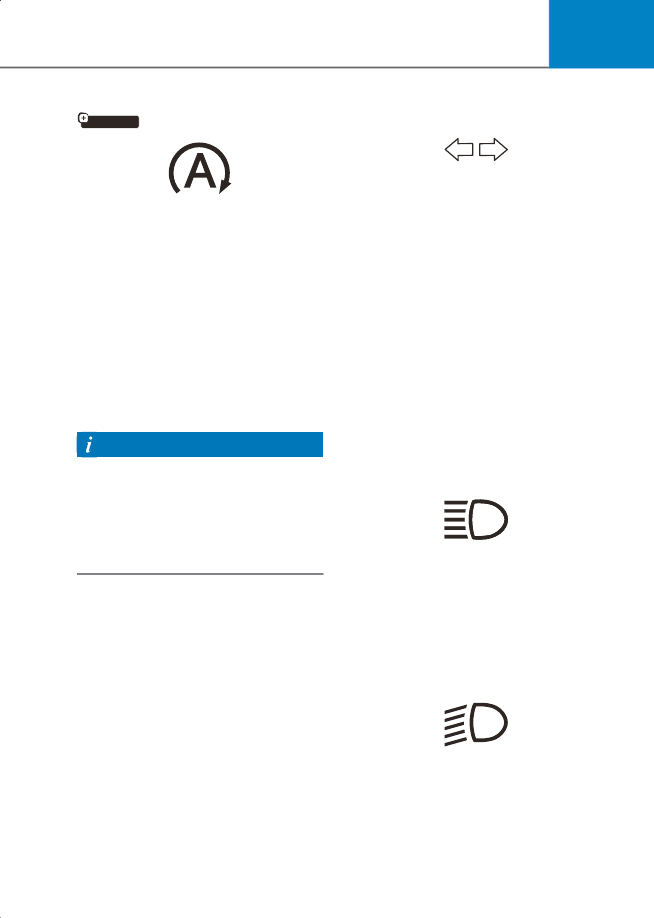
AUTO STOP indicator light

C0087KO28

This indicator light illuminates:

• [White] When the system operating 

conditions are satisfied.

• [Green] When the ISG system is 

activated.

• [Yellow] Whenever there is a 

malfunction with the ISG function.

If this occurs, have the vehicle inspected 

by an authorized HYUNDAI dealer as soon 

as possible.
For more details, refer to “Idle Stop And 

Go (ISG)” section in chapter 6.

 Information


When the engine automatically starts by 

the ISG system, some warning lights 

(ABS, ESC, ESC OFF, MDPS or Parking 

brake warning light) may turn on for a few 

seconds. This happens because of low 

battery voltage. It does not mean the 

system has malfunctioned.


Turn signal indicator light

C0087KO30

This indicator light blinks:

When you operate the turn signal 

indicator stalk.
If any of the following occur, there may be 

a malfunction with the turn signal system.
• The turn signal indicator light 

illuminates but does not blink

• The turn signal indicator light blinks 

rapidly

• The turn signal indicator light does not 

illuminate at all

If this occurs, have the vehicle inspected 

by an authorized HYUNDAI dealer as soon 

as possible.

High beam indicator light

C0087KO33

This indicator light illuminates:

• When the headlights are on and in the 

high beam position

• When the turn signal lever is pulled into 

the Flash-to-Pass position.

Low beam indicator light

C0087KO32

This indicator light illuminates:

When the headlights are on.

CarManuals2.com

Instrument Cluster

4-20

Light ON indicator light

C0087KO31

This indicator light illuminates:

When the position lamps or headlights 

are on.

High Beam Assist indicator light

C0087KO34

This indicator light illuminates:

When the high-beam is on with the light 

switch in the AUTO position.
• White: When High Beam Assist is ready 

to operate.

• Green: When High Beam Assist is 

operating.

If your vehicle detects oncoming or 

preceding vehicles, High Beam Assist will 

switch the high beam to low beam 

automatically.
For more details, refer to “High Beam 

Assist (HBA)” section in chapter 5.

AUTO HOLD indicator light

C0087KO13

This indicator light illuminates:

• [White] When you activate Auto Hold by 

pressing the AUTO HOLD switch.

• [Green] When you stop the vehicle 

completely by depressing the brake 

pedal with Auto Hold activated.

• [Yellow] Whenever there is a 

malfunction with the Auto Hold 

function.

If this occurs, have the vehicle inspected 

by an authorized HYUNDAI dealer as soon 

as possible.
For more details, refer to “Electronic 

Parking Brake (EPB)” section in chapter 6.

CarManuals2.com

4

4-21

LCD Display Messages

Vehicle is on

This message is displayed if you open the 

driver’s door when the gear is in P (Park) 

and the ignition switch in the ON or 

START position.
Turn the engine off before leaving the 

vehicle.

Shift to P

This message is displayed if you try to turn 

off the vehicle without the gear in the P 

(Park) position.
If this occurs, the ignition switch places to 

the ACC position.

Vehicle is in N. Press START button 

if equipped

and shift to P

This message is displayed if you try to turn 

off the vehicle with the gear in N 

(Neutral).
To turn off the vehicle:
1. Press the Engine Start/Stop button. The 

button will change to the ON position.

2. Press the P button to shift to P (Park).
3. Press the Engine Start/Stop button 

again, then the vehicle will turn off.

Low key battery (for smart key 

system)

This message is displayed if the battery of 

the smart key is discharged while 

changing the ignition switch to the OFF 

position.

Press brake pedal to start engine

This message is displayed if the ignition 

switch changes to the ACC position twice 

by pressing the button repeatedly 

without depressing the brake pedal.
You can start the vehicle by depressing 

the brake pedal and then placing the 

ignition switch.

Key not in vehicle (for smart key 

system)

This message is displayed if the smart key 

is not in the vehicle when you leave the 

vehicle with the ignition switch in the ON 

or Start position.
Always turn off the engine before leaving 

your vehicle.

Key not detected (for smart key 

system)

This message is displayed if the smart key 

is not detected when you place the 

ignition switch.

Press START button again (for smart 

key system)

This message is displayed if you were 

unable to start the vehicle when the 

Engine Start/Stop button was pressed.
If this occurs, attempt to start the engine 

by pressing the Engine Start/Stop button 

again.
If the warning message appears each 

time you press the Engine Start/Stop 

button, have your vehicle inspected by an 

authorized HYUNDAI dealer.

Press START button with digital key

This message is displayed if you press the 

Engine Start/Stop button while the 

warning message “Key not detected” is 

displayed.
At this time, the immobilizer indicator 

light blinks.

CarManuals2.com

Instrument Cluster

4-22

Check BRAKE SWITCH fuse

This message is displayed if the brake 

switch fuse is disconnected.
You need to replace the fuse with a new 

one before starting the engine.
If that is not possible, you can start the 

engine by pressing the Engine Start/Stop 

button for 10 seconds in the ACC position.

Shift to P or N to start engine

This message is displayed if you try to 

start the engine in any other position 

except P (Park) or N (Neutral).

 Information


You can start the engine with the gear in 

N (Neutral). But, for your safety, start the 

engine with the gear shifted to P (Park).


Battery discharging due to external 

if equipped

electrical devices

This message is displayed if the battery 

voltage is weak due to any non-factory 

electrical accessories (ex. dashboard 

camera) while parking. Be careful that the 

battery is not discharged.
If the warning message appears after 

removing the non-factory electrical 

accessories, have the vehicle inspected 

by an authorized HYUNDAI dealer.

Press START button with key (for 

smart key system)

This warning message is displayed if you 

press the Engine Start/Stop button while 

the warning message “Key not detected” 

is displayed.
At this time, the immobilizer indicator 

light blinks.

Place digital key on the wireless 

charger to keep the vehicle running

If the vehicle is remotely started and 

‘Start Vehicle’ is deselected from the 

Settings menu in the infotainment system 

screen for Driver 1 and Driver 2, this 

message will be displayed for up to 30 

seconds when a door is opened after 

unlocking the doors with a digital key.
To drive your vehicle, place the registered 

digital key on the wireless charger, when 

this message appears.

Vehicle is On (started by digital key)

This message is displayed for up to 10 

seconds if the driver's door is opened 

without the driver's seat belt fastened 

after turning on the engine with a digital 

key. After the message is displayed, a 

warning sounds when the door is closed.

 Information


Since the engine was started with a digital 

key, if the engine is turned off, and there 

is no smart key or digital key in the 

vehicle, it may be difficult to start the 

engine again.


Place saved digital key on wireless 

charger, then press the START 

button

This message is displayed for 6 seconds 
and the immobilizer indicator light (

will blink for 10 seconds after the message 

“Press START button with key” is 

displayed for 4 seconds if the smart key is 

not in the vehicle or not detected, or the 

digital key is not placed on the wireless 

charger when you press the Engine 

Start/Stop button. To start the vehicle, 

place a registered digital key on the 

wireless charger, and then press the 

Engine Start/Stop button.

CarManuals2.com

4

4-23

Scan an authorized fingerprint, then 

press the START button

This message is displayed for 6 seconds 
and the immobilizer indicator light (

will blink for 10 seconds after the message 

“Press START button with key” is 

displayed for 4 seconds if the smart key is 

not in the vehicle or not detected, or your 

fingerprint is not verified when you press 

the Engine Start/Stop button. To start the 

vehicle, have an authorized fingerprint 

verified on the fingerprint sensor, and 

then press the Engine Start/Stop button.

Digital key(s) active

This message is displayed for 4 seconds 

when a smart phone key or NFC card key 

is registered, and vehicle doors are locked 

and unlocked after more than 10 minutes 

and the ignition switch is placed to the 

ON position. The message is not 

displayed again until more than 10 

minutes have passed after the doors are 

relocked.

Door, Hood, Liftgate open indicator

B0088KO01

This warning is displayed if any door or 

hood or liftgate is left open. The warning 

will indicate which door is open in the 

display.


CAUTION


Before driving the vehicle, you should 

confirm that the door/hood/liftgate are 

fully closed.


if equipped

Sunroof open indicator

B0088KO02

This warning is displayed if you turn off 

the engine when the sunroof is open.
Close the sunroof securely before leaving 

your vehicle.

Low tire pressure

B0088EU07

This warning message is displayed if the 

tire pressure is low. The corresponding 

tire on the vehicle will be illuminated.
For more details, refer to “Tire Pressure 

Monitoring System (TPMS)” section in 

chapter 8.

CarManuals2.com

Instrument Cluster

4-24

Lights

B0088EU04

This indicator displays which exterior light 

is selected using the lighting control.
You can activate or deactivate 

Wiper/Lights display function from the 

Settings menu in the infotainment 

system. Select:

Setup

 > 

Vehicle

 > 

Cluster

 > 

Content 

Selection

 > 

Wiper/Lights Display

 Information


The infotainment system may change 

after software updates. For more 

information, refer to the user's manual 

provided in the infotainment system and 

the quick reference guide.


Wiper

B0088EU05

B0088EU06

[A] : Front

[B] : Rear

This indicator displays which wiper speed 

is selected using the wiper control.
You can activate or deactivate 

Wiper/Lights display function from the 

Settings menu in the infotainment 

system. Select:

Setup

 > 

Vehicle

 > 

Cluster

 > 

Content 

Selection

 > 

Wiper/Lights Display

 Information


The infotainment system may change 

after software updates. For more 

information, refer to the user's manual 

provided in the infotainment system and 

the quick reference guide.


CarManuals2.com

4

4-25

Low washer fluid

This message is displayed if the washer 

fluid level in the reservoir is nearly empty.
Have the washer fluid reservoir refilled.

Low fuel

This message is displayed if the fuel tank 

is almost out of fuel.
When this message is displayed, the low 

fuel level warning light in the cluster will 

come on.
It is recommended to look for the nearest 

fueling station and refuel as soon as 

possible.

if equipped

Low engine oil

This warning message is displayed when 

the engine oil level should be checked.
If this warning message is displayed, 

check the engine oil level as soon as 

possible and add engine oil as required.
Slowly pour the recommended oil little by 

little into a funnel.
Use only the specified engine oil. (Refer to 

Recommended Lubricants And 

Capacities” section in chapter 2.)
Do not overfill the engine oil. Make sure 

the oil level is not above F (Full) mark on 

the dipstick.

 Information


After adding engine oil, if you travel 

approximately 31-62 miles (50-100 km) 

after the engine warms up, the warning 

message should disappear.
If the warning message remains on, have 

the vehicle inspected by an authorized 

HYUNDAI dealer as soon as possible.


Engine overheated

This message is displayed when the 

engine coolant temperature is above 

approximately 248 °F (120 °C). This means 

that the engine is overheated and may be 

damaged.
If your vehicle is overheated, refer to “If 

The Engine Overheats” section in chapter 

8.

Check haptic steering wheel system

This message is displayed if there is a 

problem with the haptic steering wheel 

system. Have the vehicle inspected by an 

authorized HYUNDAI dealer.

Check headlight

This message is displayed if the 

headlights are not operating properly. A 

lamp may need to be replaced.
Make sure to replace the burned out bulb 

with a new one of the same wattage 

rating.

Check turn signal

This message is displayed if the turn 

signal lamps are not operating properly. A 

lamp may need to be replaced.
Make sure to replace the burned out bulb 

with a new one of the same wattage 

rating.

if equipped

Check headlight LED

This message is displayed if there is a 

problem with the LED headlight. Have the 

vehicle inspected by an authorized 

HYUNDAI dealer.

CarManuals2.com

Instrument Cluster

4-26

LCD Display

LCD Display Control

B0090KO01

The LCD display modes can be changed by using the control buttons.

 Information


If equipped with an infotainment system, only the Settings menu in the infotainment 

system is supported and not the instrument cluster.


Switch

Function

MODE button for changing modes

,

MOVE switch for changing items

OK

SELECT/RESET button for setting or resetting the selected item

CarManuals2.com

4

4-27

View Modes

The information provided may differ depending on which functions are applicable to 

your vehicle.

View modes

Symbol

Explanation

Driving 

Assist

This mode displays the state of:
• Lane Keeping Assist
• Smart Cruise Control
• Highway Driving Assist

For more information, refer to “Lane Keeping Assist (LKA)”

“Smart Cruise Control (SCC)”, “Highway Driving Assist (HDA)” 

in chapter 7.

Trip 

Computer

This mode displays driving information such as the tripmeter, 

fuel economy, etc. For more details, refer to “Trip computer 

mode” in this chapter.

Turn By Turn 

(TBT)

This mode displays the state of the navigation.

User 

Settings

In this mode, you can change settings of the doors, lamps, etc.

Warning/

Vehicle 

Information

This mode displays warning messages related to the lamp 

malfunction, etc.
This mode displays information related to the tire pressure 

monitoring system (TPMS), the state of driving force 

distribution (AWD) and the amount of remaining urea solution.

Tire 

Pressure 

Setting

In this mode, you can reset the tire pressure monitoring system 

(TPMS).
If warning occurs, the symbol changes to the warning mode 

symbol.

CarManuals2.com

Instrument Cluster

4-28

Trip computer mode

B0091EU04

B0091EU05

The trip computer mode displays 

information related to vehicle driving 

parameters including fuel economy, 

tripmeter information and vehicle speed.
For more information, refer to “Trip 

Computer (Type A)” in this chapter.

Turn By Turn (TBT) mode

B0091KO03

Turn-by-turn navigation, distance/time to 

destination information is displayed when 

Turn by Turn view is selected.

Driving Assist mode

B0091KO02

LKA/SCC/HDA

This mode displays the state of Lane 

Keeping Assist, Smart Cruise Control, and 

Highway Driving Assist.
For more details, refer to each system 

information in chapter 7.

CarManuals2.com

4

4-29

B0091KO15

if equipped

Driving force distribution (AWD)

This mode displays information related to 

AWD driving force.
If the vehicle is in AWD lock state, this 

mode is not displayed.
For detailed information, refer to the “All 

Wheel Drive (AWD)” in the chapter 6.

B0091EU12

Tire Pressure

This mode displays information related to 

Tire Pressure.
For more details, refer to “Tire Pressure 

Monitoring System (TPMS)” in chapter 8.

CarManuals2.com

Instrument Cluster

4-30

Trip Computer (Type A)

The trip computer is a 

microcomputer-controlled driver 

information system that displays 

information related to driving.

 Information


Some driving information stored in the 

trip computer (for example, Average 

Vehicle Speed) resets if the battery is 

disconnected.


Trip modes

Trip_mode_table1

B0090KO01

To change the trip mode, toggle the “

” switch on the steering wheel.

• Manual reset

To clear the average fuel economy 

manually, press the OK switch on the 

steering wheel for more than 1 second 

when the Average Fuel Economy is 

displayed.

• Automatic reset

To automatically reset the average fuel 

economy, select between ‘After 

Ignition’ or ‘After Refueling’ from the 

Settings menu in the instrument 

cluster.
- After Ignition: When the engine has 

been OFF for 3 minutes or longer the 

average fuel economy will reset 

automatically.

- After Refueling: The average fuel 

economy will reset automatically 

after adding 6 liters (1.6 gallons) of 

fuel or more and after driving speed 

exceeds 1 mph (1 km/h).

* For 10.25-inch instrument cluster, you 

can check the fuel economy in the center 

bottom of the cluster.

Drive Info

•  Trip 

distance

•   Total driving time

•   Average fuel economy

Since refueling

•  Trip 

distance

•   Total driving time

•   Average fuel economy

Accumulated Info

•  Trip 

distance

•   Total driving time

•   Average fuel economy

Auto Stop (if equipped)

CarManuals2.com

4

4-31

B0802EU01

Drive info

Trip distance (1), total driving time (2) and 

average fuel economy (3) are displayed.
The information is combined for each 

ignition cycle. However, when the engine 

has been OFF for 3 minutes or longer the 

Drive Info screen will reset.
To reset manually, press the OK switch on 

the steering wheel for more than 1 second 

when ‘Drive Info’ is displayed.

B0802EU02

Since refueling

Trip distance (1), total driving time (2) and 

average fuel economy (3) after the 

vehicle has been refueled are displayed.
To reset manually, press the OK switch on 

the steering wheel for more than 1 second 

when ‘Since Refueling’ is displayed.

B0802EU03

Accumulated info

Accumulated trip distance (1), total 

driving time (2) and average fuel 

economy (3) are displayed.
The information is accumulated starting 

from the last reset.
To reset manually, press the OK switch on 

the steering wheel for more than 1 second 

when ‘Accumulated Info’ is displayed.

B0802EU04

if equipped

Auto stop

AUTO STOP display shows the elapsed 

time of engine stop by Idle Stop and Go 

system.
For more details, refer to “Idle Stop And 

Go (ISG)” section in chapter 6.

CarManuals2.com

Instrument Cluster

4-32

Trip Computer (Type B)

The trip computer is a 

microcomputer-controlled driver 

information system that displays 

information related to driving.

 Information


Some driving information stored in the 

trip computer (for example, Average 

Vehicle Speed) resets if the battery is 

disconnected.


Trip modes

Trip_mode_table2

B0090KO01

To change the trip mode, toggle the “

” switch on the steering wheel.

• Manual reset

To clear the average fuel economy 

manually, press the OK switch on the 

steering wheel for more than 1 second 

when the Average Fuel Economy is 

displayed.

• Automatic reset

To automatically reset the average fuel 

economy, select between ‘After 

Ignition’ or ‘After Refueling’ from the 

Settings menu in the instrument 

cluster.
- After Ignition: When the engine has 

been OFF for 3 minutes or longer the 

average fuel economy will reset 

automatically.

- After Refueling: The average fuel 

economy will reset automatically 

after adding 1.6 gallons (6 liters) of 

fuel or more and after driving speed 

exceeds 1 mph (1 km/h).

* For 10.25-inch instrument cluster, you 

can check the fuel economy in the center 

bottom of the cluster.

Drive Info

•  Trip 

distance

•   Total driving time
•   Average fuel economy

Since refueling


•  Trip 

distance

•   Total driving time
•   Average fuel economy

Accumulated Info

•  Trip 

distance

•   Total driving time
•   Average fuel economy

Auto Stop (if equipped)

Digital speedometer

CarManuals2.com

4

4-33

B0803EU01

Drive info

Trip distance (1), total driving time (2) and 

average fuel economy (3) are displayed.
The information is combined for each 

ignition cycle. However, when the engine 

has been OFF for 3 minutes or longer the 

Drive Info screen will reset.
To reset manually, press the OK switch on 

the steering wheel for more than 1 second 

when ‘Drive Info’ is displayed.

B0803EU02

Since refuel(l)ing

Trip distance (1), total driving time (2) and 

average fuel economy (3) are displayed.
To reset manually, press the OK switch on 

the steering wheel for more than 1 second 

when ‘Since Refueling’ is displayed.

B0803EU03

Accumulated info

Accumulated trip distance (1), total 

driving time (2) and average fuel 

economy (3) are displayed.
The information is accumulated starting 

from the last reset.
To reset manually, press the OK switch on 

the steering wheel for more than 1 second 

when ‘Accumulated Info’ is displayed.

B0802EU04

if equipped

Auto stop

AUTO STOP display shows the elapsed 

time of engine stop by Idle Stop and Go 

system.
For more details, refer to “Idle Stop And 

Go (ISG)” section in chapter 6.

CarManuals2.com

Instrument Cluster

4-34

B0802EU05

Digital speedometer

Digital speedometer display shows the 

speed of the vehicle.

Vehicle Settings 

(infotainment System)

B0094EU01

Vehicle Settings in the infotainment 

system provides user options for a variety 

of settings including door lock/unlock 

features, convenience features, driver 

assistance settings, etc.

Vehicle Settings menu

• Driver Assistance
• Drive Mode
• Head-Up Display
• Cluster
• Climate
• Seat
• Lights
• Door
• Digital key
• Convenience
These options may differ depending on 

which functions are available on your 

vehicle.


WARNING


Do not operate the Vehicle Settings while 

driving. This may cause distraction 

resulting in an accident.


CarManuals2.com

4

4-35

Setting Your Vehicle

B0095KO01

1. Press the SETUP button on the main 

keyboard.

B0095EU02

2. Select ‘Vehicle’ to change the Vehicle 

Settings.

B0095EU03

The infotainment system may change 

after software updates. For more 

information, refer to the user's manual 

provided in the infotainment system and 

the quick reference guide.

CarManuals2.com

5

5.  Convenience Features

Accessing Your Vehicle ................................................................................................... 5-5

Using Remote Key........................................................................................................ 5-5
Using Smart Key...........................................................................................................5-8
Immobilizer System ................................................................................................... 5-16

Hyundai Digital Key ........................................................................................................5-17

Digital key (smartphone) ............................................................................................5-17
Digital key (Card key)..................................................................................................5-21
Used Vehicle/Digital Key Maintenance....................................................................5-26
Limitations of the System..........................................................................................5-26

Door Locks ..................................................................................................................... 5-27

Operating Door Locks From Outside the Vehicle.................................................... 5-27
Operating Door Locks From Inside the Vehicle.......................................................5-30
Automatic Door Lock and Unlock Features ............................................................. 5-32
Child-Protector Rear Door Locks..............................................................................5-33
Electronic Child Safety Lock ..................................................................................... 5-33

Theft-Alarm System ...................................................................................................... 5-35
Rear Occupant Alert (ROA) ...........................................................................................5-36

System Setting ...........................................................................................................5-36
System Operation ......................................................................................................5-36
System Precautions ................................................................................................... 5-37

Integrated Memory System ..........................................................................................5-38

Storing Memory Positions .........................................................................................5-38
Recalling Memory Positions......................................................................................5-39
Resetting the System.................................................................................................5-39
Seat Easy Access........................................................................................................5-40

Steering Wheel ...............................................................................................................5-41

MDPS (Motor Driven Power Steering).......................................................................5-41
Tilt/Telescopic Steering............................................................................................. 5-42
Horn ............................................................................................................................ 5-42
Heated Steering Wheel..............................................................................................5-43

Mirrors ............................................................................................................................5-43

Inside Rearview Mirror...............................................................................................5-43
Side View Mirrors .......................................................................................................5-54
Reverse Parking Aid ................................................................................................... 5-55

Digital Center Mirror......................................................................................................5-56

CarManuals2.com

5

System component ....................................................................................................5-57
How to change the mode ......................................................................................... 5-58

Windows ........................................................................................................................ 5-62

Power Windows......................................................................................................... 5-63

Panoramic Sunroof ........................................................................................................5-67

Power Sunshade.........................................................................................................5-67
Tilt Open/Close.......................................................................................................... 5-68
Slide Open/Close....................................................................................................... 5-68
Automatic Reversal ................................................................................................... 5-69
Resetting the Sunroof ................................................................................................5-70
Sunroof Open Warning ..............................................................................................5-70

Dual Sunroof................................................................................................................... 5-71
Hood ...............................................................................................................................5-76

Opening the Hood ......................................................................................................5-76
Closing the Hood........................................................................................................5-76

Liftgate............................................................................................................................ 5-77

Opening the Liftgate .................................................................................................. 5-77
Closing the Liftgate .................................................................................................... 5-77
Emergency Liftgate Safety Release ..........................................................................5-78

Power Liftgate ................................................................................................................5-79

Power Liftgate Operating Conditions .......................................................................5-79
Operating the Power Liftgate ................................................................................... 5-80
Setting the Power Liftgate........................................................................................ 5-82
Resetting the Power Liftgate.................................................................................... 5-83
Emergency Liftgate Safety Release ......................................................................... 5-83

Smart Liftgate................................................................................................................ 5-84

Using Smart Liftgate ................................................................................................. 5-84
Deactivating Smart Liftgate...................................................................................... 5-85
Detecting Area........................................................................................................... 5-86

Fuel Filler Door .............................................................................................................. 5-86

Opening the Fuel Filler Door..................................................................................... 5-86
Closing the Fuel Filler Door .......................................................................................5-87

Head-Up Display (HUD)................................................................................................ 5-88

Head-Up Display Settings......................................................................................... 5-88
Head-Up Display Information .................................................................................. 5-89

CarManuals2.com

5

5.  Convenience Features

Precautions While Using the Head-Up Display .......................................................5-89

Exterior Lights................................................................................................................5-90

Lighting Control .........................................................................................................5-90
High Beam Operation ................................................................................................5-92
Turn Signals and Lane Change Signals.....................................................................5-92
Battery Saver Function ..............................................................................................5-93
Headlight Delay Function..........................................................................................5-93

High Beam Assist (HBA)................................................................................................5-94

High Beam Assist Settings ........................................................................................5-94
High Beam Assist Operation .....................................................................................5-95
High Beam Assist Malfunction and Limitations.......................................................5-96

Interior Lights................................................................................................................. 5-97

Interior Lamp AUTO Off............................................................................................. 5-97
Front Lamps ............................................................................................................... 5-97
Rear Lamps.................................................................................................................5-98
Vanity Mirror Lamp ....................................................................................................5-98
Glove Box Lamp .........................................................................................................5-98
Door Courtesy Lamp..................................................................................................5-98
Luggage Compartment Lamp...................................................................................5-99
Puddle Lamp ..............................................................................................................5-99
Interior lights ..............................................................................................................5-99

Wipers And Washers ................................................................................................... 5-100

Front Windshield Wipers ......................................................................................... 5-100
Front Windshield Washers ....................................................................................... 5-101
Rear Window Wiper and Washer ............................................................................ 5-102

Manual Climate Control System................................................................................. 5-103

Heating and Air Conditioning.................................................................................. 5-104
Rear climate control ................................................................................................ 5-109
System Operation ..................................................................................................... 5-113
System Maintenance ................................................................................................ 5-115

Automatic Climate Control System..............................................................................5-117

Automatic Temperature Control Mode................................................................... 5-118
Manual Temperature Control Mode........................................................................ 5-119
Rear climate control .................................................................................................5-126
System Operation .................................................................................................... 5-130
System Maintenance ................................................................................................ 5-131

CarManuals2.com

5

Windshield Defrosting And Defogging....................................................................... 5-134

Rear Window Defroster............................................................................................5-138

Climate Control Additional Features .......................................................................... 5-139

Auto Defogging System........................................................................................... 5-139
Auto Dehumidify ......................................................................................................5-140
Recirculating Air When Washer Fluid Is Used ........................................................5-140
Sunroof Inside Air Recirculation...............................................................................5-141
Scheduled Ventilation Control .................................................................................5-141

Storage Compartment..................................................................................................5-141

Center Console Storage........................................................................................... 5-142
Glove Box .................................................................................................................. 5-142

Interior Features........................................................................................................... 5-142

Cup Holder................................................................................................................ 5-142
Conversation mirror ................................................................................................. 5-144
Sunvisor.....................................................................................................................5-144
Power Outlet............................................................................................................. 5-145
USB Charger .............................................................................................................5-146
AC Inverter ................................................................................................................ 5-147
Wireless Smart Phone Charging System ................................................................5-148
Clock..........................................................................................................................5-150
Coat Hook ..................................................................................................................5-151
Floor Mat Anchor(s)...................................................................................................5-151
Rear Side Window Sunshades................................................................................. 5-152
Cargo Net Holder ..................................................................................................... 5-152
Cargo Security Screen ............................................................................................. 5-153

Exterior Features.......................................................................................................... 5-154

Roof Side Rails.......................................................................................................... 5-154

Infotainment System ................................................................................................... 5-155

USB Port .................................................................................................................... 5-155
Antenna..................................................................................................................... 5-156
Steering Wheel Remote Controls............................................................................ 5-156
Infotainment System................................................................................................ 5-157
Voice Recognition .................................................................................................... 5-157
Bluetooth® Wireless Technology............................................................................. 5-158

CarManuals2.com

5

5-5

Accessing Your Vehicle

if equipped

Using Remote Key

B0921EU01

B0921EU02

Your HYUNDAI uses a remote key, which 

you can use to lock or unlock the driver 

and passenger doors or the liftgate.
(1) Door Lock
(2) Door Unlocks
(3) Liftgate Unlock (if equipped)
(4) Panic

Locking

To lock:
(1) Close all doors, engine hood and 

liftgate.

(2) Press the Door Lock button (1) on the 

remote key.

(3) The doors will lock. The hazard 

warning lights will blink.

(4) Make sure the doors are locked by 

checking the indicator light on the 
driver side door lock button.


WARNING


Do not leave the Remote key in your 

vehicle with children that are unattended 

or unsupervised.
Children could inadvertently press the 

Engine Start/Stop button or could 

operate the power windows or other 

vehicle controls or even cause the vehicle 

to move. This could result in serious injury 

or death.


Unlocking your vehicle

To unlock your vehicle:
1. Press the Door Unlock button (2) on the 

remote key.

2. The driver’s door will unlock. The 

hazard warning lights will blink two 

times.

Two Press Unlock Feature
The priority for unlocking the driver door 

only, or unlocking all the doors with one 

press may be adjusted in the Settings 

menu in the infotainment system screen.
The Two Press Unlock feature, when 

enabled, will require the user to press the 

door unlock button once for driver door 

only and twice for unlocking all the doors.
You can activate or deactivate the Two 

Press Unlock feature from the Settings 

menu in the infotainment system.
Select:

Setup

 > 

Vehicle

 > 

Door

 > 

Two Press 

Unlock

The Two Press Unlock feature can also be 

enabled or disabled by pressing the door 

lock and unlock buttons simultaneously 

on the Key:
Press and hold both the Door Lock button 

and the Door Unlock button 

simultaneously until the hazard warning 

lights blink.
This will enable or disable the Two Press 

Unlock feature. Repeat this procedure to 

enable/disable the mode again.

CarManuals2.com

Convenience Features

5-6

 Information


After unlocking the doors, the doors will 

automatically relock after 30 seconds 

unless a door is opened.


if equipped

Liftgate unlocking

To unlock the liftgate:
1. Press and hold the Liftgate Unlock 

button (3) on the remote key for more 

than one second.

2. The hazard warning lights will blink two 

times and the liftgate will open.

3. Once the liftgate is opened and then 

closed, the liftgate will automatically 

re-lock after 30 seconds.

 Information


The word “HOLD” is written on the button 

to inform you that you must press and 

hold the button for more than one 

second.


Panic alarm

The horn sounds and the hazard warning 

lights blink for about 30 seconds if this 

button (4) is pressed for more than 1 

second. To stop the horn and lights, press 

any button on the transmitter.

Start-up

For detailed information refer to “Ignition 

Switch” in chapter 6.

NOTICE


To prevent damaging the remote key:
• Keep the remote key away from liquids 

or any type of extreme heat. If water or 

liquid gets inside of the remote or if the 

remote is subjected to extreme heat, 

damage to the internal circuit may 

result. This would void the vehicle 

warranty.

• Avoid dropping or throwing the remote 

key.

• Protect the remote key from extreme 

temperatures.


if equipped

Using Mechanical Key

B0921EU03

If the remote key does not operate 

normally, you can lock or unlock the door 

by using the mechan ical key.
To unfold the key, press the release 

button then the key will unfold 

automatically.
To fold the key, fold the key manually 

while pressing the release button.

NOTICE


Do not fold the key without pressing the 

release button. This may damage the key.


CarManuals2.com

5

5-7

Remote key precautions

The remote key will not work if any of the 

following occur:
• The key is in the ignition switch.
• You exceed the operating distance limit 

(about 32 feet [10m]).

• The remote key battery is weak.
• Other vehicles or objects may be 

blocking the signal.

• The weather is extremely cold.
• The remote key is close to a radio 

transmitter such as a radio station or an 

airport which can interfere with normal 

operation of the remote key.

When the remote key does not work 

correctly, unlock and lock the door with 

the mechanical key. If you have a problem 

with the remote key, it is recommended 

that you contact an authorized HYUNDAI 

dealer.
If the remote key is in close proximity to 

your mobile phone, the signal could be 

blocked by your mobile phone’s normal 

operational signals.
This is especially important when the 

phone is active such as making and 

receiving calls, text messaging, and/ or 

sending/receiving emails.
Avoid placing the remote key and your 

mobile phone in the same location and 

always try to maintain an adequate 

distance between the two devices.

 Information


This device complies with Part 15 of the 

FCC rules.
Operation is subject to the following three 

conditions:
1. This device may not cause harmful 

interference.

2. This device must accept any 

interference received, including 

interference that may cause undesired 

operation.

3. Changes or modifications not expressly 

approved by the party responsible for 

compliance could void the user’s 

authority to operate the device.


NOTICE


Keep the remote key away from 

electromagnetic materials that block 

electromagnetic waves to the key 

surface.


CarManuals2.com

Convenience Features

5-8

Replacing Battery

B0921EU04

If the remote key is not working properly, 

try replacing the battery with a new one.
Battery Type: CR2032
To replace the battery:
1. Insert a slim tool into the slot and gently 

pry open the cover.

2. Using a screw driver, remove the 

battery cover.

3. Remove the old battery and insert the 

new battery. Make sure the battery 

position is correct.

4. Reinstall the battery cover and key 

cover in the reverse order of removal.

If you suspect your remote key might 

have sustained some damage, or you feel 

your remote key is not working correctly 

contact an authorized HYUNDAI dealer.


WARNING


THIS PRODUCT CONTAINS A BUTTON 

BATTERY.
If swallowed, a lithium button battery can 

cause severe or fatal injuries within 2 

hours. Keep batteries out of reach of 

children.
If you think batteries may have been 

swallowed or placed inside any part of the 

body, seek immediate medical attention.


 Information


An inappropriately disposed battery can 

be harmful to the environment and 

human health. Dispose of the battery 

according to your local law(s) and 

regulation.


if equipped

Using Smart Key

B0096KO01

B0096EU02

Your HYUNDAI maybe equipped with a 

smart key, which you can use to lock or 

unlock the doors and liftgate, and start 

the engine while just having the key in 

your possession.
(1) Door lock
(2) Door unlock
(3) Liftgate Unlock (Manual liftgate) 

Liftgate Open/Close (Power liftgate)

(4) Panic
(5) Remote start

CarManuals2.com

5

5-9

(6) Remote Smart parking Assist 

(Forward/Backward)

Locking your vehicle (Button type)

B0097KO01

To lock your vehicle using the door handle 

button or the Smart Key:
1. Make sure all doors, the hood and the 

liftgate are closed.

2. Make sure you have the smart key in 

your possession.

3. Press either the button on the door 

handle or the Door Lock button (1) on 

the smart key. The chime will sound 

once and the hazard warning lights will 

blink.

4. Make sure the doors are locked by 

checking the position of the door lock 

button inside the vehicle.

Even though you press the outside door 

handle button, the doors will not lock and 

the chime will sound for three seconds if 

any of the following occur:
• The Smart Key is in the vehicle.
• The ignition switch is in ACC or ON 

position.

• Any door except the liftgate is open.

Locking your vehicle (Touch sensor 

type)

B0097EU02

1. Make sure that all doors are closed.
2. While having the Smart Key in your 

possession, touch the outer part of the 

door handle on or near the handle 

detent for about 1 second or until you 

hear the door locks actuate.

3. The doors will be locked. If the liftgate 

was open, then when the liftgate is 

closed it will be locked also.

The chime will sound once and the hazard 

warning lights will blink.
• The door handle button will only 

operate when the smart key is within 

28-40 inches (0.7-1 m) from the outside 

door handle.

• Make sure the doors are locked by 

pulling the door handle. If you locked 

the door with the touch sensor on the 

door handle, the doors cannot be 

unlocked with the sensor within 3 

seconds.

Note that if you press the outside door 

handle to lock the doors using the touch 

sensor, the doors will not lock under the 

following circumstances:
• The Smart Key is in the vehicle
• The Engine Start/Stop button is in the 

ACC or ON position

• Any of the doors are open (except for 

the liftgate)

If this occurs, then a chime will sound for 

about 3 seconds. Check the vehicle 

before attempting to lock the car again.

CarManuals2.com

Convenience Features

5-10


CAUTION


Before you leave your vehicle with the 

Smart Key, verify that your vehicle is 

locked. When using the touch sensor on 

the front door handle, listen to hear that 

the lock has actuated, and then pull the 

handle within 3 seconds to confirm the 

doors are locked.
(If it has been longer than 3 seconds, 

verify the doors are locked by pressing 

the lock button on the Smart Key. You will 

hear a single beep.)


WARNING


Do not leave the Smart Key in your vehicle 

with children that are unattended or 

unsupervised.
Children could inadvertently press the 

Engine Start/Stop button or could 

operate the power windows or other 

vehicle controls or even cause the vehicle 

to move. This could result in serious injury 

or death.


Unlocking your vehicle (Button type)

B0097KO01

1. Have the smart key with you.
2. Press the door handle button or press 

the Door Lock button (2) on the smart 

key to unlock the doors. The chime 

sounds and hazard warning lights blink 

two times.
If you unlock the doors using the 

passenger side door handle, all the 

doors are unlocked. If you unlock the 

doors using the driver side door handle, 

either the driver's side door is unlocked 

or all the doors are unlocked depending 

on the setting for the Two Press Unlock 

feature.

 Information


• Change the Driver Door unlock mode 

by referring to “Setting the Two Press 

Unlock feature”.

• The door handle button or touch sensor 

only operates when the smart key is 

within 28-40 inches (0.7-1 m) from the 

outside door handle.

• If you do not open the door after 

unlocking within 30 seconds, it returns 

to the lock mode.


CarManuals2.com

5

5-11

Unlocking your vehicle (Touch 

sensor type)

B0097EU03

1. Have the smart key with you.
2. Press the Door Unlock button (2) on the 

Smart Key or simply Grab the door 

handle inside portion to activate the 

unlock door touch sensor to unlock the 

doors. The chime sounds and hazard 

warning lights blink two times.
If you unlock the doors using the 

passenger side door handle, all the 

doors are unlocked. If you unlock the 

doors using the driver side door handle, 

either the driver's side door is unlocked 

or all the doors are unlocked depending 

on the setting for the Two Press Unlock 

feature.

 Information


• Change the Driver Door unlock mode 

by referring to User Settings.

• The door handle button or touch sensor 

only operates when the smart key is 

within 28-40 inches (0.7-1 m) from the 

outside door handle.

• If you do not open the door after 

unlocking within 30 seconds, it returns 

to the lock mode.

• If you unlock the door with the door 

handle, the doors cannot be locked 

with the touch sensor within 2 seconds.


To prevent unintentional door lock or 

unlock:

Press the lock button on the smart key 

and immediately press the unlock button 

along with the lock button for more than 

4 seconds. The hazard warning lights will 

blink four times. At this time, the doors 

will not lock or unlock even though the 

touch sensor is touched on the outside 

door handle.
To deactivate the function, press the door 

lock or unlock button on the smart key.

Setting the Two Press Unlock feature

You can activate or deactivate the Two 

Press Unlock feature from the Settings 

menu in the infotainment system.
Select:

Setup

 > 

Vehicle

 > 

Door

 > 

Two Press 

Unlock

 Information


During a car wash or rain, in order to 

minimize unintentional operation of the 

touch sensor, the touch sensor may 

become insensitive. This is not a 

malfunction.


Opening the liftgate

Non-power liftgate

To unlock and open the liftgate:
1. Make sure you have the smart key in 

your possession.

2. Press either the liftgate handle release 

switch on the vehicle for more than one 

second. The hazard warning lights will 

blink two times and the liftgate latch 

will unlock.

3. Once the liftgate is opened and then 

closed, the liftgate will automatically 

re-lock after 30 seconds.

CarManuals2.com

Convenience Features

5-12

 Information


The liftgate handle switch will only 

operate when the smart key is within 28 

inches (0.7 m) from the liftgate handle.


Power liftgate

To unlock and open the liftgate:
1. Make sure you have the smart key in 

your possession.

2. Press either the liftgate handle release 

switch on the vehicle or press and hold 

the Liftgate Unlock button (4) on the 

smart key for more than one second. 

The hazard warning lights will blink two 

times and the liftgate latch will open.

3. Once the liftgate is opened and then 

closed, the liftgate will automatically 

re-lock after 30 seconds.

 Information


The liftgate handle switch will only 

operate when the smart key is within 28 

inches (0.7 m) from the liftgate handle.


if equipped

Remotely starting vehicle

You can start the vehicle using the 

Remote Start button on the smart key.
To start the vehicle remotely:
1. Before you can use remote start your 

vehicle, the door lock button must be 

pressed. Press the door lock button on 

the Smart Key. You must be within 

about 32 feet (10 m) from your vehicle.

2. Press and hold the remote start button 

on your Smart Key. You must press the 

button within 4 seconds from when you 

pressed the door lock button to 

activate the remote start.

3. The hazard warning lights will blink and 

the engine will start.

4. To turn off the remote start function, 

press the Remote Start button once.

 Information


• Laws in your state may restrict the use 

of remote start. You should check 

state's regulations before using this 

remote starting system.

• The vehicle must be in P (Park) for the 

remote start function to start.

• The engine turns off if you get on the 

vehicle without a registered smart key.

• The engine turns off if you do not get on 

the vehicle within 10 minutes after 

remotely starting the vehicle.

• The Remote Start button may not 

operate if the smart key is not within 32 

feet (10 m).

• The vehicle will not remotely start if the 

engine hood or liftgate is opened.

• Do not idle the engine for a long period.
• The Remote start function works the 

same as Blue Link remote start. For 

further caution information, refer to the 

separately supplied “Blue Link 

(Infotainment system) manual”.


Remote Smart Parking Assist 

if equipped

Feature

Some models are equipped with Remote 

Smart Parking Assist Feature. With the 

Smart Key, the vehicle can be moved 

forward or backward remotely to enter or 

exit a tight parking space.
For more details, refer to “Remote Smart 

Parking Assist (RSPA)” section in chapter 

7.

Panic alarm

The horn sounds and the hazard warning 

lights blink for about 30 seconds if this 

button is pressed for more than 1 second 

To stop the horn and lights, press any 

button on the transmitter.

CarManuals2.com

5

5-13

if equipped

Start-up

Some models are equipped with a push 

button start instead of a key cylinder. You 

can leave your Smart Key in your pocket 

or purse when you start your vehicle.
For more details, refer to the “Engine 

Start/Stop Button” section in chapter 6.

 Information


Preventing the doors/liftgate from 

locking/unlocking
• Activating the feature

With the engine off, press the lock 

button on the smart key and 

immediately press the unlock button 

along with the lock button for more 

than 4 seconds. When the feature is 

activated, the hazard warning lights will 

blink four times.

• How the feature works

When the feature is activated, the 

doors or liftgate will not lock or unlock 

even though the outside door handle 

button or liftgate handle release switch 

is pressed with the smart key in your 

possession. Also, Welcome System (if 

equipped) and Smart Liftgate (if 

equipped) will not operate even though 

you approach the vehicle with the 

smart key.

• Deactivating the feature

Press the door lock or unlock button on 

the smart key, the feature will 

deactivate.


 Information


If the smart key is not moved for some 

time, the detection function for smart key 

operation will pause. Lift the smart key to 

activate the detection again.


NOTICE


To prevent damaging the smart key:
• Keep the smart key in a cool, dry place 

to avoid damage or malfunction. 

Exposure to moisture or high 

temperature may cause the internal 

circuit of the smart key to malfunction 

which may not be covered under 

warranty.

• Avoid dropping or throwing the smart 

key.

• Protect the smart key from extreme 

temperatures.


Using Mechanical Key

If the Smart Key does not operate 

normally, you can lock or unlock the 

driver’s door by using the mechanical key.
To remove the mechanical key from the 

smart key:

B0100KO01

Press and hold the release button (1) and 

remove the mechanical key (2). Insert the 

mechanical key into the key hole on the 

door.
To reinstall the mechanical key, put the 

key into the hole and push it until a click 

sound is heard.

CarManuals2.com

Convenience Features

5-14

Key Cylinder (Driver Door)

A key cylinder is located on the driver side 

door handle hidden behind a plastic 

cover. Using the mechanical key, push 

and hold the key cylinder cover release 

button located on the underside of the 

door handle.
Use the mechanical key inserted into the 

release button slot to open the cover 

outward. Once the cover is off, the 

mechanical key can be inserted into the 

key cylinder to lock or unlock the vehicle.
To reinstall the mechanical key into the 

smart key, put the key into the smart key 

hole and push inward until a click sound is 

heard.

Loss of a smart key

A maximum of two smart keys can be 

registered to a single vehicle. If you 

happen to lose your smart key, 

immediately take the vehicle and 

remaining key to your authorized 

HYUNDAI dealer or tow the vehicle, if 

necessary.

Smart key precautions

The smart key may not work if any of the 

following occur:
• The smart key is close to a radio 

transmitter such as a radio station or an 

airport which can interfere with normal 

operation of the transmitter.

• The smart key is near a mobile two way 

radio system or a mobile phone.

• Another vehicle’s smart key is being 

operated close to your vehicle.

• The vehicle battery is discharged.
If the smart key does not work correctly, 

open and close the door with the 

mechanical key. If you have a problem 

with the smart key, contact an authorized 

HYUNDAI dealer.
If the smart key is in close proximity to 

your mobile phone, the signal could be 

blocked by your mobile phone’s normal 

operational signals. This is specifically 

relevant when the phone is active such as 

making and receiving calls, text 

messaging, and/or sending/receiving 

emails. When possible, avoid keeping the 

smart key and your mobile phone in the 

same location such as pants or jacket 

pocket in order to avoid interference 

between the two devices.

 Information


If the smart key is not moved for some 

time, the detection function for smart key 

operation will pause. Lift the smart key to 

activate the detection again. (if equipped)


CarManuals2.com


Content      ..     3      4      5      6     ..