Honda Pilot (2022 year). Manual in english - page 26
 

  Index      Manuals     Honda Pilot (2022 year). Manual in english


Search            copyright infringement  


Content      ..     24      25      26      27     ..


Honda Pilot (2022 year). Manual in english - page 26


Continued

413

uu

Bluetooth

®

 HandsFreeLink

®

u

HFL Menus

Features

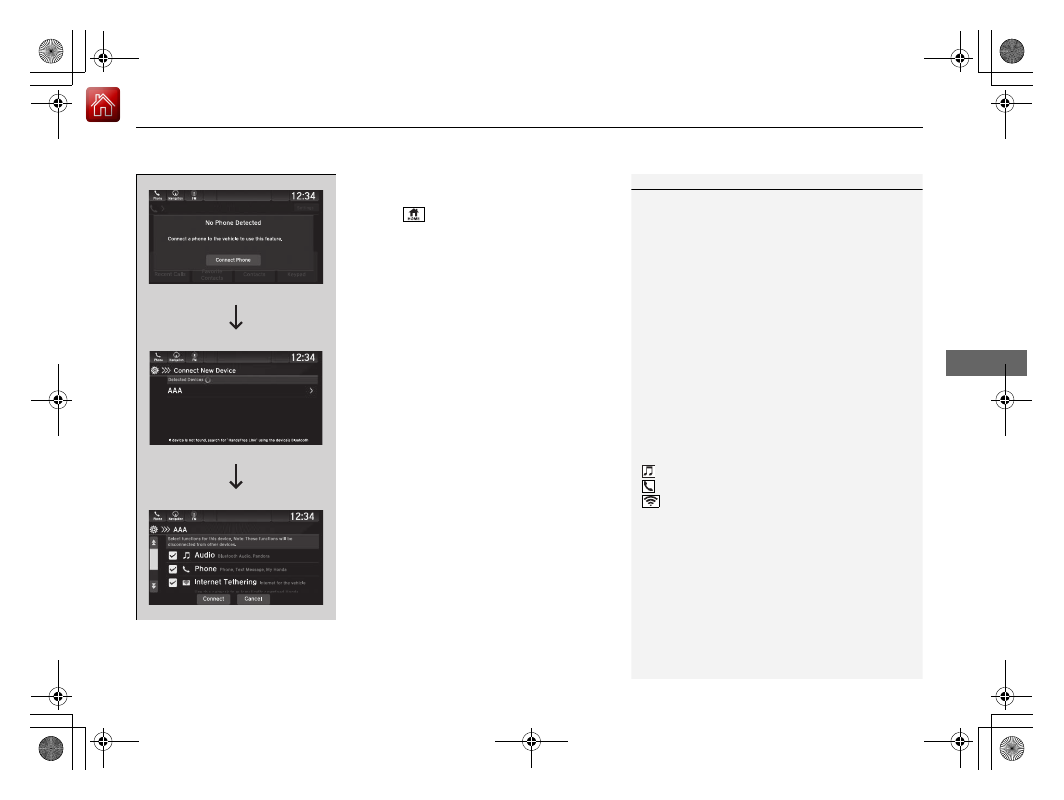
To pair a cell phone (when there is no 
phone paired to the system)

1.

Select .

2.

Select 

Phone

.

3.

Select 

Connect Phone

.

4.

Make sure your phone is in search or 
discoverable mode, then select 

+ Connect 

New Device

.

u

HFL automatically searches for a 

Bluetooth

®

 device.

5.

Select your phone when it appears on the 
list.

u

If your phone still does not appear, 
search for 

Bluetooth

®

 devices using your 

phone.
From your phone, search for 

HandsFree 

Link

.

6.

The system gives you a pairing code on the 
audio/information screen.

u

Confirm if the pairing code on the screen 
and your phone match.
This may vary by phone.

7.

Select desired functions and then select 

Connect

.

u

A confirmation message appears on the 
screen. Select 

Continue

 or 

Connect 

without Internet

.

1

Phone Setup

Your 

Bluetooth

-compatible phone must be paired to 

the system before you can make and receive hands-
free calls.

Phone Pairing Tips:

You cannot pair your phone while the vehicle is 
moving.

Up to six phones can be paired.

Your phone’s battery may drain faster when it is 
paired to the system.

If your phone is not ready for pairing or not found 
by the system within three minutes, the system will 
time out and return to idle.

Once you have paired a phone, you can see it 
displayed on the screen with one or more icons on 
the right side.
These icons indicate the following:

: The phone is compatible with 

Bluetooth

®

 Audio.

: The phone can be used with HFL.

: The phone can be used with the internet 

tethering.

If there is an active connection to Apple CarPlay or 
Android Auto, pairing of additional Bluetooth 
compatible devices is unavailable and 

+ Connect 

New Device

 is grayed out from the 

Bluetooth


screen.

uu

Bluetooth

®

 HandsFreeLink

®

u

HFL Menus

414

Features

To change the currently paired phone

1.

Go to the phone settings screen.

2

Phone settings screen

 P. 410

2.

Select 

Change Connected Phone

.

3.

Select a phone to connect.

u

HFL disconnects the connected phone 
and starts searching for another paired 
phone.

4.

Select ,  

or  .

5.

Select 

Apply

.

To delete a paired phone

1.

Go to the phone settings screen.

2

Phone settings screen

 P. 410

2.

Select 

Change Connected Phone

.

3.

Select a phone you want to delete.

4.

Select 

Delete Device

.

5.

A confirmation message appears on the 
screen. Select 

Delete

.

1

To change the currently paired phone

If no other phones are found or paired when trying to 
switch to another phone, HFL will inform you that the 
original phone is connected again.

To pair other phones, select 

+ Connect New Device


from the 

Bluetooth

 screen.

Continued

415

uu

Bluetooth

®

 HandsFreeLink

®

u

HFL Menus

Features

You can change the ring tone setting.

1.

Go to the phone settings screen.

2

Phone settings screen

 P. 410

2.

Select 

Ringtone

.

3.

Select 

Vehicle

 or 

Phone

.

If you get into the vehicle while you are on the phone, the call can be automatically 
transferred to HFL.

1.

Go to the phone settings screen.

2

Phone settings screen

 P. 410

2.

Select 

Auto Phone Call Transfer

.

3.

Select 

ON

 or 

OFF

.

Ring Tone

1

Ring Tone

Vehicle

: The fixed ring tone sounds from the 

speakers.

Phone

: Depending on the make and model of the 

cell phone, the ring tone stored in the phone will 
sound if the phone is connected. 

Automatic Transferring

uu

Bluetooth

®

 HandsFreeLink

®

u

HFL Menus

416

Features

When Automatic Phone Sync is set to 
On:

When your phone is paired, the contents of its 
phonebook and call history are automatically 
imported to the system.

Changing the Automatic Phone Sync 
setting

1.

Go to the phone settings screen.

2

Phone settings screen

 P. 410

2.

Select 

Auto Sync Phone

.

3.

Select 

ON

 or 

OFF

.

Automatic Import of Cellular Phonebook and Call History

1

Automatic Import of Cellular Phonebook and Call History

When you select a name from the list in the cellular 
phonebook, you can see a category icon. The icons 
indicate what types of numbers are stored for that 
name.

On some phones, it may not be possible to import the 
category icons to the system.

The phonebook is updated after every connection.
Call history is updated after every connection or call.

Home

Mobile

Work

Other

417

uu

Bluetooth

®

 HandsFreeLink

®

u

HFL Menus

Continued

Features

To store a speed dial number:

1.

Go to the phone menu screen.

2

Phone menu screen

 P. 411

2.

Select the 

Recent Calls

Contacts

, or 

Keypad

 screen.

3.

Select the star icon.

u

A notification appears on the screen if 
the speed dial is successfully stored.

u

To remove the speed dial, select the star 
icon again.

Favorite Contacts

Recent Calls

 Screen

Contacts

 Screen

Keypad

 Screen

Star Icon

Star Icon

Star Icon

418

uu

Bluetooth

®

 HandsFreeLink

®

u

HFL Menus

Features

To edit a speed dial

1.

Go to the phone menu screen.

2

Phone menu screen

 P. 411

2.

Select 

Favorite Contacts

.

3.

Select 

Edit

 on the speed dial entry you 

want to edit.

4.

Select a setting you want.

To delete a speed dial

1.

Go to the phone menu screen.

2

Phone menu screen

 P. 411

2.

Select 

Favorite Contacts

.

3.

Select 

Edit

 on the speed dial entry you 

want to delete.

4.

Select 

Remove Contact

.

5.

A confirmation message appears on the 
screen. Select 

Continue

.

Continued

419

uu

Bluetooth

®

 HandsFreeLink

®

u

HFL Menus

Features

You can make calls by inputting any phone 
number, or by using the imported 
phonebook, call history, or speed dial entries.

Making a Call

1

Making a Call

Once a call is connected, you can hear the voice of 
the person you are calling through the audio 
speakers.

While there is an active connection with Apple 
CarPlay, phone calls cannot be made with 
HandsFreeLink

®

 and are only made from Apple 

CarPlay.

420

uu

Bluetooth

®

 HandsFreeLink

®

u

HFL Menus

Features

To make a call using the imported 
phonebook

1.

Go to the phone menu screen.

2

Phone menu screen

 P. 411

2.

Select 

Contacts

.

3.

Select a name.

u

You can sort by 

First Name

 or 

Last 

Name

. Select the icon on the upper right 

of the screen.

4.

Select a number.

u

Dialing starts automatically.

To make a call using a phone number

1.

Go to the phone menu screen.

2

Phone menu screen

 P. 411

2.

Select 

Keypad

.

3.

Select a number.

u

Use the keyboard on the touch screen for 
entering numbers.

4.

Select 

Call

.

u

Dialing starts automatically.

Continued

421

uu

Bluetooth

®

 HandsFreeLink

®

u

HFL Menus

Features

To make a call using the call history

Call history is stored by 

All

Dialed

Missed

and 

Received

.

1.

Go to the phone menu screen.

2

Phone menu screen

 P. 411

2.

Select 

Recent Calls

.

u

You can sort by 

All

Dialed

Missed

, or 

Received

. Select the icon on the upper 

right of the screen.

3.

Select a number.

u

Dialing starts automatically.

To make a call using a speed dial entry

1.

Go to the phone menu screen.

2

Phone menu screen

 P. 411

2.

Select 

Favorite Contacts

.

u

You can change the order of speed dial 
entries by selecting 

Reorder

.

3.

Select a number.

u

Dialing starts automatically.

1

To make a call using the call history

The call history appears only when a phone is 
connected to the system.

uu

Bluetooth

®

 HandsFreeLink

®

u

HFL Menus

422

Features

When there is an incoming call, an audible 
notification sounds (if activated) and the 

Incoming Call...

 screen appears. 

Press the 

 button to answer the call.

Press the 

 button to decline or end the 

call.

The following options are available during a call.

Mute

: Mute your voice.

Use Handheld

: Transfer a call from the system to your phone.

Keypad

: Send numbers during a call. This is useful when you call a menu-driven 

phone system.

The available options are shown on the lower 
half of the screen.

Select the option.

u

The mute icon appears when 

Mute

 is 

selected. Select 

Mute

 again to turn it off.

Receiving a Call

1

Receiving a Call

Call Waiting
Press the 

 button to put the current call on hold to 

answer the incoming call.
Press the 

 button again to return to the current 

call.

Select 

Ignore

 to ignore the incoming call if you do 

not want to answer it.
Press the 

 button if you want to hang up the 

current call.

You can select the icons on the audio/information 
screen instead of the 

 and 

 buttons.

Options During a Call

1

Options During a Call

Keypad

: Available on some phones.

You can select the icons on the audio/information 
screen.

Mute Icon

Continued

423

uu

Bluetooth

®

 HandsFreeLink

®

u

HFL Menus

Features

To turn on or off the text message 
notice

1.

Select .

2.

Select 

Messages

.

3.

Select 

Settings

.

4.

Select 

Notifications

.

5.

Select 

ON

 or 

OFF

.

To Set Up Text Message Options

1

To Set Up Text Message Options

To use the text message function, it may be necessary 
to set up on your phone.

1

To turn on or off the text message notice

ON: 

A pop-up notification comes on every time you 

receive a new message.

OFF: 

The message you receive is stored in the system 

without notification.

uu

Bluetooth

®

 HandsFreeLink

®

u

HFL Menus

424

Features

HFL can display newly received text messages as well as the last 20 messages 
received on a linked cell phone. Each received message can be read aloud and 
replied to using a fixed common phrase.

1.

A pop-up appears and notifies you of a new 
text message.

2.

Select 

Open

 to display the message.

u

The text message is displayed.

3.

Select 

Play

 to listen to the message. To 

discontinue the message read-out, select 

Stop

.

Receiving a Text Message

1

Receiving a Text Message

The system does not display any received messages 
while you are driving. You can only hear them read 
aloud.

The system can only receive messages that are sent a 
text (SMS) messages. The message sent using the 
data services will not be displayed in the list.

With some phones, you may be able to display up to 
20 of the last text messages received.

State or local laws may limit your use of the HFL text 
message feature. Only use the text message feature 
when conditions allow you to do so safely.

Continued

425

uu

Bluetooth

®

 HandsFreeLink

®

u

HFL Menus

Features

You can select one from the 

Bluetooth

®

 device list to be active and receive 

notifications.

1.

Select .

2.

Select 

Messages

.

3.

Select 

Settings

.

4.

Select 

Change Connected Phone

.

5.

Change a desired phone.

2

To change the currently paired phone


P. 414

Selecting a Phone

1

Selecting a Phone

You can only receive notifications from one phone at 
a time.

uu

Bluetooth

®

 HandsFreeLink

®

u

HFL Menus

426

Features

1.

Select .

2.

Select 

Messages

.

u

Select a phone if necessary.

3.

Select a message.

u

The text message is displayed.

Displaying Messages

1

Displaying Messages

The 

 (blue) icon appears next to an unread 

message.

If you delete a message on the phone, the message 
will also be deleted from the system. If you send a 
message from the system, the message goes to your 
phone’s outbox.

To see the previous or next message, select 


Prev


or 

Next


 on the message screen.

Message List

Text Message

Continued

427

uu

Bluetooth

®

 HandsFreeLink

®

u

HFL Menus

Features

Read or Stop reading a message

1.

Go to the text message screen.

2.

Select 

Play

.

u

The system starts reading the message 
aloud.

3.

Select 

Pause

 to stop reading.

Select 

Play

 again to start reading the 

message.

Reply to a message

1.

Go to the text message screen.

2.

Select 

Reply

.

3.

Select the reply message.

u

The pop-up menu appears on the screen.

4.

Select 

Send

 to send the message.

u

Message sent

 appears on the screen 

when the reply message was successfully 
sent.

1

Reply to a message

The available fixed reply messages are as follows:

Talk to you later, I’m driving.

I’m on my way.

I’m running late.

OK

Yes

No

You can add a reply message by selecting 

+ Create 

New Message

.

2

To edit a reply message

 P. 428

Only certain phones receive and send messages when 
paired and connected. For a list of compatible 
phones:

U.S.: Visit 

automobiles.honda.com/handsfreelink/

or call 1-888-528-7876.

Canada: For more information on smartphone 

compatibility, call 1-855-490-7351.

uu

Bluetooth

®

 HandsFreeLink

®

u

HFL Menus

428

Features

To edit a reply message

1.

Select .

2.

Select 

Messages

.

3.

Select 

Settings

.

4.

Select 

Edit System Replies

.

5.

Select the reply message you want to edit 
or 

+ Create New Message

.

u

The on-screen keyboard screen is 
displayed.

6.

Enter a reply message, and then select 

Save

.

To delete a reply message

1.

Select .

2.

Select 

Messages

.

3.

Select 

Settings

.

4.

Select 

Delete System Replies

.

5.

Select 

 on the reply message you want to 

delete.

u

The pop-up menu appears on the screen.

6.

Select 

Delete

.

1

To edit a reply message

You can change the order of reply messages by 
selecting 

Reorder

.


Content      ..     24      25      26      27     ..