Ford Focus Electric (2018 year). Manual - part 20
 

  Index      Ford     Ford Focus Electric - service manual 2018 year in english


Search            


Content   ..  18  19  20  21   ..


Ford Focus Electric (2018 year). Manual - part 20


Display Mode

Budget Text or Help

Options

Budget Text

View

Gauge Scale, Budget Text or Help

Budget View

Surplus Graphic, Budget Text or Help

Range View

Gauge Scale - check enabled or uncheck disabled

MyView

Budget Text - check enabled or uncheck disabled

Budget View

Budget Text

Change

MyView

Budget + Avg

Range View

Accessory

Power

Accessory Power

Trip 1

Trip 1

Trip 2

Trip 2

Energy Coach

Energy History

Blank

Energy Coach

Blank

Help

Budget Text View

Contains basic information to help you
reach your next charging destination or to
achieve your vehicle range estimate.

Charge pt: is the distance remaining to
the next charge point you identified
using the Navigation system.

Surplus: is the available range beyond
your identified charge point (current
Range Estimate shown on Battery
Gauge minus Charge pt distance).

If you don’t enter a charge point, you will
see:

Budget: is set to the Range Estimate
at the point of departure. This will
count down with the odometer.

Status: is your performance against
your Budget (current Range Estimate
shown on Battery Gauge minus Budget
distance). A positive Status indicates
you are using less energy than typical
and have extended your Range
Estimate by the distance shown.

Budget view

Helps you manage your energy use.

Your current energy use is the white line
that moves up and down in the Budget
Gauge. A higher line means you are using
more energy (lower is better). Your energy
use includes input from the accelerator
pedal as well as the accessories, such as
Climate Control.

The Budget is shown by the blue cup shape
around the Budget Gauge. As long as your
current energy use is within the cup, you
are staying within your budget. Your
Budget represents the maximum energy
usage you can maintain in order to achieve
your vehicle range estimate, or reach your
intended charge point. Driving for extended
periods outside of the Budget Cup reduces
your budget and could put you at risk of
not reaching your intended charge point.

Range view

Shows your range relative to your charge
point as well as performance to your
budget.

A blue charge point icon means you have
a Surplus. If an E appears to the left of an
amber charge point icon, then you are
projected to run out of charge prior to
reaching your charge point.

Current performance to your budget is
represented by the glow of the car icon:
more Blue = better performance to budget,
more Amber = worse.

The optional Surplus Graphic displays
available range beyond your charge point.

If you didn’t enter your charge point
through the Navigation system, your
budget will be set to the range estimate at
the start of your trip. The gauge will show
your estimated distance to E (empty)
along with your current performance to
budget. The optional Surplus Graphic is
not available in this case.

MyView

You can choose what to display in this
view. Selecting Change MyView in the
options menu allows you to scroll through
two columns of content choices.

Press the up or down arrow to view
content.

Press OK to save your selected
content.

Unique content available in MyView:

Accessory Power - Indicates electrical
power demands from your vehicle’s
accessory systems. Accessories use
power but do not contribute to
propelling your vehicle. The gauge
separately displays power demand in
kilowatts (kW) for climate and other
accessories. Climate includes the
power being used by high voltage
climate control components such as
the electric A/C compressor and the
electric heater. Other includes all
power being used by the low voltage
accessories (cabin fans, headlights,
heated seats, etc.).

Budget + Avg - The white pointers on
the outside of the budget gauge
indicate your average watt hours per
mi (km) since you last charged your
vehicle. Immediately after charging the
white pointers will start out at the top
of the gauge, as you begin driving they
will reflect your average energy use.

Note: The trip data cannot be reset in
MyView.

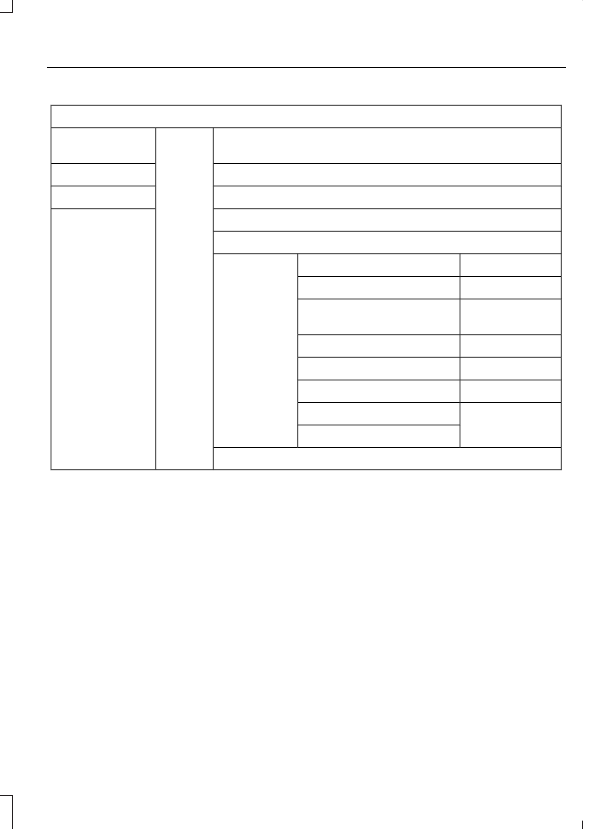
Trip 1 and 2

E138660

Use the arrow buttons to choose
between the following.

Trip 1 and 2

Help

Budget Text

Enhanced

Standard

Trip distance

X

X

X

X

XXX Wh/mi
(km) – Energy
used per unit of
distance

X

XX.X kWh
–Energy used

X

X

X

Elapsed trip
time

X

Budget Text

X

X

X

Total Odometer

Note: Press and hold OK to reset the
currently displayed trip information.

Trip distance — Shows your
accumulated trip distance.

XXX Wh/mi (km) — Shows the average
Energy (watt-hours) used per unit of
distance for a given trip.

XX.X kWh — Shows the total Energy
(kilowatt-hours) used for a given trip.

Elapsed trip time — The timer stops
when you turn off your vehicle and
restarts when you restart your vehicle.

Budget Text — Shows the distance to
your next charge point and the surplus
distance available, or your budget and
status if you didn’t identify a charge
point through the navigation system.

Total Odometer — Displays the total
distance your vehicle has traveled. This
value cannot be reset.

Energy

E220615

Use the arrow buttons to choose
the desired energy display.

Energy

Time intervals or Help

Options

Energy History

Help

Energy Coach

Energy History - This view from left to
right starts with the Budget View gauge
and adds historical Energy Use and
Budget data. The data is represented
as an average for time intervals of
either 1, 2 or 6 minutes, with the
leftmost interval being the most recent.
Total time for the five intervals is
shown at the bottom of the view.
Interval time can be selected in the
Options menu. Intervals shown in grey
color are from the previous drive.

Energy Coach - This view provides a
comparison of your recent
Acceleration, Braking and Cruising
behavior to what is recommended for
most efficient use of energy under
present conditions. The horizontal bars
fill from left to right with best efficiency
(and Blue color) shown as at least half
full. When the bars are less than half
full, the color is Amber, suggesting that
a change in behavior is needed to
achieve better energy efficiency.

Info

E144642

In this mode, you can view
different vehicle system
information and perform a

system check.

Information

Find your way…

Tutorial

Brake Coach

Display Mode

Trip 1

Trip 2

Energy

Surplus

MyKeys (Number of MyKeys programmed)

MyKey

Admin Keys (Number of admin keys)

MyKey Miles (km) (Distance traveled using a programmed MyKey)


Content   ..  18  19  20  21   ..