Citroën C-Elysée (2022 year). Manual in english - page 8
 

  Index      Manuals     Citroën C-Elysée (2022 year). Manual in english


Search            copyright infringement  


Content      ..     6      7      8      9     ..


Citroën C-Elysée (2022 year). Manual in english - page 8


114

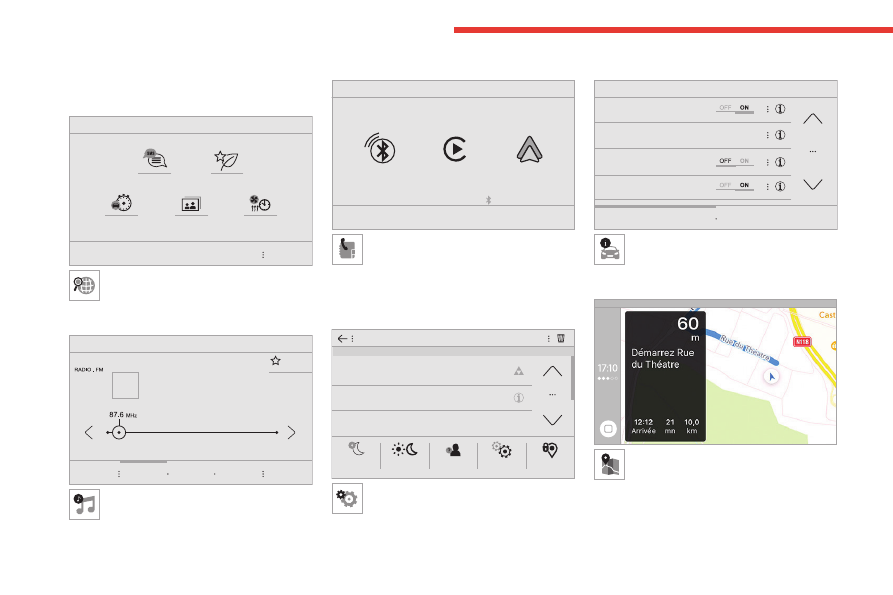
CITROËN Connect Radio

Menus

Applications


Access configurable equipment.


Radio Media


Select an audio source or radio station. 

Telephone


Connect a mobile phone via Bluetooth

®

.

Run certain applications from a 

smartphone connected via CarPlay

®

 or Android 

Auto.

Settings


Configure a personal profile and/or 

configure the sound (balance, ambience, 

etc.) and the display (language, units, date, time, 

etc.).

Driving


Activate, deactivate or configure certain 

vehicle functions.

Navigation


Configure the navigation and select your 

destination via CarPlay

®

 or Android Auto.

-------------------------------------------------------------------------------------------------------------------------------------------------------------

115

CITROËN Connect Radio

11

Air conditioning


21,5

18,5


Manage various temperature and air flow 

settings.

Applications

Viewing photos

Insert a USB memory stick in the USB port.

To protect the system, do not use a USB 

hub.

The system can read folders and image files in 

the formats: .tiff; .gif; .jpg/jpeg; .bmp and .png.

Press 

Applications

 to display the main 

page.

Press "

Photos

". 

Select a folder. 

Select an image to view. 

Press this button to display the details of 

the photo.

Press the back arrow to go back a level. 

Managing messages

Press 

Applications

 to display the main 

page.

Press "SMS". 

Select the "SMS” tab. 

Press this button to select the display 

settings for messages.

Press this button to search and select a 

recipient.

Select the "Quick messages” tab. 

Press this button to select the display 

settings for messages.

Press this button to write a new message. 

Press the bin alongside the selected 

message to delete it.

Press this button alongside the selected 

message to display the secondary page.

Press this button to edit and modify the 

existing text.

Press this button to write a new message. 

Press the bin to delete the message. 

Radio

Selecting a station

Press 

Radio Media

 to display the main 

page.

Press one of the buttons to perform an 

automatic search for radio stations.

Or

Move the slider to manually search for 

frequencies up or down.

Or

Press the frequency. 

Enter the FM and AM waveband values 

using the virtual keypad.

Press "

OK

" to confirm.


Radio reception may be affected by the 

use of electrical equipment not approved 

by the Brand, such as a USB charger 

connected to the 12 V socket.

The exterior environment (hills, buildings, 

tunnels, basement car parks, etc.) may 

block reception, including in RDS mode. 

This phenomenon is perfectly normal in the 

context of radio wave transmission, and 

in no way indicative of an audio system 

malfunction.

-------------------------------------------------------------------------------------------------------------------------------------------------------------

116

CITROËN Connect Radio

Changing the waveband

Press 

Radio Media

 to display the main 

page. 

Press the "

OPTIONS

" button to access the 

secondary page.

Press "

Band

" to change waveband. 

Press in the shaded area to confirm.


Presetting a station

Select a radio station or frequency.

Make a short press on the star outline. If 

the star is solid, the radio station is 

already preset.

Or

Select a radio station or frequency.

Press "

Preset

".

Make a long press on one of the buttons 

to preset the station.

Activating/Deactivating RDS

RDS, if activated, allows you to continue 

listening to the same station by automatically 

retuning to alternative frequencies.

Press 

Radio Media

 to display the main 

page.

Press the "

OPTIONS

" button to access the 

secondary page.

Activate/deactivate "

RDS

". 

Press in the shaded area to confirm.


RDS station tracking may not be 

available nationwide, as many radio 

stations do not cover 100 % of the country. 

This explains the loss of reception of the 

station during a journey.

Displaying text information

The "Radio Text" function displays information 

transmitted by the radio station relating to the 

station or the currently playing song.

Press 

Radio Media

 to display the main 

page.

Press the "

OPTIONS

" button to access the 

secondary page.

Activate/deactivate "

News

". 

Press in the shaded area to confirm.


Playing TA messages

The TA (Traffic Announcement) function gives 

priority to TA alert messages. To operate, this 

function needs good reception of a radio station 

that transmits this type of message. While traffic 

information is being broadcast, the current 

media is automatically interrupted so that the 

TA message can be heard. Normal play of the 

previously playing media resumes at the end of 

the message.

Press 

Radio Media

 to display the main 

page.

Press the "

OPTIONS

" button to access the 

secondary page.

Activate/deactivate "

TA

". 

Press in the shaded area to confirm.


Audio settings

Press 

Radio Media

 to display the main 

page.

Press the "

OPTIONS

" button to access the 

secondary page.

Press "

Audio settings

". 

Select the "

Tone

", "

Balance

", "

Sound

", 

"

Voice

" or "

Ringtones

" tab to configure 

the sound settings.

Press the back arrow to confirm.


In the "

Tone

" tab, the 

Ambience

Bass

Medium

 and 

Treble

 sound settings are 

different and independent for each audio 

source.

In the "

Balance

” tab, the 

All passengers

Driver

 and 

Front only

 settings are common 

to all sources.

In the "

Sound

” tab, activate or deactivate 

"

Volume linked to speed

", "

Auxiliary input

and "

Touch tones

".

-------------------------------------------------------------------------------------------------------------------------------------------------------------

117

CITROËN Connect Radio

11

The balance/distribution (or spatialisation 

with the Arkamys

 system) uses audio 

processing to adjust the sound quality 

according to the number of passengers in the 

vehicle.

Onboard audio: Arkamys Sound Staging


optimises the sound distribution inside 

the passenger compartment.

DAB (Digital Audio 

Broadcasting) radio

Terrestrial Digital Radio

Digital radio provides higher quality sound.

The various "multiplexes/ensembles" offer a 

choice of radio stations organised in alphabetical 

order.

Press 

Radio Media

 to display the main 

page.

Press the "

OPTIONS

" button to access the 

secondary page.

Press "

Band

" to select "

DAB band

". 

Press in the shaded area to confirm.


FM-DAB Follow-up

"DAB" does not cover 100% of the territory.

When the digital radio signal is poor, the 

"FM-DAB Follow-up" enables you to continue 

listening to the same station by automatically 

switching to the corresponding "FM" analogue 

station (if there is one).

Press 

Radio Media

 to display the main 

page.

Press the "

OPTIONS

" button to go to the 

secondary page.

Activate/deactivate "

FM-DAB Follow-up

". 

Press in the shaded area to confirm.


If "FM-DAB Follow-up" is activated, there 

may be a time offset of a few seconds 

when the system switches to "FM" analogue 

radio, and in some cases a change in volume.

When the digital signal quality is restored, the 

system automatically changes back to "DAB".

To minimise this time lag, storing radio 

stations in the "DAB" band is recommended.

If the "DAB" station being listened to is 

not available on "FM", or if "FM-DAB 

Follow-up" is not activated, the sound will cut 

out when the digital signal becomes too weak.

Media

USB port

Insert the USB memory stick into the USB 

port or connect the USB device to the 

USB port using a suitable cable (not supplied).

To protect the system, do not use a USB 

hub.

The system builds playlists (in temporary 

memory); this operation can take from a 

few seconds to several minutes at the first 

connection.

Reduce the number of non-music files and the 

number of folders to reduce the waiting time.

Playlists are updated whenever the ignition 

is switched off or a USB memory stick is 

connected. The audio system memorises these 

lists, which will subsequently load faster if they 

have not been changed.

Auxiliary (AUX) jack socket

Depending on equipment

Connect a portable device (MP3 player, 

etc.) to the auxiliary jack socket using an 

audio cable (not supplied).

This source is only available if "Auxiliary input" 

has been selected in the audio settings.

First adjust the volume on the portable device 

(to a high level). Then adjust the volume of the 

audio system.

Controls are managed via the portable device.

-------------------------------------------------------------------------------------------------------------------------------------------------------------

118

CITROËN Connect Radio

Selecting the source

Press 

Radio Media

 to display the main 

page.

Press the "

SOURCES

" button.

Select the source.

BluetoothStreaming

®

Streaming allows you to listen to the audio feed 

from your smartphone.

The Bluetooth profile must be activated.

First adjust the volume on the portable device 

(to a high level). Then adjust the volume of the 

system.

If play does not start automatically, it may be 

necessary to start the audio playback from the 

smartphone.

Control is from the portable device or by using 

the system's touch buttons.

Once connected in Streaming mode, the 

smartphone is considered to be a media 

source.

Connecting Apple

®

 players

Connect the Apple

®

 player to the USB socket 

using a suitable cable (not supplied).

Play starts automatically.

Control is via the audio system.

The classifications available are those of 

the portable device connected (artists/

albums/genres/playlists/audio books/

podcasts). It is also possible to use a 

classification structured in the form of a 

library.

The default classification used is by artist. To 

modify the classification used, return to the 

first level of the menu then select the desired 

classification (playlists for example) and 

confirm to go down through the menu to the 

desired track.

The version of software in the audio system may 

not be compatible with the generation of the 

Apple

®

 player.

Information and advice

The system supports USB mass storage 

devices, BlackBerry

®

 devices or Apple

®

 players 

via the USB ports. The adapter cable is not 

supplied.

Devices are managed using the audio system 

controls.

Other devices, not recognised on connection, 

must be connected to the auxiliary socket using 

a jack cable (not supplied) or via Bluetooth 

streaming, if compatible.

To protect the system, do not use a USB 

hub.

The audio system will only play audio files with 

".wav", ".wma", ".aac", ".ogg" and ".mp3" file 

extensions, at bit rates between 32 Kbps and 

320 Kbps.

It also supports VBR (Variable Bit Rate) mode.

No other file types (".mp4", etc.) can be read.

All ".wma" files must be standard WMA 9 files.

The supported sampling rates are 11, 22, 44 and 

48 KHz.

To avoid reading and display problems, we 

recommend choosing file names less than 20 

characters long that do not contain any special 

characters (e.g. “ ? . ; ù).

Use only USB memory sticks in FAT32 format 

(File Allocation Table).

We recommend using the original USB 

cable for the portable device.

Telephone

USB sockets

Depending on equipment, for more information 

on the USB sockets compatible with 

CarPlay

®

 or 

Android Auto

 applications, refer to the "Ease of 

use and comfort" section.

For the list of compatible smartphones, 

visit the Manufacturer's website in your 

country.

Synchronising a smartphone enables 

users to display applications that support 

the smartphone’s CarPlay

®

 or Android Auto 

technology on the vehicle’s screen. For 

-------------------------------------------------------------------------------------------------------------------------------------------------------------

119

CITROËN Connect Radio

11

CarPlay

®

 technology, the CarPlay

®

 function 

must first be activated on the smartphone.

Unlock the smartphone for the communication 

process between the smartphone and the 

system to work.

As principles and standards are constantly 

changing, 

we recommend keeping the 

smartphone's operating system up-to-

date, together with the date and time on 

the smartphone and the system

.

CarPlay

®

 smartphone 

connection

Depending on country.

On connecting the USB cable, the 

CarPlay

®

 function deactivates the 

system's Bluetooth

®

 mode.

The "

CarPlay

" function requires the use of 

a compatible smartphone and compatible 

applications.

Connect the USB cable. The smartphone 

charges when connected by the USB 

cable.

From the system, press 

Telephone

 to 

display the CarPlay

®

 interface.

Or

If the smartphone has already connected 

by Bluetooth

®

.

Connect the USB cable. The smartphone 

charges when connected by the USB 

cable.

From the system, press "

Telephone

" to 

display the main page.

Press the "

PHONE

" button to go to the 

secondary page.

Press "

CarPlay

" to display the CarPlay

®


interface.

When the USB cable is disconnected 

and the ignition is switched off then back 

on, the system will not automatically switch to 

Radio Media mode; the source must be 

changed manually.

The CarPlay

®

 navigation can be accessed 

at any time by pressing the system's 

Navigation

 button.

Android Auto smartphone 

connection

Depending on country.

On the smartphone, download the 

Android Auto application.

The "Android Auto" function requires the 

use of a compatible smartphone and 

applications.

Telephone not connected by 

Bluetooth

®

Connect a USB cable. The smartphone 

charges when connected by a USB cable.

From the system, press "

Telephone

" to 

display the main page.

Press "

Android Auto

" to start the 

application in the system.

Depending on the smartphone, it may be 

necessary to activate the "

Android Auto

function.

During the procedure, several screen 

pages relating to certain features are 

displayed.

Accept to start and complete the connection.

When connecting a smartphone to the 

system, we recommend enabling 

Bluetooth

®

 on the smartphone.

Telephone connected by Bluetooth

®

From the system, press "

Telephone

" to 

display the main page.

Press the "

PHONE

" button to display the 

secondary page.

Press "

Android Auto

" to start the 

application in the system.

Access to the different audio sources remains 

available in the margin of the Android Auto 

display, using the touch buttons located in the 

upper bar.

Access to the menus for the system is possible 

at any time using the dedicated buttons.

-------------------------------------------------------------------------------------------------------------------------------------------------------------

120

CITROËN Connect Radio

There may be a pause before 

applications become available, 

depending on the quality of the network.

Pairing a Bluetooth

®


telephone

The services available depend on the 

network, the SIM card and the 

compatibility of the Bluetooth devices used. 

Consult the telephone user guide and the 

service provider to check which services are 

available.

The Bluetooth function must be activated 

and the telephone configured as "Visible 

to all” (in the telphone settings).

To complete the pairing, whichever procedure is 

used (from the telephone or from the system), 

ensure that the code is the same in the system 

and in the telephone.

If the pairing procedure fails, we 

recommend deactivating and then 

reactivating the Bluetooth function on the 

telephone.

Procedure from the telephone

Select the name of the system in the list 

of detected devices.

In the system, accept the connection request 

from the telephone.

Procedure from the system

Press 

Telephone

 to display the main 

page.

Press "

Bluetooth search

".

The list of detected telephones is 

displayed.

Select the name of the chosen telephone 

in the list.

Connection sharing

The system offers to connect the telephone with 

3 profiles:

– "

Telephone

" (hands-free kit, telephone only),

– “

Streaming

" (streaming: wireless playing of 

audio files on the telephone),

– "

Mobile internet data

".

Select one or more profiles.


Press "

OK

" to confirm.


Depending on the type of telephone, you may by 

prompted to accept the transfer of contacts and 

messages.

The ability of the system to connect just 

one profile depends on the telephone.

All three profiles may connect by default.

The profiles compatible with the system 

are: HFP, OPP, PBAP, A2DP, AVRCP, 

MAP and PAN.

Visit the Brand's website for more information 

(compatibility, additional help, etc.).

Automatic reconnection

On returning to the vehicle, if the last telephone 

connected is present again, it is automatically 

recognised and within about 30 seconds 

after switching on the ignition, the pairing is 

established automatically (Bluetooth activated).

To modify the connection profile:

Press 

Telephone

 to display the main 

page.

Press the "

PHONE

" button to access the 

secondary page.

Press "

Bluetooth connection" to 

display the list of paired devices.

Press the "Details" button for a paired 

device.

Select one or more profiles.


Press "

OK

" to confirm.


Managing paired telephones

This function lets you connect or disconnect a 

device or delete a pairing.

Press 

Telephone

 to display the main 

page.

-------------------------------------------------------------------------------------------------------------------------------------------------------------

121

CITROËN Connect Radio

11

Press the "

PHONE

" button to access the 

secondary page.

Press "

Bluetooth connection" to 

display the list of paired devices.

Press on the name of the telephone 

selected in the list to disconnect it.

Press again to connect it.

Deleting a telephone

Press the basket at the top right of the 

screen to display a basket alongside the 

telephone chosen.

Press the basket alongside the telephone 

chosen to delete it.

Receiving a call

An incoming call is announced by a ring and a 

superimposed display in the screen.

Make a short press on the steering 

mounted 

PHONE

 button to accept an 

incoming call.

And

Make a long press 

on the steering mounted 

PHONE

 button 

to reject the call.

Or

Press "

End call

". 

Making a call

Using the telephone is not recommended 

while driving.

Parking the vehicle.

Make the call using the steering mounted 

controls.

Calling a new number

Press 

Telephone

 to display the main 

page. 

Enter the phone number using the digital 

keypad.

Press "

Call" to start the call.


Calling a contact

Press 

Telephone

 to display the main 

page. 

Or press and hold 

the steering mounted 

PHONE

 button. 

Press "

Contacts

".

Select the desired contact from the displayed list.

Press "

Call

". 

Calling a recently used 

number

Press 

Telephone

 to display the main 

page.

Or

Press and hold 

the steering mounted button. 

Press "

Recent calls

".

Select the desired contact from the displayed list.

It is always possible to make a call 

directly from the telephone; as a safety 

measure, first park the vehicle.

Setting the ringtone

Press 

Telephone

 to display the main 

page. 

Press the "

OPTIONS

" button to access the 

secondary page.

Press "

Ring volume

" to display the 

volume bar.

Press the arrows or move the slider to set 

the ring volume.

Settings

Configuring profiles

Press 

Settings

 to display the main page. 

Press "

Profiles

". 

Select "

Profile 1

", "

Profile 2

", "

Profile 3

” or 

"

Common profile

".

-------------------------------------------------------------------------------------------------------------------------------------------------------------

122

CITROËN Connect Radio

Press this button to enter a name for the 

profile using the virtual keypad.

Press "

OK

" to save. 

Press the back arrow to confirm.


Press this button to activate the profile.


Press the back arrow again to confirm.


Press this button to reset the selected 

profile.

Adjusting the brightness

Press 

Settings

 to display the main page. 

Press 

Brightness

Move the slider to adjust the brightness of 

the screen and/or the instrument panel 

(depending on version).

Press in the shaded area to confirm.


Modifying system settings

Press 

Settings

 to display the main page. 

Press "

Configuration

" to access the 

secondary page.

Press "

System configuration

". 

Press the "

Units

" tab to change the units of 

distance, fuel consumption and temperature.

Press the "

Factory settings

" tab to restore the 

initial settings.

Returning the system to factory settings 

activates the English language by default 

(depending on version).

Press the "

System info

" tab to display the 

versions of the various modules installed in the 

system.

Press the "

Privacy

" tab,

or

Press 

Settings

 to display the main page. 

Press "

Privacy

" to activate or deactivate 

the private data mode.

Activate or deactivate: 

– "

No sharing (data, vehicle position)

".

– "

Only data sharing

– "

Data and vehicle position sharing

"

Press the back arrow to confirm.


Press 

Settings

 to display the main page. 

Press "

Configuration

" to access the 

secondary page.

Press "

Screen configuration

". 

Press "

Brightness

".

Move the slider to adjust the brightness of 

the screen and/or the instrument panel 

(depending on version).

Press the back arrow to confirm.


Press "

Animation

".

Activate or deactivate: “

Automatic 

scrolling

”.

Select "

Animated transitions

". 

Press the back arrow to confirm.


Selecting the language

Press 

Settings

 to display the main page. 

Press "

Configuration

" to access the 

secondary page.

Select "

Language

" to change the 

language.

Press the back arrow to confirm.


Setting the time

Press 

Settings

 to display the main page. 

Press "

Configuration

" to access the 

secondary page.

Press "

Date and time

". 

Select "

Time

".

Press this button to set the time using the 

virtual keypad.

Press "

OK

" to save the time. 

-------------------------------------------------------------------------------------------------------------------------------------------------------------

123

CITROËN Connect Radio

11

Press this button to set the time zone. 

Select the display format for the time 

(12h/24h).

Activate or deactivate summer time (+1 

hour).

Activate or deactivate GPS 

synchronisation (UTC).

Press the back arrow to save the settings. 

The system may not automatically 

manage the change between winter and 

summer time (depending on the country of 

sale).

Setting the date

Press 

Settings

 to display the main page. 

Press "

Configuration

" to access the 

secondary page.

Press "

Date and time

". 

Select "

Date

".

Press this button to set the date. 

Press the back arrow to save the date. 

Select the display format for the date. 

Press the back arrow again to confirm.


Time and date setting is only available if 

"GPS Synchronisation:" is deactivated.

Frequently asked 

questions

The following information groups together the 

answers to the most frequently asked questions 

concerning the system.

Radio

The reception quality of the tuned radio 

station gradually deteriorates or the station 

presets are not working (no sound, 87.5 MHz 

is displayed, etc.).

The vehicle is too far from the selected station’s 

transmitter, or no transmitter is present in the 

geographical area.

►  Activate the "RDS" function in the upper bar 

to enable the system to check whether there is 

a more powerful transmitter in the geographical 

area.

The environment (hills, buildings, tunnels, 

basement car parks, etc.) is blocking reception, 

including in RDS mode.

This is a perfectly normal phenomenon, and is 

not indicative of an audio system malfunction.

The aerial is missing or has been damaged 

(for example while entering a car wash or 

underground car park).

►  Have the aerial checked by a dealer.

I cannot find some radio stations in the list of 

received stations.

The name of the radio station changes.

The station is no longer received or its name has 

changed in the list.

►  Press the round arrow on the "List" tab on the 

"Radio" page.

Some radio stations send other information 

in place of their name (the title of the song for 

example).

The system interprets these details as the station 

name.

►  Press the round arrow on the "List" tab on the 

"Radio" page.

Media

Playback of my USB memory stick starts only 

after a very long wait (around 2 to 3 minutes).

Some files supplied with the memory stick may 

greatly slow down access to reading the memory 

stick (multiplication by 10 of the cataloguing 

time).

►  Delete the files supplied with the memory 

stick and limit the number of sub-folders in the 

file structure on the memory stick. 

Some characters in information about the 

currently playing media are not displayed 

correctly.

The audio system is unable to process certain 

types of character.

►  Use standard characters to name tracks and 

folders.

Playback of streaming files does not start.

-------------------------------------------------------------------------------------------------------------------------------------------------------------

124

CITROËN Connect Radio

The connected device does not automatically 

launch playback.

►  Start playback from the device.

Track names and playing times are not 

displayed on the audio streaming screen.

The Bluetooth profile does not allow the transfer 

of this information.

Telephone

I cannot connect my Bluetooth telephone.

The telephone's Bluetooth function may be 

switched off or the device may not be visible.

►  Check that the telephone has Bluetooth 

switched on.

►  Check in the telephone settings that it is 

"visible to all".

The Bluetooth telephone is not compatible with 

the system.

►  Check the compatibility of the telephone on 

the Brand's website (services).

Android Auto and/or CarPlay do not work.

Android Auto and CarPlay may not activate if the 

USB cables are of poor quality.

►  Use genuine USB cables to ensure 

compatibility.

Android Auto and/or CarPlay do not work.

Android Auto and CarPlay are not available in all 

countries.

►  Check the Google Android Auto or Apple 

website to see which countries are supported.

The volume of the telephone connected in 

Bluetooth mode is inaudible.

The volume depends on both the system and the 

telephone.

►  Increase the volume of the audio system, to 

maximum if required, and increase the volume of 

the telephone if necessary.

Ambient noise affects the quality of the 

telephone call.

►  Reduce ambient noise (close windows, turn 

down ventilation, slow down, etc.).

The contacts are not listed in alphabetical 

order.

Some telephones offer display options. 

Depending on the settings chosen, contacts can 

be transferred in a specific order.

►  Modify the telephone directory display 

settings.

Settings

When the treble and bass settings are 

changed, the ambience is deselected.

When the ambience is changed, the treble 

and bass settings are reset.

Selecting an ambience imposes the treble and 

bass settings, and vice versa.

►  Modify the treble and bass or ambience 

settings to obtain the desired musical ambience.

When the balance settings are changed, the 

distribution is deselected.

When the distribution setting is changed, the 

balance settings are deselected.

Selecting a distribution setting imposes the 

balance settings, and vice versa.

►  Modify the balance setting or the distribution 

setting to obtain the desired sound quality.

There is a difference in sound quality 

between audio sources.

To allow for optimal listening quality, the sound 

settings can be tailored to different audio 

sources, which can generate audible differences 

when changing source.

►  Check that the sound settings are appropriate 

to the sources listened to. Adjust the sound 

functions to the middle position.

When the engine is off, the system switches 

off after several minutes of use.

When the engine is switched off, the system's 

operating time depends on the state of charge of 

the battery.

The switch-off is normal: the system 

automatically goes into energy economy mode 

and switches off to maintain an adequate charge 

in the battery.

►  Start the vehicle’s engine to increase the 

charge of the battery.

-------------------------------------------------------------------------------------------------------------------------------------------------------------

125

CITROËN Connect Nav

12

CITROËN Connect Nav


GPS navigation - 

Applications - Multimedia 

audio system - Bluetooth

®


telephone

The functions and settings described 

vary according to the vehicle version and 

configuration.

For safety reasons and because they 

require sustained attention by the driver, 

the following operations must be carried out 

with the 

vehicle stationary

 and the ignition 

on:

–  Pairing the smartphone with the system in 

Bluetooth mode.

–  Using the smartphone.

–  Connection to the CarPlay

®

, MirrorLink

TM


or Android Auto applications (certain 

applications interrupt their display while the 

vehicle is moving).

–  Changing the system settings and 

configuration.

The system is protected so that it only 

operates in the vehicle.

The message 

Energy Economy Mode

 is 

displayed when the system is about to enter 

the corresponding mode.

System and map updates can be 

downloaded from the Brand’s website.

The update procedure is also available on the 

website.

The system’s Open Source Software 

(OSS) source codes are available at the 

following addresses:

https://www.groupe-psa.com/fr/oss/

https://www.groupe-psa.com/en/oss/

First steps

With the engine running, a press mutes 

the sound.

With the ignition off, a press turns the system on.

Adjustment of the volume. 

Use the buttons either side of or below the touch 

screen for access to the menus, then press the 

virtual buttons in the touch screen.

Depending on the model, use the "Source" or 

"Menu" buttons on the left of the touch screen 

for access to the menus, then press the virtual 

buttons in the touch screen.

You can display the menus at any time by 

pressing the screen briefly with three fingers.

All of the touch areas of the screen are white.

Press the cross to go back a level.

Press "OK" to confirm.

The touch screen is of the "capacitive" 

type.

To clean the screen, use a soft, non-abrasive 

cloth (e.g. spectacles cloth) with no additional 

product.

Do not use sharp objects on the screen.

Do not touch the screen with wet hands.

Certain information is displayed permanently in 

the upper band of the touch screen:

–  Reminder of the air conditioning information 

(depending on version), and direct access to the 

corresponding menu.

–  Go directly to the selection of the audio 

source, to the list of radio stations (or list of titles 

depending on the source).

–  Go to the message notifications, emails, map 

updates and, depending on the services, the 

navigation notifications.

–  Go to the settings for the touch screen and the 

digital instrument panel.


-------------------------------------------------------------------------------------------------------------------------------------------------------------

126

CITROËN Connect Nav

12:13

18,5

21,5

23 °C


Selecting the audio source (depending on 

version):

–  FM/DAB/AM* radios*

–  USB memory stick.

–  CD Player (depending on model).

–  Media player connected via the auxiliary 

socket (depending on model).

–  Telephone connected via Bluetooth and 

Bluetooth multimedia broadcast* (streaming).


*  depending on equipment.

In the "Settings" menu you can create a 

profile for just one person or a group of 

people with common points, with the 

possibility of entering a multitude of settings 

(radio presets, audio settings, navigation 

history, contact favourites, etc.); these 

settings are taken into account automatically.

In very hot conditions, the volume may 

be limited to protect the system. It may 

go into standby (screen and sound off) for at 

least 5 minutes

The return to normal takes place when the 

temperature in the passenger compartment 

has dropped.

Steering mounted controls

Voice control

:

This control is located on the steering 

wheel or at the end of the lighting control stalk 

(depending on equipment).

Short press, system voice control.

Long press, voice control for smartphone or 

CarPlay

®

, MirrorLink

TM

 (availability depending on 

country), Android Auto via the system.

Increase volume. 

Decrease volume.

Mute by pressing the volume increase and 

decrease buttons simultaneously (depending on 

equipment).

Restore the sound by pressing one of the two 

volume buttons.

Media

 (short press): change the 

multimedia source.

Telephone

 (short press): start telephone 

call.

Call in progress

 (short press): access 

telephone menu.

Telephone

 (long press): reject an incoming call, 

end call; when no call is in progress, access 

telephone menu.

Radio

 (rotate): automatic search for the 

previous / next station.

Media

 (rotate): previous / next track, move in a 

list.

Short press

: confirm a selection; if nothing 

selected, access to presets.

Radio

: display the list of stations.

Media

: display the list of tracks.

Radio

 (press and hold): update the list of 

stations received.

-------------------------------------------------------------------------------------------------------------------------------------------------------------

127

CITROËN Connect Nav

12

Menus

Connected navigation


Enter navigation settings and choose a 

destination.

Use real-time services, depending on equipment.

Applications


Run certain applications on a smartphone 

connected via CarPlay

®

, MirrorLink

TM


(available in some countries) or Android Auto.

Check the status of Bluetooth

®

 and Wi-Fi 

connections.

Radio Media


FM  87.5 MHz


Select an audio source or radio station, or 

display photographs.

Telephone


Connect a telephone via Bluetooth

®

, read 

messages and emails and send quick 

messages.

Settings


Configure a personal profile and/or 

configure the sound (balance, ambience, 

etc.) and the display (language, units, date, time, 

etc.).

Vehicle


Activate, deactivate or configure certain 

vehicle functions.

-------------------------------------------------------------------------------------------------------------------------------------------------------------

128

CITROËN Connect Nav

Air conditioning


21,5

18,5


Manage various temperature and air flow 

settings.

Voice commands

Steering-mounted controls

Voice commands

:

Voice commands can be issued from any 

screen page after briefly pressing the "Voice 

commands" button, located on the steering 

wheel or at the end of the lighting control stalk 

(depending on equipment), as long as there is no 

telephone call in progress.

To ensure that voice commands are 

always recognised by the system, please 

observe the following recommendations: 

–  speak in a normal tone without breaking up 

words or raising your voice.

–  always wait for the "beep" (audible signal) 

before speaking.

–  for best operation, we recommend closing 

the windows and sunroof (depending on 

version) to avoid any external interference.

–  before issuing a voice command, ask any 

other passengers to refrain from speaking.

First steps

Example of a "voice command" for 

navigation:

"Navigate to address, 11 Regent Street, 

London"

.

Example of a "voice command" for the radio and 

media:

"Play artist, Madonna"

.

Example of a "voice command" for the 

telephone:

"Call David Miller"

.

The voice commands, with a choice of 12 

languages (English, French, Italian, 

Spanish, German, Dutch, Portuguese, Polish, 

Turkish, Russian, Arabic, Brazilian), are made 

using the language previously chosen and set 

in the system.

For some voice commands, there are 

alternative synonyms.

Example: Guide to / Navigate to / Go to / ...

The voice commands in Arabic for: "Navigate 

to address" and "Display POI in the city" are 

not available.

Information - Using the 

system

Press the Push To Talk button and tell me 

what you'd like after the tone. Remember 

you can interrupt me at any time by pressing this 

button. If you press it again while I'm waiting for 

you to speak, it'll end the conversation. If you 

need to start over, say "cancel". If you want to 

undo something, say "undo". And to get 

information and tips at any time, just say "help". 

If you ask to me do something and there's some 

information missing that I need, I'll give you 

some examples or take you through it step by 

step. There's more information available in 

"novice" mode. You can set the dialogue mode to 

"expert" when you feel comfortable.

Global voice commands

Voice commands


Help

Voice commands help

Navigation help

Radio help

Media help

Telephone help

Help messages


There are lots of topics I can help you with. 

You can say: "help with phone", "help with 

navigation", "help with media" or "help with 

-------------------------------------------------------------------------------------------------------------------------------------------------------------

129

CITROËN Connect Nav

12

radio". For an overview on how to use voice 

controls, you can say "help with voice controls".

Voice commands


Set dialogue mode as <...>

Help messages


Choose "beginner" or "expert" mode.

Voice commands


Select profile <...>

Help messages


Select profile 1, 2 or 3.

Voice commands


Yes

No

Help messages


Say "yes" if I got that right. Otherwise, say "no" 

and we'll start that again.

"Navigation" voice 

commands

Voice commands


Navigate home

Navigate to work

Navigate to preferred address <...>

Navigate to contact <…>

Navigate to address <...>

Show nearby POI <...>

Help messages


To start guidance or add a stopover, say 

"navigate to" and then the address or contact 

name. For example, "navigate to address 11 

Regent Street, London", or "navigate to contact, 

John Miller". You can specify if it's a preferred 

or recent destination. For example, "navigate 

to preferred address, Tennis club", "navigate to 

recent destination, 11 Regent Street, London". 

Otherwise, just say, "navigate home". To see 

points of interest on a map, you can say things 

like "show hotels in Banbury" or "show nearby 

petrol station". For more information you can ask 

for "help with route guidance".

Voice commands


Remaining distance

Remaining time

Arrival time

Stop route guidance

Help messages


To get information about your current route, you 

can say "tell me the remaining time", "distance" 

or "arrival time". Try saying "help with navigation" 

to learn more commands.

Depending on the country, give 

destination (address) instructions in the 

language configured for the system.

"Radio Media" voice 

commands

Voice commands


Tune to channel <…>

Help messages


You can pick a radio station by saying "tune to" 

and the station name or frequency. For example 

"tune to channel Talksport" or "tune to 98.5 FM". 

To listen to a preset radio station, say "tune to 

preset number". For example "tune to preset 

number five".

Voice commands


What's playing

Help messages


To display the details of the current "song", 

"artist" and "album", you can say "What's 

playing".

Voice commands


Play song <...>

Play artist <...>

Play album <...>

Help messages


Use the command "play" to select the type of 

music you'd like to hear. You can pick by "song", 

"artist", or "album". Just say something like "play 

-------------------------------------------------------------------------------------------------------------------------------------------------------------


Content      ..     6      7      8      9     ..