Acura RLX HYBRID (2020 year). Manual in english - page 16
 

  Index      Manuals     Acura RLX HYBRID (2020 year). Manual in english


Search            copyright infringement  


Content      ..     14      15      16      17     ..


Acura RLX HYBRID (2020 year). Manual in english - page 16


257

uu

Audio System Basic Operation

u

Playing Hard Disk Drive (HDD) Audio

Features

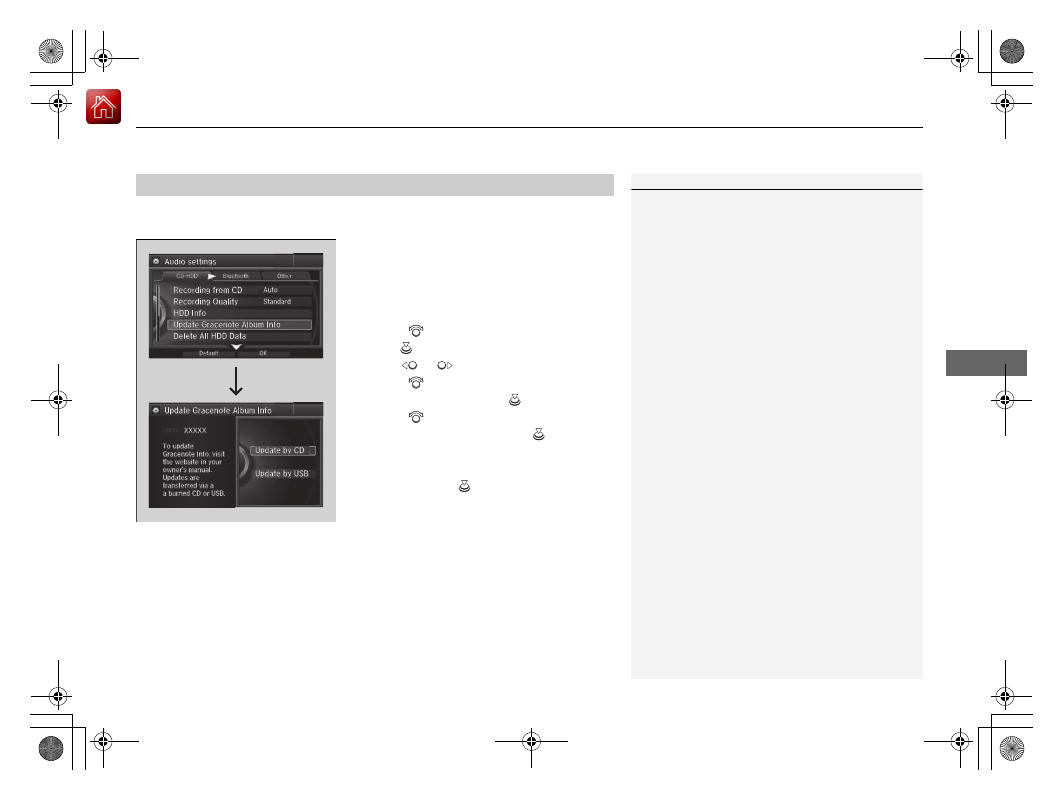
Update the Gracenote

®

 Album Info (Gracenote

®

 Media Database) that is included 

with the navigation system.

1.

Insert the update disc into the disc slot or 
connect the USB flash drive that includes 
the update.

2.

Press the 

SETTINGS

 button in the HDD 

mode.

3.

Rotate 

 to select 

Audio Settings

, then 

press .

4.

Move  

or  

to 

select 

the 

CD/HDD

 tab.

5.

Rotate 

 to select 

Update Gracenote 

Album Info

, then press 

.

6.

Rotate 

 to select 

Update by CD

 or 

Update by USB

, then press 

.

u

The system starts updating and the 
confirmation message appears on the 
screen. Press 

 to finish.

Updating Gracenote

®

 Album Info

1

Updating Gracenote

®

 Album Info

To acquire updated files:

Consult a dealer.

U.S.: Visit 

www.acura.com

.

Canada: Visit 

www.acura.ca

.

Once you perform an update, any information you 
edited before will be overwritten or erased.

-------------------------------------------------------------------------------------------------------------------------------------------------------------

258

uu

Audio System Basic Operation

u

Playing an iPod

Features

Playing an iPod

Connect the iPod using your USB connector to the USB port, then select the iPod 
mode.

2

USB Port

 P. 213

Audio/Information Screen

MENU Button

Press to display the menu items.

Album Bar

Select to search for an album.

Source

Select to change an audio source.

Skip/Seek Icons

Select 

 or 

 to change songs.

Select and hold to move rapidly 
within a song.

More

Select to display the menu items.

 (Power) Button

Press to turn the audio system 
on and off.

BACK Button

Press to go back to the previous display.

Interface Dial/ENTER Button

Press and turn to select an item, then 
press to set your selection.
Move up, down, right and left to select 
secondary menu.

USB Indicator

Appears when an iPod is connected.

Album Art

On Demand Multi-Use Display

TM

VOL (Volume) Knob (Pushed out)

Turn to adjust the volume.

Album Art Icon

Repeat

Select to use a repeat feature.

Play/Pause Icon

Select to resume or play a song.

Shuffle

Select to use a shuffle feature.

-------------------------------------------------------------------------------------------------------------------------------------------------------------

Continued

259

uu

Audio System Basic Operation

u

Playing an iPod

Features

1.

Select the album bar.

u

The image of the current album is displayed.

2.

Select 

 or 

 icon to search for an album.

u

When the album image you are looking for appears, select it to play.

How to Select an Album

1

How to Select an Album

This function may not be available depending on 
models or versions.

Select 

 to go back to the previous screen.

X

Select an album 
image.

Select the 
album bar.

Album Bar

Album Image

-------------------------------------------------------------------------------------------------------------------------------------------------------------

uu

Audio System Basic Operation

u

Playing an iPod

260

Features

1.

Press the 

MENU

 button.

2.

Rotate 

 to select 

Music Search

, then 

press .

3.

Rotate 

, move 

 or 

, then press 

 to 

select a song from the 

Music Search

 list.

You can also select a song by the following 
procedure.

1.

Rotate 

 or press 

 to display the song 

list.

2.

Rotate 

, move 

 or 

, then press 

 to 

select a song from the list.

How to Select a Song from the Music Search List

1

How to Select a Song from the Music Search List

You can control an iPod using voice commands.

2

Voice Control Operation

 P. 232

2

Song By Voice

TM

 (SBV)

 P. 262

Available operating functions vary on models or 
versions. Some functions may not be available on the 
vehicle’s audio system.

If there is a problem, you may see an error message 
on the audio/information screen.

2

iPod/USB Flash Drive

 P. 275

-------------------------------------------------------------------------------------------------------------------------------------------------------------

261

uu

Audio System Basic Operation

u

Playing an iPod

Features

You can select repeat and shuffle modes when playing a file.

1.

Press the 

MENU

 button.

2.

Rotate 

 to select 

Shuffle/Repeat

, then 

press .

3.

Rotate 

 to select a mode, then press 

.

1.

Select 

Shuffle

 or 

Repeat

.

2

Playing an iPod

 P. 258

2.

Select a mode.

To turn off a play mode

1.

Press the 

MENU

 button.

2.

Rotate 

 to select the mode you want to turn off, then press 

.

1.

Select 

Shuffle

 or 

Repeat

.

2

Playing an iPod

 P. 258

2.

Select the mode you want to turn off.

How to Select a Play Mode

1

How to Select a Play Mode

Play Mode Menu Items

Repeat Song

: Repeats the current track.

Shuffle Albums

: Plays all available albums in a 

selected list (playlists, artists, albums, songs, genres, 
or composers) in random order.

Shuffle All Songs

: Plays all available files in a 

selected list (playlists, artists, albums, songs, genres, 
or composers) in random order.

Interface Dial

On Demand Multi-Use Display

TM

Interface Dial

On Demand Multi-Use Display

TM

-------------------------------------------------------------------------------------------------------------------------------------------------------------

262

uu

Audio System Basic Operation

u

Song By Voice

TM

 (SBV)

Features

Song By Voice

TM

 (SBV)

Use SBV to search for and play music from your HDD or iPod using voice commands.

To enable SBV

1.

Press the 

SETTINGS

 button.

2.

Rotate 

 to select 

System Settings

, then 

press .

3.

Move 

 or 

 to select the 

Voice Reco


tab.

4.

Rotate 

 to select 

Song By Voice

, then 

press .

5.

Rotate 

 to select 

On

 or 

Off

, then press 

.

1

Song By Voice

TM

 (SBV)

Setting options:

On

 (factory default): Song By Voice

TM

 commands 

are available.

Off

: Disable the feature.

-------------------------------------------------------------------------------------------------------------------------------------------------------------

Continued

263

uu

Audio System Basic Operation

u

Song By Voice

TM

 (SBV)

Features

Searching for music using SBV

1.

Set the 

Song By Voice

 setting to 

On

.

2.

Press the 

 (Talk) button and say 

“Music 

Search”

 to activate the SBV feature for the 

HDD and iPod.

3.

Press the 

 button and say a command.

u

Example 1: Say 

“(List) ‘Artist A’“

 to view a 

list of songs by that artist. Select the 
desired song to start playing.

u

Example 2: Say 

“Play ‘Artist A’“

 to start 

playing songs by that artist.

4.

To cancel SBV, press the 

 (hang-up/

back) button on the steering wheel. The 
selected song continues playing.

Once you have canceled this mode, you need 
to press the 

 button and say 

“Music Search”


again to re-activate this mode.

1

Searching for music using SBV

 Song By Voice

TM

 Commands List

2

Song By Voice Commands

 P. 236

NOTE:
Song By Voice

TM

 commands are available for tracks 

stored on the HDD or iPod.

You can add phonetic modifications of difficult 
words so that it is easier for SBV to recognize artists, 
songs, albums, and composers in voice commands.

2

Phonetic Modification

 P. 264

-------------------------------------------------------------------------------------------------------------------------------------------------------------

uu

Audio System Basic Operation

u

Song By Voice

TM

 (SBV)

264

Features

Add phonetic modifications of difficult or foreign words so that it is easier for SBV 
to recognize artists, songs, albums, and composers in voice commands when 
searching for music on the HDD or iPod.

1.

Press the 

SETTINGS

 button.

2.

Rotate 

 to select 

System Settings

then press 

.

3.

Move 

 or 

 to select the 

Voice Reco


tab.

4.

Rotate 

 to select 

Song By Voice 

Phonetic Modification

, then press 

.

5.

Move 

 and rotate 

 to select 

New 

Modification

, then press 

.

6.

Rotate 

 to select 

HDD

 or 

iPod

, then 

press .

Phonetic Modification

1

Phonetic Modification

Phonetic Modification

 is grayed out when 

Song By 

Voice

 is set to 

Off

.

You can store up to 2,000 phonetic modification 
items.

-------------------------------------------------------------------------------------------------------------------------------------------------------------

265

uu

Audio System Basic Operation

u

Song By Voice

TM

 (SBV)

Features

7.

Rotate 

 to select the item to modify 

(e.g., 

Artist

), then press 

.

u

The list of the selected item appears on 
the screen.

8.

Rotate 

 to select an entry (e.g., 

No 

Name

), then press 

.

u

The pop-up menu appears on the 
screen.

u

To listen to the current phonetic 
modification, rotate 

 to select 

Play

then press 

.

u

To delete the current phonetic 
modification, rotate 

 to select 

Delete

, then press 

.

9.

Rotate  

to 

select 

Modify

, then press 

.

10.

Enter the phonetic spelling you wish to 
use (e.g., 

“Artist A”

) when prompted.

11.

Move 

 to select 

OK

 to exit.

u

The artist 

“No Name”

 is phonetically 

modified to 

“Artist A.”

 When in the SBV 

mode, you can press the 

 (Talk) 

button and use the voice command 

“Play ‘Artist A’”

 to play songs by the 

artist 

“No Name.”

-------------------------------------------------------------------------------------------------------------------------------------------------------------

266

uu

Audio System Basic Operation

u

Playing Internet Radio

Features

Playing Internet Radio

Connect a compatible phone through 

Bluetooth

®

.

You can also connect the phone using your USB connector to the USB port.

Compatible phones only

1

Playing Internet Radio

Pandora

®

, the Pandora logo, and the Pandora trade 

dress are trademarks or registered trademarks of 
Pandora Media, Inc., used with permission. Pandora 
is currently available exclusively in the United States.

iPhone

Audio/Information Screen

Album Art

USB Indicator

Appears when a phone is 
connected.

Rating Icon

BACK Button

Press to go back to the previous display.

Skip Icon

Select to skip a song.

More

Select to display the menu items.

Station Up/Down Icons

Select to change a station.

Source

Select to change an audio source.

Play/Pause Icon

Select to resume or play a song.

Like/Dislike Icons

Select to evaluate a song.

 (Power) Button

Press to turn the audio system on 
and off.

Interface Dial/ENTER Button

Press and turn to select an item, then press 
to set your selection. Move up, down, right 
and left to select secondary menu.

On Demand Multi-Use Display

TM

VOL (Volume) Knob (Pushed out)

Turn to adjust the volume.

Bluetooth

®

 Indicator

Appears when your phone is 
connected to HFL.

-------------------------------------------------------------------------------------------------------------------------------------------------------------

267

uu

Audio System Basic Operation

u

Playing Internet Radio

Features

You can operate some of the Pandora

®

 menu items from your vehicle’s audio 

system. The available items are:

Operating a menu item

The menu items are shown in the lower half of 
the audio/information screen.
Rotate 

 to select an item and press 

.

To select 

Change Source

 or 

Sound

, press the 

MENU

 button, then press 

.

Pandora

®

 Menu

Skip Forward

Bookmark Track

Play/Pause

Bookmark Artist

Station List

Change Source

Like

Sound

Dislike

U.S. models

1

Playing Internet Radio

To find out if your phone is compatible with this 
feature, visi

www.Handsfreelink.com/Acura

, or call 

1-888-528-7876.

Pandora

®

 is a personalized Internet radio service that 

selects music based on an artist, song, or genre a user 
enters, and streams what is likely to be of interest.

To use this service in your vehicle, the Pandora

®

 app 

must first be installed on your phone. Visit 

www.pandora.com

. for more information.

If you cannot operate Pandora

®

 through the audio 

system, it may be streaming through 

Bluetooth

®


Audio. Make sure Pandora

®

 mode on your audio 

system is selected.

1

Pandora

®

 Menu

You can control Pandora

®

 using voice commands.

2

Voice Control Operation

 P. 232

Available operating functions vary on software 
versions. Some functions may not be available on the 
vehicle’s audio system.

If there is a problem, you may see an error message 
on the audio/information screen.

2

Pandora

®

 P. 276

There are restrictions on the number of songs you 
can skip or dislike in a given hour.

-------------------------------------------------------------------------------------------------------------------------------------------------------------

268

uu

Audio System Basic Operation

u

Playing a USB Flash Drive

Features

Playing a USB Flash Drive

Your audio system reads and plays sound files on a USB flash drive in either MP3, 
WMA, or AAC

*1

 format.

Connect your USB flash drive to the USB port, then select the USB mode.

2

USB Port

 P. 213

*1:Only AAC format files recorded with iTunes are playable on this unit.

Audio/Information Screen

BACK Button

Press to go back to the previous display.

More

Select to display the menu items.

Source

Select to change an audio source.

USB Indicator

Appears when a USB flash drive is 
connected.

Folder Up/Down Icons

Select 

 to skip to the next folder, 

and 

 to skip to the beginning of 

the previous folder.

Skip/Seek Icons

Select 

 or 

 to change files.

Select and hold to move rapidly 
within a file.

 (Power) Button

Press to turn the audio system 
on and off.

Interface Dial/ENTER Button

Press and turn to select an item, then press 
to set your selection. Move up, down, right 
and left to select secondary menu.

MENU Button

Press to display the menu items.

On Demand Multi-Use Display

TM

VOL (Volume) Knob (Pushed out)

Turn to adjust the volume.

Random

Select to use a random feature.

Scan

Select to use a scan feature.

Repeat

Select to use a repeat feature.

-------------------------------------------------------------------------------------------------------------------------------------------------------------

Continued

269

uu

Audio System Basic Operation

u

Playing a USB Flash Drive

Features

1.

Press the 

MENU

 button.

2.

Rotate 

 to select 

Music Search

, then 

press .

3.

Rotate 

, move 

 or 

, then press 

 to 

select a file from the 

Music Search

 list.

You can also select a file by the following 
procedure.

1.

Rotate 

 or press 

 to display the song 

list.

2.

Rotate 

, move 

 or 

, then press 

 to 

select a file from the list.

How to Select a File from the Music Search List

1

Playing a USB Flash Drive

You can control a USB flash drive using voice 
commands.

2

Voice Control Operation

 P. 232

Use the recommended USB flash drives.

2

General Information on the Audio System


P. 277

Files in WMA/AAC format protected by digital rights 
management (DRM) cannot be played.
The audio system displays 

Unplayable File

, and then 

skips to the next file.

If there is a problem, you may see an error message 
on the audio/information screen.

2

iPod/USB Flash Drive

 P. 275

Folder Selection

File Selection

-------------------------------------------------------------------------------------------------------------------------------------------------------------

uu

Audio System Basic Operation

u

Playing a USB Flash Drive

270

Features

You can select scan, repeat, and random modes when playing a file.

1.

Press the 

MENU

 button.

2.

Rotate 

 to select 

Scan

 or 

Random/

Repeat

, then press 

.

3.

Rotate 

 to select a mode, then press 

.

1.

Select 

Scan

Random

 or 

Repeat

.

2

Playing a USB Flash Drive

 P. 268

2.

Select a mode.

To turn off a play mode

1.

Press the 

MENU

 button.

2.

Rotate 

 to select the mode you want to turn off, then press 

.

1.

Select 

Scan

Random

 or 

Repeat

.

2

Playing a USB Flash Drive

 P. 268

2.

Select the mode you want to turn off.

How to Select a Play Mode

1

How to Select a Play Mode

Play Mode Menu Items

Scan
Scan Folders

: Provides a 10-second sampling of the 

first file in each of the main folders.

Scan Tracks

: Provides a 10-second sampling of all 

files in the current folder.

Random/Repeat
Repeat Folder

: Repeats all files in the current folder.

Repeat Track

: Repeats the current file.

Random in Folder

: Plays all files in the current folder 

in random order.

Random All Tracks

: Plays all files in random order.

Random/Repeat 

is selected.

Interface Dial

On Demand Multi-Use Display

TM

Interface Dial

On Demand Multi-Use Display

TM

-------------------------------------------------------------------------------------------------------------------------------------------------------------

271

uu

Audio System Basic Operation

u

Playing 

Bluetooth

®

 Audio

Continued

Features

Playing 

Bluetooth

®

 Audio

Your audio system allows you to listen to music from your 

Bluetooth

-compatible 

phone.
This function is available when the phone is paired and connected to the vehicle’s 

Bluetooth

®

 HandsFreeLink

®

 (HFL) system.

2

Phone Setup

 P. 330

1

Playing 

Bluetooth

®

 Audio

Not all 

Bluetooth

-enabled phones with streaming 

audio capabilities are compatible with the system.
For a list of compatible phones:

U.S.: Visit 

www.Handsfreelink.com/Acura

, or call 

1-888-528-7876.

Canada: For more information on smartphone 
compatibility, call 1-888-528-7876.

In some states, it may be illegal to perform some data 
device functions while driving.

If more than one phone is paired to the HFL system, 
there will be a delay before the system begins to play.

You can control 

Bluetooth

®

 Audio using voice 

commands.

2

Voice Control Operation

 P. 232

Bluetooth

®

 Indicator

Appears when your 
phone is connected to 
HFL.

Play Icon

Pause Icon

More

Select to display 
the menu items.

Source

Select to change 
an audio source.

 (Power) Button

Press to turn the 
audio system on 
and off.

Interface Dial/
ENTER Button

Press and turn to 
select an item, 
then press to set 
your selection. 
Move up, down, 
right and left to 
select secondary 
menu.

Skip/Seek Icons

Select  

or  

to change files.

MENU Button

Press to display 
the menu items.

Folder Up/Down 
Icons

Select  

or  

to 

change folders.

On Demand Multi-
Use Display

TM

VOL (Volume) Knob 
(Pushed out)

Turn to adjust the 
volume.

Audio/Information 
Screen

-------------------------------------------------------------------------------------------------------------------------------------------------------------

uu

Audio System Basic Operation

u

Playing 

Bluetooth

®

 Audio

272

Features

1.

Make sure that your phone is paired and 
connected to HFL.

2.

Select the 

Bluetooth

®

 Audio mode.

If the phone is not recognized, another HFL-
compatible phone, which is not compatible 
for 

Bluetooth

®

 Audio, may already be 

connected.

To pause or resume a file

1.

Press the 

MENU

 button.

2.

Rotate  

to 

select 

Play

 or 

Pause

, then press 

.

Select the play icon or pause icon.

To Play 

Bluetooth

®

 Audio Files

1

To Play 

Bluetooth

®

 Audio Files

To play the audio files, you may need to operate your 
phone. If so, follow the phone maker’s operating 
instructions.

The pause function may not be available on some 
phones.

Switching to another mode pauses the music playing 
from your phone. This function may not be available 
on some phones.

Interface Dial

On Demand Multi-Use Display

TM

-------------------------------------------------------------------------------------------------------------------------------------------------------------


Content      ..     14      15      16      17     ..