FANUC Series 16i / 18i / 160i / 180i - Model A. Maintenance Manual (B-63005EN/01) - page 8
3. INPUT AND OUTPUT OF DATA
B-63005EN/01
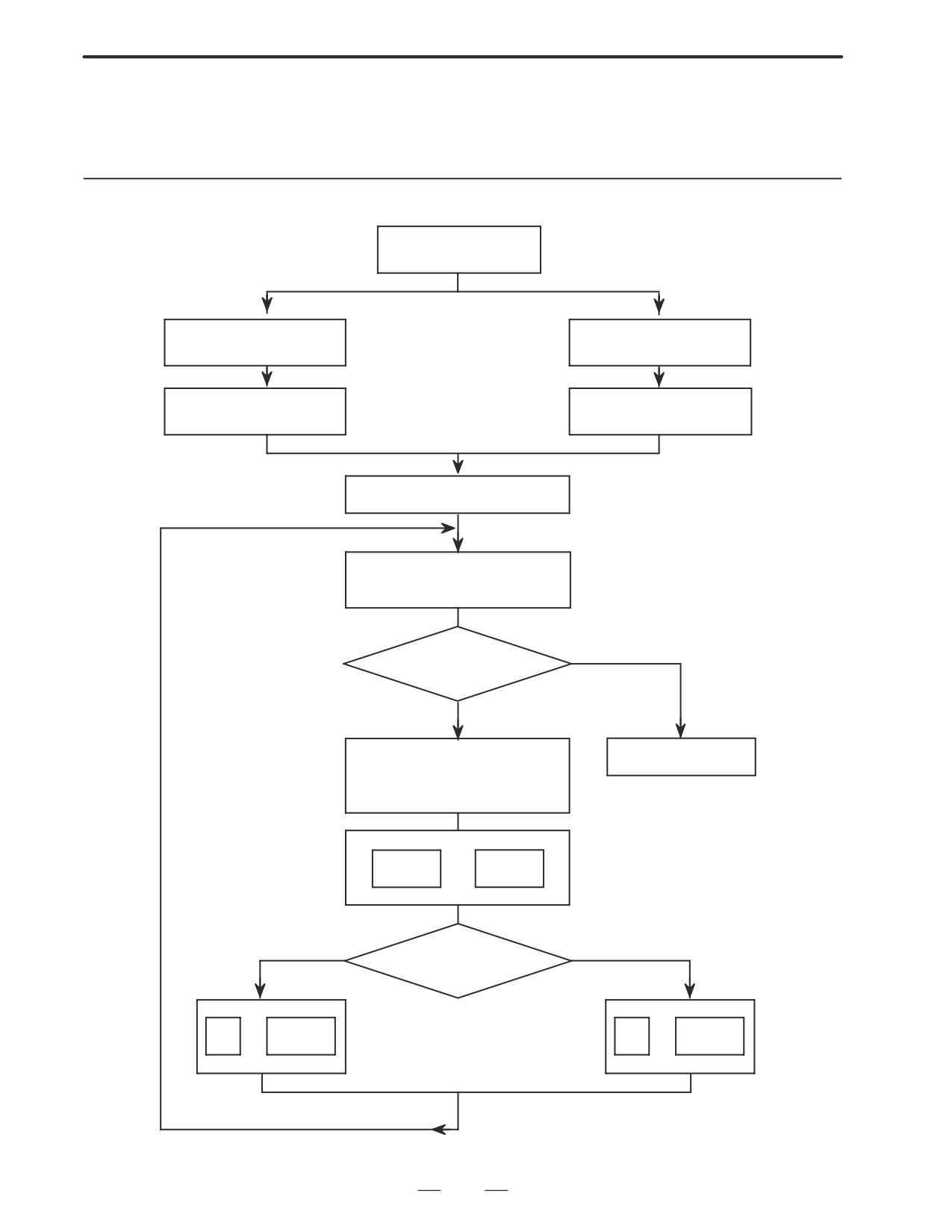
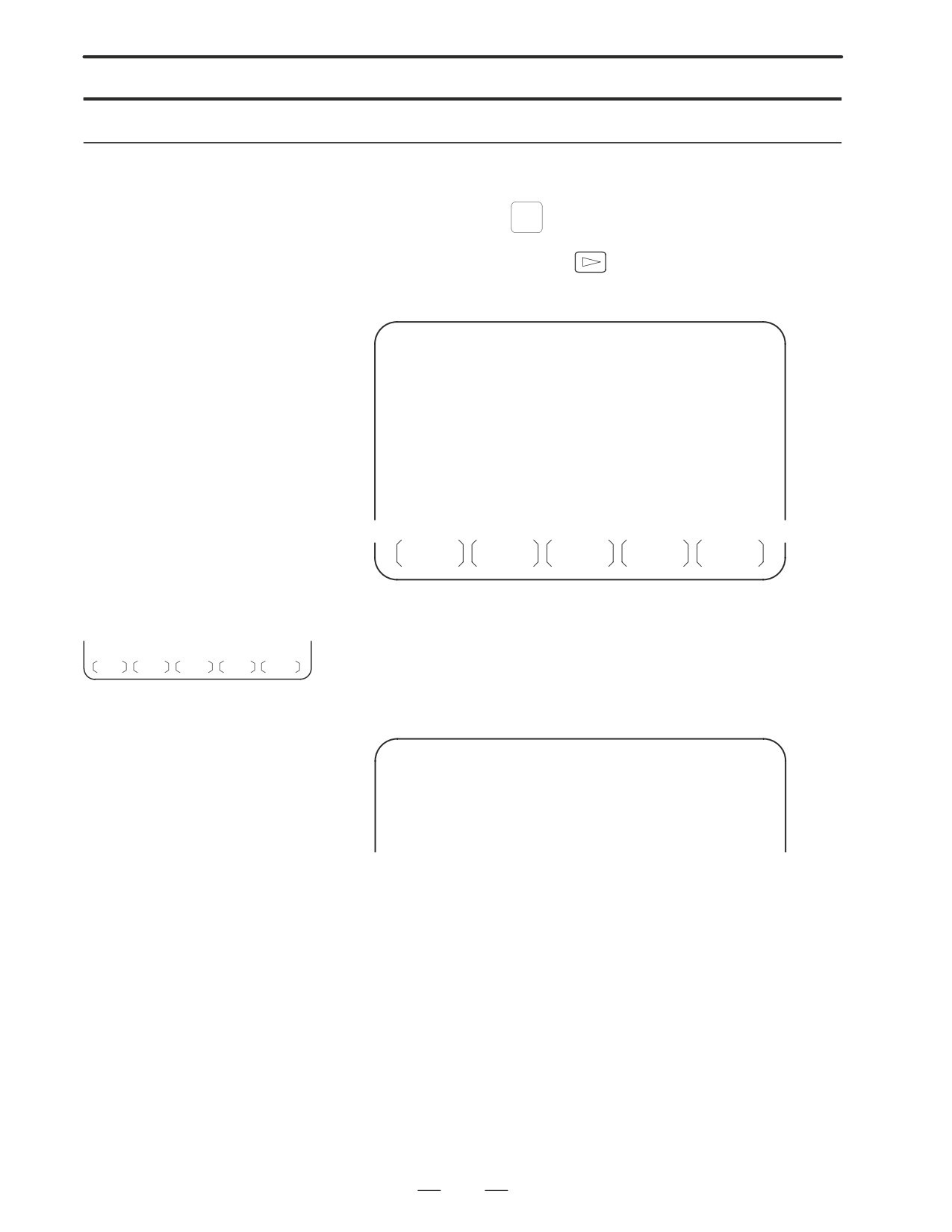
Output of conversational
The tool data file, cutting condition data, surface roughness data, pre-tool
tool setting data
list, and chuck/tailstock figure data can be punched out to an external I/O
device.
(1) Connect an external I/O device and set necessary parameters, such as
device selection.
(2) Select EDIT mode.
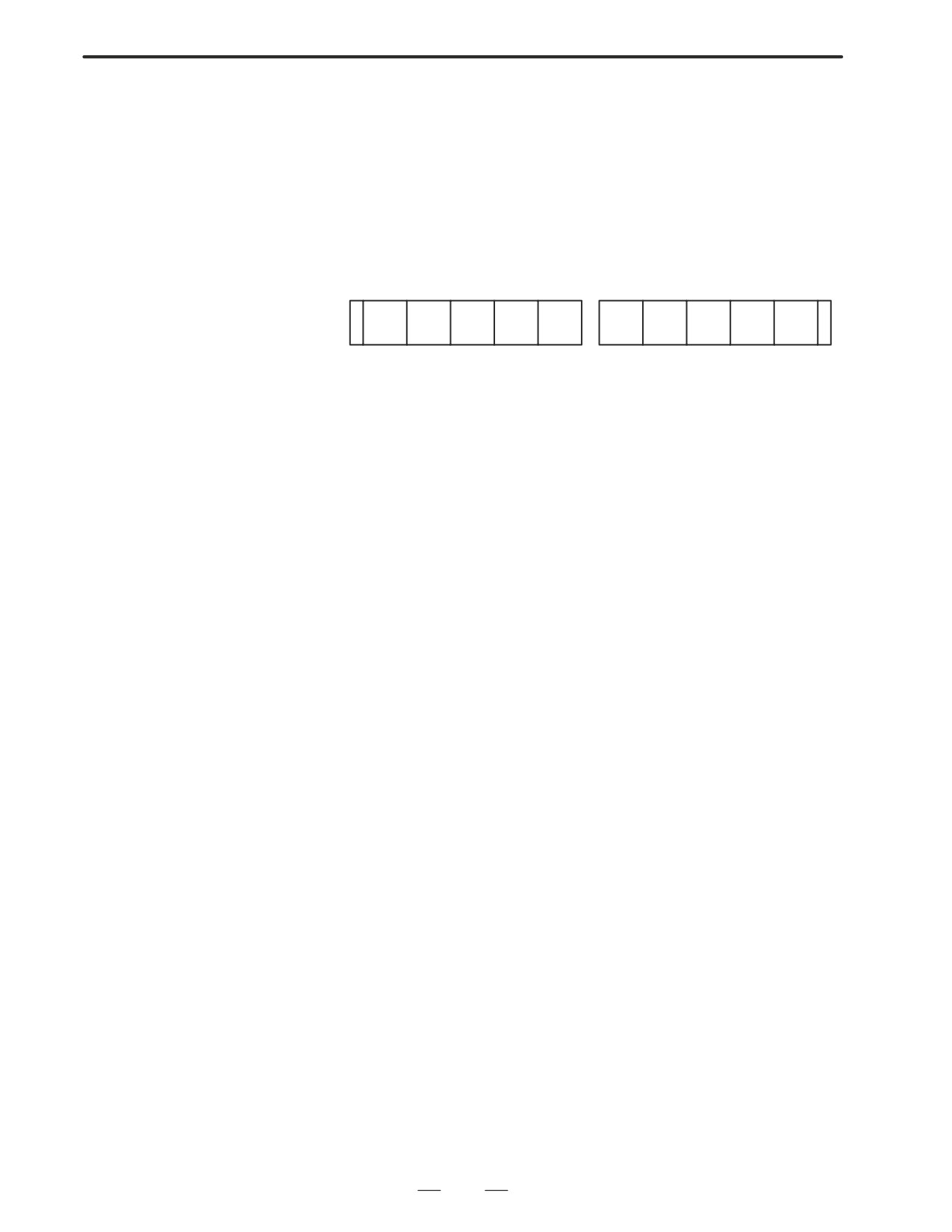
(3) Display the tool data menu screen, then press [+]. The following soft
keys appear. Press [PUNCH].
*** F.100-1 ***
<
10
11
READ
PUN
CLEA
\
CH
R
Input of conversational
The setting data punched out in the previous section can be read.
tool setting data
(1) Connect an external I/O device and set necessary parameters, such as
device selection.
(2) Set ”PARAMETER WRITE” in the setting data to 1.
(3) When the FANUC cassette adapter is used, set the file number for
parameter No. 9887 (TLFLNO).
(4) Display the tool data menu screen and place the system in the
emergency stop state.
(5) Press [READ].
Clearing of
The tool data file, cutting condition data, surface roughness data, pre-tool
conversational tool
list, and chuck/tailstock figure data can be cleared.
setting data
(1) Set ”PARAMETER WRITE” in the setting data to 1.
(2) Display the tool data menu screen. After switching to EDIT mode,
place the system in the emergency stop state.
(3) Press [CLEAR].
200
3. INPUT AND OUTPUT OF DATA
B-63005EN/01
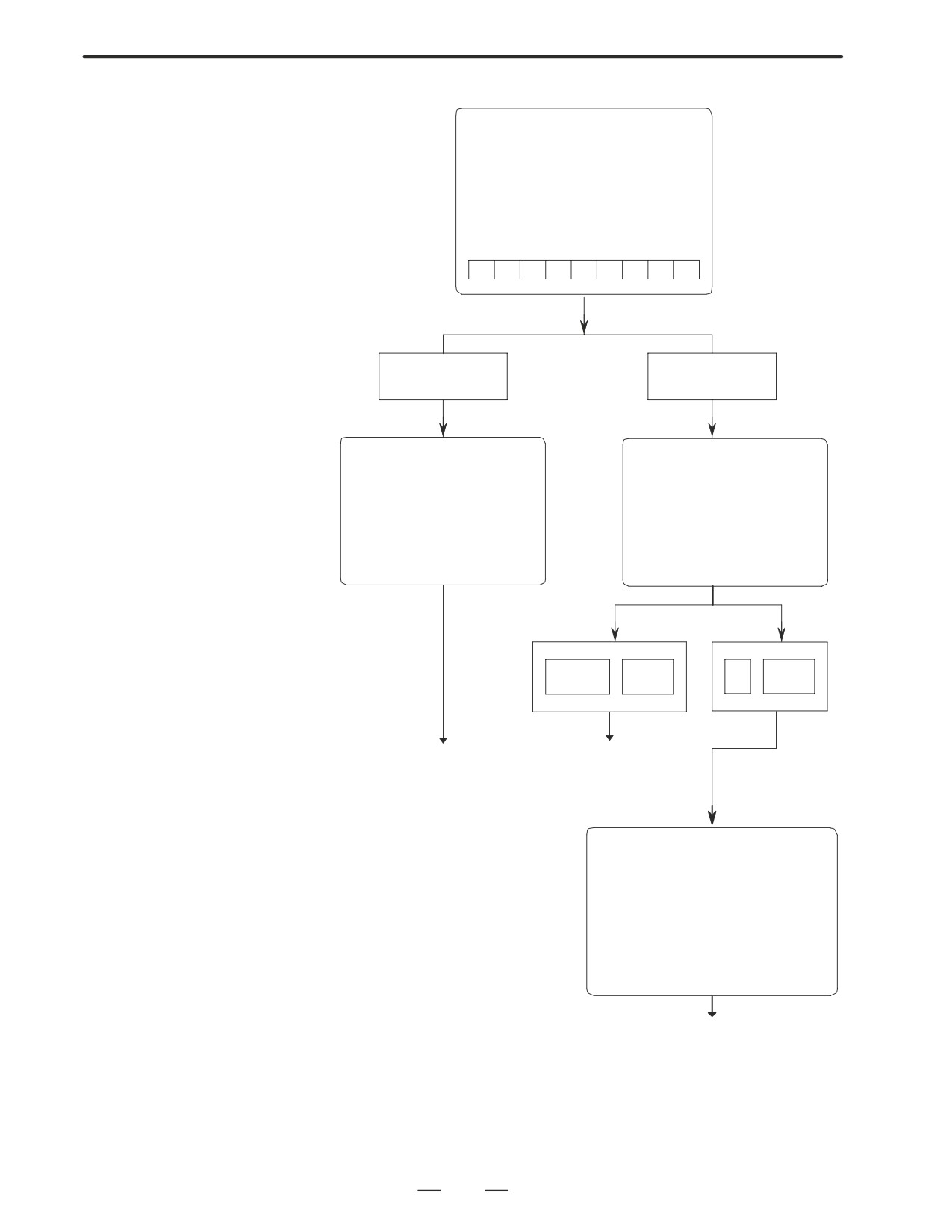
INITIAL SCREEN
3.4
Symbolic
INPUTTING/
OUTPUTTING CAP-II
FAPT TURN
DATA (16i-T)
PRESS [DATA
PRESS [FAMILY
SET] KEY
PROGRAM]
**FAMILY PROGRAM**
**PARAMETER & DATA SET**
1. FAMILY PROGRAM OUTPUT
1. SYSTEM DATA SETTING
2. FAMILY PROGRAM INPUT
2. SETTING DATA CORRECTION
:
3. MATERIAL DATA CORRECTION
:
:
:
:
:
4 or 5
INPUT
1
INPUT
(REFER TO TABLE 1) (REFER TO TABLE 2)
**SYSTEM DATA SETTING &
OUTPUT/INPUT**
1. SYSTEM PARAMETER SETTING
2. SYSTEM PARAMETER OUTPUT
3. SYSTEM PARAMETER INPUT
:
:
:
(REFER TO TABLE 3)
201
3. INPUT AND OUTPUT OF DATA
B-63005EN/01
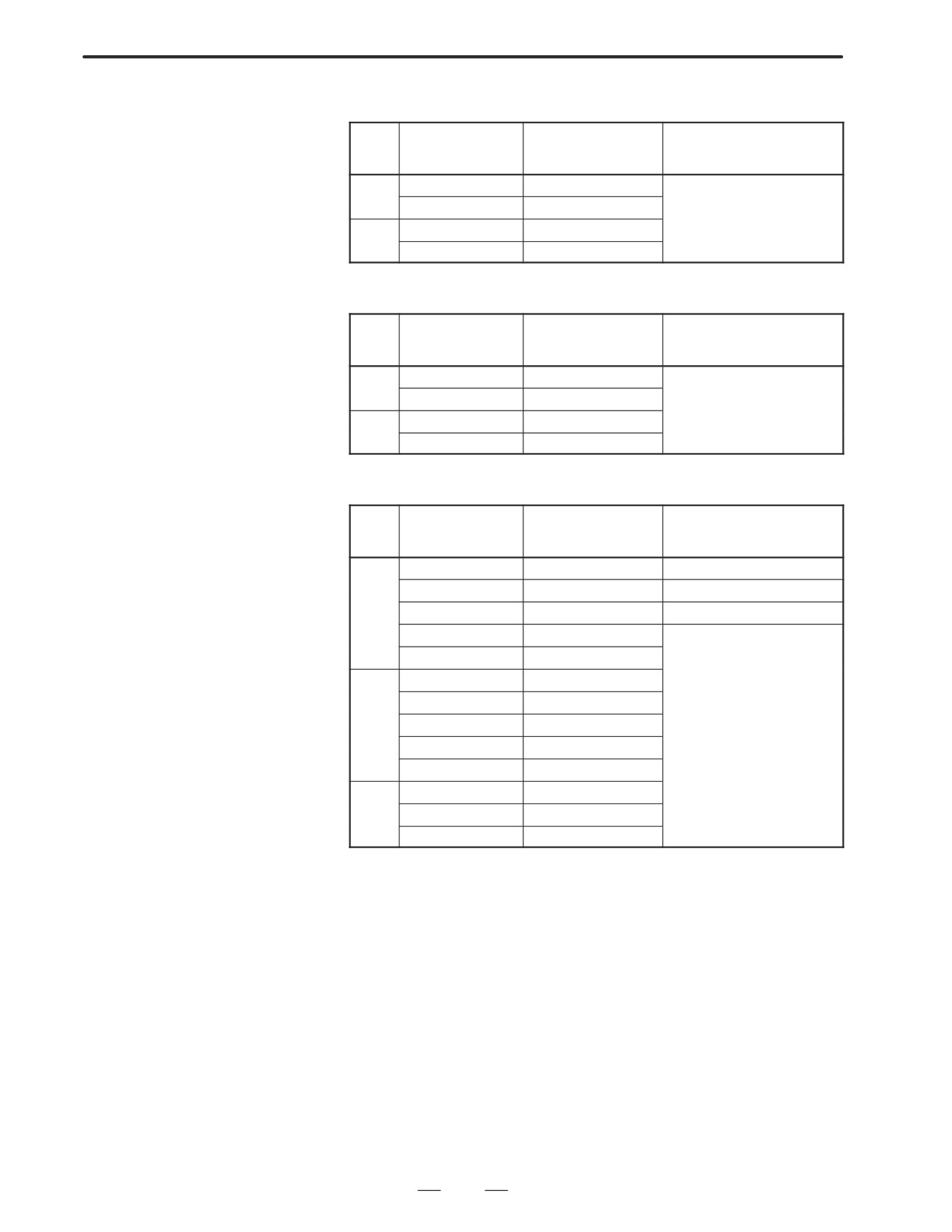
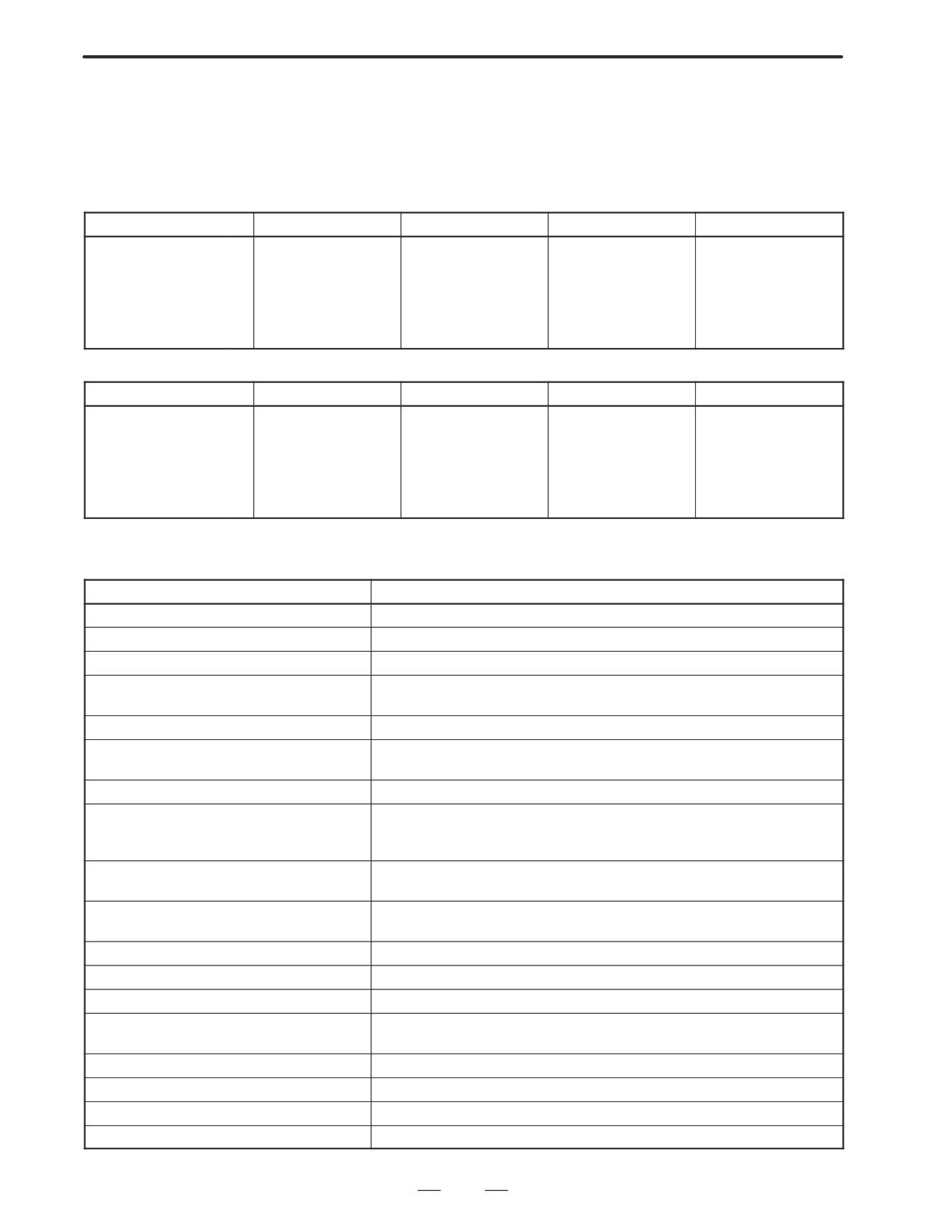
[TABLE 1] Input/Output of Family Program
I/O
Item
Operation on I/O
Remarks
device
Input
Family program
2, n
[INPUT]
n=P⇒FANUC PPR
n=B⇒FANUC Cassette
Sub cycle
5, n
[INPUT]
n=C⇒Sub Memory
Output
Family program
1, n
[INPUT]
*When n is omitted, parameter
Sub cycle
4, n
[INPUT]
no. 15 becomes valid.
[TABLE 2] Input/Output of Material Data
I/O
Item
Operation on I/O
Remarks
device
Input
Material data
5, n
[INPUT]
n=P⇒FANUC PPR
n=B⇒FANUC Cassette
Tooling information
8, n
[INPUT]
n=C⇒Sub Memory
Output
Material data
4, n
[INPUT]
*When n is omitted, parameter
no. 15 becomes valid
Tooling information
7, n
[INPUT]
[Table 3] Input/Output of system parameters and other data.
Item
Operation on I/O
Remarks
I/O
device
System parameter
3, n
[INPUT]
1[INPUT]⇒[SAVE END]
MTF
7, n
[INPUT]
5[INPUT]⇒[SAVE END]
Input/
Tool data
11, n
[INPUT]
9[INPUT]⇒[SAVE END]
Read
Setting
14, n
[INPUT]
Graphic data
16, n
[INPUT]
n=P⇒FANUC PPR
System parameter
2, n
[INPUT]
n=B⇒FANUC Cassette
Out-
MTF
6, n
[INPUT]
put/
Regis-
Tool data
10, n
[INPUT]
tera-
Setting
13, n
[INPUT]
tion
Graphic data
15, n
[INPUT]
System parameter
4, n
[INPUT]
Colla-
MTF
8, n
[INPUT]
tion
Tool data
12, n
[INPUT]
202
3. INPUT AND OUTPUT OF DATA
B-63005EN/01
The sub memory is stored in RAM module on the Option 3 board (board
3.5
for CAP-II). The procedure below describes a method to input and output
DUMP/RESTORE OF
the data in sub memory, which is used when Option 3 board or RAM
CAP-II DATA (16i-T)
module is replaced.
3.5.1
Kind of Data in Sub
1. System parameter (FAPT-SYS. PARAM.)
Memory
2. MTF (FAPT-MTF)
3. Setting data
(FAPT-SETTING)
4. Tool data
Turning tool
(FAPT-TOOL)
C axis tool
5. Graphic data (FAPT-GRAPHIC)
6. Files
Family program
(FAPT-FAMILY)
Material file
(FAPT-MATERIAL)
Sub cycle file
(FAPT-SUB. CYCLE)
7. Initial screen registration command data
3.5.2
Operation
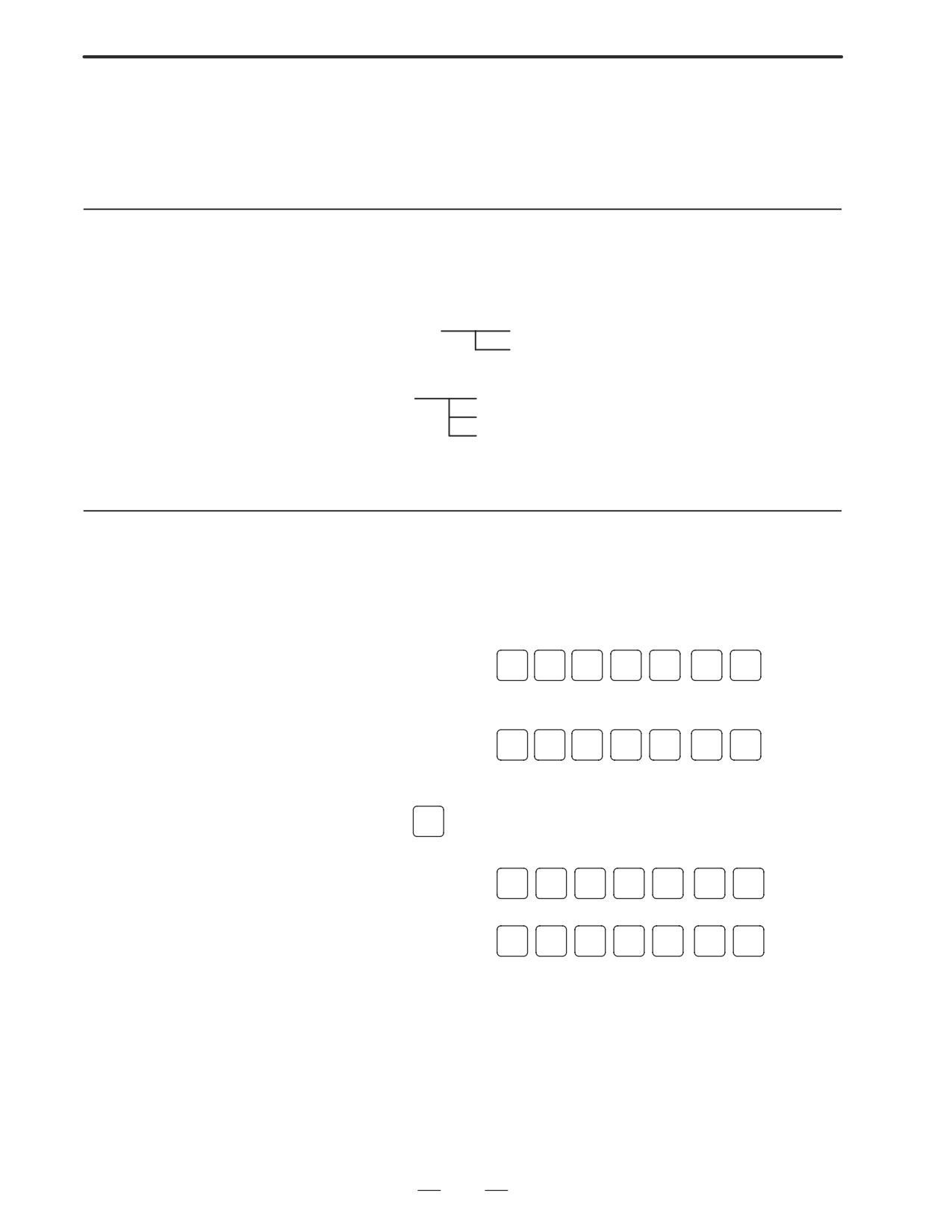
D Outputting data (Dump)
1.
Display the screen of Symbolic FAPT TURN.
2.
To output data on FANUC Cassette, press keys as follows:
[AUXILIARY]⇒
,
INPUT
D
U
M
P
B
Be careful that data is memorized from top of the file.
To output data on FANUC PPR, press keys as follows:
,
INPUT
[AUXILIARY]⇒
D
U
M
P
P
D Inputting data (Restore)
1.
Hold
SP
key and turn on power.
2.
To input data from FANUC Cassette, press keys as follows :
[AUXILIARY]⇒
R
S
T
R
,
B
INPUT
To input data from FANUC PPR, press keys as follows :
[AUXILIARY]⇒
R
S
T
R
,
P
INPUT
3.
Turn off the power once.
203
3. INPUT AND OUTPUT OF DATA
B-63005EN/01
3.6
CLEARING CAP-II
DATA (16i-T)
3.6.1
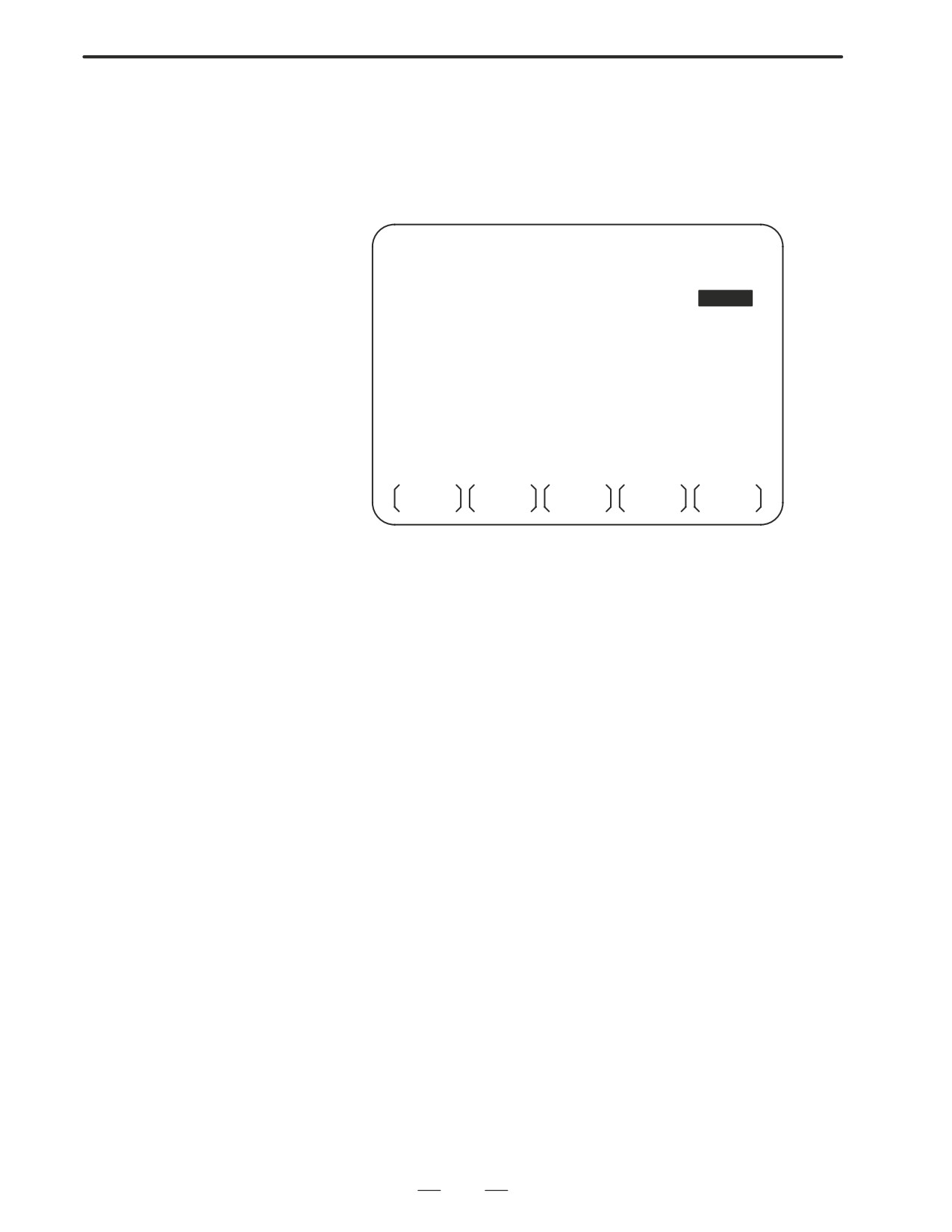
Deleting File Name and
Symbolic FAPT TURN
Files
(Initial screen)
Press [Family program]
Press [DATA SET] key
key
”Family program” menu
PARAMETER & DATASET”
screen
menu key
Press [FILE NAME] key
Not only file names of family
programs, but also file names
File name list stored in
and sub cycle files are dis-
submemory
played.
No
Delete a file ?
Yes
Meet the cursor to a no. to be
Press [END]
deleted using [CURSOR⇓] or
[CURSOR⇑] key
DEL
INPUT
EOB
,
YES(Delete)
NO(Not delete)
Delete really ?
1
INPUT
0
INPUT
,
,
204
3. INPUT AND OUTPUT OF DATA
B-63005EN/01
3.6.2
Press
SP
while turning on power.
Clearing CAP-II
Memory
205
3. INPUT AND OUTPUT OF DATA
B-63005EN/01
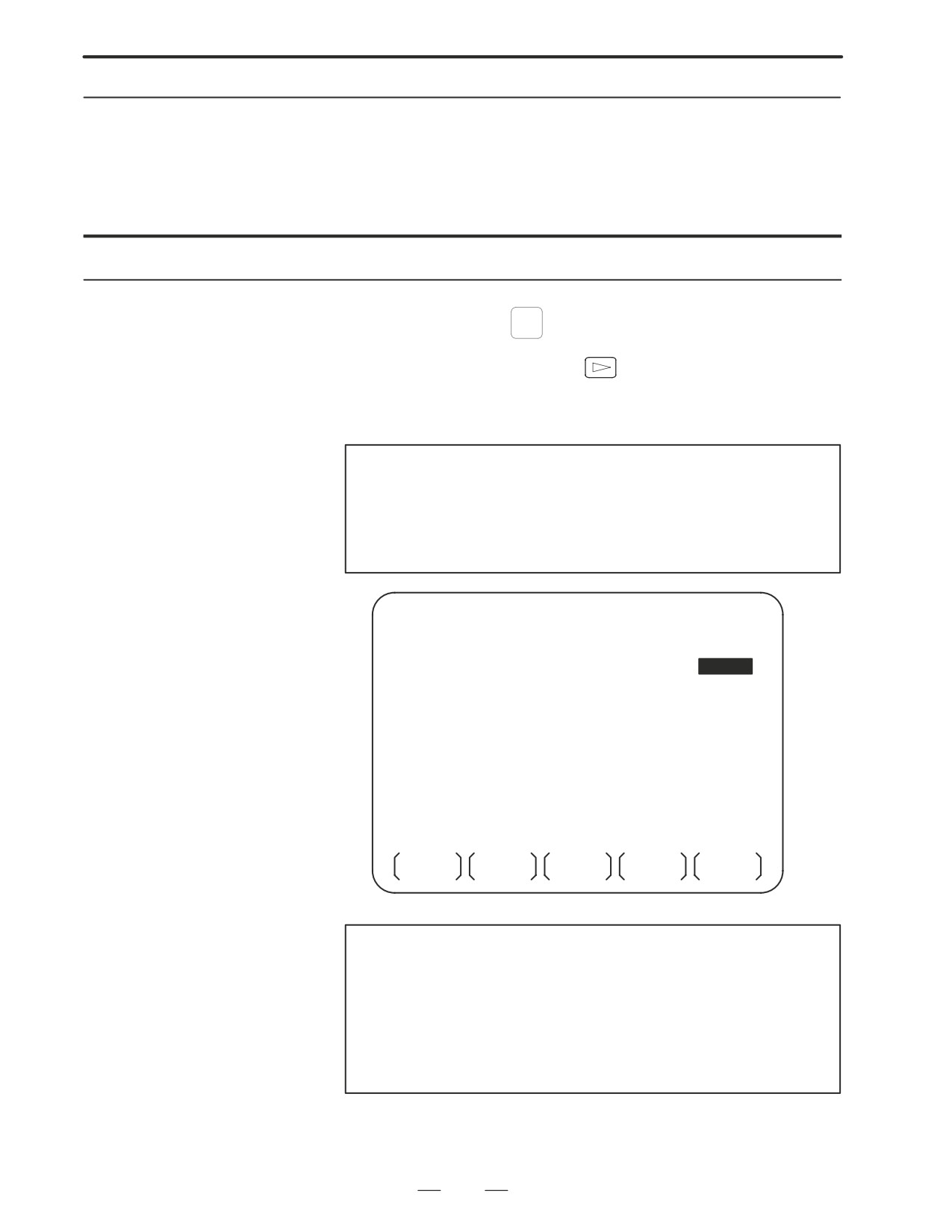
To input/output a particular type of data, the corresponding screen is
3.7
usually selected. For example, the parameter screen is used for parameter
DATA INPUT/OUTPUT
input from or output to an external input/output unit, while the program
ON THE ALL IO
screen is used for program input or output. However, programs,
SCREEN
parameters, offset data, and macro variables can all be input and output
using a single common screen, that is, the ALL IO screen.
READ/PUNCH (PROGRAM)
O1234 N12345
I/O CHANNEL
3
TV CHECK
OFF
DEVICE NUM.
0
PUNCH CODE
ISO
BAUDRATE
4800
INPUT CODE
ASCII
STOP BIT
2
FEED OUTPUT
FEED
NULL INPUT (EIA)
NO
EOB OUTPUT (ISO) CR
TV CHECK (NOTES)
ON
BAUDRATE CLK. INNER
CD CHECK (232C)
OFF
RESET/ALARM
ON
PARITY BIT
OFF
SAT COMMAND HOST
INTERFACE
RS422
COM PROTCOL
A
END CODE
EXT
COM CODE
ASCII
(0:EIA
1:ISO)>1_
MDI
****
***
***
***
12:34:56
PRGRM
PARAM
OFFSET
MACRO
(OPRT)
Fig. 3.7 ALL IO screen (when channel 3 is being
used for input/output)
206
3. INPUT AND OUTPUT OF DATA
B-63005EN/01
3.7.1
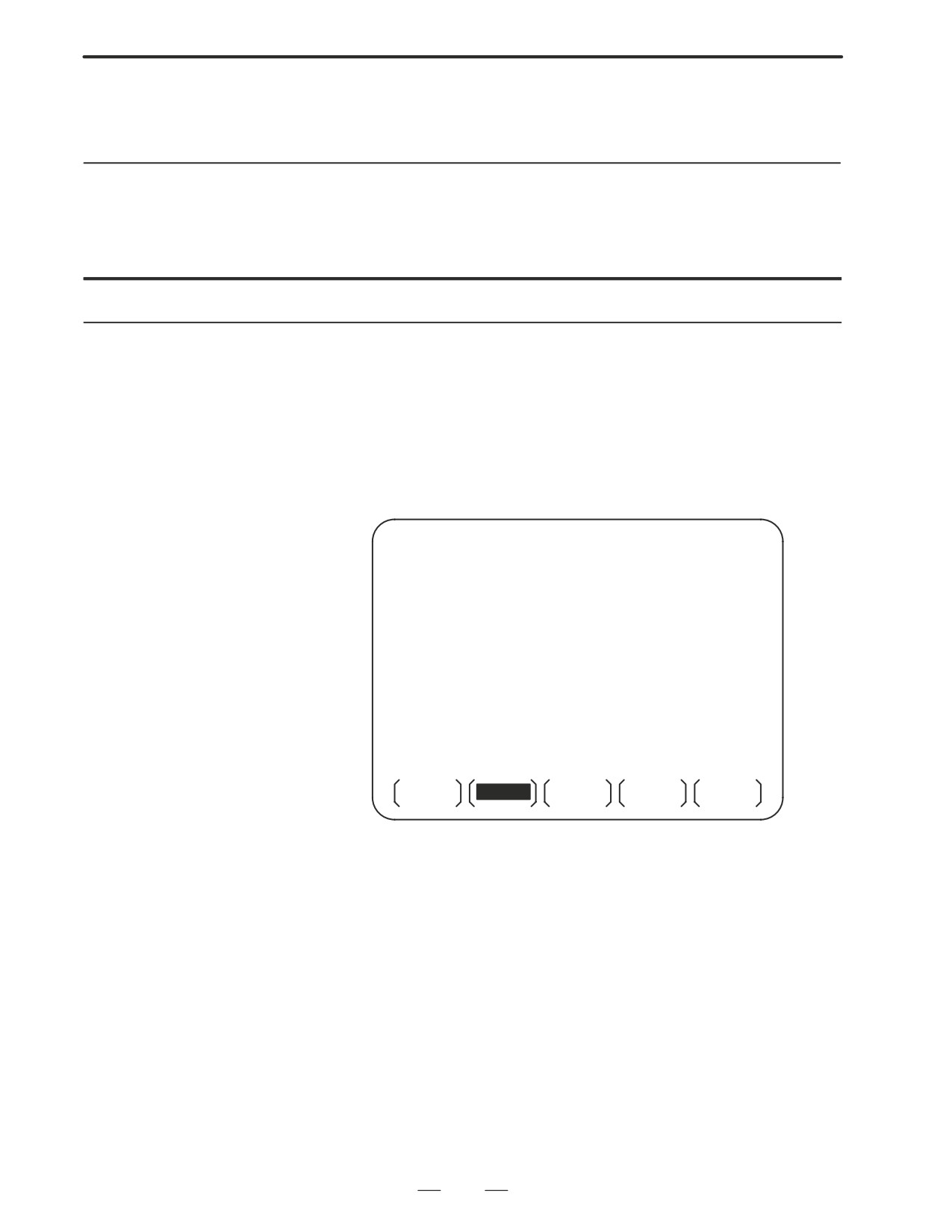
Input/output-related parameters can be set on the ALL IO screen.
Parameters can be set, regardless of the mode.
Setting
Input/Output-Related
Parameters
Setting input/output-related parameters
Procedure
1
Press function key
SYSTEM
2
Press the rightmost soft key
(continuous menu key) several
times.
3
Press soft key [ALL IO] to display the ALL IO screen.
NOTE
1
If program or floppy is selected in EDIT mode, the program
directory or floppy screen is displayed.
2
When the power is first turned on, program is selected by
default.
READ/PUNCH (PROGRAM)
O1234 N12345
I/O CHANNEL
3
TV CHECK
OFF
DEVICE NUM.
0
PUNCH CODE
ISO
BAUDRATE
4800
INPUT CODE
ASCII
STOP BIT
2
FEED OUTPUT
FEED
NULL INPUT (EIA)
NO
EOB OUTPUT (ISO) CR
TV CHECK (NOTES)
ON
BAUDRATE CLK. INNER
CD CHECK (232C)
OFF
RESET/ALARM
ON
PARITY BIT
OFF
SAT COMMAND HOST
INTERFACE
RS422
COM PROTCOL
A
END CODE
EXT
COM CODE
ASCII
(0:EIA
1:ISO)>1_
MDI
****
***
***
***
12:34:56
PRGRM
PARAM
OFFSET
MACRO
(OPRT)
NOTE
Baud rate clock, CD check (232C), reset/alarm report, and
the parity bit for parameter No.
134, as well as the
communication code, end code, communication protocol,
interface, and SAT command for parameter No. 135 are
displayed only when channel
3 is being used for
input/output.
4
Select the soft key corresponding to the desired type of data (program,
parameter, and so forth).
207
3. INPUT AND OUTPUT OF DATA
B-63005EN/01
5
Set the parameters corresponding to the type of input/output unit to be
used. (Parameter setting is possible regardless of the mode.)
3.7.2
A program can be input and output using the ALL IO screen.
When entering a program using a cassette or card, the user must specify
Inputting and
the input file containing the program (file search).
Outputting Programs
File search
Procedure
1
Press soft key [PRGRM] on the ALL IO screen, described in Section
3.7.1.
2
Select EDIT mode. A program directory is displayed.
3
Press soft key [(OPRT)]. The screen and soft keys change as shown
below.
⋅
A program directory is displayed only in EDIT mode. In all other
modes, the ALL IO screen is displayed.
O0001 N00010
PROGRAM (NUM.)
MEMORY (CHAR.)
USED
:
60
3321
FREE
:
2
429
O0010 O0001 O0003 O0002 O0555 O0999
O0062 O0004 O0005 O1111 O0969 O6666
O0021 O1234 O0588 O0020 O0040
>_
EDIT
****
***
***
***
14:46:09
F SRH
READ
PUNCH
DELETE
(OPRT)
4
Enter address N.
5
Enter the number of the file to be found.
⋅
N0
The first floppy file is found.
⋅
One of N1 to N9999
Among the files numbered from 1 to 9999, a specified file is found.
⋅
N-9999
The file immediately after that used most recently is found.
⋅
N-9998
When -9998 is specified, the next file is found. Then, each time
a file input/output operation is performed, N-9999 is automatically
inserted. This means that subsequent files can be sequentially
found automatically.
208
3. INPUT AND OUTPUT OF DATA
B-63005EN/01
This state is canceled by specifying N0, N1 to N9999, or N-9999,
or upon a reset.
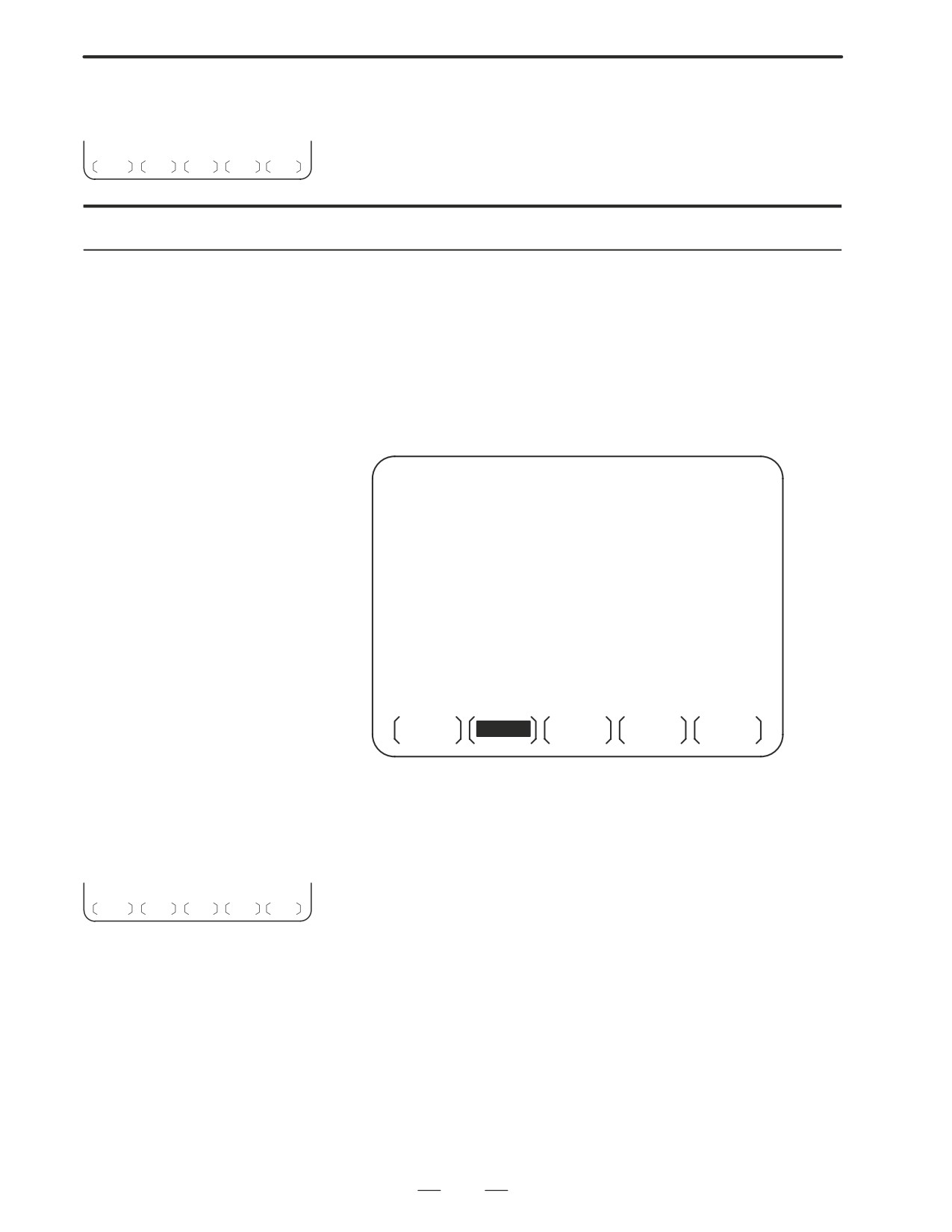
6
Press soft keys [F SRH] and [EXEC].
CAN EXEC
The specified file is found.
Inputting a program
Procedure
1
Press soft key [PRGRM] on the ALL IO screen, described in Section
3.7.1.
2
Select EDIT mode. A program directory is displayed.
3
Press soft key [(OPRT)]. The screen and soft keys change as shown
below.
⋅
A program directory is displayed only in EDIT mode. In all other
modes, the ALL IO screen is displayed.
O0001 N00010
PROGRAM (NUM.)
MEMORY (CHAR.)
USED
:
60
3321
FREE
:
2
429
O0010 O0001 O0003 O0002 O0555 O0999
O0062 O0004 O0005 O1111 O0969 O6666
O0021 O1234 O0588 O0020 O0040
>_
EDIT
****
***
***
***
14:46:09
F SRH
READ
PUNCH
DELETE
(OPRT)
4
To specify a program number to be assigned to an input program,
enter address O, followed by the desired program number.
If no program number is specified, the program number in the file or
on the NC tape is assigned as is.
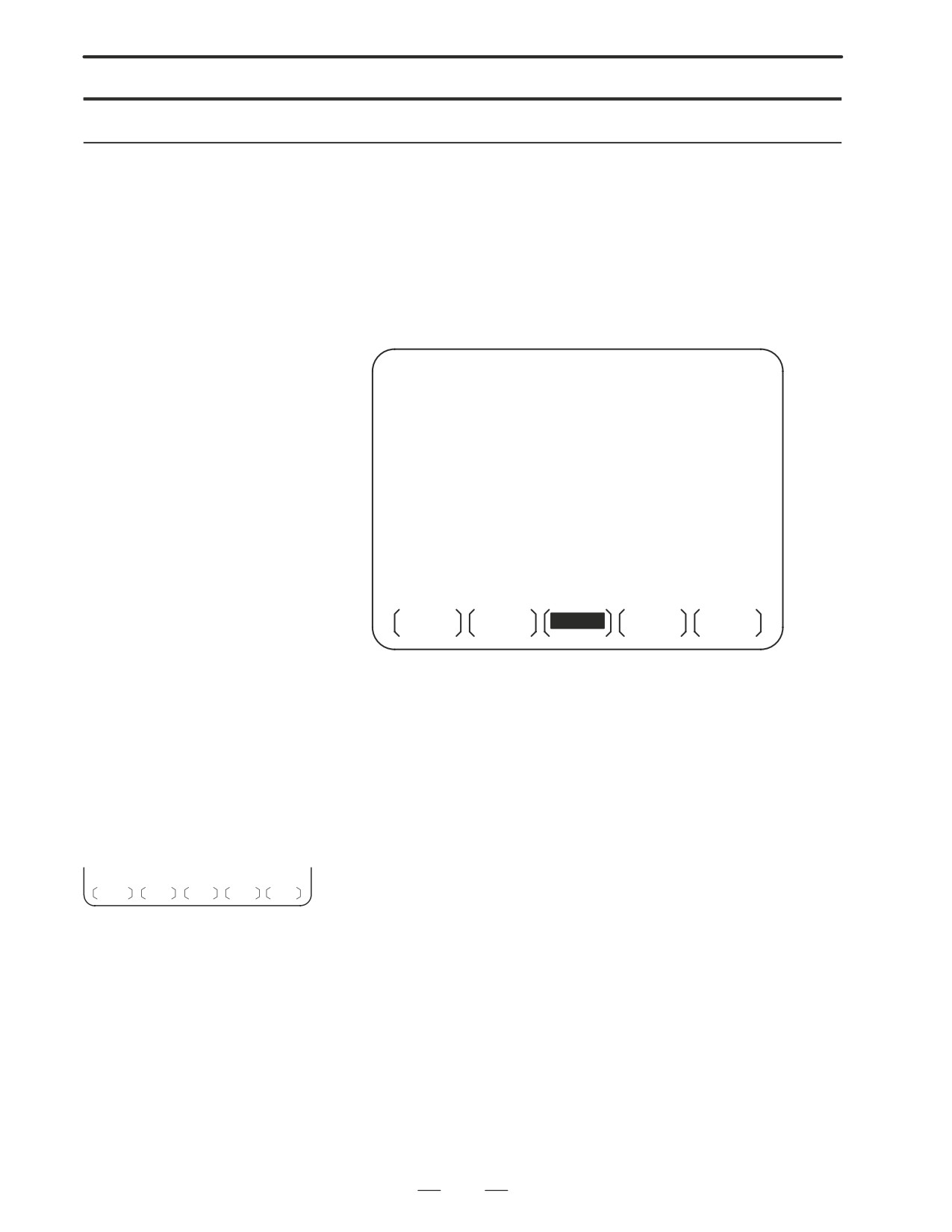
5
Press soft key [READ], then [EXEC].
STOP CAN EXEC
The program is input with the program number specified in step 4
assigned.
To cancel input, press soft key [CAN].
To stop input prior to its completion, press soft key [STOP].
209
3. INPUT AND OUTPUT OF DATA
B-63005EN/01
Outputting programs
Procedure
1
Press soft key [PRGRM] on the ALL IO screen, described in Section
3.7.1.
2
Select EDIT mode. A program directory is displayed.
3
Press soft key [(OPRT)]. The screen and soft keys change as shown
below.
⋅
A program directory is displayed only in EDIT mode. In all other
modes, the ALL IO screen is displayed.
O0001 N00010
PROGRAM (NUM.)
MEMORY (CHAR.)
USED
:
60
3321
FREE
:
2
429
O0010 O0001 O0003 O0002 O0555 O0999
O0062 O0004 O0005 O1111 O0969 O6666
O0021 O1234 O0588 O0020 O0040
>_
EDIT
****
***
***
***
14:46:09
F SRH
READ
PUNCH
DELETE
(OPRT)
4
Enter address O.
5
Enter a desired program number.
If -9999 is entered, all programs in memory are output.
To output a range of programs, enter OΔΔΔΔ, OVVVV.. The
programs numbered from ΔΔΔΔ to VVVV are output.
When bit 4 (SOR) of parameter No. 3107 for sorted display is set to 1
on the program library screen, programs are output in order, starting
from those having the smallest program numbers.
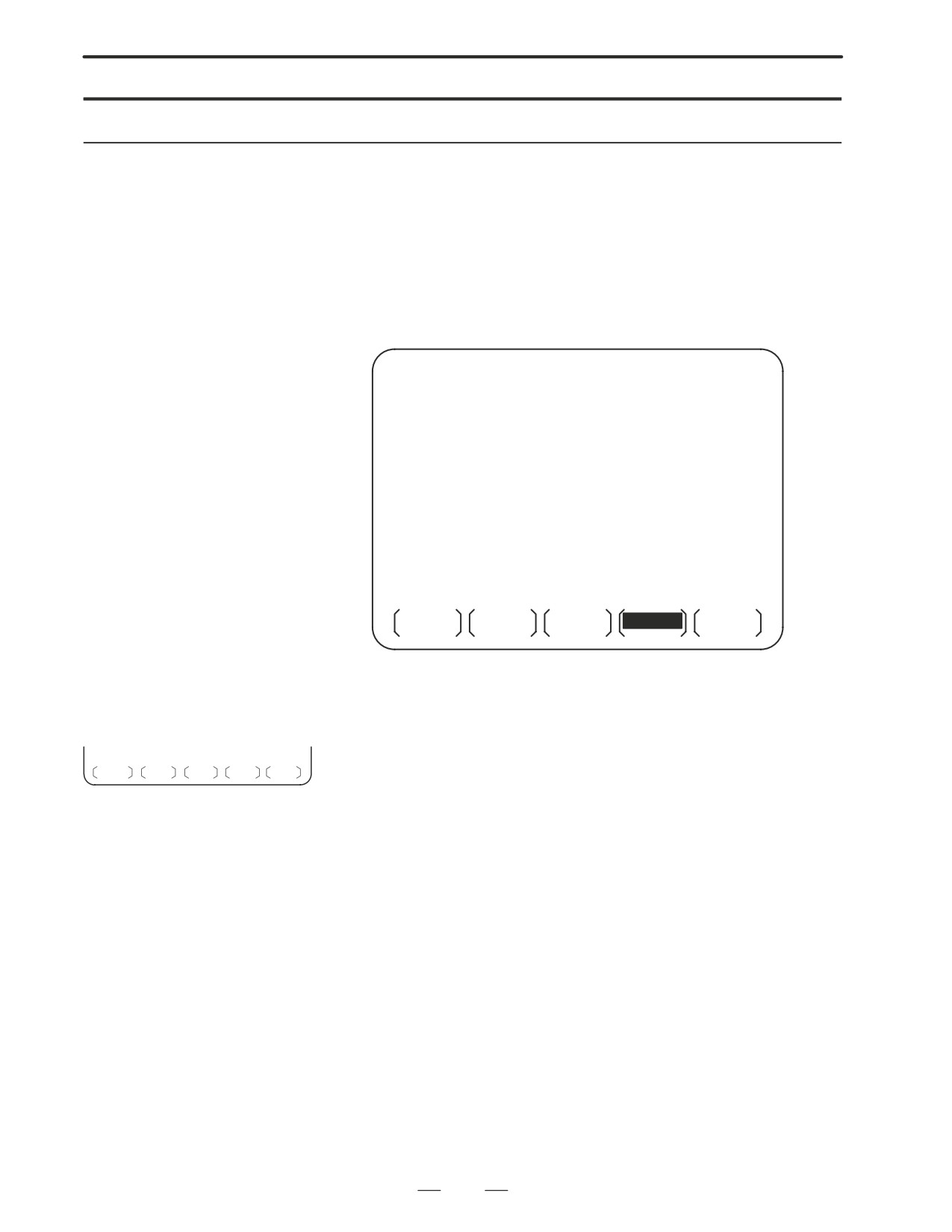
6
Press soft key [PUNCH], then [EXEC].
STOP CAN EXEC
The specified program or programs are output. If steps 4 and 5 are
omitted, the currently selected program is output.
To cancel output, press soft key [CAN].
To stop output prior to its completion, press soft key [STOP].
210
3. INPUT AND OUTPUT OF DATA
B-63005EN/01
Deleting files
Procedure
1
Press soft key [PRGRM] on the ALL IO screen, described in Section
3.7.1.
2
Select EDIT mode. A program directory is displayed.
3
Press soft key [(OPRT)]. The screen and soft keys change as shown
below.
⋅
A program directory is displayed only in EDIT mode. In all other
modes, the ALL IO screen is displayed.
O0001 N00010
PROGRAM (NUM.)
MEMORY (CHAR.)
USED
:
60
3321
FREE
:
2
429
O0010 O0001 O0003 O0002 O0555 O0999
O0062 O0004 O0005 O1111 O0969 O6666
O0021 O1234 O0588 O0020 O0040
>_
EDIT
****
***
***
***
14:46:09
F SRH
READ
PUNCH
DELETE
(OPRT)
4
Press soft key [DELETE].
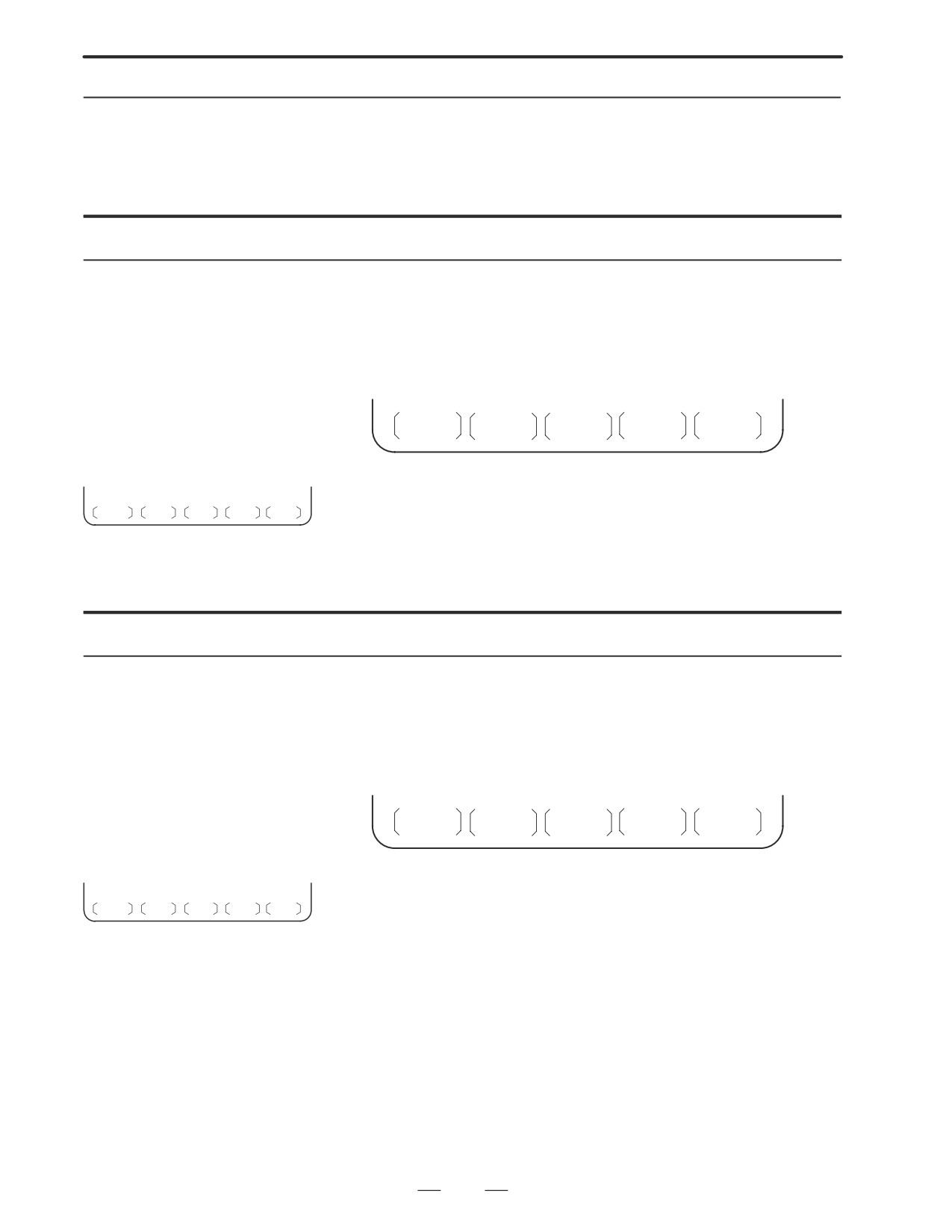
5
Enter a file number, from 1 to 9999, to indicate the file to be deleted.
6
Press soft key [EXEC].
CAN EXEC
The k-th file, specified in step 5, is deleted.
211
3. INPUT AND OUTPUT OF DATA
B-63005EN/01
3.7.3
Parameters can be input and output using the ALL IO screen.
Inputting and
Outputting Parameters
Inputting parameters
Procedure
1
Press soft key [PARAM] on the ALL IO screen, described in Section
3.7.1.
2
Select EDIT mode.
3
Press soft key [(OPRT)]. Soft keys change as shown below.
READ
PUNCH
4
Press soft key [READ], then [EXEC].
CAN EXEC
The parameters are read, and the ”INPUT” indicator blinks at the
lower-right corner of the screen. Upon the completion of input, the
”INPUT” indicator is cleared from the screen.
To cancel input, press soft key [CAN].
Outputting parameters
Procedure
1
Press soft key [PARAM] on the ALL IO screen, described in Section
3.7.1.
2
Select EDIT mode.
3
Press soft key [(OPRT)]. Soft keys change as shown below.
READ
PUNCH
4
Press soft key [PUNCH], then [EXEC].
CAN EXEC
The parameters are output, and the ”OUTPUT” indicator blinks at the
lower-right corner of the screen. Upon the completion of output, the
”OUTPUT” indicator is cleared from the screen.
To cancel output, press soft key [CAN].
212
3. INPUT AND OUTPUT OF DATA
B-63005EN/01
3.7.4
Offset data can be input and output using the ALL IO screen.
Inputting and
Outputting Offset Data
Inputting offset data
Procedure
1
Press soft key [OFFSET] on the ALL IO screen, described in Section
3.7.1.
2
Select EDIT mode.
3
Press soft key [(OPRT)]. Soft keys change as shown below.
READ
PUNCH
4
Press soft key [READ], then [EXEC].
CAN EXEC
The offset data is read, and the ”INPUT” indicator blinks at the
lower-right corner of the screen.
Upon the completion of input, the ”INPUT” indicator is cleared from
the screen.
To cancel input, press soft key [CAN].
Outputting offset data
Procedure
1
Press soft key [OFFSET] on the ALL IO screen, described in Section
3.7.1.
2
Select EDIT mode.
3
Press soft key [(OPRT)]. Soft keys change as shown below.
READ
PUNCH
4
Press soft key [PUNCH], then [EXEC].
CAN EXEC
The offset data is output, and the ”OUTPUT” indicator blinks at the
lower-right corner of the screen. Upon the completion of output, the
”OUTPUT” indicator is cleared from the screen.
To cancel output, press soft key [CAN].
213
3. INPUT AND OUTPUT OF DATA
B-63005EN/01
3.7.5
Custom macro common variables can be output using the ALL IO screen.
Outputting Custom
Macro Common
Variables
Outputting custom macro common variables
Procedure
1
Press soft key [MACRO] on the ALL IO screen, described in Section
3.7.1.
2
Select EDIT mode.
3
Press soft key [(OPRT)]. Soft keys change as shown below.
READ
PUNCH
4
Press soft key [PUNCH], then [EXEC].
CAN EXEC
The custom macro common variables are output, and the ”OUTPUT”
indicator blinks at the lower-right corner of the screen. Upon the
completion of output, the ”OUTPUT” indicator is cleared from the
screen.
To cancel output, press soft key [CAN].
NOTE
To input a macro variable, read the desired custom macro
statement as a program, then execute the program.
214
3. INPUT AND OUTPUT OF DATA
B-63005EN/01
3.7.6
The ALL IO screen supports the display of a directory of floppy files, as
well as the input and output of floppy files.
Inputting and
Outputting Floppy
Files
Displaying a file directory
Procedure
1
Press the rightmost soft key
(continuous menu key) on the ALL
IO screen, described in Section 3.7.1.
2
Press soft key [FLOPPY].
3
Select EDIT mode. The floppy screen is displayed.
4
Press soft key [(OPRT)]. The screen and soft keys change as shown
below.
⋅
The floppy screen is displayed only in EDIT mode. In all other
modes, the ALL IO screen is displayed.
READ/PUNCH (FLOPPY)
O1234 N12345
>
MDI
****
***
***
***
12:34:56
F SRH
READ
PUNCH
DELETE
5
Press soft key [F SRH].
6
Enter the number of the desired file, then press soft key [F SET].
F SET
CAN EXEC
7
Press soft key [EXEC]. A directory is displayed, with the specified
file uppermost. Subsequent files in the directory can be displayed by
pressing the page key.
215
3. INPUT AND OUTPUT OF DATA
B-63005EN/01
READ/PUNCH (FLOPPY)
O1234 N12345
No. FILE NAME
(Meter) VOL
0001
PARAMETER
46.1
0002
ALL.PROGRAM
12.3
0003
O0001
11.9
0004
O0002
11.9
0005
O0003
11.9
0006
O0004
11.9
0007
O0005
0008
O0010
11.9
0009
O0020
11.9
11.9
F SRH
File No.=2
>2_
EDIT
****
***
***
***
12:34:56
F SRH
CAN
EXEC
A directory in which the first file is uppermost can be displayed
simply by pressing the page key.
(Soft key [F SRH] need not be
pressed.)
216
3. INPUT AND OUTPUT OF DATA
B-63005EN/01
Inputting a file
Procedure
1
Press the rightmost soft key
(continuous menu key) on the ALL
IO screen, described in Section 3.7.1.
2
Press soft key [FLOPPY].
3
Select EDIT mode. The floppy screen is displayed.
4
Press soft key [(OPRT)]. The screen and soft keys change as shown
below.
The floppy screen is displayed only in EDIT mode. In all other
modes, the ALL IO screen is displayed.
READ/PUNCH (FLOPPY)
O1234 N12345
>
MDI
****
***
***
***
12:34:56
F SRH
READ
PUNCH
DELETE
5
Press soft key [READ].
6
Enter the number of a file or program to be input.
F SET O SET STOP CAN EXEC
⋅
Setting a file number: Enter the number of the desired file, then
press soft key [F SET].
⋅
Setting a program number: Enter the number of the desired
program, then press soft key [O SET].
7
Press soft key [EXEC].
The specified file or program is read, and the ”INPUT” indicator
blinks at the lower-right corner of the screen. Upon the completion of
input, the ”INPUT” indicator is cleared from the screen.
217
3. INPUT AND OUTPUT OF DATA
B-63005EN/01
Outputting a file
Procedure
1
Press the rightmost soft key
(continuous menu key) on the ALL
IO screen, described in Section 3.7.1.
2
Press soft key [FLOPPY].
3
Select EDIT mode. The floppy screen is displayed.
4
Press soft key [(OPRT)]. The screen and soft keys change as shown
below.
The floppy screen is displayed only in EDIT mode. In all other
modes, the ALL IO screen is displayed.
READ/PUNCH (FLOPPY)
O1234 N12345
>
MDI
****
***
***
***
12:34:56
F SRH
READ
PUNCH
DELETE
5
Press soft key [PUNCH].
6
Enter the number of the program to be output, together with a desired
F SET O SET STOP CAN EXEC
output file number.
⋅
Setting a file number: Enter the number of the desired file, then
press soft key [F SET].
⋅
Setting a program number: Enter the number of the desired
program, then press soft key [O SET].
7
Press soft key [EXEC].
The specified program is output, and the ”OUTPUT” indicator blinks
at the lower-right corner of the screen. Upon the completion of
output, the ”OUTPUT” indicator is cleared from the screen.
If no file number is specified, the program is written at the end of the
currently registered files.
218
3. INPUT AND OUTPUT OF DATA
B-63005EN/01
Deleting a file
Procedure
1
Press the rightmost soft key
(continuous menu key) on the ALL
IO screen, described in Section 3.7.1.
2
Press soft key [FLOPPY].
3
Select EDIT mode. The floppy screen is displayed.
4
Press soft key [(OPRT)]. The screen and soft keys change as shown
below.
The floppy screen is displayed only in EDIT mode. In all other
modes, the ALL IO screen is displayed.
READ/PUNCH (FLOPPY)
O1234 N12345
>
MDI
****
***
***
***
12:34:56
F SRH
READ
PUNCH
DELETE
5
Press soft key [DELETE].
6
Enter the number of the desired file, then press soft key [F SET].
F SET
CAN EXEC
7
Press soft key [EXEC]. The specified file is deleted. After the file has
been deleted, the subsequent files are shifted up.
219
3. INPUT AND OUTPUT OF DATA
B-63005EN/01
3.7.7
Data held in CNC memory can be saved to a memory card in MS-DOS
format. Data held on a memory card can be loaded into CNC memory.
Memory Card
A save or load operation can be performed using soft keys while the CNC
Input/Output
is operating.
Loading can be performed in either of two ways. In the first method, all
saved memory data is loaded. In the second method, only selected data
is loaded.
READ/PUNCH(M-CARD)
O1234 N12345
*1 : CNC memory
CNC RAM
Memory card
*2 : Memory card size and type
512K byte
2. 000M byte S- RAM
(
1/
1)
File
SRAM0_5A. FDB
524288 byte 97/ 01/ 23
*3 : Names, sizes, dates, and number of
files recorded on the memory card
Message
COMPLETED.
*4 : Operation message
TURN OFF POWER.
*5 : Select a desired type of load data only
Select : All data
S
0 T0000
when [LOAD] is selected.
EDIT **** - - EMG- -
12: 15: 00
[FORMAT] [ SAVE ]
[ LOAD ]
[DELETE]
[
]
[ CAN
]
[
]
[
]
[ CAN
]
[ EXEC ]
When [FORMAT], [SAVE], or [DELETE]
is selected
[SELECT]
[
]
[
]
[ CAN
]
[ EXEC ]
When [LOAD] is selected
⋅
The CNC memory size (*1) is displayed at all times.
⋅
When no memory card is inserted, the message field (*4) displays
a message prompting the user to insert a memory card, but does not
display the memory card states (*2 and *3).
⋅
If an inserted memory card is invalid (if there is no attribute
memory, or if the attribute memory does not contain any device
information), the message field (*4) displays an error message, but
does not display the memory card states (*2 and *3).
220
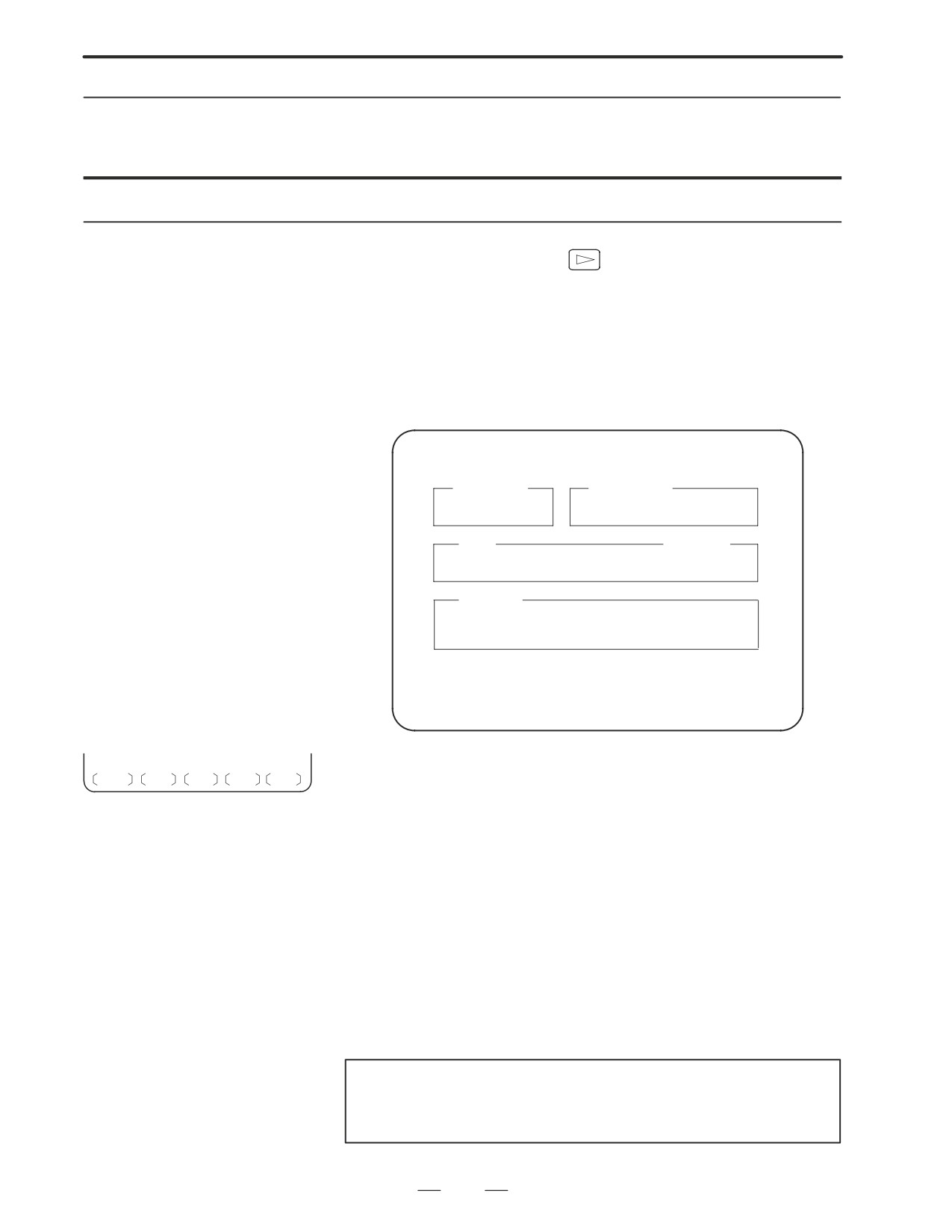
3. INPUT AND OUTPUT OF DATA
B-63005EN/01
Saving memory data
Data held in CNC memory can be saved to a memory card in MS-DOS
format.
Saving memory data
Procedure
1
Press the rightmost soft key
(continuous menu key) on the ALL
IO screen, described in Section 3.7.1.
2
Press soft key [M-CARD].
3
Place the CNC in the emergency stop state.
4
When a memory card is inserted, the state of the memory card is
displayed as shown below.
READ/PUNCH(M-CARD)
O1234 N12345
CNC RAM
Memory card
512K byte
2. 000M byte S- RAM
File
(
1/
1)
SRAM0_5A. FDB
524288 byte 97/ 01/ 23
Message
Select : All data
S
0 T0000
EDIT **** - - EMG- -
12: 15: 00
[FORMAT] [ SAVE ]
[ LOAD ]
[DELETE]
[
]
5
Press soft key [SAVE].
CAN
EXEC
6
A message prompting the user to confirm the operation is displayed.
Press soft key [EXEC] to execute the save operation.
7
As the data is being saved to the card, the message ”RUNNING”
blinks, and the number of bytes saved is displayed in the message
field.
8
Once all data has been saved to the card, the message
”COMPLETED” is displayed in the message field, with the message
”PRESS RESET KEY.” displayed on the second line.
9
Press the RESET key. The displayed messages are cleared from the
screen, and the display of the memory card state is replaced with that
of the saved file.
NOTE
All CNC memory data is saved to a memory card. CNC
memory data cannot be saved selectively.
221
3. INPUT AND OUTPUT OF DATA
B-63005EN/01
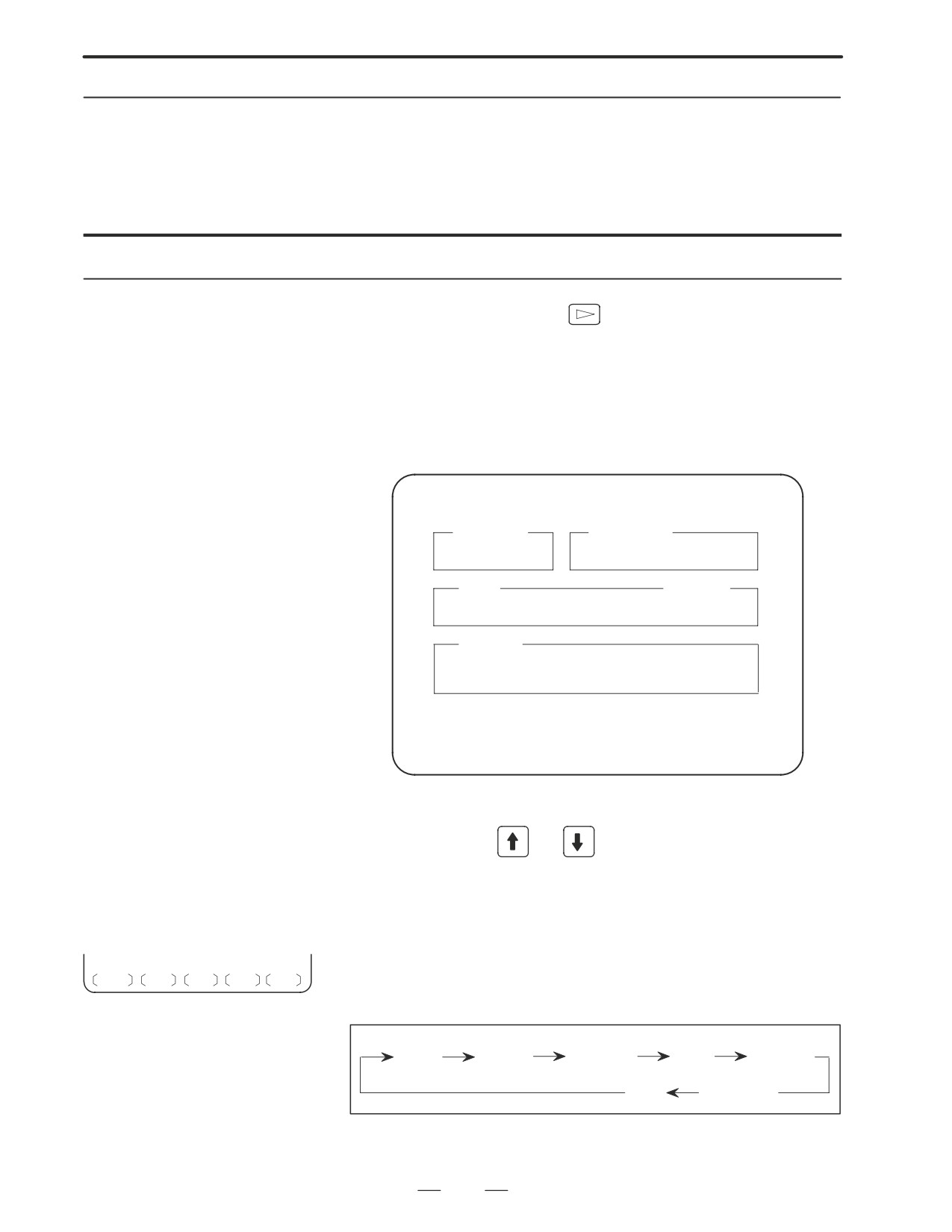
Loading Data into
CNC memory data that has been saved to a memory card can be loaded
Memory (Restoration)
(restored) back into CNC memory.
CNC memory data can be loaded in either of two ways. In the first
method, all saved memory data is loaded. In the second method, only
selected data is loaded.
Loading memory data
Procedure
1
Press the rightmost soft key
(continuous menu key) on the ALL
IO screen, described in Section 3.7.1.
2
Press soft key [M-CARD].
3
Place the CNC in the emergency stop state.
4
When a memory card is inserted, the state of the memory card is
displayed as shown below.
READ/PUNCH(M-CARD)
O1234 N12345
CNC RAM
Memory card
512K byte
2. 000M byte S- RAM
File
(
1/
1)
SRAM0_5A. FDB
524288 byte 97/ 01/ 23
Message
Select : All data
S
0 T0000
EDIT **** - - EMG- -
12: 15: 00
[FORMAT] [ SAVE ]
[ LOAD ]
[DELETE]
[
]
5
Press soft key [LOAD].
6
With cursor keys
and
, select the file to be loaded from the
memory card.
A system having 1.0MB or 2.5MB of CNC RAM may require the
loading of multiple files. All or selective data load can be specified
for each file.
7
To perform selective data loading, press soft key [SELECT], then
SELECT
CAN EXEC
select the data to be loaded. Each time the soft key is pressed, the
information displayed changes cyclically, as shown below.
All data
Program
Parameter
Offset
PMC data
C
Macro data
8
After checking the file selection, press soft key [EXEC].
222
3. INPUT AND OUTPUT OF DATA
B-63005EN/01
9
During loading, the message ”RUNNING” blinks, and the number of
bytes loaded is displayed in the message field.
10
Upon the completion of loading, the message ”COMPLETED” is
displayed in the message field, with the message ”PRESS RESET
KEY.” displayed on the second line.
11
Press the RESET key. The messages are cleared from the screen.
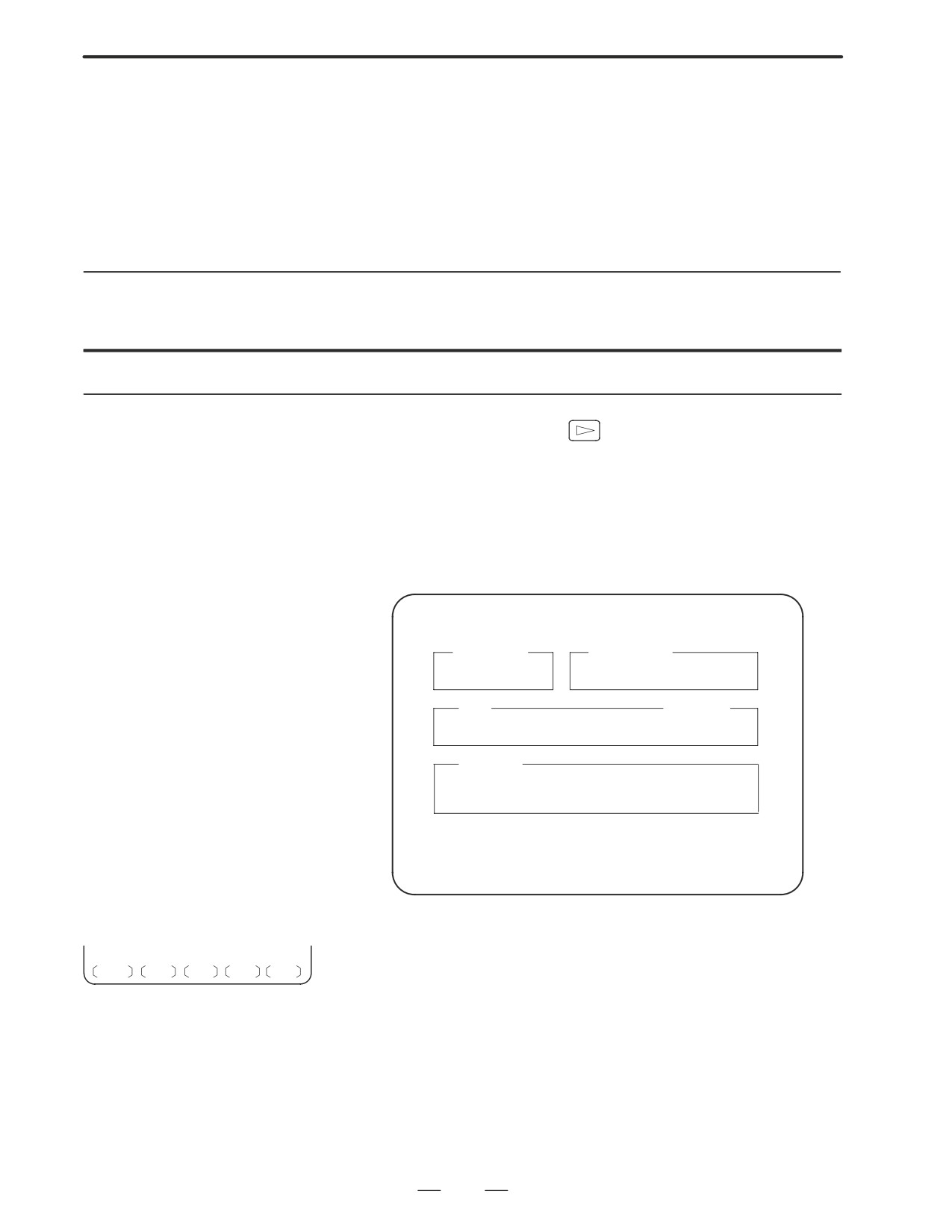
Memory card formatting
Before a file can be saved to a memory card, the memory card must be
formatted.
Formatting a memory card
Procedure
1
Press the rightmost soft key
(continuous menu key) on the ALL
IO screen, described in Section 3.7.1.
2
Press soft key [M-CARD].
3
Place the CNC in the emergency stop state.
4
When a memory card is inserted, the state of the memory card is
displayed as shown below.
READ/PUNCH(M-CARD)
O1234 N12345
CNC RAM
Memory card
512K byte
2. 000M byte S- RAM
File
(
1/
1)
SRAM0_5A. FDB
524288 byte 97/ 01/ 23
Message
Select : All data
S
0 T0000
EDIT **** - - EMG- -
12: 15: 00
[FORMAT] [ SAVE ]
[ LOAD ]
[DELETE]
[
]
5
Press soft key [FORMAT].
6
A message prompting the user to confirm the operation is displayed.
CAN EXEC
Press soft key [EXEC] to execute the formatting operation.
7
As formatting is being performed, the message ”FORMATTING”
blinks.
8
Upon the completion of formatting, the message ”COMPLETED” is
displayed in the message field.
223
3. INPUT AND OUTPUT OF DATA
B-63005EN/01
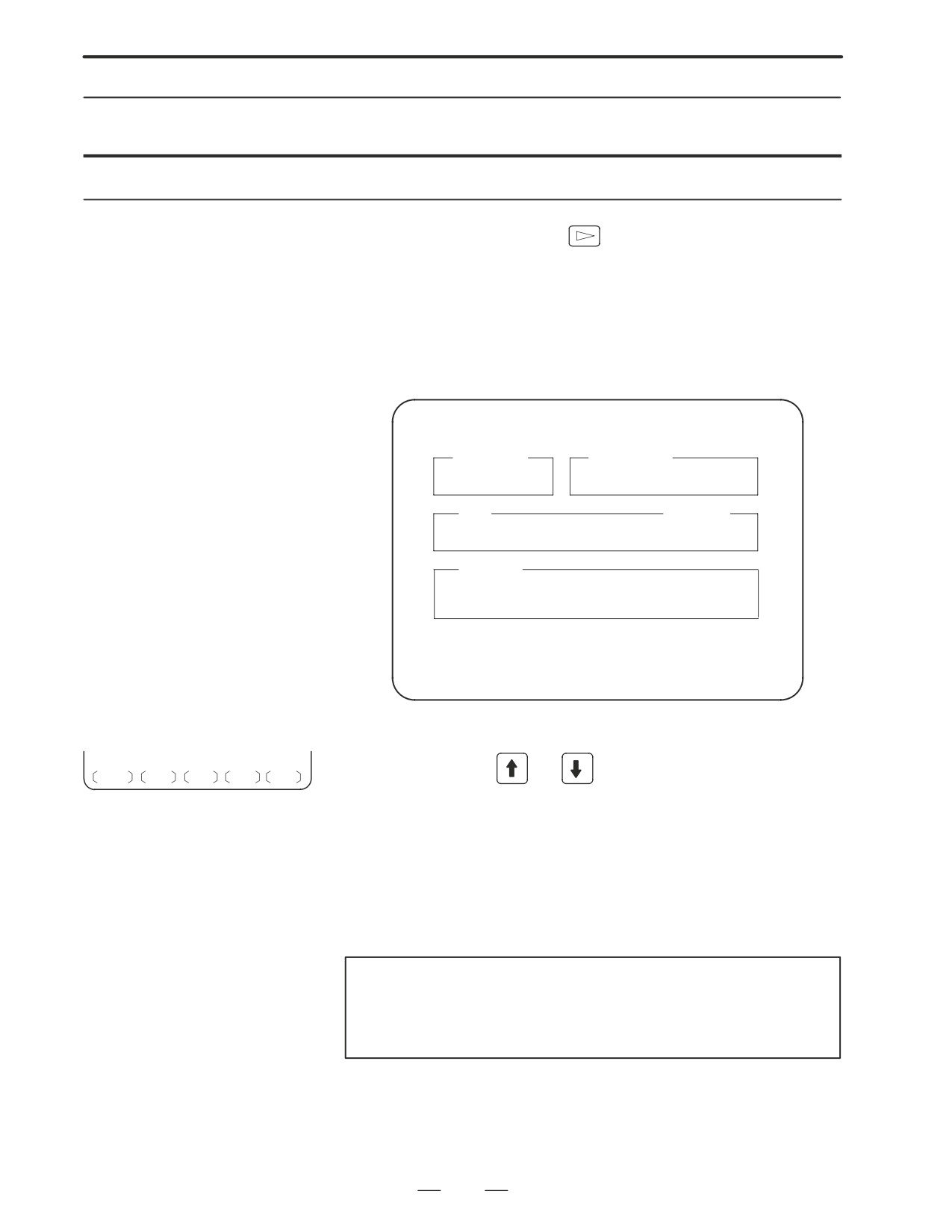
Deleting files
Unnecessary saved files can be deleted from a memory card.
Deleting files
Procedure
1
Press the rightmost soft key
(continuous menu key) on the ALL
IO screen, described in Section 3.7.1.
2
Press soft key [M-CARD].
3
Place the CNC in the emergency stop state.
4
When a memory card is inserted, the state of the memory card is
displayed as shown below.
READ/PUNCH(M-CARD)
O1234 N12345
CNC RAM
Memory card
512K byte
2. 000M byte S- RAM
File
(
1/
1)
SRAM0_5A. FDB
524288 byte 97/ 01/ 23
Message
Select : All data
S
0 T0000
EDIT **** - - EMG- -
12: 15: 00
[FORMAT] [ SAVE ]
[ LOAD ]
[DELETE]
[
]
5
Press soft key [DELETE].
6
With cursor keys
and
, select the file to be deleted from the
CAN EXEC
memory card.
7
After checking the file selection, press soft key [EXEC].
8
As detection is being performed, the message ”DELETING” blinks in
the message field.
9
Upon the completion of deletion, the message ”COMPLETED” is
displayed in the message field
NOTE
An SRAM of 1M bytes or more will contain multiple files. To
delete the contents of such an SRAM, delete all the
contained files.
224
3. INPUT AND OUTPUT OF DATA
B-63005EN/01
File name and messages
D File name
The file name used for save operation is determined by the amount of
SRAM mounted in the CNC. A file holding saved data is divided into
blocks of 512KB.
HEAD1 SRAM file
Amount of SRAM
256KB
0.5 MB
1.0MB
2.5MB
Number of files
1
SRAM256A. FDB
SRAM0_5A. FDB
SRAM1_0A. FDB
SRAM2_5A. FDB
2
SRAM1_0B. FDB
SRAM2_5B. FDB
3
SRAM2_5C. FDB
4
SRAM2_5D. FDB
5
SRAM2_5E. FDB
HEAD2 SRAM file
Amount of SRAM
256KB
0.5 MB
1.0MB
2.5MB
Number of files
1
SRAM256A. OP2
SRAM0_5A. OP2
SRAM1_0A. OP2
SRAM2_5A. OP2
2
SRAM1_0B. OP2
SRAM2_5B. OP2
3
SRAM2_5C. OP2
4
SRAM2_5D. OP2
5
SRAM2_5E. OP2
Messages
Message
Description
INSERT MEMORY CARD.
No memory card is inserted.
UNUSABLE MEMORY CARD
The memory card does not contain device information.
FORMAT MEMORY CARD.
The memory card is not formatted. Format the memory card before use.
THE FILE IS UNUSABLE.
The format or extension of the file to be loaded is invalid. Alternatively, the
data stored on the memory card does not match the CNC memory size.
REPLACE MEMORY CARD.
Replace the memory card.
FILE SYSTEM ERROR VVV
An error occurred during file system processing. VVV represents a file
system error code.
SET EMERGENCY STOP STATE.
Save/load operation is enabled in the emergency stop state only.
WRITE-PROTECTED
Save operation: The protect switch of the memory card is set to the
disabled position.
Load operation: Parameter write is disabled.
VOLTAGE DECREASED.
The battery voltage of the memory card has dropped. (The battery
requires replacement.)
DEVICE IS BUSY.
Another user is using the memory card. Alternatively, the device cannot
be accessed because automatic operation is in progress.
SRAM ³ MEMORY CARD?
This message prompts the user to confirm the start of data saving.
MEMORY CARD ³ SRAM?
This message prompts the user to confirm the start of data loading.
DO YOU WANT TO DELETE FILE(S)?
This message prompts the user to confirm the start of deletion.
DO YOU WANT TO PERFORM FORMAT-
This message prompts the user to confirm the start of formatting.
TING?
SAVING
Saving is currently being performed.
LOADING
Loading is currently being performed.
DELETING
File deletion is currently being performed.
FORMATTING
Memory card formatting is currently being performed.
225
3. INPUT AND OUTPUT OF DATA
B-63005EN/01
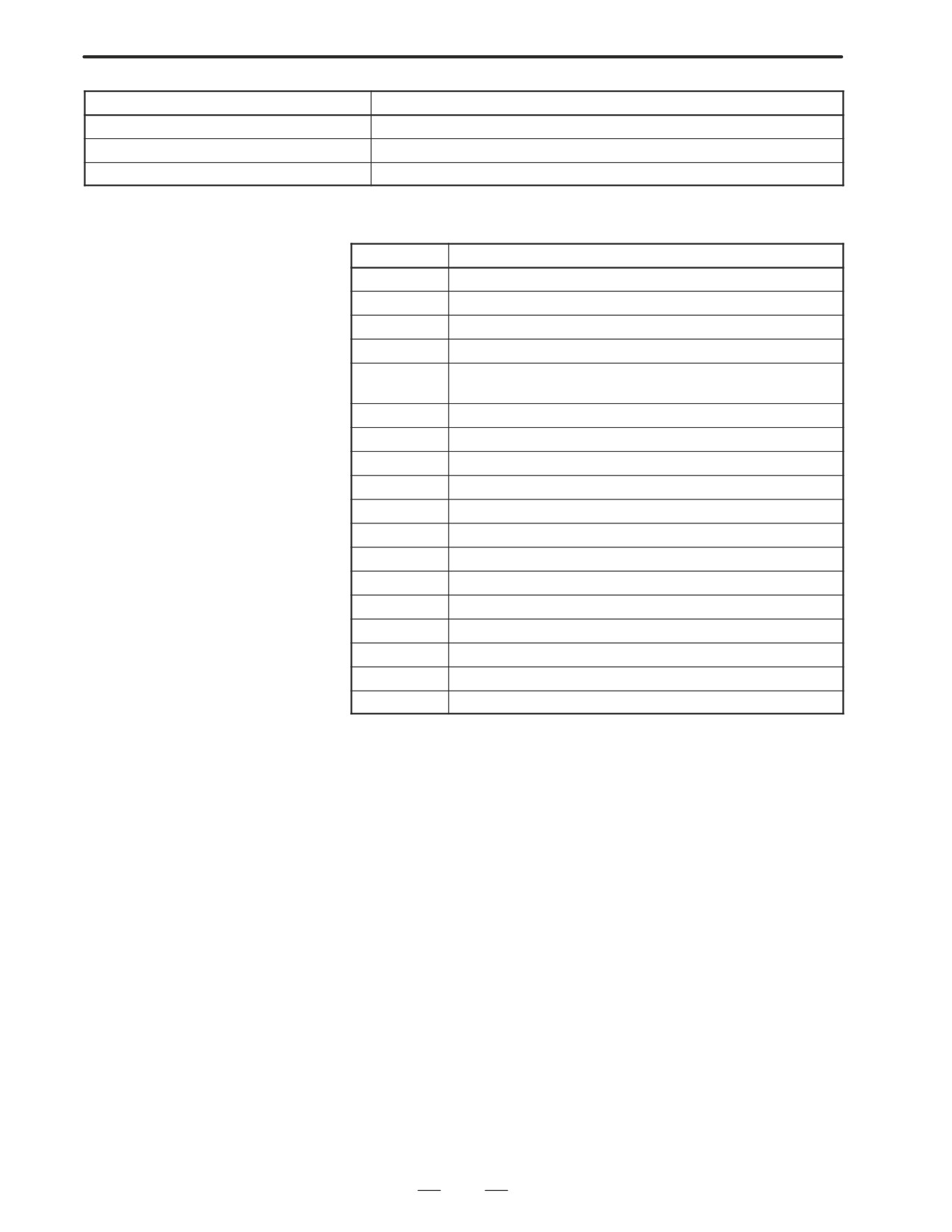
Message
Description
COMPLETED
Save or load processing has been completed.
PRESS RESET KEY.
Press the RESET key.
TURN OFF POWER.
Turn the power off, then back on again.
File system error codes
Code
Meaning
102
The memory card does not have sufficient free space.
105
No memory card is mounted.
106
A memory card is already mounted.
110
The specified directory cannot be found.
111
There are too many files under the root directory to allow a
directory to be added.
114
The specified file cannot be found.
115
The specified file is protected.
117
The file has not yet been opened.
118
The file is already open.
119
The file is locked.
122
The specified file name is invalid.
124
The extension of the specified file is invalid.
129
A non-corresponding function was specified.
130
The specification of a device is invalid.
131
The specification of a pathname is invalid.
133
Multiple files are open at the same time.
135
The device is not formatted.
140
The file has the read/write disabled attribute.
226
3. INPUT AND OUTPUT OF DATA
B-63005EN/01
By setting the I/O channel (parameter No. 20) to 4, files on a memory card
3.8
can be referenced, and different types of data such as part programs,
DATA INPUT/OUTPUT
parameters, and offset data on a memory card can be input and output in
USING A MEMORY
text file format.
CARD
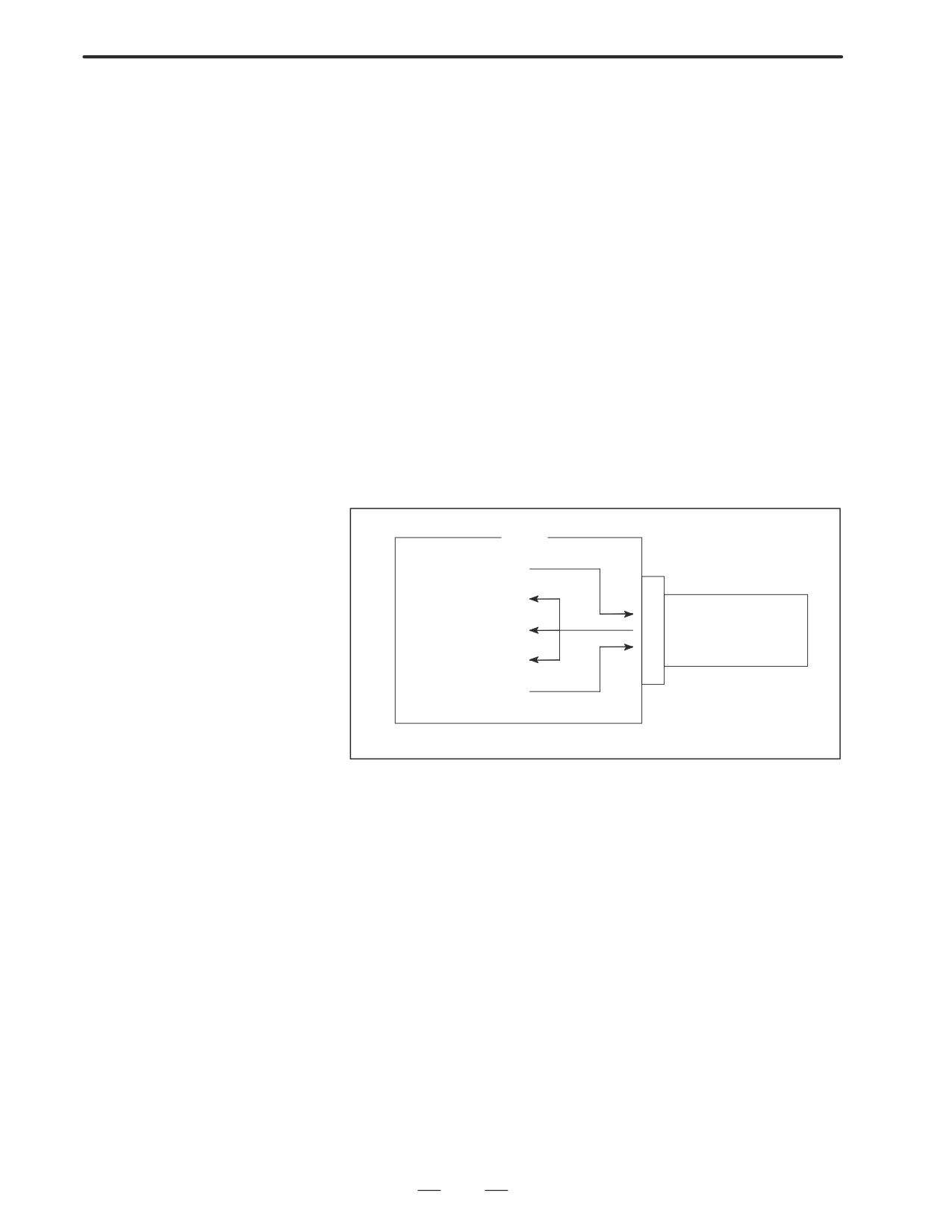
The major functions are listed below.
⋅
Displaying a directory of stored files
The files stored on a memory card can be displayed on the directory
screen.
⋅
Searching for a file
A search is made for a file on a memory card and, if found, it is
displayed on the directory screen.
⋅
Reading a file
Text-format files can be read from a memory card.
⋅
Writing a file
Data such as part programs can be stored to a memory card in text file
format.
⋅
Deleting a file
A file can be selected and deleted from a memory card.
CNC
Writing a file
Reading a file
Displaying a directory
Memory card
Searching for a file
Deleting a file
227
3. INPUT AND OUTPUT OF DATA
B-63005EN/01
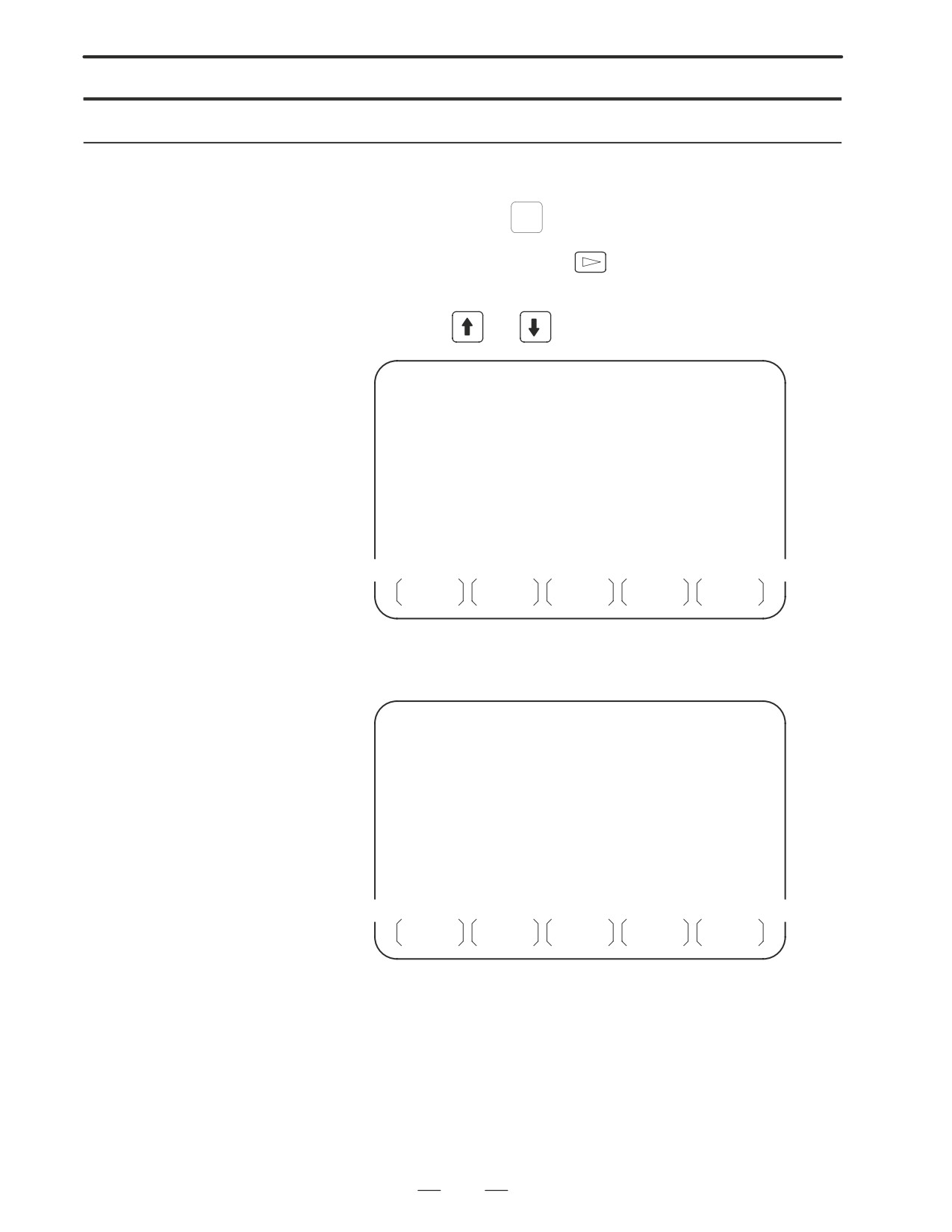
Displaying a directory of stored files
Procedure
1
Press the EDIT switch on the machine operator’s panel.
2
Press function key
PROG
3
Press the rightmost soft key
(continuous menu key).
4
Press soft key [CARD]. The screen shown below is displayed. Using
page keys
and
, the screen can be scrolled.
DIRECTORY (M-CARD)
O0034 N00045
No. FILE NAME
SIZE
DATE
0001
O1000
123456
96/07/10
0002
O1001
118458
96/07/30
0003
O0002
113250
96/07/30
0004
O2000
173456
96/07/31
0005
O2001
113444
96/07/31
0006
O3001
118483
96/08/02
0007
O3300
111406
96/08/05
0008
O3400
112420
96/07/31
0009
O3500
117460
96/07/31
~
~
PROG
DIR +
(OPRT)
5
Comments relating to each file can be displayed by pressing soft key
[DIR+].
DIRECTORY (M-CARD)
O0034 N00045
No. FILE NAME
COMMENT
0001
O1000
(COMMENT
)
0002
O1001
(SUB PROGRAM )
0003
O0002
(12345678
)
0004
O2000
(
)
0005
O2001
(
)
0006
O3001
(SKIP-K
)
0007
O3300
(HI-SPEED
)
0008
O3400
(
)
0009
O3500
(TEST PROGRAM)
~
~
PROG
DIR +
(OPRT)
6
Repeatedly pressing soft key [DIR+] toggles the screen between the
display of comments and the display of sizes and dates.
Any comment described after the O number in the file is displayed.
Up to 18 characters can be displayed on the screen.
228
3. INPUT AND OUTPUT OF DATA
B-63005EN/01
Searching for a file
Procedure
1
Press the EDIT switch on the machine operator’s panel.
2
Press function key
PROG
3
Press the rightmost soft key
(continuous menu key).
4
Press soft key [CARD]. The screen shown below is displayed.
DIRECTORY (M-CARD)
O0034 N00045
No. FILE NAME
SIZE
DATE
0001
O1000
123456
96/07/10
0002
O1001
118458
96/07/30
0003
O0002
113250
96/07/30
0004
O2000
173456
96/07/31
0005
O2001
113444
96/07/31
0006
O3001
118483
96/08/02
0007
O3300
111406
96/08/05
0008
O3400
112420
96/07/31
0009
O3500
117460
96/07/31
~
~
PROG
DIR +
(OPRT)
5
Press soft key [(OPRT)].
6
Set the number of the desired file number with soft key [F SRH].
F SRH F READ N READ PUNCH DELETE
Then, start the search by pressing soft key [EXEC]. If found, the file is
displayed at the top of the directory screen.
When a search is made for file number 19
DIRECTORY (M-CARD)
O0034 N00045
No. FILE NAME
COMMENT
0019
O1000
(MAIN PROGRAM)
0020
O1010
(SUBPROGRAM-1)
0021
O1020
(COMMENT
)
0022
O1030
(COMMENT
)
~
~
229