FANUC Robotics SYSTEM R-30iA and R-30iB Controller. KAREL Reference Manual - page 7

MARRC75KR07091E Rev D
9. FILE SYSTEM
Table
9-2. Virtual Devices (Cont’d)
FR1: - FR7:
F-ROM disk - compressed and uncompressed files
MF1: - MF7:
Refers to files on both the RAM disk and F-ROM disk of the respective
virtual device
Rules for Virtual Devices
The following rules apply to virtual devices.
•
A file name on a virtual device is unique. A file could exist on either the RAM or F-ROM disks,
but not both. For example: RD:test.kl and FR:test.kl could not both exist.
•
A file name could be duplicated across virtual devices. For example: RD:test.kl, RD1:test.kl, and
FR2:test.kl could all exist.
•
The MF: device name could be used in any file operation to find a file on a virtual device, when the
actual storage device is unknown. For example: MF:test.kl finds either RD:test.kl or FR:test.kl.
•
When you use the MF: device as a storage device, the RAM disk is used by default when RD:
is in CMOS and $FILE_MAXSEC > 0. The F-ROM disk is used by default when RD: is in
DRAM and $FILE_MAXSEC < 0. For example: KCL>COPY FILE FLPY:test.kl to MF2 :
The file will actually exist on RD2:
•
When listing the MF: device directory, all files on the RAM and F-ROM disks are listed.
However, only the files in the specified virtual device are displayed.
•
If the RD5: directory is specified instead of MF5:, only those files on the RAM disk in virtual
device 5 are listed. If the FR3: directory is specified, only those files on the F-ROM disk in virtual
device 3 are listed. For example: KCL>DIR RD5:
•
A file could be copied from one virtual device to another virtual device. A file could also be
copied from the RAM disk to the F-ROM disk, and vice versa, if the virtual device is different.
For example: KCL>COPY RD1:test.kl to FR3:
•
A file could be renamed only within a virtual device and only on the same device. For example:
KCL>RENAME FR2:test.kl FR2:example.kl
•
A file could be moved within a virtual device from the RAM disk to the F-ROM disk and vice
versa, using a special command which is different from copy. For example: KCL>MOVE
MF1:test.kl moves test.kl from the F-ROM disk to the RAM disk. KCL>COPY FR1:test.kl TO
RD1:test.kl will also move the file from the F-ROM Disk to the RAM Disk. This is because
unique file names can only exist on one device. For more information on moving files, refer to the
MOVE_FILE Built-in in Appendix A , "KAREL Language Alphabetical Descriptions" or the
MOVE FILE Command in Appendix C , "KCL Command Alphabetical Description."
•
Formatting the RAM disk, RD: or MF:, clears all the RAM disk files on all the virtual devices. The
files on the F-ROM disk remain intact. For example: KCL>FORMAT RD1: reformats all RAM
disk virtual devices (RD: through RD7:). Reformatting will cause existing data to be removed.
9-15
9. FILE SYSTEM
MARRC75KR07091E Rev D
• Purge erases all blocks that are no longer needed for all the virtual devices. For more information
on purging, refer to the PURGE_DEV Built-in in Appendix A , "KAREL Language Alphabetical
Description" or the PURGE Command in Appendix C , "KCL Command Alphabetical
Description."
9.3.4
File Pipes
The PIP: device allows you to access any number of pipe files. This access is to files that are in the
controller’s memory. This means that the access to these files is very efficient. The size of the files
and number of files are limited by available controller memory. This means that the best use of a
file pipe is to buffer data or temporarily hold it.
The file resembles a water pipe where data is poured into one end by the writing task and the data
flows out the other end into the reading task. This is why the term used is a pipe. This concept is very
similar to pipe devices implemented on UNIX, Windows and Linux.
Files on the pipe device have a limited size but the data is arranged in a circular buffer. This is also
called a circular queue. This means that a file pipe of size 8kbytes (this is the default size) will contain
the last 8k of data written to the pipe. When the user writes the ninth kilobyte of data to the pipe,
the first kilobyte will be overwritten.
Since a pipe is really used to transfer data from one place to another some application will be
reading the data out of the pipe. In the default mode, the reader will WAIT until information has
been written. Once the data is available in the pipe the read will complete. A KAREL application
might use BYTES_AHEAD to query the pipe for the amount of data available to read. This is the
default read mode.
A second read mode is provided which is called "snapshot." In this mode the reader will read out the
current content of the pipe. Once the current content is read the reader receives an end of the file.
This can be applied in an application like a "flight recorder". This allows you to record information
leading up to an event (such as an error) and then retrieve the last set of debug information written
to the pipe. Snapshot mode is a read attribute. It is configured using SET_FILE_ATTR builtin. By
default, the read operation is not in snapshot mode.
Typical pipe applications involve one process writing data to a pipe. The data can debug information,
process parameters or robot positions. The data can then be read out of the pipe by another application.
The reading application can be a KAREL program which is analyzing the data coming out of the pipe
or it can be KCL or the web server reading the data out and displaying it to the user in ASCII form.
KAREL Examples
The following apply to KAREL examples.
• Two KAREL tasks can share data through a pipe. One KAREL task can write data to the pipe
while a second KAREL task reads from the pipe. In this case the file attribute ATR_PIPWAIT can
be used for the task that is reading from the pipe. In this case the reading KAREL task will wait
9-16
MARRC75KR07091E Rev D
9. FILE SYSTEM
on the read function until the write task has finished writing the data. The default operation of the
pipe is to return an end of file when there is no data to be read from the pipe.
• A KAREL application might be executing condition handlers at a very fast data rate. In this case it
might not be feasible for the condition handler routine to write data out to the teach pendant display
screen because this would interfere with the performance of the condition handler. In this case
you could write the data to the PIP: device from the condition handler routine. Another KAREL
task might read the data from the PIP: device and display it to the teach pendant. In this case the
teach pendant display would not be strictly real time. The PIP: device acts as a buffer in this case
so that the condition handler can move on to its primary function without waiting for the display
to complete. You can also type the file from KCL at the same time the application is writing to it.
PIP: devices are similar to other devices in the following ways:
• The pipe device is similar in some ways to the RD: device. The RD: device also puts the file
content in the system memory. The PIP device is different primarily because the pipe file can
be opened simultaneously for read and write.
• Similarly to MC: and FR: devices, the PIP: device is used when you want to debug or diagnose
real time software. This allows you to output debug information that you can easily view without
interfering with the operation that is writing the debug data. This also allows one task to write
information that another task can read.
• The function of the PIP: device is similar to all other devices on the controller. This means that all
file I/O operations are supported on this device. All I/O functions are supported and work the
same except the following: Chdir, Mkdir, and Rmdir.
• The PIP: device is similar to writing directly to a memory card. However, writing to a memory
card will delay the writing task while the delay to the PIP: device is much smaller. This means
that any code on the controller can use this device. It also has the ability to retain data through
a power cycle.
Rules for PIP: Devices
The following rules apply to PIP: devices:
• The PIP: device can be used by any application or you can specify an associated common option
such as KAREL.
• The device is configurable. You can configure how much memory it uses and whether that
memory is CMOS (retained) or DRAM (not retained). You are also able to configure the format
of the data in order to read out formatted ASCII type data. The device is configured via the
PIPE_CONFIG built-in.
Installation, Setup and Operation Sequence
In general the PIP: device operates like any other device. A typical operation sequence includes:
OPEN myfile (’PIP:/myfile.dat’, ’RW’,)
Write myfile (’Data that I am logging’, CR)
9-17
9. FILE SYSTEM
MARRC75KR07091E Rev D
Close myfile
If you want to be able to access myfile.dat from the Web server, put a link to it on the diagnostic
Web page.
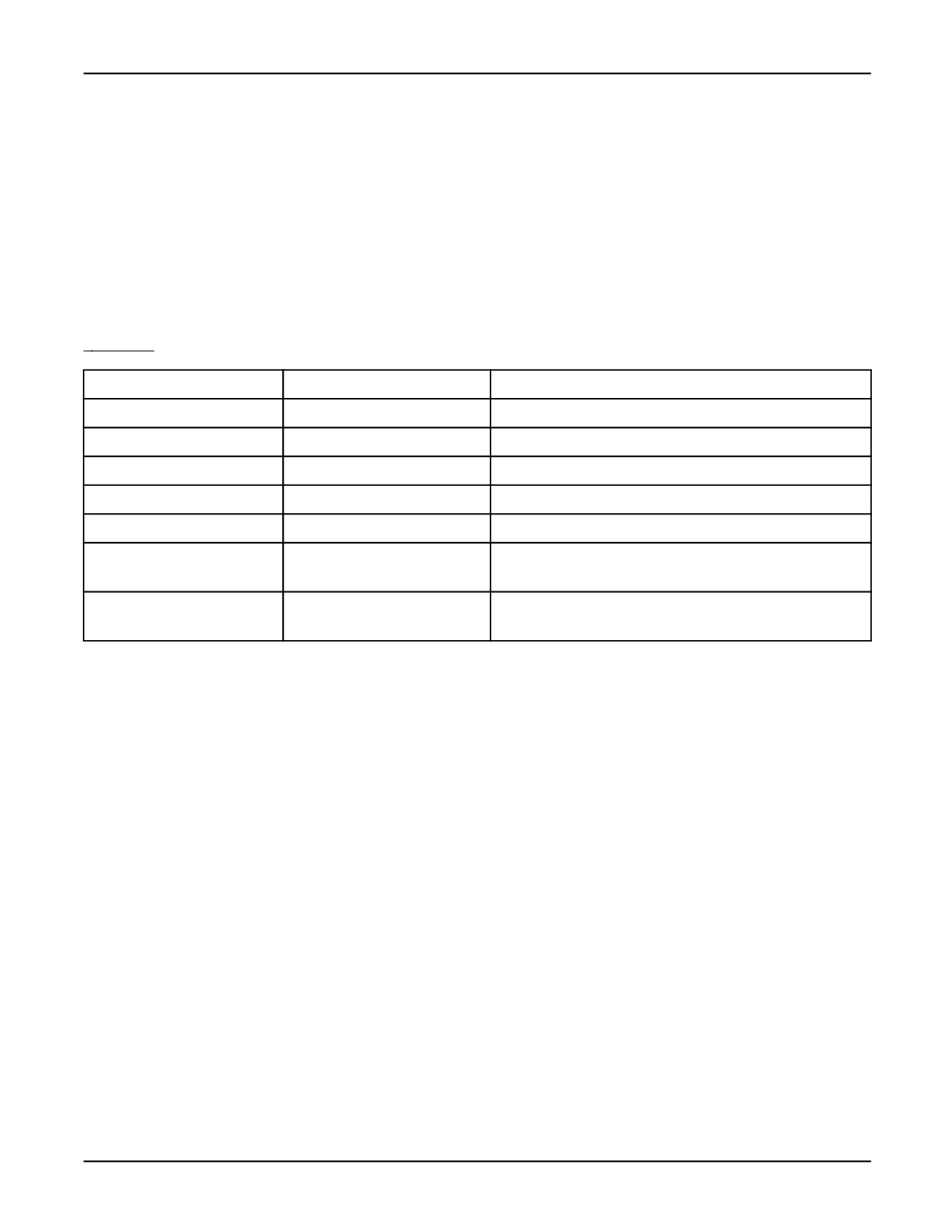
The files on the PIP: device are configurable. By default the pipe configuration is specified in the
$PIPE_CONFIG system variable. The fields listed in Table 9-3 have the following meanings:
Table 9-3.
System Variable Field Descriptions
FIELD
DEFAULT
DEFINITION
$sectors
8
Number of 1024 byte sectors in the pipe.
$filedata
Pointer to the actual pipe data (not accessible).
$recordsize
0
Binary record size, zero means its not tracked.
$auxword
0
Dictionary element if dictionary format or type checksum.
$memtyp
0
If non zero use CMOS.
$format
Undefined
Formatting mode: undefined, function, format string or
KAREL type.
$formatter
Function pointer, "C" format specifier pointer or type code
depending on $format.
Each pipe file can be configured via the pipe_config built-in. The pipe_config built-in will be called
before the pipe file is opened for writing. Refer to Section A.17 , "pipe_config built-in" for more
details.
Operational Examples
The following example writes data from one KAREL routine into a pipe and then reads it back from
another routine. These routines can be called from separate tasks so that one task was writing the data
and another task can read the data.
Program
program pipuform
%nolockgroup
var
pipe, in_file, mcfile, console:file
record: string[80]
status: integer
parm1, parm2: integer
msg: string[127]
9-18
MARRC75KR07091E Rev D
9. FILE SYSTEM
cmos_flag: boolean
n_sectors: integer
record_size: integer
form_dict: string[4]
form_ele: integer
--
--initialize file attributes
routine file_init (att_file :FILE)
begin
set_file_atr(att_file, ATR_IA)
--force reads to completion
set_file_atr(att_file, ATR_FIELD)
--force write
to
completion
set_file_atr(att_file, ATR_PASSALL) --ignore cr
set_file_atr(att_file, ATR_UF)
--binary
end file_init
routine write_pipe
begin
--file is opened
file_init (pipe)
open file pipe (’rw’, ’pip:example.dat’)
status = io_status(pipe)
write console (’Open pipe status:’,status,cr)
-- write extra parameters to pipe
write pipe (msg::8)
status = io_status(pipe)
end write_pipe
routine read_pipe
var
record: string[128]
status: integer
entry: integer
num_bytes: integer
begin
file_init (in_file)
open file in_file (’ro’, ’pip:example.dat’)
BYTES_AHEAD(in_file, entry, status)
status = 0
read in_file (parm1::4)
status = IO_STATUS(in_file)
write console (’parm1 read’,status,cr)
write console (’parm1’,parm1,cr)
read in_file (parm2::4)
status = IO_STATUS(in_file)
write console (’parm2 read’,parm2,status,cr)
end read_pipe
begin
SET_FILE_ATR(console, atr_ia, 0) --ATR_IA
is
defined
in
flbt.ke
OPEN FILE console (’RW’,’CONS:’)
9-19
9. FILE SYSTEM
MARRC75KR07091E Rev D
if(uninit(msg)) then
msg = ’Example’
endif
if(uninit(n_sectors)) then
cmos_flag = true
n_sectors = 16
record_size = 128
form_dict = ’test’
form_ele = 1
endif
--
[in] pipe_name: STRING;name of tag
--
[in] cmos_flag: boolean;
--
[in] n_sectors: integer;
--
[in] record_size: integer;
--
[in] form_dict: string;
--
[in] form_ele: integer;
--
[out] status: INTEGER
pipe_config(’pip:example.dat’,cmos_flag, n_sectors,
record_size,form_dict,form_ele,status)
write_pipe
read_pipe
close file pipe
close file in_file
end
pipuform
9.4
FILE ACCESS
You can access files using the FILE and SELECT screens on the CRT/KB or teach pendant, or by
using KAREL language statements. During normal operations, files will be loaded automatically into
the controller. However, other functions could need to be performed.
9.5
FORMATTING XML INPUT
9.5.1
Overview
This feature allows KAREL programs to input data via an XML (eXtended Markup Language)
formatted text file. The XML rather than binary format allows the file to be manipulated easily on
a PC.
The XML files must follow the most basic XML syntax requirements. These requirements are:
9-20
MARRC75KR07091E Rev D
9. FILE SYSTEM
• XML files can have ONLY ONE top level element.
• The start tag must have a matching end tag.
• Empty tags can be represented as <tag parameters/>
• Tags cannot contain special characters such as the set of *, $, and [ ]
• They must not contain unprintable characters
• Attributes must be of the form attr=“value”
• Special characters are used for the following (outside of tags):
— < is substituted with <
— < is substituted with >
— & is substituted with &
— “ can be substituted with "
• This feature provides an XML parser and the means for both KAREL and C programmers
to easily extract binary data from the text information in an XML file. It does not require the
application program to do any parsing of the XML file.
Note XML files can have only one top level element. For example,
<GRID>
<TPPROG>
</TPPROG>
</GRID>
is legal. It has one top level element (GRID).
<GRID>
</GRID>
<TPPROG>
</TPPROG>
is not legal. The master tag can be used to distinguish a GRID file from a password configuration
file, for example.
9.5.2
Installation Sequence
This feature consists of KAREL built-ins which provide access to this library for KAREL users.
The environment file xml.ev must be on the translator path to translate KAREL programs which
reference these built-ins. These built-ins are XML_ADDTAG, XML_GETDATA, XML_REMTAG,
XML_SCAN, and XML_SETVAR. Refer to Appendix A for more information on these built-ins.
9-21
9. FILE SYSTEM
MARRC75KR07091E Rev D
9.5.3
Example KAREL Program Referencing an XML File
• Parse the XML file referred to by xml_name and return the settings in that file to xmlstruct.
• The attribute name-value pairs are returned as strings in attrnames and attrvalues. It is not --
required that the data in the XML file be set to a structure in some applicaitons the name-value
pairs -- are used directly.
• The most efficient XML implementation uses many name-value pairs and only a few tags. It
takes the same amount of time to return one name-value pair from a tag as it takes for 32 pairs.
Thirty-two tags will take 32 times longer.
• The maximum number of pairs supported is 32.
• There are two different types of XML files. Figure 1-1 and Figure 1-2 illustrate the two types of
tag constructs
• For separated start and end tags (Figure 1-1) the tag processing must be done on the
XML_START return code.
• For combined start and end tags (Figure 1-2) you cannot provide any text within the tag. KAREL
XML processing provides the means to extract this text when required.
• For combined start and end tags (Figure 1-2) the tag processing must be done on the XML_END
return code.
• The XML_START return code needs to set a flag indicating that the tag has been processed.
• The XML_END return code needs to check to see if processing was already done on the start
code and reset the flag.
Figure
9-1. XML File 1 Separated start and end tags
<?xml version="1.0" ?><!-- This is a comment -- >
<xmlstrct_t first="123456" second="7.8910" third="1" fourth="A string">
Text assocated with xmlstrct_t tag
</xmlstrct_t>
Figure
9-2. XML File 2 Combined start and end tags
<?xml version="1.0" ?><!-- This is a comment -- >
<xmlstrct_t first="78910" second="12.3456" third="0" fourth="A string"/>
Figure 9-3. XML File 3 GRID tag not registered or processed
<?xml version="1.0" ?>-<!—comment
<GRID rows="16" cols="24" scale="80">
<xmlstrct_t first=”123456” second=”78910” third="1” "fourth=”A String”>
special characters < > & "
</xmlstrct_t>
</GRID>
9-22
MARRC75KR07091E Rev D
9. FILE SYSTEM
The GRID tag can be in the XML file but not processed by this example program. In general XML
tags can be processed by different software. Information is only returned to the KAREL program for
tags which are registered by the KAREL program.
Figure
9-4. KAREL Program
PROGRAM xmlparse
%COMMENT = ’XML Parse’
%NOPAUSESHFT
%NOPAUSE = ERROR + TPENABLE + COMMAND
%NOABORT = ERROR + COMMAND
%NOLOCKGROUP
%NOBUSYLAMP
%ENVIRONMENT xml
%include klerxmlf
CONST
MYXML_CONST = 3
TYPE
xmlstrct_t = STRUCTURE
first: INTEGER
second: REAL
third: BOOLEAN
fourth: STRING[20]
ENDSTRUCTURE
VAR
xml_name
: string[20]
tag_name
: string[32]
text
: array[32] of
string[128]
attrnames
: array[32] of
string[32]
attrvalues
: array[32] of
string[64]
xml_file
: FILE
status
: INTEGER
xmlstrct:
xmlstrct_t
tag_ident:
integer
func_code:
integer
text_idx: integer
numattr:
integer
textdone:
BOOLEAN
done:
BOOLEAN
console:
FILE
startdata: BOOLEAN
----------------------------------------------------------------------
--
--
-- There are two types of XML file constructs. In one the end tag is
-- embedded in the start tag in the other the end tag is separate. A
-- proper parser must handle both tag constructs
9-23
9. FILE SYSTEM
MARRC75KR07091E Rev D
--
-- For the case that the end tag is separate from the start tag
-- (Figure 1.1)the following writes show the sequence of returns:
--Scanned (Rev D) xmlstrct_t
3
100
129015
--Start Tag processing...
--Scanned (Rev D) xmlstrct_t
3
101
129015
--End Tag
--Processed at start tag...
--Scanned (Rev D) xmlstrct_t
0
101
0
--
--For the case where the end tag and start tag are together (Figure
1.2)
–-the following writes show the sequences of returns:
--Scanned (Rev D) xmlstrct_t
3
101
129015
--End Tag
--End Tag processing...
--Scanned (Rev D) xmlstrct_t
0
101
0
--
BEGIN
SET_FILE_ATR(console, ATR_IA, 0) -- ATR_IA is defined in flbt.ke
OPEN FILE console (’RW’, ’CONS:’)
IF UNINIT(xml_name) THEN
xml_name = ’mc:kl16004.xml’
ENDIF
SET_FILE_ATR (xml_file, ATR_XML)
-- XML
CLR_IO_STAT(xml_file)
OPEN FILE xml_file (’RO’, xml_name)
-- Open does new operation
status = IO_STATUS(xml_file)
IF status <> 0 THEN
POST_ERR(status, ’’, 0, 0)
abort
ENDIF
xml_addtag(xml_file, ’xmlstrct_t’, 32, FALSE, MYXML_CONST, status)
textdone = TRUE
done = FALSE
startdata=FALSE
WHILE (done = FALSE) DO
xml_scan(xml_file, tag_name, tag_ident, func_code, status)
if(status = 0) THEN
done= TRUE
ENDIF
WRITE console (’Scanned (Rev D) ’, tag_name,’
’, tag_ident, ’
’,
func_code, ’
’,STATUS,’
’, CR)
IF (status = XML_FUNCTION) THEN
status = 0
SELECT tag_ident OF
CASE (MYXML_CONST) :
SELECT func_code OF
9-24
MARRC75KR07091E Rev D
9. FILE SYSTEM
CASE (XML_START) :
WRITE console (’Start Tag processing...’, CR)
text_idx = 1
xml_setvar(xml_file, ’kl16004’, ’xmlstrct’, status)
-- Already looked at the attribtues get the text
xml_getdata(xml_file, numattr, attrnames, attrvalues,
text[text_idx], textdone, status)
startdata = TRUE
CASE (XML_STEND) :
-- This tag is never returned
WRITE console (’StEnd Tag’, CR)
CASE (XML_END) :
WRITE console (’End Tag’, CR)
if(startdata = TRUE) THEN
startdata=FALSE
WRITE console (’Processed at start tag...’, CR)
ELSE
WRITE console (’End Tag processing...’, CR)
text_idx = 1
xml_setvar(xml_file, ’kl16004’, ’xmlstrct’, status)
-- Already looked at the attribtues get the text
xml_getdata(xml_file, numattr, attrnames, attrvalues,
text[text_idx], textdone, status)
ENDIF
CASE (XML_TXCONT) :
-- Usually the user will do one or the other but not both
of
–- these calls
text_idx = text_idx + 1
xml_getdata(xml_file, numattr, attrnames, attrvalues,
text[text_idx], textdone, status)
ELSE:
ENDSELECT
ELSE:
ENDSELECT
ELSE
IF(status <> XML_SCANLIM) THEN
POST_ERR(status, ’’, 0, 0)
done = TRUE
ENDIF
ENDIF -- Good status from xml_parse
ENDWHILE
-- This is not required but allows the user to dynamically remove
-- and add tags
xml_remtag(xml_file, ’xmlstrct_t’, status)
CLOSE FILE xml_file
status = IO_STATUS(xml_file)
IF status <> 0 THEN
9-25
9. FILE SYSTEM
MARRC75KR07091E Rev D
POST_ERR(status, ’’, 0, 0)
ENDIF
END xmlparse
Executing this program will extract the attributes first, second, third, and fourth, and their values from
the XML file. These values will be set in the variable xmlstruct that has fields first, second, third, and
fourth. The string variables will also be set to KAREL string variables.
9.5.4
Parse Errors
XML_TAG_SIZE "Tag too long"
XML_ATTR_SIZE "Attribute too long"
XML_NOSLASH "Invalid use of / character"
XML_INVTAG "Invalid character in tag"
XML_ATTRMATCH "No value for attribute"
XML_TAGMATCH "End tag with no matching start"
XML_INVATTR "Invalid character in attribute"
XML_NOFILE "Cannot find file"
XML_TAGNEST "Tag nesting level too deep"
XML_COMMENT "Error in comment"
XML_BADEXCHAR "Unknown character &xxx;”
XML_TAGNFND "Tag not found"
XML_INVEOF "Unexpected end of file"
XML_SCANLIM "Scan limit exceeded"
Note XML_SCANLIM means that the file is too long to be processed in one request. The remedy for
this error is to just re-call the XML scan routine as illustrated in the example.
XML_FUNCTION "Function code return"
9-26
MARRC75KR07091E Rev D
9. FILE SYSTEM
9.6
MEMORY DEVICE
The Memory device (MD: ) treats controller memory programs and variable memory as if it were a
file device. Teach pendant programs, KAREL programs, program variables, SYSTEM variables, and
error logs are treated as individual files. This provides expanded functions to communication devices,
as well as normal file devices. For example:
1. FTP can load a PC file by copying it to the MD: device.
2. The error log can be retrieved and analyzed remotely by copying from the MD: device.
3. An ASCII listing of teach pendant programs can be obtained by copying ***.LS from the
MD: device.
4. An ASCII listing of system variables can be obtained by copying SYSVARS.VA from the
MD: device.
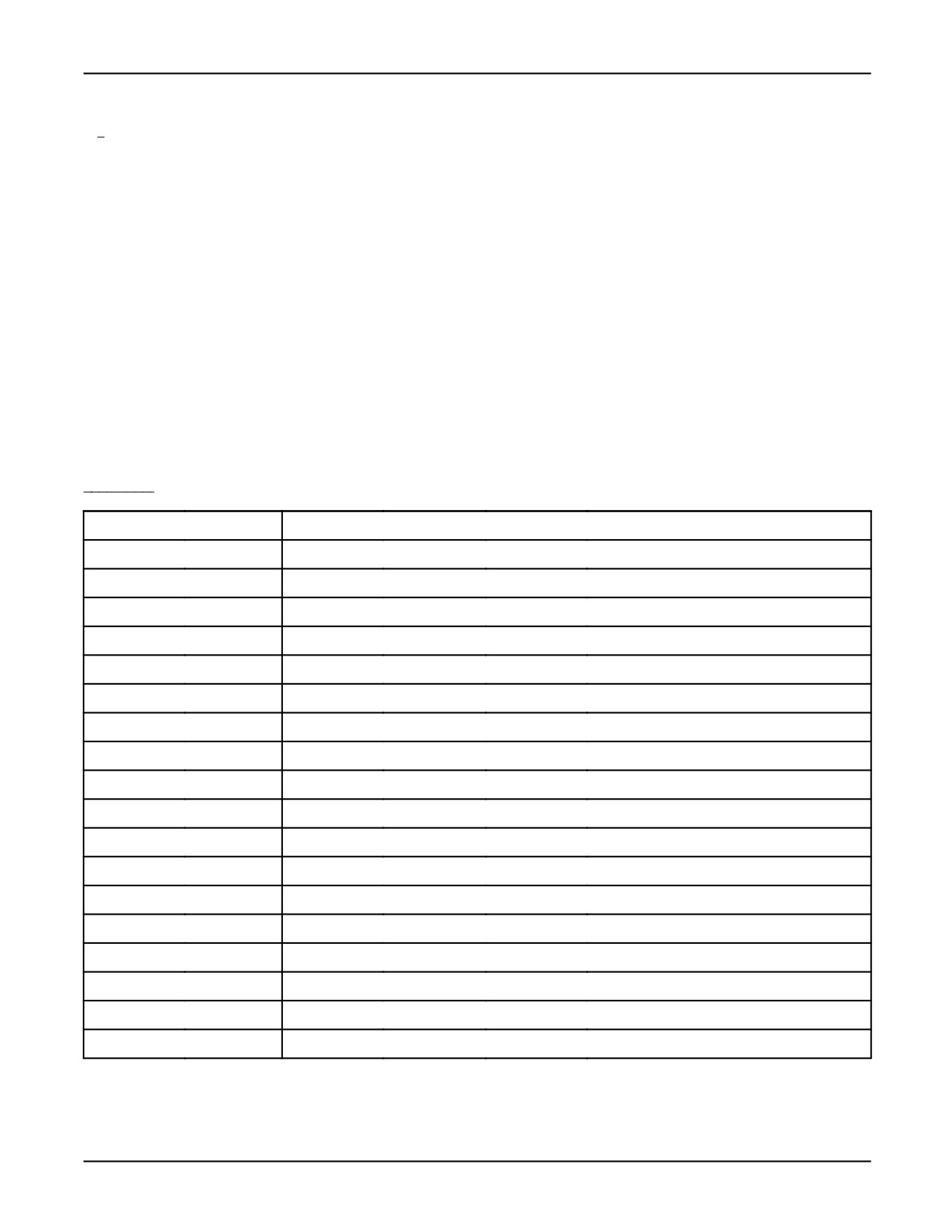
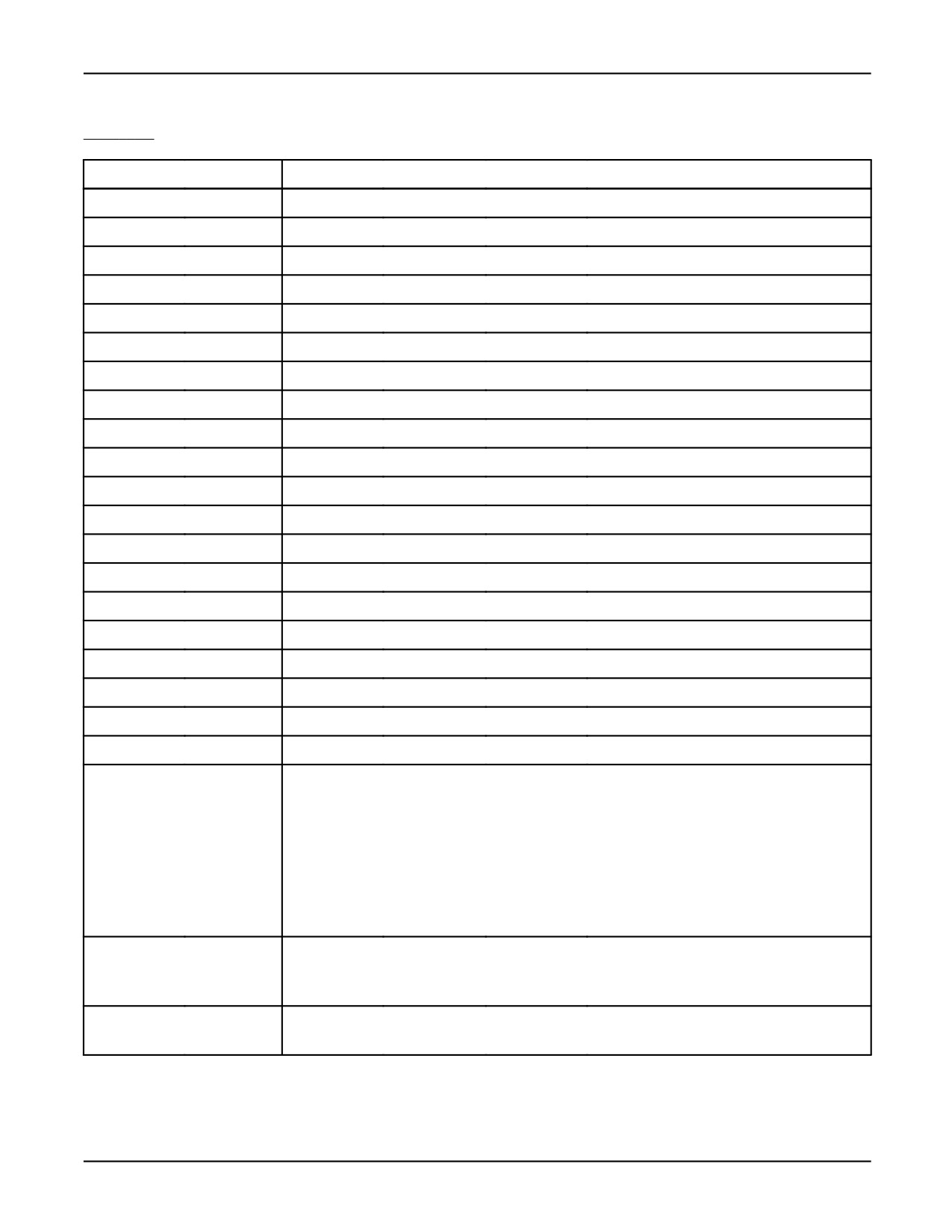
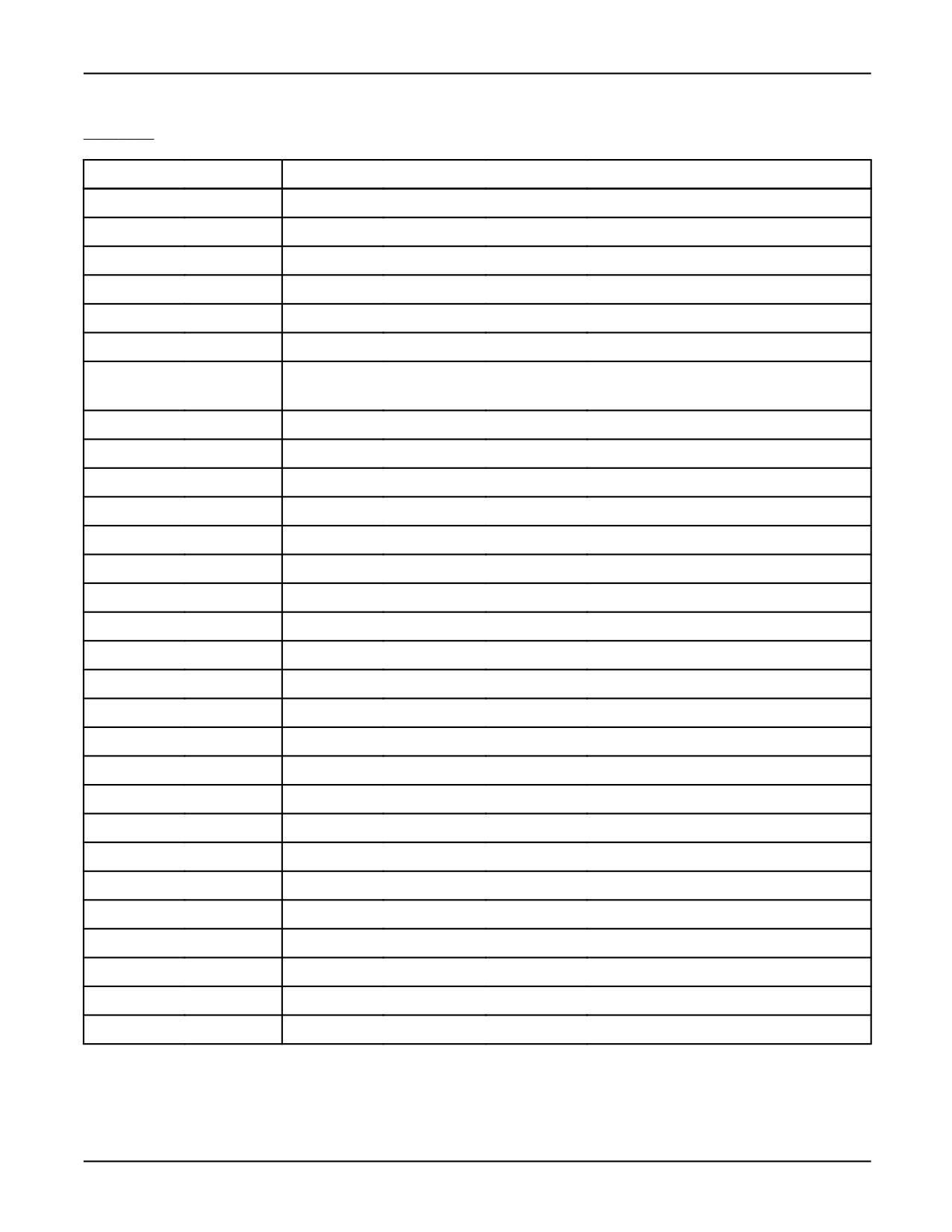
Refer to Table 9-4 for listings and descriptions of files available on the MD device.
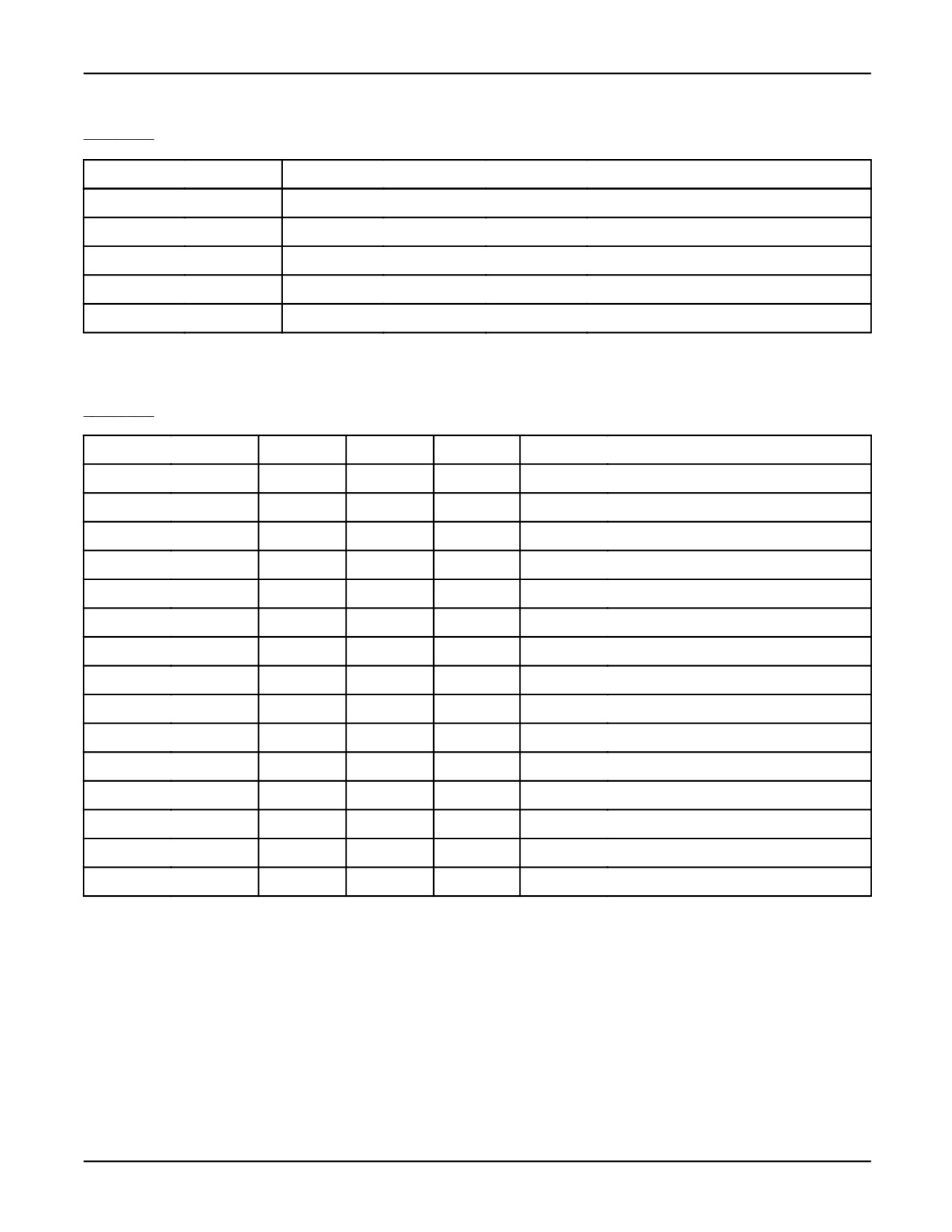
Table 9-4. File Listings for the MD Device
File Name
Description
ACCNTG.DG
This file shows the system accounting of Operating system tasks.
ACCOFF.DG
This file shows the system accounting is turned off.
AXIS.DG
This file shows the Axis and Servo Status.
CONFIG.DG
This file shows a summary of system configuration
CONSLOG.DG
This file is an ASCII listing of the system console log.
CONSTAIL.DG
This file is an ASCII listing of the last lines of the system console log.
CURPOS.DG
This file shows the current robot position.
*.DF
This file contains the TP editor default setting.
DIOCFGSV.IO
This file contains I/O configuration information in binary form.
DIOCFGSV.VA
This file is an ASCII listing of DIOCFGSV.IO.
ERRACT.LS
This file is an ASCII listing of active errors.
ERRALL.LS
This file is an ASCII listing of error logs.
ERRAPP.LS
This file is an ASCII listing of application errors.
ERRCOMM .LS
This file shows communication errors.
ERRCURR.LS
This file is an ASCII listing of system configuration.
ERRHIST.LS
This file is an ASCII listing of system configuration.
ERRMOT.LS
This file is an ASCII listing of motion errors.
ERRPWD.LS
This file is an ASCII listing of password errors.
9-27
9. FILE SYSTEM
MARRC75KR07091E Rev D
Table 9-4. File Listings for the MD Device (Cont’d)
File Name
Description
ERRSYS.LS
This file is an ASCII listing of system errors.
ETHERNET
This file shows the Ethernet Configuration.
FRAME.DG
This file shows Frame assignments.
FRAMEVAR.VR
This file contains system frame and tool variable information in binary form.
FRAMEVAR.VA
This file is an ASCII listing of FRAMEVAR.VR.
HIST.LS
This file shows history register dumps.
HISTE.LS
This file is an ASCII listing of general fault exceptions.
HISTP.LS
This file is an ASCII listing of powerfail exceptions.
HISTS.LS
This file is an ASCII listing of servo exceptions.
IOCONFIG.DG
This file shows IO configuration and assignments.
IOSTATE.DG
This file is an ASCII listing of the state of the I/O points.
IOSTATUS.CM
This file is a system command file used to restore I/O.
LOG CONSTAIL.DG
This file is the last line of Console Log.
NUMREG.VA
This file is an ASCII listing of NUMREG.VR.
NUMREG.VR
This file contains system numeric registers.
MACRO.DG
This file shows the Macro Assignment.
MEMORY.DG
This file shows current memory usage.
PORT.DG
This file shows the Serial Port Configuration.
POSREG.VA
This file is an ASCII listing of POSREG.VR.
POSREG.VR
This file contains system position register information.
PRGSTATE.DG
This file is an ASCII listing of the state of the programs.
RIPELOG.DG
This file contains detailed status information such as the times when robots go ON and
OFFLINE, and other diagnostic data. Refer to the Internet Options Manual for more
information .
RIPESTAT.DG
This file contains performance data for you to determine how well the network is performing.
Refer to the Internet Options Manual for more information .
9-28
MARRC75KR07091E Rev D
9. FILE SYSTEM
Table 9-4. File Listings for the MD Device (Cont’d)
File Name
Description
SFTYSIG.DG
This file is an ASCII listing of the state of the safety signals.
STATUS.DG
This file shows a summary of system status
SUMMARY.DG
This file shows diagnostic summaries
SYCLDINT.VA
This file is an ASCII listing of system variables initialized at a Cold start.
SYMOTN.VA
This file is an ASCII listing of motion system variables.
SYNOSAVE.VA
This file is an ASCII listing of non-saved system variables.
SYSFRAME.SV
This file contains $MNUTOOL, $MNUFRAME, $MNUTOOLNUM, and $MNUFRAMENUM.
These variables were in SYSVARS.SV in releases before V7.20.
SYSMACRO.SV
This file is a listing of system macro definitions.
SYSMACRO.VA
This file is an ASCII listing of SYSMACRO.SV.
SYSMAST.SV
This file is a listing of system mastering information.
SYSMAST.VA
This file is an ASCII listing of SYSMAST.SV.
SYSSERVO.SV
This file is a listing of system servo parameters.
SYSSERVO.VA
This file is an ASCII listing of SYSSERVO.SV.
SYSTEM.DG
This file shows a summary of system information
SYSTEM.VA
This file is an ASCII listing of non motion system variables.
SYSVARS.SV
This file is a listing of system variables.
SYSVARS.VA
This file is an ASCII listing of SYSVARS.SV.
SYS****.SV
This file contains application specific system variables.
SYS****.VA
This file is an ASCII listing of SYS****.VA.
TASKLIST.DG
This file shows the system task information.
TESTRUN.DG
This file shows the Testrun Status.
TIMERS.DG
This file shows the System and Program Timer Status.
TPACCN.DG
This file shows TP Accounting Status.
VERSION.DG
This file shows System, Software, and Servo Version Information.
***.PC
This file is a KAREL binary program.
***.VA
This file is an ASCII listing of KAREL variables.
***.VR
This file contains KAREL variables in binary form.
***.LS
This file is an ASCII listing of a teach pendant program.
***.TP
This file is a teach pendant binary program.
9-29
9. FILE SYSTEM
MARRC75KR07091E Rev D
Table 9-4. File Listings for the MD Device (Cont’d)
File Name
Description
***.TX
This file is a dictionary files.
***.HTM
This file is an HTML web page.
***.STM
This file is an HTML web page using an iPendant Control or Server Side Include.
***.GIF
This file is a GIF image file.
***.JPG
This file is a JPEG image file.
Refer to Table 9-5 for a listing of restrictions when using the MD: device.
Table 9-5. Testing Restrictions when Using the MD: Device
File Name or Type
READ
WRITE
DELETE
Comments
***.DG
YES
NO
NO
Diagnostic text file.
***.PC
NO
YES
YES
***.VR
YES
YES
YES
With restriction of no references.
***.LS
YES
NO
NO
***.TP
YES
YES
YES
***.LS
YES
NO
NO
FFF.DF
YES
YES
NO
SYS***.SV
YES
YES
NO
Write only at CTRL START.
SYS***.VA
YES
NO
NO
ERR***.LS
YES
NO
NO
HISTX.LS
YES
NO
NO
***REG.VR
YES
YES
NO
***REG.VA
YES
NO
NO
DIOCFGSV.IO
YES
YES
NO
Write only at CTRL START.
DIOCFGSV.VA
YES
NO
NO
9-30
Chapter 10
DICTIONARIES AND FORMS
Contents
Chapter 10
DICTIONARIES AND FORMS
10-1
10.1
OVERVIEW
10-3
10.2
CREATING USER DICTIONARIES
10-3
10.2.1
Dictionary Syntax
10-3
10.2.2
Dictionary Element Number
10-4
10.2.3
Dictionary Element Name
10-5
10.2.4
Dictionary Cursor Positioning
10-5
10.2.5
Dictionary Element Text
10-6
10.2.6
Dictionary Reserved Word Commands
10-8
10.2.7
Character Codes
10-10
10.2.8
Nesting Dictionary Elements
10-10
10.2.9
Dictionary Comment
10-11
10.2.10
Generating a KAREL Constant File
10-11
10.2.11
Compressing and Loading Dictionaries on the Controller
10-11
10.2.12
Accessing Dictionary Elements from a KAREL Program
10-12
10.3
CREATING USER FORMS
10-13
10.3.1
Form Syntax
10-14
10.3.2
Form Attributes
10-15
10.3.3
Form Title and Menu Label
10-16
10.3.4
Form Menu Text
10-17
10.3.5
Form Selectable Menu Item
10-18
10.3.6
Edit Data Item
10-19
10.3.7
Dynamic Forms using Tree View
10-26
10.3.8
Non-Selectable Text
10-27
10.3.9
Display Only Data Items
10-27
10.3.10
Cursor Position Attributes
10-27
10.3.11
Form Reserved Words and Character Codes
10-28
10.3.12
Form Function Key Element Name or Number
10-30
10.3.13
Form Function Key Using a Variable
10-31
10.3.14
Form Help Element Name or Number
10-31
10-1
10. DICTIONARIES AND FORMS
MARRC75KR07091E Rev D
10.3.15
Teach Pendant Form Screen
10-32
10.3.16
CRT/KB Form Screen
10-32
10.3.17
Form File Naming Convention
10-33
10.3.18
Compressing and Loading Forms on the Controller
10-34
10.3.19
Displaying a Form
10-36
10-2
MARRC75KR07091E Rev D
10. DICTIONARIES AND FORMS
10.1 OVERVIEW
Dictionaries and forms are used to create operator interfaces on the teach pendant and CRT/KB
screens with KAREL programs.
This chapter includes information about
• Creating user dictionary files, refer to Section 10.2 .
• Creating and using forms, refer to Section 10.3 .
In both cases, the text and format of a screen exists outside of the KAREL program. This allows easy
modification of screens without altering KAREL programs.
10.2
CREATING USER DICTIONARIES
A dictionary file provides a method for customizing displayed text, including the text attributes
(blinking, underline, double wide, etc.), and the text location on the screen, without having to
re-translate the program.
The following are steps for using dictionaries.
1. Create a formatted ASCII dictionary text file with a .UTX file extension.
2. Compress the dictionary file using the KCL COMPRESS DICT command. This creates a
loadable dictionary file with a .TX extension. Once compressed, the .UTX file can be removed
from the system. Only the compressed dictionary (.TX) file is loaded .
3. Load the compressed dictionary file using the KCL LOAD DICT command or the KAREL
ADD_DICT built-in.
4. Use the KAREL dictionary built-ins to display the dictionary text. Refer to Section 10.2.12 ,
"Accessing Dictionary Elements from a KAREL Program," for more information.
Dictionary files are useful for running the same program on different robots, when the text displayed
on each robot is slightly different. For example, if a program runs on only one robot, using KAREL
WRITE statements is acceptable. However, using dictionary files simplifies the displaying of text on
many robots, by allowing the creation of multiple dictionary files which use the same program to
display the text.
Note Dictionary files are useful in multi-lingual programs.
10.2.1
Dictionary Syntax
The syntax for a user dictionary consists of one or more dictionary elements. Dictionary elements
have the following characteristics:
10-3
10. DICTIONARIES AND FORMS
MARRC75KR07091E Rev D
• A dictionary element can contain multiple lines of information , up to a full screen of
information. A user dictionary file has the following syntax:
<*comment>
$n<,ele_name><@cursor_pos><&res_word><#chr_code><"Ele_text"><&res_wor d>
<#chr_code><+nest_ele>
<*comment>
<$n+1>
— Items in brackets < > are optional.
— *comment is any item beginning with *. All text to the end of the line is ignored. Refer
to Section 10.2.9 .
— $n specifies the element number. n is a positive integer 0 or greater. Refer to Section 10.2.2
— ,ele_name specifies a comma followed by the element name. Refer to Section 10.2.3 .
— @cursor_pos specifies a cursor position (two integers separated by a comma.) Cursor
positions begin at @1,1. Refer to Section 10.2.4 .
— &res_word specifies a dictionary reserve word. Refer to Section 10.2.6 .
— "Ele_text" specifies the element text to be displayed. Refer to Section 10.2.5 .
— +nest_ele specifies the next dictionary text. Refer to Section 10.2.8 .
•
A dictionary element does not have to reside all on one line . Insert a carriage return at
any place a space is allowed, except within quoted text. Quoted text must begin and end on
the same line.
•
Dictionary elements can contain text, position, and display attribute information . Table
10-2 lists the attributes of a dictionary element.
10.2.2
Dictionary Element Number
A dictionary element number identifies a dictionary element. A dictionary element begins with a ‘‘$’’
followed by the element number. Element numbers have the following characteristics:
• Element numbers begin at 0 and continue in sequential order.
• If element numbers are skipped, the dictionary compressor will add an extra overhead of 5 bytes
for each number skipped. Therefore you should not skip a large amount of numbers.
• If you want the dictionary compressor to automatically generate the element numbers
sequentially, use a ‘‘-’’ in place of the number. In the following example, the "-’’ is equated
to element number 7.
$1
$2
10-4
MARRC75KR07091E Rev D
10. DICTIONARIES AND FORMS
$3
$6
$-
10.2.3
Dictionary Element Name
Each dictionary element can have an optional element name. The name is separated from the element
number by a comma and zero or more spaces. Element names are case sensitive. Only the first 12
characters are used to distinguish element names.
The following are examples of element names:
$1, KCMN_SH_LANG
$2, KCMN_SH_DICT
Dictionary elements can reference other elements by their name instead of by number. Additionally,
element names can be generated as constants in a KAREL include file.
10.2.4
Dictionary Cursor Positioning
Dictionary elements are displayed in the specified window starting from the current position of the
cursor. In most cases, move the cursor to a particular position and begin displaying the dictionary
element there.
• The cursor position attribute "@’’ is used to move the cursor on the screen within the window.
• The ‘‘@’’ sign is followed by two numbers separated by a comma. The first number is the
window row and the second number is the window column.
For example, on the teach pendant, the "t_fu" window begins at row 5 of the "t_sc" screen and
is 10 rows high and 40 columns wide.
— Cursor position ‘‘@1,1’’ is the upper left position of the "t_fu" window and is located at
the "t_sc" screen row 5 column 1.
— The lower right position of the "t_fu" window is "@10,40’’ and is located at the "t_sc"
screen row 15 column 40.
Refer to Section 7.10.1 for more information on the teach pendant screens and windows.
For example, on the CRT/KB, the "c_fu" window begins at row 5 of the "c_sc" screen and is
17 rows high and 80 columns wide.
10-5
10. DICTIONARIES AND FORMS
MARRC75KR07091E Rev D
— Cursor position ‘‘@1,1’’ is the upper left position of the "c_fu" window and is located at
the "c_sc" screen row 5 column.
— The lower right position of the window is "@17,80’’ and is located at the "c_sc" screen
row 21, column 80.
Refer to Section 7.10.2 for more information on the CRT/KB screens and windows.
The window size defines the display limits of the dictionary elements.
10.2.5
Dictionary Element Text
Element text, or quoted text, is the information (text) you want to be displayed on the screen.
• The element text must be enclosed in double quote characters ‘‘ ’’.
• To insert a back-slash within the text, use \\ (double back-slash.)
• To insert a double-quote within the text, use \" (back-slash, quote.)
• More than one element text string can reside in a dictionary element, separated by reserve words.
Refer to Section 10.2.6 for more information.
• To include the values of KAREL variables in the element text, use the KAREL built-ins.
WRITE_DICT_V and READ_DICT_V, to pass the values of the variables.
• To identify the place where you want the KAREL variables to be inserted, use format specifiers
in the text.
• A format specifier is the character ‘‘%’’ followed by some optional fields and then a conversion
character. A format specifier has the following syntax:
%<-><+><width><.precision>conversion_character<^argument_numbe r>
Format Specifier
• Items enclosed in < > are optional.
• The - sign means left justify the displayed value.
• The + sign means always display the sign if the argument is a number.
• The width field is a number that indicates the minimum number of characters the field should
occupy.
•
.precision is the . character followed by a number. It has a specific meaning depending upon
the conversion character:
• conversion_characters identify the data type of the argument that is being passed. They are
listed in Table 10-1 .
•
^argument_number is the ^ (up-caret character) followed by a number.
10-6
MARRC75KR07091E Rev D
10. DICTIONARIES AND FORMS
Conversion Character
The conversion character is used to identify the data type of the KAREL variable that was passed.
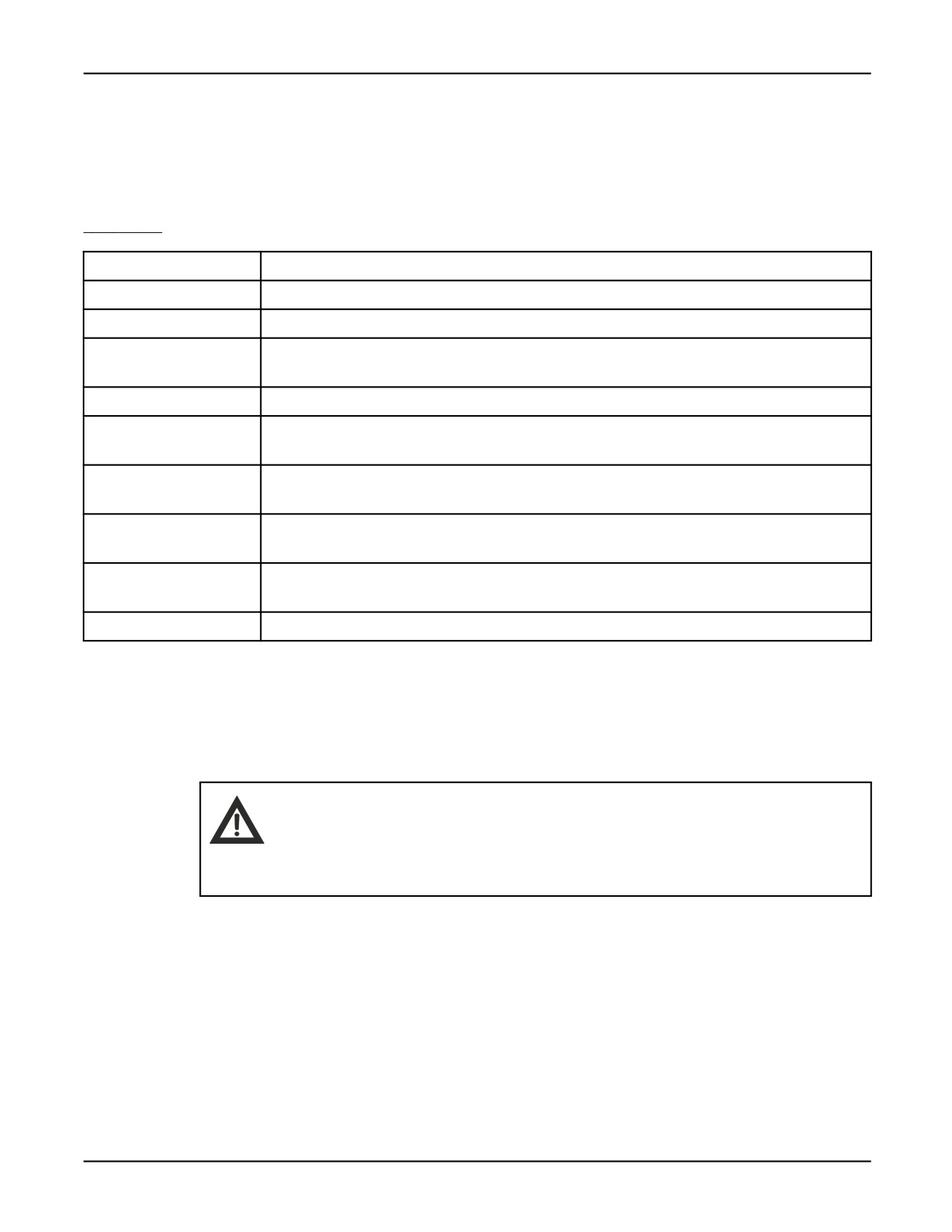
Table 10-1 lists the conversion characters:
Table 10-1.
Conversion Characters
Character
Argument Type: Printed As
d
INTEGER; decimal number.
o
INTEGER; unsigned octal notation (without a leading zero).
x, X
INTEGER; unsigned hexadecimal notation (without a leading 0x or 0X), using abcdef or
ABCDEF for 10, ..., 15.
u
INTEGER; unsigned decimal notation.
s
STRING; print characters from the string until end of string or the number of characters given
by the precision.
f
REAL; decimal notation of the form <->mmm.dddddd, where the number of d’s is given by the
precision. The default precision is 6; a precision of 0 suppresses the decimal point.
e, E
REAL; decimal notation of the form <->mmm.dddddd, where the number of d’s is given by the
precision. The default precision is 6; a precision of 0 suppresses the decimal point.
g, G
REAL; %e or %E is used if the exponent is less than -4 or greater than or equal to the precision;
otherwise %f is used. Trailing zeros and a trailing decimal pointer are not printed.
%
No argument is converted; print a %.
•
The characters d , o , x , X , and u , can be used with the INTEGER, SHORT, BYTE, and
BOOLEAN data types. A BOOLEAN data type is displayed as 0 for FALSE and 1 for TRUE.
•
The f , e , E , g , and G characters can be used with the REAL data type.
•
The character s is for a STRING data type.
Caution
Make sure you use the correct conversion character for the type of argument
passed. If the conversion character and argument types do not match,
unexpected results could occur.
Width and Precision
The optional width field is used to fix the minimum number of characters the displayed variable
occupies. This is useful for displaying columns of numbers.
Setting a width longer than the largest number aligns the numbers.
10-7
10. DICTIONARIES AND FORMS
MARRC75KR07091E Rev D
• If the displayed number has fewer characters than the width, the number will be padded on the
left (or right if the "-" character is used) by spaces.
• If the width number begins with ‘‘0’’, the field is padded with zeros instead.
The precision has the following meaning for the specified conversion character
• d , o , x , X , and u - The minimum number of digits to be printed. If the displayed integer is
less than the precision, leading zeros are padded. This is the same as using a leading zero on
the field width.
• s - The maximum number of characters to be printed. If the string is longer than the precision, the
remaining characters are ignored.
• f , e , and E - The number of digits to be printed after the decimal point.
• g and G - The number of significant digits.
Argument Ordering
An element text string can contain more than one format specifier. When a dictionary element is
displayed, the first format specifier is applied against the first argument, the second specifier for
the second argument, and so on. In some instances, you may need to apply a format specifier out
of sequence. This can happen if you develop your program for one language, and then translate
the dictionary to another language.
To re-arrange the order of the format specifiers, follow the conversion character with the ‘‘^’’
character and the argument number. As an example,
$20, file_message "File %s^2 on device %s^1 not found" &new_line
means use the second argument for the first specifier and the first argument for the second specifier.
Caution
You cannot re-arrange arguments that are SHORT or BYTE type because these
argument are passed differently than other data types. Re-arranging SHORT or
BYTE type arguments could cause unexpected results.
10.2.6
Dictionary Reserved Word Commands
Reserve words begin with the ‘‘&’’ character and are used to control the screen. They effect how, and
in some cases where, the text is going to be displayed. They provide an easy and self-documenting
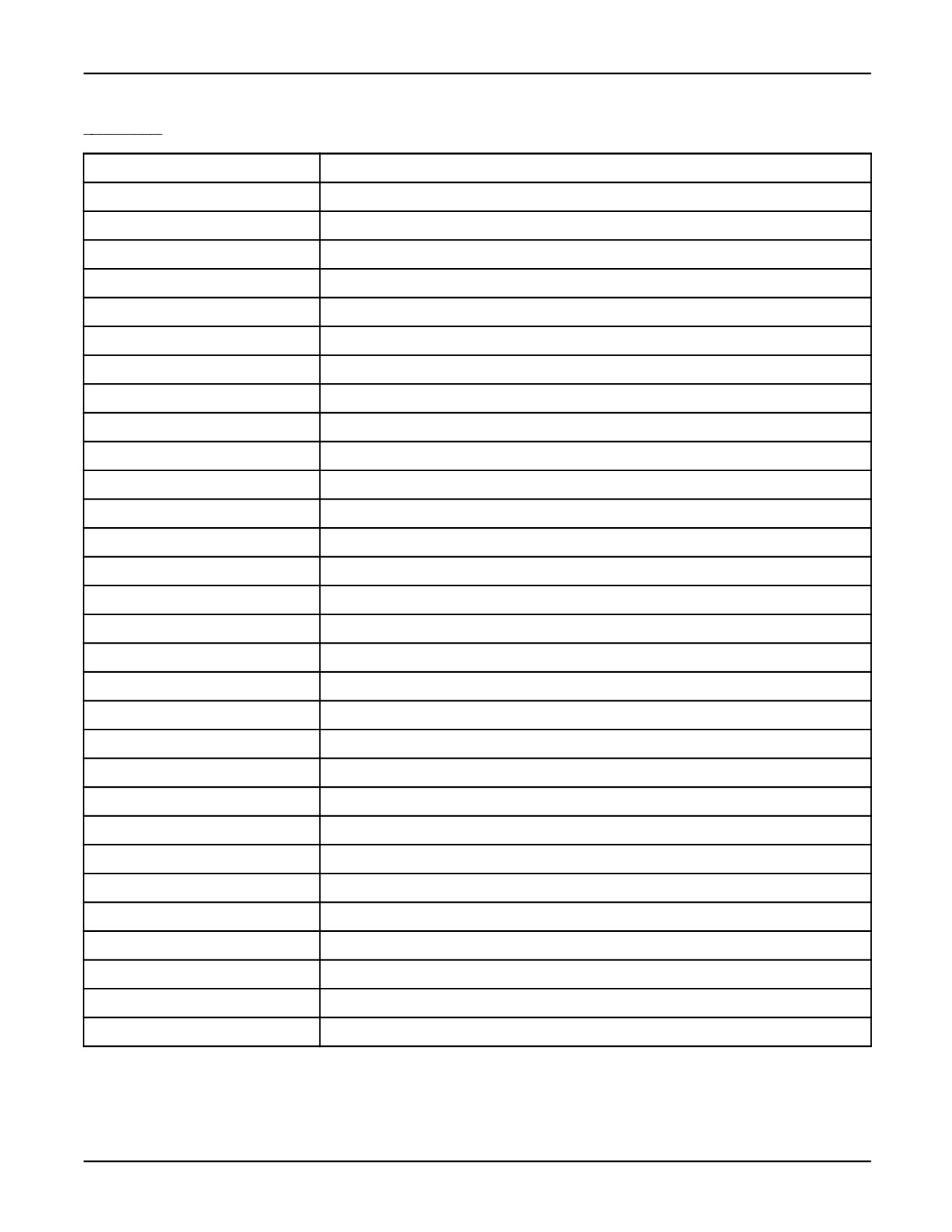
way of adding control information to the dictionary. Refer to Table 10-2 for a list of the available
reserved words.
10-8
MARRC75KR07091E Rev D
10. DICTIONARIES AND FORMS
Table 10-2. Reserved Words
Reserved Word
Function
&bg_black
Background color black
&bg_blue
Background color blue
&bg_cyan
Background color cyan
&bg_dflt
Background color default
&bg_green
Background color green
&bg_magenta
Background color magenta
&bg_red
Background color red
&bg_white
Background color white
&bg_yellow
Background color yellow
&fg_black
Foreground color black
&fg_blue
Foreground color blue
&fg_cyan
Foreground color cyan
&fg_dflt
Foreground color default
&fg_green
Foreground color green
&fg_magenta
Foreground color magenta
&fg_red
Foreground color red
&fg_white
Foreground color white
&fg_yellow
Foreground color yellow
&clear_win
Clear window (#128)
&clear_2_eol
Clear to end of line (#129)
&clear_2_eow
Clear to end of window (#130)
$cr
Carriage return (#132)
$lf
Line feed (#133)
&rev_lf
Reverse line feed (#134)
&new_line
New line (#135)
&bs
Back space (#136)
&home
Home cursor in window (#137)
&blink
Blink video attribute (#138)
&reverse
Reverse video attribute (#139)
&bold
Bold video attribute (#140)
10-9
10. DICTIONARIES AND FORMS
MARRC75KR07091E Rev D
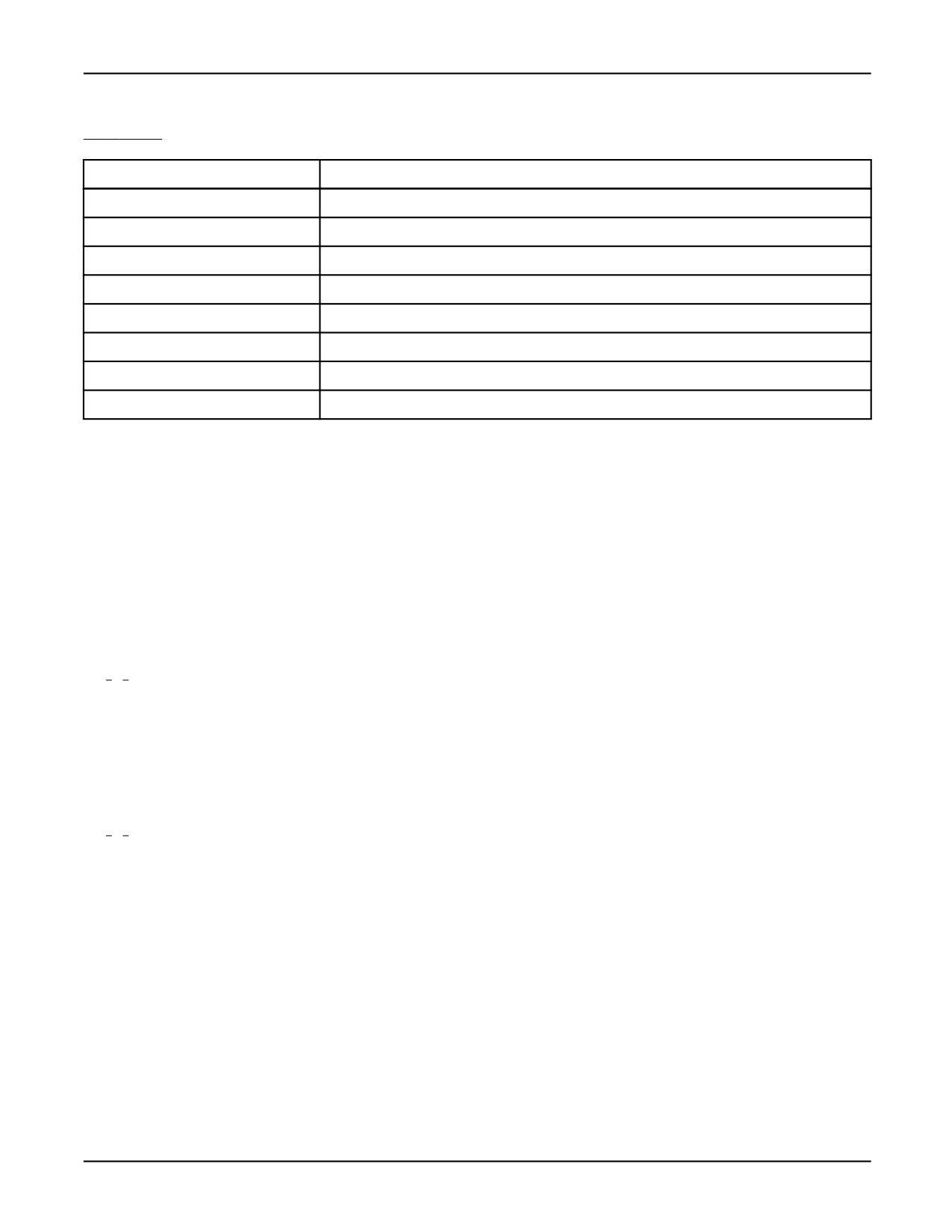
Table 10-2. Reserved Words (Cont’d)
Reserved Word
Function
&under_line
Underline video attribute (#141)
&double_wide
Wide video size (#142) (refer to description below for usage)
&standard
All attributes normal (#143)
&graphics_on
Turn on graphic characters (#146)
&ascii_on
Turn on ASCII characters (#147)
&double_high
High video size (#148) (refer to description below for usage)
&normal_size
Normal video size (#153)
&multi_on
Turn on multi-national characters (#154)
The attributes &normal_size, &double_high, and &double_wide are used to clear data from a line on a
screen. However, they are only effective for the line the cursor is currently on. To use these attributes,
first position the cursor on the line you want to resize. Then write the attribute, and the text.
• For the teach pendant, &double_high means both double high and double wide are active, and
&double_wide is the same as &normal_size.
• For the CRT/KB, &double_high means both double high and double wide are active, and
&double_wide means double wide but normal height.
10.2.7
Character Codes
A character code is the “#” character followed by a number between 0 and 255. It provides a method
of inserting special printable characters, that are not represented on your keyboard, into your
dictionary. Refer to Appendix D , for a listing of the ASCII character codes.
10.2.8
Nesting Dictionary Elements
The plus ‘‘+’’ attribute allows a dictionary element to reference another dictionary element from the
same dictionary, up to a maximum of five levels. These nested elements can be referenced by element
name or element number and can be before or after the current element. When nested elements are
displayed, all the elements are displayed in their nesting order as if they are one single element.
10-10
MARRC75KR07091E Rev D
10. DICTIONARIES AND FORMS
10.2.9
Dictionary Comment
The asterisk character (*) indicates that all text, to the end of the line, is a comment. All comments
are ignored when the dictionary is compressed. A comment can be placed anywhere a space is
allowed, except within the element text.
10.2.10
Generating a KAREL Constant File
The element numbers that are assigned an element name in the dictionary can be generated into a
KAREL include file for KAREL programming. The include file will contain the CONST declarator
and a constant declaration for each named element.
element_name = element_number
Your KAREL program can include this file and reference each dictionary element by name instead
of number.
To generate a KAREL include file, specify ‘‘.kl’’, followed by the file name, on the first line of the
dictionary fie. The KAREL include file is automatically generated when the dictionary is compressed.
The following would create the file kcmn.kl when the dictionary is compressed.
.kl kcmn
$-, move_home, "press HOME to move home"
The kcmn.kl file would look as follows
-- WARNING: This include file generated by dictionary compressor.
--
-- Include File: kcmn.kl
-- Dictionary file: apkcmneg.utx
--CONST
move_home = 0
Note If you make a change to your dictionary that causes the element numbers to be re-ordered, you
must re-translate your KAREL program to insure that the proper element numbers are used.
10.2.11
Compressing and Loading Dictionaries on the Controller
The KAREL editor can be used to create and modify the user dictionary. When you have finished
editing the file, you compress it from the KCL command prompt.
KCL> COMPRESS DICT filename
10-11
10. DICTIONARIES AND FORMS
MARRC75KR07091E Rev D
Do not include the .UTX file type with the file name. If the compressor detects any errors, it will
point to the offending word with a brief explanation of what is wrong. Edit the user dictionary and
correct the problem before continuing.
A loadable dictionary with the name filename but with a .TX file type will be created. If you used the
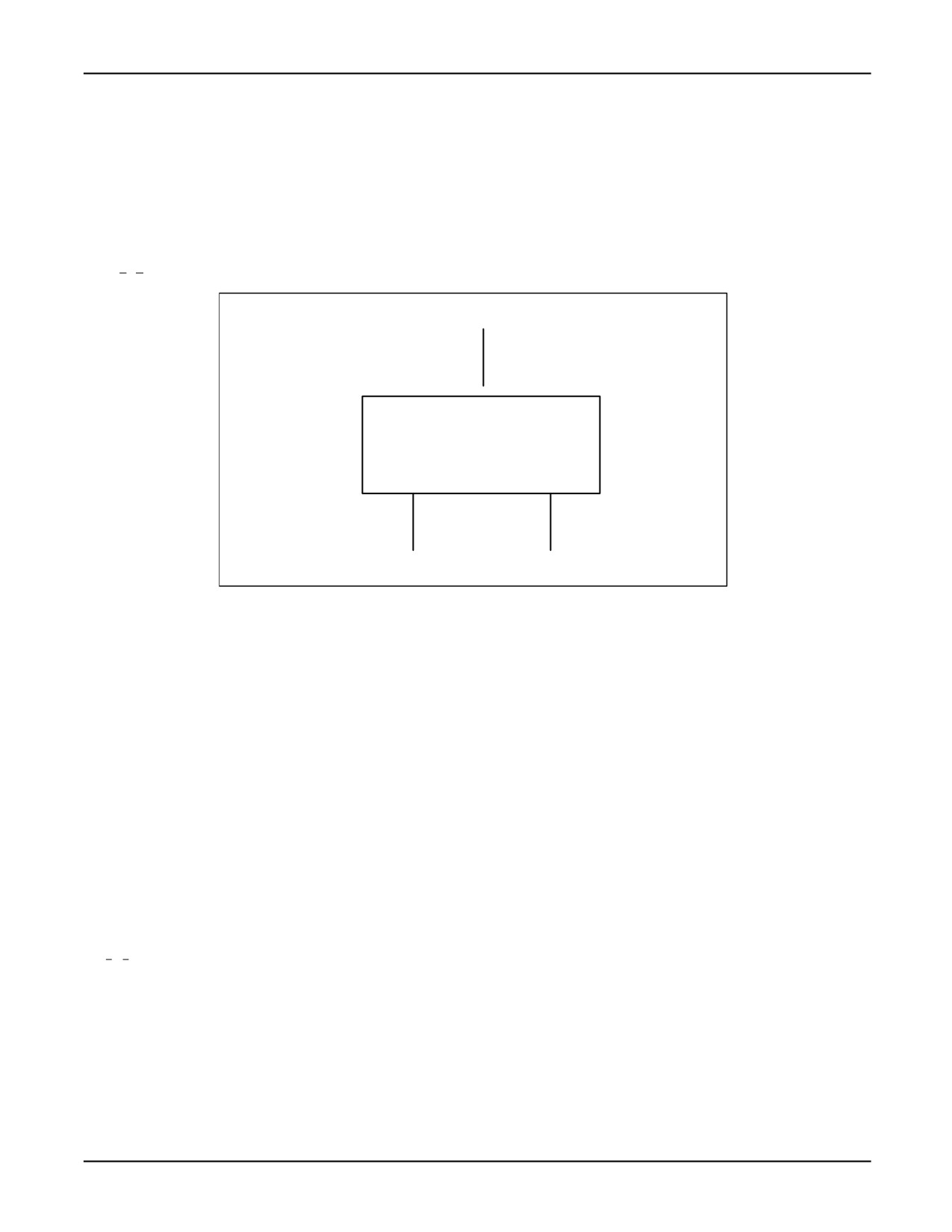
.kl symbol, a KAREL include file will also be created. Figure 10-1 illustrates the compression process.
Figure 10-1. Dictionary Compressor and User Dictionary File
.UTX file
Dictionary Compressor
.TX
.KL
Before the KAREL program can use a dictionary, the dictionary must be loaded into the controller and
given a dictionary name. The dictionary name is a one to four character word that is assigned to the
dictionary when it is loaded. Use the KCL LOAD DICT command to load the dictionary.
KCL> LOAD DICT filename dictname <lang_name>
The optional lang_name allows loading multiple dictionaries with the same dictionary name.
The actual dictionary that will be used by your program is determined by the current value of
$LANGUAGE. This system variable is set by the KCL SET LANGUAGE command or the
SET_LANG KAREL built-in. The allowed languages are ENGLISH, JAPANESE, FRENCH,
GERMAN, SPANISH, or DEFAULT.
The KAREL program can also load a dictionary. The KAREL built-in ADD_DICT is used to load a
dictionary into a specified language and assign a dictionary name.
10.2.12
Accessing Dictionary Elements from a KAREL Program
Your KAREL program uses either the dictionary name and an element number, or the element name to
access a dictionary element. The following KAREL built-ins are used to access dictionary elements:
• ADD_DICT - Add a dictionary to the specified language.
10-12
MARRC75KR07091E Rev D
10. DICTIONARIES AND FORMS
• REMOVE_DICT - Removes a dictionary from the specified language and closes the file or frees
the memory it resides in.
• WRITE_DICT - Write a dictionary element to a window.
• WRITE_DICT_V - Write a dictionary element that has format specifiers for a KAREL variable,
to a window.
• READ_DICT - Read a dictionary element into a KAREL STRING variable.
• READ_DICT_V - Read a dictionary element that has format specifiers into a STRING variable.
• CHECK_DICT - Check if a dictionary element exists.
10.3
CREATING USER FORMS
A form is a type of dictionary file necessary for creating menu interfaces that have the same "look and
feel" as the R-30iA menu interface.
The following are steps for using forms.
1. Create an ASCII form text file with the .FTX file extension.
2. Compress the form file using the KCL COMPRESS FORM command. This creates a loadable
dictionary file with a .TX extension and an associated variable file (.VR).
3. Load the form.
• From KCL , use the KCL LOAD FORM command. This will load the dictionary file
(.TX) and the associated variable file (.VR).
• From KAREL , use the ADD_DICT built-in to load the dictionary file (.TX), and the
LOAD built-in to load the association variable file (.VR) .
4. Use the KAREL DISCTRL_FORM built-in to display the form text. The DISCTRL_FORM
built-in handles all input operations including cursor position, scrolling, paging, input validation,
and choice selections. Refer to the DISCTRL_FORM built-in, Appendix A , "KAREL Language
Alphabetical Description."
Forms are useful for programs which require the user to enter data. For example, once the user enters
the data, the program must test this data to make sure that it is in an acceptable form. Numbers
must be entered with the correct character format and within a specified range, text strings must not
exceed a certain length and must be a valid selection. If an improper value is entered, the program
must notify the user and prompt for a new entry. Forms provide a way to automatically validate
entered data. Forms also allow the program to look as if it is integrated into the rest of the system
menus, by giving the operator a familiar interface.
Forms must have the USER2 menu selected. Forms use the "t_sc" and "c_sc" screens for teach pendant
and CRT/KB respectively. The windows that are predefined by the system are used for displaying the
form text. For both screens, this window is 10 rows high and 40 columns wide. This means that the
&double_high and &double_wide attributes are used on the CRT/KB and cannot be changed.
10-13
10. DICTIONARIES AND FORMS
MARRC75KR07091E Rev D
10.3.1
Form Syntax
A form defines an operator interface that appears on the teach pendant or CRT/KB screens. A form
is a special dictionary element. Many forms can reside in the same dictionary along with other
(non-form) dictionary elements.
Note If your program requires a form dictionary file (.FTX), you do not have to create a user
dictionary file (.UTX). You may place your user dictionary elements in the same file as your forms.
To distinguish a form from other elements in the dictionary, the symbol ‘‘.form’’ is placed before the
element and the symbol ‘‘.endform’’ is placed after the element. The symbols must reside on their
own lines. The form symbols are omitted from the compressed dictionary.
The following is the syntax for a form:
Form Syntax
.form <form_attributes>
$n, form_name<@cursor_pos><&res_word>"Menu_title"<&res_work>&new_line
<@cursor_pos><&res_word>"Menu_label"<&res_word>&new_line
<@cursor_pos><&res_word><"-Selectable_item"<&res_word>&new_line>
<@cursor_pos><&res_word><"-%Edit_item"<&res_word>&new_line>
<@cursor_pos><&res_word><"Non_selectable_text"<&res_word>&new_line>
<@cursor_pos><&res_word><"Display_only_item"<&res_word>&new_line>
<^function_key &new_line>
<?help_menu &new_line>
.endform
<$n,function_key
<"Key_name" &new_line>
<"Key_name" &new_line>
<"Key_name" &new_line>
<"Key_name" &new_line>
<"help_label" &new_line>
<"Key_name" &new_line>
<"Key_name" &new_line>
<"Key_name" &new_line>
<"Key_name" &new_line>
"Key_name"
>
<$n,help_menu
<"Help_text" &new_line>
<"Help_text" &new_line>
"Help_text">
Restrictions
• Items in brackets <> are optional.
10-14
MARRC75KR07091E Rev D
10. DICTIONARIES AND FORMS
•
Symbols not defined here are standard user dictionary element symbols ($n, @cursor_pos,
&res_word, &new_line).
•
form_attributes are the key words unnumber and unclear .
•
form_name specifies the element name that identifies the form.
•
"Menu_title" and "Menu_label" specify element text that fills the first two lines of the form
and are always displayed.
•
"- Selectable_item" specifies element text that can be cursored to and selected.
•
"-%Editable_item" specifies element text that can be cursored to and edited.
•
"Non_selectable_text" specifies element text that is displayed in the form and cannot be cursored
to.
•
"%Display_only_item" specifies element text using a format specifier. It cannot be cursored to.
•
^function_key defines the labels for the function keys using an element name.
•
?help_menu defines a page of help text that is associated with a form using an element name.
•
"Key_name" specifies element text displayed over the function keys.
•
"Help_label" is the special label for the function key 5. It can be any label or the special word
HELP.
•
"Help_text" is element text up to 40 characters long.
•
Color attributes can be specified in forms. The i Pendant will display the color. The monochrome
pendant will ignore the color attributes.
10.3.2
Form Attributes
Normally, a form is displayed with line numbers in front of any item the cursor can move to. To keep
a form from generating and displaying line numbers, the symbol ‘‘.form unnumber’’ is used.
To keep a form from clearing any windows before being displayed, the symbol ‘‘.form noclear’’ is
used. The symbols ‘‘noclear’’ and ‘‘unnumber’’ can be used in any order.
In the following example, MH_TOOLDEFN is an unnumbered form that does not clear any windows.
MH_APPLIO is a numbered form.
.form unnumber noclear
$1, MH_TOOLDEFN
.endform
$2, MH_PORT
$3, MH_PORTFKEY
10-15