FANUC Robotics SYSTEM R-30iA and R-30iB Controller. KAREL Reference Manual - page 8
10. DICTIONARIES AND FORMS
MARRC75KR07091E Rev D
.form
$6, MH_APPLIO
.endform
10.3.3
Form Title and Menu Label
The menu title is the first element of text that follows the form name. The menu label follows the
menu title. Each consists of one row of text in a non-scrolling window.
• On the teach pendant the first row of the "full" window is used for the menu title. The second
row is used for the menu label.
• On the CRT/KB the first row of the "cr05" widow is used for the menu title. The second row
is used for the menu label.
• The menu title is positioned at row 3, column 1-21.
• The menu label is positioned at row 4, column 1-40.
Unless the "noclear" form attribute is specified both the menu title and menu label will be cleared.
The reserved word &home must be specified before the menu title to insure that the cursor is
positioned correctly. The reserved word &reverse should also be specified before the menu title
and the reserved word &standard should follow directly after the menu title. These are necessary
to insure the menu appears to be consistent with the R-30iA menu interface. The reserved word
&new_line must be specified after both the menu title and menu label to indicate the end of the text.
The following is an example menu title and menu label definition.
.form
$1, mis_form
&home &reverse "Menu Title" &standard &new_line
"Menu Label" &new_line
.endform
10-16
MARRC75KR07091E Rev D
10. DICTIONARIES AND FORMS
If no menu label text is desired, the &new_line can be specified twice after the menu title as in
the following example.
.form
$1,misc_form
&home &reverse " Menu Title" &standard &new_line &new_line
.endform
If the cursor position attribute is specified, it is not necessary to specify the &new_line reserved
word. The following example sets the cursor position for the menu title to row 1, column 2, and
the menu label to row 2, column 5.
.form
$1,misc_form
@1,2 &reverse "Menu Title" &standard
@2,5 "Menu Label"
.endform
10.3.4
Form Menu Text
The form menu text follows the menu title and menu label. It consists of an unlimited number of lines
that will be displayed in a 10 line scrolling window named ‘‘fscr’’ on the teach pendant and ‘‘ct06’’ on
the CRT/KB. This window is positioned at rows 5-14 and columns 1-40. Unless the ‘‘noclear’’ option
is specified, all lines will be cleared before displaying the form.
Menu text can consist of the following:
• Selectable menu items
• Edit data items of the following types:
10-17
10. DICTIONARIES AND FORMS
MARRC75KR07091E Rev D
— INTEGER
— INTEGER port
— REAL
— SHORT (32768 to 32766)
— BYTE (0 to 255)
— BOOLEAN
— BOOLEAN port
— STRING
— Program name string
— Function key enumeration type
— Subwindow enumeration type
— Subwindow enumeration type using a variable
— Port simulation
•
Non-selectable text
•
Display only data items with format specifiers
•
Cursor position attributes
•
Reserve words or ASCII codes
•
Function key element name or number
•
Help element name or number
Each kind of menu text is explained in the following sections.
10.3.5
Form Selectable Menu Item
Selectable menu items have the following characteristics:
• A selectable menu item is entered in the dictionary as a string enclosed in double quotes.
• The first character in the string must be a dash, ‘-’. This character will not be printed to the
screen. For example,
"- Item 1 "
• The entire string will be highlighted when the selectable item is the default.
• If a selectable item spans multiple lines, the concatenation character ‘+’ should be used as the
last character in the string. The concatenation character will not be printed to the screen. The
attribute &new_line is used to signal a new line. For example,
"- Item 1, line 1 +" &new_line
10-18
MARRC75KR07091E Rev D
10. DICTIONARIES AND FORMS
" Item 1, line 2 "
• The automatic numbering uses the first three columns and does not shift the form text. Therefore,
the text must allow for the three columns by either adding spaces or specifying cursor positions.
For example,
"- Item 1 " &new_line
"- Item 2 " &new_line
"- Item 3 "
or
@3,4"- Item 1 "
@4,4"- Item 2 "
@5,4"- Item 3 "
• The first line in the scrolling window is defined as row 3 of the form.
• Pressing enter on a selectable menu item will always cause the form processor to exit with the
termination character of ky_select, regardless of the termination mask setting. The item number
selected will be returned.
• Selecting the item by pressing the ITEM hardkey on the teach pendant will only highlight the
item. It does not cause an exit.
• Short-cut number selections are not handled automatically, although they can be specified as
a termination mask.
10.3.6
Edit Data Item
You can edit data items that have the following characteristics:
• Data item is entered in the dictionary as a string enclosed in double quotes.
• The first character in the string must be a dash, ‘-’. This character is not printed to the screen.
• The second character in the string must be a ‘%’. This character marks the beginning of a format
specifier.
• Each format specifier begins with a % and ends with a conversion character. All the characters
between these two characters have the same meaning as user dictionary elements.
10-19
10. DICTIONARIES AND FORMS
MARRC75KR07091E Rev D
Note You should provide a field width with each format specifier, otherwise a default will be
used. This default might cause your form to be mis-aligned.
Table 10-3 lists the conversion characters for an editable data item.
Table 10-3.
Conversion Characters
Character
Argument Type: Printed As
d
INTEGER; decimal number.
o
INTEGER; unsigned octal notation (without a leading zero).
x, X
INTEGER; unsigned hexadecimal notation (without a leading 0x or 0X), using abcdef or
ABCDEF for 10, ..., 15.
u
INTEGER; unsigned decimal notation.
pu
INTEGER port; unsigned decimal notation.
px
INTEGER port; unsigned hexadecimal notation (without a leading 0x or 0X), using abcdef
or ABCDEF for 10, ..., 15.
f
REAL; decimal notation of the form <->mmm.dddddd, where the number of d’s is given by
the precision. The default precision is 6; a precision of 0 suppresses the decimal point.
e, E
REAL; decimal notation of the form <->m.dddddde+-xx or <->m.ddddddE+-xx, where
the number of d’s is given by the precision. The default precision is 6; a precision of
0 suppresses the decimal point.
g, G
REAL; %e or %E is used if the exponent is less than -4 or greater than or equal to the
precision; otherwise %f is used. Trailing zeros and a trailing decimal pointer are not printed.
h
SHORT; signed short.
b
BYTE; unsigned byte.
B
BOOLEAN; print characters from boolean enumeration string.
P
BOOLEAN port; print characters from boolean port enumeration string.
S
INTEGER or BOOLEAN port; print characters from port simulation enumeration string.
k
STRING; print characters from KAREL string until end of string or the number of characters
given by the precision.
pk
STRING; print program name from KAREL string until end of string or the number of
characters given by the precision.
n
INTEGER; print characters from function key enumeration string. Uses dictionary elements
to define the enumeration strings.
w
INTEGER; print characters from subwindow enumeration string. Uses dictionary elements
to define the enumeration strings.
v
INTEGER; print characters from subwindow enumeration string. Uses a variable to define
the enumeration strings.
10-20

MARRC75KR07091E Rev D
10. DICTIONARIES AND FORMS
Table 10-3. Conversion Characters (Cont’d)
Character
Argument Type: Printed As
%
no argument is converted; print a %.
t
BOOLEAN; print + or - for tree view.
The following is an example of a format specifier:
"-%5d" or "-%-10s"
The form processor retrieves the values from the input value array and displays them sequentially. All
values are dynamically updated .
Edit Data Items: INTEGER, INTEGER Ports, REAL, SHORT, BYTE
• You can specify a range of acceptable values by giving each format specifier a minimum and
maximum value allowed "(min, max)." If you do not specify a minimum and maximum value,
any integer or floating point value will be accepted. For example,
"-%3d(1,255)" or "-%10.3f(0.,100000.)"
• When an edit data item is selected, the form processor calls the appropriate input routine.
The input routine reads the new value (with inverse video active) and uses the minimum and
maximum values specified in the dictionary element, to determine whether the new value is
within the valid range.
— If the new value is out of range, an error message will be written to the prompt line and the
current value will not be modified.
— If the new value is in the valid range, it will overwrite the current value.
Edit Data Item: BOOLEAN
• The format specifier %B is used for KAREL BOOLEAN values, to display and select menu
choice for the F4 and F5 function keys. The name of the dictionary element, that contains the
function key labels, is enclosed in parentheses and is specified after the %B. For example,
"-%4B(enum_bool)"
The dictionary element defining the function keys should define the FALSE value first (F5 label) and
the TRUE value second (F4 label). For example,
$2,enum_bool
" NO" &new_line
" YES"
10-21
10. DICTIONARIES AND FORMS
MARRC75KR07091E Rev D
YES
NO
The form processor will label the function keys when the cursor is moved to the enumerated item. The
value shown in the field is the same as the function key label except all leading blanks are removed.
Edit Data Item: BOOLEAN Port
• The format specifier %P is used for KAREL BOOLEAN port values, to display and select menu
choices from the F4 and F5 function keys. The name of the dictionary element, that contains the
function key labels, is enclosed in parentheses and is specified after the %P. For example,
"-%3P(enum_bool)"
The dictionary element defining the function keys should define the 0 value first (F5 label) and the 1
value second (F4 label). For example,
$2,enum_bool
" OFF" &new_line
" ON"
ON
OFF
The form processor will label the function keys when the cursor is moved to the enumerated item. The
value shown in the field is the same as the function key label except all leading blanks are removed.
Edit Data Item: Port Simulation
• The format specifier %S is used for port simulation, to display and select menu choices from
the F4 and F5 function keys. The name of the dictionary element, that contains the function key
labels, is enclosed in parentheses and is specified after the %S. For example,
"-%1S(sim_fkey)"
The dictionary element defining the function keys should define the 0 value first (F5 label) and the 1
value second (F4 label). For example,
$-, sim_fkey
" UNSIM " &new_line * F5 key label, port will be unsimulated
"SIMULATE" &new_line * F4 key label, port will be simulated
10-22
MARRC75KR07091E Rev D
10. DICTIONARIES AND FORMS
The form processor will label the function keys when the cursor is moved to the enumerated item. The
value shown in the field is the same as the function key label except all leading blanks are removed
and the value will be truncated to fit in the field width.
Edit Data Item: STRING
• You can choose to clear the contents of a string before editing it. To do this follow the STRING
format specifier with the word "clear", enclosed in parentheses. If you do not specify "(clear)",
the default is to modify the existing string. For example,
"-%10k(clear)"
Edit Data Item: Program Name String
• You can use the %pk format specifier to display and select program names from the subwindow.
The program types to be displayed are enclosed in parenthesis and specified after %pk. For
example,
"-%12pk(1)" * specifies TP programs
"-%12pk(2)" * specifies PC programs
"-%12pk(6)" * specifies TP, PC, VR
"-%12pk(16)" * specifies TP & PC
All programs that match the specified type and are currently in memory, are displayed in the
subwindow. When a program is selected, the string value is copied to the associated variable.
Edit Data Item: Function Key Enumeration
• You can use the format specifier %n (for enumerated integer values) to display and select choices
from the function keys. The name of the dictionary element that contains the list of valid choices
is enclosed in parentheses and specified after %n. For example,
"-%6n(enum_fkey)"
The dictionary element defining the function keys should list one function key label per line. If
function keys to the left of those specified are not active, they should be set to "". A maximum
of 5 function keys can be used. For example,
$2,enum_fkey
"" &new_line *Specifies F1 is not active
"JOINT" &new_line *Specifies F2
"LINEAR" &new_line *Specifies F3
10-23
10. DICTIONARIES AND FORMS
MARRC75KR07091E Rev D
"CIRC" *Specifies F4
The form processor will label the appropriate function keys when the enumerated item is selected.
When a function key is selected, the value set in the integer is as follows:
User presses F1, value = 1
User presses F2, value = 2
User presses F3, value = 3
User presses F4, value = 4
User presses F5, value = 5
The value shown in the field is the same as the function key label except all leading blanks are
removed.
JOINT
LINEAR
CIRC
Edit Data Item: Subwindow Enumeration
• You can use the format specifier %w (for enumerated integer values) to display and select choices
from the subwindow. The name of the dictionary element, containing the list of valid choices, is
enclosed in parentheses and specified after %w. For example,
"-%8w(enum_sub)"
One dictionary element is needed to define each choice in the subwindow. 35 choices can be used.
If fewer than 35 choices are used, the last choice should be followed by a dictionary element that
contains "\a" . The choices will be displayed in 2 columns with 7 choices per page. If only 4 or less
choices are used, the choices will be displayed in 1 column with a 36 character width. For example,
$2,enum_sub "Option 1"
$3 "Option 2"
$4 "Option 3"
$5 "\a"
The form processor will label F4 as ‘‘[CHOICE]’’ when the cursor is moved to the enumerated item.
When the function key F4, [CHOICE] is selected, it will create the subwindow with the appropriate
display. When a choice is selected, the value set in the integer is the number selected. The value
shown in the field is the same as the dictionary label except all leading blanks are removed.
10-24
MARRC75KR07091E Rev D
10. DICTIONARIES AND FORMS
Edit Data Item: Subwindow Enumeration using a Variable
• You can also use the format specifier %v (for enumerated integer values) to display and select
choices from the subwindow. However, instead of defining the choices in a dictionary they are
defined in a variable. The name of the dictionary element, which contains the program and
variable name, is enclosed in parentheses and specified after %v. For example,
"-%8v(enum_var)"
$-,enum_var
"RUNFORM" &new_line * program name of variable
"CHOICES" &new_line * variable name containing choices
[RUNFORM] CHOICES must be defined as a KAREL string array. Each element of the array should
define a choice in the subwindow. This format specifier is similar to %w. However, the first element
is related to the value 0 and is never used. Value 1 begins at the second element. The last value is
either the end of the array or the first uninitialized value.
[RUNFORM] CHOICES:ARRAY[6] OF STRING[12] =
[1] *uninit*
[2] ’Red’ <= value 1
[3] ’Blue’ <= value 2
[4] ’Green’ <= value 3
[5] *uninit*
[6] *uninit*
Edit Data Item: Tree View
• The format specifier %t is used to specify a Tree View item. It uses a KAREL BOOLEAN value
to determine whether the tree is expanded or collapsed. For example,
"-%t"
The form processor will change %t to %c. When the BOOLEAN value is FALSE, a ’+’ will be
displayed using the format specifier and the items following the tree view will not be shown
(collapsed state). When the BOOLEAN value is TRUE, a ’-’ will be displayed using the format
specifier and the items following the tree view will be shown (expanded state). Table 10-4
displays some formatting examples.
10-25

10. DICTIONARIES AND FORMS
MARRC75KR07091E Rev D
Table
10-4.
Tree View Format
Format
FALSE value
TRUE value
"-%t"
+
-
"-%2t "
+
-
"-%t Weld schedule:"
+ Weld schedule:
- Weld schedule:
•
The KAREL BOOLEAN value will only determine the initial state of the tree view. It is not
monitored. When the user selects the tree view item and presses ENTER, the tree view state will
toggle and the BOOLEAN value will be set to the resultant value. This state is maintained when
the form is exited and reentered. If the KAREL BOOLEAN value is in CMOS or SHADOW, then
the state is maintained between power cycles.
•
There is a way to refresh the tree view. Passing ctl_w to the form will expand or collapse all
tree view items based on their associated KAREL BOOLEAN values. The default item will be
maintained. If the default item is no longer shown its tree view item will become the new default
item.
•
Nesting of tree view items is not allowed. If another %t is found, the current tree view is ended
and a new one is started. When a tree view item should be ended without creating a new tree
view item, .endtree can be used. For example:
"
"-%t Burnback schedule:" &new_line
"
Wire feed ""-%6.2f(0.0, 9999.0)" &new_line
"
Trim
""-%6.2f(0.0, 9999.0)" &new_line
.endtree
"
Gas postflow time:" &new_line
•
If a form is constructed by concatenating multiple forms and an item will be within a tree view,
then .tree must be used. The .endtree is optional and only necessary if other items will not be
within the tree view.
.form
$-,wl_data_cmd &new_line &new_line
.tree
"
Wire Feed ""-%6.2f(0.0, 9999.0)" &new_line
.endform
10.3.7 Dynamic Forms using Tree View
The Tree View can be used to create dynamic forms. It can be used instead of concatenating multiple
forms into one. In this case, the Tree View Data Item is used without the leading -. For example,
"%t" &new_line
10-26
MARRC75KR07091E Rev D
10. DICTIONARIES AND FORMS
"
PC Share Configuration:" &new_line
"
WINS Server:
" "16k" &new_line
"
Client Caching:
" "-%10B(bool_fkey)" &new_line
"
Broadcast Discovery:" "-%10B(bool_fkey)" &new_line
When the KAREL BOOLEAN value is FALSE, the items following the tree view will be invisible.
When the KAREL BOOLEAN value is TRUE, the items following the tree view will be visible. The
tree view line is always invisible. Any other items on its line are also invisible.
The KAREL BOOLEAN value will only determine the initial state of the tree view. It is not
monitored. The user will never be able to change the state since the tree view item is invisible.
There is a way to refresh the tree view. Passing ctl_w to the form will expand or collapse all tree view
items based on their associated KAREL BOOLEAN values. The default item will be maintained. If
the default item is no longer shown, the previous item will become the new default item.
10.3.8
Non-Selectable Text
Non-selectable text can be specified in the form. These items have the following characteristics:
• Non-selectable text is entered in the dictionary as a string enclosed in double quotes.
• Non-selectable text can be defined anywhere in the form, but must not exceed the maximum
number of columns in the window.
10.3.9
Display Only Data Items
Display only data items can be specified in the form. These items have the following characteristics:
• Display only data items are entered in the dictionary as a string enclosed in double quotes.
• The first character in the string must be a ‘%’. This character marks the beginning of a format
specifier.
• The format specifiers are the same as defined in the previous section for an edit data item.
10.3.10
Cursor Position Attributes
Cursor positioning attributes can be used to define the row and column of any text. The row is
always specified first. The dictionary compressor will generate an error if the form tries to backtrack
to a previous row or column. The form title and label are on rows 1 and 2. The scrolling window
starts on row 3. For example,
@3,4 "- Item 1"
10-27

10. DICTIONARIES AND FORMS
MARRC75KR07091E Rev D
@4,4 "- Item 2"
@3,4 "- Item 3" <- backtracking to row 3 not allowed
Even though the scrolling window is only 10 lines, a long form can specify row positions that are
greater than 12. The form processor keeps track of the current row during scrolling.
10.3.11
Form Reserved Words and Character Codes
Reserved words or character codes can be used. Refer to Table 10-5 for a list of all available reserved
words. However, only the reserved words which do not move the cursor are allowed in a scrolling
window. Refer to Table 10-6 for a list of available reserved words for a scrolling window.
Table 10-5. Reserved Words
Reserved Word
Function
&bg_black
Background color black
&bg_blue
Background color blue
&bg_cyan
Background color cyan
&bg_dflt
Background color default
&bg_green
Background color green
&bg_magenta
Background color magenta
&bg_red
Background color red
&bg_white
Background color white
&bg_yellow
Background color yellow
&fg_black
Foreground color black
&fg_blue
Foreground color blue
&fg_cyan
Foreground color cyan
&fg_dflt
Foreground color default
&fg_green
Foreground color green
&fg_magenta
Foreground color magenta
&fg_red
Foreground color red
&fg_white
Foreground color white
&fg_yellow
Foreground color yellow
&clear_win
Clear window (#128)
10-28

MARRC75KR07091E Rev D
10. DICTIONARIES AND FORMS
Table 10-5. Reserved Words (Cont’d)
Reserved Word
Function
&clear_2_eol
Clear to end of line (#129)
&clear_2_eow
Clear to end of window (#130)
$cr
Carriage return (#132)
$lf
Line feed (#133)
&rev_lf
Reverse line feed (#134)
&new_line
New line (#135)
&bs
Back space (#136)
&home
Home cursor in window (#137)
&blink
Blink video attribute (#138)
&reverse
Reverse video attribute (#139)
&bold
Bold video attribute (#140)
&under_line
Underline video attribute (#141)
&double_wide
Wide video size (#142) (refer to description below for usage)
&standard
All attributes normal (#143)
&graphics_on
Turn on graphic characters (#146)
&ascii_on
Turn on ASCII characters (#147)
&double_high
High video size (#148) (refer to description below for usage)
&normal_size
Normal video size (#153)
&multi_on
Turn on multi-national characters (#154)
Table 10-6
lists the reserved words that can be used for a scrolling window.
Table 10-6. Reserved Words for Scrolling Window
Reserved Word
Function
&new_line
New line (#135)
&blink
Blink video attribute (#138)
&reverse
Reverse video attribute (#139)
&bold
Bold video attribute (#140)
&under_line
Underline video attribute (#141)
&standard
All attributes normal (#143)
&graphics_on
Turn on graphic characters (#146)
10-29

10. DICTIONARIES AND FORMS
MARRC75KR07091E Rev D
Table 10-6. Reserved Words for Scrolling Window (Cont’d)
Reserved Word
Function
&ascii_on
Turn on ASCII characters (#147)
&multi_on
Turn on multi-national characters (#154)
10.3.12
Form Function Key Element Name or Number
Each form can have one related function key menu. A function key menu has the following
characteristics:
• The function key menu is specified in the dictionary with a caret, ^, immediately followed by the
name or number of the function key dictionary element. For example,
^misc_fkey
• The dictionary element defining the function keys should list one function key label per line.
If function keys to the left of those specified are not active, then they should be set to "". A
maximum of 10 function keys can be used. For example,
$3,misc_fkey
" F1" &new_line
" F2" &new_line
" F3" &new_line
" F4" &new_line
" HELP >" &new_line
"" &new_line
"" &new_line
" F8" &new_line
" F9" &new_line
• The form processor will label the appropriate function keys and return from the routine if a valid
key is pressed. The termination character will be set to ky_f1 through ky_f10.
• The function keys will be temporarily inactive if an enumerated data item is using the same
function keys.
10-30

MARRC75KR07091E Rev D
10. DICTIONARIES AND FORMS
• If function key F5 is labeled HELP, it will automatically call the form’s help menu if one exists.
F1
F2
F3
F4
HELP >
F8
F9
10.3.13
Form Function Key Using a Variable
A function key menu can also be defined in a variable. The function key dictionary item will contain
the program and variable name, prefixed with an asterisk to distinguish it from function key text.
For example,
* Specify the function keys in a variable
* whose type is an ARRAY[m] of STRING[n].
$3,misc_fkey
"*RUNFORM" &new_line * program name of variable
"*FKEYS"
&new_line * variable name containing function keys
[RUNFORM] FKEYS must be defined as a KAREL string array. Each element of the array should
define a function key label.
[RUNFORM] FKEYS:ARRAY[10] OF STRING[12] =
[1] ‘ F1’
[2] ‘ F2’
[3] ‘ F3’
[4] ‘ F4’
[5] ‘ HELP
>’
[6] ‘’
[7] ‘’
[8] ‘ F8’
[9] ‘ F9’
[10]‘
>’
10.3.14
Form Help Element Name or Number
Each form can have one related help menu. The help menu has the following characteristics:
10-31
10. DICTIONARIES AND FORMS
MARRC75KR07091E Rev D
• A help element name or number is specified in the dictionary with a question mark, ?,
immediately followed by the name or number of the help dictionary element. For example,
?misc_help
• The dictionary element defining the help menu is limited to 48 lines of text.
• The form processor will respond to the help key by displaying the help dictionary element in a
predefined window. The predefined window is 40 columns wide and occupies rows 3 through 14.
• The help menu responds to the following inputs:
— Up or down arrows to scroll up or down 1 line.
— Shifted up or down arrows to scroll up or down 3/4 of a page.
— Previous, to exit help. The help menu restores the previous screen before returning.
10.3.15
Teach Pendant Form Screen
You can write to other active teach pendant windows while the form is displayed. The screen itself is
named "tpsc." Figure 10-2 shows all the windows attached to this screen. Unless the noclear option is
specified, ‘‘full,’’ ‘‘fscr,’’ ‘‘prmp,’’ and ‘‘ftnk’’ windows will be cleared before displaying the form.
Figure 10-2. Teach Pendant Form Screen
+
+
|err
|
|stat
|
|full
|
< full and motn overlap
|full
|
motn starts at col 18
|fscr
|
=
=
|prmp
|
|ftnk
|
+
+
10.3.16
CRT/KB Form Screen
You can write to other active CRT/KB windows while the form is displayed. The screen itself is
named ‘‘ctsc.’’ All lines in the screen are set to double high and double wide video size. Figure 10-3
10-32
MARRC75KR07091E Rev D
10. DICTIONARIES AND FORMS
shows all the windows attached to this screen. Unless the ‘‘noclear’’ option is specified, ‘‘ct05,’’
‘‘ct06,’’ ‘‘ct03,’’ and ‘‘ct04’’ windows will be cleared before displaying the form.
Figure 10-3. CRT/KB Form Screen
+
+
|err
|
|ct01
|
|ct05
|
< ct05 and motn overlap
|ct05
|
motn starts at col 18
|ct06
|
=
=
|ct03
|
|ct04
|
+
+
10.3.17
Form File Naming Convention
Uncompressed form dictionary files must use the following file name conventions:
• The first two letters in the dictionary file name can be an application prefix.
• If the file name is greater than four characters, the form processor will skip the first two letters
when trying to determine the dictionary name.
• The next four letters must be the dictionary name that you use to load the .TX file, otherwise
the form processor will not work.
• The last two letters are optional and should be used to identify the language;
— ‘‘EG’’ for ENGLISH
— ‘‘JP’’ for JAPANESE
— ‘‘FR’’ for FRENCH
— ‘‘GR’’ for GERMAN
— ‘‘SP’’ for SPANISH
• A dictionary file containing form text must have a .FTX file type, otherwise the dictionary
compressor will not work. After it is compressed, the same dictionary file will have a .TX file
type instead.
The following is an example of an uncompressed form dictionary file name:
MHPALTEG.FTX
10-33
10. DICTIONARIES AND FORMS
MARRC75KR07091E Rev D
MH stands for Material Handling, PALT is the dictionary name that is used to load the dictionary
on the controller, and EG stands for English.
10.3.18
Compressing and Loading Forms on the Controller
The form file can only be compressed on the RAM disk RD:. Compressing a form is similar to
compressing a user dictionary. From the KCL command prompt, enter:
KCL> COMPRESS FORM filename
Do not include the .FTX file type. If the compressor detects any errors, it will point to the offending
word with a brief explanation of what is wrong. Edit the form and correct the problem before
continuing.
Note The form file must be an uncompressed file in order for the errors to point to the correct line.
Two files will be created by the compressor. One is a loadable dictionary file with the name filename
but with a .TX file type. The other will be a variable file with a .VR file type but with the four
character dictionary name as the file name. The dictionary name is extracted from filename as
described previously. A third file may also be created if you used the ‘‘.kl’’ symbol to generate a
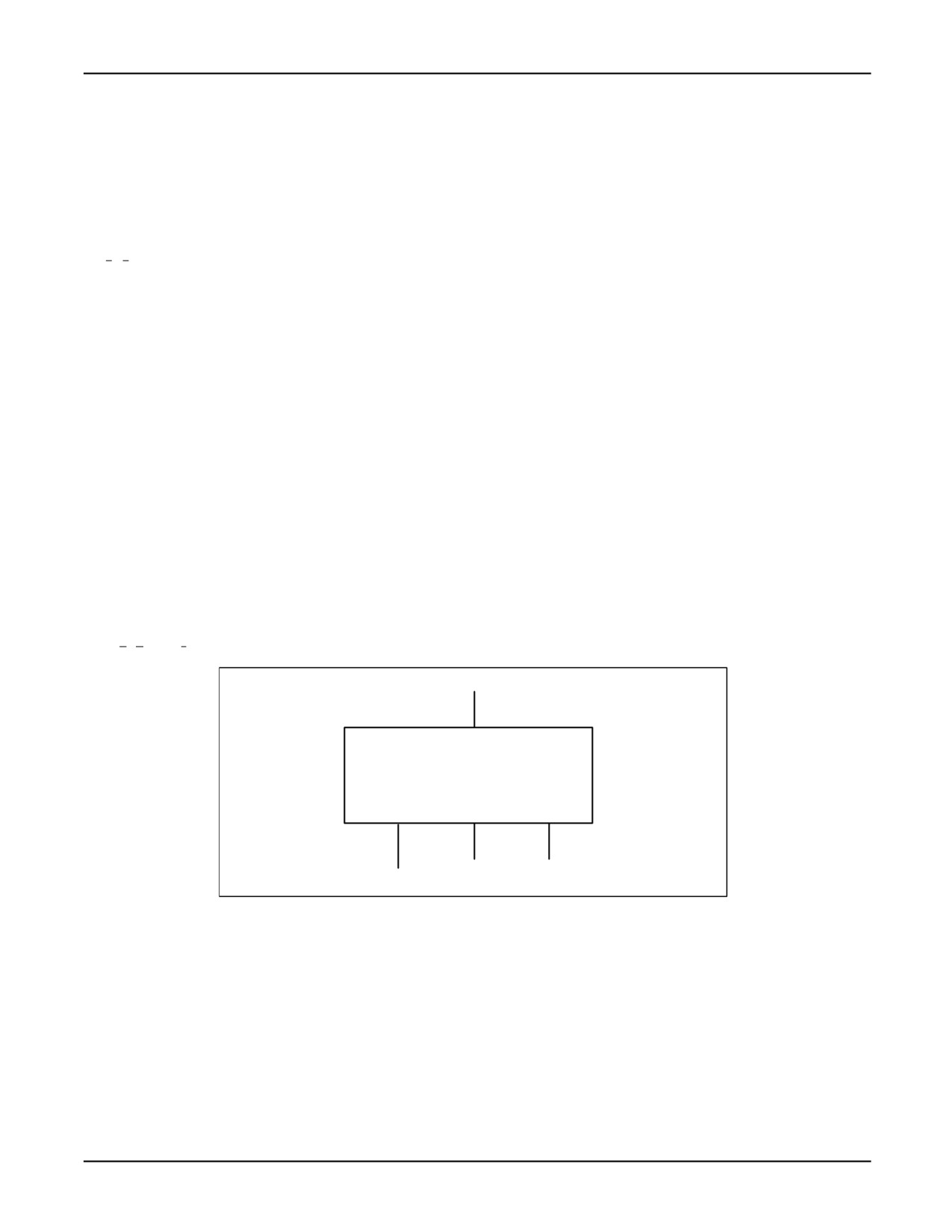
KAREL include file. Figure 10-4 illustrates compressing.
Figure 10-4. Dictionary Compressor and Form Dictionary File
.FTX file
Dictionary Compressor
.TX
.VR
.KL
Each form will generate three kinds of variables. These variables are used by the form processor.
They must be reloaded each time the form dictionary is recompressed. The variables are as follows:
1. Item array variable - The variable name will be the four-character dictionary name, concatenated
with the element number, concatenated with _IT.
2. Line array variable - The variable name will be the four-character dictionary name, concatenated
with the element number, concatenated with _LN.
10-34
MARRC75KR07091E Rev D
10. DICTIONARIES AND FORMS
3. Miscellaneous variable - The variable name will be the four-character dictionary name,
concatenated with the element number, concatenated with _MS.
The data defining the form is generated into KAREL variables. These variables are saved into the
variable file and loaded onto the controller. The name of the program is the dictionary name preceded
by an asterisk. For example, Dictionary MHPALTEG.FTX contains:
.form unnumber
$1, MH_TOOLDEFN
.endform
$2, MH_PORT
$3, MH_PORTFKEY
.form
$6, MH_APPLIO
.endform
As explained in the file naming conventions section, the dictionary name extracted from the file name
is ‘‘PALT’’. Dictionary elements 1 and 6 are forms. A variable file named PALT.VR is generated with
the program name ‘‘*PALT.’’ It contains the following variables:
PALT1_IT, PALT1_LN, and PALT1_MS
PALT6_IT, PALT6_LN, and PALT6_MS
Note KCL CLEAR ALL will not clear these variables. To show or clear them, you can SET VAR
$CRT_DEFPROG = ’*PALT’ and use SHOW VARS and CLEAR VARS.
The form is loaded using the KCL LOAD FORM command.
KCL> LOAD FORM filename
The name filename is the name of the loadable dictionary file. After this file is loaded, the dictionary
name is extracted from filename and is used to load the variable file. This KCL command is
equivalent to
KCL> LOAD DICT filename dict_name DRAM
KCL> LOAD VARS dict_name
10-35
10. DICTIONARIES AND FORMS
MARRC75KR07091E Rev D
10.3.19
Displaying a Form
The DISCTRL_FORM built-in is used to display and control a form on the teach pendant or CRT/KB
screens. All input keys are handled within DISCTRL_FORM. This means that execution of your
KAREL program will be suspended until an input key causes DISCTRL_FORM to exit the form. Any
condition handlers will remain active while your KAREL program is suspended.
Note DISCTRL_FORM will only display the form if the USER2 menu is the selected menu.
Therefore, use FORCE_SPMENU(device_stat, SPI_TPUSER2, 1) before calling DISCTRL_FORM
to force the USER2 menu.
The following screen shows the first template in FORM.FTX as displayed on the teach pendant. This
example contains four selectable menu items.
Figure
10-5. Example of Selectable Menu Items
RUNFORM
LINE 22
RUNNING
Title here
JOINT 10%
label here
1/5
1
Menu item 1
2
Menu item 2
3
Menu item 3
4
Menu item 4 line 1
Menu item 4 line 2
5
Menu item 5
The dictionary elements in FORM.FTX, shown in Example Form Dictionary for Selectable Menu
Items , were used to create the form shown in Figure 10-5 .
Example Form Dictionary for Selectable Menu Items
Dictionary Form File: form.ftx
Generate form.kl which should be included in your KAREL program
.kl form
.form
$-,forml
&home &reverse "Title here" &standard $new_line
"
label here " &new_line
@3,10
"- Menu item 1 "
@4,10
"- Menu item 2 "
@5,10
"- Menu item 3 "
@6,10
"- Menu item 4 line 1 +"
@7,10
" Menu item 4 line 2 "
@8,10
"- Menu item 5 "
* Add as many items as you wish.
10-36
MARRC75KR07091E Rev D
10. DICTIONARIES AND FORMS
* The form manager will scroll them.
^form1_fkey
* specifies element which contains
* function key labels
?form1_help
* element which contains help
.endform
$-,form1_fkey
* function key labels
"
F1" &new_line
"
F2" &new_line
"
F3" &new_line
"
F4" &new_line
"
HELP >" &new_line * help must be on F5
"
F6" &new_line
"
F7" &new_line
"
F8" &new_line
"
F9" &new_line
"
F10 >"
* you can have a maximum of 10 function keys labeled
$-, form1_help
* help text
"Help Line 1" &new_line
"Help Line 2" &new_line
"Help Line3" &new_line
* You can have a maximum of 48 help lines
The program shown in Example Program for Selectable Menu Items was used to display the form
shown in Figure 10-5 .
Example Program for Selectable Menu Items
PROGRAM runform
%NOLOCKGROUP
%INCLUDE form
-- allows you to access form element numbers
%INCLUDE klevccdf
%INCLUDE klevkeys
%INCLUDE klevkmsk
VAR
device_stat: INTEGER
--tp_panel or crt_panel
value_array: ARRAY [1] OF STRING [1]
--dummy variable for DISCTRL_FORM
inact_array: ARRAY [1] OF BOOLEAN
--not used
change_array: ARRAY [1] OF BOOLEAN
--not used
def_item:
INTEGER
term_char:
INTEGER
status:
INTEGER
BEGIN
device_stat = tp_panel
FORCE_SPMENU (device_stat, SPI_TPUSER2, 1)--forces the TP USER2
menu
10-37

10. DICTIONARIES AND FORMS
MARRC75KR07091E Rev D
def_item = 1 -- start with menu item 1
--Displays form named FORM1
DISCTRL_FORM ("FORM", form1, value_array, inact_array,
change_array, kc_func_key, def_item, term_char, status)
WRITE TPERROR (CHR(cc_clear_win))
--clear the TP error
window
IF term_char = ky_select THEN
WRITE TPERROR ("Menu item", def_item: :1, ’was selected.’)
ELSE
WRITE TPERROR (’Func key’, term_char: :1, ’ was selected.’)
ENDIF
END runform
Figure 10-6 shows the second template in FORM.FTX as displayed on the CRT/KB (only
10
numbered lines are shown at one time). This example contains all the edit data types.
Figure
10-6.
Example of Edit Data Items
RUNFORM
LINE 81
RUNNING
Title here
JOINT 10%
label here
1 Integer:
12345
2 Integer:
1
3 Real:
0.000000
4 Boolean:
TRUE
5 String:
This is a test
6 String:
**************
7 Byte:
10
8 Short:
30
9 DIN[1]:
OFF
10 AIN[1]:
0 S
11 AOUT[2]:
0 U
12 Enum Type:
FINE
13 Enum Type:
Green
14 Enum Type:
Red
15 Prog Type:
MAINTEST
16 Prog Type:
RUNFORM
17 Prog Type:
PRG1
18 Prog Type:
MAINTEST
EXIT
F1
F2
F3
F4
F5
ITEM
PAGE
PAGE+
FCTN
MENUS
F6
F7
F8
F9
F10
The dictionary elements in FORM.FTX, shown in Example Dictionary for Edit Data Items , were
used to create the form shown in Figure 10-6 .
10-38
MARRC75KR07091E Rev D
10. DICTIONARIES AND FORMS
Example Dictionary for Edit Data Items
* Dictionary Form File: form.ftx
* Generate form.kl which should be included in your KAREL
program
.kl form
.form
$-,form2
&home &reverse "
Title
here" &standard
&new_line
"
label here
"
&new_line
"
Integer:
"
"-%10d"
&new_line
"
Integer:
"
"-%10d(1,32767)"
&new_line
"
Real:
"
"-%12f"
&new_line
"
Bolean:
"
"-%10B(bool_fkey)"
&new_line
"
String:
"
"-%-20k"
&new_line
"
String:
"
"-%12k(clear)"
&new_line
"
Byte:
"
"-%10b"
&new_line
"
Short:
"
"-%10h"
&new_line
"
DIN[1]:
"
"-%10P(dout_fkey)"
&new_line
"
AIN[1]:
"
" "-%10pu" " " "-%1S(sim_fkey)"
&new_line
"
AOUT[2]:
"
" "-%10px" " " "-%1S(sim_fkey)"
&new_line
"
Enum Type:
"
"-%8n(enum_fkey)"
&new_line
"
Enum Type:
"
"-%6w(enum_subwin)"
&new_line
"
Enum Type:
"
"-%6V(ENUM_VAR)"
&new_line
"
Prog Type:
"
"-%12pk(1)"
&new_line
"
Prog Type:
"
"-%12pk(2)"
&new_line
"
Prog Type:
"
"-%12pk(6)"
&new_line
"
Prog Type:
"
"-%12pk(16)"
&new_line
^form2_fkey
.endform
$-,form2_fkey
EXIT" &new_line
*Allows you to specify
the labels for F4 and F5 function
keys
$-,bool_fkey
"FALSE"
&new_line
F5 key label, value will be set FALSE
"TRUE"
&new_line
F4 key label, value will be set TRUE
* Allows you to specify the labels for F4 and F5 function keys
$-, dout_fkey
"OFF"
&new_line
F5 key label, value will be set OFF
"ON"
&new_line
F4 key label, value will be set
ON
*Allows you to specify the labels for F4 and F5 function keys
$-, sim_fkey
" UNSIM " &new_line
F5 key label, port will be unsimulated
"SIMULATE" &new_line
F4 key label, port will be simulated
*Allows you to specify the labels for 5 function keys
$-, enum_fkey
10-39
10. DICTIONARIES AND FORMS
MARRC75KR07091E Rev D
"FINE"
&new_line
* F1 key label, value will be set to 1
"COARSE"
&new_line
* F2 key label, value will be set to 2
"NOSETTL"
&new_line
* F3 key label, value will be set to 3
"NODECEL"
&new_line
* F4 key label, value will be set to 4
"VARDECEL"
&new_line
* F5 key label, value will be set to 5
*Allows you to specify a maximum of 35 choices in a subwindow
$-,enum_subwin
"Red"
value will be set to 1
$-
"Blue"
value will be set to 2
$-
"Green"
$-
"Yellow"
$-
"\a"
specifies end of subwindow list
* Allows you to specify the choices for the subwindow in a
* variable whose type is an ARRAY[m] of STRING[n].
$-,enum_var
"RUNFORM"
&new_line
program name of variable
"CHOICES"
&new_line
Variable name containing choices
The program shown in Example Program for Edit Data Items was used to display the form in Figure
10-6 .
Example Program for Edit Data Items
PROGRAM runform
%NOLOCKGROUP
%INCLUDE form
-- allows you to access form element
numbers
%INCLUDE klevccdf
%INCLUDE klevkeys
%INCLUDE klevkmsk
TYPE
mystruc = STRUCTURE
byte_var1: BYTE
byte_var2: BYTE
short_var: SHORT
ENDSTRUCTURE
VAR
device_stat: INTEGER -- tp_panel or crt_panel
value_array: ARRAY [20] OF STRING [40]
inact_array: ARRAY [1] OF BOOLEAN
change_array: ARRAY[1] OF BOOLEAN
def_item: INTEGER
term_char: INTEGER
10-40
MARRC75KR07091E Rev D
10. DICTIONARIES AND FORMS
status: INTEGER
int_var1: INTEGER
int_var2: INTEGER
real_var: REAL
bool_var: BOOLEAN
str_var1: STRING[20]
str_var2: STRING[12]
struc_var: mystruc
color_sel1: INTEGER
color_sel2: INTEGER
prog_name1: INTEGER[12]
prog_name2: STRING[12]
Prog_name3: STRING[12]
prog_name4: STRING[12]
choices: ARRAY[5]
OF STRING[12]
BEGIN
value_array
[1] = ’int_var1’
value_array
[2] = ’int_var2’
value_array
[3] = ’real_var’
value_array
[4] = ’bool_var’
value_array
[5] = ’str_var1’
value_array
[6] = ’str_var2’
value_array
[7] = ’struc_var.byte_var1’
value_array
[8] = ’struc_var.short_var’
value_array
[9] = ’din[1]’
value_array
[10] = ’ain[1]’
value_array
[11] = ’ain[1]’
value_array
[12] = ’aout[2]’
value_array
[13] = ’aout[2]’
value_array
[14] = ’[*system*]$group[1].$termtype’
value_array
[15] = ’color_sel1’
value_array
[16] = ’color_sel2’
value_array
[17] = ’prog_name1’
value_array
[18] = ’prog_name2’
value_array
[19] = ’prog_name3’
value_array
[20] = ’prog_name4’
choices [1]
= ’’
--not used
choices [2]
= ’Red’
--corresponds to color_sel12
=
1
choices [3]
= ’Blue’
--corresponds to color_sel12
=
2
choices [4]
= ’Green’
--corresponds to color_sel12
=
3
choices [5]
= ’Yellow’
--corresponds to color_sel12
=
4
--
Initialize variables
int_var1 = 12345
-- int_var2 is purposely left uninitialized
real_var = 0
bool_var = TRUE
str_var1 = ’This is a test’
10-41
10. DICTIONARIES AND FORMS
MARRC75KR07091E Rev D
-- str_var = is purposely left uninitialized
struc_var.byte_var1 = 10
struc_var.short_var = 30
color_sel1 = 3
--corresponds to third item of enum_subwin
color_sel2 = 1
device_stat = crt_panel
--specify the CRT/KB for displaying
form
FORCE_SPMENU(device_stat, SPI_TPUSER2,1)
def_item = 1 -- start with menu item 1
DISCTRL_FORM(’FORM’, form2, value_array, inact_array,
change_array, kc_func_key, def_item, term_char, status);
END runform
Figure 10-7 shows the third template in FORM.FTX as displayed on the teach pendant. This example
contains display only items. It shows how to automatically load the form dictionary file and the
variable data file, from a KAREL program.
Figure 10-7. Example of Display Only Data Items
RUNFORM
LINE 53
RUNNING
Title here
JOINT 10%
label here
Int:
12345
Bool: TRUE
Real: 0.000000
Enum: FINE
DIN[1]: OFF
UNSIMULATED
The dictionary elements in FORM.FTX, shown in Example Dictionary for Display Only Data Items ,
were used to create the form shown in Figure 10-7 .
Example Dictionary for Display Only Data Items
Dictionary Form File: form.ftx
Generate form.kl which should be included in your KAREL program
.kl form
.form
$-,form3
&home &reverse "Title here" &standard
&new_line
"label here"
&new_line
&new_line
"Int: " "%-10d" " Bool: " "%-10B(bool_fkey)"
&new_line
"Real: " "%-10f" " Enum: " "%-10n(enum_fkey)"
&new_line
"DIN[""%1d""]: " "%-10P(dout_fkey)" "%-12S(sim2_fkey)"
*You can have as many columns as you wish without exceeding * 40 columns.
10-42
MARRC75KR07091E Rev D
10. DICTIONARIES AND FORMS
*You can specify blank lines too.
.endform
$-,sim2_fkey
"UNSIMULATED" &new_line
* F5 key label, port will be unsimulated
"SIMULATED"
&new_line
* F4 key label, port will be simulated
The program shown in Example Program for Display Only Data Items was used to display the form
shown in Figure 10-7 .
Example Program for Display Only Data Items
PROGRAM runform
%NOLOCKGROUP
%INCLUDE form
-- allows you to access form element
numbers
%INCLUDE klevccdf
%INCLUDE klevkeys
%INCLUDE klevkmsk
device_stat: INTEGER -- tp_panel or crt_panel
value_array: ARRAY [20] OF STRING [40]
inact_array: ARRAY [1] OF BOOLEAN -- not used
change_array: ARRAY[1] OF BOOLEAN -- not used
def_item: INTEGER
term_char: INTEGER
status: INTEGER
loaded: BOOLEAN
initialized: BOOLEAN
int_var1: INTEGER
int_var2: INTEGER
real_var: REAL
bool_var: BOOLEAN
BEGIN
-- Make sure ’FORM’ dictionary is loaded.
CHECK_DICT(’FORM’, form3, status)
IF status <> 0 THEN
WRITE TPPROMPT(CR,’Loading form
’)
KCL (’CD MF2:’,status)
--Use the KCL CD
command
to
--change directory to MF2:
KCL ( ’LOAD FORM’, status)
--Use the KCL load for command
--to load in the form
IF status <> 0 THEN
WRITE TPPROMPT(CR,’loading from failed, STATUS=’,status)
ABORT
--Without the dictionary this program cannot continue.
ENDIF
ELSE
WRITE TPPROMPT (CR,’FORM already loaded.’)
ENDIF
10-43
10. DICTIONARIES AND FORMS
MARRC75KR07091E Rev D
value_array [1] = ’int_var1’
value_array [2] = ’bool_var’
value_array [3] = ’real_var’
value_array [4] = ’[*system*]$group[1].$termtype’
value_array [5] = ’int_var2’
value_array [6] = ’din[1]’
value_array [7] = ’din[1]’
int_var1 = 12345
bool_var = TRUE
real_var = 0
int_var2 = 1
device_stat = tp_panel
FORCE_SPMENU(device_stat, SPI_TPUSER2,1)
def_item = 1 -- start with menu item 1
DISCTRL_FORM(’FORM’, form3, value_array, inact_array,
change_array, kc_func_key, def_item, term_char, status);
END runform
10-44
Chapter 11
SOCKET MESSAGING
Contents
Chapter 11
SOCKET MESSAGING
11-1
11.1
OVERVIEW
11-2
11.2
SYSTEM REQUIREMENTS
11-2
11.2.1
Overview
11-2
11.2.2
Software Requirements
11-2
11.2.3
Hardware Requirements
11-2
11.3
CONFIGURING THE SOCKET MESSAGING OPTION
11-3
11.3.1
Overview
11-3
11.3.2
Setting up a Server Tag
11-3
11.3.3
Setting up a Client Tag
11-6
11.4
SOCKET MESSAGING AND KAREL
11-9
11.4.1
Overview
11-9
11.4.2
MSG_CONN( string, integer )
11-9
11.4.3
MSG_DISCO( string, integer )
11-9
11.4.4
MSG_PING( string, integer )
11-10
11.4.5
Exchanging Data during a Socket Messaging Connection
11-10
11.5
NETWORK PERFORMANCE
11-10
11.5.1
Overview
11-10
11.5.2
Guidelines for a Good Implementation
11-11
11.6
PROGRAMMING EXAMPLES
11-11
11.6.1
11-11
11.6.2
A KAREL Client Application
11-11
11.6.3
A KAREL Server Application
11-14
11.6.4
ANSI C Loopback Client Example
11-16
11-1
11. SOCKET MESSAGING
MARRC75KR07091E Rev D
11.1
OVERVIEW
The User Socket Messaging Option gives you the benefit of using TCP/IP socket messaging from
KAREL.
Socket Messaging enables data exchange between networked robots and a remote PC with LINUX, or
a UNIX workstation. A typical application of Socket Messaging might be a robot running a KAREL
program that sends process information to a monitoring program on the remote PC. The combination
of PC-Interface option on the robot and PC-Developers Kit on the PC is recommended for data
exchange between the robot and a Windows-based PC.
Socket Messaging uses the TCP/IP protocol to transfer raw data, or data that is in its original,
unformatted form across the network. Commands and methods that Socket Messaging uses to transfer
data are part of the TCP/IP protocol. Since Socket Messaging supports client and server tags,
applications requiring timeouts, heartbeats, or data formatting commands can provide these additional
semantics at both the client and server (application) sides of the socket messaging connection.
11.2
SYSTEM REQUIREMENTS
11.2.1
Overview
This section contains information about the compatibility of socket messaging with some typical
network software, transmission protocols, and interface hardware.
11.2.2
Software Requirements
Socket Messaging is compatible with all other Internet Options including DNS, FTP, Web Server,
and Telnet.
Note Client and Server tags are shared between Socket Messaging and other supported protocols,
such as FTP. For example, a tag can be set for either FTP operation, or for SM (Socket Messaging)
operation.
11.2.3
Hardware Requirements
Socket Messaging is compatible with all network hardware configurations that use the TCP/IP
network protocol. Some of these network hardware configurations include Ethernet, serial PPP
connections and PPP modem connections.
11-2