FANUC MANUAL GUIDE i. OPERATOR’S MANUAL - page 3
B-63874EN/05
OPERATION
1.OVERVIEW OF THE PROCEDURE
1
OVERVIEW OF THE PROCEDURE
- 43 -
1.OVERVIEW OF THE PROCEDURE OPERATION
B-63874EN/05
1.1
MAIN FEATURES OF MANUAL GUIDE i
By using MANUAL GUIDE i, the operator can carry out routine
machining easily.
1)
Integrated operation screen that enables almost all routine
machining operations
A single integrated operation screen enables routine machining
operations including machining program input/editing, animated
simulation-based machining program checks, production
machining, MDI operations, and manual operations with JOG
and HANDLE.
2)
Machining programs in ISO code format
Using ISO code machining programs, which are in wide use,
enables the operator to specify simple operations with simple
commands, such as those for straight lines and arcs, and
complicated machining operations with machining cycles easily.
3)
High affinity with CAD/CAM
ISO code machining programs created using CAD/CAM can be
used without modification. Adding advanced machining cycles to
these machining programs makes them perfect machining
programs. They can be checked easily, using animated
simulation.
4)
Advanced machining program editing
Using advanced editing functions, such as substring search and
cut/paste via the clipboard, enables easy editing of machining
programs.
5)
Advanced machining using machining cycles (option)
Advanced machining cycles are available which cover various
types of machining including milling and turning. With these
machining cycles, it is possible to perform complex machining
by creating and running programs easily.
6)
Fixed format program menu-driven simple program entry
Register a series of frequently used machining operations
previously as a menu, and select necessary machining operations
from the menu when creating a machining program. This method
can eliminate the trouble of entering similar machining
operations repeatedly.
7)
M code menu
It is possible to input M codes easily by referencing explanations
displayed in an M code menu. Machine tool builders can create
the explanations easily.
- 44 -
B-63874EN/05
OPERATION
1.OVERVIEW OF THE PROCEDURE
8)
Realistic animated simulation (option)
Machining programs can be checked easily, using an animated
simulation method that can realistically show what the surface
machined with a specific type of tool tip is like. In addition, you
can check a simulated workpiece as if you were looking at a real
workpiece because the animated simulation method uses solid
models for all operations, from milling to turning, for the
workpiece.
9) Advanced set-up guidance (option)
It is possible to set up machining operations and check the
precision of machined workpieces easily, using an advanced
set-up guidance function that can handle all measurements, from
tool offset measurement to the measurement of workpieces in
machine tools.
10) Supporting a wide variety of machine types including lathes
and machining centers
MANUAL GUIDE i supports lathes
1 to
3, vertical and
horizontal machining centers, and
tilting head-equipped
machining centers with 3 + 2 axes. It also supports compound
machine tools that are capable of turning and milling.
- 45 -
2.MACHINING PROGRAM FORMAT OPERATION
B-63874EN/05
2
MACHINING PROGRAM FORMAT
Machining programs used with MANUAL GUIDE i are created using
the ISO code format, which is widely used in CNC machine tools.
They use 4-digit G code machining and measurement cycles to
implement further advanced machining operations.
These 4-digit G code machining and measurement cycles can be input
and edited easily, using menu windows in which machining data can
be entered interactively.
When a machining program is being edited, an explanation about an
address pointed to with the cursor is displayed at the bottom of the
screen.
Remark)
“Word” is the minimum data unit of NC part program, and
specified by the combination of address (A to Z) and numerical
data (0 to 9, +, -, decimal point).
“Address” means the content of numerical data such as moving
axis name.
Remark)
“Cursor” of the part program means the part whose background
area is displayed by yellow. The part displayed by yellow is
called “selected by the cursor”, and program editing operation
will be dealt on this part.
There are 2 case cases for the selected part by the cursor.
(1)
1 block
When the cursor moved the top of the next block by
pressing the cursor key →, the whole word data included in
the block are selected.
When the cursor selects the top word data of some block,
the whole word data included in the block are selected by
pressing the cursor key ←.
In case that the whole word data include in the block are
selected by the cursor, the next or previous 1 block will be
selected by pressing the cursor key ↓ or ↑.
(2)
1 word
In case that the whole word data in 1 block are selected by
the cursor as described above, if you push the cursor key ←
or →, the cursor will select 1 word only. By pressing the
cursor key ← or → again, the cursor will select the next 1
word.
When the 1 word is selected, the cursor will select the 1
word of same order in the nest or previous block by
pressing the cursor key ↑ or ↓.
- 46 -
B-63874EN/05
OPERATION
2.MACHINING PROGRAM FORMAT
Remark)
In the screen, in which numerical data are directly entered such
as offset data or cycle machining data, the cursor is specified by
displaying the data frame by blue.
The part specified by blue frame is called “data item selected by
the cursor”, and you can enter the proper data by pressing
INPUT key after entering numeric data by numeric keys.
By pressing the cursor key ← ↑ → ↓, you can select the next or
previous data item.
- 47 -
3.EDITING MACHINING PROGRAMS OPERATION
B-63874EN/05
3
EDITING MACHINING PROGRAMS
- 48 -
B-63874EN/05
OPERATION 3.EDITING MACHINING PROGRAMS
3.1
MACHINING PROGRAM WINDOW AND EIDITNG
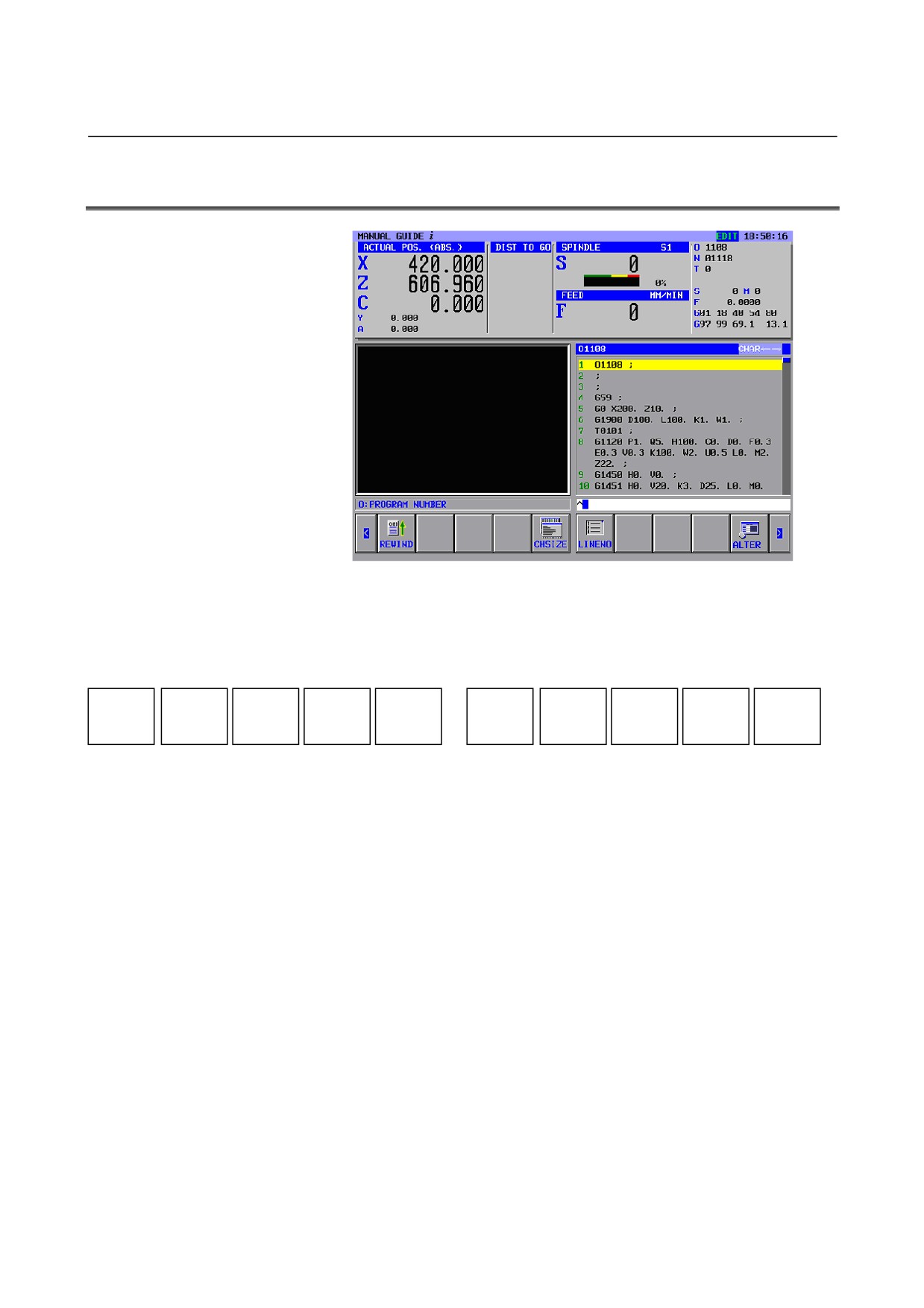
MANUAL GUIDE i uses a program window to input and edit
machining programs (in ISO code format).
The program window is operated using the following soft keys, which
are displayed by pressing the leftmost soft key [<] or rightmost soft
key [>] several times.
REWIND
CHSIZE
LINENO
SETING
[REWIND] : This soft key takes you to the beginning of the program.
[CHSIZE]
: This soft key zooms the program window to full screen.
[LINENO]
: This soft key selects whether to display the line number
at the beginning of each block. The line number is not
memorized in the machining program.
[SETING]
: This soft key opens the setting screen.
The scroll bar displayed on the right edge of the program window
indicates the approximate position of the cursor throughout the
machining program.
The cursor is moved around in the program window, using the cursor
keys ←, ↑, ↓, and →. Pressing → moves the cursor right in a block.
To move the cursor to the next block, you need to select the block
entirely once and then select an individual address. Pressing. ← has
the same effect as for → except for the direction in which the cursor
moves.
- 49 -

3.EDITING MACHINING PROGRAMS OPERATION
B-63874EN/05
The program is edited using the following soft keys, which are
displayed by pressing the leftmost soft key [<] or rightmost soft key
[>] several times.
NEWPRG
OPEN
SRCH↑
SRCH↓
O SRCH
COPY
CUT
DELETE
KEYPST
PASTE
Remark)
Basically, soft keys are placed in form of 1 line. By pressing the
right end key [>], the soft keys shifted to right direction by 10
will appear. By pressing the left end key [<], the left side soft
keys shifted by 10 will appear.
When the right end soft keys are displayed, the left end soft keys
will appear by pressing [>]. When the left end soft keys are
displayed, the right end soft keys will appear by pressing [<].
- 50 -
B-63874EN/05
OPERATION 3.EDITING MACHINING PROGRAMS
3.2
CREATING MACHINING PROGRAMS
NEWPRG
O LIST
SRCH↑
SRCH↓
O SRCH
COPY
CUT
DELETE
KEYPST
PASTE
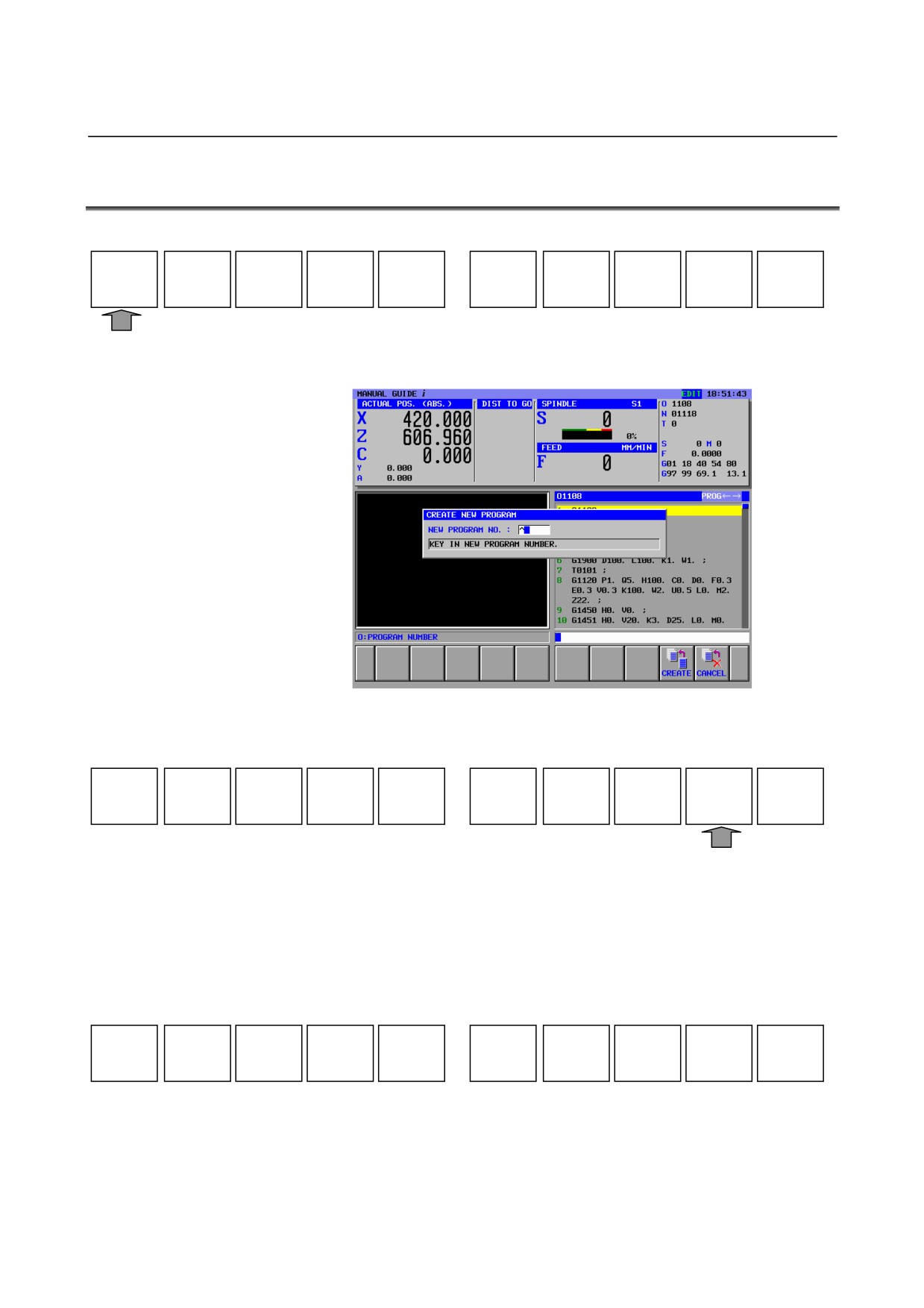
Pressing [NEWPRG] displays the program creation window.
For the program creation window, the following soft keys are
displayed.
CREATE
CANCEL
In this window, enter a program number, using numeric keys, and then
press [CREATE].
Usually, the program number is 4 digits, but you can use 8 digits
program number when the corresponding optional function is added.
Pressing [CREATE], new program with entered program number only
is created, and it is displayed in the program window. In that case, the
following soft keys for editing operation are displayed.
NEWPRG
O LIST
SRCH↑
SRCH↓
O SRCH
COPY
CUT
DELETE
KEYPST
PASTE
In addition to the above operation, you can create new part program
by entering new program number after the address “O”, and pressing
INSERT key.
- 51 -
3.EDITING MACHINING PROGRAMS OPERATION
B-63874EN/05
3.3
EDITING IN A PROGRAM LIST
NEWPRG
O LIST
SRCH↑
SRCH↓
O SRCH
COPY
CUT
DELETE
KEYPST
PASTE
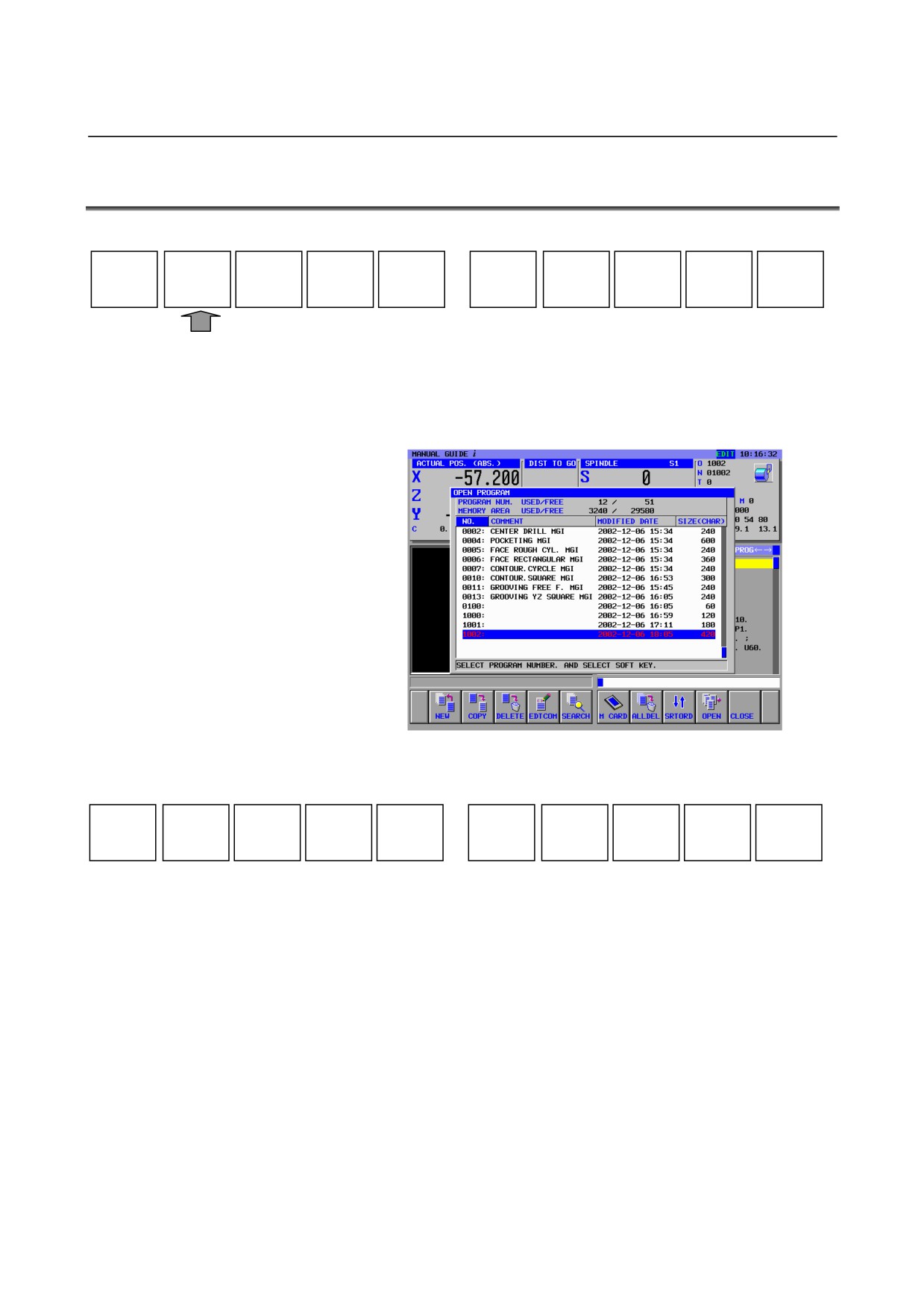
Pressing [O LIST] displays a window that lists registered machining
programs.
By pressing the ← or → cursor key, a sort type (sort by number, sort
by date and time of updating, or sort by size) can be selected.
The following soft keys are displayed in the window. They can be
used for editing such as copying or deleting machining programs.
NEW
COPY
DELETE
EDTCOM
SEARCH
M CARD
ALLDEL
SRTORD
OPEN
CLOSE
[NEW]
: This soft key displays the program creation window, in
which you can create machining programs.
[COPY]
: This soft key displays the program copy window. After
a program number is entered using numeric keys,
pressing [COPY] copies the specified program.
[DELETE]
: This soft key displays a message for asking you
whether you really want to delete a specified program.
Pressing [YES] deletes the specified program. Pressing
[NO] cancels the request to delete the specified
program.
[EDTCOM] : This soft key displays the comment (program name)
edit window. If you move the cursor, using ← or →,
and enter a character, using MDI keys, the character
appears at the left of the cursor. Using the CAN key can
delete the character at the left. Pressing
[ALTER]
causes the comment to be changed.
- 52 -
B-63874EN/05
OPERATION 3.EDITING MACHINING PROGRAMS
[SEARCH] : This soft key displays the program search window.
After entering a desired program number in the window,
using numeric keys, press [SEARCH].
[M CARD] : This soft key enables input/output to and from the
memory card.
[ALLDEL] : This soft key displays a message for checking if all
programs may be deleted. Pressing [YES] deletes all
programs. Pressing
[NO] cancels the deletion of all
programs.
[SRTORD] : This soft key switches the sort order for displaying
programs between ascending order and descending
order.
[OPEN]
: After placing the cursor on a program you want to edit,
using the ↑ or ↓ cursor key, pressing this soft key
selects the program and closes the list window. Then,
the soft keys described at the top of this subchapter are
displayed again.
[CLOSE]
: This soft key closes the program list window.
- 53 -

3.EDITING MACHINING PROGRAMS OPERATION
B-63874EN/05
3.4
SEARCHING FOR A MACHINING PROGRAM TO BE
EDITED
NEWPRG
O LIST
SRCH↑
SRCH↓
O SRCH
COPY
CUT
DELETE
KEYPST
PASTE
After entering a desired program number, using numeric keys,
pressing [O SRCH] can select the program.
Pressing [O SRCH] without entering a program number causes the
next program to be selected.
Pressing the O key on the MDI panel, the soft keys changes to the
above one, so enter the program number to be searched and press [O
SRCH].
And as another way, you can select the program in the program list by
pressing [OPEN] after placing the cursor on the program number to be
selected.
When the part program is selected, the content of the part program is
displayed in the program window, and the above soft keys will be
displayed.
- 54 -

B-63874EN/05
OPERATION 3.EDITING MACHINING PROGRAMS
3.5
BASIC EDITING OPERATIONS OF PART PROGRAM
Since MANUAL GUIDE i uses ISO-code form part program, editing
of 1 word, minimum unit of the program and made from address and
numerical data, are available by using INSERT, ALTER and
DELETE keys, which are placed on the MDI panel.
3.5.1
Entering a Word (INSERT key)
Operation
(1) Select the word, before which you want to insert the new
word, by placing the cursor. Otherwise, select the block,
before which you want to insert the new word, by placing
the cursor.
(2) Enter new word by MDI keys. Plural words can be entered
at once.
(3) Press INSERT.
NOTE
1 In the case a parameter No.14852#2(G4E) is set to
0, when a cursor is placed on the word in the cycle
machining block and an operator is going to insert a
new word, the warning to confirm an operator
whether it can be done or not will be displayed.
3.5.2
Modifying a Word (ALTER key)
Operation
(1) Select the word to be modified by placing the cursor on the
word.
(2) Enter new word by MDI keys. Plural words can be entered
at once.
(3) Press ALTER.
3.5.3
Modifying the Numeric Value of a Word (ALTER key)
Operation
(1) Select the word to be modified by placing the cursor on the
word.
(2) Enter new numeric data only by MDI keys. Plural words
can not be entered.
(3) Press ALTER.
- 55 -

3.EDITING MACHINING PROGRAMS OPERATION
B-63874EN/05
3.5.4
Deleting a Word (DELETE key)
Operation
(1) Select the word to be deleted by placing the cursor on the
word.
(2) Press DELETE.
NOTE
1 As the deleting operation in the CNC program
screen, no prompting message for deleting a word
is displayed.
2 Program number, Oxxxx, and end of program, %,
cannot be deleted.
3.5.5
Modifying a Block (ALTER key)
Operation
(1) Select the block to be modified by placing the cursor on the
block.
(2) Enter new word by MDI keys. Plural words can be entered
at once.
(3) Press ALTER.
3.5.6
Deleting a Block (DELETE key)
Operation
(1) Select the block to be deleted by placing the cursor on the
block.
(2) Press DELETE.
3.5.7
Changing the Program Number (ALTER key)
Operation
(1) Select the program number word, Oxxxx, by placing the
cursor on the word.
(2) Enter the address “O” and new program number by MDI
keys.
(3) Press ALTER.
- 56 -

B-63874EN/05
OPERATION 3.EDITING MACHINING PROGRAMS
3.6
SEARCH (FORWARD AND BACKWARD)
NEWPRG
O LIST
SRCH↑
SRCH↓
O SRCH
COPY
CUT
DELETE
KEYPST
PASTE
[
]
After a character string is entered using MDI keys, pressing [SRCH↑]
(backward search) or
[SRCH↓] (forward search) searches for the
specified character string. A substring can also be searched for.
If the character string is found, key-in buffer is cleared, but the string
is displayed in the [
] under [SRCH↑] and [SRCH↓].
This displayed string can be used for the next time searching operation.
Only pressing [SRCH↑] or [SRCH↓] without entering same string
again, you can search the same string over and over.
- 57 -
3.EDITING MACHINING PROGRAMS OPERATION
B-63874EN/05
3.7
CUT
NEWPRG
O LIST
SRCH↑
SRCH↓
O SRCH
COPY
CUT
DELETE
KEYPST
PASTE
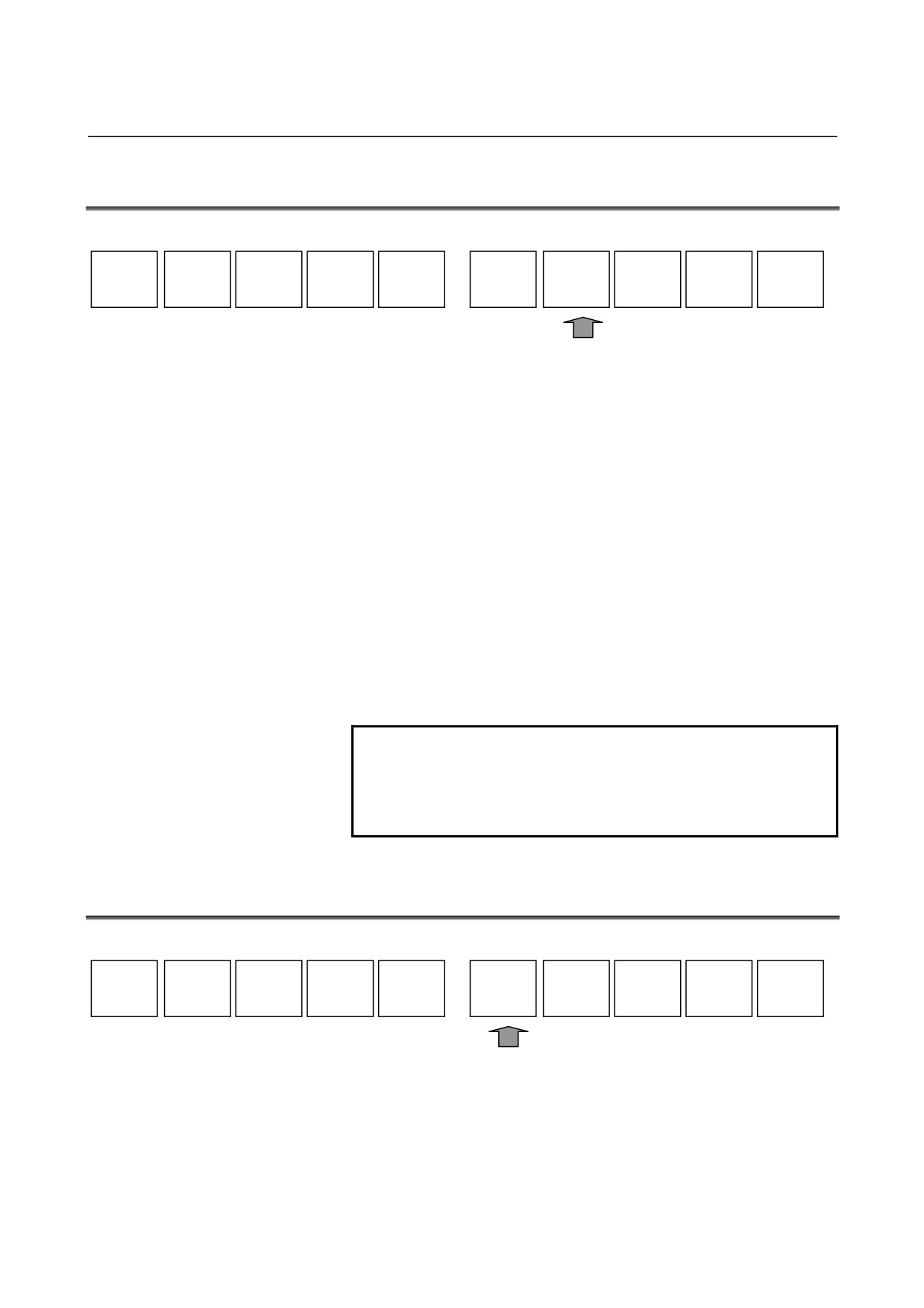
Pressing [CUT] displays a message that prompts you to select a range
of data to be cut. First select the cut range (by displaying it in yellow),
using cursor keys, and then press [CUT]. The data cut off from the
specified range is stored on the clipboard. The contents of the
clipboard can be pasted to other places in the program and to other
programs.
Clip board is the memory, in which the content of part program can be
stored temporary. By pressing [CUT] or [COPY], the content of the
cursor selected is stored in it, then the old content is cleared. The
content of the clip board is cleared at the power off of CNC.
A clip board size can be selected using bits 4 and 5 of parameter No.
14701.
Bit 4 = 0, bit 5 = 0: Sets a clip board size of 1024 bytes.
Bit 4 = 1, bit 5 = 0: Sets a clip board size of 2048 bytes.
Bit 4 = 0, bit 5 = 1: Sets a clip board size of 4096 bytes.
Bit 4 = 1, bit 5 = 1: Sets a clip board size of 8192 bytes.
NOTE
The contents of the clipboard are preserved until
the power is shut off or other data is stored on the
clipboard. So, the clipboard contents can be used
any number of times.
3.8
COPY
NEWPRG
O LIST
SRCH↑
SRCH↓
O SRCH
COPY
CUT
DELETE
KEYPST
PASTE
Pressing [COPY] displays a message that prompts you to select a
range of data to be copied. First select the copy range (by displaying it
in yellow), using cursor keys, and then press [COPY]. The data copied
from the specified range is stored on the clipboard. The contents of the
clipboard can be pasted to other places in the program and to other
programs.
- 58 -
B-63874EN/05
OPERATION 3.EDITING MACHINING PROGRAMS
3.9
PASTE
NEWPRG
O LIST
SRCH↑
SRCH↓
O SRCH
COPY
CUT
DELETE
KEYPST
PASTE
Pressing [PASTE] pastes the contents of the clipboard to the place that
immediately follows the current cursor position.
The clipboard contents are preserved.
3.10 DELETE
NEWPRG
O LIST
SRCH↑
SRCH↓
O SRCH
COPY
CUT
DELETE
KEYPST
PASTE
Pressing [DELETE] displays a message that prompts you to select a
range of data to be deleted. First select the delete range (by displaying
it in yellow), using cursor keys, and then press [SELECT]. A message
appears which asks whether you really want to delete the selected data.
Pressing [YES] deletes the data.
The deleted data is not stored on the clipboard. The clipboard
preserves the previous contents.
- 59 -
3.EDITING MACHINING PROGRAMS OPERATION
B-63874EN/05
3.11 KEY-IN PASTE
NEWPRG
O LIST
SRCH↑
SRCH↓
O SRCH
COPY
CUT
DELETE
KEYPST
PASTE
Pressing [KEYPST] copies the contents of a range selected (displayed
in yellow) using the cursor to the key-in buffer.
Using the ← and → cursor keys can move the cursor around in the
key-in buffer, so a character entered using an MDI key can be placed
immediately before the cursor. Pressing the CAN key deletes the
character at the left of the cursor.
The character strings in the key-in buffer can be used in the same
manner as for ordinary editing. Pressing the ALTER key, for example,
replaces the cursor-selected current contents in the program with the
current contents of the key-in buffer. Pressing the INSERT key
inserts the key-in buffer contents to the place that immediately follows
the cursor-selected contents in the program.
Pressing CAN after SHIFT clears the contents of the key-in buffer.
NOTE
Using key-in paste enables a very long comment
program and part of a custom macro program block
to be changed easily.
- 60 -
B-63874EN/05
OPERATION 3.EDITING MACHINING PROGRAMS
3.12 UNDO, REDO
G-CONT
UNDO
REDO
WK-SET
T-OFS
SETING
Pressing [REDO] during editing in the MDI mode, EDIT mode, or
MEM mode can cancel (undo) a program editing operation using the
MANUAL GUIDE i. Pressing
[UNDO] can cancel
(redo) the
cancellation of an operation. This function can be used, for example,
when a block has been deleted by mistake.
NOTE
1 Before the undo function or redo function can be
used with MANUAL GUIDE i, the size of a buffer
for storing operations must be set in parameter No.
14861. When 0 is set in the parameter, a 5-KB
buffer is allocated.
2 The undo and redo functions can be used for
editing operations in a selected program. This
means that the creation of a new program and the
deletion of a program cannot be undone, and the
editing of the key-in buffer cannot be undone.
3 When the screen display is switched or an
operation for opening a program is performed, the
buffer is cleared.
- 61 -
3.EDITING MACHINING PROGRAMS OPERATION
B-63874EN/05
3.13 M-CODE MENU
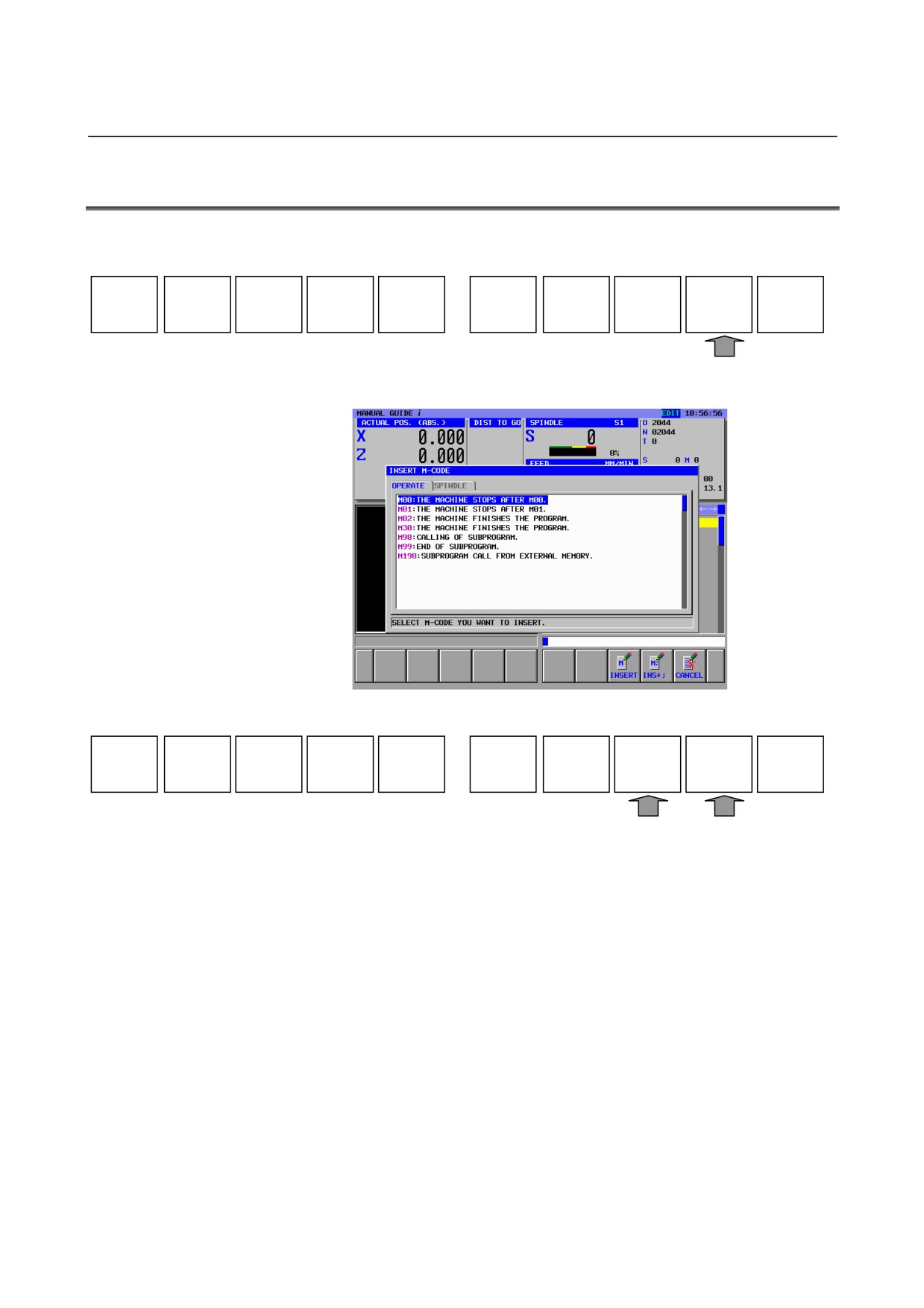
Pressing the leftmost soft key [<] or rightmost soft key [>] several
times displays [M CODE] as follows:
START
CYCLE
END
MECYC
ALTER
FIGURE
M CODE
FIXFRM
Pressing [M CODE] displays the M code menu.
The following soft keys are displayed for M-code menu.
INSERT
INS+;
CANCEL
Select an M code group, using the ← and → cursor keys, and then
select an M code from the M code group, using the ↑ and ↓ cursor
keys.
Pressing
[INSERT] inserts the selected M code to the place that
follows immediately the cursor position in the program. Pressing
[INS+;] inserts an EOB to the place that follows immediately the M
code at the same time.
Entering M-code continuously and pressing [INS+;] at last, plural
M-code can be entered in one block.
By the following operations, M-code in a part program can be altered
directly by using M-code menu.
1)
Place a cursor on the M-code should be altered.
2)
Press
[ALTER] or INPUT-key, then M-code menu will be
displayed.
3)
Select a M-code by placing a cursor in the M-code menu
window.
- 62 -
B-63874EN/05
OPERATION 3.EDITING MACHINING PROGRAMS
4)
Pressing [ALTER], then M-code will be replaced to the newly
selected one.
NOTE
1 In many cases, M codes in the M code menu are
set up to a machine tool by the machine tool
builder. So, the M code menu varies from one
machine tool to another.
2 If the bit 4 of parameter No. 14850 is set to 1, M
code menu is disabled.
- 63 -
3.EDITING MACHINING PROGRAMS OPERATION
B-63874EN/05
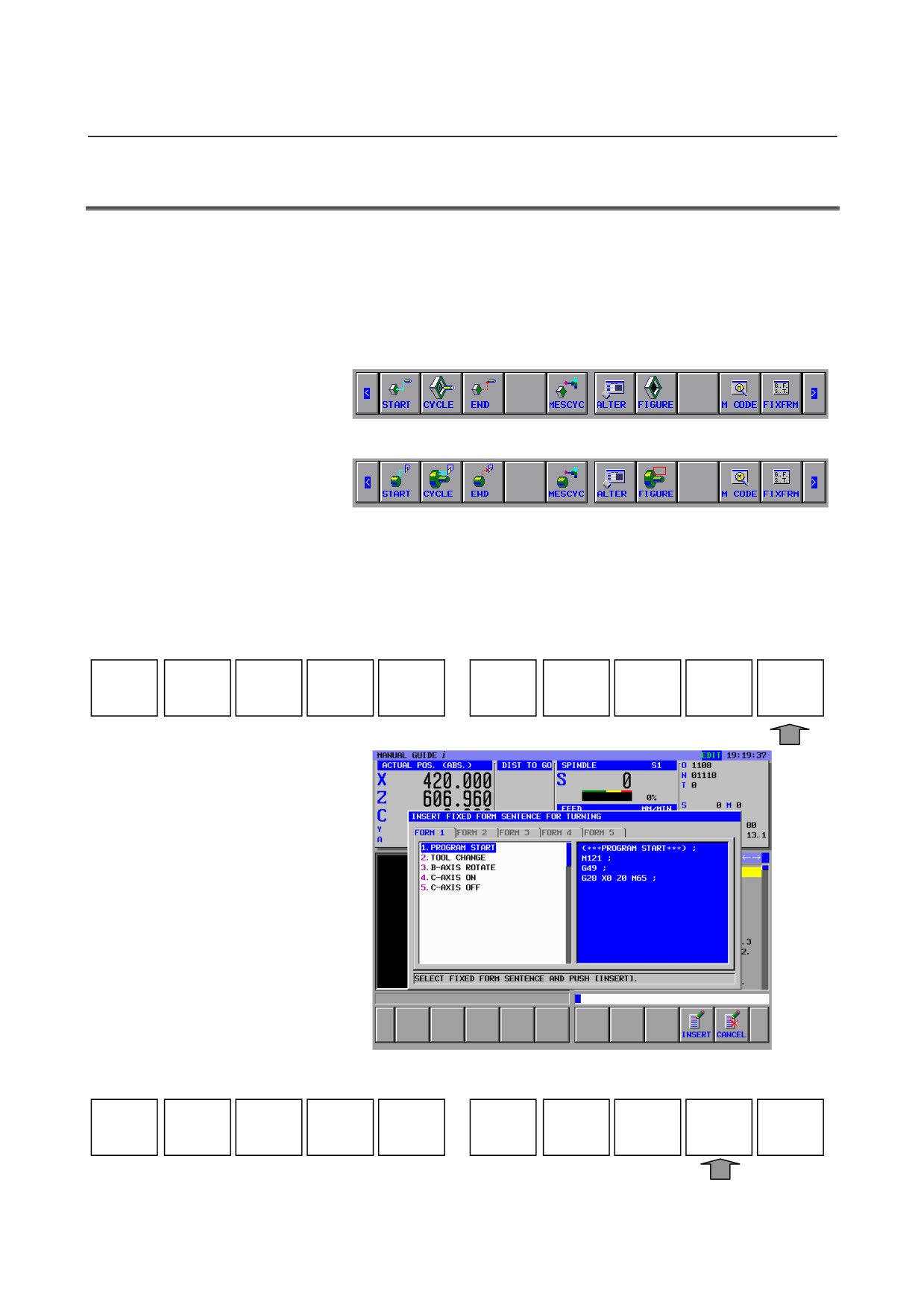
3.14 FIXED FORM SENTENCE INSERTION
Pressing the leftmost soft key [<] or rightmost soft key [>] several
times displays [FIXFRM] for milling or turning.
However, there is a case that either of them is displayed depending on
the machine construction, so into details, refer to the document made
by machine tool builder.
(Example of softy key menu for milling)
(Example of softy key menu for turning)
Pressing the leftmost soft key [<] or rightmost soft key [>] several
times displays [FIXFRM].
If
[FIXFRM] is displayed together with a milling soft key menu,
pressing it displays a milling fixed form sentence menu. If [FIXFRM]
is displayed together with a turning soft key menu, pressing it displays
a turning fixed form sentence menu.
START
CYCLE
END
MECYC
ALTER
FIGURE
M CODE
FIXFRM
The following soft keys are displayed for the fixed form sentence
menu.
INSERT
CANCEL
- 64 -

B-63874EN/05
OPERATION 3.EDITING MACHINING PROGRAMS
Select a fixed form sentence group, using the ← and → cursor keys,
and then select a fixed form sentence from the fixed form sentence
group, using the ↑ and ↓ cursor keys.
Pressing [INSERT] inserts the selected fixed form sentence to the
place that follows immediately the cursor position in the program.
Using this function makes it easy to enter machining program patterns
(fixed form sentences) that may be used frequently.
As the following example, you can register the fixed form sentence, in
which undefined data is replaced to the special character such as “?”.
1. TOOL CHANGE
G28 G91 X0. Y0. ;
G28 Z0. ;
T? ;
M03 S? ;
When the fixed form sentence, in which this special character is
included, is inserted to the part program, warning to urge an operator
to enter the defined data.
Entering the data that is used actually and pressing ALTER can make
the correct part program.
This special character is displayed in red in the program window.
This special character and displaying color can be modified by setting
corresponding parameters.
Set ASCII code in decimal value of the special character to the
parameter No.14860. If 0 is set to this parameter, “?” is used as the
special character.
Set the color code of the displaying color to the parameter No.14480
in form of “AABBCC”. AA is red color value, BB is green color value
and CC is blue color value. If 0 is set to this parameter, the character is
displayed in red.
NOTE
1 In many cases, fixed form sentences in the fixed
form sentence menu are set up to a machine tool
by the machine tool builder. So, the fixed form
sentence menu varies from one machine tool to
another.
Operators can make changes and additions to the
menu. For details, see the descriptions about
[SETING].
2 Start and end command fixed form sentences can
be called from the fixed form sentence group
separately, using, respectively, [START] and
[END].
- 65 -
4.EDITING CYCLE MACHINING OPERATIONS OPERATION
B-63874EN/05
4
EDITING CYCLE MACHINING
OPERATIONS
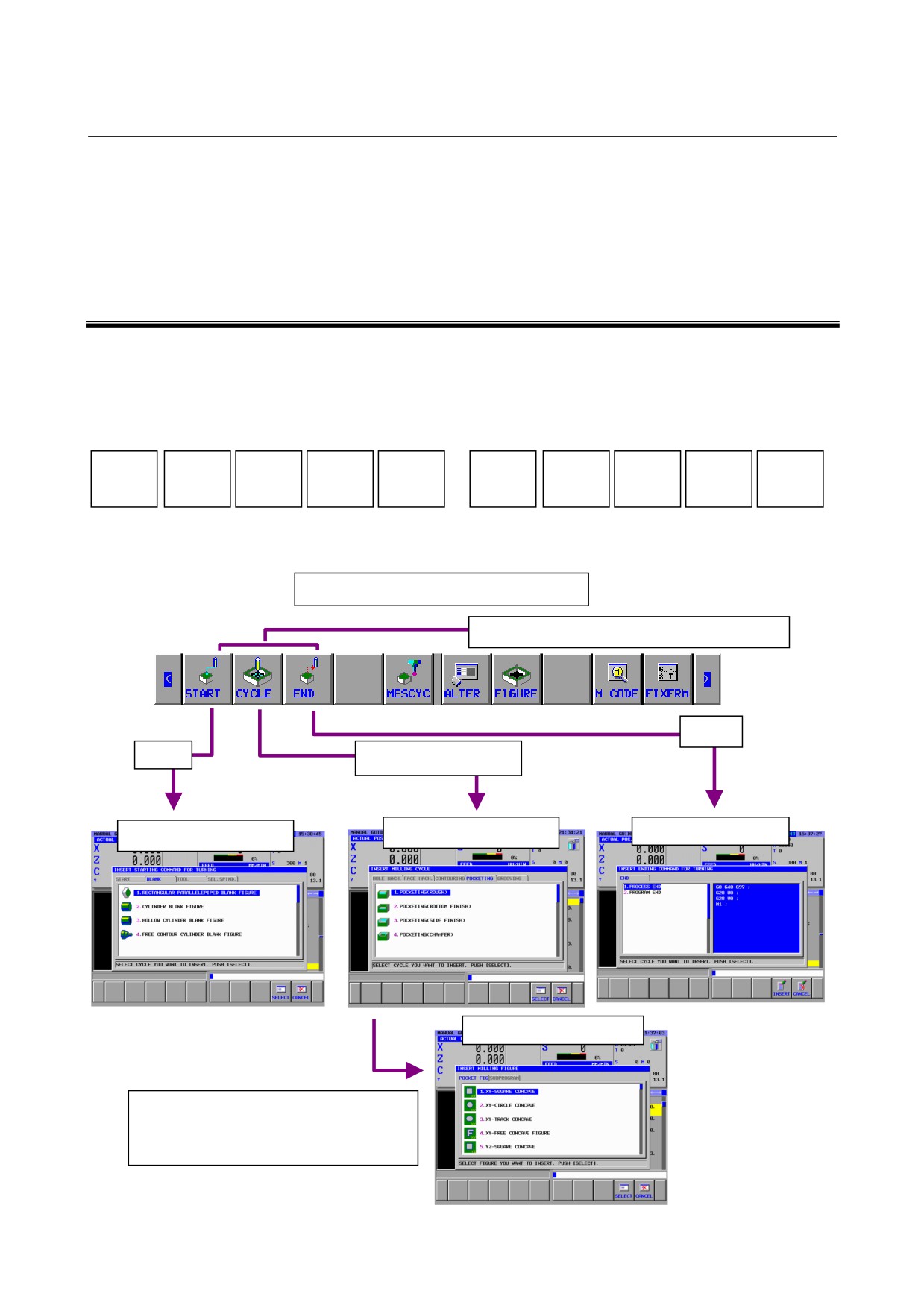
Pressing the leftmost soft key [<] or rightmost soft key [>] several
times displays the following cycle machining soft key menu.
Two cycle machining types, milling and turning, are optionally
supported. A soft key menu is available for each cycle machining
type.
START
CYCLE
END
MESCYC
ALTER
FIGURE
M CODE
FIXFRM
See Sections 3.13 and 3.14 for explanations about [M CODE] and
[FIXFRM].
Flow of creating a part program
Soft key menus for process programming
End
Start
Cycle Processing
Process Cycle Menu
Process End Menu
Process Start Menu
Cycle Shape Menu
Only the menu of the cycle form which
can be used in the selected
processing cycle is displayed
automatically.
- 66 -
B-63874EN/05
OPERATION
4.EDITING CYCLE MACHINING OPERATIONS
4.1
ENTERING THE START COMMAND
START
CYCLE
END
MESCYC
ALTER
FIGURE
M CODE
FIXFRM
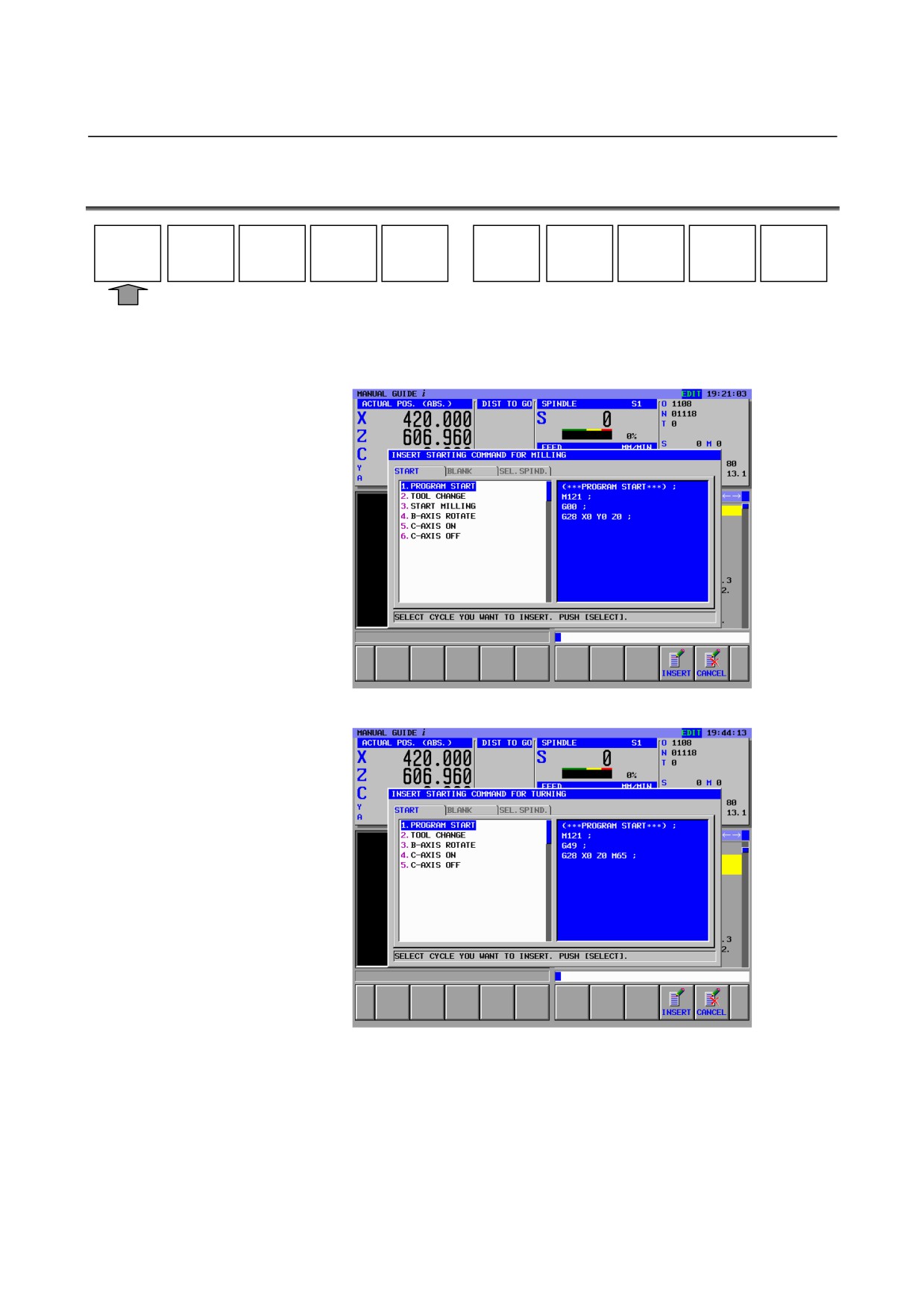
Pressing [START] displays the start command fixed form sentence
menu.
(Example of the fixed form sentence menu for milling start)
(Example of the fixed form sentence for turning start)
Select a fixed form sentence, using the ↑ and↓ cursor keys.
Pressing [INSERT] inserts the selected fixed form sentence to the
place that follows immediately the current cursor position in the
program.
This operation makes it easy to enter machining program patterns
(fixed form sentences) that are used frequently at machining program
start.
- 67 -
4.EDITING CYCLE MACHINING OPERATIONS OPERATION
B-63874EN/05
NOTE
In many cases, fixed form sentences in the fixed
form sentence menu are set up to a machine tool
by the machine tool builder. So, the fixed form
sentence menu varies from one machine tool to
another.
Operators can make changes and additions to the
menu. For details, see the descriptions about
[SETING].
- 68 -
B-63874EN/05
OPERATION
4.EDITING CYCLE MACHINING OPERATIONS
4.2
SELECTING A CYCLE MACHINING TYPE
START
CYCLE
END
MESCYC
ALTER
FIGURE
M CODE
FIXFRM
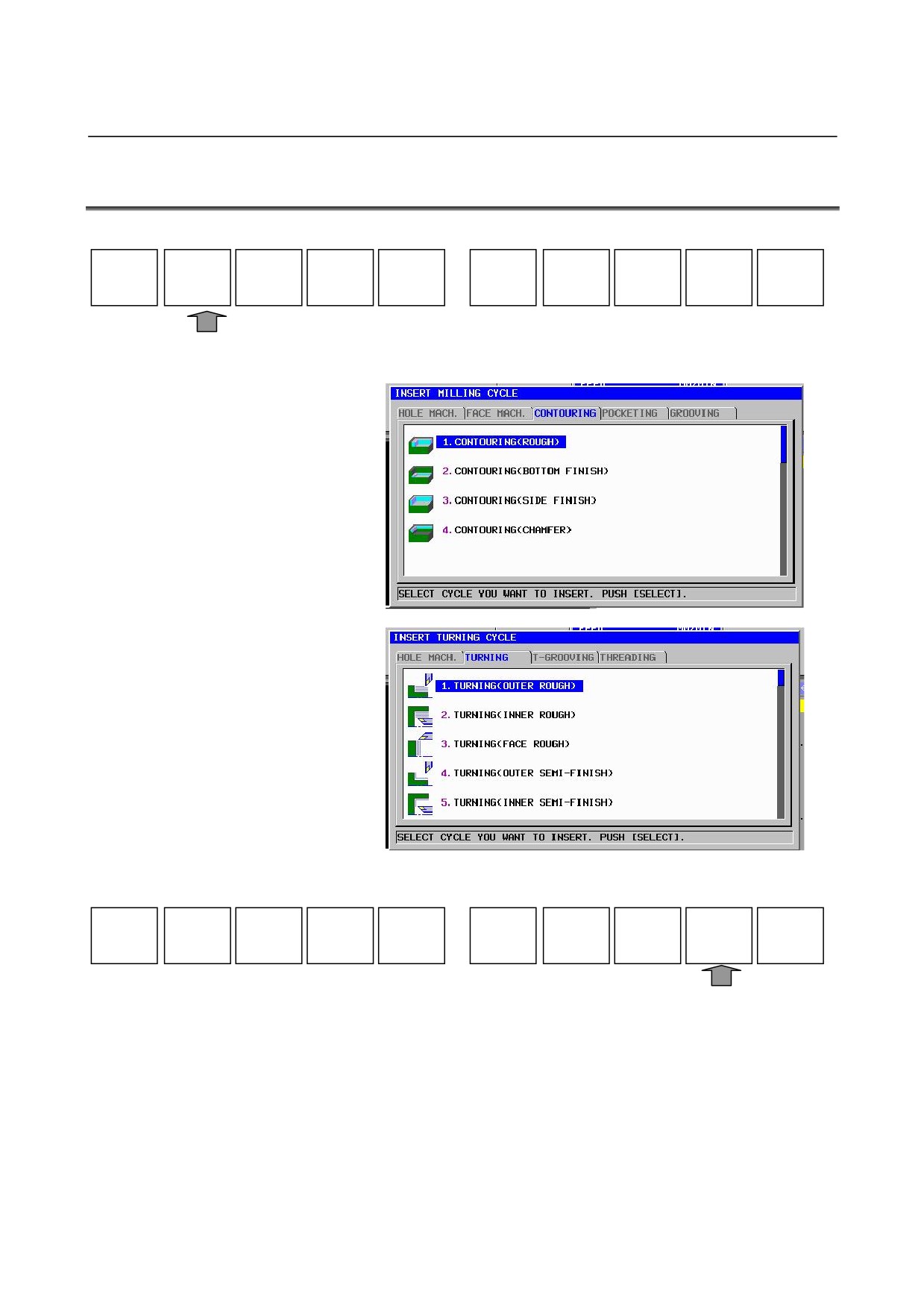
Pressing [CYCLE] displays the cycle machining menu.
The following soft keys are displayed for the cycle machining menu.
SELECT
CANCEL
Select a cycle machining group, using the ← and → cursor keys, and
then select a cycle machining type from the cycle machining group,
using the ↑ and ↓ cursor keys.
Pressing [SELECT] displays the data entry window for the selected
cycle machining type.
After a menu number is inputted, it is possible that cycle machining is
selected by pressing INPUT key.
- 69 -
4.EDITING CYCLE MACHINING OPERATIONS OPERATION
B-63874EN/05
NOTE
The scroll bar displayed on the right edge of the
cycle machining menu window indicates the
approximate position of the cursor throughout the
cycle machining menu.
If the scroll bar marker is on the middle of the scroll
bar, therefore, it is likely that part of the cycle
machining menu is hidden behind the window. If
this is the case, pressing the ↓ cursor key makes
the hidden part visible.
- 70 -
B-63874EN/05
OPERATION
4.EDITING CYCLE MACHINING OPERATIONS
4.3
ENTERING CYCLE MACHINING DATA
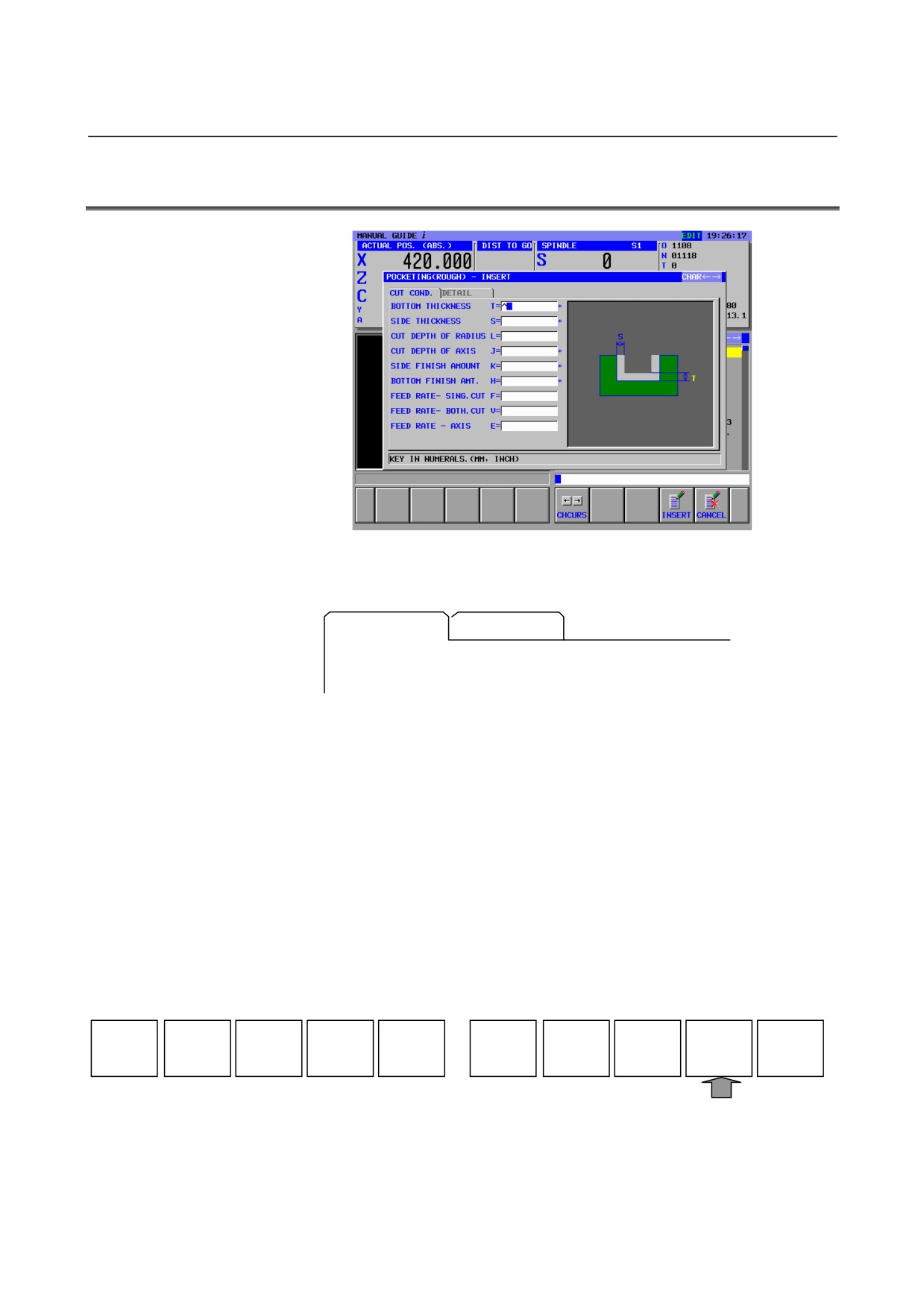
The cycle machining data entry window is divided into two sections,
one section for cutting conditions and the other for detailed data.
CUT COND.
DETAIL
Pressing the ← or → cursor key switches between the two sections
and changes the displayed tab. The character in the selected tab is
displayed in blue.
Pressing the ↑ or ↓ cursor key can place the cursor on a desired data
input item.
There are two types of data input items. One type includes those
entered as numbers, and the other type, those selected from a menu
displayed using a soft key. For the first type, the message "KEY IN
NUMERALS." is displayed in the lower section of the window. For
the second type, the message "SELECT SOFT KEY" is displayed.
Necessary data can be entered by referencing a comment for the data
input item and a guide chart displayed in the window.
The following soft keys are displayed for the machining cycle data
window.
CHCURS
INSERT
CANCEL
When the necessary data has been entered, pressing [INSERT] inserts
a block for the related cycle machining into a machining program.
- 71 -