FANUC Series 16i/160i/160is-MB, Series 18i/180i/180is-MB5, Series 18i/180i/180is-MB. Operator's Manual - page 33
8. DATA INPUT/OUTPUT
OPERATION
B-63534EN/02
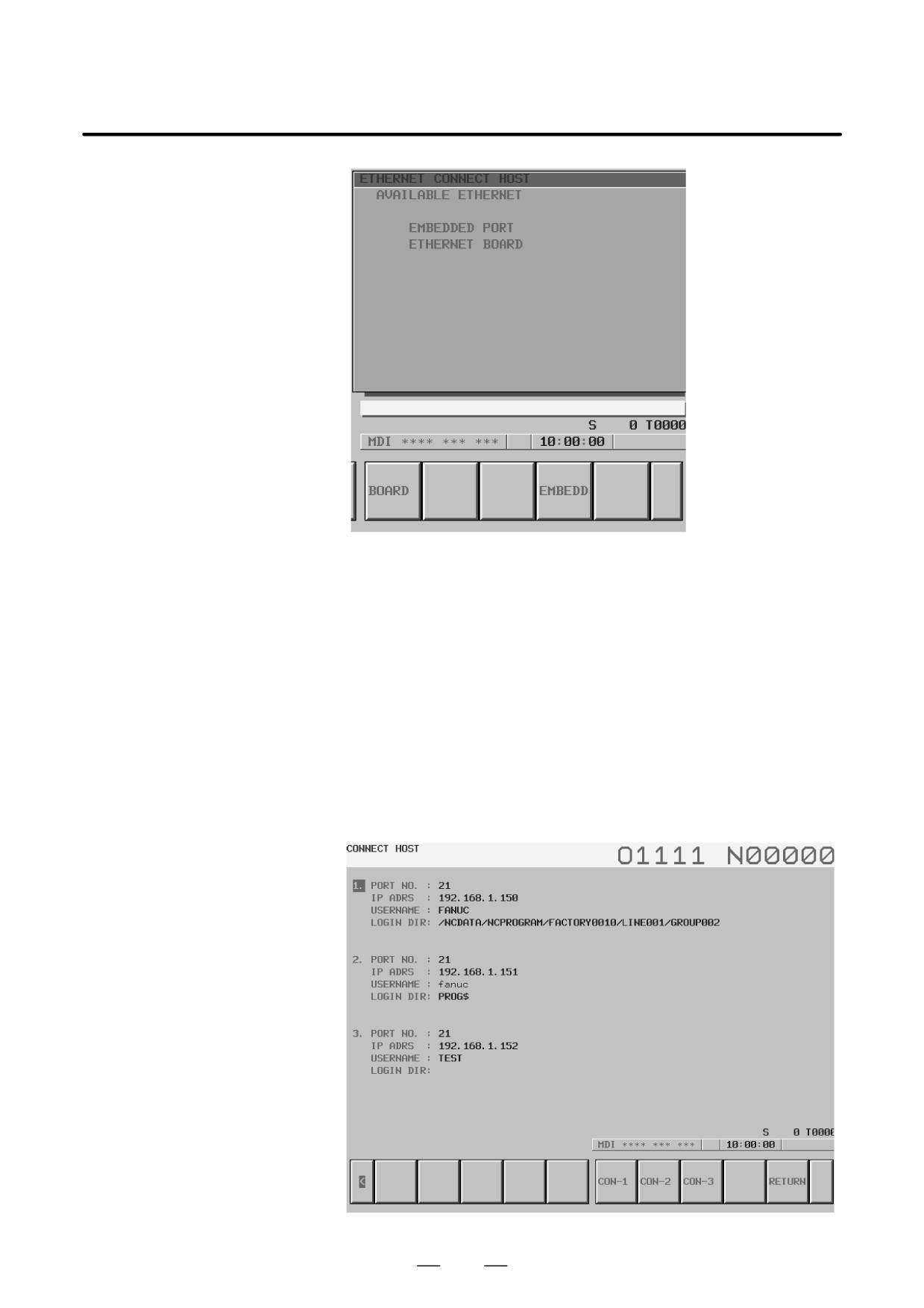
The upper row displays the usable embedded Ethernet function
device.
The embedded port or PCMCIA card is displayed.
The lower row displays the usable Ethernet option boards. When no
option board is installed, no information is displayed.
4
When you press the [EMBEDD] soft key, a list of the connection host
computers specified with the embedded Ethernet port is displayed.
If the usable embedded Ethernet function device is the PCMCIA card,
the [PCMCIA] soft key is displayed instead of the [EMBEDD] soft
key. When you press the [PCMCIA] soft key, a list of the connection
host computers specified with the PCMCIA Ethernet card is
displayed.
940

B-63534EN/02
OPERATION
8. DATA INPUT/OUTPUT
NOTE
The title of the host computer that is the current
communication destination of the data server board is
displayed in reverse video.
5
The connected host can be changed by pressing the [CON-1],
[CON-2], or [CON-3] soft key.
Display items
D Port number, IP address,
Those values that are set on the Ethernet parameter setting screen are
user name, login DIR
displayed.
List of operations
D CON-1
This operation changes the connected host to host 1.
D CON-2
This operation changes the connected host to host 2.
D CON-3
This operation changes the connected host to host 3.
941
9. EDITING PROGRAMS
OPERATION
B-63534EN/02
EDITING PROGRAMS
9
General
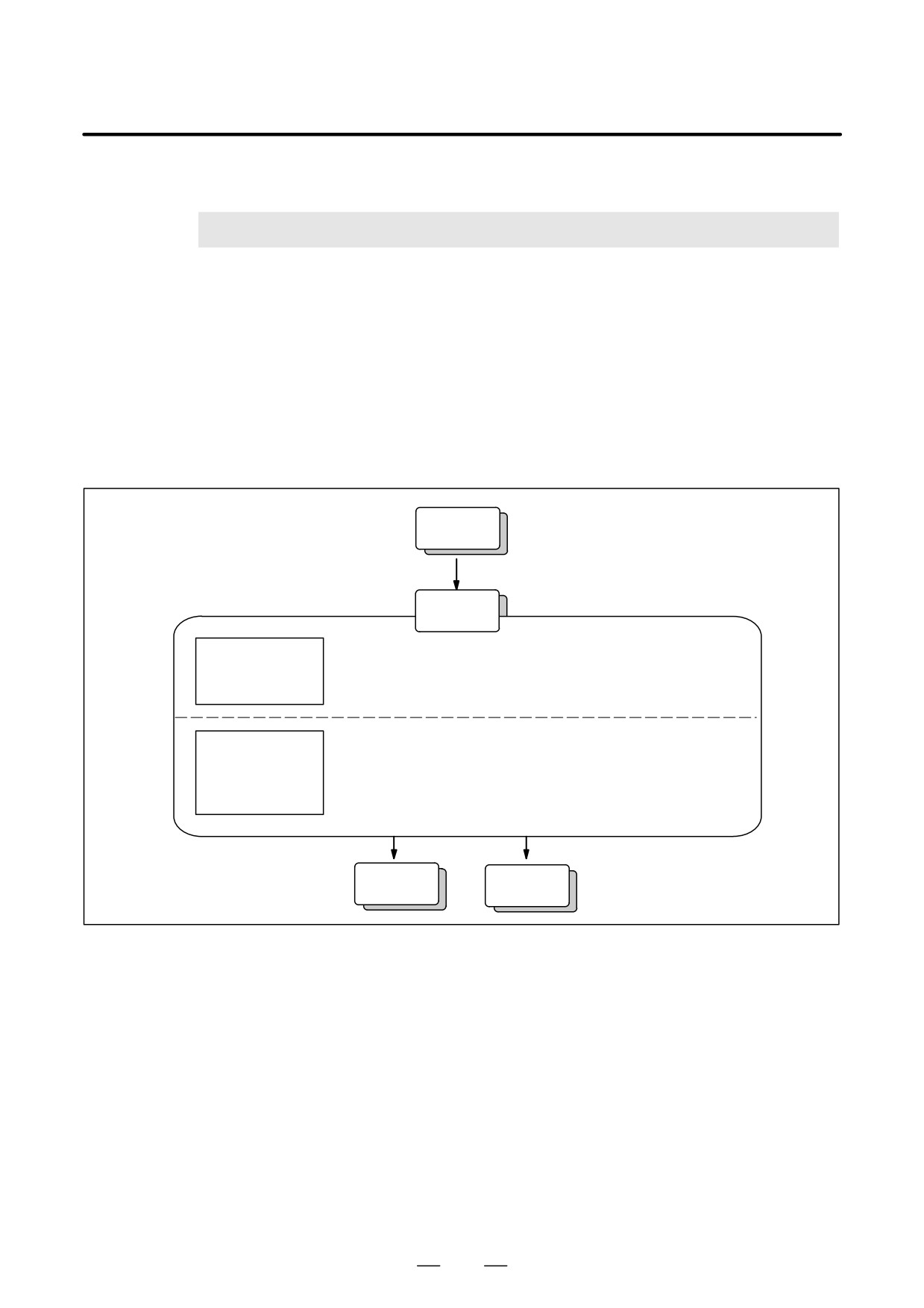
This chapter describes how to edit programs registered in the CNC.
Editing includes the insertion, modification, deletion, and replacement of
words. Editing also includes deletion of the entire program and automatic
insertion of sequence numbers. The extended part program editing
function can copy, move, and merge programs. This chapter also
describes program number search, sequence number search, word search,
and address search, which are performed before editing the program.
Registration
Editing
1) Program number search:
See III-9.3.
Search for part
2) Sequence number search:
See III-9.4.
of program to be
3) Word search:
See III-9.1.1.
edited
4) Address search:
See III-9.1.1.
1) Inserting, altering, and deleting a word:
See III-9.1.3 to 9.1.5.
Inserting, altering,
2) Replacing words and addresses:
See III-9.6.6.
and deleting
3) Deleting blocks:
See III-9.2.
programs
4) Copying, moving, and merging programs: See III-9.6.1 and 9.6.5.
5) Deleting programs:
See III-9.5.
Output
Execution
942

B-63534EN/02
OPERATION
9. EDITING PROGRAMS
This section outlines the procedure for inserting, modifying, and deleting
9.1
a word in a program registered in memory.
INSERTING,
ALTERING AND
DELETING A WORD
Procedure for inserting, altering and deleting a word
1
Select EDIT mode.
2
Press
PROG
3
Select a program to be edited.
If a program to be edited is selected, perform the operation 4.
If a program to be edited is not selected, search for the program
number.
4
Search for a word to be modified.
⋅ Scan method
⋅ Word search method
5
Perform an operation such as altering, inserting, or deleting a word.
Explanation
D Concept of word and
A word is an address followed by a number. With a custom macro, the
editing unit
concept of word is ambiguous.
So the editing unit is considered here.
The editing unit is a unit subject to alteration or deletion in one operation.
In one scan operation, the cursor indicates the start of an editing unit.
An insertion is made after an editing unit.
Definition of editing unit
(i) Program portion from an address to immediately before the next
address
(ii)An address is an alphabet, IF, WHILE, GOTO, END, DO=,or ; (EOB).
According to this definition, a word is an editing unit.
The word “word,” when used in the description of editing, means an
editing unit according to the precise definition.
WARNING
The user cannot continue program execution after altering, inserting, or deleting data of the
program by suspending machining in progress by means of an operation such as a single block
stop or feed hold operation during program execution. If such a modification is made, the
program may not be executed exactly according to the contents of the program displayed on
the screen after machining is resumed. So, when the contents of memory are to be modified
by part program editing, be sure to enter the reset state or reset the system upon completion
of editing before executing the program.
943
9. EDITING PROGRAMS
OPERATION
B-63534EN/02
9.1.1
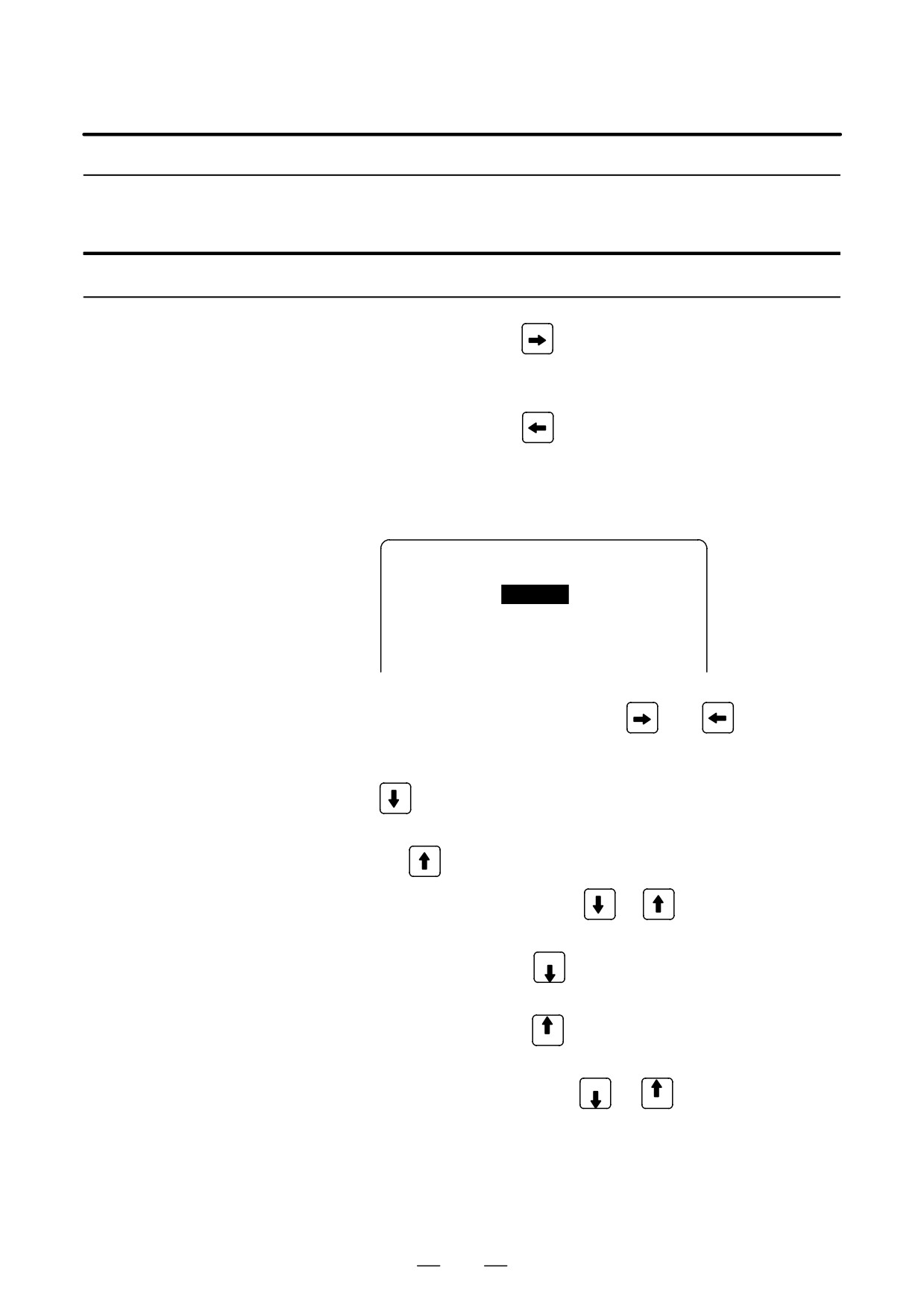
A word can be searched for by merely moving the cursor through the text
(scanning), by word search, or by address search.
Word Search
Procedure for scanning a program
1
Press the cursor key
The cursor moves forward word by word on the screen; the cursor is
displayed at a selected word.
2
Press the cursor key
The cursor moves backward word by word on the screen; the cursor is
displayed at a selected word.
Example) When Z1250.0 is scanned
Program
O0050 N01234
O0050 ;
N01234 X100.0
Z1250.0
;
S12 ;
N56789 M03 ;
M02 ;
%
3
Holding down the cursor key
or
scans words
continuously.
4
The first word of the next block is searched for when the cursor key
is pressed.
5
The first word of the previous block is searched for when the cursor
key
is pressed.
6
Holding down the cursor key
or
moves the cursor to the
head of a block continuously.
7
Pressing the page key PAGE
displays the next page and searches for
the first word of the page.
8
Pressing the page key
displays the previous page and searches
PAGE
for the first word of the page.
9
Holding down the page key PAGE
or
displays one page after
PAGE
another.
944
B-63534EN/02
OPERATION
9. EDITING PROGRAMS
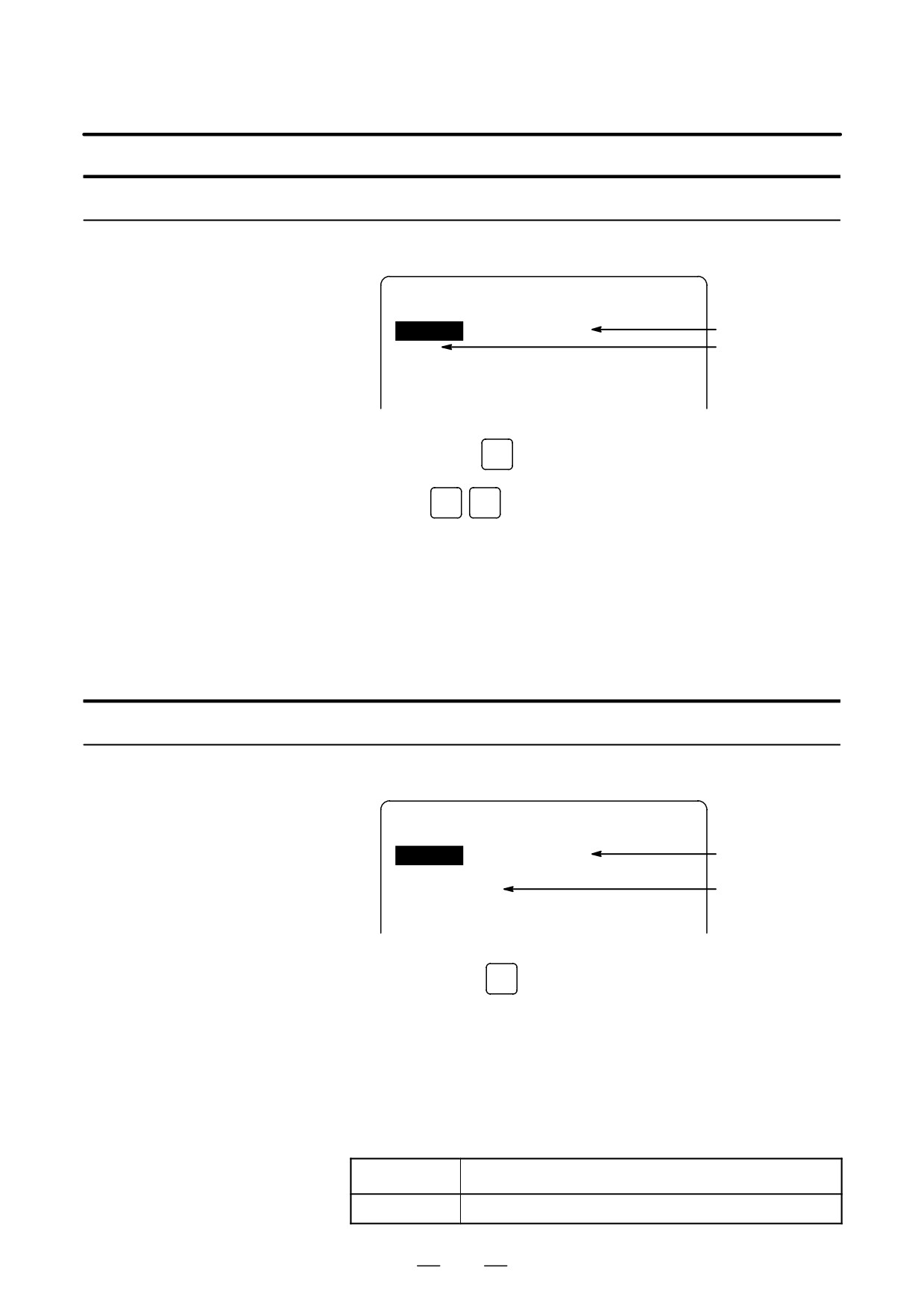
Procedure for searching a word
Example) of Searching for S12
PROGRAM
O0050 N01234
N01234 is being
O0050 ;
searched for/
N01234
X100.0 Z1250.0 ;
scanned currently.
S12 ;
S12 is searched
N56789 M03 ;
for.
M02 ;
%
1
Key in address
S
2
Key in
1
2
⋅ S12 cannot be searched for if only S1 is keyed in.
⋅ S09 cannot be searched for by keying in only S9.
To search for S09, be sure to key in S09.
3
Pressing the [SRH↓] key starts search operation.
Upon completion of search operation, the cursor is displayed at S12.
Pressing the [SRH↑] key rather than the [SRH↓] key performs search
operation in the reverse direction.
Procedure for searching an address
Example) of Searching for M03
PROGRAM
O0050 N01234
N01234 is being
O0050 ;
searched for/
N01234
X100.0 Z1250.0 ;
scanned currently.
S12 ;
N56789 M03 ;
M03 is searched
M02 ;
for.
%
1
Key in address
M
2
Press the [SRH↓] key.
Upon completion of search operation, the cursor is displayed at M03.
Pressing the [SRH↑] key rather than the [SRH↓] key performs search
operation in the reverse direction.
Alarm
Alarm number
Description
71
The word or address being searched for was not found.
945

9. EDITING PROGRAMS
OPERATION
B-63534EN/02
9.1.2
The cursor can be jumped to the top of a program. This function is called
heading the program pointer. This section describes the three methods
Heading a Program
for heading the program pointer.
Procedure for Heading a Program
Method 1
1
Press
RESET
when the program screen is selected in EDIT mode.
When the cursor has returned to the start of the program, the contents
of the program are displayed from its start on the screen.
Method 2
Search for the program number.
1
Press address
O
,when a program screen is selected in the
MEMORY or EDIT mode.
2
Input a program number.
3
Press the soft key [O SRH].
Method 3
1
Select [MEMORY] or [EDIT] mode.
2
Press
PROG
3
Press the [(OPRT)] key.
4
Press the [REWIND] key.
946
B-63534EN/02
OPERATION
9. EDITING PROGRAMS
9.1.3
Inserting a Word
Procedure for inserting a word
1
Search for or scan the word immediately before a word to be inserted.
2
Key in an address to be inserted.
3
Key in data.
4
Press the
INSERT
key.
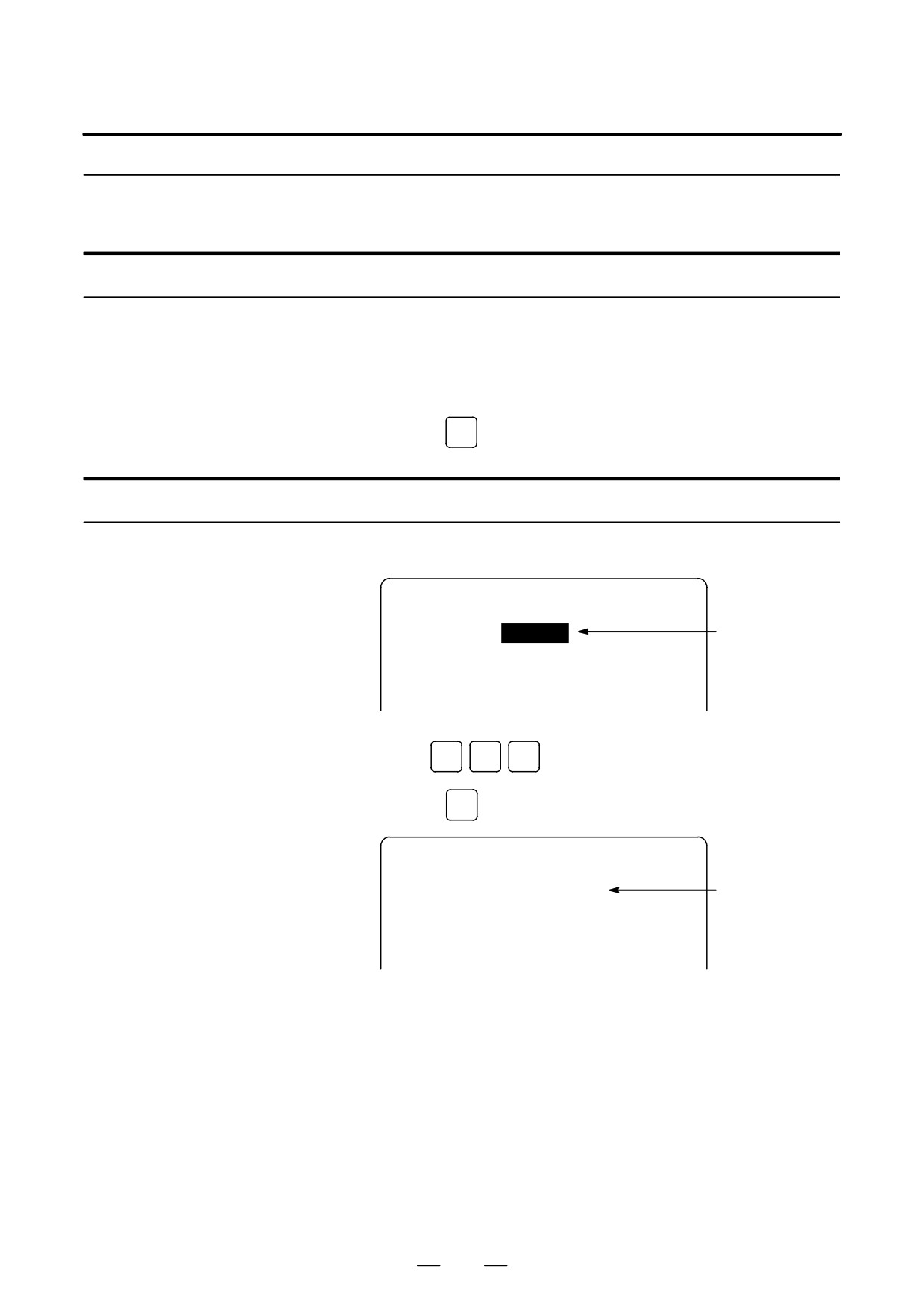
Example of Inserting T15
Procedure
1
Search for or scan Z1250.
Program
O0050 N01234
O0050 ;
Z1250.0 is
N01234 X100.0
Z1250.0
;
searched for/
S12 ;
scanned.
N56789 M03 ;
M02 ;
%
2
Key in
T
1
5
3
Press the
INSERT
key.
Program
O0050 N01234
O0050 ;
N01234 X100.0 Z1250.0 T15 ;
T15 is inserted.
S12 ;
N56789 M03 ;
M02 ;
%
947
9. EDITING PROGRAMS
OPERATION
B-63534EN/02
9.1.4
Altering a Word
Procedure for altering a word
1
Search for or scan a word to be altered.
2
Key in an address to be inserted.
3
Key in data.
4
Press the
ALTER
key.
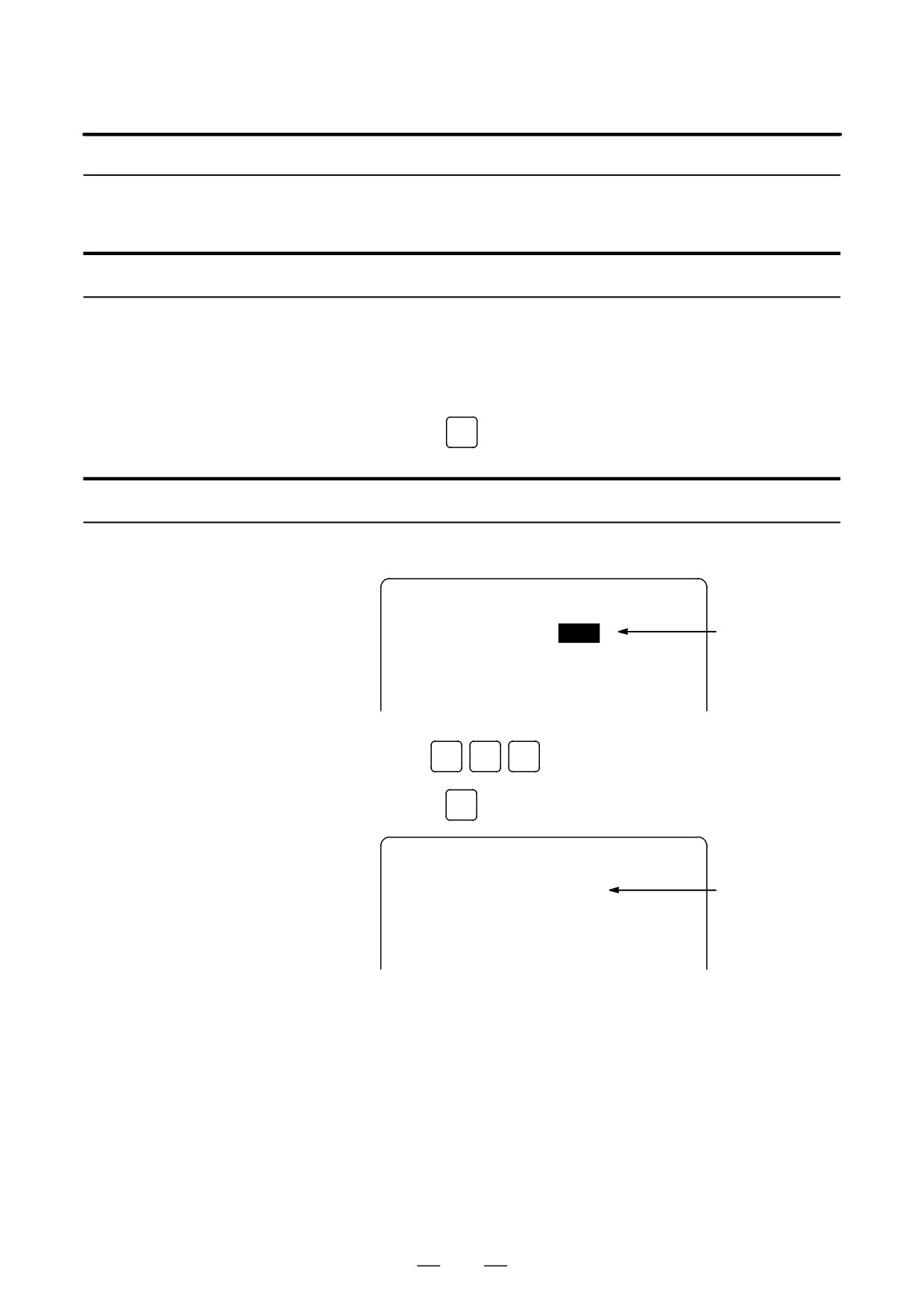
Example of changing T15 to M15
Procedure
1
Search for or scan T15.
Program
O0050 N01234
O0050 ;
T15 is searched
N01234 X100.0 Z1250.0
T15
;
for/scanned.
S12 ;
N56789 M03 ;
M02 ;
%
2
Key in
M
1
5
3
Press the
ALTER
key.
Program
O0050 N01234
O0050 ;
N1234 X100.0 Z1250.0 M15 ;
T15 is changed to
S12 ;
M15.
N5678 M03 ;
M02 ;
%
948
B-63534EN/02
OPERATION
9. EDITING PROGRAMS
9.1.5
Deleting a Word
Procedure for deleting a word
1
Search for or scan a word to be deleted.
2
Press the
DELETE
key.
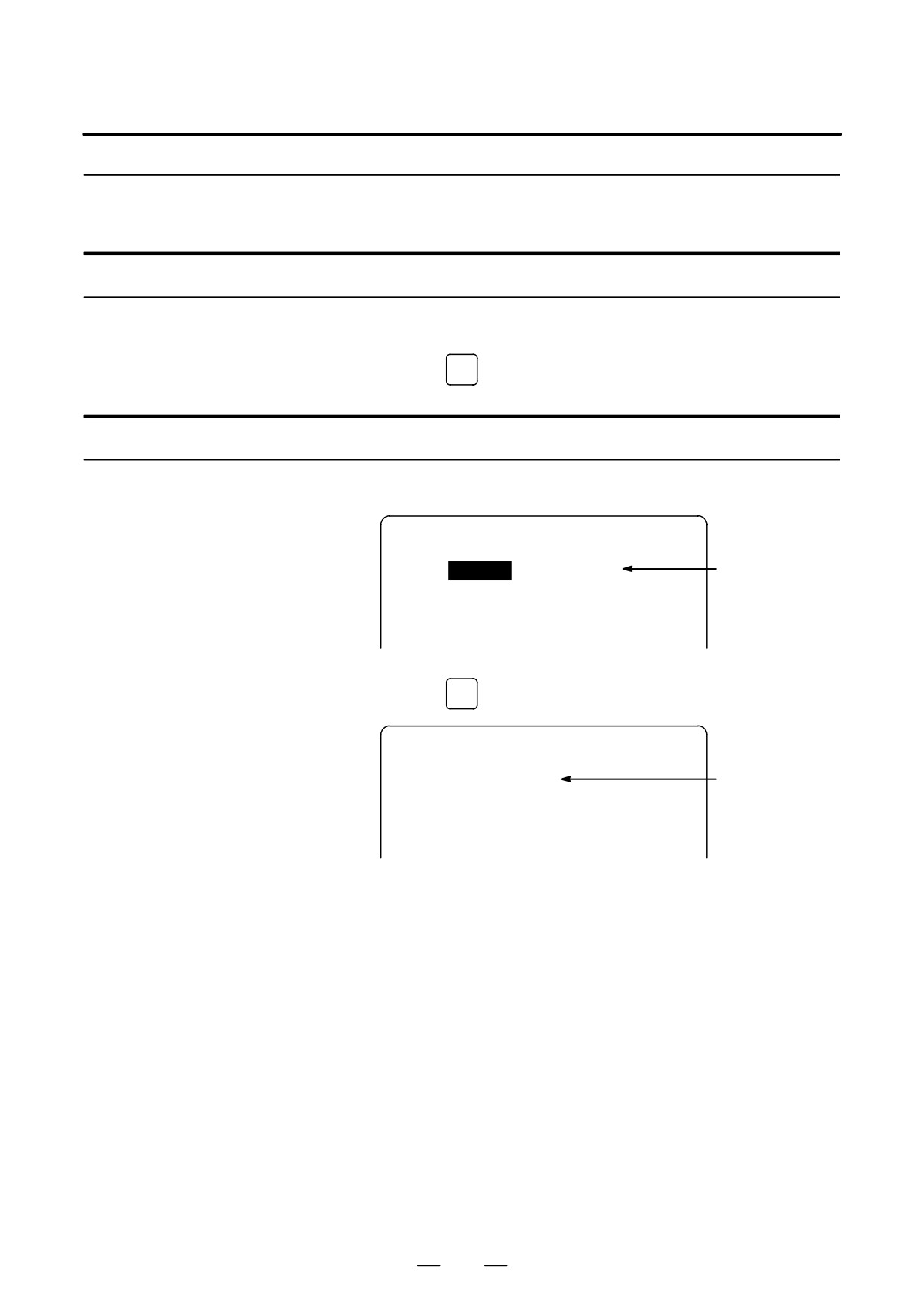
Example of deleting X100.0
Procedure
1
Search for or scan X100.0.
Program
O0050 N01234
O0050 ;
X100.0 is
N01234
X100.0
Z1250.0 M15 ;
searched for/
S12 ;
scanned.
N56789 M03 ;
M02 ;
%
2
Press the
DELETE
key.
Program
O0050 N01234
O0050 ;
N01234 Z1250.0 M15 ;
X100.0 is deleted.
S12 ;
N56789 M03 ;
M02 ;
%
949
9. EDITING PROGRAMS
OPERATION
B-63534EN/02
A block or blocks can be deleted in a program.
9.2
DELETING BLOCKS
9.2.1
The procedure below deletes a block up to its EOB code; the cursor
advances to the address of the next word.
Deleting a Block
Procedure for deleting a block
1
Search for or scan address N for a block to be deleted.
2
Key in
EOB
3
Press the
DELETE
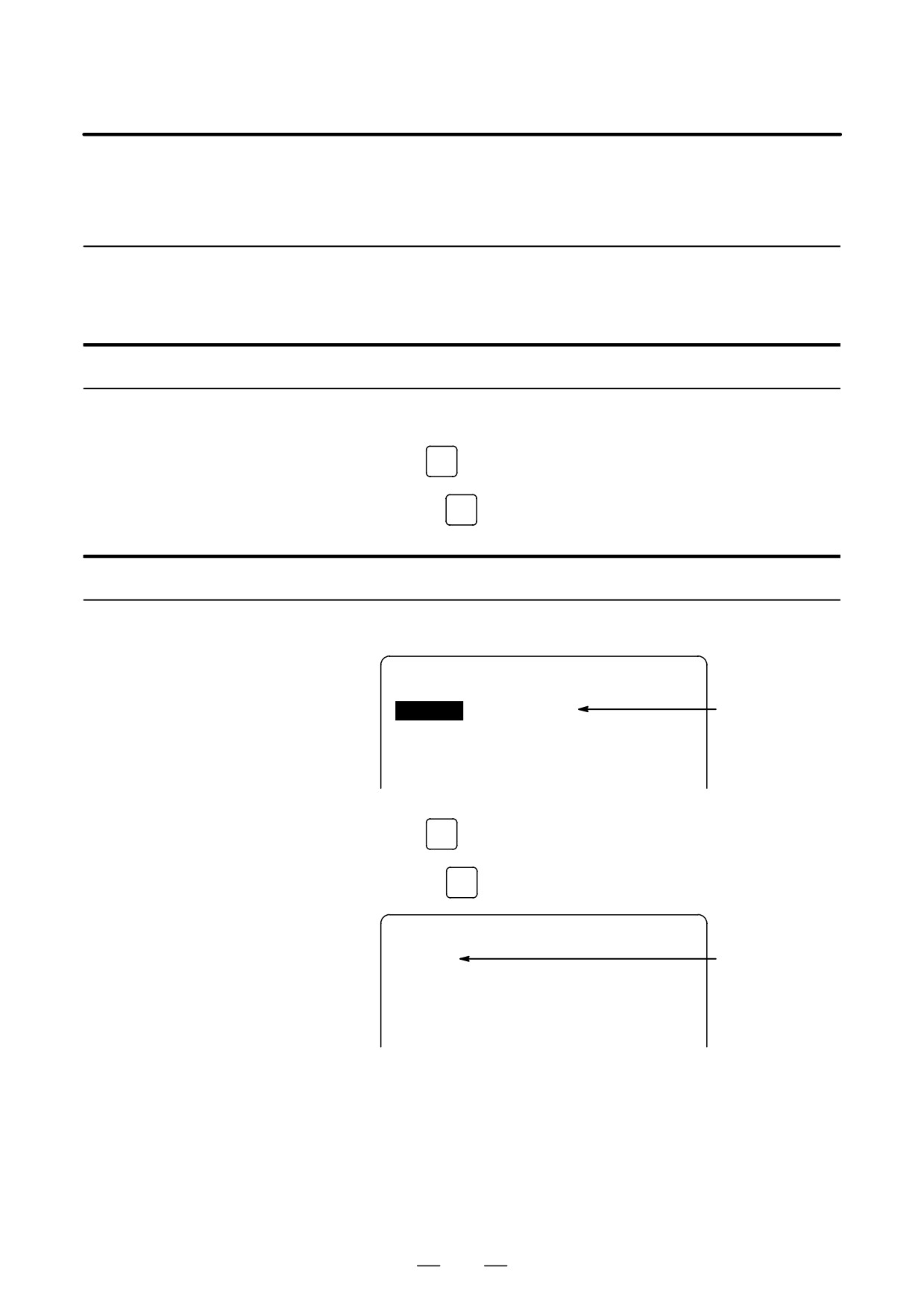
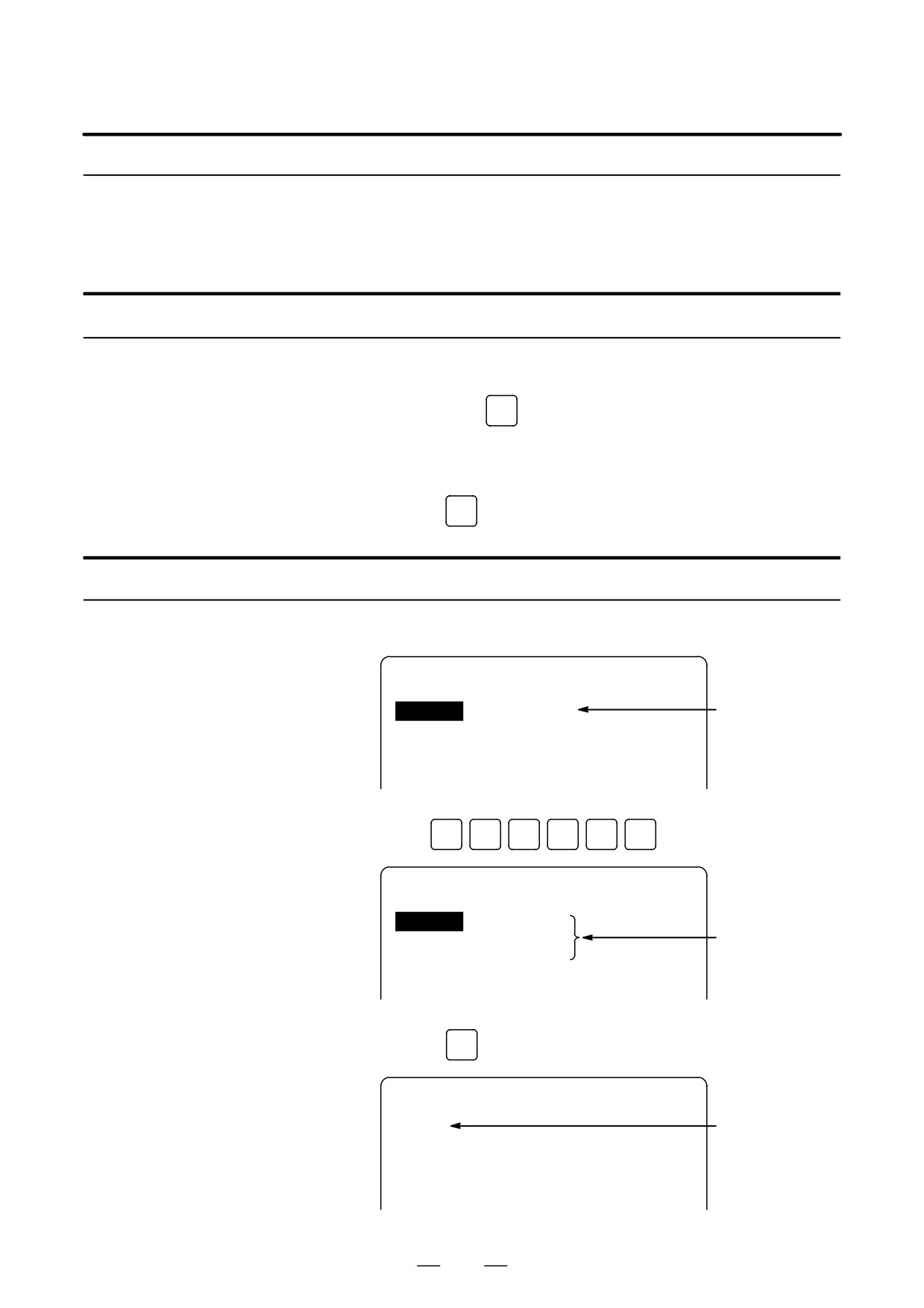
Example of deleting a block of N01234
Procedure
1
Search for or scan N01234.
Program
O0050 N01234
O0050 ;
N01234
Z1250.0 M15 ;
N01234 is
S12 ;
searched for/
scanned.
N56789 M03 ;
M02 ;
%
2
Key in
EOB
3
Press the
DELETE
key.
Program
O0050 N01234
Block containing
O0050 ;
N01234 has
S12 ;
been deleted.
N56789 M03 ;
M02 ;
%
950
B-63534EN/02
OPERATION
9. EDITING PROGRAMS
9.2.2
The blocks from the currently displayed word to the block with a specified
sequence number can be deleted.
Deleting Multiple
Blocks
Procedure for deleting multiple blocks
1
Search for or scan a word in the first block of a portion to be deleted.
2
Key in address
N
3
Key in the sequence number for the last block of the portion to be
deleted.
4
Press the
DELETE
key.
Example of deleting blocks from a block containing N01234 to a block containing N56789
Procedure
1
Search for or scan N01234.
Program
O0050 N01234
O0050 ;
N01234
Z1250.0 M15 ;
N01234 is
searched for/
S12 ;
scanned.
N56789 M03 ;
M02 ;
%
2
Key in
N
5
6
7
8
9
Program
O0050 N01234
O0050 ;
N01234
Z1250.0 M15 ;
Underlined
S12 ;
part is de-
N56789 M03 ;
leted.
M02 ;
%
3
Press the
DELETE
key.
Program
O0050 N01234
O0050 ;
Blocks from block
M02 ;
containing
%
N01234 to block
containing
N56789 have
been deleted.
951

9. EDITING PROGRAMS
OPERATION
B-63534EN/02
9.3
When memory holds multiple programs, a program can be searched for.
There are three methods as follows.
PROGRAM NUMBER
SEARCH
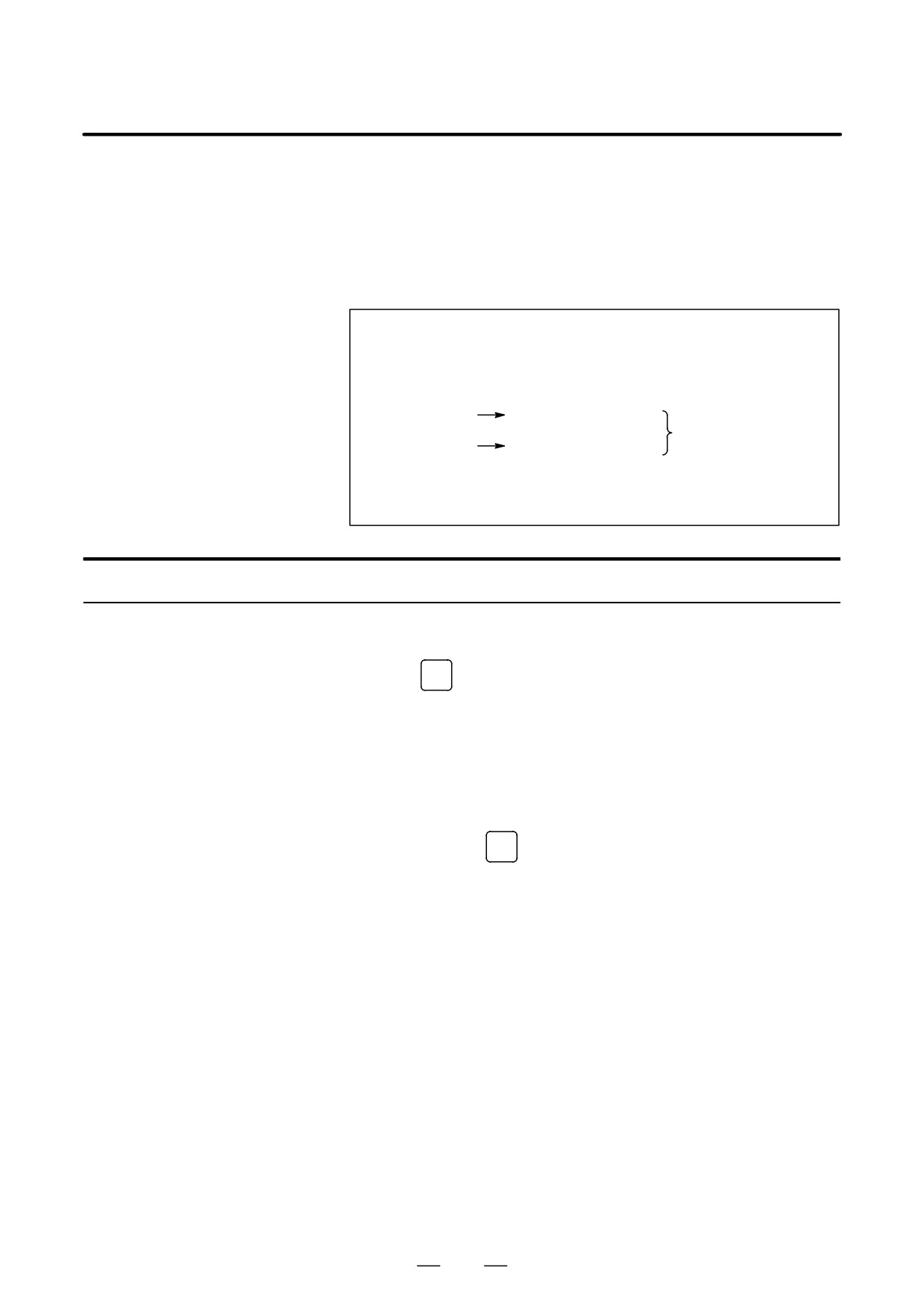
Procedure for program number search
Method 1
1
Select EDIT or MEMORY mode.
2
Press
PROG
to display the program screen.
3
Key in address
O
4
Key in a program number to be searched for.
5
Press the [O SRH] key.
6
Upon completion of search operation, the program number searched
for is displayed in the upper-right corner of the CRT screen
If the program is not found , P/S alarm No. 71 occurs.
Method 2
1
Select EDIT or MEMORY mode.
2
Press
PROG
to display the program screen.
3
Press the [O SRH] key.
In this case, the next program in the directory is searched for .
Method 3
This method searches for the program number (0001 to 0015)
corresponding to a signal on the machine tool side to start automatic
operation. Refer to the relevant manual prepared by the machine tool
builder for detailed information on operation.
1
Select MEMORY mode.
2
Set the reset state(*1)
⋅The reset state is the state where the LED for indicating that
automatic operation is in progress is off.
(Refer to the relevant
manual of the machine tool builder.)
3
Set the program number selection signal on the machine tool side to a
number from 01 to 15.
⋅ If the program corresponding to a signal on the machine tool
side is not registered, P/S alarm (No. 059) is raised.
4
Press the cycle start button.
⋅ When the signal on the machine tool side represents 00,
program number search operation is not performed.
Alarm
No.
Contents
The program with the selected number cannot be searched
59
during external program number search.
The specified program number was not found during
71
program number search.
952
B-63534EN/02
OPERATION
9. EDITING PROGRAMS
9.4
Sequence number search operation is usually used to search for a
sequence number in the middle of a program so that execution can be
SEQUENCE NUMBER
started or restarted at the block of the sequence number.
SEARCH
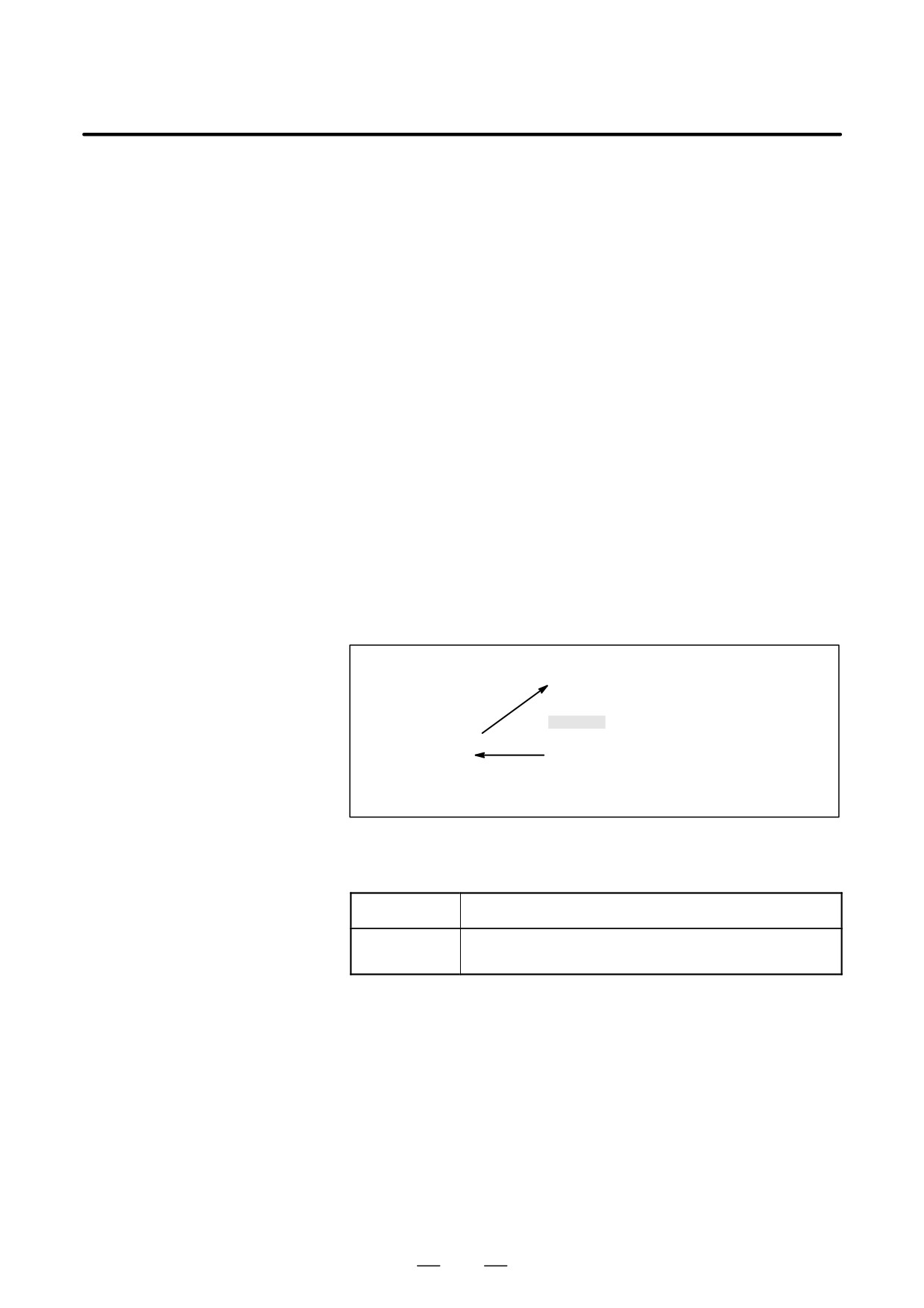
Example) Sequence number 02346 in a program (O0002) is
searched for.
Program
O0001 ;
N01234 X100.0 Z100.0 ;
S12 ;
:
Selected program
O0002 ;
This section is
N02345 X20.0 Z20.0 ;
searched starting at
Target sequence
N02346 X10.0 Y10.0 ;
the beginning.
number is found.
:
(Search operation is
O0003 ;
performed only within a
:
program.)
Procedure for sequence number search
1
Select MEMORY mode.
2
Press
PROG
3
⋅ If the program contains a sequence number to be searchedfor,
perform the operations 4 to 7 below.
⋅ If the program does not contain a sequence number to be searched
for,select the program number of the program that contains the
sequence number to be searched for.
4
Key in address
N
5
Key in a sequence number to be searched for.
6
Press the [N SRH] key.
7
Upon completion of search operation, the sequence number searched
for is displayed in the upper-right corner of the CRT screen.
If the specified sequence number is not found in the program currently
selected, P/S alarm No. 060 occurs.
953
9. EDITING PROGRAMS
OPERATION
B-63534EN/02
Explanations
Those blocks that are skipped do not affect the CNC. This means that the
D Operation during Search
data in the skipped blocks such as coordinates and M, S, and T codes does
not alter the CNC coordinates and modal values.
So, in the first block where execution is to be started or restarted by using
a sequence number search command, be sure to enter required M, S, and
T codes and coordinates. A block searched for by sequence number
search usually represents a point of shifting from one process to another.
When a block in the middle of a process must be searched for to restart
execution at the block, specify M, S, and T codes, G codes, coordinates,
and so forth as required from the MDI after closely checking the machine
tool and NC states at that point.
D Checking during search
During search operation, the following checks are made:
⋅ Optional block skip
⋅ P/S alarm (No. 003 to 010)
Limitations
D Searching in
During sequence number search operation, M98Pxxxx (subprogram call)
sub-program
is not executed. So a P/S alarm (No.060) is raised if an attempt is made
to search for a sequence number in a subprogram called by the program
currently selected.
Main program
Subprogram
O1234
O5678
:
:
:
N88888
M98 P5678 ;
:
:
M99 ;
:
:
If an attempt is made to search for N8888 in the example above, an alarm is raised.
Alarm
Number
Contents
Command sequence number was not found in the se-
60
quence number search.
954
B-63534EN/02
OPERATION
9. EDITING PROGRAMS
9.5
Programs registered in memory can be deleted,either one program by one
program or all at once. Also, More than one program can be deleted by
DELETING
specifying a range.
PROGRAMS
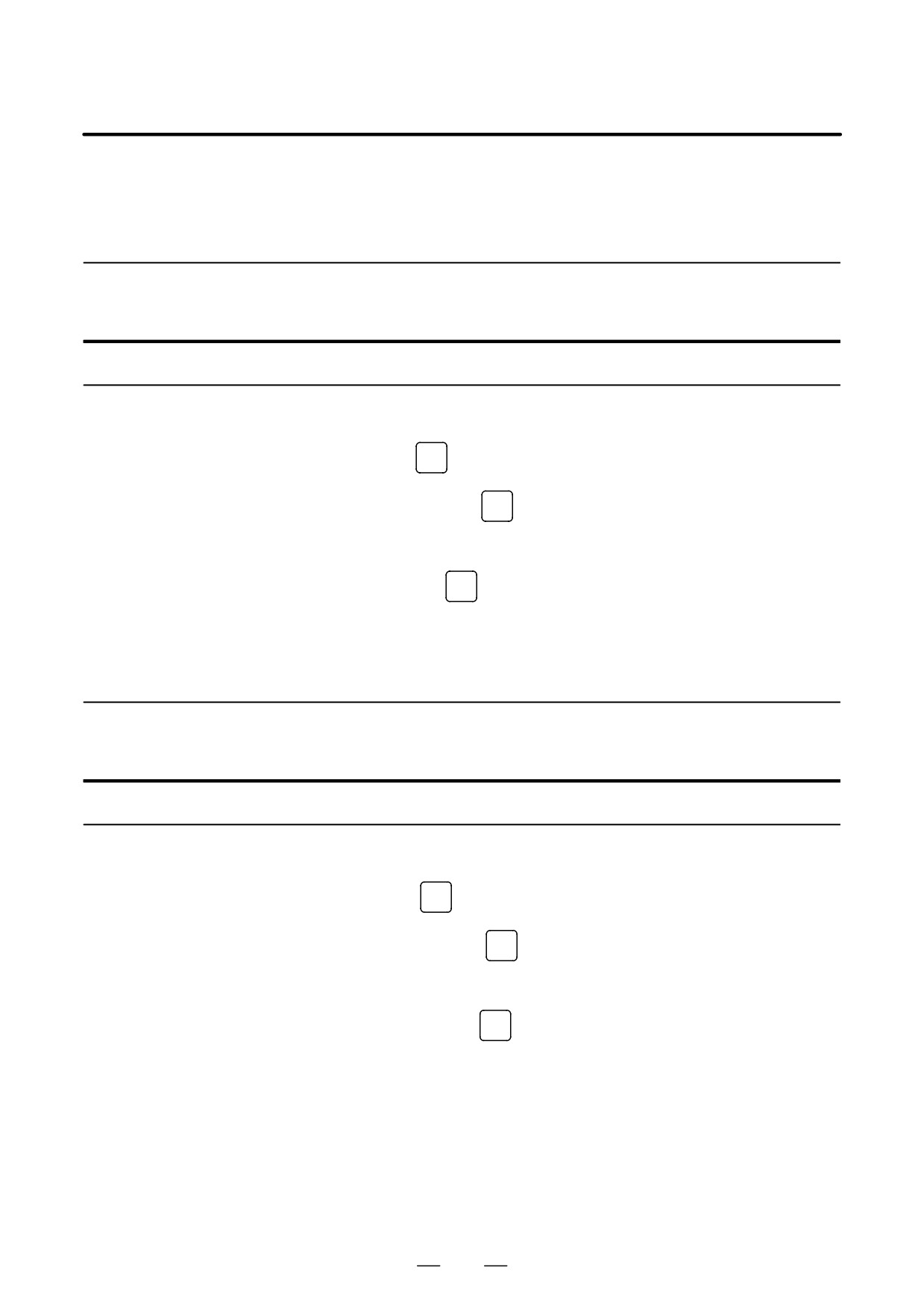
A program registered in memory can be deleted.
9.5.1
Deleting One Program
Procedure for deleting one program
1
Select the EDIT mode.
2
Press
PROG
to display the program screen.
3
Key in address
O
4
Key in a desired program number.
5
Press the
DELETE
key.
The program with the entered program number is deleted.
9.5.2
All programs registered in memory can be deleted.
Deleting All Programs
Procedure for deleting all programs
1
Select the EDIT mode.
2
Press
PROG
to display the program screen.
3
Key in address
O
4
Key in -9999.
5
Press edit key
DELETE
to delete all programs.
955

9. EDITING PROGRAMS
OPERATION
B-63534EN/02
9.5.3
Programs within a specified range in memory are deleted.
Deleting More than
One Program by
Specifying a Range
Procedure for deleting more than one program by specifying a range
1
Select the EDIT mode.
2
Press
PROG
to display the program screen.
3
Enter the range of program numbers to be deleted with address and
numeric keys in the following format:
OXXXX,OYYYY
where XXXX is the starting number of the programs to be deleted and
YYYY is the ending number of the programs to be deleted.
4
Press edit key
DELETE
to delete programs No. XXXX to No. YYYY.
956
B-63534EN/02
OPERATION
9. EDITING PROGRAMS
9.6
With the extended part program editing function, the operations described
below can be performed using soft keys for programs that have been
EXTENDED PART
registered in memory.
PROGRAM EDITING
Following editing operations are available :
FUNCTION
⋅ All or part of a program can be copied or moved to another program.
⋅ One program can be merged at free position into other programs.
⋅ A specified word or address in a program can be replaced with another
word or address.
957
9. EDITING PROGRAMS
OPERATION
B-63534EN/02
9.6.1
A new program can be created by copying a program.
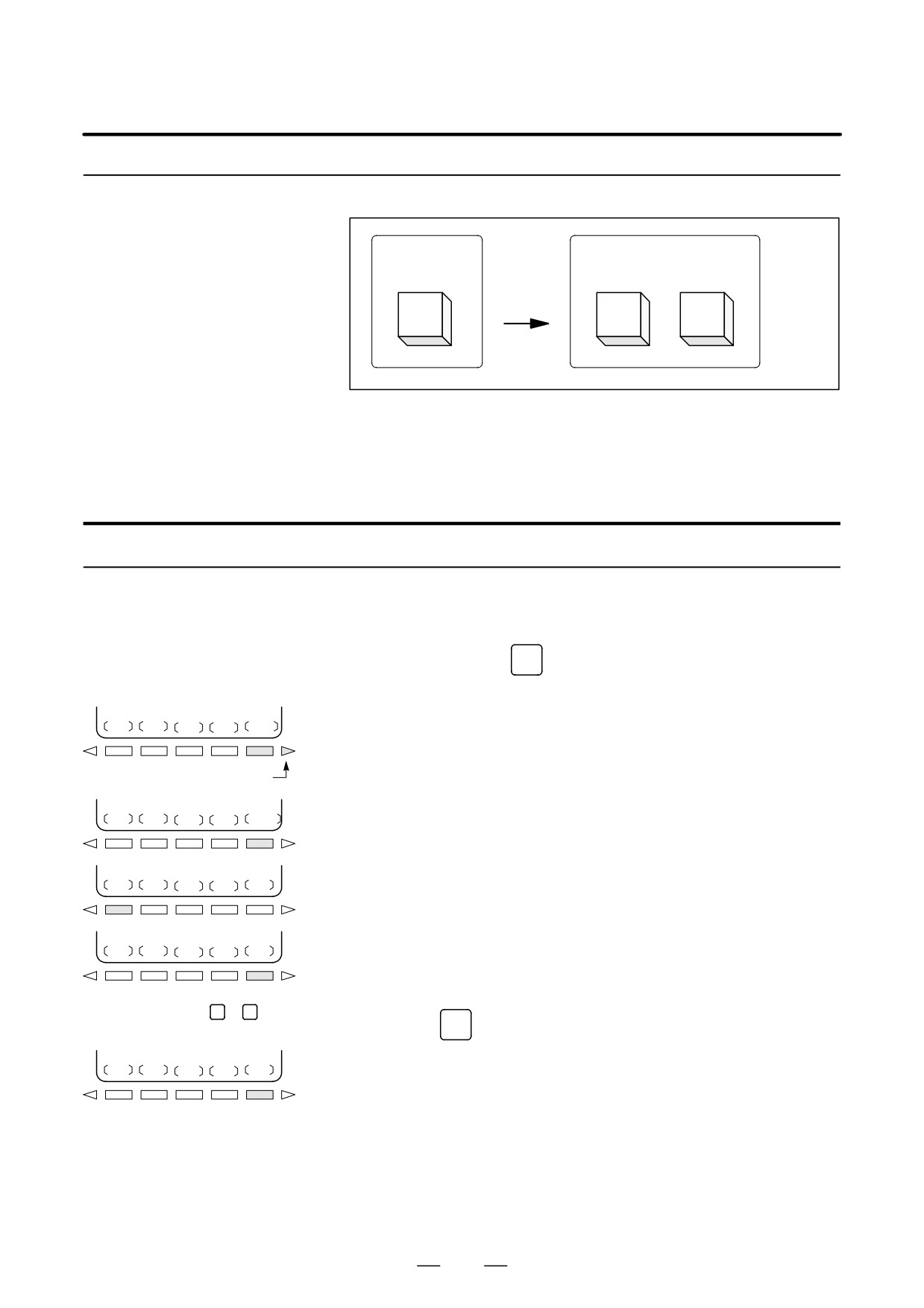
Copying an Entire
Program
Before copy
After copy
Oxxxx
Oxxxx
Oyyyy
A
Copy
A
A
Fig. 9.6.1 Copying an Entire Program
In Fig. 9.6.1, the program with program number xxxx is copied to a newly
created program with program number yyyy. The program created by
copy operation is the same as the original program except the program
number.
Procedure of copying an entire program
1
Enter the EDIT mode.
2
Press function key
PROG
3
Press soft key [(OPRT)].
(OPRT)
Continuous
4
Press the continuous menu key.
menu key
(EX-EDT)
5
Press soft key [EX-EDT].
6
Check that the screen for the program to be copied is selected
COPY
and press soft key [COPY].
ALL
7
Press soft key [ALL].
8
Enter the number of the new program (with only numeric keys ) and
Numeric keys
0
X
9
press the
INPUT
key.
EXEC
9
Press soft key [EXEC].
958
B-63534EN/02
OPERATION
9. EDITING PROGRAMS
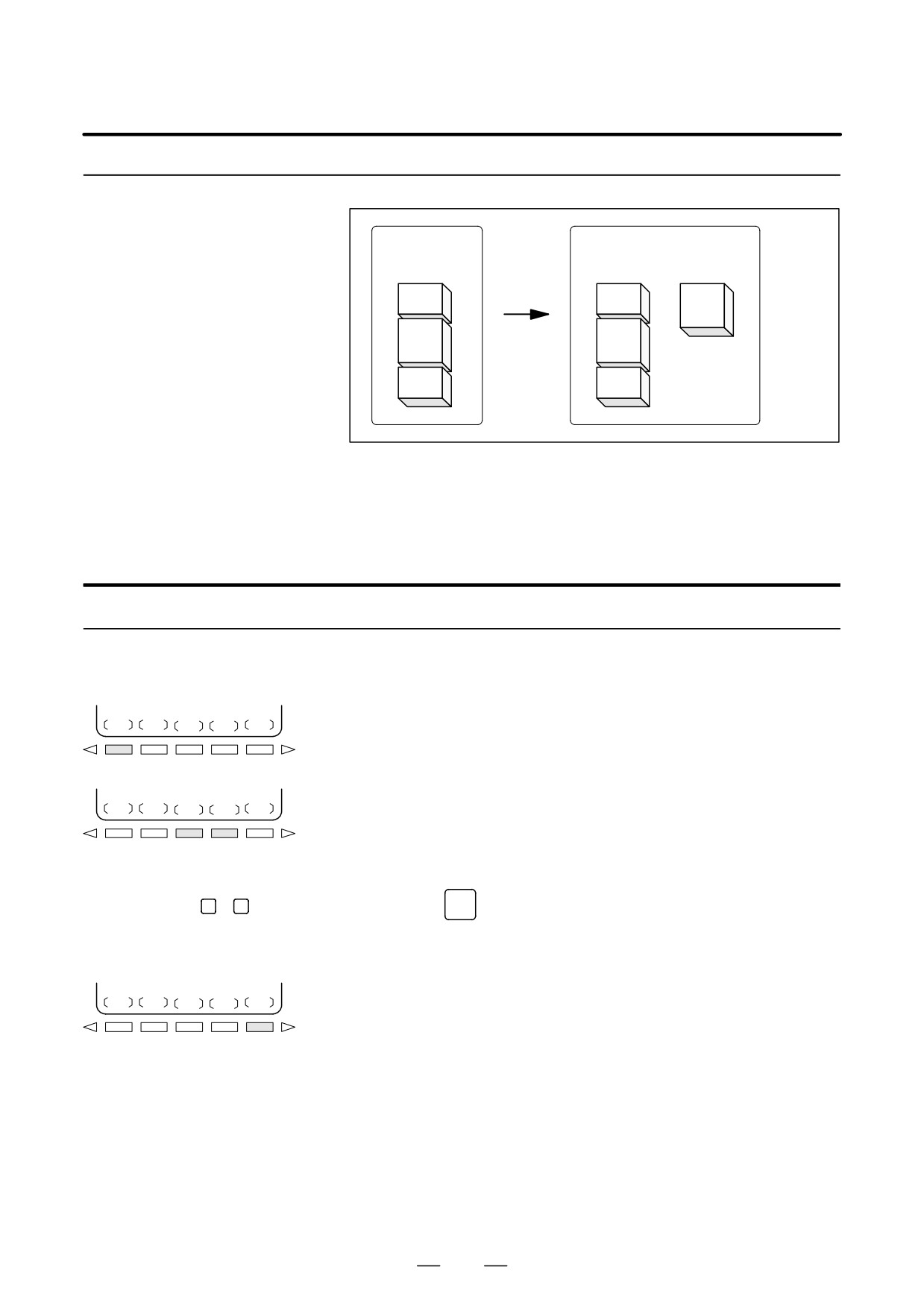
9.6.2
A new program can be created by copying part of a program.
Copying Part of a
Before copy
After copy
Program
Oxxxx
Oxxxx
Oyyyy
A
Copy
A
B
B
B
C
C
Fig. 9.6.2 Copying Part of a Program
In Fig. 9.6.2, part B of the program with program number xxxx is copied
to a newly created program with program number yyyy. The program for
which an editing range is specified remains unchanged after copy
operation.
Procedure for copying part of a program
1
Perform steps 1 to 6 in III-9.6.1.
2
Move the cursor to the start of the range to be copied and press soft key
CRSR
[CRSR
].
3
Move the cursor to the end of the range to be copied and press soft key
CRSR
BTTM
[ CRSR] or [ BTTM] (in the latter case, the range to the end of the
program is copied regardless of the position of the cursor).
4
Enter the number of the new program (with only numeric keys) and
Numeric keys
0
9
press the
INPUT
key.
5
Press soft key [EXEC].
EXEC
959
9. EDITING PROGRAMS
OPERATION
B-63534EN/02
9.6.3
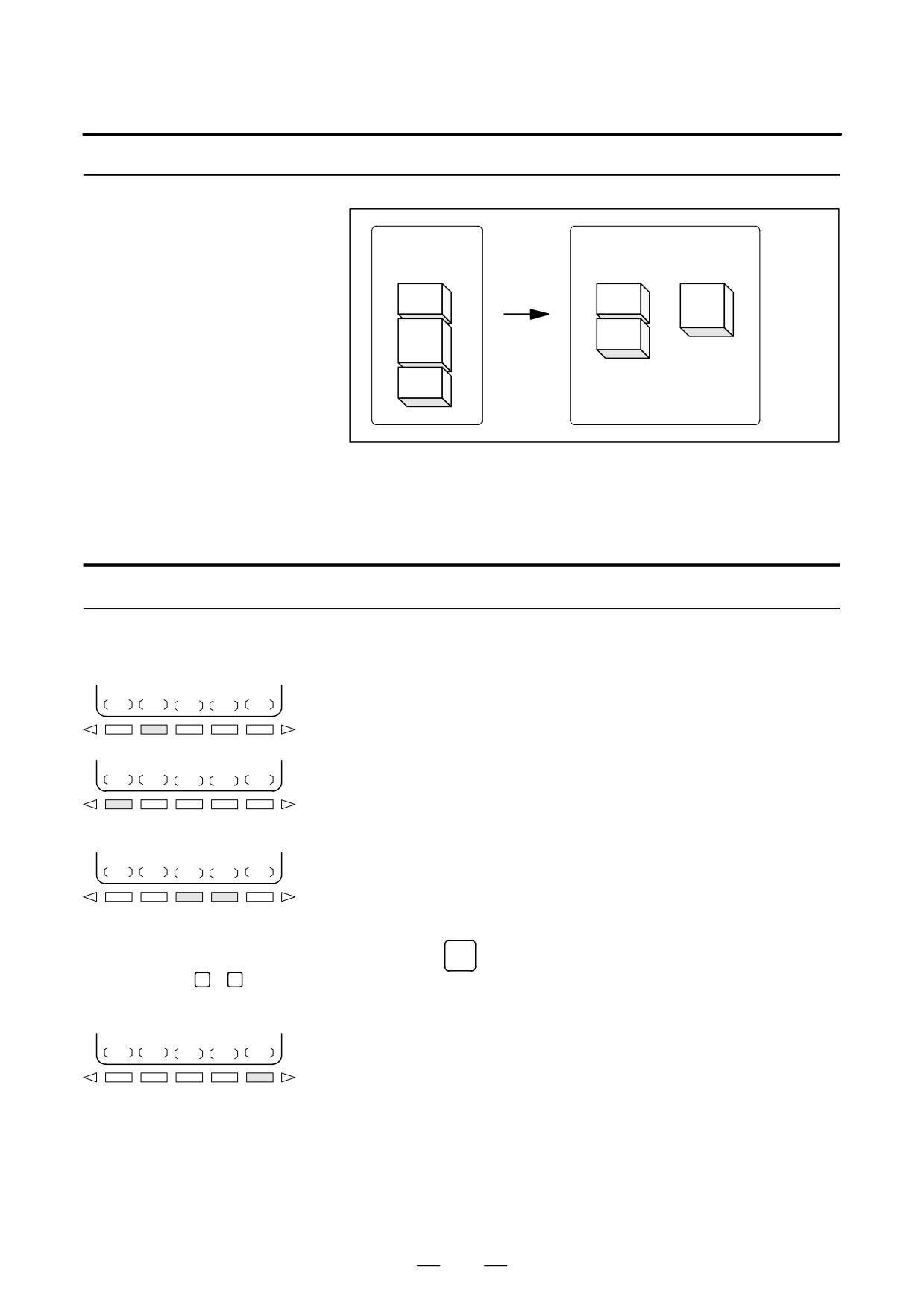
A new program can be created by moving part of a program.
Moving Part of a
Before copy
After copy
Program
Oxxxx
Oxxxx
Oyyyy
A
Copy
A
B
C
B
C
Fig. 9.6.3 Moving Part of a Program
In Fig. 9.6.3, part B of the program with program number xxxx is moved
to a newly created program with program number yyyy; part B is deleted
from the program with program number xxxx.
Procedure for moving part of a program
1
Perform steps 1 to 5 in III-9.6.1.
2
Check that the screen for the program to be moved is selected and
MOVE
press soft key [MOVE].
3
Move the cursor to the start of the range to be moved and press soft
CRSR
key [CRSR
].
4
Move the cursor to the end of the range to be moved and press soft key
[ CRSR] or [ BTTM](in the latter case, the range to the end of the
CRSR
BTTM
program is copied regardless of the position of the cursor).
5
Enter the number of the new program (with only numeric keys) and
press the
INPUT
key.
Numeric
keys
0
9
6
Press soft key [EXEC].
EXEC
960
B-63534EN/02
OPERATION
9. EDITING PROGRAMS
9.6.4
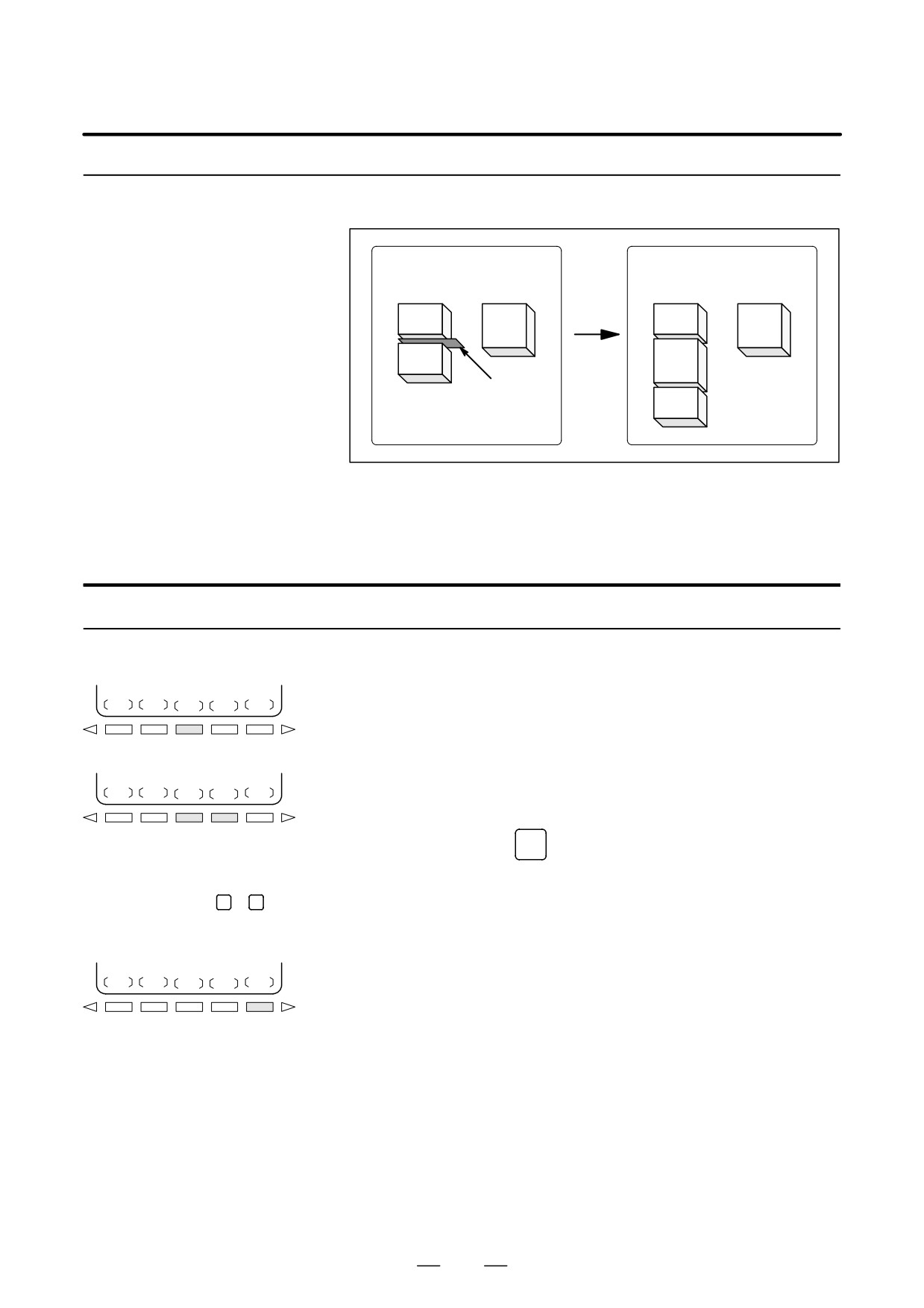
Another program can be inserted at an arbitrary position in the current
program.
Merging a Program
Before merge
After merge
Oxxxx
Oyyyy
Oxxxx
Oyyyy
A
B
Merge
A
B
C
B
Merge
location
C
Fig. 9.6.4 Merging a program at a specified location
In Fig. 9.6.4, the program with program number XXXX is merged with the
program with program number YYYY. The OYYYY program remains
unchanged after merge operation.
Procedure for merging a program
1
Perform steps 1 to 5 in III-9.6.1.
2
Check that the screen for the program to be edited is selected and press
MERGE
soft key [MERGE].
3
Move the cursor to the position at which another program is to be
inserted and press soft key [
’CRSR] or [ BTTM’](in the latter case,
the end of the current program is displayed).
’CRSR
BTTM’
4
Enter the number of the program to be inserted (with only numeric
keys) and press the
INPUT
key.
5
Press soft key [EXEC].
Numeric keys
0
9
The program with the number specified in step 4 is inserted before the
cursor positioned in step 3.
EXEC
961
9. EDITING PROGRAMS
OPERATION
B-63534EN/02
9.6.5
Supplementary
Explanation for
Copying, Moving and
Merging
Explanations
D Setting an editing range
The setting of an editing range start point with [CRSR
] can be changed
freely until an editing range end point is set with [ CRSR] or [ BTTM].
If an editing range start point is set after an editing range end point, the
editing range must be reset starting with a start point.
The setting of an editing range start point and end point remains valid until
an operation is performed to invalidate the setting.
One of the following operations invalidates a setting:
⋅
An edit operation other than address search, word search/scan, and
search for the start of a program is performed after a start point or end
point is set.
⋅
Processing is returned to operation selection after a start point or end
point is set.
D Without specifying a
In copying program and moving program, if [EXEC] is pressed without
program number
specifying a program number after an editing range end point is set, a
program with program number O0000 is registered as a work program.
This O0000 program has the following features:
⋅
The program can be edited in the same way as a general program.
(Do not run the program.)
⋅
If a copy or move operation is newly performed, the previous
information is deleted at execution time, and newly set information
(all or part of the program) is reregistered.
(In merge operation, the
previous information is not deleted.) However, the program, when
selected for foreground operation, cannot be reregistered in the
background. (A BP/S alarm No. 140 is raised.) When the program is
reregistered, a free area is produced. Delete such a free area with the
RESET
key.
⋅
When the program becomes unnecessary, delete the program by a
normal editing operation.
D Editing when the system
When the system is waiting for a program number to be entered,
waiting for a program
no edit operation can be performed.
number to be entered
Limitations
D Number of digits for
If a program number is specified by 5 or more digits, a format error is
program number
generated.
962
B-63534EN/02
OPERATION
9. EDITING PROGRAMS
Alarm
Alarm no.
Contents
Memory became insufficient while copying or inserting
70
a program. Copy or insertion is terminated.
The power was interrupted during copying, moving, or
inserting a program and memory used for editing must
be cleared. When this alarm occurs, press the key
RESET
101
while pressing function key
PROG
Only the program being edited is deleted.
963
9. EDITING PROGRAMS
OPERATION
B-63534EN/02
9.6.6
Replace one or more specified words.
Replacement can be applied to all occurrences or just one occurrence of
Replacement of
specified words or addresses in the program.
Words and Addresses
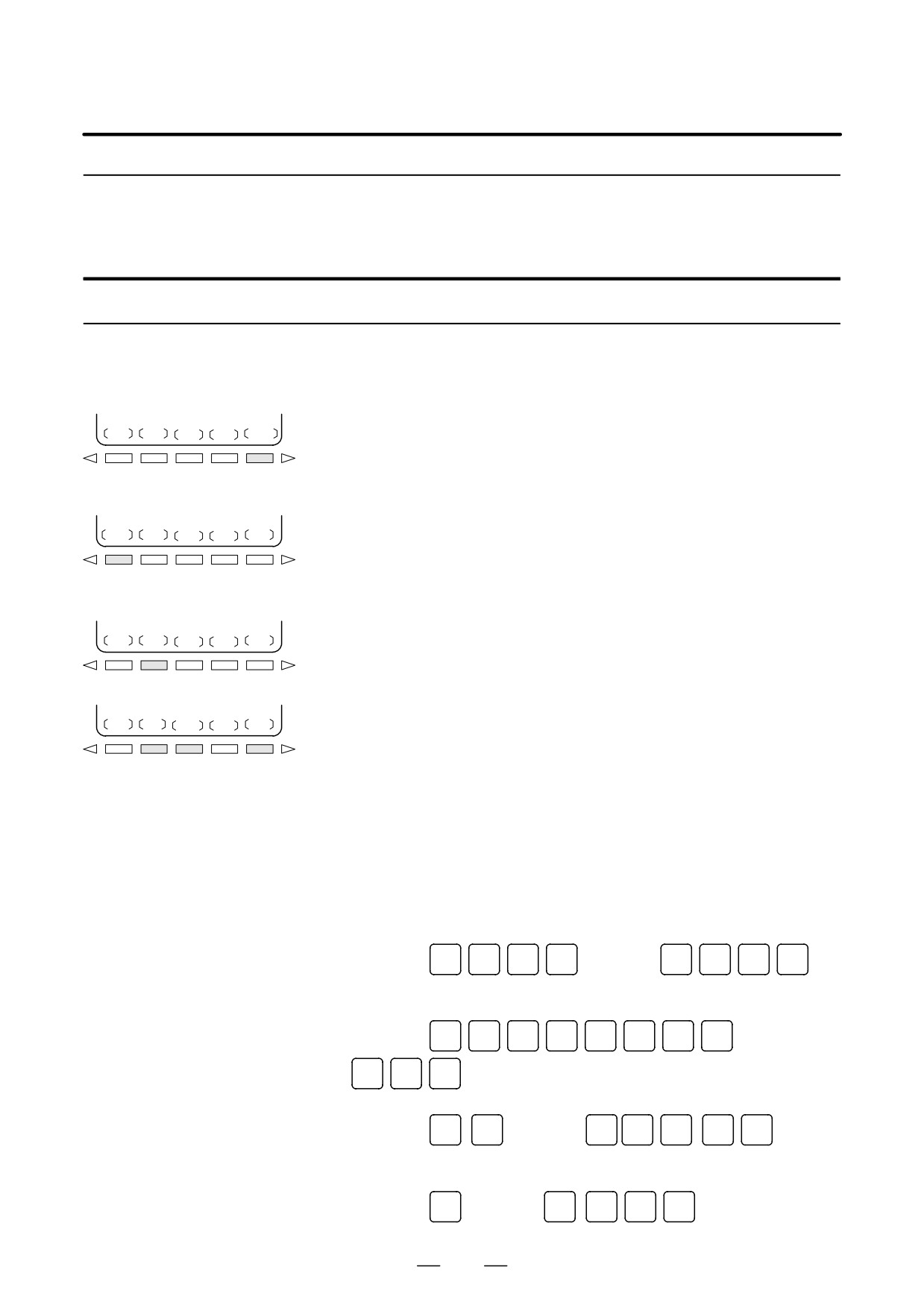
Procedure for hange of words or addresses
1
Perform steps 1 to 5 in III-9.6.1.
2
Press soft key [CHANGE].
CHANGE
3
Enter the word or address to be replaced.
BEFORE
4
Press soft key [BEFORE].
5
Enter the new word or address.
AFTER
6
Press soft key [AFTER].
SKIP
1-EXEC
EXEC
7
Press soft key [EXEC] to replace all the specified words or addresses
after the cursor.
Press soft key [1-EXEC] to search for and replace the first occurrence
of the specified word or adress after the cursor.
Press soft key [SKIP] to only search for the first occurrence of the
specified word or address after the cursor.
Examples
D Replace X100 with Y200
[CHANGE]
X
1
0
0
[BEFORE]
Y
2
0
0
[AFTER][EXEC]
D Replace X100Y200 with
[CHANGE]
X
1
0
0
Y
2
0
0
[BEFORE]
X30
X
3
0
[AFTER][EXEC]
D Replace IF with WHILE
[CHANGE]
I
F
[BEFORE]
W
H
I
L
E
[AFTER]
[EXEC]
D Replace X with ,C10
[CHANGE]
[BEFORE]
,
[AFTER][EXEC]
X
C
1
0
964
B-63534EN/02
OPERATION
9. EDITING PROGRAMS
Explanation
D Replacing custom
The following custom macro words are replaceable:
macros
IF, WHILE, GOTO, END, DO, BPRNT, DPRINT, POPEN, PCLOS
The abbreviations of custom macro words can be specified.
When abbreviations are used, however, the screen displays the
abbreviations as they are key input, even after soft key [BEFORE] and
[AFTER] are pressed.
Restrictions
D The number of
Up to 15 characters can be specified for words before or after replacement.
characters for
(Sixteen or more characters cannot be specified.)
replacement
D The characters for
Words before or after replacement must start with a character representing
replacement
an address.(A format error occurs.)
965
9. EDITING PROGRAMS
OPERATION
B-63534EN/02
Unlike ordinary programs, custom macro programs are modified,
9.7
inserted, or deleted based on editing units.
EDITING OF
Custom macro words can be entered in abbreviated form.
CUSTOM MACROS
Comments can be entered in a program.
Refer to the III-10.1 for the comments of a program.
Explanations
D Editing unit
When editing a custom macro already entered, the user can move the
cursor to each editing unit that starts with any of the following characters
and symbols:
(a) Address
(b) # located at the start of the left side of a substitution statement
(c) /, (,=, and ;
(d) First character of IF, WHILE, GOTO, END, DO, POPEN, BPRNT,
DPRNT and PCLOS
On the screen, a blank is placed before each of the above characters and
symbols.
(Example) Head positions where the cursor is placed
N001 X-#100 ;
#1 =123 ;
N002 /2 X[12/#3] ;
N003 X-SQRT[#3/3:[#4+1]] ;
N004 X-#2 Z#1 ;
N005 #5 =1+2-#10 ;
IF[#1NE0] GOTO10 ;
WHILE[#2LE5] DO1 ;
#[200+#2] =#2:10 ;
#2 =#2+1 ;
END1 ;
D Abbreviations of custom
When a custom macro word is altered or inserted, the first two characters
macro word
or more can replace the entire word.
Namely,
WHILE → WH GOTO → GO XOR → XO
AND → AN
SIN → SI
ASIN → AS
COS → CO
ACOS → AC
TAN → TA
ATAN → AT
SQRT → SQ
ABS → AB
BCD → BC
BIN → BI
FIX → FI
FUP → FU
ROUND → RO
END → EN
EXP → EX
THEN → TH
POPEN → PO
BPRNT → BP
DPRNT → DP
PCLOS → PC
(Example) Keying in
WH [AB [#2 ] LE RO [#3 ] ]
has the same effect as
WHILE [ABS [#2 ] LE ROUND [#3 ] ]
The program is also displayed in this way.
966

B-63534EN/02
OPERATION
9. EDITING PROGRAMS
Editing a program while executing another program is called background
9.8
editing. The method of editing is the same as for ordinary editing
BACKGROUND
(foreground editing).
EDITING
A program edited in the background should be registered in foreground
program memory by performing the following operation:
During background editing, all programs cannot be deleted at once.
Procedure for background editing
1
Enter EDIT or MEMORY mode.
Memory mode is allowed even while the program is being executed.
2
Press function key
PROG
3
Press soft key [(OPRT)], then press soft key [BG-EDT].
The background editing screen is displayed
(PROGRAM
(BG-EDIT) is displayed at the top left of the screen).
4
Edit a program on the background editing screen in the same way as
for ordinary program editing.
5
After editing is completed, press soft key [(OPRT)], then press soft
key [BG-EDT]. The edited program is registered in foreground
program memory.
Explanation
D Alarms during
Alarms that may occur during background editing do not affect
background editing
foreground operation. Conversely, alarms that may occur during
foreground operation do not affect background editing. In background
editing, if an attempt is made to edit a program selected for foreground
operation, a BP/S alarm (No. 140) is raised. On the other hand, if an
attempt is made to select a program subjected to background editing
during foreground operation (by means of subprogram calling or program
number search operation using an external signal), a P/S alarm (Nos. 059,
078) is raised in foreground operation. As with foreground program
editing, P/S alarms occur in background editing. However, to distinguish
these alarms from foreground alarms, BP/S is displayed in the data input
line on the background editing screen.
967

9. EDITING PROGRAMS
OPERATION
B-63534EN/02
The password function (bit 4 (NE9) of parameter No. 3202) can be locked
9.9
using parameter No.
3210
(PASSWD) and parameter No.
3211
PASSWORD
(KEYWD) to protect program Nos. 9000 to 9999. In the locked state,
FUNCTION
parameter NE9 cannot be set to 0. In this state, program Nos. 9000 to 9999
cannot be modified unless the correct keyword is set.
A locked state means that the value set in the parameter PASSWD differs
from the value set in the parameter KEYWD. The values set in these
parameters are not displayed. The locked state is released when the value
already set in the parameter PASSWD is also set in parameter KEYWD.
When 0 is displayed in parameter PASSWD, parameter PASSWD is not
set.
Procedure for locking and unlocking
Locking
1
Set the MDI mode.
2
Enable parameter writing. At this time, P/S alarm No. 100 is issued
on the CNC.
3
Set parameter No. 3210 (PASSWD). At this time, the locked state is
set.
4
Disable parameter writing.
5
Press the
RESET
key to release the alarm state.
Unlocking
1
Set the MDI mode.
2
Enable parameter writing. At this time, P/S alarm No. 100 is issued
on the CNC.
3
In parameter No. 3211 (KEYWD), set the same value as set in
parameter No. 3210 (PASSWD) for locking. At this time, the locked
state is released.
4
Set bit 4 (NE9) of parameter No. 3202 to 0.
5
Disable parameter writing.
6
Press the
RESET
key to release the alarm state.
7
Subprograms from program Nos. 9000 to 9999 can now be edited.
Explanations
D Setting parameter
The locked state is set when a value is set in the parameter PASSWD.
PASSWD
However, note that parameter PASSWD can be set only when the locked
state is not set (when PASSWD = 0, or PASSWD = KEYWD). If an
attempt is made to set parameter PASSWD in other cases, a warning is
given to indicate that writing is disabled. When the locked state is set
(when PASSWD = 0 and PASSWD = KEYWD), parameter NE9 is
automatically set to 1. If an attempt is made to set NE9 to 0, a warning
is given to indicate that writing is disabled.
D Changing parameter
Parameter PASSWD can be changed when the locked state is released
PASSWD
(when PASSWD = 0, or PASSWD = KEYWD). After step 3 in the
procedure for unlocking, a new value can be set in the parameter
PASSWD. From that time on, this new value must be set in parameter
KEYWD to release the locked state.
968
B-63534EN/02
OPERATION
9. EDITING PROGRAMS
D Setting 0 in parameter
When 0 is set in the parameter PASSWD, the number 0 is displayed, and
PASSWD
the password function is disabled. In other words, the password function
can be disabled by either not setting parameter PASSWD at all, or by
setting
0 in parameter PASSWD after step 3 of the procedure for
unlocking. To ensure that the locked state is not entered, care must be
taken not to set a value other than 0 in parameter PASSWD.
D Re-locking
After the locked state has been released, it can be set again by setting a
different value in parameter PASSWD, or by turning the power to the NC
off then on again to reset parameter KEYWD.
CAUTION
Once the locked state is set, parameter NE9 cannot be set
to 0 and parameter PASSWD cannot be changed until the
locked state is released or the memory all-clear operation
is performed. Special care must be taken in setting
parameter PASSWD.
969