FANUC Series 16i/160i/160is-MB, Series 18i/180i/180is-MB5, Series 18i/180i/180is-MB. Operator's Manual - page 32
8. DATA INPUT/OUTPUT
OPERATION
B-63534EN/02
READ/PUNCH (FLOPPY)
O1234 N12345
No. FILE NAME
(Meter) VOL
0001
PARAMETER
46.1
0002
ALL.PROGRAM
12.3
0003
O0001
11.9
0004
O0002
11.9
0005
O0003
11.9
0006
O0004
11.9
0007
O0005
0008
O0010
11.9
0009
O0020
11.9
11.9
F SRH
File No.=2
>2_
EDIT
****
***
***
***
12:34:56
F SRH
CAN
EXEC
A directory in which the first file is uppermost can be displayed
simply by pressing the page key.
(Soft key [F SRH] need not be
pressed.)
910
B-63534EN/02
OPERATION
8. DATA INPUT/OUTPUT
Inputting a file
Procedure
1
Press the rightmost soft key
(next-menu key) on the ALL IO
screen, described in Section 8.10.1.
2
Press soft key [FLOPPY].
3
Select EDIT mode. The floppy screen is displayed.
4
Press soft key [(OPRT)]. The screen and soft keys change as shown
below.
The floppy screen is displayed only in EDIT mode. In all other
modes, the ALL IO screen is displayed.
READ/PUNCH (FLOPPY)
O1234 N12345
>
MDI
****
***
***
***
12:34:56
F SRH
READ
PUNCH
DELETE
5
Press soft key [READ].
6
Enter the number of a file or program to be input.
F SET O SET STOP CAN EXEC
⋅
Setting a file number: Enter the number of the desired file, then
press soft key [F SET].
⋅
Setting a program number: Enter the number of the desired
program, then press soft key [O SET].
7
Press soft key [EXEC].
The specified file or program is read, and the ”INPUT” indicator
blinks at the lower-right corner of the screen. Upon the completion of
input, the ”INPUT” indicator is cleared from the screen.
911
8. DATA INPUT/OUTPUT
OPERATION
B-63534EN/02
Outputting a file
Procedure
1
Press the rightmost soft key
(next-menu key) on the ALL IO
screen, described in Section 8.10.1.
2
Press soft key [FLOPPY].
3
Select EDIT mode. The floppy screen is displayed.
4
Press soft key [(OPRT)]. The screen and soft keys change as shown
below.
The floppy screen is displayed only in EDIT mode. In all other
modes, the ALL IO screen is displayed.
READ/PUNCH (FLOPPY)
O1234 N12345
>
MDI
****
***
***
***
12:34:56
F SRH
READ
PUNCH
DELETE
5
Press soft key [PUNCH].
6
Enter the number of the program to be output, together with a desired
F SET O SET STOP CAN EXEC
output file number.
⋅
Setting a file number: Enter the number of the desired file, then
press soft key [F SET].
⋅
Setting a program number: Enter the number of the desired
program, then press soft key [O SET].
7
Press soft key [EXEC].
The specified program is output, and the ”OUTPUT” indicator blinks
at the lower-right corner of the screen. Upon the completion of
output, the ”OUTPUT” indicator is cleared from the screen.
If no file number is specified, the program is written at the end of the
currently registered files.
912
B-63534EN/02
OPERATION
8. DATA INPUT/OUTPUT
Deleting a file
Procedure
1
Press the rightmost soft key
(next-menu key) on the ALL IO
screen, described in Section 8.10.1.
2
Press soft key [FLOPPY].
3
Select EDIT mode. The floppy screen is displayed.
4
Press soft key [(OPRT)]. The screen and soft keys change as shown
below.
The floppy screen is displayed only in EDIT mode. In all other
modes, the ALL IO screen is displayed.
READ/PUNCH (FLOPPY)
O1234 N12345
>
MDI
****
***
***
***
12:34:56
F SRH
READ
PUNCH
DELETE
5
Press soft key [DELETE].
6
Enter the number of the desired file, then press soft key [F SET].
F SET
CAN EXEC
7
Press soft key [EXEC]. The specified file is deleted. After the file has
been deleted, the subsequent files are shifted up.
913
8. DATA INPUT/OUTPUT
OPERATION
B-63534EN/02
8.11
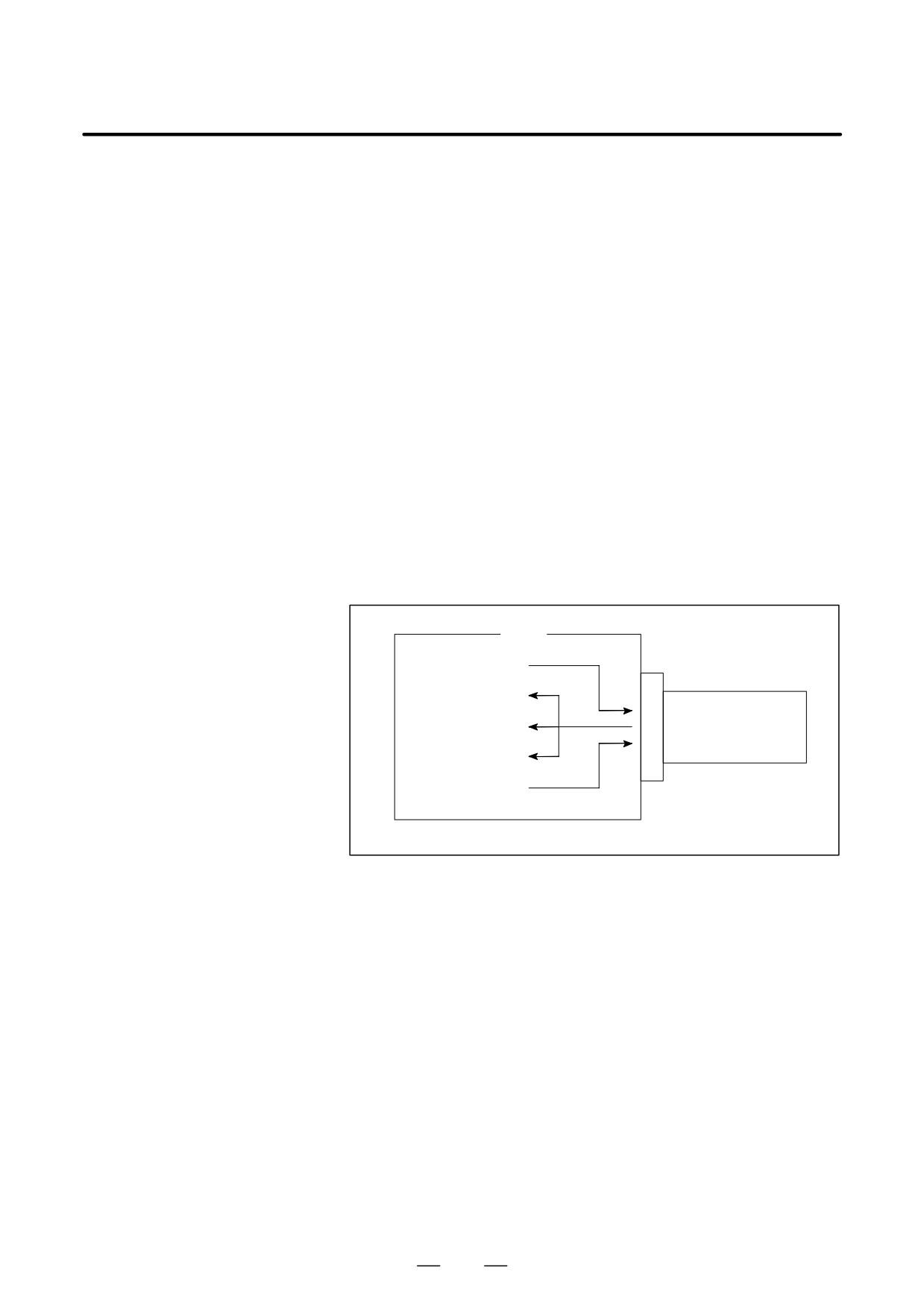
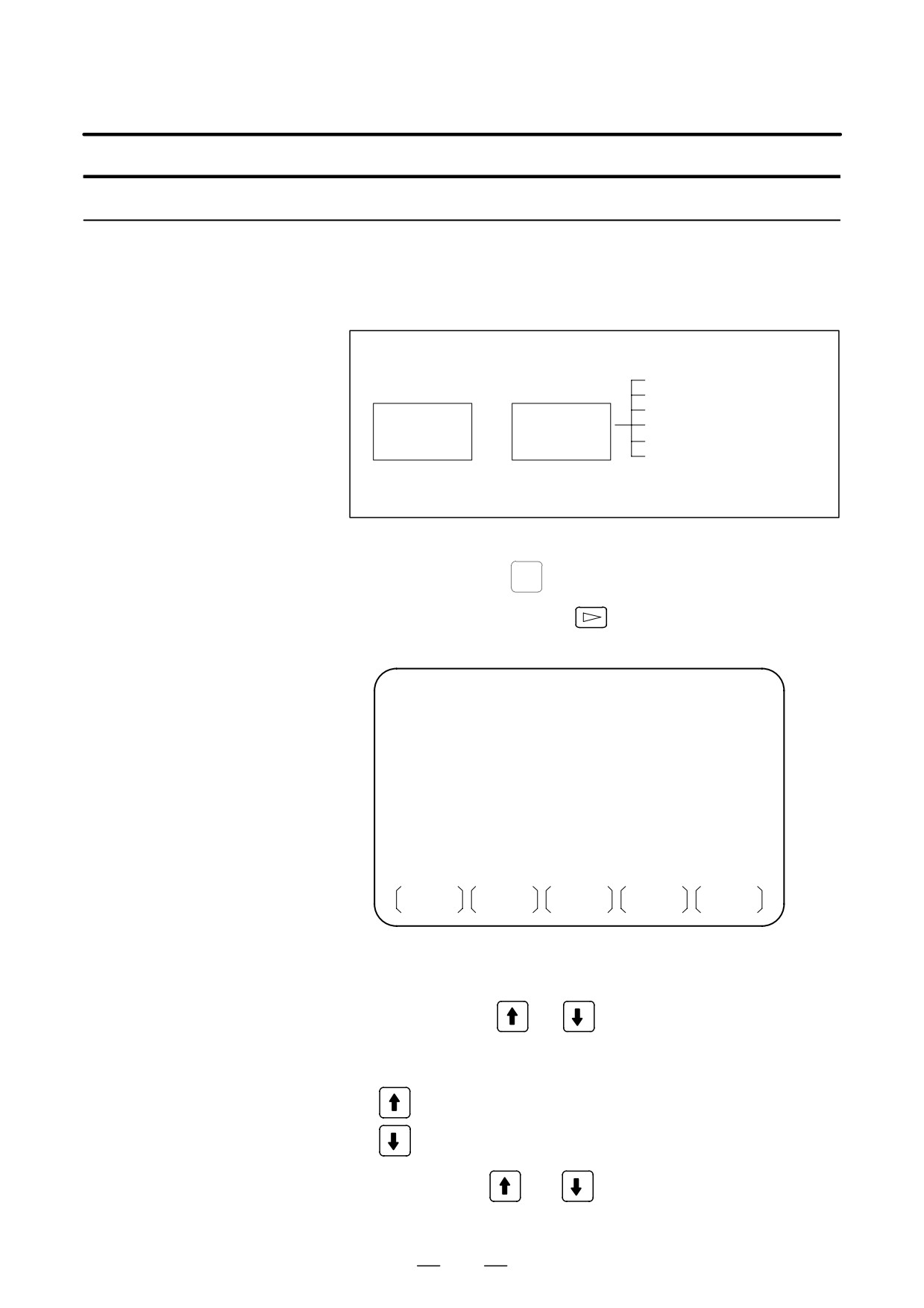
By setting the I/O channel (parameter No. 0020) to 4, files on a memory
card inserted into the memory card interface located to the left of the
DATA INPUT/OUTPUT
display can be referenced. Different types of data such as part programs,
USING A MEMORY
parameters, and offset data on a memory card can also be input and output
CARD
in text file format.
The major functions are listed below.
⋅
Displaying a directory of stored files
The files stored on a memory card can be displayed on the directory
screen.
⋅
Searching for a file
A search is made for a file on a memory card and, if found, it is
displayed on the directory screen.
⋅
Reading a file
Text-format files can be read from a memory card.
⋅
Writing a file
Data such as part programs can be stored to a memory card in text file
format.
⋅
Deleting a file
A file can be selected and deleted from a memory card.
CNC
Writing a file
Reading a file
Displaying a directory
Memory card
Searching for a file
Deleting a file
914
B-63534EN/02
OPERATION
8. DATA INPUT/OUTPUT
Displaying a directory of stored files
Procedure
1
Press the EDIT switch on the machine operator’s panel.
2
Press function key
PROG
3
Press the rightmost soft key
(next-menu key).
4
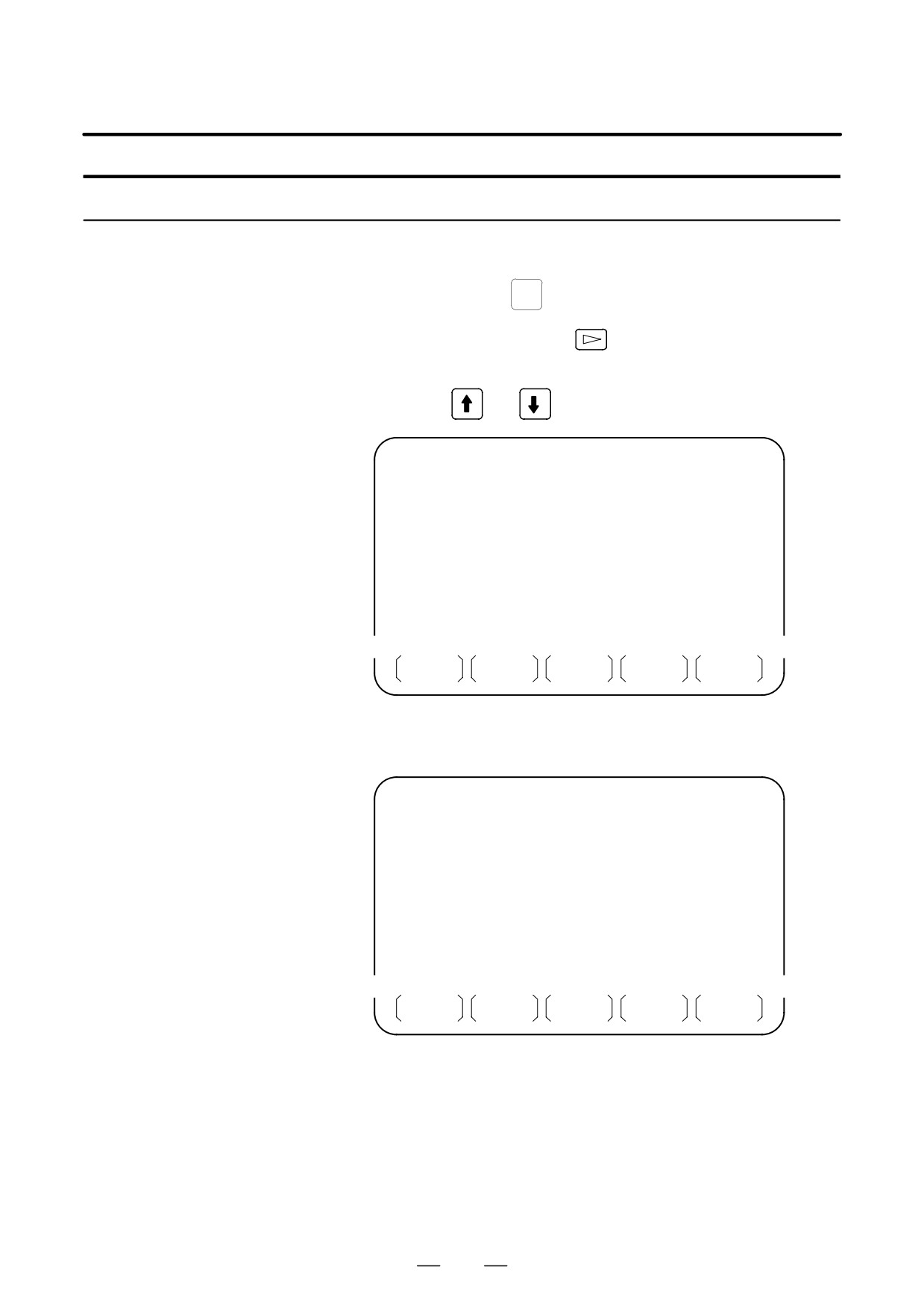
Press soft key [CARD]. The screen shown below is displayed. Using
page keys
and
, the screen can be scrolled.
DIRECTORY (M-CARD)
O0034 N00045
No. FILE NAME
SIZE
DATE
0001
O1000
123456
96/07/10
0002
O1001
118458
96/07/30
0003
O0002
113250
96/07/30
0004
O2000
173456
96/07/31
0005
O2001
113444
96/07/31
0006
O3001
118483
96/08/02
0007
O3300
111406
96/08/05
0008
O3400
112420
96/07/31
0009
O3500
117460
96/07/31
~
~
PROG
DIR +
(OPRT)
5
Comments relating to each file can be displayed by pressing soft key
[DIR+].
DIRECTORY (M-CARD)
O0034 N00045
No. FILE NAME
COMMENT
0001
O1000
(COMMENT
)
0002
O1001
(SUB PROGRAM )
0003
O0002
(12345678
)
0004
O2000
(
)
0005
O2001
(
)
0006
O3001
(SKIP-K
)
0007
O3300
(HI-SPEED
)
0008
O3400
(
)
0009
O3500
(TEST PROGRAM)
~
~
PROG
DIR +
(OPRT)
6
Repeatedly pressing soft key [DIR+] toggles the screen between the
display of comments and the display of sizes and dates.
Any comment described after the O number in the file is displayed.
Up to 18 characters can be displayed on the screen.
915
8. DATA INPUT/OUTPUT
OPERATION
B-63534EN/02
Searching for a file
Procedure
1
Press the EDIT switch on the machine operator’s panel.
2
Press function key
PROG
3
Press the rightmost soft key
(next-menu key).
4
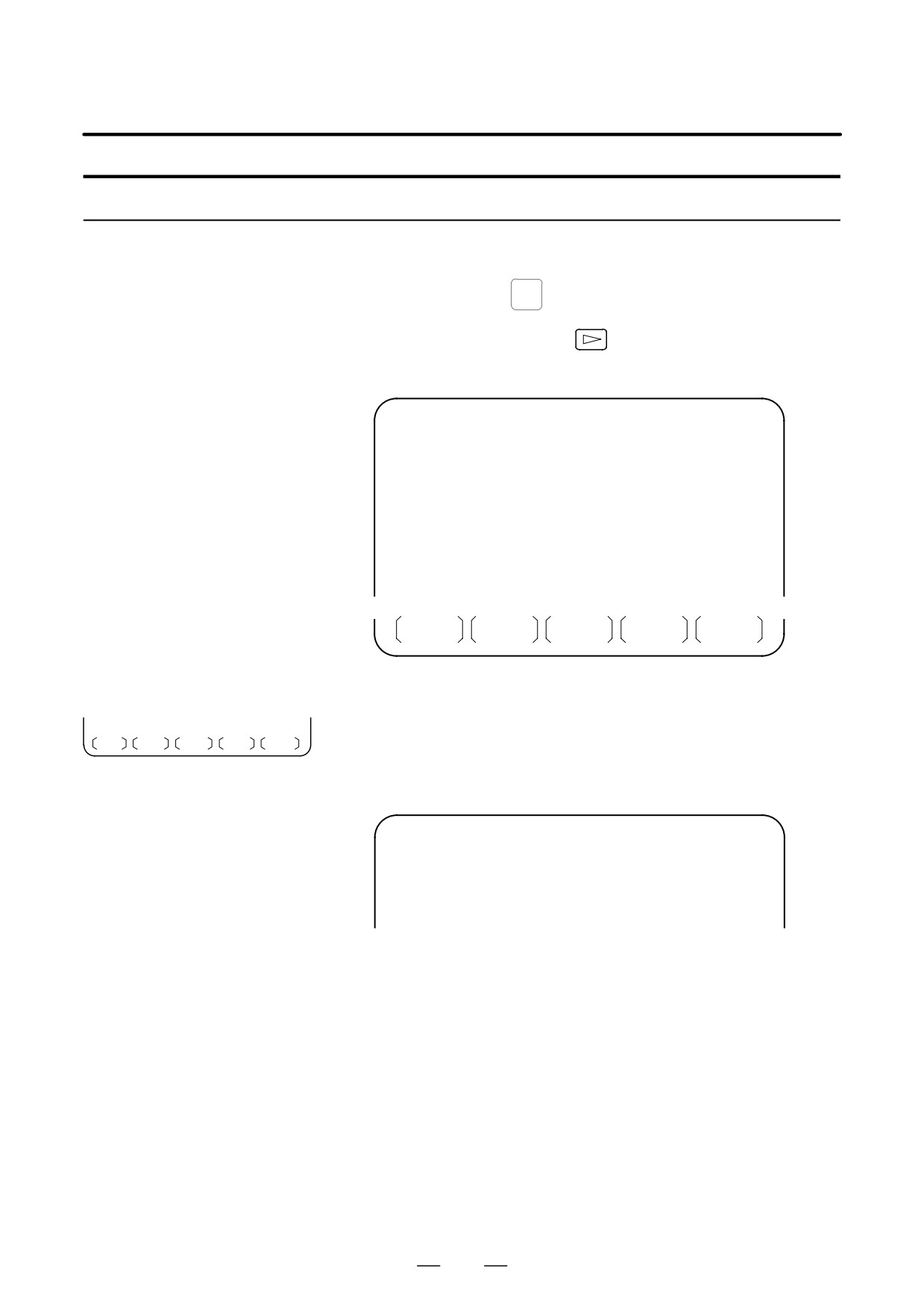
Press soft key [CARD]. The screen shown below is displayed.
DIRECTORY (M-CARD)
O0034 N00045
No. FILE NAME
SIZE
DATE
0001
O1000
123456
96/07/10
0002
O1001
118458
96/07/30
0003
O0002
113250
96/07/30
0004
O2000
173456
96/07/31
0005
O2001
113444
96/07/31
0006
O3001
118483
96/08/02
0007
O3300
111406
96/08/05
0008
O3400
112420
96/07/31
0009
O3500
117460
96/07/31
~
~
PROG
DIR +
(OPRT)
5
Press soft key [(OPRT)].
6
Set the number of the desired file number with soft key [F SRH].
F SRH F READ N READ PUNCH DELETE
Then, start the search by pressing soft key [EXEC]. If found, the file is
displayed at the top of the directory screen.
When a search is made for file number 19
DIRECTORY (M-CARD)
O0034 N00045
No. FILE NAME
COMMENT
0019
O1000
(MAIN PROGRAM)
0020
O1010
(SUBPROGRAM-1)
0021
O1020
(COMMENT
)
0022
O1030
(COMMENT
)
~
~
916
B-63534EN/02
OPERATION
8. DATA INPUT/OUTPUT
Reading a file
Procedure
1
Press the EDIT switch on the machine operator’s panel.
2
Press function key PROG.
3
Press the rightmost soft key
(next-menu key).
4
Press soft key [CARD]. Then, the screen shown below is displayed.
DIRECTORY (M-CARD)
O0034 N00045
No. FILE NAME
SIZE
DATE
0001
O1000
123456
96/07/10
0002
O1001
118458
96/07/30
0003
O0002
113250
96/07/30
0004
O2000
173456
96/07/31
0005
O2001
113444
96/07/31
0006
O3001
118483
96/08/02
0007
O3300
111406
96/08/05
0008
O3400
112420
96/07/31
0009
O3500
117460
96/07/31
~
~
PROG
DIR +
(OPRT)
5
Press soft key [(OPRT)].
F SRH F READ N READ PUNCH DELETE
6
To specify a file number, press soft key [F READ]. The screen shown
below is displayed.
DIRECTORY (M-CARD)
O0001 N00010
No. FILE NAME
COMMENT
0019
O1000
(MAIN PROGRAM)
0020
O1010
(SUBPROGRAM-1)
0021
O1030
(COMMENT
)
~
~
READ
FILE NAME=20
PROGRAM No.=120
>
EDIT
15:40:21
***
****
***
****
F NAME
O SET
STOP
CAN
EXEC
7
Enter file number 20 from the MDI panel, then set the file number by
pressing soft key [F SET]. Next, enter program number 120, then set
the program number by pressing soft key [O SET]. Then, press soft
key [EXEC].
⋅
File number 20 is registered as O0120 in the CNC.
⋅
Set a program number to register a read file with a separate O
number. If no program number is set, the O number in the file name
column is registered.
917
8. DATA INPUT/OUTPUT
OPERATION
B-63534EN/02
8
To specify a file with its file name, press soft key [N READ] in step 6
above. The screen shown below is displayed.
DIRECTORY (M-CARD)
O0001 N00010
No. FILE NAME
COMMENT
0012
O0050
(MAIN PROGRAM)
0013
TESTPRO
(SUB PROGRAM-1)
0014
O0060
(MACRO PROGRAM)
~
~
READ
FILE NAME
=TESTPRO
PROGRAM No. =1230
>
EDIT
15:40:21
***
****
***
****
F NAME
O SET
STOP
CAN
EXEC
9
To register file name TESTPRO as O1230, enter file name TESTPRO
from the MDI panel, then set the file name with soft key [F NAME].
Next, enter program number 1230, then set the program number with
soft key [O SET]. Then, press soft key [EXEC].
918
B-63534EN/02
OPERATION
8. DATA INPUT/OUTPUT
Writing a file
Procedure
1
Press the EDIT switch on the machine operator’s panel.
2
Press function key
PROG
3
Press the rightmost soft key
(next-menu key).
4
Press soft key [CARD]. The screen shown below is displayed.
DIRECTORY (M-CARD)
O0034 N00045
No. FILE NAME
SIZE
DATE
0001
O1000
123456
96/07/10
0002
O1001
118458
96/07/30
0003
O0002
113250
96/07/30
0004
O2000
173456
96/07/31
0005
O2001
113444
96/07/31
0006
O3001
118483
96/08/02
0007
O3300
111406
96/08/05
0008
O3400
112420
96/07/31
0009
O3500
117460
96/07/31
~
~
PROG
DIR +
(OPRT)
5
Press soft key [(OPRT)].
6
Press soft key [PUNCH].
F SRH
F READ
N READ
PUNCH
DELETE
7
Enter a desired O number from the MDI panel, then set the program
number with soft key [O SET].
When soft key [EXEC] is pressed after the setting shown below has
been made, for example, the file is written under program number
O1230.
~
~
PUNCH
FILE NAME
=
PROGRAM No. =1230
>
EDIT
15:40:21
***
****
***
****
F NAME
O SET
STOP
CAN
EXEC
8
In the same way as for O number setting, enter a desired file name
from the MDI panel, then set the file name with soft key [F SET].
When soft key [EXEC] is pressed after the setting shown below has
been made, for example, the file is written under program number
O1230 and file name ABCD12.
~
~
PUNCH
FILE NAME
=ABCD12
PROGRAM No. =1230
>
EDIT
***
****
***
****
15:40:21
F NAME
O SET
STOP
CAN
EXEC
919
8. DATA INPUT/OUTPUT
OPERATION
B-63534EN/02
Explanations
D Registering the same file
When a file having the same name is already registered in the memory
name
card, the existing file will be overwritten.
D Writing all programs
To write all programs, set program number = -9999. If no file name is
specified in this case, file name PROGRAM.ALL is used for registration.
D File name restrictions
The following restrictions are imposed on file name setting:
<File name setting>
VVV
°
°
Not longer than 8
Extension not longer
characters
than 3 characters
920
B-63534EN/02
OPERATION
8. DATA INPUT/OUTPUT
Deleting a file
Procedure
1
Press the EDIT switch on the machine operator’s panel.
2
Press function key
PROG
3
Press the rightmost soft key
(next-menu key).
4
Press soft key [CARD]. The screen shown below is displayed.
DIRECTORY (M-CARD)
O0034 N00045
No. FILE NAME
SIZE
DATE
0001
O1000
123456
96/07/10
0002
O1001
118458
96/07/30
0003
O0002
113250
96/07/30
0004
O2000
173456
96/07/31
0005
O2001
113444
96/07/31
0006
O3001
118483
96/08/02
0007
O3300
111406
96/08/05
0008
O3400
112420
96/07/31
0009
O3500
117460
96/07/31
~
~
PROG
DIR +
(OPRT)
5
Press soft key [(OPRT)].
6
Set the number of the desired file with soft key [DELETE], then press
F SRH F READ N READ PUNCH DELETE
soft key [EXEC]. The file is deleted, and the directory screen is
displayed again.
When file number 21 is deleted
DIRECTORY (M-CARD)
O0034 N00045
No. FILE NAME
COMMENT
0019
O1000
(MAIN PROGRAM)
0020
O1010
(SUBPROGRAM-1)
0021
O1020
(COMMENT
)
0022
O1030
(COMMENT
)
~
~
File name O1020 is deleted.
DIRECTORY (M-CARD)
O0034 N00045
No. FILE NAME
COMMENT
0019
O1000
(MAIN PROGRAM)
0020
O1010
(SUBPROGRAM-1)
0021
O1020
(COMMENT
)
0022
O1030
(COMMENT
)
~
~
File number 21 is assigned to the next file name.
921
8. DATA INPUT/OUTPUT
OPERATION
B-63534EN/02
Batch input/output with a memory card
On the ALL IO screen, different types of data including part programs,
parameters, offset data, pitch error data, custom macros, and workpiece
coordinate system data can be input and output using a memory card; the
screen for each type of data need not be displayed for input/output.
Data item name
Part program
Parameter
Offset data
Memory card
²
ALL IO screen
Pitch error data
Custom macro
³
Workpiece coordinate system
data
(additional coordinate systems)
Procedure
1
Press the EDIT switch on the machine operator’s panel.
2
Press function key
SYSTEM
3
Press the rightmost soft key
(next-menu key) several times.
4
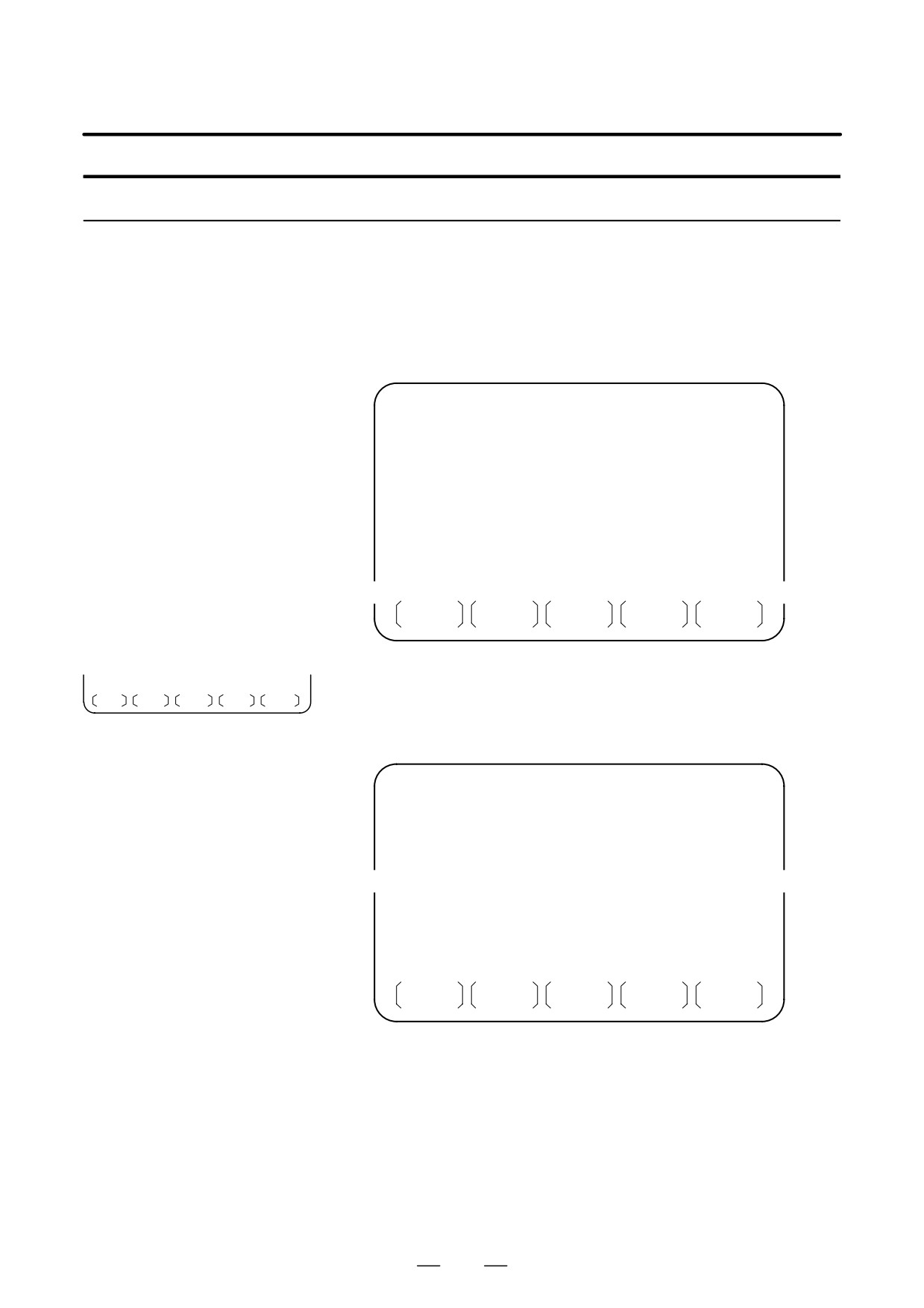
Press soft key [ALL IO]. The screen shown below is displayed.
READ/PUNCH (PROGRAM)
O0001 N00001
No. FILE NAME
SIZE
DATE
*0001
O0222
332010
96-04-06
*0002
O1003
334450
96-05-04
*0003
MACROVAR.DAT 653400
96-05-12
*0004
O0002
341205
96-05-13
[PROGRAM]
*O0001
O0002
O0003
O0005
O0100
O0020
*O0006
O0004
O0110
O0200
O2200
O0441
*O0330
>
EDIT
10:07:37
***
****
***
****
PROG
PARAM
OFFSET
(OPRT)
Upper part : Directory of files on the memory card
Lower part : Directory of registered programs
5
With cursor keys
and
, the user can choose between upper
part scrolling and lower part scrolling. (An asterisk (*) displayed at
the left edge indicates the part for which scrolling is possible.)
: Used for memory card file directory scrolling.
: Used for program directory scrolling.
6
With page keys
and
, scroll through the file directory or
program directory.
922
B-63534EN/02
OPERATION
8. DATA INPUT/OUTPUT
Explanations
D Each data item
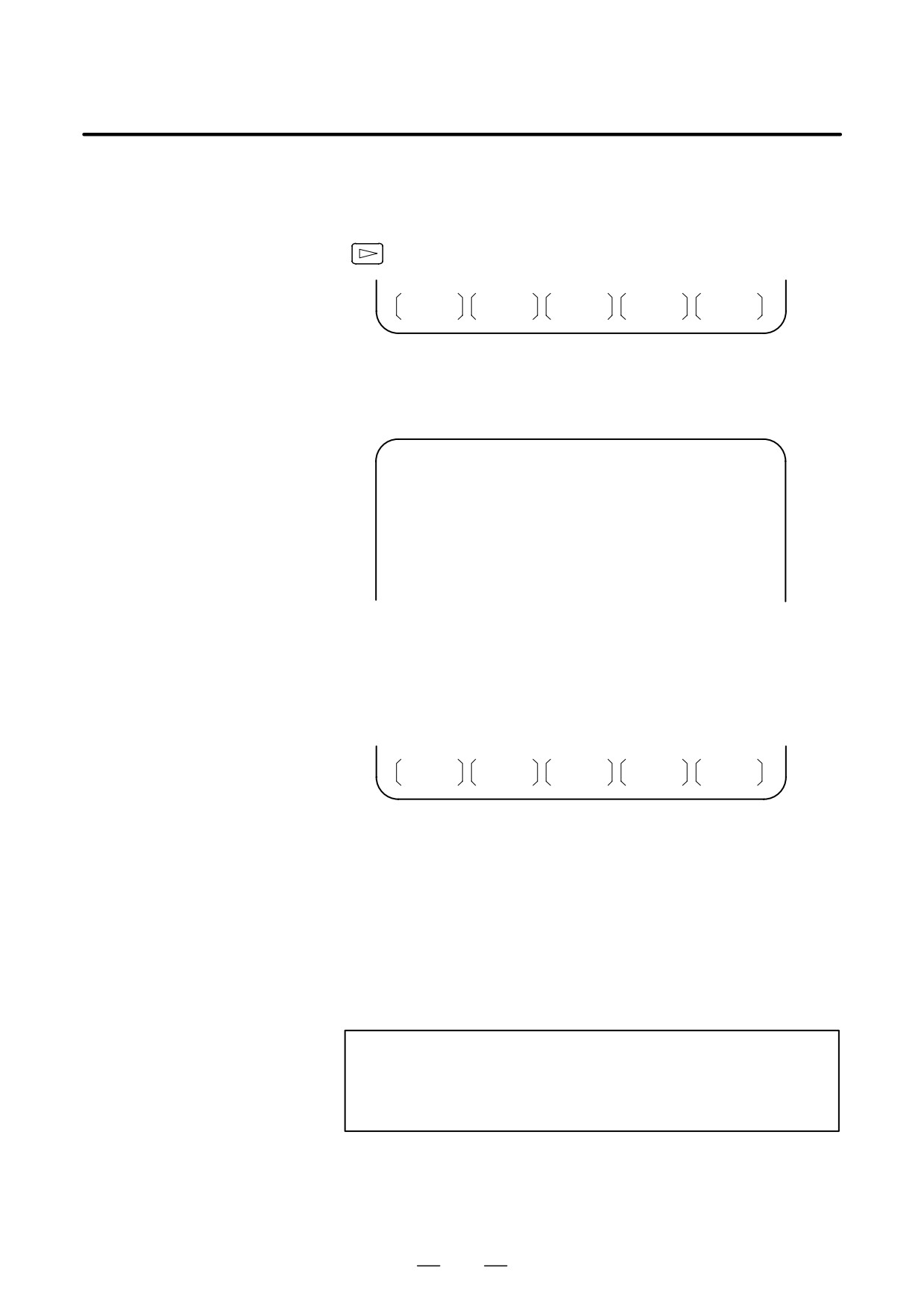
When this screen is displayed, the program data item is selected. The soft
keys for other screens are displayed by pressing the rightmost soft key
(next-menu key).
MACRO
PITCH
WORK
(OPRT)
When a data item other than program is selected, the screen displays only
a file directory.
A data item is indicated, in parentheses, on the title line.
READ/PUNCH (PARAMETER)
O0001 N00001
No. FILE NAME
SIZE
DATE
0001
O0222
332010
96/04/06
0002
O1003
334450
96/05/04
0003
MACROVAR.DAT
653400
96/05/12
0004
O0003
334610
96/05/04
0005
O0001
334254
96/06/04
0006
O0002
333750
96/06/04
0007
CNCPARAM.DAT
334453
96/06/04
~
~
D Program directory
Program directory display does not match bit 0 (NAM) of parameter No.
display
3107, or bit 4 (SOR) of parameter No. 3107.
D Using each function
Display the following soft keys with soft key [(OPRT)].
F SRH
F READ
N READ
PUNCH
DELETE
The operation of each function is the same as on the directory (memory
card) screen. Soft key [O SET], used for program number setting, and the
”PROGRAM NUMBER =” indication are not displayed for data items
other than program.
[F SRH]
: Finds a specified file number.
[F READ] : Reads a specified file number.
[PUNCH]
: Writes a file.
[N READ] : Reads a file under a specified file name.
[DELETE] : Deletes a specified file number.
NOTE
With a memory card, RMT mode operation and the
subprogram call function (based on the M198 command)
cannot be used.
923
8. DATA INPUT/OUTPUT
OPERATION
B-63534EN/02
File format and error messages
Format
All files that are read from and written to a memory card are of text format.
The format is described below.
A file starts with % or LF, followed by the actual data. A file always ends
with %. In a read operation, data between the first % and the next LF is
skipped. Each block ends with an LF, not a semicolon (;).
⋅
LF: 0A (hexadecimal) of ASCII code
⋅
When a file containing lowercase letters, kana characters, and several
special characters (such as $, \, and !) is read, those letters and
characters are ignored.
Example:
%
O0001(MEMORY CARD SAMPLE FILE)
G17 G49 G97
G92 X-11.3 Y2.33
⋅
⋅
M30
%
⋅
ASCII code is used for input/output, regardless of the setting
parameter (ISO/EIA).
⋅
Bit 3 of parameter No. 0100 can be used to specify whether the end of
block code (EOB) is output as ”LF” only, or as ”LF, CR, CR.”
Error messages
If an error occurs during memory card input/output, a corresponding error
message is displayed.
~
~
0028
O0003
777382 01-06-14
M-CARD ERROR
FILE No. =
1
PROGRAM No. =13
>_
EDIT
***
****
***
****
15:40:21
F SET
O SET
STOP
CAN
EXEC
represents a memory card error code.
924

B-63534EN/02
OPERATION
8. DATA INPUT/OUTPUT
Memory Card Error
Codes
Code
Meaning
99
A part preceding the FAT area on the memory card is destroyed.
102
The memory card does not have sufficient free space.
105
No memory card is mounted.
106
A memory card is already mounted.
110
The specified directory cannot be found.
111
There are too many files under the root directory to allow a
directory to be added.
114
The specified file cannot be found.
115
The specified file is protected.
117
The file has not yet been opened.
118
The file is already open.
119
The file is locked.
121
The memory card does not have sufficient free space.
122
The specified file name is invalid.
124
The extension of the specified file is invalid.
129
A non-corresponding function was specified.
130
The specification of a device is invalid.
131
The specification of a pathname is invalid.
133
Multiple files are open at the same time.
135
The device is not formatted.
140
The file has the read/write disabled attribute.
925
8. DATA INPUT/OUTPUT
OPERATION
B-63534EN/02
8.12
DATA INPUT/OUTPUT
BY EMBEDDED
ETHERNET
8.12.1
The operation of the FTP file transfer function is described below.
FTP File Transfer
Function
A list of the files held on the hard disk embedded to the host computer is
8.12.1.1
displayed.
Host file list display
Procedure
1
Press the function key
PROG
2
Press the continuous menu key at the right end of the soft key display.
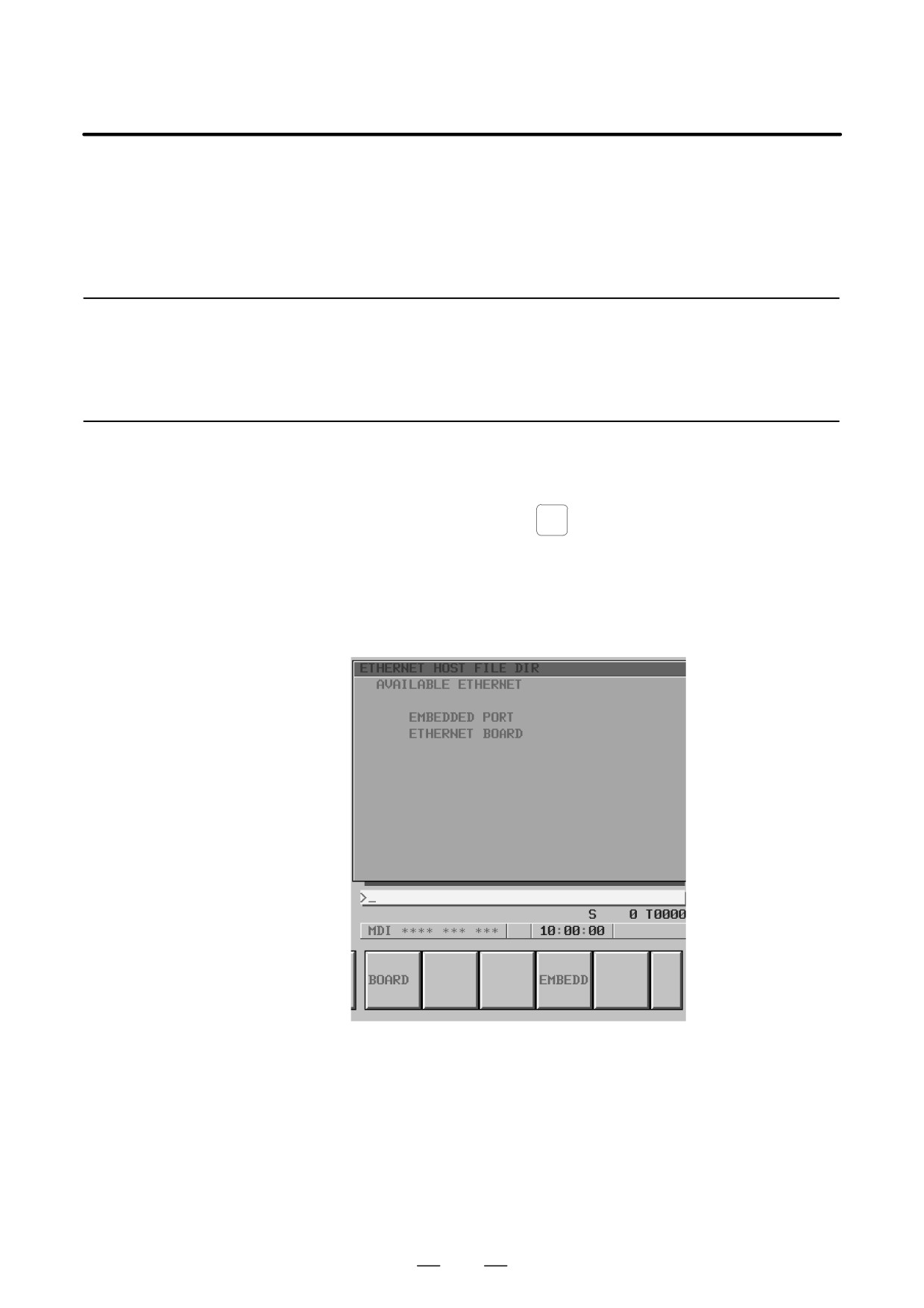
3
Press the [HOST] soft key. The host file list screen appears. The
Ethernet functions currently available are displayed.
The upper row displays the usable embedded Ethernet function
device.
The embedded port or PCMCIA card is displayed.
The lower row displays the usable Ethernet option boards. When no
option board is installed, no information is displayed.
4
When you press the [EMBEDD] soft key, a list of the files held on the
host computer specified with the embedded Ethernet port is
displayed.
926
B-63534EN/02
OPERATION
8. DATA INPUT/OUTPUT
NOTE
Depending on the FTP server software, the number of
displayed programs may differ between the host file list
screen above and the host file list (detail) screen described
below.
5
When a list of files is larger than one page, the screen display can be
PAGE
switched using the page keys
PAGE
6
Press the [UPDATE] soft key to update the screen display.
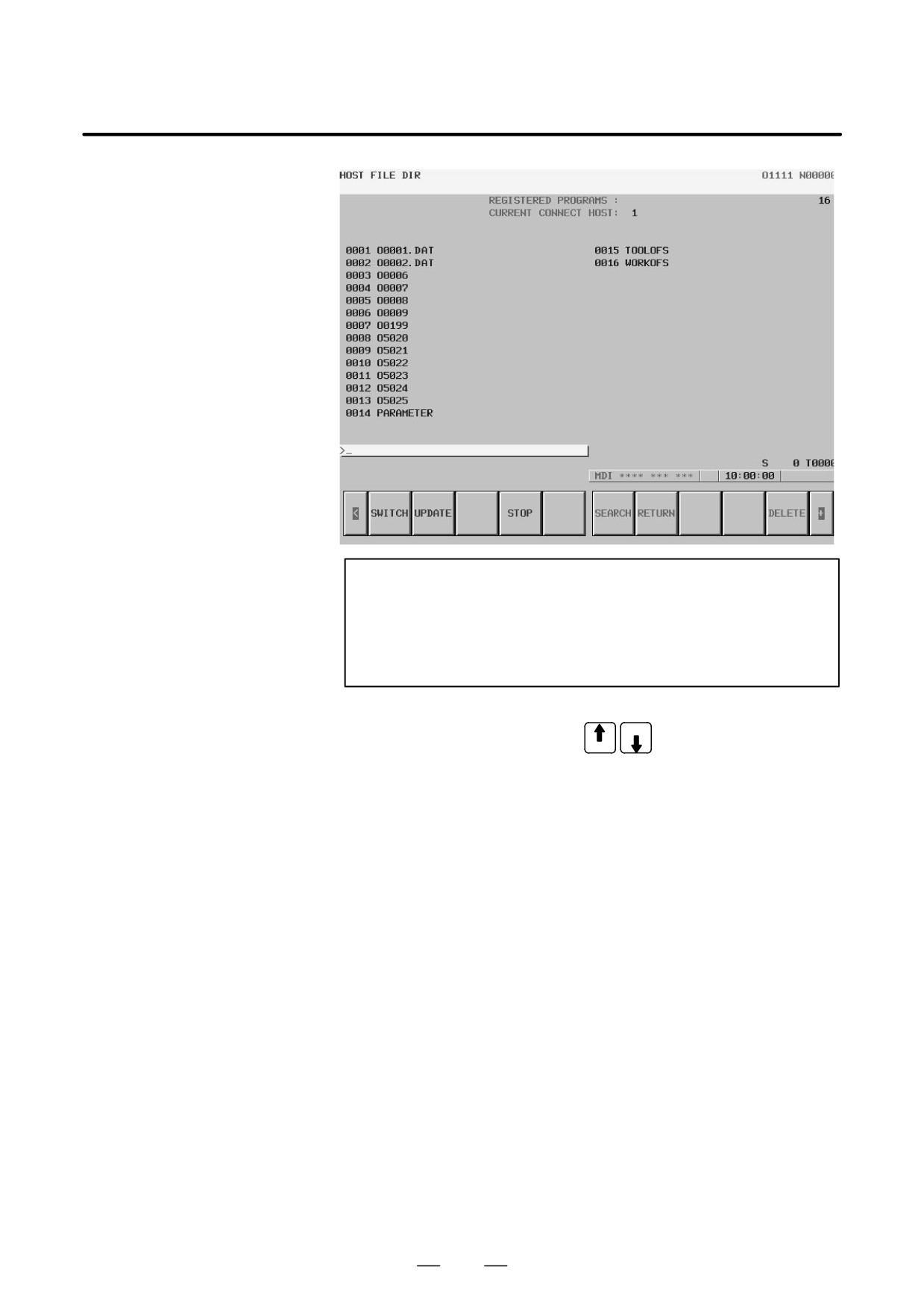
7
Press the [SWITCH] soft key. The host file list (detail) screen
appears.
927
8. DATA INPUT/OUTPUT
OPERATION
B-63534EN/02
NOTE
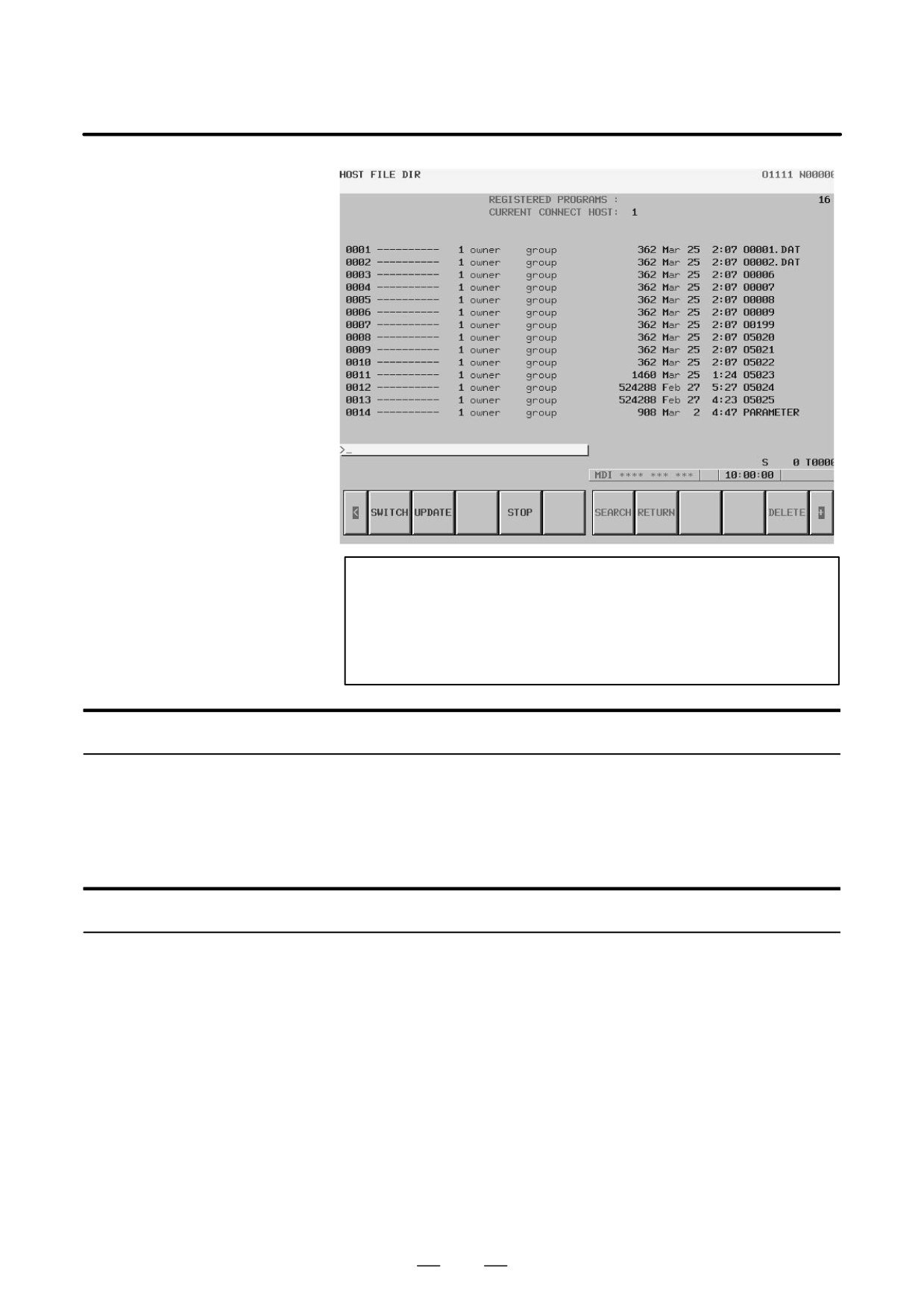
The host file list (detail) screen shown above is an example
of screen display, and information displayed may vary
according to the specification of the FTP server used with
the host computer.
Display items
D Number of registered
The number of files registered in the directory (folder) of the host
program files
computer currently connected is displayed.
D Currently connected
The number of the host currently connected is displayed.
host
List of operations
D SWITCH
This operation switches between normal display and detail display.
D UPDATE
This operation updates information displayed.
D STOP
This operation stops [SEARCH] operation.
D SEARCH
This operation updates screen information so that a file specified by its
file number is placed at the start of the list.
D DELETE
This operation deletes a file held on the hard disk embedded to the host
computer.
D READ
This operation reads a file held on the hard disk embedded to the host
computer to the CNC part program storage. This soft key is displayed
only when 9 is set as the input/output device number of the CNC, and the
CNC is placed in the EDIT mode.
928

B-63534EN/02
OPERATION
8. DATA INPUT/OUTPUT
D PUNCH
This operation outputs a file held in the CNC part program storage to the
hard disk embedded to the host computer. This soft key is displayed only
when 9 is set as the input/output device number of the CNC, and the CNC
is placed in the EDIT mode.
8.12.1.2
When a list of the files held on the hard disk embedded to the host
computer is displayed, a file can be placed at the start of the list by
Host file search
specifying its file number.
Procedure
1
Display the host file list screen.
2
Press the [SEARCH] soft key.
3
Type the file number of a file to be displayed at the start of the list with
the MDI keys.
[Input format]
<file-number>
4
Press the [EXEC] soft key.
5
During search, “SEARCH” blinks in the lower-right corner of the
screen.
8.12.1.3
A file held on the hard disk embedded to the host computer can be deleted.
Host file deletion
Procedure
1
Display the host file list screen.
2
Press the [DELETE] soft key.
3
Type the file number or file name of a file to be deleted, with the MDI
keys.
[Input format]
<file-number>
or
<file-name>
4
Press the [EXEC] soft key.
5
During deletion, “DELETE” blinks in the lower-right corner of the
screen.
NOTE
1
When a file number is used for deletion, only a file displayed
on the host file list screen can be deleted.
2
The information displayed at the right end of the host file list
(detail) screen is recognized as a file name. So, when
deleting a host file from the host file list (detail) screen by
specifying its file number, check that a file name is displayed
at the right end of the screen, before specifying the file
number.
929
8. DATA INPUT/OUTPUT
OPERATION
B-63534EN/02
8.12.1.4
A file (NC program) on the host computer can be read to the CNC
memory.
NC program input
For the host file list screen
Procedure
1
Place the CNC in the EDIT mode.
2
Display the host file list screen.
3
Press the [READ] soft key.
4
Type the file number or file name of an NC program to be input, with
the MDI keys.
[Input format]
<file-number>
or
<file-name>
5
Press the [EXEC] soft key.
6
During input, “INPUT” blinks in the lower-right corner of the screen.
CAUTION
1
If the CNC memory holds an NC program that has the same
O number as that of an NC program to be input, the NC
program in the CNC memory is overwritten when bit 2 of
parameter No. 3201 is set to 1.
2
If an NC program is input when bit 0 of parameter No. 3201
is set to
1, all NC programs in the CNC memory are
automatically deleted before NC program input.
[Example of use]
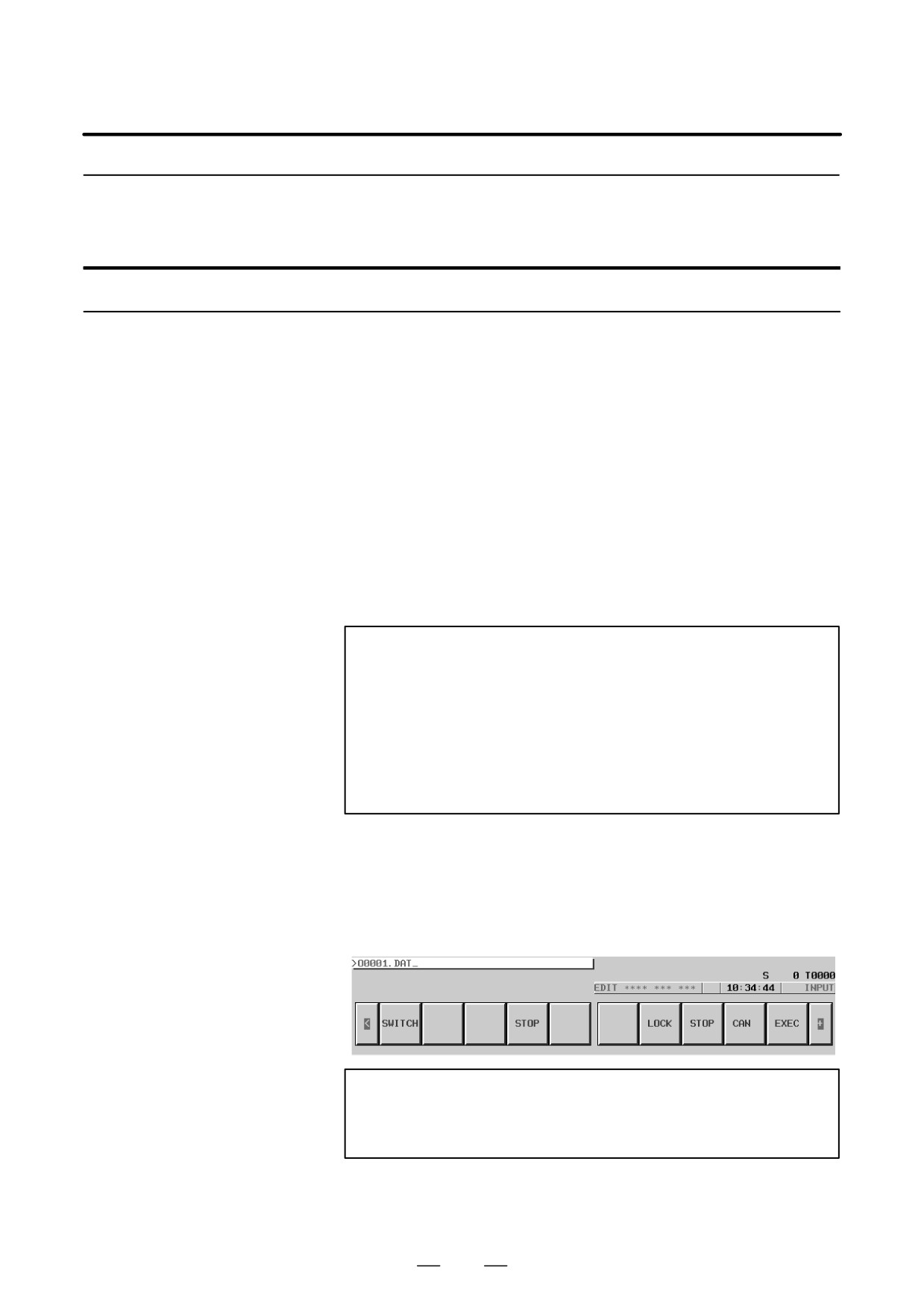
When a file with the file name O0001.DAT held on the hard disk
embedded to the host computer is to be input to the CNC memory, enter
O001.DAT. Note, however, that the O number input to the CNC memory
depends on the O number described in the file named O0001.DAT.
NOTE
When a file is input from this screen to the CNC memory, the
O number described in the file is input.
930

B-63534EN/02
OPERATION
8. DATA INPUT/OUTPUT
For the program screen
Procedure
1
Place the CNC in the EDIT mode.
2
Press the function key
PROG
3
Press the continuous menu key at the right end of the soft key display.
4
Press the [PRGRM] soft key. The program screen appears.
5
Press the [(OPRT)] soft key.
6
Press the continuous menu key at the right end of the soft key display.
7
Press the [READ] soft key.
8
Type the O number of an NC program to be input, with the MDI keys.
[Input format]
<O-number>
9
Press the [EXEC] soft key.
10
During input, “INPUT” blinks in the lower-right corner of the screen.
CAUTION
1
If the CNC memory holds an NC program that has the same
O number as that of an NC program to be input, the NC
program in the CNC memory is overwritten when bit 2 of
parameter No. 3201 is set to 1.
2
If an NC program is input when bit 0 of parameter No. 3201
is set to
1, all NC programs in the CNC memory are
automatically deleted before NC program input.
NOTE
The valid O number of a file to be input to the CNC memory
is Oxxxx (with xxxx representing a number) only.
931
8. DATA INPUT/OUTPUT
OPERATION
B-63534EN/02
8.12.1.5
A file (NC program) in the CNC memory can be output to the host
computer.
NC program output
For the host file list screen
Procedure
1
Place the CNC in the EDIT mode.
2
Display the host file list screen.
3
Press the [PUNCH] soft key.
4
Type the O number of an NC program to be output, with the MDI
keys.
[Input format]
<O-number>
5
Press the [EXEC] soft key.
6
During output, “OUTPUT” blinks in the lower-right corner of the
screen.
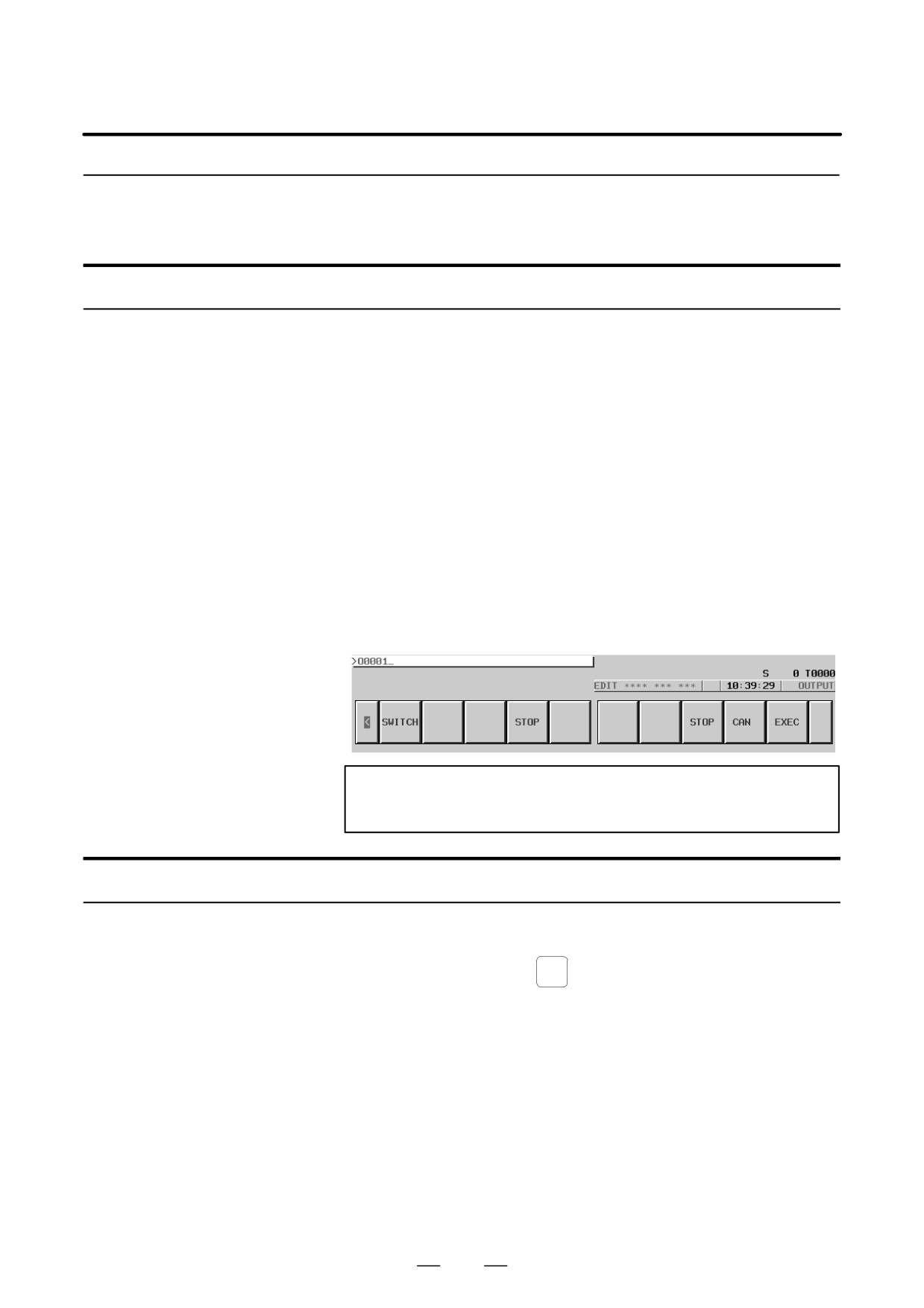
[Example of use]
When an NC program (O0001) in the CNC memory is to be output to the
hard disk embedded to the host computer, enter O0001.
NOTE
An outputted file name is Oxxxx.
For the program screen
Procedure
1
Place the CNC in the EDIT mode.
2
Press the function key
PROG
3
Press the continuous menu key at the right end of the soft key display.
4
Press the [PRGRM] soft key. The program screen appears.
5
Press the [(OPRT)] soft key.
6
Press the continuous menu key at the right end of the soft key display.
7
Press the [PUNCH] soft key.
8
Type the O number of an NC program to be output, with the MDI
keys.
[Input format]
<O-number>
932

B-63534EN/02
OPERATION
8. DATA INPUT/OUTPUT
9
Press the [EXEC] soft key.
10
During output, “OUTPUT” blinks in the lower-right corner of the
screen.
NOTE
An outputted file name is Oxxxx.
8.12.1.6
With the FTP file transfer function, the types of data listed below can be
input/output. This subsection describes the input/output method.
Input/output of various
types of data
A) NC parameter
B) Tool offset value
C) Custom macro variable
D) Workpiece orogin offset value
E) Pitch error compensation data
F) M code group
G) Operation history data
Parameter input
The file (NC parameter) on the host computer can be input to the CNC
memory.
Procedure
1
Place the CNC in the EDIT mode.
2
Press the function key
SYSTEM
3
Press the continuous menu key at the right end of the soft key display.
4
Press the [PARAM] soft key. The parameter screen appears.
5
Press the [(OPRT)] soft key.
6
Press the continuous menu key at the right end of the soft key display.
7
Press the [READ] soft key.
8
Press the [EXEC] soft key.
9
During input, “INPUT” blinks in the lower-right corner of the screen.
File name
The fixed file name PRAMETER is used.
File format, restrictions
Refer to the operator’s manual of each CNC.
933

8. DATA INPUT/OUTPUT
OPERATION
B-63534EN/02
Parameter output
The file (NC parameter) in the CNC memory can be output to the host
computer.
Procedure
1
Place the CNC in the EDIT mode.
2
Press the function key
SYSTEM
3
Press the continuous menu key at the right end of the soft key display.
4
Press the [PARAM] soft key. The parameter screen appears.
5
Press the [(OPRT)] soft key.
6
Press the continuous menu key at the right end of the soft key display.
7
Press the [PUNCH] soft key.
8
Press the [EXEC] soft key.
9
During output, “OUTPUT” blinks in the lower-right corner of the
screen.
File name
The fixed file name PRAMETER is used.
File format, restrictions
Refer to the operator’s manual of each CNC.
Tool offset value input
The file (tool offset value) on the host computer can be input to the CNC
memory.
Procedure
1
Place the CNC in the EDIT mode.
OFFSET
2
Press the function key
SETTING
3
Press the continuous menu key at the right end of the soft key display.
4
Press the [OFFSET] soft key. The tool compensation screen appears.
5
Press the [(OPRT)] soft key.
6
Press the continuous menu key at the right end of the soft key display.
7
Press the [READ] soft key.
8
Press the [EXEC] soft key.
9
During input, “INPUT” blinks in the lower-right corner of the screen.
File name
The fixed file name TOOLOFS is used.
File format, restrictions
Refer to the operator’s manual of each CNC.
934

B-63534EN/02
OPERATION
8. DATA INPUT/OUTPUT
Tool offset value output
The file (tool offset value) in the CNC memory can be output to the host
computer.
Procedure
1
Place the CNC in the EDIT mode.
OFFSET
2
Press the function key
SETTING
3
Press the continuous menu key at the right end of the soft key display.
4
Press the [OFFSET] soft key. The tool compensation screen appears.
5
Press the [(OPRT)] soft key.
6
Press the continuous menu key at the right end of the soft key display.
7
Press the [PUNCH] soft key.
8
Press the [EXEC] soft key.
9
During output, “OUTPUT” blinks in the lower-right corner of the
screen.
File name
The fixed file name TOOLOFS is used.
File format, restrictions
Refer to the operator’s manual of each CNC.
Workpiece origin offset value input
The file (workpiece origin offset value) on the host computer can be input
to the CNC memory.
Procedure
1
Place the CNC in the EDIT mode.
OFFSET
2
Press the function key
SETTING
3
Press the continuous menu key at the right end of the soft key display.
4
Press the [WORK] soft key. The workpiece coordinate system setting
screen appears.
5
Press the [(OPRT)] soft key.
6
Press the continuous menu key at the right end of the soft key display.
7
Press the [READ] soft key.
8
Press the [EXEC] soft key.
9
During input, “INPUT” blinks in the lower-right corner of the screen.
File name
The fixed file name WORKOFS is used.
File format, restrictions
Refer to the operator’s manual of each CNC.
935

8. DATA INPUT/OUTPUT
OPERATION
B-63534EN/02
Workpiece origin offset value output
The file (workpiece origin offset value) in the CNC memory can be output
to the host computer.
Procedure
1
Place the CNC in the EDIT mode.
OFFSET
2
Press the function key
SETTING
3
Press the continuous menu key at the right end of the soft key display.
4
Press the [WROK] soft key. The workpiece coordinate system setting
screen appears.
5
Press the [(OPRT)] soft key.
6
Press the continuous menu key at the right end of the soft key display.
7
Press the [PUNCH] soft key.
8
Press the [EXEC] soft key.
9
During output, “OUTPUT” blinks in the lower-right corner of the
screen.
File name
The fixed file name WORKOFS is used.
File format, restrictions
Refer to the operator’s manual of each CNC.
Pitch error compensation input
The file (pitch error compensation) on the host computer can be input to
the CNC memory.
Procedure
1
Place the CNC in the EDIT mode.
2
Press the function key
SYSTEM
3
Press the continuous menu key at the right end of the soft key display.
4
Press the [PITCH] soft key. The pitch error setting screen appears.
5
Press the [(OPRT)] soft key.
6
Press the continuous menu key at the right end of the soft key display.
7
Press the [READ] soft key.
8
Press the [EXEC] soft key.
9
During input, “INPUT” blinks in the lower-right corner of the screen.
File name
The fixed file name PITCH is used.
File format, restrictions
Refer to the operator’s manual of each CNC.
936

B-63534EN/02
OPERATION
8. DATA INPUT/OUTPUT
Pitch error compensation output
The file (pitch error compensation) in the CNC memory can be output to
the host computer.
Procedure
1
Place the CNC in the EDIT mode.
2
Press the function key
SYSTEM
3
Press the continuous menu key at the right end of the soft key display.
4
Press the [PITCH] soft key. The pitch error setting screen appears.
5
Press the [(OPRT)] soft key.
6
Press the continuous menu key at the right end of the soft key display.
7
Press the [PUNCH] soft key.
8
Press the [EXEC] soft key.
9
During output, “OUTPUT” blinks in the lower-right corner of the
screen.
File name
The fixed file name PITCH is used.
File format, restrictions
Refer to the operator’s manual of each CNC.
M code group input
The file (M code group) on the host computer can be input to the CNC
memory.
Procedure
1
Place the CNC in the EDIT mode.
2
Press the function key
SYSTEM
3
Press the continuous menu key at the right end of the soft key display.
4
Press the [M-CODE] soft key. The M code group setting screen
appears.
5
Press the [(OPRT)] soft key.
6
Press the continuous menu key at the right end of the soft key display.
7
Press the [READ] soft key.
8
Press the [EXEC] soft key.
9
During input, “INPUT” blinks in the lower-right corner of the screen.
File name
The fixed file name M-CODE is used.
File format, restrictions
Refer to the operator’s manual of each CNC.
937

8. DATA INPUT/OUTPUT
OPERATION
B-63534EN/02
M code group output
The file (M code group) in the CNC memory can be output to the host
computer.
Procedure
1
Place the CNC in the EDIT mode.
2
Press the function key
SYSTEM
3
Press the continuous menu key at the right end of the soft key display.
4
Press the [M-CODE] soft key. The M code group setting screen
appears.
5
Press the [(OPRT)] soft key.
6
Press the continuous menu key at the right end of the soft key display.
7
Press the [PUNCH] soft key.
8
Press the [EXEC] soft key.
9
During output, “OUTPUT” blinks in the lower-right corner of the
screen.
File name
The fixed file name M-CODE is used.
File format, restrictions
Refer to the operator’s manual of each CNC.
Operation history data input
The file (operation history data) on the host computer can be input to the
CNC memory.
Procedure
1
Place the CNC in the EDIT mode.
2
Press the function key
SYSTEM
3
Press the continuous menu key at the right end of the soft key display.
4
Press the [OPEHIS] soft key. The operation history screen appears.
5
Press the [(OPRT)] soft key.
6
Press the continuous menu key at the right end of the soft key display.
7
Press the [READ] soft key.
8
Press the [EXEC] soft key.
9
During input, “INPUT” blinks in the lower-right corner of the screen.
File name
The fixed file name HISTORY is used.
File format, restrictions
Refer to the operator’s manual of each CNC.
938

B-63534EN/02
OPERATION
8. DATA INPUT/OUTPUT
Operation history data output
The file (operation history data) in the CNC memory can be output to the
host computer.
Procedure
1
Place the CNC in the EDIT mode.
SYSTEM
2
Press the function key
3
Press the continuous menu key at the right end of the soft key display.
4
Press the [OPEHIS] soft key. The operation history screen appears.
5
Press the [(OPRT)] soft key.
6
Press the continuous menu key at the right end of the soft key display.
7
Press the [PUNCH] soft key.
8
Press the [EXEC] soft key.
9
During output, “OUTPUT” blinks in the lower-right corner of the
screen.
File name
The fixed file name HISTORY is used.
File format, restrictions
Refer to the operator’s manual of each CNC.
The host computer to which the FTP file transfer function attempts to
8.12.1.7
make a connection as the current communication destination can be
Checking and changing
checked.
of the connection host
Procedure
1
Press the function key
PROG
2
Press the continuous menu key at the right end of the soft key display.
3
Press the [CONECT] soft key. The connection host change screen
appears. The Ethernet functions currently available are displayed.
939