FANUC Series 0i-MODEL F Plus. CONNECTION MANUAL (FUNCTION) - page 304
 

  Index      Manuals     FANUC Series 0i-MODEL F Plus. CONNECTION MANUAL (FUNCTION) B-64693EN-1/01


Search            copyright infringement  


Content      ..     302      303      304      305     ..


FANUC Series 0i-MODEL F Plus. CONNECTION MANUAL (FUNCTION) - page 304


13. DISPLAY/SET/EDIT


B-64693EN-1/01


- 2386 - 

8) 

Disable operations on setting screen. (Refer to 13.1.24.3) 


Even if the power of CNC is turned off or the screen is switched to other one without the operation 
8), operations on the setting screen become disabled automatically 


Procedure for cancelling protection of parameters, C Language Executor programs, 
or ladder programs 

Procedure 

Cancelling protection of parameters, C Language Executor programs, or ladder programs to be protected 

on setting screen 

1) 

Enter password to enable operations on setting screen. (Refer to 13.1.24.3 and 13.1.24.4) 
By this operation, the following operation 2 is enabled 

2) 

Cancel protection of parameters, C Language Executor programs, or ladder programs.

Refer to 

13.1.24.6


After this operation, the protection is cancelled. 

3) 

Disable operations on the setting screen.

Refer to 13.1.24.3


Even if the power of CNC is turned off or the screen is switched to other one without this operation, 
operations on the setting screen become disabled automatically. 


13.1.24.2 

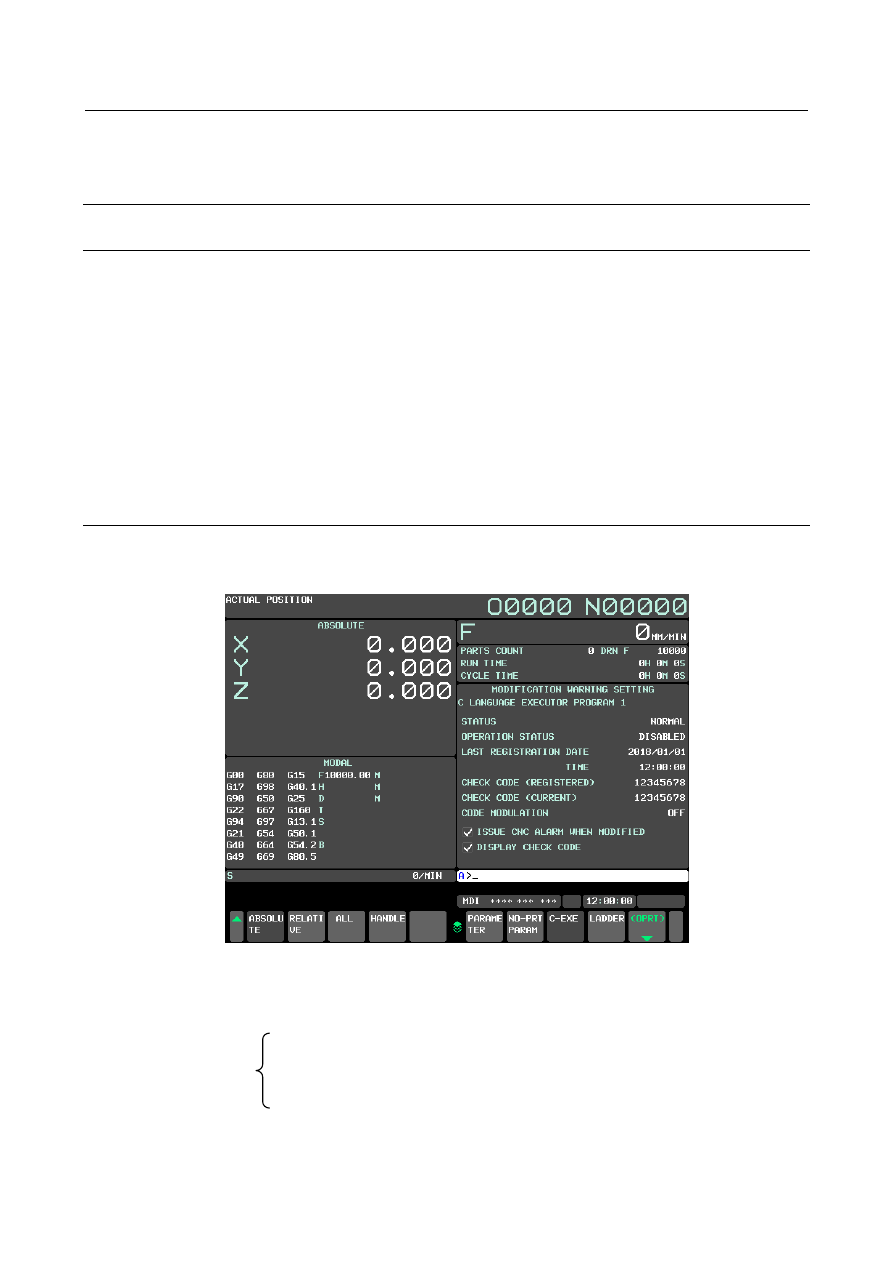
MODIFICATION WARNING SETTING screen 

The operation and displayed information for this function are operated on the MODIFICATION 
WARNING SETTING screen. 


Fig 13.1.24.2 (a) MODIFICATION WARNING SETTING screen 

 
There are separate setting screens for each item to be protected as follows. 
You can switch to each setting screen by soft key operation. 


MODIFICATION   

WARNING SETTING 

screens 

-


Setting screen for CNC parameters 

-


Setting screen for non-protected parameters 

-


Setting screen for C language executor program 

-


Setting screen for ladder program (Dual Check Safety ladder program is contained.) 


B-64693EN-1/01


13. DISPLAY/SET/EDIT


- 2387 - 

NOTE 

1.  You can select any parameters to be protected. Refer to the section "13.1.24.7 

Selection of parameters". 

2.  Each ladder program for the 1st – 5th path PMC and Dual check safety PMC can 

be protected independently. Each ladder program is protected by independent 
password and settings. 


Display setting screen 

Procedure 

1)


Press function key 


2)


Press chapter selection soft key [MODIFY WARN]. 

3)


Press the following soft key according to the item which you want to display. 


[PARAMETER] 

  CNC parameters 

[NO-PRT PARAM] 

  Non-protected parameters 

[C-EXE]    

  C Language Executor program 

[LADDER]  

  Ladder program (Dual Check Safety ladder program is contained.) 


NOTE 


Setting screen for ladder program and setting screen for dual check safety 
ladder program can be switched    with the MDI key [PAGE UP], [PAGE DOWN]. 
When the key [PAGE UP] / [PAGE DOWN] is pushed, the screen changes in the 
following sequence.   
1)  1st path ladder program 
2)  2nd path ladder program 
3)  3rd path ladder program 
4)  4th path ladder program 
5)  5th path ladder program   
6)  Dual check safety ladder program 


Items on setting screen 

The following items are displayed on each setting screen. 
 
1) 

STATUS : Modification status 


NORMAL : Not modified 


MODIFIED : Modified 

2) 

OPERATION STATUS : Status of operations on setting screen 


ENABLED : Operations for changing the items on the setting screen are enabled 


DISABLED : Operations are disabled 

3) 

LAST REGISTRAION DATE and TIME: Registered date 

4) 

CHECK CODE (REGISTERED) : Registered check code 

5) 

CHECK CODE (CURRENT) : Current check code 

6) 

CODE MODULATION : Code-modulation status of C Language Executor program 


ON : Modulated (difficult to analyze) 


OFF : Not modulated (normal C Language Executor program) 


13. DISPLAY/SET/EDIT


B-64693EN-1/01


- 2388 - 

NOTE 

1.  Current check code is displayed on ”CHECK CODE (CURRENT)” 

When the parameter is changed, check code after it changes is displayed.   

2.  “CODE MODULATION” is displayed only in the setting screen for C Language 

Executor program. 


For details of code modulation, refer to the manual about C Language Executor 
programming. 


Setting items 

You can set the following setting items on each setting screen. When you are to change those setting 
items, enter the password to enable operations on setting screen. 
1) 

When the modification is detected, CNC alarm is “generated” or “not generated”. 

2) 

On the setting screen, check code is “displayed” or “not displayed”. 


Procedure 

1) 

Switch to the setting screen 
Switch to the screen where you want to change the setting by soft key operation. 

2) 

Enable operations on the setting screen 
Press soft key [(OPRT)], then enter password and press the soft key [PASSWORD]. In this case, the 
entered character is displayed as “*”. When  the entered password is correct, the OPERATION 
STATUS becomes “ENABLED”. 

3) 

Select the setting item 
Move the cursor to a setting item that you want to change. 

4) 

Change setting 
Change the setting by pressing soft key [ON:1] or [OFF:0]. 

5) 

Disable operations on the setting screen 
Press soft key [LOCK] to disable operations on the setting screen. 


Fig 13.1.24.2 (b) Soft key of MODIFICATION WARNING SETTING screen 


NOTE 

1.  The initial password “FFFF” is set to this function when shipping of CNC. Before 

using this function at the first time, enter the initial password and change 
password to another one. 

2.  Operation status becomes “DISABLED” form “ENABLED” automatically in the 

following cases. 
-  When switching to other screens. 
 

However, the state of the "operation enabled" is maintained in switching 
between the screen for CNC PARAMETER SETTING and 
NON-PROTECTED PARAMETER SETTING screen. 

-  The power of CNC is turned off and on. 

3.  In the state of the "operation disabled", the cursor of the check box and soft key 

[LOCK], [REGISTER], [ON:1], [OFF:0] are not displayed. 


B-64693EN-1/01


13. DISPLAY/SET/EDIT


- 2389 - 

13.1.24.3 

Registration and protection parameters, C Language 
Executor programs, or ladder programs. 

You can register parameters, C Language Executor programs, or ladder programs on each setting screen. 
When a screen is displayed, operations for changing the setting items on the screen are disabled by 
password. When you change any setting item, you have to enter the password first. 
Each setting screen has independent password. 
 

Procedure for registering parameters, C Language Executor programs, or ladder 
programs 

Procedure 

1) 

Switch to the setting screen 
Switch to the screen where you want to change the setting by soft key operation. 

2) 

Enable operations on the setting screen 
Press soft key [(OPRT)], then enter password and press the soft key [PASSWORD]. In this case, the 
entered character is displayed as “*”. When the entered password is correct, the OPERATION 
STATUS becomes “ENABLED”. 

3) 

Registration 
Press the soft key [REGISTER].   

4) 

Disable operations on the setting screen 
Press soft key [LOCK] to disable operations on the setting screen. 


Fig 13.1.24.3 (a) Soft key of MODIFICATION WARNING SETTING screen 


NOTE 

1.  The initial password “FFFF” is set to this function when shipping of CNC. Before 

using this function at the first time, enter the initial password and change 
password to another one. 

2.  Even after some parameters are registered, you can modify the parameter. But, 

if you turn off the power of CNC after modifying parameters, CNC will notify the 
modification of parameters when starting up of CNC. Then, corresponding signal 
is set and the alarm is generated if you select the setting item to generate the 
alarm. To remove this notification by signal and alarm, you should restore the 
registered parameters or register the modified parameters. By this operation, the 
signal is reset and the alarm is cleared. 

3.  Even if any parameters, C Language Executor programs, or ladder programs are 

not registered, you can disable operations on setting screen. However in this 
case, the parameters, C Language Executor programs, or ladder programs are 
not protected. 

4.  Operation status becomes “DISABLED” form “ENABLED” automatically in the 

following cases.   
-  When switching to other screens. 
 

However, the state of the "operation enabled" is maintained in switching 
between the screen for CNC PARAMETER SETTING and 
NON-PROTECTED PARAMETER SETTING screen. 

-  The power of CNC is turned off and on. 

5.  In the state of the "operation disabled", soft key [LOCK], [REGISTER], [ON:1], 

[OFF:0] are not displayed. 

13. DISPLAY/SET/EDIT


B-64693EN-1/01


- 2390 - 

13.1.24.4 

Change of password 

You can change password on each MODIFICATION WARNING SETTING screen. 
When changing the password, you need to enter current password on the setting screen. 
 

NOTE 


Changing password is not necessary to register parameters, C Language 
Executor programs, or ladder programs. You can repeatedly register 
parameters, C Language Executor programs, or ladder programs using the 
same password. 


Procedure for changing password 

Procedure 

1) 

Switch to the setting screen 
Switch to the screen where you want to change the password by soft key operation. 

2) 

Enable operations on setting screen 
Press soft key [(OPRT)], then enter password and press the soft key [PASSWORD]. In this case, the 
entered character is displayed as “*”. When the entered password is correct, the OPERATION 
STATUS becomes “ENABLED”. 

3) 

Enter new password 
Enter new password and press soft key [PASSWORD]. Repeat this operation twice. If these two 
passwords are same, the password will be changed with the message “PASSWORD CHANGED” on 
the screen. 
If the two passwords are different, the message “PASSWORD MISMATCH” is displayed, and the 
password is not changed. 
In either case, the OPERATION STATUS is kept “ENABLED” and you are enabled to perform 
other operations on the setting screen. 

4) 

Disable operations on setting screen 
Press soft key [LOCK] to disable operations on the setting screen. 


Fig. 13.1.24.4 (a)  Soft key of MODIFICATION WARNING SETTING screen 


NOTE 

1.  Following characters are available for password. 
 

If the lower case alphabetical character, a-z, is set, it is recognized as identical to 
corresponding upper case alphabetical character, A-Z. 
-  “A” to “Z”, “a” to “z”, “0” to “9” 

2.  The initial password “FFFF” is set to this function when shipping of CNC. When 

using this function at the first time, enter the initial password to enable operations 
on setting screen and change password to another one. In other words, when 
the initial password is set, you cannot execute any operation without changing 
password. 

3.  You cannot set “FFFF” as a new password. 
4.  In the state of the "operation disabled", soft key [LOCK], [REGISTER], [ON:1], 

[OFF:0] are not displayed. 


B-64693EN-1/01


13. DISPLAY/SET/EDIT


- 2391 - 

13.1.24.5 

Notification of the modification of setting 

When any parameters, C Language Executor programs, or ladder programs are registered to this function, 
CNC verifies them at start up of the CNC. When any modification is detected, corresponding signals will 
be set to notify. In addition, you can enable setting item of this function to generate CNC alarm when any 
modification is detected. 
If you are to remove those notifications of modification, which are resetting signals and clearing CNC 
alarm, you have to restore the registered parameters, C Language Executor programs, or ladder programs, 
or you have to register the modified parameters or programs to this function. 
 

NOTE 


When some modification is detected, the notification signals are always set. 
There is no setting item to specify whether or not to set these signals. 


13.1.24.6 

Unregistration and canceling protection of parameters, C 
Language Executor programs, or ladder programs 

If you would like to cancel protection of parameters, C Language Executor programs, or ladder programs, 
unregister the check codes of them on each setting screen. When a screen is displayed, operations for 
changing the setting items on the screen are disabled by password. When you change any setting item, 
you have to enter the password first. 
Each setting screen has independent password. 
 

Procedure for unregistering of parameters, C Language Executor programs, or 
ladder programs 

Procedure 

1) 

Switch to the setting screen. 


Switch to the screen where you want to change the setting by soft key operation. 

2) 

Enable operations on the setting screen. 


Software key [(OPRT)] is pushed.   
Enter password and press the soft key [PASSWORD]. In this case, the entered character is   
displayed as “*”.   
When the entered password is correct, the operation status becomes “ENABLED”. 

3) 

Unregistration. 
Press the continuous menu key and press the soft key [UNREGISTER]. 

4)  Disable operations on the setting screen.   

Press soft key [LOCK] to disable operations on the setting screen. 


Fig. 13.1.24.6 (a) Soft key of MODIFICATION WARNING SETTING for parameters (Page 1, 2) 


13. DISPLAY/SET/EDIT


B-64693EN-1/01


- 2392 - 

NOTE 

1.  When unregistering, the password is maintained.   
2.  Operation status becomes “DISABLED” form “ENABLED” automatically in the 

following cases.   
-  When switching to other screens. 
 

However, the state of the "operation enabled" is maintained in switching 
between the screen for CNC PARAMETER SETTING and 
NON-PROTECTED PARAMETER SETTING screen. 

-  The power of CNC is turned off and on. 

3.  In the state of the "operation disabled", soft key [LOCK], [REGISTER], [ON:1], 

[OFF:0] are not displayed. 


13.1.24.7 

Selection of parameters 

Any parameters can be selected to be protected or not to be protected by definition of non-protected 
parameters from all of the parameters. Maximum 50 sets of the range of non-protected parameters can be 
defined. 
Parameters not to be protected can be defined on NON-PROTECTED PARAMETER SETTING screen. 
Before the setting on this screen, the operations have to be enabled by entering the password on 
MODIFICATION WARNING SETTING screen for parameters. If the operations on the setting screen 
are not enabled, you can not define the non-protected parameters. 
Moreover, the parameter changed by the system is excluded from the protected parameter. 


Fig 13.1.24.7 (a) NON-PROTECTED PARAMETER SETTING screen 


Setting non-protected parameters 

Procedure 

1) 

Change to MDI mode. 

2) 

Enable operations on the setting screen for parameters.   

3) 

Press the return menu key. 

4) 

Press the soft key [NO-PRT PARAM]. NON-PROTECTED PARAMETER SETTING screen is 
displayed.   

5) 

Move cursor by cursor key 


  and page key 

PAGE


PAGE

, then set the range of 

non-protected parameters to “START NO.” and “END NO” by soft key [INPUT] or [+INPUT]. 

B-64693EN-1/01


13. DISPLAY/SET/EDIT


- 2393 - 

6) 

If all of the setting has been finished, press soft key [RETURN] to switch to MODIFICATION 
WARNING SETTING screen for parameters. 

7) 

Press soft key [REGISTER] to calculate check code from current parameter values. Then the 
calculated check code is displayed  on the item “CHECK CODE(REGISTERED)” and “CHECK 
CODE(CURRENT)” 

8) 

Press soft key [LOCK] to disable operations on setting screen. 


Fig 13.1.24.7 (b) Soft key of MODIFICATION WARNING SETTING screen for parameters (Page 1,2) 


Fig 13.1.24.7 (c) Soft key of NON-PROTECTED PARAMETER SETTING screen (Page 1) 


NOTE 

1  Even if operations on the setting screen for parameters are prohibited, the 

NON-PROTECTED PARAMETER SETTING screen can be displayed. But, 
non-protected parameters cannot be set. (Cursor and soft key [INPUT] are not 
displayed.) 

2.  Operation status becomes “ENABLED” form “DISABLED” automatically in the 

following cases. 
-  When switching to other screens. 
 

However, the state of the "operation enabled" is maintained in switching 
between the screen for CNC PARAMETER SETTING and 
NON-PROTECTED PARAMETER SETTING screen. 

-  The power of CNC is turned off and on. 


Setting file of non-protected parameters 

Non-protected parameters can be defined also by input of a text file describing the ranges of 
non-protected parameters in designated format from external I/O devices. 
Before input of the file from external I/O device, enable the operations on the screen by entering the 
correct password on MODIFICATION WARNING SETTING screen for parameters. 
And setting of non-protected parameters can be output to external I/O devices. In case of output, you need 
not to enter the password. 
The default name of setting file of non-protected parameters is “MDPRMSET.TXT”. 
 
Example 
In case of protecting the following parameters 

No.980 - No.982 
No.1023 
No.1240 
N0.1829 
No.1838 - No.1842 


Content      ..     302      303      304      305     ..