Kawasaki Robot Controller E Series. Reference Manual (2015) - page 9
6. Program Instructions
Kawasaki Robot AS Language Manual
GUNONTIMER gun number , time
GUNOFFTIMER gun number , time
Option
Function
Adjusts the timing of the gun output (timing at which gun is turned ON/OFF) by the specified
time.
Parameter
Gun number
Specifies gun number 1 or 2.
Time
Specifies the time (in seconds) to adjust the ON/OFF timing of the GUN. Negative value
advances the timing, and the positive value delays the timing. If not specified, 0 second is
assumed.
Explanation
The adjustment time is determined by the environment of the gun system (e.g. the distance from
the valve to the tip of the gun, the type of the paint, climate, etc.) so set the timing in the
beginning of the program. To change the timing outside the program, use a variable for the time
parameter (e.g. when the timing has to be changed due to paint color or viscosity).
This instruction only adjusts the output timing of the gun and does not actually turn the gun ON/
OFF.
Example
GUNONTIMER 1,-0.5
Advances the timing of ON signal for gun 1 by 0.5 seconds.
6-39
6. Program Instructions
6.4 CONFIGURATION INSTRUCTIONS
RIGHTY
Changes configuration so the robot arm resembles a person’s right arm.
LEFTY
Changes configuration so the robot arm resembles a person’s left arm.
ABOVE
Changes configuration so the elbow joint is in the above position.
BELOW
Changes configuration so the elbow joint is in the below position.
UWRIST
Changes configuration so the angle of JT5 has a positive value.
DWRIST
Changes configuration so the angle of JT5 has a negative value.
6-40
6. Program Instructions
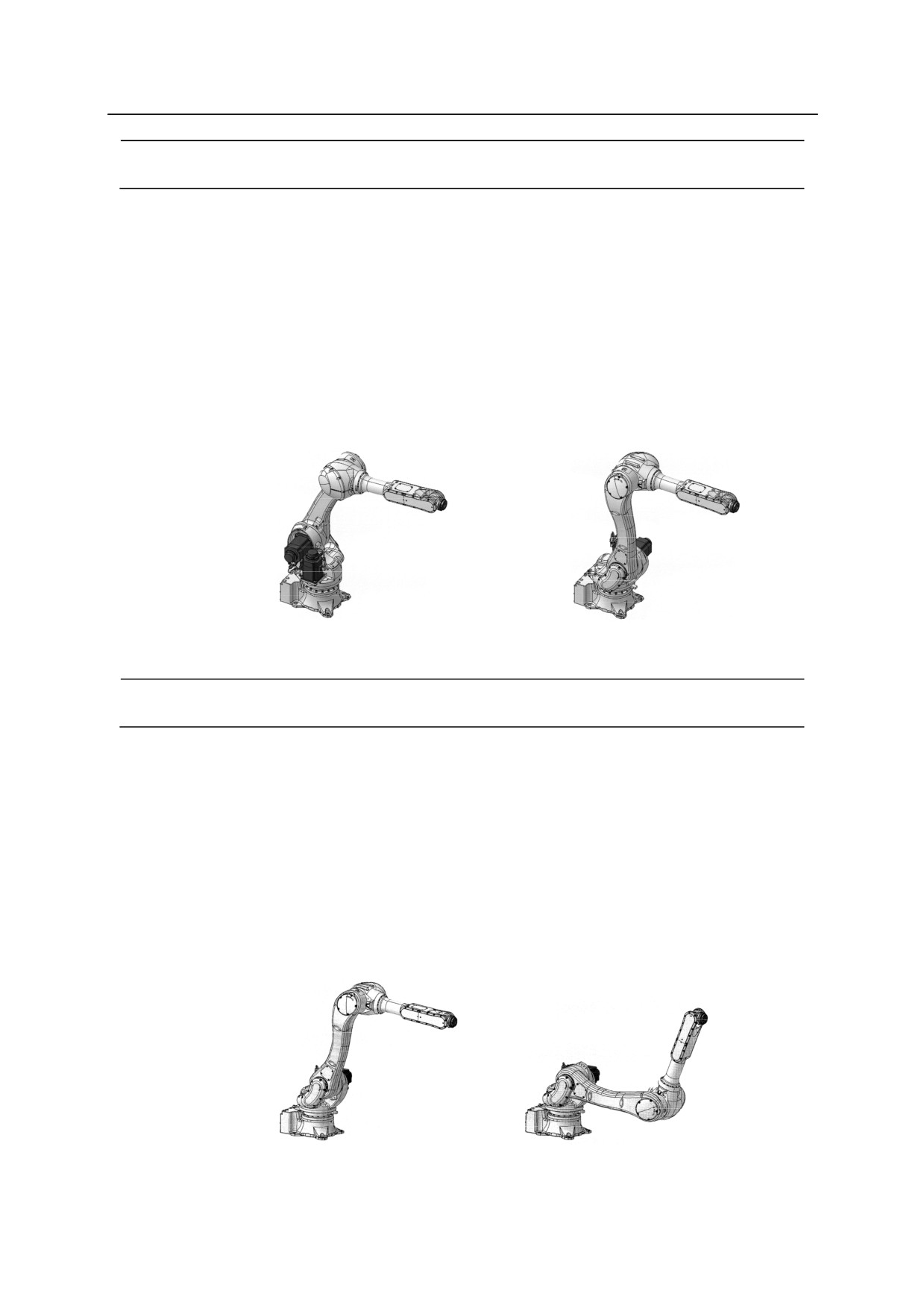
RIGHTY
LEFTY
Function
Forces a robot configuration change during the next motion so the robot arm is configured to
resemble a person’s right (RIGHTY) or left (LEFTY) arm. The configuration may not be
changed during a linear interpolated movement, or when the destination of the next motion is
expressed in joint displacement values.
See also 11.7 Setting Robot Configuration
Example
LEFTY
RIGHTY
ABOVE
BELOW
Function
Forces a robot configuration change during the next motion so the “elbow joint” (joint 3) is
configured to resemble a person’s arm when the elbow is in above or below position relative to
the wrist. The configuration may not be changed during a linear interpolated movement, or
when the destination of the next motion is expressed in joint displacement values.
See also 11.7 Setting Robot Configuration.
Example
ABOVE
BELOW
6-41
6. Program Instructions
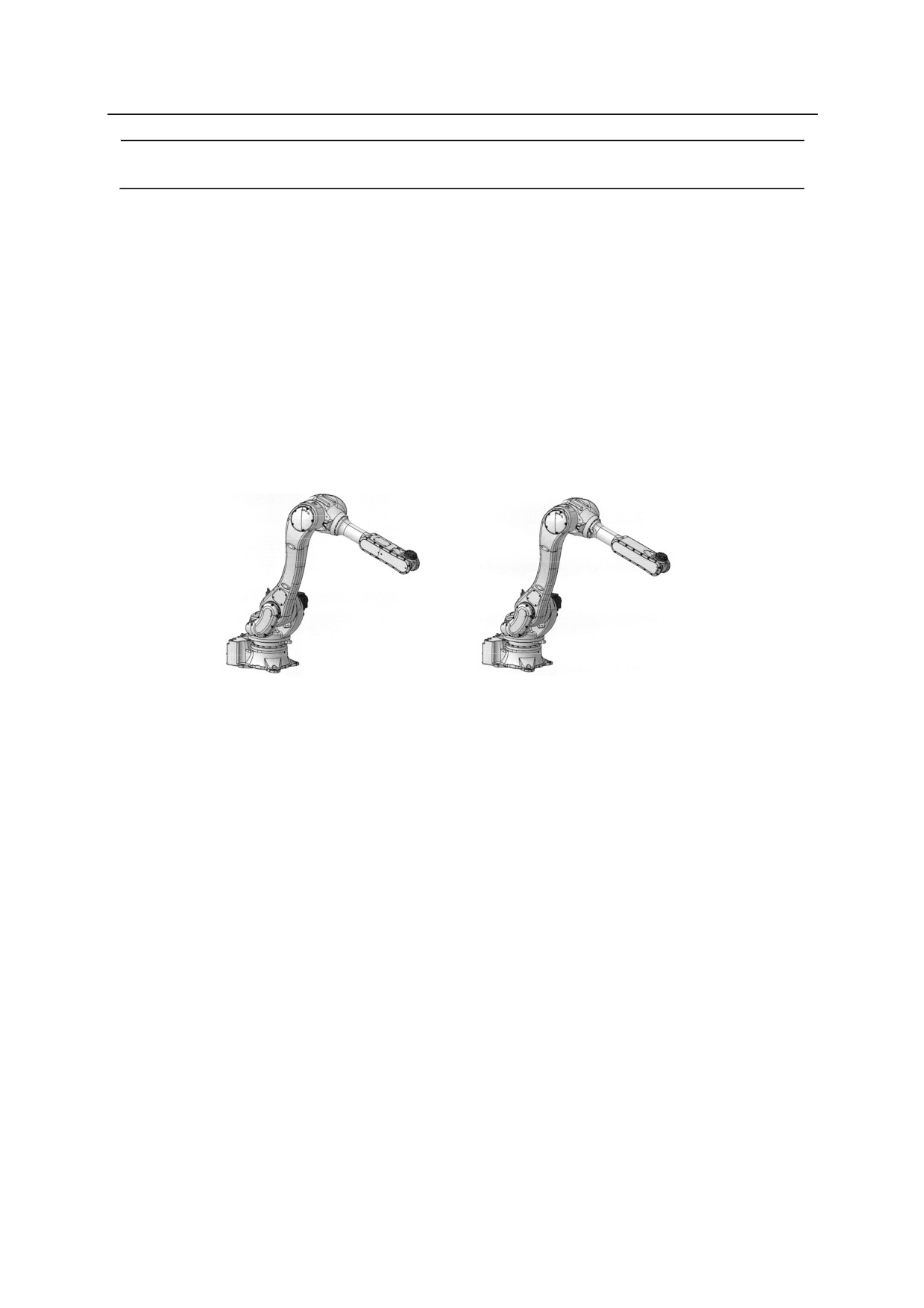
UWRIST
DWRIST
Function
Forces a robot configuration change during the next motion so the angle of joint 5 (JT5) has a
positive or negative value. The configuration may not be changed during a linear interpolated
movement, or when the destination of the next motion is expressed in joint displacement values.
See also 11.7 Setting Robot Configuration.
Example
UWRIST
DWRIST
(Joint 5 is 90)
(Joint 5 is 90)*
Note* Joint 4 has rotated 180.
6-42
6. Program Instructions
6.5 PROGRAM CONTROL INSTRUCTIONS
GOTO
Jumps to specified label.
IF
Sets condition for GOTO instruction.
CALL
Branches to a subroutine.
RETURN
Returns to the program that called the subroutine.
WAIT
Puts program execution in stand-by until condition is set.
TWAIT
Puts program execution in stand-by until specified time
elapses.
MVWAIT
Puts program execution in stand-by until the given
distance or time is reached.
LOCK
Changes priority of robot control programs.
PAUSE
Pauses the program execution.
HALT
Stops program execution. (Cannot resume.)
STOP
Stops execution cycle.
SCALL
Branches to a subroutine.
ONE
Calls program when error occurs.
RETURNE
Executes from the step following the step in which the
error occurred.
JUMP
Switch the executing program
SJUMP
Switch the executing program to program specified by
character string
MON_TWAIT
Wait for set time corresponding to speed setting (Option)
6-43
6. Program Instructions
GOTO label IF condition
Function
Jumps to the program step with the specified label.
Parameter
Label
Specifies label of the program step to jump to. The label can be any whole number between 0
and 32767.
Condition
Specifies the condition to jump. This parameter and the keyword IF can be omitted. If
omitted, the program jumps whenever the instruction is executed.
Explanation
Jumps to the step specified by the label. If the condition is specified, the program jumps when
the condition is set. If the condition is not set, the execution goes on to the next step after this
instruction.
Note that the label and the step number are different. Step numbers are assigned to all program
steps automatically by the system. Labels are purposely given to program steps and are entered
after the step number.
This instruction functions the same as the IF GOTO instruction when a condition is specified.
Example
GOTO
100
Jumps to label 100, there is no condition. If there is no step
labeled 100, error occurs.
GOTO
200 IF n==3
When variable “n” is equal to 3, then the program jumps to label
200. If not, the step after this step is executed.
6-44
6. Program Instructions
IF condition GOTO label
Function
Jumps to the step with the specified label when the given condition is set.
Parameter
Condition
Specifies the condition in expressions, e.g. n = = 0, n>3, m + n<0.
Label
Specifies the label of the step to jump to (not the step number). The label must be within the
same program.
Explanation
The program jumps to the step specified by the label, when the given condition is set. If the
condition is not satisfied, the step after this instruction is executed.
If the specified label does not exist, error occurs.
Example
IF n>3 GOTO
100
If the value of whole number variable “n” is greater than 3, then
the program jumps to the step labeled 100. If n is not greater than
3, then the step after this step is executed.
IF flag GOTO
25
If the value of the whole number variable “flag” is not 0, the
program jumps to the step labeled 25. If the value of the variable
“flag” is equal to 0, the step after this step is executed. This is the
same as writing: IF flag<>0 GOTO
25.
6-45
6. Program Instructions
CALL program name
Function
Holds execution of the current program and jumps to a new program (subroutine). When the
execution of the subroutine is completed, the processing returns to the original program and
executes the step after the CALL instruction.
Parameter
Program name
Specifies the subroutine to execute.
Explanation
This instruction temporarily holds the execution of the current program and jumps to the first step
of the specified subroutine.
[ NOTE ]
The same subroutine cannot be called from a robot control program and a PC program at the
same time. Also, a subroutine cannot call itself.
Up to 20 programs can be held while subroutines are called.
Example
CALL sub1
Jumps to the subroutine named “sub1”. When the RETURN instruction in
“sub1” is executed, the program execution returns to the original program and
executes the program from the step after this CALL instruction.
RETURN
Function
Ends execution of a subroutine and returns to the step after the CALL instruction in the program
that called the subroutine.
Explanation
This instruction ends execution of a subroutine and returns to the program that called that
subroutine. If the subroutine is not called from another program (e.g. when the subroutine is
executed by EXECUTE command) the program execution is ended.
At the end of the subroutine, the program execution returns to the original program even if there
is no RETURN instruction. However, the RETURN instruction should be written as the last
step of the subroutine (or at any place the subroutine is to be ended).
6-46
6. Program Instructions
WAIT condition
Function
Makes program execution wait until the specified condition is set (condition becomes TRUE).
Parameter
Condition
Specifies the stand-by condition.
(real number expressions)
Explanation
This instruction holds execution of the program until the specified condition is set. CONTINUE
NEXT command resumes the program execution before the condition is set (skips the WAIT
instruction being executed).
Example
WAIT SIG (1001, 1003)
Holds execution of the program until external input signal 1001
(WX1) is ON and signal 1003(WX3) is OFF.
WAIT TIMER(1)>10
Holds program execution until the value of timer1 is over 10
(seconds).
WAIT n>100
Holds program execution until the value of variable “n” exceeds
100. (In this example, suppose variable “n” is a value that is
counted up by a PC program or program interruptions.)
6-47
6. Program Instructions
TWAIT time
Function
Holds program execution until the specified time elapses.
Parameter
Time
Specifies the time, in seconds, for how long the program execution is held.
Explanation
This instruction holds the program execution until the specified time elapses.
A TWAIT instruction in execution can be skipped using the CONTINUE NEXT command.
WAIT instruction can be used instead of the TWAIT instruction to gain the same result.
Example
TWAIT
0.5
Waits for 0.5 seconds.
TWAIT deltat
Waits until the value of variable “deltat” elapses.
6-48

6. Program Instructions
MVWAIT value
Function
Holds program execution until the remaining distance (or time) of the current motion becomes
shorter than the specified distance (or time).
Parameter
Value
Specifies the distance or time. The distance is expressed in millimeters (mm) and the time in
seconds (S). If the unit is not specified, it is considered as millimeters.
Explanation
This instruction is used to synchronize program execution with the robot motion. However,
note that since this instruction monitors the remaining distance (or time) based on the command
values, it may be different from the actual remaining distance (or time) due to response lag.
When the robot is moving in joint interpolated motion, the distance specified and the actual
distance may differ greatly. If the current motion is completed when this instruction is executed,
the execution goes on to the next instruction without waiting. CONTINUE NEXT instruction
can be used to skip the MVWAIT instruction while it is in execution.
[ NOTE ]
MVWAIT instruction cannot be used in PC programs. Also, this instruction
cannot be used with DO command.
Example
In the diagram below, the robot moves towards pose “pos”, and when coming within 100 mm to
“pos”, the signal 21 is turned ON. This is true only when system switch PREFETCH.SIGINS is
ON (reads the signal before axes coincidence) and the robot is within the accuracy range.
LMOVE pos
MVWAIT 100mm
Sig 21 ON
SIGNAL 21
100mm
pos
6-49
6. Program Instructions
In the diagram below, the robot moves towards pose “pos”, and when the required time to reach
“pos” becomes 0.2 seconds, signal 21 is turned ON. This is true only when
PREFETCH.SIGINS is ON and the robot is in the accuracy range.
LMOVE pos
Sig 21ON
MVWAIT 0.2S
SIGNAL 21
0.2 sec
pos
6-50

6. Program Instructions
LOCK priority
Function
Changes the priority of the robot program currently selected on the stack.
Parameter
Priority
Specifies the priority in real numbers from 0 to 127.
Explanation
Normally, the priority of robot program is 0. The priority can be changed using this instruction.
The greater the number the higher the priority will be.
Example
LOCK 2
Changes the priority to 2.
PAUSE
Function
Temporarily holds (pauses) the program execution.
Explanation
This instruction temporarily holds the program execution and displays a message on the terminal.
Execution can be resumed using the CONTINUE command.
This instruction is convenient when checking a program. The values of the variables can be
checked while the program is held by the PAUSE instruction.
6-51

6. Program Instructions
HALT
Function
Stops the program execution. The program cannot be resumed after this instruction is executed.
Explanation
Stops the program execution regardless of the remaining steps. A message is displayed on the
terminal.
Program execution stopped by this instruction cannot be resumed using the CONTINUE
command.
STOP
Function
Terminates the current execution cycle.
Explanation
If there are cycles remaining to be completed, execution returns to the first step, otherwise
execution ends. This instruction marks the end of the execution path and has a different effect
than the HALT instruction.
If there are execution cycles remaining, execution continues with the first step of the main
program* (even if STOP instruction was processed during execution of a subroutine or another
interrupting program, execution returns to the main program).
Note* 㻌 A main program is the program executed using the EXECUTE, STEP, PCEXECUTE
commands. A subroutine is a program called from another program by CALL, ON
or ONI instructions.
A RETURN instruction in a main program functions in the same way as a STOP instruction.
Program execution stopped by a STOP instruction cannot be resumed by CONTINUE command.
6-52
6. Program Instructions
SCALL string expression, variable
Function
Jumps to the subroutine with the name given by the string expression.
Parameter
String expression
Specifies the subroutine name in the form of a string expression.
Variable
If the subroutine call is executed normally, then the value 0 is assigned to this variable. If some
abnormality occurred during the subroutine call, the error code ( 0) is assigned. If omitted, the
execution comes to an error stop when an abnormality occurs in the subroutine call.
Explanation
This instruction functions the same as the CALL instruction except that the program name is
expressed as a string expression. (See CALL instruction).
Example
$prog="sub1"
SCALL $prog
Jumps to a subroutine named "sub1".
num=12
$temp1=$ENCODE(/I2,num)
Converts into a string expression, the real value
$temp2=""
given to “num”, and jumps to the subroutine
named “sub12”.
FOR i=1 to LEN($temp1)
$temp3=$MID($temp1,i,1)
IF $temp3<> "" THEN
$temp2=$temp2+$temp3
END
END
SCALL "sub"+$temp2
6-53
6. Program Instructions
ONE program name
Function
Calls the specified program when an error occurs.
Parameter
Program name
Specifies the program to execute when error occurs.
Explanation
This instruction calls the specified program when an error occurs. PC programs can be called
too.
To return to the original program from the called program, RETURN (or RETURNE) instruction
is used. RETURN instruction returns the execution to the step where the error occurred.
RETURNE instruction returns the execution to the step after the error.
(If neither RETURN nor
RETURNE instruction exists within the program, the execution cycle stops at the end of the
called program.)
Motion instructions cannot be used in the program called by ONE instruction.
If error occurs in the program called by ONE, the program execution stops there.
[ NOTE ]
As long as the main program containing the ONE instruction is in execution, the
instruction is effective on errors in the subroutines, as well as the main program.
When the main program ends execution, ONE becomes ineffective.
When an error arises, the Error lamp does not illuminate if a program is called by
the ONE instruction.
6-54
6. Program Instructions
RETURNE
Function
Returns to the step after the error.
Explanation
This instruction is commonly paired with the ONE instruction. With ONE instruction, the
program jumps to a subroutine when an error occurs. Then, the execution returns to the step
after the error in the original program when the RETURNE instruction in the subroutine is
executed.
JUMP program name
Function
Ends the current program and moves on to a different program.
Parameter
Program name
Specifies the program to change to.
Explanation
This instruction ends the execution of the current program and moves to the first step of the
specified program. After the execution of specified program is completed, it does not return to
the original program. However, if this instruction were executed in a subroutine program called
by CALL instruction, the execution returns to the next step in the source program after the
program execution is completed. The execution cannot jump from a subroutine program to the
source program. Error (E0121) “Cannot specify the jump source program as jump destination.”
occurs.
6-55
6. Program Instructions
SJUMP program name, status variable
Function
Ends the current program and moves on to a different program.
Parameter
Program name
Specifies the program to change to in character string.
Status variable
When the program change is done normally, 0 is written. If not, the error code (䍴0) is written.
When omitted, the program execution comes to a error stop when switching is not done normally.
Explanation
This instruction ends the execution of the current program and moves to the first step of the
specified program by the character string. After the execution of specified program is
completed, it does not return to the original program. However, if this instruction were executed
in a subroutine program called by CALL instruction, the execution returns to the next step in the
source program after the program execution is completed. The execution cannot jump from a
subroutine program to the source program. Error (E0121) “Cannot specify the jump source
program as jump destination.” occurs.
6-56
6. Program Instructions
MON_TWAIT time
Option
Function
When the command value path constant move function (option) is valid, holds program
execution until the specified time (seconds) times the ratio between monitor speed 100% and
speed setting value (monitor speed or check speed) elapses.
Parameter
Time
Specifies the time, in seconds, for how long the program execution is held.
Explanation
When the command value path constant move function (option) is invalid, holds program
execution until the specified time (seconds), same as in TWAIT instruction.
When the command value path constant move function (option) is valid, holds program
execution until the specified time (seconds) times the monitor speed 100%/speed setting value
(monitor speedcheckspeed) elapses.
The wait time is as follows:
When monitor speed is set to 100% in repeat mode, the specified time (seconds).
When monitor speed is set to 10% in repeat mode, 10 times the specified time (seconds).
In check mode, the specified time (seconds) multiplied by the ratio between the maximum speed
in straight linear motion and specified check speed.
However, even if the command value path constant move function (option) is valid, the program
waits for the specified time ignoring the monitor speed or check speed in cases such as when no
motion step in motion exist (i.e. this instruction is used at the beginning of the program), or in
check once mode.
The MON_TWAIT instruction in execution can be skipped using CONTINUE NEXT
instruction.
Example
When the command value path constant move function (option) is valid
MON_TWAIT
0.5
Waits for 0.5 seconds if monitor speed in repeat mode is 100%.
Waits for 5 seconds if monitor speed in repeat mode is 10%.
6-57
6. Program Instructions
TWAIT deltat
Waits until the value of variable “deltat” elapses if monitor speed in
repeat mode is 100%.
Waits until 10 times the value of variable “deltat” elapses if monitor
speed in repeat mode is 10%.
6-58
6. Program Instructions
6.6㻌PROGRAM㻌STRUCTURE INSTRUCTIONS㻌
IF……THEN…ELSE……END
WHILE……DO……END
DO……UNTIL
FOR……END
CASE……OF……VALUE……ANY……END
SCASE……OF……SVALUE……ANY……END
6-59
6. Program Instructions
IF㻌 㻌 logical expression㻌THEN
program instructions(1)
ELSE
program instructions(2)
END
Function㻌
Executes a group of program steps according to the result of a logical expression.
Parameter㻌
Logical expression
Logical expression or real value expression. Tests if this value is TRUE (not 0) or FALSE(0).
Program instructions (1)
The program instructions entered here are executed if the above logical expression is TRUE.
Program instructions (2)
The program instructions entered here are executed if the above logical expression is FALSE.
Explanation㻌
This control flow structure executes one of the two groups of instructions according to the value
of the logical expression. The execution procedure is as follows:
1. Calculates the logical expression, and jumps to step 4 if the resulting value is 0 (FALSE).
2. Calculates the logical expression, and executes program instructions (1) if the resulting value
is 1 (TRUE).
3. Jumps to 5.
4. If there is the ELSE statement, program instructions (2) is executed.
5. Continues program execution from the step after END.
[ NOTE ]
1. ELSE and END statements each must be entered in a line on its own.
2. The IF…THEN structure must end with END statement.
㻌
6-60
6. Program Instructions
Example㻌
In the example below, if n is greater than 5, the program speed is set at 10%, if not it is set at
20 %.
21
IF n>5 THEN
22
sp=10
23
ELSE
24
sp=20
25
END
26
SPEED sp ALWAYS
㻌
The program below first checks the value of variable “m”. If “m” is not 0, the program checks
the external input signal 1001(WX1) and displays a different message according to the status of
the signal. In this example, the outer IF structure does not have an ELSE statement.
71
IF m THEN
72
IF SIG(1001) THEN
73
PRINT"Input signal is TRUE"
74
ELSE
75
PRINT"Input signal is FALSE"
76
END
77
END
6-61
6. Program Instructions
WHILE condition DO
program instructions
END
Function㻌
While the specified condition is TRUE, the program instructions are executed. When the
condition is FALSE, the WHILE statement is skipped.
Parameter㻌
Condition
Logical expression or real value expression. Checks if this value is TRUE (not 0) or FALSE
(0).
Program instructions
Specifies the group of instructions to be executed when the condition is TRUE.
Explanation㻌
This control flow structure repeats the given program steps while the specified condition is TRUE.
The execution procedure is as follows:
1. Calculates the logical expression, and jumps to step 4 if the resulting value is 0 (FALSE).
2. Calculates the logical expression, and executes program instructions if the resulting value is 1
(TRUE).
3. Jumps to 1.
4. Continues program execution from the step after END.
[ NOTE ]
Unlike the DO structure, if the condition is FALSE, none of the program steps in the
WHILE structure is executed.
When this structure is used, the condition must eventually change from TRUE to FALSE.
Example㻌
In the following example, input signals 1001 and 1002 are monitored and robot motion is stopped
based on their condition. When either of the signals from the two parts feeders changes to 0
(feeder is emptied), the robot stops and the execution continues from the step after the END
statement (step 27 in this example).
If one of the feeders is empty at the time the WHILE structure begins (external input signal
OFF=0), none of the steps in the structure is executed, and processing jumps to step 27.
6-62
6. Program Instructions
20
21
22
23
WHILE SIG(1001,1002) DO
24
CALL part1
25
CALL part2
26
END
27
28
29
30
6-63
6. Program Instructions
DO
program instructions
UNTIL logical expression
㻌
Function㻌
Creates a DO loop.
Parameter㻌
Program instructions
These instructions are repeated as long as the logical expression is FALSE.
Logical expression
Logical expression or real value expression. When the result of this logical expression changes
to TRUE, execution of the program instructions in this structure is stopped.
Explanation㻌
This control flow structure executes a group of program instructions while the given condition
(logical expression) is FALSE.
The execution procedures are as follows:
1. Executes the program instructions.
2. Checks the value of the logical expression and if the result is FALSE, procedure 1 is repeated.
If the result is TRUE, it jumps to procedure 3.
3.
Continues program execution from the step after UNTIL statement.
The execution exits the DO structure when the value of the logical expression changes from
FALSE to TRUE.
[ NOTE ]
Unlike the WHILE structure, the program instructions in the DO structure are executed
at least once.
The program instructions between DO statement and UNTIL statement can be omitted.
If there are no instructions, the logical expression after UNTIL is evaluated repeatedly.
When the value of the logical expression changes to TRUE, then the execution exits the
loop and goes on to the step after the DO structure.
The DO structure must end with an UNTIL statement.
6-64
6. Program Instructions
Example㻌
In the example below, the DO structure controls the following task: a part is picked up, and
carried to the buffer. When the buffer becomes full, the binary input signal “buffer.full” is
turned ON. When the signal turns ON, the robot stops and starts a different operation.
10
11
12
13
DO
14
CALL get.part
15
CALL put.part
16
UNTIL SIG(buffer.full)
17
18
19
㻌
6-65
6. Program Instructions
FOR loop variable = start value TO end value STEP step value
program instructions
END
Function㻌
Repeats program execution.
Parameter㻌
Loop variable㻌
Variable or real value. This variable is first set at an initial value, and 1 is added each time the
loop is executed.
Starting value
Real value or expression. Sets the first value of the loop variable.
End value
Real value or expression. This value is compared to the present value of the loop variable and if
the value of the loop variable reaches this value, the program exits the loop.
Step value
Real value or expression that can be omitted. This value is added or subtracted to the loop
variable after each loop. Enter this parameter when using the STEP statement, unless the loop
variable is to increment by 1. If step value is not specified, 1 is added to the loop variable. In
this case, the STEP statement can be omitted too.
Explanation㻌
This control flow structure repeats execution of the program instructions between the FOR and
END statements. Loop variable is incremented by the given step value each time the loop is
executed.
The execution procedures are as follows:
1. The start value is assigned to the loop variable.
2. Calculates the end value and the step value.
3. Compares the value of the loop variable with the end value.
a.
If the step value is positive, and the loop variable is greater than the end value, then
jump to procedure 7.
b.
If the step value is negative and the loop variable is smaller than the end value, jump to
procedure 7.
In other cases, goes on to procedure 4.
6-66
6. Program Instructions
4. Executes the program instructions after the FOR statement.
5. When the END statement is reached, the step value is added to the loop variable.
6. Returns to procedure 3.
7. Executes the program instructions after the END statement.
(The value for the loop variable
at the time of the comparison test at procedure 3 above does not change.)
㻌
㻌
[ NOTE ]
There must be an END statement for each FOR statement.
Beware that if the loop variable is greater than the end value (or less if the step value is
negative) at the first check, none of the program instructions between FOR and END is
executed.
The value for the number of loops (loop variable) must not be changed by other
programming (operators, expressions, etc.) within the FOR loop.
Example㻌
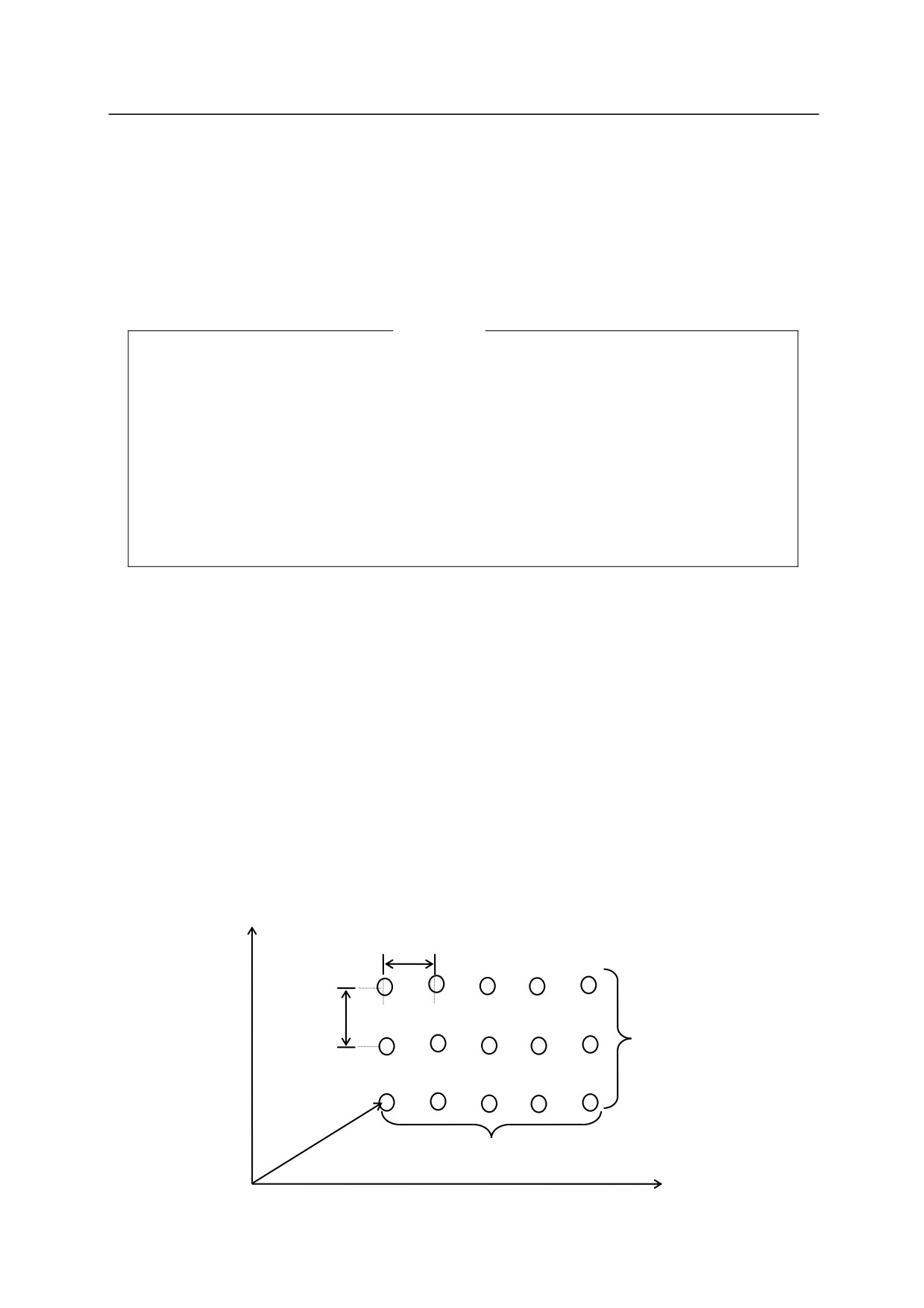
The subroutine “pick.place” picks up a part and places it on “hole”. The parts are placed as
shown in the figure below. (The pallet is placed parallel to X, Y axes of the world coordinates,
and the distance between the parts is 100 mm.
FOR row = 1 TO max.row
POINT hole = SHIFT (start.pose BY (row-1)*100,0,0)
FOR col = 1 TO max.col
CALL pick.place
POINT hole = SHIFT(hole BY 0,100,0)
END
END
Y
100 mm
100 mm
max.col
max.row
start.pose
X
6-67
6. Program Instructions
CASE index variable OF
VALUE case number 1䠈……:
program instructions
VALUE case number 2䠈……:
program instructions
:
VALUE case number n䠈……:
program instructions
ANY
:
program instructions
END
㻌
Function㻌
Executes the program according to a particular case number.
Parameter㻌
Index variable
Real value variable or expression. Decides which CASE structure to execute according to the
value of this variable.
Program instructions
Executes these program instructions when the value of the index variable equals one of the values
after the VALUE statement.
Explanation㻌
This structure enables the program to select from among several groups of instructions and to
process the selected group. This is a powerful tool in AS language that provides a convenient
method for allowing several alternatives within the program.
The execution procedure is as follows:
1. Checks the value of the index variable entered after the CASE statement.
2. Checks through the VALUE steps and finds the first step that includes the value equal to the
value of the index variable.
3. Executes the instructions after that VALUE step.
4. Goes on to the instructions after the END statement.
If there is no value that matches the index variable, the program instructions after the ANY
statement are executed. If there is not an ANY statement, none of the steps in the CASE
structure is executed.
6-68