Scion iA. Service Manual - part 19
 

  Index      Manuals     Scion iA. Service Manual


Search            copyright infringement  


Content      ..     17      18      19      20     ..


Scion iA. Service Manual - part 19


302

iA_OM_OM99M17z_(U)

4-2. Audio System

AUX/USB/iPod mode

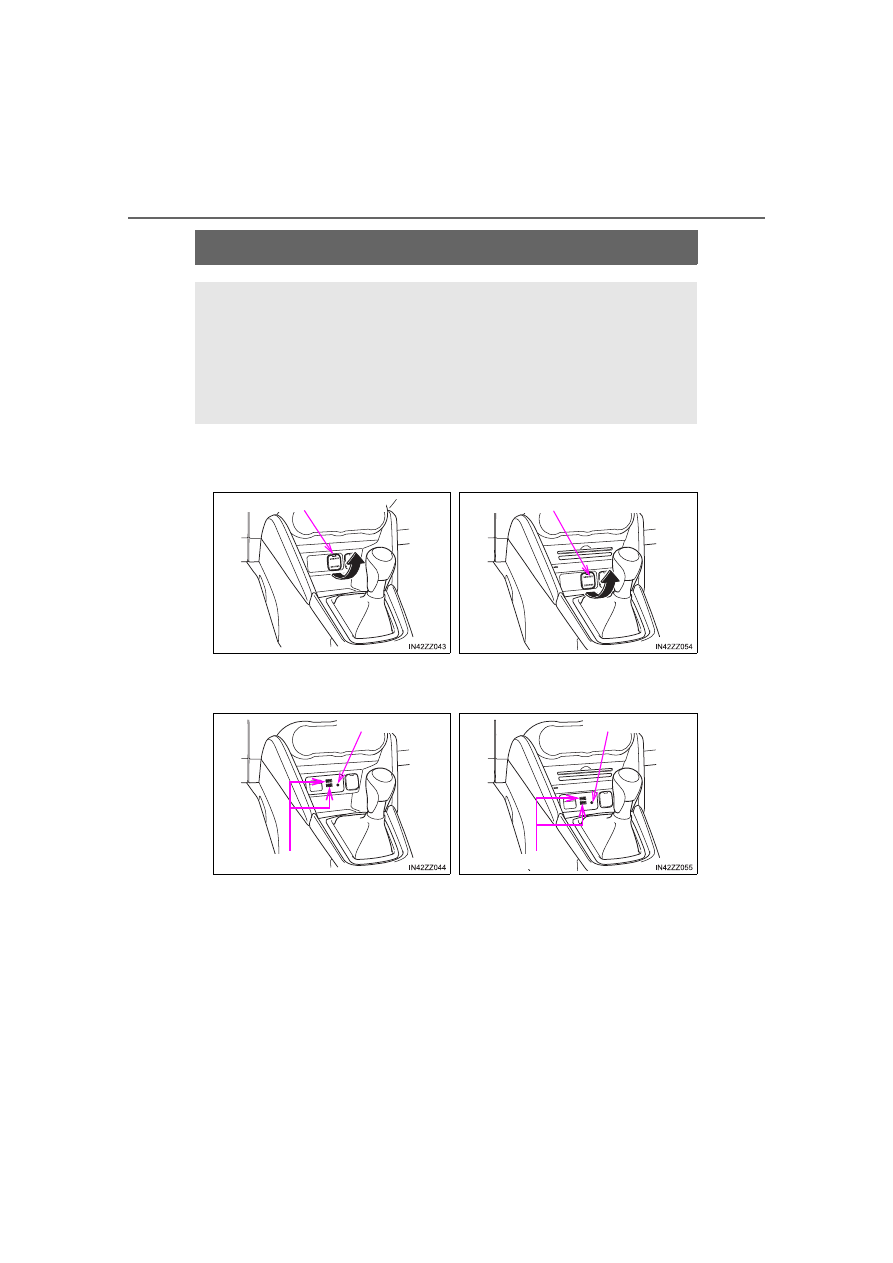
Audio can be heard from the vehicle’s speakers by connecting a
commercially- available portable audio unit to the auxiliary jack.

A commercially-available, non-impedance (3.5

) stereo mini

plug cable is required. Contact your Scion dealer for details.

In addition, audio can be played from the vehicle audio device
by connecting a USB device or an iPod to the USB port.

Type A (Vehicles without CD
player)

Type A (Vehicles with CD
player)

Type B (Vehicles without CD
player)

Type B (Vehicles with CD
player)

Auxiliary jack/USB port

Auxiliary jack/USB port

Auxiliary jack

USB port

Auxiliary jack

USB port

-------------------------------------------------------------------------------------------------------------------------------------------------------------

iA_OM_OM99M17z_(U)

303

4-2. Audio System

4

In

te

rior Fea

tu

res

How to use AUX mode (Type A) (

P. 305)

How to use USB mode (Type A) (

P. 306)

How to use iPod mode (Type A) (

P. 311)

How to use AUX mode (Type B) (

P. 316)

How to use USB mode (Type B) (

P. 316)

AUX/USB/iPod mode

Type B only:
The SD card slot is for the navigation system. For vehicles with the naviga-
tion system, the SD card (Scion genuine) with stored map data is inserted
into the SD card slot and used.

This mode may not be usable depending on the portable audio device to be
connected.

Before using the auxiliary jack/USB port, refer to the instruction manual for
the portable audio device.

Use a commercially-available, non- impedance (3.5

) stereo mini plug for

connecting the portable audio unit to the auxiliary jack. Before using the
auxiliary jack, read the manufacturer’s instructions for connecting a portable
audio unit to the auxiliary jack.

To prevent discharging of the battery, do not use the auxiliary input for long
periods with the engine off or idling.

When connecting a device to the auxiliary jack or USB port, noise may
occur depending on the connected device. If the device is connected to the
vehicle’s accessory socket, the noise can be reduced by unplugging it from
the accessory socket.

WARNING

Do not adjust the portable audio unit or a similar product while driving
the vehicle
Adjusting the portable audio unit or a similar product while driving the vehi-
cle is dangerous as it could distract your attention from the vehicle opera-
tion which could lead to a serious accident. Always adjust the portable
audio unit or a similar product while the vehicle is stopped.

NOTICE

Always close the auxiliary jack/USB port lid when it is not in use. If foreign
matter or liquid penetrates the auxiliary jack/ USB port, it may cause a
malfunction.

Depending on the portable audio device, noise may occur when the device
is connected to the vehicle accessory socket. (If noise occurs, do not use
the accessory socket.)

1
2
3
4
5

-------------------------------------------------------------------------------------------------------------------------------------------------------------

304

iA_OM_OM99M17z_(U)

4-2. Audio System

Connecting a device

If there is a cover on the AUX jack or USB port, remove the
cover.

Connect the connector on the device to the USB port.

Connecting with a connector cable

If there is a cover on the AUX jack or USB port, remove the
cover.

Connect the device plug/connector cable to the auxiliary jack/
USB port.

How to connect USB port/ Auxiliary jack

Type A (Vehicles without CD
player)

Type A (Vehicles with CD
player)

USB port

Auxiliary jack

USB port

Auxiliary jack

Type B (Vehicles without CD
player)

Type B (Vehicles with CD
player)

USB port

Auxiliary jack

USB port

Auxiliary jack

1
2

1
2

1
2

1
2

1

2

1

2

-------------------------------------------------------------------------------------------------------------------------------------------------------------

iA_OM_OM99M17z_(U)

305

4-2. Audio System

4

In

te

rior Fea

tu

res

How to connect USB port/ Auxiliary jack

Insert the plug into the auxiliary jack/ USB port securely.

Insert or pull out the plug with the plug perpendicular to the auxiliary jack/
USB port hole.

Insert or remove the plug by holding its base.

Switch the ignition to ACC or ON.

Press the power/volume dial to turn the audio system on.

Press the media button
(

) of the audio unit to

change to the AUX mode.

How to use AUX mode (Type A)

When the device is not connected to the auxiliary jack, the mode does not
switch to the AUX mode.

Adjust the audio volume using the portable audio device or audio unit.

Audio adjustments other than audio volume can only be done using the por-
table audio device.

If the connection plug is pulled out from the auxiliary jack while in AUX
mode, noise may occur.

WARNING

Do not allow the connection plug cord to get tangled with the parking
brake or the shift lever
Allowing the plug cord to become tangled with the parking brake or the shift
lever is dangerous as it could interfere with driving, resulting in an accident.

NOTICE

Do not place objects or apply force to the auxiliary jack/USB port with the
plug connected.

How to use AUX mode (Type A)

1

2

IN42ZZ047

3

-------------------------------------------------------------------------------------------------------------------------------------------------------------

306

iA_OM_OM99M17z_(U)

4-2. Audio System

This unit does not support a USB 3.0 device. In addition, other
devices may not be supported depending on the model or OS version.

Playback

Switch the ignition to ACC or ON.

Press the power/volume dial to turn the audio system on.

Press the media button (

) to switch to the USB mode and

start playback.

How to use USB mode (Type A)

Repeat button

Random button

Text button

Audio display

Play/Pause button

Folder up button

Folder down button

Media/Scan button

Track up/Fast-forward button

Track down/Reverse button

1
2
3
4
5

6
7
8
9

10

Type

Playable data

USB mode

MP3/WMA/AAC file

1

2

3

-------------------------------------------------------------------------------------------------------------------------------------------------------------

iA_OM_OM99M17z_(U)

307

4-2. Audio System

4

In

te

rior Fea

tu

res

Pause

To stop playback, press the play/pause button (4).

Press the button again to resume playback.

Fast-forward/Reverse

Press and hold the fast-forward button (

) to advance through

a track at high speed. Press and hold the reverse button (

) to

reverse through a track at high speed.

Track search

Press the track up button (

) once to skip forward to the

beginning of the next track. Press the track down button (

)

within a few seconds after playback begins to track down to the
beginning of the previous track.

Press the track down button (

) after a few seconds have

elapsed to start playback from the beginning of the current track.

Folder search

To change to the previous folder, press the folder down button
(

), or press the folder up button (

) to advance to the

next folder.

Music scan

This function scans the titles in a folder currently being played and
plays ten seconds of each song to aid you in finding a song you
want to listen to.

Press and hold the scan button (

) during playback to start the

scan play operation (the track number will flash). Press and hold
the scan button (

) again to cancel scan playback.

-------------------------------------------------------------------------------------------------------------------------------------------------------------

308

iA_OM_OM99M17z_(U)

4-2. Audio System

Repeat playback
● Track repeat

Press the repeat button (1) during playback to play the current
track repeatedly. “TRACK RPT” is displayed (

 is dis-

played next to RPT at the bottom of the display area).

To cancel the repeat playback, press the button again after 3
seconds.

● Folder repeat

Press the repeat button (1) during playback, and then press
the button again within 3 seconds to play the tracks in the cur-
rent folder repeatedly. “FOLDER RPT” is displayed (

 is

displayed next to RPT at the bottom of the display area).

Press the button again to cancel the repeat playback.

Random playback

Tracks are randomly selected and played.
● Folder random

Press the random button (2) during playback to play the tracks
in the folder randomly. “FOLDER RDM” is displayed (

 is

displayed next to RDM at the bottom of the display area).

To cancel the random playback, press the button again after 3
seconds.

● All random

Press the random button (2) during playback, and then press
the button again within 3 seconds to play the tracks in the USB
device randomly. “ALL RDM” is displayed (

 is displayed

next to RDM at the bottom of the display area).

Press the button again to cancel the random playback.

1

2

1

2

1

2

1

2

-------------------------------------------------------------------------------------------------------------------------------------------------------------

iA_OM_OM99M17z_(U)

309

4-2. Audio System

4

In

te

rior Fea

tu

res

Switching the display

The information displayed on the audio display changes as follows
each time the text button (3) is pressed during playback.

Display scroll

Only 13 characters can be displayed at one time. To display the rest
of the characters of a long title, press and hold the text button (3).
The display scrolls the next 13 characters. Press and hold the text
button (3) again after the last 13 characters have been displayed to
return to the beginning of the title.

Error Messages

When the message “CHECK USB” is displayed, it indicates that
there is some error in the USB device. Verify that the content
recorded in the USB device has MP3/WMA/AAC files and re-con-
nect correctly. If the message reappears, have the unit checked by
your Scion dealer.

Button

Information displayed on audio 

display

File number/Elapsed time

Folder number/File number

File name

Folder name

Album name

Song name

Artist name

-------------------------------------------------------------------------------------------------------------------------------------------------------------

310

iA_OM_OM99M17z_(U)

4-2. Audio System

How to use USB mode (Type A)

Some devices such as smart phones may require a setting change to allow
operation using a USB connection.

When the USB device is not connected, the mode does not switch to USB
mode.

When there is no playable data in the USB device, “NO CONTENTS” is
flashed.

Playback of the USB device is in the order of the folder numbers. Folders
which have no MP3/WMA/AAC files are skipped.

Do not remove the USB device while in the USB mode. The data may be
damaged.

If the unit is left in scan, normal playback will resume where scan was
selected.

The information (artist name, music name) is displayed only when the USB
device information in the USB device has information which can be dis-
played on the screen.

This unit cannot display some characters. Characters which cannot be dis-
played are indicated by an asterisk (

).

The number of characters which can be displayed is restricted.

-------------------------------------------------------------------------------------------------------------------------------------------------------------

iA_OM_OM99M17z_(U)

311

4-2. Audio System

4

In

te

rior Fea

tu

res

An iPod may not be compatible depending on the model or OS ver-
sion. In this case, an error message is displayed.

Playback

Switch the ignition to ACC or ON.

Press the power/volume dial to turn the audio system on.

Press the media button (

) to switch to the iPod mode and

start playback.

How to use iPod mode (Type A)

Repeat button

Random button

Text button

Audio display

Play/Pause button

Category down button

Category up button

List up button

List down button

Media/Scan button

Track up/Fast-forward button

Track down/Reverse button

1
2
3
4
5
6

7
8
9

10
11
12

1

2

3

-------------------------------------------------------------------------------------------------------------------------------------------------------------

312

iA_OM_OM99M17z_(U)

4-2. Audio System

Pause

To stop playback, press the play/pause button (4).

Press the button again to resume playback.

Fast-forward/Reverse

Press and hold the fast-forward button (

) to advance through

a track at high speed. Press and hold the reverse button (

) to

reverse through a track at high speed.

Track search

Press the track up button (

) once to skip forward to the

beginning of the next track. Press the track down button (

)

within a few seconds (depends on iPod software version) after play-
back begins to track down to the beginning of the previous track.

Press the track down button (

) after a few seconds (depends

on iPod software version) have elapsed to start playback from the
beginning of the current track.

Category search

Press the category down button (5) to select the previous category
and press the category up button (6) to select the next category.

List search

Press the list down button (

) to select the previous list and

press the list up button (

) to select the next list.

Music scan

This function scans the titles in a list currently being played and
plays 10 seconds of each song to aid you in finding a song you
want to listen to.

Press and hold the scan button (

) during playback to start the

scan play operation (the track number will flash). Press and hold
the scan button (

) again to cancel scan playback.

-------------------------------------------------------------------------------------------------------------------------------------------------------------

iA_OM_OM99M17z_(U)

313

4-2. Audio System

4

In

te

rior Fea

tu

res

Repeat playback

Press the repeat button (1) during playback to play the current

track repeatedly. “TRACK RPT” is displayed (

 is displayed

next to RPT at the bottom of the display area).

Press the button again to cancel the repeat playback.

Random playback

Tracks are randomly selected and played.
● Song random

Press the random button (2) during playback to play the tracks

in the list randomly. “SONG RDM” is displayed (

 is dis-

played next to RDM at the bottom of the display area).

To cancel the random playback, press the button again after 3
seconds.

● Album random

Press the random button (2) during playback, and then press
the button again within 3 seconds to play the tracks in the iPod
randomly. “ALBUM RDM” is displayed (

 is displayed

next to RDM at the bottom of the display area).

Press the button again to cancel the random playback.

Switching the display

The information displayed on the audio display changes as follows
each time the text button (3) is pressed during playback.

1

2

1

2

1

2

Button

Information displayed on audio 

display

File number/Elapsed time

File number

Category name

Artist name

Album name

Song name

-------------------------------------------------------------------------------------------------------------------------------------------------------------

314

iA_OM_OM99M17z_(U)

4-2. Audio System

Display scroll

13 characters can be displayed at one time. To display the rest of
the characters of a long title, press and hold the text button (3). The
display scrolls the next 13 characters. Press and hold the text but-
ton (3) again after the last 13 characters have been displayed to
return to the beginning of the title.

Error Messages

If the message “CHECK iPod” is displayed, it indicates that there is
a malfunction in the iPod. Verify that the content recorded in the
iPod has playable files and connect correctly. If the message reap-
pears, have the unit checked by your Scion dealer.

How to use iPod mode (Type A)

The iPod functions on the iPod cannot be operated while it is connected to
the unit because the unit controls the iPod functions.

When an iPod is not connected, the mode does not switch to the iPod
mode.

When there is no playable data in the iPod, “NO CONTENTS” is flashed.

Do not remove the iPod while in the iPod mode. Otherwise, the data could
be damaged.

The types of categories include Playlist, Artist, Album, Song, Podcast,
Genre, Composer, and Audio book.

When the selected category is Song or Audio book, there is no list.

If the unit is left in scan, normal playback will resume where scan was
selected.

The track number being played randomly is in the order of the iPod shuffle
table.

The information (artist name, music name) is displayed only when the iPod
has information which can be displayed.

This unit cannot display some characters. Characters which cannot be dis-
played are indicated by an asterisk (

).

The number of characters which can be displayed is restricted.

-------------------------------------------------------------------------------------------------------------------------------------------------------------

iA_OM_OM99M17z_(U)

315

4-2. Audio System

4

In

te

rior Fea

tu

res

If you see an error indication on the display, find the cause in the
chart. If you cannot clear the error indication, take the vehicle to your
Scion dealer.

Error Indications (Type A)

Indication

Cause

Solution

CHECK USB

USB device mal-
function

Verify that the content recorded in
the USB device has MP3/WMA/
AAC files and reconnect correctly.
If the error indication continues to
display, consult your Scion dealer.

CHECK iPod

iPod malfunction

Verify that the content recorded in
the iPod has playable files and re-
connect correctly.
If the error indication continues to
display, consult your Scion dealer.

-------------------------------------------------------------------------------------------------------------------------------------------------------------

316

iA_OM_OM99M17z_(U)

4-2. Audio System

Select the 

 icon on the home screen and display the Enter-

tainment screen.

Select 

 to switch to the AUX mode. The following icons are dis-

played in the lower part of the center display.

If a device is not connected to the auxiliary jack, the mode does not switch
to the AUX mode.

Adjust the audio volume using the portable audio device, commander
switch, or audio control switch.

Audio adjustments can also be made using the portable audio device’s vol-
ume setting.

If the connection plug is pulled out from the auxiliary jack while in AUX
mode, noise may occur.

This unit does not support a USB 3.0 device. In addition, other
devices may not be supported depending on the model or OS version.

USB devices formatted to FAT32 are supported (USB devices format-
ted to other formats such as NTFS are not supported).

How to use AUX mode (Type B)

1

2

Icon

Function

Displays the Entertainment menu. Use to switch to a
different audio source.

Displays sound settings to adjust audio quality level.
Refer to Volume/Display/Sound Controls on P. 280.

How to use USB mode (Type B)

Type

Playable data

USB mode

MP3/WMA/AAC/OGG file

-------------------------------------------------------------------------------------------------------------------------------------------------------------

iA_OM_OM99M17z_(U)

317

4-2. Audio System

4

In

te

rior Fea

tu

res

Playback

Select the 

 icon on the home screen and display the Enter-

tainment screen.

Select 

 or 

 to switch the USB mode. The following

icons are displayed in the lower part of the center display.

1

2

Icon

Function

Displays the Entertainment menu. Use to switch to a
different audio source.

Category list is displayed.

Current track list is displayed. 
Select a desired track to play it.

Plays the current track repeatedly.
Select it again to play the tracks in the current track
list repeatedly. 
When selected again, the function is canceled.

Tracks in the current track list are played randomly. 
Select it again to cancel.

Starts playing a track similar to the current track
using Gracenote’s More Like This™. 
Select the desired song from the category list to
cancel More Like This

.

If selected within a few seconds from the beginning
of a song which has started to play, the previous
song is selected.
If more than a few seconds have elapsed, the song
currently being played is replayed from the begin-
ning.
Long-press to fast reverse. It stops when you
remove your hand from the icon or the commander
knob.

Track is played. When selected again, playback is
temporarily stopped.

Advances to the beginning of the next song. 
Long-press to fast forward.

Displays sound settings to adjust audio quality level.
Refer to Volume/Display/Sound Controls on P. 280.

-------------------------------------------------------------------------------------------------------------------------------------------------------------


Content      ..     17      18      19      20     ..