SINUMERIK 840D sl. Service - Configuring Commissioning. Manual (2011-2020) - page 51
Variables
6.15 Use of strings
• Treatment of numerical values:
VAR13.VAL = "Error" << VAR14.VAL << ": " << $85001 << $85002
;Result: "Error 15: "This is an alarm text"
IF VAR15 == "Error"
;Strings in IF statement
VAR16 = 18.1234
;Result: VAR16 equals 18.1234,
;if VAR15 equals "Error".
ENDIF
• Quotation marks within a string:
VAR2="Hello, this is a " Test""
;Result: Hello, this is a " Test"
• System or user-variable strings dependent on variable content:
VAR2.Var = "$R[" << VAR8 << "]"
;Result: $R[4]
See also
STRING functions (Page 189)
SINUMERIK Integrate Run MyScreens
Programming Manual, 10/2020, A5E40869575B AD
113
Variables
6.16 CURPOS variable
6.16
CURPOS variable
Description
The CURPOS variable calls or manipulates the position of the cursor in the active input field of the
current dialog. The variable shows how many characters are in front of the cursor. If the cursor
is located at the start of the input field, then CURPOS assumes the value of 0. If the value of
CURPOS is changed, then the cursor is positioned at the appropriate location in the input field.
In order to be able to respond to changes in the variable value, it is possible to monitor for
changes using a CHANGE method. If the value of CURPOS changes, then a jump is made to the
CHANGE method and the instructions contained there are executed.
SINUMERIK Integrate Run MyScreens
114
Programming Manual, 10/2020, A5E40869575B AD
Variables
6.17 CURVER variable
6.17
CURVER variable
Description
The CURVER (CURrent VERsion) property allows the programming to be adapted in order to
handle different versions. The CURVER variable is read-only.
Note
Even if previously recompiled with an older version, the code is automatically generated with the
most recent version. The "GC" command always generates the most recent version. An
additional identifier indicating the generated version is inserted in the user comment of the
generated code in versions > 0.
Rules
The most recent dialog with all its variables is always displayed.
• Variables used previously may not be changed.
• New variables are inserted in the existing (cycle) programming in arbitrary order.
• It is not permissible to delete variables from a dialog from one version to the next.
• The dialog must contain all variables of all versions.
Example
(IF CURVER==1 ...)
; When the code is recompiled, CURVER is automat-
ically assigned the version of the recompiled
code.
SINUMERIK Integrate Run MyScreens
Programming Manual, 10/2020, A5E40869575B AD
115
Variables
6.18 ENTRY variable
6.18
ENTRY variable
Description
The ENTRY variable can be used to check by what method a dialog has been called.
Programming
Syntax:
ENTRY
Description:
The ENTRY variable is a read only variable.
Return Value:
The result of the scan can be:
0 =
No programming support
1 =
Start of a screen via softkey; no code has been generated yet (default as
configured)
2 =
Start of a screen via softkey; code has been generated
(default from the code generated last by this screen)
3 =
Recompilation with user comment (# lines)
4 =
Code_type = 0: NC code with user comment (# lines)
5 =
Code_type = 1: NC code without user comment (# lines)
Example
IF ENTRY == 0
DLGL ("The dialog was not called under programming")
ELSE
DLGL ("The dialog was called under programming")
ENDIF
SINUMERIK Integrate Run MyScreens
116
Programming Manual, 10/2020, A5E40869575B AD
Variables
6.19 ERR variable
6.19
ERR variable
Description
Variable ERR checks whether the preceding line has been executed correctly.
Programming
Syntax:
ERR
Description:
The ERR variable is read-only.
Return value:
The result of the scan can be:
FALSE =
previous line was executed error-free
TRUE =
previous line was not executed error-free
Example
VAR4 = Thread[VAR1,"CDM",3]
; Output value from array
IF ERR == TRUE
; Query whether the value has been found in
the array
VAR5 = "Error accessing array"
; If the value has not been found in the ar-
ray, the value "Error accessing array" is as-
signed to the variables.
ELSE
VAR5 = "All OK"
; If the value has been found in the array,
the value "All OK" is assigned to the varia-
bles.
ENDIF
SINUMERIK Integrate Run MyScreens
Programming Manual, 10/2020, A5E40869575B AD
117
Variables
6.20 FILE_ERR variable
6.20
FILE_ERR variable
Description
Variable FILE_ERR can be used to check whether the preceding GC or CP command has been
executed correctly.
Programming
Syntax:
FILE_ERR
Description:
The FILE_ERR variable is read-only.
Return value:
Possible results are:
0 =
Operation okay
1 =
Drive/path not available
2 =
Path/file access error
3 =
Drive not ready
4 =
Incorrect file name
5 =
File is already open
6 =
Access denied
7 =
Target path not available or not permitted
8 =
Copy source same as target
10 =
Internal error: FILE_ERR = 10 means that the error cannot be classified in
the other categories.
Example
CP("D:\source.mpf","E:\target.mpf")
; Copy from source.mpf to E:\tar-
get.mpf
IF FILE_ERR > 0
; Query whether error has occurred
IF FILE_ERR == 1
; Query specific error numbers and
output associated error text
VAR5 = "Drive/path not available"
ELSE
IF FILE_ERR == 2
VAR5 = "Path/file access error"
ELSE
IF FILE_ERR == 3
VAR5 = "incorrect file name"
ENDIF
ENDIF
ENDIF
ELSE
SINUMERIK Integrate Run MyScreens
118
Programming Manual, 10/2020, A5E40869575B AD
Variables
6.20 FILE_ERR variable
CP("D:\source.mpf","E:\target.mpf")
VAR5 = "All OK"
; If no errors have occurred in CP
(or GC), "All OK" is output
ENDIF
SINUMERIK Integrate Run MyScreens
Programming Manual, 10/2020, A5E40869575B AD
119
Variables
6.21 FOC variable
6.21
FOC variable
Description
With the variable FOC, the input focus (current active input/output field) is controlled in a dialog.
The reaction of the cursor left, right, up, down as well as PGUP, PGDN are predefined.
Note
The FOC function must not be initiated as a result of a navigation event. The cursor position may
only be changed in softkey PRESS methods, CHANGE methods, etc.
The FOC function cannot be applied to variables with input mode wr = 0 and wr = 4 or to Help
variables.
Programming
Syntax:
FOC
Description:
The variable can be read and written.
Return value:
Read
The result is the name of the variable to which the FOC function
has been applied.
Write
It is possible to assign either a string or a numerical value. A
string is interpreted as a variable name and a numerical value
as a variable index.
Example
IF FOC == "Var1"
; Read focus
REG[1] = Var1
ELSE
REG[1] = Var2
ENDIF
FOC = "Var1"
; The input focus is assigned to variable 1.
FOC = 3
; The input focus is assigned to the 3rd dialog ele-
ment with WR ≥ 2.
See also
FOCUS (Page 135)
SINUMERIK Integrate Run MyScreens
120
Programming Manual, 10/2020, A5E40869575B AD
Variables
6.22 Variable S_ALEVEL
6.22
Variable S_ALEVEL
Description
The current access level can be queried in the configuration with the screen property S_ALEVEL.
Programming
Syntax:
S_ALEVEL
Description:
Query of the current access level
Return value:
0: System
1: Manufacturer
2: Service
3: User
4: Key switch 3
5: Key switch 2
6: Key switch 1
7: Key switch 0
Example
REG[0] = S_ALEVEL
See also
ACCESSLEVEL (Page 132)
SINUMERIK Integrate Run MyScreens
Programming Manual, 10/2020, A5E40869575B AD
121
Variables
6.23 S_CHAN variable
6.23
S_CHAN variable
Description
The S_CHAN variable determines the number of the current channel for display or evaluation
purposes.
Programming
Syntax:
S_CHAN
Description:
Query of the current channel number
Return value:
Channel number
Example
REG[0] = S_CHAN
See also
CHANNEL (Page 134)
SINUMERIK Integrate Run MyScreens
122
Programming Manual, 10/2020, A5E40869575B AD
Variables
6.24 Variable S_CONTROL
6.24
Variable S_CONTROL
Description
The current control name can be queried in the configuration with the screen property
S_CONTROL.
Programming
Syntax:
S_CONTROL
Description:
Query of the current control name
Return value:
The control name is the section name in the "mmc.ini"
Example
REG[0] = S_CONTROL
See also
CONTROL (Page 134)
SINUMERIK Integrate Run MyScreens
Programming Manual, 10/2020, A5E40869575B AD
123
Variables
6.25 Variable S_LANG
6.25
Variable S_LANG
Description
The current language can be queried in the configuration with the screen property S_LANG.
Programming
Syntax:
S_LANG
Description:
Query of the current language
Return value:
Language code from resources.xml, e.g. "deu", "eng", etc.
Example
REG[0] = S_LANG
See also
LANGUAGE (Page 136)
SINUMERIK Integrate Run MyScreens
124
Programming Manual, 10/2020, A5E40869575B AD
Variables
6.26 Variable S_NCCODEREADONLY
6.26
Variable S_NCCODEREADONLY
Description
The screen property S_NCCODEREADONLY is only relevant when a cycle is recompiled in the
editor with a "Run MyScreens" dialog. S_NCCODEREADONLY determines whether a recompiled
NC code from the editor can be changed or not.
The following applies for the return value:
• TRUE: The recompiled NC code from the editor can be changed
• FALSE: The recompiled NC code from the editor cannot be changed (read-only), because, for
example, it is already in the preprocessing (= TRUE).
SINUMERIK Integrate Run MyScreens
Programming Manual, 10/2020, A5E40869575B AD
125
Variables
6.27 Variables S_RESX and S_RESY
6.27
Variables S_RESX and S_RESY
Description
The current resolution or its X and Y component can be queried in the configuration with the
screen properties S_RESX and S_RESY.
Example
REG[0] = S_RESY
See also
RESOLUTION (Page 141)
SINUMERIK Integrate Run MyScreens
126
Programming Manual, 10/2020, A5E40869575B AD
Programming commands
7
7.1
Operators
Overview
The following operators can be used when programming:
• Mathematical operators
• Relational operators
• Logic (Boolean) operators
• Bit operators
• Trigonometric functions
7.1.1
Mathematical operators
Overview
Mathematical operators
Designation
+
Addition
-
Subtraction
*
Multiplication
/
Division
MOD
Modulo operation
( )
Parentheses
AND
AND operator
OR
OR operator
NOT
NOT operator
ROUND
Round off numbers with decimal places
Example: VAR1.VAL = 45 * (4 + 3)
ROUND
The ROUND operator is used to round off numbers with up to 12 decimal places during execution
of a dialog configuration. The variable fields cannot accept the decimal places in the display.
SINUMERIK Integrate Run MyScreens
Programming Manual, 10/2020, A5E40869575B AD
127
Programming commands
7.1 Operators
Use
ROUND is controlled by the user with two parameters:
VAR1 = 5.2328543
VAR2 = ROUND( VAR1, 4 )
Result:
VAR2 = 5.2339
VAR1 contains the number to be rounded. The parameter "4" indicates the number of decimal
places in the result, which is placed in VAR2.
Trigonometric functions
Trigonometric functions
Designation
SIN(x)
Sine of x
COS(x)
Cosine of x
TAN(x)
Tangent of x
ATAN(x, y)
Arc tangent of x/y
SQRT(x)
Square root of x
ABS(x)
Absolute value of x
SDEG(x)
Conversion to degrees
SRAD(x)
Conversion to radian
CALC_ASIN(x)
Arc sine of x
CALC_ACOS(x)
Arc cosine of x
Note
The functions operate with radian measure. The functions SDEG() and SRAD() can be used for
conversion.
Example: VAR1.VAL = SQRT(2)
Mathematical functions
Mathematical functions
Designation
CALC_CEIL(x)
Determines the next highest integer of x (round up)
CALC_FLOOR(x)
Determines the next lowest integer of x (round down)
CALC_LOG(x)
Determines the (natural) logarithm for the base e of x
CALC_LOG10(x)
Determines the logarithm for the base 10 of x
CALC_POW(x, y)
Determines x to the power of y
CALC_MIN(x, y)
Determines the lower number of x and y
CALC_MAX(x, y)
Determines the higher number of x and y
SINUMERIK Integrate Run MyScreens
128
Programming Manual, 10/2020, A5E40869575B AD
Programming commands
7.1 Operators
Random function: Random number
Syntax:
RANDOM (lower limit value, upper limit value)
Description:
The RANDOM function returns a pseudo random number in a specified range.
Parameters:
Lower limit value
Lower limit value >= -32767,
Lower limit value < upper limit value
Upper limit value
Upper limit value <= 32767
Example
REG[0] = RANDOM(-10,10)
; Possible result = -3
Constants
Constants
PI
3.14159265358979323846
FALSE
0
TRUE
1
Example: VAR1.VAL = PI
Relational operators
Relational operators
==
Equal to
<>
Not equal to
>
Greater than
<
Less than
>=
Greater than or equal to
<=
Less than or equal to
Example:
IF VAR1.VAL == 1
VAR2.VAL = TRUE
ENDIF
SINUMERIK Integrate Run MyScreens
Programming Manual, 10/2020, A5E40869575B AD
129
Programming commands
7.1 Operators
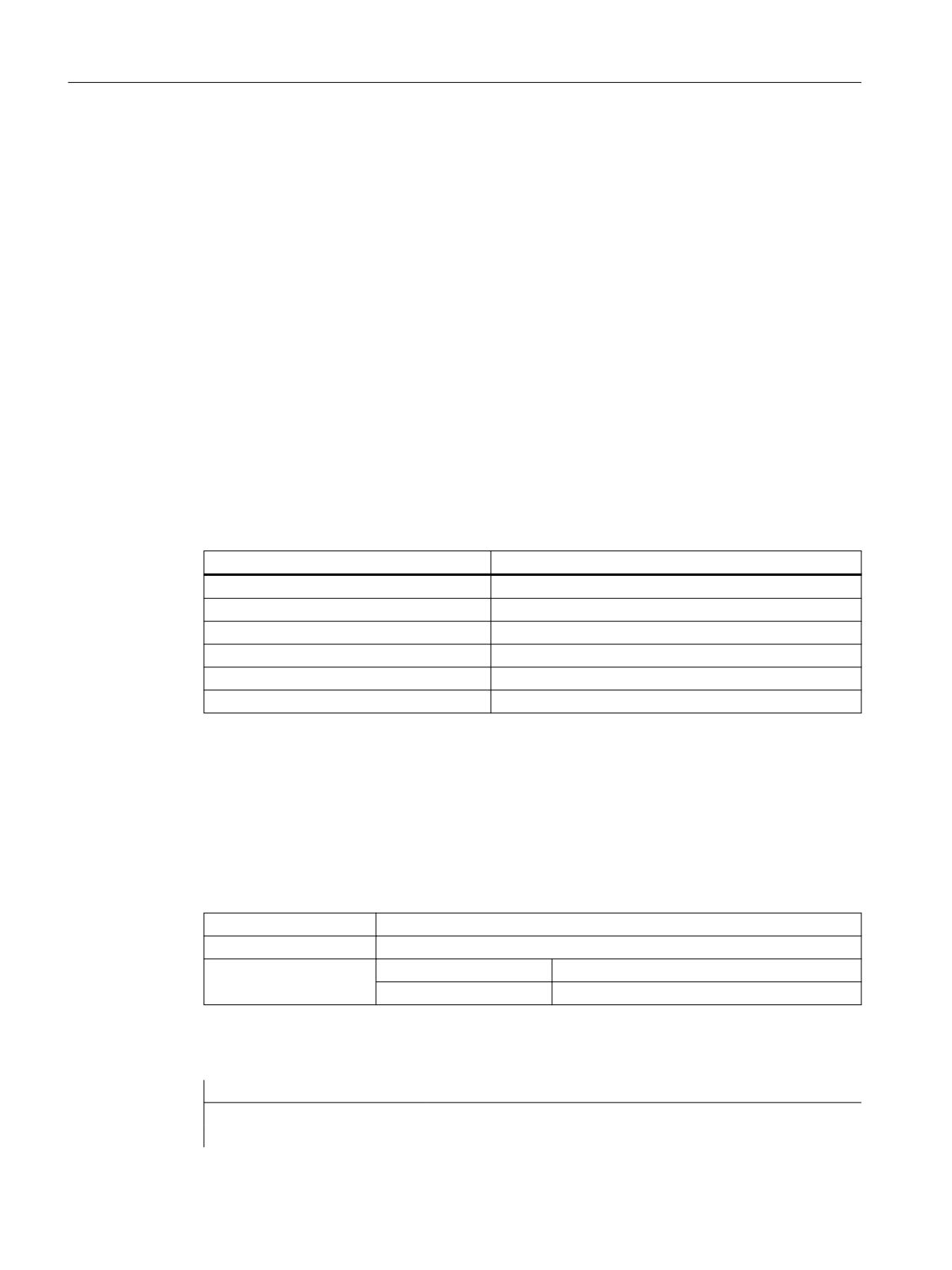
Conditions
The nesting depth is unlimited.
Condition with one command:
IF
ENDIF
Condition with two commands:
IF
ELSE
ENDIF
7.1.2
Bit operators
Overview
Bit operators
Designation
BOR
Bit-serial OR
BXOR
Bit-serial XOR
BAND
Bit-serial AND
BNOT
Bit-serial NOT
SHL
Shift bits to left
SHR
Shift bits to right
SHL operator
Bits are shifted to the left using the SHL (SHIFT LEFT) operator. You can specify both the value to
be shifted and the number of shift increments directly or via a variable. If the limit of the data
format is reached, the bits are shifted beyond the limit without displaying an error message.
Use
Syntax:
variable = value SHLincrement
Description:
Shift Left
Parameters:
value
value to be shifted
increment
number of shift increments
Example
PRESS(VS1)
VAR01 = 16 SHL 2
; Result = 64
SINUMERIK Integrate Run MyScreens
130
Programming Manual, 10/2020, A5E40869575B AD
Programming commands
7.1 Operators
VAR02 = VAR02 SHL VAR04
; Convert content of VAR02 to 32-bit unsigned
, and shift content to left by number of bits specified
in VAR04. Then convert 32-bit value back to format of
variable VAR02.
END_PRESS
SHR operator
Bits are shifted to the RIGHT using the SHR (SHIFT RIGHT) function. You can specify both the
value to be shifted and the number of shift increments directly or via a variable. If the limit of the
data format is reached, the bits are shifted beyond the limit without displaying an error message.
Use
Syntax:
variable = value SHRincrement
Description:
Shift Right
Parameters:
value
value to be shifted
increment
number of shift increments
Example
PRESS(VS1)
VAR01 = 16 SHR 2
; Result = 4
VAR02 = VAR02 SHR VAR04
; Convert content of VAR02 to 32-bit unsigned
, and shift content to right by number of bits
specified in VAR04. Then convert 32-bit value back
to format of variable VAR02.
END_PRESS
SINUMERIK Integrate Run MyScreens
Programming Manual, 10/2020, A5E40869575B AD
131
Programming commands
7.2 Methods
7.2
Methods
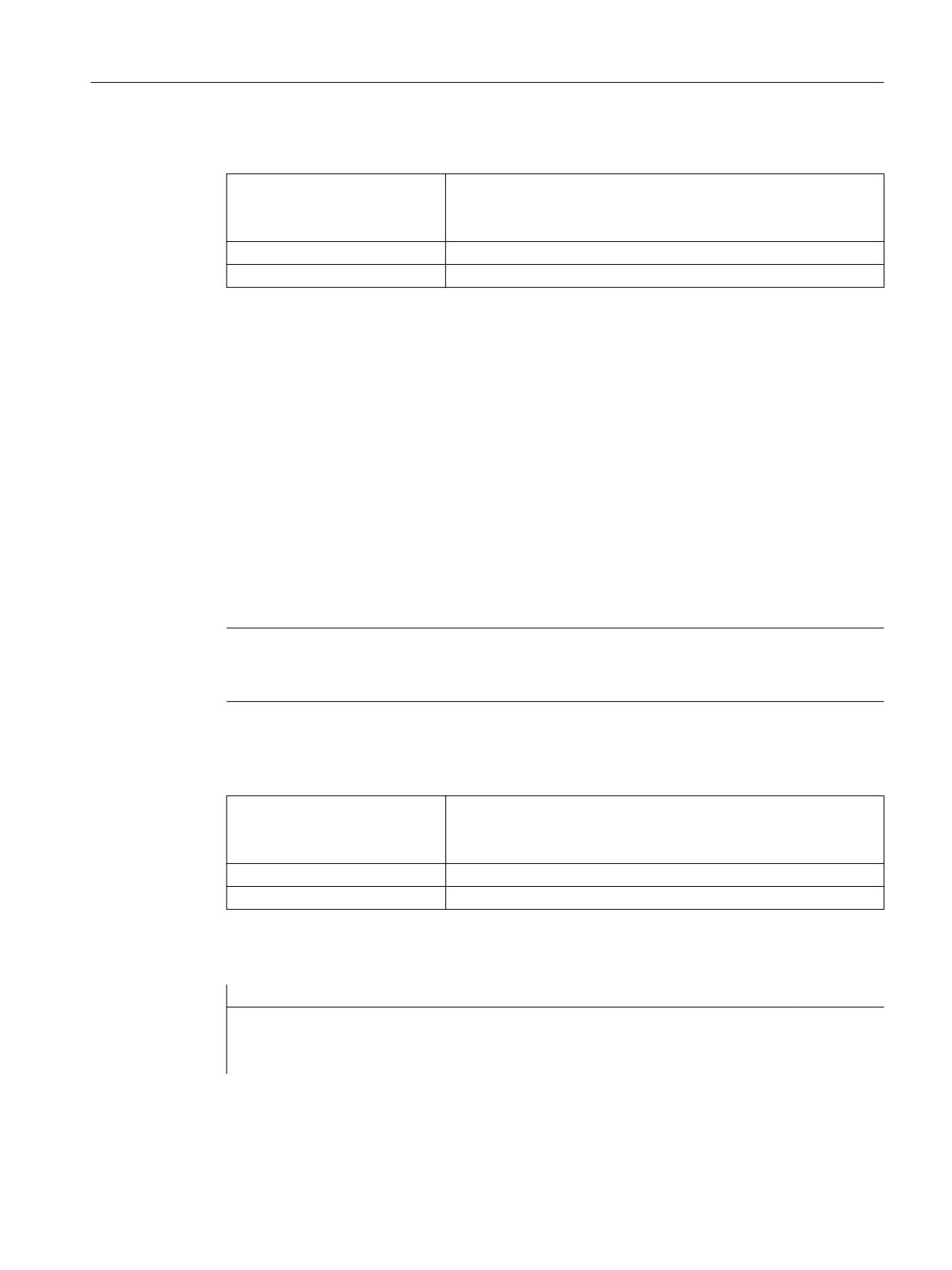
Overview
Various types of event (exit input field, actuate softkey) can initiate specific actions in dialogs and
dialog-dependent softkey menus (softkey menus that are called from a newly configured
dialog). These actions are configured in methods.
The following table shows the basic principle used to program a method:
Definition block
Comment
Section reference
PRESS(HS1)
;Method start identifier
LM...
;Functions
See Chapter Functions (Page 145)
LS...
Var1.st = ...
;Changing properties
see Section Defining softkey menus
(Page 68)
and Section Defining dialog proper-
ties (Page 55).
Var2 = Var3 + Var4
;Calculation with variables
See Chapter Defining variables
(Page 87)
EXIT
END_PRESS
;Method end identifier
7.2.1
ACCESSLEVEL
Description
The ACCESSLEVEL method is run through when the current access level has changed for an
opened screen.
Programming
Syntax:
ACCESSLEVEL
<instructions>
END_ACCESSLEVEL
Description:
Access level
Parameters:
- None -
See also
Variable S_ALEVEL (Page 121)
SINUMERIK Integrate Run MyScreens
132
Programming Manual, 10/2020, A5E40869575B AD
Programming commands
7.2 Methods
7.2.2
CHANGE
Description
CHANGE methods are executed when a variable value changes. This means that variable
calculations that are performed as soon as a variable value changes are configured within a
CHANGE method.
There are two types of CHANGE method, i.e., element-specific and global:
• The element-specific CHANGE method is executed if the value of a specified variable
changes. If a system or user variable is assigned to a variable, cyclic updating of the variable
value can be configured in a CHANGE method.
• The global CHANGE method is executed if the value of any variable changes and no
element-specific CHANGE method has been configured.
"Element-specific" programming
Syntax:
CHANGE(identifier)
END_CHANGE
Description:
Changes the value of a specific variable
Parameters:
Identifier
Name of the variable
Example
DEF VAR1=(I//////"DB20.DBB1")
; A system variable is assigned to Var1
CHANGE(VAR1)
IF VAR1.Val <> 1
VAR1.st="Tool OK!"
; If the value of the system variable ≠ 1, the
short text of the variable states: Tool OK!
otto=1
ELSE
VAR1.st="Attention: Error!"
; If the value of the system variable = 1, the
short text of the variable states: Attention:
Error!
otto=2
ENDIF
VAR2.Var=2
END_CHANGE
SINUMERIK Integrate Run MyScreens
Programming Manual, 10/2020, A5E40869575B AD
133
Programming commands
7.2 Methods
"Global" programming
Syntax:
CHANGE()
END_CHANGE
Description:
Changes any variable value
Parameters:
- None -
Example
CHANGE()
EXIT
; If any of the variable values change, the di-
alog will be terminated.
END_CHANGE
7.2.3
CHANNEL
Description
The CHANNEL method is run through when the current channel has changed for an opened
screen, i.e. a channel switchover has been performed.
Programming
Syntax:
CHANNEL
<instructions>
END_CHANNEL
Description:
Channel switchover
Parameters:
- None -
See also
S_CHAN variable (Page 122)
7.2.4
CONTROL
Description
The CONTROL method is run through when the current control has changed for an opened
screen, i.e. typically at a 1:n switchover.
SINUMERIK Integrate Run MyScreens
134
Programming Manual, 10/2020, A5E40869575B AD
Programming commands
7.2 Methods
Programming
Syntax:
CONTROL
<instructions>
END_CONTROL
Description:
Control switchover
Parameters:
- None -
See also
Variable S_CONTROL (Page 123)
7.2.5
FOCUS
Description
The FOCUS method is executed if the focus (cursor) is positioned on another field in the dialog.
The FOCUS method must not be initiated as a result of a navigation event. The cursor position
may only be changed in softkey PRESS methods, CHANGE methods, etc. The response of cursor
movements is predefined.
Note
Within the FOCUS method, it is not possible to select a different variable, nor can a new dialog
be loaded.
Programming
Syntax:
FOCUS
END_FOCUS
Description:
Positions the cursor
Parameters:
- None -
Example
FOCUS
DLGL("The focus has been placed on variable << FOC << ".)
END_FOCUS
SINUMERIK Integrate Run MyScreens
Programming Manual, 10/2020, A5E40869575B AD
135
Programming commands
7.2 Methods
See also
FOC variable (Page 120)
7.2.6
LANGUAGE
Description
The LANGUAGE method is run through when the current language has changed for an opened
screen.
Programming
Syntax:
LANGUAGE
<instructions>
END_LANGUAGE
Description:
Language
Parameters:
- None -
See also
Variable S_LANG (Page 124)
7.2.7
LOAD
Description
The LOAD method is executed after the variable and softkey definitions (DEF Var1= ..., HS1= ...)
have been interpreted. At this time, the dialog is not yet displayed.
Programming
Syntax:
LOAD
END_LOAD
Description:
Download
Parameters:
- None -
Example
LOAD
; Start identifier
SINUMERIK Integrate Run MyScreens
136
Programming Manual, 10/2020, A5E40869575B AD
Programming commands
7.2 Methods
Screen form1.Hd =
$85111
; Assign text for dialog header from language file
VAR1.Min = 0
; Assign MIN variable limit
VAR1.Max = 1000
; Assign MAX variable limit
END_LOAD
; End code
See also
Line, dividing line, rectangle, circle and ellipse (Page 201)
7.2.8
UNLOAD
Description
The UNLOAD method is executed before a dialog is unloaded.
Programming
Syntax:
UNLOAD
END_UNLOAD
Description:
Unload
Parameters:
- None -
Example
UNLOAD
REG[1] = VAR1
; Save variable in register
END_UNLOAD
SINUMERIK Integrate Run MyScreens
Programming Manual, 10/2020, A5E40869575B AD
137
Programming commands
7.2 Methods
7.2.9
OUTPUT
Description
The OUTPUT method is executed if the "GC" function is called. Variables and Help variables are
configured as an NC code in an OUTPUT method. The individual elements in a code line are linked
by means of blanks.
Note
The NC code can be generated in an extra file by means of file functions and transferred to the
NC.
Programming
Syntax:
OUTPUT(identifier)
END_OUTPUT
Description:
Outputs variables in the NC program.
Parameters:
Identifier
Name of OUTPUT method
Block numbers and skip identifiers
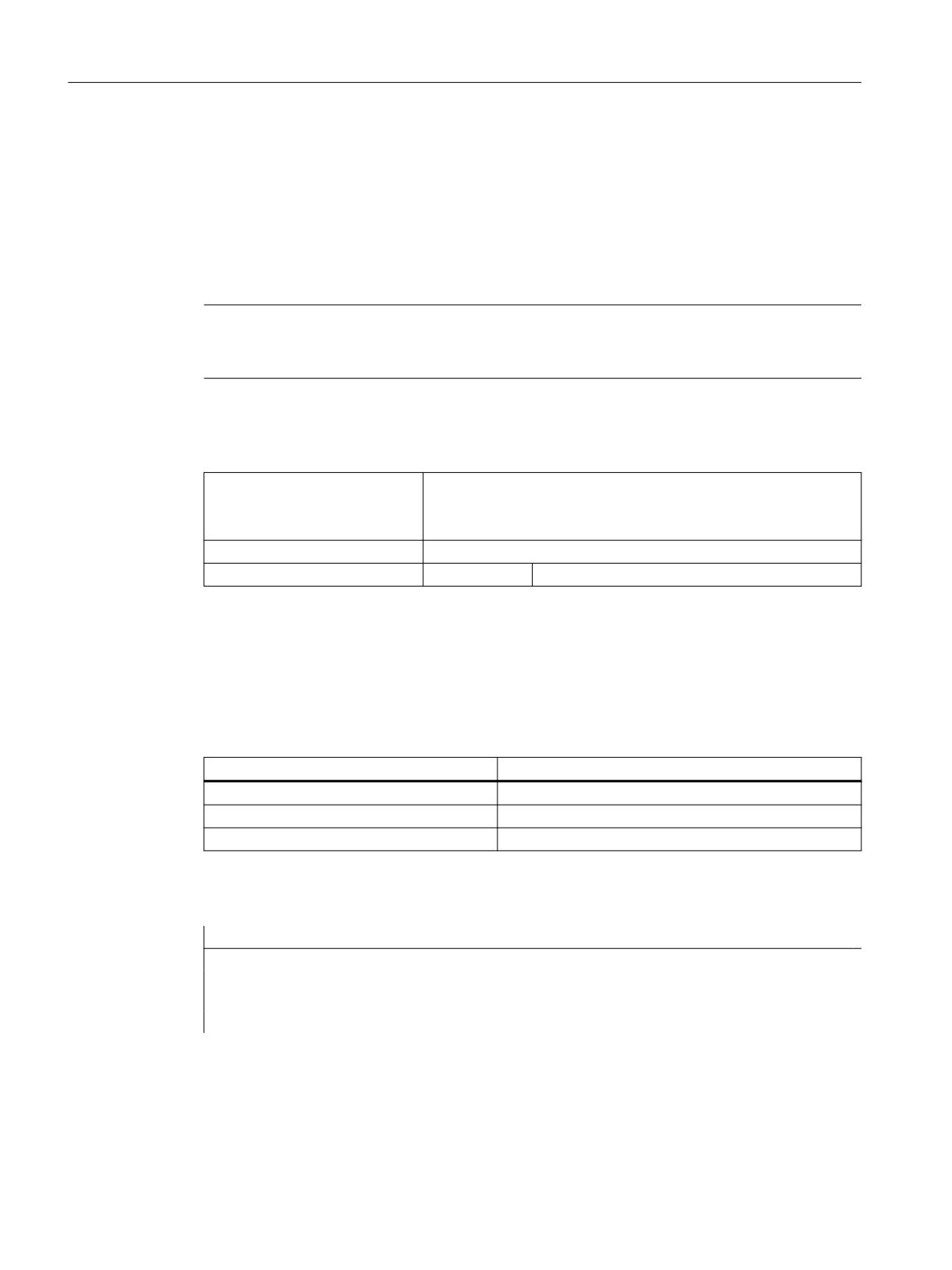
The OUTPUT method must not contain line numbers or skip identifiers if you wish to keep the line
numbers and skip identifiers directly set with active program support in the parts program in
case of recompilations.
Editor changes in the parts program produce the following response:
Condition
Response
Number of blocks remains unchanged.
Block numbers are retained.
Number of blocks is reduced.
The highest block numbers are canceled.
Number of blocks is increased.
New blocks are not numbered.
Example
OUTPUT(CODE1)
"CYCLE82(" Var1.val "," Var2.val "," Var3.val ","Var4.val "," Var5.val ","
Var6.val ")"
END_OUTPUT
SINUMERIK Integrate Run MyScreens
138
Programming Manual, 10/2020, A5E40869575B AD
Programming commands
7.2 Methods
7.2.10
PRESS
Description
The PRESS method is executed when the corresponding softkey is pressed.
Programming
Syntax:
PRESS(softkey)
END_PRESS
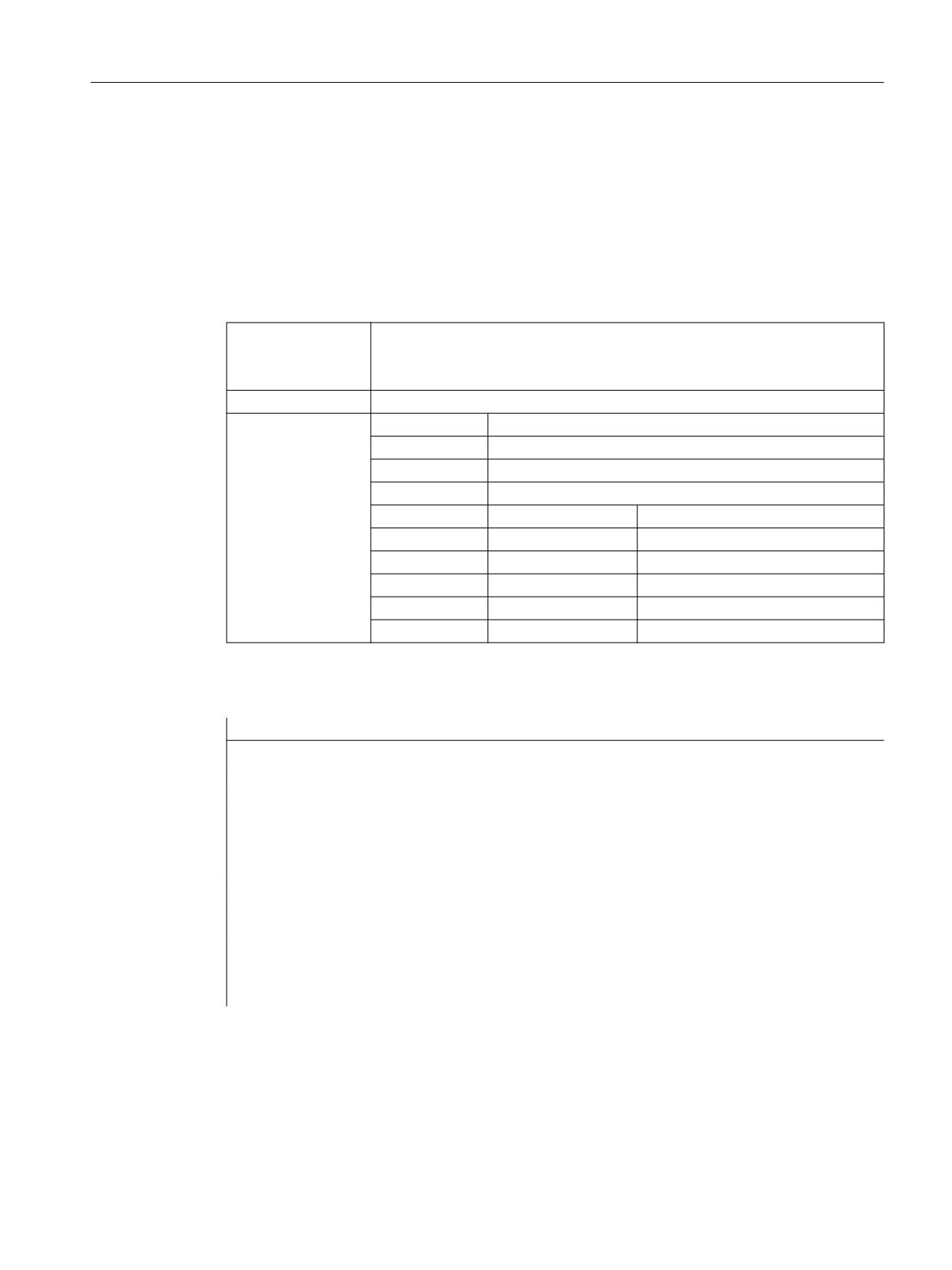
Designation:
Pressing a softkey
Parameters:
Softkey
Name of softkey: HS1 - HS8 and VS1 - VS8
RECALL
<RECALL> key
ENTER
For the <ENTER> key, see PRESS(ENTER) (Page 140)
TOGGLE
For the <TOGGLE> key, see PRESS(TOGGLE) (Page 140)
PU
Page Up
Screen up
PD
Page Down
Screen down
SL
Scroll left
Cursor left
SR
Scroll right
Cursor right
SU
Scroll up
Cursor up
SD
Scroll down
Cursor down
Example
HS1 = ("another softkey menu")
HS2 = ("no function")
PRESS (HS1)
LS("Menu1")
; Load another softkey menu
Var2 = Var3 + Var1
END_PRESS
PRESS (HS2)
END_PRESS
PRESS(PU)
INDEX = INDEX -7
CALL("UP1")
END_PRESS
SINUMERIK Integrate Run MyScreens
Programming Manual, 10/2020, A5E40869575B AD
139
Programming commands
7.2 Methods
7.2.11
PRESS(ENTER)
Description
The PRESS(ENTER) method is always called when the Enter key is pressed for a variable with
input/output field with input mode WR3 or WR5:
• WR3: Navigation to field and pressing of the Enter key
• WR5: In the input mode, transfer of the value with the Enter key
Programming
Syntax:
PRESS(ENTER)
<instructions>
END_PRESS
Description:
Enter key pressed
Parameters:
- None -
7.2.12
PRESS(TOGGLE)
Description
The PRESS(TOGGLE) method is always called when the toggle key is pressed irrespective of the
currently focused variable.
When required, the FOC screen property can be used to determine which variable is currently in
focus.
Programming
Syntax:
PRESS(TOGGLE)
<instructions>
END_PRESS
Description:
Toggle key pressed
Parameter:
- None -
Example
PRESS(TOGGLE)
DLGL("Toggle key pressed at variable " << FOC)
; The FOC screen property determines which
variable is currently in focus
END_PRESS
SINUMERIK Integrate Run MyScreens
140
Programming Manual, 10/2020, A5E40869575B AD
Programming commands
7.2 Methods
7.2.13
RESOLUTION
Description
The RESOLUTION method is run through when the current resolution has changed for an opened
screen, i.e. typically at a TCU switchover.
Programming
Syntax:
RESOLUTION
<instructions>
END_RESOLUTION
Description:
Resolution
Parameters:
- None -
See also
Variables S_RESX and S_RESY (Page 126)
7.2.14
RESUME
Description
The RESUME method is called when the screen was interrupted, e.g. for an area change, and is
now shown again. The value changes are processed again, if required, the timers started and the
RESUME block executed.
Note
The functions LS, LM, DLGL, EXIT and EXITLS must not be configured in the methods SUSPEND
or RESUME. When using the functions in these methods, the execution of the functions is
prevented.
Programming
Syntax:
RESUME
<instruction>
END_RESUME
Description:
Screen active again
Parameters:
- None -
SINUMERIK Integrate Run MyScreens
Programming Manual, 10/2020, A5E40869575B AD
141
Programming commands
7.2 Methods
7.2.15
SUSPEND
Description
The SUSPEND method is called when the screen is interrupted and not unloaded. This is the case,
for example, when the screen is exited by a simple area change, but not explicitly unloaded. The
screen is retained in the backg35round, but no value change or timers are processed. The screen
is paused.
Note
The functions LS, LM, DLGL, EXIT and EXITLS must not be configured in the methods SUSPEND
or RESUME. When using the functions in these methods, the execution of the functions is
prevented.
Programming
Syntax:
SUSPEND
<instruction>
END_SUSPEND
Description:
Interruption of the screen
Parameters:
- None -
Example
SUSPEND
MyVar1 = MyVar1 + 1
END_SUSPEND
7.2.16
Example: Version management with OUTPUT methods
Overview
Additional variables can be added to existing dialogs when expanding the user interface. A
version identifier in parentheses is appended to the additional variables in the definition
following the variable name: (0 = Original, is not written), 1 = Version 1, 2 = Version 2, etc.
Example:
DEF var100=(R//1)
; Original, corresponds to Version 0
DEF var101(1)=(S//"Hello")
; Extension as of Version 1
SINUMERIK Integrate Run MyScreens
142
Programming Manual, 10/2020, A5E40869575B AD
Programming commands
7.2 Methods
When writing the OUTPUT method, you can specify which variables are written, with reference
to a particular version identifier.
Example:
OUTPUT(NC1)
; Only the variables of the original are offered in
the OUTPUT method.
OUTPUT(NC1,1)
; The variables of the original and the extensions
with version identifier 1 are offered in the OUTPUT
method.
The OUTPUT method for the original does not need a version identifier, however you can specify
it with 0. OUTPUT(NC1) is equivalent to OUTPUT(NC1,0). Version identifier n in the OUTPUT
method includes all variables of the originals 0, 1, 2, ... up to and including n.
Programming with version identifier
//M(XXX)
Version 0 (default)
DEF var100=(R//1)
DEF var101=(S//"Hello")
DEF TMP
VS8=("GC")
PRESS(VS8)
GC("NC1")
END_PRESS
OUTPUT(NC1)
var100",,"var101
END_OUTPUT
; ************ Version 1, extended definition ***************
//M(XXX)
DEF var100=(R//1)
DEF var101=(S//"Hello")
DEF var102(1)=(V//"HUGO")
DEF TMP
VS8=("GC")
PRESS(VS8)
GC("NC1")
END_PRESS
OUTPUT(NC1)
Original and the new version in addition
var100","var101
END_OUTPUT
SINUMERIK Integrate Run MyScreens
Programming Manual, 10/2020, A5E40869575B AD
143
Programming commands
7.2 Methods
OUTPUT(NC1,1)
Version 1
var100","var101"," var102
END_OUTPUT
SINUMERIK Integrate Run MyScreens
144
Programming Manual, 10/2020, A5E40869575B AD
Programming commands
7.3 Functions
7.3
Functions
Overview
A variety of functions are available in dialogs and dialog-dependent softkey menus. These can
be activated by specific events (exit input field, actuate softkey) and configured in methods.
Subprograms
Repeatedly used configuring instructions or others, which define the process for a particular
operation can be configured in subprograms. Subprograms can be loaded into the main
program or other subprograms at any time and executed as often as necessary, i.e. the
instructions they contain do not need to be configured repeatedly. The definition blocks of the
dialogs/softkey menu constitute a main program.
External functions
Additional, user-specific functions can be integrated by means of external functions. The
external functions are stored in a DLL file and identified by an entry in the definition lines of the
configuration file.
PI services
The PI_START function starts PI Services (Program Invocation Services) from the PLC in the NC
area.
See also
Function (FCT) (Page 165)
PI services (Page 179)
7.3.1
Reading and writing drive parameters: RDOP, WDOP, MRDOP
Description
You can read and write drive parameters using RDOP, WDOP and MRDOP functions.
Note
Do not read drive parameters faster than in a 1 second cycle, slower is better.
Reason: The communication with the drives can otherwise be extremely disturbed or even cause
failures.
SINUMERIK Integrate Run MyScreens
Programming Manual, 10/2020, A5E40869575B AD
145
Programming commands
7.3 Functions
Note
If errors occur when reading and writing drive parameters, the screen property ERR is set
appropriately.
Programming
Syntax:
RDOP("Identifier of the drive object", "Parameter number")
Description:
Reading a drive parameter (Drive Object Parameter)
Parameters:
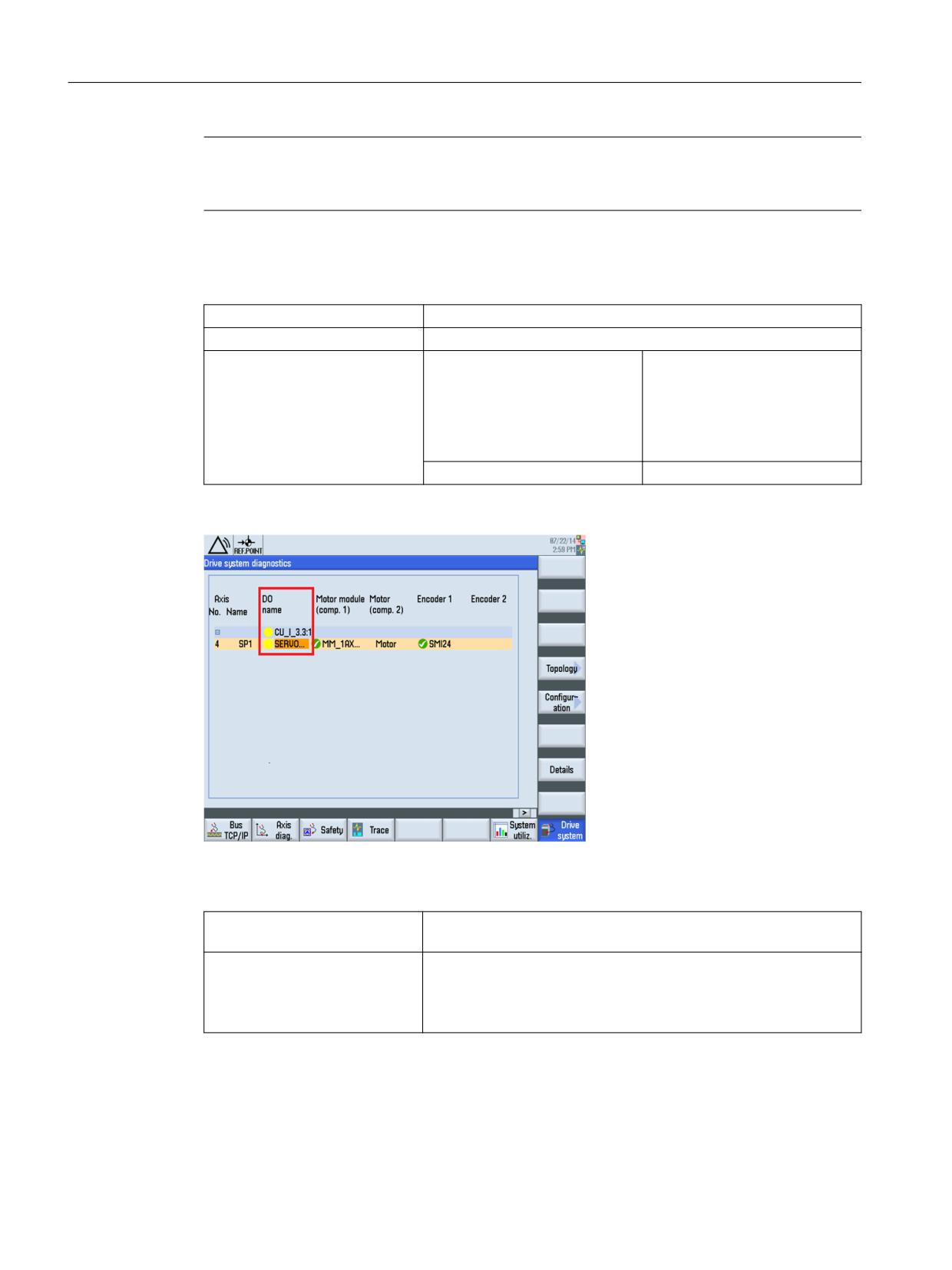
Identifier of the drive object
The identifier of the drive object
can be found in the "DO name"
column in "Drive system diagnos-
tics" in the diagnostics operating
area ( > ETC > HSK 8: drive sys-
tem) (see diagram below).
Parameter number
Figure 7-1
Identifier of the drive object
Syntax:
MRDOP("Identifier of the drive object", "Parameter number1"*"Pa-
rameter number"[*…], Register index)
Description:
Multi-read of drive parameters.
The MRDOP command transfers several drive parameters or drive
objects in a single register access. This access method is significantly
faster than reading via individual access attempts.
SINUMERIK Integrate Run MyScreens
146
Programming Manual, 10/2020, A5E40869575B AD
Programming commands
7.3 Functions
Parameters:
Identifier of the drive object
The identifier of the drive object
can be taken, for example, from
the root screen of the "Setup" op-
erating area.
Parameter number1 ... n
In the variable names, "*" is the
separator. The values are trans-
ferred to register REG[Register in-
dex] in the order that the variable
names appear
in the command.
Register index
The value of the first variable is
located in REG[Register index].
The value of the second variable
is located in REG[Register index +
1]
Syntax:
WDOP("Identifier of the drive object", "Parameter number", Value)
Description:
Writing a drive parameter (Drive Object Parameter)
Parameters:
Identifier of the drive object
The identifier of the drive object
can be taken, for example, from
the root screen of the "Setup" op-
erating area.
Parameter number
Parameter number
Value
Value to be written
Examples
Read motor temperature r0035 of drive object "SERVO_3.3:2":
MyVar=RDOP("SERVO_3.3:2","35")
;
Read motor temperature r0035 and actual torque value r0080 of drive object "SERVO_3.3:2" and
store the respective results as of register index 10:
MRDOP("SERVO_3.3:2","35*80",10)
7.3.2
Subprogram call (CALL)
Description
The CALL function calls a loaded subprogram from any point in a method. Subprogram nesting
is supported, i.e. you can call a subprogram from another subprogram.
SINUMERIK Integrate Run MyScreens
Programming Manual, 10/2020, A5E40869575B AD
147
Programming commands
7.3 Functions
Programming
Syntax:
CALL("Identifier")
Description:
Subprogram call
Parameters:
Identifier
Name of subprogram
Example
//M(SCREEN1)
DEF VAR1 = ...
DEF VAR2 = ...
CHANGE(VAR1)
CALL("MY_UP1")
; Call subprogram and execute
END_CHANGE
CHANGE(VAR2)
CALL("MY_UP1")
; Call subprogram and execute
END_CHANGE
SUB(MY_UP1)
;Do something
END_SUB
//END
7.3.3
Define block (//B)
Description
In the program file, subprograms are identified by the block identifier //B and terminated with //
END. Several subprograms can be defined under each block identifier.
Note
The variables used in the subprogram must be defined in the dialog in which the subprogram is
called.
SINUMERIK Integrate Run MyScreens
148
Programming Manual, 10/2020, A5E40869575B AD
Programming commands
7.3 Functions
Programming
A block is structured in the following way:
Syntax:
//B(Block name)
SUB(Identifier)
END_SUB
[SUB(Identifier)]
END_SUB]
//END
Description:
Defines a subprogram
Parameters:
Block name
Name of block identifier
Identifier
Name of subprogram
Example
//B(PROG1)
; Block start
SUB(UP1)
; Start of subprogram
REG[0] = 5
; Assign value 5 to register 0
END_SUB
; End of subprogram
SUB(UP2)
; Start of subprogram
IF VAR1.val=="Otto"
VAR1.val="Hans"
RETURN
ENDIF
VAR1.val="Otto"
END_SUB
; End of subprogram
//END
; Block end
7.3.4
Check Variable (CVAR)
Description
You can use the CVAR (Check Variable) function to run a scan to ascertain whether all or only
certain variables or Help variables in a screen are error-free.
It may be useful to check if variables contain a valid value before an NC code with the GC
function.
A variable is error-free if the state of the variable Identifier.vld = 1.
SINUMERIK Integrate Run MyScreens
Programming Manual, 10/2020, A5E40869575B AD
149
Programming commands
7.3 Functions
Programming
Syntax:
CVAR(VarN)
Description:
Checks variables for valid content
Parameters:
VarN
List of variables to be checked.
Up to 29 variables, each separated by a comma, can be
checked. A character length of 500 must not be exceeded.
The result of the scan can be:
1 =
TRUE (all variables have valid content)
0 =
FALSE (at least one variable has invalid content)
Example
IF CVAR == TRUE
; Check all variables
VS8.SE = 1
; If all variables are error-free, soft-
key VS8 is visible
ELSE
VS8.SE = 2
; If a variable has an invalid value,
softkey VS8 is disabled
ENDIF
IF CVAR("VAR1", "VAR2") == TRUE
; Check variables VAR1 and VAR2
DLGL ("VAR1 and VAR2 are OK")
; If the values of VAR1 and VAR2 are er-
ror-free, "VAR1 and VAR2 are OK" appears
in the dialog line
ELSE
DLGL ("VAR1 and VAR2 are not OK")
; If the values of VAR1 and VAR2 are in-
valid, "VAR1 and VAR2 are not OK" appears
in the dialog line
ENDIF
7.3.5
CLEAR_BACKGROUND
Description
The CLEAR_BACKGROUND function deletes the LINE, RECT, ELLIPSE, V_SEPARATOR and
H_SEPARATOR graphic elements.
See also
Line, dividing line, rectangle, circle and ellipse (Page 201)
SINUMERIK Integrate Run MyScreens
150
Programming Manual, 10/2020, A5E40869575B AD
Programming commands
7.3 Functions
7.3.6
Copy Program file function (CP)
Description
The CP (Copy Program) function copies files within the HMI file system or within the NC file
system.
Programming
Syntax:
CP("Source file", "Target file")
Description:
Copies a file
Parameters:
Source file
Complete path to the source file
Target file
Complete path data of the target file
The return value (VAR1 defined as help variable) queries whether the function was successful:
CP("//NC/MPF.DIR/HOHO.MPF","//NC/MPF.DIR/ASLAN.MPF",VAR1)
Example
Application with return value:
CP("//NC/MPF.DIR/HOHO.MPF","//NC/MPF.DIR/ASLAN.MPF",VAR1)
CP("CF_CARD:/wks.dir/MESS_BILD.WPD/MESS_BILD.MPF","//NC/WKS.DIR/AAA.WPD/HOHO2.MPF",VAR1)
CP("//NC/MPF.DIR/HOHO.MPF","CF_CARD:/wks.dir/WST1.WPD/MESS.MPF",VAR1)
; WPD must exist
Application without return value:
CP("//NC/MPF.DIR/HOHO.MPF","//NC/MPF.DIR/ASLAN.MPF")
CP("CF_CARD:/mpf.dir/MYPROG.MPF","//NC/MPF.DIR/HOHO.MPF")
CP("//NC/MPF.DIR/HOHO.MPF","CF_CARD:/XYZ/MYPROG.MPF")
; XYZ must exist
See also
Support of FILE_ERR: FILE_ERR variable (Page 118)
7.3.7
Delete Program file function (DP)
Description
The DP (Delete Program) function deletes a file from the passive HMI or active NC file system.
SINUMERIK Integrate Run MyScreens
Programming Manual, 10/2020, A5E40869575B AD
151
Programming commands
7.3 Functions
Programming
Syntax:
DP("File")
Description:
Delete file
Parameters:
File
Complete path name of file to be deleted
Example
The following data management syntax is used for this function:
• With return value
DP("//NC/MPF.DIR/MYPROG.MPF",VAR1)
DP("//NC/WKS.DIR/TEST.WPD/MYPROG.MPF",VAR1)
DP("//NC/CMA.DIR/MYPROG.SPF",VAR1)
VAR1 = 0
File was deleted.
VAR1 = 1
File was not deleted.
• Without return value:
DP("//NC/MPF.DIR/MYPROG.MPF")
DP("//NC/WKS.DIR/TEST.WPD/MYPROG.MPF")
DP("//NC/CMA.DIR/MYPROG.SPF")
7.3.8
Exist Program file function (EP)
Description
The EP (Exist Program) function checks whether a particular NC program is stored on the
specified path in the NC or HMI file system.
Programming
Syntax:
EP("File")
Description:
Checks the existence of the NC program
Parameters:
File
Complete path to the file in the NC or HMI file system
Return value:
Name of a variable to which the result of the scan should be assigned
The EP function can handle the new syntax and the old logic (with adapted syntax).
The file is directly addressed using a qualifying name:
//NC/MPF.DIR/XYZ.MPF
or
CF_CARD: /MPF.DIR/XYZ.MPF (points to /user/sinumerik/data/prog)
or
LOC: (corresponds to CF_CARD)
SINUMERIK Integrate Run MyScreens
152
Programming Manual, 10/2020, A5E40869575B AD
Programming commands
7.3 Functions
Examples of new syntax:
EP("//NC/WKS.DIR/TEST.WPD/XYZ.MPF",VAR1)
EP("CF_CARD:/mpf.dir/XYZ.MPF",VAR1)
EP("LOC:/mpf.dir/XYZ.MPF",VAR1)
; With return value:
; VAR1 = 0 File exists.
; VAR1 = 1 File does not exist.
Example of old syntax:
EP("/MPF.DIR/CFI.MPF", VAR1)
; With return value:
; VAR1 = M File is located in the HMI file system.
; VAR1 = N File is located in the NC file system.
; VAR1 = B File is located in the HMI and the NC file system.
Example
EP("/MPF.DIR/GROB.MPF",VAR1)
; Old - path now with / instead of \
IF VAR1 == "M"
DLGL("File is located in the HMI file system")
ELSE
IF VAR1 == "N"
DLGL("File is located in the NC file directory")
ELSE
DLGL("File is located neither in the HMI nor in the NC
file system")
ENDIF
ENDIF
7.3.9
Move Program file function (MP)
Description
The MP (Move Program) function copies files within the HMI file system or within the NC file
system.
SINUMERIK Integrate Run MyScreens
Programming Manual, 10/2020, A5E40869575B AD
153
Programming commands
7.3 Functions
Programming
Syntax:
MP("Source", "Target")
MP("CF_CARD:/MPF.DIR/MYPROG.MPF","//NC/MPF.DIR")
Description:
Move file
Parameters:
Source file
Complete path data
Target file
Complete path data
Return value
Result of the query
Examples
With return value:
MP("//NC/MPF.DIR/123.MPF","//NC/MPF.DIR/ASLAN.MPF",VAR1)
;Within NC
MP("//NC/MPF.DIR/123.MPF",VAR0,VAR1)
;Target via variable
MP(VAR4,VAR0,VAR1)
;Source and target via variable
MP("CF_CARD:/mpf.dir/myprog.mpf","//NC/MPF.DIR/123.MPF",VAR1)
;From CF card to NC
MP("//NC/MPF.DIR/HOHO.MPF","CF_CARD:/XYZ/123.mpf",VAR1)
;From NC to CF card
; With return value:
; VAR1 = 0 Executed
; VAR1 = 1 Not executed
7.3.10
Select Program file function (SP)
Description
The SP (Select Program) function selects a file in the active NC file system for execution, i.e. the
file must be loaded into the NC beforehand.
Programming
Syntax:
SP("File")
Designation:
Select program
Parameters:
"File"
Complete path name of NC file
Example
The following data management syntax is used for this function:
• With return value
SP("//NC/MPF.DIR/MYPROG.MPF", VAR1)
VAR1 = 0
File was loaded.
SINUMERIK Integrate Run MyScreens
154
Programming Manual, 10/2020, A5E40869575B AD
Programming commands
7.3 Functions
VAR1 = 1
File was not loaded without return value.
• Without return value:
SP("//NC/MPF.DIR/MYPROG.MPF")
7.3.11
File accesses: RDFILE, WRFILE, RDLINEFILE, WRLINEFILE
Description
The RDFILE and WRFILE functions are available for read and write access to files with INI syntax.
The RDLINEFILE and WRLINEFILE functions are available for read and write access to individual
lines of a file.
Programming
Syntax:
RDFILE("File name + path", "Section", "Key")
Description:
Reading from a file
Parameters:
File name + path
Path and file name
Section
Section in the INI file
Key
Key in the INI file
Syntax:
WRFILE(Value, "File name + path", "Section", "Key")
Description:
Writing to a file
Parameters:
Value
Value to be written
File name + path
Path and file name
Section
Section in the INI file
Key
Key in the INI file
Syntax:
RDLINEFILE("File name + path", Line number)
Description:
Reading a line from a file
Parameters:
File name + path
Path and file name
Line number
Line number
Numbering begins at 0 for the
first line.
Syntax:
WRLINEFILE(Value, "File name + path")
Description:
Writing of a line at the end of a file
Parameters:
Value
Value to be written
File name + path
Path and file name
SINUMERIK Integrate Run MyScreens
Programming Manual, 10/2020, A5E40869575B AD
155
Programming commands
7.3 Functions
Note
• The files must not be in the file system of the NC (data management).
• If the file does not exist, or the end of the file is reached or other errors occur, the variables
FILE_ERR and ERR are set accordingly. You can check whether a file exists first with the Exist
Program (EP) file function.
• The processed file is generated in "UTF-8" coding (without BOM (Byte Order Mask). When
reading a file, it is expected in "UTF-8" coding.
• You can delete the file explicitly when required with the Delete Program (DP) file function.
Examples
Reading from an INI file:
Requirement/assumption:
Content of file "C:/tmp/myfile.ini":
<…>
[MyData]
MyName=Daniel
<…>
MyVar = RDFILE("C:/tmp/myfile.ini", "MyData", "MyName")
Result:
MyVar now contains the value "Daniel".
Writing to an INI file:
Requirement/assumption:
VARS=12
WRFILE(VARS, "C:/tmp/myfile.ini", "MySession", "NrOfSessions")
Result:
Content of file "C:/tmp/myfile.ini":
<…>
[MySession]
NrOfSessions=12
<…>
SINUMERIK Integrate Run MyScreens
156
Programming Manual, 10/2020, A5E40869575B AD
Programming commands
7.3 Functions
Reading the 4th line of a file:
Requirement/assumption:
Content of c:/tmp/myfile.mpf:
R[0]=0
F3500 G1
MYLOOPIDX1: X0 y-50 Z0
X150 Y50 Z10
R[0]=R[0]+1
GOTOB MYLOOPIDX1
M30
MyVar = RDLINEFILE("C:/tmp/myfile.mpf", 4)
Result:
MyVar now contains the value " R[0]=R[0]+1"
Writing at the end of a file:
Requirement/assumption:
VARX=123
VARY=456
WRLINEFILE("F100 X" << VARX << " Y" << VARY, "C:/tmp/mypp.mpf")
Result:
Content of c:/tmp/mypp.mpf:
<…>
F100 X123 Y456
7.3.12
Dialog line (DLGL)
Description
It is possible to configure short texts (messages or input tips) for output in the dialog line of the
dialog in response to certain situations.
SINUMERIK Integrate Run MyScreens
Programming Manual, 10/2020, A5E40869575B AD
157
Programming commands
7.3 Functions
Possible number of characters in the default font size: approx. 50
Note
The functions LS, LM, DLGL, EXIT and EXITLS must not be configured in the methods SUSPEND
or RESUME. When using the functions in these methods, the execution of the functions is
prevented.
Programming
Syntax:
DLGL("String")
Description:
Outputs text in the dialog line
Parameters:
String
Text, which is displayed in the dialog line
Example
IF Var1 > Var2
; The text "Value too large!" appears in the dialog
line if variable1 > variable2.
DLGL("Value too large!")
ENDIF
7.3.13
DEBUG
Description
The DEBUG function provides an analysis help during the draft phase of Run MyScreen user
screens. An expression in brackets transferred with the DEBUG function is evaluated during
runtime. The result is attached to the "easyscreen_log.txt" logbook as a separate entry.
Each entry has the current time stamp in square brackets as prefix (see example below).
It is recommended that the DEBUG outputs are removed in time-critical parts when possible.
Particularly after completing the draft phase, it is recommended that you comment out the
DEBUG outputs. The write access to the constantly expanding "easyscreen_log.txt" logbook may
slow down the processing.
Programming
Syntax:
DEBUG(expression)
Description:
Makes an entry in the "easyscreen_log.txt" logbook
Parameters:
Expression to be evaluated from which an entry is generated in the logbook
SINUMERIK Integrate Run MyScreens
158
Programming Manual, 10/2020, A5E40869575B AD
Programming commands
7.3 Functions
Example
IF Var1 > Var2
DEBUG("Value of ""Var1"": " << Var1)
; Entry in the "easyscreen_log_txt:
[10:22:40.445] DEBUG: Value of "Var1":
123.456
ENDIF
7.3.14
Exit dialog (EXIT)
Description
The EXIT function is used to exit a dialog and return to the master dialog. If no master dialog is
found, you will exit the newly configured user interfaces and return to the standard application.
Note
The functions LS, LM, DLGL, EXIT and EXITLS must not be configured in the methods SUSPEND
or RESUME. When using the functions in these methods, the execution of the functions is
prevented.
Programming (without parameters)
Syntax:
EXIT
Description:
Exits a dialog
Parameters:
- None -
Example
PRESS(HS1)
EXIT
END_PRESS
Description
If the current dialog has been called with a transfer variable, the value of the variables can be
changed and transferred to the output dialog.
SINUMERIK Integrate Run MyScreens
Programming Manual, 10/2020, A5E40869575B AD
159
Programming commands
7.3 Functions
The variable values are each assigned to the variables transferred from the output dialog to the
subsequent dialog using the "LM" function. Up to 20 variable values, each separated by a
comma, can be transferred.
Note
The sequence of variables or variable values must be the same as the sequence of transfer values
programmed for the LM function to preclude assignment errors. Any unspecified variable values
will not be changed when the transfer is made. The modified transfer variables are immediately
valid in the output dialog on execution of the LM function.
Programming with a transfer variable
Syntax:
EXIT[(VARx)]
Description:
Exits the dialog and transfers one or more variables
Parameters:
VARx
Label variables
Example
//M(Screen1)
PRESS(HS1)
LM("SCREEN2","CFI.COM",1, POSX, POSY,
DIAMETER)
; Interrupt Screen1 and open Screen2. In
doing this, transfer variables POSX, POSY
and DIAMETER.
DLGL("Screen2 ended")
; After returning from Screen2, the fol-
lowing text appears in the dialog line of
Screen1: Screen2 ended.
END_PRESS
//END
//M(Screen2)
PRESS(HS1)
EXIT(5, , CALCULATED_DIAMETER)
; Exit Screen2 and return to Screen1 in
the line after LM. In doing this, assign
the value 5 to the variable POSX and the
value of the CALCULATED_DIAMETER variable
to the DIAMETER variable. The variable
POSY retains its current value.
END_PRESS
SINUMERIK Integrate Run MyScreens
160
Programming Manual, 10/2020, A5E40869575B AD
Programming commands
7.3 Functions
//END
7.3.15
Dynamic manipulation of the lists of toggle fields or list box fields
Description
The LISTADDITEM, LISTINSERTITEM, LISTDELETEITEM and LISTCLEAR functions are used for the
dynamic manipulation of the lists of toggle fields or list box fields.
These functions only have an effect on variables that have their own list, such as:
• "Simple" list
DEF VAR_AC1 = (I/* 0,1,2,3,4,5,6,7,8) or
• "Extended" list
DEF VAR_AC2 = (I/* 0="AC0", 1="AC1", 2="AC2", 3="AC3", 4="AC4",
5="AC5", 6="AC6", 7="AC7", 8="AC8").
If the variable points to an array, e.g. DEF VAR_AC3 = (I/* MYARRAY), these functions are
not available as otherwise the global array would be changed.
At least one value must be defined for the variable in the DEF line. This specifies the "Simple" or
"Extended" list type.
However, the list can then be completely deleted and, if required, completely rebuilt. The
"Simple" or "Extended" type must be retained however, it cannot be changed dynamically.
Programming
Syntax:
LISTINSERTITEM(Variable name, Position, ItemValue[, ItemDispVal-
ue])
Description:
Inserts an element at a specific position; reading from a file
Parameters:
Variable name
Position
Position at which an element is to
be inserted in the list
ItemValue
Value of the list entry
ItemDispValue
Value as it is to be displayed in the
list
Syntax:
LISTADDITEM(Variable name, ItemValue[, ItemDispValue])
Description:
Adds an element to the end of the list
Parameters:
Variable name
ItemValue
Value of the list entry
ItemDispValue
Value as it is to be displayed in the
list
SINUMERIK Integrate Run MyScreens
Programming Manual, 10/2020, A5E40869575B AD
161
Programming commands
7.3 Functions
Syntax:
LISTDELETEITEM(Variable name, Position)
Description:
Deletes a specific element
Parameters:
Variable name
Position
Position of the element to be de-
leted in the list
Syntax:
LISTCOUNT(Variable name)
Description:
Returns the current number of elements in the list
Parameters:
Variable name
Syntax:
LISTCLEAR(Variable name)
Description:
Deletes the complete list
Parameters:
Variable name
Examples
Note
The following examples build upon each other. The sequence of the examples is relevant in order
to understand the respective results.
Requirement/assumption:
DEF VAR_AC = (I/* 0="Off",1="On"/1/,"Switch"/WR2)
Adding an element -1="Undefined" to the end of the list:
LISTADDITEM("VAR_AC", -1, """Undefined""")
Result: 0="Off", 1="On", -1="Undefined"
Inserting an element 99="Maybe" at position 2:
LISTINSERTITEM("VAR_AC", 2, 99, """Maybe""")
Result: 0="Off", 1="On", 99="Maybe", -1="Undefined"
Determining the current number of list elements:
REG[10]=LISTCOUNT("VAR_AC")
SINUMERIK Integrate Run MyScreens
162
Programming Manual, 10/2020, A5E40869575B AD
Programming commands
7.3 Functions
Result: REG[10] = 4
Deleting the element at position 1:
LISTDELETEITEM("VAR_AC", 1)
Result: 0="Off", 99="Maybe", -1="Undefined"
Deletion of the complete list:
LISTCLEAR("VAR_AC")
Result: List is empty
7.3.16
Evaluate (EVAL)
Description
The EVAL function evaluates a transferred expression and then executes it. With this function,
expressions can be programmed during runtime. This can be useful, for example, for indexed
access operations to variables.
Programming
Syntax:
EVAL(exp)
Description:
Evaluates an expression
Parameters:
exp
Logic expression
Example
VAR1=(S)
VAR2=(S)
VAR3=(S)
VAR4=(S)
CHANGE()
REG[7] = EVAL("VAR"<<REG[5])
; The expression in parentheses produces VAR3 if the
value of REG[5] is equal to 3. The value of VAR3 is,
therefore, assigned to REG[7].
IF REG[5] == 1
REG[7] = VAR1
ELSE
IF REG[5] == 2
REG[7] = VAR2
ELSE
SINUMERIK Integrate Run MyScreens
Programming Manual, 10/2020, A5E40869575B AD
163
Programming commands
7.3 Functions
IF REG[5] == 3
REG[7] = VAR3
ELSE
IF REG[5] == 4
REG[7] = VAR4
ENDIF
ENDIF
ENDIF
ENDIF
END_CHANGE
7.3.17
Exit Loading Softkey (EXITLS)
Description
You can use the EXITLS function to exit the current user interface and load a defined softkey
menu.
Note
The functions LS, LM, DLGL, EXIT and EXITLS must not be configured in the methods SUSPEND
or RESUME. When using the functions in these methods, the execution of the functions is
prevented.
Programming
Syntax:
EXITLS("Softkey menu"[, "Path name"])
Description:
Exits dialog and loads a softkey menu
Parameters:
Softkey menu
Name of the softkey menu to be loaded
Path name
Directory path of the softkey menu to be loaded
Example
PRESS(HS1)
EXITLS( "Menu1", "AEDITOR.COM" )
END_PRESS
SINUMERIK Integrate Run MyScreens
164
Programming Manual, 10/2020, A5E40869575B AD
Programming commands
7.3 Functions
7.3.18
Function (FCT)
Description
The external functions are stored in a DLL file and identified by an entry in the definition lines of
the configuration file.
Note
The external function must have at least one return parameter.
Programming
Syntax:
FCTFunction name = ("File"/Type of return/Types of permanent parameters/Types
of variable parameters)
FCT InitConnection = ("c:\tmp\xyz.dll"/I/R,I,S/I,S)
Description:
An external function can, for example, be called from the LOAD method or execu-
ted in the PRESS method.
Parameters:
Function name
Name of external function
File
Complete path to DLL file
Type of return
Data type of the return value
Type of fixed parameter
Value parameter
Type of variable param-
Reference parameter
eter
The data types are separated by commas.
The external function can, for example, be called from the LOAD method or executed in the
PRESS method.
Example:
press(vs4)
RET = InitConnection(VAR1,13,"Servus",VAR2,VAR17)
end_press
Structure of the external function
The external function must take into account a certain, specific signature:
Syntax:
extern "C" dllexport void InitConnection (ExtFctStructPtr FctRet, ExtFctStructPtr
FctPar, char cNrFctPar)
Description:
DLL export, only when implemented in Windows
Specifiers and transfer parameters are strictly defined. The actual call parameters
are transferred using the transferred structures.
SINUMERIK Integrate Run MyScreens
Programming Manual, 10/2020, A5E40869575B AD
165
Programming commands
7.3 Functions
Parameters:
cNrFctPar
Number of call parameters = number of structure ele-
ments in FctPar
FctPar
Pointer to a field of structure elements, which contain the
particular call parameter with data type.
FctRet
Pointer to a structure for the function value return with
data type.
Definition of the transfer structure
union CFI_VARIANT
(
char
b;
short int
i;
double
r;
char*
s;
)
typedef struct ExtFctStructTag
(
char
cTyp;
union CFI_VARIANT
value;
)ExtFctStruct;
typedef struct ExtFct* ExtFctStructPtr;
If the external function is to be developed independently of the platform (Windows, Linux), then
it is not permissible to use the keyword __declspec(dllexport). This keyword is only required
under Windows. For instance, the following macro can be used under Qt:
#ifdef Q_WS_WIN
#define MY_EXPORT __declspec(dllexport)
#else
#define MY_EXPORT
#endif
The function is declared as follows:
external "C" MY_EXPORT void InitConnection
(ExtFctStructPtr FctRet, ExtFctStructPtr FctPar,char cNrFctPar)
If the screens, configured with "Run MyScreens", are used on the NCU and PCU/PC, then the
extension of the binary file must be omitted:
FCT InitConnection = ("xyz"/I/R,I,S/I,S)
When the absolute path information is omitted, "Run MyScreens" first searches for the binary
file in the configured directory.
SINUMERIK Integrate Run MyScreens
166
Programming Manual, 10/2020, A5E40869575B AD
Programming commands
7.3 Functions
7.3.19
Generate code (GC)
Description
The GC (Generate Code) function generates NC code from the OUTPUT method.
Programming
Syntax:
GC("Identifier"[,"Target file"][,Opt],[Append])
Description:
Generating NC code (the GC function can only be used within the NC)
Parameters:
Identifier
Name of the OUTPUT method from which code is generated
Target file
Path name of target file for HMI or NC file system
If the target file is not specified (only possible within Program-
ming Support), the code will be written to the location of the
cursor within the file that is currently open.
Opt
Option for generating comments.
0:
(Default setting) Generate code with comment for the purpose
of recompilability (see also Recompile (Page 184)).
1:
Do not create comments in the generated code.
Note: This code cannot be recompiled (see also Recompile
(Page 184)).
Append
This parameter is only relevant if a target file is specified.
0:
(Default setting) If the file already exists, the old content is
deleted.
1:
If the file already exists, the new code is written at the start of
the file.
2:
If the file already exists, the new code is written at the end of
the file.
Example
//M(TestGC/"Code generation:")
DEF VAR1 = (R//1)
DEF VAR2 = (R//2)
DEF D_NAME
LOAD
VAR1 = 123
VAR2 = -6
END_LOAD
OUTPUT(CODE1)
"Cycle123(" VAR1 "," VAR2 ")"
"M30"
END_OUTPUT
SINUMERIK Integrate Run MyScreens
Programming Manual, 10/2020, A5E40869575B AD
167
Programming commands
7.3 Functions
PRESS(VS1)
D_NAME = "\MPF.DIR\MESSEN.MPF"
GC("CODE1",D_NAME)
; Write NC code from the OUTPUT method to file
\MPF.DIR\MESSEN.MPF:
Cycle123(123, -6)
M30
END_PRESS
Storing the target file
The GC function can only be used within the NC. Use the function CP or MP to move the file. See
the following examples:
; Windows directory
GC("Code","//NC/MPF.DIR/NC1.MPF")
MP("//NC/MPF.DIR/NC1.MPF","d:/tmp/WIN1.MPF")
; LOCAL_DRIVE
GC("Code","//NC/MPF.DIR/NC1.MPF")
MP("//NC/MPF.DIR/NC1.MPF","LOCAL_DRIVE:/WIN_LD1.MPF")
Recompile
• No entry for target file:
The GC function can only be used in the Programming Support and writes the NC code to the
file currently open in the editor. Recompilation of the NC code is possible. If the GC function is
configured without a target file being specified under "Run MyScreens", an error message is
output when it is executed.
• Entry for target file:
The code generated from the OUTPUT method is entered in the target file. If the target file
does not already exist, it is set up in the NC file system. If the target file is stored in the HMI
file system, it is stored on the hard disk. User comment lines (information required to
recompile code) are not set up, i.e. the code cannot be recompiled.
Special features of recompilation
The GC function cannot be called in sub-dialogs because variables originating from master
dialogs can be used in sub-dialogs. These variables would not, however, be available in response
to a direct call.
When generated code is processed manually with the editor, the number of characters for values
created by the code generation program must not be changed. Changing these values would
make it impossible to recompile the code.
SINUMERIK Integrate Run MyScreens
168
Programming Manual, 10/2020, A5E40869575B AD
Programming commands
7.3 Functions
Remedy:
1. Recompile
2. Make change using the configured dialog (e.g. 99 → 101)
3. GC
7.3.20
Password functions
Overview
The following password functions are available:
• Set password
• Delete password
• Change password
HMI_LOGIN function: Set new password
Syntax:
HMI_LOGIN(Passwd)
Description:
A password which sets the current access level is sent to the NCK with the
HMI_LOGIN() function.
Parameters:
Passwd
Password
Example
REG[0] = HMI_LOGIN("CUSTOMER")
; Result = TRUE if the password has been set
successfully, otherwise FALSE
HMI_LOGOFF function: Delete password
Syntax:
HMI_LOGOFF
Description:
The actual access level can be reset using the HMI_LOGOFF function.
Parameters:
- None -
Example
REG[0] = HMI_LOGOFF
; Result = TRUE if the password has been de-
leted successfully, otherwise FALSE
SINUMERIK Integrate Run MyScreens
Programming Manual, 10/2020, A5E40869575B AD
169
Programming commands
7.3 Functions
HMI_SETPASSWD function: Change password
Syntax:
HMI_SETPASSWD(AC, Passwd)
Description:
The password of the current level or a lower level can be changed with the
HMI_SETPASSWD function.
Parameters:
AC
Access level
Passwd
Password
Example
REG[0] = HMI_SETPASSWD(4,"MYPWD")
; Result = TRUE if the password has been
changed successfully, otherwise FALSE
7.3.21
Load Array (LA)
Description
The LA (Load Array) function can be used to load an array from another file.
Programming
Syntax:
LA(Identifier [, File])
Description:
Loads an array from a file
Parameters:
Identifier
Name of array to be loaded
File
File in which the array is defined
Note
If an array in the current configuration file must be replaced by an array from another
configuration file, then both arrays must have the same name.
Example
; Extract from file maske.com
DEF VAR2 = (S/*ARR5/"Out"/,"Toggle field")
PRESS(HS5)
LA("ARR5","arrayext.com")
; Load array ARR5 from file arrayext.com
VAR2 = ARR5[0]
; "Above"/"Below"/"Right"/"Left" appears
in the VAR2 toggle field
instead of "Out/In"
SINUMERIK Integrate Run MyScreens
170
Programming Manual, 10/2020, A5E40869575B AD
Programming commands
7.3 Functions
END_PRESS
//A(ARR5)
("Out"/"In")
//END
; Extract from file arrayext.com
//A(ARR5)
("Above"/"Below"/"Right"/"Left")
//END
Note
Please note that a valid value must be assigned to a variable after the LA function has been used
to assign another array to the toggle field of the variable.
7.3.22
Load Block (LB)
Description
The LB (Load Block) function can be used to load blocks containing subprograms during runtime.
LB should be configured in a LOAD method so that the loaded subprograms can be called at any
time.
Note
Subprograms can also be defined directly in a dialog so that they do not have to be loaded.
Programming
Syntax:
LB("Block name"[,"File"])
Description:
Loads subprogram during runtime
Parameters:
Block name
Name of block identifier
File
Path name of configuration file
Default setting = Current configuration file
Example
LOAD
SINUMERIK Integrate Run MyScreens
Programming Manual, 10/2020, A5E40869575B AD
171
Programming commands
7.3 Functions
LB("PROG1")
; Block "PROG1" is searched for in the current configura-
tion file and then loaded.
LB("PROG2","XY.COM")
; Block "PROG2" is searched for in the configuration file
XY.COM and then loaded.
END_LOAD
7.3.23
Load Mask (LM)
Description
The LM function loads a new dialog. Depending on the mode of the dialog change (see table
below), a message dialog can also be implemented with this function.
Note
The functions LS, LM, DLGL, EXIT and EXITLS must not be configured in the methods SUSPEND
or RESUME. When using the functions in these methods, the execution of the functions is
prevented.
Master dialog / sub-dialog
A dialog, which calls another dialog, but is not ended itself, is referred to as a master dialog. A
dialog that is called by a master dialog is referred to as a sub-dialog.
Programming
Syntax:
LM("Identifier"[,"File"] [,MSx [, VARx] ] )
Description:
Loads a dialog
SINUMERIK Integrate Run MyScreens
172
Programming Manual, 10/2020, A5E40869575B AD

Programming commands
7.3 Functions
Parameters:
Identifier
Name of the dialog to be loaded
File
Path name (HMI file system or NC file system) of the configura-
tion file; default setting: Current configuration file
MSx
Mode of dialog change
0:
(Default setting) The current dialog is rejected, the new dialog is
loaded and displayed. EXIT will send you back to the standard
application. You can use the MSx parameter to determine wheth-
er or not the current dialog should be terminated when changing
dialogs. If the current dialog is retained, variables can be trans-
ferred to the new dialog.
The advantage of the MSx parameter is that the dialogs do not
always need to be reinitialized when they are changed. Instead,
the data and layout of the current dialog are retained and data
transfer is made easier.
1:
The current master dialog is interrupted when the LM function is
initiated. The new sub-dialog is loaded and displayed (e.g. for the
implementation of a message dialog). EXIT will end the sub-di-
alog and return to the point at which the master dialog was in-
terrupted.
In the master dialog, the UNLOAD block is not processed during
the interruption.
VARx
Precondition: MS1
List of variables which can be transferred from the master dialog
to the sub-dialog. Up to 20 variables, each separated by a com-
ma, can be transferred.
Note
Parameter VARx transfers only the value of the variable in each case, i.e. variables can be read
and written in the sub-dialog, but are not visible in it. Variables can be returned from the sub-
dialog to the master dialog by means of the EXIT function.
Example
SCREEN1 (master dialog): Jump to the sub-dialog SCREEN2 with variable transfer
PRESS(HS1)
LM("SCREEN2","CFI.COM",1, POSX, POSY, DIAMETER)
; Interrupt Screen1 and open Screen2: In doing
this, variables POSX, POSY and DIAMETER are
transferred.
DLGL("Screen2 ended")
; After returning from Screen2, the following
text appears in the dialog line of Screen1:
Screen2 ended.
END_PRESS
SINUMERIK Integrate Run MyScreens
Programming Manual, 10/2020, A5E40869575B AD
173
Programming commands
7.3 Functions
SCREEN2 (sub-dialog): Return to master dialog SCREEN1 with transfer of the variable
contents
PRESS(VS8)
EXIT(POSX, POSY, DIAMETER)
; Hide Screen2 and continue Screen1: In doing
this, the changed variables POSX, POSY and DI-
AMETER are transferred.
END_PRESS
7.3.24
Load Softkey (LS)
Description
The LS function can be used to display another softkey menu.
Note
The functions LS, LM, DLGL, EXIT and EXITLS must not be configured in the methods SUSPEND
or RESUME. When using the functions in these methods, the execution of the functions is
prevented.
Programming
Syntax:
LS("Identifier"[, "File"][, Merge])
Description:
Displays the softkey menu
Parameters:
Identifier
Name of the softkey menu
File
Path (HMI file system or NC file system) to the configuration file
Default setting: Current configuration file
Merge
0:
All existing softkeys are deleted; the newly configured soft-
keys are entered.
1:
Default setting
Only the newly configured softkeys overwrite the available
softkeys. The other softkeys (= softkeys of the HMI applica-
tion) are kept with their functionality and text.
Example
PRESS(HS4)
LS("Menu2",,0)
; Menu2 overwrites the existing softkey menu, the softkeys
that are displayed are deleted.
SINUMERIK Integrate Run MyScreens
174
Programming Manual, 10/2020, A5E40869575B AD
Programming commands
7.3 Functions
END_PRESS
Note
As long as the Interpreter has not displayed a dialog, i.e. no LM function has yet been processed,
only one LS or one LM command, but no other action, can be configured in the PRESS method
of the definition block for the start softkey and the softkey menu.
The LS and LM functions may only be called within a softkey PRESS method and will not react if
navigation keys are pressed (PU, PD, SL, SR, SU, SD).
7.3.25
Load Grid (LG)
Description
The table description (grid) can be dynamically provided within methods (e.g. LOAD) using the
LG method.
In order to assign a table using the LG method, the variable must have already been defined as
a grid variable and cross-referenced to an existing, valid table.
Programming
Syntax:
LG (Grid name, Variable name [,File name])
Description:
Loads a table
Parameters:
Grid name
Name of the table (grid) in inverted commas
Variable name
Name of the variable to which the table is to be assigned, in
inverted commas
File name
Name of the file in which the table (grid) is defined, in in-
verted commas. Only needs to be specified if the table is not
defined within the file that also contains the definition of the
variable.
Example
//M(MyGridSample/"My Grid Sample")
DEF MyGridVar=(R/% MyGrid1///WR2////100,,351,100)
LOAD
LG("MyGrid1","MyGridVar","mygrids.com")
END_LOAD
SINUMERIK Integrate Run MyScreens
Programming Manual, 10/2020, A5E40869575B AD
175
Programming commands
7.3 Functions
Content of mygrids.com:
//G(MyGrid1/0/5)
(I///,"MyGrid1"/wr1//"1"/80/1)
(R3///"LongText1","R1-R4"/wr2//"$R[1]"/80/1)
(IBB///"LongText2","M2.2-M2.5"/wr2//"M2.2"/80/,1)
(R3///"LongText3","R9,R11,R13,R15"/wr2//"$R[9]"/110/2)
//END
7.3.26
Multiple selection SWITCH
Description
You can check a variable for different values with a SWITCH command.
The expression configured in the SWITCH statement is compared in succession to all the values
configured in the following CASE statements.
If not the same, a comparison is made with the following CASE statement. If a DEFAULT
statement follows and up to now no CASE statement was the same as the expression
configured in the SWITCH statement, the statements following the DEFAULT statement are
executed.
If the same, the following statements are executed until a CASE, DEFAULT or END_SWITCH
statement occurs.
Example
FOCUS
SWITCH (FOC)
CASE "VarF"
DLGL("Variable ""VarF"" has the input focus.")
CASE "VarZ"
DLGL("Variable ""VarZ"" has the input focus.")
DEFAULT
DLGL("Any other variable has the input focus.")
END_SWITCH
END_FOCUS
SINUMERIK Integrate Run MyScreens
176
Programming Manual, 10/2020, A5E40869575B AD
Programming commands
7.3 Functions
7.3.27
Multiple Read NC PLC (MRNP)
Description
This MRNP command transfers several NC/PLC variables in a single register access. This access
method is significantly faster than reading via individual access attempts. The NC/PLC variables
must be included within an MRNP command of the same area.
The areas of the NC/PLC variables are organized as follows:
• General NC data ($MN..., $SN.., /nck/...)
• Channel-specific NC data ($MC..., $SC.., /channel/...)
• PLC data (DB..., MB.., /plc/...)
• Axis-specific NC data on the same axis ($MA..., $SA..)
Programming
Syntax:
MRNP(Variable name 1*Variable name 2[* ...], Register index)
Description:
Reads several variables
Parameters:
In the variable names, "*" is the separator. The values are transferred to register
REG[Register index] and those following in the order that the variable names
appear in the command.
The following therefore applies:
The value of the first variable is located in REG[Register index].
The value of the second variable is located in REG[Register index + 1], etc.
Note
It should be noted that the number of registers is restricted and the list of variables cannot
exceed 500 characters.
Example
MRNP("$R[0]*$R[1]*$R[2]*$R[3]",1)
;The values of variables $R[0] to $R[3] are
written to REG[1] to REG[4].
NC variable
All machine and setting data and R-parameters are available, but only certain system variables
(see also: AUTOHOTSPOT).
SINUMERIK Integrate Run MyScreens
Programming Manual, 10/2020, A5E40869575B AD
177
Programming commands
7.3 Functions
All global and channel-specific user variables (GUDs) can be accessed. However, local and
program-global user variables cannot be processed.
Machine data
Global machine data
$MN_...
Axis-specific machine data
$MA_...
Channel-specific machine data
$MC_...
Setting data
Global setting data
$SN_...
Axis-specific setting data
$SA_...
Channel-specific setting data
$SC_...
System variables
R parameter 1
$R[1]
PLC variable
All PLC data are available.
PLC data
Byte y bit z of data block x
DBx.DBXy.z
Byte y of data block x
DBx.DBBy
Word y of data block x
DBx.DBWy
Double word y v. of data block x
DBx.DBDy
Real y of data block x
DBx.DBRy
Flag byte x bit y
Mx.y
Flag byte x
MBx
Flag word x
MWx
Flag double word x
MDx
Input byte x bit y
Ix.y or Ex.y
Input byte x
IBx or EBx
Input word x
IWx or EWx
Input double word x
IDx or EDx
Output byte x bit y
Qx.y or Ax.y
Output byte x
QBx or ABx
Output word x
QWx or AWx
Output double word x
QDx or ADx
String y with length z from data block x
DBx.DBSy.z
SINUMERIK Integrate Run MyScreens
178
Programming Manual, 10/2020, A5E40869575B AD
Programming commands
7.3 Functions
7.3.28
PI services
Description
The PI_START function starts PI Services (Program Invocation Services) from the PLC in the NC
area.
Note
A list of the available PI services can be found in the Basic Functions Function Manual.
Programming
Syntax:
PI_START("Transfer string")
Description:
Executes the PI service
Parameters:
"Transfer string"
Unlike the OEM documentation, the transfer string should
be entered in inverted commas.
Example
PI_START("/NC,001,_N_LOGOUT")
Note
Channel-dependent PI Services always refer to the current channel.
PI services of the tool functions (TO area) always refer to the TO area that is assigned to the
current channel.
7.3.29
Reading (RNP) and writing (WNP) system or user variables
Description
The RNP (Read NC PLC) command can be used to read NC or PLC variables or machine data.
Programming
Syntax:
RNP ("System or user variable", value)
Description:
Reads NC or PLC variable or machine data
SINUMERIK Integrate Run MyScreens
Programming Manual, 10/2020, A5E40869575B AD
179
Programming commands
7.3 Functions
Parameters:
System or user varia-
Name of NC or PLC variable
ble
Value
Value that is to be written to the system or user variable.
If the value is a String type, it must be written in double
quotation marks.
Example
VAR2=RNP("$AA_IN[2]")
; Read NC variable
Description
The WNP (Write NC PLC) command can be used to write NC or PLC variables or machine data.
NC/PLC variables are accessed anew every time the WNP function is executed, i.e., NC/PLC access
is always executed in a CHANGE method. It is advisable to use this option in cases where a system
or user variable changes value frequently. If an NC/PLC variable is to be accessed only once, then
it must be configured in a LOAD or UNLOAD method.
Programming
Syntax:
WNP("System or user variable", value)
Description:
Writes NC or PLC variable or machine data
Parameters:
System or user variable
Name of NC or PLC variable
Value
Value that is to be written to the system or user vari-
able.
If the value is a String type, it must be written in dou-
ble quotation marks.
Example
WNP("DB20.DBB1",1)
; Write PLC variable
7.3.30
RESIZE_VAR_IO and RESIZE_VAR_TXT
Description
The RESIZE_VAR_IO() and RESIZE_VAR_TXT() commands changes the geometry of the
input/output component or text component of a variable.
After setting the new geometry, all fields of the screen are positioned as if the screen had been
configured with these positions from the start. In this way, all fields are correctly aligned,
depending on the configuration.
SINUMERIK Integrate Run MyScreens
180
Programming Manual, 10/2020, A5E40869575B AD
Programming commands
7.3 Functions
Programming
Syntax:
RESIZE_VAR_IO(Variable name, [X], [Y], [Width], [Height])
RESIZE_VAR_TXT(Variable name, [X], [Y], [Width], [Height])
Description:
Changes the geometry of the input/output component or text component of a
variable.
Parameters:
Variable name
Name of the variable whose geometry of the input/
output component or text component of a variable is to
be changed.
X
X-coordinate, top left
Y
Y-coordinate, top left
Width
Width
Height
Height
Note
The previous value is retained for each value of X, Y, Width or Height that is not specified. If -1 is
specified for one of these values, "Run MyScreens" sets the specified component of the default
position.
Example
RESIZE_VAR_IO("MyVar1", 200, , 100)
; The I/O component of the "MyVar1" variable
is moved to the X position 200 pixels, the
width is set to 100 pixels. The Y position and
the height of the previous value are kept.
7.3.31
Register (REG)
Register description
Registers are needed in order to exchange data between different dialogs. Registers are assigned
to each dialog. These are created when the first dialog is loaded and assigned the value 0 or an
empty string.
Note
Registers must not be used directly in an OUTPUT method for generating NC code.
SINUMERIK Integrate Run MyScreens
Programming Manual, 10/2020, A5E40869575B AD
181