Toyota Camry (2024 year). Manual in english - page 14
 

  Index      Toyota     Toyota Camry (2024 year). Manual in english


Search            copyright infringement  


Content      ..     12      13      14      15     ..


Toyota Camry (2024 year). Manual in english - page 14


416

CAMRY_U

5-4. Other interior features

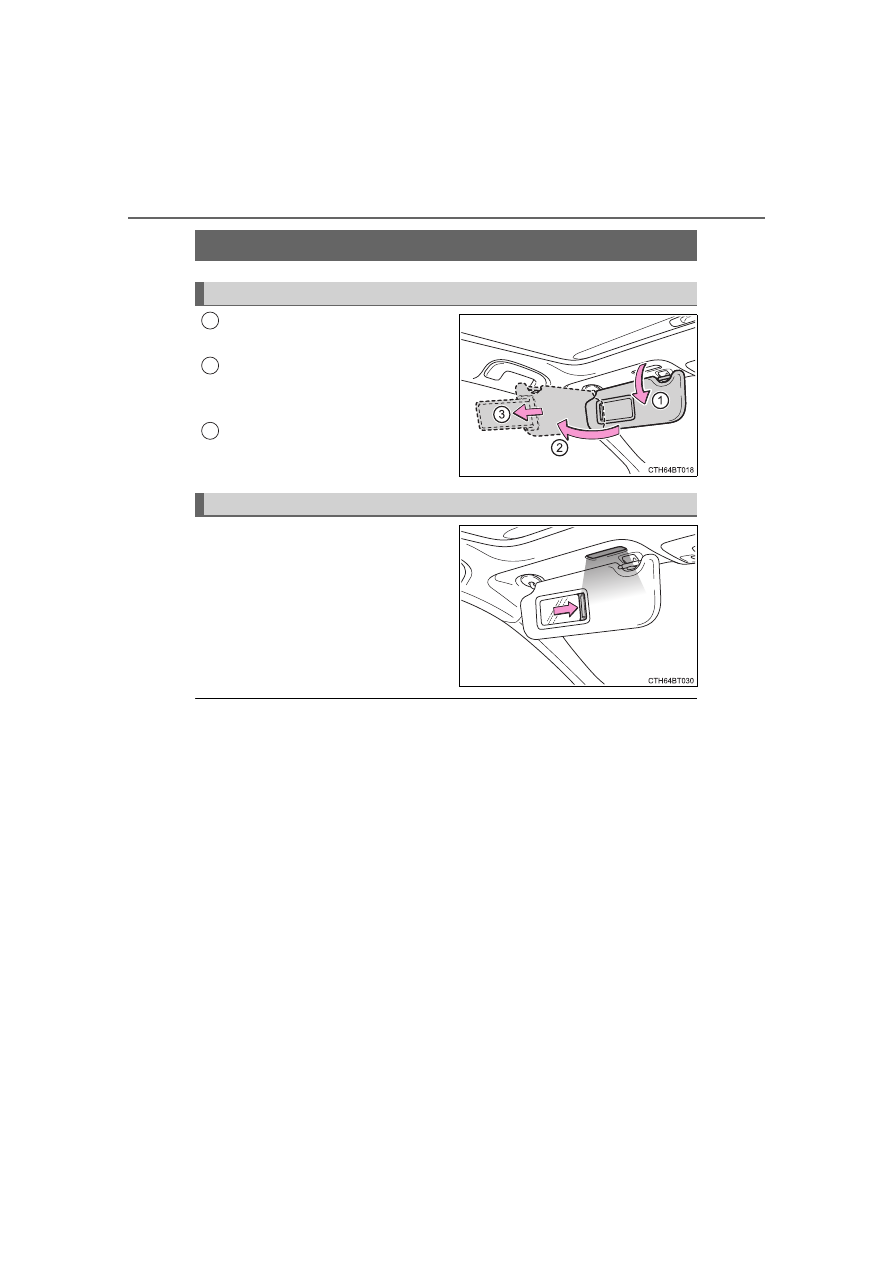
To set the visor in the forward
position, flip it down.

To set the visor in the side posi-
tion, flip down, unhook, and
swing it to the side.

To use the side extender, place
the visor in the side position,
then slide it backward.

Slide the cover to open.

Vehicles with vanity lights: The light
turns on when the cover is opened.

Vehicles with vanity lights: If the vanity lights remain on for 20 minutes while
the engine is off, the lights will turn off automatically.

Other interior features

Sun visors

1

2

3

Vanity mirrors

417

5-4. Other interior features

CAMRY_U

5

In

te

rior fe

atures

Please use as a power supply for electronic goods that use less than

12 VDC/10 A (power consumption of 120 W). 
Open the lid.

The power outlet can be used when

Vehicles without a smart key system:

The engine switch is in the “ACC” or “ON” position.
Vehicles with a smart key system:

The engine switch is in ACCESSORY or IGNITION ON mode.

When turning the engine switch off

Disconnect electrical devices with charging functions, such as mobile battery

packs.
If such devices are left connected, the engine switch may not be turned off

normally.

Power outlet

NOTICE

To avoid damaging the power outlet, close the power outlet lid when it is

not in use. 

Foreign objects or liquids that enter the power outlet may cause a short

circuit.

To prevent battery discharge, do not use the power outlet longer than nec-

essary when the engine is not running.

418

5-4. Other interior features

CAMRY_U

The USB charging ports are used to supply 2.5 A (USB Type-A port)
or 3.0 A (USB Type-C port) of electricity at 5 V to external devices. 
The USB charging ports are for charging only. They are not designed
for data transfer or other purposes.
Depending on the external device, it may not charge properly. Refer to
the manual included with the device before using a USB charging
port.

Using the USB charging ports

Open the console box lid and
open the lid.

The USB charging ports can be used when

Vehicles without a smart key system:
The engine switch is in the “ACC” or “ON” position.

Vehicles with a smart key system:
The engine switch is in ACCESSORY or IGNITION ON mode.

Situations in which the USB charging ports may not operate correctly

If a device which consumes more than 2.5 A at 5 V (USB Type-A port) or 3.0
A at 5 V (USB Type-C port) is connected

If a device designed to communicate with a personal computer, such as a
USB memory device, is connected

If the connected external device is turned off (depending on device)

If the temperature inside the vehicle is high, such as after the vehicle has
been parked in the sun

About connected external devices

Depending on the connected external device, charging may occasionally be
suspended and then start again. This is not a malfunction.

USB charging ports

419

5-4. Other interior features

CAMRY_U

5

In

te

rior fe

atures

Cable pass through

The shape of the console box rim allows

power cables to be passed through when

the console box lid is closed.

NOTICE

To prevent damage to the USB charging ports

Do not insert foreign objects into the ports.

Do not spill water or other liquids into the ports.

When the USB charging ports are not in use, close the lids. If a foreign

object or liquid enters a port may cause a short circuit.

Do not apply excessive force to or impact the USB charging ports.

Do not disassemble or modify the USB charging ports.

To prevent damage to external devices

Do not leave external devices in the vehicle. The temperature inside the

vehicle may become high, resulting in damage to an external device.

Do not push down on or apply unnecessary force to an external device or

the cable of an external device while it is connected.

To prevent battery discharge

Do not use the USB charging ports for a long period of time with the engine

stopped.

420

5-4. Other interior features

CAMRY_U

A portable device, such as a smartphone or mobile battery, can be
charged by just placing it on the charging area, provided the device is
compatible with the Qi wireless charging standard created by the
Wireless Power Consortium.

The wireless charger cannot be used with a portable device that is
larger than the charging area. Additionally, depending on the portable
device, the wireless charger may not operate properly. Refer to the
operation manual of the portable device.

The “Qi” logo

The “Qi” logo is a trademark of the Wireless Power Consortium.

Name for all parts

Power supply switch

Operation indicator light

Charging tray

Charging area

*

*

: Compatible portable devices

and the wireless charger contain
charging coils. The charging coil
inside the wireless charger can
move within the area around the
center of the charging tray.
When the charging coil inside a
portable device is detected
within the charging area, the
charging coil in the wireless
charger will move near the other
coil and charging will begin. If
the charging coil inside the por-
table device is moved out of the
charging area, charging will be
stopped automatically.

Additionally, if 2 or more portable devices are placed on the charging
tray at the same time, each charging coil may not be detected correctly
and charging may not be possible.

Wireless charger (if equipped)

1

2

3

4

421

5-4. Other interior features

CAMRY_U

5

In

te

rior fe

atures

Using the wireless charger

Press the power supply
switch of the wireless char-
ger.

Pressing the switch again turns
the wireless charger off.

When turned on, the operation
indicator light (green) comes on.

When the engine switch is
turned off, the on/off state of the
wireless charger will be memo-
rized.

If the power supply switch is pressed 3 times while charging is being
performed, the rapid charging function will turn on. To turn the wireless
charger off, press the power supply switch when a portable device is not
being charged.

Place a portable device on
the charging tray.

Place the portable device so
that it is centered in the charging
area with its charging surface
facing the portable charger.
Depending on the portable
device, its charging coil may not
be in the center of the device. In
this case, place the portable
device so that its charging coil is
centered in the charging area.

While charging, the operation indicator light (orange) will be illuminated.

If charging does not begin, move the portable device as close to the
center of the charging area as possible.

When charging is complete, the operation indicator light (green) will illu-
minate.

1

2

422

5-4. Other interior features

CAMRY_U

Recharging function

If a certain amount of time has elapsed since charging completed
and the portable device has not been moved, the wireless char-
ger will restart charging.

If a portable device is moved significantly within the charging
area, the charging coil may disconnect and charging may tempo-
rarily be stopped. However, if a charging coil is detected within
the charging area, the charging coil inside the wireless charger
will move near the other coil and charging will resume.

Rapid charging function

Portable devices, such as the following, can be rapidly charged.

• Rapid charging capable devices which conform to WPC Ver 1.2.4.
• 7.5 W charging capable iPhones (iPhone 8 and later)

To turn the rapid charging function on, press the power supply
switch 3 times while charging is being performed. If rapid
charging is possible, the operation indicator will change from illu-
minated (orange) to alternating between (green) and (orange).

When charging is finished, the rapid charging function will turn
off. To perform rapid charging again, turn the rapid charging func-
tion back on.

423

5-4. Other interior features

CAMRY_U

5

In

te

rior fe

atures

Operation indicator light status

*

1

: While in standby, charging power is not output. If a metal object is placed

on the charging tray in this state, the object will not heat up.

*

2

: Depending on the portable device, the operation indicator light may stay

illuminated (orange) after charging has completed.

Operation indicator light

State

Off

The Wireless charger is off

Green (illuminated)

Standby (charging is possible)

*

1

Charging is complete

*

2

Orange (illuminated)

A portable device has been placed on the
charging area (identifying the portable
device)

Charging in progress

Illuminated between green
and orange alternately

A portable device, such as the following, is
being rapidly charged
• Rapid charging capable device which con-

forms to WPC Ver 1.2.4.

• 7.5 W charging capable iPhone (iPhone 8

and later)

424

5-4. Other interior features

CAMRY_U

If the operation indicator light blinks

If an error is detected, the operation indicator light will blink
(orange). Take the appropriate measures according to the table
below.

Operation indicator light

Suspected causes

Measure

Continuously blinks 1
time per second

Communication mal-
function between the
wireless charger and
smart key system

If the engine is running,
stop the engine and
then restart it.
If the engine switch is
in ACCESSORY mode,
start the engine. 
(

P. 211)

Continuously flashes 3
times (orange)

Foreign matter
detected

If a metallic foreign
object is detected in the
charge area, the over-
heat prevention func-
tion of the charging coil
will operate

Remove the foreign
object from the charge
area.

Portable device not
aligned correctly

If the charging coil of a
portable device is not
properly positioned on
the charging area, the
overheat prevention
function of the charging
coil will operate

Remove the portable
device from the
charging tray, check
that the operation indi-
cator light changes
back to green, and then
place the portable
device so that it is near
the center of the
charging tray. 
Also, if a case or cover
is installed to the porta-
ble device, remove it.

Continuously flashes 4
times (orange)

Temperature inside
wireless charger
exceeded a certain
amount

Stop charging, remove
the portable device
from the charging tray,
and wait for the tem-
perature to decrease
before attempting to
begin charging again.

425

5-4. Other interior features

CAMRY_U

5

In

te

rior fe

atures

The wireless charger can be operated when

The engine switch is in ACCESSORY or IGNITION ON mode.

Portable devices that can be charged

Portable devices compatible with the Qi wireless charging standard can be
charged by the wireless charger. However, compatibility with all devices
which meet the Qi wireless charging standard is not guaranteed.

The wireless charger is designed to supply low power electricity (5 W or
less) to a cellular phone, smartphone, or other portable device.

However, portable devices, such as the following, can be charged with more
than 5 W.

• 7.5 W charging compatible iPhones can be charged at 7.5 W or less.
• Portable devices which conform to WPC Ver 1.2.4 can be charged at 10

W or less.

Using the smart key system

During charging, when the smart key system searches for an electronic key,
charging may be temporarily suspended.

If a cover or accessory is attached to the portable device

Do not charge a portable device if a cover or accessory which is not Qi com-
patible is attached. Depending on the type of cover and/or accessory
attached, it may not be possible to charge the portable device. If the portable
device is placed on the charging area and does not charge, remove the cover
and/or accessories.

If interference is heard in AM radio broadcasts while charging

Turn off the wireless charger and check if the noise is reduced. If noise is
reduced, press and hold the power supply switch of the wireless charger for
2 seconds. The frequency of the wireless charger is changed and noise may
be reduced. When the frequency is changed, the operation indicator light
will blink (orange) 2 times.

Rapid charging for iPhones is performed using a specific radio wave fre-
quency.
Depending on the version of iOS installed, while the frequency is being
changed, rapid charging may not be performed.

Charging precautions

While charging, the wireless charger and the portable device will become
warm. This is not a malfunction.
If a portable device becomes warm while charging and charging stops due to
the protection function of the portable device, wait until the portable device
cools down and charge it again.
Also, to decrease the temperature inside the wireless charger, a fan may
operate. This does not indicate a malfunction.

426

5-4. Other interior features

CAMRY_U

Sound generated during operation

Operation sounds may be heard when the power supply switch is pressed to
turn the wireless charger on, when the engine switch is pressed to change to
ACCESSORY mode or IGNITION ON mode while the wireless charger is on,
or when a portable device is being detected. This does not indicate a mal-
function.

Situations in which the wireless charger may not operate correctly

In the following situations, the wireless charger may not operate correctly:

When a portable device is fully charged

When a portable device is being charged by a wired connection.

When there is foreign matter between the charging area and portable device

When the temperature of a portable device becomes high while charging

When the temperature near the charging tray is 95°F (35°C) or more due to
being in direct sunlight, etc.

When a portable device is placed with its charging surface facing up

When a portable device is not centered on the charging area

When a portable device is larger than the charging tray

When a foldable portable device is placed outside of the charging area

When the vehicle is near a TV tower, electric power plant, fuel station, radio
station, large display, airport, or other facility that generates strong radio
waves or electrical noise

When the any of the following objects, with a thickness of 0.08 in. (2 mm) or
more, are between the charging surface of a portable device and the
charging area:

• Thick cases or covers
• Thick decorations
• Accessories, such as finger rings, straps, etc.

When the portable device is in contact with, or is covered by any of the fol-
lowing metallic objects:

• Cards covered with metal, such as aluminum foil
• Cigarette boxes that have aluminum foil inside
• Metallic wallets or bags
• Coins
• Heat packs
• Recorded media such as CDs and DVDs
• Metallic decorations
• Metallic cases or covers

When wireless keys (that emit radio waves) other than those of your vehicle
are being used nearby

427

5-4. Other interior features

CAMRY_U

5

In

te

rior fe

atures

When 2 or more portable devices are placed on the charging tray at the

same time

In situations other than above, if the wireless charger does not operate

properly or the operation indicator light blinks continuously, the wireless

charger may be malfunctioning.

Contact your Toyota dealer.

Cleaning the wireless charger

P. 445

WARNING

Caution while driving

When charging a portable device while driving, for safety reasons, the driver

should not operate the portable device.

Precautions for when driving

Do not charge small, lightweight portable devices, such as wireless ear-

buds, while driving. Lightweight devices may fly off of the charging tray, pos-

sibly leading to an accident.

Caution regarding interference with electronic devices

People with implantable cardiac pacemakers, cardiac resynchronization

therapy pacemakers or implantable cardioverter defibrillators, as well as

any other electrical medical device, should consult their physician about the

usage of the wireless charger.
Operations of the wireless charger may have an affect on medical devices.

428

5-4. Other interior features

CAMRY_U

WARNING

To prevent damage or burns

Observe the following precautions.
Failure to do so may result in the possibility of fire, equipment failure or

damage, or burns due to heat.

Do not put any metallic objects between the charging area and the porta-

ble device while charging.

Do not attach metallic objects, such as aluminum stickers, to the charging

area.

Do not charge portable devices with aluminum stickers or other metallic

objects attached to the side which touches the charging area.

Do not store items on the wireless charger instead of in an auxiliary box.

Do not apply force or impact to the wireless charger.

Do not disassemble, modify or remove the wireless charger.

Do not attempt to charge portable devices which are not compatible with

the Qi wireless charging standard.

Do not allow magnetic objects to come near the wireless charger

Do not perform charging if the charging area is dirty

Do not cover the wireless charger with a cloth or other object while

charging.

429

5-4. Other interior features

CAMRY_U

5

In

te

rior fe

atures

NOTICE

To prevent failure or damage to data

Do not place magnetic cards, such as a credit card, or magnetic recording

media, close to the wireless charger while charging. Otherwise, data may

be erased due to the influence of magnetism. 

Additionally, do not bring precision instruments such as wrist watches,

close to the wireless charger, as such objects may malfunction.

Do not perform charging with a contactless smart card, such as a credit

card, between the charging surface of a portable device and the charging

area. The IC chip in the card may become extremely hot, possibly damag-

ing the portable device or smart card.

Be extra careful to not charge a portable device with a case or cover which

a contactless smart card can be inserted.

Do not leave portable devices in the cabin. The temperature inside the

cabin may become high when parked in the sun, and cause damage to the

device.

When the OS of a smartphone has been updated

When the OS version of a smartphone has been changed, the charging

specifications may have changed. If the WPC compatibility version is

changed, the rapid charging function may no longer be able to be used. For

details, check for information on the website for the smartphone manufac-

turer.

To prevent battery discharge

Do not use the wireless charger for a long period of time with the engine

stopped.

430

5-4. Other interior features

CAMRY_U

Fold down the armrest for use.

An assist grip installed on the ceil-

ing can be used to support your

body while sitting on the seat.

Armrest (if equipped)

NOTICE

To prevent damage to the armrest, do not apply too much load on the arm-

rest.

Assist grips

WARNING

Do not use the assist grip when getting in or out of the vehicle or rising from

your seat. Doing so may cause it to break, possibly leading to serious injury.

NOTICE

To prevent damage to the assist grip, do not put a heavy load on the assist

grip.

431

5-4. Other interior features

CAMRY_U

5

In

te

rior fe

atures

Coat hooks are provided on the

rear assist grips.

Coat hooks

WARNING

Do not hang coat hangers or other hard or sharp objects on the hook. If the

SRS curtain shield airbags deploy, these items may become projectiles,

causing death or serious injury.

432

5-4. Other interior features

CAMRY_U

The HomeLink

®

 wireless control system in your vehicle has 3 buttons

which can be programmed to operate 3 different devices. Refer to the
programming methods on the following pages to determine the
method which is appropriate for the device.

HomeLink

®

 indicator light

Garage door operation indica-
tors

Buttons

Garage door opener

: If equipped

The garage door opener can be programmed to operate garage
doors, gates, entry doors, door locks, home lighting systems,
security systems, and other devices.

System components

1

2

3

433

5-4. Other interior features

CAMRY_U

5

In

te

rior fe

atures

Before programming the HomeLink

®

During programming, it is possible that garage doors, gates, or
other devices may operate. For this reason, make sure that peo-
ple and objects are clear of the garage door or other devices to
prevent injury or other potential harm.

It is recommended that a new battery be placed in the remote
control transmitter for more accurate programming.

Garage door opener motors manufactured after 1995 may be
equipped with rolling code protection. If this is the case, you may
need a stepladder or other sturdy, safe device to reach the
“Learn” or “Smart” button on the garage door opener motor.

HomeLink

®

 programming procedure

The programming procedures
can also be found at the follow-
ing URL.

Website: www.homelink.com/
toyota

For support, contact customer
support at the following.

Help Line: 1-800-355-3515

434

5-4. Other interior features

CAMRY_U

Programming the HomeLink

®

Steps 

 through 

 must be performed within 60 seconds, other-

wise the indicator light will stop flashing and programming will not
be able to be completed.

Press and release the HomeLink

®

 button you want to program

and check that the HomeLink

®

 indicator light flashes orange.

Point the remote control
transmitter for the device at
the rear view mirror, 1 to 3 in.
(25 to 75 mm) from the
HomeLink

®

 buttons.

Keep the HomeLink

®

 indicator

light in view while programming.

Program a device.

Programming a device other than an entry gate (for U.S.A.
owners)

Press and hold the remote control transmitter button until the
HomeLink

®

 indicator light changes from slowly flashing orange to

rapidly flashing green (rolling code) or continuously lit green
(fixed code), then release the button.

Programming an entry gate (for U.S.A. owners)/Programming
a device in the Canadian market

Press and release the remote control transmitter button at 2 sec-
ond intervals, repeatedly, until the HomeLink

®

 indicator light

changes from slowly flashing orange to rapidly flashing green
(rolling code) or continuously lit green (fixed code).

1

3

1

2

3

435

5-4. Other interior features

CAMRY_U

5

In

te

rior fe

atures

Test the HomeLink

®

 operation by pressing the newly pro-

grammed button and observing the indicator light:

Indicator light illuminates: Programming of a fixed code device
has completed. The garage door or other device should operate
when a HomeLink

®

 button is pressed and released.

Indicator light flashes rapidly: The garage door opener motor or
other device is equipped with a rolling code. To complete pro-
gramming, firmly press and hold the HomeLink

®

 button for 2 sec-

onds then release it.

If the garage door or other device does not operate, proceed to
“Programming a rolling code system”.

Repeat the steps above to program another device for any of the
remaining HomeLink

®

 buttons.

Programming a rolling code system

2 or more people may be necessary to complete rolling code pro-
gramming.

Locate the “Learn” or “Smart”
button on the garage door
opener motor in the garage.

This button can usually be found
where the hanging antenna wire
is attached to the unit. The
name and color of the button
may vary by manufacturer.
Refer to the Owner’s manual
supplied with the garage door
opener motor for details.

Press and release the
“Learn” or “Smart” button. 
Perform 

 within 30 sec-

onds after performing 

.

4

5

1

2

3

2

436

5-4. Other interior features

CAMRY_U

Press and hold the desired
HomeLink

®

 button (inside the

vehicle) for 2 seconds and
release it. Repeat this
sequence (press/hold/
release) up to 3 times to
complete programming.

If the garage door opener
motor operates when the
HomeLink

®

 button is

pressed, the garage door
opener motor recognizes the
HomeLink

®

 signal.

Enabling 2-way communication with a garage door (only avail-
able for compatible devices)

When enabled, 2-way communication allows you to check the sta-
tus of the opening and closing of a garage door through indicators
in your vehicle.

2-way communication is only available if the garage door opener
motor used is a compatible device. (To check device compatibility,
refer to www.HomeLink.com.)

Within 5 seconds after programming the garage door opener has
been completed, if the garage door opener motor is trained to
HomeLink

®

, both garage door operation indicators will flash rap-

idly green and the light on the garage door opener motor will
blink twice, indicating that 2-way communication is enabled.

If the indicators do not flash, perform 

 and 

 within the first 10

presses of the HomeLink

®

 button after programming has been

completed.

Press a programmed HomeLink

®

 button to operate a garage

door.

Within 1 minute of pressing the HomeLink

®

 button, after the

garage door operation has stopped, press the “Learn” or “Smart”
button on the garage door opener motor. Within 5 seconds of the
establishment of 2-way communication with the garage door
opener, both garage door operation indicators in the vehicle will
flash rapidly green and the light on the garage door opener motor
will blink twice, indicating that 2-way communication is enabled.

3

1

2

3

2

3

437

5-4. Other interior features

CAMRY_U

5

In

te

rior fe

atures

Reprogramming a single HomeLink

®

 button

When the following procedure is performed, buttons which already
have devices registered to them can be overwritten:

With one hand, press and hold the desired HomeLink

®

 button.

When the HomeLink

®

 indicator starts flashing orange, continue

to hold the HomeLink

®

 button and perform “Programming the

HomeLink

®

” 

 (it takes 20 seconds for the HomeLink

®

 indicator

to start flashing).

Press the appropriate HomeLink

®

 button. The HomeLink

®

 indicator

light should turn on.

The status of the opening and
closing of a garage door is shown
by the indicators.

Opening

Closing

This function is only available if the
garage door opener motor used is
a compatible device. (To check
device compatibility, refer to
www.HomeLink.com.)

The indicators can operate within approximately 820 ft. (250 m) of
the garage door. However, if there are obstructions between the
garage door and the vehicle, such as houses and trees, feedback
signals from the garage door may not be received. To recall the pre-

vious door operation status, press and release either HomeLink

®

buttons  

and  

or  

and  

simultane-

ously. The last recorded status will be displayed for 3 seconds.

Operating the HomeLink

®

Garage door operation indicators

1

2

1

1

2

Color

Status

Orange (flashing)

Currently opening/closing

Green

Opening/closing has completed

Red (flashing)

Feedback signals cannot be received

438

5-4. Other interior features

CAMRY_U

Press and hold the 2 outside but-

tons for 10 seconds until the

HomeLink

®

 indicator light

changes from continuously lit

orange to rapidly flashing green.

If you sell your vehicle, be sure to

erase the programs stored in the

HomeLink

®

 memory.

Codes stored in the HomeLink

®

 memory

The registered codes are not erased even if the battery cable is discon-

nected.

If learning failed when registering a different code to a HomeLink

®

 button

that already has a code registered to it, the already registered code will not

be erased.

Before programming

Install a new battery in the transmitter.

The battery side of the transmitter must be pointed away from the Home-

Link

®

.

Erasing the entire HomeLink

®

 memory (all three codes)

WARNING

When programming a garage door or other remote control device

The garage door or other device may operate, so ensure people and

objects are out of danger to prevent potential harm.

Conforming to federal safety standards

Do not use the HomeLink

®

 compatible transceiver with any garage door

opener or device that lacks safety stop and reverse features as required by

federal safety standards. This includes any garage door that cannot detect

an interfering object. A door or device without these features increases the

risk of death or serious injury.

When operating or programming HomeLink

®

Never allow a child to operate or play with the HomeLink

®

 buttons.

440

CAMRY_U

6-1. Maintenance and care

Working from top to bottom, liberally apply water to the vehicle
body, wheel wells and underside of the vehicle to remove any dirt
and dust.

Wash the vehicle body using a sponge or soft cloth, such as a
chamois.

For hard-to-remove marks, use car wash soap and rinse thoroughly
with water.

Wipe away any water.

Wax the vehicle when the waterproof coating deteriorates.

If water does not bead on a clean surface, apply wax when the vehicle
body is cool.

Automatic car washes

Fold the mirrors before washing the vehicle. Start washing from the front of
the vehicle. Make sure to extend the mirrors before driving.

Brushes used in automatic car washes may scratch the vehicle surface,
parts (wheel, etc.) and harm your vehicle's paint.

Vehicles with a rear spoiler: In certain automatic car washes, the rear spoiler
may interfere with machine operation. This may prevent the vehicle from
being cleaned properly or result in damage to the rear spoiler.

High pressure car washes

As water may enter the cabin, do not bring the nozzle tip near the gaps
around the doors or perimeter of the windows, or spray these areas continu-
ously.

Cleaning and protecting the vehicle 

exterior

Perform the following to protect the vehicle and maintain it in
prime condition:

441

6-1. Maintenance and care

6

Mainten

ance an

d ca

re

CAMRY_U

When using a car wash (vehicles with a smart key system)

If the door handle becomes wet while the electronic key is within the effective
range, the door may lock and unlock repeatedly. In that case, follow the fol-
lowing correction procedures to wash the vehicle:

Place the key in a position 6 ft. (2 m) or more separate from the vehicle
while the vehicle is being washed. (Take care to ensure that the key is not
stolen.)

Set the electronic key to battery-saving mode to disable the smart key sys-
tem. (

P. 163)

Wheels and wheel ornaments

Remove any dirt immediately by using a neutral detergent.

Wash detergent off with water immediately after use.

To protect the paint from damage, make sure to observe the following pre-
cautions.

• Do not use acidic, alkaline or abrasive detergent
• Do not use hard brushes
• Do not use detergent on the wheels when they are hot, such as after driv-

ing or parking in hot weather

Brake pads and calipers

Rust may form if the vehicle is parked with wet brake pads or disc rotors,
causing them to stick. Before parking the vehicle after it is washed, drive
slowly and apply the brakes several times to dry the parts.

Bumpers

Do not scrub with abrasive cleaners.

Plated portions

If dirt cannot be removed, clean the parts as follows:

Use a soft cloth dampened with an approximately 5% solution of neutral
detergent and water to clean the dirt off.

Wipe the surface with a dry, soft cloth to remove any remaining moisture.

To remove oily deposits, use alcohol wet wipes or a similar product.

442

6-1. Maintenance and care

CAMRY_U

WARNING

When washing the vehicle

Do not apply water to the inside of the engine compartment. Doing so may

cause the electrical components, etc. to catch fire.

Precautions regarding the exhaust pipes

Exhaust gasses cause the exhaust pipes to become quite hot.
When washing the vehicle, be careful not to touch the pipes until it has

cooled sufficiently, as touching a hot exhaust pipes can cause burns.

Precaution regarding the rear bumper with Blind Spot Monitor (if

equipped)

If the paint of the rear bumper is chipped or scratched, the system may mal-

function. If this occurs, avoid using the system and consult your Toyota

dealer.

NOTICE

To prevent paint deterioration and corrosion on the body and compo-

nents (aluminum wheels, etc.)

Wash the vehicle immediately in the following cases:
• After driving near the sea coast

• After driving on salted roads

• If coal tar or tree sap is present on the paint surface

• If dead insects, insect droppings or bird droppings are present on the

paint surface

• After driving in an area contaminated with soot, oily smoke, mine dust,

iron powder or chemical substances

• If the vehicle becomes heavily soiled with dust or mud

• If liquids such as benzene and gasoline are spilled on the paint surface

If the paint is chipped or scratched, have it repaired immediately.

To prevent the wheels from corroding, remove any dirt and store in a place

with low humidity when storing the wheels.

Cleaning the exterior lights

Wash carefully. Do not use organic substances or scrub with a hard brush. 

This may damage the surfaces of the lights.

Do not apply wax to the surfaces of the lights.

Wax may cause damage to the lenses.

443

6-1. Maintenance and care

6

Mainten

ance an

d ca
re

CAMRY_U

NOTICE

When using a high pressure car wash

When washing the vehicle, do not spray the camera or its surrounding

area directly with a high pressure washer. Shock applied from high pres-

sure water may cause the device to not operate normally.

Do not spray water directly on the radar which is equipped behind the

emblem. Otherwise it may cause the device to be damaged.

Do not bring the nozzle tip close to boots (rubber or resin manufactured

cover), connectors or the following parts. The parts may be damaged if

they come into contact with high-pressure water.
• Traction related parts

• Steering parts

• Suspension parts

• Brake parts

Keep the cleaning nozzle at least 11.9 in. (30 cm) away from the vehicle

body. Otherwise resin section, such as moldings and bumpers, may be

deformed and damaged. Also, do not continuously hold the nozzle in the

same place.

Do not spray the lower part of the windshield continuously.

If water enters the air conditioning system intake located near the lower

part of the windshield, the air conditioning system may not operate cor-

rectly.

Do not wash the underside of the vehicle using a high pressure car

washer.

444

6-1. Maintenance and care

CAMRY_U

Remove dirt and dust using a vacuum cleaner. Wipe dirty surfaces
with a cloth dampened with lukewarm water.

If dirt cannot be removed, wipe it off with a soft cloth dampened with
neutral detergent diluted to approximately 1%.
Wring out any excess water from the cloth and thoroughly wipe off
remaining traces of detergent and water.

Remove dirt using a soft cloth or synthetic chamois dampened in a
baking soda (sodium bicarbonate) solution.

Use a solution of approximately 9% baking soda dissolved in water.

Wipe the surface with a dry, soft cloth to remove any remaining
moisture.

Remove dirt and dust using a vacuum cleaner.

Wipe off any excess dirt and dust with a soft cloth dampened with
diluted detergent.

Use a diluted water solution of approximately 5% neutral wool detergent.

Wring out any excess water from the cloth and thoroughly wipe off
all remaining traces of detergent.

Wipe the surface with a dry, soft cloth to remove any remaining
moisture. Allow the leather to dry in a shaded and ventilated area.

Remove dirt and dust using a vacuum cleaner.

Wipe it off with a soft cloth dampened with neutral detergent diluted
to approximately 1%.

Wring out any excess water from the cloth and thoroughly wipe off
remaining traces of detergent and water.

Cleaning and protecting the vehicle 

interior

The following procedures will help protect your vehicle’s interior
and keep it in top condition:

Protecting the vehicle interior

Cleaning the areas with satin-finish metal accents

Cleaning the leather areas

Cleaning the synthetic leather areas

445

6-1. Maintenance and care

6

Mainten

ance an

d ca
re

CAMRY_U

Caring for leather areas

Toyota recommends cleaning the interior of the vehicle at least twice a year to

maintain the quality of the vehicle's interior.

Shampooing the carpets

There are several commercial foaming-type cleaners available. Use a sponge

or brush to apply the foam. Rub in overlapping circles. Do not use water.

Wipe dirty surfaces and let them dry. Excellent results are obtained by keep-

ing the carpet as dry as possible.

Seat belts

Clean with mild soap and lukewarm water using a cloth or sponge. Also

check the belts periodically for excessive wear, fraying or cuts.

WARNING

Water in the vehicle

Do not splash or spill liquid in the vehicle.

Doing so may cause electrical components, etc., to malfunction or catch

fire.

Do not get any of the SRS components or wiring in the vehicle interior wet. 

(

P. 38)

An electrical malfunction may cause the airbags to deploy or not function

properly, resulting in death or serious injury.

Vehicles with wireless charger: 

Do not let the wireless charger (

P. 420) get wet. Failure to do so may

cause the charger to become hot and cause burns or could cause electric

shock resulting in death or serious injury.

Cleaning the interior (especially instrument panel)

Do not use polish wax or polish cleaner. The instrument panel may reflect

off the windshield, obstructing the driver’s view and leading to an accident,

resulting in death or serious injury.

446

6-1. Maintenance and care

CAMRY_U

NOTICE

Cleaning detergents

Do not use the following types of detergent, as they may discolor the vehi-

cle interior or cause streaks or damage to painted surfaces:
• Areas other than the seats and steering wheel: Organic substances

such as benzene or gasoline, alkaline or acidic solutions, dye, and

bleach

• Seats: Alkaline or acidic solutions, such as thinner, benzene, and alco-

hol

• Steering wheel: Organic substances, such as thinner, and cleaner that

contains alcohol

Do not use polish wax or polish cleaner. The instrument panel’s or other

interior part’s painted surface may be damaged.

Preventing damage to leather surfaces

Observe the following precautions to avoid damage to and deterioration of

leather surfaces:

Remove any dust or dirt from leather surfaces immediately.

Do not expose the vehicle to direct sunlight for extended periods of time.

Park the vehicle in the shade, especially during summer.

Do not place items made of vinyl, plastic, or containing wax on the uphol-

stery, as they may stick to the leather surface if the vehicle interior heats

up significantly.

Water on the floor

Do not wash the vehicle floor with water.

Vehicle systems such as the audio system may be damaged if water comes

into contact with electrical components such as the audio system above or

under the floor of the vehicle. Water may also cause the body to rust.

When cleaning the inside of the windshield

Do not allow glass cleaner to contact the lens. Also, do not touch the lens.

(

P. 249)

Cleaning the inside of the rear window

Do not use glass cleaner to clean the rear window, as this may cause

damage to the rear window defogger heater wires or antenna. Use a cloth

dampened with lukewarm water to gently wipe the window clean. Wipe the

window in strokes running parallel to the heater wires or antenna.

Be careful not to scratch or damage the heater wires or antenna.

447

CAMRY_U

6

Mainten

ance an

d ca

re

6-2. Maintenance

General maintenance should be performed on a daily basis. This can
be done by yourself or by a Toyota dealer.

Scheduled maintenance should be performed at specified intervals
according to the maintenance schedule.

For details about maintenance items and schedules, refer to the “Sched-
uled Maintenance Guide” or “Owner’s Manual Supplement”.

You can perform some maintenance procedures by yourself. 
Please be aware that do-it-yourself maintenance may affect warranty
coverage.

The use of Toyota Repair Manuals is recommended.

For details about warranty coverage, refer to the separate “Owner’s War-
ranty Information Booklet” or “Owner’s Manual Supplement”.

Maintenance requirements

To ensure safe and economical driving, day-to-day care and reg-
ular maintenance are essential. It is the owner’s responsibility to
perform regular checks. Toyota recommends the following main-
tenance:

General maintenance

Scheduled maintenance

Do-it-yourself maintenance


Content      ..     12      13      14      15     ..