Toyota Mirai (2023 year). Manual in english - page 19
 

  Index      Toyota     Toyota Mirai (2023 year). Manual in english


Search            copyright infringement  


Content      ..     17      18      19      20     ..


Toyota Mirai (2023 year). Manual in english - page 19


307

5-5. Using the driving support systems

5

Dr

iv

ing

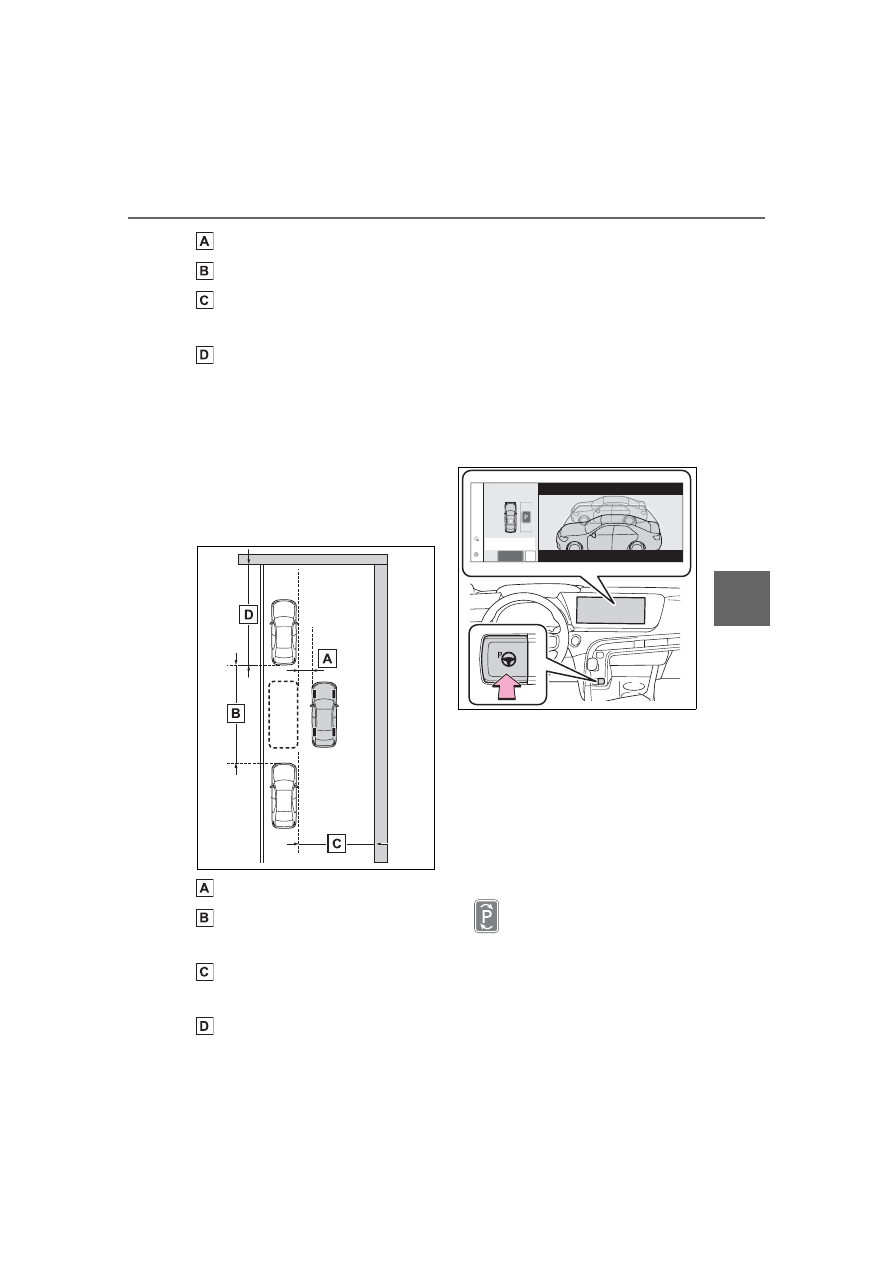
Approximately 3.3 ft. (1 m)

*

Approximately 19.7 ft. (6 m)

*

Approximately 14.8 ft. (4.5 m) 
or more

*

Approximately 26.2 ft. (8 m) 
or more

*

*

: This is a reference measurement 

for detection of a parking space. 
Depending on the surrounding 
environment, detection may not 
be possible.

If there is an adjacent parked 
vehicle

Approximately 3.3 ft. (1 m)

*

Approximately 23.0 ft. (7 m) 
or more

*

Approximately 14.8 ft. (4.5 m) 
or more

*

Approximately 26.2 ft. (8 m) 

or more

*

*

: This is a reference measurement 

for detection of a parking space. 
Depending on the surrounding 
environment, detection may not 
be possible.

2

Press the Advanced Park 
main switch and check that a 
possible parking space is dis-
played on the multimedia dis-
play.

If a space which your vehicle 
can be parked is detected, a 
target parking space box will 
be displayed.

If it is possible to perpendicu-
lar parking (forward/reverse) 
in the space, select the park-
ing space, and then select 

 to change to the perpen-

dicular parking (for-
ward/reverse) function.

308

5-5. Using the driving support systems

Depending on the surround-
ing environment, it may not be 
possible to use this function. 
According to the information 
displayed on the multimedia 
display, use the function on 
another parking space.

3

Select “Start” button.

A buzzer will sound, an operation 

message will be displayed on the 

multi-information display, and assis-

tance will begin operating.

When the brake pedal is 
released, “Moving Forward...” 
will be displayed and the vehi-
cle will begin moving forward.

To cancel assistance, press 
the Advanced Park main 
switch.

If assistance is canceled, 
“Advanced Park Cancel” will be dis-
played.
If you feel that the vehicle is 
approaching close to a surround-
ing vehicle, object, person, or gut-
ter: 

P.304

4

Perform operations as indi-
cated by the advice displays 
until the vehicle stops in the 
target parking space.

When the vehicle stops, “Advanced 

Park Finished” will be displayed 

and parking assistance will end.

If you select 

 on the multimedia 

display, the vehicle displayed on 
the parking assist completion 
screen will rotate.

If you feel that the vehicle is 

approaching close to a sur-

rounding vehicle, object, per-

son, or gutter

P.304

If “No available parking space” 

is displayed

Even if the vehicle is stopped paral-

lel to a parking space, an adjacent 

parked vehicle may not be detected. 

In this case, if the vehicle is moved 

to a position that a parked vehicle 

can be detected, assistance can be 

started.

When the brakes have been 

operated

P.304

309

5-5. Using the driving support systems

5

Dr

iv

ing

When exiting from a parallel 
parking space, if the system 
determines that exit is possible 
the parallel exiting function can 
be used. Also, depending on the 
surrounding environment, if it is 
necessary to change the direc-
tion of travel of the vehicle, the 
shift position can be changed by 
assistance control.

NOTICE

When using the parallel park-

ing function

Make sure that there are no 

obstructions within the yellow 

guide lines and between the 

vehicle and target parking spot. 

If any obstructions are detected 

within the yellow guide lines or 

between the vehicle and the tar-

get parking space, the parallel 

parking function will be can-

celled or suspended.

As the target parking space will 

not be able to be set correctly if 

the surface of the parking space 

is on a slope or has differences 

in height, the vehicle may stray 

from the target parking space or 

be slanted. Therefore, do not 

use the parallel parking func-

tion for this kind of parking spot.

If an adjacent parked vehicle is 

narrow or parked extremely 

close to the curb, the position at 

which assistance will park the 

vehicle will also be close to the 

curb. If it seems likely the vehi-

cle will collide with the curb or 

drive off of the road, depress 

the brake pedal to stop the vehi-

cle, and then press the 

Advanced Park main switch to 

disable the system.

If there is a wall or other barrier 

on the inner side of the parking 

space, the vehicle may stop at a 

position slightly outside of the 

set target parking space.

Advanced Park Parallel 
exiting function

310

5-5. Using the driving support systems

Leaving a parking space 
using the parallel exiting 
function

1

With the brake pedal 
depressed and P shift posi-
tion selected, press the 
Advanced Park main switch 
and check that the exit direc-
tion selection screen is dis-
played on the multimedia 
display.

2

Select an arrow on the multi-
media display to select the 
direction you wish to exit.

If the turn signal lever is operated, 

only exit to the left or right can be 

selected.

3

Depress the brake pedal and 
select “Start” button.

A buzzer will sound, an operation 

message will be displayed on the 

multi-information display, and assis-

tance will begin operating.
To cancel assistance, press the 

Advanced Park main switch.
If assistance is canceled, 

“Advanced Park Cancel” will be dis-

played.

If you feel that the vehicle is 

approaching close to a surround-

ing vehicle, object, person, or gut-

ter: 

P.304

4

Perform operations as indi-
cated by the advice displays 
until the vehicle is in a posi-
tion where exit is possible.

When the vehicle reaches a posi-

tion where exit is possible, “You can 

exit by moving the steering wheel” 

will be displayed. If the steering 

wheel is operated, “Advanced Park 

Finished” will be displayed and 

assistance will end. As assistance 

will end while the vehicle is moving, 

grip the steering wheel and drive 

forward.
If the steering wheel is not oper-

ated, the vehicle will stop at the exit 

position.
Assistance can be ended by 

depressing the accelerator pedal or 

brake pedal.

311

5-5. Using the driving support systems

5

Dr

iv

ing

If you feel that the vehicle is 

approaching close to a sur-

rounding vehicle, object, per-

son, or gutter

P.304

Parallel exiting function

Do not use parallel exiting function 

in any situation other than when 

exiting a parallel parking spot. If 

assistance is started unintention-

ally, depress the brake pedal and 

stop the vehicle, then press the 

Advanced Park main switch to can-

cel assistance.

Situations in which the parallel 

exiting function will not operate

In situations such as the following, 

the parallel exiting function will not 

operate:

When vehicles waiting at a traffic 

signal in the exit direction

When a vehicle is stopped in the 

area behind where the vehicle will 

exit

When a wall, column, or person is 

detected as near a front or rear 

side sensor

When the vehicle has been 

parked on a curb and a side sen-

sor detects the road surface

When a vehicle is not parked in 

front of the vehicle

When there is excessive space 

between the front of the vehicle 

and a parked vehicle

When the brakes have been 

operated

P.304

The memory function can be 
used to park in a previously reg-
istered parking space, even if 
there are no parking space lines 
or adjacent parked vehicles.
Up to 3 parking spaces can be 
registered.

Advanced Park Memory 
function

312

5-5. Using the driving support systems

Registering a parking space

1

Stop the vehicle with it 
aligned near the center of the 
target parking space.

Approximately 3.3 ft. (1 m)

2

Press the Advanced Park 
main switch and then select 

If the Advanced Park main switch is 
pressed at a parking space without 
parking lines or any adjacent 
parked vehicles, “No available 
parking space” may be displayed. 
Continuously select and hold 

.

3

Select perpendicular parking 
(forward/reverse) function or 
parallel parking function.

Only parking spaces for which 

assist can be performed are dis-

played.

4

Select the parking direction.

When perpendicular parking (for-

ward/reverse) was selected in step 

3

:

When parallel parking was selected 

in step 

3

:

5

Using the arrow buttons, 
adjust the position of the 
parking space to be regis-

313

5-5. Using the driving support systems

5

Dr

iv

ing

tered, and then select “OK” 
button.

6

Select “Start” button.

A buzzer will sound, an operation 

message will be displayed on the 

multi-information display, and assis-

tance will begin operating.
When the brake pedal is released, 

“Moving Forward...” will be dis-

played and the vehicle will begin 

moving forward.
If you feel that the vehicle is 

approaching close to a surround-

ing vehicle, object, person, or gut-

ter: 

P.304

7

Perform operations as indi-
cated by the advice displays 

until the vehicle stops in the 
target parking space.

8

Check the position that the 
vehicle has stopped. If nec-
essary, adjust the position of 
the parking spot to be regis-
tered using the arrow but-
tons, and then select “Reg.” 
button.

“Registration Completed” will be 

displayed on the multimedia dis-

play.

Register the parking space 
only if there are no obstruc-
tions within the area shown by 
the thick lines.

The amount that the position 
of the parking spot to be reg-
istered can be adjusted is lim-
ited.

314

5-5. Using the driving support systems

When parking in a parking 
space registered to the 
memory function

1

Stop the vehicle with it 
aligned near the center of the 
target parking space.

Approximately 3.3 ft. (1 m)

2

Press the Advanced Park 
main switch and check that a 
possible parking space is dis-
played on the multimedia dis-
play.

If the “MODE” button is displayed, 

the button can be touched to 

change between the memory func-

tion, perpendicular parking (for-

ward/reverse) function and parallel 

parking function.

3

Select the desired parking 
space, and then select “Start” 
button.

Perform the procedure for the per-

pendicular parking (for-

ward/reverse) function from step 

3

(

P.301)

If you feel that the vehicle is 

approaching close to a sur-

rounding vehicle, object, per-

son, or gutter

P.304

When overwriting a registered 

parking space

If the maximum number of parking 
spaces have been registered and 

 is selected, a registered parking 

space can be selected and then 
overwritten with a new parking 
space.

When multiple parking spaces 

are registered

Select the desired parking space, 

and then select “Start” button.

When the brakes have been 

operated

P.304

315

5-5. Using the driving support systems

5

Dr

iv

ing

NOTICE

When using the memory 

function 

P.304, 309

The memory function is a func-

tion which provides assistance 

in parking in a previously regis-

tered parking space.

If the condition of the road sur-

face, vehicle, or surrounding 

area differs from when registra-

tion was performed, the parking 

space may not be able to be 

detected correctly or assis-

tance may not be provided to 

the point that the vehicle is fully 

parked.

Do not register a parking space 

in situations such as the follow-

ing, as the set parking space 

may not be able to be registered 

or assistance may not be possi-

ble later.

• When a camera lens is dirty or 

covered with water droplets

• When it is raining or snowing

• When the surrounding area is 

dark (at night, etc.)

In situations such as the follow-

ing, it may not be possible to 

register a parking space.

• When there is insufficient space 

between the road and parking 

space

• When the road surface around 

the parking space does not 

have any differences the sys-

tem can recognize

If a parking space has been reg-

istered in situations such as the 

following, assistance may not 

be able to be started later or 

assistance to the registered 

position may not be possible.

• When shadows are cast on the 

parking space (there is a carport 

over the parking space, etc.)

• When there are leaves, gar-

bage, or other objects which will 

likely move, in the parking 

space

• When the road surface around 

the parking space has the same 

repeating pattern (brick, etc.)

In situations such as the follow-

ing, it may not be possible for 

the system to provide assis-

tance to a registered parking 

spot:

• When the appearance of the 

parking space is affected by the 

shadow of the vehicle or trees

• When an object is detected in 

the registered parking space

• When a pedestrian or passing 

vehicle is detected during assis-

tance

• When the position the vehicle is 

stopped when assistance is 

started differs from the position 

when registration was per-

formed

316

5-5. Using the driving support systems

Assistance will be can-
celed when

In situations such as the follow-
ing, Advanced Park operation 
will be canceled. Firmly hold the 
steering wheel and depress the 
brake pedal to stop the vehicle.

As system operation has been can-
celed, begin the operation again or 
continue parking manually, using 
the steering wheel.

The Advanced Park main 
switch is pushed

The shift position has been 

NOTICE

• When the registered parking 

space cannot be reached due to 

the existence of parking blocks, 

etc.

• When the road surface around 

the parking space has changed 

(road surface has degraded or 

been resurfaced)

• When the sunlight conditions 

differ from when registration 

was performed (due to weather 

or time of day)

• When the sun is shining directly 

into a camera, such as in the 

early morning or evening

• When the color or brightness of 

the road surface is uneven

• When a light is temporarily 

shined on the parking space 

(lights of another vehicle, secu-

rity light, etc.)

• When the road surface around 

the parking space has the same 

repeating pattern

• When there is a low protrusion 

on the road surface near the 

parking space

• When the parking space is on a 

slope

• When a camera has been 

splashed by hot or cold water 

and the lens has fogged up

• When a camera lens is dirty or 

covered with water droplets

• When accessories which 

obstruct the view of the camera 

are installed

If assistance is ended during reg-

istration, perform registration 

again.

When registering a parking 

space to the memory function, if 

the road surface cannot be 

detected “No available parking 

space to register” will be dis-

played.

When using the memory func-

tion, make sure to stop immedi-

ately in front of the stop 

position. Otherwise the parking 

space may not be able to be 

detected correctly or assis-

tance may not be provided to 

the point that the vehicle is fully 

parked.

Do not use the memory function 

if a camera has been subjected 

to a strong impact or images of 

the panoramic view monitor are 

misaligned.

If a camera has been replaced, 

as the installation angle of the 

camera will have changed, it will 

be necessary to reregister park-

ing spaces of the memory func-

tion.

Advanced Park cancel-
ation/suspension

317

5-5. Using the driving support systems

5

Dr

iv

ing

changed to P

The parking brake is engaged

A door or the trunk is opened

The driver’s seat belt is unfas-
tened

The outside rear view mirrors 
are folded

The TRAC or VSC is turned 
off

The TRAC, VSC or ABS oper-
ates

The power switch is pressed

The system determines assis-
tance cannot be continued in 
the current parking environ-
ment

The system malfunctions

While the vehicle was 
stopped, “Cancel” was 
selected on the multimedia 
display

Assistance will be sus-
pended when

In situations such as the follow-
ing, Advanced Park operation 
will be suspended.

Assistance can be started again by 
following the directions displayed 
on the multimedia display.
Also, when assistance is sus-
pended, if the shift position is 
changed twice with the brake pedal 
depressed, assistance will be can-
celed in that shift position. How-
ever, if assistance is suspended by 
changing the shift position, assis-
tance will be canceled if the shift 

position is changed once.

The steering wheel is oper-
ated

The accelerator pedal is 
depressed

The shift position has been 
changed

A moving object or stationary 
object that may collide with 
your vehicle has been 
detected, resulting in the 
operation of the fuel cell sys-
tem output control/braking 
control

Camera switch is pressed

Select 

 on the multimedia dis-

play, and then select “Advanced 
Park”.

Speed Profile

The vehicle speed for when 
assistance is performed can be 
set.

This setting cannot be changed 
when registering a parking space to 
the memory function.

Obstacle detection range

The distance from which obsta-
cles will be avoided while assis-
tance is being performed can be 
set.

Preferred parking method

The preferred parking direction 

Changing the Advanced 
Park settings

318

5-5. Using the driving support systems

displayed when at a parking 
space which perpendicular (for-
ward/reverse) or parallel parking 
is possible can be set.

Preferred parking direction

The preferred parking direction 
displayed when it is possible to 
pull perpendicular forward or 
reverse into a parking space can 
be selected.

Preferred exit direction 
(perpendicular)

The preferred exit direction dis-
played when it is possible to pull 
forward or reverse to the left or 
right out of a parking space can 
be selected.

Preferred exit direction 
(parallel)

The preferred exit direction dis-
played when it is possible to exit 
to the left or right from a parallel 
parking space can be selected.

Camera view when parking

The display angle of the camera 
image when using the perpen-
dicular parking (for-
ward/reverse) function or 
parallel parking function can be 
set.

Camera view when exiting

The display angle of the camera 
image when using the perpen-
dicular exiting (forward/reverse) 
function or parallel parking exit 
function can be set.

Parking path adjustment

The course for when parking 
assistance is operating can be 
adjusted inward or outward.

If the tires are worn, the path of 
vehicle may be offset from the cen-
ter of the parking space. In this 
case, use this setting to adjust the 
parking course.

Road width adjustment

When parking assistance is 
started, the amount of lateral 
movement while the vehicle is 
moving forward can be 
adjusted.

Park position adjustment 
(forward)

The position at which perpendic-
ular parking (forward) is com-
pleted can be adjusted. (Except 
when using the memory func-
tion.)

Park position adjustment 
(reverse)

The position at which perpendic-
ular parking (reverse) is com-
pleted can be adjusted. (Except 
when using the memory func-
tion.)

Rear accessory setting

If an accessory, such as a trailer 
hitch, has been installed to the 
rear of the vehicle, the length of 
the rear of the vehicle can be 
adjusted to help avoid colliding 
with objects to the rear of the 
vehicle.

319

5-5. Using the driving support systems

5

Dr

iv

ing

Clear registered parking 
space

The parking spaces registered 
to the memory function can be 
deleted. Parking space informa-
tion cannot be deleted when 
assistance is being performed 
or when registering parking 
space information to the mem-
ory function.

The operating state, assistance 
operation, etc. of the Advanced 
Park is displayed on the multi-
media display. If a message is 
displayed, respond according to 
the content displayed.

If “No available parking space” 

is displayed

Move the vehicle to a location where 

a parking space or parking lines can 

be detected.

If “Unavailable in current condi-

tion” is displayed

Move the vehicle to another location 

and use the system.

If “Not enough space to exit” is 

displayed

The parallel parking exit function 

cannot be used due to a situation 

such as the distance between your 

vehicle and vehicles parked in front 

of and behind your vehicle being 

short, the existence of an object in 

the exit direction, etc.
Check the conditions of the area 

around your vehicle and exit from 

the parking space manually.

If “Cannot control speed” is 

displayed

The system judged that it cannot 

adjust the speed of the vehicle when 

using the system in an area with a 

slope or step and assistance was 

canceled.
Use the system in a level location.

If “Obstacle detected” is dis-

played

As a moving object or stationary 

object that may collide with your 

vehicle has been detected, the fuel 

cell system output control/braking 

control operates to suspend 

Advanced Park assistance.
Check the condition of the surround-

ing area. To resume assistance, 

select the “Start” button on the multi-

media display.

If “No available parking space 

to register” is displayed

This message is displayed when 


is selected at a parking space that 
cannot be detected.
Operate the system at a parking 

space where differences in the road 

surface can be recognized. 

(

P.311)

NOTICE

Take care when using the park 

position adjustment (forward) or 

park position adjustment (reverse) 

for adjusting because the vehicle 

may collide with parking blocks, 

curb stones, or other low objects.

If it is likely that your vehicle will 

collide with a nearby vehi-

cle/object, parking block, curb 

stone, etc., depress the brake 

pedal to stop the vehicle and 

press the Advanced Park main 

switch to disable the system.

Advanced Park Displayed 
messages

320

5-5. Using the driving support systems

Multi-information display

Driving mode select switch

Driving mode changes if the switch 
is pressed.

1

Normal mode

Provides an optimal balance of fuel 
economy, quietness, and dynamic 
performance. Suitable for normal 
driving.

2

Sport mode

Controls the transmission and fuel 
cell system to provide quick, power-
ful acceleration. Making it suitable 
for when agile driving response is 
desired, such as when driving on 
roads with many curves.
When the sport mode is selected, 
sport mode indicator comes on.

3

Eco drive mode

Helps the driver accelerate in an 
eco friendly manner and improve 
fuel economy through moderate 
throttle characteristics and by con-
trolling the operation of the air con-
ditioning system (heating/ cooling).
When the Eco drive mode is 
selected, Eco drive mode indicator 
comes on.

Operation of the air condition-

ing system in Eco drive mode

Eco drive mode controls the heat-

ing/ cooling operations and fan 

speed of the air conditioning system 

to enhance fuel efficiency. To 

improve air conditioning perfor-

mance, perform the following opera-

tions:

Turn off eco air conditioning mode 

(

P.334, 341)

Adjust the fan speed (

P.333, 

341)

Turn off Eco drive mode

Automatic deactivation of sport 

mode

If the power switch is turned off after 

driving in sport mode, the drive 

mode will be changed to normal 

mode.

Driving mode select 

switch

The driving modes can be 
selected to suit driving con-
dition.

Selecting a drive mode

321

5-5. Using the driving support systems

5

Dr

iv

ing

Press the snow mode switch

When the switch is pressed, snow 
mode turns on and the snow mode 
indicator illuminates on the multi-
information display. When the 
switch is pressed again, the snow 
mode indicator turns off.

Type A

Type B

Snow mode automatic deactiva-

tion

Snow mode is automatically deacti-

vated if the power switch is turned 

off after driving in snow mode.

Snow mode

Snow mode can be selected 
to suit the conditions when 
driving on slippery road sur-
faces, such as on snow.

System operation

322

5-5. Using the driving support systems

ECB (Electronically Con-
trolled Brake System)

The electronically controlled 
system generates braking force 
corresponding to the brake 
operation

ABS (Anti-lock Brake Sys-
tem)

Helps to prevent wheel lock 
when the brakes are applied 
suddenly, or if the brakes are 
applied while driving on a slip-
pery road surface

Brake assist

Generates an increased level of 
braking force after the brake 
pedal is depressed when the 
system detects a panic stop sit-
uation

VSC (Vehicle Stability Con-
trol)

Helps the driver to control skid-
ding when swerving suddenly or 
turning on slippery road sur-
faces.

TRAC (Traction Control)

Helps to maintain drive power 
and prevent the drive wheels 
from spinning when starting the 
vehicle or accelerating on slip-
pery roads

Active Cornering Assist 
(ACA)

Helps to prevent the vehicle 
from drifting to the outer side by 
performing inner wheel brake 
control when attempting to 
accelerate while turning

Hill-start assist control

Helps to reduce the backward 
movement of the vehicle when 
starting on an uphill

EPS (Electric Power Steer-
ing)

Employs an electric motor to 
reduce the amount of effort 
needed to turn the steering 
wheel.

VDIM (Vehicle Dynamics 
Integrated Management)

Provides integrated control of 
the ABS, brake assist, TRAC, 
VSC, hill-start assist control and 
EPS systems
Helps to maintain vehicle stabil-
ity when swerving on slippery 

Driving assist systems

To keep driving safety and 
performance, the following 
systems operate automati-
cally in response to various 
driving situations. Be 
aware, however, that these 
systems are supplementary 
and should not be relied 
upon too heavily when oper-
ating the vehicle.

Summary of the driving 
assist systems


Content      ..     17      18      19      20     ..