Toyota bZ4X (2023 year). Manual in english - page 23
369
5-4. Using the driving support systems
5
Dr
iv
ing
3
Select the desired parking
space, and then select “Start”
button.
Perform the procedure for the per-
pendicular parking (for-
ward/reverse) function from step
3
.
(
■
If you feel that the vehicle is
approaching close to a sur-
rounding vehicle, object, per-
son, or gutter
Depress the brake pedal to stop the
vehicle and then change the shift
position to change the direction of
travel of the vehicle.
At this time, assist will be sus-
pended. However, if the “Start” but-
ton is selected, assist will resume
and the vehicle will move in the
direction corresponding to the
selected shift position.
■
When overwriting a registered
parking space
If the maximum number of parking
spaces have been registered and
is selected, a registered parking
space can be selected and then
overwritten with a new parking
space.
■
When multiple parking spaces
are registered
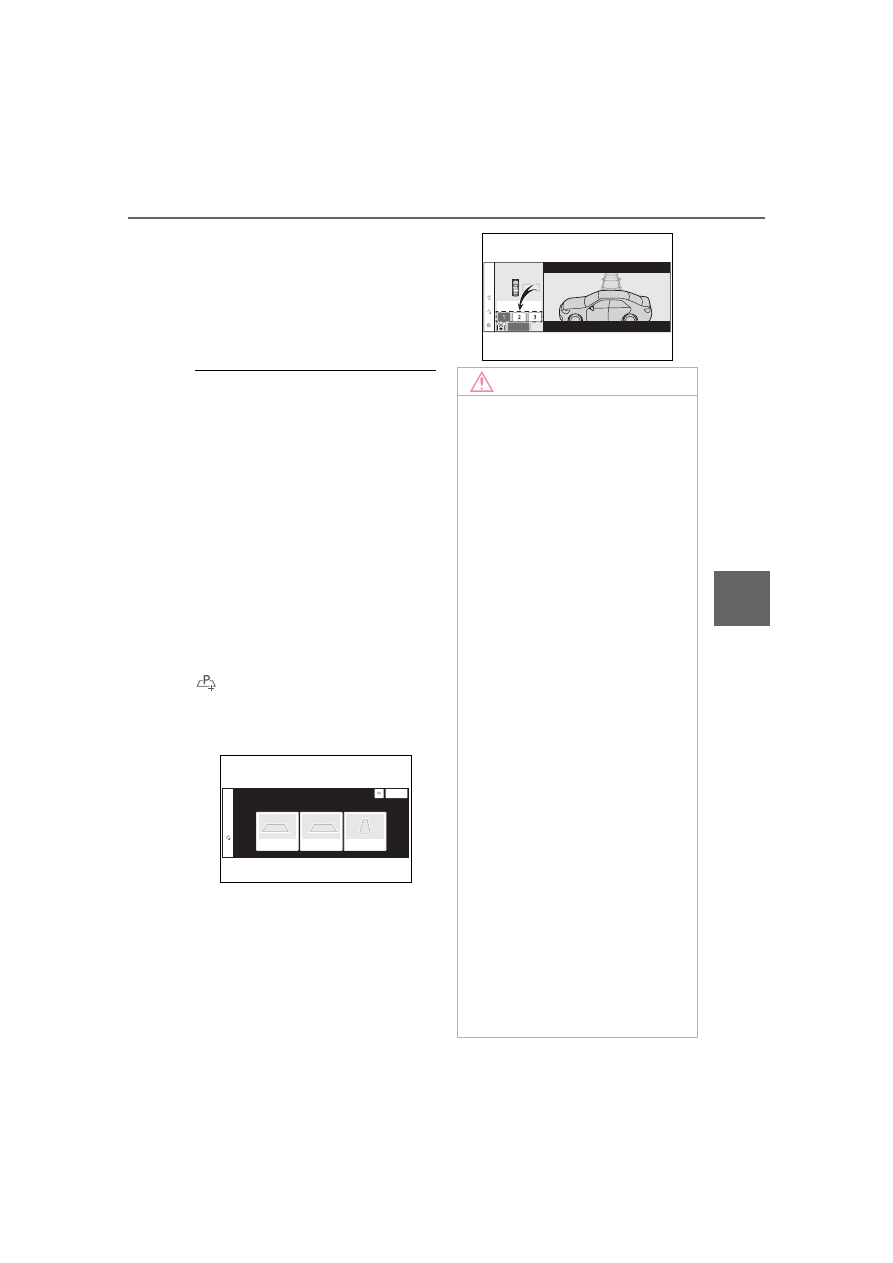
Select the desired parking space,
and then select “Start” button.
NOTICE
■
When using the memory
function
●
The memory function is a func-
tion which provides assistance
in parking in a previously regis-
tered parking space.
If the condition of the road sur-
face, vehicle, or surrounding
area differs from when registra-
tion was performed, the parking
space may not be able to be
detected correctly or assis-
tance may not be provided to
the point that the vehicle is fully
parked.
●
Do not register a parking space
in situations such as the follow-
ing, as the set parking space
may not be able to be registered
or assistance may not be possi-
ble later.
• When a camera lens is dirty or
covered with water droplets
• When it is raining or snowing
• When the surrounding area is
dark (at night, etc.)
●
In situations such as the follow-
ing, it may not be possible to
register a parking space.
• When there is insufficient space
between the road and parking
space
• When the road surface around
the parking space does not
have any differences the sys-
tem can recognize