Toyota Prius (2022 year). Manual in english - page 10
 

  Index      Toyota     Toyota Prius (2022 year). Manual in english


Search            copyright infringement  


Content      ..     8      9      10      11     ..


Toyota Prius (2022 year). Manual in english - page 10


161

2. Instrument cluster

2

Instru

me
nt clu

ster

Insert displays of the driving support systems

Insert  displays  are  linked  with  the  operation  of  the  following  sys-
tems and used to show some of the information shown on the multi-
information display on the head-up display.

*

: If equipped

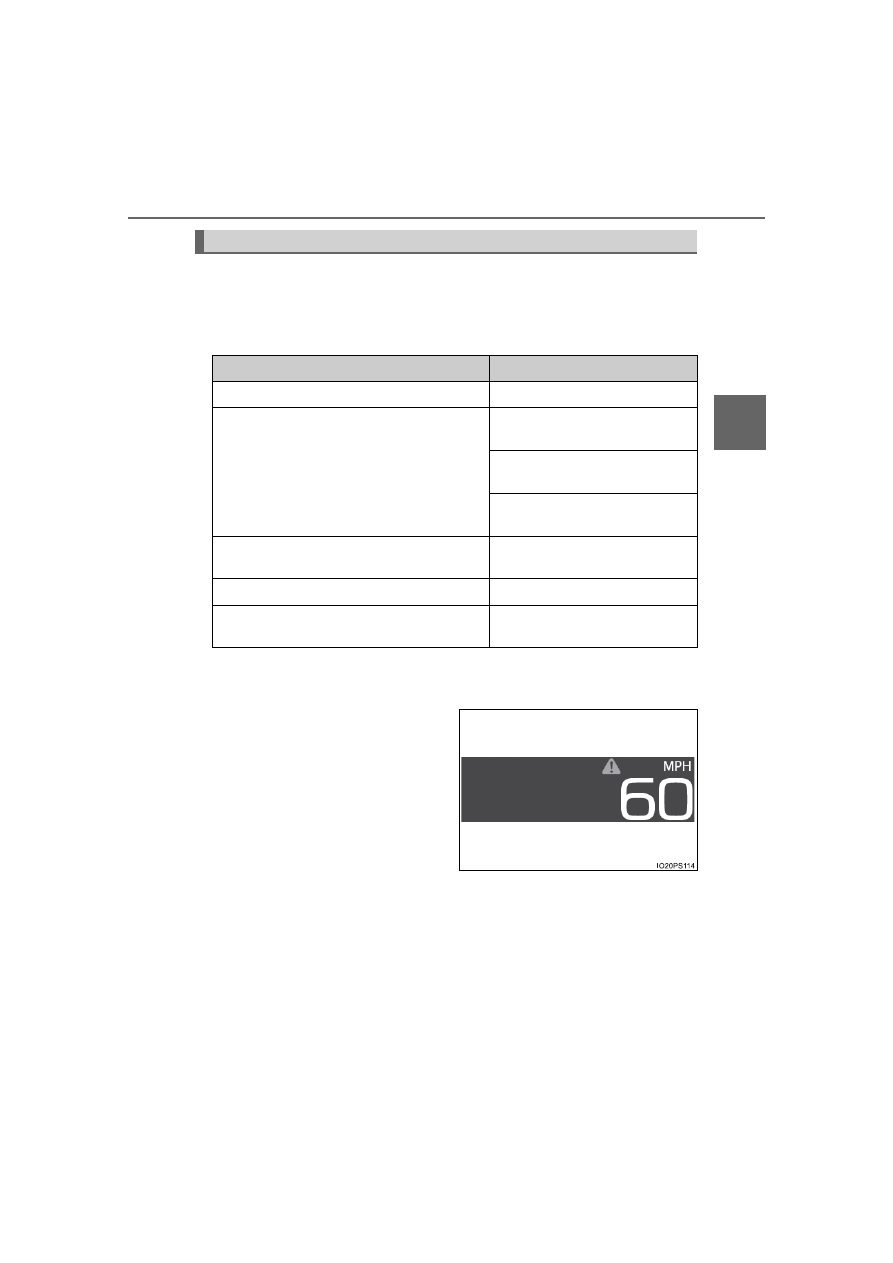
Master warning light insert display

When  the  master  warning  light
(

P.  591)  is  illuminated  or

flashing,  an  insert  display  is
shown  on  the  head-up  display
to inform the driver.

When  the  master  warning  light
is  illuminated  or  flashing,  check
the  message  displayed  on  the
multi-information  display  and
perform the corresponding trou-
bleshooting procedure. 
(

P. 599)

Insert display

System

Displayed information

PCS (Pre-Collision System)

*

 (

P. 291)

Pre-collision warning

LTA (Lane Tracing Assist)

*

 (

P. 302)

Lane  departure  alert  function
display

Hands off steering wheel warn-
ing

Vehicle  sway  warning  function
display

Dynamic  radar  cruise  control  with  full-
speed range

*

 (

P. 321)

Approach warning display

RSA (Road Sign Assist) (

P. 317)

Road signs

Parking Support Brake function

*


(

P. 370)

Operation display 
(symbol display)

162

2. Instrument cluster

When the navigation system route guidance is set, convenient route
guidance is displayed.
When  approaching  an  intersec-
tion, the shape of the intersection
and the remaining distance to the
intersection

*

1

 are displayed. 

Once the vehicle is within a fixed
distance from the intersection, an
arrow  animation

*

2,  3

  is  displayed

to inform the driver of which direc-
tion to proceed in.

*

1

: While the animation is displayed, the remaining distance to the intersec-

tion is hidden.

*

2

: When the distance unit of the navigation system is “km” or “mile”, the ani-

mation does not display.

*

3

: If  the  vehicle  is  stopped  while  the  animation  is  displayed,  the  arrow

begins flashing.

The route guidance display can be switched on and off as necessary.
(

P. 686)

Displays  the  speed  limit  for  the
current road.

The speed limit display settings can be changed. (

P. 153)

Route guidance display (vehicles with navigation system)

Speed limit display (if equipped) (U.S.A. only)

163

2. Instrument cluster

2

Instru

me
nt clu

ster

Enabling/disabling of the head-up display

When the head-up display is turned off with the “HUD” switch, it is not dis-
played until the “HUD” switch is used to turn the head-up display on again.
(Operation of the head-up display is not linked with the power switch.)

Display brightness

The brightness of the head-up display is automatically adjusted according to
the operation status of the headlights (on/off) and the brightness of the sur-
roundings.

When the brightness of the head-up display is adjusted to a certain level or
higher, the display automatically dims when the vehicle is stopped. Once the
vehicle  starts  off  and  the  vehicle  speed  reaches  approximately  3.1 mph
(5 km/h)  or  more,  the  display  automatically  returns  to  its  previous  bright-
ness.

Vehicle speed display

In extremely cold environments, the display of the speedometer and the vehi-
cle speed of the head-up display may slightly differ.

Head-up display

The head-up display may seem dark and hard to see when viewed through
sunglasses, especially polarized sunglasses.

When the 12-volt battery is disconnected

The customize settings of the head-up display will be reset.

Route guidance display (vehicles with navigation system)

The route guidance is not displayed on both the head-up display and multi-
information display simultaneously. When the route guidance is displayed on
the head-up display, the multi-information display does not display the route
guidance even if the navigation system-linked display (

P. 145) is selected

on the multi-information display.

164

2. Instrument cluster

WARNING

Before using the head-up display

Check that the position and brightness of the head-up display image does
not interfere with safe driving. Incorrect adjustment of the image’s position
or  brightness  may  obstruct  the  driver’s  view  and  lead  to  an  accident,
resulting in death or serious injury.

Do not continuously look at the head-up display while driving as you may
fail to see pedestrians, objects on the road, etc. ahead of the vehicle.

NOTICE

To prevent damage to components

Do not place any drinks near the head-
up display projector. If the projector gets
wet, electrical malfunctions may result.

Do not place anything on or put stickers
onto the head-up display projector. 
Doing  so  could  interrupt  head-up  dis-
play indications.

Do not touch the inside of the head-up
display  projector  or  thrust  sharp  edges
or the like into the projector.
Doing so could cause mechanical mal-
functions.

Display projector

165

2. Instrument cluster

2

Instru

me
nt clu

ster

Energy monitor/consumption screen 

(vehicles with 7-inch display)

Multimedia system screen
“MENU” button

The  energy  monitor  can  be  used  to  check  the  vehicle  drive  status,
hybrid system operation status and energy regeneration status.

Display procedure

Press the “MENU” button.
Select “Info” on the “Menu” screen.
If  the  “Information”  screen  is  displayed,  select  “ECO”  on  the
“Information” screen.

If  a  screen  other  than  “Energy  Monitor”  is  displayed,  select
“Energy”.

The state of the hybrid system can be viewed on the multimedia
system screen.
The  energy  monitor  and  fuel  consumption  screen  can  also  be
displayed on the multi-information display and home screen of
the multimedia system screen.

For information regarding the multi-information display, refer to P. 124.

System components

1

2

Energy monitor

1

2

3

166

2. Instrument cluster

Reading the display

The arrows will appear in accordance with the energy flow. When
there is no energy flow, arrows will not be displayed.
The color of the arrows will change as follows.
Green: When the hybrid battery (traction battery) is regenerated or
charged.
Yellow: When the hybrid battery (traction battery) is in use.
Red: When the gasoline engine is in use.

Multimedia system screen

Gasoline engine
Front  electric  motor  (traction
motor)
Rear  electric  motor  (traction
motor) (AWD models)
Hybrid  battery  (traction  bat-
tery)
Front tires
Rear tires

The image shows all the arrows as an example. The actual display
will vary depending on conditions.

Multimedia system screen (Home screen)

Gasoline engine
Hybrid  battery  (traction  bat-
tery)
Tires

The image shows all the arrows as an example. The actual display
will vary depending on conditions.

1

2

3

4

5

6

1

2

3

167

2. Instrument cluster

2

Instru

me
nt clu

ster

Hybrid battery (traction battery) status

Remaining charge amount warning of hybrid battery (traction battery)

The buzzer sounds intermittently when the hybrid battery (traction battery)
remains  without  charging  while  the  shift  position  is  in  N,  or  the  remaining
charge amount drops below a certain level. If the remaining charge amount
drops further, the buzzer sounds continuously.

When a warning message is shown on the multi-information display and the
buzzer  sounds,  follow  the  instructions  displayed  on  the  screen  to  perform
troubleshooting.

The display changes in 8 levels according
to  the  remaining  charge  amount  of  the
hybrid battery (traction battery).

Low
High

1

2

168

2. Instrument cluster

Display procedure

Press the “MENU” button.
Select “Info” on the “Menu” screen.
If  the  “Information”  screen  is  displayed,  select  “ECO”  on  the
“Information” screen.

Trip information

If  a  screen  other  than  “Trip  information”  is  displayed,  select  “Trip
information”.

Fuel consumption in the past
15 minutes
Regenerated  energy  in  the
past 15 minutes

One 

 symbol indicates 30 Wh.

Up to 5 symbols are shown.

Current fuel consumption
Resetting  the  consumption
data
Average vehicle speed since the hybrid system was started
Elapsed time since the hybrid system was started
Cruising range

Average  fuel  consumption  for  the  past  15  minutes  is  divided  by
color  into  past  averages  and  averages  attained  since  the  power
switch was last turned to ON mode. 
Use the displayed average fuel consumption as a reference.
The  image  is  an  example  only,  and  may  vary  slightly  from  actual
conditions.

Consumption screen

1

2

3

1

2

3

4

5

6

7

169

2. Instrument cluster

2

Instru

me
nt clu

ster

History

If a screen other than “History” is displayed, select “History”.

Best recorded fuel consump-
tion
Latest fuel consumption
Previous  fuel  consumption
record

Displays  the  daily  average  fuel
consumption.  (Instead  of  the
date, “Trip 1” through “Trip 5” will
be displayed.)

Updating the latest fuel consumption data
Resetting the history data

The average fuel consumption history is divided by color into past
averages and the average fuel consumption since the last updated.
Use the displayed average fuel consumption as a reference.
The  image  is  an  example  only,  and  may  vary  slightly  from  actual
conditions. 

Updating the history data

Update the latest fuel consumption by selecting “Update” to measure the cur-
rent fuel consumption again.

Resetting the data

The fuel consumption data can be deleted by selecting “Clear”.

Cruising range

Displays the estimated maximum distance that can be driven with the quan-
tity of fuel remaining.
This  distance  is  computed  based  on  your  average  fuel  consumption. As  a
result, the actual distance that can be driven may differ from that displayed.

Home screen

The average fuel consumption and distance to empty can be displayed on the
home screen of the multimedia system screen.
For details of the home screen, refer to the “MULTIMEDIA OWNER’S MAN-
UAL”.

1

2

3

4

5

170

2. Instrument cluster

Energy monitor/consumption screen 

(vehicles with 11.6-inch display)

Navigation system screen
“MENU” button

The  energy  monitor  can  be  used  to  check  the  vehicle  drive  status,
hybrid system operation status and energy regeneration status.

Display procedure

Press the “MENU” button.
Select “Info” on the screen.
Select “Energy” on the “Information” screen.

Press  the  “HOME”  button  and  select  “Info”  on  the  screen.  You  can
select “Energy”.

The state of the hybrid system can be viewed on the navigation
system screen.
The  energy  monitor  and  fuel  consumption  screen  can  also  be
displayed on the multi-information display.

For information regarding the multi-information display, refer to P. 124.

System components

1

2

Energy monitor

1

2

3

171

2. Instrument cluster

2

Instru

me
nt clu

ster

Reading the display

The arrows will appear in accordance with the energy flow. When
there is no energy flow, arrows will not be displayed. 
The color of the arrows will change as follows
Green: When the hybrid battery (traction battery) is regenerated or
charged.
Yellow: When the hybrid battery (traction battery) is in use.
Red: When the gasoline engine is in use.

Gasoline engine
Electric 

motor 

(traction

motor)
Air conditioning system oper-
ation
Hybrid  battery  (traction  bat-
tery)
Tires

The image shows all the arrows as an example. The actual display
will vary depending on conditions.

There are icons 

 on the lower side of the

screen.  The  screen  switches  to  each  point  of  view  when  you
select it.

When you select 

, this screen is displayed in the lower half of

the  screen,  it  will  be  displayed  together  with  the  navigation
screen.

Display the power consumption of the air conditioner

Select 

 on the upper right screen.

Select “

” to close the screen.

1

2

3

4

5

172

2. Instrument cluster

Hybrid battery (traction battery) status

Remaining charge amount warning of hybrid battery (traction battery)

The buzzer sounds intermittently when the hybrid battery (traction battery)
remains  without  charging  while  the  shift  position  is  in  N,  or  the  remaining
charge amount drops below a certain level. If the remaining charge amount
drops further, the buzzer sounds continuously.

When a warning message is shown on the multi-information display and the
buzzer  sounds,  follow  the  instructions  displayed  on  the  screen  to  perform
troubleshooting.

The display changes in 8 levels according
to  the  remaining  charge  amount  of  the
hybrid battery (traction battery).

Low
High

1

2

173

2. Instrument cluster

2

Instru

me
nt clu

ster

Display procedure

Press the “MENU” button.
Select “Info” on the screen.
Select “Past Record” on the “Information” screen.

Press  the  “HOME”  button  and  select  “Info”  on  the  screen.  You  can
select “Past Record”.

Trip information

If  a  screen  other  than  “Trip  Information”  is  displayed,  select  “Trip
Information”.

Previous  fuel  consumption
per minute
Current fuel consumption
Reset  the  trip  information
data
Regenerated  energy  in  the
past 15 minutes

One 

  symbol  indicates  30

Wh.
Up to 5 symbols are shown.

“Past Record” screen appears
Cruising range
Elapsed time
Average vehicle speed

Average  fuel  consumption  for  the  past  15  minutes  is  divided  by
color  into  past  averages  and  averages  attained  since  the  power
switch was last turned to ON mode. 
Use the displayed average fuel consumption as a reference.
The  image  is  an  example  only,  and  may  vary  slightly  from  actual
conditions.

Consumption screen

1

2

3

1

2

3

4

5

6

7

8

174

2. Instrument cluster

Past record

If  a  screen  other  than  “Past  Record”  is  displayed,  select  “Past
Record”.

Best recorded fuel consump-
tion
Average fuel consumption
Current fuel consumption
Previous  fuel  consumption
record
Reset the past record data
Update the past record data
“Trip Information” screen appears

The  image  is  an  example  only,  and  may  vary  slightly  from  actual
conditions.

Updating the past record data

Update the latest fuel consumption by selecting “Update” to measure the cur-
rent fuel consumption again.
Also, the average fuel consumption displayed in the multi-information display
will be reset at the same time.

Resetting the data

The fuel consumption data can be deleted by selecting “Clear”.

Cruising range

Displays the estimated maximum distance that can be driven with the quan-
tity of fuel remaining.
This  distance  is  computed  based  on  your  average  fuel  consumption. As  a
result, the actual distance that can be driven may differ from that displayed.

1

2

3

4

5

6

7

175

3

Operation of

each component

3-1. Key information

Keys .................................. 176

3-2. Opening, closing and 

locking the doors

Side doors......................... 181
Back door.......................... 187
Smart key system ............. 192

3-3. Adjusting the seats

Front seats ........................ 198
Rear seats......................... 200
Head restraints.................. 203

3-4. Adjusting the steering 

wheel and mirrors

Steering wheel .................. 206
Inside rear view mirror ...... 208
Outside rear view 

mirrors............................. 210

3-5. Opening and closing the 

windows and moon roof

Power windows ................. 212
Moon roof.......................... 217

176

3-1. Key information

Keys

The following keys are provided with the vehicle.

Electronic keys

• Operating the smart key system 

(

P. 192)

• Operating  the  wireless  remote

control function

Mechanical keys
Key number plate

Locks all the doors (

P. 182)

Unlocks all the doors (

P. 182)

Opens  the  side  windows  and
moon roof (if equipped)

*


(

P. 182)

Sounds the alarm (

P. 177)

*

: This setting must be customized at your Toyota dealer.

The keys

1

2

3

Wireless remote control

1

2

3

4


Content      ..     8      9      10      11     ..