Toyota Corolla Hybrid (2022 year). Manual in english - page 19
 

  Index      Toyota     Toyota Corolla Hybrid (2022 year). Manual in english


Search            copyright infringement  


Content      ..     17      18      19      20     ..


Toyota Corolla Hybrid (2022 year). Manual in english - page 19


306

5-7. Media operation

Select to change the artist.

USB video

1

Select “Browse”.

2

Select “Videos”.

3

Select the desired folder and 
file.

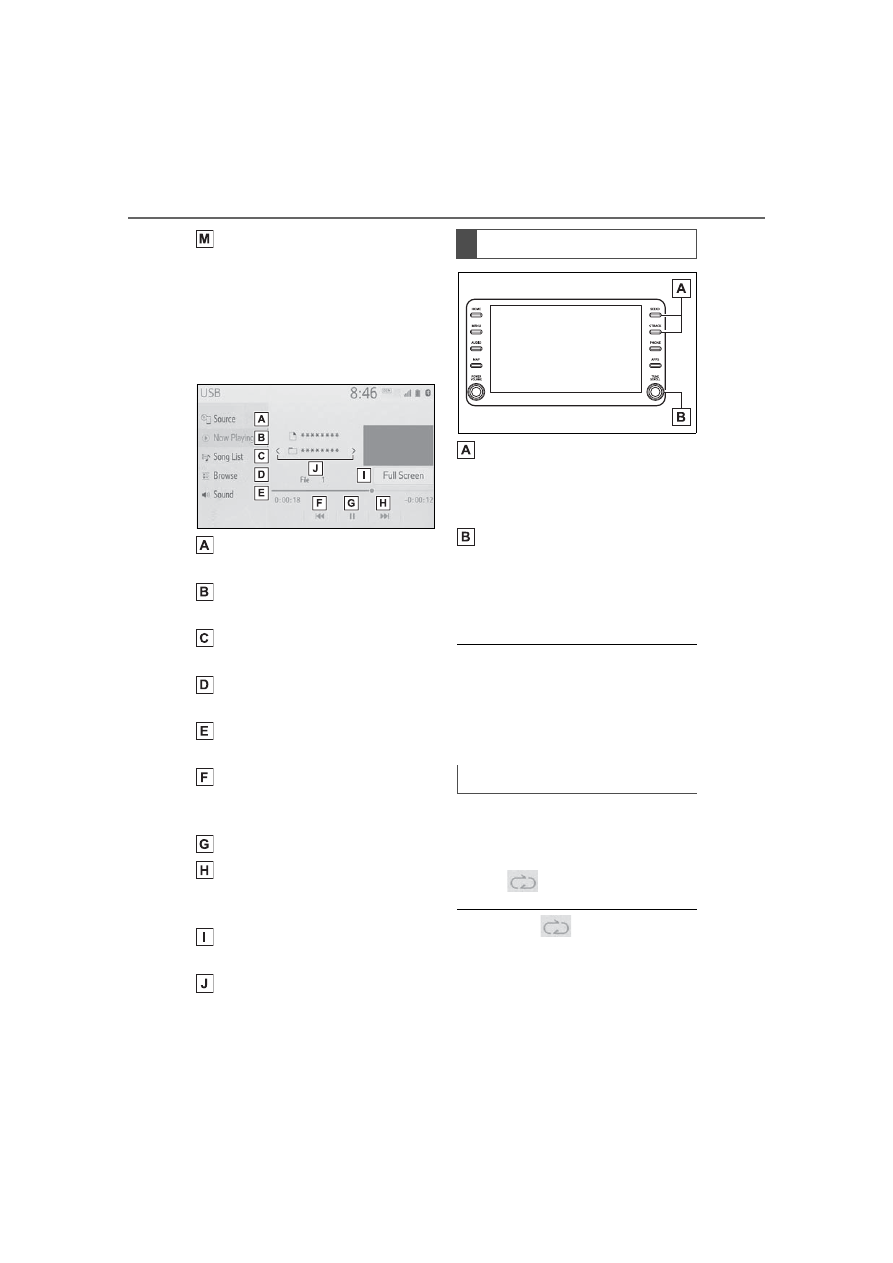
Select to display the audio 
source selection screen.
Select to return to the top 
screen.
Select to display a song list 
screen.
Select to display the play 
mode selection screen.
Select to display the sound 
setting screen. (

P.296)

Select to change the file.
Select and hold to fast 
rewind.
Select to play/pause.
Select to change the file.
Select and hold to fast for-
ward.
Select to display a full screen 
image.
Select to change the folder.

Press to change the 
file/track.
Press and hold to fast for-
ward/rewind.
Turn to change the file/track.
Turn to move up/down the 
list. Also, the knob can be 
used to enter selections on 
the list screens by pressing it.

While the vehicle is being driven, 

this function can only output 

sound.

If tag information exists, the 

file/folder names will be changed 

to track/album names.

The file/track or folder/album 
currently being listened to can 
be repeated.

Select 

.

Each time 

 is selected, the 

mode changes as follows:

When random playback is off

File/track repeat 

 folder/album 

repeat 

 off

When random playback is on

File/track repeat 

 off

Control panel

Repeating

307

5-7. Media operation

5

Audio

Files/tracks or folders/albums 
can be automatically and ran-
domly selected.

Select 

.

Each time 

 is selected, the 

mode changes as follows:
Random (1 folder/album random) 


folder/album random (all 

folder/album random) 

 off

*

: This function is not made avail-

able in some countries or areas.

The iPod/iPhone(Apple Car-
Play) operation screen can be 
reached by the following meth-
ods: 

P.295

Connecting an iPod/iPhone 
(

P.280, 296)

When an Android Auto connec-
tion is established, this function 
will be unavailable.

*

*

: This function is not made avail-

able in some countries or areas.

An Apple CarPlay connection 
is not established

Random order

iPod/iPhone (Apple 

CarPlay

*

)

Overview

Control screen

308

5-7. Media operation

An Apple CarPlay connection 
is established

Select to display the audio 
source selection screen.
Select to return to the top 
screen.
Select to display a song list 
screen.
Select to display the play 
mode selection screen.
Select to display the sound 
setting screen. (

P.296)

Select to set repeat playback. 
(

P.309)

Select to change the track.
Select and hold to fast 
rewind.
Select to play/pause.
Select to change the track.
Select and hold to fast for-
ward.
Select to set random play-
back. (

P.309)

Displays cover art
Select to change the album.
Select to change the artist.
Select to change the playlist.
Select to display the audio 

control screen of Apple Car-
Play.

Press to change the track.
Press and hold to fast for-
ward/rewind.
Turn to move up/down the 
list. Also, the knob can be 
used to enter selections on 
the list screens by pressing it.

Some functions may not be avail-

able depending on the type of 

model.

When an iPod/iPhone is con-

nected using a genuine 

iPod/iPhone cable, the 

iPod/iPhone starts charging its 

battery.

Depending on the iPod/iPhone, 

the video sound may not be able 

to be heard.

Depending on the iPod/iPhone 

and the songs in the iPod/iPhone, 

a cover art may be displayed. This 

function can be changed to “On” 

or “Off”. (

P.317) It may take time 

to display the cover art, and the 

iPod/iPhone may not be operated 

while the cover art display is in 

process.

When an iPod/iPhone is con-

nected and the audio source is 

changed to iPod/iPhone mode, 

Control panel

309

5-7. Media operation

5

A

ud

io

the iPod/iPhone will resume play-

ing from the same point it was last 

used.

Tracks selected by operating a 

connected iPod/iPhone may not 

be recognized or displayed prop-

erly.

The system may not function 

properly if a conversion adapter is 

used to connect a device.

The track currently being lis-
tened to can be repeated.

1

Select 

.

Each time 

 is selected, the 

mode changes as follows:

When shuffle is off (iPhone 5 or 

later)

• Track repeat 

 album repeat 


off

When shuffle is off (iPhone 4s or 

earlier)

• Track repeat 

 off

When shuffle is on

• Track repeat 

 off

Tracks or albums can be auto-
matically and randomly 
selected.

1

Select 

.

Each time 

 is selected, the 

mode changes as follows:

• Shuffle (1 album shuffle) 

 album 

shuffle (all album shuffle) 

 off

Repeating

Random order

WARNING

Do not operate the player’s con-

trols or connect the iPod/iPhone 

while driving.

NOTICE

Do not leave your portable 

player in the vehicle. In particu-

lar, high temperatures inside the 

vehicle may damage the porta-

ble player.

Do not push down on or apply 

unnecessary pressure to the 

portable player while it is con-

nected as this may damage the 

portable player or its terminal.

Do not insert foreign objects into 

the port as this may damage the 

portable player or its terminal.

310

5-7. Media operation

*

: This function is not made avail-

able in some countries or areas.

The Android Auto operation 
screen can be reached by the 
following methods: 

P.295

Connecting an Android device 
(

P.280, 296)

When an Apple CarPlay con-
nection is established, this func-
tion will be unavailable.

*

*

: This function is not made avail-

able in some countries or areas.

Select to display the audio 
source selection screen.
Select to return to the top 
screen.
Select to display the sound 
setting screen. (

P.296)

Select to display the audio 
control screen of Android 
Auto.
Select to change the track.

Select to play/pause.
Select to change the track.
Displays cover art

Press to change the track.
Turn to change the track.

Android Auto

*

Overview

Control screen

Control panel

WARNING

Do not connect smartphone or 

operate the controls while driving.

NOTICE

Do not leave your smartphone 

in the vehicle. In particular, high 

temperatures inside the vehicle 

may damage the smartphone.

Do not push down on or apply 

unnecessary pressure to the 

smartphone while it is con-

nected as this may damage the 

smartphone or its terminal.

Do not insert foreign objects into 

the port as this may damage the 

smartphone or its terminal.

311

5-7. Media operation

5

A

ud

io

Depending on the Bluetooth

®


device that is connected to the 

system, the music may start play-
ing when selecting 

 while it is 

paused. Conversely, the music 
may pause when selecting 


while it is playing.

In the following conditions, the 

system may not function:

• The Bluetooth

®

 device is turned 

off.

• The Bluetooth

®

 device is not con-

nected.

• The Bluetooth

®

 device has a low 

battery.

When using the Bluetooth

®

 audio 

and Wi-Fi

®

 Hotspot functions at 

the same time, the following prob-

lems may occur:

• It may take longer than normal to 

connect to the Bluetooth

®

 device.

• The sound may cut out.

It may take time to connect the 

phone when Bluetooth

®

 audio is 

being played.

For operating the portable player, 

see the instruction manual that 

comes with it.

If the Bluetooth

®

 device is discon-

nected due to poor reception from 
the Bluetooth

®

 network when the 

power switch is in ACC or ON, the 

system automatically reconnects 

the portable player.

If the Bluetooth

®

 device is discon-

nected on purpose, such as it was 

turned off, this does not happen. 

Reconnect the portable player 

manually.

Bluetooth

®

 device information is 

registered when the Bluetooth

®


device is connected to the Blue-
tooth

®

 audio system. When selling 

or disposing of the vehicle, 
remove the Bluetooth

®

 audio 

information from the system. 

(

P.290)

In some situations, sound output 
via the Bluetooth

®

 audio system 

may be out of sync with the con-

nected device or output intermit-

tently.

Bluetooth

®

 audio

The Bluetooth

®

 audio sys-

tem enables users to enjoy 
listening to music that is 
played on a portable player 
on the vehicle speakers via 
wireless communication.

This audio/visual system 
supports Bluetooth

®

, a wire-

less data system capable of 
playing portable audio 
music without cables. If 
your device does not sup-
port Bluetooth

®

, the Blue-

tooth

®

 audio system will not 

function.

WARNING

Do not operate the player’s con-

trols or connect to the Blue-
tooth

®

 audio system while 

driving.

312

5-7. Media operation

The Bluetooth

®

 audio operation 

screen can be reached by the 
following methods: 

P.295

Connecting a Bluetooth

®

 audio 

device (

P.313)

Depending on the type of porta-
ble player connected, some 
functions may not be available 

and/or the screen may look dif-
ferently than shown in this man-
ual.
When an Apple CarPlay/Android 
Auto connection is established, 
Bluetooth

®

 audio will be sus-

pended and become unavail-
able

*

.

*

: This function is not made avail-

able in some countries or areas.

Select to display the audio 
source selection screen.
Select to return to the top 
screen.
Select to display a song list 
screen.
Select to display the play 
mode selection screen.
Select to display the portable 
device connection screen. 
(

P.313)

Select to display the sound 
setting screen. (

P.296)

Select to set repeat playback. 
(

P.313)

Select to change the track.
Select and hold to fast 

WARNING

Your audio unit is fitted with 
Bluetooth

®

 antennas. People 

with implantable cardiac pace-

makers, cardiac resynchroniza-

tion therapy-pacemakers or 

implantable cardioverter defibril-

lators should maintain a reason-

able distance between 
themselves and the Bluetooth

®


antennas. The radio waves may 

affect the operation of such 

devices.

Before using Bluetooth

®


devices, users of any electrical 

medical device other than 

implantable cardiac pacemak-

ers, cardiac resynchronization 

therapy-pacemakers or implant-

able cardioverter defibrillators 

should consult the manufacturer 

of the device for information 

about its operation under the 

influence of radio waves. Radio 

waves could have unexpected 

effects on the operation of such 

medical devices.

NOTICE

Do not leave your portable player 

in the vehicle. In particular, high 

temperatures inside the vehicle 

may damage the portable player.

Overview

Control screen

313

5-7. Media operation

5

Audio

rewind.
Select to play/pause.
Select to change the track.
Select and hold to fast for-
ward.
Select to set random play-
back. (

P.313)

Select to change the album.
Displays cover art

Press to change the track.
Press and hold to fast for-
ward/rewind.
Turn to move up/down the 
list. Also, the knob can be 
used to enter selections on 
the list screens by pressing it.

The track or album currently 
being listened to can be 
repeated.

Select 

.

Each time 

 is selected, the 

mode changes as follows:

When random playback is off

Track repeat 

 album repeat 

 off

When random playback is on

Track repeat 

 off

Tracks or albums can be auto-
matically and randomly 
selected.

Select 

.

Each time 

 is selected, the 

mode changes as follows:
Random (1 album random) 


album random (all album random) 

 off

To use the Bluetooth

®

 audio 

system, it is necessary to regis-
ter a Bluetooth

®

 device with the 

system.

Registering an additional 
device

1

Display the Bluetooth

®

 audio 

control screen. (

P.312)

2

Select “Connect”.

3

Select “Add Device”.

When another Bluetooth

®

 device is 

connected, a confirmation screen 

will be displayed. To disconnect the 
Bluetooth

®

 device, select “Yes”.

4

Follow the steps in “Register-
ing a Bluetooth

®

 phone for 

the first time” from step 

5

(

P.264)

Control panel

Repeating

Random order

Registering/Connecting a 
Bluetooth

®

 device

314

5-7. Media operation

Selecting a registered device

1

Display the Bluetooth

®

 audio

control screen. (

P.312)

2

Select “Connect”.

3

Select the desired device to 
be connected.

4

Check that a confirmation 
screen is displayed when the 
connection is complete.

If an error message is displayed, 

follow the guidance on the screen 

to try again.

315

5-8. Audio/visual remote controls

5

Audio

5-8.Audio/visual remote controls

Some parts of the audio/visual 
system can be adjusted using 
the switches on the steering 
wheel.

Volume control switch

“MODE” switch

*1

:If equipped

*2

:If cached radio is enabled, press-

ing and holding the “MODE”
switch pauses the broadcast. 
(Press and hold again to play 
back the cached radio program.)

*3

:When an Apple CarPlay is estab-

lished, this function will be
unavailable.

*4

:When an Android Auto is estab-

lished, this function will be
unavailable.

 switch

Steering switches

Steering switch operation

Mode

Operation/function

All

Press: Volume 
up/down

Press and hold 
(0.8 sec. or more): 
Volume up/down 
continuously

Mode

Operation/function

AM/FM/

SXM

*1

Press: Change 
audio modes

Press and hold 
(0.8 sec. or more): 
Mute

*2

 (Press and 

hold again to 
resume the 
sound.)

USB

*3, 4

iPod/iPhone

*4

Android 

Auto

*3

, Blue-

tooth

®

 audio

*3,

4

, APPS

*3, 4

Press: Change 
audio modes

Press and hold 
(0.8 sec. or more): 
Pause (Press and 
hold again to 
resume the play 
mode.)

Mode

Operation/function

AM/FM

Press: Preset 
channel up/down

Press and hold 
(0.8 sec. or more): 
Seek up/down

Press and hold 
(1.5 sec. or more): 
Seek up/down con-
tinuously while the 
switch is being 
pressed

Mode

Operation/function

316

5-8. Audio/visual remote controls

*1

:If equipped

*2

:When an Apple CarPlay is estab-

lished, this function will be
unavailable.

*3

:When an Android Auto is estab-

lished, this function will be
unavailable.

In the APPS mode, some operation 

may be done on the screen depend 

on the selected APPS.

SXM

*1

Press: Preset 
channel up/down

Press and hold 
(0.8 sec. or more): 
Seek for stations in 
the relevant pro-
gram type/channel 
category

Press and hold 
(1.5 sec. or more): 
Fast channel 
up/down

USB

*2, 3

iPod/iPhone

*3

Bluetooth

®


audio

*2, 3

Press: Track/file 
up/down

Press and hold 
(0.8 sec. or more): 
Fast for-
ward/rewind

Android Auto

*2

Press: Track 
up/down

Mode

Operation/function

317

5-9. Audio settings

5

Audio

5-9.Audio settings

1

Press the “MENU” button.

2

Select “Setup”.

3

Select “Audio”.

4

Select the desired items to 
be set.

Select to set the common 
settings. (

P.317)

Select to set the radio set-
tings. (

P.317)

1

Display the audio settings 
screen. (

P.317)

2

Select “Common”.

3

Select the desired items to 
be set.

Select to set the cover art 
display on/off.
Select to prioritize the display 
of information from the Gra-
cenote database.
Select to change the screen 
size.

*

 (

P.297)

Select to display the image 
quality adjustment screen.

*


(

P.298)

*

: Only in USB video mode

1

Display the audio settings 
screen. (

P.317)

2

Select “Radio”.

3

Select the desired number of 
preset radio stations dis-
played on the screen.

Setup

Detailed audio settings can 
be programmed.

Displaying the audio set-
tings screen

Audio settings screen

Common settings

Radio settings

318

5-10. Tips for operating the audio/visual system

5-10.Tips for operating the audio/visual system

The use of a cellular phone inside or 

near the vehicle may cause a noise 

from the speakers of the 

audio/visual system which you are 

listening to. However, this does not 

indicate a malfunction.

Usually, a problem with radio 
reception does not mean there 
is a problem with the radio 

 it 

is just the normal result of condi-
tions outside the vehicle.
For example, nearby buildings 
and terrain can interfere with FM 
reception. Power lines or phone 
wires can interfere with AM sig-
nals. And of course, radio sig-
nals have a limited range. The 
farther the vehicle is from a sta-
tion, the weaker its signal will 
be. In addition, reception condi-
tions change constantly as the 
vehicle moves.
Here are some common recep-
tion problems that may not indi-
cate a problem with the radio as 
described.

FM

Fading and drifting stations: 
Generally, the effective range of 

FM is about 25 miles (40 km). 
Once outside this range, you 
may notice fading and drifting, 
which increase with the distance 
from the radio transmitter. They 
are often accompanied by dis-
tortion.
Multi-path: FM signals are 
reflective, making it possible for 
2 signals to reach the vehicle’s 
antenna at the same time. If this 
happens, the signals will cancel 
each other out, causing a 
momentary flutter or loss of 
reception.
Static and fluttering: These 
occur when signals are blocked 
by buildings, trees or other large 
objects. Increasing the bass 
level may reduce static and flut-
tering.
Station swapping: If the FM sig-
nal being listened to is inter-
rupted or weakened, and there 
is another strong station nearby 
on the FM band, the radio may 
tune in the second station until 
the original signal can be picked 
up again.

AM

Fading: AM broadcasts are 
reflected by the upper atmo-
sphere 

 especially at night. 

These reflected signals can 
interfere with those received 
directly from the radio station, 
causing the radio station to 
sound alternately strong and 
weak.

Operating information

NOTICE

To avoid damage to the 

audio/visual system:
Be careful not to spill beverages 

over the audio/visual system.

Radio

319

5-10. Tips for operating the audio/visual system

5

Audio

Station interference: When a 
reflected signal and a signal 
received directly from a radio 
station are very nearly the same 
frequency, they can interfere 
with each other, making it diffi-
cult to hear the broadcast.
Static: AM is easily affected by 
external sources of electrical 
noise, such as high tension 
power lines, lightening or electri-
cal motors. This results in static.

SiriusXM

Cargo loaded on the roof lug-
gage carrier, especially metal 
objects, may adversely affect 
the reception of SiriusXM Sat-
ellite Radio.

Alternation or modifications 
carried out without appropri-
ate authorization may invali-
date the user’s right to 
operate the equipment.

Certification

Use of the Made for Apple 
badge means that an acces-
sory has been designed to 
connect specifically to the 
Apple product(s) identified in 
the badge, and has been cer-
tified by the developer to meet 
Apple performance stan-
dards. Apple is not responsi-
ble for the operation of this 
device or its compliance with 
safety and regulatory stan-
dards. Please note that the 
use of this accessory with an 
Apple product may affect 
wireless performance.

iPhone

®

, iPod

®

, iPod clas-

sic

®

, iPod nano

®

, iPod 

touch

®

, and Lightning

®

 are 

trademarks of Apple Inc., reg-
istered in the U.S. and other 
countries.

Compatible models

Made for
• iPhone X
• iPhone 8
• iPhone 8 Plus
• iPhone 7
• iPhone 7 Plus
• iPhone SE
• iPhone 6s
• iPhone 6s Plus

iPod

320

5-10. Tips for operating the audio/visual system

• iPhone 6
• iPhone 6 Plus
• iPhone 5s
• iPhone 5c
• iPhone 5
• iPod touch (6th generation)
• iPod touch (5th generation)

This system only supports audio 

playback.

Depending on difference between 

models or software versions etc., 

some models might be incompati-

ble with this system.

This device supports high-reso-
lution sound sources.
The definition of high-resolution 
is based on the standards of 
groups such as the CTA (Con-
sumer Technology Association).
Supported formats and play-
able media are as follows.

Supported formats

WAV, FLAC, ALAC, OGG Vorbis

Playable media

USB memory

*

: USB video only

High-resolution sound 
source

File information

Compatible USB devices

USB communi-
cation formats

USB 2.0 HS (480 
Mbps)

File formats

FAT 16/32

Correspon-
dence class

Mass storage 
class

Compatible audio format

Compatible compressed files

Item

USB

Compatible file 

format

MP3/WMA/AAC

WAV(LPCM)/FL

AC/ALAC/OGG 

Vorbis

MP4/AVI/WMV

Compatible file 

format (video)

*

MP4/AVI/WMV

Folders in the 

device

Maximum

3000

Files in the 

device

Maximum

9999

Files per folder

Maximum

255

Corresponding sampling fre-
quency

File type

Frequency (kHz)

MP3 files: 
MPEG 1 LAYER 
3

32/44.1/48

MP3 files: 
MPEG 2 LSF 
LAYER 3

16/22.05/24

321

5-10. Tips for operating the audio/visual system

5

Audio

*1

:Only compatible with Windows 

Media Audio Standard

*2

:Sound source of 48kHz or more 

is down-converted to 
48kHz/24bit.

*1

:Variable Bit Rate (VBR) compati-

ble

*2

:Only compatible with Windows 

Media Audio Standard

MP3 (MPEG Audio Layer 3), 
WMA (Windows Media Audio) 

WMA files: 
Ver. 7, 8, 9

*1


(9.1/9.2)

32/44.1/48

AAC files: 
MPEG4/AAC-LC

11.025/12/16/

22.05/24/32/

44.1/48

WAV (LPCM) 
files

*2

8/11.025/12/16/

22.05/24/32/

44.1/48/88.2/
96/176.4/192

FLAC

*2

8/11.025/12/16/

22.05/24/32/

44.1/48/88.2/
96/176.4/192

ALAC

*2

8/11.025/12/16/

22.05/24/32/

44.1/48/64/

88.2/96

OGG Vorbis

*2

8/11.025/16/

22.05/32/44.1/

48

Corresponding bit rates

*1

File type

Bit rate (kbps)

MP3 files:
MPEG 1 LAYER 
3

32 - 320

MP3 files:
MPEG 2 LSF 
LAYER 3

8 - 160

File type

Frequency (kHz)

WMA files: Ver. 
7, 8

CBR 48 - 192

WMA files:
Ver. 9

*2

 (9.1/9.2)

CBR 48 - 320

AAC files:
MPEG4/AAC-LC

8 - 320

OGG Vorbis

32-500

File type

Quantization bit 

rate (bit)

WAV (LPCM) 
files

16/24

FLAC

ALAC

Compatible channel modes

File type

Channel mode

MP3 files

Stereo, joint ste-
reo, dual chan-
nel and 
monaural

WMA files

2ch

AAC files

1ch, 2ch (Dual 
channel is not 
supported)

WAV (LPCM)/

FLAC/ALAC/

OGG Vorbis

2ch

File type

Bit rate (kbps)


Content      ..     17      18      19      20     ..