Seat Toledo (2019 year). Manual in english - page 12
Operating modes
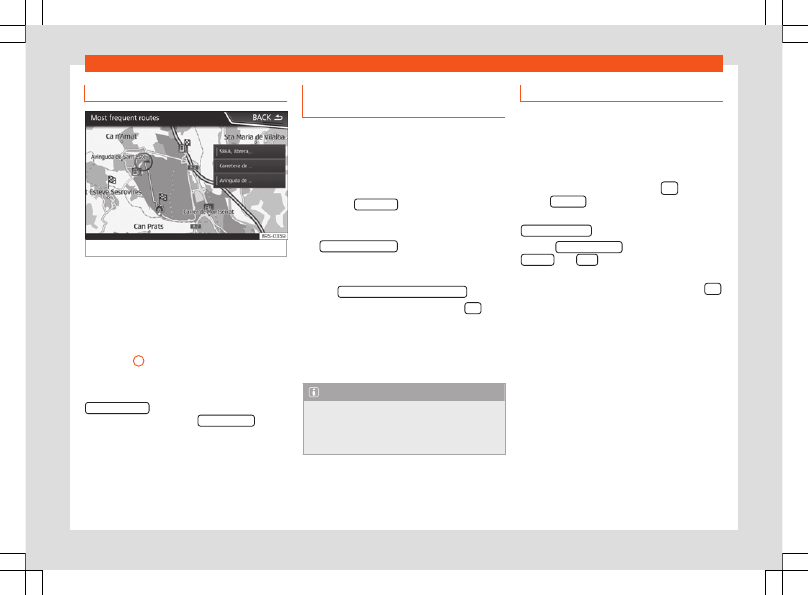
Predictive navigation
Fig. 204
Predictive navigation
When you activate Predictive navigation, the
system detects and stores in the background
routes that are frequently followed, without
them being active destination routes. This
function has no navigation announcements
unless the user requires them, getting them
by pressing the adjustment knob
.
●
On the main screen of the Navigation menu,
in the pop-up window, press the
Frequent routes
button. To display frequently
followed routes press the
Show on map
button
Importing vCards (electronic busi-
ness cards)
Importing vCards to the destination mem-
ory
●
Insert the data storage device with the stor-
ed vCards or connect it to the Infotainment
system
.
●
Press the
SETTINGS
function button in the
main
Navigation
menu.
●
In the
Navigation settings
menu, press
the
Import destinations
function button.
●
Select the data carrier with the vCards
saved in the list.
●
Press
Import all vCards from this folder
.
●
Confirm the import notice with the
OK
function button.
The saved vCards will now be in the destina-
tion memory
for navigation.
Note
Only one address per vCard can be impor-
ted. In the event any vCards have multiple
addresses, only the main address will be
imported.
Importing Personal POI
Importing the Personal POI to a points of
interest destination memory
●
Insert the data storage device with the stor-
ed Personal POI or connect it to the Infotain-
ment system
›››
.
●
Press the Infotainment button
and then
select
Settings
.
●
In the
Settings
menu, press the
Manage memory
function button.
●
Press
Update my POIs
and then press
Update
and
Next
to import the Personal
POIs.
●
Confirm the import notification with the
OK
function button.
The stored Personal POI are now in the points
of interest destination memory
and can be used for navigation purposes.
The stored Personal POI can be deleted in
the
Navigation Settings > Manage
Storage
menu.
187