Peugeot 4008 (2017 year). Instruction - part 18
 

  Index      Peugeot     Peugeot 4008 - instruction 2017 year in english


Search            copyright infringement  


Content   ..  16  17  18  19   ..


Peugeot 4008 (2017 year). Instruction - part 18


271

4008_EN_CHAP10B_MITSU6_ED01-2016

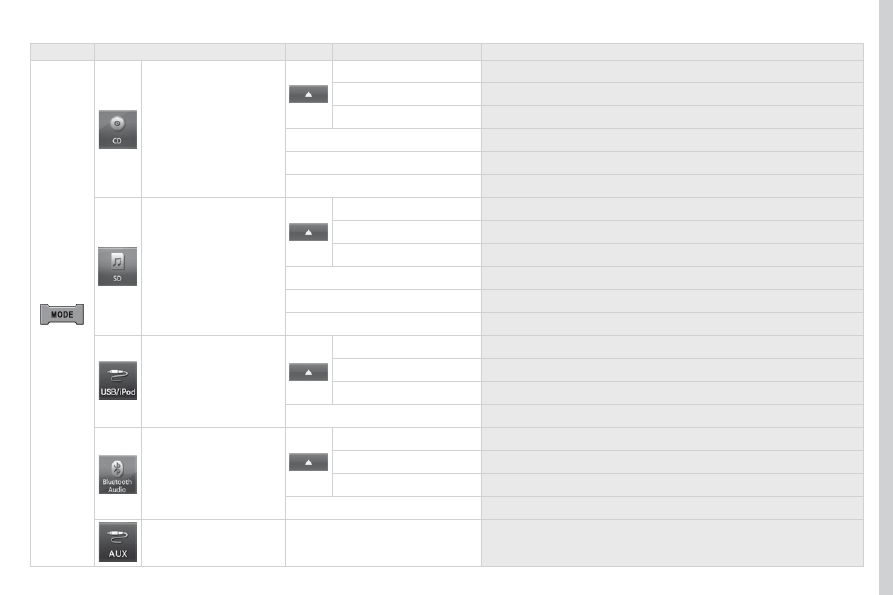
Level 1

Level 2

Level 3

Comments

CD

Repeat

Press to play the track repeatedly.

Scan

Press to play the start of each track for around 9 seconds.

Random

Press to play the tracks in random order.

Playback

Press to start play of the selected track.

go up 1 Level

Press to go up one level.

go to ROOt

Press to open the folder structure.

SD

Repeat

Press to play the track repeatedly.

Scan

Press to play the start of each track for around 9 seconds.

Random

Press to play the tracks in random order.

Playback

Press to start play of the selected track.

go up 1 Level

Press to go up one level.

go to ROOt

Press to open the folder structure.

uSB/

i

POD

Repeat

Press to play the track repeatedly.

Scan

Press to play the start of each track for around 9 seconds.

Random

Press to play the tracks in random order.

Playback

Press to start play of the selected track.

Bluetooth Audio

RePeAt

Press to play the track repeatedly.

Scan

Press to play the start of each track for around 9 seconds.

Random

Press to play the tracks in random order.

track

Press to start play of the selected track.

AuX

Manage play from the portable device.

05

272

4008_EN_CHAP10B_MITSU6_ED01-2016

What is RDS?

the Radio Data System (RDS) function on the FM waveband permits:

automatic retuning to alternative frequencies carrying the same 

station while travelling through different regions (if the transmitters 

of this station cover the area through which you are travelling),

-  temporary tuning to traffic information announcements,

display of the name of the station, etc...

Most FM stations use RDS.
these stations transmit non-audible data in addition to their 

programmes.
the data transmitted in this way allows you access to various 

functions, mainly displaying of the name of the station, temporary 

tuning to traffic information announcements or automatic retuning  

to alternative frequencies.
RDS allows you to continue listening to the same station 

automatically by means of alternative frequencies. However, 

alternative frequencies may not be provided throughout the country. 

Radio stations do not cover the whole country, which explains the 

loss of reception of the station during a journey.

RDS, AF, TP, PTY

RDS alternative frequencies

Your radio automatically checks and selects the best frequency for 

the radio station to which it is tuned (if the station broadcasts on 

several transmitters or frequencies).
the frequency of a radio station covers approximately 30 miles 

(50 km). the change from one frequency to another explains the 

loss of reception during a journey.
If the station to which you are listening does not have several 

frequencies in the region in which you are currently located, you can 

deactivate automatic alternative frequencies.

Traffic information function

The Traffic Programme (TP) function permits automatic and 

temporary switching to an FM station broadcasting traffic information.
the radio station or the source that you are listening to at this point 
is placed on hold.
Once the traffic information has ended, the system switches back to 

the radio station or the source that you were listening to initially.

Programme types

Some stations offer the option of listening to a themed type of 
programme as a priority, selected from the list available below:
NeWS, AFFAIRS, INFOS, SPORt, eDuCAte, DRAMA, CuLtuRe, 
SCIeNCe, VARIeD, POP M, ROCK M, eASY M, LIgHt M, 
CLASSICS, OtHeR M, WeAtHeR, FINANCe, CHILDReN, 

SOCIAL, RELIGION, PHONE IN, TRAVEL, LEISURE, JAZZ, 

COuNtRY, NAtION M, OLDIeS, FOLK M, DOCuMeNt.

RADIO

05

273

4008_EN_CHAP10B_MITSU6_ED01-2016

Press the AUDIO button.
By default the screen displays the stations on FM1.

Selecting an FM station  

and presetting

Press SEEK TRACK for a manual search up or 

down. The frequency is modified in step of 0.1 MHz.

Press and hold to find a station automatically.

Press "Scan" to search for stations that can be 
received in the current location, until a station is 
found.

You can also start a search by type of programme by 
pressing "PTY Filter".

Press "RDS Settings".

Press "On" or "Off" to activate or deactivate the 
functions:
- "AF Check": automatic search for the best 

frequency,

- "Reg": switch to the regional frequencies.

Once the frequency has been selected, a long press 
on the station until a "Beep" is heard will preset it.
the name of the station is displayed if it is available.

RDS settings

Press the AUDIO button.
By default the screen displays the stations on FM1.

turn the FOLDER / TUNE SOUND knob to select a 
station.

RADIO

274

4008_EN_CHAP10B_MITSU6_ED01-2016

05

275

4008_EN_CHAP10B_MITSU6_ED01-2016

DAB (Digital Audio Broadcasting)

Digital radio

Digital radio provides a superior audio quality and also a display of 
graphic current information concerning the radio station selected.
the different channels offer a choice of radio stations in alphabetical 
order.

"DAB" does not have 100% coverage of the country.
If the current DAB station is not available on FM the "

DAB-DAB 

Link" indicator disappears.

Press the MODE button.

Press SEEK TRACK for an ascending or 
descending manual search. the frequency is 
changed in steps of 0.1 MHz.
Maintain the pressure to tune to a station 
automatically.

Press "Scan" to search for transmitting stations, until 
they are obtained.

You can also start a search by type of programme by 
pressing "PTY Filter".

Once the frequency has been chosen, maintain the 
pressure on the station until a "Beep" is heard in 
order to store it.
If the name of the station is available, this is 
displayed.

turn the FOLDER / TUNE SOUND thumbwheel to 
select a station.

Select "DAB".

When the digital signal is weak, "DAB" allows you to continue 
listening to the same station, by automatically switching to the 
corresponding analogue "FM" station (if it exists).

RADIO

05

276

4008_EN_CHAP10B_MITSU6_ED01-2016

Playing an MP3/WMA CD

When the MP3/WMA CD is inserted in the player, 
playing of the tracks is automatic.
the tracks cannot be recorded onto the music server.

You can play CDs with up to 8 levels, 100 folders and 255 files 

maximum.

Windows Media and Microsoft Corporation are trademarks 
registered in the united States and/or other countries.

General notes on files

MP3 and WMA audio file formats

MP3 is the abbreviation of MPeg-1 Audio Layer 3 and 

MPeg is the abbreviation of Motion Pictures experts group. this is 
a digital audio compression standard that reduces the size of audio 

files by eliminating frequencies that are inaudible to the human ear.
this compression divides the size of the content of a conventional 
audio CD by approximately 10, which means that the content of  
10 audio CDs can be recorded onto a single CD-R or CD-RW.
WMA is the abbreviation of Windows Media Audio, another audio 
data compression standard offered by Microsoft.
It can be used to create and save audio files at a compression rate 

lower than that of the MP3 format, with an equivalent file size. 


File handling

Some blank CDs may not be played by your equipment (quality, 
recording speed...).
When you burn a CD-R or CD-RW, select the ISO 9660 level 1.2 or 
Joliet burning standard.
to obtain the best acoustic quality possible, select the lowest 
burning speed.
the MPeg1 and MPeg2 standards are accepted.
transmission speeds between 32 and 320 kbits/s and scans 
between 16 kHz and 48 kHz are accepted.
to display the title information (the name of the artist, the title of 
the album, etc...), the information contained in the ID3 tags or the 

WMA Tags must be included in the MP3/WMA files burned onto 

the disc.

Copyright

Your audio system may allow you to listen to music which is usually 
protected by copyright in accordance with current national and 
international standards. Please consult these standards and comply 
with them.

MUSIC

05

277

4008_EN_CHAP10B_MITSU6_ED01-2016

Press the MODE button then "CD", if the player 
already contains a CD.
Otherwise, insert a CD in the player, play begins 
automatically.

Playing a file

You can move by one level at a time.
Press on the name of a folder and at each press the 
list of folders of the level below is displayed.

Press these buttons for fast forward or back in the 
current track.

Press on "

Go Up 1 Level" to move up a level and/or 

select a level.

Press these buttons to select the next or previous 
track or return to the beginning of the track currently 
being played.

Press "

Random" to play all of the tracks in the 

selected folder in random order.
Press "

Random" again to play all of the tracks on the 

CD in random order.
Press again to stop.

Press on "

Go to ROOT" to go up to the root level.

Press "Scan" to play the beginning of each track in 
each folder for approximately 10 seconds (scanning).
Press "Scan" again the play the beginning of each 
track in the selected folder in a loop.
Press again to stop or press on the current track 
(during the 10 seconds) and play begins.

Press "

Repeat" to play the selected track repeatedly 

in a loop.
Press "

Repeat" again to play all of the tracks in the 

selected folder repeatedly in a loop.
Press again to stop.

Press this button for access to the secondary menu.

MUSIC

05

278

4008_EN_CHAP10B_MITSU6_ED01-2016

Using the USB port

With the vehicle stationary, ignition 
switch in the LOCK position, connect 
a suitable cable to the portable player.

the uSB port is used to connect a 
portable device (MP3 player, Apple

®


player, etc.). The files are sent from the 

player to your audio system and heard 
through the vehicle's speakers.

then connect the cable to the 
vehicle's uSB port.

use only uSB memory sticks in the format FAt32 (File Allocation 
table).
File formats: MP3, WMA, AAC, WAV.

Maximum number of levels (including root): 8.

Number of folders: 100.

-  Number of files: 255.

to protect the system, do not use a uSB hub.

to disconnect the cable, the ignition switch must be in the LOCK 
position.
take care not to trap the cable when closing the armrest.

MUSIC

05

279

4008_EN_CHAP10B_MITSU6_ED01-2016

Connecting APPLE

®

 players

Connect the Apple

®

 player to the uSB port using a suitable cable 

(not supplied).
Play starts automatically.

Control is via the audio system.

The classifications available are those of the portable device 

connected (artists / albums / genres / playlists / audiobooks / 
podcasts).
The default classification used is by artist. To modify the classification 

used, return to the first level of the menu then select the desired 

classification (playlists for example) and confirm to go down through 

the menu to the desired track.
The "Shuffle tracks" mode on an iPod

®

 corresponds to the "Random" 

mode on the audio system.
The "Shuffle albums" mode on an iPod

®

 corresponds to the "Random 

all" on the audio system.
"Shuffle tracks" is restored by default on each connection.

the version of software in the audio system may not be compatible 
with the generation of your Apple

®

 player.

MUSIC

Using the SD card reader

The SD card reader can play MP3, WMA, AAC and WAV audio files.

Press the OPEN button to open the 
screen panel.
Insert the SD card containing audio 

files into the right-hand SD card 

reader.

Push the SD card until it clicks into 
place.
Press the OPEN button to close the 
screen panel.

Press the MODE button, then on "SD".

05

280

4008_EN_CHAP10B_MITSU6_ED01-2016

USB, iPod and SD player - Playing a track

Press the MODE button then on "

USB/iPod" or "SD"; 

you can display the sort by category at any time by 
pressing "Playlist".

In uSB or SD mode you can move up a level at the 
same time.
Press on the name of a folder and at each press the 
list of folders in the level below is displayed.

Press these buttons for fast forward or back in the 
current track.

Press "

Go Up 1 Level" to go up one level and/or 

select a level.

Press these buttons to select the next or previous 
track or return to the beginning of the track currently 
being played.

Press "

Random" to play all of the tracks in the 

selected folder in random order.
Press "

Random" again to play all of the tracks in 

random order.
Press again to stop.

Press "

Go to ROOT" to go up to the root level.

Press "Scan" to play the beginning of each track in 
each folder for approximately 10 seconds (scanning).
Press "Scan" again to play the beginning of each 
track in the selected folder in a loop.
Press again to stop or press on the current track 
(during the 10 seconds) and play begins.

Press "

Repeat" to play the selected track repeatedly 

in a loop.
Press "

Repeat" again to play all of the tracks in the 

selected folder repeatedly in a loop.
Press again to stop.

Press this button for access to the secondary menu.

MUSIC

05

281

4008_EN_CHAP10B_MITSU6_ED01-2016

MUSIC

Using the auxiliary input (AUX)

the auxiliary input allows the 
connection of a portable device 
(MP3 player...).

Connect the portable device (MP3 player…) to the RCA sockets 
(red and white) using a suitable cable, not supplied.

First adjust the volume of your portable device (to a high level). 
then adjust the volume of your audio system.
the operation and play is controlled on the portable device.

Press the MODE button, then on "AUX".

06

282

4008_EN_CHAP10B_MITSU6_ED01-2016

SETTINGS

Level 1

Level 2

Level 3

283

4008_EN_CHAP10B_MITSU6_ED01-2016

Level 1

Level 2

Level 3

Comments

Display Off

Choose to switch off the screen.

to switch it back on, touch the screen or press any button.

System

time

Choose adjustment of the time by the RDS signal, time zone, summer time.

Language

Select the language (english, Français, Deutsch, Nederlands, Português, 
español, Svenska, Italiano, Dansk, Vlaams, Polski, Norsk).

Pairing

Select an authorisation "Select Device to Connect", "Register Device", 
"Set Passkey: Fixed", "Set Passcode".

units

Select the units for the calculation of distances (km or miles and °C or °F).

Keyboard Layout

Select the type of input keyboard (alphabet or PC).

Reset all

Restore factory settings.

After reinitialisation, restart the system.

tP Standby

Select the traffic information (TP) setting: on or off.

Picture Control

Brightness

Adjust the image settings for: brightness, contrast, black level.

Contrast

Black Level

Clock Screen

07

284

4008_EN_CHAP10B_MITSU6_ED01-2016

INFORMATION

Level 1

Level 2

Level 3

285

4008_EN_CHAP10B_MITSU6_ED01-2016

Level 1

Level 2

Level 3

Comments

Calendar

Make a note on the calendar of special days, birthdays, ...
Use the arrows to find a date and press directly on the day required to 

enter the event.

user SD

Check the capacity of the SD card and the free space.

Voice Control Help

Make a telephone call

Verify the use of voice commands.

Busy tone

Manage the directory

Pairing

gPS Information

Country

View gPS information:

the satellite position chart with the direction and movement of the 
vehicle,

the name of the current location,

the longitude and latitude of the current location,

the status of location measurement (2D = 3 satellites or less,  
3D = 4 satellites or more),

the number of satellites visible.

07

286

4008_EN_CHAP10B_MITSU6_ED01-2016

INFORMATION

Level 1

Level 2

Level 3


Content   ..  16  17  18  19   ..