Peugeot 4008 (2017 year). Instruction - part 17
 

  Index      Peugeot     Peugeot 4008 - instruction 2017 year in english


Search            copyright infringement  


Content   ..  15  16  17  18   ..


Peugeot 4008 (2017 year). Instruction - part 17


255

4008_EN_CHAP10B_MITSU6_ED01-2016

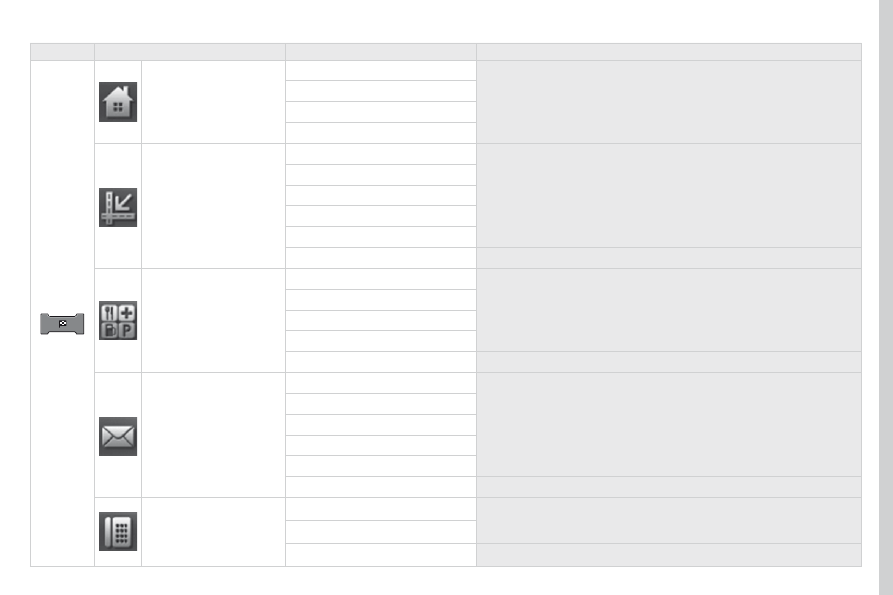
Level 1

Level 2

Level 3

Comments

go Home

Address Book

Select a direct return home.
Press Yes to save your home location (the first time).

go Home

Special Location

My Categories

Address/Junction

Country

Select a location using the address or name of the street of the 
destination.

City

Street

House #

Junction

Set

Save the settings.

Point of Interest

Country

Select a location using the name of a point of interest (POI).

City

Point of Interest

Category

Set

Save the settings.

Postal Code

Country

Select a location using the post code, address or name of the street of 
the destination.

Postal Code

Street

House #

Junction

Set

Save the settings.

Phone Number

Country Code:

Enter the information, the telephone number and confirm.

Country

Set

Save the settings.

04

256

4008_EN_CHAP10B_MITSU6_ED01-2016

NAVIGATION

Level 1

Level 2

Level 3

257

4008_EN_CHAP10B_MITSU6_ED01-2016

Level 1

Level 2

Level 3

Comments

Latitude/Longitude

Latitude

Select a location using the latitude and longitude.

Longitude

Set

Save the settings.

Return trip

Select the point of departure as a new destination.

Previous 50

Country

Select a location using one of the 50 recent destinations.

City

Point of Interest

Category

Delete

Delete a destination from the list.

Address Book

Icon

Select a location using an address saved in the address book.

Name

Date

use

New

Create an address.

edit

Display an address from the list.

Delete

Delete an address from list.

Advanced Search

POI nearby

Select a location using an advanced search based on a POI.

POI along a Street

04

258

4008_EN_CHAP10B_MITSU6_ED01-2016

NAVIGATION

Level 1

Level 2

Level 3

259

4008_EN_CHAP10B_MITSU6_ED01-2016

Level 1

Level 2

Level 3

Comments

Route Menu

Check and view the maps of the surroundings on a journey.

guidance

travel time

Adjust the route guidance mode and display the results of the route 
search.

time/Distance Remaining

Screen

3D Bldg.

Adjust the screen display settings.

3D Polygon Landmark

POI Icons on Map

tMC

Dynamic Route guidance

Display and select traffic information transmitted in real time, such as 

traffic jams and roadworks by selecting dynamic route guidance.

tMC Icons on Map

Current Station

tMC Surveillance Map

04

260

4008_EN_CHAP10B_MITSU6_ED01-2016

NAVIGATION

Level 1

Level 2

Level 3

261

4008_EN_CHAP10B_MITSU6_ED01-2016

Level 1

Level 2

Level 3

Comments

Route Options

Route Priority

Adjust the roads used conditions.

Minimize Motorways

Minimize toll Roads

Navi Voice/Others

Beep Sound Volume

Set the voice used for navigation instructions and adjust the volume.

guidance Voice Volume

Speed Compensated Volume

Personal

Address Book

Save, modify or delete an entry in the address book.

go Home

Special Location

My Categories

Start Demo

Play the video to check the prepared route.

04

262

4008_EN_CHAP10B_MITSU6_ED01-2016

the satellite navigation system guides the driver to the destination 
set in accordance with a chosen route.
Initially, it searches for the destination required by the user, then 

it calculates the route and finally it provides the visual and vocal 

guidance instructions.

A point of interest (POI) is represented by an icon on 
the map, it represents an airport, a station, a town 
hall, ...

What is a point of interest (POI)?

up to 40 different icons may be displayed (refer to the 
section "Points of interest icon").
They are classified in 5 groups and identified by one 

colour for each group:
-  Shops, finance and businesses (Green),

Vehicles and travel (Dark blue),

Restaurants (Orange),

Public places and emergency services (Brown),

entertainment and attractions (Blue).

gPS (global Positioning System) consists of several 
satellites arranged around the earth. they continuously 
transmit digital signals which travel at the speed of 
light, on 2 different frequencies.
At any given time, the system receives its position 
in relation to the satellites detected and the time of 
transmission of the signal.
this enables the telematic unit to calculate its position 
and therefore that of the vehicle.
A repositioning process using the map database stored 
on the hard disk allows the vehicle to be positioned 
on the road network, so improving the accuracy of the 
vehicle location function.

GPS system

What is the navigation system and GPS?

the system's measurements may be inaccurate if the vehicle is:

in a tunnel or underground car park,

underneath a two-level motorway,

in an area with several very high buildings,

surrounded by closely planted trees.

Depending on the vehicle's situation and the reception of the gPS 
information, the displayed information may disappear from the 
screen temporarily.

What precautions should be observed in order to make 

best use of the system?

Do not place anything on or near the gPS aerial.
Do not use any digital communication equipment (personal 
computers, etc.) near the gPS aerial.
Do not affix any reflective films or films containing carbon to the 

windows.

NAVIGATION - GUIDANCE

04

263

4008_EN_CHAP10B_MITSU6_ED01-2016

NAVIGATION - GUIDANCE

Press the OPEN button to open the 
screen panel.
Insert the SD card containing the 
navigation mapping data in the left-
hand SD card reader.

Push the SD card until it clicks into 
place.
Press the OPEN button to close the 
screen panel.

to restore the navigation data and/or if the power from the battery is 
cut, contact a PeugeOt dealer.

Installing the navigation SD card

Navigation SD card

04

264

4008_EN_CHAP10B_MITSU6_ED01-2016

Selecting points of interest (POI) icons 

displayed on the map

You can select point of interest icons which are 
displayed on your map screen.
Press DESTINATION then "Point of Interest".

Press "All Categories" then choose between 
"My Categories", "Last 5" and "Show All".

Press each POI required.

general

town centre

Locality

Shops, finance and businesses (Green)

Major companies

Shopping centre

Vehicles and travel (Dark blue)

PeugeOt

Airport

Bus stop

Vehicle hire

Suburban / main line station

Ferry terminal

Hotel

Park and ride

Car park (press +)

Service station

Rest area

toll booth

tourist information

Railway station

Restaurant (Orange)

Night life / night club

Restaurant

Public places and emergency services (Brown)

town Hall

Community centre

Convention / exhibition centre

Hospital

university / college

entertainment and attractions (Blue)

theme park

Bowling alley

Casino

Cinema

golf course

Historical monument

Skating rink

Marina

Museum

Flying club

Leisure area

Ski station

Sports centre

theatre / opera

tourist attraction

Vineyard / wine and spirit store

NAVIGATION - GUIDANCE

04

265

4008_EN_CHAP10B_MITSU6_ED01-2016

Press the DESTINATION button.

Towards a new destination

Selecting a destination

Press "

Address/Junction".

Press "Country" and enter the name of the country 
using the touch keypad.

You can select one of the 5 most recently selected 
countries, cities or streets cities by pressing Last 5 in 
the line.

Press "All Cities" and enter the name of the city 
using the touch keypad.

Press "All Streets" and enter the name of the street 
using the touch keypad.

Press "All House Numbers" and enter the street 
number using the touch keypad.

If you agree with the information, press "Set", 
otherwise press one of the buttons to correct.

Press "Start" to start the navigation.

You can enter the name of a junction instead of the 
street number. Press "

All Junctions" and select the 

name from the list displayed.

When a character of the name of the country, city and road is 
entered, and if 5 cities or streets or fewer are recognised, you 
can select a country, city or street from a list which is displayed or 
press "List".

You can select a city using the post code.
Press "

Postal Code" and enter the number.

NAVIGATION - GUIDANCE

266

4008_EN_CHAP10B_MITSU6_ED01-2016

04

267

4008_EN_CHAP10B_MITSU6_ED01-2016

Set the filtering and display of TMC messages

TMC messages (Traffic Message Channel) on the Navigation-GPS system give traffic information transmitted in real time.

Press on the pull-down secondary menu.

the navigation system suggests a detour route, if dynamic guidance 
has been activated by pressing the NAVI MENU button, then "TMC".

Select "

Confirm Route" then "Entire Route" or 

"Remaining Route" to validate or add to the route.

Select "Change Route", then "Alternative Route" or 
"Delete Route" to modify or delete the route.

Select "Search Nearby", then "POI nearby" to add a 
point of interest to the route.

Select "

Stop Guidance" to suspend navigation 

guidance.

Select "

Voice Guide ADJ" to modify the volume for 

the voice or adapt the volume to the speed of the 
vehicle.

Red and yellow triangle: traffic information, for example:

Black and blue triangle: general information, for example:

Weather reports

Modified signage

Risk of explosion

Traffic reports

Narrow carriageway

Road closed

Wind

Slippery surface

Demonstration

Fog

Accident

Danger

Parking

Delay

No entry

Snow / ice

Roadworks

Traffic jam

TRAFFIC

05

268

4008_EN_CHAP10B_MITSU6_ED01-2016

MEDIA

Level 1

Level 2

Level 3

269

4008_EN_CHAP10B_MITSU6_ED01-2016

Level 1

Level 2

Level 3

Comments

RDS Settings

AF Check

the name of the station is displayed while RDS data is received. If the 
name is not transmitted, the frequency is displayed.

Reg

List of stations

to display in the screen the list of stations received. PtY (programme 
type) is displayed if the RDS data received is displayed, to display 
in the screen programmes by type, e.g.: sport, rock, classical, 
information, ... Press PtY again to quit.

Scan

to search for stations that can be received in the current location, until 
a station is found.

tP Standby

Choose to activate or deactivate traffic announcements (TP).

05

270

4008_EN_CHAP10B_MITSU6_ED01-2016

OPEN: Opens or closes the 
screen panel to insert or remove a 
CD or SD card.

MEDIA

Level 1

Level 2

Level 3


Content   ..  15  16  17  18   ..