Peugeot 1007 Dag (2008.5). Instruction - part 10
 

  Index      Peugeot     Peugeot 1007 Dag 2008.5 - instruction in english


Search            


Content   ..  8  9  10  11   ..


Peugeot 1007 Dag (2008.5). Instruction - part 10


10

10

138

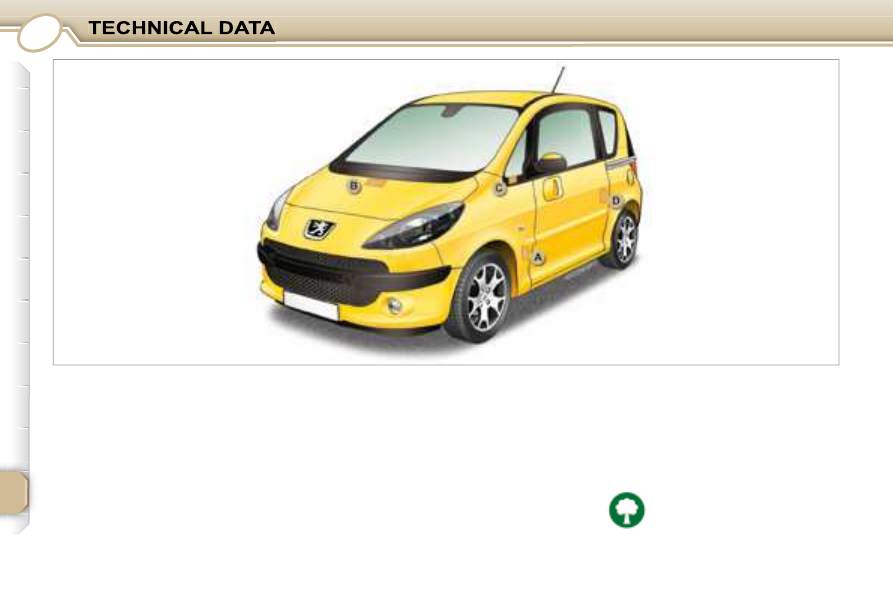
               IDENTIFICATION FEATURES 
OF YOUR 1007 

   A.    Manufacturer's plate.  
  B.    Serial number on the 

bodywork (under the 
bonnet, at the centre of the 
crossmember).
  

  C.    Serial number on the fascia 

(on the small aperture,
left-hand side).
  

  D.    Tyres and paint colour 

reference.   

 The label  D  on the pillar, near the left-

hand door striker, indicates: 

   -  

the wheel and tyre sizes, 

  -  

the brands of tyres approved by 

the manufacturer, 

  -  

the  tyre  pressures   (the  tyre 

pressure  must  be  checked 
when the tyre  is cold, at  least 
once a month)

 , 

  -  

the paint colour reference.  

  Wheels  equipped  with  195/50R16 

tyres  cannot  be  fi tted  with  snow 

chains.  
  Contact a   PEUGEOT   dealer for in-
formation.
  

 Low tyre pressures increase 

fuel consumption. 

139

     WIP Com 

 MULTIMEDIA AUDIO EQUIPMENT/TELEPHONE

JUKEBOX FUNCTION (10 GB)/GPS (EUROPE) 

 The WIP Com is coded in such a way that it will only 
operate in your vehicle. If it is to be installed in another 

vehicle, contact a PEUGEOT dealer for confi guration of 
the system. 

 For safety reasons, it is imperative that the driver carries 

out operations which require prolonged attention while 
the vehicle is stationary. 

 When the engine is switched off and to prevent 

discharging of the battery, the WIP Com may switch off 
after a few minutes. 


 CONTENTS  

  • 01 First steps 

pg. 140  

  • 02 General menu 

pg. 141  

  • 03 GPS 

pg. 142  

  • 04 Traffi c information 

pg. 150  

  • 05 Audio/Video 

pg. 152  

  • 06 Telephone 

pg. 159  

  • 07 Control short-cuts 

pg. 162  

  • 08 Confi guration 

pg. 164  

  • 09 Display fl ow charts 

pg. 165  

  • Frequently asked questions  pg. 183  

140

01

2

2

1

1

55

3

3

4

4

8

8

99

10

10

15

15

11

11

17

17

18

18

12

12

16

16

14

14

7

7

6

6

13

13

   1.  

Ejection of the CD. 

  2.  

Selection of the source: radio, Jukebox, CD,


CD changer and auxiliary (AUX, if activated on the Confi guration menu).   


Long press: CD copy to hard disc. 

  3.

   Long press on the SOS button: emergency call. 

  4.  

Selection of the display on the screen from the modes: TRIP, 

TEL, NAV and AUDIO. 


5.   Modifi cation of the screen display.   


Long press: reinitialisation of the WIP Com. 

  6.

   On/Off and Volume adjustment. 

  7.

   Selection of the wavebands FM1, FM2, FMast, AM. 

  8.

   TA (Traffi c Announcement) function on/off.   


Long press: access to the PTY

(radio Programme TYpes) mode. 


9.   Access to the "PEUGEOT" services menu. 

  10.   Cancellation of the current operation.   


Long press: return to the current application. 

  11.

   Automatic search for a lower/higher frequency.   


Selection of the previous/next CD, MP3 or Jukebox track. 

  12.

   Displaying of the general menu. 

  13.

   Keypad for entering descriptions by successive presses. 

  14.   Selection of the previous/next CD. Selection of the previous/

next MP3/Jukebox directory. 


15.   Audio option adjustments: front/rear, left/right balance, 

loudness, sound ambiences. 

  16.

   Selection and confi rmation. 

  17.   SIM card slot. 

  18.

   Displaying of the list of local radio stations,


of the tracks on the CD or of the MP3/Jukebox directories.   


Long press: updating of the local radio stations.  

 FIRST STEPS 

141

02

       GENERAL MENU 

 MAP: orientation, details, 
display. 

 AUDIO FUNCTIONS: radio, 
CD, Jukebox, options. 

 For maintenance of the 
display, the use of a 
soft, non-abrasive cloth 

(spectacles cloth) is 
recommended without any 
additional product. 

 TELEMATIC: telephone, 
directory, SMS. 

 CONFIGURATION: vehicle, 

display, time, languages, 

voice, auxiliary socket (AUX) 

parameters. 

 VIDEO: activation, 
parameters. 

 VEHICLE DIAGNOSTICS: 

warnings log, status of the 
functions. 

 NAVIGATION GUIDANCE: 

GPS, stages, options. 

 TRAFFIC INFORMATION: 

TMC information, messages. 

142

2

2

3

3

55

7

7

4

4

6

6

8

8

03

1

1

 Press the MENU button. 

 Turn the dial and select the 

NAVIGATION GUIDANCE function. 

 Press the dial to confi rm the selection. 

 Turn the dial and select the 

DESTINATION CHOICE function. 

 Press the dial to confi rm the selection. 

 Press the dial to confi rm the selection. 

 Turn the dial and select the ENTER 

AN ADDRESS function. 

 When the country has been selected, 
turn the dial and select the TOWN 
function. 

TOWN

ENTER AN ADDRESS

DESTINATION CHOICE

 Tip: for a detailed global view of the menus available, refer to the "Display fl ow charts" section of this 
WIP Com chapter. 

         GPS 

  SELECTING A DESTINATION 

143

99

11

11

12

12

14

14

10

10

13

13

 Press the dial to confi rm the selection. 

 Turn the dial and select the letters of 

the town one by one confi rming each 

time by pressing the dial. 

 Select OK and press the dial to 

confi rm. 

 To speed up the process, the POST CODE can be 
entered instead of the name of the town. 
 Use the alphanumeric keypad to enter the letters and 

digits and "*" to correct. 

 Press the dial to confi rm the selection. 

 Select OK on the ENTER AN 

ADDRESS page. 

 Repeat steps 8 to 12 for the ROAD and N° functions. 

OK

OK

 Select the STORE function to record the address entered in a 

directory record and press the dial to confi rm the selection. 

 The points of interest (POI) indicate all of the service locations in the 

vicinity (hotels, various businesses, airports...). 

STORE

PARIS

POI

144

1

1

2

2

3

3

4

4

55

6

6

7

7

8

8

03

  GUIDANCE OPTIONS 

       GPS 

 The route chosen by the GPS audio/telephone depends directly on the guidance options. 
 Changing these options may completely change the route. 

 Press the MENU button. 

 Turn the dial and select the 

NAVIGATION GUIDANCE function. 

 Press the dial to confi rm the selection. 

 Turn the dial and select the 

GUIDANCE OPTIONS function. 

 Turn the dial and select the DEFINE 

CALCULATION CRITERIA function. 

 Press the dial to confi rm the selection. 

 Press the dial to confi rm the selection. 

GUIDANCE OPTIONS

DISTANCE/TIME

DEFINE CALCULATION CRITERIA

 Turn the dial and select, for example, 

the DISTANCE/TIME function. 

145

9

10

10

11

11

12

12

1

1

2

2

3

3

4

4

55

 Turn the dial and select the TRAFFIC 
INFO function if it is not ticked. 

 Press the dial to confi rm the selection. 

 Select OK and press the dial to 

confi rm.  

TRAFFIC INFO

 Press the dial to confi rm the selection. 

 Tick this box for optimum operation of the traffi c information, 

diversions will be suggested. 

OK

       GUIDANCE SPEECH SYNTHESIS 

 Press the MENU button. 

 Turn the dial and select the 

NAVIGATION GUIDANCE function. 

 Press the dial to confi rm the selection. 

GUIDANCE OPTIONS

 Turn the dial and select the 

GUIDANCE OPTIONS function. 

 Press the dial to confi rm the selection. 

146

6

6

8

8

1

1

2

2

3

3

4

4

7

7

03

 Press the MENU button. 

 Turn the dial and select the 

MAP function. 

 Press the dial to confi rm the selection. 

 Turn the dial and select the 

MAP DETAILS function. 
 Permits selection of the services 
which can be seen on the map 

(hotels, restaurants...). 

       ACTIONS ON THE MAP 

MAP DETAILS

 During the announcements, the volume of each 

speech synthesis function (guidance, traffi c 

information...) can be adjusted directly. 

 GUIDANCE SPEECH 
SYNTHESIS 

 Select the ADJUST SPEECH 

SYNTHESIS function and press the 

dial to confi rm. 

 GPS 

ADJUST SPEECH SYNTHESIS

DEACTIVATE

 Select the DEACTIVATE function and 

press the dial to confi rm. 

OK

 Select OK and press the dial to 

confi rm.     

147

1

2

2

3

3

4

4

55

6

6

7

7

03

 For improved visibility, beyond the scale of 10 km, the map automatically switches to 

North Orientation. 

 Turn the dial and select the MAP 
function. 

 Press the MENU button. 

 Press the dial to confi rm the selection. 

 Turn the dial and select the 3D VIEW 
tab. 

 Select OK   and press the dial to 

confi rm.  

 Turn the dial and select the 

MAP ORIENTATION function. 

 Press the dial to confi rm the selection. 

  3D VIEW 

 GPS 

MAP ORIENTATION

3D VIEW

OK

148

1

2

2

3

3

4

4

55

6

6

7

7

03

 Press the MENU button. 

 Press the dial to confi rm the selection. 

 Turn the dial and select the 

MAP function. 

 Turn the dial and select the 

MAP IN WINDOW or 

FULL SCREEN MAP tab. 

 Select OK   and press the dial to 

confi rm.  

 Press the dial to confi rm the selection. 

 Turn the dial and select the 

DISPLAY MAP function. 

  DISPLAYING THE MAP IN A WINDOW 
OR IN FULL SCREEN MODE 

 GPS 

DISPLAY MAP

FULL SCREEN MAP

OK

MAP IN WINDOW

149

1

1

2

2

3

4

4

55

99

8

8

7

7

6

6

03

  ADDING A STAGE 

 During guidance, press the MENU 
button. 

 Turn the dial and select the 

NAVIGATION GUIDANCE function. 

 Press the dial to confi rm the selection. 

 Turn the dial and select the 

JOURNEY LEGS AND ROUTE 
function. 

JOURNEY LEGS AND ROUTE

 Select OK and press the dial to 

confi rm the order of the stages. 

 When the new address has been 
entered, select OK and press the dial 

to confi rm. 

 Enter for example a new address. 

 Select the ADD A STAGE function 

(9 stages maximum) and press the 

dial to confi rm. 

 Press the dial to confi rm the selection. 

 The stage must be completed or deleted before the guidance can 
continue to the next destination. 

 Otherwise, the WIP Com will always guide you back to the previous 

stage.  

ENTER AN ADDRESS

ADD A STAGE

 GPS 

150

1

1

2

2

3

4

4

5

6

6

7

8

8

04

  ACTIVATING THE FILTER ON THE ROUTE 

 We recommend a fi lter on the route and a fi lter around the vehicle of: 
   -   5 km or 10 km for a region with heavy traffi c, 
  -   20 km for a region with a normal level of traffi c, 
  -   100 km for long journeys (motorway).  

 Press the MENU button. 

 Turn the dial and select the 

TRAFFIC INFORMATION function. 

 Press the dial to confi rm the selection. 

FILTER TRAFFIC INFORMATION

 Turn the dial and select the FILTER 

TRAFFIC INFORMATION function. 

 Press the dial to confi rm the 
selection. 

GEOGRAPHIC FILTER

 Select the GEOGRAPHIC FILTER 

function and press the dial to confi rm. 

 Turn the dial and select the 

ON THE ROUTE tab. 

OK

       TRAFFIC INFORMATION 

 Select OK and press the dial to 

confi rm.  

151

1

1

2

2

3

4

4

6

6

55

7

7

04

READ MESSAGES

NEW MESSAGE DISPLAY 

OK

  CONFIGURING THE TMC MESSAGE 
ANNOUNCEMENTS 

 We recommend that you do not tick the NEW MESSAGE DISPLAY tab for regions with heavy traffi c. 

 Turn the dial and select the 

TRAFFIC INFORMATION function. 

 Press the dial to confi rm the selection. 

 Press the dial to confi rm the selection. 

 Turn the dial and select the 

CONFIGURE MESSAGE 

ANNOUNCEMENT function. 

 Select the READ MESSAGES tab. 

 The Traffi c Information Messages will 
be read by the voice synthesiser. 

 Select the NEW MESSAGE DISPLAY 
tab. 

 The traffi c information messages 

are extended to the fi lters selected 

(geographic...) and can also be 

displayed when guidance is not active. 

 TRAFFIC INFORMATION 

 Select OK and press the dial to 

confi rm.  

CONFIGURE MESSAGE ANNOUNCEMENT

152

1

1

2

2

3

3

4

4

1

2

2

3

3

4

4

05      AUDIO/VIDEO 

 RADIO 

 SELECTING A STATION 

 Press the SOURCE button several 
times in succession and select the 

RADIO. 

 Press the BAND button to select a 

waveband: FM1, FM2, FMast, AM. 

 Briefl y press one of the buttons to 
carry out an automatic search of the 
radio stations. 

 Press one of the buttons to carry out a 
manual search of the radio stations. 

 Press the LIST button to display the 
list of stations received locally 

(60 maximum). 
 To update this list, press for more than 
two seconds. 

 The external environment (hills, buildings, tunnels, basement car parks, ...) may block reception, 
including in RDS mode. This is a normal effect of the way in which radio waves are transmitted and does 
not indicate any failure of the audio equipment. 

  RDS 

 Select ACTIVATE FREQUENCY 

FOLLOWING (RDS) then press OK. 
RDS appears on the display. 

 Select the FM BAND 
PREFERENCES function then press 
OK. 

 Select AUDIO FUNCTIONS then 
press OK. 

 Press the MENU button. 

 The RDS, if displayed, enables you to continue listening to the 

same station by means of frequency following. However, in certain 

conditions, this RDS station is not followed throughout the country 
as radio stations do not cover 100 % of the territory. This explains 

the loss of reception of the station during a journey.  

FM BAND PREFERENCES

ACTIVATE FREQUENCY FOLLOWING (RDS)

153

1

1

2

2

05          AUDIO/VIDEO 

  MP3 CD 

 The MP3 format, an abbreviation of MPEG 1.2 & 2.5 Audio Layer 3, 

is an audio compression standard which permits the recording of 

several tens of music fi les on a single disc. 

 In order to be able to play a recorded CDR or CDRW, when recording 
it is preferable to select standards ISO 9660 level 1.2 or Joliet. 
 If the disc is recorded in another format, it may not be played 
correctly. 

 It is recommended that the same recording standard is always used 

for an individual disc, with as low a speed as possible (4x maximum) 
for optimum sound quality. 
 In the particular case of a multi-session CD, the Joliet standard is 
recommended. 

 The audio equipment will only play audio fi les with the extension 

".mp3" with a sampling rate of 22.05 KHz or 44.1 KHz. No other type 

of fi le (.wma, .mp4, m3u...) can be played. 

 It is advisable to restrict fi le names to 20 characters without using 

special characters (e.g.: " " ? ; ù) to avoid any playing or displaying 
problems.   

 CD 

  PLAYING A CD OR AN MP3 COMPILATION 

 If the player already contains a disc, 
press the SOURCE button several 
times in succession and select CD to 
listen to it. 

 Press one of the buttons to select a 
track on the CD. 

 Press the LIST button to display the list of tracks on the CD or of 
the directories of the MP3 compilation. 

 The playing and displaying of an MP3 compilation may depend on 

the recording programme and/or the parameter settings used. We 

recommend use of the ISO 9660 recording standard.  

  INFORMATION AND ADVICE 

 Insert circular compact discs only. Some anti-

pirating systems, on original discs or CDs 

copied using a personal recorder, may generate 

malfunctions regardless of the quality of the original 
player. 

 Insert an audio CD or an MP3 compilation in the 

player, play begins automatically. 


Content   ..  8  9  10  11   ..