Mazda CX-5 (2022 year). Manual in english - page 30
 

  Index      Manuals     Mazda CX-5 (2022 year). Manual in english


Search            copyright infringement  


Content      ..     28      29      30      31     ..


Mazda CX-5 (2022 year). Manual in english - page 30


Operation of Automatic Air
Conditioner

1. Press the AUTO switch. Selection of

the airflow mode, air intake selector
and amount of airflow will be
automatically controlled.

2. Use the temperature control dial to

select a desired temperature.
If you want to set the temperature on
the front passenger's side separately
from the driver's side, turn the front
passenger temperature control dial to
switch the mode automatically to the
individual operation mode and set the
temperature for the front passenger's
side.

To turn off the system, press the power
switch.

NOTE

Set the control dial to the recommended
temperature of 22 °C (72 °F), and then
adjust it as desired.

Setting the temperature to maximum hot
or cold will not provide the desired
temperature at a faster rate.

When selecting heat, the system will
restrict airflow until the engine has
warmed to prevent cold air from
blowing out of the vents.

Windshield Defrosting and
Defogging

Press the windshield defroster switch.
In this position, the outside air position is
automatically selected, and the air
conditioner automatically turns on. The air
conditioner will directly dehumidify the
air to the front windshield and side
windows on page 5-4.
Airflow amount will be increased.

WARNING

Set the temperature control to the hot or
warm position when defogging (
position):

Using the 

 position with the temperature

control set to the cold position is
dangerous as it will cause the outside of the
windshield to fog up. Your vision will be
hampered, which could lead to a serious
accident.

NOTE

Use the temperature control dial to
increase the air flow temperature and
defog the windshield more quickly.

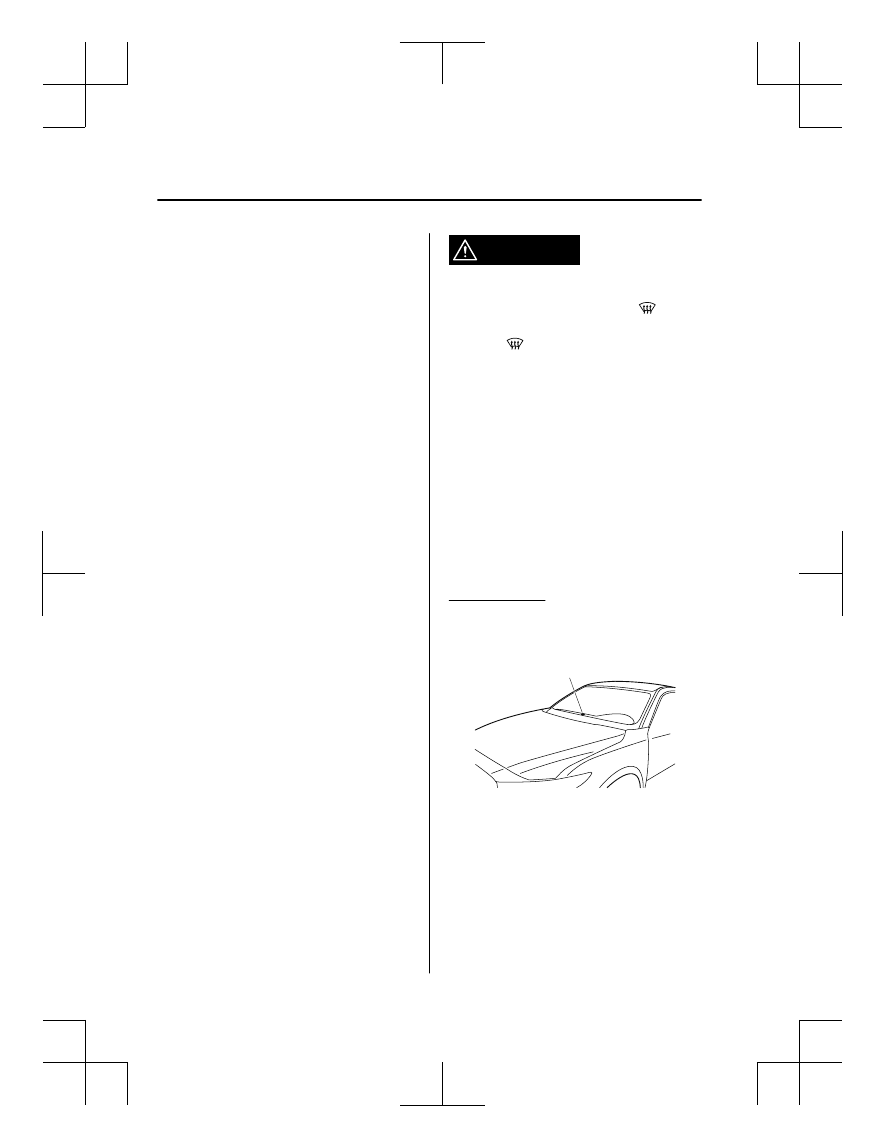
Sunlight/Interior Temperature
Sensor

Sunlight sensor

Do not place objects on the sunlight
sensor. Otherwise, the interior temperature
may not adjust correctly.

Sunlight sensor

Interior Features

Climate Control System

5-12

Interior temperature sensor

Do not cover the interior temperature
sensor. Otherwise, the interior temperature
may not adjust correctly.

Interior temperature sensor

Interior Features

Climate Control System

5-13

What is Mazda Connect ?

What is Mazda Connect ?

For vehicles with the following display type, refer to the following page because your
vehicle is equipped with Mazda Connect (Type B).
Refer to What is Mazda Connect ? 5-33.

This manual only indicates a part of the information for Mazda Connect. For details, check
the Web owner's manual at the Mazda site for each country and region.
 

1. Radio
2. Bluetooth

®

 Audio/Hands-Free Call/SMS (Short Message Service)/E-mail

3. USB Audio
4. AUX
5. USB port

*1

/Auxiliary jack

*1

/SD card slot

*2

Interior Features

Mazda Connect (Mazda Connect (Type A))

5-14

6. SD card (Navigation system)

*

*

1 The location of the USB slot/auxiliary jack differs depending on the specifications.

*

2 The SD card slot is for the navigation system only. For vehicles with the navigation

system, the SD card (Mazda genuine) with stored map data is inserted into the SD card
slot and used.


Icon

Function

Applications

Information such as average fuel economy, maintenance, and warnings can be verified. In
addition, SiriusXM

®

, Apple CarPlay

*

, and Android™

*

 can be selected.

Depending on the grade and specification, the screen display may differ.

Entertainment

Operates audio such as the radio. The audio source most recently used is displayed. An
audio source which cannot be used at that time is skipped and the previous audio source is
displayed.

To change the audio source, select the 

 icon displayed at the bottom of the screen.

Communication

Bluetooth

®

 related functions are available.

Navigation

Navigation screen is displayed (vehicles with navigation system).
If the SD card for the navigation system is not inserted, the compass indicating the direc

tion in which the vehicle is moving is displayed.
The compass may not indicate the correct bearing when the vehicle is stopped or traveling
at a slow speed.

Settings

Overall setting menu (Such as display, sound, Bluetooth

®

 and Language).

Depending on the grade and specification, the screen display may differ.

Interior Features

Mazda Connect (Mazda Connect (Type A))

*Some models.

5-15

WARNING

Always adjust Mazda Connect while the vehicle is stopped:

Do not adjust Mazda Connect with the Commander switch while driving the vehicle.
Adjusting Mazda Connect with the Commander switch while driving the vehicle is dangerous
as it could distract your attention from the vehicle operation which could lead to a serious
accident.
Even if the audio remote control switches are equipped on the steering wheel, learn to use the
switches without looking down at them so that you can keep your maximum attention on the
road while driving the vehicle.

Do not allow the connection plug cord to get tangled with the selector lever:

Allowing the plug cord to become tangled with the selector lever is dangerous as it could
interfere with driving, resulting in an accident.

Do not adjust a mobile device or a similar product while driving the vehicle:

Adjusting a mobile device or a similar product while driving the vehicle is dangerous as it
could distract your attention from the vehicle operation which could lead to a serious
accident. Always adjust a mobile device or a similar product while the vehicle is stopped.

CAUTION

For the purposes of safe driving, adjust the audio volume to a level that allows you to hear
sounds outside of the vehicle including car horns and particularly emergency vehicle sirens.

NOTE

Do not use Mazda Connect for a long time with the engine stopped. Otherwise, the battery
power could be depleted.

If a mobile phone or CB radio is used in or near the vehicle, it could cause noise to occur
from the audio system. However, this does not indicate a problem.

Interior Features

Mazda Connect (Mazda Connect (Type A))

5-16

Mazda Connect Basic Operations

Mazda Connect Basic Operations

NOTE

The explanation of functions described in this manual may differ from the actual operation,
and the shapes of screens and buttons and the letters and characters displayed may also
differ from the actual appearance.
Additionally, depending on future software updates, the content may successively change
without notice.

Touch Panel Operation

CAUTION

Do not press the screen strongly or press it with a sharp-pointed object. Otherwise, the screen
could be damaged.

NOTE

For safety reasons, operation of the center display is disabled while the vehicle is being
driven. However, items not displayed in gray can be operated using the commander switch
while the vehicle is being driven.


Touch & Tap

1. Touch or tap on the item indicated on the screen.

Interior Features

Mazda Connect (Mazda Connect (Type A))

5-17

2. The operation is launched and the next item is displayed.


Slide

1. Touch the setting item displaying a slider bar.
2. Touch the slider with your finger and move to the desired level.


Swipe

1. Touch the screen with your finger and move up or down.
2. Items which were not displayed can be displayed.


Return to previous screen

1. Touch the  .

Interior Features

Mazda Connect (Mazda Connect (Type A))

5-18

Displaying the home screen

1. Touch the 

.

Commander Switch Operation

NOTE

For safety reasons, some operations are disabled while the vehicle is being driven.

Volume dial operation

Volume dial

Press the volume dial to mute and pause. However, while an audio source which cannot be
paused such as FM radio is playing, only mute is available. Press the volume dial again to
resume the audio.
Turn the volume dial to adjust the volume. The volume increases by turning the dial
clockwise, and decreases by turning it counterclockwise.

Switches around commander knob

The following operations can be done by pressing the switches around the commander
knob.

 : Displays the home screen.

 : Displays the Entertainment screen.

 : Displays the Navigation screen (Only navigation-equipped vehicles). For operation

of the Navigation screen, refer to the navigation system manual. If the SD card for the
navigation system is not inserted, the compass indicating the direction in which the vehicle
is moving is displayed.

Interior Features

Mazda Connect (Mazda Connect (Type A))

5-19

 : Displays the Favorites screen. Long-press to store particular items in Favorites. (Radio,

phonebook and destination of the navigation system can be programmed.)

 : Returns to previous screen.

Commander knob operation


(Selection of icons on screen)

1. Tilt or turn the commander knob and move the cursor to the desired icon.
2. Press the commander knob and select the icon.

NOTE

Long-press operation of the commander knob is also possible for some functions.

Audio Remote Control Switch Operation


Adjusting the Volume

To increase the volume, press up the volume switch ( ).

Interior Features

Mazda Connect (Mazda Connect (Type A))

5-20

To decrease the volume, press down the volume switch ( ).


Seek Switch

AM/FM/SiriusXM

®

 radio

Press the seek switch ( ,  ). The radio switches to the next/previous stored station in the
order that it was stored.
Press and hold the seek switch ( ,  ) to seek all usable stations at a higher or lower
frequency whether programmed or not.
 
Radio stations which have been previously stored in favorites can be called up by pressing
the seek switch ( ,  ) while any radio station stored in the favorite radio is being received.
Radio stations can be called up in the order they were stored with each press of the switch
( ,  ).
 

USB Audio/Bluetooth

®

 Audio

Press the seek switch ( ) to skip forward to the beginning of the next track.
Press the seek switch ( ) within a few seconds after playback begins to track down to the
beginning of the previous track.
Press the seek switch ( ) after a few seconds have elapsed to start playback from the
beginning of the current track.
Press and hold the seek switch ( ,  ) to continuously switch the tracks up or down.

Pandora

®

/Aha™/Stitcher™ Radio

Press the seek switch ( ) to skip forward to the beginning of the next track.
Press and hold the seek switch ( ) to evaluate the playback of the current song as “Like”.
Press and hold the seek switch ( ) to evaluate the playback of the current song as
“Dislike”.

Interior Features

Mazda Connect (Mazda Connect (Type A))

5-21

Pick up/hang up the Phone, or Activate Voice Control Using the Switch

Talk button

Activates the voice recognition. In addition, it skips the voice guidance.

Pick-up button

Answers incoming calls. In addition, after selecting a contact or dialing a number, it places
the call when the button is pressed.

Hang-up button

Ends the call or refuses an incoming call. In addition, it ends the voice recognition
operation.

Operation Using Voice Recognition Function

Talk button

Hang-up button


Talk button

Activates the voice recognition. In addition, it skips the voice guidance.

Hang-up button

Ends the voice recognition operation.
 

Basic Operation Method

Activating Voice Recognition

Press the talk button.

Ending Voice Recognition

Use one of the following methods:

Press the hang-up button.

Interior Features

Mazda Connect (Mazda Connect (Type A))

5-22

Say, “Cancel”.

Operate the commander switch or the center display (only when vehicle is stopped).

Skipping Voice Guidance (for faster operation)

Press and release the talk button.

Troubleshooting for Voice Recognition

If you do not understand an operation method while in the voice recognition mode, say
“Tutorial” or “Help”.

Commands useable anytime during voice recognition

“Go Back” and “Cancel” are commands which can be used at anytime during voice
recognition.

Returning to previous operation

To return to the previous operation, say, “Go Back” while in voice recognition mode.

Cancel

To put the Bluetooth

®

 Hands-Free system in standby mode, say, “Cancel” while in voice

recognition mode.

To prevent a deterioration in the voice recognition rate and voice quality, the following
points should be observed:

The voice recognition cannot be performed while voice guidance or the beep sound is
operating. Wait until the voice guidance or the beep sound is finished before saying a
command.

Phone related commands are available only when a phone is connected via Bluetooth

®

.

Make sure a phone is connected via Bluetooth

®

 before you operate phone related voice

commands.

Music play commands, such as Play Artist and Play Album can be used only in USB
audio mode.

Do not speak too slowly or loudly (no loud voice).

Speak clearly, without pausing between words or numbers.

Dialects or different wording other than hands-free prompts cannot be recognized by
voice recognition. Speak in the wording specified by the voice commands.

It is not necessary to face the microphone or be close to it. Speak the voice commands
while maintaining a safe driving position.

Close the windows and/or the moonroof to reduce loud noises from outside the vehicle, or
turn down the airflow of the climate control system while Bluetooth

®

 Hands-Free is being

used.

Interior Features

Mazda Connect (Mazda Connect (Type A))

5-23

Make sure the vents are not directing air up towards the microphone.


Voice Command List

Voice command

When the talk button is pressed and the following command is spoken, the audio or
navigation can be operated. The commands in the () can be omitted. The specified name and
number are put into the {}.

Standard command

Voice command

Function

Help

Usable commands can be verified.

Tutorial

Basic voice commands and methods of use can be verified.

(Navigate/Take me/Drive) Home

Set the destination to Home.

Communication (phone) related command

Voice command

Function

Call {name in phonebook} (mobile/
home/work/other)
Example: “Call John Mobile”

Calls to the contact in the downloaded phonebook.

Redial

Calls to the last contact you called.

Callback

Calls to the last contact who called you.

Entertainment (audio) related command

Voice command

Function

Corresponding audio

source

(Go to/Play) Bluetooth (Audio)

Switches the audio source to Bluetooth

®

 audio.

Can also switch to each audio source by similarly us

ing commands such as FM, AM, or USB.

All

Play Artist {Artist name}

Plays the selected artist.

USB

Navigation related command

*

For the navigation screen voice commands, refer to the separate navigation system manual.

NOTE

Some commands cannot be used depending on the vehicle specifications.

Some commands cannot be used depending on the device connection conditions and the
use conditions.

The commands indicated in this manual are some examples of usable voice commands.
Some commands cannot be used depending on the vehicle specifications.

Interior Features

Mazda Connect (Mazda Connect (Type A))

5-24

*Some models.

Appendix

Gracenote

®

 Database

When a USB device or Bluetooth

®

 device is connected to this unit and the audio is played,

the album name, artist name, genre and title information are automatically displayed if there
is a match in the vehicle's database compilation to the music being played. The information
stored in this device uses database information in the Gracenote

®

 music recognition service.

This application or device contains software from Gracenote, Inc. of Emeryville, California
(“Gracenote”). The software from Gracenote (the “Gracenote Software”) enables this
application to perform disc and/or file identification and obtain music-related information,
including name, artist, track, and title information (“Gracenote Data”) from online servers or
embedded databases (collectively, “Gracenote Servers”) and to perform other functions. You
may use Gracenote Data only by means of the intended End-User functions of this
application or device.
You agree that you will use Gracenote Data, the Gracenote Software, and Gracenote Servers
for your own personal non-commercial use only. You agree not to assign, copy, transfer or
transmit the Gracenote Software or any Gracenote Data to any third party. YOU AGREE
NOT TO USE OR EXPLOIT GRACENOTE DATA, THE GRACENOTE SOFTWARE,
OR GRACENOTE SERVERS, EXCEPT AS EXPRESSLY PERMITTED HEREIN.
You agree that your non-exclusive license to use the Gracenote Data, the Gracenote
Software, and Gracenote Servers will terminate if you violate these restrictions. If your
license terminates, you agree to cease any and all use of the Gracenote Data, the Gracenote
Software, and Gracenote Servers. Gracenote reserves all rights in Gracenote Data, the
Gracenote Software, and the Gracenote Servers, including all ownership rights. Under no
circumstances will Gracenote become liable for any payment to you for any information that
you provide. You agree that Gracenote, Inc. may enforce its rights under this Agreement
against you directly in its own name.
The Gracenote service uses a unique identifier to track queries for statistical purposes. The
purpose of a randomly assigned numeric identifier is to allow the Gracenote service to count
queries without knowing anything about who you are. For more information, see the web
page for the Gracenote Privacy Policy for the Gracenote service.
The Gracenote Software and each item of Gracenote Data are licensed to you “AS IS.”
Gracenote makes no representations or warranties, express or implied, regarding the
accuracy of any Gracenote Data from in the Gracenote Servers. Gracenote reserves the right
to delete data from the Gracenote Servers or to change data categories for any cause that
Gracenote deems sufficient. No warranty is made that the Gracenote Software or Gracenote
Servers are error-free or that functioning of Gracenote Software or Gracenote Servers will
be uninterrupted. Gracenote is not obligated to provide you with new enhanced or additional
data types or categories that Gracenote may provide in the future and is free to discontinue
its services at any time.

Interior Features

Mazda Connect (Mazda Connect (Type A))

5-25

Updating the database

The Gracenote

®

 media database can be updated using USB device.

1. Connect a USB device containing the software for updating Gracenote

®

.

2. Select the 

 icon on the home screen to display the Settings screen.

3. Select the 

 tab and select 

.

4. Select 

. The list of the update package stored in the USB device and the version

are displayed.

5. Select the package to use the update.
6. Select 

.

NOTE

Gracenote

®

 can be downloaded from the Mazda Hands-free Website.

SiriusXM

®

 Satellite Radio

*

SiriusXM

®

 All Access Subscription

Hopefully, you're already loving SiriusXM in your new Mazda. But don't stop there — you
can also listen on the app and online. All Access is the very best subscription package –
with the most channels and the most flexibility. With All Access, you get every channel
available on satellite radio, plus you can listen on the app and online — so you can enjoy
SiriusXM wherever you are. Here's what's included:
-Over 150 satellite channels to enjoy in your car, coast-to-coast, 24/7.
-All kinds of commercial-free music, plus every major sport, world-class news and the
biggest names in talk & entertainment.
-All of our premium programming, including Howard Stern, every NFL, MLB

®

, and NBA

game, NHL

®

 games, every NASCAR

®

 race, 24/7 talk channels dedicated to the biggest

leagues, and much more.

Interior Features

Mazda Connect (Mazda Connect (Type A))

5-26

*Some models.

All SiriusXM services require a subscription, sold separately or as a package by SiriusXM
Radio Inc. (or, in Canada, SiriusXM Canada Inc.), after any trial subscription which may be
included with your vehicle purchase or lease. To subscribe after your trial subscription, call
1-877-447-0011 (U.S.A.) or 1-877-438-9677 (Canada).

CAUTION

It is prohibited to copy, decompile, disassemble, reverse engineer, hack, manipulate, or
otherwise make available any technology or software incorporated in receivers compatible
with the SiriusXM satellite radio service or that support the SiriusXM website, the online
service or any of its content. Furthermore, the AMBE

®

 voice compression software included in

this product is protected by intellectual property rights including patent rights, copyrights,
and trade secrets of Digital Voice Systems, Inc. The SiriusXM Service may include traffic,
weather and other content and emergency alert information and data. Such information and
data is not for “safety for life”, but is merely supplemental and advisory in nature and,
therefore, cannot be relied upon as safety critical. Neither SiriusXM nor Mazda is responsible
for any errors inaccuracies in the SiriusXM data services or its use in applications. The SiriusXM
content is subject to change without notice.

HD Radio™

What is HD Radio™ Technology and how does it work?

HD Radio™ Technology is the digital evolution of analog AM/FM radio. Your radio
product has a special receiver which allows it to receive digital broadcasts (where available)
in addition to the analog broadcasts it already receives. Digital broadcasts have better sound
quality than analog broadcasts as digital broadcasts provide free, crystal clear audio. For
more information, and a guide to available radio stations and programming, please visit
www.hdradio.com.

Benefits of HD Radio™ Technology

(Information)

The song title, artist name, album name and genre will appear on the screen when available
by the radio station.

(Multicast)

On the FM radio frequency most digital stations have “multiple” or supplemental programs
on each FM station.
HD Radio Technology manufactured under license from iBiquity Digital Corporation. U.S.
and Foreign Patents.
For patents see http://dts.com/patents.

Interior Features

Mazda Connect (Mazda Connect (Type A))

5-27


Content      ..     28      29      30      31     ..