Honda Accord (2024 year). Manual in english - page 8
 

  Index      Manuals     Honda Accord (2024 year). Manual in english (Хонда Аккорд - руководство на английском, 2024 год)


Search            copyright infringement  


Content      ..     6      7      8      9     ..


Honda Accord (2024 year). Manual in english - page 8


259

Continued

Features

Customized Features

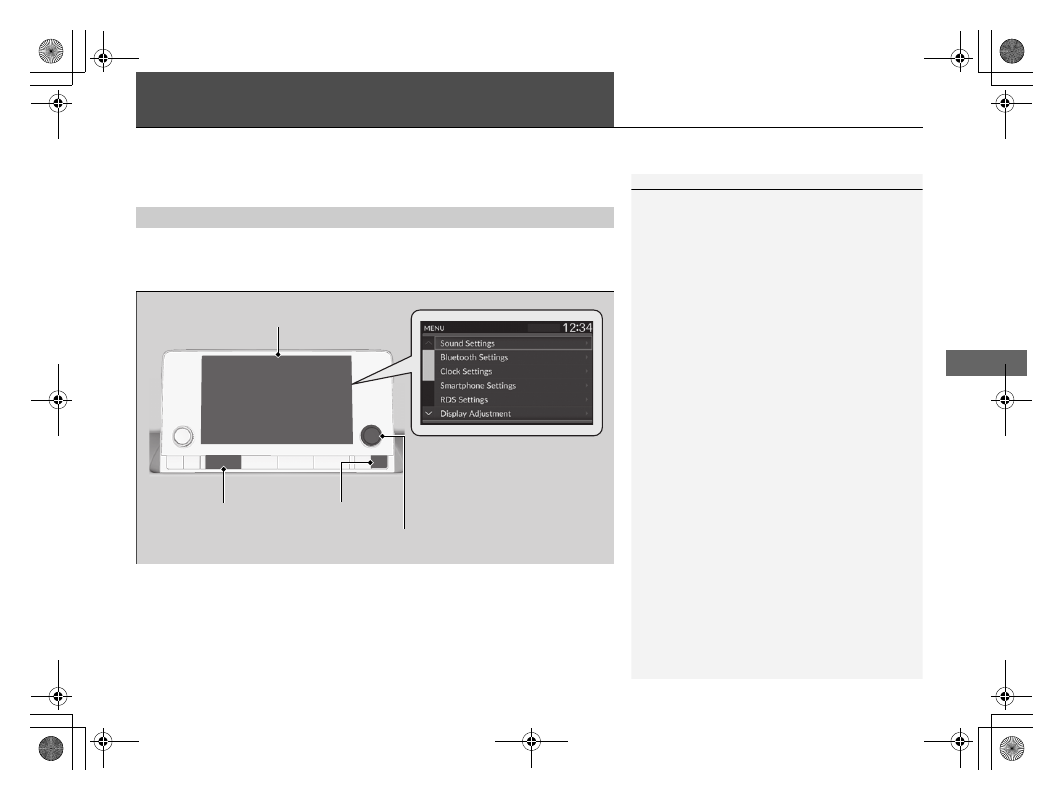
Use the audio/information screen to customize certain features.

While the vehicle is at a complete stop with the power mode in ON, press the 

MENU


button. To customize the phone settings, press the 

PHONE

 button, then select 

Settings

.

How to Customize the Settings

1

Customized Features

When you customize settings:

Make sure that the vehicle is at a complete stop.

Shift to 

(

P

.

To customize features detail, refer to the following.

2

List of customizable options

 P. 260

Audio/Information Screen

MENU

 Button

Selector Knob

PHONE

 Button

260

uu

Customized Features

u

Features

List of customizable options

Press the 

MENU

 button.

*1:Default Setting

Customizable Features

Description

Selectable Settings

Sound Settings

Bass / Treble

Adjusts the settings of the audio speakers’ 
sound.

2

Adjusting the Sound

 P. 213

Balance / Fader
Speed Volume 
Compensation

Bluetooth Settings

Connect New Device

Pairs a new phone to HFL.

2

Phone Setup

 P. 270

Change Device

Connects a paired phone.

2

Phone Setup

 P. 270

Priority Device

Sets a device as the priority device.

ON

*1

/

OFF

Disconnect All Device

Disconnects a paired phone from HFL.

Delete Device

Deletes a paired phone.

Clock Settings

Automatic Time

Selects 

ON

 to have the GPS automatically 

adjust the clock. Select 

OFF

 to cancel this 

function.

ON

*1

/

OFF

Daylight Saving Time

Sets the clock to update based on daylight 
savings time.

ON

/

OFF

*1

Set Time

Adjusts time.

2

Adjusting the Clock

 P. 136

Time Zone

Changes the time zone manually.

261

uu

Customized Features

u

Continued

Features

*1:Default Setting

Customizable Features

Description

Selectable Settings

System Volumes

Voice Recognition

Adjusts the settings of the sounds volume.

0

 ~ 

20

*1

 ~ 

40

Navigation Guidance

0

 ~ 

6

*1

 ~ 

11

Phone Calls

0

 ~ 

20

*1

 ~ 

40

Smartphone Settings

Apple CarPlay

Sets up the Apple CarPlay connection.

Android Auto

Sets up the Android Auto connection.

RDS Settings

RDS Information

Selects whether the RDS information comes 
on.

ON

*1

/

OFF

Display Adjustment

Brightness

Changes the brightness of the audio/
information screen.

Contrast

Changes the contrast of the audio/
information screen.

Black Level

Changes the black level of the audio/
information screen.

Day

Changes between daytime mode, nighttime 
mode, and display off mode.

Night
Display OFF

Touch Panel Sensitivity

Sets the sensitivity of the touch panel screen.

Normal

*1

/

High

Rear Camera Setting

Fixed Guideline

Shows the guideline that does not move with 
the steering wheel.

2

Multi-View Rear Camera

 P. 415

ON

*1

/

OFF

Dynamic Guideline

Shows the guideline that moves with the 
steering wheel.

2

Multi-View Rear Camera

 P. 415

ON

*1

/

OFF

262

uu

Customized Features

u

Features

*1:Default Setting

Customizable Features

Description

Selectable Settings

Cross Traffic Monitor

*

Shows arrows on the rear camera image to 
indicate vehicles approaching from the sides.

2

Cross Traffic Monitor

*

 P. 411

ON

*1

/

OFF

Language

Changes the display language.

English

*1

/

Español

/

Français

Data Sharing

Turns the location data and vehicle data 
sharing function on and off through the 
connected service.

Disable

/

Enable

*1

License

Shows the legal information.

Factory Data Reset

Resets all the settings to their factory default.

2

Defaulting All the Settings

 P. 264

* Not available on all models

263

uu

Customized Features

u

Features

Press the 

PHONE

 button and select 

Settings

.

*1:Default Setting

Customizable Features

Description

Selectable Settings

Bluetooth Settings

Connect New Device

Pairs a new phone to HFL.

2

Phone Setup

 P. 270

Change Device

Connects a paired phone.

2

Phone Setup

 P. 270

Priority Device

Sets a device as the priority device.

ON

*1

/

OFF

Disconnect All Device

Disconnects a paired phone from HFL.

Delete Device

Deletes a paired phone.

Ringtone

Selects the ringtone.

Phone

*1

/

Vehicle

Auto Phone Call Transfer

Sets calls to automatically transfer from your 
phone to HFL when you enter the vehicle.

ON

*1

/

OFF

Hands-Free System Clear

Resets all customized items in the Phone 
Settings group as default.

264

uu

Customized Features

u

Defaulting All the Settings

Features

Defaulting All the Settings

Reset all the menu and customized settings as the factory defaults.

1.

Press the 

MENU

 button.

2.

Select 

Factory Data Reset

.

u

A confirmation message appears on the screen.

3.

Select 

Yes

 to reset the settings.

4.

Select 

Yes

 again to reset the settings.

u

The system will reboot.

1

Defaulting All the Settings

When you transfer the vehicle to a third-party, reset 
all settings to default and delete all personal data.

If you perform 

Factory Data Reset

, it will reset the 

preinstalled apps to their factory default.

265

Continued

Features

Bluetooth

®

 HandsFreeLink

®

Bluetooth

®

 HandsFreeLink

®

 (HFL) allows you to place and receive phone calls using 

your vehicle’s audio system, without handling your cell phone.

Using HFL

HFL Buttons

1

Bluetooth

®

 HandsFreeLink

®

Place your phone where you can get good reception.

To use HFL, you need a 

Bluetooth

-compatible cell 

phone. For a list of compatible phones, pairing 
procedures, and special feature capabilities:

U.S.: Visit 

https://mygarage.honda.com/s/honda-

handsfreelink-compatibility-check

, or call 1-888-

528-7876.

Canada: For more information on smartphone 
compatibility, call 1-855-490-7351.

Voice control tips

Aim the vents away from the ceiling and close the 
windows, as noise coming from them may interfere 
with the microphone.

If the microphone picks up voices other than yours, 
the command may be misinterpreted.

State or local laws may prohibit the operation of 
handheld electronic devices while operating a vehicle.

Up to 20 favorite contacts can be stored. If there is no 
entry in the system, the pop-up notification appears 
on the screen.

2

Favorite Contacts

 P. 278

Up to 20 call histories can be stored. If there is no call 
history, Call History is disabled.

Selector Knob

Left Selector Wheel

PHONE

 Button

VOL 

(

+

/

VOL 

(

-

 (Volume) Switch

uu

Bluetooth

®

 HandsFreeLink

®

u

Using HFL

266

Features

Left Selector Wheel:

 While receiving a call, the incoming call screen is displayed on 

the driver information interface. You can pick up the call using the left selector 
wheel.

2

Receiving a Call

 P. 283

PHONE button: 

Press to go directly to the 

Phone

 screen.

Selector knob: 

Rotate 

 to select an item on the screen, then press 

.

1

Bluetooth

®

 HandsFreeLink

®

Bluetooth

®

 Wireless Technology

The 

Bluetooth

®

 word mark and logos are registered 

trademarks owned by 

Bluetooth

 SIG, Inc., and any 

use of such marks by Honda Motor Co., Ltd., is under 
license. Other trademarks and trade names are those 
of their respective owners.

HFL Limitations
An incoming call on HFL will interrupt the audio 
system when it is playing. It will resume when the call 
is ended.

267

uu

Bluetooth

®

 HandsFreeLink

®

u

Using HFL

Features

The audio/information screen notifies you when there is an incoming call.

Certain manual functions are disabled or inoperable while the vehicle is in motion. 
You cannot select a grayed-out option until the vehicle is stopped.

HFL Status Display

1

HFL Status Display

The information that appears on the audio/
information screen varies between phone models.

Limitations for Manual Operation

HFL Mode

Battery Level Status

Signal Strength

Bluetooth

 Indicator

Appears when your phone 

is connected to HFL.

Roam Status

Call Name
Call Number

268

uu

Bluetooth

®

 HandsFreeLink

®

u

HFL Menus

Features

HFL Menus

The power mode must be in ACCESSORY or ON to use the system.

1

HFL Menus

To use HFL, you must first pair your 

Bluetooth

-

compatible cell phone to the system while the vehicle 
is parked.

Some functions are limited while driving. A message 
appears on the screen when the vehicle is moving 
and the operation is canceled.

PHONE button

Recent Calls

*1

All

Pair a phone to the system.

Connect New Device

Change Device

Connects a paired phone.

Priority Device

Sets a device as the priority device.

Bluetooth Settings

Keypad

*1

Settings

Favorite 
Contacts

*1

(Existing entry list)

Contacts

*1

Dialed

Missed

Received

Display the last outgoing, incoming, and missed calls.
Display the last outgoing calls.

Display the last missed calls.

Display the last incoming calls.

Dial the selected number in the favorite contacts list.

Display the phonebook of the paired phone.

Enter a phone number to dial.

Disconnect All Device

Disconnect a paired phone from the system.

Delete Device

Delete a previously paired phone.

*1 : Available only when a phone is connected to HFL.

269

uu

Bluetooth

®

 HandsFreeLink

®

u

HFL Menus

Continued

Features

Ringtone

Select the ringtone stored in the connected cell phone.

Phone

Vehicle

Select the ringtone stored in HFL.

Auto Phone Call 
Transfer

Hands-Free 
System Clear

Set calls to automatically transfer from your phone to HFL when you 

enter the vehicle.
Clear the phone settings, paired phones, all favorite contacts entries, all 

call history data, and all imported phonebook data.

uu

Bluetooth

®

 HandsFreeLink

®

u

HFL Menus

270

Features

To pair a cell phone (No phone has 
been paired to the system)

1.

Press the 

PHONE

 button.

2.

Make sure your phone is in search or 
discoverable mode.

3.

Select 

Yes

.

u

The audio system will enter a waiting 
mode for pairing.

4.

Select 

Accord

 from your phone.

u

If you want to pair a phone from this 
audio system, select 

Search from car


and follow the prompts.
When your phone appears on the list, 
select it.

5.

The system gives you a pairing code on the 
audio/information screen.

u

Confirm if the pairing code on the screen 
and your phone match.
This may vary by phone.

6.

A notification appears on the screen if 
pairing is successful.

Phone Setup

1

Phone Setup

Your 

Bluetooth

-compatible phone must be paired to 

HFL before you can make and receive hands-free 
calls.

Phone Pairing Tips:

You cannot pair your phone while the vehicle is 
moving.

Up to six phones can be paired.

Your phone’s battery may drain faster when it is 
connected to HFL.

If your phone is not ready to be paired or is not 
paired within three minutes, the system will time 
out and return to the 

Bluetooth Settings

 screen.

Once you have paired a phone, you can see it 
displayed on the screen with one or two icons on the 
right side.
These icons indicate the following:

: The phone is compatible with 

Bluetooth

®

 Audio.

: The phone can be used with HFL.

When pairing a phone from this audio system:
If your phone doesn’t appear on the audio/
information screen, select 

Search from phone

 and 

search for 

Bluetooth

®

 devices using your phone. 

From your phone, select 

Accord

.

271

uu

Bluetooth

®

 HandsFreeLink

®

u

HFL Menus

Continued

Features

To pair a cell phone (when a phone has 
already been paired to the system)

1.

Press the 

PHONE

 button.

u

If a prompt appears asking to connect to 
a phone, select 

No

 and proceed with 

step 2.

2.

Select 

Settings

.

3.

Select 

Bluetooth Settings

.

4.

Select 

Connect New Device

.

u

The audio system will enter a waiting 
mode for pairing.

272

uu

Bluetooth

®

 HandsFreeLink

®

u

HFL Menus

Features

5.

Make sure your phone is in search or 
discoverable mode.

6.

Select 

Accord

 from your phone.

u

If you want to pair a phone from this 
audio system, select 

Search from car


and follow the prompts.
When your phone appears on the list, 
select it.

7.

The system gives you a pairing code on the 
audio/information screen.

u

Confirm if the pairing code on the screen 
and your phone match.
This may vary by phone.

8.

A notification appears on the screen if 
pairing is successful.

u

You can prioritize a 

Bluetooth

®

 device at 

the same time. Select 

Yes

 if you want to 

prioritize the device.

273

uu

Bluetooth

®

 HandsFreeLink

®

u

HFL Menus

Continued

Features

To change the currently paired phone

1.

Press the 

PHONE

 button.

2.

Select 

Settings

.

3.

Select 

Bluetooth Settings

.

4.

Select 

Change Device

.

u

The screen changes to a device list.

5.

Select a desired device name.

6.

Select 

Both

Audio

, or 

Phone

.

u

When another device is connected to 
Android Auto and you select 

Both

 or 

Phone

, a confirmation message appears. 

Select 

Continue

.

u

HFL disconnects the connected phone 
and starts searching for another paired 
phone.

274

uu

Bluetooth

®

 HandsFreeLink

®

u

HFL Menus

Features

To delete a paired phone 

1.

Press the 

PHONE

 button.

2.

Select 

Settings

.

3.

Select 

Bluetooth Settings

.

4.

Select 

Delete Device

.

u

The screen changes to a device list.

5.

Select a phone you want to delete.

6.

A confirmation message appears on the 
screen. Select 

Yes

.

u

When the device is connected to Android 
Auto, a confirmation message appears. 
Select 

Yes

.

Continued

275

uu

Bluetooth

®

 HandsFreeLink

®

u

HFL Menus

Features

If paring between your phone and the system is executed while you are on the 
phone, the call can be automatically transferred to HFL.

1.

Press the 

PHONE

 button.

2.

Select 

Settings

.

3.

Select 

Auto Phone Call Transfer

.

4.

Select 

ON

 or 

OFF

.

You can change the ringtone setting.

1.

Press the 

PHONE

 button.

2.

Select 

Settings

.

3.

Select 

Ringtone

.

4.

Select 

Phone

 or 

Vehicle

.

Automatic Transferring

Ringtone

1

Ringtone

Phone: 

Depending on the make and model of the 

cell phone, the ringtone stored in the phone will 
sound if the phone is connected.

Vehicle: 

The fixed ringtone sounds from the 

speakers.

276

uu

Bluetooth

®

 HandsFreeLink

®

u

HFL Menus

Features

Phone settings, paired phones, all favorite contacts entries, all call history data, and 
all imported phonebook data are erased.

1.

Press the 

PHONE

 button.

2.

Select 

Settings

.

3.

Select 

Hands-Free System Clear

.

4.

Select 

Yes

.

5.

A confirmation message appears on the 
screen. Select 

Yes

.

6.

A notification appears on the screen. Select 

OK

.

To Clear the System

Continued

277

uu

Bluetooth

®

 HandsFreeLink

®

u

HFL Menus

Features

When your phone is paired, the contents of its phonebook and call history are 
automatically imported to HFL.

Automatic Import of Cellular Phonebook and Call History

1

Automatic Import of Cellular Phonebook and Call History

When you select a person from the list in the cellular 
phonebook, you can see up to five category icons. 
The icons indicate what types of numbers are stored 
for that name.

On some phones, it may not be possible to import the 
category icons to HFL.

The phonebook is updated after every connection. 
Call history is updated after every connection or call.

Pref

Home

Mobile

Pager

Work

Fax

Car

Other

Voice

278

uu

Bluetooth

®

 HandsFreeLink

®

u

HFL Menus

Features

To add a favorite contact

1.

Press the 

PHONE

 button.

2.

Select 

Recent Calls

Contacts

, or 

Keypad

.

3.

Select the star icon.

3.

Select 

Add to Favorite

.

u

A notification appears on the screen if 
the favorite contact is successfully stored.

u

To remove the favorite contact, select 
the star icon again.

Favorite Contacts

Recent Calls Screen

Star Icon

Contacts Screen

Star Icon

Keypad Screen

Add to Favorite

On the Recent Calls or Contacts screen

On the Keypad screen

279

uu

Bluetooth

®

 HandsFreeLink

®

u

HFL Menus

Continued

Features

To delete a favorite contact

1.

Press the 

PHONE

 button.

2.

Select 

Favorite Contacts

.

3.

Select the star icon.

4.

A confirmation message appears on the 
screen. Select 

Yes

.

Star Icon

uu

Bluetooth

®

 HandsFreeLink

®

u

HFL Menus

280

Features

You can make calls by inputting any phone number, or by using the imported 

Recent Calls

Favorite Contacts

, and 

Contacts

 entries.

To make a call using the imported 
phonebook

When your phone is paired, the contents of its 
phonebook are automatically imported to 
HFL.

1.

Press the 

PHONE

 button.

2.

Select 

Contacts

.

3.

The phonebook is stored alphabetically.
Select a name.

4.

Select a number.

u

Dialing starts automatically.

Making a Call

1

Making a Call

Once a call is connected, you can hear the voice of 
the person you are calling through the audio 
speakers.

Continued

281

uu

Bluetooth

®

 HandsFreeLink

®

u

HFL Menus

Features

To make a call using a phone number

1.

Press the 

PHONE

 button.

2.

Select 

Keypad

.

3.

Select a number.

4.

Select 

Call

.

u

Dialing starts automatically.

To make a call using the call history

Call history is stored by 

All

Dialed

Missed

or 

Received

.

1.

Press the 

PHONE

 button.

2.

Select 

Recent Calls

.

u

You can sort by 

All

Dialed

Missed

, or 

Received

. Select the icon on the upper 

right of the screen.

3.

Select a number.

u

Dialing starts automatically.

1

To make a call using the call history

The call history appears only when a phone is 
connected to HFL, and displays the last 20 dialed, 
received, or missed calls.

282

uu

Bluetooth

®

 HandsFreeLink

®

u

HFL Menus

Features

To make a call using a favorite contact

1.

Press the 

PHONE

 button.

2.

Select 

Favorite Contacts

.

3.

Select a number.

u

Dialing starts automatically.

Continued

283

uu

Bluetooth

®

 HandsFreeLink

®

u

HFL Menus

Features

When there is an incoming call, an audible 
notification sounds and the 

Incoming Call...


screen appears.

You can answer the call using the left selector 
wheel.
To pick up the call, roll up or down to select 

Answer

 on the driver information interface 

and then press the left selector wheel.

u

If you want to decline or end the call, 
select 

Ignore

 on the driver information 

interface using the left selector wheel.

Receiving a Call

1

Receiving a Call

Call Waiting
Select 

Answer

 using the left selector wheel to put 

the current call on hold to answer the incoming call.
Select 

Swap calls

 using the left selector wheel to 

return to the current call.
Select 

Ignore

 using the left selector wheel to ignore 

the incoming call if you do not want to answer it.
Select 

Hang Up

 using the left selector wheel if you 

want to hang up the current call.

You can select the icons on the audio/information 
screen instead of the icons on the driver information 
interface.

HFL Mode

Caller’s Name

uu

Bluetooth

®

 HandsFreeLink

®

u

HFL Menus

284

Features

The following options are available during a call.

Swap Calls: 

Put the current call on hold to answer the incoming call.

Mute: 

Mute your voice.

Use Handheld: 

Transfer a call from HFL to your phone.

Keypad: 

Send numbers during a call. This is useful when you call a menu-driven 

phone system.

The available options are shown on the lower 
half of the screen.

Select the option.

u

The mute icon appears when 

Mute

 is 

selected. Select 

Mute

 again to turn it off.

Options During a Call

1

Options During a Call

Keypad

: Available on some phones.

Mute Icon

285

Continued

Features

Emergency Call (eCall)

Automatic emergency call

If your vehicle is involved in a collision, the 
vehicle will attempt to connect to a Public 
Safety Answering Point (PSAP) operator. Once 
a connection is established, your location 
information will be sent to a PSAP operator 
with whom you will be able to speak.

When an emergency call is initiated, the vehicle speakers are disabled so that you 
can hear the operator.

When the power mode is set to ON, the eCall indicator lights up in green for 1 
second, then in red for 1 second.

eCall Indicator

uu

Emergency Call (eCall)

u

Automatic emergency call

286

Features

If the eCall system is working properly, the indicator will light up in green.

Green: eCall system is ready.

Blinking in green: eCall system is connected and making an eCall to a PSAP 
operator.

Repeating a pattern of short flashes of the red light: The eCall system has failed 
to connect to an operator. The eCall indicator will continue this pattern for five 
seconds, then it will light up in green.

If the 911-based eCall system is disabled in the event of a critical system failure, the 
following warning will be given to the occupants of the vehicle:

Red or blacked out: A problem with the eCall system has occurred. If the indicator 
stays red or blacked out even after you have restarted the vehicle, have the system 
check by a dealer.

1

Emergency Call (eCall)

Your vehicle may NOT be able to connect to a PSAP 
operator if:

The 12V battery is too low.

Your vehicle is in an area without adequate cellular 
coverage.

There is a problem with the eCall system itself or its 
peripheral equipment such as the microphone or 
speakers.

287

uu

Emergency Call (eCall)

u

Manual emergency call

Features

Manual emergency call

If you need to make an emergency call, you 
can establish a connection manually. Press the 

SOS

 button.

To cancel a call, press the 

SOS

 button for 

more than two seconds, before 10 seconds 
have elapsed since the 

SOS

 button was 

pressed.

The 

SOS

 button is protected by a cover. Open the cover to gain access.

When an emergency call is initiated, the vehicle speakers are disabled so that you 
can hear the operator.

1

Manual emergency call

Do NOT press the button while you are driving. If you 
need to contact an operator, park the vehicle in a 
safe place before you make a call.

If the eCall system at first fails to connect to a PSAP 
operator, it will try again until a connection is 
established. However, if two minutes have elapsed 
since the first try was attempted, the system will no 
longer attempt to establish a connection.

The 

SOS

 button does not cancel a call once the 

system is connected to an operator.

Microphone

SOS

 Button

Cover

288

This page intentionally left blank.

289

Driving

This chapter discusses driving and refueling.

Before Driving

................................... 290

Towing a Trailer

................................ 295

When Driving

Starting the Engine .......................... 296
Precautions While Driving................. 302
Continuously Variable Transmission.. 303
Shifting ............................................ 304
ECON Mode .................................... 306
Auto Idle Stop.................................. 307

Vehicle Stability Assist

TM

 (VSA

®

), aka 

Electronic Stability Control (ESC), 
System ........................................313

Agile Handling Assist ....................... 315

Tire Pressure Monitoring System 

(TPMS)

*

...................................... 316

Tire Pressure Monitoring System (TPMS) - 

Required Federal Explanation........... 321

Blind Spot Information System

*

....... 323

Honda Sensing

®

................................ 327

Collision Mitigation Braking System

TM


(CMBS

TM

) ....................................... 330

Road Departure Mitigation System... 342
Adaptive Cruise Control (ACC) with Low 

Speed Follow ................................. 350

Lane Keeping Assist System (LKAS) .. 370
Traffic Jam Assist ............................. 381

Traffic Sign Recognition System ....... 390
Front Sensor Camera ....................... 396
Radar Sensor ................................... 398

Braking

Brake System ................................... 399
Anti-lock Brake System (ABS) ........... 407
Brake Assist System ......................... 408

Parking Your Vehicle

........................ 409

Multi-View Rear Camera

.................. 415

Refueling

........................................... 417

Fuel Economy and CO

2

 Emissions

.... 420

Turbo Engine Vehicle

....................... 421

* Not available on all models

290

Driving

Before Driving

Driving Preparation

Check the following items before you start driving.

Make sure there are no obstructions on the windows, door mirrors, exterior 
lights, or other parts of the vehicle.

u

Remove any frost, snow, or ice.

u

Remove any snow on the roof, as this can slip down and obstruct your field of 
vision while driving. If frozen solid, remove ice once it has softened.

u

When removing ice from around the wheels, be sure not to damage the wheel 
or wheel components.

Make sure the hood is securely closed.

u

If the hood opens while driving, your front view will be blocked.

Make sure the tires are in good condition.

u

Check air pressures, and check for damage and excessive wear.

2

Checking and Maintaining Tires

 P. 451

Make sure there are no people or objects behind or around the vehicle.

u

There are blind spots from the inside.

Exterior Checks

1

Exterior Checks

NOTICE

When doors are frozen shut, use warm water around 
the door edges to melt any ice. Do not try to force 
them open, as this can damage the rubber trim 
around the doors. When done, wipe dry to avoid 
further freezing.

Do not pour warm water into the key cylinder.
You will be unable to insert the key if the water 
freezes in the hole.

Heat from the engine and exhaust can ignite 
flammable materials left under the hood, causing a 
fire. If you’ve parked your vehicle for an extended 
period, inspect and remove any debris that may have 
collected, such as dried grass and leaves that have 
fallen or have been carried in for use as a nest by a 
small animal. Also, check under the hood for leftover 
flammable materials after you or someone else has 
performed maintenance on your vehicle.


Content      ..     6      7      8      9     ..