Honda Odyssey (2023 year). Manual in english - page 8
 

  Index      Manuals     Honda Odyssey (2023 year). Manual in english


Search            copyright infringement  


Content      ..     6      7      8      9     ..


Honda Odyssey (2023 year). Manual in english - page 8


126

uu

Indicators

u

Driver Information Interface Warning and Information Messages

In

strum

e

nt Pa

nel

Message

Condition

Explanation

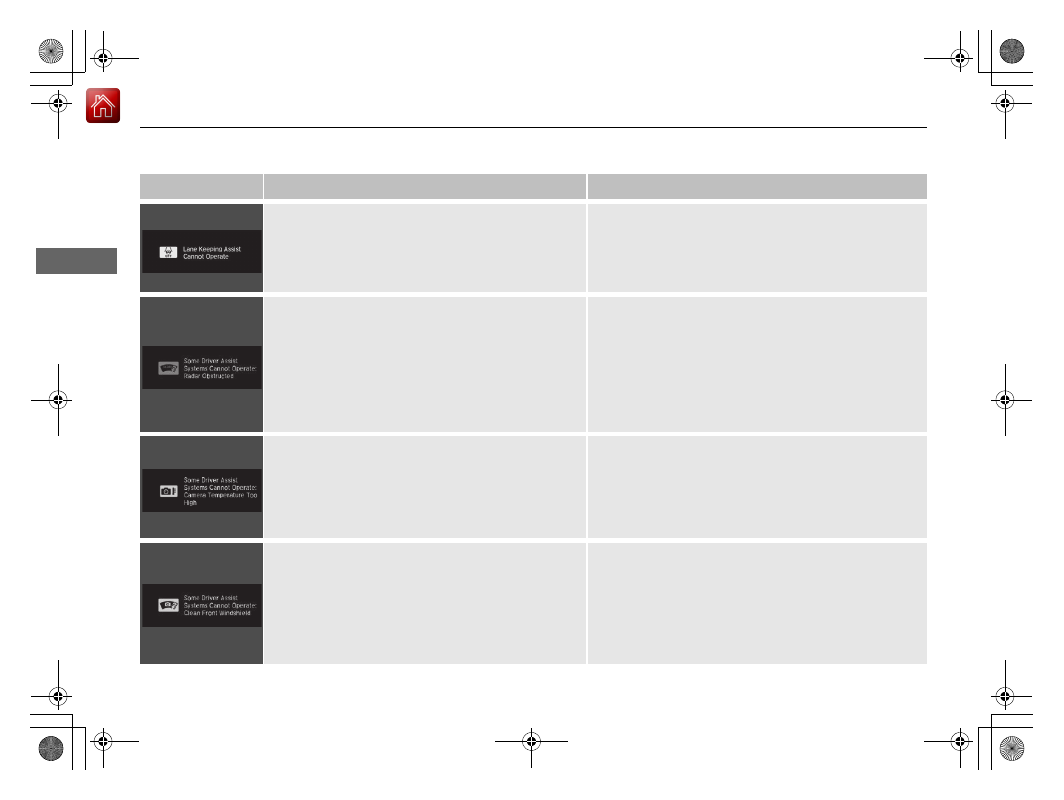
Appears when the LKAS is in operation, or the LKAS 
button is pressed, but there is a problem with a 
system related to the LKAS. The LKAS cancels 
automatically. The beeper sounds simultaneously if 
selected by customization.

If any other system indicators come on, such as the 
VSA

®

, ABS and brake system, take appropriate action.

2

Indicators

 P. 88

Appears if anything covers the radar sensor cover 
and prevents the sensor from detecting a vehicle in 
front.

May appear when driving in bad weather (rain, 
snow, fog, etc.)

When the radar sensor gets dirty, stop your vehicle in a 
safe place, and wipe off dirt using a soft cloth. The 
message may take some time to go off.

Have your vehicle checked by a dealer if the message 
does not disappear even after you clean the sensor 
cover.

2

Radar Sensor

 P. 560

2

Honda Sensing

®

 P. 509

Appears if the temperature inside the front sensor 
camera is too high and some driver assist systems 
cannot be activated.

Use the climate control system to cool down the 
camera.

Disappears 

- The camera has been cooled down and 

the systems are activated normally.

2

Front Sensor Camera

 P. 558

2

Honda Sensing

®

 P. 509

Appears if the area around the front sensor camera 
is blocked by dirt, mud, etc. and be prevented from 
detecting a vehicle in front.

May appear when driving in bad weather (rain, 
snow, fog, etc.)

When the front window gets dirty, stop your vehicle in 
a safe place, and wipe it off with a soft cloth.

Have your vehicle checked by a dealer if the message 
does not disappear even after you cleaned the area 
around the camera.

2

Front Sensor Camera

 P. 558

2

Honda Sensing

®

 P. 509

127

In

strum

e

nt Pa

nel

Gauges and Driver Information Interface

Gauges

Gauges include the fuel gauge, temperature gauge, and related indicators. They are 
displayed when the power mode is set to ON.

Displays the amount of fuel left in the fuel tank.

Displays the temperature of the engine coolant.

Fuel Gauge

Temperature Gauge

1

Fuel Gauge

NOTICE

You should refuel when the reading approaches 

.

Running out of fuel can cause the engine to misfire, 
damaging the catalytic converter.

The actual amount of remaining fuel may differ from 
the fuel gauge reading.

E

1

Temperature Gauge

NOTICE

Driving with the temperature gauge pointer in the 
upper zone can cause serious engine damage. Pull 
safely to the side of the road and allow engine 
temperature to return to normal.

2

Overheating

 P. 661

128

uu

Gauges and Driver Information Interface

u

Driver Information Interface

In

strum

e

nt Pa

nel

Driver Information Interface

The driver information interface shows information such as the estimated travelable 
distance and fuel economy of the vehicle. It also displays messages such as warnings 
and other helpful information.

Displays your driving speed in mph or km/h.

Shows the number of engine revolutions per minute.

Speedometer

Tachometer

1

Speedometer

You can set the speedometer and the displayed 
measurements to read in either mph or km/h.

2

Units

 P. 138

1

Tachometer

You can turn on or off the tachometer display.

2

Show Tachometer

 P. 142

Continued

129

uu

Gauges and Driver Information Interface

u

Driver Information Interface

In

strum

e

nt Pa

nel

Shows the total number of miles or kilometers 
that your vehicle has accumulated.

Shows the outside temperature in Fahrenheit 
(U.S.) or Celsius (Canada).

Adjusting the outside temperature 
display

Adjust the temperature reading by up to ±5°F 
or ±3°C if the temperature reading seems 
incorrect.
Use the audio/information screen to correct 
the temperature.

2

Customized Features

 P. 413

Odometer

Odometer

Outside Temperature

1

Outside Temperature

The temperature sensor is in the front bumper.
Road heat and exhaust from another vehicle can 
affect the temperature reading when your vehicle 
speed is less than 19 mph (30 km/h).

It may take several minutes for the display to be 
updated after the temperature reading has stabilized.

Outside Temperature

uu

Gauges and Driver Information Interface

u

Driver Information Interface

130

In

strum

e

nt Pa

nel

Shows the traffic sign recognition system.

2

Traffic Sign Recognition System

 P. 553

Press the 

 (home) button, then press the 

/

 button to scroll to the content 

you want to see. Press 

ENTER

 to see detailed information.

Traffic Sign Recognition System

Accessing Content

1

Traffic Sign Recognition System

You can turn on or off the traffic sign recognition 
system.

2

Customized Features

 P. 413

1

Accessing Content

To go back to the previous screen, press the 


(back) button.

You can edit, add, or delete the meter contents using 
the driver information interface.

2

Arrange Apps

 P. 141

2

Show/Hide Apps

 P. 140

3 4

131

uu

Gauges and Driver Information Interface

u

Driver Information Interface

Continued

In

strum

e

nt Pa

nel

Press  

or .

3

4

Warnings

2

 P. 136

Show/Hide Apps

2

 P. 140

Trip Computer

2

 P. 132

Phone

2

 P. 138

Navigation

2

 P. 134

Units

2

 P. 138

Settings

2

 P. 141

Maintenance

2

 P. 137

Now Playing

2

 P. 139

Blank

2

 P. 139

 (Home) Button

/

 Button

3 4

Safety Support

2

 P. 135

132

uu

Gauges and Driver Information Interface

u

Driver Information Interface

In

strum

e

nt Pa

nel

Press the 

ENTER

 button to switch between trip computer A and trip computer B.

Trip Computer

ENTER

 Button

ENTER

Trip Computer A

Trip Computer B

Distance

Range

Average Fuel 
Economy

Instant Fuel 
Economy

Continued

133

uu

Gauges and Driver Information Interface

u

Driver Information Interface

In

strum

e

nt Pa

nel

Distance

Shows the total number of miles or kilometers driven since the last reset. Meters A 
and B can be used to measure two separate trips.

Resetting distance

To reset the 

Distance

, display it and then press and hold the 

ENTER

 button until the 

Distance

 is reset to 

0.0

.

Average fuel economy (Avg. Fuel)

Shows the estimated average fuel economy of each 

Distance

 in mpg or l/100 km. 

The display is updated at set intervals. When a 

Distance

 is reset, the average fuel 

economy is also reset.

Instant fuel economy

Shows the instant fuel economy as a bar graph in mpg or l/100 km.

Range

Shows the estimated distance you can travel on the remaining fuel. This estimated 
distance is based on the vehicle’s current fuel economy.

1

Distance

Switch between 

Distance

 A and 

Distance

 B by 

pressing the 

ENTER

 button.

1

Average fuel economy (

Avg. Fuel

)

You can change when the average fuel economy is 
reset.

2

Customized Features

 P. 413

uu

Gauges and Driver Information Interface

u

Driver Information Interface

134

In

strum

e

nt Pa

nel

Compass

Shows the compass screen.

Turn-by-Turn Directions

When driving guidance is provided by the 
navigation system

*

 or Android Auto, turn-by-

turn directions to your destination appear.

2

Refer to the Navigation System Manual

2

Android Auto

TM

 P. 335

Navigation

1

Navigation

You can select whether to have the turn-by-turn 
display come on or not during route guidance.

2

Customized Features

 P. 413

Turn-by-turn directions may not be available for all 
apps.

When the compass or turn-by-turn directions are 
displayed, you can control some navigation system 
functions on the driver information interface by 
pressing the 

ENTER

 button.

2

Refer to the Navigation System Manual

Models with navigation system

Compass

Turn-By-Turn Driving Directions

* Not available on all models

Continued

135

uu

Gauges and Driver Information Interface

u

Driver Information Interface

In

strum

e

nt Pa

nel

Indicates the status of RDM, CMBS

TM

 and blind spot information system, such as On, 

Off, or Failure, by color and letters.

The following colors indicate the status of any of the above mentioned systems:

Green: The system is on.

Gray: The system is off.

Amber: There is a problem with the system.

Safety Support

1

Safety Support

If a system is indicated by the color amber, have your 
vehicle checked by a dealer immediately.

To turn on or off each system, first press the 

/


button to switch displays. From the next display you 
can select which system to turn on or off.

2

RDM On and Off

 P. 550

2

CMBS

TM

 On and Off

 P. 516

2

Blind spot information system on and off


P. 508

You can also confirm the status of each function by 
the color of the safety support indicator.

2

Safety Support Indicator (Amber)

 P. 104

2

Safety Support Indicator (Green/Gray)


P. 107

3 4

Area Info for CMBS

TM

CMBS

TM

 Icon 

and Status Info

Area Info for 
Blind Spot 
Information 
System

RDM Icon and 
Status Info

Area Info for 
RDM

Blind Spot 
Information 
System Icon 
and Status Info

uu

Gauges and Driver Information Interface

u

Driver Information Interface

136

In

strum

e

nt Pa

nel

2

Driver Information Interface Warning and 
Information Messages

 P. 108

Warnings

1

Warnings

The 

Warnings

 app is dynamic and will only appear 

when there are active warnings. If there are no 
Warnings, this app will not be shown.

(Example)

137

uu

Gauges and Driver Information Interface

u

Driver Information Interface

Continued

In

strum

e

nt Pa

nel

Shows the current condition of the tire 
pressure and the remaining oil life.

Tire Pressure

Shows the tire pressure of each tire.

2

Tire Pressure Monitoring System (TPMS) 
with Tire Fill Assist

 P. 502

Oil Life

Shows the remaining oil life and Maintenance 
Minder

TM

.

2

Maintenance Minder

TM

 P. 591

Maintenance

138

uu

Gauges and Driver Information Interface

u

Driver Information Interface

In

strum

e

nt Pa

nel

Shows the current phone information.

2

Bluetooth

®

 HandsFreeLink

®

 P. 435

Enables you to set the speedometer and the 
displayed measurements to read in either mph 
or km/h.

Press and hold the 

ENTER

 button. Each time 

you do this, the unit will change from mph to 
km/h or vice versa. After this, a confirmation 
screen will appear for a few seconds.

Phone

Units

139

uu

Gauges and Driver Information Interface

u

Driver Information Interface

Continued

In

strum

e

nt Pa

nel

Shows blank screen.

Shows the current audio information.

2

Audio System Basic Operation

 P. 264

Blank

Now Playing

uu

Gauges and Driver Information Interface

u

Driver Information Interface

140

In

strum

e

nt Pa

nel

You can show or hide the meter contents.

Select the content you wish to show or hide, 
then press 

ENTER

.

u

Repeat it if you want to show or hide 
more than one app.

Show/Hide Apps

1

Show/Hide Apps

You cannot hide apps with the 

 icon on the right 

side.

You can also add the 

Android Auto

Apple 

CarPlay

Sirius XM

*

My Honda Music

USB

AM

FM

Bluetooth Audio

Social Playlist

AUX Input

CD

*

 and 

Rear Entertainment

*

 apps.

Shown

Press 

ENTER

Hidden

* Not available on all models

141

uu

Gauges and Driver Information Interface

u

Driver Information Interface

Continued

In

strum

e

nt Pa

nel

Change the settings to your liking.

Arrange Apps

You can change the order of the apps on the home screen.

1.

Press the 

/

 button to select 

Arrange 

Apps

, then press 

ENTER

.

2.

Press the 

/

 button to select the icon 

you want to move, then press 

ENTER

.

3.

Press the 

/

 button repeatedly to move 

the icon to your desired position, then press 

ENTER

.

Settings

3 4

3 4

3 4


Content      ..     6      7      8      9     ..