Honda HR-V (2023 year). Manual in english - page 5
 

  Index      Manuals     Honda HR-V (2023 year). Manual in english


Search            copyright infringement  


Content      ..     3      4      5      6     ..


Honda HR-V (2023 year). Manual in english - page 5


99

uu

Indicators

u

Continued

In

strum

e

nt Pa

nel

Indicator

Name

On/Blinking

Explanation

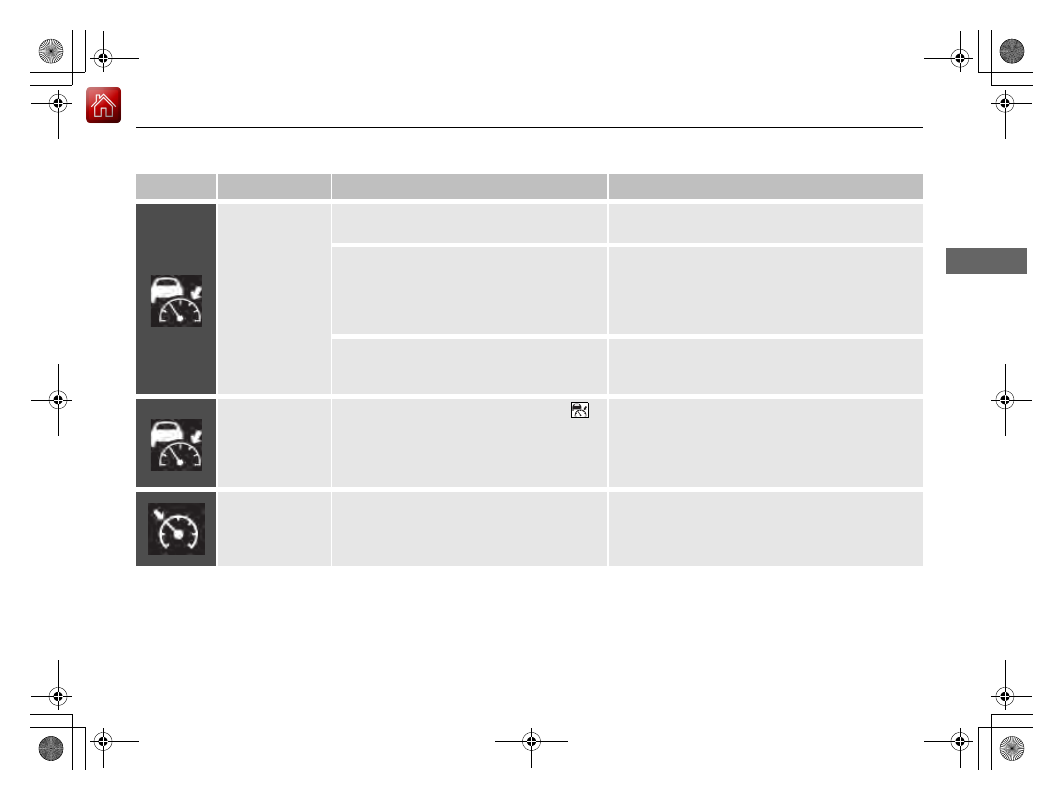
Adaptive Cruise 
Control (ACC) 
with Low Speed 
Follow Indicator 
(Amber)

Comes on if there is a problem with ACC 
with Low Speed Follow.

Comes on while driving 

- Have your vehicle 

checked by a dealer.

Indicator may come on temporarily when the 
Maximum Load Limit is exceeded.

ACC with Low Speed Follow has been 
automatically canceled.

Make sure the total load is within the Maximum 
Load Limit.

2

Maximum Load Limit

 P. 413

Stays on constantly 

- Have your vehicle checked 

by a dealer.

Comes on if the ACC with Low Speed Follow 
is deactivated temporarily after the battery 
has been disconnected, then re-connected.

Drive a short distance at more than 12 mph (20 
km/h). The indicator should go off. If it does not, 
have your vehicle checked by a dealer.

Adaptive Cruise 
Control (ACC) 
with Low Speed 
Follow Indicator 
(White/Green)

Lights up in white when you press the 


button.

Lights up in green when you press the 

RES/+/SET/−

 switch up or down.

2

Adaptive Cruise Control (ACC) with Low 
Speed Follow

 P. 471

Cruise Mode 
Indicator (White/
Green)

Lights up in white when you change to 
cruise mode.

Lights up in green when you have set a 
speed for cruise control.

2

To Switch ACC with Low Speed Follow to 
Cruise Control

 P. 488

100

uu

Indicators

u

In

strum

e

nt Pa

nel

Indicator

Name

On/Blinking

Explanation

Lane Keeping 
Assist System 
(LKAS) Indicator 
(Amber)

Comes on if there is a problem with the 
LKAS.

Stays on constantly 

- Have your vehicle checked 

by a dealer.

Indicator may come on temporarily when the 
Maximum Load Limit is exceeded.

Make sure the total load is within the Maximum 
Load Limit.

2

Maximum Load Limit

 P. 413

Stays on constantly 

- Have your vehicle checked 

by a dealer.

Lane Keeping 
Assist System 
(LKAS) Indicator 
(White/Green)

Lights up in white when you press the LKAS 
button.

Lights up in green when the LKAS is in 
operation.

2

Lane Keeping Assist System (LKAS)

 P. 491

101

uu

Indicators

u

Continued

In

strum

e

nt Pa

nel

Indicator

Name

On/Blinking

Explanation

Safety Support 
Indicator (Amber)

Comes on if there is a problem with Road 
Departure Mitigation system, CMBS

TM

, Low 

Speed Braking Control

*

, or blind spot 

information system

*

.

Stays on constantly

 - Have your vehicle checked 

by a dealer.

Comes on if there is a problem with the 
parking sensor.

Check if the area around the sensor(s) is covered 
with mud, ice, snow, etc. if the indicator stays on 
even after you clean the area, have the system 
checked by a dealer.

Indicator may come on temporarily when the 
Maximum Load Limit is exceeded.

Make sure the total load is within the Maximum 
Load Limit.

2

Maximum Load Limit

 P. 413

Stays on constantly

 - Have your vehicle checked 

by a dealer.

Comes on if the Road Departure Mitigation 
system, Low Speed Braking Control

*

 and 

CMBS

TM

 are deactivated temporarily after 

the battery has been disconnected and then 
re-connected.

Drive a short distance at more than 12 mph (20 
km/h). The indicator should go off. If it does not, 
have your vehicle checked by a dealer.

Models with Parking Sensor System

* Not available on all models

102

uu

Indicators

u

In

strum

e

nt Pa

nel

Indicator

Name

On/Blinking

Explanation

Safety Support 
Indicator (Amber)

Comes on when Road Departure Mitigation 
system and/or CMBS

TM

 shuts itself off.

Stays on

 - The temperature inside the camera is 

too high.
Use the climate control system to cool down the 
camera.
The system activates when the temperature inside 
the camera cools down.

2

Front Wide View Camera

 P. 525

Stays on

 - The area around the camera is blocked 

by dirt, mud, etc. Stop your vehicle in a safe place 
and wipe the debris off with a soft cloth.

Have your vehicle checked by a dealer if the 
indicator and message are still displayed even after 
you have cleaned the area around the camera.

2

Front Wide View Camera

 P. 525

It may come on when the ambient conditions are 
dark, such as when driving in a tunnel, or at night, 
dawn, or dusk.

103

uu

Indicators

u

In

strum

e

nt Pa

nel

Indicator

Name

On/Blinking

Explanation

Safety Support 
Indicator (Amber)

Comes on when mud, snow, or ice 
accumulates in the vicinity of sonar sensor.

Remove the obstacle in the vicinity of sonar sensor.

2

Low Speed Braking Control

*

 P. 465

Comes on when mud, snow, or ice 
accumulates in the vicinity of the blind spot 
information system sensor.

Comes on when the temperature of the 
blind spot information system sensor is high.

Comes on while driving

 - Something may be 

interfering with the blind spot information system 
sensor. Check the vicinity of the blind spot 
information system sensor and remove any 
obstacles.

The system will return to normal when the 
temperature cools down.

2

Blind Spot Information System

*

 P. 445

Safety Support 
Indicator (Green/
Gray)

Lights up in green when Road Departure 
Mitigation system, CMBS

TM

, Low Speed 

Braking Control

*

, Parking Sensor System

*

and blind spot information system

*

 are on.

Lights up in green and gray when Road 
Departure Mitigation system, CMBS

TM

, Low 

Speed Braking Control

*

, Parking Sensor 

System

*

, or blind spot information system

*

or any two, three or four of these systems 
are off.

Lights up in gray when Road Departure 
Mitigation system, CMBS

TM

, Low Speed 

Braking Control

*

, Parking Sensor System

*

and blind spot information system

*

 are off.

2

Road Departure Mitigation System

 P. 511

2

Collision Mitigation Braking System

TM


(CMBS

TM

)

 P. 453

2

Blind Spot Information System

*

 P. 445

2

Low Speed Braking Control

*

 P. 465

2

Parking Sensor System

*

 P. 538

Models with Low Speed Braking Control

Models with blind spot information system

* Not available on all models

104

In

strum

e

nt Pa

nel

Gauges and Driver Information Interface

Gauges

Gauges include the speedometer, fuel gauge, and other related indicators.
They are displayed when the power mode is in ON.

Displays your driving speed in mph or km/h.

Shows the number of engine revolutions per minute.

Displays the amount of fuel left in the fuel tank.

Speedometer

Tachometer

Fuel Gauge

1

Speedometer

You can change the Speed/Distance Units.

2

Speed/Distance Units

 P. 122

2

Settings

*

 P. 123

2

Customized Features

 P. 345

1

Tachometer

The tachometer can be turned on and off using the 
driver information interface or audio/information 
screen.

2

Settings

*

 P. 123

2

Customized Features

 P. 345

1

Fuel Gauge

NOTICE

You should refuel when the reading approaches 

.

Running out of fuel can cause the engine to misfire, 
damaging the catalytic converter.

The actual amount of remaining fuel may differ from 
the fuel gauge reading.

E

* Not available on all models

Continued

105

uu

Gauges and Driver Information Interface

u

Gauges

In

strum

e

nt Pa

nel

Shows the total number of miles or kilometers that your vehicle has accumulated.

Shows the outside temperature in Fahrenheit (U.S.) or Celsius (Canada).

Adjusting the outside temperature display

Adjust the temperature reading by up to ±5°F or ±3°C if the temperature reading 
seems incorrect.

Shows certain detected traffic signs while driving.
The indicator blinks when the maximum speed of the traffic sign detected by the 
Traffic Sign Recognition System is exceeded.

2

Traffic Sign Recognition System

 P. 519

Odometer

Outside Temperature

Traffic Sign Recognition System

1

Outside Temperature

The temperature sensor is in the front bumper.
Road heat and exhaust from another vehicle can 
affect the temperature reading when your vehicle 
speed is less than 19 mph (30 km/h).

It may take several minutes for the display to be 
updated after the temperature reading has stabilized.

You can adjust the temperature reading.

2

Settings

*

 P. 123

2

Customized Features

 P. 345

* Not available on all models

106

uu

Gauges and Driver Information Interface

u

Gauges

In

strum

e

nt Pa

nel

Shows the current mode for ACC with Low Speed Follow, LKAS, and Traffic Jam 
Assist

*

.

2

Adaptive Cruise Control (ACC) with Low Speed Follow

 P. 471

2

Lane Keeping Assist System (LKAS)

 P. 491

2

Traffic Jam Assist

*

 P. 502

Shows the clock.
You can adjust the time manually and change the clock display to show the 12 hour 
clock or 24 hour clock.

2

Clock

 P. 134

Current Mode for ACC with Low Speed Follow, the LKAS, and 
Traffic Jam Assist

*

Clock

* Not available on all models

107

uu

Gauges and Driver Information Interface

u

Driver Information Interface

Continued

In

strum

e

nt Pa

nel

Driver Information Interface

The driver information interface shows information such as the estimated travelable 
distance and fuel economy of the vehicle. It also displays messages such as warnings 
and other helpful information.
When a warning message displays, please check the message and contact a dealer 
and have the vehicle inspected if necessary. Please refer to the pages below if the 

Engine oil pressure low

 or 

Engine temperature too hot

 message is displayed.

2

If the Engine oil pressure low Warning Appears

 P. 622

2

Overheating

 P. 620

Accessing contents in the display

Press the 

 (home) button, then roll the left selector wheel to scroll to the content 

you want to see. Press the left selector wheel to see detailed information.

Switching the Display

1

Switching the Display

You can add or delete the meter contents.

2

Customize Display

 P. 121

108

uu

Gauges and Driver Information Interface

u

Driver Information Interface

In

strum

e

nt Pa

nel

Customize 
display

 P. 121

Left Selector 
Wheel

 (home) Button

Roll the left 
selector wheel.

No content

 P. 122

Speed & time

 P. 111

Warnings 

 P. 122

Range & fuel

 P. 109

Settings

*

 P. 123

Driver 
attention

 P. 114

Seat belts

 P. 118

Safety 
Support

 P. 118

Maintenance

 P. 118

Phone

*

 P. 112

Audio

*

 P. 112

Navigation

*

 P. 113

AWD torque 
distribution

*

 P. 117

Brightness

 P. 120

* Not available on all models

109

uu

Gauges and Driver Information Interface

u

Driver Information Interface

Continued

In

strum

e

nt Pa

nel

Roll the left selector wheel to switch between trip meter A and trip meter B.

Range/Fuel/Trip Meter

Average Fuel Economy

Range

Trip Meter B

Instant Fuel Economy

Trip Meter A

uu

Gauges and Driver Information Interface

u

Driver Information Interface

110

In

strum

e

nt Pa

nel

Trip meter

Shows the total number of miles or kilometers driven since the last reset. Meters A 
and B can be used to measure two separate trips.

Resetting a trip meter

To reset the trip meter, display it, press the left selector wheel and then select 

Reset

u

The trip meter is reset to 0.0.

Average Fuel Economy

Shows the estimated average fuel economy of each trip meter in mpg or l/100 km. 
The display is updated at set intervals. When a trip meter is reset, the average fuel 
economy is also reset.

Instant Fuel Economy

Shows the instant fuel economy as a bar graph in mpg or l/100 km.

Range

Shows the estimated distance you can travel on the remaining fuel. This estimated 
distance is based on the vehicle’s current fuel economy.

1

Average Fuel Economy

You can change when to reset the average fuel 
economy.

2

Settings

*

 P. 123

2

Customized Features

 P. 345

1

Range

The driving range displayed is only an estimate and 
may differ to the actual distance the vehicle can 
travel.

* Not available on all models

111

uu

Gauges and Driver Information Interface

u

Driver Information Interface

Continued

In

strum

e

nt Pa

nel

Roll the left selector wheel to switch between trip meter A and trip meter B.

Speed/Time/Trip Meter

Trip Meter B

Average Speed

Trip Meter A

Elapsed Time

uu

Gauges and Driver Information Interface

u

Driver Information Interface

112

In

strum

e

nt Pa

nel

Trip meter

2

Trip meter

 P. 110

Elapsed time

Shows the time elapsed since Trip A or Trip B was reset.

Average speed

Shows the average speed in mph or km/h since Trip A or Trip B was reset.

Shows the current audio information.

2

Audio System Basic Operation

 P. 244

Shows the current phone information.

2

Bluetooth

®

 HandsFreeLink

®

 P. 389

Audio

*

Phone

*

1

Elapsed time

You can change when to reset the elapsed time.

2

Settings

*

 P. 123

2

Customized Features

 P. 345

1

Average speed

You can change when to reset the average speed.

2

Settings

*

 P. 123

2

Customized Features

 P. 345

* Not available on all models

Continued

113

uu

Gauges and Driver Information Interface

u

Driver Information Interface

In

strum

e

nt Pa

nel

Compass

Shows the compass screen.

Turn-by-Turn Directions

When driving guidance is provided by the navigation system

*

, Android Auto or 

Apple CarPlay, turn-by-turn directions to your destination appear.

2

Refer to the Navigation System Manual

2

Android Auto

TM

 P. 308

2

Apple CarPlay

 P. 301

Navigation

*

1

Navigation

*

You can select whether to have the turn-by-turn 
display come on or not during the route guidance.

2

Customized Features

 P. 345

Turn-by-turn directions may not be available for all 
apps.

When the compass or turn-by-turn directions are 
displayed, you can control some navigation system 
functions on the driver information interface by 
scrolling the left selector wheel.

2

Refer to the Navigation System Manual

Models with navigation system

* Not available on all models

uu

Gauges and Driver Information Interface

u

Driver Information Interface

114

In

strum

e

nt Pa

nel

The Driver Attention Monitor analyzes steering inputs to determine if the vehicle is 
being driven in a manner consistent with drowsy or inattentive driving. If it 
determines that the vehicle is being driven in such a manner, it will display the 
degree of the driver’s attention on the driver information interface.

When you select 

Driver attention

 on the 

driver information interface, bars on it light up 
in white to indicate the degree of the driver’s 
attention.

2

Accessing contents in the display

 P. 107

Driver Attention Monitor

1

Driver Attention Monitor

The Driver Attention Monitor cannot always detect if 
the driver is tired or inattentive.
Regardless of the system’s feedback, if you are 
feeling tired, stop in a safe location and rest for as 
long as needed.

Driver Information 
Interface

Left Selector 
Wheel

 (home) Button

Level


Content      ..     3      4      5      6     ..