Ford Explorer (2024 year). Manual in english - page 11
 

  Index      Manuals     Ford Explorer (2024 year). Manual in english


Search            copyright infringement  


Content      ..     9      10      11      12     ..


Ford Explorer (2024 year). Manual in english - page 11


Note:

The heated rear window also turns

on when you select maximum defrost.

Note:

Depending on your region, air

conditioning turns on.

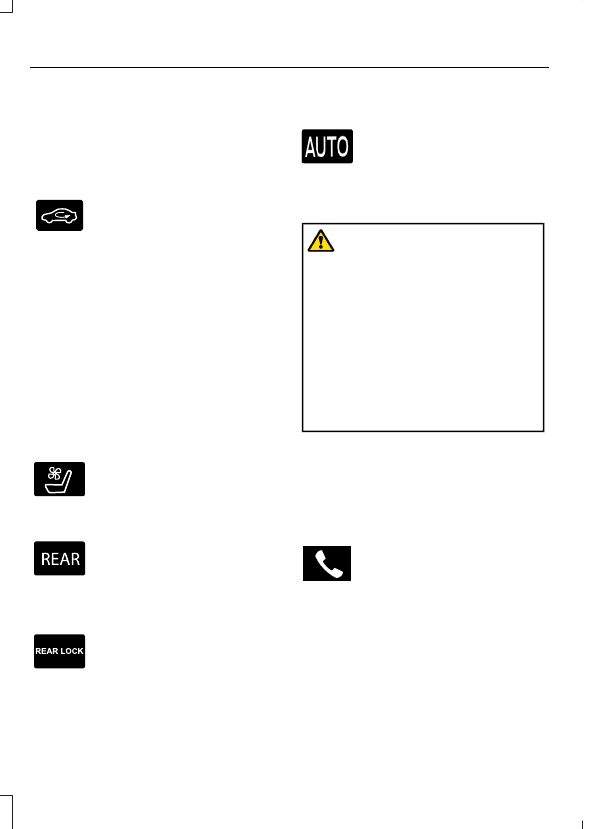
Switching Recirculated Air On and
Off

Touch the button to switch
between outside air and
recirculated air.

The air currently in the passenger
compartment recirculates.  This may
reduce the time needed to cool the interior,
when used with 

A/C

, and reduce unwanted

odors from entering your vehicle.

Note:

 Recirculated air may turn off, or

prevent you from switching on, in all air flow
modes except 

MAX A/C

 to reduce the risk

of fogging.  Recirculation may also turn on
and off in various air distribution control
combinations during hot weather to improve
cooling efficiency.

Switching the Ventilated Seats On
and Off

E268558

Touch the button to cycle
through the various ventilated
seat settings.

Accessing Rear Climate Controls

E270447

Touch the button to access
additional controls for the rear
climate system.

Rear Climate Control Lock
Indicator

E265289

Touch the button.

When on, you can only operate
the rear passenger settings

through the front controls.

Switching Rear Auto Mode On and
Off

Touch the button to switch on
rear automatic operation, then
set the temperature.

PHONE

WARNING: 

Driving while distracted

can result in loss of vehicle control, crash
and injury. We strongly recommend that
you use extreme caution when using any
device that may take your focus off the
road. Your primary responsibility is the
safe operation of your vehicle. We
recommend against the use of any
hand-held device while driving and
encourage the use of voice-operated
systems when possible. Make sure you
are aware of all applicable local laws
that may affect the use of electronic
devices while driving.

Check the compatibility of your device on
the regional website.

Pairing Your Cell Phone for the
First Time

Go to the settings menu on your device and
switch 

Bluetooth®

 on.

Select the phone option on the
feature bar.

1.

Select 

Add Phone

.

Note:

A prompt alerts you to search for your

vehicle on your cell phone.

2. Select your vehicle on your cell phone.

Note:

A number appears on your cell phone

and on the touchscreen.

3. Confirm that the number on your cell

phone matches the number on the
touchscreen.

330

SYNC™ 3

 (If Equipped)

Note:

The touchscreen indicates that you

have successfully paired your cell phone.

4. Download the phonebook from your

cell phone when you are prompted.

Note:

If you pair more than one cell phone,

use the phone settings to specify the
primary phone. You can change this setting
at any time.

Using Your Cell Phone

 (If Equipped)

Recent Call List

Display and select an entry from a list of
previous calls.

Contacts

Display a smart search form to look up your
contacts. Use the List button to
alphabetically sort your contacts.

Change Phone

Display the list of paired or connected
devices that you can select.

Phone Settings

Change ring tones, alerts or pair another
phone.

Do Not Disturb

Reject incoming calls and switch ring tones
and alerts off.

Phone Keypad

Directly dial a number.

Mute

Mute the microphone when in a call.

Phone Voice Assistant

Say a command to use the Google or Siri
voice assistant available on your
connected phone to access supported
features.

Text Messaging

Setting Text Message Notification

iOS

1.

Go to the settings menu on your cell
phone.

2. Select 

Bluetooth®

.

3. Select the information icon to the right

of your vehicle.

4. Switch text message notification on.

Android

1.

Go to the settings menu on your cell
phone.

2. Select 

Bluetooth®

.

3. Select the profiles option.

4. Select the phone profile.

5. Switch text message notification on.

Using Text Messaging

Description

Menu Item

Hear the text message.

Hear It

View the text message.

View

Call the sender.

Call

Reply to the text message with a standard text message.

Reply

331

SYNC™ 3

 (If Equipped)

Apple CarPlay

 (If Equipped)

1.

Connect your device to a USB port.

2. Follow the instructions on the

touchscreen.

Note:

Certain features of the system are

not available when you are using Apple
CarPlay.

Switching Apple CarPlay Off

Select the settings option on the
feature bar.

1.

Select 

Apple CarPlay Preferences

.

2. Switch 

Apple CarPlay

 off.

Android Auto

 (If Equipped)

1.

Connect your device to a USB port.

2. Follow the instructions on the

touchscreen.

Note:

You might need to enable Android

Auto from the settings menu.

Note:

Certain features of the system are

not available when you are using Android
Auto.

Switching Android Auto Off

Select the settings option on the
feature bar.

1.

Select 

Android Auto

.

2. Switch 

Android Auto

 off.

ELECTRIC VEHICLE
INFORMATION

Power Flow

E260071

The power flow information for
your hybrid vehicle is available
through the home screen or

under Apps.

Vehicle Operational States

Power flows to or from the front and rear
wheels depending on the operational state
and the drive conditions.

Idling: The vehicle is running and in park
(P). The engine and/or the high voltage
battery are on.

Electric Driving: The vehicle is running
and in drive (D) or neutral (N). The high
voltage battery provides power to the
wheels.

Hybrid Driving: The vehicle is running
and in drive (D) or neutral (N). The
engine and the high voltage battery
provide power to the wheels.

Regenerative Braking: The vehicle is
running in drive (D) and is slowing
down. Power captured by the
regenerative braking system is sent
back to the high voltage battery.

Engine On Due To

The following conditions help to explain
why the engine is on, and what you can do
to allow all electric operation.

Drive Power: The engine is on due to
accelerator pedal pressure or speed
control activation. Reduce pressure on
the accelerator pedal or switch off the
speed control to return to full electric
mode.

High Speed: The engine is on because
the vehicle speed exceeds the level for
full electric operation. Reduce the
speed to return to electric operation.

Heater Setting: The engine is on
because of the heater setting. Reduce
or turn off the heater setting to return
to electric operation.

Neutral Gear: The engine is on because
the vehicle is in neutral (N). Shift out
of neutral gear to return to electric
operation.

332

SYNC™ 3

 (If Equipped)

Engine Cold: The engine is on because
it is cold. The vehicle returns to electric
operation once the engine is sufficiently
warm.

Battery Charging: The engine is on to
charge the high voltage battery. The
vehicle returns to electric operation
once the battery is charged.

Low Gear: The engine is on because
the vehicle is in low gear. Shift out of
low gear to return to electric operation.

Normal Operation: The engine is on to
optimize vehicle operation. The vehicle
returns to electric operation when
possible.

Engine Braking Active: The engine is on
to provide increased powertrain
braking. This can occur when you turn
on grade assist, when speed control is
on or when driving with your foot off
the accelerator pedal. Turning off
grade assist or speed control may
allow the vehicle to return to electric
operation.

Battery Temperature: The engine is on
due to a high or low high voltage
battery temperature. This is a normal
operating condition. The vehicle returns
to electric operation when possible.

Drive Mode: The engine is on due to the
drive mode selection. Select an
appropriate drive mode for electric only
operation.

APPS

The system allows you interact with select
mobile apps while keeping your eyes on
the road. Voice commands, your steering
wheel buttons, or a quick tap on your
touchscreen give you advanced control of
compatible mobile apps. You can also
stream your favorite music or podcasts,
share your time of arrival with friends, and
keep connected safely.

When you start an app through the system
for the first time, you could be asked to
grant certain permissions. You can review
and change the permissions that you have
granted at any time when your vehicle is
not moving. We recommend that you
check your data plan before using your
apps through the system. Using them
could result in additional charges. We also
recommend that you check the app
provider's terms and conditions and
privacy policy before using their app. Make
sure that you have an active account for
apps that you want to use through the
system. Some apps will work with no
setup. Others require you to configure
some personal settings before you can use
them.

Note:

For more information about available

apps, visit catalog.ford.com.

Using Apps on an iOS Device

Select the apps option on the
feature bar.

1.

If your device is connected via USB,
switch Apple CarPlay off.  See 

Phone

(page 330).

2. Connect your device to a USB port or

pair and connect using Bluetooth.

3. If prompted to enable CarPlay, select

Disable

.

4. Start the apps on your device that you

want to use through SYNC.

Note:

If you close the apps on your device,

you will not be able to use them through the
system.

5. Select the app that you want to use on

the touchscreen.

Note:

Connect your device to a USB port if

you want to use a navigation app. When
using a navigation app, keep your device
unlocked and the app open.

333

SYNC™ 3

 (If Equipped)

Using Apps on an Android Device

Select the apps option on the
feature bar.

1.

If your device is connected via USB,
switch Android Auto off.  See 

Phone

(page 330).

2. Pair your device.  See 

Phone

 (page 330).

3. Start the apps on your device that you

want to use through SYNC.

Note:

If you close the apps on your device,

you will not be able to use them through the
system.

4. Select 

Find Mobile Apps

.

Note:

The system searches and connects

to compatible apps that are running on your
device.

5. Select the app that you want to use on

the touchscreen.

Note:

Mobile Apps on your device use the

USB port to establish a connection with
SYNC. Some devices may lose the ability to
play music over USB when Mobile Apps are
enabled.

Using Mobile Navigation on an
Android Device

1.

Connect your device to a USB port.

2. Switch Android Auto off.  See 

Phone

(page 330).

3. Switch on 

Enable Mobile Apps via

USB

 in the Mobile Apps Settings tile.

4. Select the apps option on the feature

bar.

5. Select the navigation app that you

want to use on the touchscreen.

Note:

When using a navigation app, keep

your device unlocked and the app open.

SiriusXM Traffic and Travel Link

 (If

Equipped)

WARNING: 

Driving while distracted

can result in loss of vehicle control, crash
and injury. We strongly recommend that
you use extreme caution when using any
device that may take your focus off the
road. Your primary responsibility is the
safe operation of your vehicle. We
recommend against the use of any
hand-held device while driving and
encourage the use of voice-operated
systems when possible. Make sure you
are aware of all applicable local laws
that may affect the use of electronic
devices while driving.

Note:

SiriusXM Traffic and Travel Link may

not be available in all markets.

Note:

In order to use SiriusXM Traffic and

Travel Link, your vehicle must have
navigation.

Note:

A paid subscription is required to

access and use these features. Go to
www.siriusxm.com/travellink for more
information.

Note:

Visit www.siriusxm.com/traffic and

click on Coverage map and details for a
complete listing of all traffic areas covered
by SiriusXM Traffic and Travel Link.

Note:

Neither Sirius nor Ford is responsible

for any errors or inaccuracies in the SiriusXM
Traffic and Travel Link services or its use in
vehicles.

When you subscribe to SiriusXM Traffic
and Travel Link, it can help you locate the
best gas prices, find movie listings, get
current traffic alerts, view the current
weather map, get accurate ski conditions
and see scores to current sports games.

334

SYNC™ 3

 (If Equipped)

Action and Description

Menu Item

Touch these buttons to identify traffic incidents on your route,
near your vehicle’s current location or near any of your favorite
places, if programmed.

Traffic on Route

Traffic Nearby

Touch this button to view fuel prices at stations close to your
vehicle’s location or on an active navigation route.

Fuel Prices

Touch this button to view nearby movie theaters and their
show times, if available.

Movie Listings

Touch this button to view the nearby weather, current weather,
or the five-day forecast for the chosen area.

Weather

Select to see the weather map,
which can show storms, radar
information, charts and winds.

Map

Select to choose from a listing of
weather locations.

Area

Touch this button to view scores and schedules from a variety
of sports. You can also save up to 10 favorite teams for easier
access. The score automatically refreshes when a game is in
progress.

Sports Info

Touch this button to view ski conditions for a specific area.

Ski Conditions

SETTINGS

E280315

Press the button to enter the
settings menu.

E268570

Once you select a tile, press the
button next to a menu item to
view an explanation of the

feature or setting.

Sound

Select this tile to adjust the sound settings.

Clock

Select this tile to adjust the clock settings.

Bluetooth®

Select this tile to switch 

Bluetooth®

 on

and off and adjust the settings.

Phone

Select this tile to connect, disconnect, and
manage the connected device settings.

Audio

Select this tile to adjust the audio settings.

Driver Assist

 (If Equipped)

Select this tile to adjust Driver Assist
features like Parking Aids, Lane Keeping
System, Pedestrian Detection, and
Auto-Start-Stop.

335

SYNC™ 3

 (If Equipped)

Vehicle

Select this tile to adjust vehicle settings
like windows, alarm, lighting, and MyKey
settings.

FordPass

 (If Equipped)

Select this tile to adjust the FordPass
settings

General

Select this tile to adjust settings like
language, measurement units, or to reset
the system.

911 Assist

 (If Equipped)

Select this tile to switch 911 Assist on and
off.

Automatic Updates

Select this tile to adjust the automatic
update settings.

Mobile Apps

Select this tile to adjust permissions,
enable, disable, and update mobile apps.

Display

Select this tile to adjust display settings
like brightness and auto dim.

Charge Settings

 (If Equipped)

Select this tile to adjust the electric vehicle
charge settings.

Voice Control

Select this tile to adjust voice control
settings like command confirmations and
displayed lists.

Navigation

 (If Equipped)

Select this tile to adjust navigation settings
like map preferences and route guidance.

Seats

 (If Equipped)

Select this tile to adjust the lumbar
function and massage function of your
multi contour seats.

Message Center

 (If Equipped)

Select this tile to view vehicle messages.

Personal Profiles

 (If Equipped)

Select this tile to adjust recalled memory
features when using personal profiles.

Valet Mode

 (If Equipped)

Select this tile to enable and disable valet
mode.

Ambient Lighting

 (If Equipped)

Select this tile to change the color or
intensity of the interior lighting.

336

SYNC™ 3

 (If Equipped)

SYNC™ 3 TROUBLESHOOTING

Voice Recognition

Possible Cause and Resolution

Symptom

The system does not under-
stand what I am saying.

You might not be using supported voice commands.

See 

Using Voice Recognition

 (page 312).

For a complete list of voice commands, refer to our
website.

You might be speaking too soon.

Wait for the voice prompt before you speak.

The system does not under-
stand the name of a track or
artist.

Device limitation.

Bluetooth®

 does not support voice

commands.

Connect your device to a USB port.

If you have an iOS device, press and hold the voice
control button on the steering wheel to use Siri to
play specific tracks.

You might not be using supported voice commands.

See 

Using Voice Recognition

 (page 312).

For a complete list of voice commands, refer to our
website.

You might not be saying the name exactly as it appears
on your device.

Say the name of the track or artist exactly as it
appears on your device. Spell out any abbreviations
in the name.

The name contains special characters, for example *,
- or +.

Rename the files on your device or use the touch-
screen to select and play the track.

The system does not under-
stand the name of a contact
in the phonebook on my
device and calls the wrong
contact.

You might not be saying the name exactly as it appears
on your device.

Say the first and last name of the contact exactly
as it appears on your device. Spell out any abbrevi-
ations in the name.

The name contains special characters, for example *,
- or +.

Rename the contact on your device or use the
touchscreen to select and call the contact.

337

SYNC™ 3

 (If Equipped)

Possible Cause and Resolution

Symptom

You might not be saying the name exactly as it appears
on your device.

Say the first and last name of the contact exactly
as it appears on your device. The system applies
phonetic pronunciation rules of the selected
language to the names of contacts in the phone-
book on your device. Select the name of the
contact on the touchscreen and use the Hear it
option to get an idea of how the system expects
you to pronounce it.

The system does not under-
stand certain names of
contacts in the phonebook
on my device.

Device limitation.

The system uses text-to-speech technology and
uses a synthetically generated voice rather than
pre-recorded human voice.

The system voice prompts
and the pronunciation of
some words do not seem to
be very accurate.

USB and 

Bluetooth®

 Audio

Possible Cause and Resolution

Symptom

I cannot connect my device. –

Device malfunction.

Disconnect your device. Switch your device off and
on to reset it and try again.

Cable connection issue.

Correctly connect the cable to your device and the
vehicle USB port.

Incompatible cable.

Use the cable recommended by the manufacturer
of your device.

338

SYNC™ 3

 (If Equipped)

Possible Cause and Resolution

Symptom

Incorrect device settings.

Make sure that your device does not have an auto-
install program or active security settings.

Check that your device is not set only to charge.

Device lock screen enabled.

Unlock your device before connecting it.

The system does not recog-
nize my device.

Device limitation.

Do not leave your device in your vehicle during very
hot or very cold weather conditions.

Cable connection issue.

Correctly connect the cable to your device and the
vehicle USB port.

Incompatible cable.

Use the cable recommended by the manufacturer
of your device.

The system does not under-
stand the name of a track or
artist.

Device limitation.

Bluetooth®

 does not support voice

commands.

Connect your device to a USB port.

If you have an iOS device, press and hold the voice
control button on the steering wheel to use Siri to
play specific tracks.

I cannot stream audio from
my 

Bluetooth®

 device.

Incompatible device.

Check the compatibility of your device on our
website.

Device not connected.

Pair your device.  See 

Phone

 (page 330).

Media player not running.

Start the media player on your device.

The system does not recog-
nize the music on my device.

Missing or incorrect audio file metadata, for example
artist, song title, album or genre.

Repair the files on your device.

Corrupt files.

Repair the files on your device.

339

SYNC™ 3

 (If Equipped)

Possible Cause and Resolution

Symptom

Use a device that contains files that are not copy-
right protected.

Unsupported file format.

Repair or convert the files to a supported format.
See 

Entertainment

 (page 318).

Device indexing required.

Re-index your device.  See 

Settings

 (page 335).

Device lock screen enabled.

Unlock your device before connecting it.

Sometimes I cannot hear a
track playing on my device.

Device malfunction.

Disconnect your device. Switch your device off and
on to reset it and try again.

When I disconnect my iOS
device the audio volume is
set to maximum.

Device limitation.

Turn the volume down on your device.

If the system does not play the tracks on your USB device
in the correct order, the following information could help:

The system does not play
the tracks on my USB drive
in the correct order.

If you are selecting USB as the audio source when the
system is still indexing, SYNC plays tracks sorted
alphabetically by file name in the root directory.

If you are selecting USB as the audio source after the
system has finished indexing, SYNC plays all tracks
sorted alphabetically by the title in the ID3 tag
regardless of where they are located. SYNC uses the
file name if the title in the ID3 tag does not exist.

If you are selecting the option to play all tracks from
the browsing menu, SYNC plays all tracks sorted
alphabetically by the title in the ID3 tag regardless of
where they are located. SYNC uses the file name if the
title in the ID3 tag does not exist.

If you are selecting a track when using the explore
device option, SYNC plays tracks sorted alphabetically
by file name in the folder you have selected. SYNC
then plays all tracks in any subfolders in the folder you
have selected.

340

SYNC™ 3

 (If Equipped)

Phone

Possible Cause and Resolution

Symptom

During a call, I can hear
excessive background noise.

Incorrect cell phone settings.

Check and adjust the audio settings on your cell
phone. Refer to your cell phone's user manual.

During a call, I can hear the
other person but they
cannot hear me.

Cell phone malfunction.

Switch your cell phone on and off, and vehicle

Bluetooth®

 on and off and try again.

Cell phone microphone muted.

Unmute your cell phone microphone.

Privacy mode is enabled.

Switch off privacy mode.

During a call, I cannot hear
the other person and they
cannot hear me.

System restart required.

Switch the ignition off and open the door. Close
the door and lock the vehicle. Wait until the
touchscreen is off and any illuminated USB ports
are not illuminated. Unlock the vehicle, switch the
ignition on and try again.

I cannot download a phone-
book.

Incompatible cell phone.

Check the compatibility of your cell phone on our
website.

Incorrect cell phone settings.

Allow the system to retrieve contacts from your
cell phone. Refer to your cell phone's user manual.

Incorrect system settings.

Switch automatic phonebook download on.  See

Settings

 (page 335).

Cell phone malfunction.

Switch your cell phone off and on to reset it and
try again.

341

SYNC™ 3

 (If Equipped)

Possible Cause and Resolution

Symptom

Incorrect cell phone settings.

Allow the system to retrieve contacts from your
cell phone. Refer to your cell phone's user manual.

Check the location of the missing contacts on your
cell phone. If they are stored on the SIM card, move
them to the cell phone memory.

Incorrect system settings.

Switch automatic phonebook download on.  See

Settings

 (page 335).

A message displays
suggesting that my phone-
book has downloaded but it
is empty or it has missing
contacts.

Incompatible cell phone.

Check the compatibility of your cell phone on our
website.

Cell phone malfunction.

Switch your cell phone off and on to reset it and
try again.

Install the latest cell phone firmware.

Delete your device from the system and delete
SYNC from your device and try again.

Switch automatic phonebook download off.  See

Settings

 (page 335).

I cannot connect my cell
phone.

Text messaging does not
work.

You might not have switched on text message notific-
ations.

Switch text message notifications on. See 

Phone

(page 330).

Incompatible cell phone.

Check the compatibility of your cell phone on our
website.

Cell phone malfunction.

Switch your cell phone off and on to reset it and
try again.

Device message sharing is not enabled.

Check the permissions on your device to ensure
text message sharing is enabled.

Incompatible cell phone.

Check the compatibility of your cell phone on our
website.

I cannot hear text messages.

342

SYNC™ 3

 (If Equipped)

Navigation

 (If Equipped)

Possible Cause and Resolution

Symptom

I cannot enter a street name
when I am abroad.

Incorrect entry method.

Enter the street name with the country.

The system does not recog-
nize coordinates.

Using the wrong coordinates format.

Use the format ##. #####, ##. ##### (for N/S ,
E/W). Add a minus before coordinates if the
direction is West and keep a positive value if the
direction is East, for example 12.5412 means East
and -12.5412 means West.

343

SYNC™ 3

 (If Equipped)

Apps

Possible Cause and Resolution

Symptom

The system cannot find any
apps.

Incompatible device.

You need an Android device with OS 4.3 or higher
or an iOS device with iOS 8.0 or higher. Pair and
connect your Android device to find compatible
apps.  Connect your iOS device to a USB port or
pair and connect using 

Bluetooth®

.

I have a compatible device
and it is correctly connected
but the system still cannot
find any apps.

Compatible apps are not installed on your device.

Download and install the latest version of the app.

Compatible apps are not running on your device.

Start the apps to allow the system to find them
and make sure you sign in to any apps if required.

Incorrect app settings.

Check and adjust the app settings on your device
and allow SYNC to access the app if required.

I have a compatible device,
it is correctly connected and
my apps are running but the
system still cannot find any
apps.

Apps failed to fully close.

Restart the apps and try again.

If you have an Android device with apps that have
an exit or quit option, use this and then restart the
apps. Alternatively, use the force stop option in the
settings menu on your device.

If you have an iOS device with iOS 8.0 or higher,
tap the home button on your device twice and then
swipe the app upward to close it.

I have an Android device
that is correctly connected,
I have restarted my apps
and they are running but the
system still cannot find
them.

An issue on some older versions of the Android oper-
ating system could result in apps not being found.

Switch 

Bluetooth®

 off and on again to force the

system to reconnect to your device.

344

SYNC™ 3

 (If Equipped)

Possible Cause and Resolution

Symptom

I have an iOS device that is
correctly connected, I have
restarted my apps and they
are running but the system
still cannot find them.

Cable connection issue.

Disconnect the cable from your device, wait for a
moment and then connect it again to force the
system to reconnect to your device.

I have an Android device
running a media app which
the system has found but I
cannot hear the sound or
the sound is very quiet.

Device volume is low.

Turn the volume up on your device.

I have an Android device
running a number of
compatible apps but the
system cannot find all of
them.

Device limitation.  If you have more apps running on
your device than the number of available 

Bluetooth®

links, the system cannot find all of them.

Close some of the apps to allow the system to find
those that you want to use.

345

SYNC™ 3

 (If Equipped)

Wi-Fi Connectivity

Possible Cause and Resolution

Symptom

I cannot connect to a Wi-Fi
network.

Password error.

Enter the correct network password.

Weak network signal.

Move your vehicle closer to the Wi-Fi hotspot or to
a place where the network signal is not obstructed.

Multiple access points in range with the same SSID.

Use a unique name for your SSID. Do not use the
default name unless it contains a unique identifier,
for example as part of the MAC address.

The Wi-Fi connection
disconnects after successful
connection.

Weak network signal.

Move your vehicle closer to the Wi-Fi hotspot or to
a place where the network signal is not obstructed.

I am close to a Wi-Fi hotspot
but the network signal
strength is weak.

Obstructed network signal.

If your vehicle has a heated windshield, position
your vehicle so that the windshield is not facing the
Wi-Fi hotspot.

If your vehicle has metallic tinting on the windows
but not on the windshield, position your vehicle so
that the windshield is facing the Wi-Fi hotspot or
open the windows that are facing the hotspot.

If your vehicle has metallic tinting on the windows
and the windshield, open the windows that are
facing the hotspot.

If your vehicle is in a garage and you have the
garage door closed, open the garage door.

I cannot see a network in the
list of available networks
that I expect to see.

Hidden network.

Make the network visible and try again.

346

SYNC™ 3

 (If Equipped)

Possible Cause and Resolution

Symptom

I cannot see SYNC when I
search for Wi-Fi networks on
my cell phone or other
device.

System limitation.

SYNC does not provide a Wi-Fi hotspot at this time.

Weak network signal

Move your vehicle closer to the Wi-Fi hotspot or to
a place where the network signal is not obstructed.

Wi-Fi hotspot in high demand or has a slow Internet
connection.

Use a more reliable Wi-Fi hotspot.

Software downloads take
too long.

No software update available.

Wi-Fi network requires a subscription or acceptance
of terms and conditions.

Test the connection using another device. If the
network requires a subscription or acceptance of
terms and conditions, contact the network service
provider.

The system seems to
connect to a Wi-Fi network
and the signal strength is
excellent but the software
does not update.

Personal Profiles

 (If Equipped)

Possible Cause and Resolution

Symptom

You might not have set up Personal Profiles.

I cannot create a profile.

You might have entered an invalid profile.

You might not have selected a memory button when
prompted.

You might not have the ignition on or in park (P), or you
shifted out park (P) when creating a profile.

Personal Profiles has been switched off.

You might not have selected the lock button on the remote
control.

I cannot link a remote
control.

The remote control selected was already associated with
another profile and the system declined to overwrite.

The system performed a profile recall when linking a
remote control.

347

SYNC™ 3

 (If Equipped)

Possible Cause and Resolution

Symptom

You might not have the ignition on or in park (P), or you
shifted out park (P) when creating a profile.

You might be using the old linking method.

Personal Profiles does not support your unsaved settings.

My personalized settings do
not save.

A different personal profile is active.

Another user changed the settings for the wrong personal
profile.

You might not have created a personal profile.

My profile will not recall.

Personal Profiles is turned off.

The profile you requested is already active.

You might not have linked the memory button you are
using to a profile.

You might not have linked the remote control you are using
to a profile.

You might be using the wrong remote control.

You might be pressing a button other than the unlock or
remote start on a linked remote control.

You might have deleted the personal profile.

Personal Profiles is turned off.

My preset positions recall,
but my profile does not.

The vehicle is in motion.

My profile recalls but my
preset positions do not.

The preset positions are the same as the guest or previ-
ously active profile.

Unlink and relink your remote control in the Personal
Profiles menu. You may need to see your authorized dealer.

I lost a remote control.

You might have erased and reprogrammed the remote
controls. This could happen if you let a dealership add a
new remote control to replace a lost one.

I lost all profiles.

Someone performed a master reset.

348

SYNC™ 3

 (If Equipped)

Resetting the System

1.

Simultaneously press and hold the
seek up and the audio unit power
buttons until the screen goes black.

2. Wait three minutes to allow the system

to complete the reset.

3. Press the audio unit power button to

switch the system on.

Note:

You can reset the system to restore

functionality that has stopped working. The
system reset is designed to restore
functionality and not delete any data that
you have stored.

Additional Information and
Assistance

For additional information and assistance,
we recommend that you contact an
authorized dealer or refer to our website.

349

SYNC™ 3

 (If Equipped)

PROTECT YOURSELF FROM THE RISING
COST OF VEHICLE REPAIRS WITH A FORD
PROTECT EXTENDED SERVICE PLAN.

Ford Protect Extended Service
Plans (U.S. Only)

Ford Protect extended service plan means
peace of mind. It is the extended service
plan backed by Ford Motor Company, and
provides more protection beyond the New
Vehicle Limited Warranty coverage. When
you visit your Ford Dealer, Insist on Ford
Protect extended service plans!

Ford Protect Can Quickly Pay for Itself

One trip to the Service Center could easily
exceed the price of your Ford Protect
extended service plan. With Ford Protect
extended service plan you minimize your
risk for unexpected repair bills and rising
repair costs.

Up to 1,000+ Covered Vehicle
Components

There are four mechanical Ford Protect
extended service plans with different levels
of coverage. Ask your authorized dealer for
details.

1.

PremiumCARE - Our most
comprehensive coverage. With over
1,000 covered components, this plan
is so complete it is probably easier to
list what is not covered.

2. ExtraCARE - Covers 113 components,

and includes many high-tech items.

3. BaseCARE - Covers 84 components.

4. PowertrainCARE - Covers 29 critical

components.

Ford Protect extended service plans are
honored by all authorized Ford dealers in
the U.S., Canada and Mexico.

That means you get:

Reliable, quality service at any Ford or
Lincoln dealership.

Repairs performed by factory trained
technicians, using genuine parts.

Rental Car Reimbursement

1st day Rental Benefit

If you bring your car into your dealer for
service, we’ll give you a loaner to use for
the day.

Extended Rental Benefits

If your vehicle is kept overnight for covered
repairs, you are eligible for rental car
coverage, including warranty repairs, and
Field Service Actions.

Roadside Assistance

Exclusive 24/7 roadside assistance,
including:

Towing, flat-tire change and battery
jump starts.

Out of fuel and lock-out assistance.

Travel expense reimbursement for
lodging, meals and rental car.

Assistance for taxi, shuttle, rental car
coverage or other transportation.

Transferable Coverage

If you sell your vehicle before your Ford
Protect extended service plan coverage
expires, you can transfer any remaining
coverage to the new owner. Which should
give you and your potential buyer a little
more peace of mind.

350

Ford Protect

Less Cost to Properly Maintain Your
Vehicle

Ford Protect extended service plan also
offers a Premium Maintenance Plan that
covers all scheduled maintenance, and
selected wear items. The coverage is
prepaid, so you never have to worry about
the cost of your vehicle’s maintenance.

Covered maintenance includes:

Windshield wiper blades.

Spark plugs.

The clutch disc (if equipped).

Brake pads and linings.

Shock absorbers.

Struts.

Engine belts.

Engine coolant hoses, clamps and
O-rings.

Diesel exhaust fluid replenishment (if
equipped).

Cabin air filter replacement every
20,000 mi (32,000 km) (electric
vehicles only).

Interest Free Finance Options

Just a 5% down payment will provide you
with an affordable, no interest, no fee
payment program allowing you all the
security and benefits Ford Protect
extended service plan has to offer while
paying over time. You are pre-approved
with no credit check or hassles. To learn
more, call our Ford Protect extended
service plan specialists at 800-367-3377.

Ford Protect Extended Service Plan
P.O. Box 321067
Detroit, MI 48232

Ford Protect Extended Service
Plan (CANADA ONLY)

You can get more protection for your
vehicle by purchasing a Ford Protect
extended service plan. Ford Protect
extended service plan is the only service
contract backed by Ford Motor Company
of Canada, Limited. Depending on the plan
you purchase, Ford Protect extended
service plan provides benefits such as:

Rental reimbursement.

Coverage for certain maintenance and
wear items.

Protection against repair costs after
your New Vehicle Limited Warranty
Coverage expires.

Roadside Assistance benefits.

There are several Ford Protect extended
service plans available in various time,
distance and deductible combinations.
Each plan is tailored to fit your own driving
needs, including reimbursement for towing
and rental. When you purchase Ford
Protect extended service plan, you receive
added peace-of-mind protection
throughout Canada, the United States and
Mexico, provided by a network of
participating authorized Ford Motor
Company dealers.

Note:

Repairs performed outside of Canada

and the United States are not eligible for
Ford Protect extended service plan
coverage.

This information is subject to change. For
more information; visit your local Ford of
Canada dealer or www.ford.ca to find the
Ford Protect extended service plan that is
right for you.

351

Ford Protect

GENERAL MAINTENANCE
INFORMATION

Why Maintain Your Vehicle?

Carefully following the maintenance
schedule helps protect against major repair
expenses resulting from neglect or
inadequate maintenance and may help to
increase the value of your vehicle when
you sell or trade it. Keep all receipts for
completed maintenance with your vehicle.

We have established regular maintenance
intervals for your vehicle based upon
rigorous testing. It is important that you
have your vehicle serviced at the proper
times. These intervals serve two purposes:
one is to maintain the reliability of your
vehicle and the second is to keep your cost
of owning your vehicle down.

It is your responsibility to have all
scheduled maintenance performed and to
make sure that the materials used meet
the specifications identified in this owner's
manual.  See 

Capacities and

Specifications

 (page 278).

Failure to perform scheduled maintenance
invalidates warranty coverage on parts
affected by the lack of maintenance.

Why Maintain Your Vehicle at Your
Dealership?

Factory-Trained Technicians

Service technicians participate in extensive
factory-sponsored certification training to
help them become experts on the
operation of your vehicle. Ask your
dealership about the training and
certification their technicians have
received.

Our Genuine Replacement Parts

Dealerships stock our genuine
manufactured or our authorized
re-manufactured replacement parts.
These parts meet or exceed our
specifications. Parts installed at your
dealership carry a nationwide 24-month
or unlimited mile (kilometer) parts and
labor limited warranty.

If you do not use our authorized parts they
may not meet our specifications and
depending on the part, it could affect
emissions compliance.

Convenience

Many dealerships have extended evening
and Saturday hours to make your service
visit more convenient and they offer one
stop shopping. They can perform any
services that are required on your vehicle,
from general maintenance to collision
repairs.

Note:

Not all dealers have extended hours

or body shops. Please contact your dealer
for details.

Protecting Your Investment

Maintenance is an investment that pays
dividends in the form of improved
reliability, durability and resale value. To
maintain the proper performance of your
vehicle and its emission control systems,
make sure you have scheduled
maintenance performed at the designated
intervals.

Your vehicle has an Intelligent Oil-Life
Monitor system; a message appears in the
instrument cluster display at the proper oil
change interval. This interval may be up to
one year or 10,000 mi (16,000 km), hybrid
vehicles may exceed 10,000 mi
(16,000 km).

352

Scheduled Maintenance

Your vehicle can be driven in such a way
that dilutes and increases the level of oil
by short trips that do not allow the engine
to get to operating temperature, extended
idling, and low speed driving for long
periods of time.

When the oil change message appears in
the instrument cluster display, it is time for
an oil change. Make sure you perform the
oil change within two weeks or 500 mi
(800 km) of the message appearing. Make
sure you reset the Intelligent Oil-Life
Monitor after each oil change.  See 

Oil

Change Indicator Reset

 (page 220).

If your instrument cluster display resets
prematurely or becomes inoperative, you
should perform the oil change interval at
six months or 5,000 mi (8,000 km) from
your last oil change. Never exceed one year
or 10,000 mi (16,000 km) between oil
change intervals,

Your vehicle is very sophisticated and built
with multiple, complex performance
systems. Every manufacturer develops
these systems using different
specifications and performance features.
That is why it is important to rely upon your
dealership to properly diagnose and repair
your vehicle.

We have recommended maintenance
intervals for various parts and component
systems based upon engineering testing.
We rely upon this testing to determine the
most appropriate mileage for replacement
of oils and fluids to protect your vehicle at
the lowest overall cost to you and
recommends against maintenance
schedules that deviate from the scheduled
maintenance information.

We strongly recommend the use of only
our genuine manufactured or our
authorized re-manufactured replacement
parts engineered for your vehicle.

Additives and Chemicals

This owner's manual and our Workshop
Manual list the recommended additives
and chemicals for your vehicle. We do not
recommend using chemicals or additives
not approved by us as part of your vehicle’s
normal maintenance. Please consult your
warranty information.

Oils, Fluids and Flushing

In many cases, fluid discoloration is a
normal operating characteristic and, by
itself, does not necessarily indicate a
concern or that the fluid needs to be
changed. However, a qualified expert, such
as the factory-trained technicians at your
dealership, should inspect discolored fluids
that also show signs of overheating or
foreign material contamination
immediately.

Make sure to change your vehicle’s oils and
fluids at the specified intervals or in
conjunction with a repair. Flushing is a
viable way to change fluid for many vehicle
sub-systems during scheduled
maintenance. It is critical that systems are
flushed only with new fluid that is the same
as that required to fill and operate the
system or using our approved flushing
chemical.

Owner Checks and Services

Make sure you perform the following basic
maintenance checks and inspections every
month or at six-month intervals.

353

Scheduled Maintenance

Check Every Month

Engine oil level.

Function of all interior and exterior lights.

Tires (including spare) for wear and proper pressure.

Windshield washer fluid level.

Holes and slots in the tail pipe to make sure they are functional and clear of debris.

Check Every Six Months

Battery connections. Clean if necessary.

Body and door drain holes for obstructions. Clean if necessary.

Cooling system fluid level and coolant strength.

Door weatherstrips for wear. Lubricate if necessary.

Hinges, latches and outside locks for proper operation. Lubricate if necessary.

Parking brake for proper operation.

Seatbelts and seat latches for wear and function.

Safety warning lamps (brake, ABS, airbag and seatbelt) for operation.

Washer spray and wiper operation. Clean or replace blades as necessary.

Multi-Point Inspection

In order to keep your vehicle running right,
it is important to have the systems on your
vehicle checked regularly. This can help
identify potential issues and prevent major
problems. We recommend having the
following multi-point inspection performed
at every scheduled maintenance interval
to help make sure your vehicle keeps
running great.

354

Scheduled Maintenance

Multi-Point Inspection

Hazard warning system operation

Accessory drive belt(s)

Horn operation

Battery performance

Radiator, cooler, heater and air conditioning

hoses

Engine air filter

Suspension components for leaks or

damage

Exhaust system

Steering and linkage

Exterior lamps operation

Tires (including spare) for wear and proper

pressure

2

Fluid levels

1

; fill if necessary

Windshield for cracks, chips or pits

For oil and fluid leaks

Washer spray and wiper operation

Half-shaft dust boots

1

 Brake, coolant recovery reservoir, automatic transmission and window washer

2

If your vehicle is equipped with a temporary mobility kit, check the tire sealant expiration

Use By date on the canister. Replace as needed.

Be sure to ask your dealership service
advisor or technician about the multi-point
vehicle inspection. It is a comprehensive
way to perform a thorough inspection of
your vehicle. Your checklist gives you
immediate feedback on the overall
condition of your vehicle.

NORMAL SCHEDULED
MAINTENANCE

Intelligent Oil-Life Monitor™

Your vehicle has an Intelligent Oil-Life
Monitor that determines when you should
change the engine oil based on how you
use your vehicle. By using several
important factors in its calculations, the
monitor helps reduce the cost of owning
your vehicle and reduces environmental
waste at the same time.

This means you do not have to remember
to change the oil on a mileage-based
schedule. Your vehicle lets you know when
an oil change is due by displaying a
message in the information display.

The following table provides examples of
vehicle use and its impact on oil change
intervals. It is a guideline only. Actual oil
change intervals depend on several factors
and generally decrease with severity of
use.

355

Scheduled Maintenance

When to Expect the OIL CHANGE REQUIRED Message

Vehicle Use and Example

Interval

1

Normal

7,500–10,000 mi

(12,000–16,000 km)

Normal commuting with highway driving
No, or moderate, load or towing
Flat to moderately hilly roads
No extended idling

Severe

5,000–7,500 mi

(8,000–12,000 km)

Moderate to heavy load or towing
Mountainous or off-road conditions
Extended idling
Extended hot or cold operation

Extreme

3,000–5,000 mi

(4,800–8,000 km)

Maximum load or towing
Extreme hot or cold operation
Extended engine idling

Hybrid vehicles may achieve longer distances between oil changes, but do not exceed

the 1 year maximum oil change interval. Remaining oil life can be accessed through the
information display.  See 

Information Displays

 (page 84).

Normal Maintenance Intervals

At Every Oil Change Interval as Indicated by the Information Display

1

Change the engine oil and filter.

2

Rotate the tires.

Perform a multi-point inspection, recommended.

Inspect the brake pads, rotors, hoses and parking brake.

Inspect the engine cooling system strength and hoses.

Inspect the exhaust system and heat shields.

Inspect the front axle.

Inspect the rear axle and U-joints.

Inspect the half-shaft boots.

356

Scheduled Maintenance

At Every Oil Change Interval as Indicated by the Information Display

1

Inspect the steering linkage, ball joints, suspension and the tire-rod ends.

Inspect the tires, tire wear and measure the tread depth.

Inspect the wheels and related components for abnormal noise, wear, looseness or
drag.

Do not exceed one year or 10,000 mi (16,000 km) between service intervals.

Reset the Intelligent Oil-Life Monitor after engine oil and filter changes.  See 

Engine Oil

Check

 (page 219).

Brake Fluid Maintenance

1

Change the brake fluid.

2

Every Three Years

 Perform this maintenance item every three years. Do not exceed the designated time

for the interval.

Brake fluid servicing requires special equipment available at your authorized dealer.

Other Maintenance Items

1

Replace the cabin air filter.

Every 20,000 mi
(32,000 km)

Replace the engine air filter.

Every 30,000 mi
(48,000 km)

Change the engine coolant and motor electronics coolant.

2

At 200,000 mi
(322,000 km)

Replace the spark plugs.

Every 100,000 mi
(160,000 km)

Inspect the accessory drive belt or belts.

3

Every 100,000 mi
(160,000 km)

357

Scheduled Maintenance

Other Maintenance Items

1

Change the automatic transmission fluid.

Every 150,000 mi
(240,000 km)

Replace the accessory drive belt or belts.

4

 Perform these maintenance items within 3,000 mi (4,800 km) of the last engine oil

and filter change. Do not exceed the designated distance for the interval.

 Initial replacement at 10 years or 200,000 mi (322,000 km), then every 5 years or

100,000 mi (160,000 km).

After initial inspection, inspect every other oil change until replaced.

 If not replaced within the last 100,000 mi (160,000 km).

SPECIAL OPERATING
CONDITIONS SCHEDULED
MAINTENANCE

If you operate your vehicle 

primarily

 in any

of the following conditions, you need to
perform extra maintenance as indicated.
If you operate your vehicle 

occasionally

under any of these conditions, it is not
necessary to perform the extra
maintenance. For specific
recommendations, see your dealership
service advisor or technician.

Perform the services shown in the
following tables when specified or within
3,000 mi (4,800 km) of the message
appearing in the instrument cluster display
prompting you to change your oil.

Example 1

: The message comes on at

28,751 mi (46,270 km). Perform the
30,000 mi (48,000 km) automatic
transmission fluid replacement.

Example 2

: The message has 

not

come on, but the odometer reads
30,000 mi (48,000 km) (for example,
the Intelligent Oil-Life Monitor was
reset at 25,000 mi (40,000 km)).
Perform the engine air filter
replacement.

Towing a Trailer or Using a Car-top Carrier

Change engine oil and filter as indicated by the instrument
cluster display and perform services listed in the Normal
Scheduled Maintenance chart.

As required

Inspect front axle.

Inspect frequently, service
as required

Inspect rear axle and U-joints.

Inspect half-shaft boots.

See axle maintenance items under 

Exceptions

.

Replace spark plugs.

Every 60,000 mi
(96,000 km)

358

Scheduled Maintenance

Extensive Idling or Low-speed Driving for Long Distances, as in Heavy Commercial Use

(Such as Delivery, Taxi, Patrol Car or Livery)

Short Trips that do not allow the engine to get to operating temperature causing fuel

dilution and an increase of the engine oil level

Change engine oil and filter as indicated by the instrument
cluster display and perform services listed in the Normal
Scheduled Maintenance chart.

As required

Replace cabin air filter.

Inspect frequently, service
as required

Replace engine air filter.

Replace spark plugs.

60,000 mi (96,000 km)

Extended Hot and Cold Climate Operation

Change engine oil and filter.

1

5,000 mi (8,000 km)

1

Hot Climates only

Operating in Dusty or Sandy Conditions (Such as Unpaved or Dusty Roads)

Replace cabin air filter.

Inspect frequently, service
as required

Replace engine air filter.

Inspect the wheels and related components for abnormal
noise, wear, looseness or drag.

5,000 mi (8,000 km)

Rotate tires, inspect tires for wear and measure tread
depth.

Change engine oil and filter.

1

Every 5,000 mi (8,000 km)
or six months

Perform multi-point inspection.

1

Reset your Intelligent Oil-Life Monitor after engine oil and filter changes.  See 

Oil Change

Indicator Reset

 (page 220).

Exclusive Use of E85 (Flex Fuel Vehicles Only)

If ran exclusively on E85, fill the fuel tank full with regular
unleaded fuel.

Every oil change

359

Scheduled Maintenance

Driver Training/EVOC

Replace engine oil and filter as indicated by the instrument
cluster display and perform services listed in the Extreme
Usage Scheduled Maintenance chart.

As required

Inspect brake pads, rotors, calipers hoses, and service as
required.

Inspect engine oil level.

Inspect vehicle every day
prior to starting training

Set tire pressure. Refer to driver door placard for cold tire
pressure information.

Inspect tire quality for wear.

Set wheel lug nut torque. The cold wheel lug nut torque
is 150 lb.ft (204 Nm). If wheels are torqued while they are
hot (after 15 minutes of EVOC driving), torque may be
checked to hot wheel lug nut torque of 70 lb.ft (95 Nm).

Proper functioning of safety devices (seat belts, no air bag
lights, etc.)

Front differential/axle fluid.

25 hours of training use

Rear differential/axle fluid.

100 hours of training use

Change transmission and transfer case fluids.

Annually

Note:

Follow base owner guide direction

for 1,000-mile vehicle break-in prior to using
vehicle for training purposes.

Note:

Incorporate vehicle cool-down after

hard driving.

Note:

Perform Training / EVOC service

according to the Extreme Usage Scheduled
Maintenance chart.

Note:

Use Police Interceptor part numbers

for replacement parts.

Engine Idle Hour Meter

Your vehicle may have an idle meter to
indicate how much time the vehicle has
been sitting in park (P) or neutral (N). The
meter is incorporated with the vehicle
odometer. Depressing the odometer-reset
button once displays the trip odometer
(miles [kilometers] following by a "T" for
trip odometer); depressing the
odometer-reset button a second time
displays the idle meter (hours following by
an "H" for hours). The idle meter only
accumulates time while the vehicle is in
park (P) or neutral (N). Displayed time is
cumulative for the vehicle and cannot be
reset to zero. Police vehicles often

360

Scheduled Maintenance

experience long periods of idling, during
which engine oil continues to break down
but distance is not accumulated on the
odometer. Engine Idle Hours have been
incorporated into the Intelligent Oil-Life
Monitor.

Exceptions

There are several exceptions to the Normal
Schedule:

Axle and Transfer Case maintenance

:

The Transfer case, front and rear axles in
your vehicle do not require an any normal
scheduled maintenance. Vehicles are
electrically monitored and notify the driver
required service by displaying a message
in the instrument cluster display. The
transfer case, front and rear axles are more
likely to require a fluid change if the vehicle
has experienced extended periods of
extreme/severe duty cycle driving.
Changing or checking the transfer case,
front and/or rear axle lubricant is not
necessary unless the unit has been
submerged in water, shows signs of
leakage, a message indicating required
service displays, or the vehicle has been
used under special operating conditions
such as Driver Training/EVOC. Contact
your authorized dealer for service.

California fuel filter replacement

: If you

register your vehicle in California, the
California Air Resources Board has
determined that the failure to perform this
maintenance item does not nullify the
emission warranty or limit recall liability
before the completion of your vehicle's
useful life. We however, urge you to have
all recommended maintenance services
performed at the specified intervals and
to record all vehicle service.

Hot climate oil change intervals

:

Vehicles operating in the Middle East,
North Africa, Sub-Saharan Africa or
locations with similar climates using an
American Petroleum Institute (API)
Certified for Gasoline Engines (Certification
mark) oil of SM or SN quality, the normal
oil change interval is 5,000 mi (8,000 km).

If the available API SM or SN oils are not
available, then the oil change interval is
3,000 mi (4,800 km).

Engine air filter and cabin air filter
replacement

: The life of the engine air

filter and cabin air filter is dependent on
exposure to dusty and dirty conditions.
Vehicles operated in these conditions
require frequent inspection and
replacement of the engine air filter and
cabin air filter.

361

Scheduled Maintenance


Content      ..     9      10      11      12     ..