Ford Mustang (2022 year). Manual in english - page 23
 

  Index      Manuals     Ford Mustang (2022 year). Manual in english


Search            copyright infringement  


Content      ..     21      22      23      24     ..


Ford Mustang (2022 year). Manual in english - page 23


Materials

Specification

Name

WSS-M97B57-A2

Motorcraft® Yellow Prediluted Antifreeze/
Coolant(U.S.)
Motorcraft® Yellow Prediluted Antifreeze/Coolant
/ Antigel/liquide de refroidissement prédilué jaune
Motorcraft®(Canada)
VC-13DL-G(U.S.)
CVC-13DL-G(Canada)

Engine Oil

E142732

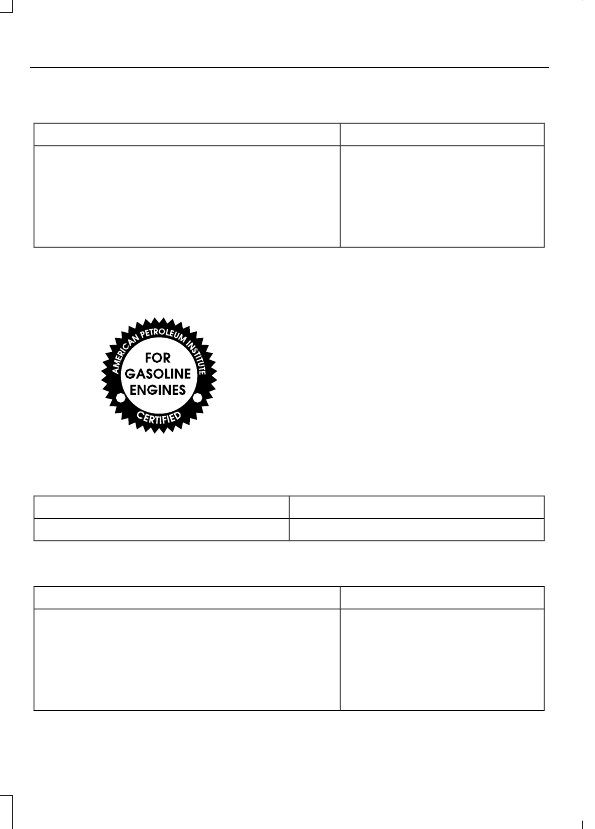
An oil that displays this symbol conforms
to current engine, emission system and
fuel economy performance standards of
ILSAC.

We recommend Motorcraft® motor oil for
your vehicle. If Motorcraft® oil is not
available, use motor oils of the
recommended viscosity grade that display
the API Certification Mark for gasoline
engines.

Do not use supplemental engine oil
additives because they are unnecessary
and could lead to engine damage not
covered by your vehicle warranty.

Capacities

Including the Oil Filter

Variant

10.0 qt (9.5 L)

All.

Materials

Specification

Name

WSS-M2C961-A1

Motorcraft® SAE 5W-30 Synthetic Blend Motor
Oil(U.S.)
Motorcraft® SAE 5W-30 Super Premium Motor Oil
/ Huile moteur de très haute qualité SAE 5W-30
Motorcraft®(Canada)
XO-5W30-Q1SP(U.S.)
CXO-5W30-LSP6(Canada)

362

Capacities and Specifications

Alternative Engine Oil for
Extremely Cold Climates

To improve engine cold start performance,

we recommend that you use the following
alternative engine oil in extremely cold
climates, where the ambient temperature
reaches -22.0°F (-30°C) or below.

Materials

Specification

Name

WSS-M2C963-A1

Engine Oil - SAE 0W-30 - Synthetic Blend

E240523

Fuel Tank

Capacities

Quantity

Variant

16.0 gal (60.55 L)

All.

Grease

Materials

Specification

Name

ESB-M1C93-B

Motorcraft® Multi-Purpose Grease Spray(U.S.)
Motorcraft® Multi-Purpose Grease Spray / Graisse
tout usage en aérosol Motorcraft®(Canada)
XL-5-A(U.S. & Canada)

363

Capacities and Specifications

Hydraulic Brake System

Note:

We recommend you use DOT 4 LV

(Low Viscosity) High Performance Brake
Fluid meeting WSS-M6C65-A2
specifications or ISO 4925 Class 6
standards. If you use any fluid other than
the recommended fluid, it could cause
reduced brake performance and not meet
our performance standards. Keep brake fluid
clean and dry. Contamination with dirt,
water, petroleum products or other
materials could result in brake system
damage and possible failure.

Materials

Specification

Name

WSS-M6C65-A2

Motorcraft® DOT 4 LV High Performance Motor
Vehicle Brake Fluid(U.S.)
Motorcraft® DOT 4 LV High Performance Motor
Vehicle Brake Fluid / Liquide de frein automobile
haute performance DOT 4 LV Motorcraft®(Canada)
PM-20(U.S. & Canada)

Locks

Materials

Specification

Name

-

Motorcraft® Penetrating and Lock Lubricant(U.S.)
Motorcraft® Penetrating Fluid / Liquide dégrippant
Motorcraft®(Canada)
XL-1(U.S.)
CXC-51-A(Canada)

364

Capacities and Specifications

Rear Axle

Capacities

Quantity

Variant

1.6 qt (1.5 L)

1

Base.

2.0 qt (1.9 L)

1

Mach 1.

For complete refill of our limited slip axles, add 3.28 fl oz (97 ml) of Additive Friction

Modifier XL-3 or equivalent meeting specification EST-M2C118-A. Include this friction
modifier in the total fluid capacity. Our rear axles contain a synthetic lubricant that does
not require changing unless you submerge the axle in water.

Materials

Specification

Name

WSS-M2C942-A

Motorcraft® SAE 75W-85 Premium Synthetic
Hypoid Gear Lubricant(U.S.)
Motorcraft® SAE 75W-85 Premium Synthetic
Hypoid Gear Lubricant / Huile synthétique de haute
qualité pour engrenages hypoïdes SAE 75W-85
Motorcraft®(Canada)
XY-75W85-QL(U.S. & Canada)

EST-M2C118-A

Motorcraft® Additive Friction Modifier(U.S.)
Motorcraft® Additive Friction Modifier / Additif
modificateur de friction Motorcraft®(Canada)
XL-3(U.S.)
CXL-3(Canada)

Washer Reservoir

Capacities

Quantity

Variant

Fill as required.

All.

365

Capacities and Specifications

Materials

Specification

Name

WSS-M14P19-A

Motorcraft® Premium Windshield Wash Concen-
trate with Bitterant(U.S.)
Motorcraft® Premium Quality Windshield Washer
Fluid / Liquide lave-glace de haute qualité Motor-
craft®(Canada)
ZC-32-B2(U.S.)
CXC-37-F/M(Canada)

BULB SPECIFICATION CHART

Replacement bulbs are specified in the
chart below. Headlamp bulbs must be
marked with an authorized "D.O.T." for
North America and an "E" for Europe to
make sure lamp performance, light
brightness and pattern and safe visibility.
The correct bulbs do not damage the lamp
assembly or void the lamp assembly
warranty and provide quality bulb
illumination time.

Trade name

Function

LED

Headlamps.

1

LED

Front park and direction indicators.

1

LED

Front side marker.

1

LED

Front fog lamp.

1

LED

Rear lamp, brake lamp and direction

indicator lamp.

1

194

Rear side marker.

LED

High-mount brake lamp.

1

3156 or 3157

Backup lamp.

366

Capacities and Specifications

Trade name

Function

LED

License plate lamp.

1

W5W

Dome and map lamp.

T-3

Glove box.

LED

Cargo lamp.

1

LED

Daytime running lamp.

1

Contact an authorized dealer to replace the bulb.

To replace all instrument panel lights, contact an authorized dealer.

367

Capacities and Specifications

WHAT IS A CONNECTED
VEHICLE

A connected vehicle has technology that
allows your vehicle to connect to a mobile
network and for you to access a range of
features. When used in conjunction with
the FordPass app, it could allow you to
monitor and control your vehicle further,
for example checking the tire pressures,
the fuel level and the vehicle location. For
additional information, refer to the local
Ford website.

CONNECTED VEHICLE
REQUIREMENTS

Connected service and related feature
functionality requires a compatible vehicle
network.

Some remote features require additional
service activation. Log in to your Ford
account for details. Some restrictions, third
party terms and message or data rates
may apply.

CONNECTED VEHICLE
LIMITATIONS

Evolving technology, cellular networks, or
regulations could affect functionality and
availability, or continued provision of some
features. These changes could even stop
some features from functioning.

CONNECTING THE VEHICLE TO
A MOBILE NETWORK

WHAT IS THE MODEM

The modem allows access to a
range of features built into your
vehicle.

ENABLING AND DISABLING THE
MODEM

1.

Press 

Settings

.

2. Press 

FordPass Connect

.

3. Press 

Connectivity Settings

.

4. Switch connectivity features on or off.

CONNECTING FORDPASS TO THE
MODEM

1.

Make sure that the modem is enabled
using the vehicle settings menu.

2. Open the FordPass app on your device

and log in.

3. Add your vehicle or select your vehicle

if already added.

4. Select the option to activate your

vehicle.

5. Make sure that the name on the screen

matches the name shown in your
FordPass account.

6. Confirm that FordPass account is

connected to the modem.

CONNECTING THE VEHICLE TO
A WI-FI NETWORK

1.

Press 

Settings

.

2. Press 

Wi-Fi

.

3. Switch 

Wi-Fi

 on.

4. Press 

View Available Networks

.

5. Select an available Wi-Fi network.

Note:

Enter the network password to

connect to a secure network.

368

Connected Vehicle

CONNECTED VEHICLE – TROUBLESHOOTING - VEHICLES WITH:
MODEM

Possible Cause and Resolution

Symptom

I cannot confirm the
connection of my FordPass
account to the modem.

Modem is not enabled.

Switch connectivity features on.

Weak network signal.

Move your vehicle closer to a place where the
network signal is not obstructed.

369

Connected Vehicle

CONNECTED VEHICLE – TROUBLESHOOTING - VEHICLES WITH:
SYNC 3

Possible Cause and Resolution

Symptom

I cannot connect to a Wi-Fi
network.

Password error.

Enter the correct network password.

Weak network signal.

Move your vehicle closer to the Wi-Fi hotspot or to
a place where the network signal is not obstructed.

Multiple access points in range with the same SSID.

Use a unique name for your SSID. Do not use the
default name unless it contains a unique identifier,
for example as part of the MAC address.

The Wi-Fi connection
disconnects after successful
connection.

Weak network signal.

Move your vehicle closer to the Wi-Fi hotspot or to
a place where the network signal is not obstructed.

I am close to a Wi-Fi hotspot
but the network signal
strength is weak.

Obstructed network signal.

If your vehicle has a heated windshield, position
your vehicle so that the windshield is not facing the
Wi-Fi hotspot.

If your vehicle has metallic tinting on the windows
but not on the windshield, position your vehicle so
that the windshield is facing the Wi-Fi hotspot or
open the windows that are facing the hotspot.

If your vehicle has metallic tinting on the windows
and the windshield, open the windows that are
facing the hotspot.

If your vehicle is in a garage and you have the
garage door closed, open the garage door.

I cannot see a network in the
list of available networks
that I expect to see.

Hidden network.

Make the network visible and try again.

370

Connected Vehicle

Possible Cause and Resolution

Symptom

I cannot see the Wi-Fi
hotspot name when I search
for Wi-Fi networks on my
cell phone or other device.

System limitation.

Make sure Wi-Fi hotspot visibility is on.

The system does not provide a Wi-Fi hotspot at
this time.

Weak network signal.

Move your vehicle closer to the Wi-Fi hotspot or to
a place where the network signal is not obstructed.

Wi-Fi hotspot in high demand or has a slow Internet
connection.

Use a more reliable Wi-Fi hotspot.

Software downloads take
too long.

No software update available.

Wi-Fi network requires a subscription or acceptance
of terms and conditions.

Test the connection using another device. If the
network requires a subscription or acceptance of
terms and conditions, contact the network service
provider.

The system seems to
connect to a Wi-Fi network
and the signal strength is
excellent but the software
does not update.

371

Connected Vehicle

CREATING A VEHICLE WI-FI
HOTSPOT

You can create a Wi-Fi hotspot in your
vehicle and allow devices to connect to it
for access to the Internet.

E280315

Select the settings option on the
feature bar.

1.

Press 

FordPass Connect

.

2. Press 

Vehicle Hotspot

.

Note:

The vehicle hotspot default setting

is on.

3. Press 

Settings

.

4. Press 

Wi-Fi visibility

.

Note:

The Wi-Fi Visibility default setting is

on.

Finding the Wi-Fi Hotspot Name
and Password

E280315

Select the settings option on the
feature bar.

1.

Press 

FordPass Connect

.

2. Press 

Vehicle Hotspot

.

3. Press 

Settings

.

Note:

The SSID is the hotspot name.

4. Press 

View Password

.

Connecting a Device to the Wi-Fi
Hotspot

1.

On your device, switch Wi-Fi on and
select the hotspot from the list of
available Wi-Fi networks.

2. When prompted, enter the password.

Purchasing a Data Plan

1.

Connect a device to the hotspot.

Note:

The vehicle network carrier’s portal

opens on your device.

2. If the portal does not open on your

device, open a website and it redirects
to the vehicle network carrier’s portal.

Note:

Secure websites do not redirect.

3. Follow the instructions on the carrier

portal to purchase a plan.

Note:

If you have an active plan, the system

does not redirect to the vehicle network
carrier’s portal when you connect a device.
Visit the vehicle network carrier’s website
to purchase more data.

Note:

If data usage information is available

in the vehicle hotspot menu, it is
approximate.

Note:

If you carry out a master reset, the

system does not remove your vehicle from
your vehicle network carrier’s account. To
remove your vehicle from the account,
contact your vehicle network carrier.

Note:

The vehicle network carrier provides

Vehicle Hotspot services, subject to your
vehicle network carrier agreement, coverage
and availability.

CHANGING THE VEHICLE WI-
FI HOTSPOT NAME OR
PASSWORD

E280315

Select the settings option on the
feature bar.

1.

Press 

FordPass Connect

.

2. Press 

Vehicle Hotspot

.

3. Press 

Settings

.

4. Press 

Edit

.

5. Press 

Change SSID Name

.

6. Enter your required SSID.

7.

Press 

Done

.

8. Press 

Change Password

.

9. Enter your required password.

10.

Press 

Done

.

372

Vehicle Wi-Fi Hotspot

GENERAL INFORMATION

WARNING: 

Driving while distracted

can result in loss of vehicle control, crash
and injury. We strongly recommend that
you use extreme caution when using any
device that may take your focus off the
road. Your primary responsibility is the
safe operation of your vehicle. We
recommend against the use of any

hand-held device while driving and
encourage the use of voice-operated
systems when possible. Make sure you
are aware of all applicable local laws
that may affect the use of electronic
devices while driving.

Radio Frequencies and Reception
Factors

Note:

Listening to loud audio for long

periods of time could damage your hearing.

Radio Reception Factors

The further you travel from an AM or FM station, the
weaker the signal and the weaker the reception.

Distance and strength

Hills, mountains, tall buildings, bridges, tunnels, freeway
overpasses, parking garages, dense tree foliage and
thunderstorms can interfere with the reception.

Terrain

When you pass a ground-based broadcast repeating
tower, a stronger signal may overtake a weaker one and
result in the audio system muting.

Station overload

AUDIO UNIT - VEHICLES WITH:
4.2 INCH CENTER DISPLAY
SCREEN

WARNING: 

Driving while distracted

can result in loss of vehicle control, crash
and injury. We strongly recommend that
you use extreme caution when using any
device that may take your focus off the
road. Your primary responsibility is the
safe operation of your vehicle. We
recommend against the use of any

hand-held device while driving and
encourage the use of voice-operated
systems when possible. Make sure you
are aware of all applicable local laws
that may affect the use of electronic
devices while driving.

E287197

373

Audio System

Note:

Depending on your vehicle option

package, the controls may look different
from what you see here.

Note:

Some features, such as satellite

radio, may not be available in your location.
Check with an authorized dealer.

Accessing the Apps Menu

E249410

Press and release the button to
access the apps menu. Follow
the on-screen prompts to make

your selection.

Accessing the Clock Settings

E265036

Press and release the button to
access the clock setting.

Use the center arrow controls to

change the hours and minutes.

Accessing the Media Source Menu

E265035

Press and release to open the
media source menu.

You can press this multiple times to
change to a SYNC-Media device or scroll
through the media sources using the arrow
buttons. Press 

OK

 to select a source.

Accessing the Phone Features

Press and release the button to
access the phone features of the
SYNC system.

Accessing the Settings Menu

E142607

Press and release the button to
access the settings menu.
Follow the on-screen prompts

to make your selection.

Accessing the Sound Settings

Press and release the button to
access settings for Treble,
Midrange, Bass, Fade and

Balance.

Adjusting the Volume

E265373

Turn to adjust the volume.

Changing Radio Stations

E265696

In radio mode, turn to search through the
radio frequency band.

374

Audio System

In satellite radio mode, turn to find the
previous or next available satellite radio
station.

Listening to the Radio

E265033

Press and release to listen to the
radio or change radio stations.

Muting the Audio

Press and release the button to
mute the playing audio.

Playing or Pausing Media

Press and release the button to
either play or pause the audio.

Switching the Audio Unit On and
Off

Press and release the button.

Switching the Display On and Off

E272035

Press and release the button.

Using the Display Control

Use the up and down arrow buttons to
select the various settings. When you make
your selection, press the left and right
arrow buttons to change the settings.

E265041

Press and release to confirm a
selection.

Using the Number Block

In radio mode, store and recall your favorite
radio stations.  To store a favorite station
press and hold until the sound returns.  In
phone mode, enter a phone number.

Using Seek, Fast Forward and
Reverse

E265045

E265044

In radio mode, select a frequency band and
press and release either button. The
system stops at the first station it finds in
that direction.

In satellite radio mode, press and release
to select the next or previous satellite radio
station. If you select a specific category
(such as jazz, rock or news), press to find
the next or previous station in the category
you select.

AUDIO UNIT - VEHICLES WITH:
8 INCH CENTER DISPLAY
SCREEN

WARNING: 

Driving while distracted

can result in loss of vehicle control, crash
and injury. We strongly recommend that
you use extreme caution when using any
device that may take your focus off the
road. Your primary responsibility is the
safe operation of your vehicle. We
recommend against the use of any
hand-held device while driving and
encourage the use of voice-operated
systems when possible. Make sure you
are aware of all applicable local laws
that may affect the use of electronic
devices while driving.

E287199

375

Audio System

Note:

Depending on your vehicle option

package, the controls may look different
from what you see here.

Note:

 The touchscreen system controls

most of the audio features.

Note:

Some features, such as satellite

radio, may not be available in your location.
Check with an authorized dealer.

Accessing the Sound Settings

E280315

OR

E142611

Press and release to access settings for
Treble, Midrange, Bass, Fade or Balance.

Adjusting the Volume

E265373

Turn to adjust the volume.

Changing Radio Stations

E265696

In radio mode, turn to search through the
radio frequency band. In satellite radio
mode, turn to find the previous or next
available satellite radio station.

Ejecting the CD

 (If Equipped)

E265032

Press and release the button to
eject a CD.

Inserting a CD

 (If Equipped)

Insert a CD into the CD slot.

Switching the Audio Unit On and
Off

Press and release the button.

Playing or Pausing Media

Press and release the button to
either play or pause the audio.

376

Audio System

Using Seek, Fast Forward and
Reverse

E265044

E265045

In radio mode, select a frequency band and
press and release either button. The
system stops at the first station it finds in
that direction.

In CD mode, press and release to select
the next or previous track. Press and hold
to move quickly forward or backward
through the current track.

In satellite radio mode, press and release
to select the next or previous satellite radio
station. If you select a specific category,
such as jazz, rock or news, press to find the
next or previous station in the category you
select.

DIGITAL RADIO

 (IF EQUIPPED)

Note:

HD Radio broadcasts are not

available in all markets.

HD Radio technology is the digital
evolution of analog AM/FM radio. Your
system has a special receiver that allows
it to receive digital broadcasts, where
available, in addition to the analog
broadcasts, it already receives. Digital
broadcasts provide a better sound quality

than analog broadcasts with free,
crystal-clear audio and no static or
distortion. For more information, and a
guide to available stations and
programming, please visit
www.hdradio.com.

When HD Radio is on and you tune to a
station broadcasting HD Radio technology,
you may notice the HD Radio logo on your
screen. When this logo is available, you
may also see Title and Artist fields
on-screen.

The multicast indicator appears in FM
mode, only, if the current station is
broadcasting multiple digital broadcasts.
The highlighted numbers signify available
digital channels where new or different
content is available. HD1 signifies the main
programming status and is available in
analog and digital broadcasts. Other
multicast stations, HD2 through HD7, are
only available digitally.

When HD Radio broadcasts are active, you
can access the following functions:

Memory presets

 allow you to save an

active channel as a memory preset.
Touch and hold a memory preset slot
until the sound returns. There is a brief
mute while the radio saves the station.
Sound returns when finished. When
switching to an HD2 or HD3 memory
preset, the sound mutes before the
digital audio plays, because the system
has to reacquire the digital signal.

Note:

As with any saved radio station, you

cannot access the saved station if your
vehicle is outside the station’s reception
area.

377

Audio System


Content      ..     21      22      23      24     ..