Kia Soul (2024 year). Manual in english - page 10
 

  Index      Kia     Kia Soul (2024 year). Manual in english


Search            copyright infringement  


Content      ..     8      9      10      11     ..


Kia Soul (2024 year). Manual in english - page 10


Driver assistance system

46

6

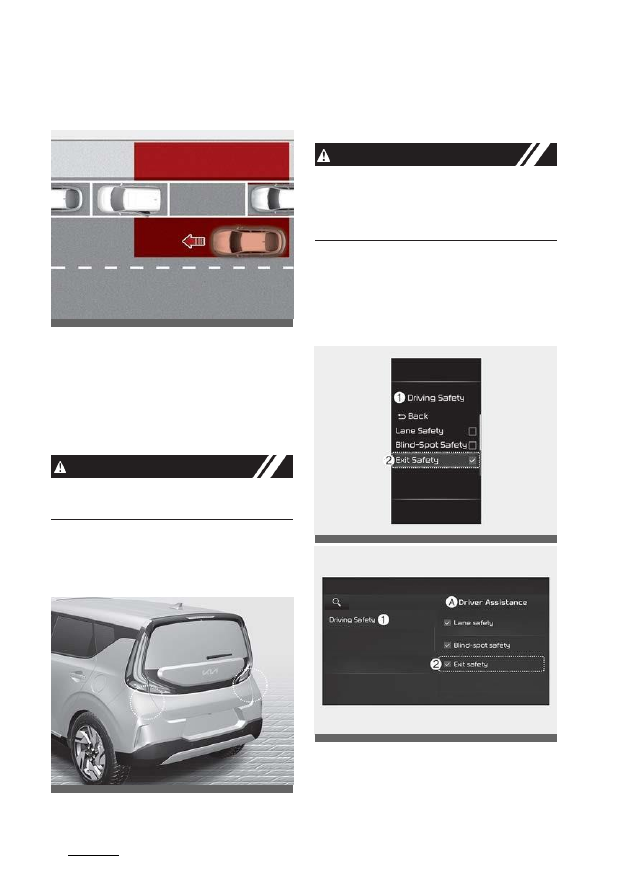
Safe Exit Warning (SEW)

Safe Exit Warning (SEW) (if 
equipped)

After the vehicle stops, when an 
approaching vehicle from the rear area is
detected as soon as a passenger opens
a door, Safe Exit Warning will warn the
driver with a warning message and an
audible warning to help prevent a 
collision.

CAUTION

Warning timing may vary depending on 
the speed of the approaching vehicle.

Detecting sensor

Rear corner radar

Refer to the picture above for the 
detailed location of the detecting sen

-

sors.

CAUTION

For more details on the precautions of 
the rear corner radars, refer to "Blind-
Spot Collision-Avoidance Assist (BCA)
(if equipped)" on page 6-36.

Safe Exit Warning settings 

Setting features

Exit Safety

A: Driver Assistance

1 Driving Safety

2 Exit Safety

OSK3052385L

OSK3052028L

OSK3052403L

OSK3052404L

47

6

6

Driver assistance system

Safe Exit Warning (SEW)

With the vehicle on, select Settings

Driver Assistance

→ Driving safety→ 

Exit Safetyon the instrument cluster or 
Settings

→ Vehicle→Driver Assistance

→ Driving Safety→ Exit Safetyon the 
infotainment system.

W ARNING

If Exit Safety is deselected, Safe Exit 
Warning cannot warn you. The driver 
should always be aware of unexpected 
and sudden situations from occurring.

NOTICE

If the vehicle is restarted, Safe Exit Warn

-

ing will maintain the last setting.

Warning methods

A: Driver Assistance

1 Warning Volume

2 Driving Safety Priority

3 High

4 Medium

5 Low
With the vehicle on, select Settings

Driver Assistance

→ Warning Volume

on the instrument cluster or Settings

Vehicle

→ Driver Assistance → Warn

-

ing Methods on the infotainment sys

-

tem to change the Warning Sound.
• Warning Volume: You can adjust the 

Warning Volume.

• Driving Safety Priority: For safe driv

-

ing, the audio volume will temporarily 
decrease to warn the driver with the 
audible warning.

CAUTION

• Ensure that Warning Methods you 

have set may apply to the Warning 
Methods of other Driver Assistance 
systems.

• Warning Methods will maintain its last 

setting even if the vehicle is restarted.

• The setting menu may not be avail

-

able for your vehicle depending on 
the vehicle features and specifica

-

tions.

OSK3052320L

OMQ4A052388

Driver assistance system

48

6

Safe Exit Warning (SEW)

Safe Exit Warning operation

Safe Exit Warning warns the following 
actions.
• Collision warning when exiting vehicle

Collision warning when exiting 
vehicle

A: Watch for traffic
The warning light on the side view mirror 
will blink and the warning message will 
appear on the cluster, and an audible 
warning will sound.
• Safe Exit Warning will warn under the 

following circumstances:

- Your driving speed: below 2 mph (3 

km/h)

- The speed of the approaching vehi

-

cle from the rear: above 4 mph (6 
km/h)

W ARNING

• For your safety, change the Settings 

after parking the vehicle at a safe 
location.

• If any other function's warning mes

-

sage is displayed or audible warning 
is generated, Safe Exit Warning warn

-

ing message may not be displayed 
and audible warning may not be gen

-

erated.

• You may not hear the warning sound 

of Safe Exit Warning if the surround

-

ing is noisy.

• Safe Exit Warning does not operate in

all situations or cannot prevent all col

-

lisions.

• Safe Exit Warning may warn the

driver late or may not warn the driver 
depending and driving conditions. 
Always check vehicle surroundings.

• The driver and passengers are 

responsible for accidents that occurs 
while exiting the vehicle. Always check 
the surroundings before you exit the 
vehicle.

NOTICE

• After the vehicle is turned off, Safe

Exit Warning operates for approxi

-

mately 3 minutes, but turns off imme

-

diately if the doors are locked.

• Images or colors may be displayed 

differently depends on the instrument
cluster specifications or theme.

OSK3052366L

OSK3052313N

49

6

6

Driver assistance system

Safe Exit Warning (SEW)

Safe Exit Warning malfunction 
and limitations

Safe Exit Warning malfunction

A: Check Blind-Spot Safety system
When Safe Exit Warning is not working 
properly, the warning message will 
appear on the cluster, and the master 
warning light (

) will appear on the clus

-

ter. Have Safe Exit Warning be inspected 
by an authorized Kia dealer.

A: Check outside mirror warning icon
When the outside rear view mirror warn

-

ing light is not working properly, the 
warning message will appear on the 
cluster for several seconds, and the 
master warning light ( ) will appear on 
the cluster. Have Safe Exit Warning be 
inspected by an authorized Kia dealer.

Safe Exit Warning disabled

A: Blind-spot safety systems disabled.
Radar blocked

When the rear bumper around the rear 
corner radar or sensor is covered with 
foreign material, such as snow or rain, or 
installing a trailer or carrier, it can reduce 
the detecting performance and tempo

-

rarily limit or disable Safe Exit Warning.

If this occurs, the Blind-Spot Safety
systems disabled. Radar blocked
warning message will appear on the 
cluster.

Safe Exit Warning will operate normally 
when such foreign material or trailer, etc. 
is removed, and then the vehicle is 
restarted.

If Safe Exit Warning does not operate 
normally after it is removed, Have Safe 
Exit Warning be inspected by an autho

-

rized Kia dealer.

W ARNING

• Even though the warning message 

does not appear on the cluster, Safe 
Exit Warning may not properly oper

-

ate.

• Safe Exit Warning may not properly 

operate in an area (e.g., open terrain), 
where any substance are not detected 
right after the vehicle is turned on, or

OSK3052307N

OSK3052308N

OSK3052312N

Driver assistance system

50

6

Manual Speed Limit Assist (MSLA)

when the detecting sensor is blocked 
with foreign material right after the 
vehicle is turned on.

CAUTION

Turn off Safe Exit Warning to install a
trailer, carrier, etc., or remove the trailer, 
carrier, etc. to use Safe Exit Warning.

Limitations of Safe Exit Warning

Safe Exit Warning may not operate nor

-

mally, or Safe Exit Warning may operate
unexpectedly under the following warn

-

ing.
• Getting out of the vehicle where trees 

or grass are overgrown

• Getting out of the vehicle where the 

road is wet

• The approaching vehicle is very fast 

or very slow

NOTICE

For more details on the precautions of 
the rear corner radars, refer to "Blind-
Spot Collision-Avoidance Assist (BCA)
(if equipped)" on page 6-36.

W ARNING

• Safe Exit Warning may not operate 

normally if interfered by strong elec

-

tromagnetic waves.

• Safe Exit Warning may not operate for 

approximately 3 seconds after the 
vehicle is restarted, or the rear corner 
radars are initialized.

Manual Speed Limit Assist 
(MSLA)

1 Speed Limit indicator

2 Set speed
You can set the speed limit when you do 
not want to drive over a specific speed.

If you drive over the preset speed limit, 
Manual Speed Limit Assist operates (set 
speed limit will blink and chime will 
sound) until the vehicle speed returns 
within the speed limit.

Manual Speed Limit Assist opera

-

tion

Setting speed limit

1. Press and hold Driving Assist ( ) but

-

ton at the desired speed. The Speed 
Limit (

) indicator will appear on

the cluster.

OSK3052429N

51

6

6

Driver assistance system

Manual Speed Limit Assist (MSLA)

2. Push the (+) switch up or (-) switch

down, and release it at the desired
speed.

Push the (+) switch up or (-) switch 
down and hold it. The speed will 
increase or decrease to the nearest 
multiple of 10 (multiple of 5 in mph) at 
first, and then increase or decrease by 
5 mph (10 km/h).

3. The set speed limit will be displayed 

on the cluster.

If you would like to drive over the pre

-

set speed limit, depress the accelera

-

tor pedal beyond the pressure point
to activate the kickdown mechanism.

The set speed limit will blink and 
chime will sound until you return the 
vehicle speed within the speed limit.

NOTICE

• When the accelerator pedal is not 

depressed beyond the pressure point, 
vehicle speed will maintain within the 
speed limit.

• A clicking sound may be heard from 

the kickdown mechanism when the

OSK3052286L

OSK3052405L

OSK3052288L

OSK3052371N

Driver assistance system

52

6

Manual Speed Limit Assist (MSLA)

accelerator pedal is depressed 
beyond the pressure point.

Temporarily pausing Manual 
Speed Limit Assist

Press the ( ) switch to temporarily 
pause the set speed limit. The set speed 
limit will turn off but the Speed Limit
(

) indicator will stay on.

Resuming Manual Speed Limit 
Assist

To resume Manual Speed Limit Assist 
after the function was paused, operate 
the (+), (-), (

) switch.

If you push the (+) switch up or (

–) switch

down, vehicle speed will be set to the
current speed on the cluster.

If you press the ( ) switch, vehicle 
speed will resume to the preset speed.

Turning off Manual Speed Limit 
Assist

Press the Driving Assist ( ) button to 
turn Manual Speed Limit Assist off. The 
Speed Limit (

) indicator will go 

off.

W ARNING

)

Take the following precautions when 
using Manual Speed Limit Assist:
• Always set the vehicle speed under 

the speed limit in your country.

• Keep Manual Speed Limit Assist off 

when the function is not in use, to 
avoid inadvertently setting a speed. 
Check that the Speed Limit (
indicator is off.

• Manual Speed Limit Assist does not 

substitute for proper and safe driving. It
is the responsibility of the driver to 
always drive safely and should always 
be aware of unexpected and sudden 
situations from occurring. Pay atten

-

tion to the road conditions at all times.

OSK3052023L

OSK3052290L

OSK3052286L

53

6

6

Driver assistance system

Intelligent Speed Limit Assist (ISLA)

Intelligent Speed Limit Assist 
(ISLA) (if equipped)

Intelligent Speed Limit Assist uses infor

-

mation from the detected road sign and 
navigation system to inform the driver of 
the speed limit and additional informa

-

tion of the current road. Also, Intelligent 
Speed Limit Assist helps the driver to 
maintain within the speed limit of the 
road.

CAUTION

• Intelligent Speed Limit Assist may not 

operate properly if the function is used
in other countries.

• If a navigation is applied to your vehi

-

cle, the navigation needs to be regu

-

larly updated for Intelligent Speed Limit
Assist to operate properly.

Detecting sensor

Front view camera

Refer to the picture above for the detailed 
location of the detecting sensor.

CAUTION

For more details on the precautions of 
the front view camera, refer to "Forward 
Collision-Avoidance Assist (FCA) (Front

Camera Only) (if equipped)" on page 6-
4.

Intelligent Speed Limit Assist set

-

tings

Speed limit

A: Driver Assistance

1 Speed Limit

2 Select country

3 Speed Limit tolerance

4 Speed Limit Assist

5 Speed Limit Warning

6 Off
With the vehicle on, select Settings

Driver Assistance

→ Speed Limit on

the instrument cluster or Settings

OSK3052374L

OSK3052406L

OSK3052407L

Driver assistance system

54

6

Intelligent Speed Limit Assist (ISLA)

Vehicle

→ Driver Assistance → Speed

Limit on the infotainment system.
• Speed Limit Assist: Intelligent Speed 

Limit Assist will inform the driver of 
speed limit and additional road signs. 
In addition, Intelligent Speed Limit 
Assist will inform the driver to change 
set speed of Manual Speed Limit 
Assist or Smart Cruise Control (If 
equipped) to help the driver stay within
the speed limit.

• Select country: If the vehicle is not 

equipped with navigation system, a
settings menu will be provided to 
select the country manually. For Intel

-

ligent Speed Limit Assist to operate 
properly, select the country where the 
vehicle is currently being driven.

• Speed limit tolerance: The tolerance 

for Speed limit can be adjusted. The 
vehicle will warn the speed limit or 
adjust the driving speed when the 
current driving speed is higher than 
the recognized speed limit added with 
set tolerance value.

• Speed Limit Warning: Intelligent 

Speed Limit Assist will inform the driver
of speed limit and additional road
signs. In addition, Intelligent Speed
Limit Assist will warn the driver when
the vehicle is driven faster than the
speed limit. Manual Speed Limit Assist
or Smart Cruise Control (If equipped)
set speed will not be auto

-

matically

adjusted. The driver should adjust the
speed manually.

• Off: Intelligent Speed Limit Assist will 

turn off.

Speed limit offset

A: Driver Assistance

1 Speed Limit

2 Speed Limit Offset (mph)
With the vehicle on, select Settings

Driver Assistance

→ Speed Limit on 

the instrument cluster or Settings

Vehicle

→ Driver Assistance → Speed

Limit on the infotainment system.

Speed Limit Warning and Speed Limit
Assist warns the driver when driving 
speed exceeds the speed at which the 
set Speed Limit Offset is added to the 
speed limit, or applies the Speed limit 
offset setting to the detected speed limit.

OSK3052315N

OSK3052318N

55

6

6

Driver assistance system

Intelligent Speed Limit Assist (ISLA)

W ARNING

For your safety, change the settings 
after parking the vehicle at a safe loca

-

tion.

NOTICE

• Speed limit and Speed warning func

-

tion operates based on an offset value 
added with the speed limit. Set the 
offset value to '0' to change or warn 
the speed according to the recog

-

nized speed limit.

• The setting of Speed limit offset is not 

reflected in Navigation-based Smart 
Cruise Control.

• If you change the Warning volume,

the Warning volume of other Driver
Assistance systems may change.

Warning methods

A: Driver Assistance

1 Warning Volume

2 Driving Safety Priority

3 High

4 Medium

5 Low
With the vehicle on, select Settings

Driver Assistance

→ Warning Volume

on the instrument cluster or Settings

Vehicle

→ Driver Assistance → Warn

-

ing Methods on the infotainment sys

-

tem to change the Warning Sound.
• Warning Volume: You can adjust the 

Warning Volume.

• Driving Safety Priority: For safe driv

-

ing, the audio volume will temporarily 
decrease to warn the driver with the 
audible warning.

CAUTION

• Ensure that Warning Methods you 

have set may apply to the Warning 
Methods of other Driver Assistance 
systems.

• Warning Methods will maintain its last 

setting even if the vehicle is restarted.

• The setting menu may not be avail

-

able for your vehicle depending on

OSK3052320L

OMQ4A052388

Driver assistance system

56

6

Intelligent Speed Limit Assist (ISLA)

the vehicle features and specifica

-

tions.

Intelligent Speed Limit Assist 
operation

Warning and control

Intelligent Speed Limit Assist is warned 
and controlled by the following level.
• Displaying speed limit

Warning overspeed

• Changing set speed

NOTICE

Intelligent Speed Limit Assist warning 
and control are described based on the 
Offset adjust to '0'. For details on Offset 
setting, refer to "Intelligent Speed Limit 
Assist settings" on page 6-53.

Displaying speed limit

Speed limit information is displayed on 
the instrument cluster.

NOTICE

• If speed limit information of the road 

cannot be recognized, '---' sign will be 
displayed. Please refer to "Intelligent 
Speed Limit Assist malfunction and 
limitations" on page 6-58 if the road 
signs are difficult to recognize.

• Intelligent Speed Limit Assist provides 

additional road sign information in 
addition to speed limit. The additional 
road sign information provided may 
vary according to your country.

• Supplementary sign displayed under 

the speed limit or overtaking restric

-

tion sign means the conditions under 
which the signs must be followed. If 
the supplementary sign is not recog

-

nized, it is displayed as blank.

• The images and colors in the instru

-

ment cluster may differ depending on 
the cluster type or theme selected 
from the settings menu.

Warning overspeed

When driving at a speed higher than the
displayed speed limit, the red speed limit
indicator will be indicated.

OSK3053408N

OSK3053408N

57

6

6

Driver assistance system

Intelligent Speed Limit Assist (ISLA)

Changing set speed

If the speed limit of the road changes 
during the operation of Manual Speed 
Limit Assist or Smart Cruise Control, an 
arrow in the direction of up or down is 
displayed to inform the driver that the 
set speed needs to be changed. At this 
time, the driver can change the set 
speed according to the speed limit by 
using the (+) or (

–) switch on the steer

-

ing wheel.

W ARNING

• If the Offset is adjusted over '0', the set

speed will change to a higher speed
than the speed limit of the road. If you
want to drive below the speed limit,
adjust the Offset under '0' or use the (

) switch on the steering wheel to lower
the set speed.

• Even after changing the set speed 

according to the speed limit of the 
road, the vehicle can still be driven 
over the speed limit. If necessary, 
depress the brake pedal to reduce 
your driving speed.

• If the speed limit of the road is under 

20 mph (30 km/h), the set speed 
change function will not work.

• Intelligent Speed Limit Assist oper

-

ates using the speed unit in the instru

-

ment cluster set by the driver. If the 
speed unit is set to a unit other than 
the speed unit used in your country, 
Intelligent Speed Limit Assist may not 
operate properly.

NOTICE

• For more details on Manual Speed 

Limit Assist operation, refer to "Man

-

ual Speed Limit Assist (MSLA)" on 
page 6-50.

• For more details on Smart Cruise Con

-

trol operation, refer to "Smart Cruise 
Control (SCC) (if equipped)" on page
6-69.

OSK3052411N

OSK3052412N

Driver assistance system

58

6

Intelligent Speed Limit Assist (ISLA)

Intelligent Speed Limit Assist 
malfunction and limitations

Intelligent Speed Limit Assist 
malfunction

A: Check Speed Limit system
When Intelligent Speed Limit Assist is not 
working properly, the warning message 
will appear on the cluster for several sec

-

onds, and the master ( ) warning light 
will appear on the cluster. If this occurs, 
have the Intelligent Speed Limit Assist 
checked by an authorized Kia dealer.

Intelligent Speed Limit Assist dis

-

abled

A: Speed limit system disabled. Cam

-

era obscured

When the front windshield where the front
view camera is located is covered with
foreign material, such as snow or rain, it
can reduce the detecting perfor

-

mance

and temporarily limit or disable Intelligent
Speed Limit Assist. If this occurs, the 
warning message will appear on the
cluster.

Intelligent Speed Limit Assist will operate 
properly when snow, rain or foreign 
material is removed. Always keep it 
clean.

If Intelligent Speed Limit Assist does not 
operate properly after it is removed, 
have the Intelligent Speed Limit Assist 
checked by an authorized Kia dealer.

W ARNING

• Even though the warning message or 

warning light does not appear on the 
cluster, Forward Collision-Avoidance 
Assist may not operate properly.

• Even after starting the engine again, 

Intelligent Speed Limit Assist may not 
function properly when the obstruc

-

tion or malfunction condition persists.

Limitations of Intelligent Speed 
Limit Assist

Intelligent Speed Limit Assist may not 
operate properly, or it may operate 
unexpectedly under the following cir

-

cumstances:
• The road sign is contaminated or 

indistinguishable

- The road sign is difficult to see due

to bad weather, such as rain, snow,
fog, etc.

- The road sign is partially obscured

by surrounding objects or shadow

• The road signs do not conform to the

standard

OSK3052327L

OSK3052330L

59

6

6

Driver assistance system

Intelligent Speed Limit Assist (ISLA)

- The text or picture on the road sign 

is different from the standard

- The road sign is installed between 

the main line and the exit road or 
between diverging roads

- A sign is attached to another vehi

-

cle

• The distance between the vehicle and 

the road signs is far

• The vehicle encounters appearing 

road signs

• Intelligent Speed Limit Assist incor

-

rectly recognizes numbers or pictures 
in the street signs or other signs as the
speed limit

• A road sign near the road you are 

driving is detected

• Multiple signs are installed close 

together

• The minimum speed limit sign is mis-

recognized

• The minimum speed limit sign is on 

the road

• The brightness changes suddenly, for 

example when entering or exiting a
tunnel or passing under a bridge

• Headlamps are not used or the bright

-

ness of the headlamps are weak at 
night or in the tunnel

• The field of view of the front view 

camera is obstructed by sun glare

• Road signs are difficult to recognize 

due to the reflection of sunlight, street 
lights, or oncoming vehicles

• The navigation information or GPS 

information contain errors.

• The driver does not follow the guide 

of the navigation.

• Driving on a road that is sharply 

curved or continuously curved

• Driving through speed bumps, or driv

-

ing up and down or left to right on 
steep inclines

• The vehicle is shaking heavily
• Driving on a newly opened road

W ARNING

• Intelligent Speed Limit Assist is a sup

-

plemental function that helps the driver
to comply with the speed limit on the
road, and may not display the correct
speed limit or control the driv

-

ing

speed properly.

• It is the responsibility of the driver to 

keep the speed limit.

• It may not operate for 15 seconds after

the vehicle is started, or the front view
camera is initialized or restarted.

NOTICE

For more details on the limitations of the 
front view camera, refer to "Forward Col

-

lision-Avoidance Assist (FCA) (Front 
Camera Only) (if equipped)" on page 6-
4.

Driver assistance system

60

6

Driver Attention Warning (DAW)

Driver Attention Warning 
(DAW ) (if equipped)

Basic function

Driver Attention Warning can help deter

-

mine the driver's attention level by ana

-

lyzing driving pattern and driving time 
while the vehicle is driven. Driver Atten

-

tion Warning will recommend a break 
when the driver's attention level falls 
below a certain level.

Leading Vehicle Departure Alert

Leading vehicle departure alert 
function

Leading Vehicle Departure Alert function 
will inform the driver when a detected 
vehicle in front departs from a stop.

Detecting sensor

Front view camera

The front view camera is used as a
detecting sensor to help detect driving 
patterns and front vehicle departure 
while vehicle is being driven.

Refer to the picture above for the detailed
location of the detecting sensor.

CAUTION

• Always keep the front view camera in 

good condition to maintain optimal 
performance of Driver Attention 
Warning.

• For more details on the precautions of 

the front view camera, refer to "For

-

ward Collision-Avoidance Assist (FCA) 
(Front Camera Only) (if equipped)" on 
page 6-4.

A: Driver Assistance

1 Driver Attention Warning

2 Leading Vehicle Departure Alert
• If Leading Vehicle Departure Alert is 

selected, the function will inform the

OSK3052374L

OSK3053470N

OSK3053471N

61

6

6

Driver assistance system

Driver Attention Warning (DAW)

driver when a detected vehicle in 
front departs from a stop.

Driver Attention Warning opera

-

tion

Basic function

The basic function of Driver Attention 
Warning is to warn the driver 'Consider 
taking a break'.

Taking a break

A: Consider taking a break
Warning message will appear on the 
cluster and an audible warning will
sound to suggest that the driver take a
break, when the driver's attention level is 
below a certain level.
• Driver Attention Warning will not sug

-

gest a break when the total driving 
time is shorter than 4 minutes or 4
minutes has not passed after the last 
break was suggested.

Driver Attention Warning (DAW) oper

-

ates under the following conditions:
• Your driving speed: Approximately 

0~120 mph (0~200 km/h).

W ARNING

For your safety, change the Settings 
after parking the vehicle at a safe loca

-

tion.

CAUTION

• Driver Attention Warning may suggest 

a break depending on the driver's 
driving pattern or habits, even if the 
driver doesn't feel fatigue.

• Driver Attention Warning is a supple

-

mental function and may not be able 
to determine whether the driver is 
inattentive.

• The driver who feels fatigued should

take a break at a safe location, even
though there is no break suggestion
by Driver Attention Warning.

NOTICE

For more details on vehicle settings,
refer to "LCD Display Modes" on page 4-
46.

Leading vehicle departure alert 
function

A: Leading vehicle is driving on
When a detected vehicle in front departs 
from a stop, Leading Vehicle Departure 
Alert will inform the driver by displaying 
the warning message on the cluster and 
an audible warning will sound.

OSK3052413L

OSK3052414L

Driver assistance system

62

6

Driver Attention Warning (DAW)

W ARNING

• If any other function's warning mes

-

sage is displayed or audible warning 
is generated, Leading Vehicle Depar

-

ture Alert's warning message may not 
be displayed and audible warning may
not be generated.

• The driver should hold the responsi

-

bility to safely drive and control the 
vehicle.

CAUTION

• Leading Vehicle Departure Alert is a

supplemental function and may not 
alert the driver whenever the front 
vehicle departs from a stop.

• Always check the front of the vehicle 

and road conditions before departure.

NOTICE

The images and colors in the instrument 
cluster may differ depending on the 
cluster type or theme selected from the 
settings menu.

Driver Attention Warning mal

-

function and limitations

Driver Attention Warning mal

-

function

A: Check Driver Attention Warning
(DAW) system

When Driver Attention Warning is not 
working properly, the warning message 
will appear on the cluster for several sec

-

onds, and the master ( ) warning light 
will appear on the cluster. If this occurs, 
have Driver Attention Warning inspected 
by an authorized Kia dealer.

Driver Attention Warning dis

-

abled

A: Inattentive Driving Warning dis

-

abled. Camera obscured

When the front view camera is located is 
covered with foreign material, such as 
snow or rain, it can reduce the detecting 
performance and temporarily limit or 
disable Driver Attention Warning.

If this occurs the warning message, and 
the ( ) warning light will appear on the 
cluster. Driver Attention Warning will 
operate normally when snow, rain or for

-

eign material is removed. Always keep it 
clean.

If Driver Attention Warning does not 
operate normally after obstruction 
(snow, rain, or foreign material) is 
removed, have Driver Attention Warn

-

ing inspected by an authorized Kia 
dealer.

OSK3052415L

OSK3052416L

63

6

6

Driver assistance system

Driver Attention Warning (DAW)

W ARNING

• Driver Attention Warning may not work

properly in areas where sub

-

stances

are not detected after turning ON the
vehicle (e.g. in open terrain) or if the
recognition sensor is contami

-

nated.

• Even after starting the engine again, 

Driver Attention Warning may not 
function properly when the obstruc

-

tion or malfunction condition persists.

Limitations of Driver Attention 
Warning

Driver Attention Warning may not work 
properly in the following situations:
• The vehicle is driven violently
• The vehicle intentionally crosses over 

lanes frequently

• The vehicle is controlled by Driver 

Assistance system, such as Lane 
Keeping Assist

Leading vehicle departure alert 
function

• When the vehicle cuts in

[A]: Your vehicle, [B]: Front vehicle
If a vehicle cuts in front of your vehi

-

cle, Leading Departure Alert may not
operate properly.

• When the vehicle ahead sharply

steers

[A]: Your vehicle, [B]: Front vehicle

If the vehicle in front makes a sharp
turn, such as to turn left or right or
make a U-turn, etc., Leading Vehicle 
Departure Alert may not operate 
properly.

• When the vehicle ahead abruptly 

departures

OSK3052051L

OSK3052386L

OSK3052391L

Driver assistance system

64

6

Driver Attention Warning (DAW)

If the vehicle in front abruptly depar

-

tures, Leading Vehicle Departure Alert 
may not operate properly.

• When a pedestrian or bicycle is 

between you and the vehicle ahead

If there is a pedestrian(s) or bicycle(s) 
in between you and the vehicle in 
front, Leading Vehicle Departure Alert 
may not operate properly.

• When in a parking lot

If a vehicle parked in front drives away
from you, Leading Vehicle Departure
Alert may alert you that the parked
vehicle is driving away.

• When driving at a tollgate or intersec

-

tion, etc.

If you pass a tollgate or intersection 
with lots of vehicles or you drive where
lanes are merged or divided 
frequently, Leading Vehicle Departure 
Alert may not operate properly.

W ARNING

Driver Attention Warning may not oper

-

ate for 15 seconds after the vehicle is 
started, or the front view camera is ini

-

tialized.

OSK3052387L

OSK3052388L

OSK3052389L

OSK3052390L

65

6

6

Driver assistance system

Cruise Control (CC)

NOTICE

For more details on the precautions of 
the front view camera, refer to "Forward 
Collision-Avoidance Assist (FCA) (Front 
Camera Only) (if equipped)" on page 6-
4.

Cruise Control (CC) (if 
equipped)

1 Cruise indicator

2 Set speed
Cruise Control will allow you to drive at 
speeds above 20 mph (30 km/h) without 
depressing the accelerator pedal.

Cruise Control operation 

Setting speed

1. Accelerate to the desired speed, 

which must be more than 20 mph (30 
km/h).

2. Press the Driving Assist button at the 

desired speed. The set speed and 
Cruise (

) indicator will appear 

on the cluster.

3. Release the accelerator pedal.

OSK3052328N

OSK3052286L

Driver assistance system

66

6

Cruise Control (CC)

Vehicle speed will maintain the set 
speed even when the accelerator 
pedal is not depressed.

NOTICE

• The vehicle may slightly slow down or

speed up while driving uphill or down

-

hill.

• The Driving Assist button symbol may 

vary depending on your vehicle 
option.

Increasing set speed

• Push the (+) switch up and release it 

immediately. The set speed will 
increase by 1 mph (1 km/h) each time 
the switch is operated in this manner.

• Push the (+) switch up and hold it 

while monitoring the set speed on the 
cluster. The set speed will increase to 
the nearest multiple of 5 (multiple of 10
in km/h) at first, and then increase by
5 mph (10 km/h) each time the switch
is operated in this manner.

Release the switch when the desired 
speed is shown and the vehicle will 
accelerate to that speed.

Decreasing set speed

• Push the (-) switch down and release 

it immediately. The set speed will 
decrease by 1 mph (1 km/h) each time 
the switch is operated in this manner.

• Push the (-) switch down and hold it 

while monitoring the set speed on the 
cluster. The set speed will decrease to 
the nearest multiple of 5 (multiple of 10
in km/h) at first, and then decrease by
5 mph (10 km/h) each time the switch
is operated in this manner.

Release the switch at the speed you 
want to maintain.

Accelerating temporarily

If you want to speed up temporarily 
when Cruise Control is on, depress the 
accelerator pedal.

To return to the set speed, take your foot 
off the accelerator pedal.

If you push the (+) switch up or (-) switch 
down at increased speed, the set speed 
will be set to the current increased 
speed.

OSK3052405L

OSK3052288L

67

6

6

Driver assistance system

Cruise Control (CC)

Temporarily pausing Cruise Con

-

trol

Cruise Control will be paused when:

Depressing the brake pedal.

• Pressing the ( ) switch.
• Shifting the gear to N (Neutral).
• Decreasing vehicle speed to less than 

approximately 20 mph (30 km/h).

• ESC (Electronic Stability Control)

is operating.

• Downshifting to 2nd gear when in 

Manual Shift mode.

The set speed will turn off but the Cruise (

) indicator will stay on.

NOTICE

If Cruise Control pauses during a situa

-

tion that is not mentioned, Visit an 
authorized Kia dealer.

Resuming Cruise Control

Operate the (+), (-) or (

) switch.

If you push the (+) switch up or (-) switch 
down, the set speed will be set to the 
current speed on the cluster.

If you press the (

) switch, vehicle 

speed will resume to the preset speed. 
The vehicle speed must be above 20
mph (30 km/h) for Cruise Control to 
resume.

W ARNING

Check the driving condition before using 
the (

) switch. Driving speed may 

sharply increase or decrease when you 
press the ( ) switch.

Turning off Cruise Control

OSK3052478L

OSK3052479L

OSK3052286L

Driver assistance system

68

6

Cruise Control (CC)

Press the Driving Assist button to turn 
Cruise Control off. The Cruise (
indicator will go off.

Always press the Driving Assist button to 
turn Cruise Control off when not in use.

NOTICE

If your vehicle is equipped with Manual 
Speed Limit Assist, press and hold the 
Driving Assist button to turn off Cruise 
Control. However, Manual Speed Limit 
Assist will turn on.

W ARNING

Take the following precautions when 
using Cruise Control:
• Always set the vehicle speed under 

the speed limit in your country.

• Keep Cruise Control off when the 

function is not in use, to avoid inad

-

vertently setting a speed. Check that 
the Cruise (

) indicator is off.

• Cruise Control does not substitute for 

proper and safe driving. It is the 
responsibility of the driver to always 
drive safely and should always be 
aware of unexpected and sudden sit

-

uations from occurring.

• Always drive cautiously to prevent 

unexpected and sudden situations 
from occurring. Pay attention to the 
road conditions at all times.

• Do not use Cruise Control when it may

)

be unsafe to keep the vehicle at a
constant speed:

- When driving in heavy traffic, or 

when traffic conditions make it dif

-

ficult to drive at a constant speed

- When driving on rainy, icy, or snow-

covered roads

- When driving on hilly or windy 

roads

- When driving in windy areas
- When driving with limited view 

(possibly due to bad weather, such 
as fog, snow, rain and sandstorm)

• Do not use Cruise Control when tow

-

ing a trailer.

69

6

6

Driver assistance system

Smart Cruise Control (SCC)

Smart Cruise Control (SCC) (if 
equipped)

Smart Cruise Control is designed to help 
detect the vehicle ahead and help main

-

tain the desired speed and minimum 
distance between the vehicle ahead.

Detecting sensor

Front view camera

Front radar

The front view camera and front radar 
are used as a detecting sensor to detect 
front vehicles.

Refer to the picture above for the detailed 
location of the detecting sensor.

CAUTION

Always keep the front view camera and 
front radar in good condition to maintain 
optimal performance of Smart Cruise 
Control.

For more details on the precautions of 
the front view camera and front radar, 
refer to "Forward Collision-Avoidance 
Assist (FCA) (Front Camera Only) (if 
equipped)" on page 6-4.

Smart Cruise Control settings

With the vehicle on, select Settings

Driver Assistance

→ Driving Conve

-

nience

→ Smart Cruise Control on the 

instrument cluster or Settings

→ Vehi

-

cle

→ Driver Assistance → Driving

Convenience

→ Smart Cruise Control

on the infotainment system to set the 
distance, acceleration and the reaction 
speed.

OSK3052374L

OSK3052014L

OSK3052333L

Driver assistance system

70

6

Smart Cruise Control (SCC)

Warning methods

A: Driver Assistance

1 Warning Volume

2 Driving Safety Priority

3 High

4 Medium

5 Low
With the vehicle on, select Settings

Driver Assistance

→ Warning Volume

on the instrument cluster or Settings

Vehicle

→ Driver Assistance → Warn

-

ing Methods on the infotainment sys

-

tem to change the Warning Sound.
• Warning Volume: You can adjust the 

Warning Volume.

• Driving Safety Priority: For safe driv

-

ing, the audio volume will temporarily

decrease to warn the driver with the 
audible warning.

CAUTION

• Ensure that Warning Methods you 

have set may apply to the Warning 
Methods of other Driver Assistance 
systems.

• Warning Methods will maintain its last 

setting even if the vehicle is restarted.

• The setting menu may not be avail

-

able for your vehicle depending on 
the vehicle features and specifica

-

tions.

Smart Cruise Control operation

Operating conditions for basic 
function

Basic function

Smart Cruise Control operates when the 
following conditions are satisfied.
• The gear is in D (Drive)
• Your vehicle speed is within the oper

-

ating speed range

- 5~100 mph (10~160 km/h): when 

there is no vehicle in front

- 0~100 mph (0~160 km/h): when 

there is a vehicle in front

• ESC (Electronic Stability Control)

or ABS is on

• Smart Cruise Control does not oper

-

ate in the following conditions.

• The driver's door is opened

Engine RPM is high

• EPB (Electronic Parking Brake) 

is applied

• ESC (Electronic Stability Control)

or ABS is controlling the vehicle

• Forward Collision-Avoidance Assist 

brake control is operating

OSK3052320L

OMQ4A052388

71

6

6

Driver assistance system

Smart Cruise Control (SCC)

NOTICE

When stopped behind another vehicle, 
the driver can turn on Smart Cruise Con

-

trol while the brake pedal is depressed.

Operating conditions for Acceler

-

ation Assist

Overtaking Acceleration Assist will oper

-

ate when the turn signal indicator is 
turned on to the left while Smart Cruise 
Control is operating, and the following 
conditions are satisfied:
• Your driving speed is above 40 mph 

(60 km/h)

• A vehicle is detected in front of your 

vehicle

Overtaking Acceleration Assist does not 
operate in the following conditions.
• The hazard warning flasher is on
• Vehicle speed is reduced to maintain 

distance with the vehicle in front

W ARNING

When the turn signal indicator is turned 
on to the left while there is a vehicle 
ahead, the vehicle may accelerate tem

-

porarily. Pay attention to the road condi

-

tions at all times.

Regardless of your country's driving 
direction, Overtaking Acceleration Assist 
will operate when the conditions are sat

-

isfied. When using the function in coun

-

tries with different driving direction, 
always check the road conditions at all 
times.

Turning on Smart Cruise Control

Press the Driving Assist button to turn 
on Smart Cruise Control. The speed will 
be set to the current speed on the clus

-

ter.
• If there is no vehicle in front of you, 

the set speed will be maintained.

• If there is a vehicle in front of you, the 

speed may be adjusted to maintain 
the distance to the vehicle ahead. If 
the vehicle ahead accelerates, your 
vehicle will travel at a steady cruising 
speed after accelerating to the set 
speed.

NOTICE

• If your vehicle speed is between 0~20 

mph (0~30 km/h) when you press the 
Driving Assist button, the Smart
Cruise Control speed will be set to 20 
mph (30 km/h).

• If the driver changes to the lower gear,

the driving speed may not reach the
set speed.

OSK3052286L

Driver assistance system

72

6

Smart Cruise Control (SCC)

Setting vehicle distance

Each time the button is pressed, the 
headway changes as follows:

NOTICE

• If you drive at 56 mph (90 km/h), the 

distance is maintained as follows:

Distance 4 - approximately 172 ft.
(52.5 m)
Distance 3 - approximately 130 ft. (40 
m)

Distance 2 - approximately 106 ft.
(32.5 m)
Distance 1 - approximately 82 ft. (25 
m)

• The distance is set to the last set dis

-

tance when the vehicle is restarted, or 
when Smart Cruise Control was tem

-

porarily canceled.

Increasing set speed

• Push the (+) switch up and release it 

immediately. The set speed will 
increase by 1 mph (1 km/h) each time 
the switch is operated in this manner.

• Push the (+) switch up and hold it. The 

set speed will increase by 5 mph (10 
km/h) each time the switch is oper

-

ated in this manner.

You can increase the set speed to 100 
mph (160 km/h).

W ARNING

Check the driving condition before using 
the (+) switch. Driving speed may 
sharply increase when you push up and 
hold the (+) switch.

Decreasing set speed

OSK3052024L

OSK3052405L

OSK3052288L

73

6

6

Driver assistance system

Smart Cruise Control (SCC)

• Push the (-) switch down and release 

it immediately. The set speed will 
decrease by 1 mph (1 km/h) each time 
the switch is operated in this manner.

• Push the (-) switch down and hold it. 

The set speed will decrease by 5 mph 
(10 km/h) each time the switch is 
operated in this manner.

You can decrease the set speed to 20 
mph (30 km/h).

Temporarily canceling Smart 
Cruise Control

Press the ( ) switch or depress the 
brake pedal to temporarily cancel Smart 
Cruise Control.

Resuming Smart Cruise Control

To resume Smart Cruise Control after 
the function was canceled, operate the 
(+), (-) or (

) switch.

If you push the (+) switch up or (-) switch 
down, the set speed will be set to the 
current speed on the cluster.

If you press the (

) switch, vehicle 

speed will resume to the preset speed.

W ARNING

Check the driving condition before using 
the (

) switch. Driving speed may 

sharply increase or decrease when you 
press the ( ) switch.

Turning off Smart Cruise Control

Press the Driving Assist button to turn 
Smart Cruise Control off.

NOTICE

If your vehicle is equipped with Manual 
Speed Limit Assist, press and hold the 
Driving Assist button to turn off Smart 
Cruise Control. However Manual Speed 
Limit Assist will turn on.

CAUTION

Do not use the switches and buttons at 
the same time. Smart Cruise Control 
may not operate properly.

OSK3052023L

OSK3052479L

OSK3052286L

Driver assistance system

74

6

Smart Cruise Control (SCC)

Displaying operating status

You can see the status of the Smart 
Cruise Control operation in the Driving 
Assist view on the cluster. Refer to "LCD 
Display Modes" on page 4-46.

Smart Cruise Control will be displayed as 
below depending on the status of the 
function.

Operating

Temporarily canceled

Smart Cruise Control will be displayed as 
below depending on the status of the 
function.
• When operating

1. Whether there is a vehicle ahead 

and the selected distance level

2. Set speed

3. Whether there is a vehicle ahead 

and the target vehicle distance

• When temporarily canceled

1. Vehicle (shaded)

2. Previous set speed (shaded)

NOTICE

• The distance of the front vehicle on 

the cluster is displayed according to 
the actual distance between your 
vehicle and the vehicle ahead.

• The target distance may vary accord

-

ing to your driving speed and the set
distance level. If your driving speed is
low, even though the vehicle distance
have changed, the change of the tar

-

get vehicle distance may be small.

• The images and colors in the instru

-

ment cluster may differ depending on 
the cluster type or theme selected 
from the settings menu.

Accelerating temporarily

If you want to speed up temporarily 
without altering the set speed while 
Smart Cruise Control is operating, 
depress the accelerator pedal. While the 
accelerator pedal is depressed, the set 
speed, distance level and target distance 
will blink on the cluster.

OSK3052326N

OSK3053417N

OSK3052329N

75

6

6

Driver assistance system

Smart Cruise Control (SCC)

However, if the accelerator pedal is 
depressed insufficiently, the vehicle may 
decelerate.

W ARNING

Be careful when accelerating temporar

-

ily, because the speed and distance is 
not controlled automatically even if there
is a vehicle in front of you.

Temporarily canceling Smart 
Cruise Control

A: SCC (Smart Cruise Control) can

-

celled

Smart Cruise Control will be temporarily 
canceled automatically when:
• The vehicle speed is above 110 mph 

(170 km/h)

• The vehicle is stopped for a certain 

period of time

• The accelerator pedal is continuously 

depressed for a certain period of time

• The conditions for the Smart Cruise 

Control to operate is not satisfied

If Smart Cruise Control is temporarily 
canceled automatically, the warning 
message will appear on the cluster, and 
an audible warning will sound to warn 
the driver.

NOTICE

If Smart Cruise Control is temporarily 
canceled while the vehicle is at a stand

-

still with the function activated, EPB 
(Electronic Parking Brake) maybe 
applied.

W ARNING

When Smart Cruise Control is temporar

-

ily canceled, distance with the front vehi

-

cle will not be maintained. Always have 
your eyes on the road while driving, and if
necessary, depress the brake pedal to 
reduce your driving speed in order to 
maintain a safe distance.

Smart Cruise Control conditions 
not satisfied

A: SCC (Smart Cruise Control) condi

-

tions not met

If the Driving Assist button, (+) switch, (-)
switch or ( ) switch is operated when 
Smart Cruise Control operating condi

-

tions are not satisfied, the warning mes

-

sage will appear on the cluster, and an 
audible warning will sound.

OSK3052331N

OSK3052332N

Driver assistance system

76

6

Smart Cruise Control (SCC)

In traffic situation

A: Use switch or pedal to accelerate
In traffic, your vehicle will stop if the 
vehicle ahead of you stops. Also, if the
vehicle ahead of you starts moving, your
vehicle will start as well. In addition, after 
the vehicle has stopped and a certain 
time have passed, the warning message 
will appear on the cluster. Depress the 
accelerator pedal or operate the (+) 
switch, (-) switch or (

) switch to start 

driving.

Warning road conditions ahead

A: Watch for surrounding vehicles
In the following situation, the warning 
message will appear on the cluster, and 
an audible warning will sound to warn 
the driver of road conditions ahead.

W ARNING

Always pay attention to vehicles or 
objects that may suddenly appear in 
front of you, and if necessary, depress 
the brake pedal to reduce your driving 
speed in order to maintain a safe dis

-

tance.

Collision warning

A: Collision warning!
While Smart Cruise Control is operating, 
when the collision risk with the vehicle 
ahead is high, the warning message will 
appear on the cluster, and an audible 
warning will sound to warn the driver. 
Always have your eyes on the road while 
driving, and if necessary, depress the 
brake pedal to reduce your driving speed
in order to maintain a safe dis

-

tance.

W ARNING

In the following situations, Smart Cruise 
Control may not warn the driver of a col

-

lision.

Always pay attention to road and driving 
conditions while driving.
• The distance from the front vehicle is 

near, or the vehicle speed of the front

OSK3052339L

OSK3052334N

OSK3052298N

77

6

6

Driver assistance system

Smart Cruise Control (SCC)

vehicle is faster or similar with your 
vehicle

• The speed of the front vehicle is very 

slow or is at a standstill

• The accelerator pedal is depressed 

right after Smart Cruise Control is 
turned on

W ARNING

• Smart Cruise Control does not substi

-

tute for proper and safe driving. It is 
the responsibility of the driver to 
always check the speed and distance 
to the vehicle ahead.

• Smart Cruise Control may not recog

-

nize unexpected and sudden situa

-

tions or complex driving situations, so 
always pay attention to driving condi

-

tions and control your vehicle speed.

• Keep Smart Cruise Control off when 

the function is not in use to avoid 
inadvertently setting a speed.

• Do not open the door or leave the 

vehicle when Smart Cruise Control is 
operating, even if the vehicle is 
stopped.

• Always be aware of the selected 

speed and headway distance.

• Keep a safe distance according to 

road conditions and vehicle speed. If 
the headway distance is too close 
during high-speed driving, a serious 
collision may result.

• When maintaining distance with the 

vehicle ahead, if the front vehicle dis

-

appears, Smart Cruise Control may 
suddenly accelerate to the set speed. 
Always be aware of unexpected and 
sudden situations from occurring.

• Vehicle speed may decrease on an 

upward slope and increase on a
downward slope.

• Always be aware of situations such as 

when a vehicle cuts in suddenly.

• When you are towing a trailer or 

another vehicle, turn off Smart Cruise 
Control for safety reasons. If you tow a
European spec trailer, the function 
may be limited.

• Turn off Smart Cruise Control when 

your vehicle is being towed.

• Smart Cruise Control may not operate 

properly if interfered by strong elec

-

tromagnetic waves.

• Smart Cruise Control may not detect 

an obstacle in front and lead to a colli

-

sion. Always look ahead cautiously to 
prevent unexpected and sudden situ

-

ations from occurring.

• Vehicles moving in front of you with a

frequent lane change may cause a
delay in Smart Cruise Control reaction 
or may cause Smart Cruise Control to 
react to a vehicle actually in an adja

-

cent lane. Always drive cautiously to 
prevent unexpected and sudden situ

-

ations from occurring.

• Always be aware of the surroundings 

and drive safely, even though a warn

-

ing message does not appear or an 
audible warning does not sound.

• If any other function's warning mes

-

sage is displayed or warning sound is 
generated, Smart Cruise Control 
warning message may not be dis

-

played and warning sound may not be
generated.

• You may not hear the warning sound

of Forward Collision-Avoidance Assist
if the surrounding is noisy.

• The vehicle manufacturer is not 

responsible for any traffic violation or 
accidents caused by the driver.


Content      ..     8      9      10      11     ..