FANUC Series 30i/300i/300is-MODEL A. Machining Center System. User's manual - page 232
 

  Index      Manuals     FANUC Series 30i/300i/300is-MODEL A. Machining Center System. User's manual (B-63944EN/03)


Search            copyright infringement  


Content      ..     230      231      232      233     ..


FANUC Series 30i/300i/300is-MODEL A. Machining Center System. User's manual - page 232


12.SETTING AND DISPLAYING DATA

 OPERATION 

B-63944EN/03


- 1812 - 

12.4.19 

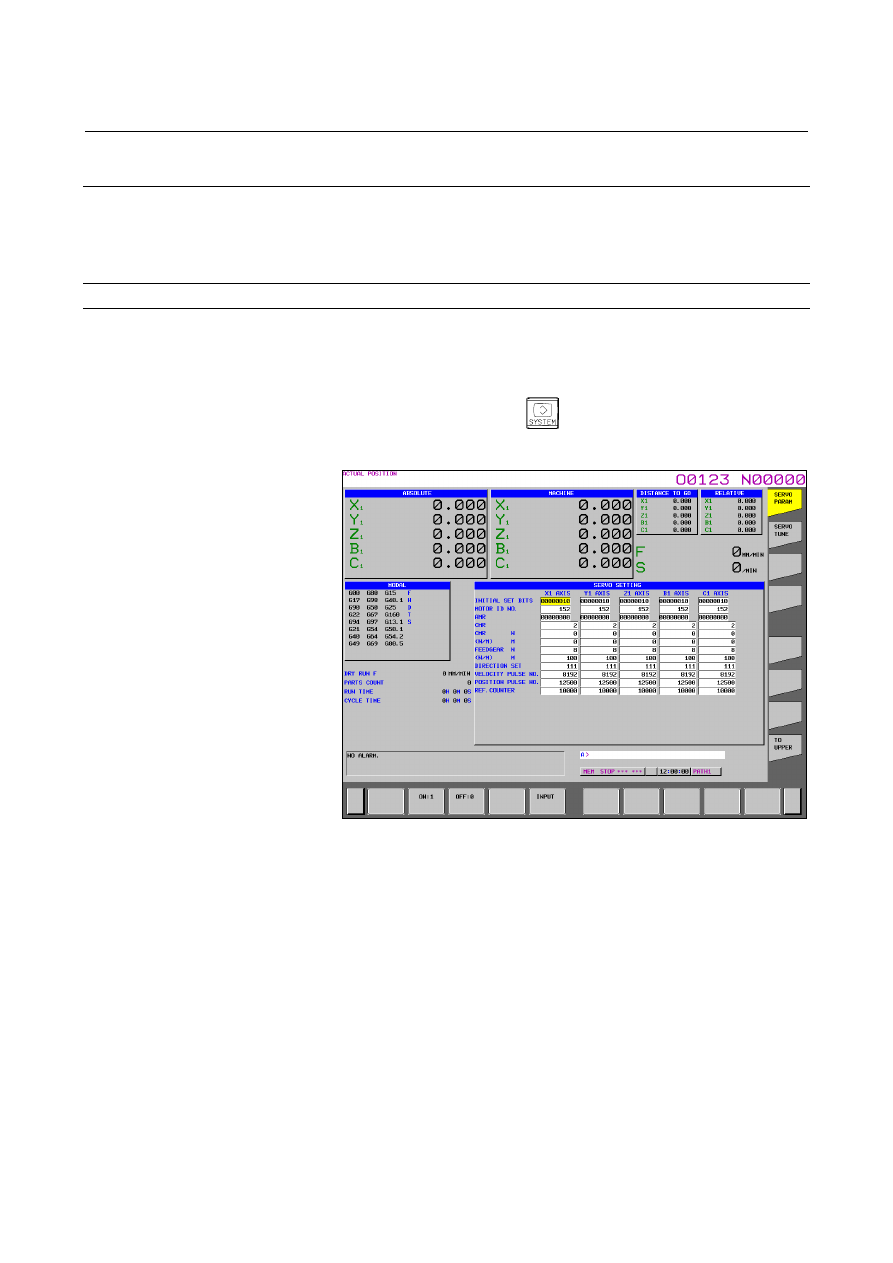
Servo Parameters (15-inch Display Unit) 

 
This subsection describes the initialization of digital servo parameters 
performed, for example, at the time of field tuning of the machine 
tool. 
 

Procedure for servo parameter setting 

Procedure 

Turn on the power in the emergency stop state. 

2  Set bit 0 (SVS) of parameter No. 3111 to 1 to display servo 

setting and tuning screens. 

3  Press function key 

 then vertical soft key [SERVO 

PARAM]. The following screen appears: 


Fig. 12.4.19 (a) Servo parameter setting screen (15-inch) 


4  With the page keys and cursor keys, move the cursor to the 

position of data to be set or modified. 

Key in a desired value then press horizontal soft key [INPUT]. 


B-63944EN/03

 OPERATION 

12.SETTING AND DISPLAYING DATA


- 1813 - 

12.4.20 

Servo Tuning (15-inch Display Unit) 

 
Data related to servo tuning is displayed and set. 
 

Procedure for servo tuning 

Procedure 

Turn on the power in the emergency stop state. 

2  Set bit 0 (SVS) of parameter No. 3111 to 1 to display servo 

setting and tuning screens. 

3  Press function key 

 then vertical soft key [SERVO 

PARAM]. 

Press vertical soft key [SERVO TUNE] to select the servo tuning 
screen. The following screen appears: 


Fig. 12.4.20 (a) Servo tuning screen (15-inch) 


5  With the page keys and cursor keys, move the cursor to the 

position of data to be set or modified. 

Key in a desired value then press horizontal soft key [INPUT]. 


12.SETTING AND DISPLAYING DATA

 OPERATION 

B-63944EN/03


- 1814 - 

12.4.21 

Spindle Setting (15-inch Display Unit) 

 
Parameters related to spindles are set and displayed.    In addition to 
the parameters, related data can be displayed.  Screens for spindle 
setting, spindle tuning, and spindle monitoring are provided. 
 

Setting spindle parameters 

Procedure 

Set bit 1 (SPS) of parameter No. 3111 to 1 to display spindle 
setting and tuning screens. 

2  Press function key 

 then vertical soft key [SPINDL 

SETING]. 

Press vertical soft key [SPINDL SETING] to select the spindle 
setting screen.   


The following screen appears: 


Fig. 12.4.21 (a) Spindle setting screen (15-inch) 

 
4  With the page keys and cursor keys, move the cursor to the 

position of data to be set or modified. 

Key in a desired value then press horizontal soft key [INPUT]. 


B-63944EN/03

 OPERATION 

12.SETTING AND DISPLAYING DATA


- 1815 - 

12.4.22 

Spindle Tuning (15-inch Display Unit) 

 
Spindle tuning data is displayed and set. 
 

Setting for spindle tuning 

Procedure 

Set bit 1 (SPS) of parameter No. 3111 to 1 to display spindle 
setting and tuning screens. 

2  Press function key 

 then vertical soft key [SPINDL 

SETING]. 

3  Press vertical soft key [SPINDL TUNE] to select the spindle 

tuning screen.   


The following screen appears: 


Fig. 12.4.22 (a) Spindle tuning screen (15-inch) 

 
4  With the page keys and cursor keys, move the cursor to the 

position of data to be set or modified. 

Key in a desired value then press horizontal soft key [INPUT]. 


12.SETTING AND DISPLAYING DATA

 OPERATION 

B-63944EN/03


- 1816 - 

12.4.23 

Spindle Monitor (15-inch Display Unit) 

 
Spindle-related data is displayed. 
 

Displaying the spindle monitor 

Procedure 

Set bit 1 (SPS) of parameter No. 3111 to 1 to display spindle 
setting and tuning screens. 

2  Press function key 

 then vertical soft key [SPINDL 

SETING]. 

Press vertical soft key [SPINDL MONIT.] to select the spindle 
monitor screen.   


The following screen appears: 


Fig. 12.4.23 (a) Spindle monitor screen (15-inch) 

B-63944EN/03

 OPERATION 

12.SETTING AND DISPLAYING DATA


- 1817 - 

12.4.24 

Color Setting Screen (15-inch Display Unit) 

 
Screen colors can be set on the color setting screen. 
 

Displaying the color setting screen 

Procedure 

Press function key 

Press vertical soft key [NEXT PAGE] several times to display 
vertical soft key [COLOR]. 

3  Press vertical soft key [COLOR] to display the color setting 

screen. 


Fig. 12.4.24 (a) Color setting screen (15-inch) 


12.SETTING AND DISPLAYING DATA

 OPERATION 

B-63944EN/03


- 1818 - 

Procedure for operating the color setting screen 

  - Modifying the color (color palette values) 

The following horizontal soft keys are displayed: 


Move the cursor to a color number whose color palette values are 
to be modified. 
The current color palette value set for each primary color is 
displayed. 

Select a primary color whose setting is to be modified, with the 
corresponding horizontal soft key [RED], [GREEN], or [BLUE]. 
More than one primary color can be selected at the same time. 
Each time horizontal soft key [RED], [GREEN], or [BLUE] is 
pressed, the operation soft key toggles between selection and 
deselection. 

Select horizontal soft key [BRIGHT] or [DARK] to modify the 
brightness of the selected prime color(s). 


  - Storing the color (color palette values) 

The set color palette values can be stored. 

Press horizontal soft key [COLOR1], [COLOR2], or [COLOR3] 
to select a storage area. 


COLOR1   Standard color data parameters (Nos. 6581 to 
6595) 
COLOR2  

Parameters (Nos. 10421 to 10435) 

COLOR3  

Parameters (Nos. 10461 to 10475) 


Press horizontal soft key 

[

MEMORY

]

. The horizontal soft key 

display switches to the following: 


3  Pressing horizontal soft key [EXEC] stores the current color 

palette settings in the selected area. 
Pressing horizontal soft key [CAN] or the leftmost key does not 
store the current color palette settings in the selected area. 


B-63944EN/03

 OPERATION 

12.SETTING AND DISPLAYING DATA


- 1819 - 

  - Calling the color (color palette values) 

Press horizontal soft key [COLOR1], [COLOR2], or [COLOR3] 
to select a storage area where color palette values are stored. 


2  Press horizontal soft key [RECALL]. The horizontal soft key 

display switches to the following: 


Pressing horizontal soft key [EXEC] calls the color palette values 
from the selected area to enable the color to be modified. This 
operation is invalid if no color palette values are stored. 
Pressing horizontal soft key [CAN] or the leftmost key does not 
call the color palette values from the selected area. 


NOTE 

1  Immediately after the power is turned on, the 

settings of COLOR1 (parameters) are used for 
display. If nothing is stored for COLOR1, the 
default colors are used for display. 

2  Do not modify the color setting data parameters 

directly by MDI key input. When modifying the 
standard color data, be sure to perform a storage 
operation on the color setting screen. 


Content      ..     230      231      232      233     ..