FANUC Series 30i/300i/300is-MODEL A. Machining Center System. User's manual - page 191
 

  Index      Manuals     FANUC Series 30i/300i/300is-MODEL A. Machining Center System. User's manual (B-63944EN/03)


Search            copyright infringement  


Content      ..     189      190      191      192     ..


FANUC Series 30i/300i/300is-MODEL A. Machining Center System. User's manual - page 191


12.SETTING AND DISPLAYING DATA

 OPERATION 

B-63944EN/03


- 1484 - 

Display 

When background editing starts, the ordinary program editing screen 
switches to the background editing screen. 
When two or more programs are edited in the background, the screen 
is split to display these programs. For a 10.4-inch display, you can edit 
two programs simultaneously; for a 15-inch display, you can edit four 
programs simultaneously. 
 

 - Word editing 

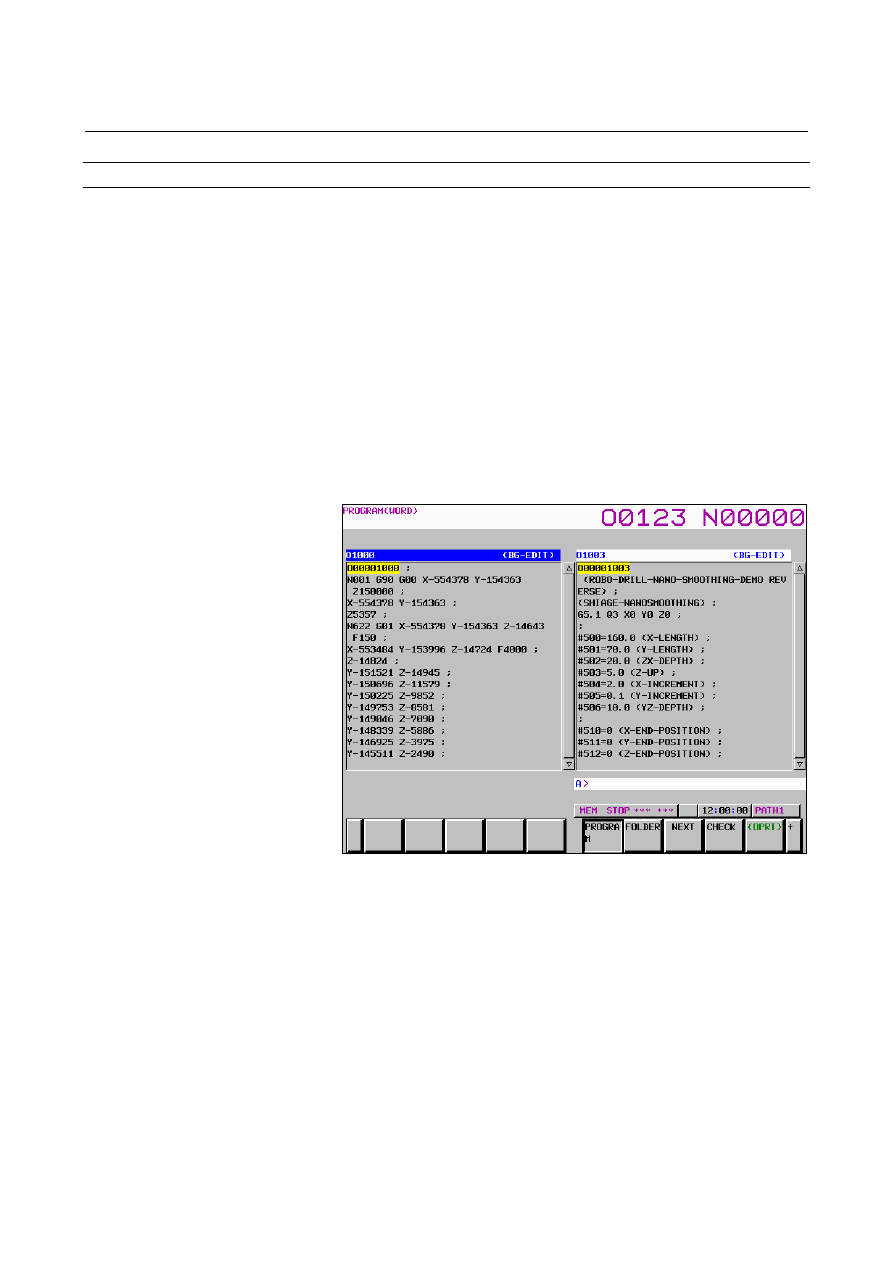
Fig. 12.2.7 (a) shows background word editing performed 
simultaneously for two programs (right and left programs).    On the 
status line at the top of the window for each program, the program 
name and “BG-EDIT” (indicating background editing in progress) are 
displayed. 
The status line of the program being edited is displayed in reverse 
video. 


Fig. 12.2.7 (a) Background editing screen (word editing) (10.4-inch) 


B-63944EN/03

 OPERATION 

12.SETTING AND DISPLAYING DATA


- 1485 - 

 - Character editing 

Fig. 12.2.7 (b) shows background character editing performed 
simultaneously for two programs (right and left programs).    Similarly 
to word editing, at the top of the window for each program, the status 
line is displayed.  In addition, the current input mode (INSERT 
MODE or OVERWRITE MODE) is displayed at the upper right of 
the screen for character editing. 
The status line of the program being edited is displayed in reverse 
video. 


Fig. 12.2.7 (b) Background editing screen (character editing) (10.4-inch) 


 - Editing status 

The following items are displayed on the status line and program 
editing area according to the background editing status. 
 

Editing status 

Displayed items 

No program 

selected 

(BG-EDIT) 

“NO PROGRAM” is displayed in the editing area. 

Program opened 

program-name + (BG-EDIT) 

Read-only program 

opened 

program-name + (BG:READ ONLY) 

The contents of the program are displayed in green. 


12.SETTING AND DISPLAYING DATA

 OPERATION 

B-63944EN/03


- 1486 - 

Starting background editing from the editing screen 

Procedure 

Method 1 
1  Press function key 

Press soft key [PROGRAM].   

Press soft key [(OPRT)], then soft key [BG EDIT]. 

Press soft key [PROGRM SEARCH] to select a program to be 
edited. 

 
Method 2 (only for word editing) 
1  Press function key 

Press soft key [PROGRAM].   

Key in the name of a program to be edited in the background. 

Press soft key [BG EDIT].   

 
When background editing has already started and editing start 
operation is performed again, the program being edited and newly 
specified program are edited simultaneously. 
 

Explanation 

When a program name is input in the key-in buffer, background 
editing for the program starts.  When the specified program is not 
found, a new program is created and background editing starts. 
When background editing is started with no program name specified, 
new background editing starts in the no program state.  Perform a 
program search or create a new program. 
When character editing is selected, background editing starts in the no 
program state first. Perform a program search or create a new 
program. 
 

B-63944EN/03

 OPERATION 

12.SETTING AND DISPLAYING DATA


- 1487 - 

Starting background editing from the program folder screen 

By selecting a program from the program folder screen, background 
editing can be started. The cursor is used to select a program. You do 
not need to enter a program name. 
 

Procedure 

Press function key 

Press soft key [FOLDER].   

Move the cursor to a program to be edited. 

Press the MDI key 

. The screen display is switched to the 

background editing screen. 


Background editing operation 

 - Editing operation 

The same editing operations as performed in the foreground can be 
performed. 
 

  - Switching from a program to another for editing 

To switch from a program to another for editing when editing multiple 
programs simultaneously in the background, press 

 key, then 

 or 


  - Editing operation in the read-only mode 

Cursor movement and page switching are possible.  However, 
program editing is disabled. 
 

  - Copying and pasting text between programs 

Text in a program selected and copied during program editing is kept 
held after the program to be edited is changed.    You can paste text in 
a program onto another program. 
 

12.SETTING AND DISPLAYING DATA

 OPERATION 

B-63944EN/03


- 1488 - 

Background editing end operation 

Background editing can be ended using the procedure described 
below. 
The procedure for ending background editing of one program and that 
for ending all background editing of multiple programs are shown 
below. 
 

  - Ending editing of one program 

Press function key 

Press soft key [PROGRAM].   

Select a program for which to end editing. 

Press soft key [(OPRT)], then soft key [BG END]. 


  - Ending editing of all programs 

Press function key 

Press soft key [PROGRAM].   

Press soft key [(OPRT)], then soft key [BG ALL END]. 

 
To return to ordinary foreground editing, end all background editing. 
If at least one program is being edited in the background, you cannot 
return to foreground editing. 
 

B-63944EN/03

 OPERATION 

12.SETTING AND DISPLAYING DATA


- 1489 - 

12.2.8 

Stamping the Machining Time 

 
The execution times of the most recently executed ten programs can 
be displayed in hours, minutes, and seconds. 
The calculated machining time can be inserted as a comment of the 
program to check the machining time on the program folder screen. 
 

Procedure for stamping the machining time 

Procedure 

  - Displaying the machining time 

Press function key 

Press the continuous menu key 

  several times to display soft 

key [TIME]. 

3  Press soft key [TIME]. The machining time display screen 

appears. 


Fig. 12.2.8 (a) Machining time display screen (10.4-inch) 


  - Calculating the machining time 

Select the memory operation mode, then press the 

 key. 

2  Select the program screen, then select a program of which 

machining time you want to calculate. 

Execute the program to perform actual machining. 

4 When 

the 

  key is pressed or, M02 or M30 is executed, the 

machining time count operation stops.  When the machining 
time display screen is selected, the program number of the 
stopped main program and its machining time are displayed. 

12.SETTING AND DISPLAYING DATA

 OPERATION 

B-63944EN/03


- 1490 - 

The following figure shows the screen when the machining times 
of the ten main programs O0020, O0040, …, and O0200 are 
displayed and the screen when the machining time of O0220 is 
newly calculated after that. 


Fig. 12.2.8 (b) Stamping the machining time (10.4-inch) 


B-63944EN/03

 OPERATION 

12.SETTING AND DISPLAYING DATA


- 1491 - 

Procedure for inserting the machining time on the program screen 

Procedure 

You can display the machining time of a program as a comment of the 
program. The procedure is shown below: 
 
1  To insert the calculated machining time of a program as a 

comment, the machining time of the program must be displayed 
on the machining time display screen. Before stamping the 
machining time of the program, check that the program number 
is displayed on the machining time display screen. 

2  Set the edit mode or background editing state and select the 

program screen. Then, select a program of which machining time 
you want to insert. 

Suppose that the machining time of O0100 is displayed on the 
machining time display screen.   


Press soft key [(OPRT)] to display the operation soft keys.  
Then, press the continuous menu key 

 several times to 

display soft key [INSERT TIME]. Press soft key [INSERT 
TIME]. The beginning of the program is displayed and the 
machining time of the program is inserted after the program 
name. 


Content      ..     189      190      191      192     ..