FANUC Series 30i/300i/300is-MODEL A. Machining Center System. User's manual - page 131
 

  Index      Manuals     FANUC Series 30i/300i/300is-MODEL A. Machining Center System. User's manual (B-63944EN/03)


Search            copyright infringement  


Content      ..     129      130      131      132     ..


FANUC Series 30i/300i/300is-MODEL A. Machining Center System. User's manual - page 131


2.OPERATIONAL DEVICES

 OPERATION 

B-63944EN/03


- 1004 - 

2.1.7 

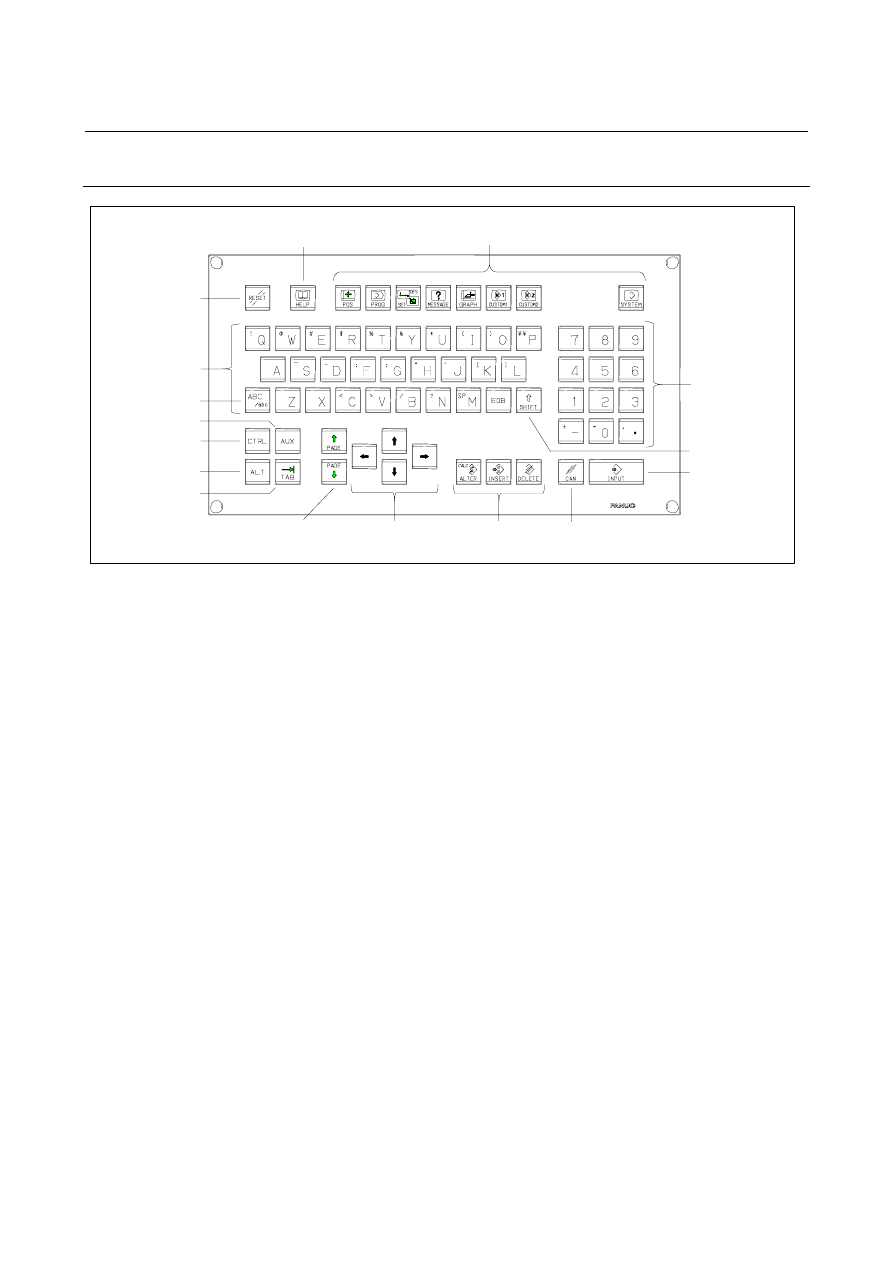
Standard MDI Unit (QWERTY Key) 


Address keys 

Reset key 

Help key 

Uppercase/lowercase 
switch key 

Shift key 

AUX key 

CTRL key 

ALT key 

TAB key 

Page change keys 
(Page key) 

Cursor keys 

Function keys 

Input key 

Cancel (CAN) key 

Edit keys 

Numeric keys 


B-63944EN/03

 OPERATION 

2.OPERATIONAL DEVICES


- 1005 - 

2.1.8 

Small MDI Unit (ONG Key) 


Unit with machining center system 


Reset key 

Help key 

Shift key 

Page change keys 
(Page key) 

Cursor keys 

Function keys 

Edit keys 

Cancel (CAN) key 

Input key 

Address/numeric keys 


Unit with lathe system 

Reset key 

Help key 

Shift key 

Page change keys 
(Page key) 

Cursor keys 

Function keys 

Edit keys 

Cancel (CAN) key 

Input key 

Address/numeric keys 


2.OPERATIONAL DEVICES

 OPERATION 

B-63944EN/03


- 1006 - 

2.2 

OPERATIONAL DEVICES 


Table 2.2 (a)    Explanation of the MDI keyboard 

Number Name 

Explanation 

RESET key 


Press this key to reset the CNC, to cancel an alarm, etc. 

HELP key 


Press this key to use the help function when uncertain about the operation   
of an MDI key (help function). 

3 Soft 

keys 

The soft keys have various functions, according to the Applications. The soft key 
functions are displayed on the display unit. 

Address and numeric keys 


. . . 


Press these keys to input alphabetic, numeric, and other characters. 

SHIFT key 


Some keys have two characters on their keytop.    Pressing the <SHIFT> key 
switches the characters.    Special character ^ is displayed on the screen when a 
character indicated at the bottom right corner on the keytop can be entered. 

INPUT key 


When an address or a numerical key is pressed, the data is input to the buffer, 
and it is displayed on the screen.    To copy the data in the key input buffer to the 

offset register, etc., press the 

  key.    This key is equivalent to the [INPUT] 

key of the soft keys, and either can be pressed to produce the same result. This 
key is also used to move to a folder on the program folder screen. 

CANCEL (CAN) key 


Press this key to delete the last character or symbol input to the key input buffer. 
Example)  When the key input buffer displays 
 >N001X100Z_ 


and the cancel key 

  is pressed, Z is canceled and 

 >N001X100_ 
 is 

displayed. 

Edit keys 


Press these keys when editing the program. 

 : ALTER 

 : INSERT


 : IDELETE

Function keys 


. . . 


Press theses keys to switch display screens for each function. 
See lll-2.3 for details of the function keys. 

10 

Cursor keys 


There are four different cursor move keys. 


: This key is used to move the cursor to the right or in the forward

direction. The cursor is moved in short units in the forward direction. 

:  This key is used to move the cursor to the left or in the reverse direction.

The cursor is moved in short units in the reverse direction. 

:  This key is used to move the cursor in a downward or forward direction.

The cursor is moved in large units in the forward direction. 

: This key is used to move the cursor in an upward or reverse direction.

The cursor is moved in large units in the reverse direction. 

B-63944EN/03

 OPERATION 

2.OPERATIONAL DEVICES


- 1007 - 

Table 2.2 (a)    Explanation of the MDI keyboard 

Number Name 

Explanation 

11 

Page change keys 
(Page keys) 


Two kinds of page change keys are described below. 


12 

Uppercase/lowercase 
switch key 


Press this key to switch between uppercase and lowercase when entering 
alphabetic characters. 

13 

PC function key 


These keys are used with the personal computer function of the 300

i

/300

i

s, 

310

i

/310

i

s, 320

i

/320

i

s. 


Explanation 
  - 15” LCD/MDI soft key configuration 

The 15” LCD panel has 12 soft keys horizontally and 9 soft keys 
vertically. 
As shown below, the 8 vertical soft keys and the lowermost key are 
used as chapter selection soft keys.    By pressing each of these keys, 
the screen (chapter) belonging to each function can be selected.    The 
horizontal 12 soft keys are used to perform operations on the screen 
selected with a vertical soft key. 
For an LCD display with a touch panel, touch a soft key on the screen 
to select it. 

Vertical soft keys

Horizontal soft keys

Displays operations on selected chapter.


In this manual, the descriptions below assume a 10.4" LCD display 
panel with 12 soft keys. 
 

: This key is used to changeover the page on the screen in the forward

direction. 

: This key is used to changeover the page on the screen in the reverse

direction. 

2.OPERATIONAL DEVICES

 OPERATION 

B-63944EN/03


- 1008 - 

  - Key operation with multi-path control 

In the multi-path control, be sure to select the tool post for which data 
is specified, using the path selection switch on the machine operator's 
panel. Then, perform keyboard operation, such as displaying or 
specifying various data items, and editing a program. 


B-63944EN/03

 OPERATION 

2.OPERATIONAL DEVICES


- 1009 - 

2.3 

FUNCTION KEYS AND SOFT KEYS 

 
The function keys are used to select the type of screen (function) to be 
displayed. When a soft key (section select soft key) is pressed 
immediately after a function key, the screen (section) corresponding to 
the selected function can be selected. 
 

2.OPERATIONAL DEVICES

 OPERATION 

B-63944EN/03


- 1010 - 

2.3.1 

General Screen Operations 


 - Procedure 

1  By pressing a function key on the MDI panel, the chapter 

selection soft keys that belong to the function are displayed. 

Example 1) 


When one of the chapter selection soft keys is pressed, the screen 
of the chapter is displayed.    If the soft key of a desired chapter 
is not displayed, press the continuous menu key. 


In a chapter, a further choice may be made from multiple 
chapters. 

 
3  When the screen of a desired chapter is displayed, press the 

operation selection key to display operations to be performed. 


Select a desired operation with the operation selection soft key. 
Depending on the operation to be executed, an auxiliary menu of 
soft keys is displayed.  Perform an operation according to the 
indications on the auxiliary menu. 

Example 2) 


Example 3) 


To return to the display of chapter selection soft keys, press the 
return menu key. 

 
A general screen display procedure is provided above. 
The actual display procedure varies from one screen to another. 
For details, see each description of operation. 
 

Operation selection key

Continuous menu key

Chapter selection soft keys 

Operation selection soft keys 

Return menu key 

Auxiliary menu 

B-63944EN/03

 OPERATION 

2.OPERATIONAL DEVICES


- 1011 - 

  - Button design change depending on soft key state 

The soft keys assume one of the following states, depending on the 
selection target: 


Chapter selection soft keys 


Operation selection soft keys 


Auxiliary menu of operation selection soft keys 

 
Depending on the state, the button images of the soft keys change. 
From the button images, which state the soft keys are assuming can be 
known. 
 
Example) 


Chapter selection soft keys 


Operation selection soft keys 


Auxiliary menu of operation selection soft keys 


Content      ..     129      130      131      132     ..