Network Management System Industrial HiVision 8.2. User Manual (2021) - page 15

References
Tools > Dashboard
Availability class
Designation
Availability in %
Annual downtime
1 (AEC-0)
Conventional
99.0
3.7 days
2 (AEC-1)
Highly reliable
99.9
8.8 hours
3 (AEC-2)
High availability
99.99
52.2 minutes
4 (AEC-3)
Fault resilient
99.999
5.3 minutes
5 (AEC-4)
Fault tolerant
99.9999
32 seconds
6 (AEC-5)
Disaster tolerant
99.99999
3 seconds
Table 48: Availability classes as per AEC
If the calculated availability values do not fulfill your requirements, you can
carry out the following measures, among others, to increase availability:
Set up redundant path
Reduce downtimes by, for example, keeping replacement devices at the
ready
Prerequisites for calculating availability
For Windows operating systems:
To calculate the availability, Industrial HiVision uses Microsoft NET
Framework version 2.0 or higher.
This program is part of the default installation of the Windows
operating systems named in the system requirements.
This software is required for proper calculation of availability on your
network management station.
For Linux operating systems:
Install MONO 2.0.
Check whether these programs are installed on your network
management station.
Note for Debian 6.0 and Ubuntu 12.04 (LTS):
Install libmono2.0-cil and libmono-winforms20-cil.
Before calculating the availability, Industrial HiVision executes the
following checks:
- Are the “MTBF“/“MTTR“ values of every connection greater than 0?
- Does every object (devices, clouds) have the properties “MTBF“/
“MTTR“ and are their values greater than 0?
If Industrial HiVision finds objects with missing specifications, Industrial
HiVision displays them in a window. As soon as you have entered the
required information, you can start the calculation again.
442
References
Tools > Dashboard
If you want to proceed with the calculation even though information is
missing, click the “Use Default Values“ button. In this case, Industrial
HiVision applies the default values wherever entries are missing.
If such objects are missing, you can start the calculation of the availability
by clicking the “Use Default Values“ button. Industrial HiVision then uses
any “MTBF“/“MTTR“ values entered for the calculation, and otherwise the
default “MTBF“/“MTTR“ standard values.
“MTBF“ = 30000 h for devices, 100000 h for connections
“MTTR“ = 24 h for devices and connections
The actual values for the devices/connections differ from these standard
values.
Using standard values allows you for example, to calculate the difference
in the availability of 2 alternative routes.
Prepare calculation of availability
The following example describes how to prepare the calculation of the
availability of a connection between 2 devices.
You can find the MTBF values of the Hirschmann devices in the
installation path of Industrial HiVision under:
/data/doc/MTBF-Products.PDF.
Open the “Map“ tab, at the device level.
To enter the “MTBF“/“MTTR“ values of a connections proceed as
follows:
- Right-click on a connection and select “Properties...“.
- In the dialog, open the “Properties“ tab.
- In the “Availability“ frame, enter the “MTBF“/“MTTR“ values.
- Click the “OK“ button.
Add the user-defined properties “MTBF“, “MTTR“ and “Node Type“ to
the device properties of a device.
- Double-click on one of the two devices of the connection to go one
level deeper in the detail view.
- To add the user-defined properties “MTBF“ and “MTTR“, right-click
an empty space in the detail view.
- Select New > Property.
- In the “New Property“ dialog hold down the “Ctrl” button and click
“MTBF“ and “MTTR“.
- Click the “OK“ button.
- To enter the “MTBF“ value, open the “Properties“ dialog by double-
clicking the “MTBF“ property.
443
References
Tools > Dashboard
- Enter the value in the “Current Value“ field and click the “Write“
button.
- Click the “OK“ button.
- Enter the “MTTR“ value in the same way.
Add the device properties of the other device accordingly.
If either of the devices is a redundantly connected terminal device, then
assign it the property “Node Type“ with the value “End Device“ in the
same way (see above, “MTBF“ and “MTTR“).
As an alternative to individual device configuration, Industrial HiVision
provides the option of MultiConfig™, which has the advantage that both
devices can be configured with the “MTBF“/“MTTR“ properties at the
same time:
Open the “Map“ tab, at the device level.
To enter the “MTBF“/“MTTR“ values of a connection proceed as
follows:
- Right-click on a connection and select MultiConfig™.
- In the MultiConfig™ dialog, select “Container Properties“ in the
menu tree.
You can then find the table with the related connections in the
object frame, and the table for the properties in the function frame.
- In the “Availability“ frame, enter the “MTBF“/“MTTR“ values.
- Click the “Write“ button.
To add the user-defined properties “MTBF“ and “MTTR“ to the
properties of the devices.
- To select both devices, hold down the “Ctrl” button and click on the
devices at both ends of the connection.
- To open the MultiConfig™ dialog, right-click on a selected device
and select “MultiConfig™”.
- In the MultiConfig™ dialog, select Program Settings > New
Property in the menu tree.
You can then find the table with the related devices in the object
frame, and the table for the properties in the function frame.
- To create a new entry for the “MTBF“ value in the table, click the
“New“ button.
- Select the property “MTBF“ and click the “OK“ button.
- To create a new entry for the “MTTR“ value in the table, click the
“New“ button.
444
References
8.13 Tools
- Select the property “MTTR“ and click the “OK“ button.
- Click the “Write“ button.
To open the dialog for entering the “MTBF“ values, open the
“Properties“ tab in the detail display.
- In the “Property“ drop-down list, select the property
"MTBF (Device)".
- Highlight the relevant devices.
- To open the MultiConfig™ dialog, right-click on a selected device
and select „MultiConfig™“.
- To enter the “MTBF“ value, in the menu tree of the MultiConfig™
dialog, open the “Property Value“ dialog.
- In the “Value“ field, enter the “MTBF“ value.
- Click the “Write“ button.
To open the dialog for entering the “MTTR“ values, open the
“Properties“ tab in the detail display.
- In the “Property“ drop-down list, select the property
"MTTR (Device)".
- Highlight the relevant devices.
- To open the MultiConfig™ dialog, right-click on a selected device
and select MultiConfig™“.
- To enter the “MTTR“ value, in the menu tree of the MultiConfig™
dialog, open the “Property Value“ dialog.
- In the “Value“ field, enter the “MTTR“ value.
- Click the “Write“ button.
445
References
8.13 Tools
Calculate Availability
The following example describes how you can calculate the availability
after you made the preparations beforehand.
Open the “Map“ tab, at the device level.
To select the connections of both devices, hold down the “Ctrl” key and
click on both devices at the ends of the connection.
To open the dialog for calculating availability, select Tools >
Calculate Availability in the menu bar.
- If an “MTBF“/“MTTR“ property is missing for some objects, then
Industrial HiVision opens the “Availability“ dialog with a table of the
devices for which these properties are missing. This table also
contains devices for which these properties have the value 0.
Check whether the objects for example, devices or connections, for
which you want to calculate the availability are missing.
- If every object in the “Map“ tab has the “MTBF“/“MTTR“ properties
specified, then Industrial HiVision performs the calculation and
displays the result in th “Availability“ dialog.
In the “Detail frame” of the dialog, Industrial HiVision displays the
paths that Industrial HiVision included in the calculation. To display
the details, mark the “Details“ checkbox.
During the calculation, Industrial HiVision writes details of the availability
calculation in a log file. You can find this log file in the directory
<Installation path>/log/availability. The name of the log file is
made up of the name of the loaded project file and a time stamp.
Note: Availability calculation
Industrial HiVision performs the availability calculation under the
assumption that the devices in the network are transmitting on every port.
Therefore, redundantly connected terminal devices, routing, and VLANs
can corrupt the results. The remedy for redundantly connected devices is
to create the “Node Type“ property in the device and set its value to
“Device”.
Note: Parallel connections
Industrial HiVision combines parallel connections between 2 devices into
1 path to optimize the calculation. The paths appear as a single path in
the list of paths in the dialog and in the log file.
446
References
8.14 Help
8.14 Help
In the “Help“ menu you can find the “Online Help“ and the version information
for this program.
8.14.1 Online Help F1
You can access the “Online Help“ using the “F1” button on your keyboard or
by selecting Help > Online Help.
The “Online Help“ contains the entire contents of the manual, with a table of
contents, contents register, search function, and navigation help.
In the individual dialogs, you click “Help” to go directly to the page of the
manual that relates to the dialog.
8.14.2 Readme
You open the “Readme“ file with Help > Readme. It contains information for
installing Industrial HiVision.
447
References
8.14 Help
8.14.3 Release Notes
You open the “Release Notes“ file with Help > Release Notes. It contains
information on this installed version of Industrial HiVision.
8.14.4 Tutorial
With Help > Tutorial you open an exercise with guidelines for your first
familiarization with Industrial HiVision in the browser. This exercise takes you
through the important and latest functions of Industrial HiVision.
8.14.5 Online
You can find further information under Help > Online.
You can select:
“Hirschmann“
to open the Hirschmann website.
“Customer Innovation Center“
to open the “Customer Innovation Center“ website.
448
References
8.14 Help
“Industrial HiVision“
to open the Industrial HiVision product page on the Hirschmann website.
“Order a License“
to open an order form for ordering a license online for Industrial HiVision
in the browser.
To request the license key, you require:
- the registration code of the product certificate (included in delivery)
- the hardware key (see Configuration > Preferences > Basics >
License).
Industrial HiVision transfers the hardware key automatically when you
call up the ordering page here.
8.14.6 Kernel Info
Under Help > Kernel Info, you can find the information that a service
technician requires for a service task.
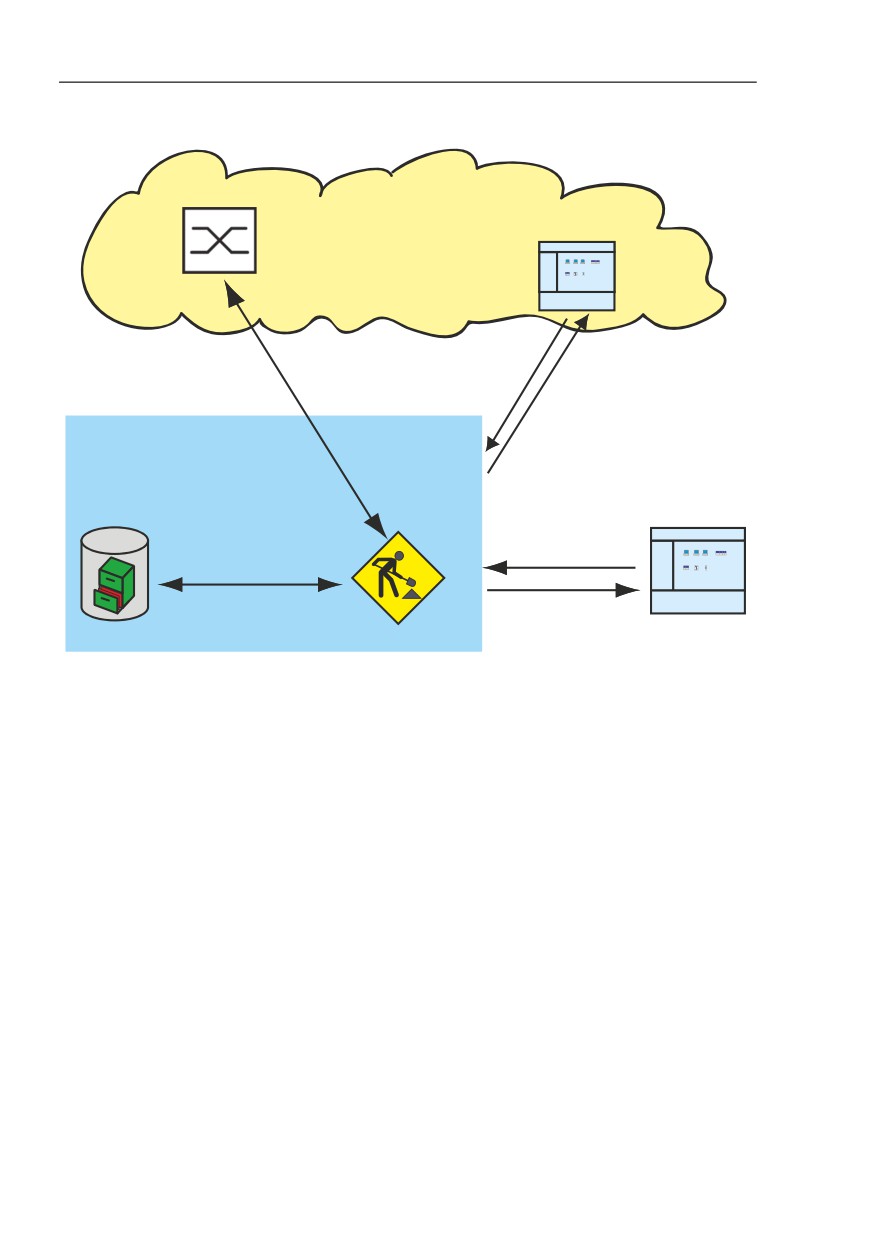
The kernel is the core of the Industrial HiVision application. The purpose of
the kernel is to collect information from the network devices and the user
interface. The kernel saves the information in a database. The user interface
sends a request to the kernel, such as the device status. The kernel retrieves
the information from the database and answers the request.
449
References
8.14 Help
Remote
User interface
Kernel
Configuration
data
read/write
Display
data
Database
Services
User interface
Figure 112:Industrial HiVision Kernel Architecture
8.14.7 About
Program Info
You can find information on the program version and the publisher under
Help > About > Program Info.
450
References
EULA
You will find information on license agreements under Help > About >
EULA
License
You can find information on program licenses under Help > About >
License
451
Appendix
8.14 Help
A Appendix
453
Appendix
A.1 FAQ
A.1
FAQ
Answers to frequently asked questions can be found on the Hirschmann
Industrial HiVision Website:
454

Appendix
A.2 Monitored properties
A.2
Monitored properties
A.2.1
Monitored properties in the basic setting
Properties that Industrial HiVision monitors using traps or polling in the basic
setting you will find in the following table.
Industrial HiVision lists the traps in the event list.
Note: Keep in mind how this affects your system resources (see on page 222
“Effect on system resources”).
Property
Trap
Polling Polling interval
AutoConfiguration Adapter status
x
Fan Status
x
Power Supply Status
x
Relay Status
x
Port Link
x
30 seconds
Port In Load
30 seconds
Port Out Load
30 seconds
Port Admin
x
Port Oper Status
x
WLAN Station
x
**
30 seconds
WLAN access points
x
**
30 seconds
Signal to Noise Ratio
x**
30 seconds
Table 49: Monitored properties
* In the default setting, polling is enabled for ports that have a cable
connection in Industrial HiVision.
** In the default setting, polling is enabled for ports that have a wireless
connection in Industrial HiVision
*** The higher protocol supported by the device
455

Appendix
A.2 Monitored properties
Property
Trap
Polling
Polling interval
Spanning Tree Status
x
30 seconds
Rapid Spanning Tree Status
x
30 seconds
Multiple Spanning Tree Status
x
30 seconds
Protocol Ping Reachability
x
30 seconds
Protocol SNMPv1 Reachability
x***
2 hours
Protocol SNMPv3 Reachability
x***
2 hours
HIPER Ring Status
x
30 seconds
HIPER Ring Coupling Status
x
30 seconds
Dual Homing Status
x
30 seconds
Ring Coupling Enabled
x
Ring Manager Enabled
x
Dual Homing Enabled
x
Router Redundancy Mode
x
Router Redundancy Status
x
Temperature
x
x
5 minutes
Configuration Status
x
x
5 minutes
Configuration Signature
x
1 hour
Configuration File
x
x
24 hours
Http
x
24 hours
Telnet
x
24 hours
SNMP V1/V2
x
24 hours
Tftp
x
24 hours
IEC61850
x
24 hours
Profinet IO
x
24 hours
EtherNet/IP
x
24 hours
Unused Active Ports
x
24 hours
802.1X Port Access Control Enabled
x
24 hours
Outbound ANY Rule
x
24 hours
Inbound ANY Rule
x
24 hours
Table 49: Monitored properties
* In the default setting, polling is enabled for ports that have a cable
connection in Industrial HiVision.
** In the default setting, polling is enabled for ports that have a wireless
connection in Industrial HiVision
*** The higher protocol supported by the device
456

Appendix
A.3 CSV export
A.3
CSV export
If you are working with CSV files across different languages, you require the
corresponding character sets. Industrial HiVision uses the following codes
when exporting data to a CSV file:
Language
Character set
German, English, French,
Latin-8859-1
Spanish, Italian, Portuguese,
Indonesian
Greek
Windows-1253
Korean
Johab
Japanese
Shift-JIS
Chinese
GB2312
Russian
Cyrillic-8859-5
Table 50: Character sets for CSV export
A.3.1
Microsoft Excel before 2010
To import to Microsoft Excel, you choose:
In Excel, choose the menu item
Data:Import External Data:Import Data
Select the file and click “Open”.
In the Text Conversion Assistant - Step 1, choose “Separate” for the
original data type.
In the Text Conversion Assistant - Step 2, choose “Tab stop” and
“Semicolon” as the separators.
457
Appendix
A.3 CSV export
A.3.2
Microsoft Excel 2010
To import to Microsoft Excel, you choose:
In Excel, select the Data:From Text menu item.
Select the file and click “Import”.
In the Text Conversion Assistant - Step 1, choose “Separate” for the
original data type.
In the Text Conversion Assistant - Step 2, choose “Tab stop” and
“Semicolon” as the separators.
In the Text Conversion Assistant - Step 3, choose the “Standard” column
for the data format.
Click “Finish”.
458

Appendix
A.4 Language support
A.4
Language support
Language
User
Online
Manual
Manual
Tutorial
Readme
interface help
(PDF file)
(printed)
German
X
X
X
X
X
X
English
X
X
X
X
X
X
Spanish
X
X
X
French
X
X
X
Italian
X
X
X
Russian
X
Chinese
X
X
X
Korean
X
Japanese
X
Greek
X
Portuguese
X
Indonesian
X
Table 51: Language support
459

Appendix
A.5 Ports used
A.5
Ports used
To communicate between the user interface and the services Industrial
HiVision uses specific protocol ports in your network. The following table
contains the ports and their usages.
When a firewall separates your Industrial HiVision services from a client, add
a rule to the firewall to forward data between the services and client.
See “Using Industrial HiVision with Firewalls” on page 62.
Ports used
Usage
11192
CORBA Naming Service
11193
Traps from demo agent to the Industrial HiVision service
11194
HTTP/HTTPS server
11195
Communication between the interface and service. Industrial HiVision also
uses this port for communication between service and subdomains.
11198
Communication with the OPC DA Server
11196
Communication with the OPC UA HTTP Server
11197
Communication with the OPC UA HTTPS Server
Table 52: Ports used
460
Appendix
A.6 Maintenance
A.6
Maintenance
Hirschmann is continually working on improving and developing their
software. Check regularly whether there is an updated version of the
software that provides you with additional benefits. You find information and
software downloads on the Hirschmann product pages on the Internet.
461
Appendix
Hirschmann “GUI Graphical User
A.7
Literature
Interface” reference manual
references
Hirschmann “Command Line
Interface” reference manual
Hirschmann User Guide “Industry
“Optische Übertragungstechnik
Protocol”
in industrieller Praxis”
Christoph Wrobel (ed.)
Hirschmann Manual “Network
Hüthig Buch Verlag Heidelberg
Management System HiVision”
ISBN 3-7785-2262-0
Hirschmann Manual “HiOPC
Hirschmann Manual
Server Interface”
“Basics of Industrial ETHERNET
and TCP/IP”
280 710-834
“TCP/IP Illustrated”, Vol. 1
W.R. Stevens
Addison Wesley 1994
ISBN 0-201-63346-9
Hirschmann “Installation” user
manual
Hirschmann “Basic
Configuration” user manual
Hirschmann “Redundancy
Configuration” user manual
Hirschmann “Routing
Configuration” user manual
462