Volvo V90 Twin Engine (2020 year). Manual in english - page 7
DISPLAYS AND VOICE CONTROL
129
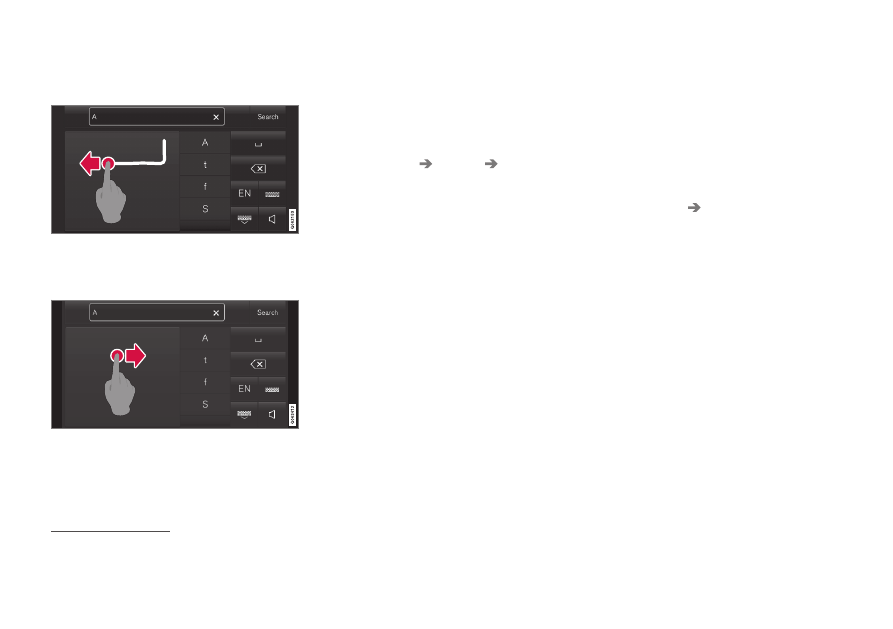
Changing row in the free text field with
handwriting
Change row by hand by drawing the above character
in the handwriting field
13
.
Entering a space in the free text field with
handwriting recognition
Enter a space by drawing a dash from left to right
14
.
Related information
•
Keyboard in centre display (p. 124)
Changing the appearance in the
centre display
The appearance of the screen in the centre
display can be changed by selecting a theme.
1. Press
Settings
in the top view.
2. Press
My Car
Displays
Display
Themes
.
3. Then select a theme, e.g.
Minimalistic
or
Chrome Rings
.
As a supplement to these appearances, it is
possible to choose between
Normal
and
Bright
. With
Normal
, the screen background
is dark and the text is light. This alternative is
the default for all themes. A light variant can
also be selected, in which the background is
light and the text is dark. This alternative can
be useful in e.g. strong daylight.
This alternative is always available for the user
and is not affected by the surrounding lighting.
Related information
•
Other settings in the centre display's top
view (p. 130)
•
Activating and deactivating centre display
(p. 113)
•
Cleaning the centre display (p. 645)
Switching off and changing the
volume of the system sound in the
centre display
The centre display can be used to change the
volume of the system sound or switch off the
system sound altogether.
1. Press
Settings
in the top view in the cen-
tre display.
2. Press
Sound
System Volumes
.
3. Under
Touch Sounds
, drag the control to
change the volume/switch off screen
touch sounds. Drag the control to the
desired volume.
Related information
•
Overview of centre display (p. 107)
•
Other settings in the centre display's top
view (p. 130)
•
13
For Arabic keyboards - draw the same character, but reversed.
14
For Arabic keyboard - draw the dash from right to left.