Volvo V60 Twin Engine (2020 year). Manual in english - page 4
DISPLAYS AND VOICE CONTROL
* Option/accessory.
81
Driver display settings
Settings for the driver display's display
options can be made via the driver display's
application menu and via the centre display's
settings menu.
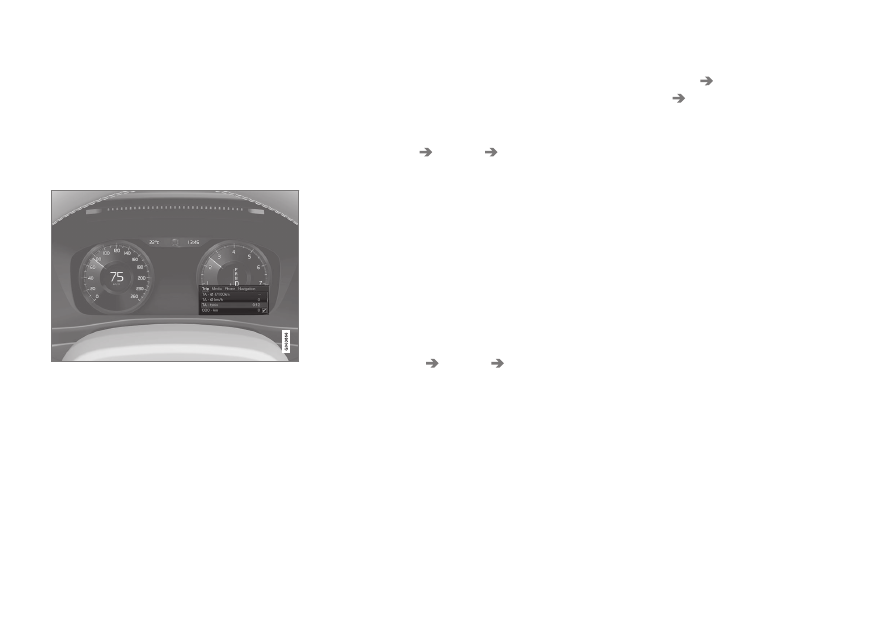
Settings via the driver display's app
menu
The figure is schematic - parts may vary depending
on car model.
The app menu is opened and controlled using
the right-hand keypad on the steering wheel.
In the app menu, you can choose which infor-
mation is shown on the driver display from:
•
trip computer
•
media player
•
phone
•
navigation system
*
.
Settings via the centre display
Selecting information type
1. Tap on
Settings
in the centre display's
top view.
2. Press
My Car
Displays
Driver
Display Information
.
3. Select what should be shown in the back-
ground:
•
Show no information in background
•
Show information for current
playing media
•
Show navigation even if no route is
set
Selecting theme
1. Tap on
Settings
in the centre display's
top view.
2. Tap on
My Car
Displays
Display
Themes
.
3. Select a theme (appearance) for the driver
display:
•
Glass
•
Minimalistic
•
Performance
•
Chrome Rings
Selecting language
1. Tap on
Settings
in the centre display's
top view.
2. Tap on
System
System Languages
and Units
System Language
to select
language.
> A change will affect the language in all
displays.
These settings are personal and are saved
automatically to the active driver profile.
Related information
•
•
Handling the application menu in the
driver display (p. 100)
•