Volkswagen Touareg (2015 year). Instruction - part 23
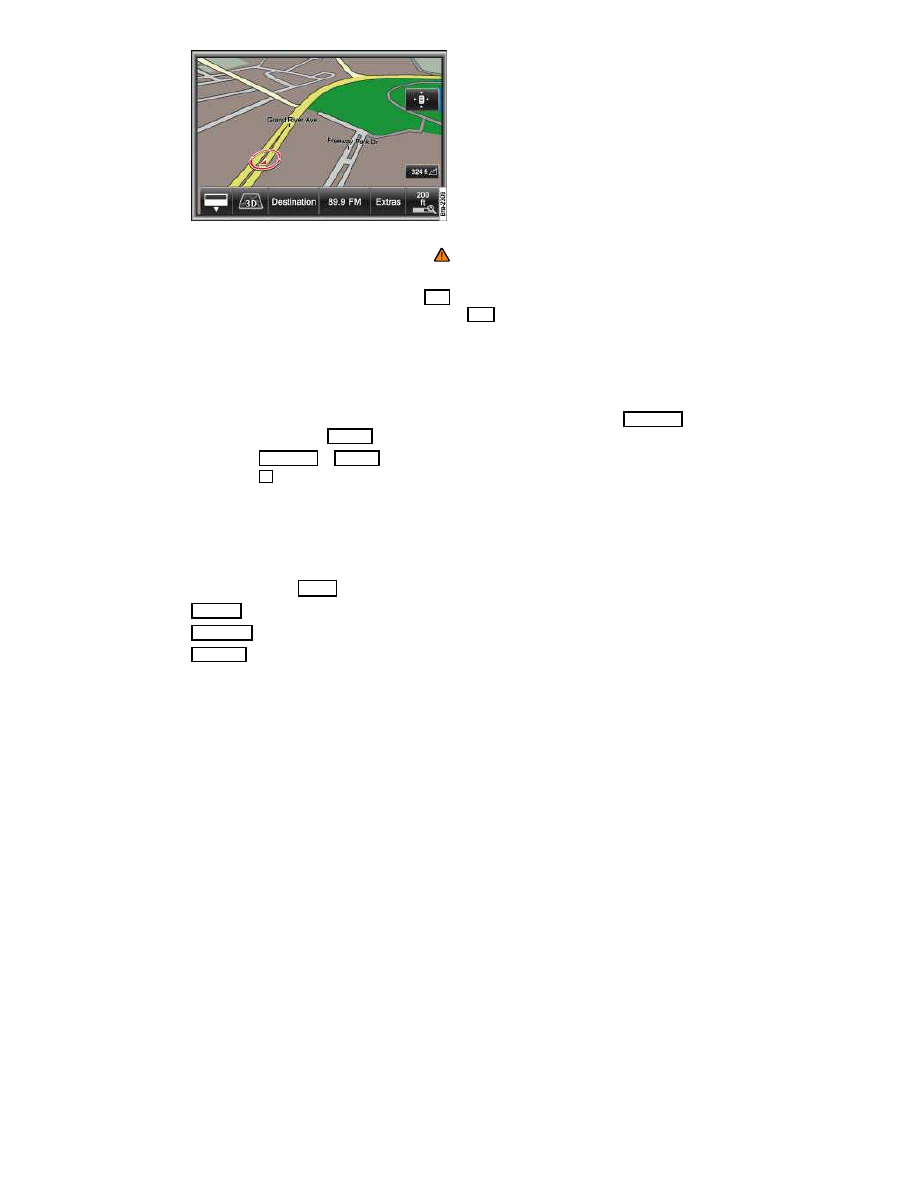
Fig. 224 3D map display moved with vehicle position.
Please first read and heed the WARNINGS
and note the introductory information
The system automatically switches over to the map display when route guidance is started.
To switch manually to the map view, press the
NAV
Infotainment button repeatedly until the map view
is displayed or, in the Navigation main menu, press the MAP function key
⇒
fig. 216
.
The map display is shown with the most recently selected display type
Further screens can be displayed using the split screen
The red vehicle position indicator shows vehicle position and direction of travel. If the symbol
turns gray and the map view “freezes”, it is currently not possible to determine the vehicle's position,
such as in a multi-story parking garage.
During route guidance, the route to be taken is shown as a blue line and instead of the Destination
function key
⇒
fig. 224
, the
... ... function key is displayed
⇒
fig. 223
.
Press the Destination or
... ... function key to switch to the Navigation main menu.
Press the
function key to show or hide the function keys in the bottom line of the screen.
Controlling audio source
The currently selected audio source is displayed in the fourth function key
⇒
fig. 224
.
Press the function key briefly to open a pop-up window for controlling the current audio source.
Some external media sources cannot be controlled.
Available options: Extras function key
Day/night : Changes between day and night design of map view.
Split screen : Shows or hides the split screen
Display off : Switches the display off. To switch on again, press any Infotainment button or touch
screen.