Toyota Sequoia Hybrid (2023 year). Manual in english - page 20
 

  Index      Toyota     Toyota Sequoia Hybrid (2023 year). Manual in english


Search            copyright infringement  


Content      ..     18      19      20      21     ..


Toyota Sequoia Hybrid (2023 year). Manual in english - page 20


320

4-5. Using the driving support systems

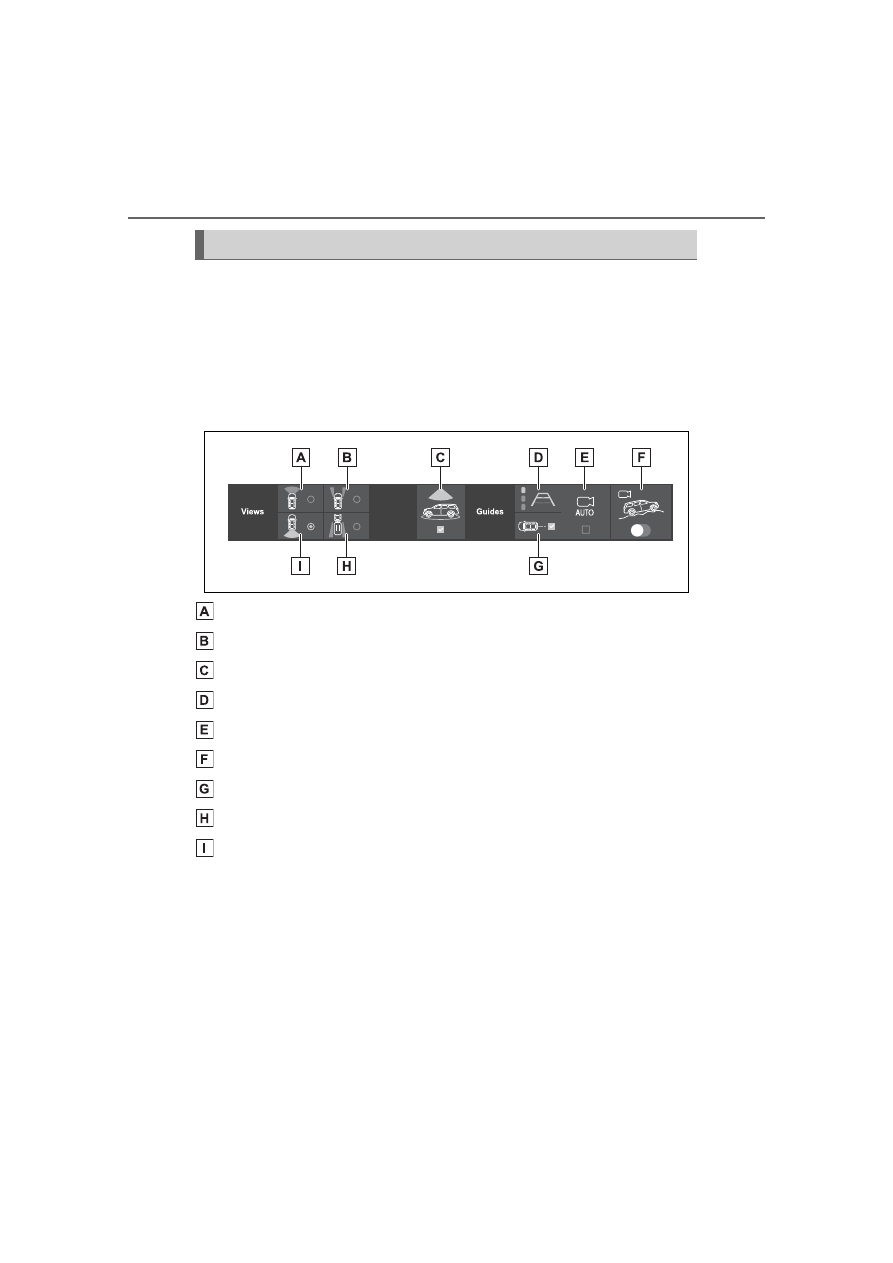
The screens which are displayed from the following buttons can be 
selected. Also, the display can be changed to various screens from 
button combinations.
The button display changes due to the situation of the vehicle, such 
as the screen and speed being displayed, shift position, vehicle 
equipment, etc.

The menu button is displayed when the shift lever is in D, N, or R.

Front view button

Front split view button

Panoramic view on/off button

Guide line select button (

P.327, 332)

Auto mode on/off button (

P.328)

Multi-terrain Monitor on/off button (

P.352)

Center guide line on/off button (

P.332)

Rear split view button

Rear view button

Menu button

321

4-5. Using the driving support systems

4

Dr

iv

ing

When the shift lever is in P.

Moving view

Press 

.

See-through view

Press 

.

When the shift lever is in a posi-
tion other than P.

Panoramic view & front view

Select the front view button and 
then turn ON the panoramic 
view button.

Wide front view

Select the front view button and 
then turn OFF the panoramic 
view button.

Front split view

Select the front split view button.

When the shift lever is in a posi-
tion other than P.

Display

Checking around the vehi-
cle

Checking the front and 
around the vehicle

Checking the rear and 
around the vehicle

322

4-5. Using the driving support systems

Panoramic view & rear view

Select the rear view button and 
then turn ON the panoramic 
view button.

Wide rear view

Select the rear view button and 
then turn OFF the panoramic 
view button.

Rear split view

Select the rear split view button.

The moving view screen and the 
see-through view screen pro-
vide support when checking the 
areas of around the vehicle 
while parking. These screens 
display an image of the vicinity 
of the vehicle combined from the 
4 cameras. The screen will dis-
play a 360° view around the 
vehicle from either inside the 
vehicle or from a birds-eye view 
at an angle.

To display the moving view/see-
through view screen, press 


when the shift lever is in P and 
the intuitive parking assist is 
enabled.

Moving view

Checking around the 
vehicle

Screen display

323

4-5. Using the driving support systems

4

Dr

iv

ing

See-through view

Display mode switching but-
ton

Select to change the display mode 
between the moving view and the 
see-through view.

Rotation pause switch

Select to pause the rotation of the 
screen.

To resume rotation, select 

.

Body color setting switch

Select to display the body color set-
ting screen and change the color of 
the vehicle displayed on the pan-
oramic view monitor. (

P.338)

Pressing 

 on the screen or 


again changes the screen back to 
the previously displayed screen, 
such as the navigation screen.

324

4-5. Using the driving support systems

The panoramic view & front view/wide front view/front split view 
screen provides support when checking the areas in front of the 
vehicle and around the vehicle when taking-off at T-intersections or 
other intersections during poor visibility.

To display the screen, press 

 when the shift lever is in D or N with 

the vehicle moving approximately 10 mph (16 km/h) or less.
This screen will be displayed if the intuitive parking assist detects an 
object in front of your vehicle (intuitive parking assist linked display).

Each time the display mode switching button is selected, the mode 
will change as follows:

Panoramic view & front view

Distance guide lines

Shows distance in front of the vehicle.
• Display points approximately 3 ft. (1 m) from the edge of the bumper.

Intuitive parking assist

When a sensor detects an obstacle, the direction of and the approximate 
distance to the obstacle are displayed and the buzzer sounds.

Estimated course lines

Shows an estimated course when the steering wheel is turned.
• This line will be displayed when the steering wheel is turned by 90° or 

more from the center (straight-line) position.

Guide line switching button

Select to change the guide line mode between the distance guide line mode 
and the estimated course line mode. (

P.327)

Checking the front and around the vehicle

Screen display

325

4-5. Using the driving support systems

4

Dr

iv

ing

Automatic display button

Select to turn automatic display mode on/off. (

P.328)

Display mode switching buttons

The display can be changed to various screens from button combinations.

Wide front view

Distance guide lines

Shows distance in front of the vehicle.
• Display points approximately 3 ft. (1 m) from the edge of the bumper.

Intuitive parking assist

When a sensor detects an obstacle, the direction of and the approximate 
distance to the obstacle are displayed and the buzzer sounds.

Automatic display button

Select to turn automatic display mode on/off. (

P.328)

Display mode switching buttons

The display can be changed to various screens from button combinations.

Front split view

Distance guide lines

Shows distance in front of the vehicle.

326

4-5. Using the driving support systems

• Split view: Display points approximately 1.5 ft. (0.5 m) from the edge of 

the bumper.

• Panoramic view: Display points approximately 3 ft. (1 m) from the edge of 

the bumper.

Vehicle width guide lines

Shows guide lines of the vehicle’s width including the outside rear view mir-
rors.

Front tire guide lines

Shows guide lines of where the front tire touches the ground.

Automatic display button

Select to turn automatic display mode on/off. (

P.328)

Intuitive parking assist

When a sensor detects an obstacle, the direction of and the approximate 
distance to the obstacle are displayed and the buzzer sounds.

Pressing 

 on the screen or 

 changes the screen to the previously 

displayed screen, such as the navigation screen.

For details about the intuitive parking assist (

P.294).

The display position of the intuitive parking assist and the position of 

obstacles displayed in the camera image do not match.

WARNING

When a sensor indicator on the intuitive parking assist display illumi-

nates in red or a buzzer sounds continuously, be sure to check the area 

around the vehicle immediately and do not proceed any further until 

safety has been ensured, otherwise an unexpected accident may occur.

As the intuitive parking assist display is displayed over the camera view, 

it may be difficult to see the intuitive parking assist display depending on 

the color and brightness of the surrounding area.

327

4-5. Using the driving support systems

4

Dr

iv

ing

Each time the guide line switch-
ing button is selected, the mode 
will change as follows:

Distance guide line

Only the distance guide lines 
are displayed.

Estimated course line

Estimated course lines will be 
added to the distance guide 
lines.

The front split view screen dis-
plays images from the cameras 
installed on each outside rear 
view mirror. This screen is 
designed to support the driver in 

safe driving in situations such as 
when driving on a narrow road, 
by allowing them to check the 
areas around the sides of the 
vehicle.

Check the positions and dis-
tance between the vehicle 
width guide line and a target 
object such as the obstacle or 
curb of the road.

Switching the guide line 
mode (panoramic view & 
front view mode)

Using the vehicle width 
guide line (front split view 
mode)

328

4-5. Using the driving support systems

Pull over to the curb as shown 
in the illustration above, tak-
ing care not to let the vehicle 
width guide line overlap the 
target object.

Ensure that the vehicle width 
guide line is parallel to the tar-
get object.

In addition to screen switching 
by operating 

, automatic dis-

play mode is available. In this 
mode, the screen is switched 
automatically in response to 
vehicle speed.

Each time 

 is selected, auto-

matic display mode is 
enabled/disabled.
In automatic display mode, the 

monitor will automatically dis-
play images in the following situ-
ations:

When the shift lever is shifted 
to D or N.

When vehicle speed is 
reduced to approximately 10 
mph (16 km/h) or less.

Automatic display mode

329

4-5. Using the driving support systems

4

Dr

iv

ing

The panoramic view & rear view/wide rear view/rear split view 
screen provide support when checking the areas of behind the vehi-
cle and around the vehicle while backing up, for example while park-
ing.
The screens will be displayed when the shift lever is in R.

Each time the display mode switching button is selected, the mode 
will change as follows:

Panoramic view & rear view

Intuitive parking assist

When a sensor detects an obstacle, the direction of and the approximate 
distance to the obstacle are displayed and the buzzer sounds.

Rear Cross Traffic Alert

When a sensor detects an obstacle, the direction of obstacle is displayed 
and the buzzer sounds.

Guide line switching button

Select to switch the guide line mode. (

P.332)

Display mode switching buttons

The display can be changed to various screens from button combinations.

Center guide line on/off button

Select to on/off the center guide line. (

P.332)

Checking the rear and around the vehicle

Screen display

330

4-5. Using the driving support systems

Wide rear view

Intuitive parking assist

When a sensor detects an obstacle, the direction of and the approximate 
distance to the obstacle are displayed and the buzzer sounds.

Rear Cross Traffic Alert

When a sensor detects an obstacle, the direction of obstacle is displayed 
and the buzzer sounds.

Guide line switching button

Select to switch the guide line mode. (

P.332)

Display mode switching buttons

The display can be changed to various screens from button combinations.

Center guide line on/off button

Select to on/off the center guide line. (

P.332)

Zoom button

Each time press the button, the mode will change between the wide rear 
view mode, narrow rear view mode and hitch view mode. (

P.335)

Rear split view

Intuitive parking assist

When a sensor detects an obstacle, the direction of and the approximate 

331

4-5. Using the driving support systems

4

Dr

iv

ing

distance to the obstacle are displayed and the buzzer sounds.

Rear Cross Traffic Alert

When a sensor detects an obstacle, the direction of obstacle is displayed 
and the buzzer sounds.

Guide line switching button

Select to switch the guide line mode. (

P.332)

Camera angle adjustment (

P.336)

Zoom button (

P.336)

The monitor is canceled when the shift lever is shifted into any position 

other than R.

For details about the intuitive parking assist (

P.294) and Rear Cross 

Traffic Alert function. (

P.301)

The display position of the intuitive parking assist and the position of 

obstacles displayed in the camera image do not match.

WARNING

When a sensor indicator on the intuitive parking assist display illumi-

nates in red or a buzzer sounds continuously, be sure to check the area 

around the vehicle immediately and do not proceed any further until 

safety has been ensured, otherwise an unexpected accident may occur.

As the intuitive parking assist display and Rear Cross Traffic Alert dis-

play are displayed over the camera view, it may be difficult to see the 

intuitive parking assist display and Rear Cross Traffic Alert display 

depending on the color and brightness of the surrounding area.

332

4-5. Using the driving support systems

Each time the guide line switching button is selected, the mode will 
change as follows:

Estimated course line

Estimated course lines are displayed which move in accordance with 
the operation of the steering wheel.

Distance guide lines

Shows distance in front of the vehicle.
• Display points approximately 3 ft. (1 m) from the edge of the bumper.

Estimated course lines

Shows an estimated course when the steering wheel is turned.

Distance guide lines

Shows the distance behind the vehicle when the steering wheel is turned.
• The guide lines move in conjunction with the estimated course lines.
• The guide lines display points approximately 1.5 ft. (0.5 m) (red) and 

approximately 3 ft. (1 m) (yellow) from the center of the edge of the 
bumper.

Distance guide line

Shows the distance behind the vehicle.
• Displays a point approximately 1.5 ft. (0.5 m) (blue) from the edge of the 

bumper.

Vehicle width guide lines

Displays a guide path when the vehicle is being backed straight up.

Vehicle center guide line

Indicates the estimated vehicle center on the ground.

Guide lines displayed on the screen

333

4-5. Using the driving support systems

4

Dr

iv

ing

Parking assist guide line

The steering wheel return points (parking assist guide lines) are dis-
played.
This mode is recommended for those who are comfortable with park-
ing the vehicle without the aid of the estimated course lines.

Distance guide lines

Shows distance in front of the vehicle.
• Display points approximately 3 ft. (1 m) from the edge of the bumper.

Distance guide line

Shows the distance behind the vehicle.
• Displays a point approximately 1.5 ft. (0.5 m) (red) from the edge of the 

bumper.

Vehicle center guide line

Indicates the estimated vehicle center on the ground.

Vehicle width guide lines

Displays a guide path when the vehicle is being backed straight up.

Parking assist guide lines

Shows the path of the smallest turn possible behind the vehicle.

334

4-5. Using the driving support systems

Distance guide line

Only distance guide line is displayed.
This mode is recommended for those who are comfortable with park-
ing the vehicle without the aid of the guide lines.

Distance guide lines

Shows distance in front of the vehicle.
• Display points approximately 3 ft. (1 m) from the edge of the bumper.

Distance guide line

Shows the distance behind the vehicle.
• Displays a point approximately 1.5 ft. (0.5 m) (red) from the edge of the 

bumper.

Center guide line

When the display is turned ON, the center guide line simultaneously 
displays the each of the guide lines for the estimated course line, 
parking assist guide line or distance guide line.
Vehicle center line is displayed which move in accordance with the 
operation of the steering wheel.

Vehicle center guide line

Indicates the estimated vehicle center on the ground.

335

4-5. Using the driving support systems

4

Dr

iv

ing

The display position of the intuitive parking assist and the position of 

obstacles displayed in the camera image do not match.

Each time press the zoom button, the mode will change as follows:

Wide rear view

Narrow rear view

Hitch zoom view

The hitch zoom view can be displayed for a certain time when 

 is 

pressed while the driving at speeds of 10 mph (16 km/h) or more.

WARNING

Depending on the circumstances of the vehicle (number of passengers, 

amount of luggage, etc.), the position of the guide lines displayed on the 

screen may change. Be sure to check visually around the vehicle before 

proceeding.

If the steering wheel is straight and the vehicle width guide lines and the 

estimated course lines are not in alignment, have the vehicle inspected 

by your Toyota dealer.

Do not use the system if the display is incorrect due to an uneven (hilly) 

road or a non-straight (curvy) road.

Changing the rear view mode


Content      ..     18      19      20      21     ..