Toyota Camry Hybrid (2023 year). Manual in english - page 24
 

  Index      Toyota     Toyota Camry Hybrid (2023 year). Manual in english


Search            copyright infringement  


Content      ..     22      23      24      25     ..


Toyota Camry Hybrid (2023 year). Manual in english - page 24


385

5-3. Using the storage features

5

Interio

r features

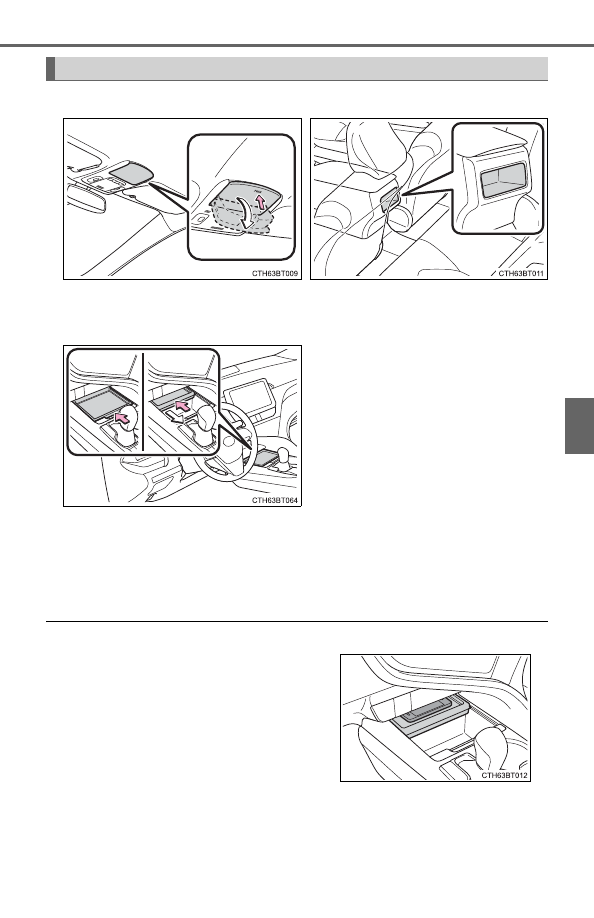
Opening: 
Push the tray forward until it locks. 
Closing: 
Push the tray forward to release the lock and the tray will automati-
cally close.

When small items are placed on top of the tray (type C)

Auxiliary boxes

Type A (if equipped)

Type B (if equipped)

Push the lid.

Type C

The tray can be opened while small items
are placed on it.

386

5-3. Using the storage features

When using wireless charger (if equipped)

P. 392

WARNING

Items unsuitable for storing (type A)

Do not store items heavier than 0.4 lb. (0.2 kg).
Doing so may cause the auxiliary box to open and the items inside may fall
out, resulting in an accident.

NOTICE

When opening or closing the tray (type C)

To prevent damaging small items, when opening the tray while small items
are placed on it, make sure the items will not get caught.

To prevent damaging the tray, do not pull the tray to close it. Doing so may
damage the tray.

Open tray

WARNING

Observe the following precautions when putting items in the open tray. Fail-
ure to do so may cause items to be thrown out of the tray in the event of
sudden  braking  or  steering.  In  these  cases,  the  items  may  interfere  with
pedal operation or cause driver distraction, resulting in an accident.

Do not store items in the tray that can easily shift or roll out.

Do not stack items in the tray higher than the tray’s edge.

Do not put items in the tray that may protrude over the tray’s edge. 

387

5-3. Using the storage features

5

Interio

r features

Trunk features

Grocery bag hooks

NOTICE

To prevent damage to the hooks, do not apply too much load to the hooks.

388

5-4. Other interior features

To  set  the  visor  in  the  forward
position, flip it down.
To set the visor in the side posi-
tion,  flip  down,  unhook,  and
swing it to the side.
To use the side extender, place
the  visor  in  the  side  position,
then slide it backward.

Slide the cover to open.

Vehicles with vanity lights: The light
turns on when the cover is opened.

Vehicles with vanity lights: If the vanity lights remain on for 20 minutes while
the hybrid system is off, the lights will turn off automatically.

Other interior features

Sun visors

1

2

3

Vanity mirrors

389

5-4. Other interior features

5

Interio

r features

Please use as a power supply for electronic goods that use less than
12 VDC/10 A (power consumption of 120 W). 
Open the lid.

The power outlet can be used when

The power switch is in ACCESSORY or ON mode.

When stopping the hybrid system

Disconnect electrical devices with charging functions, such as mobile battery
packs.
If such devices are left connected, the hybrid system may not stop normally.

Power outlet

NOTICE

To avoid damaging the power outlet, close the power outlet lid when it is
not in use. 
Foreign objects or liquids that enter the power outlet may cause a short
circuit.

To prevent 12-volt battery discharge, do not use the power outlet longer
than necessary when the hybrid system is off.

390

5-4. Other interior features

The USB charging ports are used to supply 2.5 A (USB Type-A port)
or 3.0 A (USB Type-C port) of electricity at 5 V to external devices. 
The USB charging ports are for charging only. They are not designed
for data transfer or other purposes.
Depending on the external device, it may not charge properly. Refer to
the  manual  included  with  the  device  before  using  a  USB  charging
port.

Using the USB charging ports

Open  the  console  box  lid  and
open the lid.

The USB charging ports can be used when

The power switch is in ACCESSORY or ON mode.

Situations in which the USB charging ports may not operate correctly

If a device which consumes more than 2.5 A at 5 V (USB Type-A port) or 3.0
A at 5 V (USB Type-C port) is connected

If a device designed to communicate with a personal computer, such as a
USB memory device, is connected

If the connected external device is turned off (depending on device)

If the temperature inside the vehicle is high, such as after the vehicle has
been parked in the sun

About connected external devices

Depending on the connected external device, charging may occasionally be
suspended and then start again. This is not a malfunction.

Cable pass through

USB charging ports

The shape of the console box rim allows
power cables to be passed through when
the console box lid is closed.

391

5-4. Other interior features

5

Interio

r features

NOTICE

To prevent damage to the USB charging ports

Do not insert foreign objects into the ports.

Do not spill water or other liquids into the ports.

When  the USB  charging ports are not  in use,  close the  lids. If a foreign
object or liquid enters a port may cause a short circuit.

Do not apply excessive force to or impact the USB charging ports.

Do not disassemble or modify the USB charging ports.

To prevent damage to external devices

Do not leave external devices in the vehicle. The temperature inside the
vehicle may become high, resulting in damage to an external device.

Do not push down on or apply unnecessary force to an external device or
the cable of an external device while it is connected.

To prevent 12-volt battery discharge

Do not use the USB charging ports for a long period of time with the hybrid
system stopped.

392

5-4. Other interior features

A  portable  device,  such  as  a  smartphone  or  mobile  battery,  can  be
charged by just placing it on the charging area, provided the device is
compatible  with  the  Qi  wireless  charging  standard  created  by  the
Wireless Power Consortium.
The  wireless  charger  cannot  be  used  with  a  portable  device  that  is
larger than the charging area. Additionally, depending on the portable
device,  the  wireless  charger  may  not  operate  properly.  Refer  to  the
operation manual of the portable device.

The “Qi” logo

The “Qi” logo is a trademark of the Wireless Power Consortium.

Name for all parts

Power supply switch
Operation indicator light
Charging tray
Charging area

*

*

: Compatible  portable  devices

and the wireless charger contain
charging coils. The charging coil
inside  the  wireless  charger  can
move within the area around the
center  of  the  charging  tray.
When the charging coil inside a
portable  device  is  detected
within  the  charging  area,  the
charging  coil  in  the  wireless
charger will move near the other
coil  and  charging  will  begin.  If
the charging coil inside the por-
table device is moved out of the
charging  area,  charging  will  be
stopped automatically.

Additionally,  if  2  or  more  portable  devices  are  placed  on  the  charging
tray at the same time, each charging coil may not be detected correctly
and charging may not be possible.

Wireless charger (if equipped)

1

2

3

4

393

5-4. Other interior features

5

Interio

r features

Using the wireless charger

Press  the  power  supply
switch  of  the  wireless  char-
ger.

Pressing  the  switch  again  turns
the wireless charger off.
When  turned  on,  the  operation
indicator light (green) comes on.
When the power switch is turned
off,  the  on/off  state  of  the  wire-
less charger will be memorized.
If  the  power  supply  switch  is  pressed  3  times  while  charging  is  being
performed, the rapid charging function will turn on. To turn the wireless
charger off, press the power supply switch when a portable device is not
being charged.

Place  a  portable  device  on
the charging tray.

Place  the  portable  device  so
that it is centered in the charging
area  with  its  charging  surface
facing  the  portable  charger.
Depending  on  the  portable
device, its charging coil may not
be in the center of the device. In
this  case,  place  the  portable
device so that its charging coil is
centered in the charging area.
While charging, the operation indicator light (orange) will be illuminated.
If  charging  does  not  begin,  move  the  portable  device  as  close  to  the
center of the charging area as possible.
When charging is complete, the operation indicator light (green) will illu-
minate.

Recharging function

If a certain amount of time has elapsed since charging completed
and the portable device has not been moved, the wireless char-
ger will restart charging.

If  a  portable  device  is  moved  significantly  within  the  charging
area, the charging coil may disconnect and charging may tempo-
rarily be stopped. However, if a charging coil is detected within
the charging area, the charging coil inside the wireless charger
will move near the other coil and charging will resume.

1

2

394

5-4. Other interior features

Rapid charging function

Portable devices, such as the following, can be rapidly charged.

• Rapid  charging  capable  devices  which  conform  to  WPC  Ver

1.2.4.

• 7.5 W charging capable iPhones (iPhone 8 and later)

To  turn  the  rapid  charging  function  on,  press  the  power  supply
switch  3  times  while  charging  is  being  performed.  If  rapid
charging is possible, the operation indicator will change from illu-
minated (orange) to alternating between (green) and (orange).

When  charging  is  finished,  the  rapid  charging  function  will  turn
off. To perform rapid charging again, turn the rapid charging func-
tion back on.

Operation indicator light status

*

1

: While in standby, charging power is not output. If a metal object is placed

on the charging tray in this state, the object will not heat up.

*

2

: Depending on the portable device, the operation indicator light may stay

illuminated (orange) after charging has completed.

Operation indicator light

State

Off

The Wireless charger is off

Green (illuminated)

Standby (charging is possible)

*

1

Charging is complete

*

2

Orange (illuminated)

A  portable  device  has  been  placed  on  the
charging  area  (identifying  the  portable
device)

Charging in progress

Illuminated  between  green
and orange alternately

A  portable  device,  such  as  the  following,  is
being rapidly charged
• Rapid charging capable device which con-

forms to WPC Ver 1.2.4.

• 7.5  W charging capable  iPhone  (iPhone 8

and later)

395

5-4. Other interior features

5

Interio

r features

If the operation indicator light blinks
If  an  error  is  detected,  the  operation  indicator  light  will  blink
(orange).  Take  the  appropriate  measures  according  to  the  table
below.

Operation indi-

cator light

Suspected causes

Measure

Continuously
blinks  1  time
per second

Communication  malfunc-
tion  between  the  wire-
less  charger  and  smart
key system

If the hybrid system is oper-
ating,  stop  the  hybrid  sys-
tem and then restart it.
If  the  power  switch  is  in
ACCESSORY  mode,  start
the hybrid system. 
(

P. 206)

Continuously
flashes 3 times
(orange)

Foreign matter detected

If a metallic foreign object is
detected  in  the  charge
area,  the  overheat  preven-
tion function of the charging
coil will operate

Remove  the  foreign  object
from the charge area.

Portable 

device 

not

aligned correctly

If the charging coil of a por-
table device is not properly
positioned  on  the  charging
area,  the  overheat  preven-
tion function of the charging
coil will operate

Remove 

the 

portable

device  from  the  charging
tray,  check  that  the  opera-
tion  indicator  light  changes
back  to  green,  and  then
place  the  portable  device
so that it is near the center
of the charging tray.
Also,  if  a  case  or  cover  is
installed  to  the  portable
device, remove it.

Continuously
flashes 4 times
(orange)

Temperature  inside  wire-
less  charger  exceeded  a
certain amount

Stop  charging,  remove  the
portable  device  from  the
charging  tray,  and  wait  for
the 

temperature 

to

decrease  before  attempt-
ing to begin charging again.

396

5-4. Other interior features

The wireless charger can be operated when

The power switch is in ACCESSORY or ON mode.

Portable devices that can be charged

Portable devices compatible with the Qi wireless charging standard can be
charged  by  the  wireless  charger.  However,  compatibility  with  all  devices
which meet the Qi wireless charging standard is not guaranteed.

The  wireless  charger  is  designed  to  supply  low  power  electricity  (5  W  or
less) to a cellular phone, smartphone, or other portable device.

However, portable devices, such as the following, can be charged with more
than 5 W.
• 7.5 W charging compatible iPhones can be charged at 7.5 W or less.
• Portable devices which conform to WPC Ver 1.2.4 can be charged at 10

W or less.

Using the smart key system

During charging, when the smart key system searches for an electronic key,
charging may be temporarily suspended.

If a cover or accessory is attached to the portable device

Do not charge a portable device if a cover or accessory which is not Qi com-
patible  is  attached.  Depending  on  the  type  of  cover  and/or  accessory
attached, it may not be possible to charge the portable device. If the portable
device is placed on the charging area and does not charge, remove the cover
and/or accessories.

If interference is heard in AM radio broadcasts while charging

Turn off the wireless charger and check if the noise is reduced. If noise is
reduced, press and hold the power supply switch of the wireless charger for
2 seconds. The frequency of the wireless charger is changed and noise may
be  reduced.  When  the  frequency  is  changed,  the  operation  indicator  light
will blink (orange) 2 times.

Rapid  charging  for  iPhones  is  performed  using  a  specific  radio  wave  fre-
quency.
Depending  on  the  version  of  iOS  installed,  while  the  frequency  is  being
changed, rapid charging may not be performed.

Charging precautions

While  charging,  the  wireless  charger  and  the  portable  device  will  become
warm. This is not a malfunction.
If a portable device becomes warm while charging and charging stops due to
the protection function of the portable device, wait until the portable device
cools down and charge it again.
Also,  to  decrease  the  temperature  inside  the  wireless  charger,  a  fan  may
operate. This does not indicate a malfunction.

397

5-4. Other interior features

5

Interio

r features

Sound generated during operation

Operation sounds may be heard when the power supply switch is pressed to
turn the wireless charger on, when the power switch is pressed to change to
ACCESSORY or ON mode while the wireless charger is on, or when a porta-
ble device is being detected. This does not indicate a malfunction.

Situations in which the wireless charger may not operate correctly

In the following situations, the wireless charger may not operate correctly:

When a portable device is fully charged

When a portable device is being charged by a wired connection.

When there is foreign matter between the charging area and portable device

When the temperature of a portable device becomes high while charging

When the temperature near the charging tray is 95°F (35°C) or more due to
being in direct sunlight, etc.

When a portable device is placed with its charging surface facing up

When a portable device is not centered on the charging area

When a portable device is larger than the charging tray

When a foldable portable device is placed outside of the charging area

When the vehicle is near a TV tower, electric power plant, fuel station, radio
station,  large  display,  airport,  or  other  facility  that  generates  strong  radio
waves or electrical noise

When the any of the following objects, with a thickness of 0.08 in. (2 mm) or
more,  are  between  the  charging  surface  of  a  portable  device  and  the
charging area:
• Thick cases or covers
• Thick decorations
• Accessories, such as finger rings, straps, etc.

When the portable device is in contact with, or is covered by any of the fol-
lowing metallic objects:
• Cards covered with metal, such as aluminum foil
• Cigarette boxes that have aluminum foil inside
• Metallic wallets or bags
• Coins
• Heat packs
• Recorded media such as CDs and DVDs
• Metallic decorations
• Metallic cases or covers

When wireless keys (that emit radio waves) other than those of your vehicle
are being used nearby

When  2  or  more  portable  devices  are  placed  on  the  charging  tray  at  the
same time

In situations other than above, if the wireless charger does not operate prop-
erly or the operation indicator light blinks continuously, the wireless charger
may be malfunctioning.
Contact your Toyota dealer.

398

5-4. Other interior features

Cleaning the wireless charger

P. 417

WARNING

Caution while driving

When charging a portable device while driving, for safety reasons, the driver
should not operate the portable device.

Precautions for when driving

Do  not  charge  small,  lightweight  portable  devices,  such  as  wireless  ear-
buds, while driving. Lightweight devices may fly off of the charging tray, pos-
sibly leading to an accident.

Caution regarding interference with electronic devices

People  with  implantable  cardiac  pacemakers,  cardiac  resynchronization
therapy  pacemakers  or  implantable  cardioverter  defibrillators,  as  well  as
any other electrical medical device, should consult their physician about the
usage of the wireless charger.
Operations of the wireless charger may have an affect on medical devices.

399

5-4. Other interior features

5

Interio

r features

WARNING

To prevent damage or burns

Observe the following precautions.
Failure  to  do  so  may  result  in  the  possibility  of  fire,  equipment  failure  or
damage, or burns due to heat.

Do not put any metallic objects between the charging area and the porta-
ble device while charging.

Do not attach metallic objects, such as aluminum stickers, to the charging
area.

Do  not  charge  portable  devices  with  aluminum  stickers  or  other  metallic
objects attached to the side which touches the charging area.

Do not store items on the wireless charger instead of in an auxiliary box.

Do not apply force or impact to the wireless charger.

Do not disassemble, modify or remove the wireless charger.

Do not attempt to charge portable devices which are not compatible with
the Qi wireless charging standard.

Do not allow magnetic objects to come near the wireless charger

Do not perform charging if the charging area is dirty

Do  not  cover  the  wireless  charger  with  a  cloth  or  other  object  while
charging.

400

5-4. Other interior features

NOTICE

To prevent failure or damage to data

Do not place magnetic cards, such as a credit card, or magnetic recording
media, close to the wireless charger while charging. Otherwise, data may
be erased due to the influence of magnetism. 
Additionally,  do  not  bring  precision  instruments  such  as  wrist  watches,
close to the wireless charger, as such objects may malfunction.

Do not perform charging with a contactless smart card, such as  a credit
card, between the charging surface of a portable device and the charging
area. The IC chip in the card may become extremely hot, possibly damag-
ing the portable device or smart card.
Be extra careful to not charge a portable device with a case or cover which
a contactless smart card can be inserted.

Do  not  leave  portable  devices  in  the  cabin.  The  temperature  inside  the
cabin may become high when parked in the sun, and cause damage to the
device.

When the OS of a smartphone has been updated

When  the  OS  version  of  a  smartphone  has  been  changed,  the  charging
specifications  may  have  changed.  If  the  WPC  compatibility  version  is
changed, the rapid charging function may no longer be able to be used. For
details, check for information on the website for the smartphone manufac-
turer.

To prevent 12-volt battery discharge

Do not use the wireless charger for a long period of time with the hybrid sys-
tem stopped.


Content      ..     22      23      24      25     ..