Toyota Corolla Cross (2023 year). Manual in english - page 5
 

  Index      Toyota     Toyota Corolla Cross (2023 year). Manual in english


Search            copyright infringement  


Content      ..     3      4      5      6     ..


Toyota Corolla Cross (2023 year). Manual in english - page 5


77

2-1. Instrument cluster

2

Vehicle

 s

ta

tu

s information an

d in
dicat

or

s

Outside temperature display

In the following situations, the cor-

rect outside temperature may not 

be displayed, or the display may 

take longer than normal to 

change:

• When stopped, or driving at low 

speeds (less than 12 mph [20 

km/h])

• When the outside temperature 

has changed suddenly (at the 

entrance/exit of a garage, tunnel, 

etc.)

When “--” or “E” is displayed, the 

system may be malfunctioning. 

Take your vehicle to your Toyota 

dealer.

Liquid crystal display

P.82

Customization

The gauges and meters can be cus-
tomized in 

 of the multi-informa-

tion display. (

P.449)

Changing the display

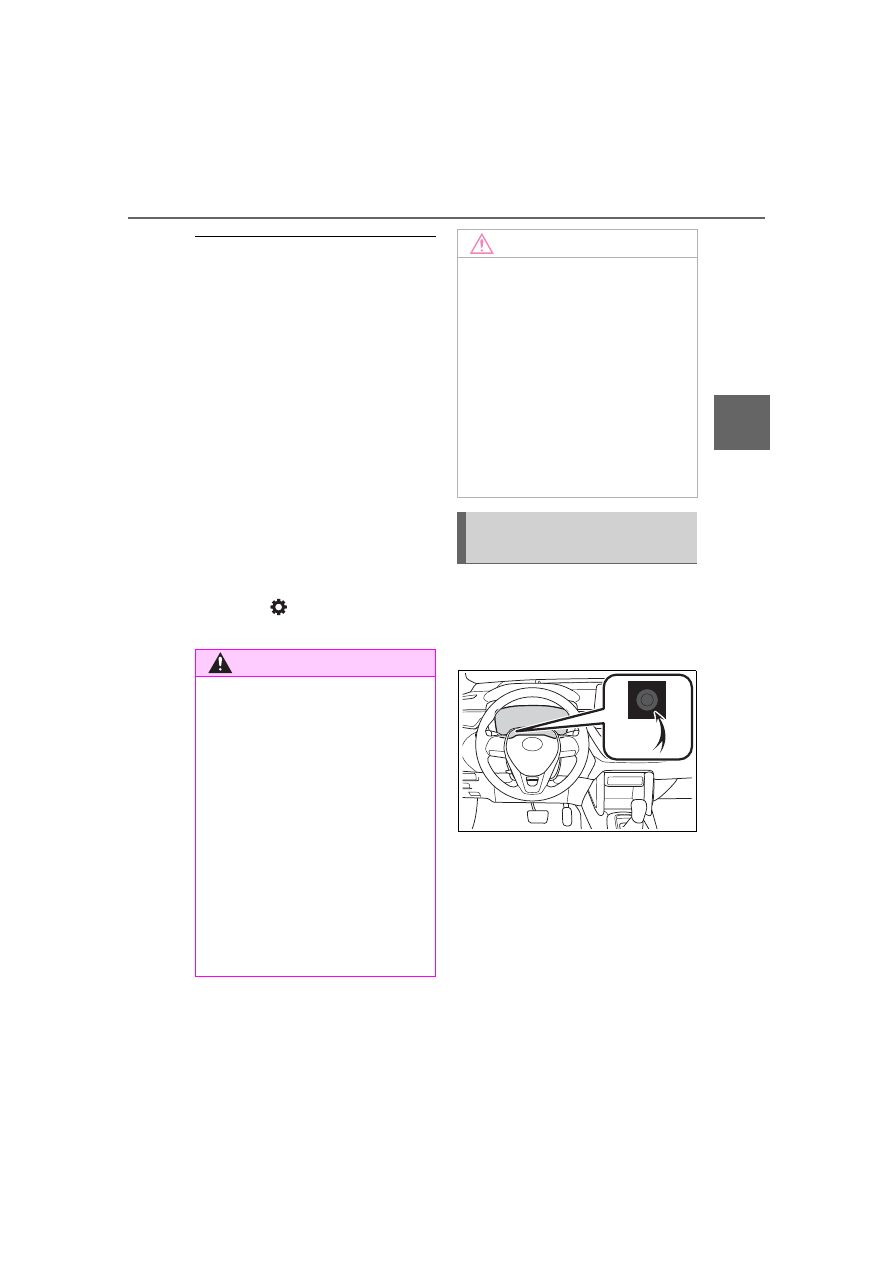
Press the display change button 
until the desired item is dis-
played.

Display items

Odometer

Displays the total distance the vehi-
cle has been driven.

Trip meter A/Trip meter B

Displays the distance the vehicle 
has been driven since the meter 
was last reset. Trip meters A and B 
can be used to record and display 

WARNING

The information display at 

low temperatures

Allow the interior of the vehicle to 

warm up before using the liquid 

crystal information display. At 

extremely low temperatures, the 

information display monitor may 

respond slowly, and display 

changes may be delayed.

For example, there is a lag 

between the driver’s shifting and 

the new gear number appearing 

on the display. This lag could 

cause the driver to downshift 

again, causing rapid and exces-

sive engine braking and possibly 

an accident resulting in death or 

injury.

NOTICE

To prevent damage to the 

engine and its components

Do not let the indicator needle 

of the tachometer enter the red 

zone, which indicates the maxi-

mum engine speed.

The engine may be overheating 

if the engine coolant tempera-

ture gauge is in the red zone 

(H). In this case, immediately 

stop the vehicle in a safe place, 

and check the engine after it 

has cooled completely. 

(

P.423)

Odometer and trip meter 
display

78

2-1. Instrument cluster

different distances independently.
To reset, display the desired trip 
meter and press and hold the dis-
play change button.

The brightness of the instrument 
panel lights can be adjusted.

1

Brighter

2

Darker

Instrument panel light bright-

ness adjustment

The brightness of the instrument 

panel lights can be adjusted sepa-

rately for when the tail lights are on 

and off.

The clocks can be adjusted 
on the audio system 
screen.

Refer to “MULTIMEDIA 
OWNER’S MANUAL”.

Changing the instrument 
panel light brightness

Adjusting the clock

79

2-1. Instrument cluster

2

Vehicle

 statu

s information an

d in
dicator

s

Locations of gauges and meters

The units of measure may differ depending on the intended destination of 
the vehicle.

Engine coolant temperature gauge

Displays the engine coolant temperature

Outside temperature

Displays the outside temperature within the range of -40°F (-40°C) to 140°F 
(60°C)

Analog speedometer/Tachometer

This setting can be changed on the setting screen. (

P.449)

Clock (

P.81)

Fuel gauge

Displays the quantity of fuel remaining in the tank

Odometer and trip meter display (

P.80)

Shift position indicator (

P.168)

Multi-information display

Presents the driver with a variety of vehicle data (

P.82)

Gauges and meters (7-inch display)

Meter display

80

2-1. Instrument cluster

Displays warning messages if a malfunction occurs (

P.401)

Digital speedometer
Display change button (

P.80)

Outside temperature display

In the following situations, the cor-

rect outside temperature may not 

be displayed, or the display may 

take longer than normal to 

change:

• When stopped, or driving at low 

speeds (less than 12 mph [20 

km/h])

• When the outside temperature 

has changed suddenly (at the 

entrance/exit of a garage, tunnel, 

etc.)

When “--” or “E” is displayed, the 

system may be malfunctioning. 

Take your vehicle to your Toyota 

dealer.

Liquid crystal display

P.82

Customization

The gauges and meters can be cus-
tomized in 

 of the multi-informa-

tion display. (

P.86)

Changing the display

Press the display change button 
until the desired item is dis-
played.

WARNING

The information display at 

low temperatures

Allow the interior of the vehicle to 

warm up before using the liquid 

crystal information display. At 

extremely low temperatures, the 

information display monitor may 

respond slowly, and display 

changes may be delayed.

For example, there is a lag 

between the driver’s shifting and 

the new gear number appearing 

on the display. This lag could 

cause the driver to downshift 

again, causing rapid and exces-

sive engine braking and possibly 

an accident resulting in death or 

injury.

NOTICE

To prevent damage to the 

engine and its components

Do not let the indicator needle 

of the tachometer enter the red 

zone, which indicates the maxi-

mum engine speed.

The engine may be overheating 

if the engine coolant tempera-

ture gauge is in the red zone 

(H). In this case, immediately 

stop the vehicle in a safe place, 

and check the engine after it 

has cooled completely. 

(

P.423)

Odometer and trip meter 
display

81

2-1. Instrument cluster

2

Vehicle

 statu

s information an

d in
dicator

s

Display items

Odometer

Displays the total distance the vehi-
cle has been driven.

Trip meter A/Trip meter B

Displays the distance the vehicle 
has been driven since the meter 
was last reset. Trip meters A and B 
can be used to record and display 
different distances independently.
To reset, display the desired trip 
meter and press and hold the dis-
play change button.

The brightness of the instrument 
panel lights can be adjusted.

1

Brighter

2

Darker

Instrument panel light bright-

ness adjustment

The brightness of the instrument 

panel lights can be adjusted sepa-

rately for when the tail lights are on 

and off.

The clocks can be adjusted 
on the audio system 
screen.

Refer to “MULTIMEDIA 
OWNER’S MANUAL”.

Changing the instrument 
panel light brightness

Adjusting the clock

82

2-1. Instrument cluster

Display

Driving support system status 
display area

Displays an image when the follow-
ing systems are operating and a 
menu icon other than 

 is 

selected:
• LTA (Lane Tracing Assist)
• LDA (Lane Departure Alert)
• Dynamic radar cruise control
• RSA (Road Sign Assist) (if 

equipped) (

P.218)

Content display area

By selecting menu icons on the 
multi-information display, a variety 
of driving-related information can 
be displayed. The multi-information 
display can also be used to change 
display settings and other vehicle 
settings.
Warning or advice pop-up displays 
are also displayed in certain situa-
tions.

Menu icons

The menu icons will be dis-
played by pressing the 

 or 


meter control switch.

Liquid crystal display

Small spots or light spots may 

appear on the display. This phenom-

enon is characteristic of liquid crys-

tal displays, and there is no problem 

continuing to use the display.

The multi-information display is 
operated using the meter control 

Multi-information dis-

play (4.2-inch display)

Display and menu icons

Driving information display 
(

P.83)

Driving support system 
information display 
(

P.85)

Audio system-linked dis-
play (

P.85)

Vehicle information dis-
play (

P.85)

Settings display (

P.86)

Warning message display 
(

P.401)

WARNING

Caution for use while driving

When operating the multi-infor-

mation display while driving, 

pay extra attention to the safety 

of the area around the vehicle.

Do not look continuously at the 

multi-information display while 

driving as you may fail to see 

pedestrians, objects on the 

road, etc. ahead of the vehicle.

The information display at 

low temperatures

P.77, 80

Changing the meter dis-
play

83

2-1. Instrument cluster

2

Vehicle

 statu

s information an

d in
dicator

s

switches.

/

: Select menu icons

/

: Change displayed 

content, scroll up/down the 
screen and move the cursor 
up/down
Press: Enter/Set
Press and hold: Reset/Dis-
play customizable items
Return to the previous screen
Call sending/receiving and 
history display

Linked with the hands-free system, 
sending or receiving call is dis-
played. For details regarding the 
hands-free system, refer to the 
“MULTIMEDIA OWNER’S MAN-
UAL”.

Display items

Speedometer display/Driving 
range

Fuel economy

Eco Driving Indicator/Driving 
range

Speedometer display/Driv-
ing range

Speedometer display

Driving range

Displays driving range with remain-
ing fuel. Use the displayed values 
as a reference only.
This distance is computed based 
on your average fuel consumption. 
As a result, the actual distance that 
can be driven may differ from that 
displayed.
When only a small amount of fuel is 
added to the tank, the display may 
not be updated.
When refueling, turn the engine 
switch off. If the vehicle is refueled 
without turning the engine switch 
off, the display may not be updated.

Fuel economy

Use the displayed values as a ref-
erence only.

Average fuel economy (after 
reset)

To reset the average fuel economy 

display, press and hold the 


meter control switch.

Current fuel consumption

Displays instantaneous current fuel 
consumption.

Content of driving infor-
mation

84

2-1. Instrument cluster

Driving range

Displays driving range with remain-
ing fuel.
This distance is computed based 
on your average fuel consumption. 
As a result, the actual distance that 
can be driven may differ from that 
displayed.
When only a small amount of fuel is 
added to the tank, the display may 
not be updated.
When refueling, turn the engine 
switch off. If the vehicle is refueled 
without turning the engine switch 
off, the display may not be updated.

The average fuel economy dis-
play can be changed in 

(

P.86)

Average fuel economy (after 
start)

Displays the average fuel con-
sumption since engine start.

Average fuel economy (after 
refuel)

Displays the average fuel con-
sumption since the vehicle was 
refueled.
To reset the average fuel economy 

display, press and hold the 


meter control switch.

Eco Driving Indicator/Driv-
ing range

Eco Driving Indicator

Eco Driving Indicator Light

During Eco-friendly acceleration 
(Eco driving), the Eco Driving Indi-
cator Light will turn on. When the 
acceleration exceeds the Zone of 
Eco driving, or when the vehicle is 
stopped, the light turns off.

Eco Driving Indicator Zone 
Display

Suggests the Zone of Eco driving 
with current Eco driving ratio based 
on acceleration.

Eco driving ratio based on 
acceleration

If the acceleration exceeds the 
Zone of Eco driving, the right side 
of the Eco Driving Indicator Zone 
Display will illuminate.
At this time, the Eco Driving Indica-
tor Light will turn off.

Zone of Eco driving

Driving range

Displays driving range with remain-
ing fuel. Use the displayed values 
as a reference only.

85

2-1. Instrument cluster

2

Vehicle

 statu

s information an

d in
dicator

s

This distance is computed based 
on your average fuel consumption. 
As a result, the actual distance that 
can be driven may differ from that 
displayed.
When only a small amount of fuel is 
added to the tank, the display may 
not be updated.
When refueling, turn the engine 
switch off. If the vehicle is refueled 
without turning the engine switch 
off, the display may not be updated.

Eco Driving Indicator

Eco Driving Indicator will not oper-

ate under the following conditions:

The shift lever is in any position 

other than D.

The vehicle speed is approxi-

mately 80 mph (130 km/h) or 

higher.

Driving support system 
information

Select to display the operational 
status of the following systems:

LTA (Lane Tracing Assist) 
(

P.208)

LDA (Lane Departure Alert) 
(

P.213)

PCS (Pre-Collision System) 
(

P.198)

Dynamic radar cruise control 
(

P.220)

RSA (Road Sign Assist) (if 
equipped) (

P.218)

Navigation system-linked 
display (if equipped)

Select to display the following 
navigation system-linked infor-
mation:

Route guidance to destination

Compass display (head-
ing-up display)

Select to enable selection of an 
audio source or track on the 
meter using the meter control 
switches.

This menu icon can be set to be 
displayed/not displayed in 

.

Drive information

Displays drive information such as 
the following:

Drive information type
Drive information items

Displays the following depend-
ing on which drive information 

Driving support system 
information display

Audio system-linked dis-
play (if equipped)

Vehicle information dis-
play

86

2-1. Instrument cluster

type and drive information items 
were selected in 

. (

P.86)

After start

• Distance: Displays the distance 

driven since engine start

• Elapsed time: Displays the 

elapsed time since engine start

• Average vehicle speed: Displays 

the average vehicle speed since 
engine start

After reset

• Distance: Displays the distance 

driven since the display was 
reset

*

• Elapsed time: Displays the 

elapsed time since the display 
was reset

*

• Average vehicle speed: Displays 

the average vehicle speed since 
the display was reset

*

*

: To reset, display the desired item 

and press and hold the 


meter control switch.

Tire pressure

P.353

AWD operation status dis-
play (if equipped)

The illustration used is intended as 

an example, and may differ from the 
image that is actually displayed on 
the multi-information display.

Torque distribution display

Displays the drive status of each 
wheel in 6 steps from 0 to 5.

Meter display settings that 
can be changed

Language

Select to change the language dis-
played.

Units

Select to change the units of mea-
sure displayed.

Eco Driving Indicator Light

Select to enable/disable the Eco 
Driving Indicator Light.

Fuel economy display
Select to change the average fuel 
consumption display between after 
start/after reset. (

P.83)

Select to display/not display the 
audio system linked display.

Select to change the displayed con-
tent of the following:
• Drive information type
Select to change the drive informa-
tion type display between after 
start/after reset.
• Drive information items

Settings display

87

2-1. Instrument cluster

2

Vehicle

 s

ta

tu

s information an

d in
dicat

or

s

Select to set the first and second 
items of the drive information dis-
play to any of the following: aver-
age vehicle 
speed/distance/elapsed time.

Pop-up display

Select to enable/disable pop-up 
displays for each relevant system.

Multi-information display off

Select to turn the multi-information 
display off.
To turn the multi-information display 
on again, press any of the following 
meter control switches 

/

/

/

/

/

.

Default setting

Select to reset the meter display 
settings to the default setting.

Vehicle functions and set-
tings that can be changed

P.449

Suspension of the settings dis-

play

Some settings cannot be changed 

while driving. When changing set-

tings, park the vehicle in a safe 

place.

If a warning message is displayed, 

operation of the settings display 

will be suspended.

Stop & Start system opera-
tion status notification

Displays the status of the Stop & 
Start system with a pop-up display. 
(

P.241)

Stop & Start system settings

The length of time of the Stop & 
Start system will operate when the 
“A/C” switch of the air conditioning 
system is on can be set to 2 differ-
ent levels in 

 of the multi-infor-

mation display. (

P.241)

Displays suggestions to the 
driver in the following situations. 

WARNING

Cautions during setting up 

the display

If the engine is running when 

changing the display settings, 

ensure that the vehicle is parked 

in a place with adequate ventila-

tion. In a closed area such as a 

garage, exhaust gases including 

harmful carbon monoxide (CO) 

may collect and enter the vehicle. 

This may lead to death or a seri-

ous health hazard.

NOTICE

During setting up the display

To prevent battery discharge, 

ensure that the engine is running 

while setting up the display fea-

tures.

Stop & Start system infor-
mation

Suggestion function (if 
equipped)

88

2-1. Instrument cluster

To select a response to a dis-
played suggestion, use the 
meter control switches.

Suggestion to enable the 
power back door (if 
equipped)

If the power back door system is 
disabled (setting on 

 set to 

off) and the power back door 
switch on the instrument panel 
is operated, a suggestion mes-
sage will be displayed asking if 
you wish to enable the power 
back door system.
To enable the power back door 
system, select “Yes”.

After enabling the power back door 
system, press the power back door 
switch again to open or close the 
power back door.

Suggestion to turn off the 
headlights

If the headlights are left on for a 
certain amount of time after the 
engine switch has been turned 
off, if the headlight switch is in 
the “AUTO” position, a sugges-
tion message will be displayed 
asking if you wish to turn the 
headlights off.
To turn the headlights off, select 
“Yes”.

If the driver's door is opened after 
the engine switch is turned off, this 
suggestion message will not be dis-
played.

Customization

Some functions can be customized. 

(

P.449)

89

2-1. Instrument cluster

2

Vehicle

 s

ta

tu

s information an

d in
dicat

or

s

Display

Content display area

By selecting menu icons on the 
multi-information display, a variety 
of driving-related information can 
be displayed. The multi-information 
display can also be used to change 
display settings and other vehicle 
settings.
Warning or advice pop-up displays 
are also displayed in certain situa-
tions.

Driving support system status 
display area

Displays an image when the follow-
ing systems are operating and a 
menu icon other than 

 is 

selected:
• LTA (Lane Tracing Assist)
• LDA (Lane Departure Alert)
• Dynamic radar cruise control

Menu icons

The menu icons will be dis-
played by pressing the 

 or 


meter control switch.

Liquid crystal display

Small spots or light spots may 

appear on the display. This phenom-

enon is characteristic of liquid crys-

tal displays, and there is no problem 

continuing to use the display.

The multi-information display is 
operated using the meter control 
switches.

Multi-information dis-

play (7-inch display)

Display and menu icons

Driving information display 
(

P.90)

Driving support system 
information display 
(

P.90)

Audio system-linked dis-
play (if equipped) (

P.90)

Vehicle information dis-
play (

P.90)

Settings display (

P.90)

Warning message display 
(

P.401)

WARNING

Caution for use while driving

When operating the multi-infor-

mation display while driving, 

pay extra attention to the safety 

of the area around the vehicle.

Do not look continuously at the 

multi-information display while 

driving as you may fail to see 

pedestrians, objects on the 

road, etc. ahead of the vehicle.

The information display at 

low temperatures

P.77, 80

Changing the meter dis-
play

90

2-1. Instrument cluster

/

: Select menu icons, 

scroll the screen and move 
the cursor

/

: Change displayed 

content, scroll the screen and 
move the cursor
Press: Enter/Set
Press and hold: Reset/Dis-
play customizable items
Return to the previous screen
Call sending/receiving and 
history display

Linked with the hands-free system, 
sending or receiving call is dis-
played. For details regarding the 
hands-free system, refer to the 
“MULTIMEDIA OWNER’S MAN-
UAL”.

Display items

Fuel economy

Eco Driving Indicator/Driving 
range

Fuel economy

Use the displayed values as a ref-
erence only.

Current fuel consumption

Displays instantaneous current fuel 
consumption.

Average fuel economy (after 
start)

To reset the average fuel economy 

display, press and hold the 


meter control switch.

The average fuel economy dis-
play can be changed in 

(

P.93)

Average fuel economy (after 
start)

Displays the average fuel con-
sumption since engine start.

Average fuel economy (after 
refuel)

Displays the average fuel con-
sumption since the vehicle was 
refueled.

Eco Driving Indicator/Driv-
ing range

Eco Driving Indicator

Content of driving infor-
mation

91

2-1. Instrument cluster

2

Vehicle

 statu

s information an

d in
dicator

s

Eco Driving Indicator Light

During Eco-friendly acceleration 
(Eco driving), the Eco Driving Indi-
cator Light will turn on. When the 
acceleration exceeds the Zone of 
Eco driving, or when the vehicle is 
stopped, the light turns off.

Eco Driving Indicator Zone 
Display

Suggests the Zone of Eco driving 
with current Eco driving ratio based 
on acceleration.

Eco driving ratio based on 
acceleration

If the acceleration exceeds the 
Zone of Eco driving, the right side 
of the Eco Driving Indicator Zone 
Display will illuminate.
At this time, the Eco Driving Indica-
tor Light will turn off.

Zone of Eco driving

Driving range

Displays driving range with remain-
ing fuel. Use the displayed values 
as a reference only.

This distance is computed based 
on your average fuel consumption. 
As a result, the actual distance that 
can be driven may differ from that 
displayed.
When only a small amount of fuel is 
added to the tank, the display may 
not be updated.
When refueling, turn the engine 
switch off. If the vehicle is refueled 
without turning the engine switch 
off, the display may not be updated.

Eco Driving Indicator

Eco Driving Indicator will not oper-

ate under the following conditions:

The shift lever is in any position 

other than D.

The vehicle speed is approxi-

mately 80 mph (130 km/h) or 

higher.

Driving support system 
information

Select to display the operational 
status of the following systems:

Dynamic radar cruise control 
(

P.220)

LTA (Lane Tracing Assist) 
(

P.208)

LDA (Lane Departure Alert) 
(

P.213)

Navigation system-linked 
display (if equipped)

Select to display the following 
navigation system-linked infor-
mation:

Driving support system 
information display

92

2-1. Instrument cluster

Route guidance to destination

Compass display (head-
ing-up display)

Select to enable selection of an 
audio source or track on the 
meter using the meter control 
switches.

This menu icon can be set to be 
displayed/not displayed in 

.

Drive information

Displays drive information such as 
the following:

Drive information 1
Drive information 2

Displays the following depend-
ing on which drive information 
type and drive information items 
were selected in 

. (

P.93)

After start

• Distance: Displays the distance 

driven since engine start

• Elapsed time: Displays the 

elapsed time since engine start

• Average vehicle speed: Displays 

the average vehicle speed since 
engine start

After reset

• Distance: Displays the distance 

driven since the display was 
reset

*

• Elapsed time: Displays the 

elapsed time since the display 
was reset

*

• Average vehicle speed: Displays 

the average vehicle speed since 
the display was reset

*

*

: To reset, display the desired item 

and press and hold the 


meter control switch.

AWD operation status dis-
play (if equipped)

The illustration used is intended as 
an example, and may differ from the 
image that is actually displayed on 
the multi-information display.

Torque distribution display

Displays the drive status of each 
wheel in 6 steps from 0 to 5.

Audio system-linked dis-
play (if equipped)

Vehicle information dis-
play


Content      ..     3      4      5      6     ..