Toyota Corolla Hybrid (2022 year). Manual in english - page 21
 

  Index      Toyota     Toyota Corolla Hybrid (2022 year). Manual in english


Search            copyright infringement  


Content      ..     19      20      21      22     ..


Toyota Corolla Hybrid (2022 year). Manual in english - page 21


342

5-13. Phone operation (Hands-free system for cellular phones)

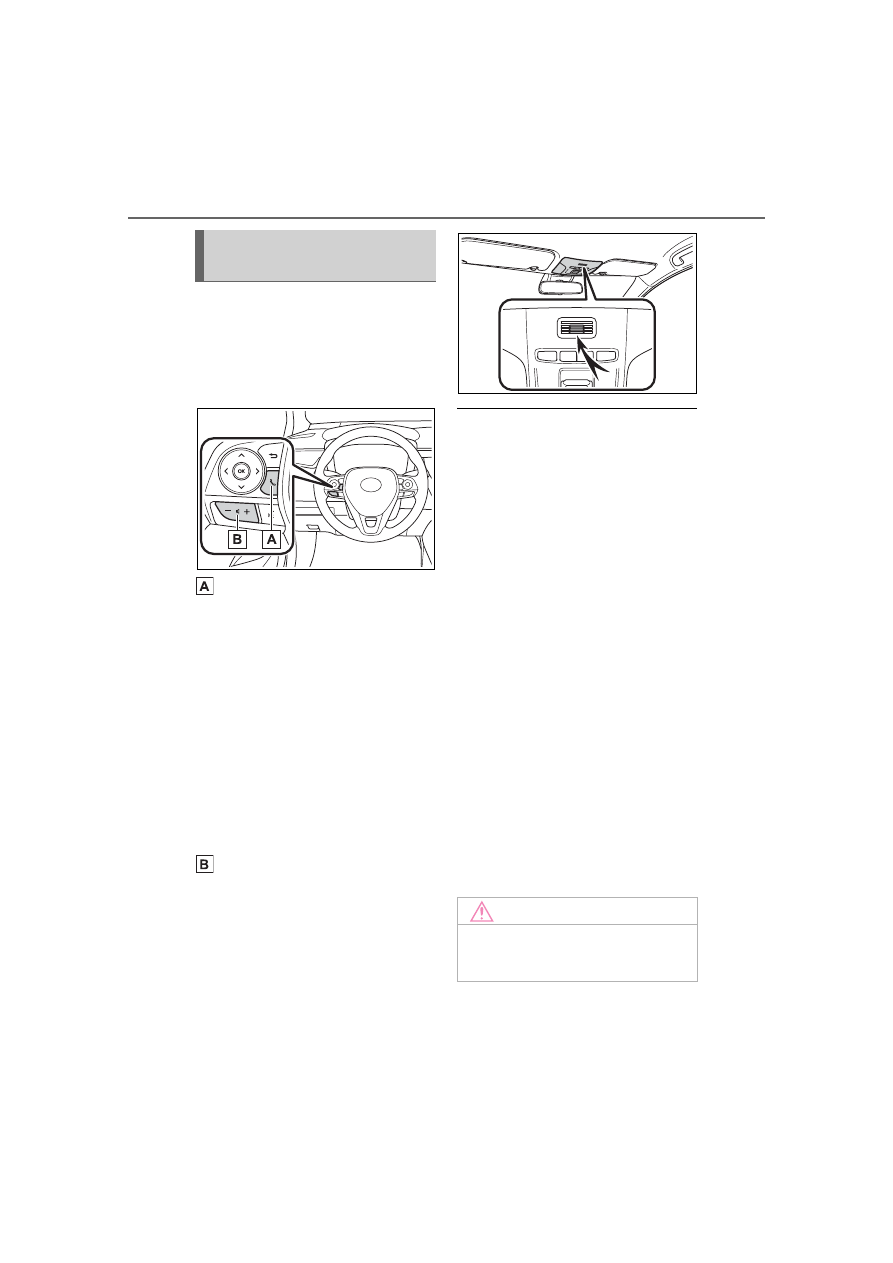
Steering switch

By pressing the phone switch, a 
call can be received or ended 
without taking your hands off the 
steering wheel.

Phone switch

• If the switch is pressed during a 

call, the call will end.

• If the switch is pressed when an 

incoming call is received, the call 
will be answered.

• If the switch is pressed during a 

call when a separate incoming 
call is waiting, the waiting call will 
be answered.

• If the switch is pressed when an 

Apple CarPlay connection is 
established, the Apple CarPlay 
phone application will be dis-
played on the system screen.

Volume control switch

• Press the “+” side to increase the 

volume.

• Press the “-” side to decrease the 

volume.

Microphone

The microphone is used when 
talking on the phone.

The other party’s voice will be 

heard from the front speakers. 

The audio/visual system will be 

muted during phone calls or when 

hands-free voice commands are 

used.

Talk alternately with the other 

party on the phone. If both parties 

speak at the same time, the other 

party may not hear what has been 

said. (This is not a malfunction.)

Keep call volume down. Other-

wise, the other party’s voice may 

be audible outside the vehicle and 

voice echo may increase. When 

talking on the phone, speak 

clearly towards the microphone.

The other party may not hear you 

clearly when:

• Driving on an unpaved road. 

(Making excessive traffic noise.)

• Driving at high speeds.

• The windows are open.

• The air conditioning vents are 

pointed towards the microphone.

• The sound of the air conditioning 

fan is loud.

• There is a negative effect on 

sound quality due to the phone 

and/or network being used.

Using the phone 
switch/microphone

NOTICE

Do not touch and put a sharp 

object to the microphone. It may 

cause failure.

343

5-13. Phone operation (Hands-free system for cellular phones)

5

Audio

Press this switch to operate the 
voice command system.

The voice command system and 
its list of commands can be 
operated. (

P.330)

The following data is stored for 
every registered phone. When 
another phone is connected, the 
following registered data cannot 
be read:

Contact data

Call history data

Favorites data

Image data

All phone settings

Message settings

When a phone’s registration is 

deleted, the above-mentioned data 

is also deleted.

A lot of personal data is regis-
tered when the hands-free sys-
tem is used. When selling or 
disposing of the vehicle, initial-
ize the data. (

P.290)

The following data in the system 
can be initialized:

Contact data

Call history data

Favorites data

Image data

All phone settings

Message settings

Once initialized, the data and set-

tings will be erased. Pay additional 

attention when initializing the data.

Voice command system

About the contacts in the 
contact list

When selling or disposing 
of the vehicle

344

5-13. Phone operation (Hands-free system for cellular phones)

1

Display the phone top 
screen. (

P.339)

2

Select the desired method to 
call from.

Calling methods from 
phone screen

By call history (

P.344)

By favorites (

P.344)

By contacts (

P.345)

By keypad (

P.346)

By message (

P.353)

Also the following lists are 
available from each func-
tion’s screen

By voice command system 
(

P.331)

By home screen (

P.346)

Up to 30 of the latest call history 

items (missed, incoming and 
outgoing) can be selected.

1

Display the phone top 
screen. (

P.339)

2

Select “History” and select 
the desired contact.

If the contact which is not regis-

tered on the contact list is selected, 

the name is displayed as “Unknown 

Contact”. In this case, select the 

number to make a call properly.

3

Check that the dialing screen 
is displayed.

The icons of call type are dis-

played.

: Missed call

: Incoming call

: Outgoing call

When making a call to the same 

number continuously, only the 

most recent call is listed in call his-

tory.

When a phone number registered 

in the contact list is received, the 

name is displayed.

Number-withheld calls are also 

memorized in the system.

International phone calls may not 

be made depending on the type of 
Bluetooth

®

 phone you have.

The list should group together 

consecutive entries with the same 

phone number and same call 

type. For example, two calls from 

John’s mobile would be displayed 

as follows: John (2)

Calls can be made using regis-
tered contacts which can be 

Placing a call using 

the Bluetooth

®


hands-free system

After a Bluetooth

®

 phone 

has been registered, a call 
can be made using the 
hands-free system. There 
are several methods by 
which a call can be made, as 
described below.

Calling methods on the 
Bluetooth

®

 phone

By call history

By favorites list

345

5-13. Phone operation (Hands-free system for cellular phones)

5

Audio

selected from a contact list. 
(

P.345)

1

Display the phone top 
screen. (

P.339)

2

Select “Favorites” and select 
the desired contact.

3

Select the desired number.

4

Check that the dialing screen 
is displayed.

Calls can be made by using 
contact data which is transferred 
from a registered cellular phone. 
(

P.356)

Up to 5000 contacts (maximum 
of 4 phone numbers, e-mail 
addresses and addresses per 
contact) can be registered in the 
contact list.

1

Display the phone top 
screen. (

P.339)

2

Select “Contacts” and select 
the desired contact.

3

Select the desired number.

“Add Favorite”/“Remove Favorite”: 

Select to register/remove the con-

tact in the favorites list. (

P.360, 

361)
“E-mail Addresses”: Select to dis-

play all registered e-mail addresses 

for the contact.
“Addresses”: Select to display all 

registered addresses for the con-

tact.

4

Check that the dialing screen 
is displayed.

For PBAP compatible Blue-
tooth

®

 phones when “Auto-

matic Transfer” is set to on 
(

P.356)

Contacts are transferred auto-
matically.

For PBAP compatible Blue-
tooth

®

 phones when “Auto-

matic Transfer” is set to off 
(

P.356)

1

Select the desired item.

Select to always transfer all 
the contacts from a con-
nected cellular phone auto-
matically.
Select to transfer all the con-
tacts from a connected cellu-
lar phone only once.
Select to cancel transferring.

By contacts list

When the contact list is 
empty

346

5-13. Phone operation (Hands-free system for cellular phones)

2

Check that a confirmation 
screen is displayed when the 
operation is complete.

For PBAP incompatible but 
OPP compatible Blue-
tooth

®

 phones

1

Select the desired item.

Select to transfer the con-
tacts from the connected cel-
lular phone.
Transfer the contact data to 
the system using a Blue-
tooth

®

 phone.

Select to add a new contact 
manually.
Follow the steps in “Register-
ing a new contact to the con-
tacts list” from step 

2

(

P.359)

Select to cancel transferring.

If your cellular phone is neither 

PBAP nor OPP compatible, the 

contacts cannot be transferred 
using Bluetooth

®

. But the contacts 

can be transferred from USB 

device. (

P.359)

Depending on the type of Blue-
tooth

®

 phone:

• It may be necessary to perform 

additional steps on the phone 

when transferring contact data.

• The registered image in the con-

tact list may not transfer depend-
ing on the type of Bluetooth

®


phone connected.

1

Display the phone top 
screen. (

P.339)

2

Select “Keypad” and enter 
the phone number.

3

Select 

 or press the 


switch on the steering wheel.

4

Check that the dialing screen 
is displayed.

Depending on the type of Blue-
tooth

®

 phone being connected, it 

may be necessary to perform addi-

tional steps on the phone.

1

Display the home screen. 
(

P.258)

2

Select the desired contact.

3

Check that the dialing screen 
is displayed.

Registering a new contact

1

Select and hold the screen 
button to add a contact.

2

Select the desired contact.

3

Select the desired number.

If there is no contact in the con-

tacts list, the contacts cannot be 

registered at the home screen.

The contact cannot be registered 

at the home screen while driving.

By keypad

By home screen

347

5-13. Phone operation (Hands-free system for cellular phones)

5

Audio

1

Select “Answer” or press the 

 switch on the steering 

wheel to talk on the phone.

“Decline”: Select to refuse to 
receive the call.
To adjust the volume of a received 
call: Turn the “POWER VOLUME” 
knob, or use the volume control 
switch on the steering wheel.

The contact image picture can be 

displayed only when the vehicle is 

not moving.

During international phone calls, 

the other party’s name or number 

may not be displayed correctly 

depending on the type of Blue-
tooth

®

 phone you have.

The incoming call display mode 

can be set. (

P.355)

The ringtone that has been set in 

the sound settings screen can be 

heard when there is an incoming 

call. Depending on the type of 

Bluetooth

®

 phone, both the sys-

tem and Bluetooth

®

 phone may 

ring simultaneously when there is 

an incoming call. (

P.354)

Receiving a call using 

the Bluetooth

®


hands-free system

When a call is received, the 
following screen is dis-
played with a sound.

Incoming calls

348

5-13. Phone operation (Hands-free system for cellular phones)

Select to display the keypad 
to send tones. (

P.348)

Select to send tones. This 
button only appears when a 
number that contains a (w) is 
dialed in hands-free mode. 
(

P.348)

Select to adjust your voice 
volume that the other party 
hears from their speaker. 
(

P.349)

Select to mute your voice to 
the other party.
Select to change handset 
modes between hands-free 
and cellular phone.
Select to put a call on hold.
To cancel this function, select 

“Activate”.
Select to hang up the phone.

Changing from hands-free call to 

cellular phone call is not possible 

while driving.

Only when the vehicle is not mov-

ing, the contact image can be dis-

played.

When cellular phone call is 

changed to hands-free call, the 

hands-free screen will be dis-

played and its functions can be 

operated on the screen.

Changing between cellular phone 

call and hands-free call can be 

performed by operating the cellu-

lar phone directly.

Transferring methods and opera-

tions will be different depending 

on the type of cellular phone you 

have.

For the operation of the cellular 

phone, see the manual that 

comes with it.

By keypad

This operation cannot be per-
formed while driving.

1

Select “0-9”.

2

Enter the desired number.

By selecting “Release 
Tones”

“Release Tones” appear when a 
continuous tone signal (s) con-
taining a (w) is registered in the 
contact list.
This operation can be per-
formed while driving.
Select “Release Tones”.

Talking on the Blue-

tooth

®

 hands-free sys-

tem

While talking on the phone, 
the following screen is dis-
played. The operations out-
lined below can be 
performed on this screen.

Call screen operation

Sending tones

349

5-13. Phone operation (Hands-free system for cellular phones)

5

Audio

A continuous tone signal is a char-

acter string that consists of num-

bers and the characters “p” or “w”. 

(e.g. 056133w0123p#1)

When the “p” pause tone is used, 

the tone data up until the next 

pause tone will be automatically 

sent after 2 seconds have 

elapsed. When the “w” pause tone 

is used, the tone data up until the 

next pause tone will be automati-

cally sent after a user operation is 

performed.

Release tones can be used when 

automated operation of a phone 

based service such as an answer-

ing machine or bank phone ser-

vice is desired. A phone number 

with continuous tone signals can 

be registered in the contact list.

Tone data after a “w” pause tone 

can be operated by voice com-

mand during a call.

1

Select “Transmit Volume”.

2

Select the desired level for 
the transmit volume.

3

Select 

 to display previ-

ous screen.

The sound quality of the voice 

heard from the other party’s 

speaker may be negatively 

impacted.

“Transmit Volume” is dimmed 

when mute is on.

When there are no calls on 
hold during a call: “Hold” is 
displayed. When selected, the 

current call is placed on hold.

When there is no current call, 
but there is a call on hold: 
“Activate” is displayed. When 
selected, the system switches 
to the call that was on hold.

When there is another call on 
hold during a call: “Swap 
Calls” is displayed. When 
selected, the current call is 
placed on hold, and the sys-
tem switches to the call that 
was on hold.

This function may not be available 

depending on the type of cellular 

phone.

When a call is interrupted by a 
third party while talking, the 
incoming screen is displayed.

Select “Answer” or press the 


switch on the steering wheel to 
start talking with the other party.

To refuse to receive the call: 
Select “Decline”.

Each time “Swap Calls” is 
selected, the party who is on 
hold will be switched.

This function may not be available 
depending on the type of Bluetooth

®


phone.

Transmit volume setting

Switching calls while a 
call is in progress

Incoming call waiting

350

5-13. Phone operation (Hands-free system for cellular phones)

1

Display the phone top 
screen. (

P.339)

2

Select “Message”.

A confirmation message appears 

when the “Automatic Message 

Transfer” function is set to off 

(

P.362), select “Yes”.

3

Check that the message 
screen is displayed.

“Phone”: Select to change to phone 

mode.

The account name is dis-
played on the left side of 
screen.

Account names are the 

names of the accounts that 
exist on the currently con-
nected phone.

The following functions can 
be used on message function:

• Receiving a message 

(

P.350)

• Checking messages 

(

P.351)

• Replying to a message (dicta-

tion reply) (

P.352)

• Replying to a message (quick 

reply) (

P.352)

• Calling the message sender 

(

P.353)

• Message settings (

P.362)

When an e-mail/SMS/MMS is 
received, the incoming message 
screen pops up with sound and 
is ready to be operated on the 
screen.

Select to check the message.
Select to not open the mes-
sage.
Select to call the message 
sender.

Depending on the type of Blue-

Bluetooth

®

 phone 

message function

Received messages can be 
forwarded from the con-
nected Bluetooth

®

 phone, 

enabling checking and 
replying using the system.

Depending on the type of 
Bluetooth

®

 phone con-

nected, received messages 
may not be transferred to 
the system.

If the phone does not sup-
port the message function, 
this function cannot be 
used. Even when the sup-
ported phone is used, reply 
function may not be used.

Displaying the message 
screen

Receiving a message

351

5-13. Phone operation (Hands-free system for cellular phones)

5

Audio

tooth

®

 phone used for receiving 

messages, or its registration sta-

tus with the system, some infor-

mation may not be displayed.

The pop-up screen is separately 

available for incoming e-mail and 

SMS/MMS messages under the 

following conditions:

E-mail:
• “Incoming E-mail Display” is set to 

“Full Screen”. (

P.355)

• “E-mail Notification Pop-up” is set 

to on. (

P.355)

SMS/MMS:
• “Incoming SMS/MMS Display” is 

set to “Full Screen”. (

P.355)

• “SMS/MMS Notification Pop-up” is 

set to on. (

P.355)

Depending on the type of Blue-
tooth

®

 phone being connected, 

E-Mail function cannot be used via 
Bluetooth

®

.

1

Display the message screen. 
(

P.350)

2

Select a desired account 
name.

3

Select the desired message 
from the list.

4

Check that the message is 
displayed.

Select to call the message 

sender.
Select to have messages 
read out.
To cancel this function, select 
“Stop”.
When “Automatic Message 
Readout” is set to on, mes-
sages will be automatically 
read out. (

P.362)

Select to display the previous 
or next message.
This function can be chosen 
the method to reply mes-
sage with “Dictation” or 
“Quick Message”.

Reading a text message is not 

available while driving.

Depending on the type of Blue-
tooth

®

 phone being connected, 

this function cannot be used.

Depending on the type of Blue-
tooth

®

 phone being connected, it 

may be necessary to perform 

additional steps on the phone.

Messages are displayed in the 

appropriate connected Blue-
tooth

®

 phone’s registered mail 

address folder. Select the desired 

folder to be displayed.

Only received messages on the 
connected Bluetooth

®

 phone can 

be displayed.

The text of the message is not dis-

played while driving.

Turn the “POWER VOLUME” 

knob, or use the volume control 

switch on the steering wheel to 

adjust the message read out vol-

ume.

“Subject:” field is not shown on 

SMS case.

E-mail only: Select “Mark Unread” 

Checking received mes-
sages

352

5-13. Phone operation (Hands-free system for cellular phones)

or “Mark Read” to mark mail 

unread or read on the message 

screen.

This function is available when 

“Update Message Read Status on 

Phone” is set to on. (

P.362)

*

: If equipped

1

Display the message screen. 
(

P.350)

2

Select the desired message 
from the list.

3

Select “Reply”.

4

Select “Dictation”.

5

When the “Say Your Mes-
sage” screen is displayed, 
speak message that you 
want to send.

6

Select “Send” to send mes-
sage.

“Cancel”: Select to cancel sending 

the message.
“Retry”: Select to retry speaking 

message that you want to send.
While the message is being sent, a 

sending message screen is dis-

played.

7

Check that a confirmation 
screen is displayed when the 
operation is complete.

If an error message is displayed, 

follow the guidance on the screen 

to try again.

15 messages have already 

been stored.

1

Display the message screen. 
(

P.350)

2

Select the desired message 
from the list.

3

Select “Reply”.

4

Select “Quick Message”.

5

Select the desired message.

: Select to edit the message. 

(

P.352)

6

Select “Send”.

“Cancel”: Select to cancel sending 

the message.
While the message is being sent, a 

sending message screen is dis-

played.

7

Check that a confirmation 
screen is displayed when the 
operation is complete.

If an error message is displayed, 

follow the guidance on the screen 

to try again.

Depending on the type of Blue-
tooth

®

 phone, reply function is not 

available.

Editing quick reply mes-
sages

This operation cannot be per-
formed while driving.

1

Select 

 corresponding to 

the desired message to edit.

2

Select “OK” when editing is 
completed.

To reset the edited quick reply mes-

sages, select “Default”.

Replying to a message 
(dictation reply)

*

Replying to a message 
(quick reply)

353

5-13. Phone operation (Hands-free system for cellular phones)

5

Audio

Calls can be made to an 
e-mail/SMS/MMS message
sender’s phone number.
This operation can be per-
formed while driving.

Calling from
e-mail/SMS/MMS message
display

1

Display the message screen. 
(

P.350)

2

Select the desired message.

3

Select 

, or press the 

switch on the steering wheel.

If there are 2 or more phone num-

bers, select the desired number.

4

Check that the dialing screen 
is displayed.

Calling from a number
within a message

Calls can be made to a number 
identified in a message’s text 
area.
This operation cannot be per-
formed while driving.

1

Display the message screen. 
(

P.350)

2

Select the desired message.

3

Select the text area.

Identified phone numbers con-

tained in the message are dis-

played in blue text.

4

Select the desired number.

5

Check that the dialing screen 
is displayed.

A series of numbers may be recog-

nized as a phone number. Addition-

ally, some phone numbers may not 

be recognized, such as those for 

other countries.

Calling from the incoming
message screen

For detail, refer to “Receiving a 
message”. (

P.350)

Calling the message 
sender

354

5-14. Phone settings

5-14.Phone settings

1

Press the “MENU” button.

2

Select “Setup”.

3

Select “Phone”.

4

Select the desired item to be 
set.

Connecting a Bluetooth

®


device and editing the Blue-
tooth

®

 device information 

(

P.268, 272)

Sound settings

*

 (

P.354)

Notification settings

*

(

P.355)

Contact/call history settings

*

(

P.356)

Message settings

*

 (

P.362)

*

: This operation cannot be per-

formed while driving.

The call and ringtone volume 
can be adjusted. A ringtone can 
be selected.

1

Display the phone settings 
screen. (

P.354)

2

Select “Sounds”.

3

Select the desired item to be 
set.

Select to set the desired ring-
tone.
Select “-” or “+” to adjust the 
ringtone volume.
Select “-” or “+” to adjust the 
default volume of the other 
party’s voice.

Setup

Displaying the phone set-
tings screen

Phone settings screen

Sounds settings screen

355

5-14. Phone settings

5

Audio

Select to set the desired 
incoming e-mail tone.
Select to set the desired 
incoming SMS/MMS tone.
Select “-” or “+” to adjust the 
incoming SMS/MMS tone 
volume.
Select “-” or “+” to adjust the 
incoming e-mail tone volume.
Select “-” or “+” to adjust the 
message readout volume.
Select to reset all setup 
items.

Depending on the type of Blue-
tooth

®

 phone, certain functions may 

not be available.

1

Display the phone settings 
screen. (

P.354)

2

Select “Notifications”.

3

Select the desired item to be 
set.

Select to change the incom-
ing call display.

“Full Screen”: When a call is 
received, the incoming call screen 
is displayed and can be operated 
on the screen.
“Drop-down”: A message is dis-
played at the top of the screen.

Select to set the SMS/MMS 
notification pop-up on/off.
Select to change the incom-
ing SMS/MMS display.
“Full Screen”: When an 
SMS/MMS message is 
received, the incoming 
SMS/MMS display screen is 
displayed and can be oper-
ated on the screen.
“Drop-down”: When an 
SMS/MMS message is 
received, a message is dis-
played at the top of the 

Notifications settings 
screen

356

5-14. Phone settings

screen.
Select to set the e-mail notifi-
cation pop-up on/off.
Select to change the incom-
ing e-mail display.
“Full Screen”: When an 
e-mail is received, the incom-
ing e-mail display screen is 
displayed and can be oper-
ated on the screen.
“Drop-down”: When an 
e-mail is received, a mes-
sage is displayed at the top 
of the screen.
Select to set display of the 
contact/history transfer com-
pletion message on/off.
Select to reset all setup 
items.

Depending on the type of Blue-
tooth

®

 phone, these functions may 

not be available.

Contacts can be transferred 
from a Bluetooth

®

 phone to this 

system. Contacts and favorites 
can be added, edited and 
deleted. Also, the call history 
can be deleted.

1

Display the phone settings 
screen. (

P.354)

2

Select “Contacts/Call His-
tory”.

3

Select the desired item to be 
set.

For PBAP compatible Blue-
tooth

®

 phones: Select to 

change the contact/history 
transfer settings. (

P.357)

Select to update contacts 
from the connected device. 
(

P.357)

Select to sort contacts by the 
first name or last name field.
Select to add contacts to the 
favorites list. (

P.360)

Select to delete contacts 
from the favorites list. 
(

P.360)

Select to clear the call his-
tory.

*

Select to add new contacts to 
the contact list.

*

 (

P.359)

Select to edit contacts in the 

Contacts/Call history set-
tings screen

357

5-14. Phone settings

5

Audio

contact list.

*

 (

P.360)

Select to delete contacts 
from the contact list.

*


(

P.360)

Select to set the voice tags. 
(

P.361)

Select to reset all setup 
items.

*

: For PBAP compatible Bluetooth

®


phones, this function is available 
when “Automatic Transfer” is set 
to off. (

P.357)

Depending on the type of Blue-
tooth

®

 phone, certain functions 

may not be available.

Contact data is managed inde-

pendently for every registered 

phone. When one phone is con-

nected, another phone’s regis-

tered data cannot be read.

The automatic contact/history 
function is available for PBAP 
compatible Bluetooth

®

 phones 

only.

1

Select “Automatic Transfer”.

2

Select the desired item to be 
set.

Select to set automatic con-
tact/history transfer on/off. 
When set to on, the phone’s 
contact data and history are 
automatically transferred.
Select to update contacts 
from the connected phone. 
(

P.357)

Select to set the transferred 
contact image display on/off.
Only when the vehicle is not 
moving, the contact image 
can be displayed.
Select to reset all setup 
items.

Updating contacts from 
phone

1

Select “Update Now”.

Contacts are transferred automati-

cally.

2

Check that a confirmation 
screen is displayed when the 
operation is complete.

This operation may be unnec-
essary depending on the type 
of Bluetooth

®

 phone.

If another Bluetooth

®

 device 

is connected when transfer-
ring contact data, depending 
on the phone, the connected 
Bluetooth

®

 device may need 

to be disconnected.

Depending on the type of 
Bluetooth

®

 phone being con-

nected, it may be necessary 
to perform additional steps on 
the phone.

Setting automatic con-
tact/history transfer


Content      ..     19      20      21      22     ..